Feeling uncertain about what to expect in your upcoming interview? We’ve got you covered! This blog highlights the most important Digital Painting and Illustration (Procreate, SketchBook) interview questions and provides actionable advice to help you stand out as the ideal candidate. Let’s pave the way for your success.
Questions Asked in Digital Painting and Illustration (Procreate, SketchBook) Interview
Q 1. Describe your workflow for creating a digital painting in Procreate.
My Procreate workflow is highly iterative, focusing on building up the painting gradually. I usually start with a rough sketch, laying down the basic composition and pose using a simple brush. Then, I refine the sketch, adding details and correcting any issues in perspective or anatomy. This stage often involves several layers, each refining the previous one. Next, I move to blocking in the values (lights and darks), creating a strong foundation for the colors. I typically use a low opacity brush for this phase to avoid making irreversible decisions. This step helps establish the overall mood and lighting of the piece. After value blocking, I introduce color using either a flat color layer or by gradually blending colors with the chosen brush. I layer in details and textures in following stages. I constantly switch back and forth between value adjustments and color refinements until I achieve the desired look. Finally, I add finishing touches, such as highlights and subtle details, to polish the artwork. It’s crucial to remember this is a fluid process, and I often jump back and forth between steps as needed, depending on what the painting demands.
For example, I might start with the Monoline brush for sketching, then switch to the 6B Pencil for refining. I commonly use the Soft Airbrush for value blocking and the Technical Pen for fine details.
Q 2. Explain your process for creating textures in SketchBook.
Creating textures in SketchBook is all about utilizing a variety of brushes and layer blending modes. I frequently begin with a base layer that is relatively simple and then build texture using other brushes. For instance, I might start with a flat color layer for the base and then use a rough textured brush to create the impression of fabric or skin. A key component to this process is experimenting with different layer blending modes. Multiply or Overlay modes often create realistic looking depth and shadow interactions. I’ll frequently use a combination of custom brushes (I create my own for specific purposes), and the default brushes offered by the program, altering the brush size, opacity, and flow as I go. I also sometimes import images of actual textures to use as layers, adjusting their blending modes and opacity to blend them seamlessly into the illustration.
For example, I might use a spatter brush in Overlay mode on top of a base layer to simulate rough canvas texture, or a noise brush in Multiply mode to suggest a worn surface. I often combine multiple techniques, layering various textures to get a convincing final result.
Q 3. How do you manage layers effectively in your digital painting software?
Effective layer management is paramount in digital painting. My approach centers on a logical and organized system. I often name my layers descriptively (e.g., ‘Sketch,’ ‘Base Colors,’ ‘Shadows,’ ‘Highlights,’ ‘Texture’). I tend to use folders to group related layers, for example, all the layers related to a character’s hair will be contained within a ‘Hair’ folder. This keeps my layer panel clean and avoids having hundreds of individual layers to manage. This organization allows me to easily find and manipulate specific aspects of the image without losing track of my progress. I also frequently use layer masks to make non-destructive edits. For instance, instead of directly painting on a layer to add highlights, I’d create a layer mask on the layer below and paint white on the mask to reveal the highlight. This way, I can adjust and refine the highlight without damaging the original layer. This non-destructive approach allows for far greater flexibility in the painting process.
Q 4. What are your preferred brushes in Procreate and why?
My go-to brushes in Procreate vary depending on the project, but I have some favorites. The Monoline brush is my workhorse for sketching because of its crisp lines and clean look. The 6B Pencil is great for refined sketching and adding details. For painting, I frequently use the Soft Airbrush for smoothly blending colors and the Technical Pen for fine details. The Studio Pen is exceptional for creating textured strokes with greater control. The selection of brushes really depends on the desired effect.
The reason I choose these brushes is their versatility and ability to transition between different stages of the creative process. The soft brushes let me lay down quick base colors and smooth gradients, while the hard-edged brushes are perfect for precision work.
Q 5. How do you handle color palettes and color theory in your illustrations?
Color palettes and color theory are integral to my illustration process. I usually start by defining the overall mood and atmosphere of the piece. This helps me select a base color palette that reflects the desired tone. I often use online tools or physical color palettes for inspiration. After the base palette is set, I look at the relationships between colors and make sure that the colors complement each other. I ensure harmony by using analogous or complementary color schemes. I avoid using too many colors, as it can lead to a muddy or visually distracting final product. I pay attention to color temperature (warm vs. cool) to create depth and interest. Warm colors advance, and cool colors recede, helping to model form effectively.
For example, for a serene piece, I might choose a cool palette dominated by blues and greens. For a more energetic piece, I might choose warmer colors like oranges and reds. I often use color studies before starting the illustration to ensure the colors work well together.
Q 6. Describe your approach to perspective and composition in your artwork.
Perspective and composition are crucial for creating visually engaging artwork. Before I start painting, I carefully plan the composition, ensuring that the key elements are placed strategically to guide the viewer’s eye. I use basic principles of composition, such as the rule of thirds, to create a balanced and dynamic image. I often sketch multiple thumbnails to explore different compositional approaches. For perspective, I rely on understanding one-point, two-point, and three-point perspective techniques. These techniques help me accurately represent depth and spatial relationships within the scene. I use reference images and guides to ensure accuracy. I try to understand the scene’s spatial relationships and then create appropriate vanishing points, even with loose compositions to make the scene believable.
For instance, if I’m drawing a landscape, I might use one-point perspective to create a sense of depth. If I’m drawing a building, I might use two-point perspective to show the sides of the building receding into the distance.
Q 7. What techniques do you use to achieve realistic lighting and shading?
Achieving realistic lighting and shading requires a good understanding of light sources and how they interact with surfaces. I start by identifying the main light source and its direction. Then, I consider how this light affects the forms in my painting. I pay attention to highlights, mid-tones, and shadows. Highlights are the brightest areas where light directly hits the surface. Mid-tones represent the areas that are neither brightly lit nor heavily shadowed. Shadows are the darker areas where light is blocked. I use a combination of techniques to achieve smooth and realistic transitions between these areas. I often employ layer blending modes to seamlessly integrate the light and shadow information into the painting. I blend using various brushes to create a soft transition between shadow and light. I also experiment with different opacity and flow levels for more control. I may use a reference image to ensure accurate light placement and interaction. The level of realism achieved is determined by the effort put into detailing the light and shadows.
Q 8. How do you create believable textures using digital painting tools?
Creating believable textures in digital painting is all about mimicking the real world. We achieve this through a combination of techniques, focusing on manipulating values, color, and brushstrokes to suggest surface properties.
Value Variation: Instead of flat colors, use a range of values (light and dark) to create depth and form. Think of a wooden surface – it has lighter highlights and darker crevices. I often use a combination of hard and soft brushes to create this variation.
Color Variation: Similarly, colors aren’t uniform. A rusty metal surface has variations in browns, oranges, and reds. I experiment with color temperature shifts to add realism.
Brushwork: The choice of brush significantly impacts texture. Rough brushes for coarse surfaces, like stone, while smooth brushes are better for polished surfaces like glass. In Procreate, I frequently use the ‘wet brush’ setting and experiment with opacity to control blending and the appearance of underlying layers. In SketchBook, their customizable brushes offer similar flexibility.
Layer Blending Modes: Using blending modes like ‘Multiply’ or ‘Overlay’ can add subtle depth and texture variations, especially when layering smaller textured elements on top of a base color. For example, a ‘Multiply’ layer with a slightly desaturated brown texture can easily add subtle wood grain to a wooden surface.
Noise and Gradients: Subtle noise layers can add imperfections and realism, mimicking the natural inconsistencies in surfaces. Radial or linear gradients can add subtle variations in color and brightness, suggesting the way light interacts with a curved or flat surface.
For instance, when painting a realistic stone texture, I might start with a base color, then add darker values in the crevices using a rough brush. Then, I’ll add lighter highlights along the edges using a hard brush to create sharp contrast, achieving depth and suggesting the shape of the stone. Finally, I might use a very light noise layer in ‘Overlay’ mode to add a subtle graininess that complements the existing texture.
Q 9. Explain your process for creating a character design.
My character design process is iterative and often starts with simple sketches exploring poses and overall silhouettes. I then refine the design through several stages:
Ideation & Thumbnails: I start with quick sketches to explore different ideas, focusing on the overall look and feel of the character. These are rough, exploring various shapes, clothing styles, and personality traits.
Line Art: Once I’ve settled on a concept, I create a cleaner line drawing, refining the anatomy, clothing, and accessories. This is where I establish the character’s proportions and define key details.
Base Colors: I then add flat base colors to establish the character’s color palette. This helps visualize the overall color scheme and identify any potential color clashes.
Shading and Highlights: This is where the character truly comes alive. I add shading and highlights to define form and volume, using a variety of brushes and blending techniques. This stage significantly contributes to realism and believability.
Details and Refinement: Finally, I add fine details such as textures to the clothing, hair, and skin, refining the overall look. I constantly zoom in and out to ensure everything is balanced and detailed appropriately.
For example, when designing a futuristic warrior, I might initially sketch various weapon ideas and armor styles. After choosing a direction, I’d refine the line art, paying close attention to the flow of the armor plates and the ergonomics of the weapon. In the shading stage, I would use a combination of hard and soft brushes to create sharp edges on the armor and softer transitions on the fabric elements. I might then use a custom brush to add subtle scratches and wear to the armor, further enriching the texture.
Q 10. How do you approach creating a detailed environment painting?
Creating detailed environment paintings requires a strong understanding of perspective, composition, and light. My approach involves several key steps:
Concept & Research: I start by gathering references and developing a solid concept. This might include sketching out the overall layout, identifying key features, and establishing the atmosphere I want to create.
Perspective Sketch: Creating a perspective sketch is crucial for establishing a believable sense of depth and scale. I often use a light pencil sketch in Procreate or Sketchbook to plan out the scene’s elements and their relationships to each other.
Base Colors and Blocking: I then establish the base colors, blocking in large shapes to define the major elements of the environment. This helps me visualize the overall color scheme and composition.
Details & Textures: This is where the detailed work begins. I add textures to the various surfaces, utilizing the techniques mentioned earlier for creating believable textures (value, color, brushwork). This stage involves iteratively refining the details and ensuring visual consistency.
Lighting & Atmosphere: Careful consideration of lighting is key. I use a combination of light sources to create a cohesive mood and highlight important features in the environment. This might include ambient light, direct sunlight, or artificial lighting sources.
Final Refinements: Finally, I add final touches, ensuring that the color balance, contrast, and overall composition are well-balanced and engaging.
For instance, when painting a fantasy forest scene, I might start with a rough sketch to plan the arrangement of trees, rocks, and other elements. I’d then block in the base colors and work on adding detail to the individual trees, rocks, and foliage, ensuring visual consistency through similar shading techniques and color choices. I’d carefully consider the placement of the light source to create depth and highlight the key features of the scene. For example, backlighting certain elements to make them stand out from the foreground.
Q 11. What are your strengths and weaknesses as a digital painter/illustrator?
My strengths lie in creating detailed and realistic textures, and in my ability to convey atmosphere and emotion through light and color. I’m proficient in a range of digital painting techniques and comfortable working in both Procreate and SketchBook. I also possess a strong understanding of composition and perspective.
However, my weakness lies in sometimes getting bogged down in details and losing sight of the overall composition. I am actively working on improving my time management skills and focusing on streamlining my workflow to prevent this.
Q 12. How do you handle constructive criticism of your artwork?
I value constructive criticism as an essential part of my growth as an artist. I approach it with an open mind, focusing on understanding the feedback and identifying areas for improvement. I don’t take criticism personally; instead, I see it as an opportunity to learn and refine my skills. I carefully consider the points made, assessing their validity and how they can be applied to future work.
Sometimes, it’s helpful to take a break from the artwork before addressing the feedback. This helps create emotional distance, allowing for objective analysis. I regularly make notes on feedback received, and attempt to revisit the artwork, implementing adjustments where appropriate.
Q 13. Describe a time you had to overcome a technical challenge in your artwork.
I once had to create a highly detailed environment painting featuring realistic water effects. I struggled to achieve a believable sense of movement and transparency in the water. After extensive research and experimentation, I discovered a technique using multiple layers with varying opacity and blending modes. I started with a base layer of dark blue, then added several layers with lighter blues and greens, each with different opacities. I also used a combination of soft brushes to mimic the reflections of light on the water’s surface and a custom brush to simulate subtle waves.
The key to overcoming this challenge was patience and persistence. I spent several days experimenting with different brushes and techniques before achieving a satisfactory result. This experience taught me the importance of breaking down complex tasks into smaller, manageable steps, and to not be afraid to experiment and iterate until I achieve the desired effect.
Q 14. What software besides Procreate and SketchBook are you proficient in?
Beyond Procreate and SketchBook, I’m proficient in Adobe Photoshop and Clip Studio Paint. Photoshop’s extensive toolset and advanced features, like its robust layer management capabilities and masking tools, are invaluable for intricate projects. Clip Studio Paint’s features, such as its 3D modeling and animation tools, provide a wider range of artistic options that complements my digital painting skills. My expertise across these programs allows me to tailor my workflow to the specific needs of each project.
Q 15. How do you stay up-to-date with the latest trends in digital art?
Staying current in the dynamic world of digital art requires a multi-pronged approach. It’s not just about passively consuming content; it’s about actively engaging with the community and experimenting with new techniques.
- Following Key Influencers and Communities: I regularly follow prominent digital artists on platforms like ArtStation, Instagram, and Behance. These platforms offer a constant stream of inspiring work and insights into current trends. Participating in online art communities, forums, and Discord servers allows for direct interaction and feedback from other artists.
- Attending Workshops and Online Courses: Investing in workshops, online courses, and tutorials from reputable instructors ensures I’m exposed to the latest software updates, techniques, and industry best practices. For example, Skillshare and Udemy offer a wealth of courses on Procreate and SketchBook techniques.
- Experimentation and Self-Learning: I dedicate time to actively experimenting with new brushes, software features, and stylistic approaches. This hands-on approach helps me understand the practical applications of new trends and develop my unique style.
- Analyzing Industry Publications: I keep up-to-date with articles and publications focused on digital art, design, and technology. These resources often highlight emerging trends and technological advancements.
This combination of active engagement and continuous learning allows me to adapt to evolving trends and consistently improve my skills.
Career Expert Tips:
- Ace those interviews! Prepare effectively by reviewing the Top 50 Most Common Interview Questions on ResumeGemini.
- Navigate your job search with confidence! Explore a wide range of Career Tips on ResumeGemini. Learn about common challenges and recommendations to overcome them.
- Craft the perfect resume! Master the Art of Resume Writing with ResumeGemini’s guide. Showcase your unique qualifications and achievements effectively.
- Don’t miss out on holiday savings! Build your dream resume with ResumeGemini’s ATS optimized templates.
Q 16. How do you balance creative freedom with client feedback?
Balancing creative freedom with client feedback is a crucial aspect of successful freelancing. It’s about finding a collaborative space where the client’s vision is met while preserving the integrity of my artistic style.
- Clear Communication: I begin every project with a detailed briefing session to understand the client’s needs, their target audience, and their expectations. Open communication throughout the process is key. I use mood boards, sketches, and style guides to ensure we are on the same page.
- Iterative Process: I present the client with several stages of development, from initial sketches to refined illustrations. This allows for feedback at each phase, enabling adjustments without derailing the overall vision.
- Presenting Options: Sometimes, I offer multiple design variations based on different interpretations of the client’s brief. This gives them choices while still allowing me to showcase my creative input.
- Protecting Artistic Integrity: While feedback is valuable, I also ensure my artistic style and vision aren’t compromised. I tactfully explain my creative choices, suggesting alternatives that satisfy the client’s needs while retaining the desired aesthetic.
For example, a client might request a specific color palette that doesn’t align with my artistic sensibilities. Instead of simply complying, I might offer a slightly modified palette that still meets their needs while feeling more cohesive with my overall style. This collaborative approach leads to positive outcomes for both the client and myself.
Q 17. What’s your experience with digital asset management?
Effective digital asset management is paramount to my workflow. It’s not just about storing files; it’s about organizing them in a way that ensures efficiency and prevents chaos.
- Cloud Storage: I primarily utilize cloud storage services like Dropbox and Google Drive for backing up and sharing my work. The advantage is accessibility from any device and automatic backups.
- Organized File Structure: My file system is meticulously organized by project, client, and file type (e.g., sketches, final artwork, revisions). A clear naming convention (e.g., Project Name_Client Name_Version Number.PSD) helps with quick retrieval.
- Asset Management Software: For larger projects, I use specialized asset management software to catalogue, tag, and search for specific files efficiently. This is crucial for complex collaborations.
- Regular Backups: I perform regular backups, not only to the cloud but also to external hard drives. This redundancy protects against data loss.
This systematic approach ensures that I can quickly locate any asset, regardless of project size or complexity. It also saves a significant amount of time and prevents unnecessary stress. Think of it like a well-organized library – you know exactly where to find the book you need.
Q 18. Describe your familiarity with file formats like PSD, PNG, and JPG.
Understanding file formats is fundamental to digital art. Each format serves a specific purpose and has its own strengths and weaknesses.
- PSD (Photoshop Document): This is a layered, editable file format native to Adobe Photoshop. It’s ideal for preserving layers, allowing for non-destructive editing. PSD files are essential for maintaining flexibility in the creative process.
- PNG (Portable Network Graphics): PNG is a lossless format that supports transparency. It’s suitable for images with sharp details, such as logos and illustrations, where preserving quality is vital. PNGs are generally preferred for web graphics where transparency is needed.
- JPG (JPEG): JPEG is a lossy format; it compresses the image by discarding some data. It’s generally used for photographs and images where a slight loss of quality is acceptable in exchange for smaller file sizes. It’s best avoided for illustrations with sharp lines and text.
Knowing when to use each format is crucial. For instance, I’d save my working file as a PSD, then export copies as PNGs for online use or JPGs for print, depending on the need.
Q 19. Explain your understanding of color profiles and color spaces.
Color profiles and color spaces are crucial for ensuring consistent color across different devices and applications. Misunderstanding them can lead to significant color shifts and inconsistencies.
- Color Spaces: Color spaces define the range of colors that can be represented. Common color spaces include sRGB (standard for the web), Adobe RGB (larger gamut for print), and ProPhoto RGB (even wider gamut for high-end print). The choice of color space depends on the final output. For web graphics, sRGB is typically sufficient. For print, a wider gamut space like Adobe RGB might be preferred.
- Color Profiles: A color profile is a file that describes the color characteristics of a device (monitor, printer) or a specific color space. They provide instructions on how colors should be interpreted and displayed. Properly embedding color profiles ensures that colors look consistent across various devices.
For example, if I create an artwork in Adobe RGB and intend to print it, I must ensure my printer profile accurately reflects the color space. If not, the printed image will not match the on-screen preview. I typically work in Adobe RGB and convert to sRGB for web projects.
Q 20. How do you optimize your artwork for different platforms and resolutions?
Optimizing artwork for different platforms and resolutions involves understanding the target audience and their devices’ capabilities. It’s about balancing quality and file size.
- Resolution: High-resolution images are necessary for print and large displays (e.g., billboards). Low-resolution images are suitable for web and mobile devices to reduce loading times. I adjust resolution using image resizing techniques in Procreate or Sketchbook, keeping aspect ratios consistent.
- File Size: Reducing file size is particularly important for web and mobile. This is achieved by using appropriate compression settings for JPEGs and PNGs, selectively using lossy compression where appropriate (JPG), and optimizing for web using tools.
- Platform Specific Considerations: Some platforms might require specific image formats or dimensions. For example, social media platforms like Instagram might recommend square images or specific aspect ratios. I tailor my artwork’s dimensions to suit the specific platform.
I often create multiple versions of an artwork: one high-resolution version for print and another optimized for web. This approach ensures that the image looks great on any platform without sacrificing performance.
Q 21. What is your process for creating concept art?
My concept art process is iterative and experimental. It’s about exploring ideas and refining them until a compelling visual narrative is achieved.
- Initial Brainstorming and Research: I start by thoroughly researching the project’s theme, mood, and setting. I gather visual references, character designs, and mood boards to aid my creative process.
- Thumbnails and Sketches: I create several small thumbnails (low-resolution sketches) to quickly explore different compositions and ideas. This allows me to evaluate various approaches without investing time in detailed artwork.
- Refined Sketches: I select the most promising thumbnail and develop it into a more refined sketch. I focus on composition, character placement, and the overall visual storytelling. I might use Procreate’s sketching tools at this stage for flexibility.
- Digital Painting and Refinement: I then transition to digital painting, gradually building up detail and refining the image. I leverage layer masks and blending modes in Procreate or SketchBook to achieve the desired visual effects.
- Feedback and Iteration: I regularly seek feedback on my concept art, especially if collaborating with a team. This iterative process ensures the concept resonates with the target audience and aligns with the project’s direction.
For example, when creating concept art for a fantasy game, I might start with rough sketches of various environments and characters before focusing on a particular scene that captures the essence of the game’s world and narrative.
Q 22. How do you use references effectively in your work?
References are crucial for accuracy and believability in digital painting and illustration. I use them as a guide, not a blueprint. Instead of directly copying, I focus on understanding the underlying forms, light, and shadow. For example, if I’m painting a portrait, I might use a photo reference to study the subtle nuances of the subject’s facial features, like the way light falls on their cheekbones or the shape of their eyes. I’ll sketch out the basic proportions and then move on to painting, constantly referring back to the reference to ensure accuracy in details but allowing my own artistic interpretation to shape the final piece.
My process often involves multiple references: one for the pose, another for clothing textures, and maybe even a separate one for a specific object in the scene. I always credit my references properly, as it’s crucial to acknowledge the source material. This approach blends the benefits of realistic representation with my artistic vision, resulting in a unique and compelling artwork.
Q 23. Describe your understanding of anatomy and figure drawing.
A strong understanding of anatomy and figure drawing is fundamental to creating believable characters and figures. I’ve spent years studying anatomy textbooks and practicing figure drawing from life and references. I focus on understanding the underlying skeletal structure, musculature, and how these interact to create movement and pose. Knowing the proportions and how they shift with different perspectives is essential for dynamic poses.
For example, understanding the rib cage’s structure helps me accurately depict the torso’s curves and how it influences the positioning of the shoulders and arms. Similarly, knowing the relationship between the pelvis and the legs allows me to create believable weight distribution and balance in the figure. I often use simplified shapes like cylinders and boxes as a starting point to build the underlying structure before adding more detailed musculature and flesh.
This knowledge allows me to go beyond simply copying references and instead, to depict characters in various dynamic poses with accuracy and artistic freedom. It’s a continuous learning process, requiring constant practice and refinement.
Q 24. How do you approach creating a believable sense of depth in your work?
Creating a believable sense of depth involves mastering several techniques within Procreate and SketchBook. I use a combination of atmospheric perspective, linear perspective, and overlapping elements. Atmospheric perspective involves gradually reducing color saturation and contrast in distant objects, making them appear hazy. Linear perspective uses converging lines to create the illusion of distance, and understanding vanishing points is critical. Overlapping elements strategically place objects in front of others, obscuring parts of the background, creating a clear sense of foreground, midground, and background.
In Procreate and SketchBook, I might use layer effects like Gaussian blur to soften distant elements, enhancing the atmospheric perspective. I carefully plan my compositions, considering the placement of elements to maximize the effect of overlapping. Additionally, I use variations in scale – objects further away appear smaller – to reinforce the sense of depth. For example, in a landscape, trees in the foreground would be larger and more detailed than those in the distance, clearly indicating depth.
Q 25. What are your preferred methods for exporting high-resolution images?
Exporting high-resolution images is crucial for print and web use. In Procreate and SketchBook, I always ensure my canvas resolution is sufficiently high before starting the project (at least 300 DPI for print). When exporting, I choose the appropriate file format: PNG for images with transparency, and JPEG for images without transparency, balancing file size and image quality.
For Procreate, I typically export at the maximum resolution, ensuring a lossless PNG for illustrations that require transparent backgrounds or a high-quality JPEG for other situations. In SketchBook, the export options are similar, allowing for fine control over resolution and file type. I always review the exported image to make sure it retains the intended quality and detail before using it in my final projects. Previews before export are a great way to check the quality.
Q 26. How do you utilize selection tools (lasso, magic wand, etc.) efficiently?
Selection tools like the lasso, magic wand, and rectangular marquee are invaluable for isolating specific parts of an image for editing. The lasso offers precise manual selection, perfect for complex shapes and organic forms. The magic wand selects similarly colored areas, ideal for selecting large uniform regions. The rectangular marquee is best for straight-edged selections.
I use the lasso tool frequently for selecting hair or other intricate details, carefully tracing around the edges to get a precise selection. The magic wand is efficient for selecting large areas of uniform color, like a sky or a solid-colored background. I often refine selections made by the magic wand with the lasso tool to account for any imperfections. Mastering the feathering and tolerance settings for these tools is crucial to achieving clean and smooth selections, avoiding harsh edges.
Q 27. Describe your experience with using layer masks and clipping masks.
Layer masks and clipping masks are essential for non-destructive editing. A layer mask allows me to hide or reveal portions of a layer without permanently altering the layer’s contents. Think of it as a stencil – the mask controls which parts of the layer are visible. This is useful for blending elements seamlessly, like adding shadows or highlights to a character without affecting the base color.
A clipping mask restricts a layer’s visibility to the area of the layer directly below it. For instance, I might clip a layer containing a texture onto a layer with the shape of a character’s clothing. This keeps the texture neatly within the clothing’s boundaries. Both layer masks and clipping masks are non-destructive, meaning I can easily adjust them later without affecting the original artwork, allowing for flexibility and experimentation in my workflow.
Q 28. Explain your understanding of non-destructive editing techniques.
Non-destructive editing is a cornerstone of my workflow in both Procreate and SketchBook. It means making changes without permanently altering the original image data. This preserves flexibility and allows for easy corrections and adjustments later in the process.
Key examples include using layer masks instead of erasing, adjusting layer opacity instead of directly painting over areas, and using adjustment layers to modify color and tone. This approach maintains the integrity of each layer, so I can go back and modify any part of the image easily, even weeks later. This is critical for professional work, as it enables revisions and experimentation without the fear of ruining the original artwork. It’s like having a ‘backup’ for each edit.
Key Topics to Learn for Digital Painting and Illustration (Procreate, SketchBook) Interview
- Understanding Color Theory and Application: Mastering color palettes, harmonies, and mixing techniques within Procreate and SketchBook. Practical application includes demonstrating your ability to create mood and atmosphere through color choices in your portfolio.
- Brush Techniques and Control: Explore various brush types, customization options, and pressure sensitivity for achieving different textures and effects. This includes showcasing your ability to adapt your brushwork for different styles and artistic goals.
- Layer Management and Non-Destructive Workflow: Demonstrate a proficient understanding of layer management, blending modes, and masking techniques for efficient and flexible workflow. Be prepared to discuss the advantages of non-destructive editing in your creative process.
- Digital Painting Workflow: Discuss your process from initial sketch to final rendering, including techniques like underpainting, value studies, and refining details. Highlight your efficiency and problem-solving abilities.
- Procreate and SketchBook Specific Features: Showcase your expertise in utilizing unique features of each application. This includes demonstrating your comfort level navigating the respective interfaces and utilizing shortcuts.
- Understanding Composition and Design Principles: Demonstrate a strong understanding of visual hierarchy, balance, and leading lines to create compelling and engaging artwork. Show examples of how you utilize these principles in your portfolio pieces.
- File Management and Exporting: Discuss best practices for managing your files and exporting artwork for various platforms and resolutions. Highlight your awareness of industry standards and client requirements.
- Troubleshooting and Problem Solving: Be ready to discuss challenges encountered during the digital painting process and how you resolved them. This showcases your resilience and resourcefulness.
Next Steps
Mastering digital painting and illustration in Procreate and SketchBook is crucial for career advancement in the creative industry. A strong portfolio is essential, but a well-crafted resume is your key to unlocking opportunities. Creating an ATS-friendly resume that highlights your skills and experience effectively increases your chances of landing interviews. ResumeGemini is a trusted resource that can help you build a professional and impactful resume tailored to your unique skills and experience. Examples of resumes tailored to Digital Painting and Illustration (Procreate, SketchBook) are available to guide you.

Art Director Resume Sample

Creative Director Resume Sample
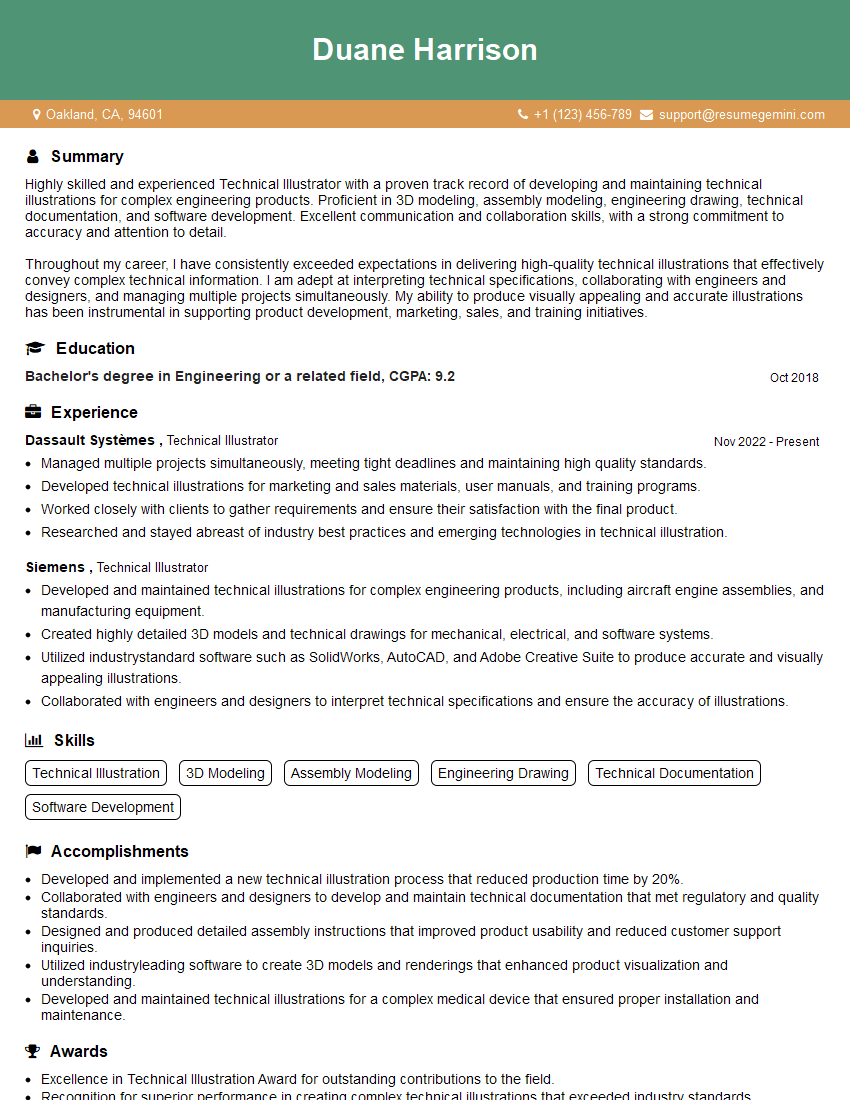
Technical Illustrator Resume Sample
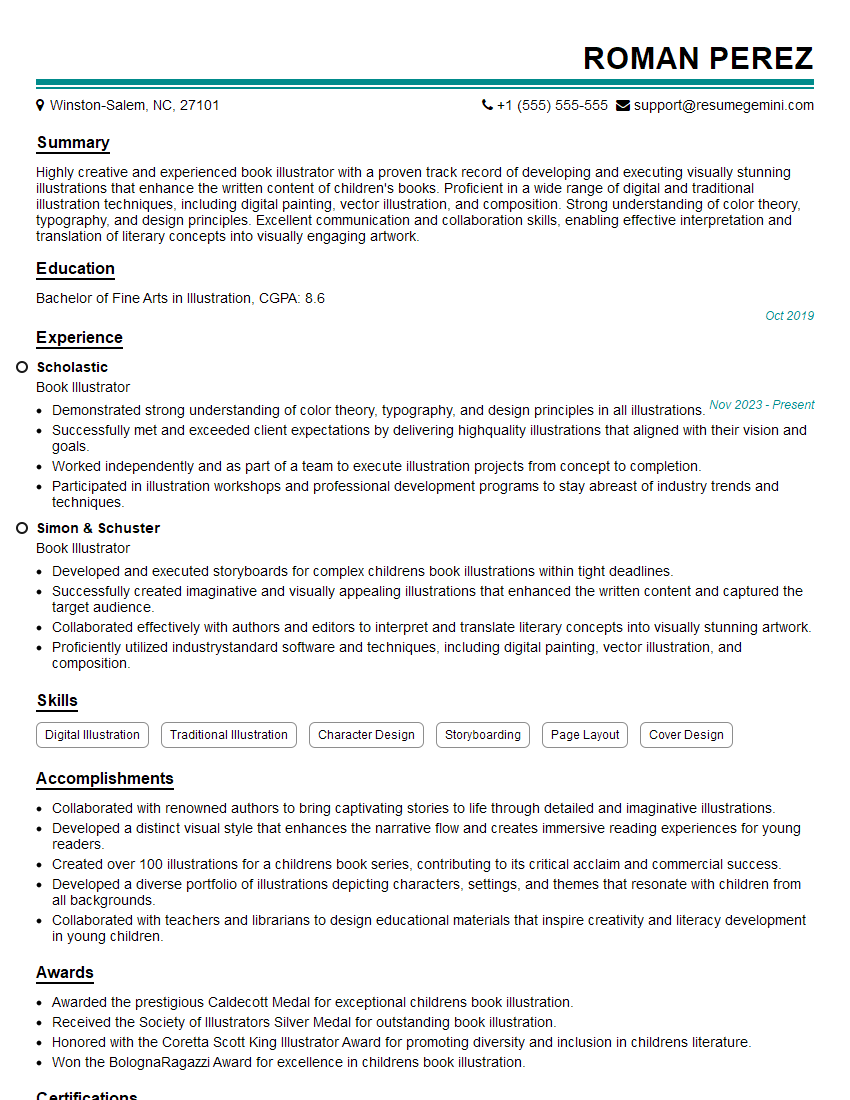
Book Illustrator Resume Sample
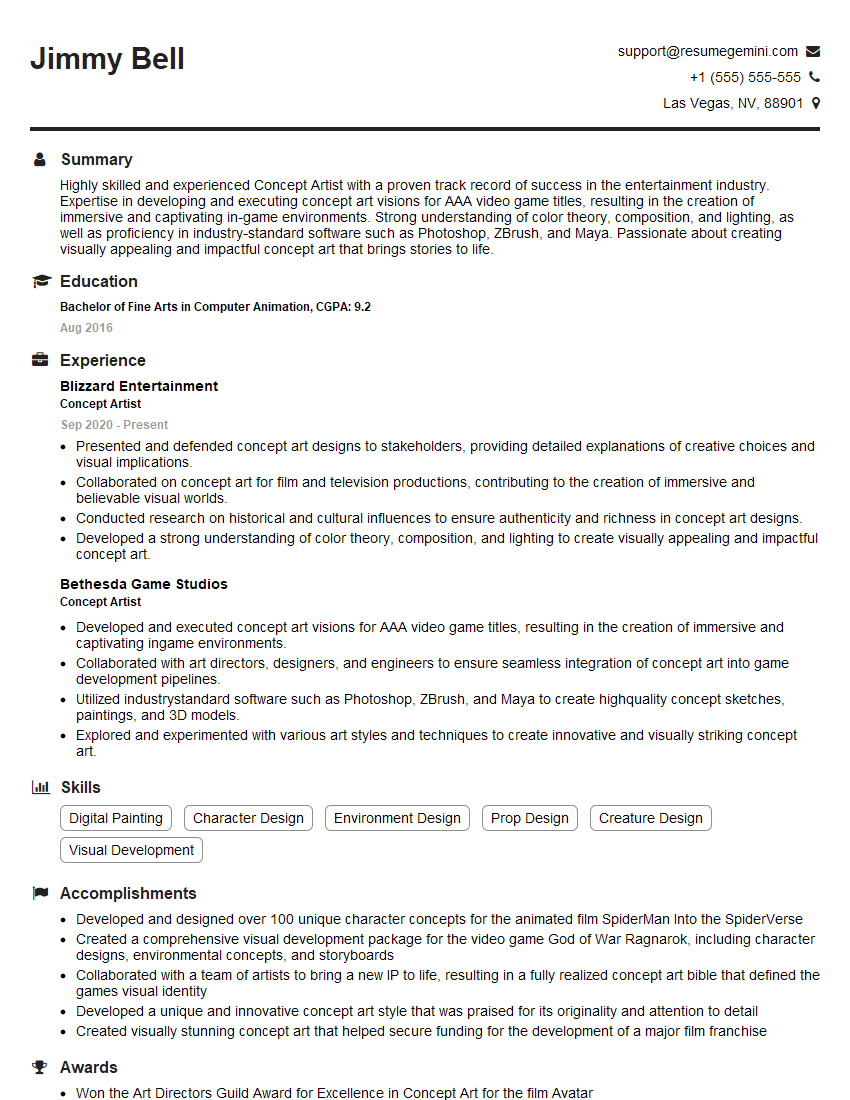
Concept Artist Resume Sample
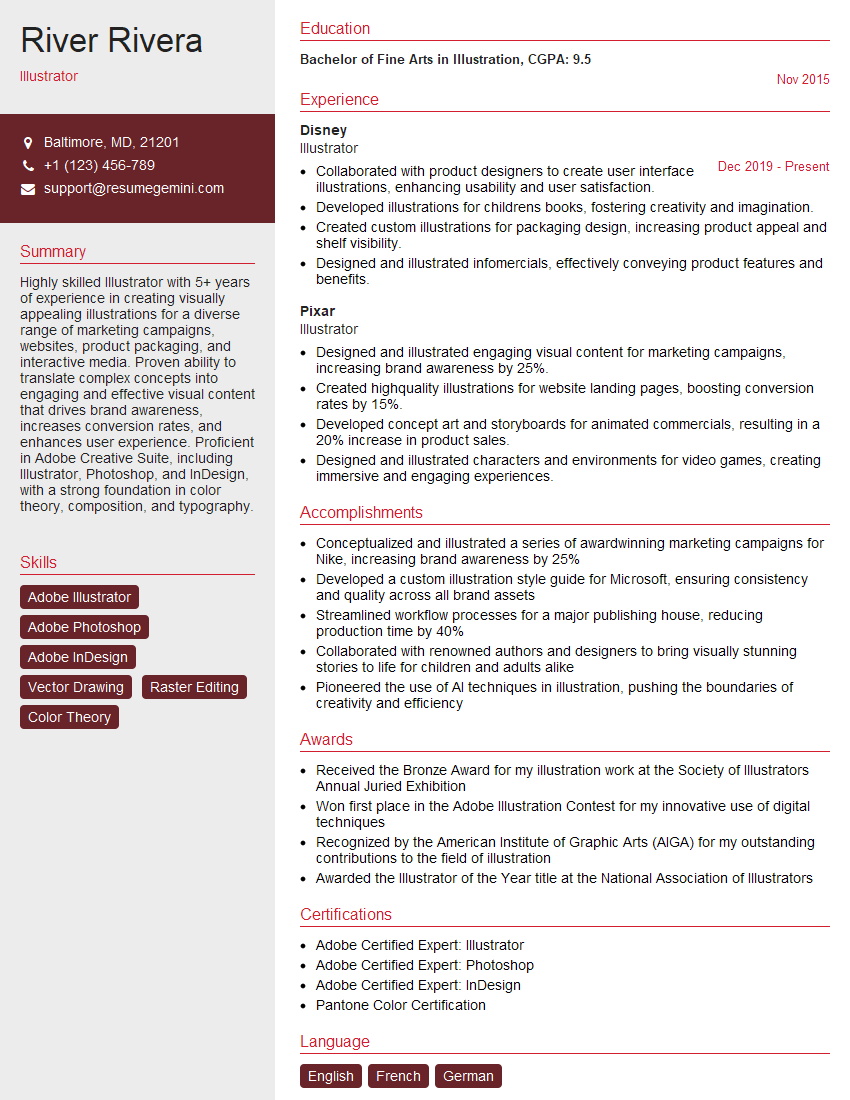
Illustrator Resume Sample
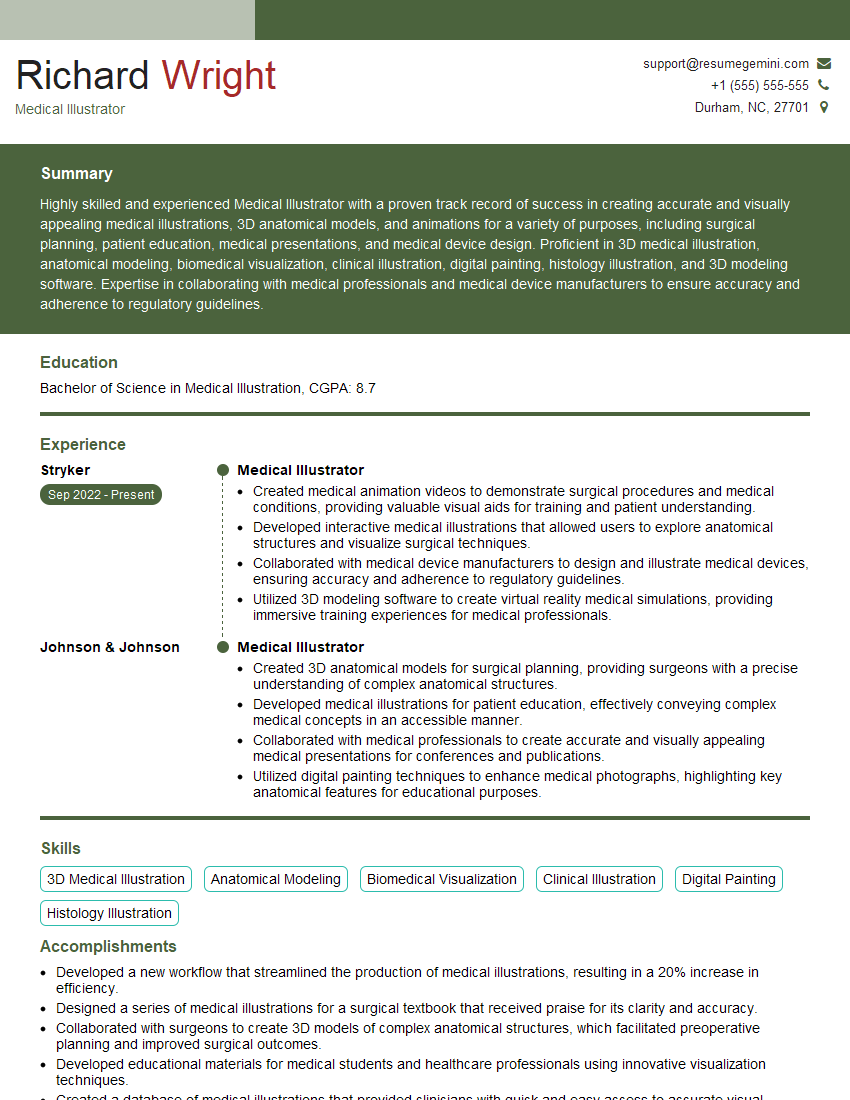
Medical Illustrator Resume Sample
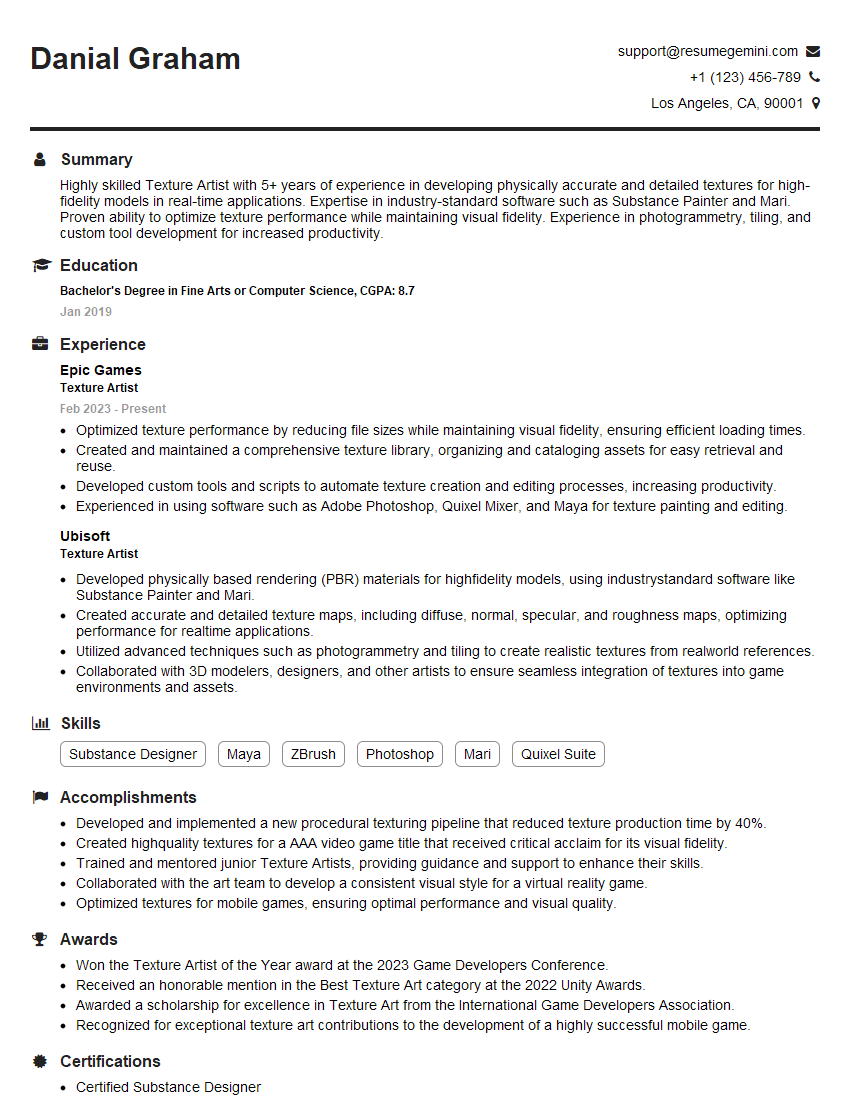
Texture Artist Resume Sample
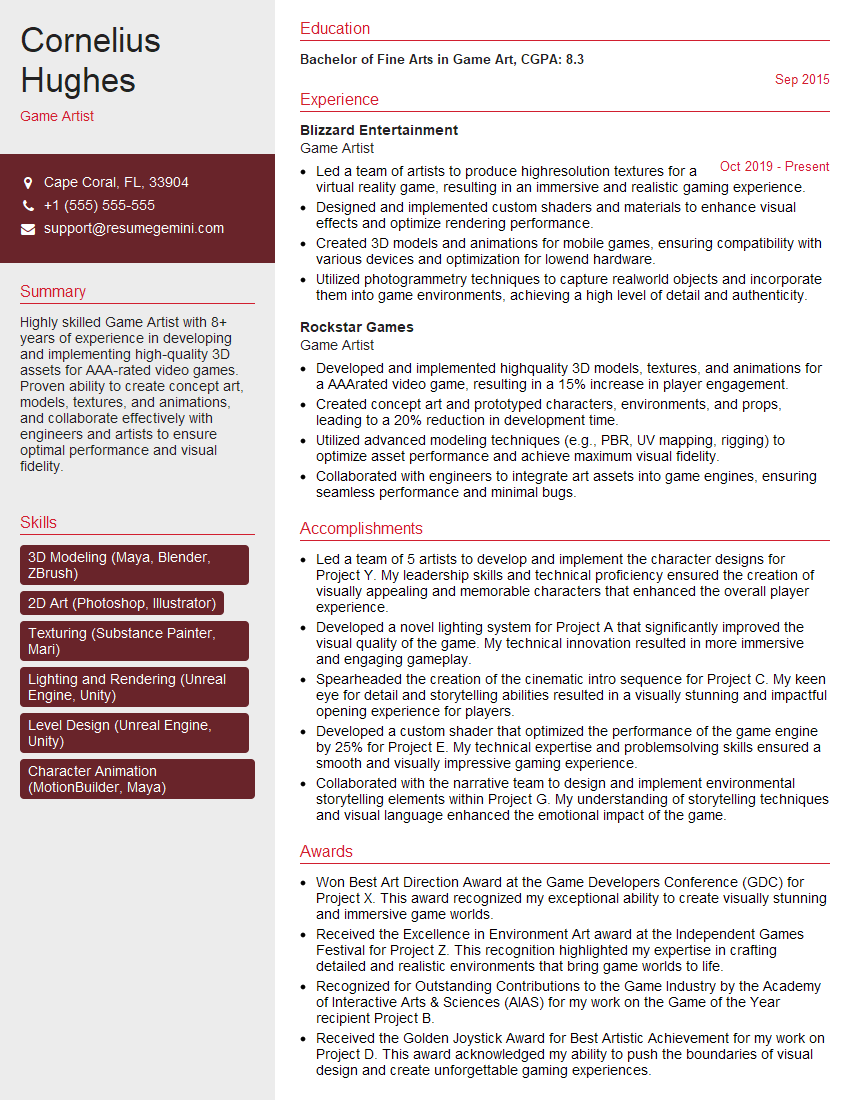
Game Artist Resume Sample
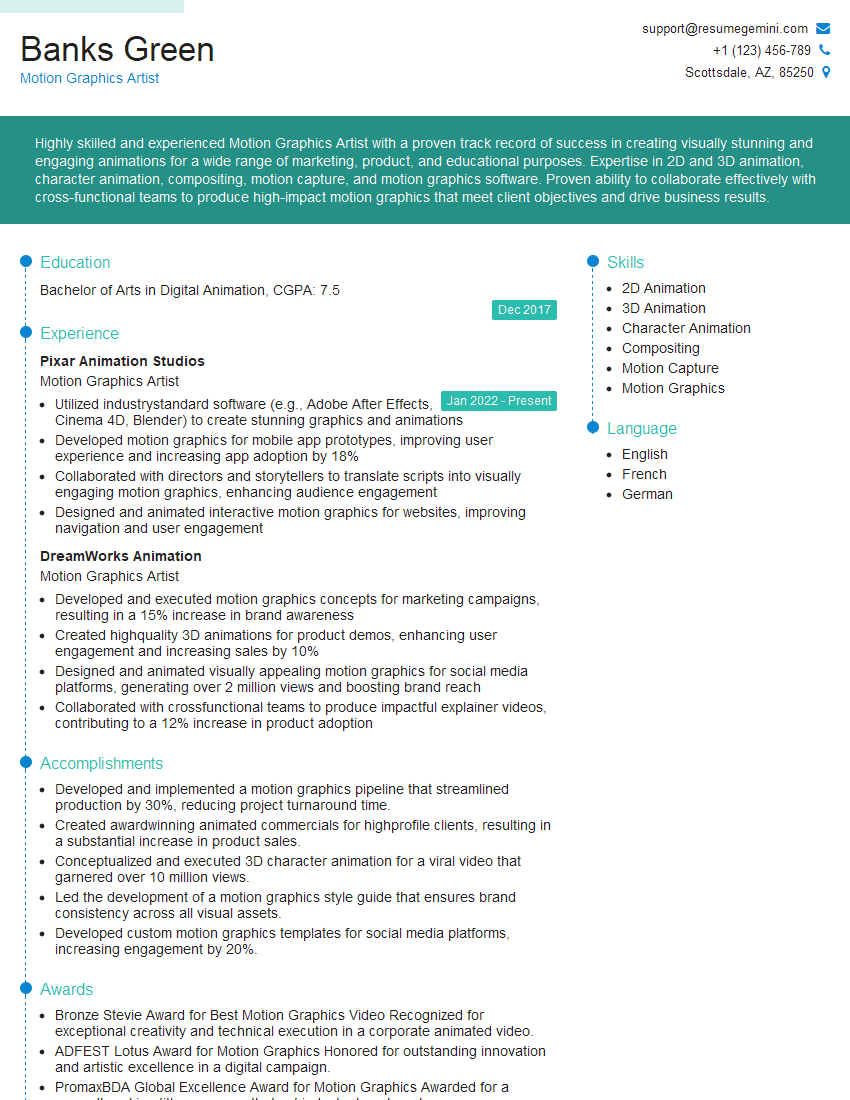
Motion Graphics Artist Resume Sample
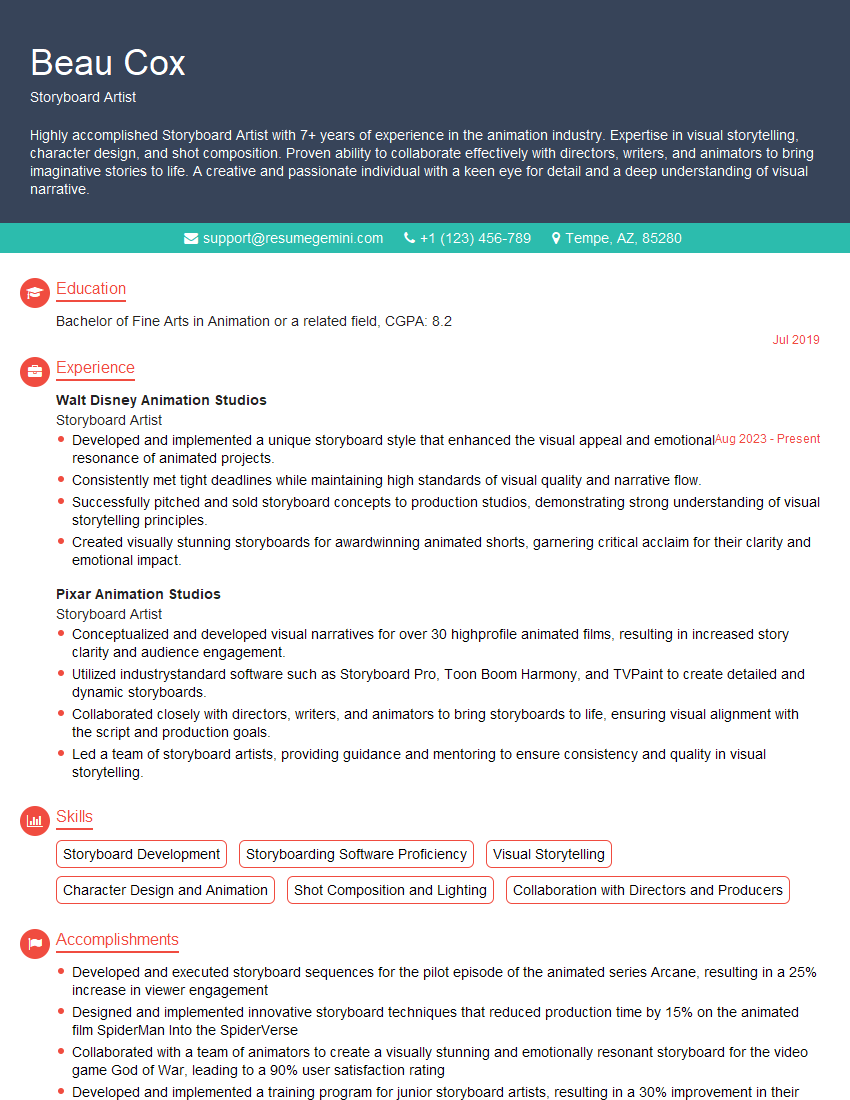
Storyboard Artist Resume Sample
Explore more articles
Users Rating of Our Blogs
Share Your Experience
We value your feedback! Please rate our content and share your thoughts (optional).
What Readers Say About Our Blog
Very informative content, great job.
good