Feeling uncertain about what to expect in your upcoming interview? We’ve got you covered! This blog highlights the most important Drafting and Design Software (AutoCAD, SolidWorks) interview questions and provides actionable advice to help you stand out as the ideal candidate. Let’s pave the way for your success.
Questions Asked in Drafting and Design Software (AutoCAD, SolidWorks) Interview
Q 1. Explain your experience with AutoCAD’s command line interface.
AutoCAD’s command line interface is the heart of the software, offering a powerful and efficient way to create and manipulate drawings. It’s much faster than using only the graphical interface for many tasks. My experience spans years of using it for everything from simple 2D drafting to complex 3D modeling workflows. I’m comfortable using both direct commands (like LINE, CIRCLE, ARC) and aliases (shorter versions of commands like L, C, A), significantly speeding up my work. I also leverage dynamic input, which allows me to enter coordinates and dimensions directly on the screen, reducing the need to constantly switch between keyboard and mouse. For example, drawing a rectangle is much quicker using RECTANG and entering the dimensions directly rather than clicking and dragging. I frequently use the OSNAP settings (object snaps) to precisely connect lines to existing geometry, ensuring accuracy and consistency. Understanding coordinate systems (absolute, relative, polar) is crucial and is something I apply daily.
Beyond basic commands, I utilize more advanced functionalities like the command line for complex tasks such as creating blocks, managing layers (LAYER), creating and modifying text styles (STYLE), and performing complex selections (SELECT). I regularly use the command line to script repetitive tasks, boosting productivity. For instance, I might use a LISP routine to automate the creation of a series of similarly sized and spaced components, saving significant time in large projects.
Q 2. Describe your proficiency in SolidWorks’ part modeling features.
My proficiency in SolidWorks’ part modeling features is extensive. I’m adept at creating parts from scratch using various techniques, including extruding, revolving, sweeping, and lofting. I frequently use features like patterned features (linear, circular, mirror) and array features to efficiently generate repetitive geometries, which is essential for projects involving symmetrical or repetitive components. I’m proficient in utilizing different sketch tools, ensuring precise and accurate geometry.
For example, designing a complex gear requires understanding how to use the revolve feature correctly to generate the tooth profiles, and then employing patterned features to create multiple teeth. I understand the importance of sketching constraints (geometric and dimensional) to maintain design intent and create fully defined, robust models. I also have experience using advanced features like the ‘Insert’ feature to add pre-existing components, saving time and effort. SolidWorks’ ability to manage relationships between different model features is a key strength I consistently use. This allows for easy modification and redesign, as changes in one feature automatically update dependent features.
Q 3. How do you manage layers and layers properties in AutoCAD?
Managing layers in AutoCAD is fundamental to organizing complex drawings. Think of layers as stacked transparent sheets; each layer contains specific drawing elements. This allows for easy control over visibility, plotting, and properties of individual elements. I typically organize layers by component type (e.g., walls, doors, windows, annotations), and sometimes by phase of construction or discipline. I regularly use the LAYER command to create, rename, delete, and manage layer properties. I always name layers descriptively and consistently throughout a project to maintain clarity and to facilitate finding and editing specific components later. This avoids confusion among team members and improves collaboration.
Furthermore, I utilize layer properties such as color, linetype, and lineweight to visually distinguish different elements. For instance, architectural plans might use different colors for walls (e.g., brown), doors (e.g., red), and windows (e.g., blue). Using appropriate linetypes (e.g., dashed lines for centerlines) adds to the clarity of the drawing. I also utilize layer states to freeze or thaw layers to improve performance when working on complex drawings and to show or hide different aspects of the design during presentations or reviews. Efficient layer management significantly enhances productivity and accuracy.
Q 4. Explain your experience with SolidWorks’ assembly features.
SolidWorks’ assembly features allow the creation of complex products by combining multiple parts into a single assembly. My experience in this area includes creating and managing large assemblies, using constraints to define the relationships between parts (mates), and managing configurations for different assembly variations. I frequently use top-down and bottom-up assembly approaches, choosing the most suitable strategy based on project complexity and requirements. I understand the significance of using appropriate constraints to avoid over-constraining or under-constraining the assembly, leading to assembly instability or design errors.
For instance, assembling a chair involves properly mating the legs, seat, and backrest using various constraints like coincident, mate, and insert mates. I’m also experienced in utilizing advanced assembly features such as component patterns to repeat components in an assembly, which can save considerable time when dealing with repetitive designs. Furthermore, managing configurations enables the creation of different versions of an assembly (e.g., different sizes or options) without modifying the original design, allowing for customization while maintaining a single design file. This reduces errors, file sizes, and maintains design consistency.
Q 5. What are your preferred methods for creating 2D drawings from 3D models?
Creating 2D drawings from 3D models is a critical part of my workflow. SolidWorks offers various tools to generate high-quality 2D drawings directly from 3D models, including automatic creation of standard views (front, top, side) and section views. This is considerably more efficient than manual 2D drafting. I use the drawing feature to create standard projection views, detailed views, and cross-sections, which clearly communicate design intent. I’m also comfortable adding dimensions, annotations, and other relevant information to comply with industry standards.
I frequently utilize the automatic dimensioning feature to add accurate dimensions automatically and customize the dimensions to specific formats and styles. I then leverage SolidWorks’ annotation tools to add notes, leader lines, and other essential details, ensuring the drawings are clear, easy to understand, and meet client or company standards. Furthermore, I create detail views and sections to highlight critical areas of the design, and use BOM (Bill of Materials) tools to generate automated lists of components, which are essential for manufacturing and assembly.
Q 6. How do you handle large and complex drawings in AutoCAD?
Handling large and complex drawings in AutoCAD requires a strategic approach. Inefficient management can lead to slow performance and data corruption. My strategies include using external references (Xrefs) to link drawings instead of merging them, which keeps file sizes manageable. Xrefs allow referencing a single design component that’s updated in one file and automatically reflects across the entire project. I also regularly purge unused blocks and layers to reduce file bloat, enhancing performance. I use layer states to control the visibility of different layers, improving performance when working with large datasets.
Furthermore, optimizing the drawing’s organization with a well-defined layer structure is paramount. Using named layers makes locating and manipulating specific elements much more efficient, improving working speed and reducing errors. I also employ AutoCAD’s revision clouds to highlight changes in drawings, improving the ability to collaborate on large projects. Regular saving and the use of version control systems is another way to protect against data loss and enhance collaboration. Finally, understanding the limits of AutoCAD’s performance and adjusting my workflow accordingly helps ensure smooth operation, even with enormous datasets.
Q 7. Describe your experience using SolidWorks’ simulation tools.
My experience with SolidWorks’ simulation tools is focused on understanding the structural integrity and performance of designs. I regularly use SolidWorks Simulation to perform static, dynamic, and fatigue analysis. I have experience creating appropriate models and meshing for analysis, specifying material properties accurately, applying loads and constraints realistically, and interpreting the results to identify potential design weaknesses. I use this information to improve designs and make informed decisions before manufacturing.
For example, I’ve used SolidWorks Simulation to analyze the stress distribution in a complex mechanical part under various load conditions. By analyzing the results, including stress and displacement plots, I’ve identified areas of high stress concentration and optimized the design to reduce stress and improve component lifespan. I understand the importance of validation of the simulation models against experimental data when possible to ensure results reliability. This process helps ensure that the simulations accurately reflect real-world conditions.
Q 8. How do you ensure accuracy and precision in your CAD drawings?
Ensuring accuracy and precision in CAD drawings is paramount. It’s like building a house – a tiny error can have massive consequences. My approach is multi-faceted and involves several key strategies:
Precise Input: I always use precise units (e.g., millimeters instead of inches when appropriate) and avoid relying on visual estimations. I frequently utilize snapping tools and object snaps (endpoint, midpoint, center, etc.) to ensure geometric elements are precisely placed relative to other elements. Think of it like using a laser level instead of eyeballing a shelf.
Constraints and Relations (SolidWorks): In SolidWorks, I heavily utilize constraints to define relationships between parts and features. This prevents dimensional errors as changes to one element automatically update related elements. For instance, if I change the length of a shaft, the hole it fits into will automatically adjust, preventing misalignment.
Layers and Organization: I meticulously organize my drawings using layers and layer properties. This not only enhances clarity but also simplifies the selection and manipulation of specific objects. It’s like having a well-organized toolbox, where each tool has its place.
Regular Checks and Verification: Throughout the process, I frequently conduct checks using various tools such as dimensioning, measuring tools, and geometric constraints verification. This allows for early detection and correction of errors.
Templates and Standards: I consistently use predefined templates and drawing standards that ensure consistency in dimensions, text styles, and overall presentation. This eliminates the risk of human error due to inconsistent practices. It’s akin to using pre-approved blueprints to guide construction.
Model Reviews and Audits: Before finalizing, I perform thorough model reviews, either independently or with colleagues. A fresh pair of eyes can often spot errors easily overlooked.
Q 9. How familiar are you with AutoCAD’s dynamic input feature?
I’m highly proficient with AutoCAD’s dynamic input feature. It’s a time-saver and a precision booster. Dynamic input displays real-time coordinate information and other properties as you draw. This eliminates the need for constantly switching between the command line and the drawing area, making the process much more efficient.
For example, instead of typing in coordinates separately, I can simply hover my cursor and see the X, Y, and Z coordinates update dynamically. I can also directly specify dimensions (e.g., ‘Length: 100’) and angles while drawing lines, circles, and other elements. This visual feedback enhances accuracy and speeds up the drawing process significantly. I find it especially useful when working on complex geometries where precision is critical.
Q 10. What are some of the key differences between AutoCAD and SolidWorks?
AutoCAD and SolidWorks cater to different design needs. AutoCAD is primarily a 2D drafting software, excelling at creating precise 2D drawings, while SolidWorks is a 3D parametric modeling software, focusing on creating and analyzing 3D models.
Dimensionality: AutoCAD is predominantly 2D, though it has 3D capabilities; SolidWorks is fundamentally 3D.
Parametric Modeling: SolidWorks’s core strength lies in its parametric modeling, where design changes propagate automatically. AutoCAD relies more on direct manipulation.
Analysis Tools: SolidWorks offers extensive analysis tools (FEA, CFD), something largely absent in AutoCAD.
Assembly Modeling: SolidWorks excels in assembling multiple parts into complex assemblies. AutoCAD’s assembly features are comparatively less sophisticated.
Ease of use for different tasks: AutoCAD is ideal for producing detailed 2D drawings like architectural plans or mechanical schematics. SolidWorks is best for creating detailed 3D models for mechanical parts or products, allowing for simulation and analysis before physical prototyping.
Q 11. How do you create and manage custom parts libraries in SolidWorks?
Creating and managing custom parts libraries in SolidWorks is crucial for efficiency and consistency. I typically follow these steps:
Creating the Parts: First, I meticulously create accurate and well-documented 3D models of the parts that will constitute my library. I ensure proper use of constraints and features to maintain parametric control.
Organizing the Library: I organize the parts into a logical folder structure within SolidWorks, often categorized by part type, material, or application. Clear naming conventions are critical – using descriptive and consistent names makes retrieval easy.
Adding Metadata: I include comprehensive metadata for each part (material, dimensions, weight, supplier information). This metadata enables effective search and filtering.
Version Control: I implement version control for each part, ensuring that changes are tracked and that the most up-to-date version is used. This can be done via SolidWorks’ built-in revision features or integrated with external version control systems.
Regular Maintenance: I regularly review and update my parts library, removing obsolete parts and adding new ones. This helps maintain the library’s accuracy and relevance.
Imagine building with LEGOs. A well-organized library of custom LEGO pieces would drastically speed up and simplify the construction process.
Q 12. How do you handle version control in your CAD projects?
Version control is fundamental for collaborative CAD projects. Losing work or having conflicting versions is a major headache. My preferred method depends on project scale and team size:
SolidWorks’ Revision Control: For smaller projects or individual work, I leverage SolidWorks’ built-in revision control, which allows tracking design changes and reverting to previous versions if needed.
External Version Control Systems (e.g., PDM Systems): For larger projects or team-based efforts, I employ external version control systems like Enterprise PDM (Product Data Management) systems. These systems provide centralized storage, change tracking, workflows, and security features for managing CAD data and other project documentation effectively. This is especially critical when multiple designers are working simultaneously on the same project.
Cloud-Based Solutions: Cloud-based CAD collaboration platforms offer integrated version control and facilitate real-time collaboration, enabling efficient teamwork on distributed projects.
Version control is analogous to using source control in software development – it prevents chaos and ensures everyone is working with the most current and accurate data.
Q 13. Describe your experience with data extraction and reporting from CAD models.
Extracting data and generating reports from CAD models is a crucial step in design analysis, manufacturing, and cost estimation. My experience includes:
SolidWorks’ built-in reporting tools: SolidWorks offers tools to generate reports on various model characteristics (mass, volume, center of gravity, surface area, etc.). I utilize these tools for generating initial reports and analyses.
Third-party plugins and add-ins: There are various third-party plugins and add-ins that enhance data extraction capabilities, allowing me to create custom reports tailored to specific needs, such as generating bills of materials (BOMs), extracting specific dimensions, and exporting data in various formats (CSV, Excel, etc.).
Direct data export: I can directly export geometric data from CAD models into other software applications such as FEA software (for stress analysis) or CAM software (for manufacturing process planning).
Programming (API access): For large-scale data extraction or customized reporting, I utilize the CAD software’s API (Application Programming Interface) to create custom scripts or programs. This allows me to extract specific data points and format them according to project needs.
For example, I have used these techniques to create automated BOMs for manufacturing, generate reports for cost estimation, and extract geometric data for FEA analysis, leading to more efficient design and production processes.
Q 14. How do you use constraints and relations in SolidWorks?
Constraints and relations in SolidWorks are fundamental to parametric modeling. They define relationships between geometric elements (features, faces, planes, etc.), ensuring that changes to one part of the model automatically update other related parts. This avoids errors and ensures design consistency.
Imagine building with LEGOs again. Constraints are like the connectors that hold different pieces together. Changing one piece automatically adjusts other connected pieces.
Geometric Constraints: These define geometric relationships, such as parallelism, perpendicularity, concentricity, tangency, and symmetry. They ensure precise relationships between features.
Dimensional Constraints: These specify distances and angles, defining exact dimensions of features. They ensure that components maintain their intended size and shape.
Mate Constraints (for assemblies): These define how individual parts interact within an assembly, such as fixed, sliding, or rotating joints. They determine how parts move relative to each other.
By strategically applying constraints, I can create robust and flexible 3D models that can be easily modified and updated, without compromising the integrity of the design.
Q 15. Explain your experience with creating and modifying drawing templates in AutoCAD.
Creating and modifying AutoCAD drawing templates is fundamental to maintaining consistency and efficiency across projects. A template acts as a pre-configured starting point for new drawings, including pre-set layers, text styles, linetypes, and title blocks. My experience involves creating templates from scratch, adapting existing ones, and meticulously managing their updates.
For example, I recently developed a template for architectural drawings. This involved setting up layers for walls, doors, windows, annotations, and dimensions, each with specific linetypes and colors for clarity. I also customized the title block to include project information, revision numbers, and the company logo. Modifying existing templates might involve updating the title block to reflect new company standards or adding new layers for specialized elements, like structural details.
I also ensure that the templates incorporate best practices like using layer states for controlling visibility and using blocks for repeatable elements like symbols and fixtures. This ensures that drawings are organized, easy to understand, and consistent across the project.
Career Expert Tips:
- Ace those interviews! Prepare effectively by reviewing the Top 50 Most Common Interview Questions on ResumeGemini.
- Navigate your job search with confidence! Explore a wide range of Career Tips on ResumeGemini. Learn about common challenges and recommendations to overcome them.
- Craft the perfect resume! Master the Art of Resume Writing with ResumeGemini’s guide. Showcase your unique qualifications and achievements effectively.
- Don’t miss out on holiday savings! Build your dream resume with ResumeGemini’s ATS optimized templates.
Q 16. How familiar are you with different file formats used in CAD (e.g., DWG, DXF, STEP)?
I’m proficient with various CAD file formats, each serving a specific purpose. DWG (Drawing) is AutoCAD’s native format, offering the most comprehensive data preservation. DXF (Drawing Exchange Format) is a more universal format, allowing for compatibility between different CAD software packages. STEP (Standard for the Exchange of Product model data) is a neutral format widely used for 3D models and is especially valuable for interoperability with other CAD systems and manufacturing software.
I often use DWG for projects within our team, DXF for sharing designs with external collaborators using different CAD software, and STEP for exchanging 3D models with manufacturing partners. Understanding the nuances of each format, such as data loss potential when converting between them, is crucial for ensuring project integrity and smooth collaborations.
Q 17. Describe your experience with sheet metal design in SolidWorks.
My sheet metal design experience in SolidWorks is extensive. I’ve designed a wide range of sheet metal components, from simple brackets to complex enclosures, utilizing SolidWorks’ powerful sheet metal tools. This involves using features like base flanges, bends, cuts, and holes, all within the sheet metal environment to ensure accurate bend allowances and material utilization.
One project involved designing a custom enclosure for an electronic device. This required utilizing SolidWorks’ features to create a complex geometry with multiple bends, flanges, and cutouts, while ensuring the final product met the required tolerances and was manufacturable. I meticulously managed flat patterns to optimize material use and prevent unnecessary waste. I also frequently use simulation tools to verify the strength and stiffness of the designs.
Understanding flat-pattern development, bend deduction, and material properties is critical for creating manufacturable designs, which SolidWorks handles seamlessly.
Q 18. How do you manage and resolve drawing conflicts?
Drawing conflicts arise when multiple designers work concurrently on the same drawing file. My approach involves a combination of version control systems and collaborative strategies. We primarily use a centralized data management system, which allows us to track revisions, check out files for editing, and resolve conflicts systematically.
If conflicts do arise, I usually initiate a discussion with the involved parties to determine the most appropriate solution. Sometimes it’s a simple matter of merging changes manually; other times it requires careful consideration and decisions about which revisions to keep. The key is open communication and a well-defined workflow to minimize the occurrence of conflicts.
Q 19. What is your experience using AutoCAD’s external references (xrefs)?
External references (xrefs) in AutoCAD are a powerful tool for managing large and complex projects. They allow you to link drawings as external files to a main drawing, managing dependencies efficiently. Changes to the xref file are automatically reflected in the main drawing when it’s updated. This is particularly useful for managing components or systems where changes in one area need to propagate throughout the larger project without duplicating data.
In one project, we used xrefs to manage architectural, structural, and MEP (Mechanical, Electrical, and Plumbing) drawings, linking them to a master drawing. This allowed us to maintain individual drawings while still ensuring that they worked together seamlessly. Managing xref paths and updating them regularly are crucial for preventing broken links and keeping the drawings current. Overlapping Xrefs are managed carefully to prevent issues and ensure correct display.
Q 20. Explain your experience with SolidWorks’ drawing annotation tools.
SolidWorks’ drawing annotation tools are comprehensive and versatile, enabling the creation of detailed and accurate manufacturing drawings. My experience includes using dimensions, tolerances, notes, balloons, and various other annotation features to communicate design intent clearly. I’m also familiar with advanced annotation features like tables, section views, and detailed views, all used to create clear and unambiguous designs.
For example, I often use geometric dimensioning and tolerancing (GD&T) symbols to specify precise manufacturing tolerances. This ensures that the components manufactured from my drawings meet the design specifications accurately. I also use leader lines to clearly indicate specific features or dimensions, enhancing the clarity and readability of drawings.
Q 21. How do you handle revisions and updates to existing CAD drawings?
Revision control is crucial in any CAD project. Our process typically involves a revision numbering system (e.g., A, B, C) or a date-based system, clearly identifying each revision on the drawing sheet. We use the built-in revision tools of both AutoCAD and SolidWorks to track revisions and changes. Changes are documented with a revision log that describes the modifications and the reason for the changes.
When updating existing drawings, we follow a rigorous process involving careful review of all changes, testing (where relevant), and approval by stakeholders before releasing the updated drawing. This ensures that revisions are accurate, consistent, and thoroughly tested. We use version control and data management software to archive previous revisions, allowing easy retrieval if necessary.
Q 22. Describe your experience with rendering and visualization in SolidWorks.
SolidWorks offers robust rendering and visualization capabilities, crucial for effectively communicating design intent and assessing aesthetics. My experience encompasses utilizing PhotoView 360 for realistic renderings and SolidWorks Visualize for advanced photorealistic images and animations. I’m proficient in setting up lighting, materials, and environments to create compelling visuals. For example, when designing a new consumer product, I used PhotoView 360 to create marketing renders showcasing the product in various settings – highlighting its features and appeal to potential customers. This involved selecting appropriate materials to accurately represent the product’s surface finish and strategically placing lights to emphasize key design elements. I also leveraged SolidWorks Visualize to create high-resolution animations demonstrating the product’s functionality, greatly enhancing the presentation to potential investors.
I understand the importance of optimizing render settings for balancing quality and rendering time. I’m familiar with different render engines and their strengths, allowing me to choose the best option depending on the project’s complexity and deadlines.
Q 23. How do you utilize AutoCAD’s block libraries?
AutoCAD’s block libraries are essential for efficient design and standardization. I utilize them extensively to store and reuse frequently used components, symbols, and details. This dramatically speeds up the drafting process and ensures consistency across multiple projects. Imagine designing a series of building plans – instead of repeatedly drawing each door, window, or electrical outlet, I create blocks for each, saving countless hours and minimizing errors.
My workflow involves creating well-organized block libraries, categorizing them logically (e.g., by building components, electrical symbols, landscaping elements), and utilizing nested blocks for added flexibility. I also regularly update and maintain my libraries to reflect changes in design standards or company specifications. For instance, if our company adopts a new standard for electrical outlets, I would update the corresponding block in my library, ensuring all future drawings reflect the new standard automatically. This streamlined approach improves project efficiency and maintains consistency across all designs.
Q 24. How familiar are you with parametric modeling techniques in SolidWorks?
Parametric modeling in SolidWorks is a cornerstone of my design process. It allows me to create models driven by parameters, which are essentially variables that control various aspects of the geometry. This enables flexible design modification and efficient iteration. Changes to one parameter automatically update related features, maintaining design integrity and saving considerable time.
For example, designing a custom-sized box: instead of manually adjusting dimensions each time I need a different size, I create parameters for length, width, and height. Modifying a parameter immediately updates the entire box model, maintaining accurate proportions and relationships between its elements. This is invaluable for exploring different design options and responding to changes in requirements quickly. I’m adept at using constraints and equations within SolidWorks to create complex parametric relationships, facilitating efficient and accurate design modification.
Q 25. What is your experience with CAD customization and automation?
My experience with CAD customization and automation focuses on improving efficiency and reducing repetitive tasks. I’m proficient in using macros and VBA scripting in SolidWorks and AutoLISP in AutoCAD to automate processes like creating repetitive parts, generating reports, and customizing user interfaces. For example, I developed a macro in SolidWorks that automatically generates a bill of materials (BOM) based on the assembled model, reducing manual effort and the risk of errors.
In AutoCAD, I used AutoLISP to create a custom command that automatically annotates drawings with specific information like project name and revision number, thereby streamlining the annotation process and ensuring consistency across drawings. I view automation not just as a time-saver, but as a way to reduce human error and improve the overall quality of the design process. I continually seek ways to automate repetitive tasks to improve efficiency and reduce design errors.
Q 26. Explain your troubleshooting skills related to CAD software issues.
Troubleshooting CAD software issues is a crucial skill. My approach is systematic and involves first identifying the symptoms of the problem. This may involve checking error messages, examining the model for inconsistencies, or reviewing the software’s settings. I then isolate the cause by systematically eliminating potential factors. This might include checking file integrity, reviewing recent edits, or investigating hardware or software conflicts.
For example, if a model is unexpectedly crashing, I would first check the system resources (memory, disk space), then check for corrupted files. If neither resolves the issue, I might investigate conflicting software or drivers. I leverage online resources, software documentation, and forums to seek solutions and learn from others’ experiences. My experience has taught me the importance of maintaining regular backups, which can be invaluable when recovering from unforeseen software issues.
Q 27. How do you ensure your CAD designs meet relevant industry standards?
Ensuring CAD designs meet relevant industry standards is paramount. This involves understanding and adhering to applicable codes, regulations, and best practices. I utilize industry-specific templates and standards to ensure compliance throughout the design process. This might involve following specific dimensioning standards, using pre-approved materials, or adhering to tolerance specifications defined in engineering drawings.
For example, designing mechanical components requires adhering to ASME Y14.5 (Dimensioning and Tolerancing) standards. I ensure my drawings reflect these standards accurately, which involves correctly specifying dimensions, tolerances, and surface finishes. Using pre-approved materials and components further simplifies the process and eliminates potential issues. Regularly reviewing and updating my knowledge of relevant standards is crucial to maintaining compliance and ensuring the quality of my designs.
Q 28. Describe your experience with creating detailed manufacturing drawings.
Creating detailed manufacturing drawings is a core competency. My experience encompasses generating drawings with clear and unambiguous dimensions, tolerances, materials specifications, and manufacturing notes. I use proper annotation techniques to clearly communicate design intent to the manufacturing team. This involves using appropriate views (orthographic projections, sectional views, isometric views), detailed dimensioning, and surface finish specifications.
For instance, while designing a complex part, I will create multiple views (front, top, side) with detailed dimensioning and tolerances to ensure accurate manufacturing. I will also include notes specifying material, surface finish, and any special manufacturing instructions (e.g., specific machining processes). I am also adept at using SolidWorks’ drawing tools to create detailed assembly drawings, including exploded views to clearly show component relationships and assembly procedures. The goal is to create drawings that are easy to understand and minimize the chance of misinterpretation by the manufacturing team.
Key Topics to Learn for Drafting and Design Software (AutoCAD, SolidWorks) Interview
- AutoCAD Fundamentals: Understanding the interface, drawing tools (lines, arcs, circles, etc.), layers, object snaps, and basic commands. Practical application: Creating 2D drawings of simple mechanical parts.
- SolidWorks Modeling: Part modeling techniques (extrusion, revolution, sweep), assembly creation, constraints, and creating detailed drawings from 3D models. Practical application: Designing a simple assembly, such as a clamp or bracket, and generating detailed manufacturing drawings.
- Dimensioning and Tolerancing (GD&T): Applying ASME Y14.5 standards for accurate and unambiguous communication of design intent. Practical application: Properly dimensioning and tolerancing a part drawing to ensure manufacturability.
- AutoCAD Advanced Features: Exploring features like blocks, xrefs, layouts, and plotting for efficient workflow. Practical application: Creating a complex drawing utilizing blocks and external references for efficient management.
- SolidWorks Advanced Features: Mastering advanced modeling techniques (surface modeling, sheet metal), simulations (static and dynamic analysis), and design for manufacturing (DFM) principles. Practical application: Performing a simple simulation to verify the strength of a design.
- Data Management: Understanding file formats, version control, and data sharing practices within a design team environment. Practical application: Effectively managing and sharing project files using a chosen method.
- Problem-solving and Design Thinking: Demonstrating your ability to approach design challenges systematically, iterate on designs, and communicate design decisions effectively. Practical application: Explaining how you overcame a specific design challenge.
Next Steps
Mastering AutoCAD and SolidWorks opens doors to exciting careers in engineering, manufacturing, architecture, and more! A strong command of these tools is highly sought after, significantly boosting your job prospects. To maximize your chances, create an ATS-friendly resume that highlights your skills and experience effectively. ResumeGemini is a trusted resource that can help you build a professional and impactful resume. They provide examples of resumes tailored to Drafting and Design Software (AutoCAD, SolidWorks) users – take advantage of these resources to showcase your expertise and land your dream job!

Project Engineer Resume Sample
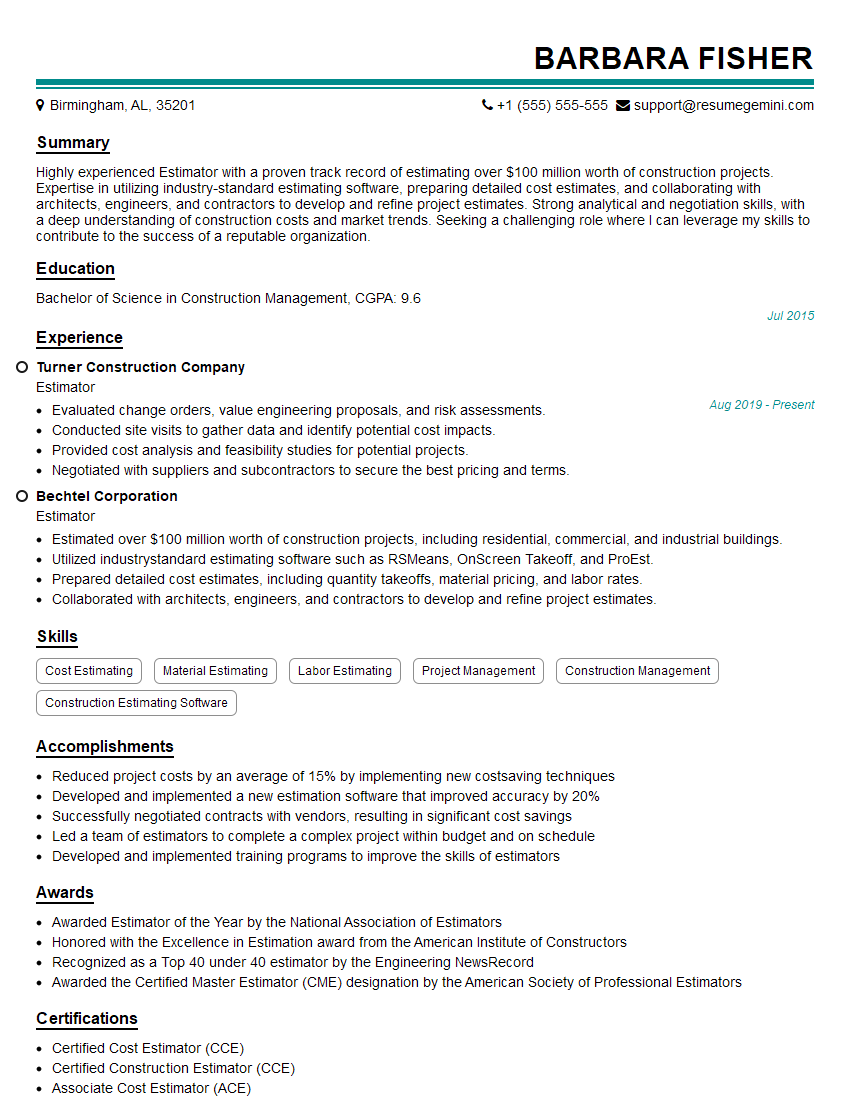
Estimator Resume Sample
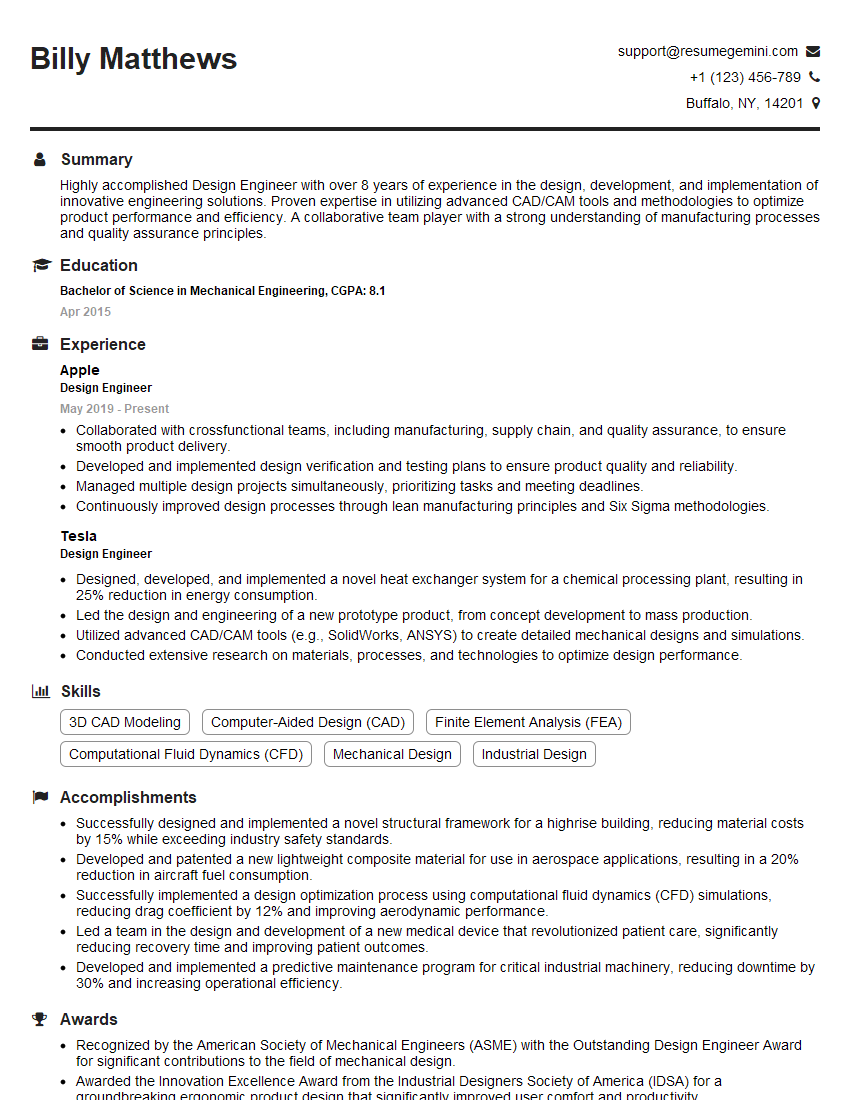
Design Engineer Resume Sample

Engineering Technician Resume Sample
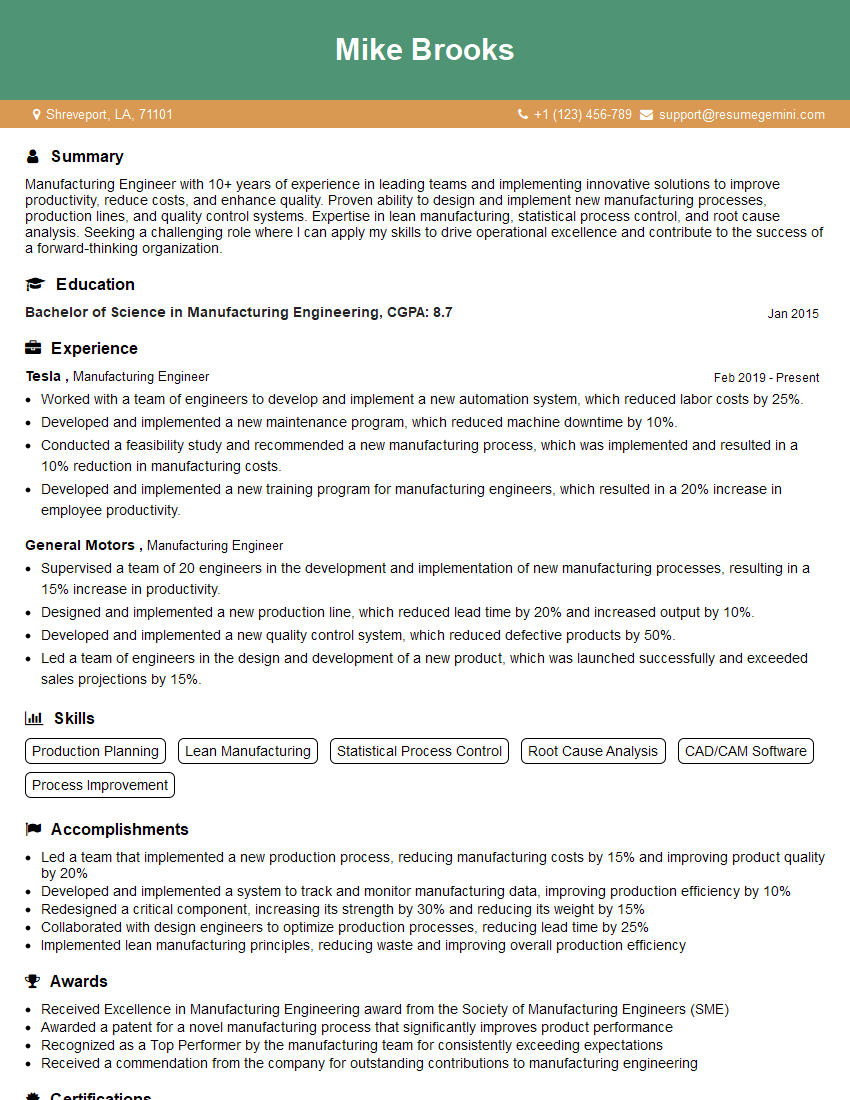
Manufacturing Engineer Resume Sample
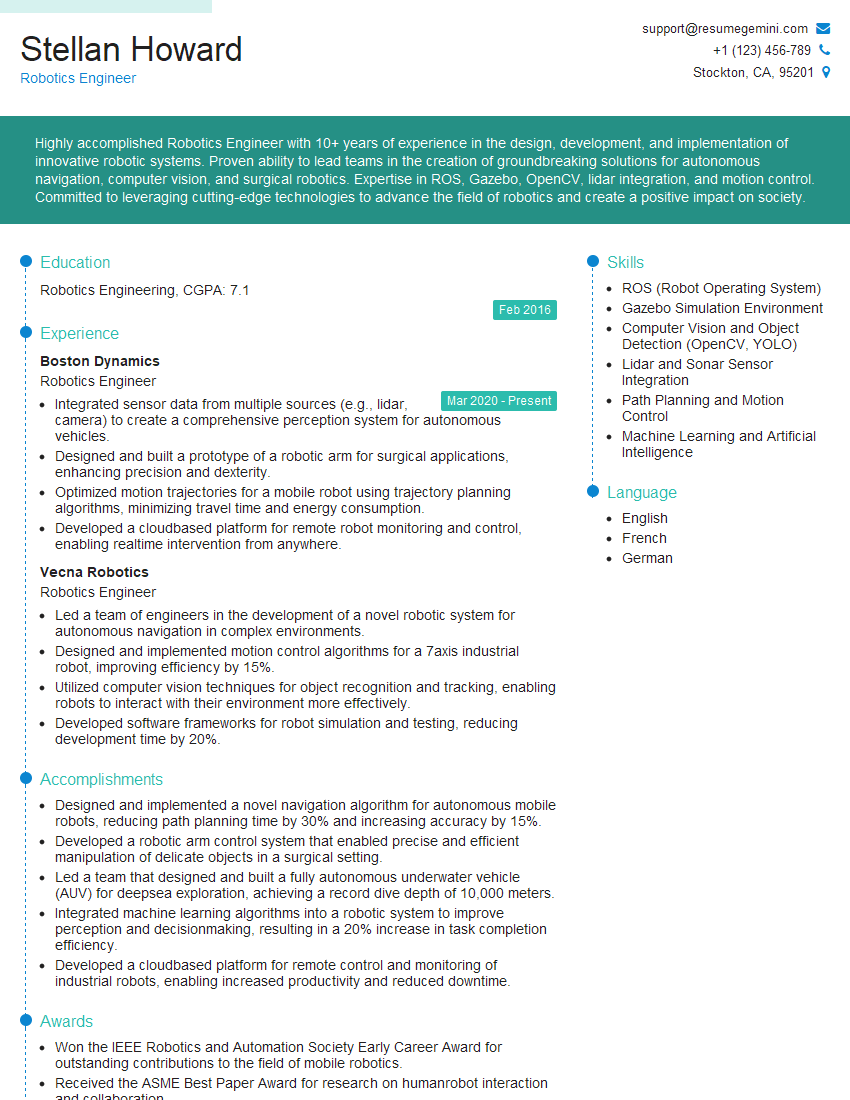
Robotics Engineer Resume Sample
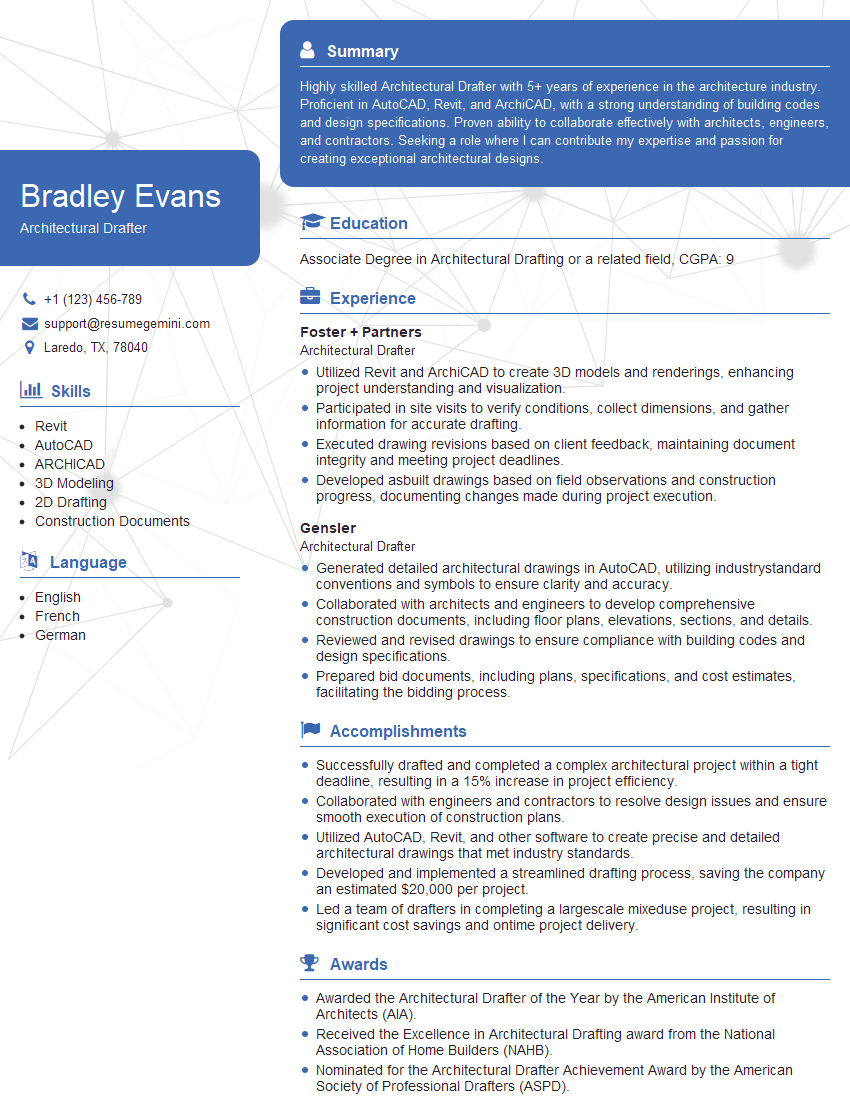
Architectural Drafter Resume Sample
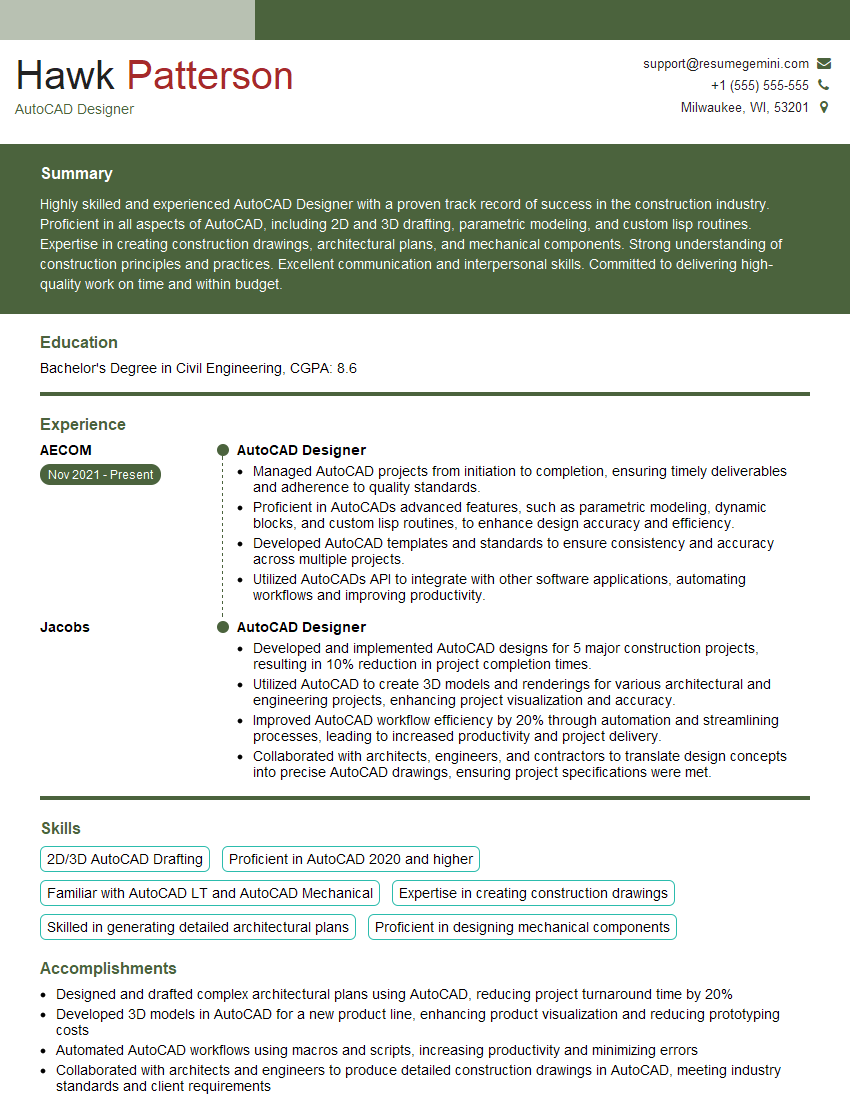
AutoCAD Designer Resume Sample
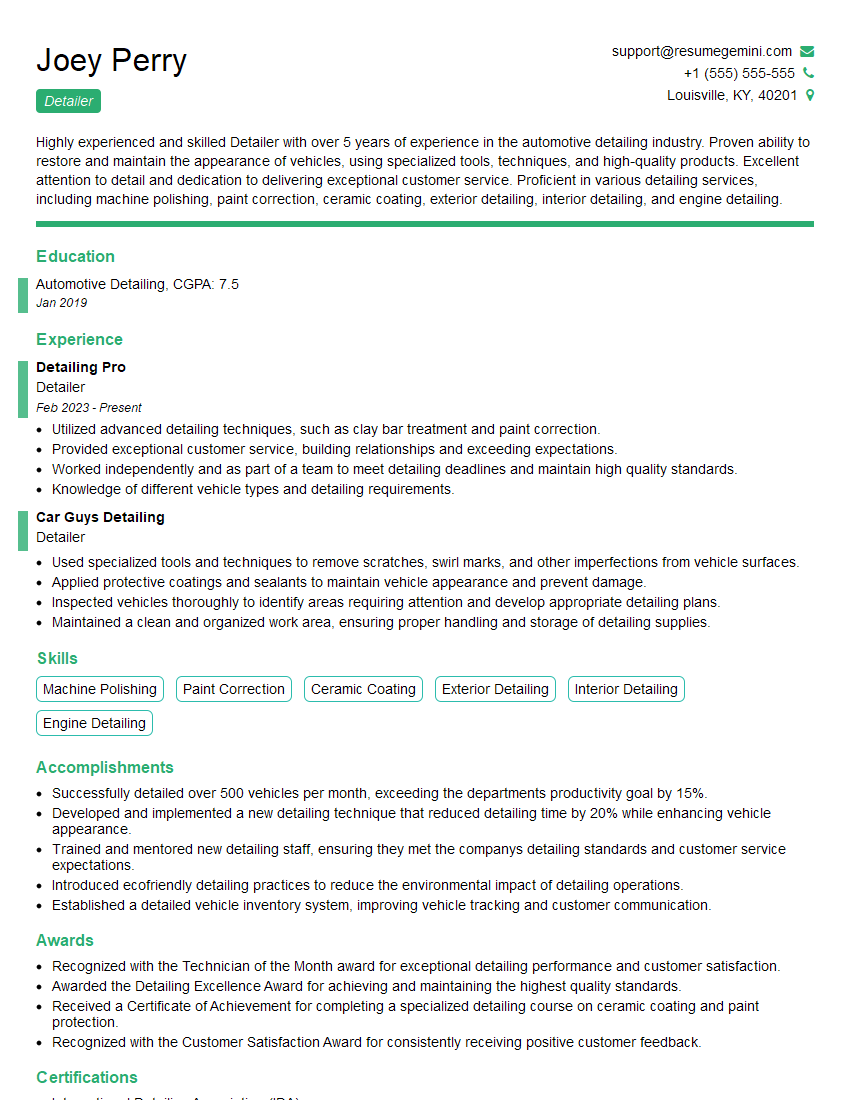
Detailer Resume Sample
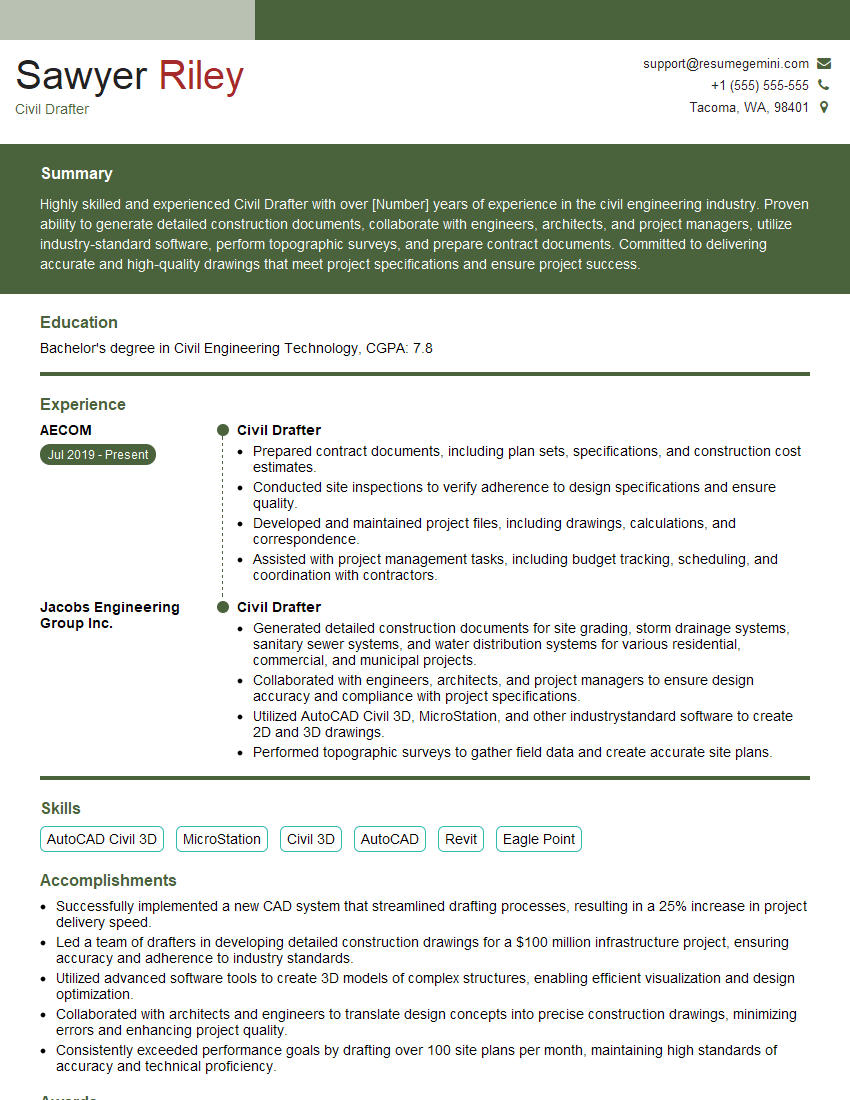
Civil Drafter Resume Sample

Design Technician Resume Sample
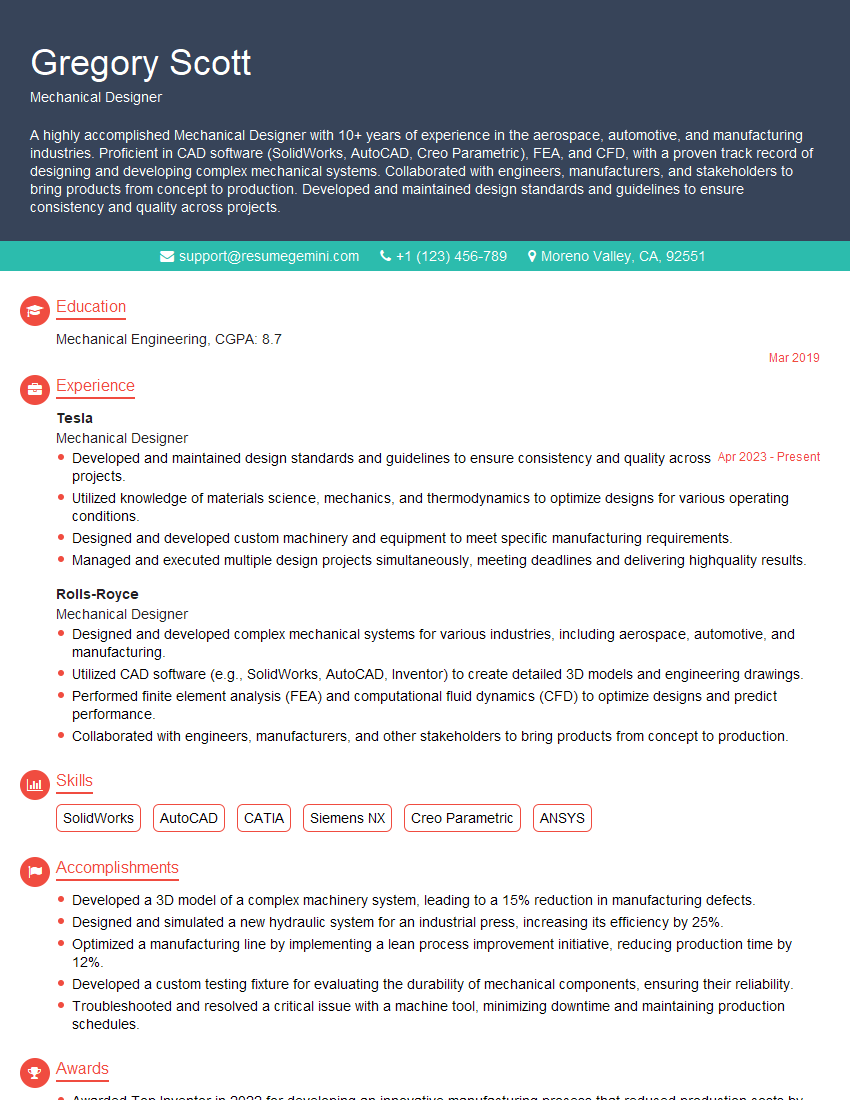
Mechanical Designer Resume Sample
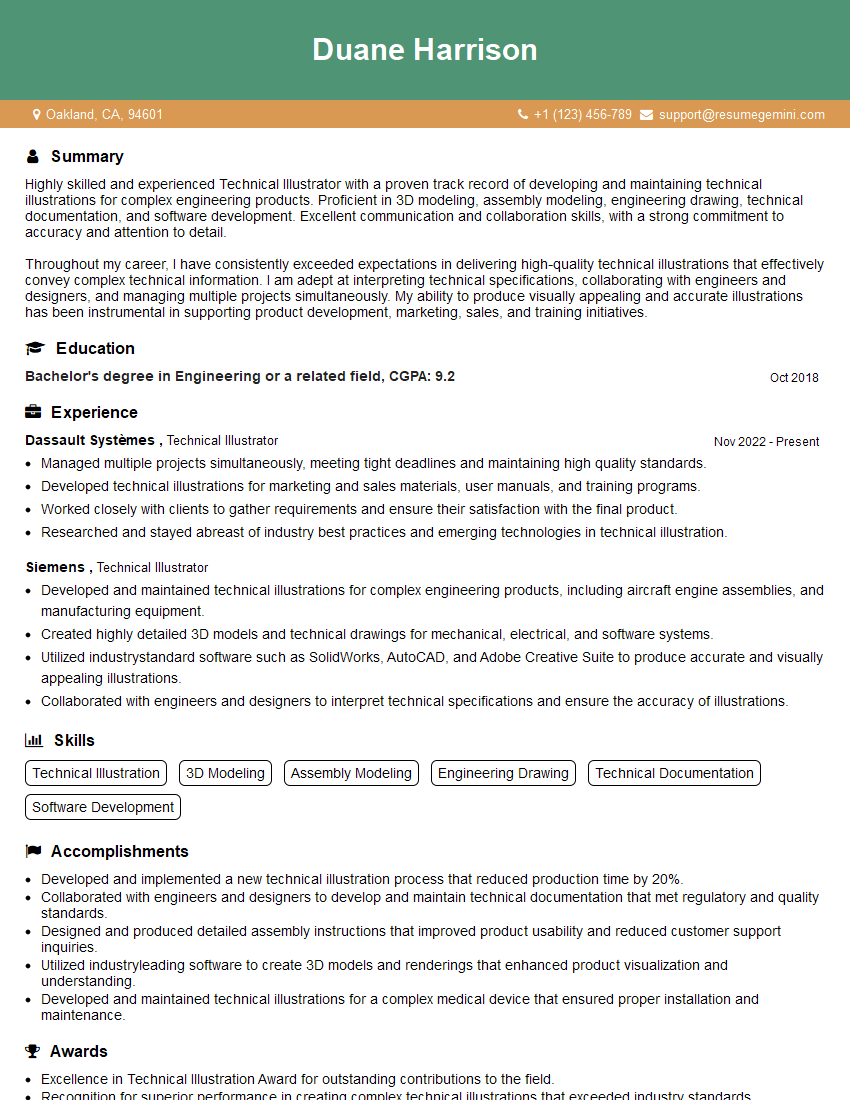
Technical Illustrator Resume Sample

3D Modeler Resume Sample
Explore more articles
Users Rating of Our Blogs
Share Your Experience
We value your feedback! Please rate our content and share your thoughts (optional).
What Readers Say About Our Blog
Very informative content, great job.
good