Preparation is the key to success in any interview. In this post, we’ll explore crucial Experience with Microsoft Office Suite interview questions and equip you with strategies to craft impactful answers. Whether you’re a beginner or a pro, these tips will elevate your preparation.
Questions Asked in Experience with Microsoft Office Suite Interview
Q 1. Explain your experience with Microsoft Word’s mail merge functionality.
Mail merge in Microsoft Word is a powerful tool that allows you to create personalized documents from a single template. Imagine sending personalized thank-you notes to hundreds of clients – instead of typing each one individually, mail merge automates this process. It works by combining a main document (containing the base letter or email) with a data source (like an Excel spreadsheet or a database) containing recipient information.
For example, you might have a template letter thanking clients for their business and a spreadsheet with their names, addresses, and order details. Mail merge will populate the template with the correct information for each client, generating a unique document for everyone. I’ve used this extensively in creating personalized marketing materials, generating customized reports for clients, and sending out mass invitations for company events.
The process involves selecting the mail merge recipients, inserting merge fields (placeholders for data from your spreadsheet), previewing the merged documents, and finally generating the personalized documents. I am comfortable working with various data sources and troubleshooting any errors that might arise, such as data mismatches or incorrect field insertion.
Q 2. How proficient are you in creating and formatting tables in Microsoft Word?
Creating and formatting tables in Word is something I’m highly proficient in. It goes beyond just basic table creation; I can efficiently design tables that are both visually appealing and functional. This includes adjusting column width and row height, adding borders and shading, merging and splitting cells, and applying different styles to enhance readability. I’m also adept at using features like table of contents generation which uses tables to organize chapter information.
For instance, I recently created a complex table for a research report, incorporating multiple levels of nested tables with headers, footers, and alternating row shading to improve readability and highlight key information. My experience also extends to converting tables from other sources, such as spreadsheets, and ensuring data integrity during the conversion process.
Q 3. Describe your experience using different Excel formulas (e.g., VLOOKUP, SUMIF, AVERAGE).
I have extensive experience with various Excel formulas, including VLOOKUP, SUMIF, and AVERAGE, and many others. These are essential for data manipulation and analysis.
VLOOKUP: This function is invaluable for looking up data in a table. For example, if I have a list of product IDs and want to find their corresponding prices from a separate price list,VLOOKUPcan efficiently retrieve that information. It’s crucial for data integration and building dynamic reports.SUMIF: This allows conditional summing. Suppose I need to calculate the total sales for a specific region.SUMIFcan sum only the sales figures where the region matches my criteria. This saves time and reduces manual calculation errors.AVERAGE: A fundamental function to calculate the average of a range of cells. I use this frequently for generating performance metrics, summarizing statistical data, and identifying trends.
Beyond these, I’m comfortable with more advanced functions like IF, COUNTIF, CONCATENATE, and various date and time functions. My experience ensures accurate and efficient data manipulation and analysis.
Q 4. How would you use Excel to analyze a large dataset?
Analyzing large datasets in Excel often requires a strategic approach. Simply opening the file and staring at millions of rows won’t cut it. My strategy begins with data cleaning and preparation. This might include removing duplicates, handling missing values, and transforming data into a usable format. Next, I would leverage Excel’s powerful tools such as filtering, sorting, and advanced formulas to extract meaningful insights.
For exceptionally large datasets, I might consider using Power Query (Get & Transform) to efficiently import, clean, and transform the data before applying further analysis. PivotTables are also incredibly useful for summarizing and analyzing large datasets quickly and easily. I would use them to group data, calculate aggregates, and identify trends. Finally, I would create charts and graphs to visualize the findings and communicate them effectively to a non-technical audience. Charting is crucial for identifying trends, outliers, and patterns easily.
Q 5. Explain your experience with creating charts and graphs in Excel.
Creating charts and graphs in Excel is an integral part of my data analysis workflow. I’m proficient in creating various chart types, including bar charts, line graphs, pie charts, scatter plots, and more. The choice of chart type depends on the data and the message I want to convey. For example, a bar chart is great for comparing categories, while a line graph shows trends over time.
Beyond choosing the right chart type, I also pay attention to details like clear labeling, appropriate scales, and visually appealing formatting. A well-designed chart communicates complex information clearly and concisely. I’ve used this skill extensively to create impactful presentations and reports, transforming raw data into easily understandable visuals.
Q 6. How familiar are you with Excel’s pivot tables and their uses?
PivotTables are a game-changer when it comes to analyzing large datasets in Excel. They allow you to summarize and analyze data in a highly interactive way. Think of them as dynamic summary tables that you can customize to see different aspects of your data. You can group data by different categories, calculate sums, averages, counts, and other aggregates, and easily drill down to see more detail.
For example, if I have sales data for different products, regions, and time periods, I can use a PivotTable to quickly see total sales by region, average sales per product, or sales trends over time. This interactive analysis allows for quick identification of trends and patterns that might be missed when simply looking at raw data. I regularly use PivotTables to generate insightful reports and presentations, saving considerable time and effort compared to manual analysis.
Q 7. Describe your experience with PowerPoint’s animation and transition features.
PowerPoint’s animation and transition features are crucial for creating engaging and memorable presentations. I’m skilled in using these features to create dynamic presentations that keep the audience interested. Animations can highlight key points, guide the viewer’s attention, and add visual interest. Transitions provide smooth transitions between slides, preventing abrupt changes in the flow of the presentation.
For instance, I might use subtle fade transitions between slides for a professional presentation, or more dynamic transitions for a more casual setting. I might use animations to emphasize key data points in a chart or to reveal information step-by-step, maintaining the audience’s focus. The key is to use these features judiciously; overuse can be distracting. I strive for a balance between visual appeal and clarity, ensuring the presentation supports the message and doesn’t overwhelm the audience.
Q 8. How would you create an effective and engaging PowerPoint presentation?
Creating an effective and engaging PowerPoint presentation involves more than just slapping together some slides. It’s about crafting a compelling narrative that keeps your audience interested and informed. I approach this in a structured way, focusing on several key elements:
- Storytelling: Every presentation should tell a story. I begin by defining a clear message and crafting a narrative arc that builds to a compelling conclusion. Think of it like writing a short story with a beginning, middle, and end.
- Visual Appeal: Visuals are crucial. I use high-quality images, relevant charts and graphs, and consistent branding to maintain a professional and visually appealing presentation. I avoid clutter and use white space effectively.
- Concise Content: Less is more. I use bullet points, short sentences, and impactful keywords to convey information efficiently. I avoid overwhelming the audience with too much text on a single slide.
- Animations and Transitions: These can enhance engagement, but they should be used sparingly and purposefully. Overuse can be distracting. I select animations that support the flow of information, not just for visual flair.
- Audience Engagement: I incorporate interactive elements like polls, quizzes, or Q&A sessions to keep the audience actively involved. I tailor the content and delivery style to the specific audience.
- Rehearsal: Practice is key! I always rehearse my presentation several times to ensure a smooth and confident delivery. This allows me to anticipate questions and address potential issues.
For example, in a presentation to potential investors, I would focus on clear financial data, compelling visuals showcasing growth, and a concise narrative highlighting the return on investment. Conversely, a presentation for a team would emphasize collaboration, progress, and future plans in a more conversational style.
Q 9. How familiar are you with PowerPoint’s presenter view?
I’m very familiar with PowerPoint’s Presenter View. It’s an invaluable tool for delivering professional presentations. Presenter View allows me to see my current slide, the next slide, my speaker notes, and a timer – all on my own screen, while the audience sees only the main presentation. This is incredibly helpful for staying organized and on track.
For instance, I can use the speaker notes to elaborate on points mentioned on the slide, providing additional context or details without reading directly from the slide. The timer helps me manage my time effectively and avoid going over the allotted time. The ability to see the next slide allows for a smooth transition between points and prevents me from getting lost in the presentation.
Q 10. How would you use Excel’s conditional formatting to highlight specific data?
Excel’s conditional formatting is a powerful feature that allows you to automatically highlight cells based on specified criteria. This is essential for quickly identifying trends, outliers, or important data points within a large dataset.
To highlight specific data, I typically follow these steps:
- Select the range of cells you want to apply conditional formatting to.
- Go to the ‘Home’ tab and click on ‘Conditional Formatting’.
- Choose a rule type from the dropdown menu. The options include highlighting cells based on values (e.g., greater than, less than, between), text, dates, or even creating custom rules using formulas.
- Specify the criteria for your rule. For example, to highlight all sales figures exceeding $10,000, I would choose ‘Highlight Cells Rules’ -> ‘Greater Than’ and enter ‘$10,000’.
- Select a formatting style to apply to the cells that meet your criteria. This could be a change in color, font style, or icon sets.
For example, imagine analyzing sales data. Using conditional formatting, I could automatically highlight cells representing sales above a certain target in green, indicating success, while highlighting those below the target in red, immediately drawing attention to areas needing improvement.
Q 11. Describe your experience with using macros in Microsoft Excel.
I have significant experience working with macros in Microsoft Excel. Macros automate repetitive tasks, saving time and increasing efficiency. I’m proficient in recording macros, editing VBA code, and using macros to streamline complex processes.
I’ve used macros for a variety of tasks, including:
- Automating data entry: Creating macros to automatically populate data from one sheet to another, reducing manual effort and the risk of errors.
- Generating reports: Macros can be used to consolidate data from multiple sheets and automatically generate reports in a specific format.
- Customizing formatting: I’ve built macros to apply consistent formatting across large datasets, ensuring a professional and uniform look.
- Data cleaning and validation: Macros can be used to clean and validate data, removing duplicates or inconsistencies.
For example, I once created a macro to automate the monthly financial report generation process. This macro collected data from various spreadsheets, calculated key figures, formatted the report, and saved it in a predefined location, saving hours of manual work each month. This involved working with VBA (Visual Basic for Applications) to customize the macro’s functionality and enhance its efficiency.
Q 12. How would you troubleshoot a formula error in Excel?
Troubleshooting formula errors in Excel is a crucial skill. My approach is systematic and involves several steps:
- Identify the error: The error message itself (e.g., #NAME?, #VALUE!, #REF!, #DIV/0!) provides clues about the problem.
- Check cell references: Ensure that all cell references in the formula are correct and point to the intended cells. Incorrect references are a common source of errors.
- Examine the formula syntax: Verify that the formula syntax is correct. Even a small typo can cause an error. Pay attention to parentheses, operators, and function arguments.
- Data types: Make sure the data types used in the formula are compatible. For example, trying to perform arithmetic operations on text values will result in an error.
- Evaluate the formula step-by-step: Use the ‘Evaluate Formula’ tool (under the ‘Formulas’ tab) to step through the formula and see the intermediate results. This helps pinpoint where the error occurs.
- Test with simpler data: If the formula is complex, try testing it with a smaller, simpler dataset to isolate the problem.
- Use error handling functions: Functions like IFERROR can help handle potential errors gracefully, preventing the entire formula from crashing.
For example, a #DIV/0! error indicates division by zero. To fix this, I would check the formula to ensure the denominator isn’t zero, perhaps using an IF statement to handle the case where the denominator is zero.
Q 13. How familiar are you with Microsoft Access?
I’m very familiar with Microsoft Access. I understand its capabilities as a relational database management system (RDBMS), including creating and managing tables, queries, forms, reports, and macros. I’ve worked extensively with Access in various projects, from simple contact management systems to more complex inventory tracking databases.
Q 14. Describe your experience with creating databases in Microsoft Access.
My experience with creating databases in Microsoft Access includes designing the database structure, defining relationships between tables, creating queries to retrieve data, designing user-friendly forms for data entry and modification, and generating reports to present information effectively.
I typically follow a structured approach:
- Requirements Gathering: I begin by clearly defining the purpose of the database and identifying the information it needs to store and manage.
- Database Design: I then design the database structure, identifying the tables, fields (data elements), and their data types. I pay close attention to data integrity and normalization to ensure data accuracy and efficiency.
- Relationships: I establish relationships between tables to link related data effectively. This ensures data consistency and avoids redundancy.
- Queries: I create queries to retrieve specific information from the database, enabling flexible data retrieval based on various criteria.
- Forms and Reports: I design user-friendly forms for data entry and modification, and create reports to present data in a clear and organized manner.
- Testing and Refinement: I thoroughly test the database to identify and fix any issues, and continuously refine the design based on user feedback.
For example, I developed an Access database for a small business to track inventory. This involved creating tables for products, suppliers, and transactions, establishing relationships between them, and developing forms and reports for easy inventory management and order tracking.
Q 15. How would you use Access to query and filter data?
Microsoft Access allows powerful querying and filtering of data through its Query Design view and various query types. Think of it like a sophisticated search engine for your database. You can specify criteria to pinpoint exact records or ranges of data.
For example, let’s say you have a database of customer orders. To find all orders placed in California in 2023, you’d use a query. In Query Design view, you’d select the ‘Orders’ table, add the ‘OrderDate’ and ‘CustomerState’ fields, and then in the criteria row under ‘OrderDate’, you’d enter Between #01/01/2023# And #12/31/2023# and under ‘CustomerState’, you’d enter California. Access will then return only the matching orders.
Beyond simple criteria, Access supports advanced filtering using operators like LIKE (for partial matches), IN (for multiple values), and aggregate functions (like SUM, AVG, COUNT) to calculate data summaries. I’ve used this extensively to generate reports summarizing sales by region, identifying overdue payments, or tracking inventory levels, helping me make informed business decisions.
Career Expert Tips:
- Ace those interviews! Prepare effectively by reviewing the Top 50 Most Common Interview Questions on ResumeGemini.
- Navigate your job search with confidence! Explore a wide range of Career Tips on ResumeGemini. Learn about common challenges and recommendations to overcome them.
- Craft the perfect resume! Master the Art of Resume Writing with ResumeGemini’s guide. Showcase your unique qualifications and achievements effectively.
- Don’t miss out on holiday savings! Build your dream resume with ResumeGemini’s ATS optimized templates.
Q 16. How familiar are you with Microsoft Outlook’s calendar and scheduling features?
I’m highly proficient with Outlook’s calendar and scheduling features. I regularly use it for managing my own schedule and collaborating with others. I find its intuitive interface and robust features indispensable for staying organized.
I routinely create appointments, meetings, and all-day events, setting reminders and integrating them with other tasks. I leverage recurring appointments for regular meetings and utilize the ability to set different notification times for various event types – a crucial feature for managing time effectively. I frequently use the scheduling assistant to find times that work for multiple participants, resolving scheduling conflicts effortlessly. Sharing calendars with colleagues allows for seamless collaboration and transparency. For example, during a major project, sharing calendars with team members ensured everyone was aware of deadlines and potential scheduling overlaps. This prevented conflicts and streamlined the project’s timeline.
Q 17. How would you manage multiple email accounts using Outlook?
Outlook excels at handling multiple email accounts. It’s easy to add multiple accounts and manage them within a unified interface. Imagine having separate accounts for personal communication, work, and client interactions; Outlook keeps them neatly separated yet accessible from a single application.
To add an account, you simply go to ‘File’ > ‘Add Account’ and follow the prompts. Outlook then seamlessly integrates all your inboxes. I can easily switch between accounts, using distinct folders or color-coding to differentiate communications. This helps in maintaining professional boundaries and ensures I respond to messages from different contexts efficiently and appropriately. For example, I keep my personal and work emails completely distinct for privacy and professional reasons.
Q 18. Describe your experience with Outlook’s rules and filters.
Outlook’s rules and filters are powerful tools for automating email management. Think of them as your personalized email assistants, automatically sorting and handling incoming messages based on predefined criteria. This significantly reduces email clutter and improves efficiency.
I use rules to automatically move emails from specific senders to designated folders, flag important messages, or delete junk mail. Filters can also be customized to identify emails based on keywords in the subject line or body. For example, I’ve set up a rule to automatically move emails from my boss to a ‘High Priority’ folder and another to automatically archive newsletters to a separate folder. These rules and filters save me considerable time and effort by automating the sorting and organization of my inbox. It’s a fantastic time management tool.
Q 19. How would you use Outlook to manage contacts and tasks?
Outlook provides an integrated system for managing contacts and tasks. I use the contacts section to store and organize information about clients, colleagues, and other individuals. The task management feature allows me to create, assign, and track tasks, keeping me on schedule and ensuring nothing slips through the cracks.
For contacts, I can categorize them using custom fields and groups, making searching and retrieving specific information very efficient. For tasks, I can set deadlines, assign priorities, and add reminders, fostering better time management. I can link tasks to specific contacts, emails or calendar events, creating a holistic view of my responsibilities. This integration between contacts and tasks helps me stay organized and proactive in my work. I can easily see what tasks are related to particular clients or projects, ensuring smooth workflow.
Q 20. How proficient are you in using Word’s track changes feature?
I’m highly proficient in using Word’s Track Changes feature. It’s invaluable for collaborative document editing and revision management. Think of it as a detailed history of every edit made to a document, facilitating easy review and acceptance or rejection of changes.
I regularly use it to review and edit documents received from colleagues. It clearly highlights all additions, deletions, and formatting changes, allowing me to see exactly what modifications have been made. The ability to accept or reject individual changes, or to leave comments, allows for efficient feedback and ensures everyone is on the same page. This is especially helpful for legal or technical documents where precision and accuracy are critical. The ‘Compare’ feature further enhances this process, allowing comparisons between multiple versions of a document.
Q 21. How would you collaborate on a Word document with multiple users?
Collaborating on Word documents with multiple users is streamlined through features like Track Changes and co-authoring. This allows multiple people to edit the same document simultaneously. It’s like a shared whiteboard, but for text and formatting.
We utilize co-authoring to work on documents in real-time, seeing each other’s edits as they are made. This speeds up the revision process dramatically and allows for immediate feedback. We utilize comments to discuss specific sections and make suggestions. With Word’s version history, we can easily revert to previous versions if needed, providing a safety net against accidental deletions or unwanted changes. This real-time collaboration minimizes email chains and enhances productivity. Using the ‘Save As’ function often allows everyone to preserve their own copies while also retaining the central collaborative file.
Q 22. Describe your experience using Excel’s data validation features.
Excel’s data validation features are crucial for ensuring data accuracy and consistency. They allow you to define acceptable input ranges, types, and formats for specific cells or ranges, preventing errors and improving data quality. Think of it like setting up guardrails for your data – only the ‘correct’ information can pass through.
For example, if I’m creating a spreadsheet to track sales figures, I might use data validation to ensure that the ‘Quantity Sold’ column only accepts numerical values greater than or equal to zero. This prevents accidental input of negative numbers or text. I could also use a dropdown list to restrict the ‘Region’ column to only predefined regions like ‘North’, ‘South’, ‘East’, and ‘West’, eliminating inconsistencies in data entry.
- Setting up data validation: You navigate to the ‘Data’ tab, select ‘Data Validation’, and then choose the criteria (e.g., whole number, list, date) and set the parameters (e.g., minimum and maximum values, allowed list items). You can even include error alerts to inform the user if they enter invalid data.
- Custom Validation: For more complex scenarios, you can create custom validation rules using formulas. For instance, I could enforce a rule that the ‘Total Revenue’ column must always equal the ‘Quantity Sold’ multiplied by the ‘Price Per Unit’ using a formula-based validation.
In my previous role, using data validation in Excel significantly reduced data entry errors in our sales reports, leading to more reliable analysis and decision-making.
Q 23. How would you protect sensitive data in Excel?
Protecting sensitive data in Excel requires a multi-layered approach. It’s not just about passwords; it’s about controlling access and minimizing vulnerabilities.
- Password Protection: This is the most basic step. You can password-protect your entire workbook or specific worksheets to prevent unauthorized access and modification. Remember to choose a strong password!
- Restricting Editing: You can use the ‘Protect Sheet’ and ‘Protect Workbook’ features to limit what users can edit or modify within the spreadsheet. You can control features such as inserting rows, deleting columns, or even formatting cells. This can be particularly useful for shared documents where you want to maintain data integrity.
- Data Encryption: For highly sensitive data, consider encrypting the Excel file itself. This will scramble the data, making it unreadable without the correct decryption key. Many operating systems offer built-in encryption tools, or you can use third-party software.
- Controlled Access: Instead of directly sharing the Excel file, consider storing it securely on a cloud storage platform that offers access control, like SharePoint or OneDrive. This allows you to grant specific permissions to different users, preventing unauthorized access.
- Regular Backups: Always back up your important Excel files regularly to a secure location. This prevents data loss in case of accidental deletion or corruption.
For example, in a financial context, I would utilize all these methods to safeguard sensitive financial data. The combination of password protection, restricted editing, and secure cloud storage ensures that only authorized individuals can access and modify confidential information.
Q 24. Explain your experience with creating charts and graphs in PowerPoint.
I have extensive experience creating visually appealing and informative charts and graphs in PowerPoint. I understand that a well-designed chart can significantly enhance the impact of a presentation. My approach involves selecting the appropriate chart type for the data, paying close attention to labeling, and using PowerPoint’s design tools to create a professional look.
For instance, if I’m presenting sales data across different quarters, I might use a column chart to compare the performance visually. For showing trends over time, a line chart would be more suitable. Before creating the chart, I thoroughly analyze the data to determine which aspects are most important to highlight. I also ensure the chart is clearly labeled, with a title, axis labels, and a legend if necessary. I use PowerPoint’s formatting options, such as adjusting colors, fonts, and chart styles, to ensure the chart complements the overall design of the presentation. I often leverage PowerPoint’s built-in chart templates as starting points to make the process more efficient.
In a recent presentation on marketing campaign performance, I used a combination of pie charts (to show market share), bar charts (to display campaign spending), and line charts (to illustrate ROI over time). The result was a clear and compelling visual representation that significantly improved audience understanding.
Q 25. How familiar are you with using templates in Microsoft Office applications?
I am very familiar with using templates in Microsoft Office applications. Templates offer a fantastic way to save time and maintain consistency across documents, presentations, and spreadsheets. They act as pre-designed frameworks, providing a head start with formatting, layouts, and even content placeholders.
In Word, I frequently use templates for creating professional-looking reports, letters, or resumes. The built-in templates are a great starting point, but you can also download custom templates or even create your own for specific needs. Similarly, Excel templates are essential for tasks like budgeting, project management, and data analysis, providing ready-made structures with formulas and formatting. PowerPoint templates provide consistent branding and layout across presentations, ensuring a professional image.
For example, I once created a custom Word template for generating client proposals. This template included the company logo, standard sections (introduction, solutions, pricing, timeline), and consistent formatting, ensuring all proposals had a unified professional look and feel. This saved a significant amount of time and effort compared to starting each proposal from scratch.
Q 26. How would you create a professional-looking document using Word’s formatting tools?
Creating a professional-looking document in Word involves utilizing a combination of formatting tools. It’s about creating a visually appealing document that is also clear, concise, and easy to read. My approach involves thoughtful use of headings, styles, lists, tables, images, and white space.
- Styles: Using pre-defined styles or creating custom styles helps ensure consistency in formatting throughout the document. Styles apply formatting consistently, simplifying edits and making the document easier to maintain.
- Headings: Using different levels of headings helps structure the document logically, making it easier for readers to navigate and understand the content. I often use the built-in heading styles, as they automatically generate a table of contents, which is beneficial for longer documents.
- Lists and Tables: Bullet points and numbered lists make information more readable and organized. Tables are effective for presenting data in a structured format.
- Images and White Space: Carefully chosen images can help enhance visual appeal. Strategic use of white space (margins and spacing between elements) improves readability and prevents a cluttered look.
- Fonts and Colors: I use a consistent, professional font (like Times New Roman or Calibri) and a limited color palette, ensuring the document is visually appealing and not distracting.
For example, I recently created a marketing report using Word’s formatting tools. By employing styles, headings, bullet points, and tables, the document was easy to read and understand, contributing to a higher impact in the presentation.
Q 27. Describe your experience with PowerPoint’s design templates and themes.
PowerPoint’s design templates and themes are powerful tools for creating visually consistent and professional presentations. Templates provide a pre-designed framework, including layouts, color schemes, fonts, and background styles. Themes offer a selection of color palettes and font combinations. Using these effectively is vital to creating a compelling and professional presentation.
I often start by choosing a theme that aligns with the presentation’s tone and subject matter. For a formal presentation, I might select a classic theme; for a more creative one, a modern theme might be better. Once the theme is chosen, I customize the individual slides using the layouts provided by the template. This ensures consistency in the overall look and feel. For example, I might use the title slide layout for the first slide, a content slide layout for the body of the presentation, and a comparison layout for showcasing data comparisons. I carefully review the use of images and visual elements, ensuring they are high quality and complement, not distract from the content.
In a recent presentation to stakeholders, I used a custom designed template that incorporated our company’s branding guidelines. This ensured a consistent look and feel, reinforcing our company’s professional image and making the presentation more memorable.
Q 28. How would you troubleshoot a problem with a PowerPoint presentation?
Troubleshooting PowerPoint presentations can involve a variety of issues. My approach is systematic, starting with the most common problems and progressing to more complex ones.
- Check for Simple Errors: Start by checking for obvious issues such as typos, incorrect formatting, or missing images. Often, the problem is simpler than you think.
- Review Transitions and Animations: Glitches with transitions and animations can disrupt the flow. If problems occur, either remove or adjust the transitions and animations and review their functionality.
- Examine the Slideshow Settings: Make sure the slideshow settings are correctly configured (e.g., correct resolution, loop, and autoplay). Review the presentation in slideshow mode to identify issues that might not be obvious in normal editing mode.
- Check Compatibility: PowerPoint presentations can have compatibility issues with older versions of the software. Check if the presentation is compatible with the projector or system you will be using for the presentation. If possible, always test the presentation on the actual presentation hardware before delivery.
- Restart and Reopen: If you encounter unexpected behaviour, try restarting the software or your computer. Sometimes, simple system restarts solve minor software glitches.
- File Corruption: In extreme cases, the presentation file itself may be corrupted. Attempt to repair the file or create a new one, copying the content from the original file.
For instance, I once encountered an issue where a presentation was displaying blurry images on a specific projector. After checking compatibility and resolution, I discovered the presentation needed to be saved and displayed in a higher resolution. Testing the presentation on the specific projector beforehand prevented the problem during the actual presentation.
Key Topics to Learn for Microsoft Office Suite Interview Success
- Word Processing (Microsoft Word): Mastering document formatting, styles, tables, mail merge, and advanced features like track changes and collaboration tools. Think about how you’ve used these features to create professional and efficient documents.
- Spreadsheet Software (Microsoft Excel): Focus on data entry, formulas (including complex functions like VLOOKUP and PivotTables), charting, data analysis, and data visualization. Prepare examples showcasing your ability to solve problems using Excel’s analytical tools.
- Presentation Software (Microsoft PowerPoint): Practice creating compelling presentations with effective visuals, transitions, and animations. Consider how you’ve used PowerPoint to communicate complex information clearly and concisely.
- Database Management (Microsoft Access): (If applicable to the role) Understand database design, querying data, creating reports, and managing relationships between tables. Prepare to discuss your experience with database organization and retrieval.
- Collaboration and File Sharing: Demonstrate understanding of cloud-based collaboration features (OneDrive, SharePoint) and best practices for sharing and managing documents effectively within a team environment.
- Problem-Solving with Office Suite: Be prepared to discuss how you’ve used the Microsoft Office Suite to overcome challenges in previous roles. Highlight your analytical and problem-solving skills within the context of using these tools.
Next Steps
Mastering the Microsoft Office Suite is crucial for success in today’s professional landscape. Proficiency in these tools demonstrates valuable skills in organization, data analysis, communication, and collaboration – all highly sought-after attributes by employers. To significantly boost your job prospects, creating a strong, ATS-friendly resume is paramount. ResumeGemini is a trusted resource to help you build a professional and effective resume that highlights your skills and experience. Examples of resumes tailored to showcasing Microsoft Office Suite expertise are available within ResumeGemini to help you craft the perfect application.
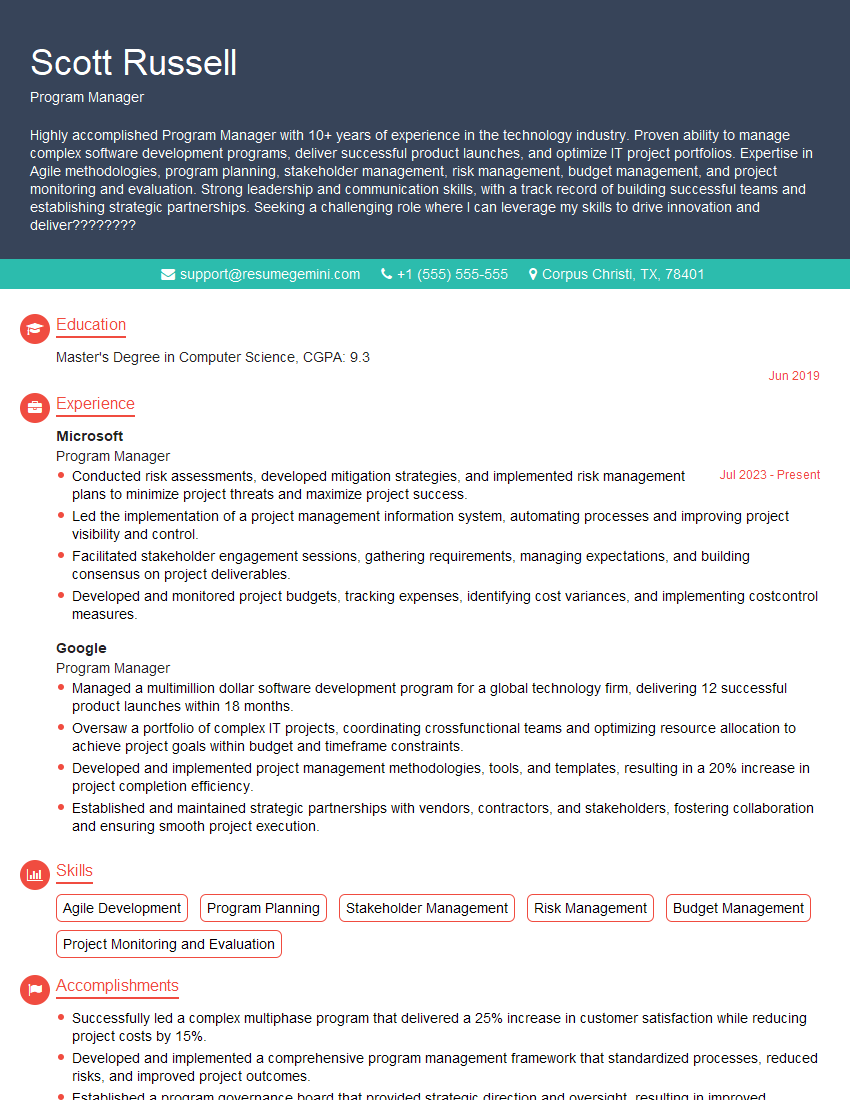
Program Manager Resume Sample

Office Manager Resume Sample
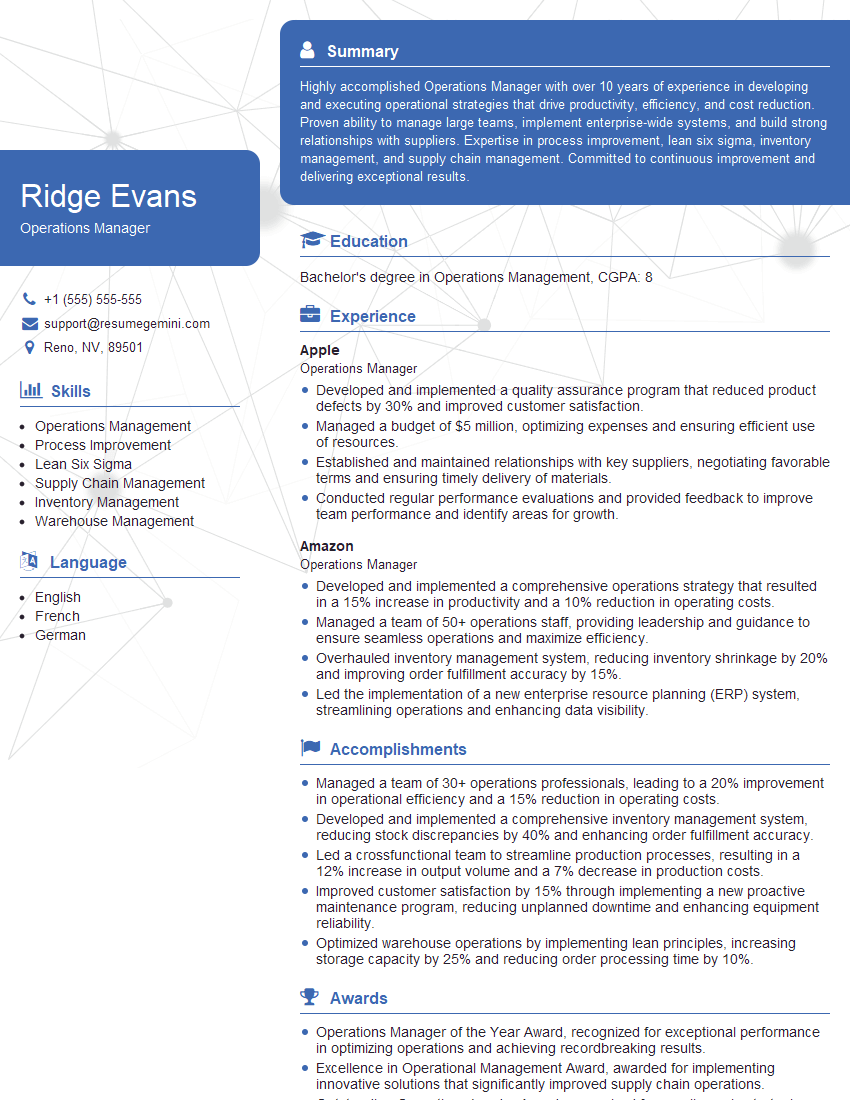
Operations Manager Resume Sample
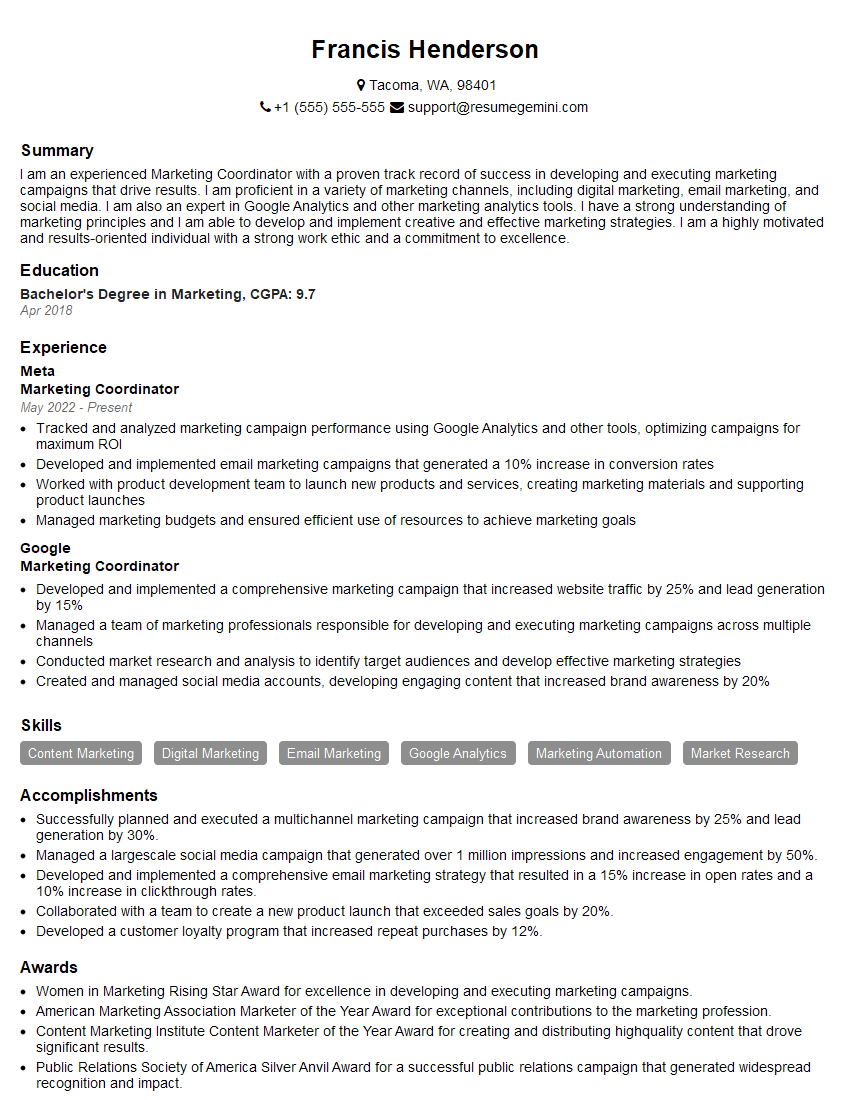
Marketing Coordinator Resume Sample
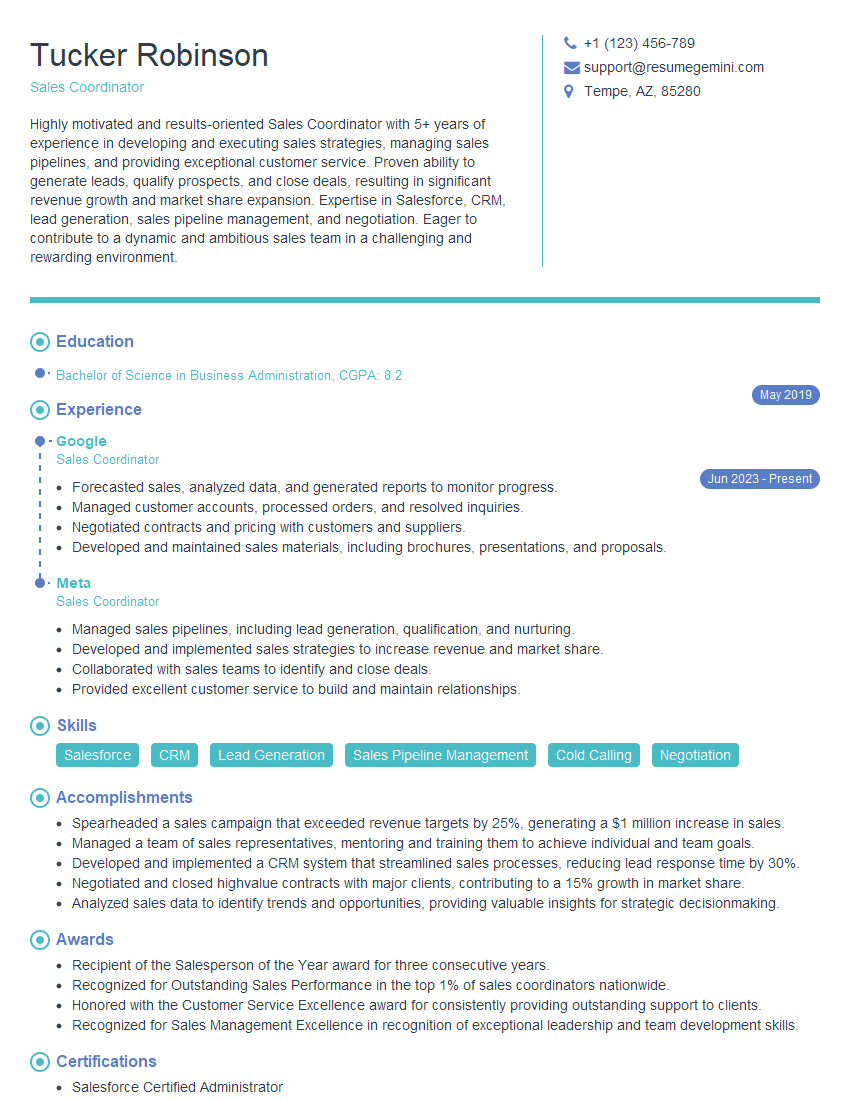
Sales Coordinator Resume Sample

Administrative Assistant Resume Sample
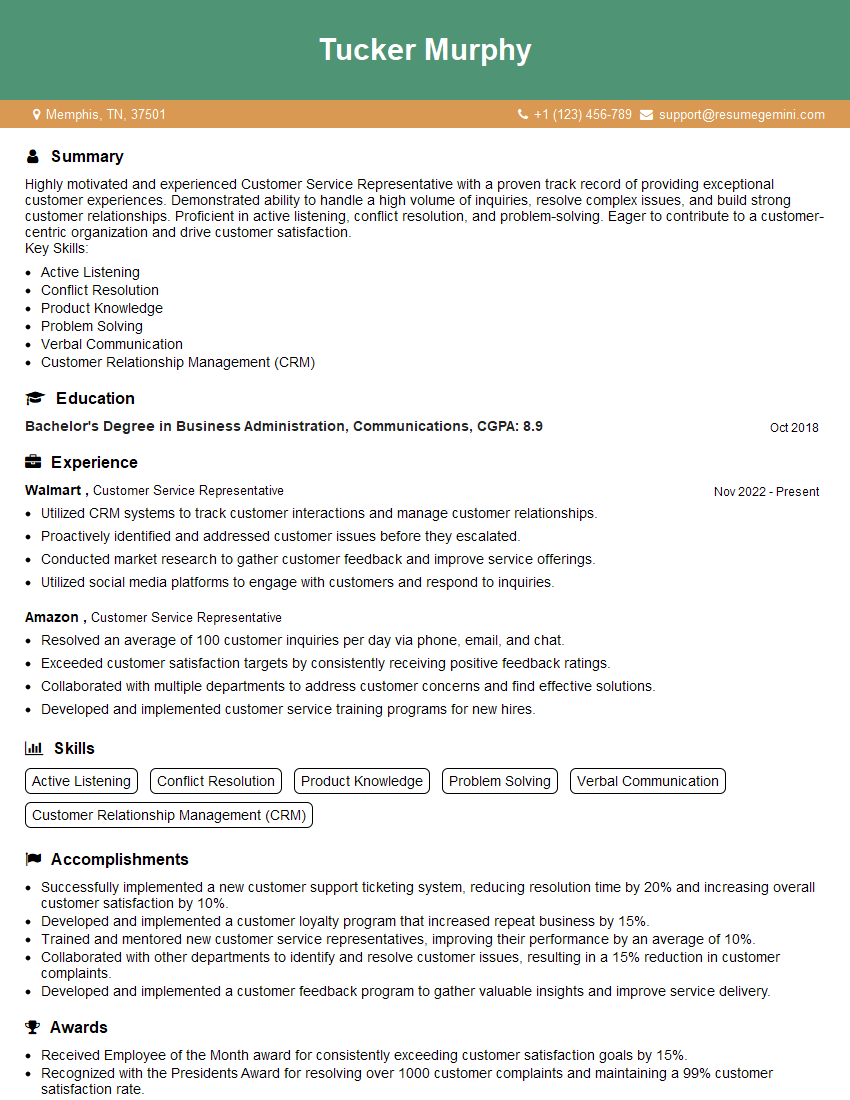
Customer Service Representative Resume Sample
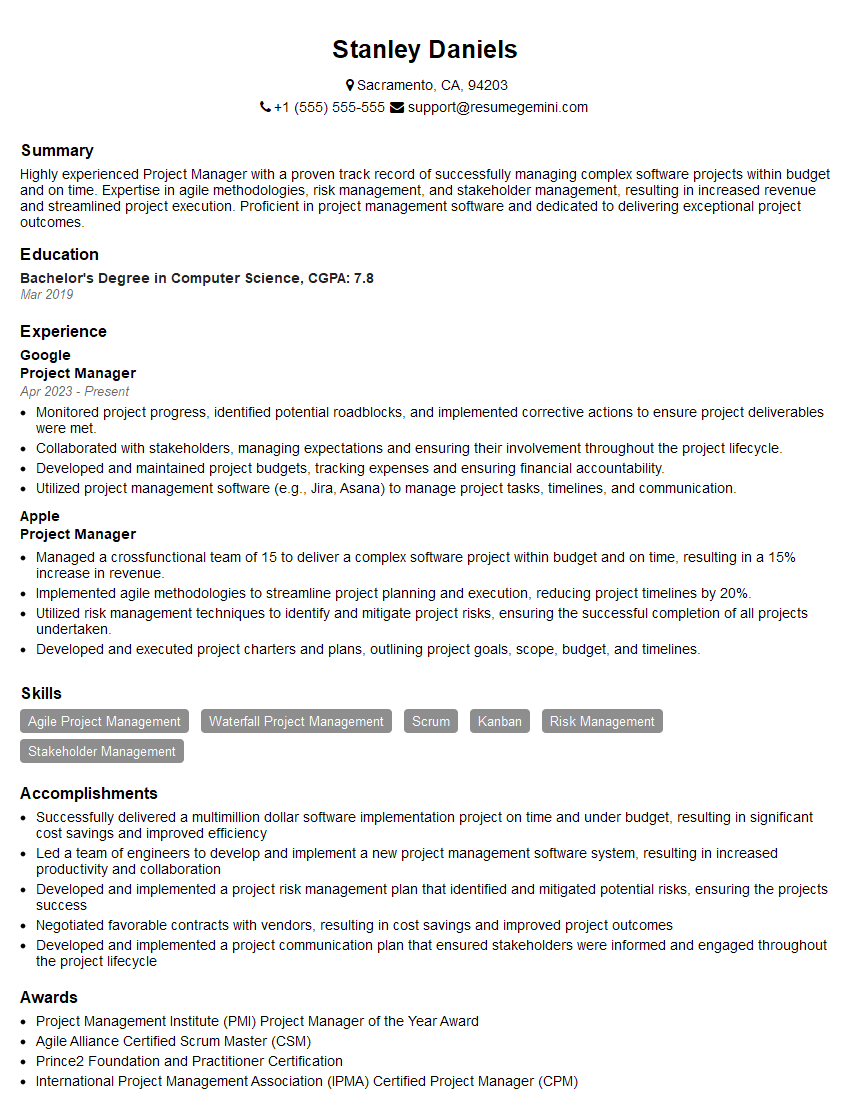
Project Manager Resume Sample
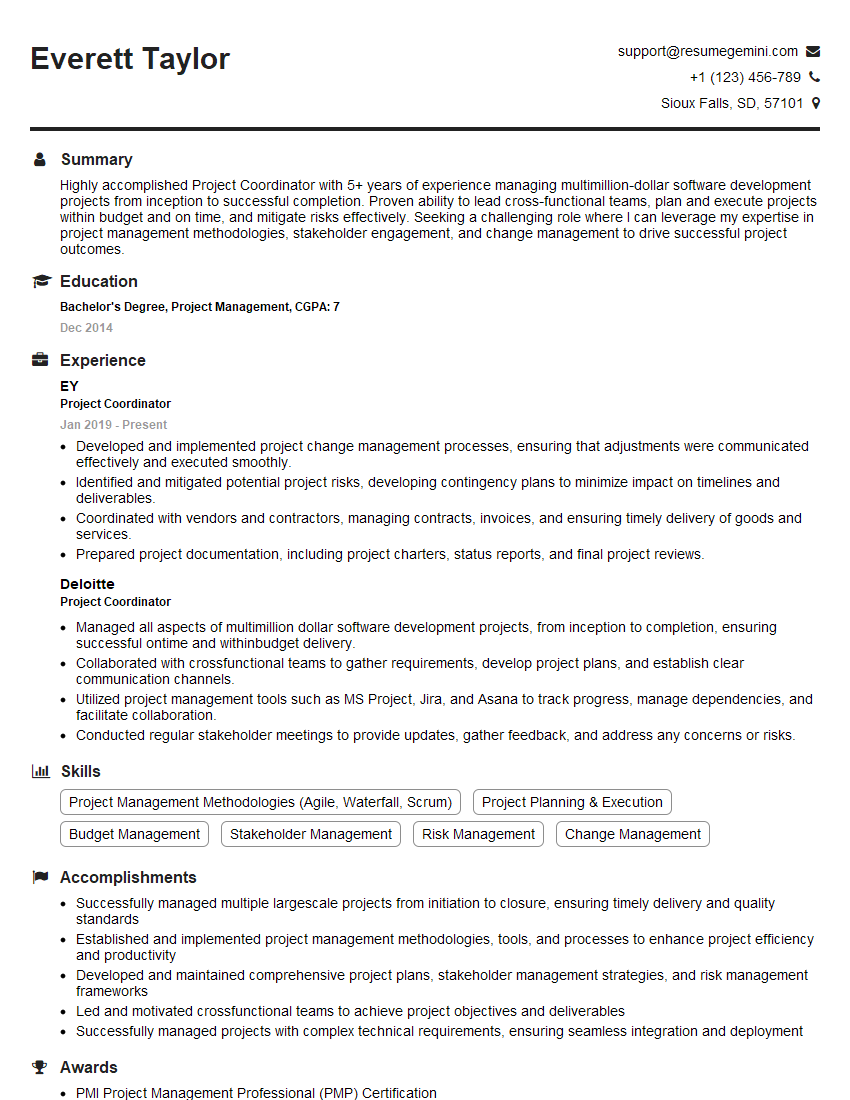
Project Coordinator Resume Sample
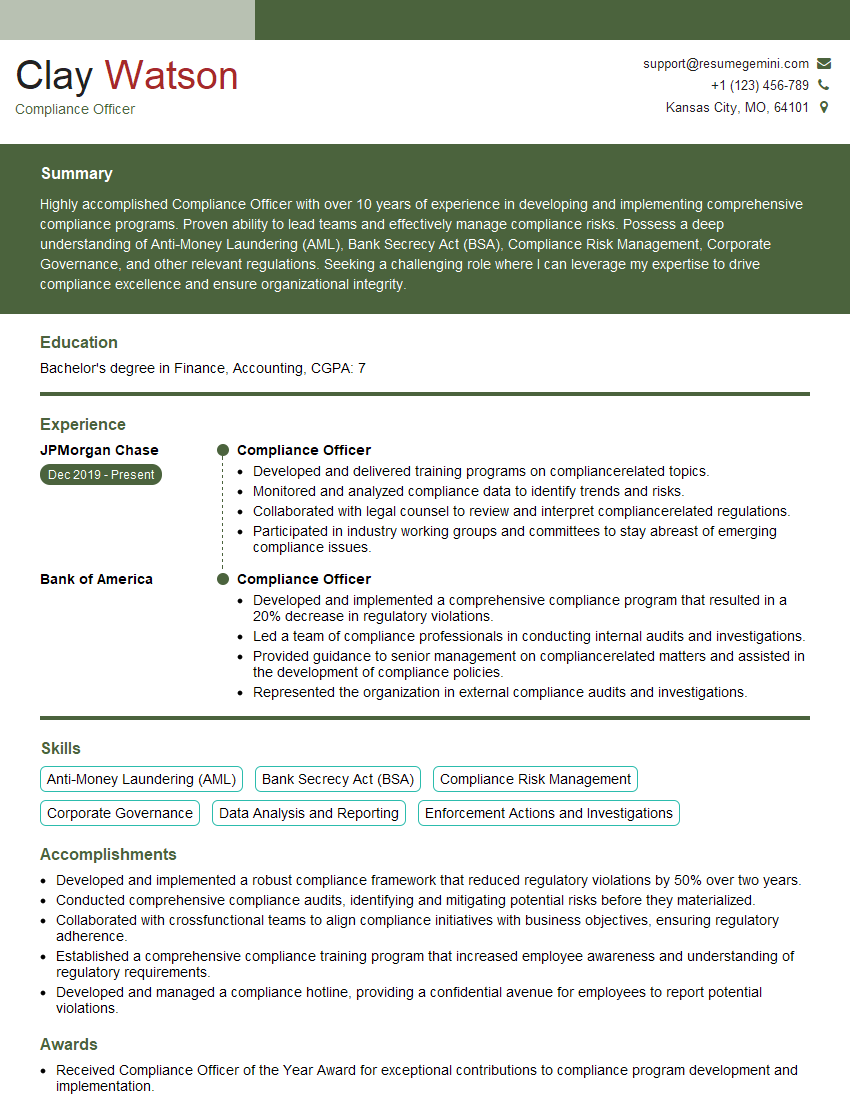
Compliance Officer Resume Sample

Business Analyst Resume Sample
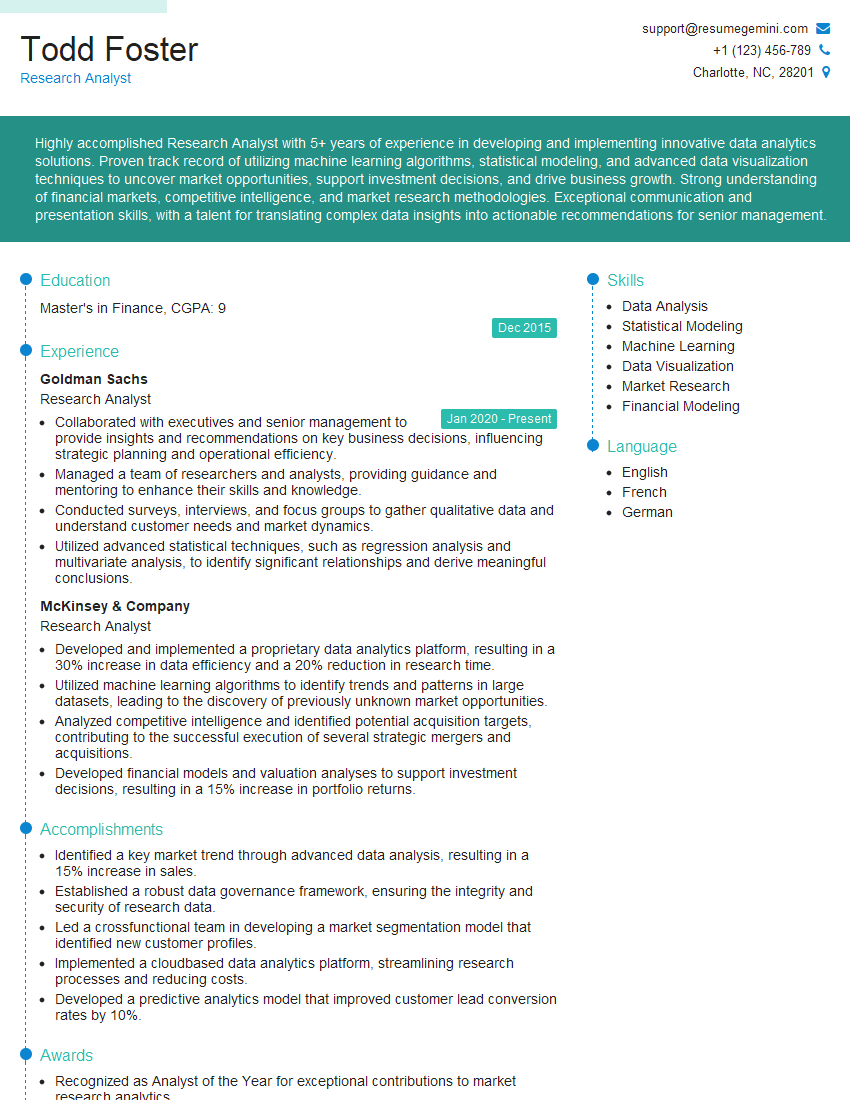
Research Analyst Resume Sample
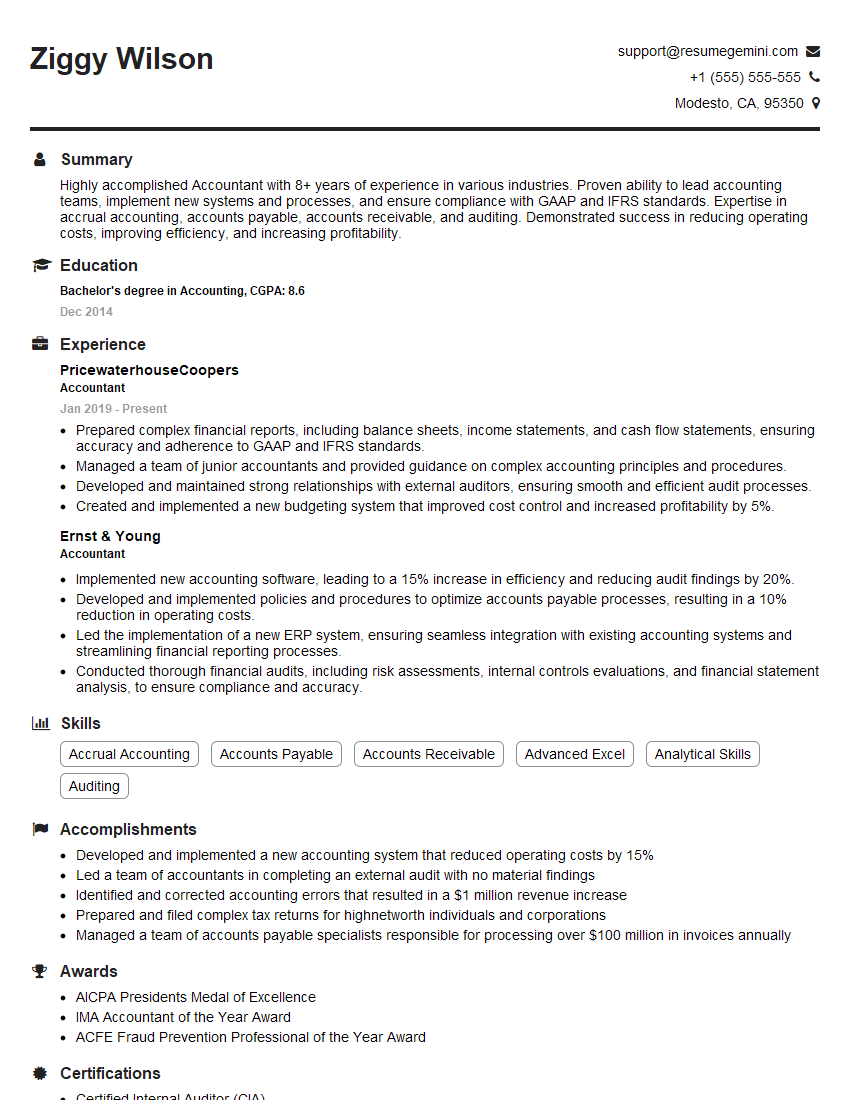
Accountant Resume Sample
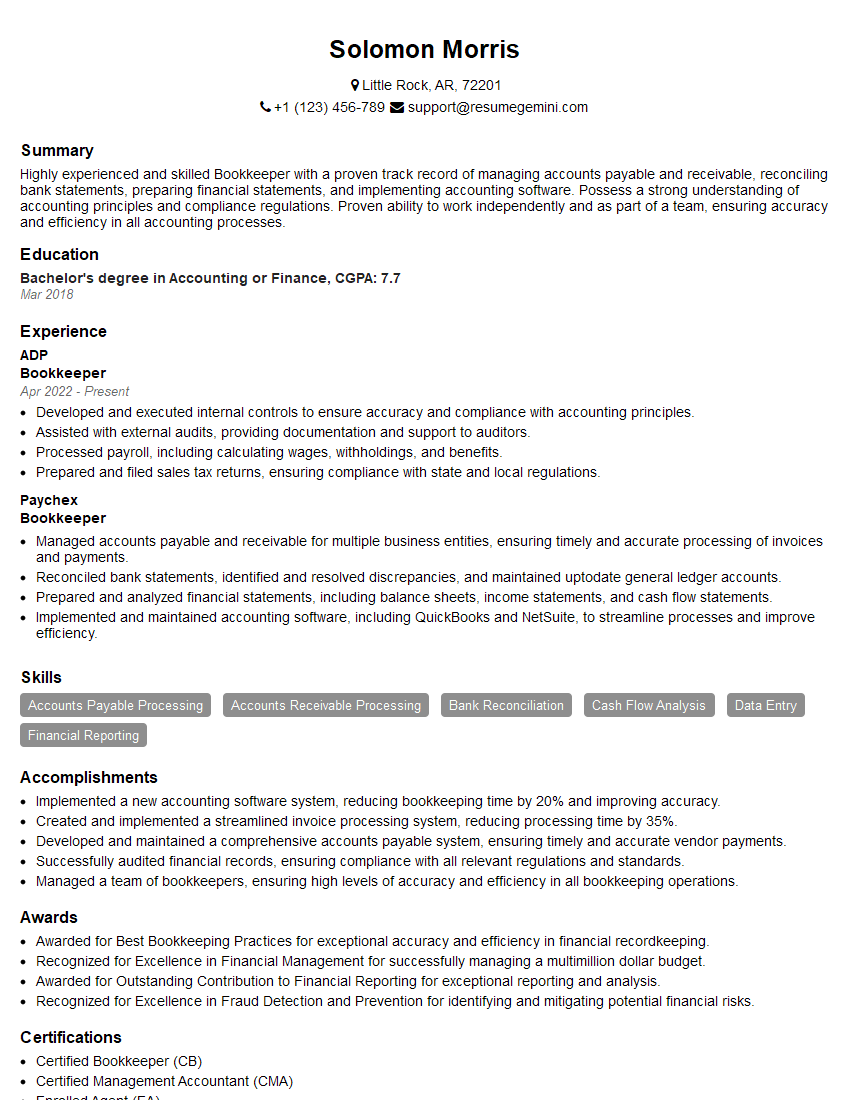
Bookkeeper Resume Sample
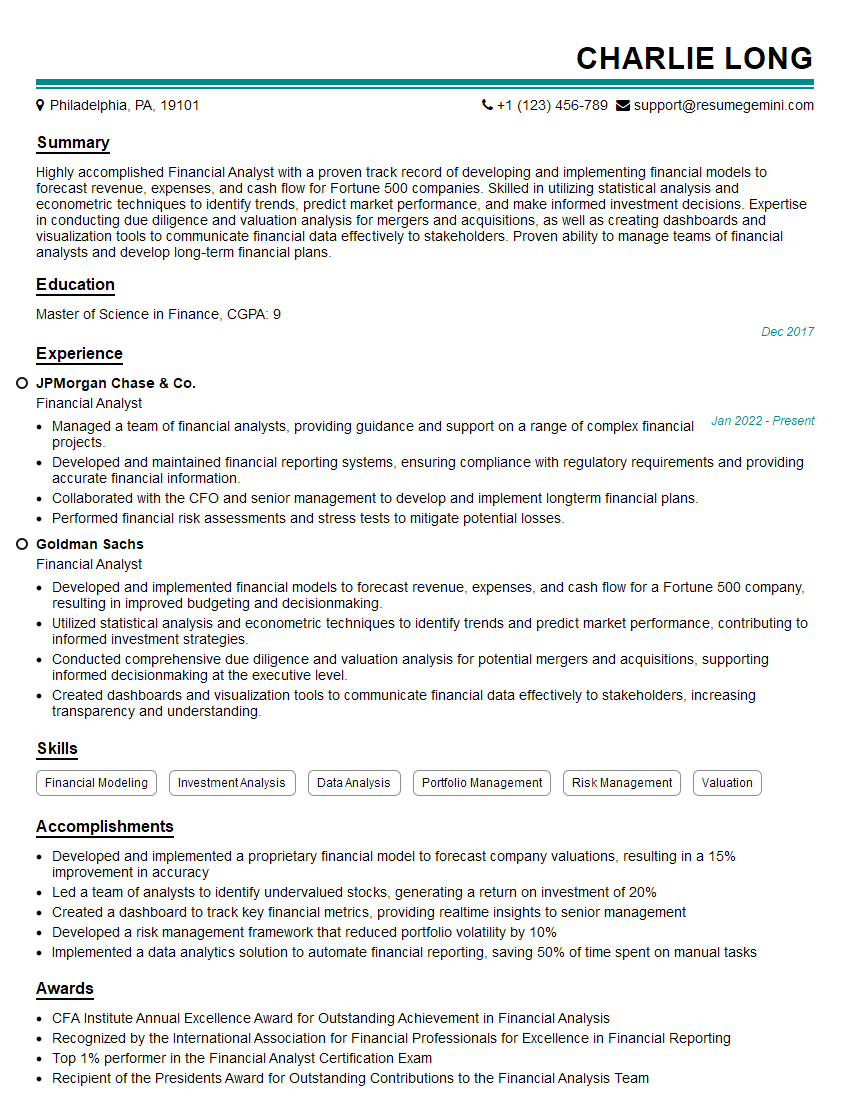
Financial Analyst Resume Sample

Data Analyst Resume Sample
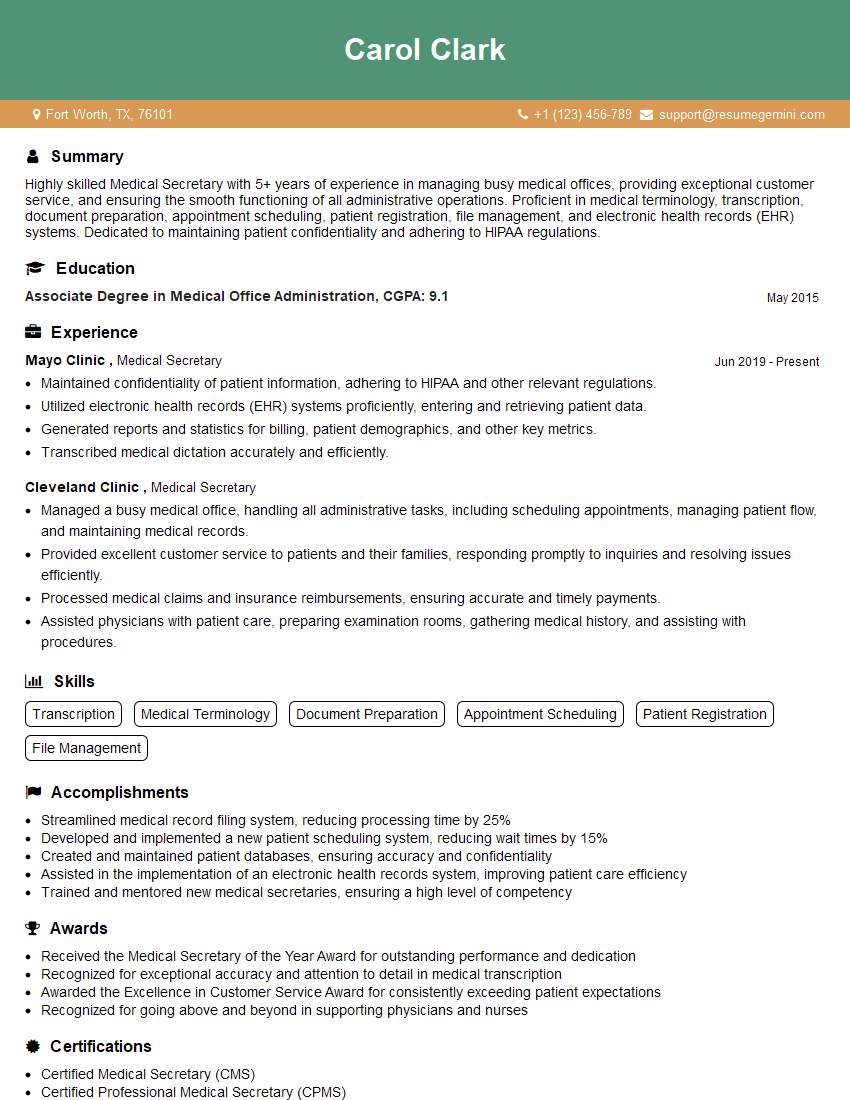
Medical Secretary Resume Sample
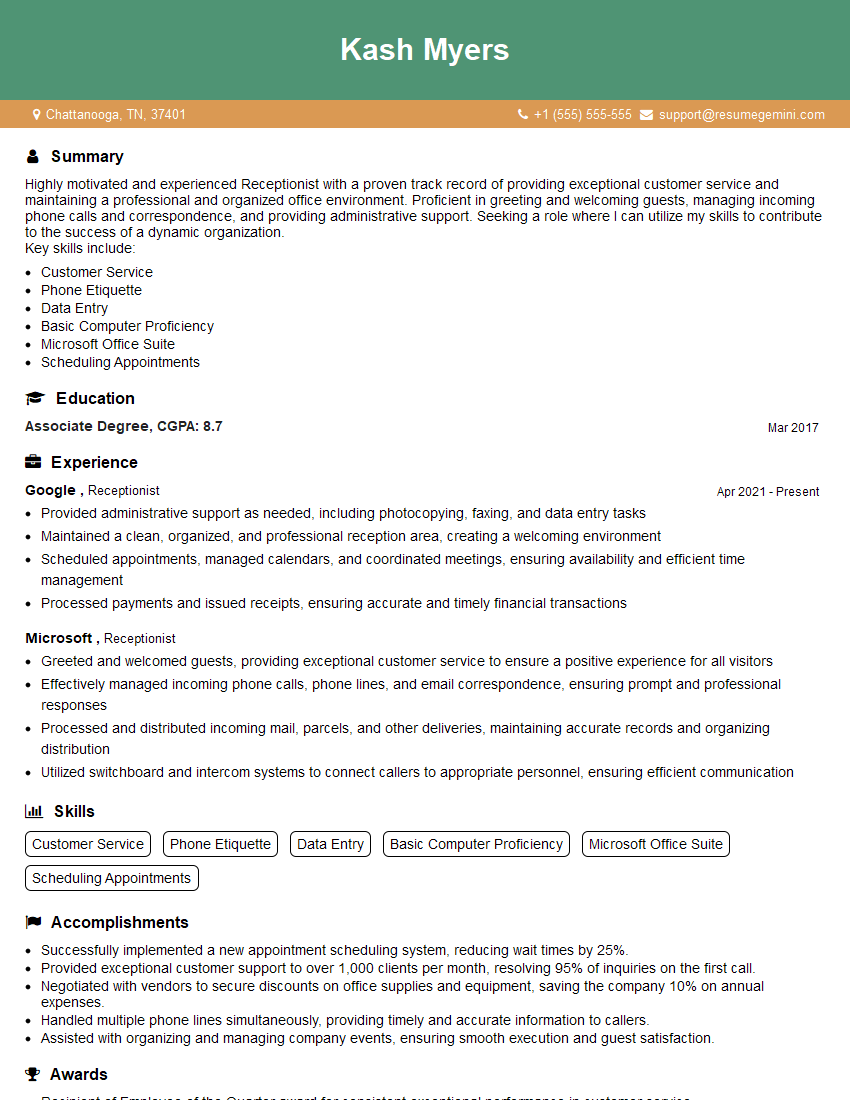
Receptionist Resume Sample

Executive Assistant Resume Sample
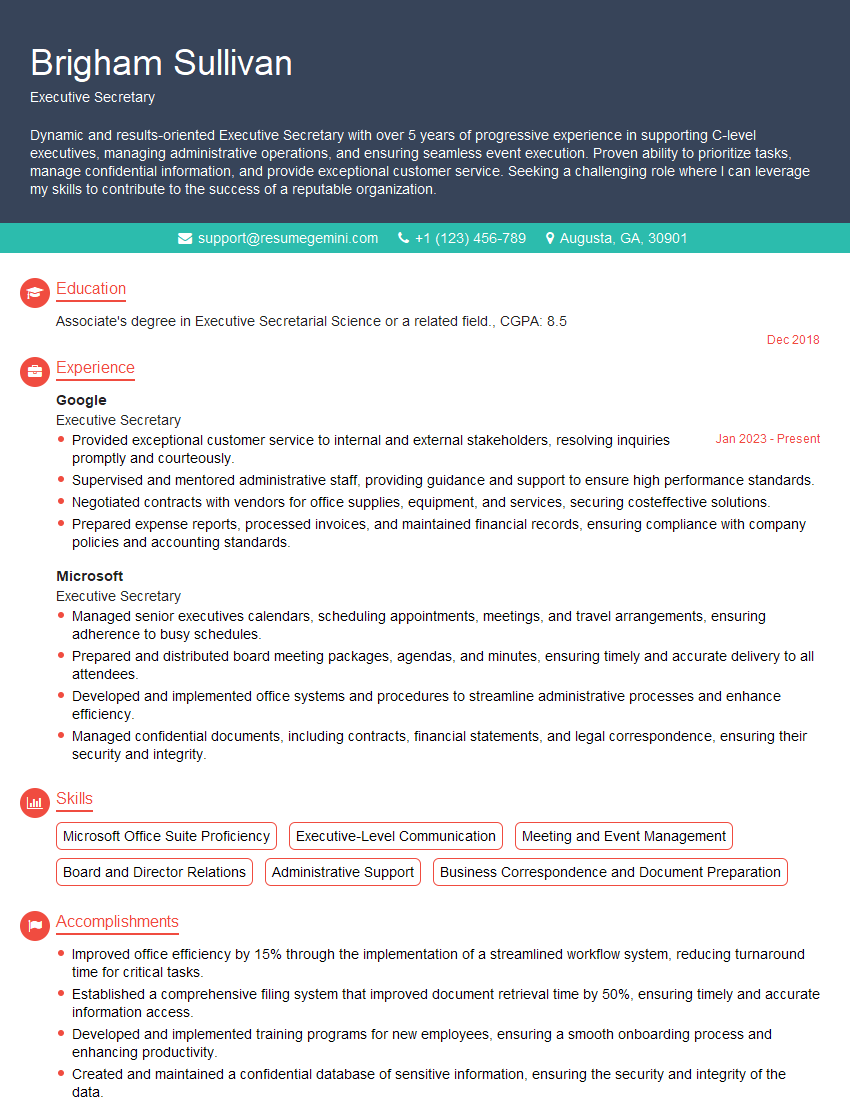
Executive Secretary Resume Sample
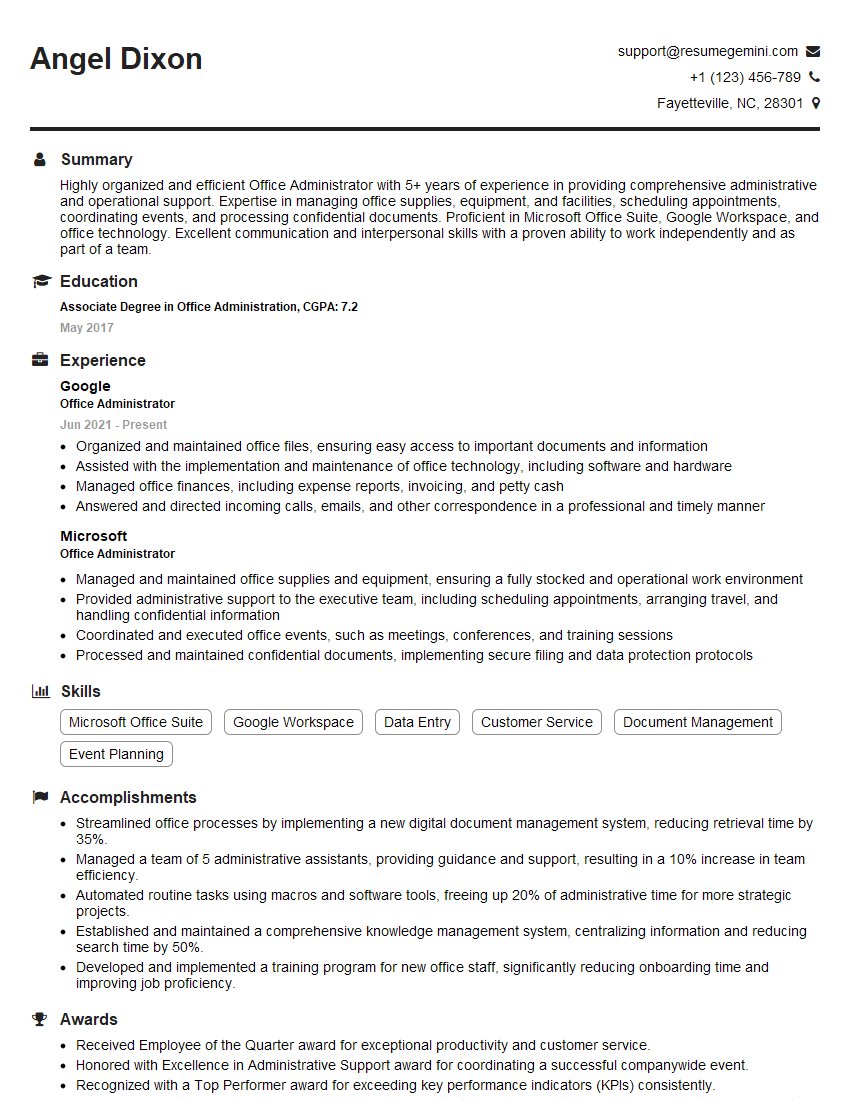
Office Administrator Resume Sample
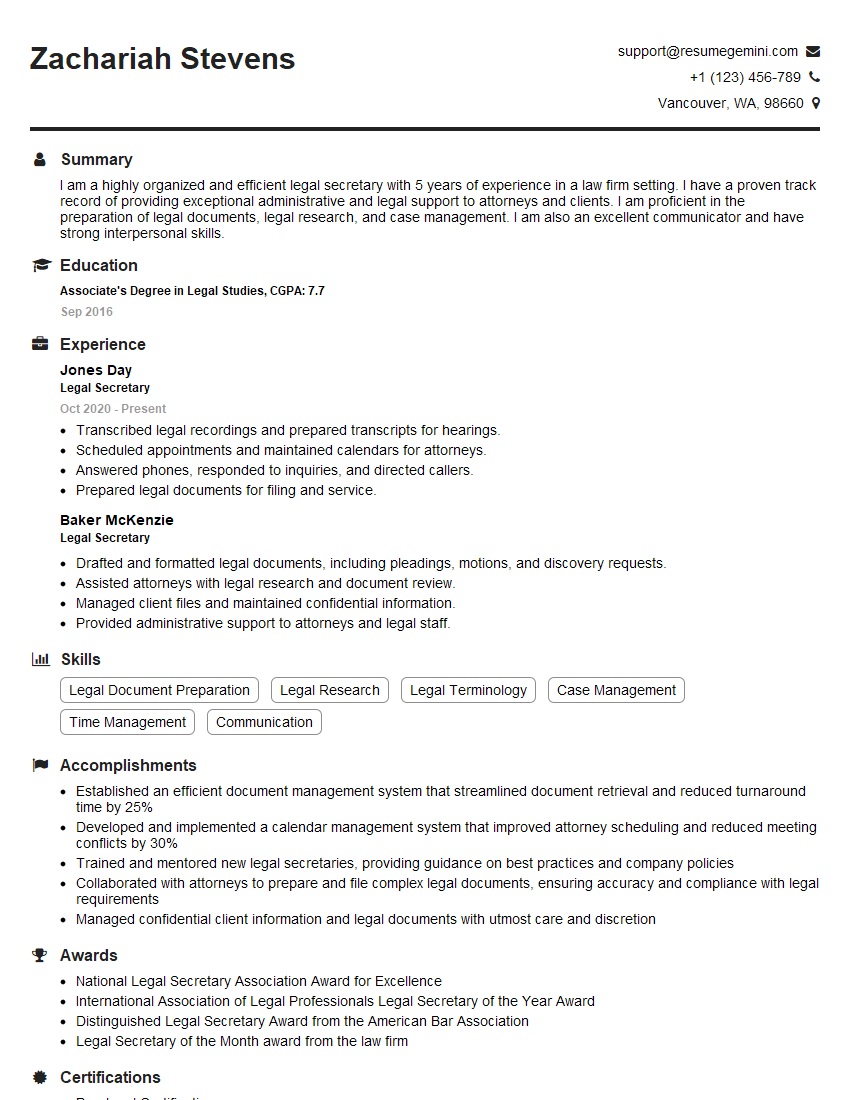
Legal Secretary Resume Sample

Data Entry Clerk Resume Sample
- Program Manager
- Office Manager
- Operations Manager
- Marketing Coordinator
- Sales Coordinator
- Administrative Assistant
- Customer Service Representative
- Project Manager
- Project Coordinator
- Compliance Officer
- Business Analyst
- Research Analyst
- Accountant
- Bookkeeper
- Financial Analyst
- Data Analyst
- Medical Secretary
- Receptionist
- Executive Assistant
- Executive Secretary
- Office Administrator
- Legal Secretary
- Data Entry Clerk
Explore more articles
Users Rating of Our Blogs
Share Your Experience
We value your feedback! Please rate our content and share your thoughts (optional).
What Readers Say About Our Blog
Very informative content, great job.
good