Interviews are opportunities to demonstrate your expertise, and this guide is here to help you shine. Explore the essential Jenkins Pipeline interview questions that employers frequently ask, paired with strategies for crafting responses that set you apart from the competition.
Questions Asked in Jenkins Pipeline Interview
Q 1. Explain the difference between declarative and scripted pipelines.
Jenkins offers two primary approaches to defining pipelines: Declarative and Scripted. Think of it like choosing between a detailed blueprint (Declarative) and writing instructions step-by-step (Scripted).
Declarative Pipeline: This approach uses a structured, domain-specific language (DSL) within a Jenkinsfile. It’s more readable, easier to maintain, and offers better error detection. It focuses on *what* needs to be done, leaving the *how* largely to Jenkins.
pipeline { agent any stages { stage('Build') { steps { sh 'mvn clean package' } } stage('Test') { steps { sh 'mvn test' } } } }Scripted Pipeline: This uses Groovy scripting directly within the Jenkinsfile. It provides more flexibility and control but can be harder to read and maintain, especially for complex pipelines. You define the *what* and *how* explicitly.
node { stage('Build') { sh 'mvn clean package' } stage('Test') { sh 'mvn test' } }In essence, Declarative is preferred for its simplicity and maintainability for most projects, while Scripted offers greater control for highly customized or complex scenarios where you need fine-grained control over the execution flow.
Q 2. Describe the various stages in a Jenkins Pipeline.
A Jenkins Pipeline consists of several key stages, often customized to fit the specific needs of a project. These stages are not strictly enforced but represent logical groupings of tasks. Common stages include:
- Agent: Specifies where the pipeline will execute (e.g., a specific node, a Docker container).
- Stages: Groups tasks into logical units. For example, you might have stages for building, testing, deploying, and releasing.
- Steps: Individual tasks within a stage. Examples include running shell commands (
sh), running tests, building artifacts, and deploying to a server. - Environment: Sets up environment variables for the pipeline. This is useful for things like API keys or database connection strings.
- Post: Executes tasks after a stage completes, regardless of success or failure. Useful for cleanup or notification.
Imagine a car assembly line: each stage represents a part of the process (engine assembly, bodywork, painting). Each step is a specific task within that stage (installing a specific engine component, welding a panel, applying a coat of paint). The pipeline orchestrates these steps and stages to produce the final product.
Q 3. How do you handle parallel processing in a Jenkins Pipeline?
Parallel processing in Jenkins Pipeline is achieved using the parallel directive within a stage. This allows multiple steps to run concurrently, significantly reducing the overall pipeline execution time.
stage('Parallel Testing') { parallel { stage('Unit Tests') { steps { sh 'mvn test -Dtest=UnitTests' } } stage('Integration Tests') { steps { sh 'mvn test -Dtest=IntegrationTests' } } } }This example runs unit and integration tests simultaneously. The parallel block allows you to define independent branches of execution that run in parallel, speeding up the overall testing process. Note that you will need sufficient resources (CPU cores, memory) on your Jenkins agents to effectively utilize parallel processing.
Careful planning is necessary, ensuring that parallel steps are truly independent to avoid race conditions or dependency issues. Think of it as having multiple workers on an assembly line, each performing a different part of the job simultaneously.
Q 4. What are the advantages of using Jenkins Pipeline over freestyle jobs?
Jenkins Pipelines offer significant advantages over freestyle jobs, especially for complex projects.
- Version Control: Pipelines are stored in version control (e.g., Git), enabling easier auditing, collaboration, and rollback capabilities. Freestyle jobs lack this built-in version control.
- Code as Infrastructure: The pipeline’s definition is code, making it repeatable and auditable. Changes to the pipeline are managed like any other code change. Freestyle jobs are configured through a UI, making them less reproducible.
- Extensibility: Pipelines can be extended with plugins and custom scripts, offering tremendous flexibility. Freestyle jobs have limited extension capabilities.
- Complex Workflows: Pipelines handle complex workflows involving parallel processing, conditional logic, and error handling much more effectively than freestyle jobs.
- Reproducibility: Pipelines ensure consistent build and deployment processes across different environments. Freestyle jobs can be harder to reproduce consistently.
In essence, if you are moving beyond simple build and deploy processes, Jenkins Pipelines provide a much more robust and maintainable solution.
Q 5. Explain the concept of Jenkins Pipeline stages and how they are used.
Jenkins Pipeline stages are logical groupings of tasks that represent distinct phases in a process. They provide structure, making the pipeline more readable, easier to manage, and improve traceability. Each stage can contain multiple steps.
Stages enhance the readability and organization of a pipeline. They help visualize the overall workflow, enabling easier debugging and identification of bottlenecks. They break down a complex process into smaller, more manageable chunks, making collaboration easier.
pipeline { agent any stages { stage('Build') { steps { sh 'mvn clean package' } } stage('Test') { steps { sh 'mvn test' } } stage('Deploy') { steps { sh './deploy.sh' } } } }In this example, the pipeline has distinct stages for building, testing, and deploying. Each stage clearly indicates a specific phase in the process. This structured approach makes it easier to track progress, identify problems, and manage the overall flow of the pipeline.
Q 6. How do you manage credentials in a Jenkins Pipeline?
Managing credentials securely within Jenkins Pipeline is crucial. The recommended approach is to use Jenkins’ built-in credential management system, storing credentials as secrets and accessing them within the pipeline using the credentials binding.
pipeline { agent any stages { stage('Deploy') { steps { withCredentials([usernamePassword(credentialsId: 'my-aws-credentials', usernameVariable: 'AWS_USERNAME', passwordVariable: 'AWS_PASSWORD')]) { sh 'aws s3 cp myfile.txt s3://my-bucket' } } } } }This example uses a usernamePassword binding. You would previously define a credential with ID ‘my-aws-credentials’ in the Jenkins credentials management UI. The pipeline then securely retrieves the username and password without hardcoding them into the Jenkinsfile. This ensures better security and prevents accidental exposure of sensitive information.
Other binding options exist for different credential types like SSH keys, certificates, and more. Always avoid storing sensitive data directly in your pipeline scripts.
Q 7. How do you integrate testing frameworks (e.g., JUnit, pytest) into a Jenkins Pipeline?
Integrating testing frameworks like JUnit and pytest into a Jenkins Pipeline involves running the tests as steps within your pipeline and then publishing the test results for analysis in Jenkins.
JUnit:
pipeline { agent any stages { stage('Test') { steps { sh 'mvn test' // Run tests publishJUnit step([path: 'target/surefire-reports/*.xml']) // Publish JUnit results } } } }This example uses the publishJUnit step to publish JUnit XML reports generated by Maven. Jenkins will automatically parse these reports, displaying test results in the pipeline’s console output and providing a summary in the Jenkins UI.
pytest:
pipeline { agent any stages { stage('Test') { steps { sh 'pytest --junitxml=report.xml' // Run pytest and generate JUnit-compatible report publishJUnit step([path: 'report.xml']) // Publish the report } } } }This example runs pytest and generates a JUnit-compatible XML report. This report can then be published using the same publishJUnit step as before. The key is to ensure the test runner produces results in a format Jenkins can understand (like JUnit XML).
The test results are then available for review within the Jenkins UI, offering a visual representation of test success or failure. This helps with rapid identification of issues and provides valuable feedback for the development process.
Q 8. Describe how to handle errors and exceptions within a Jenkins Pipeline.
Robust error handling is crucial for reliable Jenkins Pipelines. We achieve this primarily through the use of try-catch blocks and leveraging Jenkins’ built-in error handling mechanisms. Think of it like a safety net for your pipeline. If something goes wrong, the try block attempts the operation, and if an error occurs, the catch block gracefully handles it, preventing the entire pipeline from failing.
Example:
 try {
     sh 'some_command_that_might_fail'
 } catch (Exception e) {
     echo "Error occurred: ${e.message}"
     mail to: "admin@example.com", subject: "Pipeline Failure", body: "${e.message}"
     currentBuild.result = 'FAILURE'
 }
This example shows a try-catch block handling a shell command. If the command fails, an error message is printed, an email is sent, and the build is marked as a failure. You can customize the error handling to fit your needs – logging to a file, triggering different actions, or even rolling back changes (as discussed later). Using specific exception types instead of a generic Exception also improves error identification and debugging.
Q 9. What are the best practices for writing clean and maintainable Jenkins Pipelines?
Writing clean and maintainable Jenkins Pipelines is akin to writing good code in any language – it requires discipline and adherence to best practices. Key aspects include:
- Modularization: Break down your pipeline into smaller, reusable functions or stages. This enhances readability and makes debugging easier. Think of it as assembling a complex system from smaller, self-contained parts.
- Descriptive Naming: Use meaningful names for variables, functions, and stages. This self-documenting code eliminates the need for extensive comments.
- Version Control: Store your Pipeline code (usually in a Jenkinsfile) in a version control system like Git. This allows for tracking changes, collaboration, and rollback capabilities.
- Pipeline Templates: Use shared libraries or pipeline templates to encapsulate common steps and functionality. This reduces redundancy and improves consistency.
- Input Validation: Validate any inputs passed into your pipeline to prevent unexpected behavior. This can include checking for correct data types, ranges, and required values.
- Comments and Documentation: While descriptive names are key, strategic comments clarify complex logic or provide context.
By following these guidelines, your pipelines will be easier to understand, maintain, and extend over time, leading to a more efficient and robust CI/CD process.
Q 10. Explain the use of environment variables in Jenkins Pipelines.
Environment variables in Jenkins Pipelines are dynamic values accessible within your pipeline scripts. They offer a flexible way to parameterize your build process and adapt it to various contexts without altering the core pipeline code. Imagine them as configuration switches that you can adjust without changing the underlying program.
Setting Environment Variables:
- Globally in Jenkins: You can define environment variables at the global Jenkins level, making them accessible to all pipelines.
- At the Pipeline level: You can declare environment variables within your Pipeline using the
environmentdirective. - From upstream jobs: Environment variables can be passed down from upstream jobs in a multi-stage pipeline.
- Using plugins: Certain plugins provide mechanisms to inject environment variables.
Accessing Environment Variables: Within the pipeline, environment variables are accessed using the syntax ${VARIABLE_NAME} or env.VARIABLE_NAME.
Example:
environment {
    MY_VARIABLE = "Hello from environment variables"
}
echo "The value of MY_VARIABLE is: ${MY_VARIABLE}"
This example sets an environment variable MY_VARIABLE and then prints its value within the pipeline. This makes it easy to switch between development and production environments simply by changing the environment variable values.
Q 11. How do you implement rollback functionality in your pipelines?
Rollback functionality in Jenkins Pipelines is crucial for mitigating the risks associated with deployments. Implementing it requires careful planning and execution. A common approach involves version control and using infrastructure-as-code tools. Imagine this as having an undo button for your deployments.
Strategies for Rollback:
- Version Control: Store your deployment artifacts (like code, configuration files) in a version control system (like Git). If a deployment fails, you can revert to a previous known-good version.
- Infrastructure as Code (IaC): Tools like Terraform or Ansible allow you to define your infrastructure as code. Rollbacks can then be automated by reverting to a previous infrastructure state.
- Blue/Green Deployments: Maintain two identical environments (Blue and Green). Deploy to the Green environment, and if successful, switch traffic. If unsuccessful, you simply revert to the Blue environment.
- Canary Deployments: Deploy to a small subset of users or servers. Monitor for issues. If all is well, gradually roll out to the rest.
- Custom Rollback Steps: In your Jenkinsfile, you can define specific steps for rolling back your deployment. This might involve reversing database changes, deleting files, or stopping services.
A successful rollback strategy requires meticulous planning and testing to ensure a smooth and efficient recovery from deployment failures.
Q 12. How do you manage dependencies in your Jenkins Pipeline?
Managing dependencies effectively in Jenkins Pipelines is essential for reproducible and reliable builds. This is typically handled through several approaches:
- Package Managers: Utilize package managers like npm, Maven, Gradle, or pip depending on your project’s technology stack. These tools handle downloading and installing dependencies automatically.
- Dependency Management Tools: Use tools specific to your language or framework to manage dependencies and their versions (e.g., `package.json` for npm, `pom.xml` for Maven). These declare the necessary components and their versions.
- Plugin Support: Several Jenkins plugins streamline dependency management. Plugins like the Maven Integration plugin or the Gradle plugin integrate these tools directly into your Pipeline.
- Caching Dependencies: Caching dependencies significantly speeds up subsequent builds by reusing downloaded artifacts instead of redownloading each time. Jenkins offers caching mechanisms for this purpose.
- Reproducible Builds: Use tools and processes that ensure consistent builds, irrespective of the environment. A well-defined dependency management strategy contributes to this.
By choosing the right approach and carefully managing versions, you can avoid dependency conflicts and ensure your builds are consistent and reproducible across different environments.
Q 13. Explain the concept of Pipeline-as-Code.
Pipeline-as-Code (PaC) is the practice of defining and managing your CI/CD pipelines using code, typically in a declarative or scripted fashion, instead of configuring them manually through the Jenkins UI. Think of it as writing code for your automation, making your build process itself manageable like any other software component.
Benefits of PaC:
- Version Control: Track changes to your pipelines, enabling collaboration and rollback.
- Reproducibility: Ensures consistent pipeline execution across environments.
- Maintainability: Easier to update, debug, and maintain pipelines as code.
- Collaboration: Facilitates collaboration among developers and DevOps engineers.
- Testability: Allows for testing your pipeline code to verify its correctness before deploying.
The most common way to implement PaC is through the use of a `Jenkinsfile` stored in your project’s repository. This ensures that your pipeline definition is always version-controlled and readily available with the code it orchestrates. This increases consistency, improves collaboration, and ultimately simplifies your CI/CD workflow.
Q 14. How do you use Jenkins Pipeline for deployment to different environments (e.g., dev, test, prod)?
Deploying to different environments (dev, test, prod) using Jenkins Pipelines involves creating a flexible pipeline that adapts to the specific requirements of each environment. This is achieved through parameters, environment variables, and conditional logic.
Strategies for Multi-Environment Deployment:
- Parameters: Use parameters in your pipeline to specify the target environment (e.g., a choice parameter for ‘dev’, ‘test’, ‘prod’).
- Environment Variables: Utilize environment variables to store environment-specific configurations (e.g., database URLs, server addresses, deployment paths). These variables can be set based on the chosen parameter.
- Conditional Logic: Employ conditional statements (
if-elseblocks) to execute environment-specific steps. For instance, you might run different tests or deploy to different servers based on the chosen environment. - Stages: Organize your pipeline into distinct stages (e.g., build, test, deploy). Each stage can have environment-specific tasks that are activated conditionally based on parameters.
- Pipeline Templates: Create reusable pipeline templates for common tasks across environments, reducing redundancy and promoting consistency.
Example Snippet (Conceptual):
stage ('Deploy') {
    when { expression { params.environment != 'dev' } }
    steps {
        if (params.environment == 'test') {
            // Deploy to test environment
        } else if (params.environment == 'prod') {
            // Deploy to production environment
        }
    }
}
This snippet illustrates how a deployment stage can be conditionally executed and tailored to different environments using parameters and conditional logic. This approach allows for a single pipeline to manage deployments across multiple environments effectively and safely.
Q 15. What are some common plugins used in Jenkins Pipeline and their purposes?
Jenkins Pipelines leverage numerous plugins to extend their functionality. Think of plugins as add-ons that provide specific capabilities beyond the core Pipeline functionality. Here are a few common and crucial ones:
- Git Plugin: This is essential for integrating with Git repositories. It allows you to checkout code, manage branches, and trigger builds based on Git events (like pushes or pull requests).
- Maven Integration plugin: If you’re working with Java projects using Maven, this plugin automates the build process, managing dependencies and executing Maven commands within your pipeline.
- JUnit Plugin: This plugin is invaluable for integrating unit tests into your pipeline. It parses JUnit XML test results, displaying the outcome (pass/fail) directly in the build report, and allowing you to fail the build if tests don’t pass.
- Email-ext Plugin: This enhances Jenkins’ email notifications. It allows for customizable emails based on build status, including adding attachments and HTML formatting for clear communication.
- Kubernetes Plugin: For deploying applications to Kubernetes clusters, this plugin enables seamless integration, automating deployments and rollouts directly from your pipeline.
- SonarQube Scanner Plugin: Integrating static code analysis with SonarQube is done through this plugin, providing feedback on code quality, security vulnerabilities, and potential bugs.
Choosing the right plugins depends entirely on your project’s needs. For a simple project, you might only need the Git and JUnit plugins. A complex microservice deployment might require many more, including those for containerization and cloud platforms.
Career Expert Tips:
- Ace those interviews! Prepare effectively by reviewing the Top 50 Most Common Interview Questions on ResumeGemini.
- Navigate your job search with confidence! Explore a wide range of Career Tips on ResumeGemini. Learn about common challenges and recommendations to overcome them.
- Craft the perfect resume! Master the Art of Resume Writing with ResumeGemini’s guide. Showcase your unique qualifications and achievements effectively.
- Don’t miss out on holiday savings! Build your dream resume with ResumeGemini’s ATS optimized templates.
Q 16. How do you monitor and troubleshoot Jenkins Pipeline executions?
Monitoring and troubleshooting Jenkins Pipelines involves a multi-pronged approach. Think of it like detective work – you need to gather clues to find the culprit.
- Jenkins Logs: The first and often most crucial step is examining the Jenkins logs. These logs provide a detailed chronological record of every step in your pipeline. They show you exactly where the error occurred and often hint at the root cause. You can access logs directly from the build page in Jenkins.
- Pipeline Steps: Carefully review each step in your Pipeline script. Look for potential issues like incorrect file paths, missing dependencies, or flawed logic. Adding logging statements within your script (using
echoor dedicated logging plugins) can significantly aid in debugging. - Console Output: The console output displays real-time progress and any error messages generated during the pipeline execution. It provides a visual summary and valuable context to track the flow of your pipeline.
- Build History: Jenkins’ build history shows a timeline of past builds. Examining successful and failed builds can help you identify patterns and isolate when the problem started. You can often diff changes in the Jenkinsfile or code between successful and failed builds.
- External Tools: Depending on the complexity, you might use external tools such as debuggers for complex issues within specific steps. For example, if you are running tests, the testing framework’s debugger might be useful.
For example, if a build fails due to a missing dependency, checking the Maven logs (if using Maven) will tell you which dependency is missing, while checking your Pipeline script will show if you correctly declared that dependency. This is similar to a doctor diagnosing a patient – you need various tests (logs, output, history) to reach a proper diagnosis.
Q 17. Describe your experience with Jenkins Pipeline security best practices.
Security is paramount in Jenkins Pipelines. Neglecting security can expose your entire development pipeline to significant risks. My approach centers around these key principles:
- Least Privilege: Jenkins users and jobs should only have the permissions they absolutely need. Avoid granting excessive privileges to prevent unauthorized access or modifications.
- Credential Management: Never hardcode sensitive information like API keys, passwords, or secrets directly into your Jenkinsfile. Use Jenkins’ built-in credential management system to securely store and access these credentials. This system allows you to manage credentials centrally and define access permissions.
- Input Validation: If your pipeline takes user input (e.g., through input steps), always validate the input thoroughly to prevent injection attacks. Sanitize and escape any user-provided data before using it in commands or scripts.
- Regular Security Updates: Keep Jenkins, its plugins, and all associated software up-to-date with the latest security patches. Regularly check for and install updates to address potential vulnerabilities.
- Pipeline Security: The Jenkins Pipeline itself uses sandboxing techniques and has robust security mechanisms. Understanding how those mechanisms work is essential to maintain security. It’s about configuring the Pipeline correctly and not relying on default settings.
- Code Review: Always perform thorough code reviews of your Jenkinsfiles. This is a critical security measure, identifying potential flaws before they reach production.
For instance, instead of hardcoding a database password in a script, we would store it as a credential in Jenkins and retrieve it securely within the Pipeline. Think of this like a high-security building – multiple layers of security ensure only authorized personnel can access sensitive areas.
Q 18. How do you handle conditional logic in a Jenkins Pipeline?
Conditional logic is essential for creating flexible and robust pipelines. It allows you to execute different steps based on various conditions. Jenkins Pipelines use Groovy’s conditional statements for this purpose.
The most common ways to implement conditional logic are:
ifstatement: This is the basic conditional statement. It executes a block of code only if a specified condition is true.if-elsestatement: This allows you to execute one block of code if the condition is true and a different block if it’s false.switchstatement: This is useful when you have multiple possible conditions to check.
Example:
node {
  stage('Conditional Logic') {
    if (env.BRANCH_NAME == 'master') {
      echo 'Building master branch'
      // Perform actions specific to the master branch
    } else {
      echo 'Building a different branch'
      // Perform actions for other branches
    }
  }
}
In this example, the pipeline will execute different steps based on whether the branch being built is the master branch or not. This conditional execution enables pipelines to adapt to different environments or scenarios, improving efficiency and making them more adaptable.
Q 19. Explain the use of input steps in Jenkins Pipelines.
Input steps allow you to pause a pipeline execution and request user input before proceeding. This is highly useful when you need human intervention or approval at a specific stage. Think of it as a checkpoint in your automated process where a human can review or approve a step before the pipeline continues.
The input step takes several parameters, allowing you to customize the prompt, options provided to the user, and the timeout for the input. The user must provide input before the pipeline resumes.
Example:
input(message: 'Do you want to proceed with the deployment?', parameters: [string(name: 'comment', defaultValue: 'No comment', description: 'Add any comments')])
This example displays a message asking for confirmation and allows the user to add a comment. The pipeline will halt until the user provides input. The user input can be used later in the pipeline to customize actions based on their choices.
Input steps are crucial for scenarios like manual approvals in production deployments, where automated execution should only happen after a human confirms that everything is set.
Q 20. How do you integrate with version control systems (e.g., Git) in Jenkins Pipeline?
Integrating with version control systems (like Git) is fundamental to a successful Jenkins Pipeline. It’s the foundation for automated build triggers, enabling CI/CD. The Git plugin (as mentioned earlier) is the key player here. It enables checking out code from a repository, managing branches, and triggering builds based on Git events.
Common actions within the pipeline involving Git:
- Checkout: This retrieves the source code from the Git repository. The
checkout scmstep is commonly used for this. It usually specifies the URL of the repository, branch, and credentials. - Branch Specifier: Allows you to select specific branches to build. This is useful for triggering builds only for specific branches (e.g., only build from the `master` branch or pull request branches).
- Poll SCM: This allows you to periodically check the repository for changes and trigger a build if any changes are detected. This is a common approach for Continuous Integration.
- Webhook Trigger: This more advanced option involves setting up a webhook in your Git repository. This will trigger a Jenkins build automatically whenever changes are pushed to the repository. This approach offers faster feedback than polling.
Example (using checkout):
node {
  stage('Checkout') {
    checkout scm
  }
}
This simple example checks out the code from the SCM (Source Code Management) defined in your Jenkins job configuration. It assumes a Git repository and appropriate credentials are already configured in Jenkins.
Q 21. Explain the concept of a Jenkinsfile.
A Jenkinsfile is a text file that contains the definition of your Jenkins Pipeline. It’s essentially the script that defines all the steps involved in your build, test, and deployment process. This file is checked into your version control system (like Git) alongside your application code.
Key Benefits of using a Jenkinsfile:
- Version Control: Storing the Pipeline definition in a Jenkinsfile allows you to track changes to the pipeline itself using version control, just like you would with your code. This offers reproducibility and allows you to easily revert to earlier versions if necessary.
- Reproducibility: Every build uses the same pipeline definition, which helps reduce inconsistencies between builds. This improves reliability and predictability.
- Collaboration: Multiple developers can collaborate on the Jenkinsfile, using the same techniques for code collaboration (pull requests, code reviews).
- Declarative Pipelines: You can write Jenkinsfiles using a declarative syntax, making them more readable, maintainable, and easier to understand. Declarative pipelines provide a structured way to define pipelines.
Example (Declarative Pipeline):
pipeline {
  agent any
  stages {
    stage('Build') {
      steps {
        sh 'mvn clean package'
      }
    }
    stage('Test') {
      steps {
        sh 'mvn test'
      }
    }
  }
}
This simple Jenkinsfile defines a pipeline with two stages: Build and Test. This demonstrates the clear structure and readability of a declarative pipeline.
Q 22. How do you manage artifacts in a Jenkins Pipeline?
Managing artifacts in a Jenkins Pipeline is crucial for traceability and reproducibility. We utilize the archiveArtifacts step within the pipeline to collect and store important files generated during the build process. These could be anything from compiled binaries and test reports to deployment packages.
For example, consider a Java project. After compilation and testing, we might archive the .jar file and the JUnit test report XML file. This is done using a step like this:
archiveArtifacts artifacts: 'target/*.jar, target/*.xml', fingerprint: true
The fingerprint: true option adds a checksum to the artifact, ensuring its integrity. The artifacts are then stored in Jenkins, accessible through the build’s history. We can also use plugins like the Artifact Upload plugin to store artifacts in remote repositories (like Artifactory or Nexus) for better organization and management across multiple projects.
Beyond simple archiving, we also employ techniques like using a dedicated artifact repository manager for versioning, dependency management, and efficient artifact retrieval. This provides better organization, particularly in large projects with many builds and releases. This helps us streamline the deployment process and makes rollback to previous versions significantly easier.
Q 23. How do you implement automated testing in a Jenkins Pipeline?
Automated testing is a cornerstone of any robust CI/CD pipeline. In Jenkins, we integrate tests directly into the pipeline using the appropriate build tools and testing frameworks. This typically involves invoking test runners such as JUnit for Java, pytest for Python, or similar tools for other languages. The results are then collected and analyzed to determine the success or failure of the build.
A common strategy involves a dedicated stage in the pipeline solely for testing. For example:
stage('Testing') { steps { sh 'mvn test' // For Java projects using Maven junit '**/surefire-reports/*.xml' // Collect JUnit results } } The junit step parses the JUnit XML reports and presents the test results directly within the Jenkins interface. Failures here would cause the pipeline to fail, alerting the developers to any issues. We also use tools like SonarQube for static code analysis and integration with testing frameworks for code coverage reporting, giving a comprehensive overview of code quality.
Furthermore, we often employ different types of tests at different stages of the pipeline, starting from unit tests in early stages, moving to integration tests and then system or end-to-end tests later on, enabling faster feedback and focused debugging.
Q 24. Describe your experience with Jenkins Pipeline Blue Ocean.
Jenkins Pipeline Blue Ocean provides a visual and intuitive interface for creating and managing pipelines. It offers a more user-friendly experience compared to the classic Jenkins Pipeline editor. I find it particularly valuable for its drag-and-drop functionality, which simplifies pipeline creation, especially for teams less familiar with Groovy syntax.
Blue Ocean’s visual representation allows for easy tracking of pipeline execution and identifying bottlenecks. Its branching capabilities are excellent for managing parallel builds and testing across different environments. In one project, we used Blue Ocean’s features to model a complex pipeline involving multiple deployments across different environments with clear visual separation, enabling easier identification of deployment errors.
While I appreciate Blue Ocean’s ease of use, I still use the classic Pipeline editor for more complex scenarios requiring advanced Groovy scripting or intricate logic. Both interfaces work in tandem; some pipeline components are more efficiently created visually in Blue Ocean, while others need the control and flexibility of the classic editor.
Q 25. What are some ways to improve the performance of your Jenkins Pipelines?
Improving Jenkins Pipeline performance involves a multi-pronged approach. One key aspect is optimizing the individual stages. Avoid unnecessary steps and minimize I/O operations. For example, using tools like Docker for building and testing can significantly reduce build times by creating consistent environments. Caching frequently used dependencies or build artifacts also speeds up subsequent builds.
We also leverage parallel processing to execute multiple steps concurrently. For example, we can run tests in parallel across different test suites to reduce the overall testing time. Jenkins’s support for parallel processing is invaluable here. The choice of build tools is another critical factor; using optimized tools will naturally make the whole pipeline faster.
Furthermore, regularly analyzing the pipeline execution logs can pinpoint performance bottlenecks. Profiling tools can aid in identifying slow scripts or computationally intensive operations. Regularly cleaning up unused workspace data prevents build folders from becoming bloated and slowing down processes. This is crucial for long-running pipelines and large projects.
Q 26. How do you handle different types of build failures in a Jenkins Pipeline?
Handling build failures gracefully is paramount. We employ a combination of strategies to address different failure types. Firstly, detailed logging is essential to understand the root cause. Each stage includes comprehensive logging steps to capture relevant information. Different types of errors require different responses.
For example, compilation errors might trigger automated email notifications to the development team, along with a detailed error report. Test failures may lead to the generation of reports outlining which tests failed and why. In cases of deployment failures, rollback mechanisms are essential to restore the system to a stable state.
We also categorize different types of errors (e.g., compilation, testing, deployment) to manage them through separate stages. This ensures that failures in one phase don’t cascade and unnecessarily halt the entire pipeline; for example, failing deployment shouldn’t halt testing results from being captured and reported. This segmentation allows us to focus on the specific failing part without wasting resources.
Q 27. Explain your approach to debugging a complex Jenkins Pipeline issue.
Debugging a complex Jenkins Pipeline issue requires a systematic approach. First, I thoroughly examine the pipeline logs. The logs contain timestamps which can help us to isolate the exact point of failure. Analyzing the logs helps to pinpoint the failing stage and often provides clues about the root cause.
I use the Jenkins Pipeline Debugger extension, where possible, to step through the pipeline, inspect variables, and trace execution. This allows for fine-grained inspection of pipeline execution. If the issue involves external systems or services, I will check the logs of those systems as well, verifying connectivity, permissions, etc.
If the problem is still unresolved, I simplify the pipeline by temporarily removing or commenting out sections to isolate the problematic part. This helps in narrowing down the scope of the issue. Using version control is critical; reverting to older, stable pipeline configurations can help us identify when the error was introduced. Sometimes simply restarting the Jenkins master can resolve transient issues.
Key Topics to Learn for Jenkins Pipeline Interview
- Pipeline Syntax and Structure: Understand the declarative and scripted pipelines, their differences, and when to use each. Practice writing simple and complex pipelines.
- Pipeline Stages and Steps: Master defining stages, utilizing various steps for building, testing, and deploying applications. Learn how to handle dependencies between stages.
- Jenkinsfile Best Practices: Explore techniques for writing clean, modular, and maintainable Jenkinsfiles. Focus on version control and reusability.
- Pipeline Input and Parameters: Learn how to incorporate user input and parameters into your pipelines for increased flexibility and control.
- Pipeline Parallelism: Understand how to run stages or steps concurrently to improve build times. Learn strategies for managing parallel execution efficiently.
- Error Handling and Logging: Implement robust error handling mechanisms to gracefully handle failures. Master effective logging techniques for debugging and troubleshooting.
- Integration with Other Tools: Explore the integration of Jenkins Pipeline with source code management (like Git), testing frameworks, and deployment tools.
- Security Considerations: Understand security best practices for Jenkins pipelines, including credential management and access control.
- Pipeline Plugins and Extensions: Familiarize yourself with common plugins that extend the functionality of Jenkins Pipeline.
- Troubleshooting and Debugging: Develop skills in diagnosing and resolving common issues encountered during pipeline execution.
Next Steps
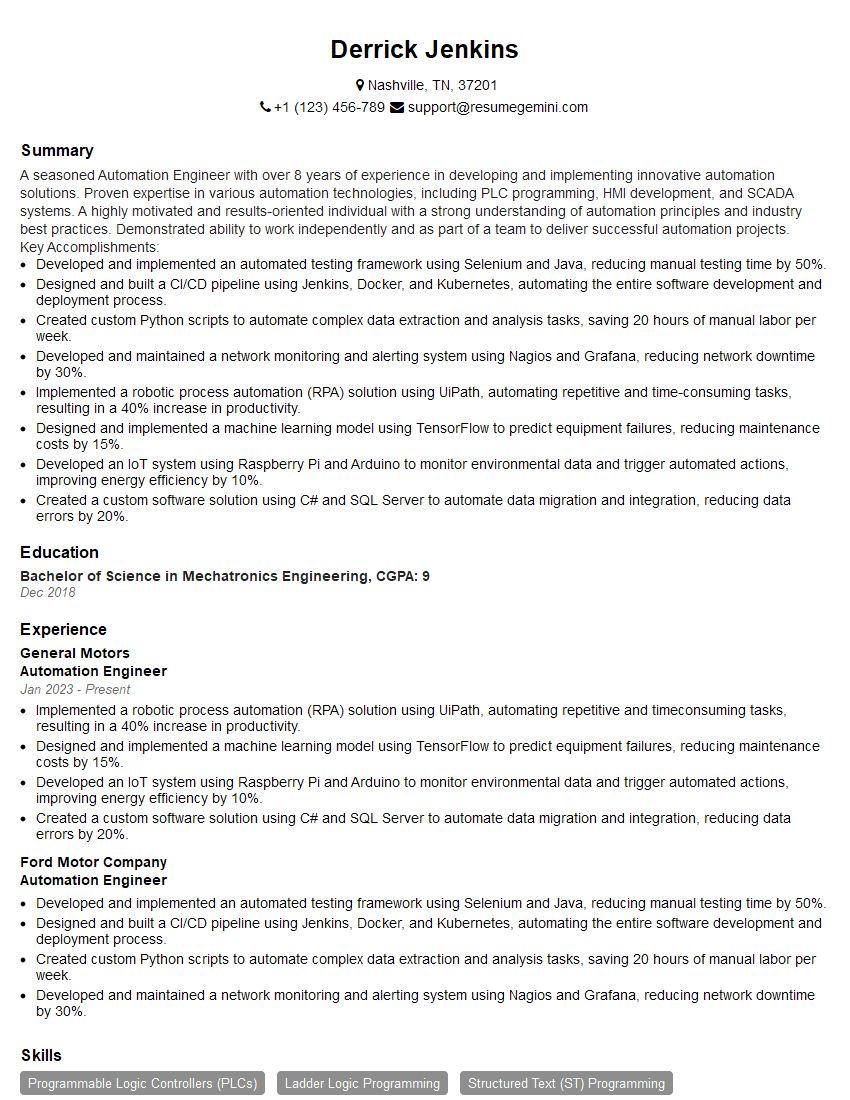
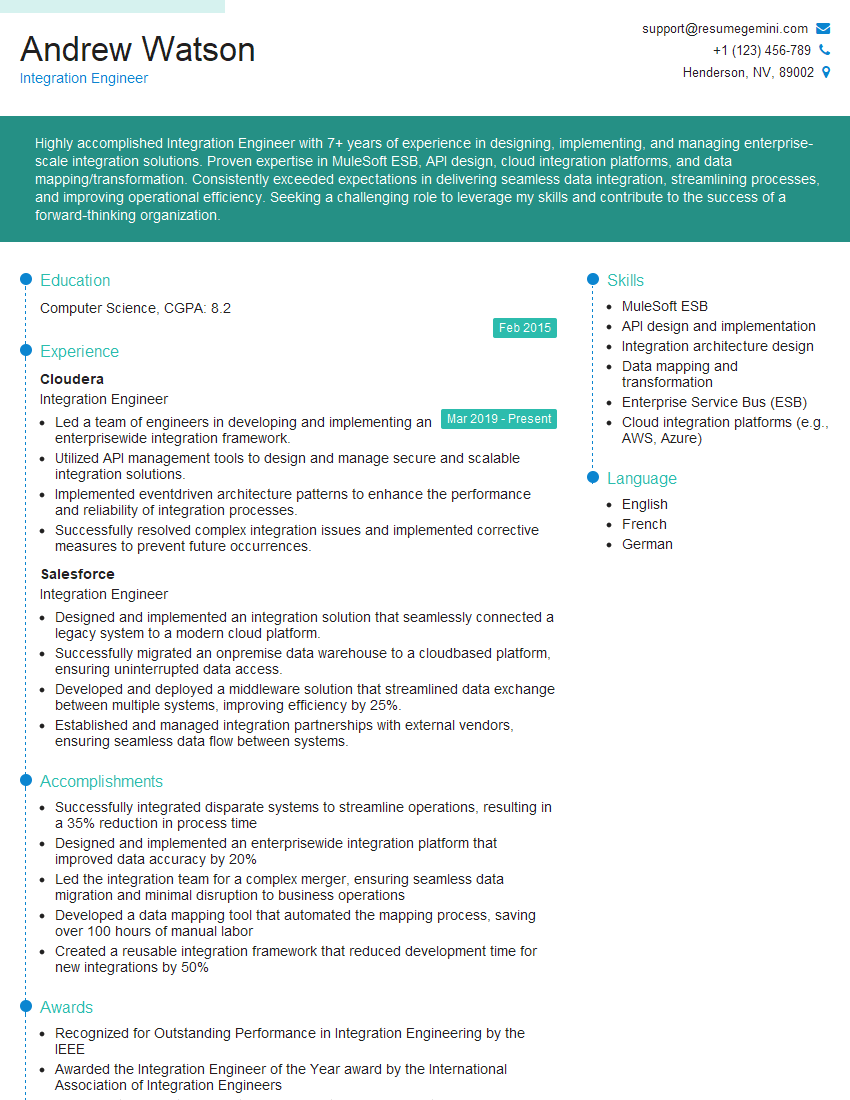
Mastering Jenkins Pipeline significantly enhances your DevOps skillset, making you a highly sought-after candidate in today’s competitive job market. To maximize your job prospects, creating an ATS-friendly resume is crucial. ResumeGemini is a trusted resource that can help you build a professional and impactful resume that highlights your Jenkins Pipeline expertise. Examples of resumes tailored to Jenkins Pipeline roles are available to help guide you. Invest time in crafting a compelling resume – it’s your first impression with potential employers.
Explore more articles
Users Rating of Our Blogs
Share Your Experience
We value your feedback! Please rate our content and share your thoughts (optional).
What Readers Say About Our Blog
Very informative content, great job.
good