Every successful interview starts with knowing what to expect. In this blog, we’ll take you through the top Knowledge of HTML and CSS interview questions, breaking them down with expert tips to help you deliver impactful answers. Step into your next interview fully prepared and ready to succeed.
Questions Asked in Knowledge of HTML and CSS Interview
Q 1. Explain the difference between ``, ``, ``, and ``.
, <html>, <head>, and <body> are fundamental HTML elements that form the basic structure of any web page. Think of them as the building blocks of your house.
: This declaration tells the browser which version of HTML the page is written in. It’s crucial for proper rendering. Without it, the browser might try to interpret your code in an older, less consistent way.
<html>: This is the root element, encompassing everything else. It’s like the foundation of your house, holding everything together.
<head>: This section contains meta-information about the HTML document, such as the title, character set, stylesheets, and scripts. It’s like the blueprint of your house, providing essential information but not directly visible.
<body>: This section contains the visible content of the page—text, images, videos, etc. This is where you build the actual rooms, walls, and furniture of your house – everything the user sees.
Example:
<!DOCTYPE html>
<html>
<head>
  <title>My Web Page</title>
</head>
<body>
  <p>This is my web page.</p>
</body>
</html>
Q 2. What are semantic HTML5 elements and why are they important?
Semantic HTML5 elements are tags that clearly describe the meaning and purpose of the content they contain. Instead of just styling elements, they provide context to both the browser and search engines. Imagine describing a photo with words instead of just showing it.
<article>: Represents a self-contained composition in a document, page, application, or site.<aside>: Represents content aside from the page content (like a sidebar).<nav>: Represents a set of navigation links.<header>: Represents introductory content or a header for a document or section.<footer>: Represents a footer for a document or section.<main>: Represents the dominant content of the<body>of a document.
Importance: Semantic HTML improves accessibility (screen readers understand the content better), SEO (search engines can better understand your page’s structure), maintainability (code is more understandable and easier to modify), and overall better website organization.
Example: Instead of using <div> for a navigation menu, use <nav>. This clearly conveys to both browsers and developers that this section is for navigation.
Q 3. Describe the box model in CSS and how it affects layout.
The CSS box model is a fundamental concept that dictates how elements are rendered on a page. Imagine each element as a box with several layers.
It consists of:
- Content: The actual content of the element (text, images, etc.).
- Padding: Space between the content and the border. Think of it as the cushion around your furniture.
- Border: A line surrounding the padding. Like the frame of a picture.
- Margin: Space between the border and other elements. The distance between your furniture pieces.
Affect on Layout: The box model’s dimensions (width, height) are calculated including content, padding, and border. Margins do not add to the element’s total width/height but create space around it. Understanding the box model is crucial for precise element positioning and layout design.
Example: If an element has a width of 100px, 10px padding on each side, and a 1px border on each side, its total width will be 122px (100 + 10 + 10 + 1 + 1).
Q 4. Explain the difference between inline, block, and inline-block display.
display: inline, display: block, and display: inline-block control how an element is rendered and interacts with other elements on the page. Imagine how differently different furniture items might behave in a room.
display: inline: Elements are rendered in line with other inline elements; they only take up as much width as necessary and do not start on a new line. Think of text – words are inline elements.
display: block: Elements are rendered on their own line, stretching out to fill the available width. Like a sofa – it takes up a full horizontal space.
display: inline-block: Elements are rendered like inline elements (on the same line), but they also allow you to set their width and height. Imagine a small side table – it sits inline but has its own dimensions.
Example: A paragraph (<p>) is a block-level element, while a span (<span>) is an inline element. You might use display: inline-block for images inside a navigation bar to control their spacing and size.
Q 5. How do you center an element both horizontally and vertically?
Centering an element both horizontally and vertically can be achieved in several ways, depending on the parent container and context. Let’s explore a few common methods.
Method 1 (for absolute positioned elements):
If the element is absolutely positioned within a parent with a known height and width, you can use the top: 50%, left: 50%, transform: translate(-50%, -50%) CSS properties.
.container {
  position: relative;
  height: 200px;
  width: 200px;
}
.centered-element {
  position: absolute;
  top: 50%;
  left: 50%;
  transform: translate(-50%, -50%);
}
Method 2 (flexbox):
Flexbox is a powerful layout method. By setting the parent container to display: flex, justify-content: center and align-items: center, the child element will be centered automatically.
.container {
  display: flex;
  justify-content: center;
  align-items: center;
  height: 200px;
}
The best method depends on the specific situation and other layout requirements.
Q 6. What are CSS floats and how do they work?
CSS floats are a way to move an element out of the normal flow of the document, allowing text and other elements to wrap around it. Imagine a picture floating to one side of a paragraph – the text flows around it.
How they work: The float: left; or float: right; property removes the element from the document flow and positions it to the left or right of its container. Other elements flow around it. You typically need to clear floats afterwards using clear: both; to prevent layout issues.
Example:
.image {
  float: left;
  width: 100px;
}
.text {
  /* Text wraps around the image */
}
Floats are less commonly used now, with Flexbox and Grid often preferred for layout, but understanding them is crucial for working with older codebases.
Q 7. Explain the difference between `position: relative`, `position: absolute`, and `position: fixed`.
position: relative, position: absolute, and position: fixed control how an element is positioned relative to its normal position and other elements. Think of these as different ways to place furniture in a room.
position: relative: The element is positioned relative to its normal position in the document flow. Offsets (top, right, bottom, left) are relative to its original spot. It remains in the normal flow, so other elements still interact with it as usual.
position: absolute: The element is positioned relative to its nearest positioned ancestor (or the <html> element if there isn’t one). It’s removed from the document flow, so elements around it don’t interact with it like they normally would.
position: fixed: The element is positioned relative to the viewport (the browser window). It stays in place even when the page is scrolled. Think of it like a sticky note on your screen.
Example: You might use position: absolute for tooltips or pop-up menus, while position: fixed is great for navigation bars that stay visible while scrolling.
Q 8. What are CSS selectors and how are they used?
CSS selectors are the fundamental tools we use to target specific HTML elements and apply styles to them. Think of them as the addresses used to locate houses (HTML elements) on a street (your web page). Different types of selectors allow you to target elements based on their tag name, class, ID, attributes, or relationships with other elements.
- Element selectors: Target elements based on their tag name (e.g.,
p { color: blue; }styles all paragraph elements). - Class selectors: Target elements with a specific class attribute (e.g.,
.highlight { background-color: yellow; }styles elements with the class ‘highlight’). - ID selectors: Target elements with a unique ID attribute (e.g.,
#main-heading { font-size: 2em; }styles the element with the ID ‘main-heading’). IDs should be unique within a document. - Attribute selectors: Target elements based on their attributes (e.g.,
a[href^="https"] { color: green; }styles links starting with ‘https’). - Combinator selectors: Target elements based on their relationship to other elements (e.g.,
div > p { font-style: italic; }styles paragraph elements that are direct children of a div element).
By combining different selectors, we can achieve great precision in styling our web pages. For example, .highlight p { font-weight: bold; } styles only the paragraph elements within elements having the class ‘highlight’.
Q 9. Explain the concept of CSS specificity.
CSS specificity determines which style rule gets applied when multiple rules target the same element. It’s like having multiple suggestions for a single task; CSS decides which one to pick based on its ‘importance’. The more specific the selector, the higher its specificity.
Specificity is calculated based on the types of selectors used: inline styles have the highest specificity, followed by IDs, classes, then element selectors. If two rules have the same specificity, the one defined later in the stylesheet will override the earlier one (this is called the ‘cascade’).
Let’s imagine two rules: p { color: blue; } and .highlight p { color: red; }. The second rule has higher specificity because it’s more precise, targeting paragraphs only within elements with the class ‘highlight’. Therefore, paragraphs inside a ‘highlight’ element will be red, while others will be blue.
.highlight p { /* More specific */
  color: red;
}
p { /* Less specific */
  color: blue;
}
Q 10. How do you use CSS to create responsive web design?
Responsive web design adapts to different screen sizes, ensuring a consistent and user-friendly experience across various devices (desktops, tablets, smartphones). We achieve this primarily using media queries (explained further below) and flexible layout techniques.
- Fluid Grids: Instead of fixed-width columns, use percentages for width, so elements scale with the screen size. For example,
width: 50%;makes an element occupy 50% of its parent container’s width. - Flexible Images: Make images responsive using the
max-width: 100%;property to prevent them from exceeding their container width. This ensures images don’t cause horizontal scrolling on smaller screens. - Relative Units: Utilize units like
emandrem(relative to the font size) andvh/vw(relative to the viewport height/width), to maintain proportions across various screen sizes.
Consider this example. A website with a three-column layout could use percentages for column widths. On larger screens, they’d appear side-by-side, while on smaller screens, they’d stack vertically, adapting to the available space.
Q 11. What are media queries and how do they work?
Media queries are the heart of responsive design. They allow you to apply different CSS styles based on specific characteristics of the device viewing the page, like screen width, height, orientation, resolution, and even device type. Think of them as conditional statements for your CSS.
A media query is structured as follows:
@media (min-width: 768px) {
  /* Styles applied when screen width is 768px or larger */
  body { font-size: 16px; }
}

@media (max-width: 480px) {
  /* Styles applied when screen width is 480px or smaller */
  body { font-size: 12px; }
}
In this example, the body text size changes depending on the screen width. At 768px or larger (tablet/desktop), it’s 16px; at 480px or smaller (smartphone), it’s 12px. You can combine multiple conditions within a single media query for greater control (e.g., @media (min-width: 768px) and (orientation: landscape) { ... }).
Q 12. Explain the difference between `margin` and `padding`.
Both margin and padding control the space around elements, but they do so in different ways. Imagine a picture frame: margin is the space between the frame and the wall, while padding is the space between the frame and the picture itself.
- Margin: The space outside an element’s border. It affects the spacing between adjacent elements and the element’s surrounding space.
- Padding: The space inside an element’s border. It affects the spacing between the element’s content and its border.
For example:
.box {
  width: 100px;
  height: 100px;
  background-color: lightblue;
  border: 1px solid black;
  padding: 20px; /* Space between content and border */
  margin: 30px; /* Space between box and other elements */
}
This creates a blue box with a black border. The content will be 20px away from the border, and the box itself will have 30px of spacing around it.
Q 13. What is the purpose of the `overflow` property in CSS?
The overflow property in CSS determines how content that exceeds an element’s boundaries will be handled. It’s like dealing with extra items that don’t fit in a box. You have several options:
overflow: visible;(default): Content extends beyond the element’s boundaries.overflow: hidden;: Content exceeding the boundaries is clipped (cut off) and hidden.overflow: scroll;: Scrollbars appear allowing the user to navigate all the content.overflow: auto;: Scrollbars appear only if the content exceeds the boundaries.
For example, if you have a div with a fixed height containing a long paragraph, overflow: auto; would create vertical scrollbars if the paragraph text is longer than the div’s height, allowing the user to see all the text.
Q 14. How do you work with CSS preprocessors like Sass or Less?
CSS preprocessors like Sass (Syntactically Awesome Style Sheets) and Less (Leaner Style Sheets) extend CSS by adding features that make writing and maintaining stylesheets easier and more efficient. They act as intermediaries, transforming their code (Sass or Less) into standard CSS that browsers understand.
- Variables: Define reusable values (colors, fonts, etc.) to maintain consistency.
- Nesting: Structure CSS rules more intuitively by nesting selectors within each other, making it easier to read and manage.
- Mixins: Create reusable blocks of CSS code to avoid repetition.
- Functions: Perform calculations or manipulations on CSS values.
- Loops and Control Flow: Automate repetitive tasks and create dynamic styles.
For instance, in Sass, you could define a variable:
$primary-color: #336699;
Then use it multiple times without repeating the color value:
.button {
  background-color: $primary-color;
}

.link {
  color: $primary-color;
}
This enhances maintainability; changing $primary-color updates every instance throughout the stylesheet automatically. To use these preprocessors, you need a preprocessor compiler that translates your Sass or Less code into regular CSS before it can be used in a web page.
Q 15. Explain the concept of CSS grids and flexbox.
CSS Grid and Flexbox are two powerful layout modules in CSS that provide efficient ways to arrange elements on a webpage. Think of them as sophisticated tools in your layout toolbox, each suited for different tasks.
CSS Grid is best for two-dimensional layouts, meaning it excels at managing both rows and columns simultaneously. Imagine creating a complex webpage layout with distinct sections like a header, sidebar, main content area, and footer. Grid is perfect for defining the overall structure of this layout. It uses a grid system with rows and columns, allowing you to place items precisely within this grid. You define the grid structure using properties like grid-template-columns and grid-template-rows. You then place items within the grid using properties like grid-column-start and grid-row-start.
Example:
Header Main Content Sidebar Flexbox, on the other hand, is ideal for one-dimensional layouts—either managing items in a single row or column. It’s fantastic for aligning and distributing space among items within a container. Think of a navigation bar with several menu items, or a card component with an image and text arranged horizontally. Flexbox uses properties like flex-direction (row or column), justify-content (how to distribute space along the main axis), and align-items (how to align items along the cross axis) to control the layout.
Example:
Item 1 Item 2 Item 3 In essence, Grid is for overall page structure and Flexbox is for arranging elements within those structures. They often work in tandem – you might use Grid for the main layout and then Flexbox within individual grid items to arrange their contents.
Career Expert Tips:
- Ace those interviews! Prepare effectively by reviewing the Top 50 Most Common Interview Questions on ResumeGemini.
- Navigate your job search with confidence! Explore a wide range of Career Tips on ResumeGemini. Learn about common challenges and recommendations to overcome them.
- Craft the perfect resume! Master the Art of Resume Writing with ResumeGemini’s guide. Showcase your unique qualifications and achievements effectively.
- Don’t miss out on holiday savings! Build your dream resume with ResumeGemini’s ATS optimized templates.
Q 16. What are the advantages of using CSS frameworks like Bootstrap or Tailwind CSS?
CSS frameworks like Bootstrap and Tailwind CSS offer significant advantages in web development, primarily by accelerating development speed and ensuring consistent styling across different projects. They provide pre-built CSS components and utility classes that reduce the amount of custom CSS you need to write. Think of them as pre-fabricated building blocks for your website.
Bootstrap provides a comprehensive set of ready-made components like buttons, navigation bars, and forms, along with a responsive grid system. It’s a great choice if you need a fully-featured framework with a large community and extensive documentation. It’s opinionated – meaning it dictates specific styles – which can be both an advantage and a disadvantage depending on project requirements.
Tailwind CSS, conversely, is a utility-first framework. It offers a vast library of individual CSS utility classes, allowing you to compose your styles by combining these classes. This gives you much more control and flexibility. It’s less opinionated, which promotes a higher degree of customization. However, you’ll likely write more HTML classes, especially at the start.
Advantages of using either framework include:
- Faster Development: Less time writing custom CSS.
- Consistency: Ensures a uniform look and feel across projects.
- Responsiveness: Easily create websites that adapt to different screen sizes.
- Large Community and Support: Extensive documentation and online resources available.
The choice between Bootstrap and Tailwind depends on your project’s needs and your personal preference. Bootstrap is excellent for rapid prototyping and projects requiring pre-built components, while Tailwind provides extreme flexibility and control for projects requiring unique styling.
Q 17. How do you handle different browser compatibility issues?
Browser compatibility is a crucial aspect of web development, as different browsers render HTML and CSS differently. To handle compatibility issues, I employ a multi-pronged approach:
- CSS Reset or Normalize: Starting with a CSS reset (like Meyer’s Reset) or normalize.css ensures consistent styling across browsers by eliminating default browser styling differences.
- Progressive Enhancement: Building the core functionality first and then adding enhanced features for supporting browsers. This ensures basic functionality across all browsers while providing a richer experience in more modern browsers.
- Browser Testing: Testing the website across different browsers (Chrome, Firefox, Safari, Edge) and their versions using browser developer tools or dedicated cross-browser testing platforms. This highlights differences in rendering and allows for targeted solutions.
- Conditional CSS: Using conditional comments or media queries to apply specific CSS rules depending on the browser and its version. For instance, you might use media queries for styling differences in older browser versions that may not support modern CSS features.
- Autoprefixer: Employing an autoprefixer tool (like the one built into many CSS pre-processors) to automatically add vendor prefixes to CSS properties for broader compatibility.
- CSS Frameworks: Using well-maintained and robust CSS frameworks that account for cross-browser compatibility.
By combining these strategies, you can effectively address browser compatibility issues and ensure your website renders correctly and consistently across various browsers.
Q 18. What are your preferred methods for debugging CSS?
Debugging CSS can be challenging, but a combination of techniques makes the process efficient. My preferred methods include:
- Browser Developer Tools: The built-in developer tools of modern browsers (Chrome DevTools, Firefox Developer Tools) are invaluable. They allow you to inspect elements, view the computed styles applied, debug CSS, and use the debugger to step through the code. These tools help identify conflicting styles and unexpected behavior.
- Console Logging: Using
console.log()in JavaScript to output values and check variable states is helpful for understanding what’s happening in your code. This is especially useful if the CSS is tied to JavaScript. - Linting: Using a CSS linter (like Stylelint) can help identify potential problems and enforce consistent coding styles.
- Commenting Out CSS: Temporarily commenting out sections of CSS code helps isolate problem areas. This is a simple but effective method for identifying the source of issues.
- Specificity and Cascading: Understanding CSS specificity and the cascading order helps to resolve style conflicts. By carefully examining which styles are applied and the order in which they are applied, you can systematically diagnose the issue.
Through effective use of these tools and understanding CSS fundamentals, you can effectively debug and improve your code.
Q 19. Explain how to optimize images for web performance.
Optimizing images is crucial for web performance. Larger image sizes significantly impact loading times and can negatively affect user experience. My approach to image optimization involves several steps:
- Choosing the Right Format: Use the most appropriate image format for your needs. JPEG is good for photographic images, PNG for images with sharp lines and text, and WebP for superior compression and quality.
- Compression: Compress your images without significantly losing quality. Tools like TinyPNG, ImageOptim, and online compression services can help with this. Always aim for the smallest file size that still maintains acceptable visual quality.
- Resizing Images: Resize images to the dimensions required on the webpage. Avoid uploading unnecessarily large images. Use image editing software to resize images before uploading them.
- Using Responsive Images: Implement responsive images using the
srcsetattribute in the - Lazy Loading: Implement lazy loading to defer loading of images until they are visible in the viewport. This improves initial page load time.
- Using a CDN: Serving images from a Content Delivery Network (CDN) can improve delivery speed by bringing images closer to the user.
By optimizing images across these areas, you can significantly improve the speed and efficiency of your website.
Q 20. What is the role of a CSS reset or normalize CSS?
A CSS reset or normalize CSS stylesheet is used to standardize the default styles of HTML elements across different browsers. Without a reset or normalize, different browsers apply different default styles to HTML elements, resulting in inconsistencies in the appearance of your website. Think of it as a leveling ground.
CSS resets remove almost all default styling from HTML elements. This gives you a blank slate to style elements from scratch, ensuring consistency but requiring you to style everything explicitly. A common example is Meyer’s Reset.
Normalize.css aims for a more balanced approach. It retains some default styling, making elements look consistent but not completely stripped of their natural styles. It often makes for more immediately pleasant styling and less manual work.
The choice between a reset and normalize depends on personal preference and the project requirements. If you want complete control, a reset is ideal. If you want a faster and possibly more elegant starting point, normalize.css is a better choice.
Q 21. How do you use CSS to style different elements on hover?
Styling elements on hover involves using the :hover pseudo-class in CSS. The :hover pseudo-class applies styles only when the user’s mouse cursor is hovering over an element. This allows you to create interactive elements and visual feedback for users.
Example:
Hover over meThis code snippet changes the color and adds an underline to the link when the mouse cursor hovers over it. You can apply this pseudo-class to various elements and style them in many ways.
You can combine :hover with other pseudo-classes (like :active or :focus) to create more sophisticated interactions. For example, you could add an additional style when the user clicks (:active) or tabs (:focus) on the element.
Q 22. Describe your process for designing and implementing a responsive webpage.
Designing and implementing a responsive webpage involves creating a website that adapts seamlessly to different screen sizes and devices. My process is iterative and focuses on a mobile-first approach, meaning I start by designing for the smallest screen and then progressively enhance for larger screens.
- Planning and Wireframing: I begin by understanding the project’s goals and content. I then create wireframes to map out the page structure and layout for various screen sizes, ensuring optimal user experience on each device.
- Mobile-First Design: I design and code the webpage for smaller screens (e.g., smartphones) first. This prioritizes essential content and functionality. Then, using CSS media queries, I add styles for larger screens (tablets and desktops), expanding the layout and adding more content.
- CSS Media Queries: Media queries are the heart of responsive design. They allow me to apply different styles based on screen size, device orientation, and other characteristics. For example:
@media (min-width: 768px) { /* Styles for tablets and larger screens */ } - Fluid Grids and Flexible Images: I use percentage-based widths and flexible image sizes (
max-width: 100%;) to ensure elements scale proportionally with the screen size. This prevents content from overflowing or being unreadable on smaller screens. - Testing and Refinement: I thoroughly test the responsiveness across different browsers and devices using browser developer tools and real devices. This iterative process helps fine-tune the design and ensure a consistent user experience across all platforms.
For example, I might use a 12-column grid system, where columns adjust their width based on screen size. On a small screen, columns might stack vertically, while on larger screens, they arrange horizontally. This provides a flexible and scalable design that accommodates various devices.
Q 23. Explain how you approach maintaining consistency in your code across projects.
Maintaining code consistency across projects is crucial for efficiency and maintainability. I achieve this through several key strategies:
- Style Guides and Linting: I adhere to a consistent style guide, which dictates coding conventions like indentation, naming conventions (e.g., BEM methodology for CSS), and code formatting. I often use linters (like ESLint for JavaScript and Stylelint for CSS) to automatically enforce these guidelines and catch potential errors early on.
- Reusable Components and Libraries: I create reusable CSS modules and components that can be easily integrated into multiple projects. This minimizes redundancy and ensures a consistent look and feel across different websites. Using a CSS framework like Bootstrap or Tailwind CSS also helps with consistency.
- Version Control (Git): Version control allows me to track changes, collaborate effectively, and easily revert to previous versions if needed. This is essential for managing consistency as projects evolve.
- Code Reviews: Regular code reviews with peers are invaluable. This helps to catch inconsistencies, improve code quality, and ensure everyone is following the established style guide. This also enhances knowledge sharing and improves the overall team’s expertise.
- Component Libraries: In larger organizations, we often maintain a shared library of components that can be used across various projects, thus ensuring consistency in design and functionality.
For example, I might create a reusable button component with pre-defined styles, ensuring all buttons across my projects share a consistent appearance and behavior. This also ensures efficient updates – changing a button style will affect all projects at once.
Q 24. What are some best practices for writing clean and maintainable CSS code?
Writing clean and maintainable CSS is essential for efficient development and long-term project success. Here are some best practices:
- Use a CSS Methodology (BEM, OOCSS, SMACSS): These methodologies provide a structured approach to organizing and naming CSS classes, enhancing readability and maintainability. BEM (Block, Element, Modifier) is particularly useful for creating reusable and well-organized components.
- Use a CSS Preprocessor (Sass, Less): Preprocessors like Sass or Less offer features like variables, nesting, mixins, and functions, improving code organization and reducing redundancy. This makes your code more readable and easier to maintain.
- Avoid Inline Styles: Inline styles are generally discouraged as they are difficult to manage and maintain. They break the separation of concerns between HTML and CSS.
- Be Specific, But Not Too Specific: Avoid overly specific selectors that target elements deeply within the DOM. This can lead to conflicts and make changes difficult. Aim for a balance between specificity and reusability.
- Use a CSS Reset or Normalize: A reset or normalize CSS stylesheet helps to standardize default browser styles, ensuring a consistent baseline for your design across different browsers. This avoids unexpected behavior due to browser inconsistencies.
- Organize your CSS: Use well-structured CSS files with clear naming conventions and a logical grouping of styles, to improve overall code readability and find relevant code quickly.
- Comments and Documentation: Add clear comments to your code, especially for complex styles or custom functions. Good documentation is essential for maintaining and understanding your CSS over time.
For example, instead of #myDiv p.special { color: blue; } (overly specific), you might use a class-based approach, like .special-text { color: blue; } which can be applied to any paragraph.
Q 25. Describe your experience with version control systems like Git.
I have extensive experience using Git for version control. I am proficient in branching strategies (like Gitflow), merging, resolving conflicts, and utilizing Git for collaborative development. I understand the importance of commit messages, using them to clearly describe changes and making the history of a project easily understandable.
- Branching Strategies: I utilize Git branching strategies, like Gitflow, to manage different features, bug fixes, and releases independently. This makes the process of managing updates and feature releases more efficient and organized.
- Collaboration and Pull Requests: I use Git’s collaborative features to work effectively with teams, leveraging pull requests for code reviews and ensuring code quality before merging changes into the main branch. This greatly reduces the risks of merging errors.
- Conflict Resolution: I am adept at resolving merge conflicts, using tools provided by Git and my understanding of the codebase to ensure clean and functional code after merging.
- Command-line Proficiency: I’m comfortable using Git commands from the command line, allowing me to manage version control efficiently and effectively.
- GitHub/GitLab/Bitbucket: I have used various Git hosting platforms (GitHub, GitLab, Bitbucket), understanding their features for collaborative development, issue tracking, and code review tools.
For instance, I would use a feature branch to develop a new website section, ensuring it doesn’t interfere with the main branch’s stability until it’s ready for integration. I then submit a pull request for review, merging the branch once it’s thoroughly tested and approved.
Q 26. How do you handle conflicting CSS styles?
Conflicting CSS styles arise when multiple styles affect the same element. Resolving these conflicts requires understanding the CSS cascading order and specificity.
- Specificity: CSS rules with higher specificity override rules with lower specificity. Specificity is determined by the selectors used. Inline styles have the highest specificity, followed by IDs, classes, and then elements.
- Cascading Order: If specificity is equal, the order in which styles are defined matters. Later styles override earlier styles.
- The `!important` Declaration: The
!importantdeclaration forces a style to override all others, but overuse should be avoided. It can make CSS difficult to maintain and debug. This approach is usually avoided unless absolutely necessary. - Developer Tools: Browser developer tools (like Chrome DevTools) are indispensable for identifying conflicting styles. Inspecting an element shows which CSS rules are applied and their order, allowing you to pinpoint the source of conflict.
- CSS Precedence: Understanding CSS specificity and cascade is crucial. Learn how selectors are weighed against each other to properly manage your CSS styles and avoid unpredictable outcomes.
For example, if a class .button styles a button with a blue background, and an inline style style="background-color: red;" is added to a specific button, the red background will override the blue background due to higher inline style specificity.
Q 27. Explain your understanding of accessibility in web development, focusing on HTML and CSS.
Accessibility in web development focuses on making websites usable by everyone, including people with disabilities. HTML and CSS play a significant role in achieving accessibility.
- Semantic HTML: Using semantic HTML5 elements (e.g.,
<header>,<nav>,<main>,<article>,<aside>,<footer>) provides context and structure to the content, making it easier for assistive technologies (like screen readers) to interpret and convey information to users. - ARIA Attributes: ARIA (Accessible Rich Internet Applications) attributes provide additional information to assistive technologies about elements that might not be fully understood semantically. They can describe the role, state, or properties of an element.
- Proper Use of CSS: CSS can impact accessibility both positively and negatively. Using CSS to control layout and visual presentation should not interfere with the semantic structure of the HTML. Avoid using CSS to hide content visually as this makes it inaccessible to assistive technologies.
- Color Contrast: Ensure sufficient color contrast between text and background. Tools are available to check the contrast ratio and ensure readability for users with visual impairments.
- Keyboard Navigation: All interactive elements should be navigable using only the keyboard.
- Alternative Text for Images: Provide descriptive
altattributes for all images, so screen readers can convey their meaning to users. This improves accessibility and SEO. - Captions and Transcripts for Videos and Audio: Provide captions and transcripts for multimedia content to make it accessible to users with hearing impairments.
For example, using <img src="image.jpg" alt="A picture of a cat sitting on a mat"> ensures screen readers can describe the image to visually impaired users. Similarly, ensuring adequate color contrast improves readability for people with low vision.
Key Topics to Learn for Knowledge of HTML and CSS Interviews
- HTML Semantics: Understanding the purpose and proper usage of various HTML5 elements (e.g., header, nav, main, article, aside, footer) for creating accessible and well-structured web pages. Consider how semantic HTML improves SEO and website performance.
- CSS Box Model: Mastering the concept of content, padding, border, and margin; understanding how they influence layout and spacing. Practice applying different box-sizing models and troubleshooting layout issues related to the box model.
- CSS Selectors: Gain proficiency in using various CSS selectors (element, class, ID, attribute selectors, pseudo-classes, and pseudo-elements) for efficiently targeting and styling specific HTML elements. Explore the specificity of selectors and how it impacts CSS cascade.
- Responsive Web Design: Learn the principles of responsive design using media queries and flexible layouts. Understand viewport meta tags and different approaches to creating adaptable web pages for various screen sizes.
- Flexbox and Grid Layout: Become proficient in using Flexbox and Grid for creating complex layouts efficiently. Practice applying these techniques to solve common layout challenges and understand their strengths and weaknesses.
- CSS Preprocessors (e.g., Sass, Less): Familiarize yourself with the concepts and benefits of using CSS preprocessors to enhance workflow and maintainability. Understanding variables, nesting, mixins, and functions will be advantageous.
- Version Control (e.g., Git): Demonstrate a working knowledge of Git for collaborative development and managing code changes. Understanding basic Git commands (clone, add, commit, push, pull) will be beneficial.
- Cross-browser Compatibility: Understand how to develop websites that work consistently across different browsers and devices. Be prepared to discuss common browser-specific issues and solutions.
- Accessibility (WCAG): Understand basic web accessibility guidelines (WCAG) and how to apply them in your HTML and CSS code to create inclusive web experiences.
- Performance Optimization: Learn techniques to optimize HTML and CSS for improved website performance, including minimizing HTTP requests, using efficient CSS selectors, and optimizing image sizes.
Next Steps
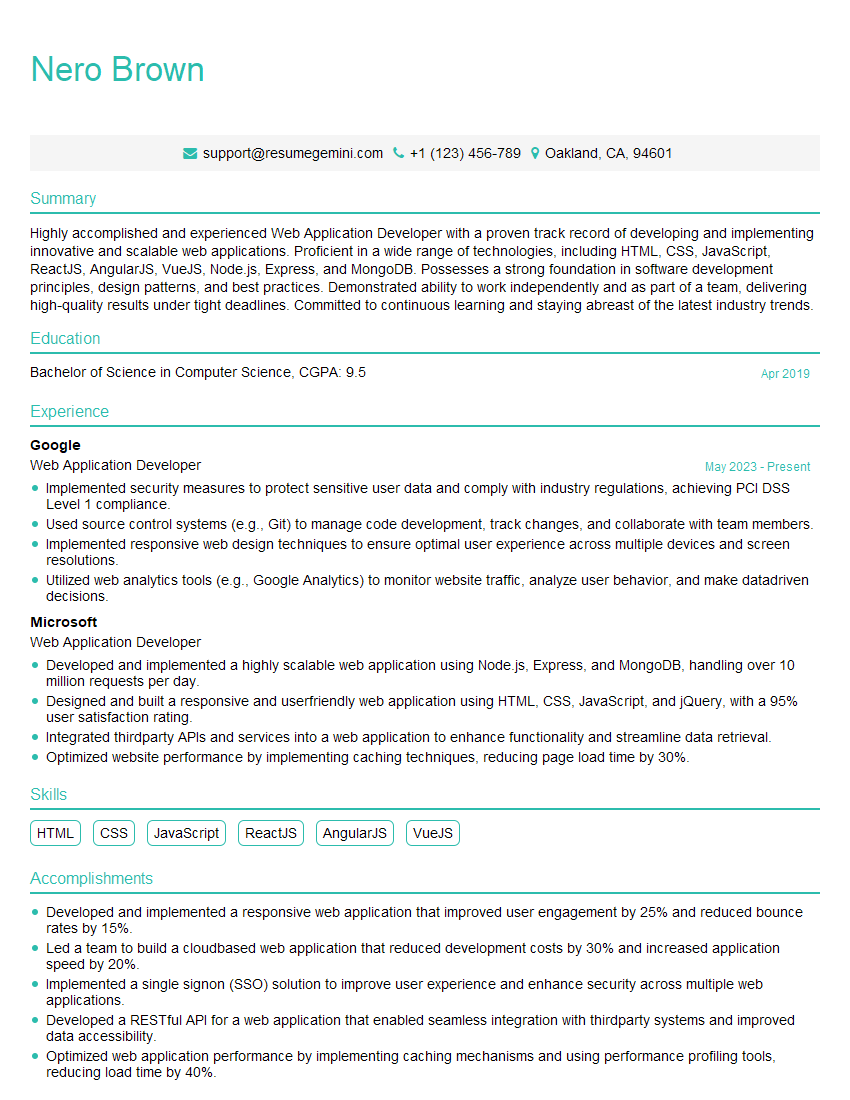
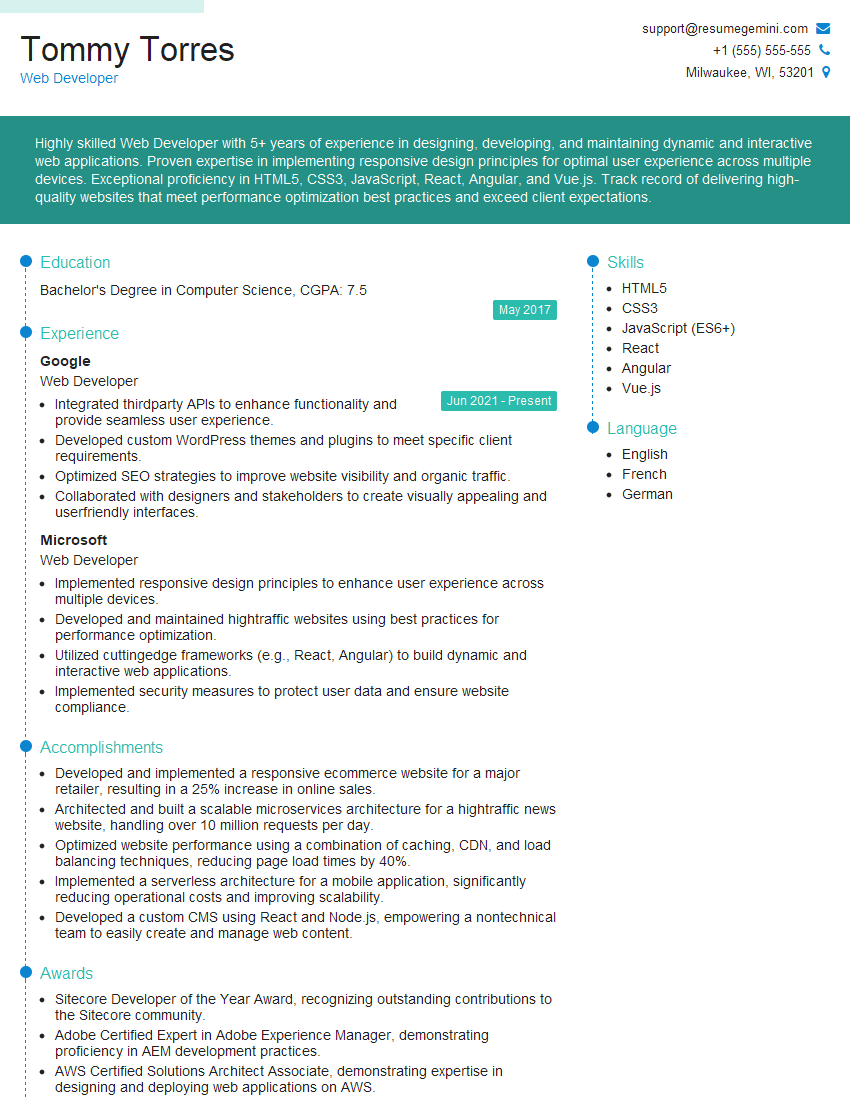
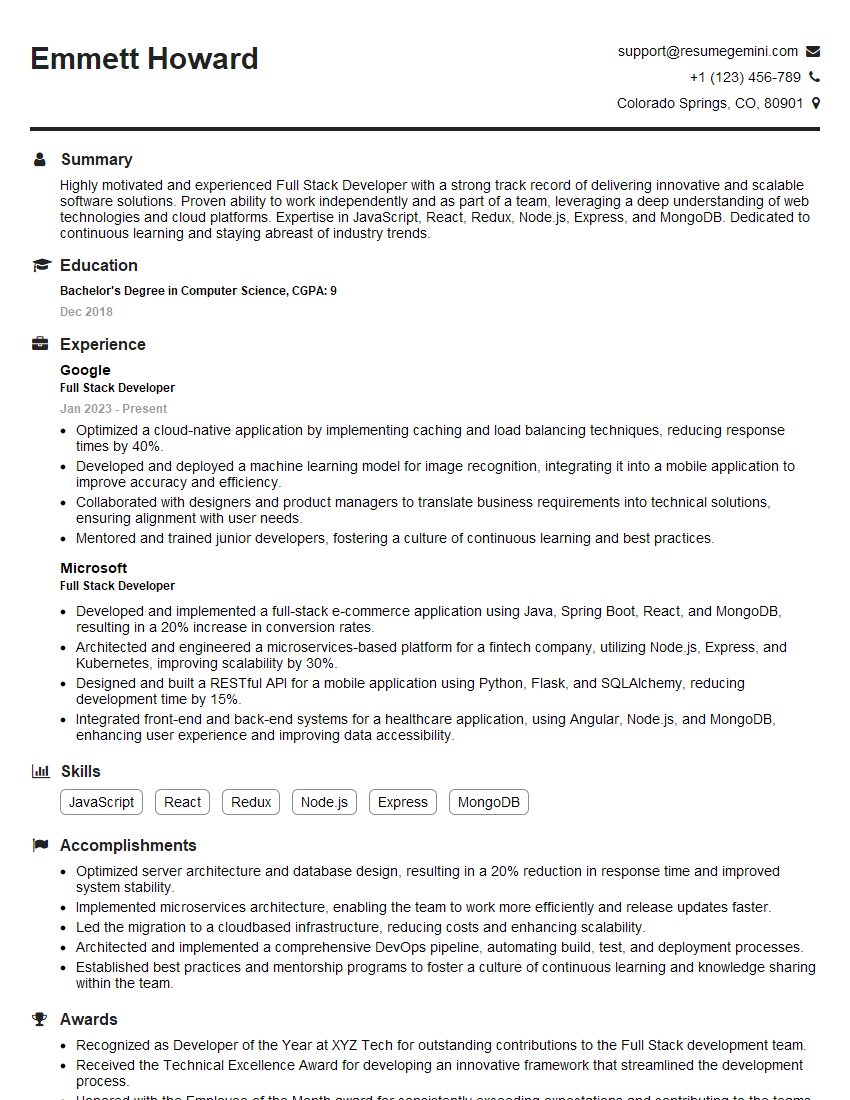
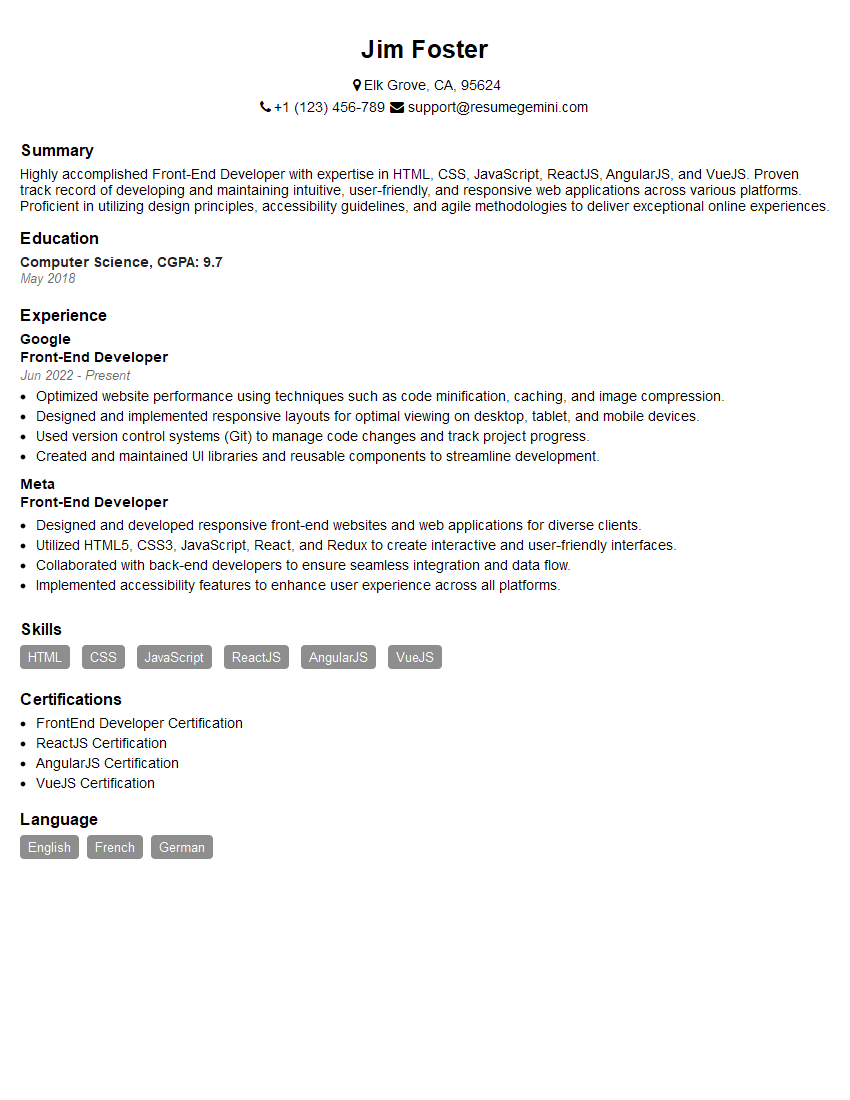
Mastering HTML and CSS is crucial for a successful career in web development. A strong foundation in these technologies opens doors to numerous opportunities and allows you to build engaging and effective websites. To maximize your job prospects, create an ATS-friendly resume that highlights your skills and experience effectively. ResumeGemini is a trusted resource that can help you build a professional and impactful resume. Examples of resumes tailored to showcasing HTML and CSS expertise are available to help you get started.

Explore more articles
Users Rating of Our Blogs
Share Your Experience
We value your feedback! Please rate our content and share your thoughts (optional).
What Readers Say About Our Blog
Hello,
we currently offer a complimentary backlink and URL indexing test for search engine optimization professionals.
You can get complimentary indexing credits to test how link discovery works in practice.
No credit card is required and there is no recurring fee.
You can find details here:
https://wikipedia-backlinks.com/indexing/
Regards
NICE RESPONSE TO Q & A
hi
The aim of this message is regarding an unclaimed deposit of a deceased nationale that bears the same name as you. You are not relate to him as there are millions of people answering the names across around the world. But i will use my position to influence the release of the deposit to you for our mutual benefit.
Respond for full details and how to claim the deposit. This is 100% risk free. Send hello to my email id: [email protected]
Luka Chachibaialuka
Hey interviewgemini.com, just wanted to follow up on my last email.
We just launched Call the Monster, an parenting app that lets you summon friendly ‘monsters’ kids actually listen to.
We’re also running a giveaway for everyone who downloads the app. Since it’s brand new, there aren’t many users yet, which means you’ve got a much better chance of winning some great prizes.
You can check it out here: https://bit.ly/callamonsterapp
Or follow us on Instagram: https://www.instagram.com/callamonsterapp
Thanks,
Ryan
CEO – Call the Monster App
Hey interviewgemini.com, I saw your website and love your approach.
I just want this to look like spam email, but want to share something important to you. We just launched Call the Monster, a parenting app that lets you summon friendly ‘monsters’ kids actually listen to.
Parents are loving it for calming chaos before bedtime. Thought you might want to try it: https://bit.ly/callamonsterapp or just follow our fun monster lore on Instagram: https://www.instagram.com/callamonsterapp
Thanks,
Ryan
CEO – Call A Monster APP
To the interviewgemini.com Owner.
Dear interviewgemini.com Webmaster!
Hi interviewgemini.com Webmaster!
Dear interviewgemini.com Webmaster!
excellent
Hello,
We found issues with your domain’s email setup that may be sending your messages to spam or blocking them completely. InboxShield Mini shows you how to fix it in minutes — no tech skills required.
Scan your domain now for details: https://inboxshield-mini.com/
— Adam @ InboxShield Mini
Reply STOP to unsubscribe
Hi, are you owner of interviewgemini.com? What if I told you I could help you find extra time in your schedule, reconnect with leads you didn’t even realize you missed, and bring in more “I want to work with you” conversations, without increasing your ad spend or hiring a full-time employee?
All with a flexible, budget-friendly service that could easily pay for itself. Sounds good?
Would it be nice to jump on a quick 10-minute call so I can show you exactly how we make this work?
Best,
Hapei
Marketing Director
Hey, I know you’re the owner of interviewgemini.com. I’ll be quick.
Fundraising for your business is tough and time-consuming. We make it easier by guaranteeing two private investor meetings each month, for six months. No demos, no pitch events – just direct introductions to active investors matched to your startup.
If youR17;re raising, this could help you build real momentum. Want me to send more info?
Hi, I represent an SEO company that specialises in getting you AI citations and higher rankings on Google. I’d like to offer you a 100% free SEO audit for your website. Would you be interested?
Hi, I represent an SEO company that specialises in getting you AI citations and higher rankings on Google. I’d like to offer you a 100% free SEO audit for your website. Would you be interested?
good