The right preparation can turn an interview into an opportunity to showcase your expertise. This guide to Knowledge of Industry Standard Software (Maya, Houdini, Nuke, After Effects) interview questions is your ultimate resource, providing key insights and tips to help you ace your responses and stand out as a top candidate.
Questions Asked in Knowledge of Industry Standard Software (Maya, Houdini, Nuke, After Effects) Interview
Q 1. Explain the difference between a NURBS and a polygon model in Maya.
NURBS (Non-Uniform Rational B-Splines) and polygons are two fundamental modeling techniques in Maya, each with its strengths and weaknesses. Think of NURBS as curves that define smooth, precise surfaces, ideal for organic shapes like cars or characters. Polygons, on the other hand, are flat-faced shapes – essentially triangles and quadrilaterals – that approximate a surface. They’re excellent for creating hard-surface models or high-detail meshes.
NURBS advantages: Precise control over curves, excellent for smooth surfaces, easily scalable without loss of quality. They’re perfect for animation as they maintain smooth transitions even with complex deformations.
Polygon advantages: Easier to create complex, high-detail models. They are generally more efficient for rendering, especially when dealing with high polygon counts. They are also more widely compatible with game engines.
Example: You’d likely use NURBS to model a sleek sports car body, prioritizing smooth curves and clean lines. For a realistic rock formation with lots of crevices and detail, polygons would be the more efficient choice.
Q 2. Describe your experience with UV unwrapping and texture mapping in Maya.
UV unwrapping and texture mapping are crucial steps in creating realistic 3D models. UV unwrapping is like flattening a 3D model onto a 2D plane to apply textures. Imagine peeling an orange; the peel is your 2D texture map, and the orange’s surface is your 3D model. Texture mapping is then the process of painting that 2D texture onto the 3D model.
My experience includes using various UV unwrapping techniques in Maya, from planar mapping for simple objects to cylindrical mapping for objects with cylindrical symmetry and automatic unwrapping tools for more complex geometries. I frequently use the 3D viewport to visualize and correct UV seams to minimize distortion. For complex models, I utilize techniques like cutting and stitching UV shells to optimize the texture space and minimize stretching. I’m proficient in creating custom UV layouts tailored for specific texture requirements, aiming for efficient texture usage and minimal distortion.
For texture mapping, I’m comfortable using different map types like diffuse, normal, specular and roughness maps. I understand the importance of proper texture resolution and file formats to balance quality and rendering performance.
Q 3. How do you optimize a complex Maya scene for better rendering performance?
Optimizing complex Maya scenes for rendering is crucial for efficient workflow and project deadlines. Here’s my approach:
- Geometry Optimization: Reducing polygon count is paramount. This can be achieved through techniques like decimation, retopology, and using proxy geometry for elements far from the camera.
- Material Optimization: Utilizing simpler shaders where possible, avoiding unnecessary map layers and optimizing the render settings for the specific renderer being used. Shared materials across multiple objects reduce memory consumption.
- Lighting Optimization: Using light linking and light groups to control light influence more effectively and optimizing light samples to strike a balance between render time and quality.
- Scene Organization: Well-organized scenes with layers and namespaces help prevent render errors and boost efficiency. Proper naming conventions are also important.
- Render Settings: Carefully adjusting settings such as ray tracing depth, anti-aliasing, and sample rate for the balance between image quality and render times.
Example: In a scene with thousands of trees, instead of rendering each individual leaf, I would create a proxy mesh with fewer polygons that retains the overall visual appearance. This significantly reduces render time without compromising the scene’s realism from a distance. I also often bake lighting and shadows in advance, saving render time and storage space.
Q 4. What are some common techniques for creating realistic hair and fur in Maya?
Creating realistic hair and fur requires a combination of techniques. Maya offers several tools, and my approach usually involves a combination of:
- nHair System: This is Maya’s built-in hair and fur system. I leverage its capabilities for creating guides, sculpting hair shapes, and controlling dynamics using forces and collision.
- XGen: XGen offers a more advanced and efficient approach to hair and fur creation. It excels in creating large, detailed hair simulations. I’m adept at using XGen’s description to define the hair distribution, length, and style, and then fine-tuning the results with interactive grooming tools.
- Grooming Tools: I use Maya’s grooming tools and potentially third-party plugins for more detailed styling and control over individual hair strands, such as combing, cutting, and sculpting tools.
- Rendering: Properly configuring render settings, using subsurface scattering and advanced shading techniques, are crucial for creating realistic hair rendering with depth and shine.
Example: For a character with long, flowing hair, I would use XGen to create a dense base of hair, then utilize grooming tools to add detail and style, adjusting parameters like curl and clumping for a natural look. nHair is useful for creating short, more stylized fur.
Q 5. Explain your experience with rigging and skinning characters in Maya.
Rigging and skinning are fundamental to character animation. Rigging is the process of creating a skeleton (the rig) for a character, providing a structure for animation. Skinning is the process of attaching the character’s geometry (the mesh) to the rig’s bones, allowing the geometry to deform naturally when the rig is animated.
My experience includes creating various types of rigs, from simple rigs for basic animations to complex rigs with advanced features such as stretchy limbs, facial controls, and secondary animation elements. I’m proficient in using various techniques such as:
- Joint-based rigs: Using hierarchies of joints to create a skeletal structure
- IK/FK systems: Combining Inverse Kinematics (IK) for posing and Forward Kinematics (FK) for precise control
- Facial rigging: Setting up controls for creating realistic facial expressions
- Weight painting: Assigning weights to vertices to control how the mesh deforms when bones move.
I always strive for a rig that is both efficient and easy to use, focusing on intuitive controls and well-organized structures.
Q 6. What are some common problems you’ve encountered while animating in Maya, and how did you solve them?
Animation in Maya can present various challenges. Here are a few common problems and my solutions:
- Keyframing issues: Sometimes, unexpected keyframe behavior can occur. The solution is to carefully review the keyframes, checking for inconsistencies, gaps, or unwanted tangents. I might use different interpolation types (linear, spline, etc.) to get smoother animation.
- Joint rotations and rotations orders: Incorrect joint rotations or rotation orders can lead to twisting and deformation. I address this by checking joint orientations, using proper constraints, and adjusting rotation orders if necessary. Sometimes, it is necessary to re-rig part of the model.
- Weight painting problems: Poorly weighted models can result in unnatural deformations. This is often addressed with careful weight painting, ensuring smooth transitions between influences and correct weighting across joints.
- Performance issues with complex animations: Dealing with very complex scenes, especially high-resolution animation caches, can lead to performance problems. I counter this through techniques like using a lower frame rate for the initial animation phase and optimizing the animation cache settings.
Troubleshooting typically involves systematic analysis and iterative refinement. I employ tools like Maya’s graph editor to visualize and fine-tune animation curves and always back up work to prevent data loss.
Q 7. Describe your experience with Houdini’s VOP network.
Houdini’s VOP (Volume Operator) network is a node-based visual programming environment for creating custom shaders and procedural effects. I’ve used VOPs to create a wide range of effects, from custom shaders and textures to complex volumetric simulations.
My experience with VOPs includes building custom shaders for various purposes – subsurface scattering, realistic skin, or stylized materials. I use VOPs to manipulate vector data and create procedural textures in a non-destructive manner. The ability to build complex calculations and interactions visually is powerful. For example, I’ve used VOPs to create procedural noise patterns that drive displacement maps, creating intricate surface details without hand-painting textures. I also used VOPs to build custom volume shaders and to create procedural effects.
The strength of VOPs lies in their ability to create reusable components. You can create a custom VOP for a specific effect and then easily reuse it throughout your project or in future projects, which leads to increased efficiency and consistency.
Q 8. How do you create procedural effects using Houdini?
Procedural effects in Houdini leverage nodes to create repeatable and easily modifiable effects. Instead of manually creating every element, you define a process or algorithm that generates the effect. Think of it like a recipe: you input ingredients (parameters), and the node processes them to produce the desired output (the effect).
For example, to create a procedural rock formation, you might use a noise node to generate a 3D height field, then use a volume VOP to erode and sculpt the terrain, and finally a surface node to generate the final mesh. Changing a single parameter, like the noise frequency, dramatically alters the entire rock formation without manual intervention. This allows for quick iteration and consistent results.
Another common example is particle simulations. Instead of animating each particle individually, you define parameters such as particle velocity, gravity, and collisions, and Houdini’s solvers handle the rest. You can then easily adjust parameters to achieve different simulation results, for example, changing the wind speed to dramatically affect a smoke simulation. The power lies in the flexibility and control this offers.
Q 9. What are some efficient techniques for managing large datasets in Houdini?
Managing large datasets in Houdini efficiently involves strategies focused on optimization at every stage. Think of it like building a large house; you wouldn’t start with the roof before the foundation.
- Geometry Reduction: Techniques like polygon reduction (decimation) and level-of-detail (LOD) systems are crucial. This reduces the number of polygons without significantly impacting visual quality. You can use Houdini’s built-in tools like the
polyReducenode for this purpose. - Caching: Houdini’s caching system allows you to store the results of computationally expensive operations. This prevents recalculation when making minor adjustments. Think of it like saving your work frequently – it prevents loss and speeds up the workflow.
- Point Clouds: For vast amounts of data, representing geometry as point clouds offers a significant performance boost compared to meshes. Point clouds are much lighter and faster to render. You can manipulate them using VEX (Houdini’s scripting language).
- ROP (Render Output) Optimization: Choosing the right render settings and output formats are vital. Using lower resolution for previews and progressively increasing resolution only when needed is a major time-saver.
- Parallel Processing: Houdini leverages multi-core processors. Ensure your network is designed for this, and your processes are broken down efficiently to maximize processing speed.
By implementing a combination of these techniques, you can significantly enhance Houdini’s performance when dealing with massive datasets, ensuring a smooth workflow.
Q 10. Explain your understanding of Houdini’s solvers and their applications.
Houdini’s solvers are the engines that drive simulations. They handle the complex calculations necessary for realistic physics, such as fluid dynamics, rigid body collisions, and cloth simulation. They’re the unseen hands shaping your digital world.
- FLIP (Fluid Implicit Particle): This solver is excellent for creating realistic liquids like water, splashing, and smoke. It’s known for its robust handling of complex fluid behavior.
- RBD (Rigid Body Dynamics): This solver simulates the motion and interaction of rigid objects, like boxes falling, cars crashing, and explosions. It’s a cornerstone of destruction simulations.
- DOP (Domain): This is a more general-purpose solver that allows you to create custom simulations using VEX. This is where you get the most hands-on control, although it requires advanced programming knowledge.
- Pyro Solver: This solver specializes in fire and smoke simulations. It uses a different approach than FLIP, offering distinct visual characteristics.
Understanding the strengths and weaknesses of each solver is critical. For instance, using RBD for a detailed car crash, and FLIP for a realistic ocean scene. The choice depends on your specific simulation needs.
Q 11. Describe your workflow for creating realistic simulations in Houdini.
My workflow for creating realistic simulations in Houdini is iterative and emphasizes careful planning and testing. It’s less about a rigid process and more about a flexible approach adapted to the specific needs of each project.
- Concept and Planning: I start by clearly defining the goals and desired outcome. What kind of simulation are we creating? What are the key elements, and what level of detail is required?
- Asset Creation: High-quality assets are crucial. Detailed models, textures, and materials are essential for convincing simulations.
- Simulation Setup: I then set up the simulation in Houdini, choosing the appropriate solver (RBD, FLIP, Pyro, etc.), and carefully adjusting parameters to achieve the desired results. This stage involves many tests and refinements.
- Iteration and Refinement: The simulation process is iterative. I continuously tweak parameters, adjust settings, and review the results until the simulation looks and behaves realistically.
- Rendering and Post-processing: Finally, I render the simulation, often using a physically-based renderer like Arnold or Mantra. Post-processing in Nuke or After Effects might be needed to add finishing touches and enhance the visual quality.
Throughout this process, I rely heavily on visualization tools within Houdini to monitor the simulation’s progress and identify areas for improvement. It’s about understanding the underlying physics and using Houdini’s tools to translate that understanding into a convincing visual representation.
Q 12. What are some common compositing techniques you use in Nuke?
Nuke is a powerful compositing software that allows for a wide range of techniques. My common techniques include:
- Keying: Removing backgrounds from footage, using tools like the Keyer and Primatte Keyer. This is crucial for integrating elements from different sources.
- Rotoscoping: Manually outlining objects in footage to isolate them from their background. This is necessary when automatic keying fails due to complex or challenging backgrounds.
- Color Correction and Grading: Adjusting the color balance and overall look of the footage to ensure visual consistency and create the desired mood. Tools like ColorCorrect and ColorWarp are indispensable.
- Matte Painting: Creating and integrating digital paintings into live-action footage. This can range from enhancing backgrounds to creating entirely new environments.
- Tracking: Tracking camera movement to align and integrate different shots or 3D elements into live-action footage. Nuke’s camera trackers are robust and efficient.
- Deep Compositing: Compositing with depth maps to create more realistic 3D effects and interactions between different layers. It allows for realistic depth of field effects.
The choice of technique depends entirely on the specific needs of the project. Sometimes a simple color correction is enough, while other times it requires a complex combination of techniques.
Q 13. Explain your experience with keying and rotoscoping in Nuke.
Keying and rotoscoping in Nuke are fundamental for creating clean composites. They’re often intertwined and require a good eye for detail.
Keying typically involves using automated keyers (like Primatte or Keylight) to separate a subject from its background based on color differences. However, these often need manual refinement, especially with challenging backgrounds or difficult lighting conditions. I usually start with an automated keyer and then meticulously refine the results using tools like the rotoscoping tools or paint tools to manually remove any remaining artifacts or spill.
Rotoscoping, on the other hand, is a manual process where I trace the outline of an object frame-by-frame using Nuke’s roto tools. This is essential for shots with complex backgrounds or when precise selection is paramount. Techniques like shape interpolation and tracking help automate parts of the process but still require careful monitoring and adjustment.
My experience involves utilizing both methods effectively, choosing the best approach based on the complexity of the footage and the time constraints. Often, a hybrid approach combines both automated keying and manual rotoscoping for optimal results.
Q 14. How do you manage color correction and grading in Nuke?
Color correction and grading in Nuke are essential for achieving visual consistency and enhancing the aesthetic appeal of the final composite. It’s not just about making colors ‘look better’; it’s about telling a visual story.
I typically start with color correction to fix issues like color casts and inconsistencies across different shots. Nuke’s ColorCorrect node is a versatile tool that provides granular control over color adjustments, including hue, saturation, and brightness. I may use multiple ColorCorrect nodes in a pipeline to address specific issues in different parts of the color spectrum.
Color grading, on the other hand, is more about artistic decisions – shaping the overall look and feel of the footage. I use tools like ColorWarp and Look nodes to create specific moods, whether it’s a vibrant, saturated look, or a moody, desaturated one. The key is to understand the relationship between color and mood, and to use the grading tools to achieve the desired emotional impact.
Often, I use a combination of both processes, starting with color correction to establish a solid foundation and then applying color grading to refine and enhance the final image. Reference images and the overall style of the project are crucial references throughout this process.
Q 15. What are some advanced compositing techniques you’re familiar with in Nuke (e.g., 3D compositing)?
Advanced compositing in Nuke often involves leveraging its 3D capabilities. This goes beyond simply layering 2D elements; it’s about integrating 3D models, cameras, and lighting into the compositing process. Think of it like building a miniature set digitally, but instead of physical objects, you’re working with digital assets.
One key technique is using the 3D Card to project images onto 3D geometry. For example, you might have a CG character rendered against a bluescreen. You’d load the character into Nuke’s 3D environment, and then use a 3D Card to project the bluescreen onto a 3D plane, allowing for accurate integration and lighting of the character within a complex scene.
Another powerful technique is using the Camera Tracker to solve the camera’s movement from a live-action plate. Once solved, you can accurately integrate CGI elements into that scene. Imagine adding a spaceship flying over a real city. Tracking the camera lets Nuke perfectly match the 3D spaceship’s perspective to the live footage, creating a seamless visual effect.
Finally, depth-based compositing is crucial. This involves using depth maps from rendered 3D elements to precisely blend them with the live-action plates. For instance, a foreground character might be rendered with a depth pass, allowing you to accurately layer them over the background, creating realistic occlusion and depth of field effects.
Career Expert Tips:
- Ace those interviews! Prepare effectively by reviewing the Top 50 Most Common Interview Questions on ResumeGemini.
- Navigate your job search with confidence! Explore a wide range of Career Tips on ResumeGemini. Learn about common challenges and recommendations to overcome them.
- Craft the perfect resume! Master the Art of Resume Writing with ResumeGemini’s guide. Showcase your unique qualifications and achievements effectively.
- Don’t miss out on holiday savings! Build your dream resume with ResumeGemini’s ATS optimized templates.
Q 16. Explain your experience with Nuke’s scripting capabilities.
My experience with Nuke’s scripting capabilities is extensive. I’m proficient in Python, which is Nuke’s primary scripting language. I use it regularly to automate repetitive tasks, create custom tools, and extend Nuke’s functionality.
For example, I’ve written scripts to batch process a sequence of images, automatically applying color corrections and other effects consistently. This saves a tremendous amount of time on large projects. Another example is creating custom nodes that simplify complex workflows. Let’s say I often need to perform a specific combination of effects. I can create a custom node that encapsulates that process, making my workflow more efficient and easier to understand.
# Example of a simple Nuke Python script to add a Gaussian Blur to a selected node
nuke.selectedNode().addEffect( 'Blur' )
blur = nuke.thisNode()
blu.knob( 'size' ).setValue( 5 )
Beyond this, I use scripting to integrate Nuke into other pipelines, like creating custom tools that automatically export assets to other applications. This ensures a smooth workflow between different software packages, such as Maya or Houdini. This seamless integration is essential in large-scale projects where collaboration is key.
Q 17. What are some common techniques you use for motion graphics in After Effects?
My motion graphics workflow in After Effects centers around leveraging its keyframing tools, shape layers, and expressions to create dynamic and engaging visuals. Creating captivating animations often involves a combination of these techniques.
- Shape Layers: I frequently utilize shape layers for creating logos, icons, and other graphic elements. Their versatility allows for precise control over animation through keyframes, allowing for subtle movements or intricate transformations.
- Keyframe Animation: This forms the core of my animation process. Whether it’s animating position, scale, rotation, opacity, or any other property, I apply keyframes to control the movement over time. This granular control allows me to create smooth, nuanced movements.
- Pre-Compositions: These are essential for organizing complex projects. Breaking down animations into smaller, manageable compositions keeps the timeline clutter-free and allows for better control over individual elements. This is particularly crucial in intricate projects where managing many layers becomes difficult.
- Masks and Matte: These are used for isolating areas of a composition for precise effect application or to create unique shapes and transitions.
For example, a recent project involved animating a logo with a subtle bounce effect. I used a shape layer for the logo, and keyframed its position, scale, and opacity to create the bounce animation, combined with an ease in and ease out expression for a natural feel.
Q 18. Explain your experience with keyframing and animation in After Effects.
Keyframing and animation are fundamental to my After Effects workflow. I’m proficient in creating various types of animations, from simple transitions to complex character animations using various techniques.
Beyond basic keyframing, I leverage techniques like easing functions (ease in, ease out, etc.) to create more natural and realistic movement. This avoids jerky animations, adding a smoother and more professional quality to the work. For instance, using ease-in/ease-out on a moving object makes its acceleration and deceleration more natural, just like the movements we see in real life.
Furthermore, I often utilize expression controls to automate animations or create procedural effects. Expressions can link properties together, enabling complex relationships that would be tedious to keyframe manually. For example, I can create an expression to link the scale of one object to the opacity of another, creating a visually linked effect. This creates a dynamic, responsive animation that can be easily adjusted through simple parameter changes.
Q 19. How do you create and manage compositions in After Effects?
Managing compositions in After Effects is crucial for maintaining organization and efficiency. I typically follow a hierarchical structure, creating pre-compositions (nested compositions) to group related elements.
For example, if I’m animating a complex scene with multiple characters, background elements, and effects, I’ll create separate pre-compositions for each character, the background, and the overall effects. This makes the main composition cleaner and allows me to adjust individual parts of the animation without affecting others. It’s akin to building a house – you wouldn’t build all the walls at the same time, but rather assemble the individual rooms first, then put them all together.
Naming conventions are also key. Clear, consistent naming helps to identify layers and pre-compositions quickly, making it easy to find and modify elements within the project. This becomes incredibly important as projects grow larger and more complex. Color-coding layers can be used to further streamline identification of elements in the project timeline.
Q 20. What are some common effects you’ve created using After Effects?
I’ve created a wide range of effects in After Effects, including:
- Lower Thirds and Titles: Animating text and creating stylish title sequences for videos.
- Kinetic Typography: Animating text to create dynamic and engaging visuals that enhance the message being communicated.
- Transitions: Designing smooth and visually appealing transitions between scenes or elements.
- Particle Effects: Creating visually striking particle systems for enhancing scenes.
- Rotoscoping: Manually tracing around elements in live-action footage to isolate them for compositing or other effects.
- Image manipulation and color correction: Applying various techniques to improve the overall look of images and video.
One particularly challenging project involved creating a realistic water ripple effect for a video. This required using a combination of techniques, including shape layers, masks, and expressions, to accurately simulate the movement and reflectivity of water. This involved creating a complex interplay between the movement of multiple layers and simulating lighting interaction, demanding careful management of multiple layers and effects for a realistic result.
Q 21. Describe your experience with After Effects’ expressions and scripting.
My proficiency in After Effects extends to its scripting capabilities using Javascript expressions. Expressions allow for dynamic control and automation of animation and effects, beyond simple keyframes.
I regularly use expressions to create procedural animation, such as linking the position of one layer to the rotation of another, creating intricate and dynamic relationships. This enables sophisticated effects that are difficult or impossible to achieve solely through keyframing. For instance, you can create a flickering light effect using expressions and random values, rather than manually animating each flicker.
// Example of a simple After Effects expression to make a layer's opacity pulse
Math.sin(time*2)*50 + 50
I’ve also written scripts to automate repetitive tasks, such as batch processing multiple files or generating sequences of animations, enhancing my productivity. These automation features minimize human errors and ensure consistency across a large number of files or animations.
Q 22. How do you optimize After Effects compositions for rendering?
Optimizing After Effects compositions for rendering is crucial for efficient workflow and preventing crashes. It involves a multi-pronged approach focusing on reducing processing load and leveraging After Effects’ capabilities effectively.
Pre-composition: Break down complex compositions into smaller, manageable pre-comps. This allows After Effects to process smaller chunks of information, significantly improving render times. Think of it like assembling a Lego castle – you build smaller sections before combining them into the final structure.
Layer Management: Keep your layers organized. Avoid unnecessary effects or layers. Use adjustment layers to modify multiple layers simultaneously, reducing the number of individual effects applied. This improves both render speed and file size.
Effect Optimization: Use the most efficient effects for the job. For example, using a simple blur instead of a more computationally intensive one. Consider using effects with faster render times or simpler algorithms. Always check the effect’s settings for areas of optimization – many effects have options to reduce processing load without impacting final quality significantly. For example, reducing the sample size on certain effects can make a huge difference.
Resolution and Frame Rate: Render at the lowest resolution possible for previewing and testing. Increase the resolution only for the final render. Similarly, work with the lowest practical frame rate during the editing process, increasing it only when needed.
Rasterization vs. Vector: Use vector graphics where appropriate (e.g., for text and simple shapes). Vectors are rendered more quickly than raster images (like photos), and they scale without loss of quality.
Proxy Files: Use proxy files (lower-resolution versions of your footage) during editing to speed up the playback and rendering process. You can then switch to high-resolution files for the final render.
RAM Previews: Utilize RAM previews to speed up playback of complex effects, preventing constant re-rendering.
By combining these strategies, you can significantly reduce render times and improve the overall performance of your After Effects projects.
Q 23. What’s your preferred method for importing 3D models into After Effects?
My preferred method for importing 3D models into After Effects is using Cinema 4D Lite (included with After Effects) or exporting from modeling software in a format optimized for After Effects’ Bodytracker, like FBX.
Cinema 4D Lite offers a seamless workflow, and the integration is very smooth. If working with complex models or animations created in other software like Maya or Houdini, FBX is generally reliable, ensuring that the model’s geometry, textures, and animation data transfer efficiently. However, it is essential to check the import settings to ensure correct scaling and unit consistency between the 3D software and After Effects. I typically check this visually within AE’s 3D scene to make sure there are no unexpected scaling issues that may need fixing.
Other methods exist (like OBJ, Collada), but often require more manual adjustment and are less reliable in maintaining rigging and animations correctly. FBX provides a much better balance of compatibility and ease of use in my experience.
Q 24. Compare and contrast the strengths and weaknesses of Maya and Houdini for creating VFX.
Maya and Houdini are both industry-standard 3D software packages, but they excel in different areas. Maya is a powerful tool for modeling, rigging, animation, and rendering, while Houdini specializes in procedural generation and complex simulations.
Maya Strengths: Excellent for character animation, modeling organic shapes, and rendering using various render engines (Arnold, V-Ray, Redshift). Its user interface is considered intuitive for many artists, making it a good choice for tasks where precise control over individual elements is paramount.
Maya Weaknesses: Can be less efficient for large-scale procedural effects and simulations compared to Houdini. Setting up complex simulations in Maya often requires more manual work and can be less intuitive.
Houdini Strengths: Ideal for creating complex procedural effects (explosions, smoke, fire, fluids), destruction simulations, and environments. Houdini’s node-based system is powerful for building reusable tools and complex interconnected systems. The power is in it’s ability to automate and repeat complex tasks.
Houdini Weaknesses: Steeper learning curve than Maya. Its node-based interface can be intimidating for beginners. It’s not necessarily the first choice for traditional modeling, rigging, and character animation compared to Maya’s robust set of tools for those tasks.
In essence, the choice depends on the project. Maya is often preferred for character-driven VFX, while Houdini shines in environment and effects work. Increasingly, pipelines are using both for maximum efficiency.
Q 25. How would you approach creating a realistic explosion effect using Houdini and then compositing it in Nuke?
Creating a realistic explosion in Houdini and compositing it in Nuke involves a multi-stage process.
Houdini (Simulation): I would start by building the explosion using Houdini’s Pyro solver. This involves creating a source (ignition point), defining the fuel and air properties, and simulating the expansion and dissipation of the explosion. I would pay close attention to details like smoke density, pressure waves, debris fragmentation, and fire glow to achieve realism. I’d likely use VOPs (Volume Operation) to control and refine aspects of the simulation for fine control over the details, optimizing the simulation speed and quality. Using RBD (Rigid Body Dynamics) to simulate realistic debris would add to the visual fidelity.
Houdini (Rendering): I’d render out multiple passes (beauty, depth, normal, AOVs – Arbitrary Output Variables) from Houdini. These passes provide flexibility during compositing. Having things like a separate pass for the fire and smoke allows me to fine-tune each effect independently within Nuke.
Nuke (Compositing): In Nuke, I would combine the various render passes to create the final explosion shot. I’d use the depth pass to integrate the explosion into the existing scene, ensuring proper perspective and layering. The normal pass would be used to enhance the surface detail and realism, while AOVs like emissive could allow for fine-tuning of light effects. Color correction and grading would be used to match the look of the explosion to the surrounding environment for seamless integration.
Nuke (Finishing): I’d add finishing touches such as lens distortion, subtle motion blur, and potentially some additional grain or noise to further enhance the realism and match the look of the surrounding scene.
This approach ensures a high degree of control and flexibility over both the simulation and the final composite.
Q 26. Describe a project where you had to overcome a technical challenge related to one of these software packages.
On a recent project, we were tasked with creating a large-scale city destruction sequence using Houdini. The challenge was achieving realistic destruction with thousands of individual buildings and debris within reasonable render times. Our initial approach, using a brute-force simulation of each building, was proving computationally expensive and extremely slow.
To overcome this, we implemented a multi-tiered approach. We used Houdini’s RBD and fracturing tools to create destruction proxies for groups of buildings rather than modeling each individual building in high detail. This allowed for a more efficient simulation by reducing the number of objects being simulated. Furthermore, we implemented procedural level-of-detail systems, meaning that the more distant elements were created and simulated at a much lower resolution. We also heavily optimized our scene caching and render settings in Houdini to reduce rendering time to a manageable level. This involved carefully selecting high-quality, yet efficient render settings, and utilizing procedural tools to reduce the manual steps needed to generate the scene.
This combination of proxy simulations and level-of-detail optimization allowed us to complete the destruction sequence without compromising the realism or exceeding production timelines.
Q 27. Explain your understanding of different render engines (e.g., Arnold, Redshift, V-Ray).
Arnold, Redshift, and V-Ray are all popular rendering engines, each with its own strengths and weaknesses. They are used to generate high-quality images from 3D scenes.
Arnold: Known for its high-quality physically-based rendering (PBR), excellent ray tracing, and strong support for subsurface scattering (making skin and other materials look more realistic). It’s a production-ready renderer offering a great balance of image quality, speed, and versatility.
Redshift: Highly regarded for its speed and its ability to handle complex scenes efficiently, thanks to its GPU acceleration. This makes it a good choice for projects requiring fast render times, especially on large and detailed scenes. Redshift offers a solid range of features and integrations, offering strong support for GPU rendering, making complex scenes more manageable.
V-Ray: A versatile renderer that’s widely compatible with different 3D software packages and comes in several versions (V-Ray for Maya, V-Ray for 3ds Max, etc.). It offers a broad range of features, including path tracing, global illumination, and advanced shading capabilities, often praised for its accurate simulations of light and materials. The range of rendering options also makes it highly adaptable to the project’s needs.
The best choice depends on the project’s specific requirements. For complex scenes demanding speed, Redshift is often favored. For projects prioritizing extremely high quality and physically accurate rendering, Arnold is a strong contender. V-Ray’s wide compatibility makes it a versatile option for many different scenarios.
Q 28. How do you maintain version control in your projects?
Version control is essential for any collaborative project. I primarily use Git for version control, often through a platform like GitLab or GitHub. I structure my projects with a clear folder organization, keeping source files (3D models, textures, scripts) separate from rendered outputs.
For each project, I create a new repository. I regularly commit my changes with descriptive messages, explaining what modifications I made and why. This way, I can easily track progress, revert to earlier versions if necessary, and collaborate effectively with other team members. Branching is essential; I create separate branches for different tasks or features, merging them back into the main branch once they’re complete. This prevents conflicts and keeps the main branch stable and always renderable.
Beyond Git, I also utilize local backups and cloud storage (like Google Drive or Dropbox) for added security against hardware failure. A robust strategy that integrates both local and cloud storage will ensure safety and reduce any risk of data loss.
Key Topics to Learn for Knowledge of Industry Standard Software (Maya, Houdini, Nuke, After Effects) Interview
- Maya:
- Modeling techniques: Poly modeling, NURBS modeling, sculpting
- Rigging and animation principles: Character rigging, procedural animation, animation workflows
- Rendering and lighting: Understanding shaders, lighting setups, and rendering engines
- Houdini:
- VEX scripting: Understanding and applying VEX for procedural generation and control
- Nodes and workflows: Mastering the node-based workflow for creating complex effects
- Simulation techniques: Fluid simulation, particle systems, destruction simulations
- Nuke:
- Compositing techniques: Keying, rotoscoping, color correction, and image manipulation
- Node-based workflows: Understanding and utilizing Nuke’s node-based compositing system
- Working with different image formats and resolutions
- After Effects:
- Motion graphics and animation: Creating 2D animations, text animations, and motion graphics
- Visual effects compositing: Basic compositing techniques and integrating with other software
- Understanding keyframes and expressions for animation control
- General Concepts:
- Workflow optimization and best practices
- Problem-solving and troubleshooting techniques
- Understanding industry pipelines and collaboration
Next Steps
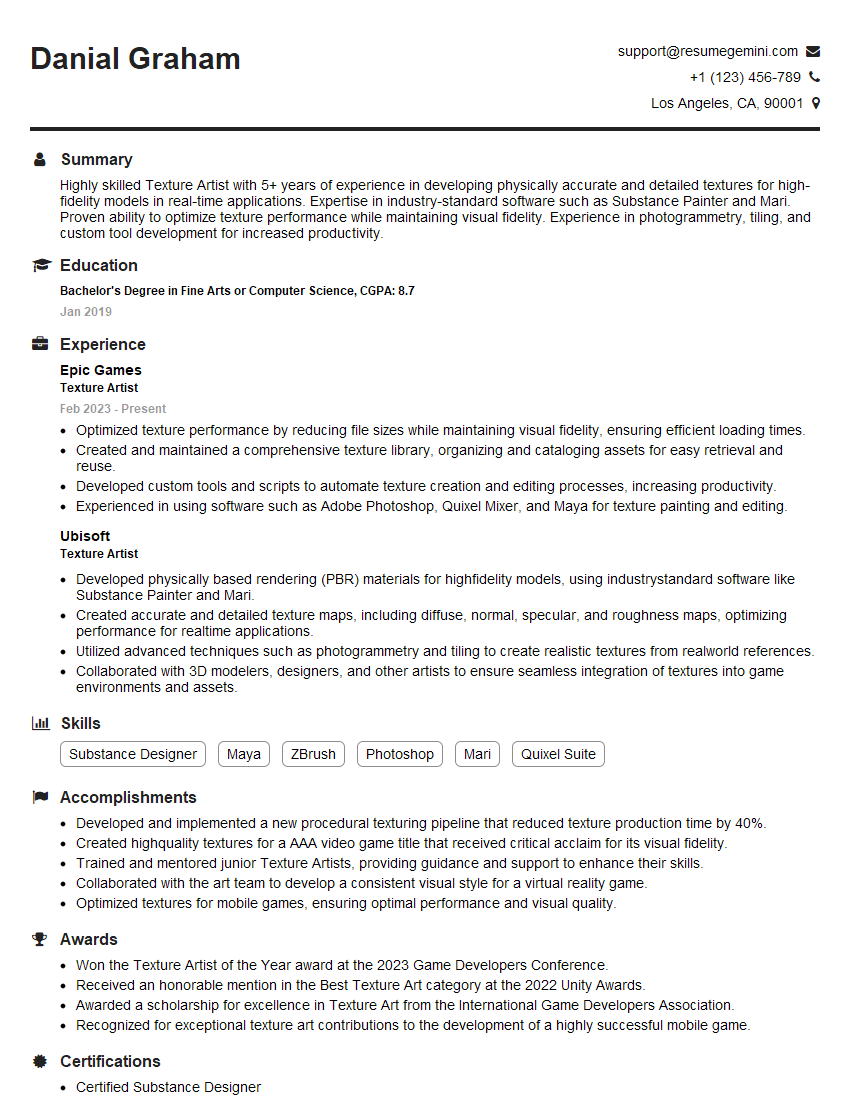
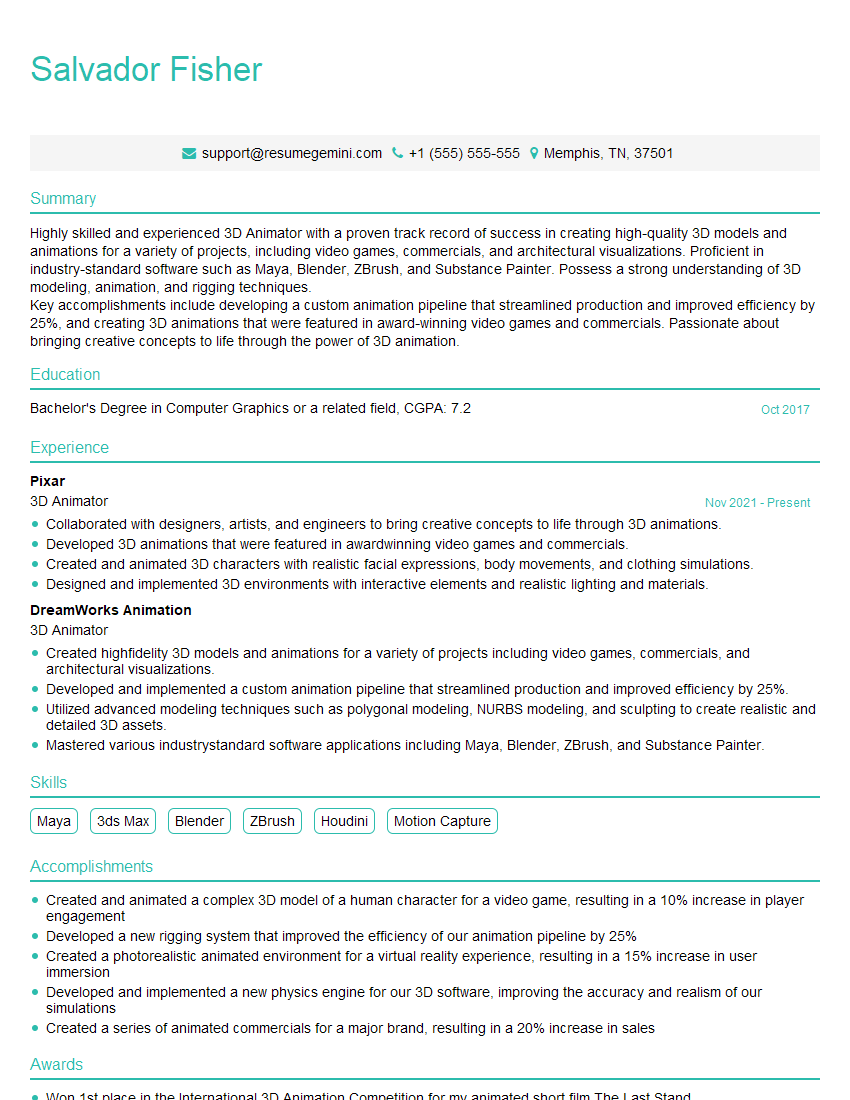
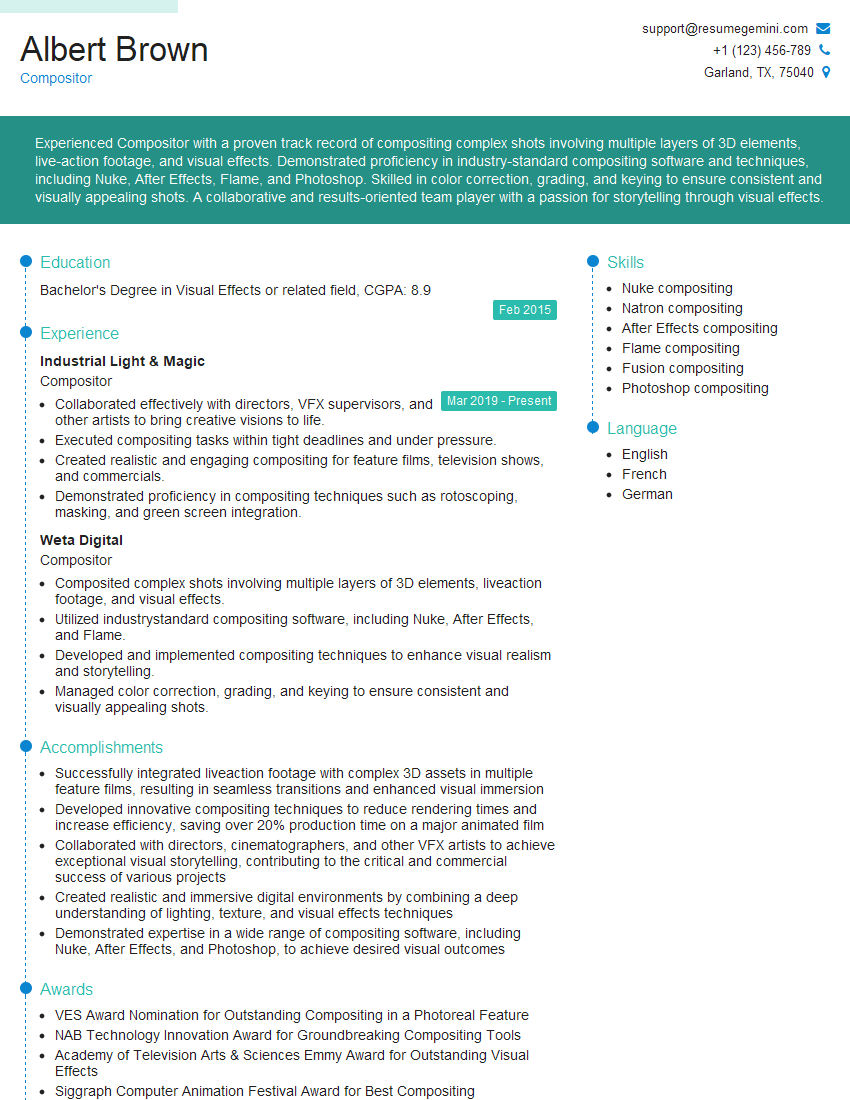
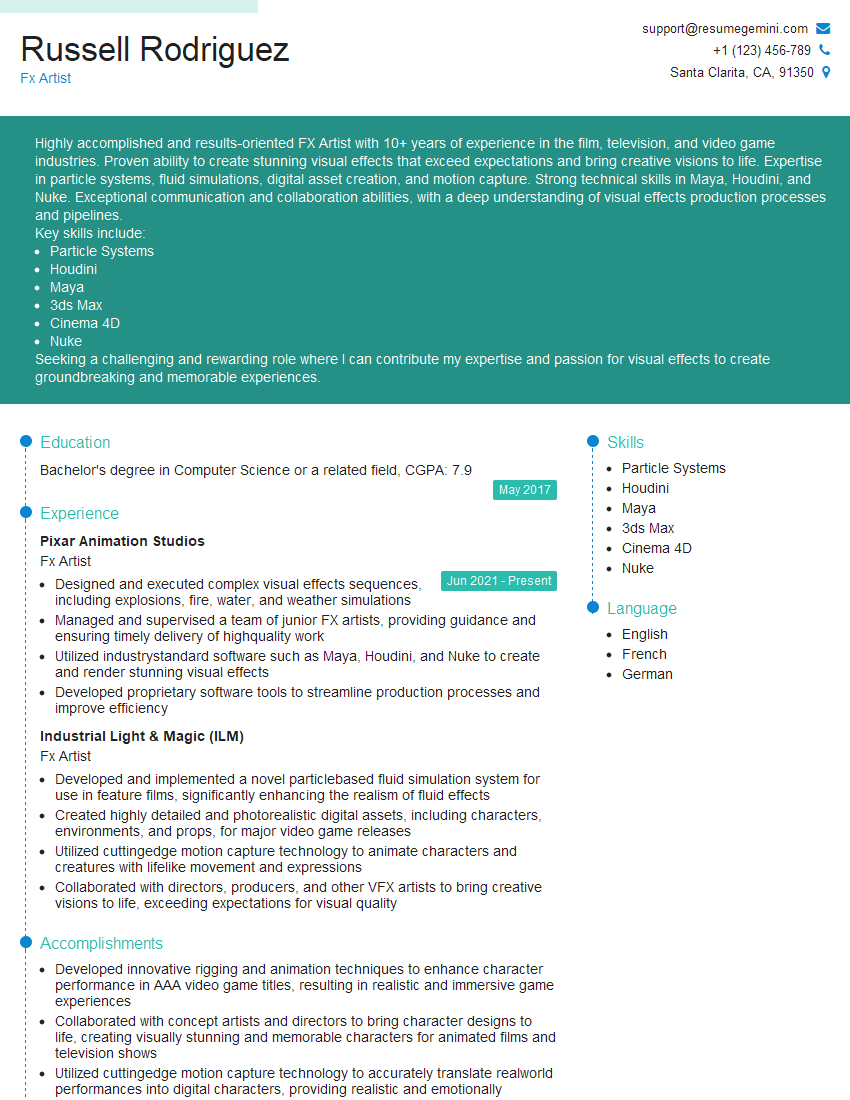
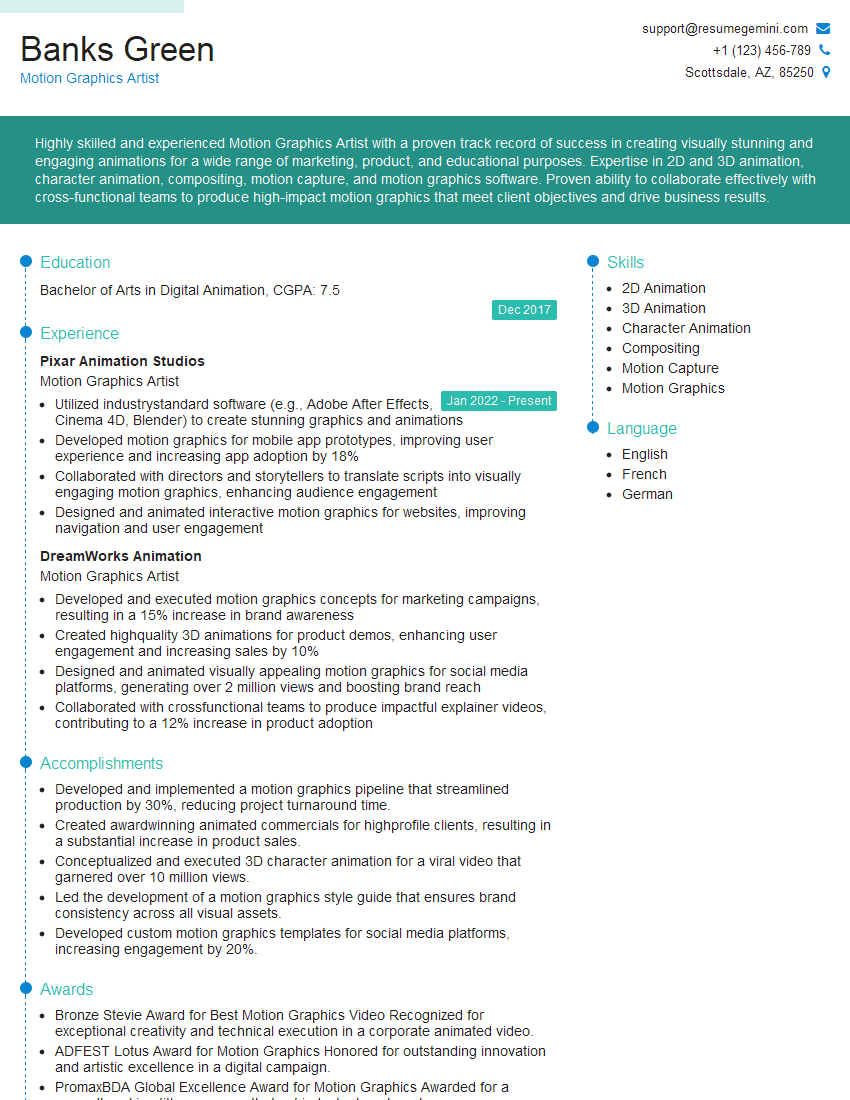
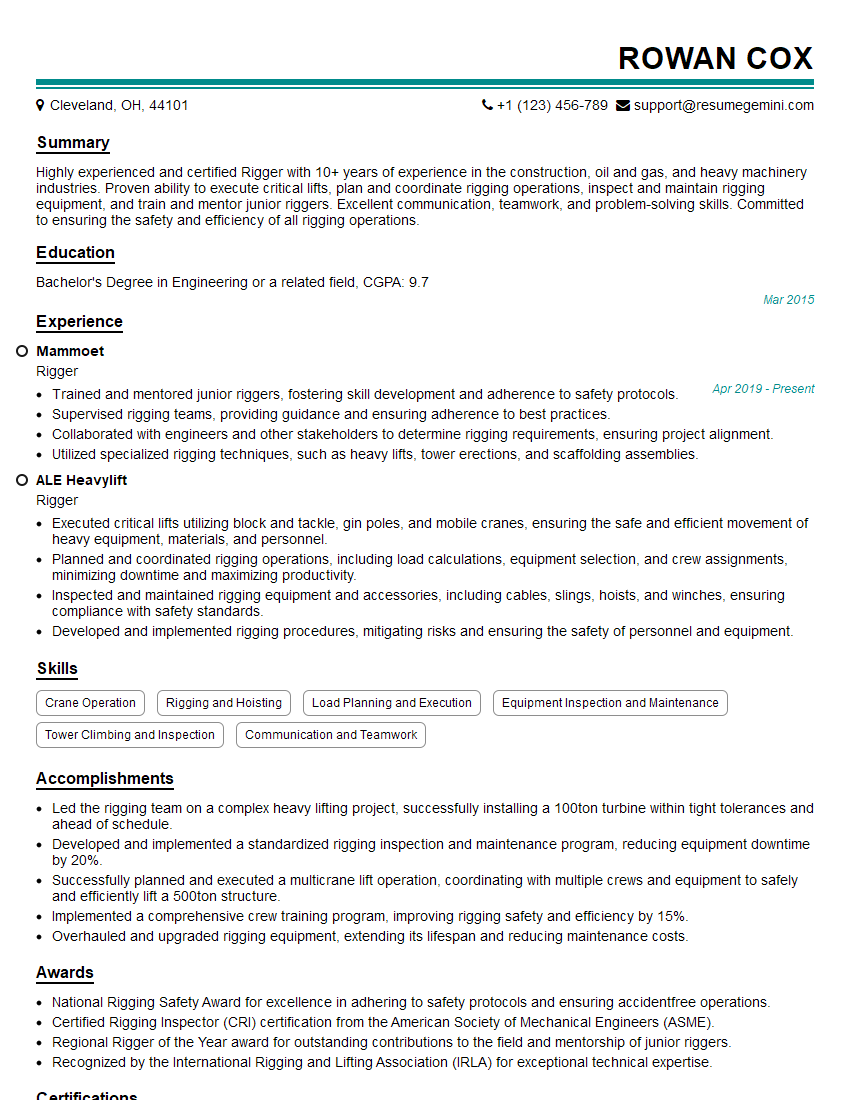
Mastering industry-standard software like Maya, Houdini, Nuke, and After Effects is crucial for career advancement in VFX, animation, and motion graphics. A strong portfolio showcasing your skills is essential, but a well-crafted resume is your first step towards landing your dream job. Focus on creating an ATS-friendly resume that highlights your technical abilities and relevant experience. ResumeGemini is a trusted resource that can help you build a professional and effective resume that stands out. Examples of resumes tailored to showcasing expertise in these software packages are available to guide you.

Explore more articles
Users Rating of Our Blogs
Share Your Experience
We value your feedback! Please rate our content and share your thoughts (optional).
What Readers Say About Our Blog
Very informative content, great job.
good