The right preparation can turn an interview into an opportunity to showcase your expertise. This guide to Knowledge of PDF Standards and Specifications interview questions is your ultimate resource, providing key insights and tips to help you ace your responses and stand out as a top candidate.
Questions Asked in Knowledge of PDF Standards and Specifications Interview
Q 1. Explain the difference between PDF/A, PDF/X, and PDF/E.
PDF/A, PDF/X, and PDF/E are all subsets of the PDF standard designed for specific archiving and exchange purposes. They differ primarily in their focus and the constraints they place on the PDF to ensure long-term accessibility, reliable printing, or engineering data integrity.
- PDF/A (PDF for Archiving): This standard focuses on long-term preservation of documents. It restricts the use of features that might be problematic in the future, such as embedded fonts that could become unavailable, or complex scripting that might not be rendered correctly by future software. Think of it as creating a time capsule for your document. There are different parts of PDF/A (PDF/A-1, PDF/A-2, PDF/A-3), with each offering increasing levels of functionality and compliance requirements. For instance, PDF/A-3 allows for more embedded multimedia content while still ensuring long-term accessibility.
- PDF/X (PDF for Exchange): This standard is primarily aimed at the reliable exchange of documents for prepress and printing workflows. It specifies precise color management, font embedding, and other features crucial for consistent printing across different devices and print shops. Imagine sending a print-ready design file; you need to ensure the colors and fonts render correctly on the printer, so PDF/X is essential. There are many different variations like PDF/X-1a, PDF/X-4, each with specific capabilities and restrictions.
- PDF/E (PDF for Engineering): This standard focuses on the exchange of engineering and technical drawings. It’s designed to preserve important data like geometric models and annotations, essential for CAD (Computer-Aided Design) applications. It might, for example, embed 3D models within a PDF for easier collaboration and review.
In short: PDF/A is for archiving, PDF/X for print production, and PDF/E for engineering collaboration. Choosing the right standard depends entirely on your intended use case.
Q 2. Describe the purpose and benefits of PDF/UA.
PDF/UA (PDF/Universal Accessibility) is an extension of the PDF standard specifically designed to make PDF documents accessible to people with disabilities. It ensures documents can be used by individuals with visual, auditory, motor, or cognitive impairments.
The benefits are significant: it promotes inclusivity, improves legal compliance (many jurisdictions mandate accessibility), and broadens the reach of your documents. PDF/UA achieves this through specific requirements:
- Tagged PDF structure: Provides a logical structure to the document, allowing assistive technologies (like screen readers) to understand the content and its hierarchy.
- Alternative text for images: Adds descriptive text for images, enabling visually impaired users to understand the context.
- Color contrast: Ensures adequate color contrast between text and background, increasing readability for users with low vision.
- Readable text: Requires text to be in a readable format, avoiding the use of images for text.
- Appropriate document language: Specifies the document language for proper assistive technology interpretation.
For instance, a government agency publishing a public report would greatly benefit from PDF/UA compliance, as it ensures broader access to information for everyone.
Q 3. What are the key features of the PDF 1.7 standard?
PDF 1.7 was a significant advancement, introducing many key features. It built upon previous versions, addressing limitations and introducing new capabilities. Some key features include:
- Transparency: Allowed for the blending of objects and colors, creating more visually rich documents.
- Enhanced color management: Improved color accuracy and consistency across different devices.
- Multiple embedding of fonts: Allowed embedding multiple font types and variations, enhancing document consistency.
- Support for JPEG 2000 image compression: Provided more efficient image compression compared to older methods, reducing file size.
- Improved security features: Enhanced digital signature capabilities and strengthened encryption techniques.
These features helped create more visually appealing, portable, and secure PDF documents, further solidifying its role as a universal document format.
Q 4. How does PDF handle encryption and security?
PDF handles encryption and security through several mechanisms, aiming to protect sensitive document content from unauthorized access. The primary methods involve:
- Password protection: Requires a password for opening and/or modifying a document. This is a basic level of security.
- Encryption: Uses algorithms (like AES) to scramble the document content, making it unreadable without the correct decryption key. This is a more robust method.
- Digital signatures: Provide authentication and non-repudiation, ensuring the document’s integrity and origin. (This is explained in more detail in the next answer).
- Rights Management (DRM): Allows for fine-grained control over the user’s actions, restricting printing, copying, or editing.
The strength of the security depends on the chosen encryption algorithm, password complexity, and implementation of other security measures. A poorly chosen password or weak encryption can render security measures ineffective.
Q 5. Explain the concept of digital signatures in PDF documents.
Digital signatures in PDFs provide a way to verify the authenticity and integrity of a document. Think of it like a digital seal of approval. A digital signature uses public-key cryptography. The signer uses their private key to create a digital signature for the document. Anyone can then verify the signature using the signer’s public key.
This process confirms three key aspects:
- Authentication: Verifies the identity of the signer.
- Integrity: Ensures that the document hasn’t been altered since it was signed.
- Non-repudiation: Prevents the signer from denying that they signed the document.
Digital signatures are crucial in legally binding documents, contracts, and official certifications. They provide a high level of trust and security, surpassing the limitations of handwritten signatures in the digital world.
Q 6. What are the different types of PDF compression and their trade-offs?
PDF offers various compression techniques, each with its own trade-offs between file size reduction and image quality.
- Flate compression (or Deflate): A lossless compression algorithm that’s commonly used for text and vector graphics. It reduces file size without losing any information. Good for text-heavy documents.
- JPEG compression: A lossy compression algorithm that’s highly efficient for images. It discards some image data to achieve smaller file sizes, potentially resulting in some quality loss. Useful for images where minor quality loss is acceptable, resulting in smaller file sizes.
- JPEG 2000 compression: Another lossy compression algorithm offering potentially better compression ratios compared to JPEG, especially for images with sharp edges and fine details, providing a good balance between file size and quality.
- CCITT Group 3 and 4 compression: Lossless compression algorithms typically used for black-and-white or grayscale images, especially those with a lot of uniform areas. Good for scanned documents and faxes.
The choice of compression method depends on the type of content in the PDF and the desired balance between file size and quality. For archival purposes (PDF/A), lossless compression is generally preferred to ensure no information is lost over time. For images in a marketing brochure (PDF/X), a lossy method might be acceptable to reduce file size for faster downloads.
Q 7. How do you handle image embedding and optimization in PDF documents?
Image embedding and optimization in PDFs are critical for balancing visual quality with file size. A poorly optimized image can drastically increase the file size and download times. The process involves several steps:
- Choosing the right image format: Use JPEG for photographs and PNG for graphics with sharp lines and text. Avoid using unnecessarily large TIFF or BMP files.
- Image resolution: Use the appropriate resolution for the intended use. High resolution (e.g., 300 DPI) is needed for print, but lower resolution (e.g., 72 DPI) is often sufficient for screen display.
- Image compression: Employ appropriate compression techniques (as discussed in the previous question). Experiment with compression levels to find a balance between file size and visual quality.
- Color space: Use RGB for screen display and CMYK for print. Converting to the appropriate color space can prevent color inconsistencies.
- Image editing: Before embedding, optimize images using tools like Adobe Photoshop or GIMP. Crop unnecessary areas and reduce file size.
Tools like Acrobat Pro offer image optimization features, allowing you to compress images within the PDF, further reducing its size without significant quality loss. Remember to always preview the changes to ensure the visual quality meets the necessary standards.
Q 8. Discuss various methods for creating accessible PDF documents.
Creating accessible PDF documents ensures they’re usable by everyone, including people with disabilities. This involves adhering to guidelines like those from the WCAG (Web Content Accessibility Guidelines) and PDF/UA (Universal Accessibility). Key strategies include:
- Using tagged PDFs: This is crucial. Think of tags as the underlying structure providing semantic meaning to the content. Screen readers rely on these tags to interpret the document’s logical order (headings, paragraphs, lists, etc.). Avoid relying solely on visual formatting. A properly tagged PDF will correctly convey the hierarchical relationship between headings and paragraphs, making navigation vastly easier for users of assistive technologies.
- Alternative text for images: Provide descriptive alt text for every image. Imagine a blind user – the alt text is their way of ‘seeing’ the image. Instead of just
alt="chart", write descriptive text likealt="Bar chart showing sales figures for Q1 2024. Sales peaked in March.". - Logical reading order: Ensure the reading order is linear and intuitive. PDF viewers read documents sequentially unless instructed otherwise. Incorrect tagging can lead to a disjointed reading experience. Check your reading order carefully.
- Sufficient color contrast: Use a sufficient level of contrast between text and background colors to ensure readability for users with low vision. Tools are available to check contrast ratios.
- Appropriate font choices: Select fonts that are easy to read and widely supported. Avoid overly stylized or decorative fonts.
- Using forms correctly: When creating interactive forms, ensure they are accessible and support assistive technologies.
Tools like Adobe Acrobat Pro offer built-in accessibility checkers that can identify and guide you in fixing accessibility issues.
Q 9. What are some common issues related to PDF compatibility across different platforms and viewers?
PDF compatibility problems stem from variations in PDF interpreters, operating systems, and fonts. Some common issues include:
- Font rendering inconsistencies: A font might render perfectly in one viewer but appear garbled or substituted in another due to missing font subsets or font embedding issues. Embedding fonts is often the solution.
- Layout discrepancies: Complex layouts with nested tables or intricate graphics might display differently depending on the PDF viewer or its version. This is often due to the way different viewers interpret the underlying PDF structure.
- Compatibility with older viewers: PDFs created with newer features might not be fully supported by older PDF readers, causing display problems or rendering failures.
- Security restrictions: Security settings within the PDF can restrict access to content on certain devices or viewers.
- File corruption: Problems during file transfer or storage can lead to a corrupted PDF, leading to display or rendering errors.
To minimize these problems, always test your PDF on various platforms and viewers, embed fonts when possible, and adhere to widely supported PDF standards. Using a well-known PDF creation tool helps ensure good compatibility.
Q 10. How do you troubleshoot problems with corrupted or damaged PDF files?
Troubleshooting corrupted PDFs involves a multi-pronged approach. The first step is identifying the nature of the corruption. Is it a rendering issue (parts of the PDF are missing or garbled) or a total file failure (the file won’t open at all)?
- Try different PDF viewers: Open the PDF in different viewers (Adobe Acrobat, Foxit Reader, etc.). One viewer might be better at handling corrupted data than another.
- Repair tools: Many PDF viewers and third-party tools offer repair functions. These tools attempt to recover usable data from a damaged file.
- Online PDF repair services: Several online services specialize in repairing corrupted PDFs. Use caution and only upload files you are comfortable sharing online.
- Check file integrity: If possible, compare the file’s checksum (a unique identifier) to its original value if you have a known good copy. A mismatch indicates data corruption.
- Recover from backup: If you have a backup of the PDF, restore it. This should be your primary approach.
Prevention is better than cure. Regularly back up your important PDFs and use reliable storage methods to avoid corruption in the first place.
Q 11. Explain the role of metadata in PDF documents.
Metadata in PDFs is like the file’s ‘identity card’. It contains information about the document, not visible to the reader, but essential for organization and management. Examples include:
- Author: The name of the person who created the PDF.
- Title: The title of the document.
- Subject: A keyword describing the content.
- Keywords: Additional keywords for searchability.
- Creation date and modification date: Dates of creation and last modification.
- Producer: The application used to create the PDF.
Metadata is crucial for searching, organizing, and managing large collections of PDFs. It enables efficient retrieval and proper indexing. Properly populated metadata facilitates efficient content management systems.
Q 12. Describe the different types of fonts used in PDF files.
PDFs use various font types, broadly categorized as:
- Embedded fonts: These fonts are included directly within the PDF file. This ensures consistent rendering across different systems because the exact font is packaged with the document. This is generally preferred for optimal rendering and avoids font substitution issues.
- System fonts: These are fonts available on the user’s operating system. The PDF relies on the system to provide the font. If the system lacks the specified font, it will substitute a similar font, potentially affecting the appearance.
- Subset fonts: A subset font contains only the characters used in the document, reducing the file size compared to embedding the entire font.
Choosing the right font type involves balancing readability, file size, and rendering consistency. While embedding all fonts is ideal for perfect consistency, it leads to larger file sizes. Subset fonts offer a good compromise, balancing these factors.
Q 13. How do you handle complex layouts and tables in PDF documents?
Handling complex layouts and tables effectively requires careful planning and the right tools. The goal is to create a PDF that’s both visually appealing and accessible. Key strategies include:
- Using tables correctly: Use tables only for tabular data. Avoid using tables for layout purposes. Properly structured tables ensure that assistive technologies read the data correctly.
- Logical structuring: Organize content logically. Use headings, lists, and paragraphs effectively to separate sections and improve readability.
- Appropriate use of columns and frames: Break down complex layouts into smaller, manageable sections to prevent confusion. Use frames (or columns) to create clear divisions.
- High-quality graphics: Use vector graphics whenever possible for sharp, scalable images. Avoid low-resolution raster images.
- Advanced PDF tools: Tools like Adobe Acrobat Pro offer sophisticated layout features that help manage complex elements.
Always preview your layout on various platforms and readers to ensure it renders correctly across different environments.
Q 14. What are the best practices for ensuring PDF file size optimization?
Optimizing PDF file size is vital for efficient storage, transmission, and faster loading times. Key techniques include:
- Image compression: Compress images without significant quality loss. Use appropriate file formats (JPEG for photos, PNG for graphics with transparency) and adjust compression settings judiciously.
- Font embedding and subsetting: As discussed earlier, embedding only the necessary characters reduces file size. Avoid embedding entire fonts unless crucial.
- Removing unnecessary objects: Use the PDF’s editing features to remove unused objects, layers, and other unnecessary elements that might bloat the file size.
- Downsampling high-resolution images: If a high resolution is not needed, scale down images to a reasonable size.
- Using PDF/A standard: Consider creating PDFs according to the PDF/A standard (a subset of PDF designed for long-term archiving). While it might not be the smallest format, it prioritizes preservation of content and metadata, avoiding potential compatibility issues down the line.
Always strike a balance between file size and visual quality. Some minor quality reduction might be acceptable to achieve significant file size reductions, especially when dealing with large documents or many images. Tools like Adobe Acrobat Pro and other PDF editors offer features for optimizing file size.
Q 15. Explain the process of creating a PDF/X compliant file for print production.
Creating a PDF/X-compliant file for print production ensures consistent color reproduction and reliable printing across different devices and print shops. PDF/X is a subset of the PDF standard specifically designed for prepress workflows. The process involves several key steps:
- Choose the Right PDF/X Standard: Select the appropriate PDF/X version (e.g., PDF/X-1a, PDF/X-3, PDF/X-4) based on the requirements of your print service provider and the complexity of your document. PDF/X-1a is suitable for simple documents with CMYK colors only, while later versions support more advanced features like ICC profiles and embedded fonts.
- Color Management: Ensure your document uses a consistent color space, typically CMYK. You’ll need to embed ICC profiles to define the color relationships accurately and avoid unexpected color shifts during printing. This often involves converting RGB images to CMYK and carefully selecting appropriate color profiles. For example, you might use a specific press profile provided by your printer.
- Font Embedding: Embed all necessary fonts in your PDF to guarantee consistent text rendering on different systems. Un-embedded fonts can cause font substitution issues during printing, leading to incorrect text display or layout.
- Image Resolution and Compression: Use high-resolution images (at least 300 dpi for print) and appropriate compression techniques (e.g., JPEG for photos, lossless compression for line art) to balance image quality and file size. Overly large files can slow down the printing process.
- Output Intent: Define the output intent, specifying the intended printing conditions (e.g., ISO coated v2 (ECI)). This helps the print shop accurately interpret the color information in your PDF.
- PDF/X Validation: Before sending the file to the printer, use a PDF validator to check for compliance with the chosen PDF/X standard. This will identify potential issues early on, preventing costly errors in print production.
For instance, if I’m creating a brochure for a client, I would meticulously follow these steps, starting with choosing PDF/X-4 for its broader support of features and ensuring all images are at least 300dpi and in CMYK color space with a properly embedded ICC profile.
Career Expert Tips:
- Ace those interviews! Prepare effectively by reviewing the Top 50 Most Common Interview Questions on ResumeGemini.
- Navigate your job search with confidence! Explore a wide range of Career Tips on ResumeGemini. Learn about common challenges and recommendations to overcome them.
- Craft the perfect resume! Master the Art of Resume Writing with ResumeGemini’s guide. Showcase your unique qualifications and achievements effectively.
- Don’t miss out on holiday savings! Build your dream resume with ResumeGemini’s ATS optimized templates.
Q 16. What are some popular PDF libraries or APIs you have experience with?
Throughout my career, I’ve worked extensively with several popular PDF libraries and APIs, each offering unique strengths. My experience includes:
- iText (Java): A robust and versatile Java library widely used for creating, manipulating, and analyzing PDF documents. I’ve used it for complex tasks like automated report generation, form filling, and data extraction.
- Apache PDFBox (Java): Another powerful Java library, often preferred for its simplicity in certain scenarios. I’ve utilized it for tasks such as adding watermarks, merging PDFs and extracting text content.
- pdftk (command-line): A command-line tool that offers a quick way to perform various PDF manipulations, including merging, splitting, stamping, and encryption. I’ve integrated it into automated scripting workflows.
- Python libraries (PyPDF2, ReportLab): I’ve used Python libraries for automating PDF-related tasks within larger data processing and analysis pipelines. PyPDF2 is excellent for basic manipulation, while ReportLab is powerful for creating PDFs from scratch.
The choice of library depends heavily on the specific needs of the project and the programming language being used. For instance, for a complex Java-based application needing advanced features like form creation, iText would be ideal. For simpler command-line operations, pdftk’s efficiency is unmatched.
Q 17. Describe your experience with PDF manipulation tools and software.
My experience encompasses a wide range of PDF manipulation tools and software, both commercial and open-source. This experience ranges from basic editing to advanced processing techniques.
- Adobe Acrobat Pro: A comprehensive suite that is my go-to tool for editing, annotating, and creating advanced PDF features like forms and digital signatures. I’ve regularly used it for reviewing and finalizing documents before print production.
- PDFsam Basic: A free and efficient tool for merging, splitting, rotating, and extracting pages from PDF files. I’ve found it highly useful for streamlining document preparation tasks.
- Foxit PhantomPDF: This software provides a balance between functionality and cost-effectiveness. Its features such as OCR (Optical Character Recognition), form creation, and security features are vital when working with complex documents.
- Various command-line tools: I’m proficient in using command-line tools like
pdftkandgs(Ghostscript) for automating tasks and integrating PDF manipulation into scripting workflows. This is invaluable for large-scale PDF processing.
The selection of the right tool depends significantly on the task’s complexity. For instance, Adobe Acrobat Pro is my choice for intricate tasks, while pdftk is perfect for quick command-line based operations.
Q 18. How do you ensure the long-term archival integrity of PDF documents?
Ensuring long-term archival integrity of PDF documents is crucial for preserving information over time. Several strategies are employed:
- Use PDF/A Standards: PDF/A (PDF Archive) is a standard specifically designed for long-term archiving. Different PDF/A versions offer varying levels of functionality and compliance. PDF/A-1 is a basic standard focusing on preservation, whereas PDF/A-3 incorporates features for accessibility and better cross-platform compatibility. Choosing the correct PDF/A standard at the creation stage is critical for ensuring longevity.
- Embed Fonts and Images: As mentioned earlier, embedding all fonts and images directly into the PDF eliminates the risk of font substitution or image corruption over time when the original files may be lost or unavailable.
- Metadata: Include comprehensive metadata about the document including creation date, author, title, keywords, etc. This contextual information is crucial for future retrieval and understanding.
- Validation: Regularly validate the archived PDF documents using a PDF/A validator to ensure they remain compliant with the chosen standard and haven’t suffered any form of corruption.
- Storage and Backup: Store PDF/A files using a reliable storage system with robust backup and disaster recovery plans. Consider using multiple storage locations for redundancy and security.
For example, when archiving legal documents or historical records, I would always ensure the files are converted to a PDF/A standard, metadata is complete and verified, and the documents are stored securely in multiple locations.
Q 19. Discuss different approaches to validating PDF documents against specific standards.
Validating PDF documents against specific standards is essential to ensure compliance and quality. Several approaches exist:
- Using PDF Validator Software: Several commercial and open-source tools are specifically designed for PDF validation. These tools check for compliance with various PDF standards (including PDF/X and PDF/A), identifying potential problems like missing fonts, incorrect color spaces, and structural issues.
- Command-line Tools: Tools like
pdftkcan be combined with other command-line utilities to perform certain validation checks, though this requires more technical expertise and is often less comprehensive than dedicated validation software. - Programming Libraries: Libraries such as iText or PDFBox provide APIs that can be used to programmatically validate specific aspects of a PDF document. This offers maximum flexibility but also requires significant programming skills.
- Manual Inspection: In some cases, a manual review of the document’s properties and content might be necessary to identify issues that automated tools might miss. This is usually done in conjunction with automated validation.
The best approach depends on the specific standard being validated and the level of automation needed. For example, while I might use dedicated PDF validator software for comprehensive PDF/A compliance, I might rely on a command-line approach for simpler checks of PDF/X conformance.
Q 20. What is the significance of tagged PDFs for accessibility?
Tagged PDFs are crucial for accessibility, allowing assistive technologies like screen readers to interpret and convey the document’s content to users with visual impairments. Untagged PDFs are essentially a stream of visual data that screen readers cannot understand.
A tagged PDF uses a hierarchical structure, similar to an HTML document, to mark up different elements like headings, paragraphs, images, and tables with semantic meaning. This allows assistive technologies to navigate the document logically and present the information effectively. For example, a screen reader can accurately announce “Heading 1: Introduction” or describe the contents of an image using its alt text, providing context for a visually impaired user.
Without tags, assistive technologies are forced to read the PDF linearly, making it difficult for users to find specific information or understand the document’s structure. Proper tagging ensures that the document is accessible to all users, regardless of their abilities.
Q 21. How do you manage version control for PDF documents in a collaborative environment?
Managing version control for PDF documents in a collaborative environment is essential to avoid confusion and ensure everyone is working with the most up-to-date version.
- Version Control Systems (VCS): Integrating PDF documents into a version control system like Git, though requiring some workarounds (as Git isn’t directly designed for binary files like PDFs), can be effective. This might involve using Git LFS (Large File Storage) to manage the PDFs efficiently. This allows tracking changes, reverting to previous versions, and collaborative editing with clear change history.
- Cloud-Based Collaboration Tools: Platforms like Google Drive or Microsoft SharePoint provide version history and collaborative editing capabilities for PDF files, often simpler to set up than a full VCS.
- Naming Conventions: Implementing a robust naming convention (e.g., incorporating date and version numbers in filenames like
document_v1.0_2024-10-27.pdf) is a simple yet effective method for keeping track of versions. - Document Management Systems (DMS): For larger organizations, a dedicated DMS offers centralized storage, version control, and workflow management for all document types, including PDFs. This provides a comprehensive solution for managing the entire document lifecycle.
For example, in a team project, using a cloud-based platform with version history allows all team members to easily access and contribute to the latest version, while maintaining a record of previous modifications. The choice of method depends on the project size, team size, and existing infrastructure.
Q 22. Explain your experience with PDF workflow automation tools.
My experience with PDF workflow automation tools spans several years and various platforms. I’ve worked extensively with tools like Adobe Acrobat Pro, which offers robust scripting capabilities through JavaScript, allowing for batch processing, metadata manipulation, and form filling. For more complex or large-scale automation, I’ve leveraged server-side solutions such as iText (Java) and PDFtk Server, enabling integration with other systems and automated workflows. For example, I automated a client’s invoice generation process by integrating iText with their ERP system, dramatically reducing manual effort and improving accuracy. This involved creating a Java application that dynamically populated PDF templates with data from the ERP, automating the creation and distribution of invoices. Another project involved using PDFtk Server to merge, split, and watermark hundreds of PDFs in a batch process, significantly streamlining a document management task.
I also have experience with various cloud-based PDF automation tools that offer API integration, enabling seamless incorporation into larger applications. This is particularly useful for tasks like converting documents to PDF, optical character recognition (OCR), and secure document signing.
Q 23. Describe your understanding of color spaces and their impact on PDF output.
Understanding color spaces is crucial for ensuring accurate and consistent PDF output. PDF supports various color spaces, each with its own characteristics and limitations. The most common are:
- RGB (Red, Green, Blue): Primarily used for screen displays. It’s an additive color model where combining the colors creates white.
- CMYK (Cyan, Magenta, Yellow, Key/Black): Used for print production. It’s a subtractive color model where the colors are subtracted from white to create the final color.
- Grayscale: Represents shades of gray ranging from black to white.
- Device-independent Color Spaces (e.g., CIE XYZ, Lab): These aim to provide color consistency across different output devices. They provide a standard for color representation that isn’t tied to specific hardware.
The impact on PDF output is significant; using the incorrect color space can lead to color mismatches between screen previews and printed copies. For example, a vibrant RGB image might look dull when printed using CMYK without proper color profile conversion. Choosing the correct color space at the beginning of the workflow is critical for achieving consistent results. Using color management profiles (ICC profiles) helps bridge the gap between different color spaces and ensure accurate color reproduction. A common mistake is not embedding the correct color profile within the PDF, leading to unexpected color shifts during viewing or printing.
Q 24. How do you handle internationalization and localization issues in PDF documents?
Handling internationalization (i18n) and localization (l10n) in PDFs requires careful planning and execution. Internationalization focuses on designing the document to support multiple languages without making assumptions about a specific language. Localization involves adapting the document to specific locales, including translating text, adjusting layouts for different scripts (e.g., right-to-left languages), and handling date, time, and number formats according to regional conventions.
My approach involves using Unicode encoding to support a wide range of characters. I also leverage PDF features like embedded fonts, which ensures proper rendering of different scripts. Layout considerations require flexible design approaches, avoiding fixed positioning that may not adapt well to languages with longer or shorter words. For translations, I collaborate with professional translators to maintain context and accuracy. Tools like XLIFF (XML Localization Interchange File Format) facilitate the translation process by separating translatable text from the document’s structure. Finally, thorough testing with diverse language settings is crucial to ensure correct rendering and layout in every target locale.
Q 25. What is your approach to debugging PDF-related software issues?
Debugging PDF-related software issues involves a systematic approach. I start by identifying the specific problem and gathering all relevant information: the software used, the PDF file(s) involved, the operating system, and the error messages (if any).
I then use a combination of techniques including:
- Visual inspection: Using a PDF viewer (like Adobe Acrobat Pro) to inspect the PDF structure, looking for anomalies in the document’s content or metadata.
- PDF validators: Using tools like PDF/A validator to check the PDF’s conformance to various standards. This often helps identify structural issues.
- Debugging tools: Using appropriate debugging tools to track the code’s execution flow to pinpoint the source of the problem if the error originates from custom software interacting with the PDF. This often involves logging and breakpoints.
- Log analysis: Examining log files to identify patterns or clues about the errors.
- Code review: If the problem stems from code that I wrote, I carefully review the code itself to trace the cause of the error. This often includes step-by-step execution of the problematic code section, simulating the workflow leading to the error.
A significant part of the process involves isolating the problem, testing potential fixes methodically, and verifying the solution fully to prevent regression errors. This iterative process allows for efficient and accurate resolution of PDF-related software bugs.
Q 26. Explain your experience with PDF form design and functionality.
I have extensive experience designing and implementing PDF forms using various tools and techniques. My approach goes beyond simply creating visually appealing forms; I focus on usability and data integrity. I’m proficient in using form design tools like Adobe Acrobat Pro, but I also have experience with programming techniques for creating dynamic and interactive forms.
Form design considerations include:
- User experience: Creating intuitive and accessible forms that are easy to fill out, with clear instructions and appropriate validation to prevent errors.
- Data validation: Implementing validation rules to ensure data consistency and accuracy. This includes checks for data type, range, and format.
- Data security: Implementing security measures to protect sensitive data, such as encryption and digital signatures.
- Accessibility: Designing forms that are accessible to users with disabilities, adhering to accessibility guidelines.
For example, I designed a complex PDF form for a medical clinic, incorporating dynamic calculations and client-side scripting to automate data entry and prevent mistakes. I have also created forms integrated with backend systems, allowing for automated data transfer and processing.
Q 27. How do you address security vulnerabilities associated with PDF files?
Addressing security vulnerabilities associated with PDF files requires a multi-faceted approach. PDFs can be susceptible to various attacks, including malicious JavaScript code execution, cross-site scripting (XSS), and injection attacks.
Here’s how I address these vulnerabilities:
- Restricting functionality: Disabling potentially harmful features such as JavaScript execution, unless absolutely necessary. Adobe Acrobat’s security settings offer fine-grained control over this.
- Password protection: Protecting PDF documents with strong passwords to prevent unauthorized access and modification.
- Digital signatures: Using digital signatures to ensure the authenticity and integrity of the document. This verifies the document hasn’t been tampered with.
- Encryption: Encrypting the PDF document to protect sensitive information. Various encryption levels can be selected based on the sensitivity of the data.
- Regular updates: Keeping PDF software and related libraries updated to patch known vulnerabilities. This is crucial for protecting against newly discovered exploits.
- Input validation: When dealing with forms, rigorously validate all user input on the server-side to prevent injection attacks. Never trust user-supplied data.
- Secure document handling: Employ secure document storage and access controls, using appropriate file permissions.
Ultimately, the approach must adapt to the specific threat model and sensitivity of the documents. A thorough risk assessment helps to determine the appropriate security measures.
Q 28. Describe your experience working with different PDF rendering engines.
My experience with PDF rendering engines encompasses several popular choices, each with its strengths and weaknesses. I’ve worked with:
- Adobe Acrobat’s rendering engine: This is the industry standard, known for its high fidelity and broad PDF support. It’s often the reference point when assessing other engines.
- WebKit (used in browsers): Offers good rendering capabilities for PDFs displayed within web browsers, often relying on a plugin or integrated functionality.
- PDFium (used in various applications): An open-source rendering engine, providing a cross-platform solution. It’s often chosen for its flexibility and customizability.
- Other engines (specific to libraries like iText): Libraries often incorporate their own rendering mechanisms for specific tasks like generating PDFs programmatically.
The choice of rendering engine depends heavily on the application’s context and requirements. For example, a high-fidelity rendering engine like Adobe’s is often essential for applications requiring precise control over the visual output. In contrast, a lightweight, cross-platform engine like PDFium might be preferred for applications targeting diverse operating systems. Understanding the nuances of each engine—including strengths, limitations, and potential bugs—is essential for creating reliable and consistent PDF handling solutions.
Key Topics to Learn for Knowledge of PDF Standards and Specifications Interview
- PDF Structure and Fundamentals: Understanding the underlying structure of a PDF file, including objects, streams, and cross-reference tables. This forms the basis for all other knowledge.
- PDF Versioning and Compatibility: Knowing the differences between PDF versions (1.7, 1.4, etc.) and how to ensure compatibility across different readers and platforms. Practical application includes choosing the correct version for specific needs.
- Compression Techniques: Understanding different compression methods used in PDFs (e.g., JPEG, CCITT, Flate) and their impact on file size and quality. This is crucial for optimizing PDF performance and storage.
- Fonts and Embedding: Mastering font embedding techniques, including the implications of using embedded vs. system fonts, and troubleshooting font-related issues. Practical application includes ensuring consistent font rendering across different systems.
- Security and Encryption: Understanding PDF security mechanisms, including encryption techniques and digital signatures. This is vital for protecting sensitive documents.
- Accessibility and Compliance: Knowledge of accessibility standards (e.g., PDF/UA) and how to create accessible PDFs for users with disabilities. This demonstrates a commitment to inclusivity.
- Metadata and XMP: Understanding how metadata is used within PDFs and the importance of managing this information correctly. Practical application includes using metadata for organization and searchability.
- PDF Manipulation and Processing: Familiarity with different methods of manipulating and processing PDF files programmatically (though specific libraries aren’t required for this overview). This showcases an understanding of the practical implications.
- Troubleshooting Common PDF Issues: Ability to diagnose and solve common issues such as corrupt files, font rendering problems, and security-related errors. This demonstrates problem-solving skills.
Next Steps
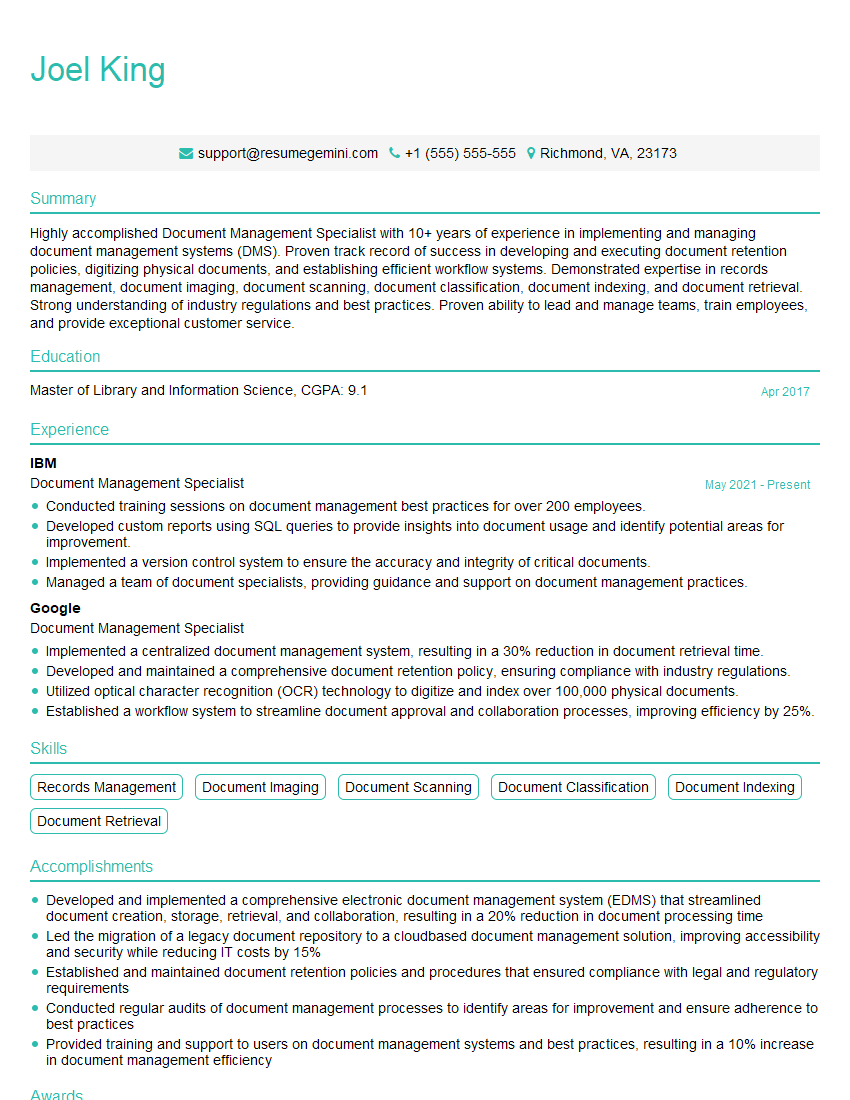
Mastering PDF standards and specifications is crucial for career advancement in many technical fields, demonstrating a deep understanding of document management and digital workflows. A strong understanding sets you apart and highlights your expertise. To maximize your job prospects, create an ATS-friendly resume that effectively showcases your skills. ResumeGemini is a trusted resource to help you build a professional and impactful resume. Examples of resumes tailored to Knowledge of PDF Standards and Specifications are available to guide you.
Explore more articles
Users Rating of Our Blogs
Share Your Experience
We value your feedback! Please rate our content and share your thoughts (optional).
What Readers Say About Our Blog
Very informative content, great job.
good