The right preparation can turn an interview into an opportunity to showcase your expertise. This guide to MATLAB and LabVIEW Programming interview questions is your ultimate resource, providing key insights and tips to help you ace your responses and stand out as a top candidate.
Questions Asked in MATLAB and LabVIEW Programming Interview
Q 1. Explain the difference between a script and a function in MATLAB.
In MATLAB, both scripts and functions are used to write code, but they differ significantly in how they organize and manage data. Think of a script as a simple recipe – you follow the instructions sequentially. A function, on the other hand, is more like a modular kitchen appliance – it performs a specific task, taking inputs and producing outputs, without directly affecting the rest of your workspace.
A script is a sequence of MATLAB commands that are executed line by line in the order they appear. Scripts operate directly within the workspace, modifying variables globally. They don’t have input or output arguments.
% Example script: x = 5; y = 10; z = x + y; disp(z); A function, conversely, has its own local workspace. It accepts input arguments, performs calculations, and returns output arguments. This modularity makes functions reusable and promotes better code organization and readability. This prevents unintended side effects on your main workspace.
% Example function: function z = myFunction(x, y) z = x + y; endIn essence, functions are the preferred method for creating reusable and well-structured code. Scripts are primarily useful for quick tasks or when you explicitly want to modify the base workspace. Choosing between a script and a function often depends on the complexity and reusability requirements of your task.
Q 2. Describe different data types in LabVIEW.
LabVIEW uses a graphical programming paradigm, so data types are represented visually as well. The basic data types are similar to other programming languages but are represented using different icons. Some key LabVIEW data types include:
- Numeric: Includes integers (I32, I64, U32, etc.), floating-point numbers (Single-precision, Double-precision), and booleans (TRUE/FALSE).
- String: Represents textual data. You often use strings for displaying messages, labels, and file names.
- Boolean: A logical data type, representing TRUE or FALSE. Widely used in conditional statements and control structures.
- Arrays: Ordered collections of data elements of the same type. Can be 1D, 2D, or multi-dimensional.
- Clusters: Groupings of different data types, allowing you to bundle related data together. Think of it as a custom data structure.
- Waveforms: Specialized data type for representing time-series signals, commonly used in data acquisition applications. They encapsulate the signal data, timestamp, and other signal properties.
- Paths: Represents the file path, allowing the program to access files and folders.
Choosing the right data type is crucial for efficiency and preventing errors. For instance, using an integer when you need a large number might lead to overflow, whereas using a string when you need to perform calculations is impossible.
Q 3. How do you handle errors in MATLAB and LabVIEW?
Error handling is paramount in any programming environment. In both MATLAB and LabVIEW, robust error handling ensures program stability and informative debugging.
MATLAB: MATLAB uses try-catch blocks for error handling. The code that might produce an error is placed within the try block. If an error occurs, the code within the catch block is executed. You can then handle the error gracefully (e.g., log it, display a message, or attempt recovery).
try % Code that might cause an error result = 10/0; catch e % Error handling code disp(['Error: ', e.message]); endLabVIEW: LabVIEW uses error clusters and error handling VIs (Virtual Instruments). Error clusters are data structures that contain information about the error, like the error code and description. Error handling VIs, like the ‘Error Handler’ VI, allow you to manage these error clusters, providing options to stop execution, log errors, or continue operation despite an error. This is particularly useful in long-running applications that need continuous monitoring, such as those used in industrial automation.
In both cases, good error handling practices, such as anticipating potential errors and designing your code with error checking in mind, are crucial to creating robust and reliable applications.
Q 4. What are the advantages of using Simulink?
Simulink, an add-on for MATLAB, is a powerful environment for model-based design and simulation. Its advantages stem from its graphical interface and its capabilities for simulating dynamic systems.
- Graphical Modeling: Simulink uses block diagrams to represent systems, making it intuitive and easier to understand complex systems compared to text-based coding. This visual nature also facilitates collaboration and communication.
- System Simulation: Simulink excels at simulating the behavior of dynamic systems, allowing engineers to test and validate designs before implementation. It can simulate various physical phenomena, such as mechanical, electrical, and hydraulic systems.
- Model-Based Design: The model-based approach facilitates early verification and validation, leading to reduced development time and cost. Changes are easily implemented and tested in the model, before going to the physical implementation.
- Code Generation: Simulink can automatically generate code (C, HDL, etc.) from your models, streamlining the process of deploying your designs onto embedded systems.
- Extensive Libraries: Simulink offers extensive libraries of pre-built blocks representing various components and systems, accelerating model development and reducing effort.
For example, Simulink is widely used in automotive engineering to model and simulate vehicle dynamics, control systems, and powertrain behavior. It’s also used in aerospace, robotics, and many other fields where understanding dynamic system behavior is crucial.
Q 5. Explain the concept of state machines in LabVIEW.
State machines are a powerful control structure in LabVIEW, ideal for managing complex systems with multiple modes of operation. They’re especially helpful in applications that involve distinct stages or states with specific actions associated with each.
A LabVIEW state machine uses a state diagram, which shows the different states and the transitions between them. Each state has its own set of actions or sub-VIs to execute. The state machine transitions from one state to another based on events or conditions.
Think of a traffic light: it has three states (red, yellow, green) and transitions between them according to a specific timing sequence. Each state has associated actions – stop, slow down, proceed. A LabVIEW state machine would mimic this by having separate VIs to handle the actions for each state (e.g., a ‘red light’ VI, a ‘yellow light’ VI, and a ‘green light’ VI).
Advantages include: improved code organization, easier debugging (easier to trace flow), and better management of complex systems. State machines are used extensively in industrial control systems, robotic applications, and embedded systems where managing multiple operating modes is crucial.
Q 6. How do you perform data acquisition using LabVIEW?
LabVIEW offers extensive capabilities for data acquisition (DAQ), leveraging its graphical programming paradigm and a wide array of hardware support. Here’s a general process:
- Select Hardware: Choose a DAQ device compatible with your needs (analog input, analog output, digital I/O, etc.). NI offers several DAQ devices, each with different capabilities.
- Install Drivers: Install the necessary drivers for your DAQ device. LabVIEW often automatically detects hardware and installs the appropriate drivers.
- Configure the DAQ Task: Use LabVIEW’s DAQmx functions to configure the DAQ task. This involves setting parameters such as sampling rate, number of channels, input range, etc. This is often achieved using the DAQ Assistant or manual configuration.
- Start Acquisition: Initiate the data acquisition process using LabVIEW’s DAQmx Start Task function.
- Read Data: Read data from the DAQ device using LabVIEW’s DAQmx Read function. This will usually involve creating a loop to acquire data continuously or for a specified duration.
- Process Data: Once acquired, you can process data using various LabVIEW functions, such as filtering, scaling, and analysis.
- Stop Acquisition: Once you’ve finished acquiring the required data, use LabVIEW’s DAQmx Stop Task function to stop the acquisition process.
Example: Imagine acquiring temperature data from a sensor. You’d configure the DAQ device to read from the temperature sensor, set the sampling rate, and then loop to read and store the temperature data over time.
Q 7. Describe different methods for data analysis in MATLAB.
MATLAB offers a vast array of tools and functions for data analysis, making it a powerful platform for researchers and engineers.
- Descriptive Statistics: Calculating basic statistics like mean, median, standard deviation, variance, using functions like
mean(),median(),std(), etc. - Data Visualization: Creating various plots (scatter plots, histograms, box plots, etc.) using functions like
plot(),hist(),boxplot(), to visualize patterns and trends. - Signal Processing: Techniques like filtering (using
filter(),fft()), correlation analysis, spectral analysis (usingfft(),psd()), are essential for analyzing signals and time-series data. - Statistical Modeling: Fitting models to data using functions like
regress()for linear regression, or using specialized toolboxes for more advanced techniques (e.g., curve fitting, time series analysis). - Machine Learning: MATLAB’s Machine Learning Toolbox provides algorithms for classification, regression, clustering, and dimensionality reduction, enabling you to build predictive models.
- Image Processing: The Image Processing Toolbox offers a wide range of functions for image manipulation, analysis, and feature extraction, making it suitable for various applications like medical imaging and computer vision.
For instance, you might use descriptive statistics to summarize data from a sensor, signal processing techniques to analyze sound data, or machine learning to build a model that predicts customer behavior. The choice of methods depends entirely on the nature of your data and the goals of your analysis.
Q 8. How do you implement control algorithms using MATLAB or LabVIEW?
Implementing control algorithms in MATLAB and LabVIEW involves translating a mathematical model of your system into a program that manipulates inputs to achieve a desired output. Both platforms offer extensive toolboxes and libraries tailored for this purpose.
In MATLAB, you’d typically use the Control System Toolbox. This toolbox provides functions for designing controllers (PID, LQR, etc.), simulating system responses, and analyzing stability. You’d define your system’s transfer function or state-space representation, design the controller, and then simulate its performance using functions like simulink or lsim. For example, designing a PID controller might look like this:
% Define the plant transfer functionG = tf([1],[1 2 1]);% Design a PID controllerKp = 1; Ki = 0.5; Kd = 0.1;C = pid(Kp,Ki,Kd);% Analyze the closed-loop system sys_cl = feedback(C*G,1);step(sys_cl);In LabVIEW, you’d use the graphical programming paradigm to implement the control algorithm. You’d represent the system using blocks that represent mathematical operations and use feedback loops to implement control strategies. LabVIEW’s real-time capabilities are particularly useful for implementing control systems in embedded applications. You’d connect sensors and actuators to your system and program the controller using LabVIEW’s built-in functions and libraries. Think of it like building a flowchart for your control logic – the visual nature helps in understanding and debugging.
Both environments offer extensive debugging and analysis tools to tune your controller and ensure optimal performance. For instance, you might use scope and plot functions to visualize system outputs and adjust controller gains accordingly.
Q 9. Explain the concept of feedback control systems.
A feedback control system uses the output of a system to adjust its input, aiming to maintain a desired setpoint. Think of a thermostat: it measures the room temperature (output), compares it to the desired temperature (setpoint), and adjusts the heating/cooling system (input) accordingly. This closed-loop system ensures the room temperature stays close to the desired value despite external disturbances (e.g., opening a window).
Key components of a feedback control system include:
- Setpoint: The desired output value.
- Controller: The component that processes the error signal and generates a control signal.
- Plant (or System): The system being controlled.
- Sensor: Measures the actual output of the plant.
- Actuator: Applies the control signal to the plant.
- Error Signal: The difference between the setpoint and the actual output.
The controller’s task is to minimize the error signal. Common control strategies include Proportional-Integral-Derivative (PID) control, which uses proportional, integral, and derivative terms of the error signal to generate the control signal. The choice of controller and its tuning parameters depends heavily on the characteristics of the system being controlled.
Q 10. How do you design a user interface (UI) in LabVIEW?
Designing a user interface (UI) in LabVIEW is a drag-and-drop process using its graphical programming environment. You build the UI by placing controls (buttons, knobs, graphs, indicators) and indicators on the front panel. These controls allow the user to interact with the program, while indicators display data or system status. The underlying code (block diagram) defines how these controls and indicators interact.
LabVIEW’s UI design is inherently intuitive. You can arrange controls and indicators easily, customizing their appearance (colors, fonts, labels) to create a user-friendly interface. Consider these key aspects:
- User Experience (UX): Organize controls logically, use clear labels, and provide visual cues to guide the user.
- Data Presentation: Choose appropriate indicators (graphs, charts, numerical displays) to effectively visualize data.
- Error Handling: Implement clear error messages and feedback mechanisms to handle unexpected events.
- Event Structures: Use event structures to handle user interactions (button clicks, slider changes) asynchronously.
For example, a simple UI might have a button to start a data acquisition process, a graph to display the acquired data, and numerical displays for key parameters. LabVIEW’s built-in templates and examples are excellent starting points for designing complex UIs.
Q 11. Describe different data visualization techniques in MATLAB.
MATLAB offers a vast array of data visualization techniques, enabling you to represent data effectively and gain insights. The choice of visualization depends on the nature of the data and the insights you want to convey.
Here are some common techniques:
- 2D Plots:
plot,scatter,bar,histogramare fundamental functions for creating line plots, scatter plots, bar charts, and histograms. - 3D Plots:
surf,mesh,scatter3allow visualizing data in three dimensions, useful for representing surfaces, volumes, and spatial data. - Specialized Plots: MATLAB provides specialized plots for specific data types, such as images (
imshow), spectrograms (spectrogram), and geographic maps (using mapping toolboxes). - Customizable Plots: You can customize plots extensively using properties to control colors, labels, legends, axes limits, and more.
- Interactive Plots: MATLAB’s interactive plotting tools allow exploring data dynamically by zooming, panning, and adding annotations.
Example: Creating a simple line plot:
x = 1:10;y = x.^2;plot(x,y);xlabel('X');ylabel('Y');title('X^2');The versatility and customization options make MATLAB ideal for creating publication-quality figures and interactive data explorations.
Q 12. How do you handle large datasets in MATLAB?
Handling large datasets in MATLAB efficiently requires strategies to avoid memory overload and maintain performance. Key approaches include:
- Memory Mapping: Use the
memmapfilefunction to create a memory-mapped file, allowing access to a large dataset on disk without loading it entirely into memory. - Data Structures: Choose appropriate data structures like sparse matrices (
sparse) for datasets with many zero elements or table objects (table) for structured data to reduce memory footprint. - Data Subsetting: Process data in smaller chunks (subsets) instead of loading the entire dataset at once. This is particularly crucial when performing operations like filtering or statistical analysis.
- Parallel Computing: Leverage MATLAB’s parallel computing toolbox to distribute computations across multiple cores, significantly speeding up processing time for large datasets. This can be achieved using functions like
parforloops. - Data Compression: Compress datasets before loading them into memory using appropriate compression techniques to minimize storage space and improve loading times.
For example, if you have a massive image, you might process it in tiles to avoid loading the entire image into RAM at once. Similarly, for large tabular data, you could read it in segments and perform operations on those segments before moving on to the next.
Q 13. How do you perform signal processing in MATLAB?
MATLAB’s Signal Processing Toolbox provides a comprehensive set of functions for various signal processing tasks. You can perform operations such as filtering, spectral analysis, and signal transformations.
Common tasks and related functions include:
- Filtering: Design and apply filters (FIR, IIR) using functions like
fir1,butter, andfiltfilt. This helps remove noise or isolate specific frequency components. - Spectral Analysis: Analyze the frequency content of signals using
fft(Fast Fourier Transform) and related functions. This allows identifying dominant frequencies and analyzing signal characteristics in the frequency domain. - Time-Frequency Analysis: Use techniques like the short-time Fourier transform (STFT) (
spectrogram) to analyze signals that change over time in both the time and frequency domains. - Signal Transformations: Apply transformations such as wavelet transforms (using the Wavelet Toolbox) to analyze signals at different scales.
- Signal Restoration: Employ techniques like deconvolution to remove blurring or distortion from signals.
Example: Applying a low-pass filter:
% Design a low-pass filter[b,a] = butter(4,0.1,'low');% Apply the filter to a signalfiltered_signal = filtfilt(b,a,noisy_signal);The Signal Processing Toolbox offers a powerful and flexible environment for diverse signal processing applications.
Q 14. Explain the concept of digital signal processing (DSP).
Digital Signal Processing (DSP) is the use of digital processing, such as by computers or more specialized digital signal processors, to perform a wide variety of signal processing operations. It deals with signals that are represented in discrete form, typically as sequences of numbers. Unlike analog signal processing, which uses continuous signals, DSP uses digital representations which are easier to manipulate, store and transmit.
Key aspects of DSP include:
- Sampling: Converting a continuous-time signal into a discrete-time signal by taking samples at regular intervals.
- Quantization: Representing the sampled values using a finite number of bits, introducing quantization error.
- Discrete-Time Systems: Analyzing and designing systems that operate on discrete-time signals.
- Discrete Fourier Transform (DFT): Analyzing the frequency content of discrete-time signals, analogous to the Fourier transform in continuous-time.
- Digital Filters: Designing and implementing filters to modify the frequency characteristics of signals.
DSP is crucial in numerous applications, including audio and image processing, telecommunications, medical imaging, and control systems. The ability to process signals digitally offers advantages in terms of precision, flexibility, and the ease of implementing complex algorithms.
Q 15. How do you implement image processing algorithms in MATLAB?
MATLAB provides a rich ecosystem for image processing, leveraging its extensive libraries like the Image Processing Toolbox. Implementing algorithms typically involves importing the image, applying operations using built-in functions or custom code, and then displaying or saving the results. Think of it like using a powerful photo editor with pre-built filters (functions) and the ability to create your own custom effects (code).
For example, to perform a simple grayscale conversion, you’d use the rgb2gray function:
img = imread('myimage.jpg');
grayImg = rgb2gray(img);
imshow(grayImg);
This code reads an image, converts it to grayscale, and displays it. More complex algorithms, like edge detection (edge function), filtering (imfilter), or image segmentation (using functions from the Computer Vision Toolbox), build upon this basic framework. You can easily chain these functions together to build sophisticated image processing pipelines.
In a professional setting, you might use this for medical image analysis (e.g., identifying tumors in an MRI), automated quality control in manufacturing (e.g., detecting defects in printed circuit boards), or even enhancing satellite imagery for geographic information systems (GIS).
Career Expert Tips:
- Ace those interviews! Prepare effectively by reviewing the Top 50 Most Common Interview Questions on ResumeGemini.
- Navigate your job search with confidence! Explore a wide range of Career Tips on ResumeGemini. Learn about common challenges and recommendations to overcome them.
- Craft the perfect resume! Master the Art of Resume Writing with ResumeGemini’s guide. Showcase your unique qualifications and achievements effectively.
- Don’t miss out on holiday savings! Build your dream resume with ResumeGemini’s ATS optimized templates.
Q 16. Describe different image processing techniques.
Image processing techniques are broadly categorized into several areas. Think of them as different tools in a toolbox, each serving a specific purpose.
- Image Enhancement: Aims to improve the visual quality of an image. This includes techniques like contrast adjustment (
imadjust), sharpening (imsharpen), noise reduction (using filters like median or Gaussian), and histogram equalization (histeq). Imagine enhancing a blurry photo to make details clearer. - Image Restoration: Focuses on correcting image degradation caused by factors like blur, noise, or geometric distortions. This often involves more complex algorithms, such as deconvolution for blur removal or motion compensation.
- Image Segmentation: Involves partitioning an image into meaningful regions based on characteristics like color, texture, or intensity. This is crucial for object recognition and analysis. Techniques include thresholding, region growing, and watershed algorithms.
- Feature Extraction: Involves identifying and quantifying relevant features within an image, such as edges, corners, or textures. These features are often used for object recognition, image classification, and pattern matching. Techniques include edge detection (
edge), corner detection (corner), and texture analysis (using various texture descriptors). - Image Compression: Reduces the size of an image while preserving essential information. This is critical for storage and transmission. Common techniques include JPEG and lossless compression.
The choice of technique depends entirely on the specific application and the desired outcome. For example, in medical imaging, noise reduction is paramount for accurate diagnosis, while in object recognition, feature extraction is crucial.
Q 17. How do you perform model-based design using Simulink?
Model-based design in Simulink involves creating a virtual representation of a system using block diagrams. These blocks represent different components or algorithms, and their connections define the system’s architecture. Simulink allows you to simulate the system’s behavior, analyze its performance, and even generate code for implementation on embedded hardware. It’s like building a virtual prototype of your system before actually building the physical one.
The process typically involves:
- Modeling: Defining the system’s components and their interactions using Simulink blocks. This might include mathematical models, transfer functions, or state-space representations.
- Simulation: Running simulations to test the system’s behavior under various conditions. This helps identify potential problems and optimize design parameters.
- Analysis: Using Simulink’s analysis tools to examine simulation results, such as scope plots, and to assess system performance.
- Code Generation: Generating code (e.g., C, C++, HDL) for the system that can be deployed on embedded targets. This simplifies the transition from simulation to implementation.
For example, you could model a control system for a robotic arm, a communication system, or even a complex aerospace system. Simulink’s versatility allows for modeling various types of systems – continuous-time, discrete-time, hybrid, etc.
Q 18. What are the benefits of using model-based design?
Model-based design offers several significant advantages:
- Early Problem Detection: Identifying and resolving design flaws early in the development process, reducing costs and time associated with late-stage changes. This is especially important in complex systems.
- Improved System Understanding: Providing a clear and concise representation of the system’s architecture and behavior, improving collaboration and communication among team members.
- Reduced Development Time and Costs: Automating many aspects of the development process, such as code generation and testing, leading to faster development cycles and lower costs.
- Increased System Reliability: Rigorous testing and verification through simulation, resulting in more reliable and robust systems.
- Better Traceability: Maintaining a clear link between the model and the implemented system, simplifying debugging and maintenance.
Imagine designing an aircraft control system. Using model-based design, you can simulate various flight conditions and analyze the system’s response before the physical prototype even exists. This drastically reduces the risk of costly errors and saves development time.
Q 19. Explain the concept of real-time systems in LabVIEW.
Real-time systems in LabVIEW are applications that respond to events within a strictly defined time constraint. This is crucial in applications where timely responses are critical, such as industrial automation, data acquisition, and instrumentation. Think of a system monitoring a production line – it must react instantly to any malfunctions to prevent damage or accidents. In LabVIEW, real-time functionality is typically achieved using real-time operating systems (RTOS) on dedicated hardware.
Key aspects include deterministic timing (guaranteed response times), resource management (efficient use of CPU and memory), and often interaction with hardware through data acquisition devices (DAQ).
Q 20. How do you ensure real-time performance in LabVIEW applications?
Ensuring real-time performance in LabVIEW applications demands careful consideration of several factors:
- Hardware Selection: Using a real-time target with sufficient processing power and memory to meet the application’s timing requirements. This might involve selecting specialized real-time hardware.
- Code Optimization: Writing efficient LabVIEW code that minimizes execution time. This includes using optimized data structures, avoiding unnecessary loops, and employing parallel programming techniques where feasible.
- Timing Analysis: Performing timing analysis to measure execution times and identify potential bottlenecks. LabVIEW’s profiling tools can be invaluable here.
- Real-Time Operating System (RTOS) Configuration: Properly configuring the RTOS to prioritize critical tasks and guarantee deterministic execution.
- Interrupt Handling: Efficiently handling interrupts from external devices to ensure timely responses to events.
Imagine a robotic arm controlled by a LabVIEW real-time application. To ensure precise movements, each control loop needs to execute within a very tight time window. Careful code optimization and RTOS configuration are crucial to achieve this.
Q 21. How do you debug MATLAB and LabVIEW code?
Debugging in MATLAB and LabVIEW involves different approaches, but the general principles are similar. Think of it as troubleshooting – you need to systematically identify and fix the errors.
MATLAB Debugging:
- Breakpoints: Setting breakpoints in your code to pause execution at specific points. You can inspect variable values and step through the code line by line.
- Step-Into, Step-Over, Step-Out: Controlling the execution flow during debugging.
- Watchpoints: Setting watchpoints on variables to pause execution when their values change.
- Profiler: Using the MATLAB profiler to identify performance bottlenecks in your code.
LabVIEW Debugging:
- Probe Tool: Displaying the values of variables at runtime using the probe tool.
- Breakpoints: Setting breakpoints to pause execution at certain points in your VI (LabVIEW program).
- Single-Stepping: Executing code step-by-step to observe the program flow.
- Execution Highlighting: Watching the flow of execution to identify potential issues.
- Data Logging: Recording data during runtime to analyze behavior and diagnose problems.
Both environments offer advanced debugging features, such as error handling mechanisms and logging capabilities. Effective debugging involves a combination of these tools and a systematic approach, often incorporating logging to track program behavior.
Q 22. What are some common debugging techniques?
Debugging is the art of systematically finding and fixing errors in your code. In both MATLAB and LabVIEW, effective debugging relies on a combination of techniques.
- Using the Debugger: Both MATLAB and LabVIEW offer powerful integrated debuggers. You can set breakpoints to pause execution at specific lines, step through the code line by line, inspect variable values, and watch how data changes. This allows you to pinpoint exactly where the error occurs.
- Logging and Displaying Data: Strategically placing
disp()statements in MATLAB or using indicators in LabVIEW to display intermediate values can help you track the flow of data and identify unexpected behavior. For more complex scenarios, you might write data to a file for later analysis. - Code Review: A fresh pair of eyes can often spot subtle errors that you’ve overlooked. Have a colleague review your code, paying attention to logic, variable names, and potential pitfalls.
- Error Handling: Incorporate robust error handling mechanisms such as
try-catchblocks in MATLAB or error handling VIs in LabVIEW to gracefully handle potential exceptions. This prevents crashes and provides valuable information about the cause of the error. - Testing and Unit Testing: Writing unit tests verifies the functionality of individual components of your code. In MATLAB, you can use the built-in unit testing framework. Similarly, LabVIEW offers tools for creating test cases and verifying outputs.
For example, imagine a MATLAB script that performs matrix calculations. By setting breakpoints before and after key calculations, I can observe the matrix values at each step and ensure they conform to expectations. If there’s a discrepancy, I know exactly where to focus my debugging efforts.
Q 23. Explain the concept of version control for MATLAB and LabVIEW projects.
Version control is crucial for managing changes in MATLAB and LabVIEW projects, especially for collaborative projects or large codebases. It allows you to track changes, revert to earlier versions if needed, and collaborate effectively with others. In essence, it’s a history log for your project files.
In MATLAB, you can integrate with popular version control systems like Git using add-ons or command-line tools. This allows you to commit changes, create branches, merge code, and manage different versions of your files and scripts.
LabVIEW uses its own version control system built into the software (although integrating with Git is also possible via third-party tools). This system tracks changes to VIs, allowing you to revert to previous versions, compare revisions and branch and merge your changes in a collaborative team environment.
Imagine working on a large data acquisition system in LabVIEW with a team. Version control ensures that everyone is working with the latest codebase, and you can always revert to a stable version if a recent change introduces bugs. Without it, merging changes manually could easily lead to conflicts and errors.
Q 24. What are some common version control systems?
Several version control systems are commonly used with MATLAB and LabVIEW projects. The most popular is Git, a distributed version control system. This means each developer has a complete copy of the repository, making it ideal for distributed teams. Other systems include:
- Subversion (SVN): A centralized version control system.
- Mercurial (Hg): Another distributed version control system similar to Git.
- LabVIEW’s built-in version control system:
Git’s popularity stems from its flexibility, branching capabilities, and large community support. Many other tools integrate with Git, simplifying workflows further. For example, platforms like GitHub and GitLab provide hosting and collaborative features.
Q 25. How do you write efficient and maintainable code in MATLAB and LabVIEW?
Writing efficient and maintainable code is paramount in any programming language, and MATLAB and LabVIEW are no exception. Here are some key principles:
- Modular Design: Break down complex tasks into smaller, self-contained functions or subVIs. This improves readability, reusability, and makes debugging easier. For example, instead of having a monolithic function to process data, create separate functions for data acquisition, data filtering, and data analysis.
- Meaningful Names: Use descriptive names for variables, functions, and subVIs. This drastically improves code clarity and reduces ambiguity. Avoid abbreviations unless they are widely understood within your context.
- Commenting: Add clear and concise comments to explain the purpose and functionality of your code. Comments should clarify complex logic or non-obvious steps.
- Code Formatting: Maintain consistent indentation and formatting. This enhances readability and helps others (and your future self) easily understand the code. Most IDEs provide automatic formatting features.
- Pre-allocation of Memory (MATLAB): In MATLAB, pre-allocate arrays before looping to avoid dynamic resizing, which can dramatically improve performance, especially for large arrays. For example, instead of:
myArray = []; for i = 1:1000, myArray = [myArray, i]; enduse:myArray = zeros(1,1000); for i = 1:1000, myArray(i) = i; end - Data Structures (LabVIEW & MATLAB): Use appropriate data structures like arrays, structures, or clusters (LabVIEW) to organize data effectively. This enhances code readability and makes it easier to manage larger datasets.
By following these guidelines, you can create code that is not only efficient but also easy to understand, modify, and maintain over time. This is crucial for long-term projects and collaborative efforts.
Q 26. Describe your experience with different data communication protocols.
My experience encompasses various data communication protocols, crucial for integrating systems and exchanging data.
- TCP/IP: I’ve extensively used TCP/IP for reliable data transmission in both MATLAB and LabVIEW. TCP/IP’s reliability is crucial for applications needing guaranteed delivery, such as sending sensor data from a remote device. I’ve used this with MATLAB’s TCP/IP functions and LabVIEW’s TCP functions to create client-server architectures for data exchange between instruments and computers.
- UDP: In scenarios where speed is prioritized over guaranteed delivery (e.g., real-time streaming of video or audio), UDP is a preferred protocol. I’ve implemented UDP communication to manage high-frequency data streaming in a robotics application using LabVIEW.
- Serial Communication (RS-232, RS-485): I’ve worked with serial communication to interface with instruments and devices that use these standards, particularly for legacy equipment. Both MATLAB and LabVIEW offer readily available libraries for this, often requiring careful consideration of baud rates, data bits, and parity settings.
- GPIB (IEEE-488): I’ve used GPIB for communication with test and measurement equipment. This is a high-speed parallel bus standard common in many instrumentation scenarios.
- Ethernet/Modbus: For industrial automation and control systems, Modbus over Ethernet is frequently used for communication with PLCs and sensors. I have implemented Modbus communication in LabVIEW to read and write data to industrial devices.
Each protocol selection depends on the specific application requirements. For instance, a high-speed data acquisition system might opt for UDP, whereas a critical process control system could demand the reliability of TCP/IP.
Q 27. Explain your experience with testing and validation methodologies.
Testing and validation are essential to ensure the quality and reliability of software and systems. My experience involves various methodologies:
- Unit Testing: I consistently employ unit testing to verify the functionality of individual modules or functions. In MATLAB, the unit testing framework provides tools for creating and running tests, ensuring that each component works as expected. In LabVIEW, the built-in testing features enable similar functionality, checking the output of individual VIs against expected values.
- Integration Testing: Once individual units are validated, I perform integration testing to check the interaction between different components. This ensures they work together seamlessly. This often involves simulating various inputs and checking the overall system output.
- System Testing: System testing verifies the complete system’s functionality according to the specifications. This typically involves end-to-end testing with real or simulated data to assess the overall behavior.
- Regression Testing: When making code changes, I always run regression tests to ensure that previously working functionalities remain unaffected. Automated regression testing saves considerable time and effort.
- Documentation: Comprehensive documentation of test procedures, results, and any discrepancies is crucial. I create detailed reports to maintain a record of the testing process and its outcomes.
For example, in a recent project involving a real-time data acquisition system in LabVIEW, I implemented a comprehensive testing strategy, including unit tests for each data processing VI, integration tests to verify data flow between VIs, and system tests to confirm accurate data acquisition and storage under various operating conditions.
Q 28. Describe your experience with different hardware interfaces.
My experience spans a range of hardware interfaces used for data acquisition, control, and instrumentation:
- DAQ Devices (NI, etc.): I’ve extensively used NI’s data acquisition (DAQ) devices and their associated software in LabVIEW for various applications, from simple sensor readings to high-speed data logging. This involved configuring different channels, setting sampling rates, and handling analog and digital signals.
- GPIB Instruments: Interfacing with GPIB instruments (e.g., oscilloscopes, multimeters) via appropriate interface cards and software libraries in LabVIEW and MATLAB.
- Serial Communication Interfaces (RS-232, RS-485): I’ve worked with serial communication to interact with a wide array of devices, including sensors, actuators, and embedded systems. This necessitates configuring serial ports and handling communication protocols.
- Ethernet and Networked Devices: I’ve integrated networked devices and systems, often using TCP/IP or UDP communication protocols. This includes industrial PLCs, cameras, and other network-enabled hardware.
- USB Devices: Interfacing with USB devices, including sensors, cameras, and memory sticks, using LabVIEW’s extensive support for USB communications.
Experience with different hardware interfaces requires a thorough understanding of both the hardware specifications and the software drivers or libraries to properly interact with the equipment. Each interface presents its own set of challenges and considerations, requiring careful planning and implementation.
Key Topics to Learn for MATLAB and LabVIEW Programming Interviews
Ace your next interview by mastering these essential concepts in MATLAB and LabVIEW programming. This isn’t just about memorizing syntax; it’s about showcasing your problem-solving skills and understanding of real-world applications.
- MATLAB:
- Arrays and Matrices: Understanding matrix operations, linear algebra, and efficient array manipulation is fundamental.
- Control Flow and Functions: Demonstrate proficiency in writing clean, modular, and reusable code using loops, conditional statements, and user-defined functions.
- Data Acquisition and Analysis: Showcase your ability to import, process, analyze, and visualize data from various sources using MATLAB’s built-in tools.
- Simulink (if applicable): If your target role involves simulation, familiarize yourself with Simulink’s capabilities for modeling and simulating dynamic systems.
- LabVIEW:
- Dataflow Programming: Understand the core principles of LabVIEW’s graphical programming paradigm and its advantages.
- Signal Processing: Demonstrate knowledge of common signal processing techniques and their implementation in LabVIEW.
- Hardware Interfacing: Showcase your experience with connecting LabVIEW to various hardware devices (DAQ, sensors, actuators).
- State Machines and Event Structures: Explain how to design robust and reliable applications using these LabVIEW structures.
- Common Ground:
- Debugging and Troubleshooting: Practice identifying and resolving errors effectively in both MATLAB and LabVIEW environments.
- Version Control (e.g., Git): Highlight your experience with version control systems for collaborative software development.
- Software Design Principles: Demonstrate understanding of best practices for writing efficient, maintainable, and well-documented code.
Next Steps
Mastering MATLAB and LabVIEW programming opens doors to exciting career opportunities in various fields, including automation, data science, and research. To maximize your chances of landing your dream job, a strong resume is crucial. An ATS-friendly resume is key to getting past applicant tracking systems and into the hands of hiring managers. ResumeGemini is a trusted resource to help you craft a professional and impactful resume that highlights your skills and experience. Examples of resumes tailored to MATLAB and LabVIEW Programming are available to help you get started.
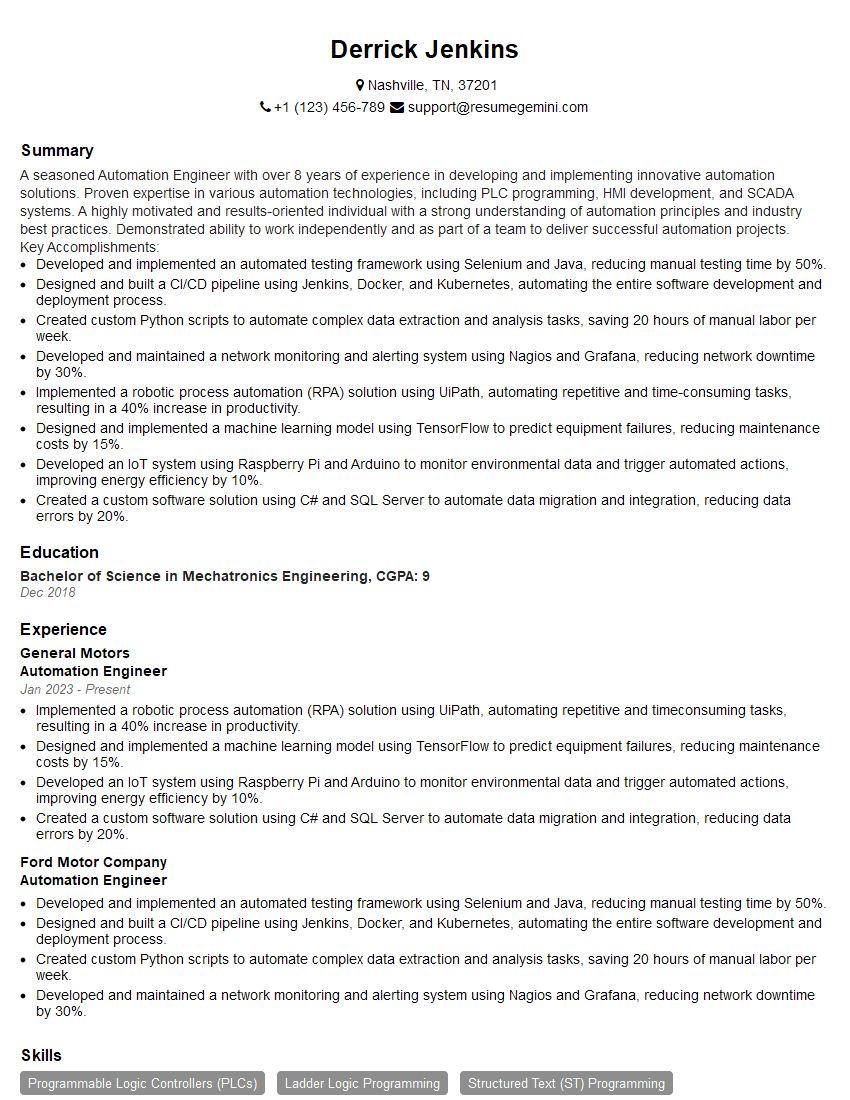
Automation Engineer Resume Sample
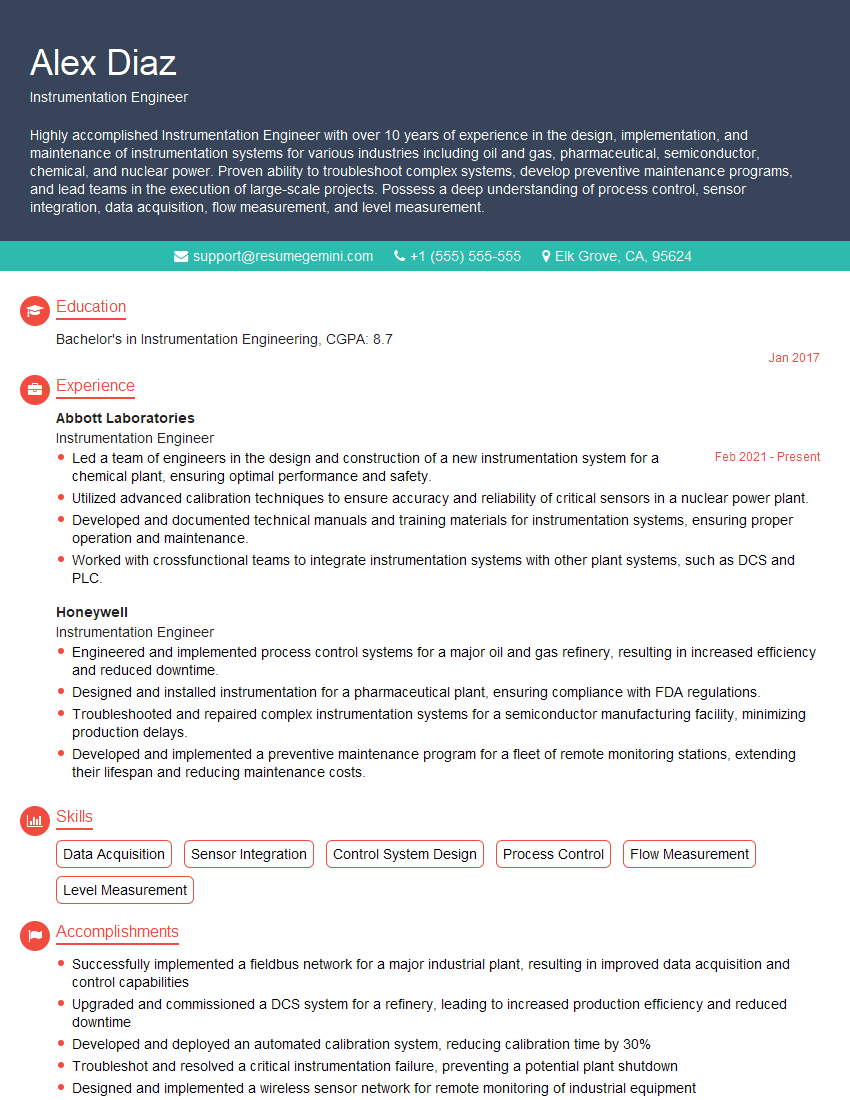
Instrumentation Engineer Resume Sample
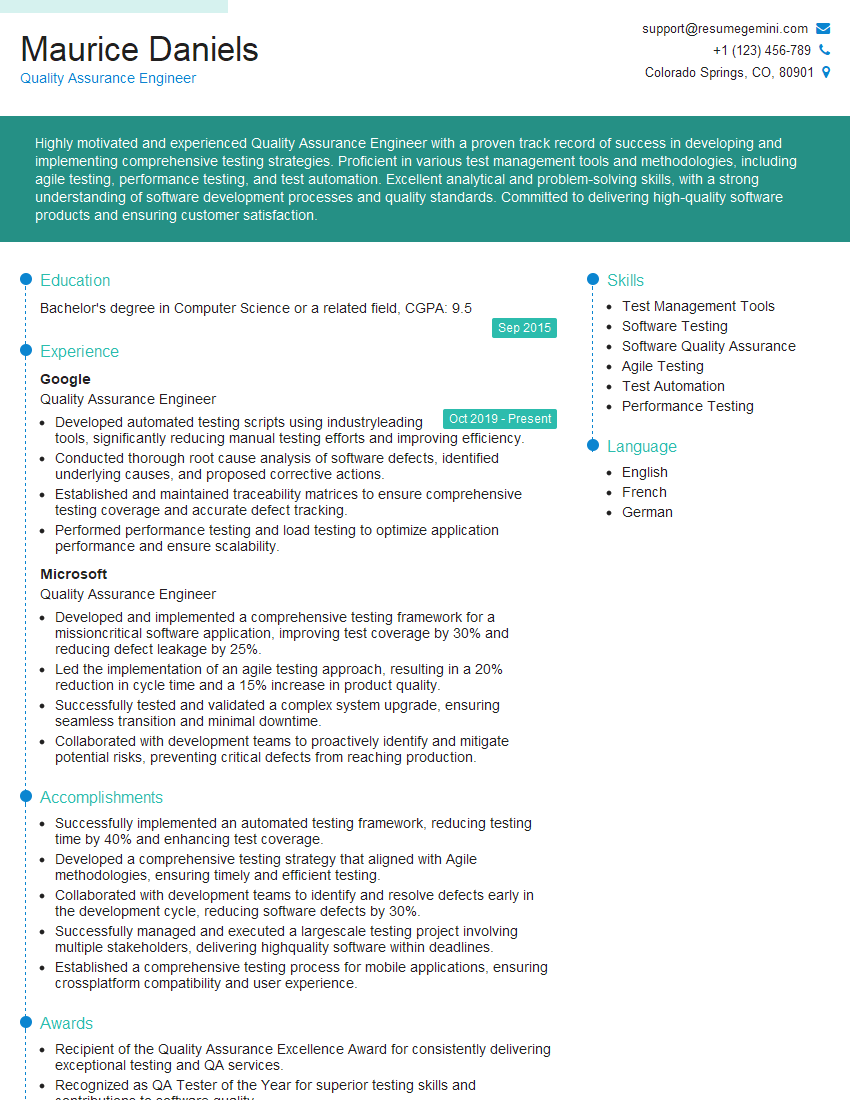
Quality Assurance Engineer Resume Sample
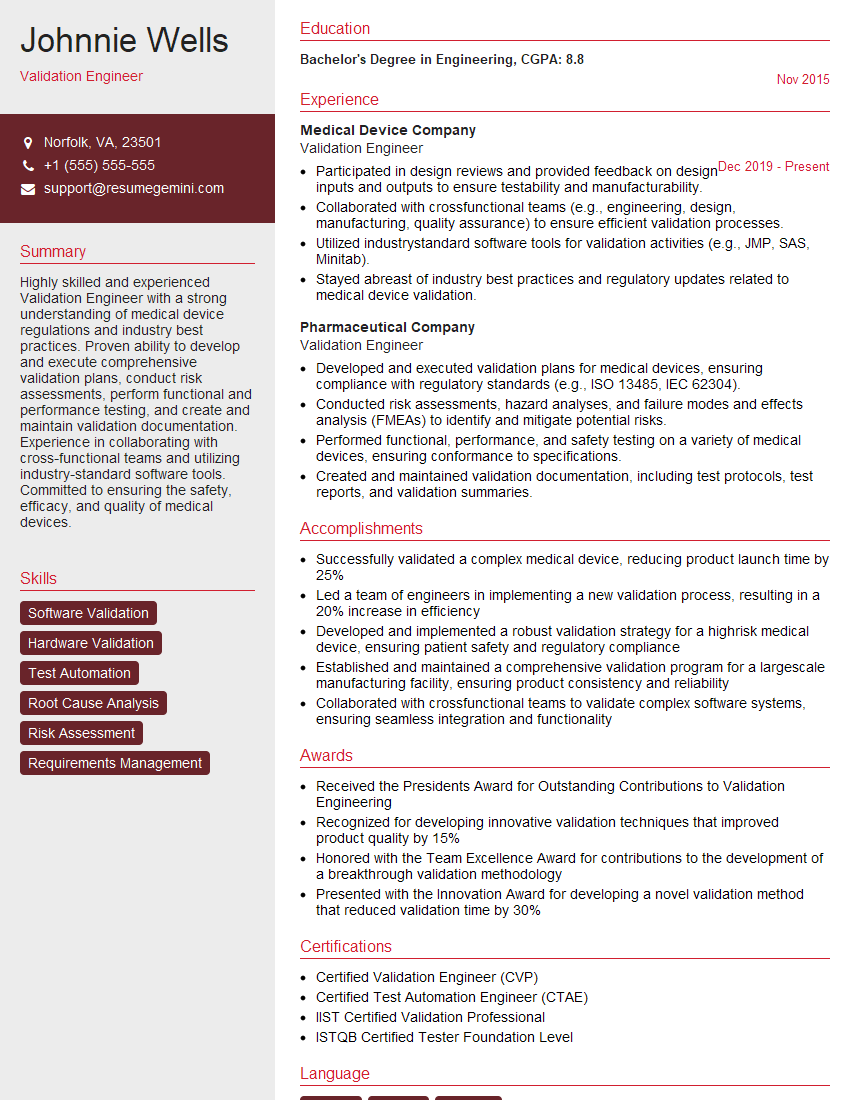
Validation Engineer Resume Sample
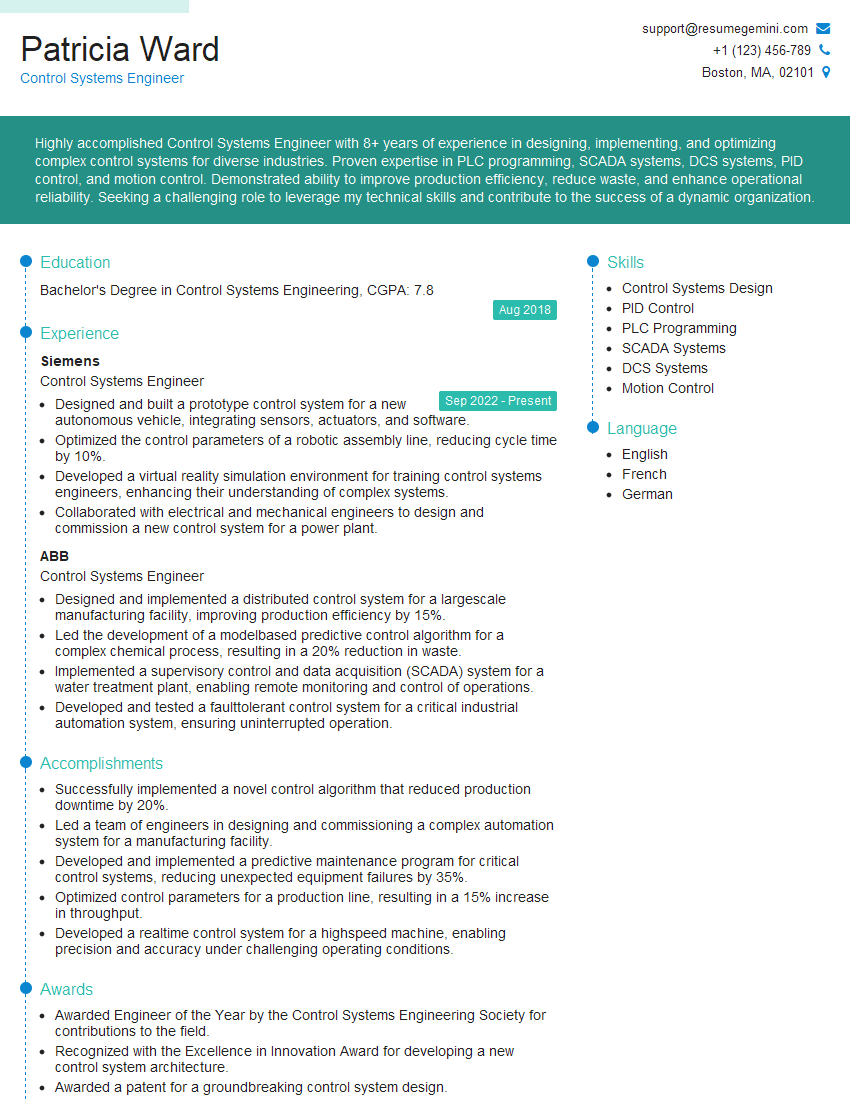
Control Systems Engineer Resume Sample
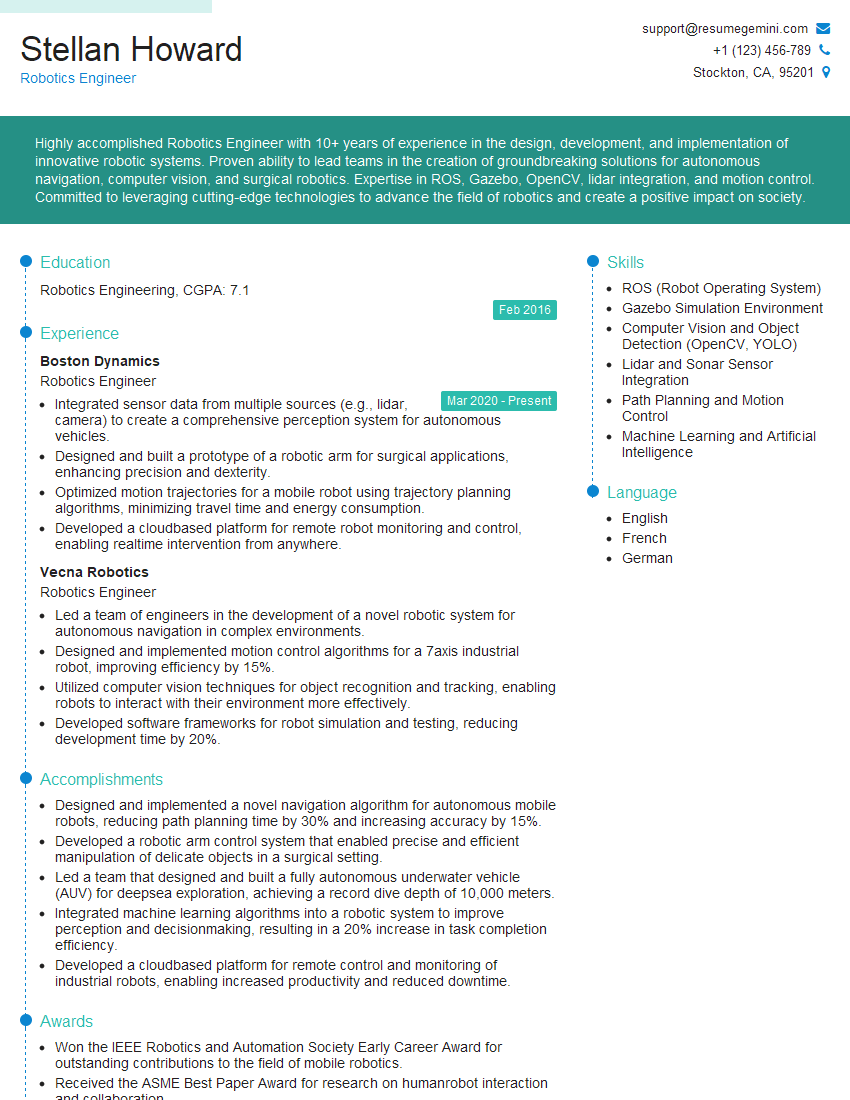
Robotics Engineer Resume Sample
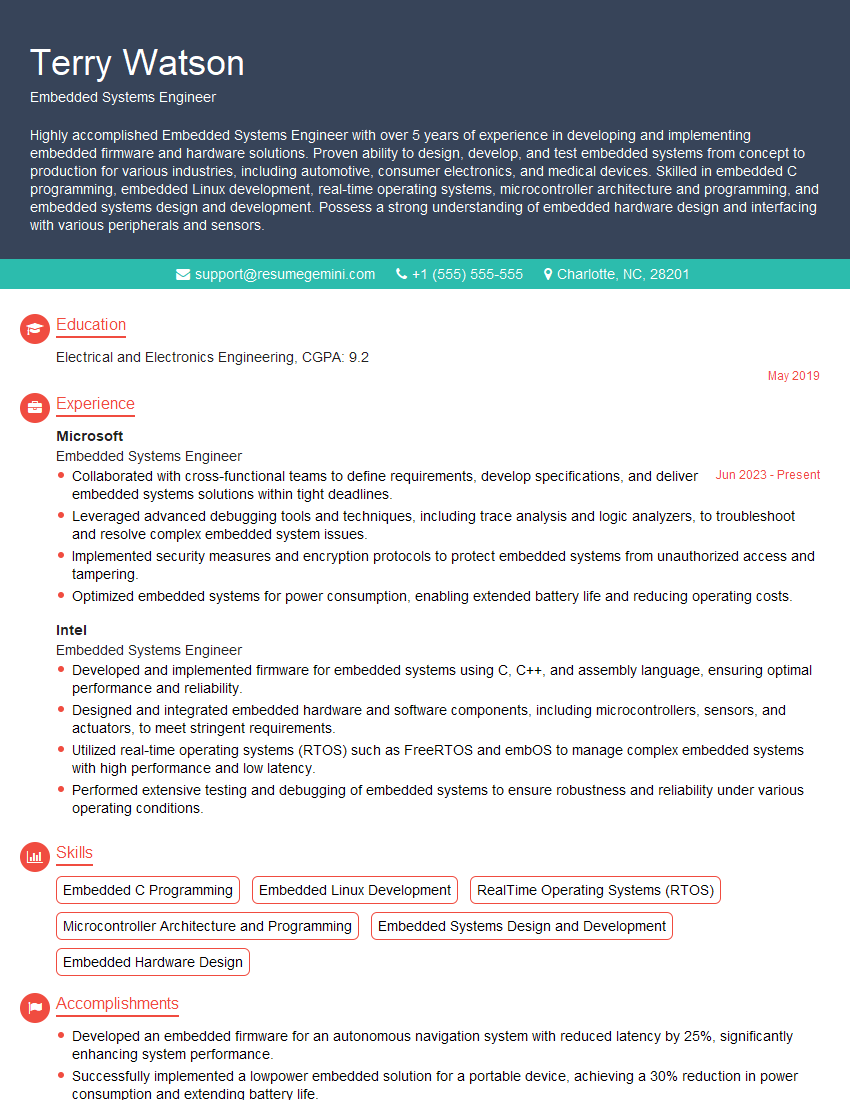
Embedded Systems Engineer Resume Sample
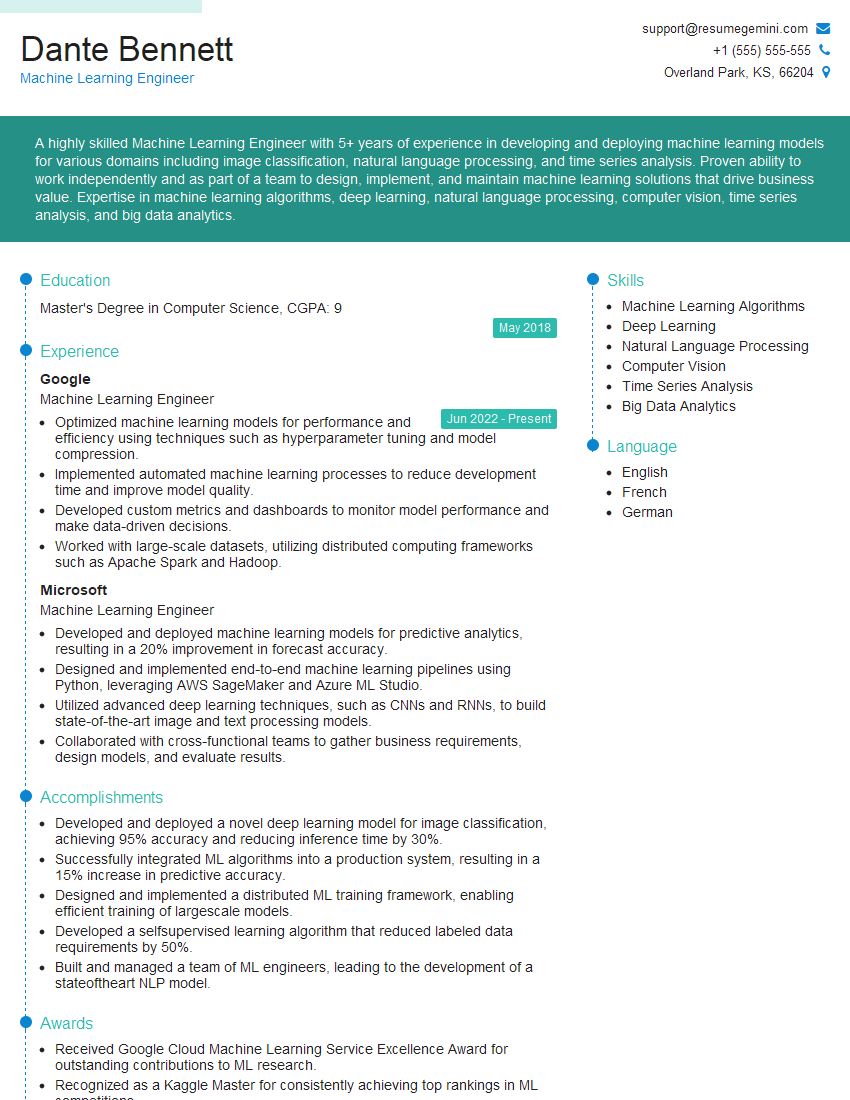
Machine Learning Engineer Resume Sample
Explore more articles
Users Rating of Our Blogs
Share Your Experience
We value your feedback! Please rate our content and share your thoughts (optional).
What Readers Say About Our Blog
Hello,
we currently offer a complimentary backlink and URL indexing test for search engine optimization professionals.
You can get complimentary indexing credits to test how link discovery works in practice.
No credit card is required and there is no recurring fee.
You can find details here:
https://wikipedia-backlinks.com/indexing/
Regards
NICE RESPONSE TO Q & A
hi
The aim of this message is regarding an unclaimed deposit of a deceased nationale that bears the same name as you. You are not relate to him as there are millions of people answering the names across around the world. But i will use my position to influence the release of the deposit to you for our mutual benefit.
Respond for full details and how to claim the deposit. This is 100% risk free. Send hello to my email id: [email protected]
Luka Chachibaialuka
Hey interviewgemini.com, just wanted to follow up on my last email.
We just launched Call the Monster, an parenting app that lets you summon friendly ‘monsters’ kids actually listen to.
We’re also running a giveaway for everyone who downloads the app. Since it’s brand new, there aren’t many users yet, which means you’ve got a much better chance of winning some great prizes.
You can check it out here: https://bit.ly/callamonsterapp
Or follow us on Instagram: https://www.instagram.com/callamonsterapp
Thanks,
Ryan
CEO – Call the Monster App
Hey interviewgemini.com, I saw your website and love your approach.
I just want this to look like spam email, but want to share something important to you. We just launched Call the Monster, a parenting app that lets you summon friendly ‘monsters’ kids actually listen to.
Parents are loving it for calming chaos before bedtime. Thought you might want to try it: https://bit.ly/callamonsterapp or just follow our fun monster lore on Instagram: https://www.instagram.com/callamonsterapp
Thanks,
Ryan
CEO – Call A Monster APP
To the interviewgemini.com Owner.
Dear interviewgemini.com Webmaster!
Hi interviewgemini.com Webmaster!
Dear interviewgemini.com Webmaster!
excellent
Hello,
We found issues with your domain’s email setup that may be sending your messages to spam or blocking them completely. InboxShield Mini shows you how to fix it in minutes — no tech skills required.
Scan your domain now for details: https://inboxshield-mini.com/
— Adam @ InboxShield Mini
Reply STOP to unsubscribe
Hi, are you owner of interviewgemini.com? What if I told you I could help you find extra time in your schedule, reconnect with leads you didn’t even realize you missed, and bring in more “I want to work with you” conversations, without increasing your ad spend or hiring a full-time employee?
All with a flexible, budget-friendly service that could easily pay for itself. Sounds good?
Would it be nice to jump on a quick 10-minute call so I can show you exactly how we make this work?
Best,
Hapei
Marketing Director
Hey, I know you’re the owner of interviewgemini.com. I’ll be quick.
Fundraising for your business is tough and time-consuming. We make it easier by guaranteeing two private investor meetings each month, for six months. No demos, no pitch events – just direct introductions to active investors matched to your startup.
If youR17;re raising, this could help you build real momentum. Want me to send more info?
Hi, I represent an SEO company that specialises in getting you AI citations and higher rankings on Google. I’d like to offer you a 100% free SEO audit for your website. Would you be interested?
Hi, I represent an SEO company that specialises in getting you AI citations and higher rankings on Google. I’d like to offer you a 100% free SEO audit for your website. Would you be interested?
good