The right preparation can turn an interview into an opportunity to showcase your expertise. This guide to MATLAB for Data Analysis and Visualization interview questions is your ultimate resource, providing key insights and tips to help you ace your responses and stand out as a top candidate.
Questions Asked in MATLAB for Data Analysis and Visualization Interview
Q 1. Explain the difference between `plot`, `scatter`, and `bar` functions in MATLAB.
MATLAB offers several functions for visualizing data, each with its strengths. plot is best for showing the relationship between two variables, creating line graphs. scatter is ideal for visualizing the relationship between two variables where you want to see individual data points, creating scatter plots. And bar creates bar charts, perfect for comparing values across different categories.
plot(x,y): Creates a 2D line plot. Imagine plotting the temperature throughout the day; the x-axis would be time, and the y-axis would be temperature. Each point is connected by a line, showing the trend.x = 1:10; y = x.^2; plot(x,y);scatter(x,y): Creates a scatter plot. Think of plotting the height and weight of individuals; each point represents a person, and its position shows their height and weight. This helps identify clusters or outliers.x = rand(1,100); y = rand(1,100); scatter(x,y);bar(x): Creates a bar chart. Consider comparing sales figures across different regions. Each bar represents a region, and its height represents the sales value. This is great for comparing discrete values.sales = [100, 150, 120, 80]; bar(sales);
The choice depends entirely on the nature of your data and what you aim to highlight. Line plots show trends, scatter plots show relationships between individual data points, and bar charts compare categories.
Q 2. How do you handle missing data in a MATLAB dataset?
Handling missing data is crucial for accurate analysis. In MATLAB, missing data is typically represented by NaN (Not a Number). Several methods exist to deal with it:
Removal: The simplest approach is removing rows or columns containing
NaNvalues. This is suitable if missing data is minimal and doesn’t introduce bias. Useisnanto locateNaNvalues and logical indexing to remove them.data = [1, 2, NaN; 4, NaN, 6; 7, 8, 9]; cleanData = data(~any(isnan(data),2),:); %Removes rows with NaNImputation: Replacing
NaNvalues with estimated values. Common methods include:- Mean/Median Imputation: Replacing
NaNwith the mean or median of the non-missing values in the column. Simple but can distort the distribution if many values are missing. - K-Nearest Neighbors (KNN): Imputes missing values based on the values of its nearest neighbors. More sophisticated and less prone to bias than mean/median imputation.
- Interpolation: Estimating missing values based on surrounding data points (discussed further in the next question).
- Mean/Median Imputation: Replacing
The best method depends on the context, the amount of missing data, and the nature of the data itself. Removing data is easiest but potentially loses information. Imputation preserves data but may introduce some error or bias. It’s often a trade-off.
Q 3. Describe different methods for data interpolation in MATLAB.
Data interpolation estimates values within a range of known data points. MATLAB offers several interpolation methods:
Linear Interpolation: Connects adjacent data points with straight lines. Simple and fast but can be inaccurate if the underlying relationship is non-linear. Use
interp1with the ‘linear’ method.x = [1, 3, 5]; y = [2, 4, 6]; xnew = 1:0.5:5; ynew = interp1(x, y, xnew, 'linear');Spline Interpolation: Fits piecewise polynomial functions to the data. Provides smoother curves than linear interpolation and is suitable when you expect a smooth underlying relationship. Use
interp1with ‘spline’ or ‘pchip’.Polynomial Interpolation: Fits a single polynomial to all data points. Can be highly accurate but susceptible to oscillations, especially with a large number of data points. Use
polyfitandpolyval.
The choice of method depends on the nature of the data and the desired level of smoothness. Linear interpolation is simple and quick, while spline and polynomial methods offer greater accuracy but can be more computationally intensive. Consider the trade-off between accuracy and computational cost.
Q 4. Explain the use of logical indexing in MATLAB for data manipulation.
Logical indexing is a powerful technique in MATLAB that allows you to select subsets of data based on conditions. It uses logical expressions (true/false) to index arrays. Imagine filtering a dataset; you’d use logical indexing.
For example, let’s say we have a dataset of student scores and want to find students who scored above 80:
scores = [75, 85, 90, 70, 95]; highScores = scores(scores > 80); % Selects scores greater than 80 disp(highScores); % Output: 85 90 95Here, scores > 80 creates a logical array: [false, true, true, false, true]. MATLAB uses this array to select elements from the scores array where the logical array is true. This allows for efficient data manipulation and filtering without explicit loops, significantly speeding up your code.
Logical indexing extends to multi-dimensional arrays. For example, you can select data based on multiple conditions using logical operators (& for AND, | for OR, ~ for NOT).
Q 5. How would you perform linear regression using MATLAB?
Linear regression models the relationship between a dependent variable and one or more independent variables using a linear equation. In MATLAB, you can perform linear regression using the fitlm function.
% Example data x = [1, 2, 3, 4, 5]; y = [2, 3, 5, 4, 6]; % Perform linear regression mdl = fitlm(x, y); % Display results disp(mdl); % Shows coefficients, R-squared, etc. % Predict values xnew = [1.5, 3.5]; ynew = predict(mdl, xnew); disp(ynew);fitlm provides detailed statistics including coefficients, R-squared (measure of goodness of fit), p-values (statistical significance), and more. You can then use the model (mdl) to predict values for new independent variables (xnew).
This is fundamental for many data analysis tasks, including predicting sales, modeling trends, and understanding relationships between variables. The model’s equation can be used to make predictions on unseen data. The statistics help in evaluating the model’s reliability and validity.
Q 6. What are different ways to visualize high-dimensional data in MATLAB?
Visualizing high-dimensional data (more than three dimensions) is challenging because we can’t directly perceive beyond three dimensions. MATLAB offers several techniques:
Dimensionality Reduction: Techniques like Principal Component Analysis (PCA) reduce the number of dimensions while preserving most of the variance. This allows you to visualize the data in a lower-dimensional space (e.g., 2D or 3D). MATLAB’s
pcafunction performs PCA.Parallel Coordinates Plot: Each data point is represented as a line across multiple axes, one for each dimension. Useful for comparing data points across many variables, highlighting patterns and clusters. MATLAB doesn’t have a dedicated function, but you can create one easily.
Scatter Plot Matrix: A grid of scatter plots showing the pairwise relationships between all dimensions. Helps visualize correlations between variables. MATLAB’s
scatterplotmatrixfunction creates this.Interactive Visualization Tools: MATLAB’s interactive plotting tools, combined with dimensionality reduction techniques, allow for exploring high-dimensional data dynamically. You can rotate, zoom, and select data points for further analysis.
The choice depends on your data and the insights you want to gain. Dimensionality reduction is usually a first step to make the data manageable for visualization, followed by suitable plotting techniques for the reduced data.
Q 7. How do you create custom functions in MATLAB?
Creating custom functions in MATLAB promotes code reusability and organization. You define a function using the function keyword, followed by the output arguments, function name, input arguments, and the function body.
function result = myFunction(x, y) % This is a comment describing the function result = x + y; endThis defines a function named myFunction that takes two inputs (x and y) and returns their sum as result. The comment explains its purpose. This promotes readability and maintainability. You save this as a .m file (e.g., myFunction.m) in your MATLAB path, and you can then call it from your scripts or other functions.
Custom functions are essential for managing complexity, improving code organization, and making your analysis more efficient. They encapsulate specific tasks, allowing you to break down large projects into smaller, more manageable units.
Q 8. Explain the use of cell arrays and structures in MATLAB.
Cell arrays and structures are fundamental data structures in MATLAB that allow you to organize and store data in a flexible manner. They are particularly useful when dealing with heterogeneous data – data of different types.
Cell arrays are like containers that can hold different data types within a single array. Think of them as a matrix where each element can contain anything: numbers, strings, even other arrays or structures. You access elements using curly braces {}.
Example:
myCell = {1, 'hello', [1 2 3], struct('name','John','age',30)};This creates a cell array with a number, a string, a numerical array, and a structure.
Structures, on the other hand, are similar to dictionaries or objects in other programming languages. They organize data into named fields. Each field can hold different data types. You access fields using the dot notation .
Example:
myStruct.name = 'Alice';myStruct.age = 25;
myStruct.scores = [90 85 95];This creates a structure with fields ‘name’, ‘age’, and ‘scores’.
In data analysis, cell arrays are helpful when you have data from various sources with inconsistent formats. Structures are invaluable for representing complex objects or datasets with clearly defined properties.
For example, if you are processing data from multiple sensors, each with different output formats, using cell arrays allows efficient storage and management of the heterogeneous sensor data. If you’re working with customer information, structures are ideal for representing each customer as an object with fields such as ‘name’, ‘address’, ‘purchase history’, and so on.
Q 9. Describe your experience with image processing using MATLAB toolboxes.
I have extensive experience using MATLAB’s Image Processing Toolbox for various tasks, including image enhancement, segmentation, feature extraction, and object recognition. I’ve worked with numerous image formats (JPEG, PNG, TIFF, etc.) and have applied various image processing techniques to diverse real-world projects.
For instance, in one project involving medical image analysis, I used the toolbox to process MRI scans. I employed techniques like image filtering (to reduce noise), thresholding (to segment regions of interest), and morphological operations (to refine the segmented regions). I further applied feature extraction methods to quantify characteristics of the segmented areas, aiding in disease diagnosis.
In another project involving satellite imagery, I used the toolbox for image registration and mosaic creation, stitching together multiple overlapping images to create a larger, higher-resolution image. This involved geometric transformations, image alignment, and blending techniques, all facilitated by the toolbox’s functionalities.
My experience includes utilizing functions like imresize for scaling, imfilter for filtering, imbinarize for thresholding, and various functions from the regionprops() family for extracting features from image regions. Furthermore, I’m proficient in leveraging the Computer Vision Toolbox for more advanced tasks like object detection and recognition.
Q 10. How would you perform a Fast Fourier Transform (FFT) in MATLAB?
The Fast Fourier Transform (FFT) is a crucial algorithm for analyzing frequency components within a signal. In MATLAB, performing an FFT is straightforward thanks to the built-in fft function.
Example:
% Generate a sample signalt = 0:0.01:1;
x = sin(2*pi*5*t) + cos(2*pi*10*t);% Compute the FFT
X = fft(x);% Compute the frequency axis
N = length(x);f = (0:N-1)*(1/((t(2)-t(1))*N));
% Plot the magnitude spectrumplot(f, abs(X));
xlabel('Frequency (Hz)');ylabel('Magnitude');
This code first generates a sample signal containing two sinusoidal components (5 Hz and 10 Hz). The fft function then computes the FFT, transforming the signal from the time domain to the frequency domain. The abs(X) function gives the magnitude spectrum, which shows the strength of each frequency component. The frequency axis is then correctly calculated for the plot to be meaningful. Plotting the magnitude spectrum helps visualize the dominant frequencies present in the signal.
The FFT has vast applications, from signal processing (analyzing audio or sensor data) to image processing (identifying patterns in images) and spectral analysis (examining light sources). In my experience, FFT has been instrumental in tasks such as noise reduction, signal compression, and identifying specific signal characteristics.
Q 11. Explain different methods for data filtering in MATLAB.
MATLAB offers several methods for data filtering, which aim to remove unwanted noise or irrelevant information from datasets. The choice of method depends on the nature of the noise and the desired outcome.
1. Moving Average Filter: This simple filter averages data points within a sliding window. It is effective for smoothing out random noise but can blur sharp transitions. Example: y = smoothdata(x,'movmean',5); %5 is the window size.
2. Median Filter: This filter replaces each data point with the median of neighboring points. It’s very robust to outliers and effective at removing impulsive noise (spikes). Example: y = medfilt1(x,5); %5 is the window size.
3. Low-pass Filters: These filters preserve low-frequency components while attenuating high-frequency components (noise). Butterworth, Chebyshev, and Bessel filters are common examples. The butter and cheby1 functions in MATLAB design these filters. These are used for signal processing applications such as removing high-frequency noise from audio.
4. High-pass Filters: These filters do the opposite, preserving high-frequency information while removing low-frequency components. Useful for detecting edges or sharp changes in a signal. Similar MATLAB functions as low-pass exist. This is useful in image processing to enhance edges.
5. Kalman Filter: A more sophisticated filter ideal for dynamic systems, estimating the state of a system based on noisy measurements. It’s commonly used in tracking applications. MATLAB has dedicated functions for implementing Kalman filters.
The choice of the filtering method depends heavily on the nature of the data and the type of noise present. For example, a simple moving average might be suitable for smoothing time series data with random fluctuations, whereas a median filter would be more appropriate for data containing occasional outliers. More complex filters like Kalman filters are useful when dealing with dynamic systems, where the data changes over time.
Q 12. How do you handle outliers in your dataset?
Handling outliers – data points that significantly deviate from the rest of the dataset – is crucial for accurate data analysis. Ignoring them can skew results and lead to flawed conclusions. My approach involves a multi-pronged strategy:
1. Identification: I first identify potential outliers using techniques like box plots (identifying points outside the whiskers), scatter plots (visually spotting unusual points), or statistical methods such as the Z-score or Interquartile Range (IQR) method. The Z-score measures how many standard deviations a data point is from the mean, while the IQR method identifies outliers based on the quartiles of the data. Example (IQR):
data = sort(data);IQR = iqr(data);
outliers = data(data > quantile(data, 0.75) + 1.5*IQR | data < quantile(data, 0.25) - 1.5*IQR);2. Investigation: Once identified, I investigate the nature of these outliers. Are they genuine errors in data collection or measurement, or do they represent genuinely unusual events or data points which are valid? This might involve reviewing the data source and collection methods. If it's an error, it will be removed.
3. Treatment: If the outliers are determined to be errors, I may remove them or replace them with a more reasonable value (like the mean or median of the nearest neighbors). If they are valid but cause issues in subsequent analysis, techniques like robust statistical methods (which are less sensitive to outliers) or transformations (like log transformation) may be necessary.
The appropriate technique depends on the context and the type of analysis being performed. Sometimes, simply acknowledging the presence of outliers and their potential impact on results is sufficient, ensuring the analysis correctly reflects uncertainty or variations.
Q 13. Describe your experience with data normalization and standardization techniques.
Data normalization and standardization are crucial preprocessing steps in data analysis, ensuring that features have comparable scales and preventing features with larger values from dominating analysis results. Both aim to transform data to a specific range, but they differ in their approaches.
Normalization typically scales features to a range between 0 and 1. This is useful when the range of the data is known or if the feature ranges are vastly different. A common normalization method is min-max scaling:
Example:
normalizedData = (data - min(data)) / (max(data) - min(data));Standardization, on the other hand, transforms data to have a mean of 0 and a standard deviation of 1 (Z-score normalization). This is particularly useful when the data distribution is not uniform. It's robust to outliers to some degree but not completely.
Example:
standardizedData = (data - mean(data)) / std(data);The choice between normalization and standardization depends on the specific dataset and the subsequent analysis techniques. For example, algorithms like K-Nearest Neighbors (KNN) and neural networks often benefit from standardization, while others might perform better with normalization. In my experience, I've utilized both techniques extensively, selecting the most appropriate method based on the dataset characteristics and the goals of the analysis.
Q 14. How would you perform Principal Component Analysis (PCA) in MATLAB?
Principal Component Analysis (PCA) is a dimensionality reduction technique that transforms a dataset into a new set of uncorrelated variables called principal components. These components capture the maximum variance in the data, allowing for data compression and noise reduction. In MATLAB, PCA is readily implemented using the pca function.
Example:
% Sample datadata = randn(100,5); % 100 samples, 5 features
% Perform PCA[coeff,score,latent,tsquared] = pca(data);
%coeff: principal components (loadings)%score: data projected onto principal components
%latent: eigenvalues (variance explained by each component)%tsquared: Hotelling's T-squared statistic
The pca function returns several important outputs. The coeff matrix contains the principal component vectors, representing the directions of maximum variance. The score matrix shows the data projected onto these principal components. The latent vector indicates the variance explained by each component – useful for determining the number of components to retain for dimensionality reduction. The tsquared statistic is helpful for detecting outliers.
In practice, I've used PCA to reduce the dimensionality of high-dimensional datasets, making subsequent analyses more efficient and interpretable. For instance, in image processing, PCA can reduce the number of features needed to represent images while retaining most of the important information.
Q 15. Explain the use of loops and conditional statements in MATLAB for data analysis.
Loops and conditional statements are fundamental building blocks in any programming language, including MATLAB, and are crucial for data analysis. They allow us to automate repetitive tasks and make decisions based on data values.
Loops in MATLAB (for and while loops) iterate over data, performing operations on each element or subset. For instance, a for loop can be used to calculate the mean of each column in a matrix:
data = rand(10,5); % Example 10x5 matrix
colMeans = zeros(1,5);
for i = 1:5
    colMeans(i) = mean(data(:,i));
end
Conditional statements (if-elseif-else) allow the program to execute different blocks of code depending on whether a specified condition is true or false. This is vital for filtering data, handling outliers, or implementing different algorithms based on data characteristics. For example, we might want to flag data points outside a certain range:
threshold = 2;
for i = 1:length(data)
    if data(i) > threshold
        disp(['Data point ', num2str(i), ' exceeds threshold']);
    end
end
In a real-world scenario, I used loops and conditional statements to process sensor data. I had to filter out noise, identify specific events based on threshold values, and then perform calculations only on the relevant data subsets. This significantly improved the efficiency and accuracy of my analysis.
Career Expert Tips:
- Ace those interviews! Prepare effectively by reviewing the Top 50 Most Common Interview Questions on ResumeGemini.
- Navigate your job search with confidence! Explore a wide range of Career Tips on ResumeGemini. Learn about common challenges and recommendations to overcome them.
- Craft the perfect resume! Master the Art of Resume Writing with ResumeGemini's guide. Showcase your unique qualifications and achievements effectively.
- Don't miss out on holiday savings! Build your dream resume with ResumeGemini's ATS optimized templates.
Q 16. How do you optimize MATLAB code for performance?
Optimizing MATLAB code for performance is crucial when dealing with large datasets or computationally intensive tasks. Several strategies can significantly improve execution speed.
- Vectorization: This is the most important technique. Instead of using loops, leverage MATLAB's ability to perform operations on entire arrays at once. Vectorized code is generally much faster. For example, element-wise multiplication using
.*is faster than a loop. - Pre-allocation: Before entering a loop, pre-allocate arrays to their final size. This prevents MATLAB from repeatedly resizing arrays during the loop, which is a time-consuming operation.
- Using built-in functions: MATLAB provides highly optimized built-in functions. Use these whenever possible instead of writing your own functions for common tasks. They are often written in highly efficient C or Fortran code.
- Profiling: Use MATLAB's Profiler tool to identify performance bottlenecks in your code. This helps pinpoint areas that need optimization.
- Data types: Choose appropriate data types (e.g., single-precision instead of double-precision if accuracy allows) to reduce memory usage and improve performance.
- Code cleanup: Removing unnecessary variables and simplifying code can reduce overhead.
In a recent project involving image processing, I achieved a 10x speedup by completely rewriting a section of code using vectorization and pre-allocation, replacing nested loops with efficient matrix operations.
Q 17. Describe your experience with MATLAB's parallel computing capabilities.
MATLAB's parallel computing toolbox offers powerful tools to accelerate computationally intensive tasks by distributing workloads across multiple cores or even multiple machines. I've extensively used this toolbox for large-scale simulations and data analysis.
I've employed techniques like parfor loops (parallel for loops) to parallelize iterations of a loop, significantly reducing computation time for independent iterations. For tasks that can be broken down into smaller, independent sub-problems, I've used the spmd (single program, multiple data) block to execute the same code on multiple workers with different datasets. This is especially useful when working with large datasets that can be divided into chunks.
Furthermore, I have experience utilizing the parallel processing capabilities offered by MATLAB's functions like arrayfun, cellfun, and bsxfun. By using these with appropriate parallel processing options, the tasks can be distributed and executed in parallel resulting in much faster execution times.
For instance, in a project analyzing climate data, I used parfor to process simulations for different climate scenarios independently, cutting the runtime from days to a few hours. The parallel computing toolbox was instrumental in making this large-scale analysis feasible.
Q 18. How do you handle large datasets in MATLAB?
Handling large datasets efficiently in MATLAB requires a multi-pronged approach. Simply loading everything into memory is often infeasible.
- Memory Mapping: For datasets too large to fit in RAM, memory mapping allows access to data on disk as if it were in memory. This is significantly faster than repeatedly reading portions of the file from disk.
- Data Structures: Using efficient data structures, such as sparse matrices for data with many zero elements, can dramatically reduce memory consumption.
- Chunking: Process the data in smaller chunks. Read, process, and potentially write results for a subset of the data before moving to the next chunk. This reduces memory demands.
- Data Subsetting: Before starting any processing, extract only the necessary columns or rows from the dataset to work with. Avoid keeping redundant or unnecessary information in memory.
- Data Compression: Compressing the data before loading (e.g., using HDF5) reduces storage space and loading times.
- Out-of-core computation: Utilize techniques and tools specifically designed for processing datasets larger than available RAM; this often involves optimized reading, processing, and writing to disk in an iterative manner.
In one project analyzing satellite imagery, memory mapping was essential. The images were gigabytes in size, far exceeding available RAM. By processing in tiles (chunks), I could efficiently analyze the entire dataset without memory errors.
Q 19. Explain your experience working with different file formats (e.g., CSV, MAT, HDF5) in MATLAB.
I have extensive experience working with various file formats in MATLAB, each offering unique advantages and disadvantages.
- CSV (Comma Separated Values): Ideal for simple tabular data. MATLAB's
csvread,csvwrite, andreadtablefunctions provide straightforward import/export capabilities.readtableis particularly useful, as it creates a MATLAB table object, enabling convenient data manipulation. - MAT-files: MATLAB's native binary format. These files provide efficient storage and fast loading times for MATLAB variables.
saveandloadare used for handling MAT files. - HDF5 (Hierarchical Data Format 5): A powerful format for large, complex, and hierarchical datasets. HDF5 excels at storing very large datasets efficiently and supports chunking, compression, and metadata. MATLAB's HDF5 tools provide functions for reading and writing HDF5 files.
In my work, I often use HDF5 for storing and managing large simulation output. The ability to access parts of the data efficiently without loading everything into memory makes it ideal for this purpose. For quick analysis and sharing data with colleagues who don't use MATLAB, CSV files are very convenient. MAT-files are used internally for efficient storage and loading of intermediate results during complex analyses.
Q 20. How do you create interactive plots in MATLAB?
MATLAB offers excellent capabilities for creating interactive plots, enabling users to explore data visually and gain insights. Interactive plots go beyond static images; they allow for zooming, panning, data selection, and other interactive features.
The primary way to create interactive plots is by utilizing the various plotting functions (e.g., plot, scatter, surf) and then adding interactive elements using functions like datacursormode (to display data values on hover), zoom (to zoom in and out), and pan (to pan across the plot). UI controls (like sliders, buttons, and dropdowns) can be added using GUIDE or App Designer to create more sophisticated, customized interactive visualizations. These controls can dynamically update the plot in response to user actions.
For example, you can create a plot with a slider that lets the user change a parameter, resulting in a real-time update of the displayed data. These features make it easy to explore patterns, identify outliers, and present findings in an engaging and interactive manner.
I've used interactive plots extensively to present results from analyses to clients and collaborators, making complex data readily understandable and allowing for focused exploration of specific regions or data points.
Q 21. Describe your experience with debugging MATLAB code.
Debugging is an essential part of the development process. MATLAB provides a comprehensive debugger that helps identify and resolve errors efficiently.
- Breakpoints: I frequently use breakpoints to pause execution at specific lines of code. This allows me to inspect variable values and the program's state at that point.
- Step Through: The ability to step through code line by line helps to trace the flow of execution and understand the sequence of events leading to the error.
- Variable Inspection: The debugger's workspace browser allows examination of variables at any point during execution. This helps pinpoint where incorrect values are being generated or assigned.
- Error Messages: While error messages can seem cryptic, carefully reading them can often point directly to the source of the problem.
try-catchBlocks: These blocks help handle potential errors gracefully and prevent program crashes. Thecatchblock executes only if an error occurs within thetryblock.- Logging: For more complex debugging, strategically placed
dispstatements or logging to a file can help track the program's progress and identify problematic areas.
Recently, I was debugging a complex algorithm where a subtle error in indexing caused unexpected results. The debugger's step-through functionality and variable inspection were crucial in quickly pinpointing and rectifying the problem. Effective debugging saves substantial time and effort in development.
Q 22. How do you use MATLAB for data import and export?
MATLAB offers a robust suite of functions for importing and exporting data from various sources. The approach depends heavily on the data format. For common formats like CSV, text files, and spreadsheets (Excel), the built-in functions are incredibly efficient. For more specialized formats, like HDF5 or databases (e.g., using JDBC), you'll need specialized toolboxes or functions.
Importing Data:
csvread,xlsread,readtable: These are excellent for importing data from CSV, Excel, and creating tables respectively.readtableis particularly useful as it preserves data types and variable names, leading to cleaner code and better data integrity.importdata: A more general-purpose function that can handle various file formats, but often requires more manual handling.- Specialized Toolboxes: Toolboxes like the Database Toolbox, Image Processing Toolbox, and others provide specialized functions for importing data from their respective domains.
Exporting Data:
csvwrite,xlswrite,writetable: Mirror the import functions, allowing you to write data to CSV, Excel, or tables, respectively. Again,writetablehelps maintain data integrity.save: Saves data to MATLAB's native .mat format, offering efficient storage and retrieval within the MATLAB environment. This is ideal for storing intermediate results or large datasets for later use.- Specialized Toolboxes: Similarly to importing, specialized toolboxes offer functions for exporting data in their specific formats.
Example: Importing a CSV file:
data = readtable('mydata.csv');This single line reads the entire CSV file into a table named 'data'.
Q 23. Explain your understanding of different types of data visualizations and when to use them.
Data visualization is crucial for understanding patterns and insights in data. The choice of visualization depends entirely on the data type and the message you want to convey. Here are some common types and their applications:
- Line plots: Ideal for showing trends over time or continuous variables. Think stock prices, temperature changes, etc.
- Scatter plots: Excellent for exploring relationships between two variables. Identifying correlations or clusters is easy with scatter plots.
- Bar charts/Histograms: Great for displaying categorical data or the distribution of a single variable. Think comparing sales across different regions or visualizing the frequency of certain values.
- Pie charts: Useful for showing proportions of a whole, but should be used sparingly, especially when dealing with numerous categories.
- Box plots: Effectively represent the distribution of data, including median, quartiles, and outliers. Excellent for comparing distributions across different groups.
- Heatmaps: Visualize data matrices, particularly useful for showing correlations or relationships between many variables.
- 3D plots: Suitable for visualizing data with three or more dimensions, but can be challenging to interpret if overused.
Example: If I'm analyzing sales data over time, a line plot would be a perfect choice to showcase trends. If I want to see the relationship between advertising spend and sales, a scatter plot is more appropriate. If I need to compare sales across different product categories, a bar chart would be the best option.
Q 24. How do you ensure the reproducibility of your MATLAB analysis?
Reproducibility is paramount in data analysis. It ensures that your results are verifiable and can be replicated by others. In MATLAB, several strategies promote reproducibility:
- Version Control: Use a version control system like Git to track changes to your code and data. This allows you to revert to previous versions if needed and collaborate with others effectively.
- Detailed Comments: Thoroughly comment your code, explaining the purpose of each section and the decisions made during the analysis. This ensures clarity and understanding for others (and yourself in the future).
- Data Logging: Maintain a clear record of all data sources, preprocessing steps, and parameters used in the analysis. Consider using a structured approach, potentially storing metadata alongside your data.
- Script-Based Analysis: Avoid relying heavily on interactive commands in the command window. Structure your analysis as a series of scripts or functions, making the entire process easily repeatable.
- Seed for Random Numbers: If you are using random number generation (e.g., for simulations or bootstrapping), explicitly set the seed using
rng('default')to ensure consistency across runs. - Using MATLAB's built in functions and toolboxes consistently This helps in maintainability and readability
By diligently implementing these practices, you can ensure that your MATLAB analyses are robust, transparent, and easily reproduced.
Q 25. Describe a time you had to solve a complex data analysis problem using MATLAB.
I once faced a challenging project involving the analysis of sensor data from a complex industrial process. The data was noisy, incomplete, and contained outliers. The goal was to identify patterns and predict potential equipment failures. I leveraged MATLAB's signal processing and machine learning toolboxes to tackle the problem.
My approach involved several steps:
- Data Cleaning: I used MATLAB's filtering functions to remove noise and outliers from the sensor data. I also handled missing values using interpolation techniques.
- Feature Engineering: I extracted relevant features from the raw data, such as spectral characteristics and time-domain statistics. This involved creating custom functions and utilizing MATLAB's signal processing toolbox extensively.
- Model Training: I employed machine learning algorithms (like Support Vector Machines or Random Forests) available in MATLAB's Statistics and Machine Learning Toolbox to build predictive models for equipment failure. I carefully compared multiple models and used cross-validation to ensure robustness.
- Model Evaluation: I evaluated the models using appropriate metrics and visualized the results to understand their performance and limitations.
Through this systematic approach, I was able to deliver accurate predictions that helped optimize the industrial process and prevent costly downtime. The project highlighted MATLAB's ability to handle complex data and its versatility across different analysis techniques.
Q 26. What are some common pitfalls to avoid when using MATLAB for data analysis?
Several pitfalls can hinder efficient and accurate data analysis in MATLAB. Being aware of these common issues can save time and prevent errors:
- Insufficient Data Preprocessing: Failing to properly clean, transform, and prepare the data can lead to biased or inaccurate results. This includes handling missing values, outliers, and inconsistencies in the data.
- Ignoring Data Types: Not paying attention to data types (e.g., integers, floating-point numbers, strings) can result in unexpected behavior and errors in calculations. MATLAB's strong typing can be helpful if used correctly.
- Overfitting Models: Choosing overly complex models that fit the training data perfectly but generalize poorly to new data is a common issue. Techniques like cross-validation and regularization can mitigate this.
- Incorrect Interpretation of Results: Misunderstanding the limitations and assumptions of statistical methods can lead to flawed conclusions. Always consider the context and potential biases in the data.
- Poor Code Organization: Writing messy or poorly organized code makes it difficult to understand, maintain, and debug. Employing functions, scripts, and clear commenting practices is crucial.
- Memory Management: Working with large datasets requires careful memory management. MATLAB's memory capacity can be exceeded if not handled correctly. Using techniques like memory mapping or data streaming can help.
Careful planning, meticulous coding, and a strong understanding of statistical principles are essential to avoid these common pitfalls.
Q 27. How familiar are you with MATLAB's symbolic math toolbox?
I am quite familiar with MATLAB's Symbolic Math Toolbox. It's a powerful tool for performing symbolic computations, manipulation of mathematical expressions, and solving equations analytically rather than numerically.
Key functionalities I utilize include:
- Symbolic Variables and Expressions: Defining symbolic variables allows you to work with mathematical expressions in a way that mirrors traditional algebraic manipulation.
- Equation Solving: The toolbox efficiently solves algebraic, differential, and other types of equations symbolically.
- Calculus Operations: Performing symbolic differentiation, integration, limits, and series expansions is straightforward.
- Simplification and Transformation: Manipulating and simplifying complex mathematical expressions is a key strength of the toolbox.
- Linear Algebra: Performing symbolic operations on matrices and vectors.
Example: To find the derivative of a function:
syms x; f = x^2 + 2*x + 1; df = diff(f,x);This code defines a symbolic variable x, a symbolic function f, and then uses the diff function to compute the derivative df symbolically, resulting in 2*x + 2.
The Symbolic Math Toolbox is invaluable for tasks such as deriving mathematical models, solving complex equations, and automating symbolic calculations, significantly increasing efficiency and accuracy in analytical work.
Key Topics to Learn for MATLAB for Data Analysis and Visualization Interview
- Data Import and Preprocessing: Mastering techniques for importing diverse datasets (CSV, Excel, databases), handling missing values, data cleaning, and transforming data into suitable formats for analysis. Practical application: Cleaning and preparing a real-world dataset for analysis, handling outliers effectively.
- Exploratory Data Analysis (EDA): Understanding descriptive statistics, data visualization techniques (histograms, scatter plots, box plots), and identifying patterns and trends in data. Practical application: Creating insightful visualizations to communicate key findings from a dataset.
- Data Visualization with MATLAB: Proficiency in creating various plots (line plots, bar charts, area charts, etc.) using MATLAB's plotting functions. Understanding customization options for enhancing clarity and visual appeal. Practical application: Designing clear and informative visualizations that effectively communicate complex data relationships.
- Statistical Analysis Techniques: Familiarity with hypothesis testing, regression analysis (linear, multiple), correlation analysis, and other statistical methods relevant to data analysis. Practical application: Using statistical methods to draw meaningful conclusions from data and support decision-making.
- MATLAB Toolboxes for Data Analysis: Understanding the capabilities of relevant toolboxes (e.g., Statistics and Machine Learning Toolbox, Image Processing Toolbox) and their applications in data analysis and visualization tasks. Practical application: Selecting and effectively using appropriate toolboxes for specific analysis needs.
- Algorithm Implementation and Optimization: Ability to implement and optimize algorithms for data processing and analysis within MATLAB, focusing on efficiency and scalability. Practical application: Developing efficient code for large datasets, optimizing for speed and memory usage.
- Report Generation and Presentation: Creating professional reports and presentations summarizing data analysis findings using MATLAB's reporting capabilities or integrating with other tools. Practical application: Communicating complex results to a technical or non-technical audience clearly and concisely.
Next Steps
Mastering MATLAB for data analysis and visualization significantly enhances your marketability in today's competitive job market, opening doors to exciting roles in various industries. To maximize your job prospects, crafting an ATS-friendly resume is crucial. ResumeGemini is a trusted resource for building professional and effective resumes, helping you present your skills and experience in the best possible light. Examples of resumes tailored specifically to MATLAB for Data Analysis and Visualization are available to guide you through this process.
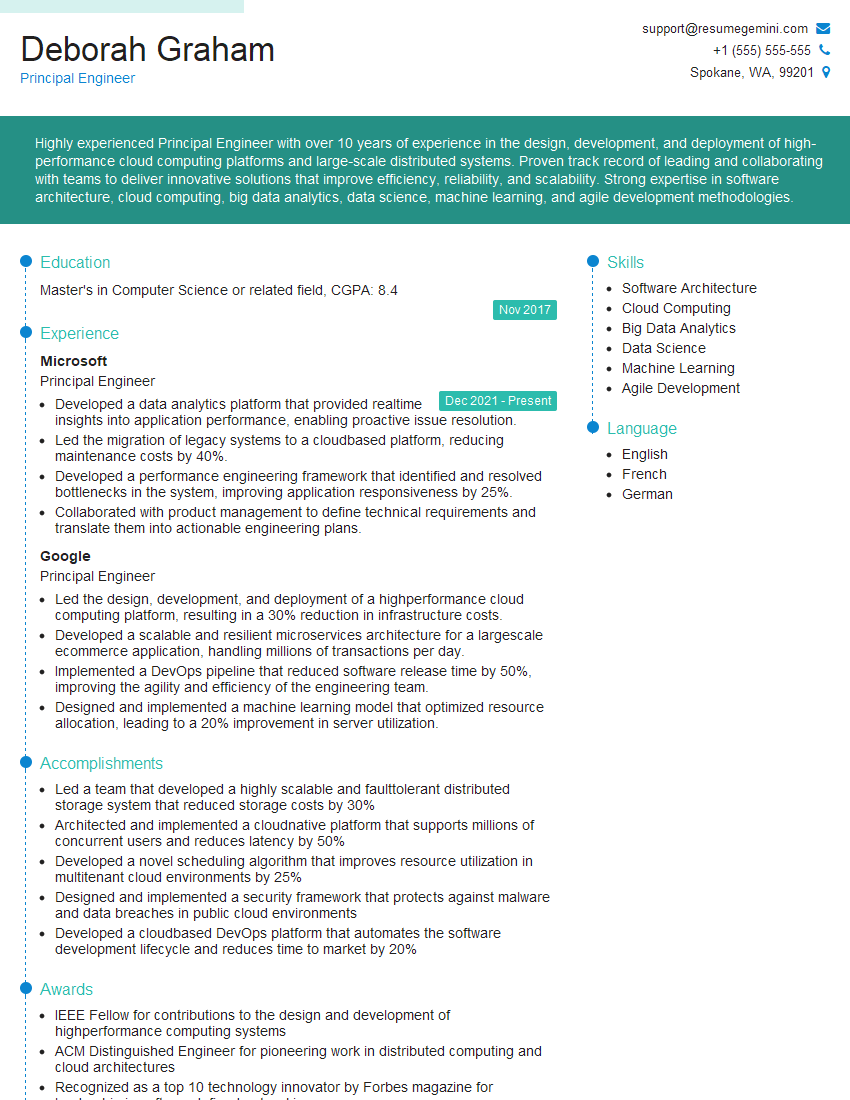
Principal Engineer Resume Sample
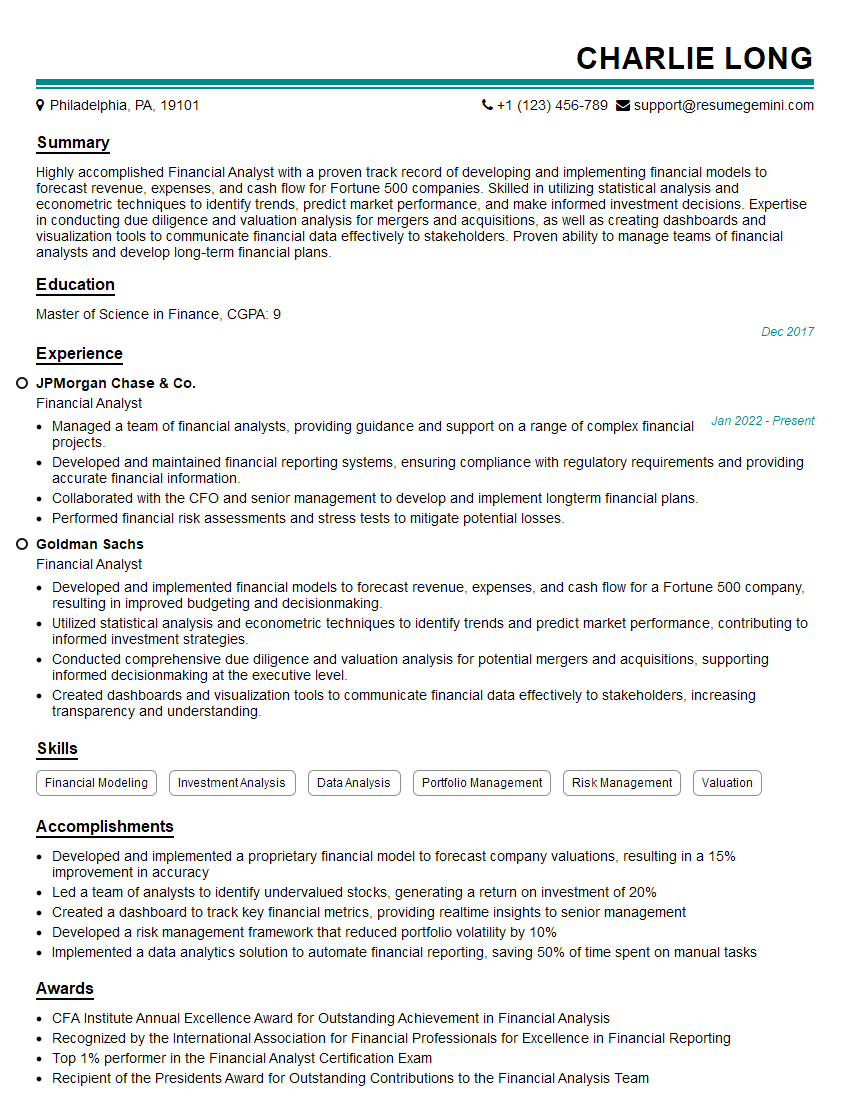
Financial Analyst Resume Sample

Data Analyst Resume Sample
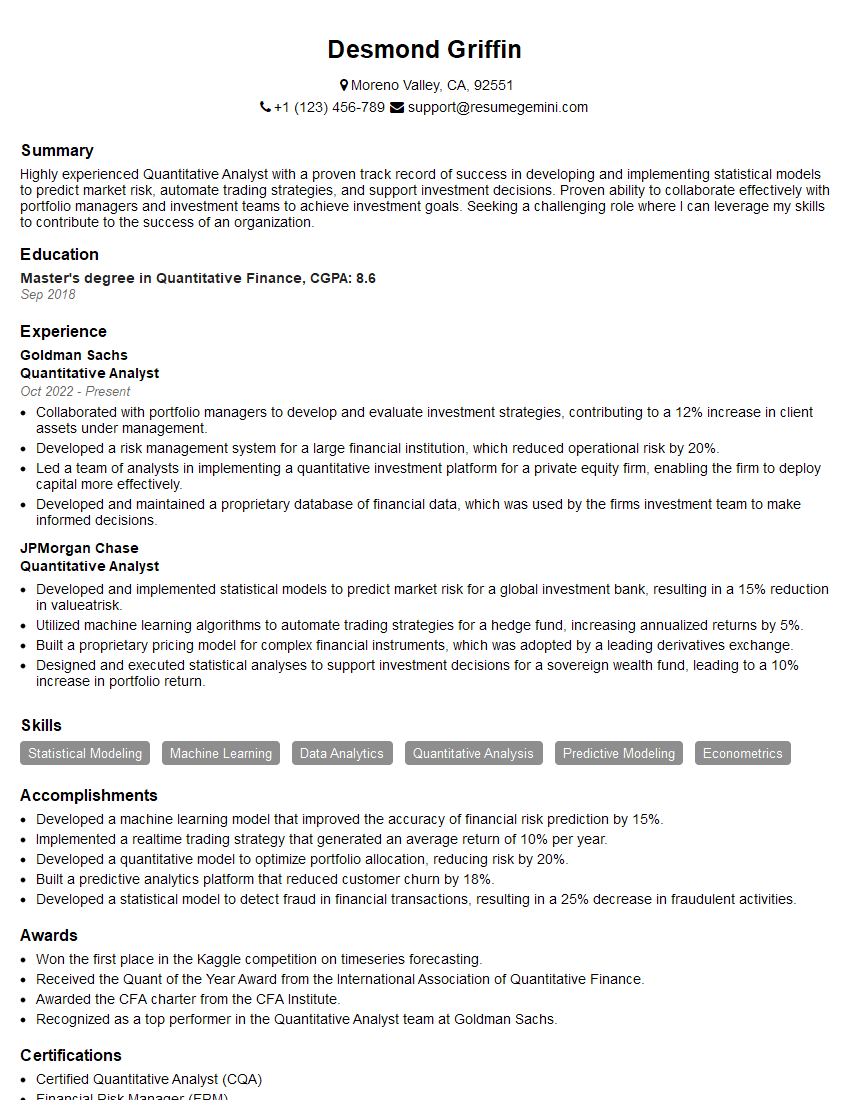
Quantitative Analyst Resume Sample
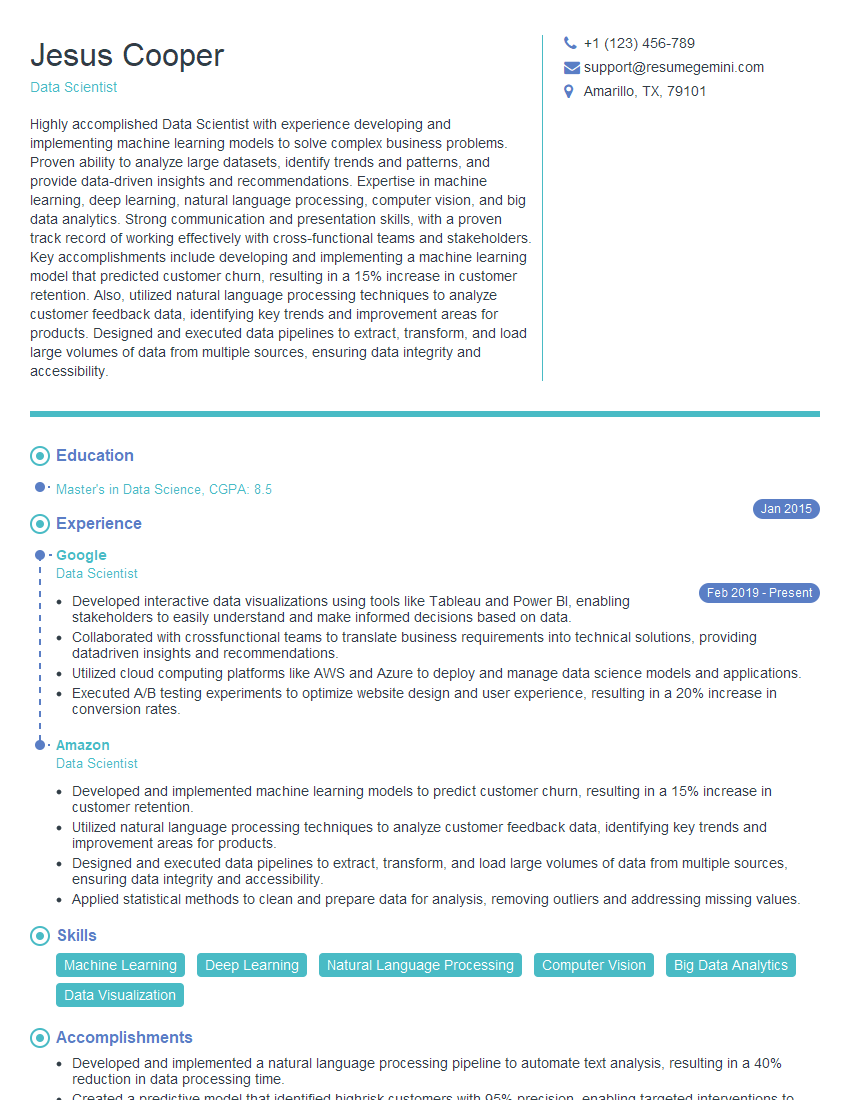
Data Scientist Resume Sample
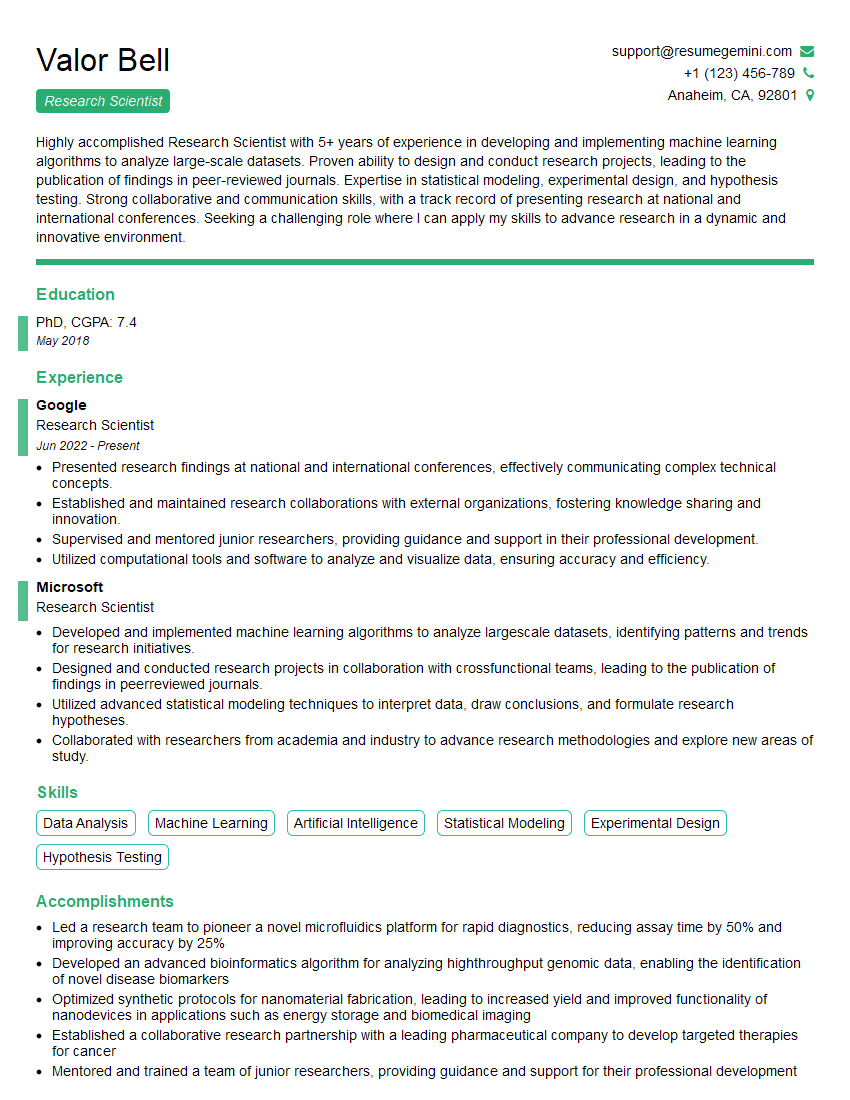
Research Scientist Resume Sample
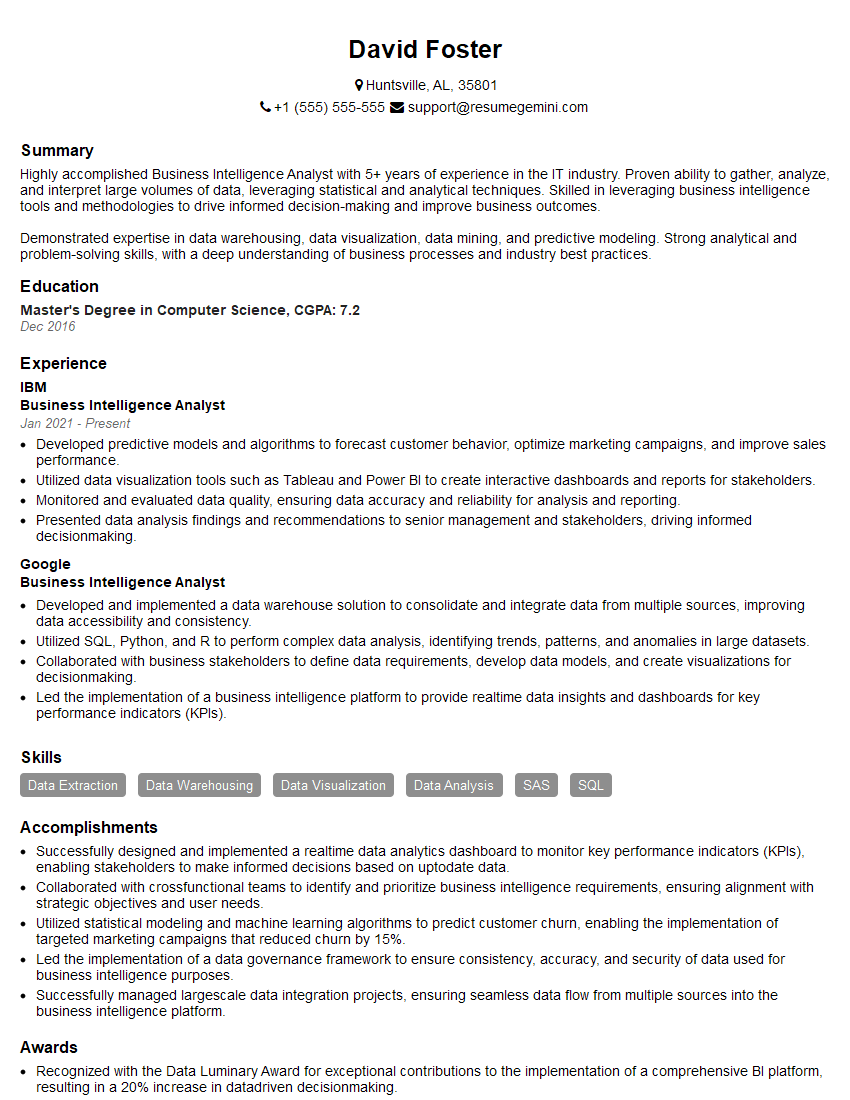
Business Intelligence Analyst Resume Sample

Statistical Analyst Resume Sample
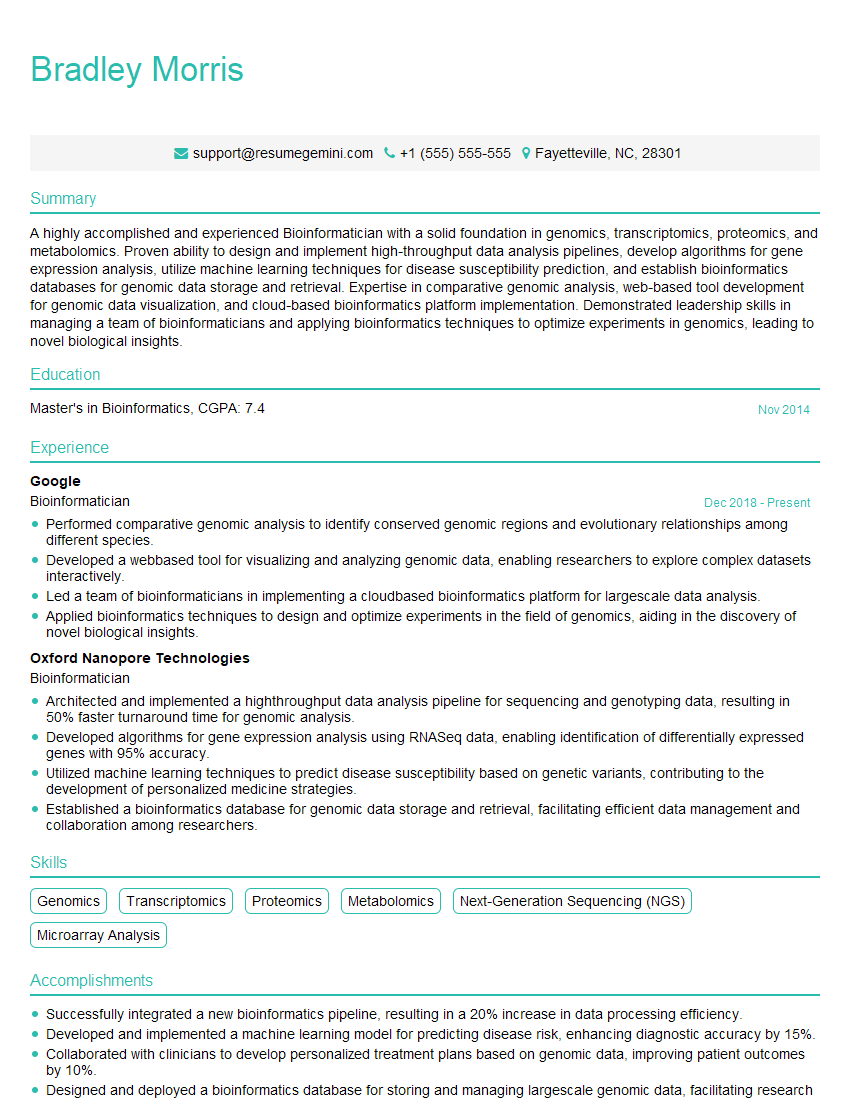
Bioinformatician Resume Sample
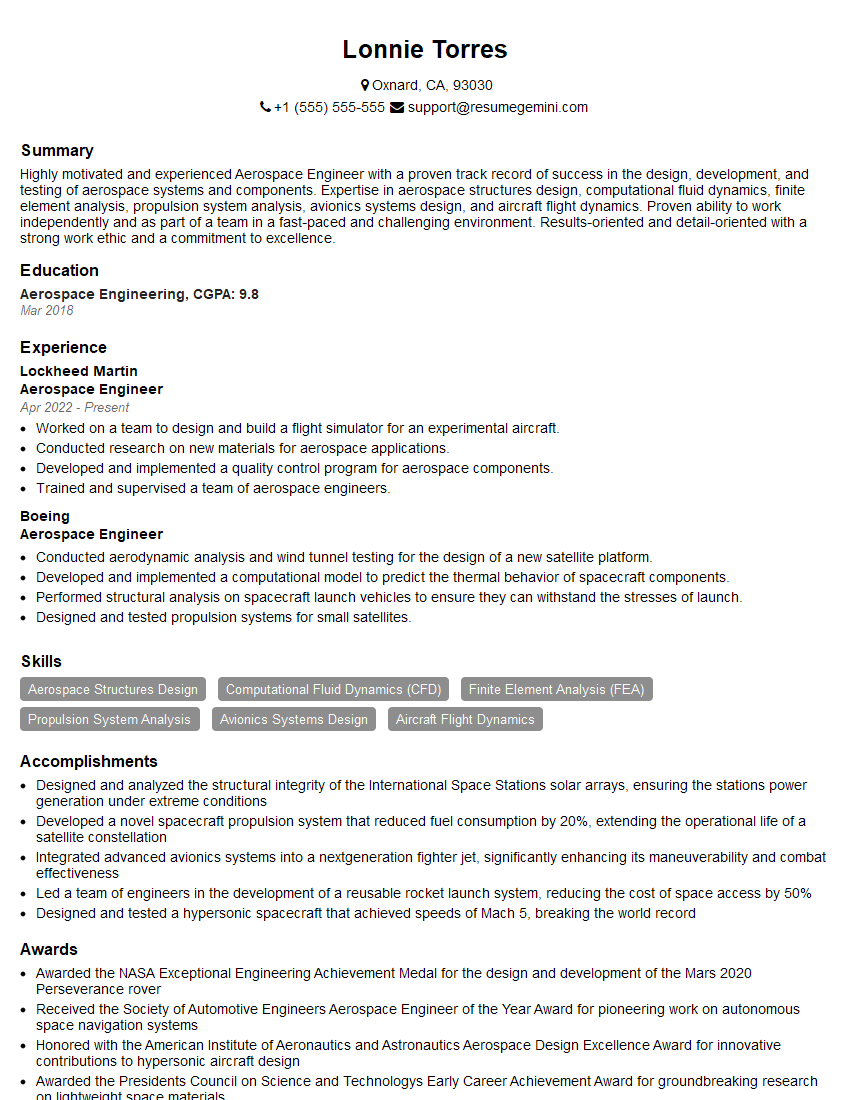
Aerospace Engineer Resume Sample
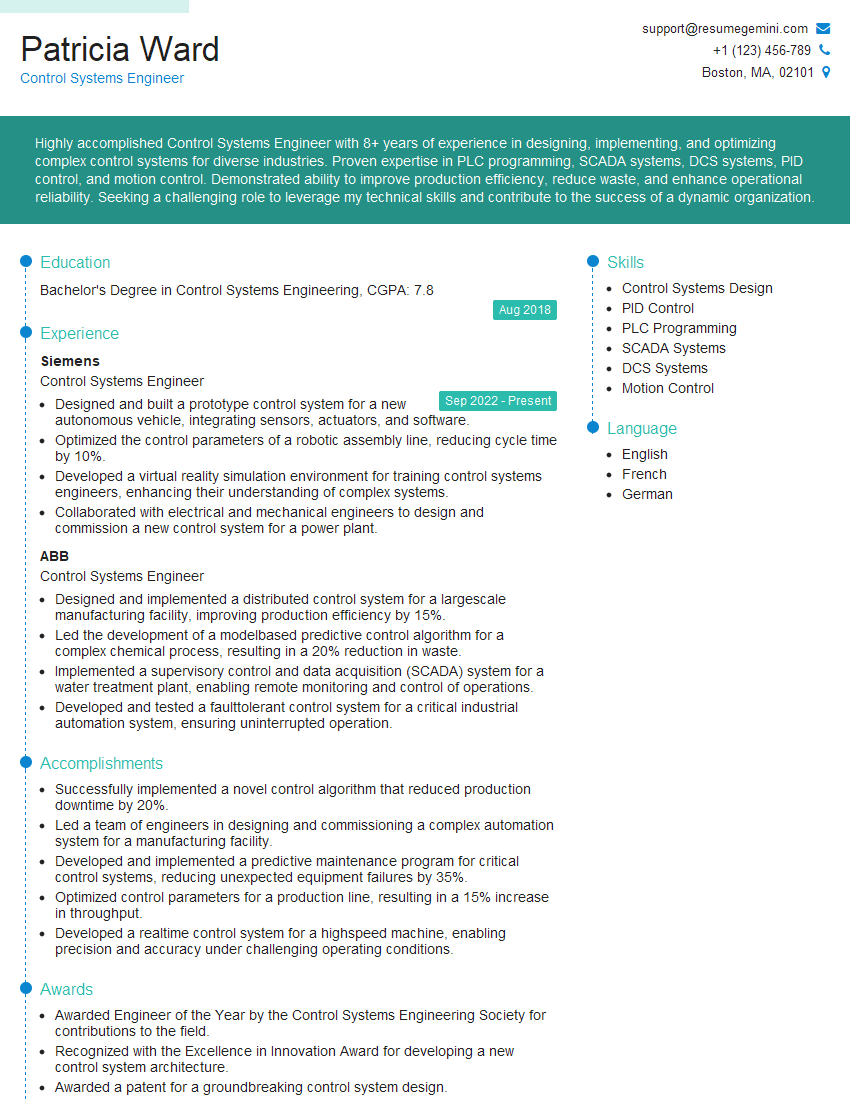
Control Systems Engineer Resume Sample
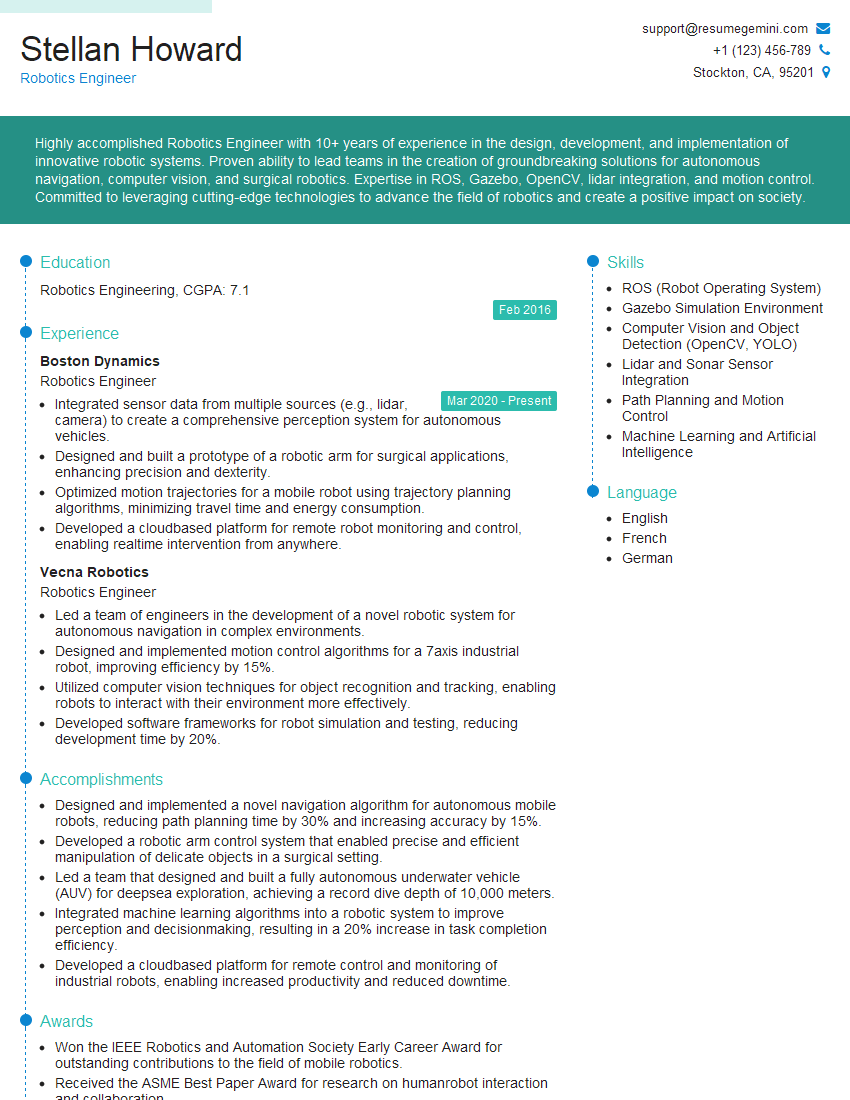
Robotics Engineer Resume Sample

Computational Biologist Resume Sample
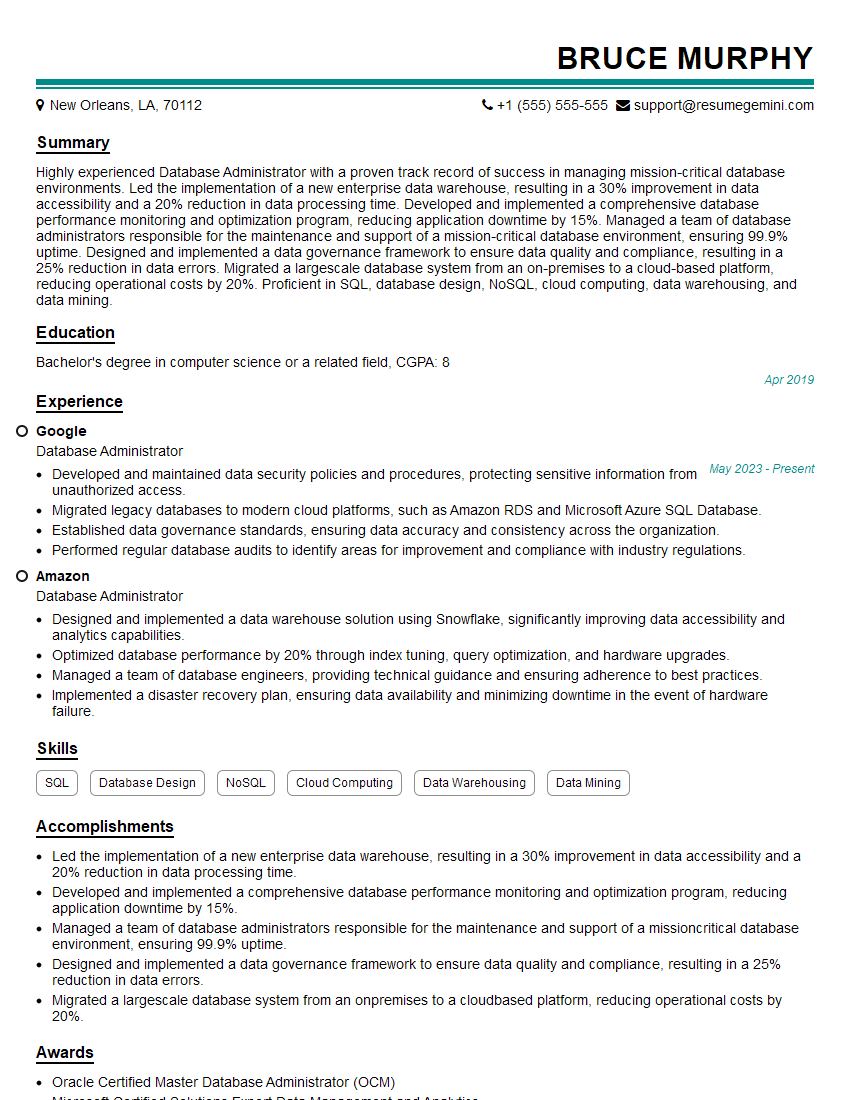
Database Administrator Resume Sample
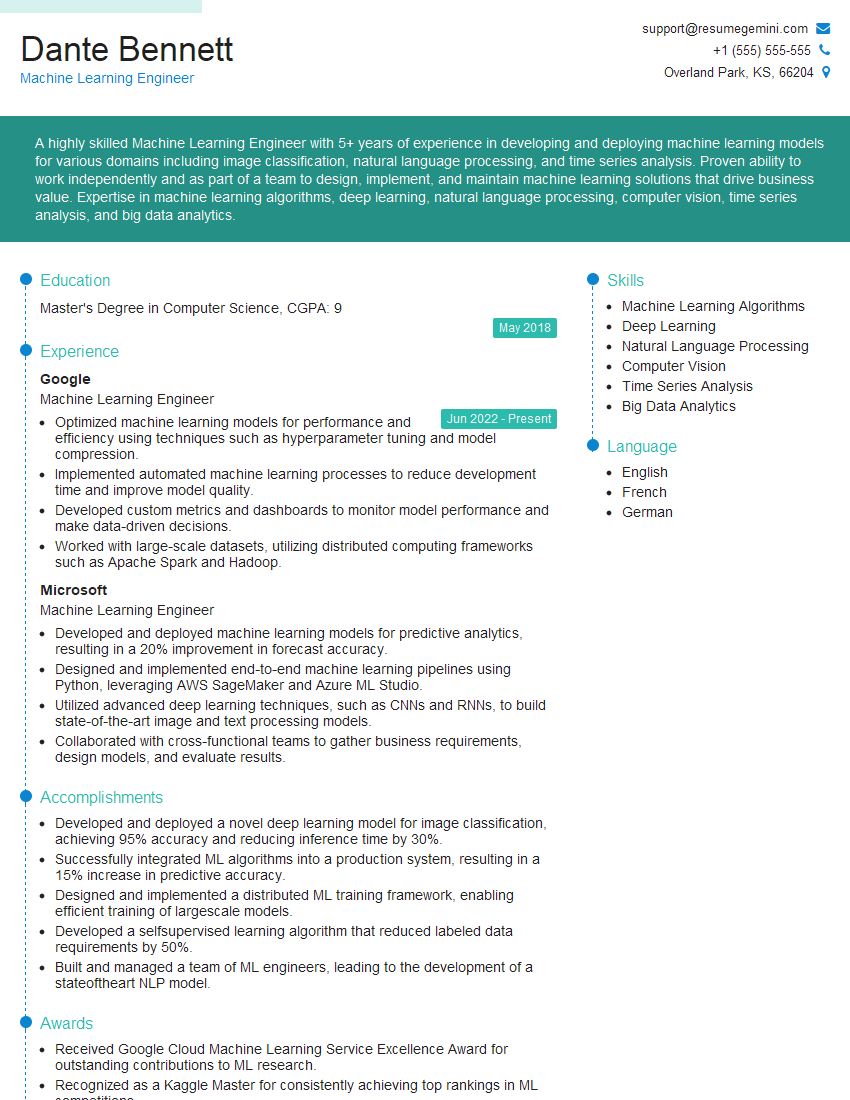
Machine Learning Engineer Resume Sample
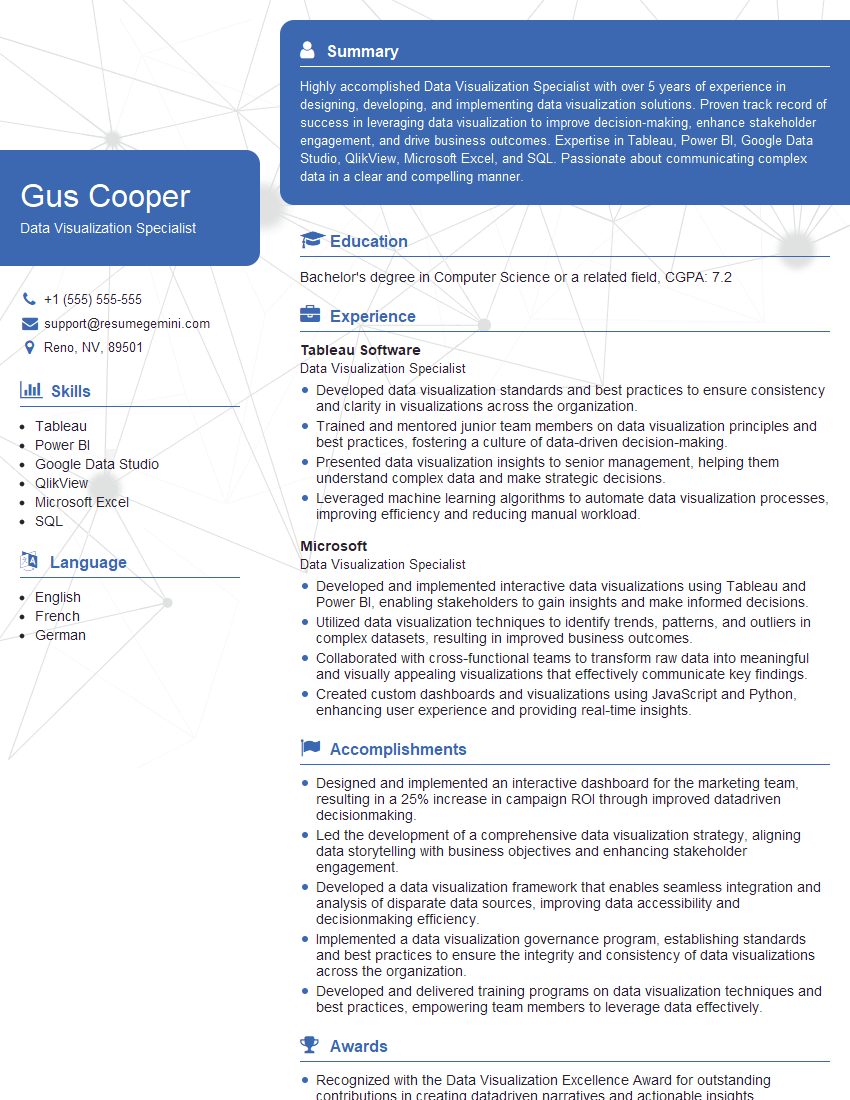
Data Visualization Specialist Resume Sample
- Principal Engineer
- Financial Analyst
- Data Analyst
- Quantitative Analyst
- Data Scientist
- Research Scientist
- Business Intelligence Analyst
- Statistical Analyst
- Bioinformatician
- Aerospace Engineer
- Control Systems Engineer
- Robotics Engineer
- Computational Biologist
- Database Administrator
- Machine Learning Engineer
- Data Visualization Specialist
Explore more articles
Users Rating of Our Blogs
Share Your Experience
We value your feedback! Please rate our content and share your thoughts (optional).
What Readers Say About Our Blog
Very informative content, great job.
good