The thought of an interview can be nerve-wracking, but the right preparation can make all the difference. Explore this comprehensive guide to Motion Graphics (After Effects) interview questions and gain the confidence you need to showcase your abilities and secure the role.
Questions Asked in Motion Graphics (After Effects) Interview
Q 1. Explain your experience with After Effects keyframing techniques.
Keyframing in After Effects is the cornerstone of animation. It’s the process of setting property values at specific points in time, allowing After Effects to smoothly interpolate (or transition) between those values, creating the illusion of movement. Think of it like drawing key poses in a storyboard; After Effects fills in the gaps.
My experience spans various keyframing techniques, including:
- Linear Keyframes: These create a consistent rate of change between keyframes, resulting in a uniform motion. Useful for simple movements or mechanical actions.
- Bezier Keyframes: Offering far more control, Bezier keyframes allow you to manipulate the speed and ease of transitions between keyframes using handles. This is crucial for creating natural, nuanced animations. I often use this for character animation or subtle UI elements.
- Hold Keyframes: These maintain a property’s value over a period, useful for pausing an animation or maintaining a static state.
- Rotoscoping Techniques: Sometimes I’ll use keyframes to trace over live-action footage, meticulously following the movement to create a stylized animation.
I frequently use keyframe assistant to speed up processes like creating ease in and ease out and automatically generating keyframes between points.
Q 2. Describe your workflow for creating a looping animation in After Effects.
Creating a seamless looping animation requires careful planning and execution. My workflow typically involves these steps:
- Pre-composition: I often pre-compose elements to keep the main timeline organized and manageable. This also improves render times.
- Keyframe Placement: The crucial step is to ensure the animation’s beginning and end points are visually identical. This might involve adjusting individual keyframes or using expressions to match values.
- Looping Techniques: I often use the loopOut() expression (e.g.,
loopOut("cycle");) on the relevant properties to automatically loop the animation. Alternatively, I may manually create duplicate keyframes to seamlessly join the loop. - Testing and Refinement: I continuously preview the loop, making subtle adjustments to ensure a smooth transition and eliminate any jarring discrepancies.
- Time Remapping: If minor adjustments are needed, time remapping can provide fine-grained control over the animation’s speed and timing across the loop.
For instance, when animating a bouncing ball, the position and velocity at the start and end of the loop must match precisely, ensuring the bounce continues seamlessly.
Q 3. How do you optimize After Effects compositions for performance?
Optimizing After Effects compositions for performance is paramount, especially when dealing with complex projects. Here’s my approach:
- Pre-composing: Break down complex animations into smaller, manageable pre-compositions. This reduces rendering load and speeds up playback.
- Reduce Layer Count: Consolidate layers where possible. Too many layers significantly impact performance.
- Use Efficient Effects: Some effects are computationally expensive. Consider simpler alternatives or adjusting effect settings for better performance. For example, using a simpler blur effect instead of a highly detailed one.
- Rasterize Layers: If a layer doesn’t need to be further edited, rasterizing it converts it into a bitmap, improving performance. This must be done with caution.
- Proxy Media: Working with lower-resolution proxies of high-resolution footage can significantly improve performance during editing. You can then render with the high-resolution footage at the end.
- Caching: After Effects’ caching system can save time. It allows for faster playback and rendering. Ensure the cache is appropriately managed and cleared if unnecessary.
In a real-world example, when working on a title sequence with many animated elements, pre-composing each title element and using proxies for high resolution footage significantly reduces lag.
Q 4. What are your preferred methods for creating realistic motion blur in After Effects?
Creating realistic motion blur in After Effects can significantly enhance the quality of animations. My preferred methods include:
- Fast Blur Effect: A quick and efficient option, especially for simple animations. I often use it in conjunction with other blurring techniques for added control.
- CC Force Motion Blur: This offers more control than the built-in Fast Blur. I typically use this when higher realism is required.
- Particular (Third-party plugin): For highly sophisticated motion blur effects, especially when simulating particles or complex movements, this plugin is invaluable. I’ve used this to generate highly realistic motion blur for car chases.
- Optical Flares (Third-party plugin): While not strictly for motion blur, it can add realistic lens artifacts that complement motion blur effectively.
The choice of method depends on the complexity of the animation and the desired level of realism. For simple projects, the built-in Fast Blur is sufficient; for more demanding projects, CC Force Motion Blur or a third-party plugin offers more nuanced control.
Q 5. Explain your understanding of expressions in After Effects and provide an example.
Expressions in After Effects are JavaScript snippets that dynamically control layer properties. They add immense power and flexibility, allowing for procedural animation and complex interactions. Think of them as mini-programs embedded within your After Effects project.
For example, I might use an expression to link the scale of one layer to the rotation of another:
transform.scale = [100 + effect("Slider Control")("Slider"), 100 + effect("Slider Control")("Slider")];This code snippet links the scale of a layer to the value of a slider control. As the slider’s value increases, the layer scales up.
I regularly use expressions for things like:
- Wiggle Effects: Creating subtle, randomized movements.
- Data-Driven Animations: Driving animations based on external data sources.
- Time-Based Animations: Automating property changes over time, such as color changes or transitions.
Mastering expressions is a game-changer for streamlining workflows and creating complex and sophisticated animations.
Q 6. How do you manage and organize large After Effects projects?
Managing large After Effects projects requires a structured approach. My strategy relies on these key principles:
- Clear Naming Conventions: Using consistent and descriptive naming for layers, pre-compositions, and assets is essential for navigating large projects. I use a system of prefixes (e.g., ‘BG_’, ‘char_’, ‘FX_’) to indicate layer types.
- Color-Coding Layers: Assigning specific colors to different types of layers improves visual organization.
- Pre-composing and Nesting: Breaking the project down into logical pre-compositions prevents the main timeline from becoming overwhelming.
- Using Folders and Subfolders: Organizing layers and pre-compositions within folders creates a logical hierarchy, making it much easier to find specific elements.
- Regular Saving and Version Control: Frequently saving the project (ideally with version control software) is crucial. This protects against data loss and allows for easy rollback to previous versions.
- Comments and Annotations: Adding comments to keyframes or layers provides context and clarifies the animation’s intent for later review or collaboration.
These strategies drastically reduce confusion and save considerable time when working on large, complex projects.
Q 7. Describe your experience with pre-composing and nesting in After Effects.
Pre-composing and nesting are powerful tools in After Effects that significantly improve workflow efficiency and project organization. Pre-composition involves creating a self-contained composition within the main composition; nesting is the process of embedding pre-compositions within other pre-compositions, creating a hierarchy.
Pre-composing offers several advantages:
- Organization: Reduces clutter in the main timeline.
- Reusability: Pre-composed elements can be reused across multiple projects.
- Performance: Rendering complex animations within a pre-composition improves performance.
Nesting extends pre-composing by creating a hierarchical structure:
- Modular Design: Facilitates modularity; changes to one pre-composition won’t affect others unless intentionally linked.
- Complexity Management: Allows managing extremely complex projects by breaking them down into manageable components.
- Collaboration: Allows different team members to work on separate nested compositions simultaneously.
For example, in a complex animation with multiple characters and environmental elements, I would pre-compose each character and create separate pre-compositions for background elements, particle effects, etc. These could then be nested within a master composition for final assembly and rendering. This approach drastically improves overall efficiency and maintainability.
Q 8. How do you handle color correction and grading in After Effects?
Color correction and grading in After Effects are crucial for achieving the desired look and feel of a project. Color correction aims to fix inaccuracies and inconsistencies in footage, while color grading is more about stylistic choices to enhance the mood and atmosphere. I typically use a combination of techniques for both.
Adjustment Layers: These are my go-to for global color adjustments. I’ll create an adjustment layer above my footage and apply effects like
Curves,Color Balance, andHue/Saturationto make broad changes. This is non-destructive, allowing for easy adjustments later. For example, I might useCurvesto lift the shadows and darken the highlights, adding contrast and depth.Effects like Lumetri Color: Lumetri Color provides a comprehensive set of tools including color wheels, curves, and selective color adjustments. This allows for targeted corrections and creative grading. Think of a scene needing warmer tones – I can easily target specific color ranges within Lumetri to achieve this.
Masking: For more precise control, I use masks to isolate specific areas needing color adjustments. This is invaluable when dealing with complex shots needing specific adjustments, like correcting color spill on a subject while leaving the background untouched.
Third-Party Plugins: Depending on project needs, I sometimes use plugins like Red Giant Magic Bullet Suite or Film Convert to enhance my workflow and access specialized color tools. For instance, Film Convert can add realistic film grain and color profiles, offering a unique look.
My approach always prioritizes a non-destructive workflow to maintain flexibility throughout the process. This allows for iterative adjustments and easy revisions, crucial in a collaborative environment.
Q 9. What are your preferred methods for creating text animations in After Effects?
Text animation is a key component of many motion graphics projects. I utilize several methods to create engaging text animations, adapting my approach based on the project’s style and requirements.
Animation Presets: After Effects comes with several built-in animation presets for text, offering quick and easy options for basic animations. I use these as a starting point, modifying them to suit the specific needs of my project.
Keyframes: For more customized animations, I rely heavily on keyframes. I can animate almost any property of text layers, such as position, scale, opacity, rotation, and even individual character properties. For example, I might animate the scale property to create a zoom effect, or use position keyframes to create a bouncing text effect.
Expressions: For more complex and dynamic animations, I often use expressions. These allow me to create animations based on mathematical formulas or other parameters. Imagine creating text that moves along a path based on a wiggle expression, or changing color over time with simple calculations.
Character Animators: This built-in tool allows very precise control over individual characters in a text layer. It’s fantastic for effects like staggered entrance and exit of letters, or simulating typing effects.
Third-Party Plugins: Plugins such as Red Giant Universe or Motion Array often provide pre-built text animation templates and tools that can significantly speed up the workflow.
I always strive for a balance between speed and precision. While presets can be fast, mastering keyframes and expressions allows me to create truly unique and tailored text animations that reflect the project’s vision.
Q 10. Describe your experience working with 3D models and layers in After Effects.
Integrating 3D models and layers in After Effects significantly enhances the creative possibilities. My experience includes working with various 3D file formats, optimizing performance, and achieving seamless integration within a 2D compositing environment.
Importing 3D Models: I’m proficient in importing models in formats like .obj, .fbx, and .3ds. After Effects handles these models well, letting me manipulate their position, rotation, scale, and camera angles.
Camera Tracking and 3D Integration: When integrating 3D elements into live-action footage, I utilize camera tracking techniques within After Effects to ensure accurate placement and perspective. This ensures the 3D models seamlessly blend with the existing scene.
Lighting and Shading: After Effects offers several tools for adjusting the lighting and shading of 3D models. This allows me to match the lighting of the models with the surrounding footage, creating a realistic and cohesive final product. I often use adjustment layers to subtly influence light and shadows.
Optimization: Working with 3D models often requires attention to optimization techniques to maintain project performance. This might include using proxies, reducing polygon count, or optimizing textures for efficient rendering.
A recent project involved integrating a 3D animated logo into a live-action advertisement. By carefully tracking the camera and matching the lighting, I was able to create a visually stunning and realistic integration.
Q 11. How do you use masks and mattes effectively in After Effects?
Masks and mattes are fundamental tools in After Effects for isolating and manipulating specific areas of a layer. Masks define the shape of the visible area of a layer, while mattes use one layer to control the transparency of another.
Masks: I frequently use masks for isolating subjects, removing unwanted backgrounds, creating special effects like reveals, or adding creative transitions. I’m comfortable using both simple shapes and more complex, hand-drawn masks. For example, I might use a mask to isolate a person from a busy background, then apply a blur effect to the background to enhance the subject.
Mattes: Mattes are useful for more advanced compositing tasks. A common example is using a luma matte to separate a subject from its background based on brightness differences. This is particularly helpful when rotoscoping is either too time-consuming or impossible. Another use could be using a color matte to isolate a specific color range in an image.
Mask Modes: Understanding different mask modes (such as Add, Subtract, Intersect) is critical for complex selections. These modes help in creating advanced masks by combining simpler shapes or refining existing ones.
Roto Brush: While not strictly a mask, the Roto Brush tool is closely related and is extremely efficient for quickly creating masks around complex moving objects, speeding up the rotoscoping process.
The key to effective masking and matting is planning. Understanding how to use these tools effectively from the beginning ensures a smoother, more efficient workflow.
Q 12. What is your experience with rotoscoping in After Effects?
Rotoscoping in After Effects is the process of manually tracing around a subject in each frame of a video to create a mask. It is a meticulous but powerful technique, often necessary for isolating subjects with complex movement or edges that cannot be easily masked using automated methods.
Roto Brush Tool: I use the built-in Roto Brush tool extensively as it offers features like edge detection and frame interpolation, making the process significantly faster and less prone to errors. The Roto Brush’s ability to learn edge movements saves a lot of time when dealing with long sequences.
Manual Roto-masking: For extreme detail or when the Roto Brush isn’t adequate, I utilize manual techniques, carefully drawing masks frame-by-frame. This might be necessary for very subtle edges or extremely complex movement.
Refine Edge: After creating initial masks, I use the Refine Edge tool to smooth out jagged edges and ensure a clean matte. This is critical for achieving a professional-looking final product.
Workflow Considerations: When rotoscoping, careful planning and organization are essential. This includes efficiently naming layers, using parent layers for organized mask groups, and frequently saving to prevent potential data loss.
Rotoscoping is time-consuming, so I always strive to explore alternatives first, like using pre-made mattes or other masking techniques. However, when necessary, I’m adept at employing various rotoscoping techniques to achieve a polished result.
Q 13. Explain your understanding of different After Effects render settings and their impact on file size and quality.
Understanding After Effects render settings is vital for producing high-quality output files while managing file size and rendering time. The optimal settings depend heavily on the intended use and delivery format of the final product.
Resolution: Higher resolutions (like 4K) produce higher-quality output but significantly increase file size and render time. I always choose the resolution appropriate for the project’s intended display platform.
Frame Rate: The frame rate should match the source footage and the intended output. Changing the frame rate can introduce unwanted artifacts or require extensive re-timing of animations.
Image Compression: Options like H.264 (for online delivery) and ProRes (for editing and high-quality archiving) significantly impact file size and quality. H.264 offers better compression (smaller files) but potentially some quality loss, whereas ProRes provides higher quality with larger file sizes. I’d choose ProRes for projects that need editing flexibility and H.264 for web use.
Depth: Rendering with 8-bit or 16-bit color depth impacts the final color range and quality. 16-bit offers better color depth and reduces banding but results in larger file sizes.
Output Module: Choosing the correct output module (like QuickTime or Media Encoder) allows for customized encoding settings, offering control over file format, compression, and other parameters.
Balancing quality and file size is a key consideration. I often use render tests to evaluate the balance at different settings before committing to a final render, especially when dealing with larger or more complex projects.
Q 14. How do you create and use custom presets in After Effects?
Creating and using custom presets in After Effects significantly streamlines the workflow by saving commonly used settings or animation sequences. This boosts efficiency and consistency across projects.
Effect Presets: To save a custom effect, I apply the desired effects and adjustments to a layer, then select the effects in the Effects & Presets panel. I right-click and choose “Save Preset.” This saves the combination of effects as reusable presets that can be applied to different layers with a single click. This is particularly helpful for specific color grading looks or stylistic filters.
Animation Presets: Similarly, animation presets can be saved for commonly used animations, such as text reveals or object movements. Select the relevant keyframes in the timeline, right-click, and choose “Save Animation Preset.” This saves all the keyframes and their properties, speeding up animation creation.
Organization: For better management, I organize my custom presets into folders within the presets panel. This makes them easier to find and manage, especially as the collection grows.
A practical example is creating a preset for a specific logo animation. Saving this animation as a preset allows for quick reuse with different logo variations, significantly reducing repeated work across numerous projects.
Q 15. What is your experience with integrating After Effects with other Adobe Creative Suite applications (e.g., Premiere Pro, Photoshop)?
My workflow heavily relies on the seamless integration between After Effects and other Adobe Creative Suite applications. Think of it like a well-oiled machine where each part contributes to the final product. For instance, I frequently import high-resolution images from Photoshop into After Effects for compositing and animation. The non-destructive nature of this workflow allows for easy adjustments and refinements. Similarly, I often export After Effects compositions as high-quality video files for editing and final assembly within Premiere Pro, leveraging Premiere Pro’s robust timeline and editing capabilities. This dynamic interplay ensures a smooth transition between pre-production, production, and post-production.
For example, I recently worked on a project where I created intricate animated elements in After Effects, then seamlessly integrated them into a larger video sequence in Premiere Pro. Photoshop was utilized for creating high-resolution textures and background elements that were then imported into After Effects. This collaborative approach streamlines the entire production process, leading to better results and a more efficient use of resources.
Career Expert Tips:
- Ace those interviews! Prepare effectively by reviewing the Top 50 Most Common Interview Questions on ResumeGemini.
- Navigate your job search with confidence! Explore a wide range of Career Tips on ResumeGemini. Learn about common challenges and recommendations to overcome them.
- Craft the perfect resume! Master the Art of Resume Writing with ResumeGemini’s guide. Showcase your unique qualifications and achievements effectively.
- Don’t miss out on holiday savings! Build your dream resume with ResumeGemini’s ATS optimized templates.
Q 16. Describe your experience with using plugins in After Effects.
Plugins are essentially power-ups for After Effects, extending its functionality and introducing new creative possibilities. I have extensive experience with a range of plugins, from those that streamline workflow (e.g., Red Giant Trapcode Suite for particle effects and 3D effects) to others that add specialized tools (e.g., Optical Flares for realistic lens flares, Element 3D for integrating 3D models). The key is understanding which plugins suit your specific needs and workflow.
For example, using Red Giant Trapcode Particular allows me to create complex particle systems for rain, smoke, or explosions much more quickly and efficiently than building them from scratch. I carefully evaluate each plugin based on its performance, compatibility, and how well it integrates into my established workflow. Selecting the right tools minimizes hurdles and speeds up the production time considerably.
Q 17. How do you troubleshoot common issues encountered in After Effects (e.g., render errors, performance problems)?
Troubleshooting is a crucial part of the After Effects workflow. Render errors are often caused by issues with the project settings (like insufficient RAM allocation) or corrupted files. To resolve them, I systematically check my project settings, ensure all files are correctly linked, and sometimes even try rendering smaller sections to isolate the problem. Performance problems, on the other hand, usually stem from using high-resolution footage or overly complex compositions. This often requires optimizing my project settings, pre-composing layers, using proxies, and rendering in smaller resolutions as needed.
A recent project had unexpected render errors. By meticulously checking file paths and then isolating the issue to one specific image file, I found a corrupted image file that was causing the problem. Replacing the corrupted file fixed the render error and saved a considerable amount of time.
For performance issues, I frequently employ techniques like pre-composing complex layer structures into manageable units and using proxy footage to speed up the playback and rendering process.
Q 18. Explain your experience with different compositing techniques in After Effects.
Compositing is the art of combining multiple visual elements into a single cohesive image. In After Effects, I use a variety of techniques depending on the project’s demands. This includes utilizing blending modes (like screen, overlay, and multiply) to achieve various effects. I also frequently employ masks and mattes to isolate and combine different layers precisely. Depth of field effects and motion blur are often applied to enhance realism.
For instance, to create a realistic-looking scene of a spaceship flying through a nebula, I would use layers for the spaceship, the nebula, and stars. Masks and mattes would ensure the spaceship is seamlessly integrated into the scene, while blending modes and effects like depth of field and motion blur create a sense of depth and realism. Understanding how light interacts with different materials is also essential to believable compositing.
Q 19. How do you handle feedback and revisions on a motion graphics project?
Handling feedback and revisions is a collaborative process that I approach with careful attention. Clear communication is key. I ensure that I understand the feedback completely, asking clarifying questions if needed. I then work through the revisions methodically, creating new versions or making adjustments to the existing composition. I prefer to present revisions in a clear and organized manner, often providing multiple options for consideration whenever feasible. I keep detailed notes of all revisions, allowing for easy tracking and future reference.
A recent client provided feedback that some animations were too fast. I created three new versions, each with subtly different speeds, and presented them to the client so they could directly compare and provide the most refined feedback.
Q 20. Describe your experience with creating motion graphics for different platforms (e.g., web, broadcast, social media).
My experience spans various platforms, each with specific requirements. For web animation, I prioritize smaller file sizes and efficient compression techniques to ensure fast loading times. The animation is optimized for browser compatibility and screen sizes. Broadcast standards often require higher resolutions and specific frame rates, along with color correction suitable for television broadcasting. Social media platforms demand short, engaging loops optimized for different aspect ratios (e.g., square for Instagram, vertical for TikTok). I always adapt my techniques to best suit the target platform’s requirements.
For example, when creating motion graphics for a TikTok ad, I kept the animation short, visually engaging, and used a vertical aspect ratio. The overall color scheme was optimized for mobile viewing conditions.
Q 21. How do you ensure your motion graphics are accessible to a wide audience?
Accessibility is paramount. For motion graphics, this means considering viewers with visual impairments. I achieve this using techniques like adding alt text to images used in the project, ensuring sufficient contrast between text and background colors and providing captions or transcripts for any audio content. When creating animations, I aim for clear and concise visual storytelling to ensure the message is accessible regardless of any viewing challenges.
For a recent project, I added descriptive audio for some elements to make the video more accessible to viewers who rely on screen readers or audio descriptions.
Q 22. What are some common animation principles you utilize in your work?
Animation principles are fundamental to creating engaging and believable motion graphics. I consistently leverage principles like squash and stretch to give objects a sense of weight and flexibility, think of a bouncing ball deforming as it hits the ground. Anticipation is crucial; a character needs a wind-up before a jump to prepare the viewer. Staging ensures the focus is always clear, guiding the viewer’s eye. Slow-in and slow-out make movement feel natural, mimicking real-world physics – objects don’t suddenly stop or start. Arcs create more natural-looking paths for movement, avoiding straight, stiff lines. Secondary action adds subtle details and personality; a character’s hair might sway while they walk. Timing controls the speed and rhythm of the animation, creating different emotional responses. Exaggeration enhances the impact of an action, making it more memorable and expressive. Solid drawing ensures objects maintain believable volume and form throughout animation, preventing “flattening.” Finally, Appeal is about creating visually engaging and aesthetically pleasing animations that capture the audience’s attention. I carefully consider these principles in every project to ensure smooth, dynamic, and compelling results.
Q 23. How do you stay updated with the latest trends and techniques in motion graphics?
Staying ahead of the curve in motion graphics requires a multi-pronged approach. I actively engage with online platforms like Behance and ArtStation, studying the work of leading artists and exploring innovative techniques. I subscribe to industry newsletters and follow key influencers on social media, keeping my finger on the pulse of emerging trends. Attending workshops, conferences, and online courses provides valuable hands-on learning and networking opportunities. Experimentation is key – I regularly try out new plugins, software updates, and stylistic approaches within my own projects to deepen my understanding and discover new creative avenues. Finally, I maintain a network of fellow motion graphics artists, exchanging ideas and critiques to collectively foster learning and growth.
Q 24. Describe a challenging motion graphics project you’ve worked on and how you overcame the challenges.
One particularly challenging project involved creating a 60-second explainer video for a complex software application. The biggest hurdle was simplifying a dense technical concept into a visually engaging and easily understandable narrative. Initially, I struggled with finding the right balance between accuracy and visual clarity. To overcome this, I worked closely with the client’s technical team to identify the core functionalities and break them down into smaller, digestible segments. I developed a storyboard that used visual metaphors and simplified animations to convey complex processes. For example, a data transfer was represented by a flowing stream of particles, making the abstract concept more concrete. This iterative process, along with regular client feedback sessions, ensured that the final video was both informative and visually captivating, achieving our goal of clear communication.
Q 25. What are your strengths and weaknesses as a motion graphics artist?
My strengths lie in my ability to translate complex ideas into engaging visual narratives, my proficiency in After Effects and related software, and my strong problem-solving skills. I’m a highly creative individual with a keen eye for detail and a passion for pushing visual boundaries. I collaborate effectively in team environments and can manage multiple projects simultaneously, meeting deadlines efficiently. A weakness I’m actively working on is my tendency to over-refine details, sometimes impacting project timelines. To mitigate this, I’m focusing on prioritizing tasks and effectively managing my time using project management tools.
Q 26. What are your salary expectations?
My salary expectations are commensurate with my experience and skills within the industry and are open for discussion based on the specific details of the position and company benefits package.
Q 27. What are your career goals?
My career goals involve becoming a highly sought-after motion graphics artist, renowned for creating innovative and visually stunning work. I aspire to collaborate on high-profile projects, potentially within film, advertising, or interactive media. I’m committed to continuously improving my skills, expanding my creative repertoire, and mentoring emerging talent within the field.
Q 28. Why are you interested in this position?
I’m interested in this position because it aligns perfectly with my career aspirations and allows me to utilize my skills in a dynamic and challenging environment. The opportunity to contribute to [Company Name]’s creative vision and work alongside a talented team is particularly exciting. I am impressed by [Company Name]’s commitment to [mention something specific about the company or their projects that appeals to you], and I believe my skills and experience would be a valuable asset to your team.
Key Topics to Learn for Motion Graphics (After Effects) Interview
- Composition and Layer Management: Understanding the fundamental structure of After Effects projects, including nesting, pre-compositions, and efficient layer organization for complex animations.
- Practical Application: Demonstrate your ability to manage a project with numerous layers and assets, maintaining a clean and organized workflow for efficient rendering and collaboration.
- Keyframing and Animation Principles: Mastering the art of creating smooth, believable animations using keyframes, exploring techniques like easing, anticipation, and follow-through.
- Practical Application: Showcase your understanding of animation principles through examples of character animation, logo reveals, or kinetic typography projects.
- Effects and Presets: Proficiently using After Effects’ built-in effects and mastering the creation and application of custom presets for efficient workflow.
- Practical Application: Explain how you’ve used effects to achieve specific visual styles, such as creating realistic lighting, simulating particle effects, or applying stylized filters.
- Expressions: Understanding the power of expressions to automate animations, create dynamic effects, and control elements based on variables.
- Practical Application: Demonstrate your ability to write simple expressions to control various aspects of animations, such as position, scale, and opacity.
- Workflow Optimization and Rendering: Techniques for optimizing After Effects projects for faster rendering, including using proxies, pre-rendering layers, and understanding render settings.
- Practical Application: Discuss strategies you’ve employed to improve render times and manage large projects efficiently.
- Collaboration and Version Control: Best practices for collaborating on After Effects projects, including using version control systems and managing assets effectively.
- Practical Application: Describe your experience working in collaborative environments and strategies for resolving conflicts or managing shared assets.
- Troubleshooting and Problem-Solving: Demonstrate your ability to diagnose and resolve common issues encountered during the animation process.
- Practical Application: Discuss instances where you successfully overcame technical challenges during a project.
Next Steps
Mastering Motion Graphics in After Effects opens doors to exciting career opportunities in film, advertising, and interactive media. To stand out, a strong, ATS-friendly resume is crucial. ResumeGemini is a trusted resource to help you craft a compelling resume that highlights your skills and experience effectively. Examples of resumes tailored specifically for Motion Graphics (After Effects) roles are available to help you get started.
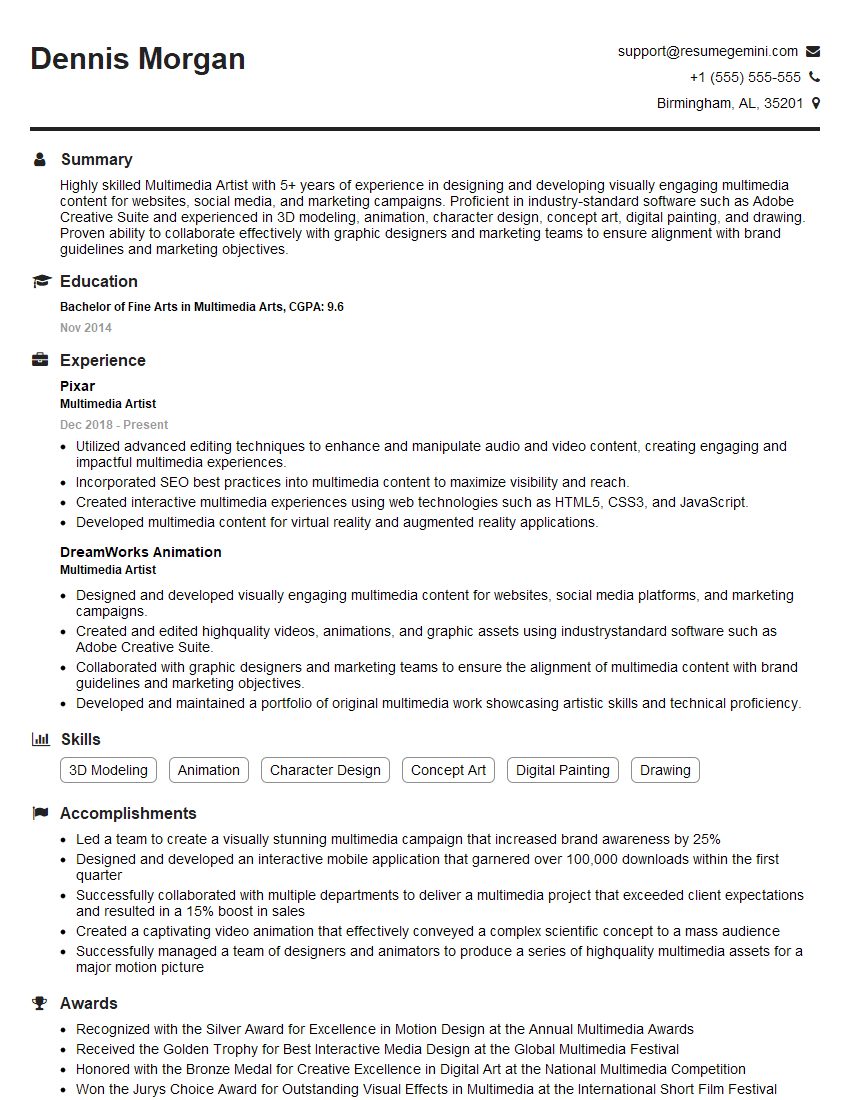
Multimedia Artist Resume Sample
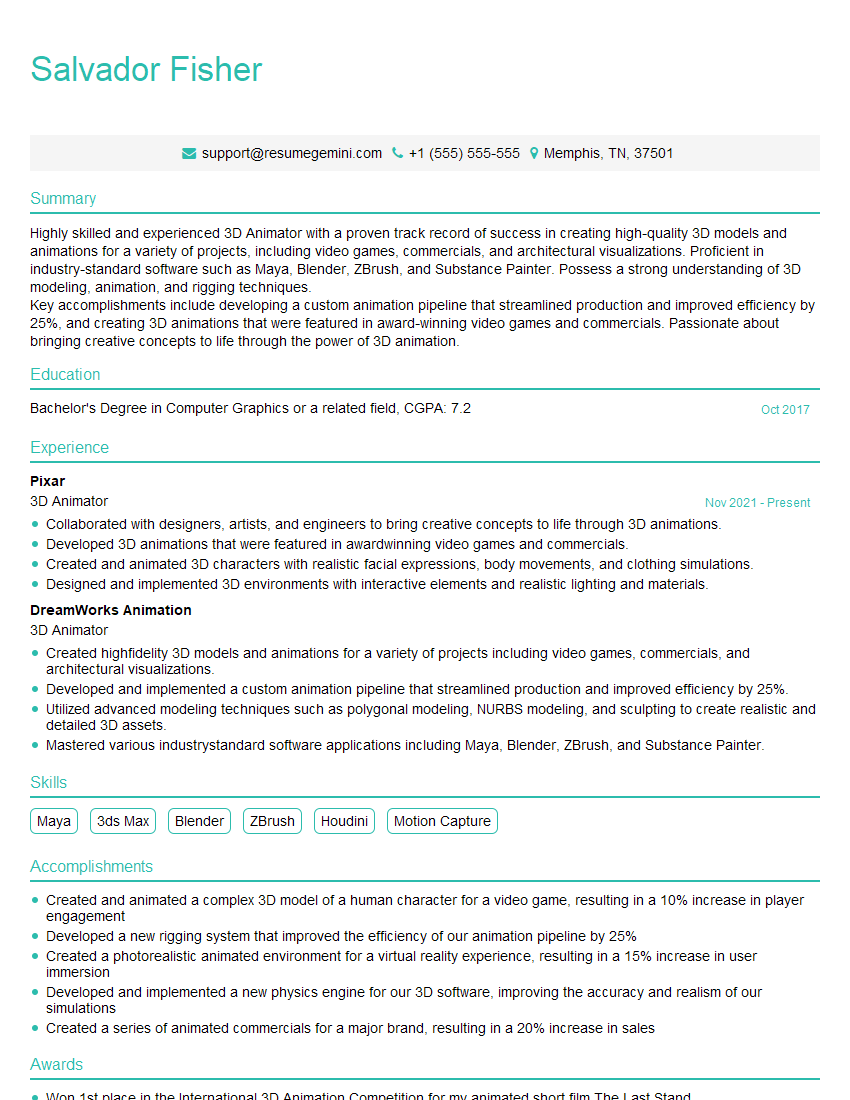
3D Animator Resume Sample
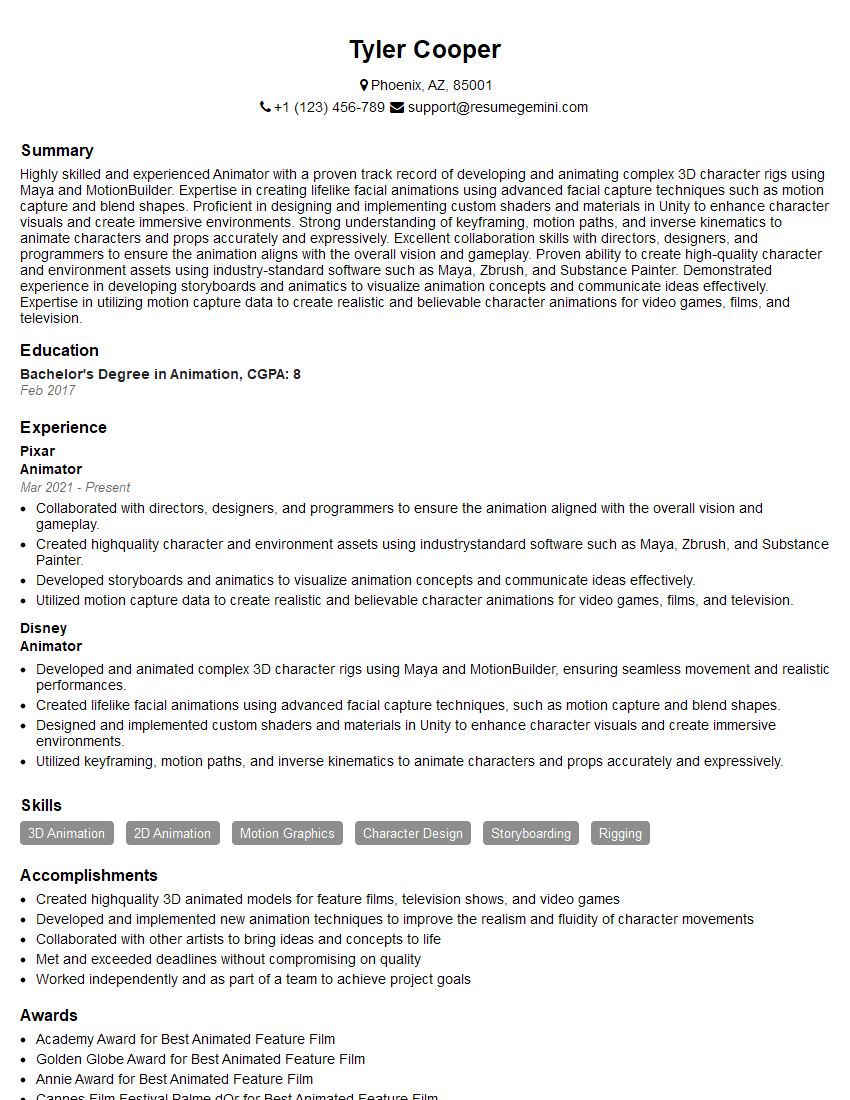
Animator Resume Sample
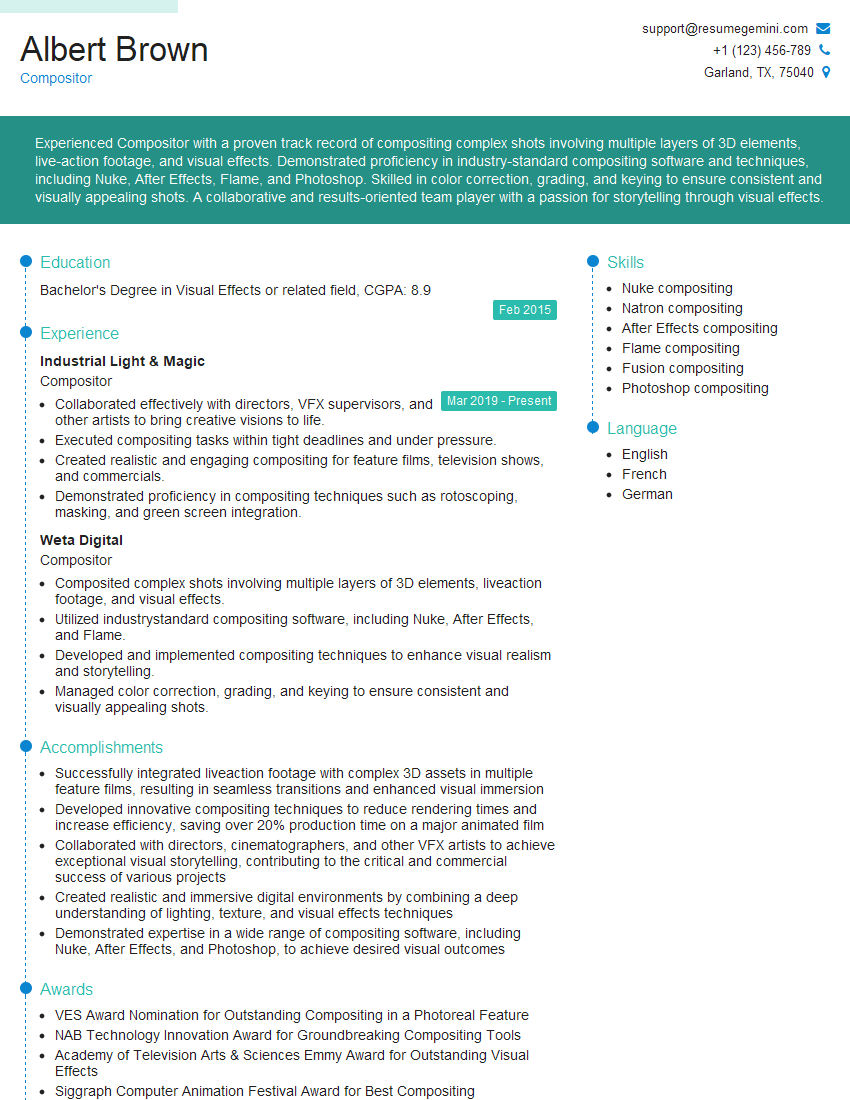
Compositor Resume Sample
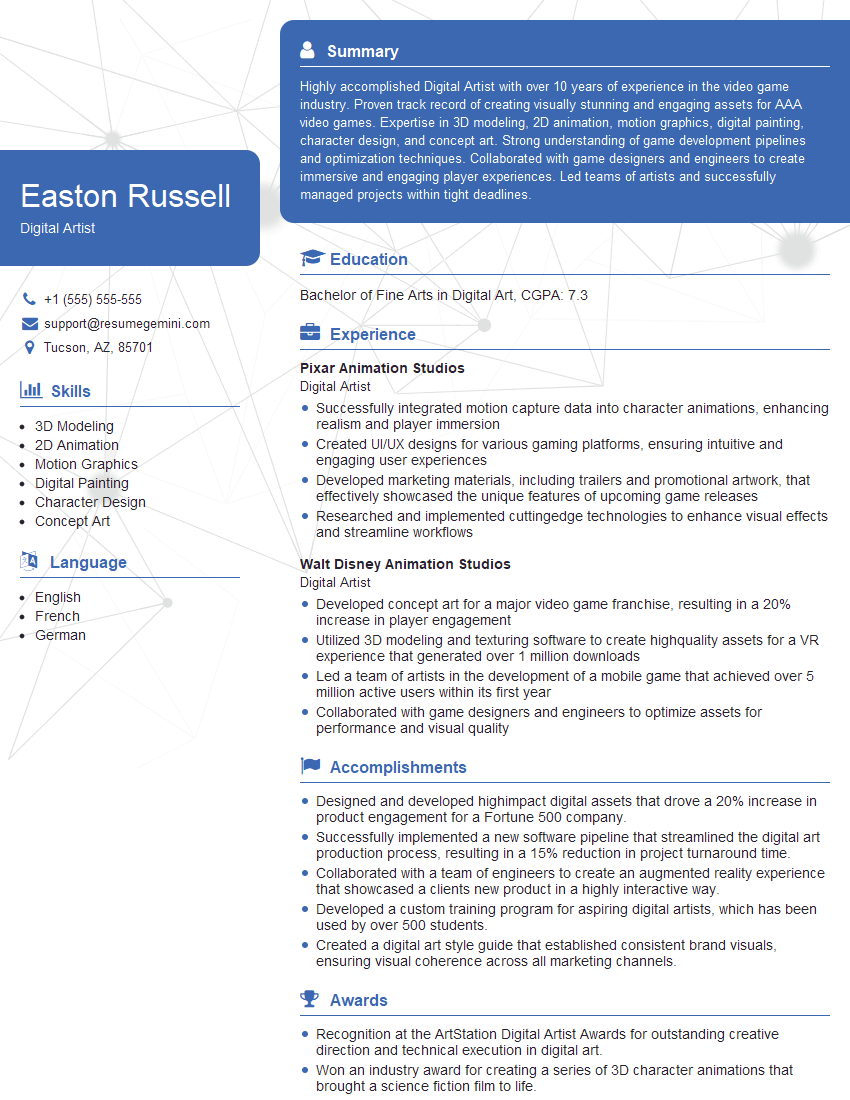
Digital Artist Resume Sample

Graphic Designer Resume Sample
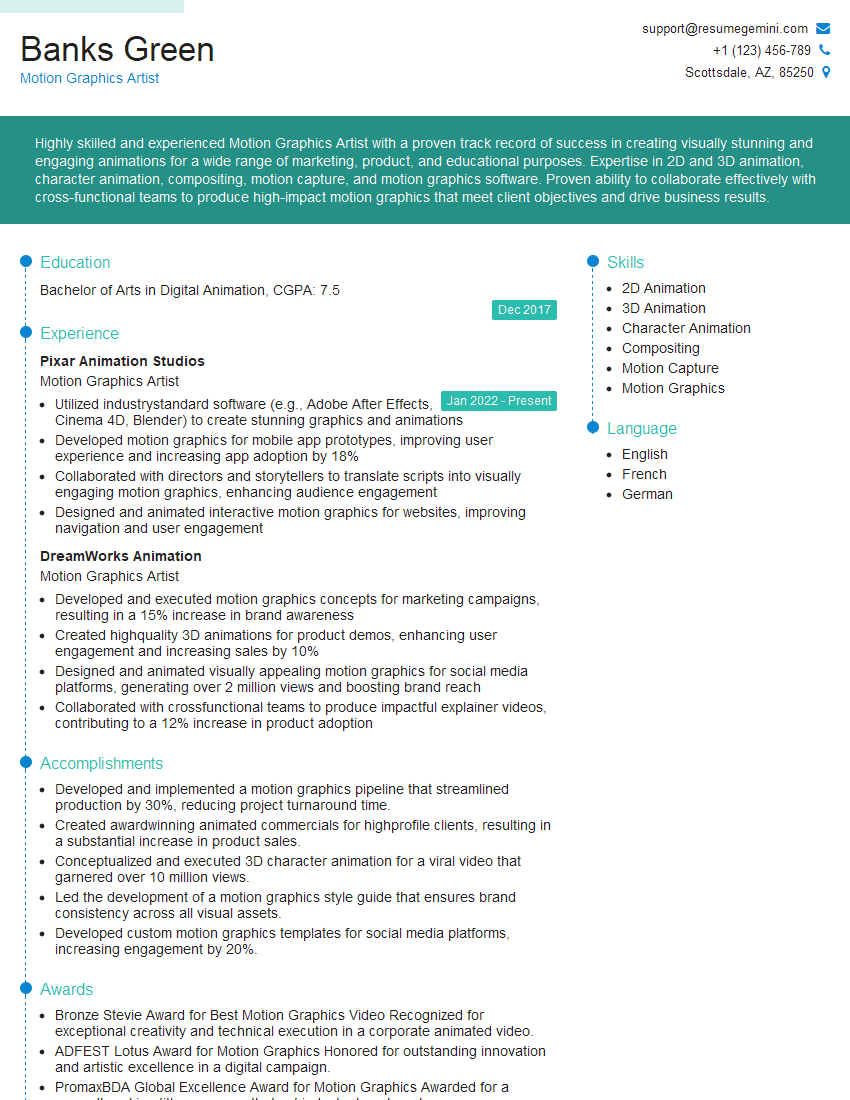
Motion Graphics Artist Resume Sample
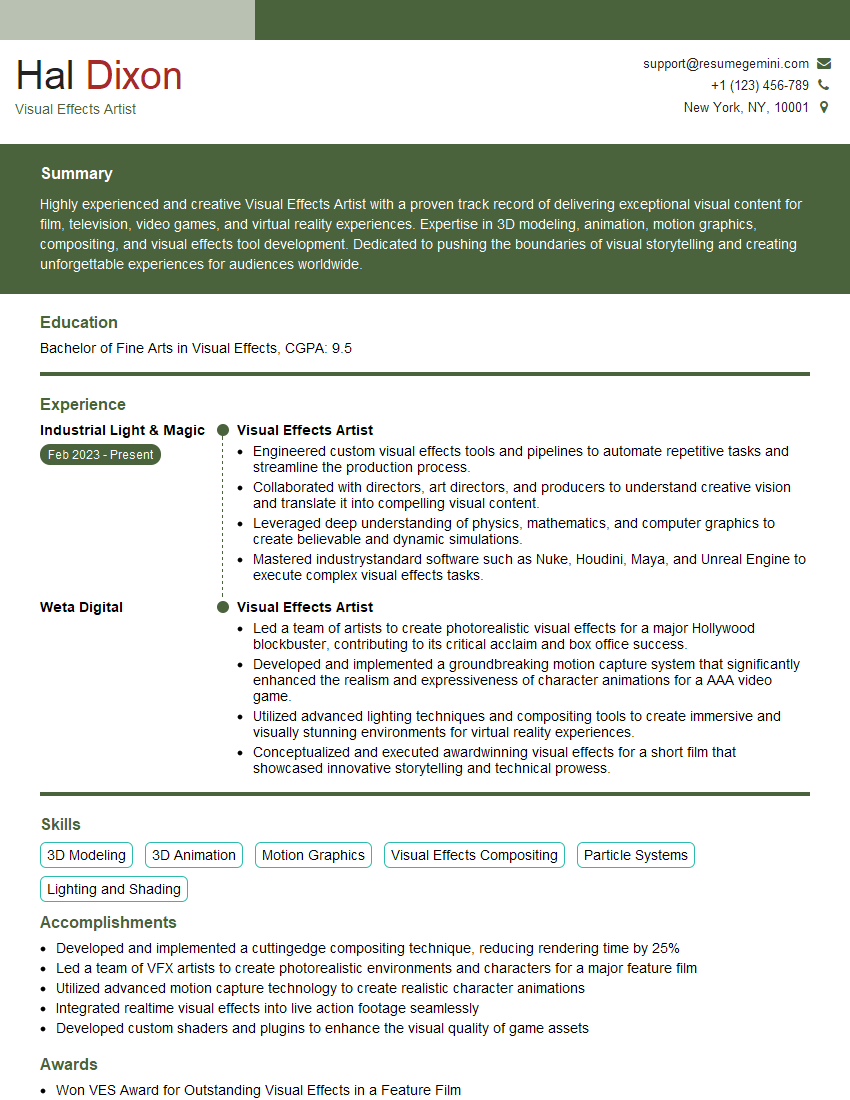
Visual Effects Artist Resume Sample
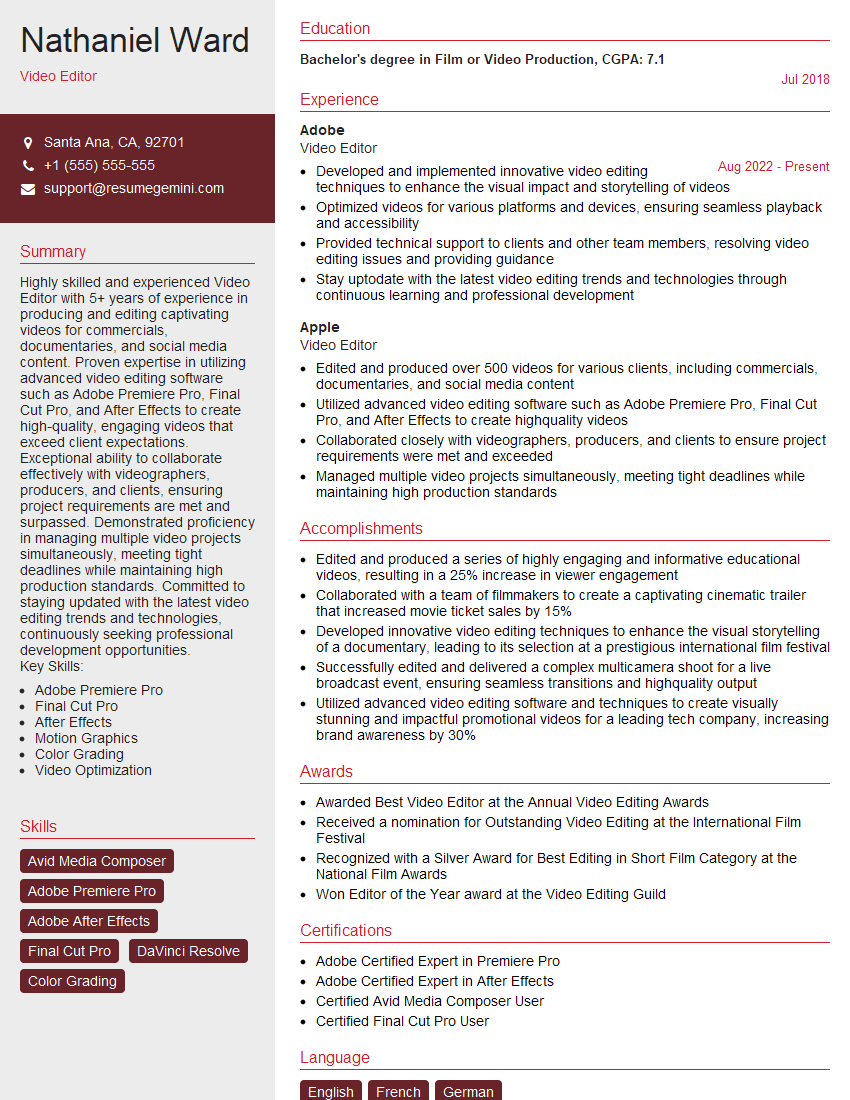
Video Editor Resume Sample
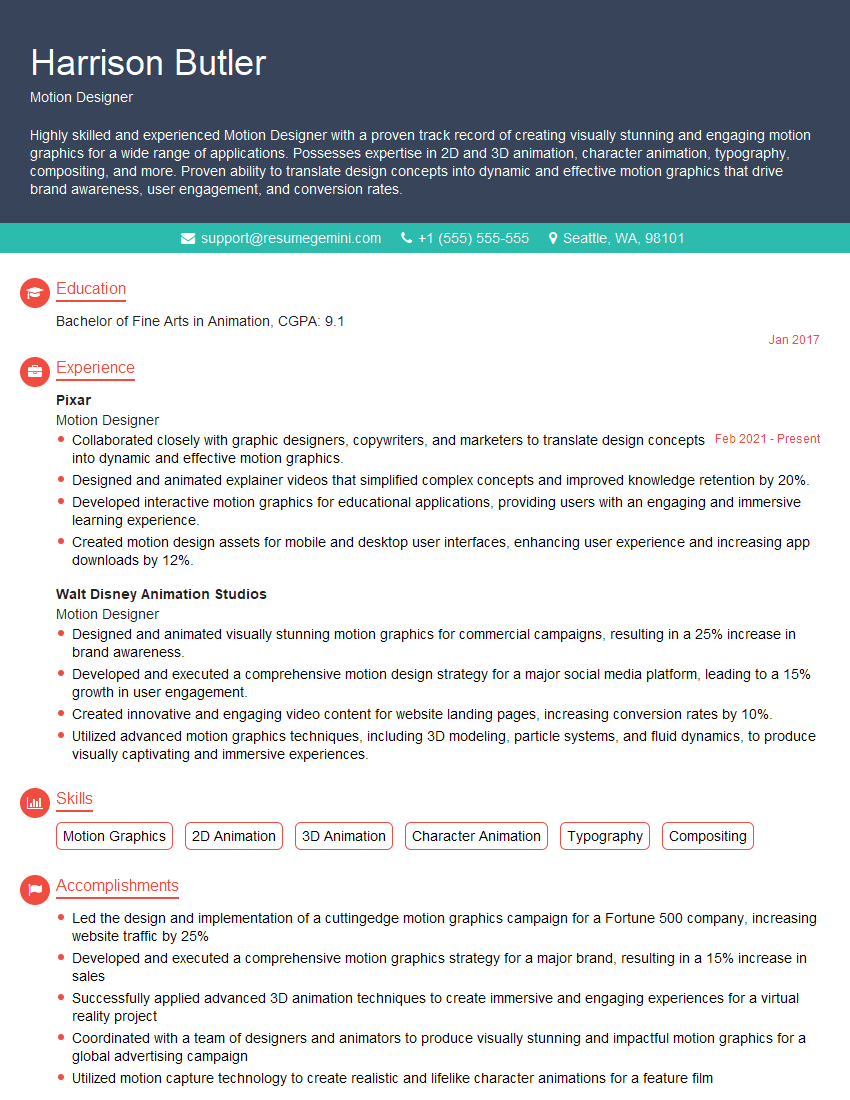
Motion Designer Resume Sample
Explore more articles
Users Rating of Our Blogs
Share Your Experience
We value your feedback! Please rate our content and share your thoughts (optional).
What Readers Say About Our Blog
Very informative content, great job.
good