Every successful interview starts with knowing what to expect. In this blog, we’ll take you through the top Page Layouts interview questions, breaking them down with expert tips to help you deliver impactful answers. Step into your next interview fully prepared and ready to succeed.
Questions Asked in Page Layouts Interview
Q 1. Explain the importance of visual hierarchy in page layout.
Visual hierarchy is the arrangement of elements on a page to guide the reader’s eye and establish the order of importance. Think of it like a roadmap for your reader’s attention. It dictates what they see first, second, and so on, ensuring your message is communicated effectively. A well-structured visual hierarchy makes content easily scannable and understandable.
We achieve this through several techniques:
- Size: Larger elements naturally draw more attention.
- Color: Bold or contrasting colors attract the eye. For example, using a bright red for a call-to-action button against a calmer background.
- Contrast: The difference in lightness or darkness between elements. High contrast creates visual interest and makes text more readable.
- Proximity: Grouping related elements together creates visual unity and clarifies relationships.
- Whitespace: The space around elements. Strategic use of whitespace improves readability and emphasizes important content.
- Typography: Using different font weights, styles, and sizes to highlight headlines, subheadings, and body text.
For example, in a website’s homepage, the hero image and main headline should be the most prominent elements, guiding the user towards the core message, followed by supporting content in a clear and logical sequence.
Q 2. Describe your experience with different page layout software (InDesign, QuarkXPress, etc.).
I’ve extensive experience with Adobe InDesign, QuarkXPress, and also have familiarity with Affinity Publisher. InDesign is my primary tool; its robust features for advanced typography, complex layouts, and automated workflows are invaluable for projects ranging from brochures and magazines to interactive PDFs and ebooks. QuarkXPress, while having a loyal user base, feels less intuitive to me and lacks some of InDesign’s collaborative features. I’ve found Affinity Publisher to be a strong alternative, particularly its affordability and cross-platform compatibility makes it a good option for certain projects.
My proficiency extends beyond the basic functionalities. I’m comfortable with master pages, styles, and templates, which are crucial for maintaining consistency and efficiency across large projects. I also use advanced features like scripting and automation to streamline repetitive tasks. For instance, I’ve used InDesign’s scripting capabilities to automate the creation of page numbers and running headers, saving considerable time on multi-page documents.
Q 3. How do you ensure consistency in branding and style across multiple pages?
Maintaining brand consistency is paramount. I achieve this through meticulous planning and the creation of comprehensive style guides. These guides document every element of the brand’s visual identity, including:
- Logo usage: Clear guidelines on placement, size, and variations.
- Color palette: Precise color codes and usage recommendations.
- Typography: Specific font choices, sizes, and styles for various text elements (headings, body copy, captions).
- Imagery style: Guidelines for photography, illustration styles, and image quality.
- Layout templates: Master pages and templates ensure consistency in page structure and layout across all documents.
These style guides are then utilized throughout the design process, ensuring every page adheres to the brand’s established visual identity. I regularly review the work to maintain these standards and collaborate with clients to ensure all are on the same page regarding expectations. This ensures a cohesive and professional brand image across all platforms.
Q 4. What are some common pitfalls to avoid when designing page layouts?
Several common pitfalls can derail a page layout project. Some of the most frequent ones include:
- Poor visual hierarchy: Failing to establish a clear order of importance for elements leads to confusing and ineffective layouts.
- Inconsistent typography: Using too many fonts or inconsistent font sizes makes the page look cluttered and unprofessional.
- Overuse of elements: Too many images, graphics, or text blocks can overwhelm the reader and hinder comprehension.
- Insufficient whitespace: Lack of white space makes the page appear cramped and difficult to read.
- Ignoring readability: Choosing fonts or colors that impair readability negates the purpose of the design.
- Ignoring accessibility: Failing to consider the needs of users with disabilities (e.g., poor color contrast, insufficient alt text for images) can significantly limit accessibility.
By carefully planning each element and rigorously testing the final design, these pitfalls can easily be avoided. User testing is crucial to identify usability issues early on.
Q 5. How do you handle revisions and feedback from clients or stakeholders?
Handling revisions is a crucial aspect of the design process. My approach involves:
- Clear Communication: Establishing a streamlined communication channel (e.g., project management software) and setting clear expectations for feedback cycles.
- Version Control: Maintaining detailed version history and clearly labelling each iteration of the design.
- Organized Feedback: Requesting specific, actionable feedback, rather than general comments. This helps prioritize changes and maintain clarity.
- Iterative Design: Treating revisions as an iterative process, incorporating feedback into the design gradually.
- Documentation: Documenting all changes and revisions for transparency and accountability.
I find that using visual annotation tools within the design software itself improves the feedback process, making it easier for clients and stakeholders to communicate their needs precisely. This collaborative approach makes revisions efficient and ensures all parties are satisfied with the final result.
Q 6. Explain your process for creating a page layout from initial concept to final output.
My process for creating a page layout is iterative and involves several key stages:
- Concept and Research: Understanding the client’s needs, target audience, and overall objectives.
- Information Architecture: Structuring the content logically and planning the placement of key elements.
- Sketching and Wireframing: Creating rough sketches and wireframes to visualize the layout and explore different design options.
- Design and Layout: Using professional software (InDesign is my go-to) to build the layout, incorporating typography, imagery, and other design elements while adhering to the style guide.
- Review and Refinement: Reviewing the design with the client or stakeholders and incorporating feedback.
- Proofing and Quality Assurance: Thoroughly checking for errors in typography, imagery, and layout before final output.
- Export and Delivery: Exporting the final design in the required format (print-ready PDF, web-ready assets).
Throughout this process, client communication and collaboration are critical. Regular updates and feedback loops keep everyone informed and allow for adjustments as needed. This ensures that the final product aligns perfectly with the client’s vision.
Q 7. Describe your experience working with different printing techniques and their limitations.
My experience encompasses various printing techniques, each with its own strengths and limitations:
- Offset Printing: Ideal for large-scale projects requiring high-quality results and vibrant colors, but it’s more expensive for small runs. One limitation is the higher upfront cost for plate creation.
- Digital Printing: Cost-effective for smaller runs, allows for personalized printing and on-demand capabilities. The print quality may not match offset printing for large projects.
- Large Format Printing: Used for posters, banners, and other large-scale displays. Can achieve high-impact visuals but file preparation is crucial for optimal results.
Understanding these differences is critical. For instance, when designing for offset printing, I’d ensure appropriate color profiles (CMYK) and high-resolution images are used. For digital printing, I might optimize the design for faster printing speeds while maintaining quality. I always communicate with the printer early in the process to understand their capabilities and limitations, ensuring the design is feasible and will yield the desired results. This prevents costly reprints and ensures a smooth production process.
Q 8. How do you optimize page layouts for different screen sizes and devices?
Optimizing page layouts for different screen sizes and devices is crucial for a positive user experience. This involves using responsive design techniques. Instead of creating separate layouts for each device, we design a single layout that adapts seamlessly. This is achieved primarily through flexible grids, relative units (percentages instead of fixed pixels), and media queries.
Flexible Grids: Instead of fixed-width columns, we use percentage-based widths or CSS Grid/Flexbox. This allows the layout to adjust to different screen sizes. For instance, a three-column layout on a desktop might become a single-column layout on a mobile phone.
Relative Units: Using percentages (width: 50%;) or viewport units (vw, vh) ensures elements scale proportionally with the screen size. Avoid pixel values (width: 300px;) as much as possible for fluid layouts.
Media Queries: These are CSS rules that apply different styles based on screen size, orientation, and other device characteristics. For example, we might hide certain elements on smaller screens to avoid clutter or rearrange elements for better mobile usability. A simplified example:
@media (max-width: 768px) { .sidebar { display: none; } }In practice, I’ve worked on projects where we had to adapt complex brochure designs to mobile and tablet views, ensuring readability and functionality weren’t compromised. The key is to prioritize content hierarchy and ensure the most important information remains prominently displayed regardless of the screen size.
Q 9. What file formats are you familiar with for page layout projects?
My experience encompasses a wide range of file formats used in page layout projects. The choice of format depends on the project’s needs and the intended output. Here are some key formats:
- PDF (Portable Document Format): The industry standard for final output, ensuring consistent appearance across different platforms. I often use PDF/X-1a for print projects, guaranteeing color accuracy.
- InDesign (.indd): Adobe InDesign is my primary tool. Its native .indd files are essential for collaborative editing and project management. I use its features extensively for master pages, styles, and advanced layout capabilities.
- Photoshop (.psd): Used for image editing and creation, particularly for complex illustrations or photo manipulation. I utilize layers and smart objects extensively for non-destructive editing and flexibility.
- Illustrator (.ai): This is my go-to for vector graphics, especially logos and illustrations that need to be scalable without loss of quality. I utilize its powerful tools for creating and manipulating vector shapes.
- EPS (Encapsulated PostScript): A vector format useful for exchanging graphics between applications.
- TIFF (.tif): A high-resolution raster format suitable for print projects, preserving image detail.
I’m also proficient in exporting to formats like JPEG and PNG for web use, carefully optimizing file size for faster loading times.
Q 10. How do you manage color profiles and ensure accurate color reproduction?
Accurate color reproduction is paramount, especially for print projects. I meticulously manage color profiles throughout the entire process. A color profile is essentially a set of data that describes how colors are represented on a specific device (monitor, printer, etc.). Inconsistencies can lead to significant discrepancies between what’s seen on screen and the final printed output.
Workflow: My typical workflow involves:
- Working in a specific color space: For print, I usually work in CMYK (Cyan, Magenta, Yellow, Key [black]) color space. For web design, I work in RGB (Red, Green, Blue).
- Using a consistent color profile: I embed the correct color profile in my files (e.g., ISO Coated v2 (ECI) for print). This ensures color accuracy when the file is processed by different devices or applications.
- Color proofing: Before sending files to print, I always perform soft proofing, simulating the printer’s color output on screen. Sometimes, I also request a hard proof from the printer.
- Calibration: My monitor is regularly calibrated to ensure colors displayed accurately reflect the intended colors.
In a recent project, ensuring color consistency between the packaging design and the product itself required careful management of color profiles throughout the design and production phases. A slight color mismatch would have negatively impacted the brand image.
Q 11. Explain your understanding of typography and its role in page layout.
Typography is far more than just choosing a font; it’s a critical element of page layout that directly impacts readability, visual hierarchy, and the overall mood and feel of the design. Understanding typography involves choosing appropriate typefaces, setting correct sizes, leading (vertical spacing between lines), tracking (horizontal spacing between letters), and kerning (adjusting space between individual letter pairs).
Key aspects I consider:
- Font Selection: I carefully choose fonts based on their readability, suitability for the content (serif fonts for body text, sans-serif for headings), and overall brand aesthetic. I avoid using too many different font families in a single project, usually sticking to 2-3 maximum.
- Hierarchy: Using different font sizes, weights, and styles helps create visual hierarchy, guiding the reader’s eye through the content. Larger, bolder fonts are used for headings, while smaller, lighter fonts are used for body text.
- Readability: I pay close attention to factors such as font size, line height, and letter spacing to ensure optimal readability. Excessive tracking or cramped lines can make text difficult to read.
- Consistency: Maintaining consistency in typography across a document is critical for a professional and polished look.
For example, in designing a website for a law firm, I’d select a serif typeface for body text to convey professionalism and a sans-serif font for headings for a cleaner, more modern feel. Careful attention to readability would be paramount, as the site’s content is legally important.
Q 12. How do you ensure accessibility in your page layouts for users with disabilities?
Accessibility is a crucial consideration in all my page layouts. I follow WCAG (Web Content Accessibility Guidelines) principles to ensure that my designs are usable by people with disabilities. This involves careful consideration of several factors:
- Alternative Text for Images: All images should have descriptive alt text to convey their meaning to users who cannot see them.
- Sufficient Color Contrast: I ensure adequate color contrast between text and background to make text easily readable for users with low vision.
- Keyboard Navigation: All interactive elements should be navigable using a keyboard alone, allowing users who cannot use a mouse to interact with the design.
- Clear Headings and Structure: Using proper heading levels (
<h1>to<h6>) and logical structure makes the content easier to understand for screen readers. - Captions and Transcripts: Providing captions for videos and transcripts for audio content makes the information accessible to people who are deaf or hard of hearing.
I use tools and techniques such as color contrast checkers and screen reader simulations to test the accessibility of my designs and ensure they meet the necessary standards. Ignoring accessibility limits the audience and is ethically irresponsible.
Q 13. What is your experience with bleed and trim marks?
Bleed and trim marks are essential elements in print design, ensuring the final printed piece looks as intended. Bleed refers to extending the design beyond the final trim size. This is crucial because printers often have slight variations in cutting, so the bleed prevents white edges from appearing in the final product. Trim marks indicate the exact location where the printed sheet should be cut.
Practical Application:
- Bleed: When designing a brochure, I extend the background color or images beyond the final trim size (usually 3-8mm on each side). This ensures even if the cutting isn’t perfectly precise, no white edges are visible.
- Trim Marks: I include trim marks in the design file to provide clear cutting guidelines for the printer. This is essential for accurate cutting and alignment of elements.
In a recent project designing business cards, careful attention to bleed was critical, as a slight misalignment due to improper bleed could have marred the final product. Understanding bleed and trim is fundamental to producing print-ready designs.
Q 14. How do you handle images in page layouts – resizing, optimization, and resolution?
Handling images effectively in page layouts is crucial for both visual appeal and file size management. It requires careful attention to resolution, resizing techniques, and optimization strategies.
Resizing: When resizing images, it’s crucial to use non-destructive methods to avoid losing quality. This involves using vector graphics whenever possible (scalable without loss of quality) and using smart objects in applications like Photoshop.
Optimization: For web use, I optimize images to reduce file size without sacrificing visual quality. This includes using appropriate compression techniques (e.g., JPEG for photographs, PNG for graphics with sharp lines), choosing the right resolution, and employing lossless compression techniques for important graphics.
Resolution: Resolution (measured in pixels per inch or PPI/DPI) is vital. Print projects usually require much higher resolutions (300 PPI or more) than web projects (72-150 PPI). Using an image with low resolution for print will result in a blurry and unprofessional appearance. In web design, unnecessarily high resolution increases file size and loading time.
In a recent magazine layout project, I had to balance high-resolution images for print with optimized web versions for online viewing. This required careful image preparation and the use of different file formats for each platform to optimize performance and quality.
Q 15. What is your process for creating and using master pages?
Master pages are the foundation of efficient and consistent page layouts. Think of them as templates that apply a consistent design across multiple pages. My process begins with identifying recurring elements – headers, footers, page numbers, and consistent margins are prime candidates. I then create a master page, carefully placing these elements. For example, a corporate newsletter might have a master page with the company logo in the top left corner, the publication name in the top right, and page numbers in the bottom center. This ensures consistency throughout the document. I always consider different master page variations for different sections. Perhaps one for even-numbered pages and another for odd-numbered pages with different column arrangements. When creating documents, I simply apply the appropriate master page to each new page, ensuring a professional and unified look and dramatically reducing repetitive tasks. I also carefully plan the layer structure of my master pages to easily edit and update elements without affecting content on other pages.
Career Expert Tips:
- Ace those interviews! Prepare effectively by reviewing the Top 50 Most Common Interview Questions on ResumeGemini.
- Navigate your job search with confidence! Explore a wide range of Career Tips on ResumeGemini. Learn about common challenges and recommendations to overcome them.
- Craft the perfect resume! Master the Art of Resume Writing with ResumeGemini’s guide. Showcase your unique qualifications and achievements effectively.
- Don’t miss out on holiday savings! Build your dream resume with ResumeGemini’s ATS optimized templates.
Q 16. Describe your experience with creating and managing styles and style sheets.
Styles and style sheets are crucial for maintaining consistency and streamlining edits. I’ve extensively used paragraph and character styles to define text formatting (fonts, sizes, spacing, etc.). For instance, I’d create a ‘Headline 1’ style for main headings, a ‘Body Text’ style for paragraphs, and a ‘Caption’ style for image captions. This approach avoids repetitive formatting and makes global changes effortless. One change to the ‘Headline 1’ style instantly updates all headings using that style. I also use object styles for consistent formatting of elements such as tables, images, and text boxes. Cascading Style Sheets (CSS) are my preferred method for controlling styles in web-based page layouts and ensure that the final layout aligns seamlessly with the intended design.
Managing styles involves meticulous organization. I usually name my styles clearly and logically, making them easy to find and understand. My style sheets are meticulously organized in a hierarchical structure, reflecting the document’s sections and content hierarchy, for easy access and maintenance.
Q 17. How do you ensure your layouts are print-ready?
Print-ready layouts require careful attention to detail. My process involves several key steps: First, I ensure all images are high-resolution (at least 300 DPI) and embedded properly. Next, I check for color spaces, typically converting to CMYK for print. I meticulously review the document for overset text and fix any formatting issues before printing. I also check for bleed (the area extending beyond the trim size to account for cutting variations) and ensure sufficient bleed is added to all relevant elements. Finally, I perform a pre-flight check using my software’s built-in pre-flight tools to identify and rectify any potential printing errors, such as missing fonts, low-resolution images, or color profile discrepancies. These steps guarantee a professional print quality. I regularly use color proofing tools to make sure the final output aligns with my expectations.
Q 18. How do you create interactive elements within page layouts (if applicable)?
Interactive elements depend heavily on the software used. In applications like Adobe InDesign, interactivity is limited. However, I often integrate interactive PDFs with hyperlinks, buttons, and form fields to create interactive elements. For example, I might add a clickable button to jump to a specific page, or create a fillable form for data collection. This allows for creating engaging documents ideal for e-books, digital brochures, or online publications. For web-based layouts, using HTML, CSS, and JavaScript allows for rich interactive features, such as animations, transitions, and form submissions. I make sure interactive elements meet accessibility standards (WCAG) to provide a good experience for all users.
Q 19. Explain your experience with pre-flighting and trapping.
Preflighting is a crucial step to catch potential problems *before* sending a file to print. I use preflight profiles in my software to check for missing fonts, low-resolution images, color profile inconsistencies, and overset text. It’s like a thorough quality check that saves time and prevents costly reprint mistakes. Trapping, on the other hand, involves adjusting the colors on the edges of objects to prevent gaps or misregistration during printing – particularly important for complex designs with thin lines or small text. I use automatic trapping features when possible, carefully adjusting settings to get the desired results. Sometimes, especially for critical projects, manual trapping is necessary. I’m experienced in both automatic and manual trapping techniques to achieve optimal print quality. Preflighting and trapping are non-negotiable steps in my workflow for any project going to print.
Q 20. Describe your experience with version control systems for page layout projects.
Version control is essential for collaborative projects. I have extensive experience using Git for managing page layout projects. Though not directly supported by all page layout software, I manage the associated files (like images and style sheets) through Git, allowing for tracking changes, collaboration with team members, and easy rollback to previous versions if needed. For projects without a dedicated version control system, I use a clear file naming convention incorporating date and version number to maintain a history of changes.
Q 21. How do you work with different file types (e.g., PDF, AI, EPS)?
I regularly work with various file types. PDFs are ubiquitous for final output, and I understand the nuances of creating print-ready, web-optimized, and interactive PDFs. AI (Adobe Illustrator) and EPS (Encapsulated PostScript) files are commonly used for vector graphics, and I’m adept at importing and editing them within my page layout software. For raster images (JPEG, TIFF, PNG), I ensure they are high-resolution and correctly color-profiled before placement. Understanding the strengths and limitations of each file type is critical to maintaining project quality and efficient workflow. I always ensure that imported files are compatible with the intended output and software.
Q 22. How do you manage large, complex projects involving multiple pages?
Managing large, complex page layout projects requires a structured approach. Think of it like building a skyscraper – you wouldn’t start constructing the top floors before the foundation. I employ a phased methodology, starting with meticulous planning and wireframing. This involves breaking down the project into smaller, manageable modules, each representing a section or a set of pages. For instance, in a website redesign, I might divide the project into sections like ‘Homepage,’ ‘About Us,’ ‘Services,’ and ‘Contact,’ each with its own detailed wireframe and specifications.
Next, I utilize project management tools to track progress, deadlines, and resource allocation. This could be a simple spreadsheet or a dedicated project management software like Asana or Trello. Regular client communication is key throughout the process, ensuring alignment on design decisions and addressing any concerns proactively. Finally, I implement a robust version control system to manage different iterations of the design, allowing for easy collaboration and rollback if needed. Think of this as a detailed blueprint that allows everyone to stay on track.
- Modular Design: Breaking down the project into manageable parts.
- Project Management Tools: Utilizing software to track progress and deadlines.
- Version Control: Maintaining different design versions for easy collaboration and tracking.
Q 23. How do you adapt your page layout designs to different target audiences?
Adapting designs to different target audiences is crucial for effective communication. Consider the difference between designing a website for a tech-savvy younger generation versus a more traditional older demographic. Understanding the audience’s visual preferences, technological proficiency, and cultural background is paramount. For a younger audience, a modern, minimalist design with bold colors and interactive elements might be appropriate. For an older audience, a clean, easily navigable design with larger fonts and clear visual hierarchy would be preferred.
I achieve this by conducting thorough user research, including surveys, focus groups, or analyzing existing data about the target audience. This research informs design choices regarding color palettes, typography, imagery, and overall layout structure. For instance, if designing for a visually impaired audience, I’d prioritize sufficient color contrast and ensure accessibility guidelines are met. It’s about tailoring the visual language to resonate with each specific audience, ensuring clarity and engagement.
Q 24. Explain your understanding of grid systems and their application in page layout.
Grid systems are the backbone of effective and consistent page layouts. Think of them as a blueprint that dictates the placement of elements on a page. They provide a structured framework that ensures visual harmony and consistency across multiple pages. A well-defined grid helps to create a balanced layout, improve readability, and maintain visual hierarchy.
I often use 12-column grids (though the number can vary), which are widely adopted due to their flexibility and ease of use. This involves dividing the page into 12 equal columns, allowing for a variety of layout options. For example, you might use 3 columns for images, 6 for text, and 3 for a sidebar. This modular approach enables easy scaling and adaptation across different screen sizes. Grid systems can be implemented using CSS frameworks like Bootstrap or Foundation, which simplify the process significantly. <div class="col-md-4">...</div> (Bootstrap example of a 4-column element on medium and larger screens). This is crucial in responsive web design, adapting effortlessly to desktops, tablets, and mobile devices.
Q 25. Describe your problem-solving approach when encountering challenges in page layout design.
My problem-solving approach begins with a thorough understanding of the problem. This involves identifying the specific challenge, whether it’s a layout issue, technical constraint, or client feedback. Once the problem is clearly defined, I explore various solutions, considering their feasibility and impact on the overall design. This could involve researching best practices, experimenting with different design elements, or seeking input from colleagues.
If I encounter a technical hurdle, for example, aligning elements precisely across different browsers, I debug the code systematically, referencing documentation and utilizing browser developer tools. When facing creative blocks, I’ll often step away from the project briefly, or seek inspiration from other design resources. I always prioritize finding the most effective and elegant solution, even if it requires a little extra effort. My mantra is to iterate, test, and refine until the solution is perfect.
Q 26. How do you balance aesthetics and functionality in your page layouts?
Balancing aesthetics and functionality is a constant pursuit in page layout design. It’s not about choosing one over the other; instead, it’s about achieving a harmonious blend. A visually stunning design is useless if it’s difficult to navigate or understand. Conversely, a purely functional design, while usable, may lack the appeal to engage users.
To achieve this balance, I start by defining clear user goals and functionality requirements. This informs the design structure, prioritizing user flow and ease of navigation. Once this foundation is established, I focus on the aesthetic aspects, ensuring the visual elements enhance the user experience rather than detracting from it. This includes thoughtful selection of color palettes, typography, imagery, and white space. A/B testing helps to validate the balance, measuring the impact of aesthetic choices on key metrics like conversion rates and user engagement.
Q 27. What are some of your favorite page layout design resources or inspirations?
My inspiration comes from a variety of sources. I regularly explore design blogs, magazines, and online portfolios to stay updated on current trends and best practices. I particularly appreciate resources that showcase innovative use of typography, layout structures, and interactive elements. Specific examples include publications dedicated to design trends, websites featuring award-winning design projects, and online communities where designers share their work and ideas. I also find inspiration in architecture, photography, and even nature – observing how elements are structured and composed in the real world can influence my design thinking.
Q 28. What are your strengths and weaknesses as a page layout designer?
My strengths lie in my ability to create clean, user-friendly, and visually appealing page layouts. I have a strong understanding of grid systems, typography, and color theory, and I can effectively communicate design ideas both verbally and visually. I’m also proficient in various design software and adapt quickly to new technologies. I consider my attention to detail and problem-solving abilities as key assets, always striving for perfection in both aesthetics and functionality.
A potential weakness could be my tendency to be detail-oriented to the point of perfectionism, which can sometimes slow down the design process. I’m actively working on improving my time management skills to balance attention to detail with project deadlines. I also constantly seek feedback to ensure that my designs resonate with the intended audience and address any shortcomings.
Key Topics to Learn for Page Layouts Interview
- Fundamentals of Page Layout Principles: Understanding concepts like balance, proximity, alignment, contrast, and repetition, and how they contribute to effective visual communication.
- Grid Systems and Frameworks: Practical application of grid systems (e.g., Bootstrap, CSS Grid) to create responsive and consistent layouts across different devices. Mastering the ability to explain your design choices based on these frameworks.
- Responsive Design Techniques: Implementing responsive design strategies to ensure optimal viewing experiences across various screen sizes (desktops, tablets, mobile phones). Understanding media queries and flexible layouts is crucial.
- Typography and Visual Hierarchy: Selecting and implementing appropriate typefaces, font sizes, and styles to create clear visual hierarchy and enhance readability. Demonstrating understanding of kerning, leading, and tracking.
- Color Theory and Palette Selection: Applying color theory principles to create visually appealing and effective color palettes that support branding and messaging. Justifying your color choices and their impact on the overall design.
- Image Optimization and Asset Management: Understanding how to optimize images for web performance (file size, format, compression) and efficiently manage assets within a page layout. This includes knowledge of different image formats and their uses.
- Troubleshooting and Problem-Solving: Demonstrating the ability to identify and resolve common layout issues, such as browser inconsistencies, responsiveness challenges, or conflicts between CSS styles. Explaining your debugging process.
- Accessibility Considerations: Understanding and applying accessibility best practices to ensure inclusivity for users with disabilities. Knowing ARIA attributes and semantic HTML is key.
Next Steps
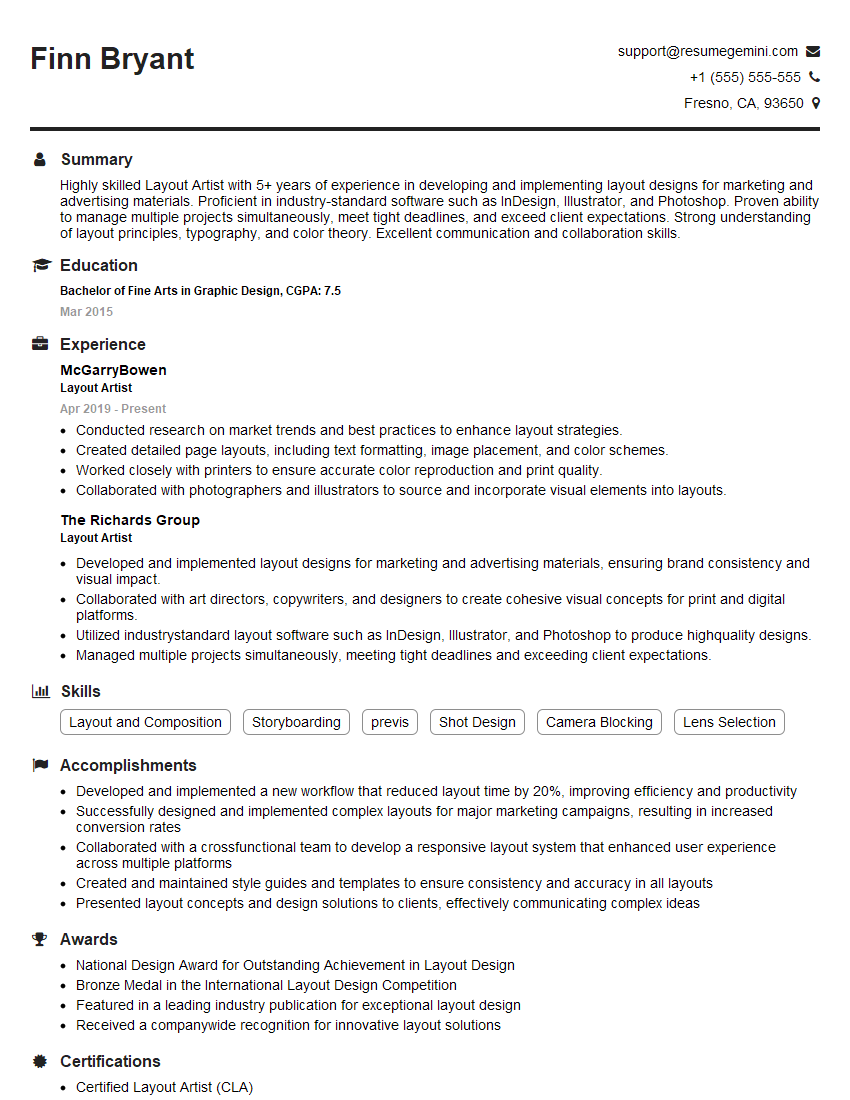
Mastering Page Layouts is essential for career advancement in web design and development, opening doors to exciting opportunities and higher earning potential. A strong understanding of these principles directly translates into creating visually appealing and user-friendly websites and applications. To maximize your job prospects, focus on building an ATS-friendly resume that highlights your skills and experience effectively. ResumeGemini is a trusted resource to help you craft a professional and impactful resume. Examples of resumes tailored to Page Layouts professionals are available to provide further guidance.
Explore more articles
Users Rating of Our Blogs
Share Your Experience
We value your feedback! Please rate our content and share your thoughts (optional).
What Readers Say About Our Blog
Very informative content, great job.
good