Interviews are more than just a Q&A session—they’re a chance to prove your worth. This blog dives into essential Photoshop Retouching interview questions and expert tips to help you align your answers with what hiring managers are looking for. Start preparing to shine!
Questions Asked in Photoshop Retouching Interview
Q 1. Explain the difference between healing and cloning in Photoshop.
Both the Healing Brush Tool and the Clone Stamp Tool in Photoshop are used for retouching, but they achieve this in different ways. Think of the Clone Stamp as a direct copy-and-paste tool, while the Healing Brush is more intelligent, blending the copied area seamlessly with the surrounding pixels.
The Clone Stamp Tool directly copies pixels from one area (the source) and paints them onto another (the destination). It’s excellent for replacing distinct textures or patterns, like repeating a brick pattern to repair a damaged section of a wall. You select your source point by holding Alt (Option on Mac) and clicking, then paint over the area you want to replace.
The Healing Brush Tool, on the other hand, samples pixels from the surrounding area and blends them intelligently with the target area to create a more natural-looking repair. This is ideal for removing blemishes or small imperfections on skin, where a direct copy might look jarring. It automatically matches texture, color, and lighting, resulting in a more subtle correction.
In short: use the Clone Stamp for precise texture replacement and the Healing Brush for seamless blending and blemish removal. The choice depends on the specific retouching task.
Q 2. How do you handle color correction in retouching?
Color correction is crucial for creating visually appealing and consistent images. My approach is multifaceted and depends on the image’s needs. It often involves a combination of techniques, starting with a general assessment of the image’s overall color balance.
- Levels and Curves Adjustments: These are my go-to tools for fine-tuning brightness, contrast, and color channels. I use Levels to address overall tonal range and Curves for more precise adjustments to specific areas of the tonal curve. For example, I might subtly boost the shadows to add depth without losing detail in the highlights.
- White Balance: Achieving accurate white balance is critical. Using the White Balance tool, or manually adjusting the color temperature and tint, ensures that colors appear natural and realistic. An incorrect white balance can significantly impact the overall mood and color harmony.
- Color Mixer Tool: I use this for targeted color adjustments, manipulating individual color channels (red, green, blue) to shift hues and saturation. This allows me to fine-tune specific areas, such as making a sky bluer or making skin tones warmer.
- Selective Color Adjustment: This provides excellent control over individual colors within the image. You can increase or decrease the cyan, magenta, yellow, and black components of specific colors to fine-tune their appearance. I might use this to desaturate unwanted colors or boost the vibrancy of key colors.
Finally, I always work non-destructively, using adjustment layers so I can easily revert or modify changes later. This ensures flexibility and prevents unintended damage to the original image.
Q 3. Describe your workflow for retouching product images.
My workflow for retouching product images prioritizes efficiency and consistent results. I typically follow these steps:
- Assessment and Preparation: I start by examining the image for defects: dust, blemishes, wrinkles, poor lighting, etc. I then organize my files properly, renaming them for easy tracking.
- Initial Cleaning: I use tools like the Healing Brush, Clone Stamp, and Spot Healing Brush to remove dust spots, blemishes, and any obvious defects. I work on separate layers to retain the ability to undo changes or adjust the intensity.
- Color Correction: Next, I focus on color correction using Levels, Curves, and White Balance adjustments to achieve consistent color and brightness across all images. This ensures that the product looks its best.
- Sharpening and Detail Enhancement: I use Unsharp Mask or other sharpening techniques to enhance detail and sharpness, but I avoid over-sharpening, which can introduce artifacts.
- Final Adjustments and Export: Once satisfied with the results, I make any final adjustments to contrast, saturation, and other elements. Finally, I save the images in the appropriate format (usually JPEG or TIFF, depending on the client’s specifications), ensuring appropriate file size for web or print.
Throughout the process, I maintain non-destructive editing, utilizing adjustment layers and masks to preserve the original image data and allow for easy revisions. This layered approach allows for flexibility and maintainability.
Q 4. What are your preferred techniques for removing blemishes and wrinkles?
Removing blemishes and wrinkles effectively requires a delicate touch and a combination of techniques. I avoid harsh methods that leave unnatural results.
- Frequency Separation: This is my preferred technique for removing wrinkles while preserving skin texture. This method separates the image into high-frequency (texture) and low-frequency (color and tone) layers. I retouch the low-frequency layer to smooth out wrinkles and then recombine it with the high-frequency layer for a natural result.
- Patch Tool: The Patch Tool is excellent for removing larger blemishes or imperfections. I select the area, then drag the selection to a clean area of similar tone and texture, allowing Photoshop to seamlessly blend the replacement.
- Healing Brush Variations: I utilize the Spot Healing Brush for quick removal of small blemishes, the Healing Brush for more precise control, and the Clone Stamp for more complex situations requiring texture replacement.
- Dodge and Burn Tools: Subtly lightening (Dodge) and darkening (Burn) areas around the wrinkle or blemish can also help to minimize their appearance and create a more natural-looking result.
The key is to work subtly and blend the retouching seamlessly into the surrounding skin. Over-retouching can make skin look unnatural and artificial, therefore, I always prefer a more conservative approach.
Q 5. How do you efficiently batch process images for retouching?
Batch processing is essential for efficiency when retouching many similar images. Photoshop’s Actions feature is invaluable for this. I create an action that records my retouching steps, including color correction, blemish removal, and sharpening. Once recorded, I can easily apply this action to a whole series of images.
Furthermore, I leverage Photoshop’s Image Processor for tasks such as resizing and format conversion across multiple images simultaneously. This significantly accelerates my workflow. For more complex tasks requiring conditional adjustments based on individual image characteristics, I sometimes utilize scripting (with JavaScript or other scripting languages) to automate parts of the workflow.
Using these automation techniques allows me to focus more on quality control and reviewing the final results rather than repeating repetitive manual steps for each image.
Q 6. What are the common file formats used in retouching and their pros/cons?
Several file formats are commonly used in retouching, each with its own strengths and weaknesses:
- TIFF (Tagged Image File Format): TIFF offers lossless compression, preserving image quality, and supports layers and transparency. It is the preferred choice for archiving and high-quality prints but results in larger file sizes.
- JPEG (Joint Photographic Experts Group): JPEG uses lossy compression, reducing file size at the cost of some image quality. This is a good choice for web use, where file size is important, and the small loss of quality is acceptable.
- PSD (Photoshop Document): This is Photoshop’s native format and preserves all layers, adjustments, and masks. It’s ideal for ongoing editing but produces very large file sizes, unsuitable for web delivery.
- PNG (Portable Network Graphics): PNG supports lossless compression and transparency, making it suitable for images with sharp edges, text, and logos. It’s a good choice for web use when transparency is required.
The choice of file format depends on the intended use of the image. For archival purposes or high-quality prints, TIFF is best. For web use, JPEG or PNG are generally preferred due to smaller file sizes.
Q 7. Explain your understanding of color spaces (RGB, CMYK).
Understanding color spaces is fundamental in retouching. RGB and CMYK represent different ways of defining colors.
RGB (Red, Green, Blue): RGB is an additive color model used for displays like computer monitors and televisions. It mixes red, green, and blue light to create a wide range of colors. When you work on an image destined for the screen, you work in RGB. The higher the values of R, G, and B (0-255 each), the brighter the color appears.
CMYK (Cyan, Magenta, Yellow, Key/Black): CMYK is a subtractive color model used for printing. It works by subtracting colors from white light using cyan, magenta, yellow, and black inks. Images destined for print should be converted to CMYK to accurately represent the colors achievable by the printing process. Because inks absorb light, the color reproduction is different than in the RGB spectrum.
Converting between RGB and CMYK can sometimes lead to color shifts. It’s crucial to carefully manage your color profile throughout the retouching process to ensure color accuracy regardless of the output medium. Knowing which space you’re working in is essential for accurate color representation and avoiding unexpected results during the final output process. Using a good color management system is advisable.
Q 8. How do you deal with overexposed or underexposed areas in an image?
Dealing with overexposed or underexposed areas requires a nuanced approach. The goal isn’t to simply ‘fix’ the exposure, but to recover detail and maintain a natural look. For overexposed areas, I typically use tools like Shadows/Highlights adjustment in Photoshop. This allows me to selectively brighten the shadows without affecting the already bright highlights. I might also use the Curves adjustment layer to carefully adjust the tonal range, targeting the overexposed areas to bring back detail. For underexposed areas, I’d use the Highlights/Shadows adjustment in reverse, boosting the highlights gently. I often combine this with the Levels adjustment, carefully adjusting the black and white points to expand the dynamic range. The key is to make subtle adjustments, working iteratively to avoid harsh transitions or unnatural results. Think of it like sculpting – you’re gently shaping the light and shadow to create the desired effect, not forcefully reshaping it.
For example, I recently worked on a portrait where the background was severely overexposed, washing out details. By carefully utilizing the Shadows/Highlights adjustment, I was able to recover the texture of the background without affecting the subject’s skin tones, resulting in a balanced and more compelling image.
Q 9. Describe your experience with using layers and layer masks.
Layers and layer masks are fundamental to my retouching workflow. They are the cornerstone of non-destructive editing, allowing me to make changes without permanently altering the original image. I almost always work with layers, creating separate layers for each adjustment or retouching step. This allows for flexibility and control. Layer masks are essential for making precise selections and applying adjustments only to specific areas of the image. For instance, I might use a layer mask to apply skin smoothing only to the face, leaving the hair untouched. Imagine painting on a canvas – the layer is your canvas and the mask is your brush, allowing for precise control over where the paint (adjustments) is applied.
Example: I might create a layer for skin retouching, then use a layer mask to carefully paint over the areas needing attention, leaving other areas unaffected.
This layered approach enables me to experiment freely, adjust individual elements, and easily revert to earlier stages if needed. This is particularly crucial in collaborative projects where revisions are common. It dramatically speeds up the workflow and reduces the potential for errors.
Q 10. How do you achieve a natural look in your retouching work?
Achieving a natural look in retouching is paramount. It’s about enhancing the image, not creating an artificial one. My approach is guided by subtlety and precision. I avoid heavy-handed techniques that result in a ‘plastic’ or unnatural appearance. Instead, I focus on making micro-adjustments that enhance the existing beauty of the subject. For example, instead of completely smoothing skin, I focus on reducing imperfections while preserving texture and pores. This might involve using the Frequency Separation technique to isolate textures and tones, allowing independent adjustments for a more natural result.
Tools like the Clone Stamp Tool and Healing Brush Tool are my allies, but I always prioritize blending the retouched areas seamlessly into the surrounding image. The goal is to make the retouching invisible, focusing on enhancing the image’s natural qualities rather than creating a flawless, unreal image.
Q 11. How do you handle skin retouching without making it look unnatural?
Skin retouching requires a delicate balance. Over-retouching can lead to an unnatural, mask-like appearance. My strategy is to enhance, not erase. I start by carefully assessing the image to identify areas needing attention. I utilize tools like the Spot Healing Brush for minor blemishes and the Clone Stamp for larger imperfections. The Frequency Separation technique is invaluable here, allowing for precise control over texture and tone. This allows me to reduce blemishes without smoothing out the skin’s natural texture and pores. I often use a low opacity brush and multiple passes, building up the retouching gradually for a more subtle and natural effect.
One common pitfall is over-smoothing, resulting in a loss of texture and an artificial look. To avoid this, I zoom in and carefully examine the skin at 100% magnification, constantly checking for unnatural areas. It’s about enhancing what’s already there, not creating something entirely new.
Q 12. Explain your approach to retouching images for different media (print, web).
Retouching for print versus web requires a different approach due to the varying resolutions and color spaces. For print, high resolution is essential. The retouching process should focus on achieving a flawless, crisp image that can withstand the high resolution of print media. I usually work at a resolution that significantly exceeds the final print size to ensure the image doesn’t appear pixelated. Accurate color management is also crucial, utilizing a dedicated color profile for print output to guarantee accurate color reproduction.
Web retouching, on the other hand, focuses on optimizing the image for web display. While image quality is important, file size plays a significant role. I usually optimize images to a resolution suitable for online viewing, often around 72 dpi. I also use appropriate compression techniques (like JPEG or WebP) to reduce file size without compromising image quality too much. The goal is to strike a balance between visual appeal and fast loading times. I always ensure my color space is appropriate for the web (sRGB).
Q 13. What is your experience with actions and presets in Photoshop?
Actions and presets can be powerful tools for streamlining workflow, but I use them judiciously. Presets can provide a starting point for adjustments, but I almost always customize them to fit the specific image. Over-reliance on presets can lead to a homogenous look, lacking the individual touch each image deserves. Actions are more useful for automating repetitive tasks, like sharpening or batch processing. I’ve created several custom actions for tasks I frequently perform, such as applying a specific sharpening technique or creating a consistent color grading workflow.
For instance, I have an action that applies my standard sharpening technique, which includes a combination of Unsharp Mask and a subtle High Pass filter, always ensuring a natural look. It saves considerable time when handling multiple images. However, I never apply actions blindly; I always review and adjust the results to ensure they suit the individual image.
Q 14. How do you maintain image sharpness while retouching?
Maintaining image sharpness during retouching is critical. Many retouching techniques, particularly smoothing, can reduce sharpness. To prevent this, I employ several strategies. Firstly, I always work on high-resolution images, providing ample detail to work with. Secondly, I use non-destructive editing techniques, such as layer masks and adjustment layers, to avoid directly altering the original image data and potentially reducing sharpness. Finally, I incorporate sharpening techniques strategically, often as the final step in my workflow. This frequently includes a combination of techniques like Unsharp Mask, High Pass filter, and sometimes even Smart Sharpen, carefully adjusting the settings to minimize artifacts and preserve natural details.
The key is to apply sharpening subtly. Too much sharpening can create a harsh, unnatural look with halos around edges. The goal is to enhance existing sharpness, not to create it artificially. I often zoom in at 100% to check for halos or other artifacts. My sharpening strategy always depends on the image and its intended use (web or print).
Q 15. What are some common mistakes to avoid in Photoshop retouching?
Avoiding common mistakes in Photoshop retouching is crucial for delivering high-quality results. One major pitfall is over-retouching, which can lead to an unnatural, plastic-looking image. Think of it like applying too much makeup – it masks the natural beauty instead of enhancing it. Another common error is neglecting proper color correction before starting detailed retouching. Imagine trying to paint a masterpiece on a canvas that’s already smudged; you’ll spend more time fixing the foundation than creating the art.
- Over-sharpening: This creates harsh halos around edges and a grainy, unnatural look. Subtlety is key!
- Ignoring color casts: Failing to correct for color imbalances leads to inconsistent skin tones and an overall unpleasant appearance.
- Incorrect use of the healing brush: Using it too aggressively can result in unnatural blending and loss of detail.
- Not saving frequently: A power outage or accidental closure can erase hours of work. Regularly save your progress in different formats (PSD and JPG).
To avoid these, prioritize a non-destructive workflow, utilizing adjustment layers and masks whenever possible. Always work from low to high levels of correction; this allows you to make incremental adjustments and avoid overdoing it.
Career Expert Tips:
- Ace those interviews! Prepare effectively by reviewing the Top 50 Most Common Interview Questions on ResumeGemini.
- Navigate your job search with confidence! Explore a wide range of Career Tips on ResumeGemini. Learn about common challenges and recommendations to overcome them.
- Craft the perfect resume! Master the Art of Resume Writing with ResumeGemini’s guide. Showcase your unique qualifications and achievements effectively.
- Don’t miss out on holiday savings! Build your dream resume with ResumeGemini’s ATS optimized templates.
Q 16. How do you manage large image files efficiently in Photoshop?
Managing large image files efficiently in Photoshop requires a multi-pronged approach. High-resolution images consume significant RAM, and slowdowns are inevitable if not handled correctly. Here’s how I approach it:
- Lowering the resolution for initial edits: Start with a smaller working copy (e.g., 50% of original size). This speeds up the process considerably without sacrificing quality during the initial phases. Once detailed retouching is done, upscale to full resolution.
- Using proxy files: Photoshop allows you to work with proxy files which are essentially lower-resolution placeholders. This is incredibly effective for handling very large images.
- RAM management: Increase your Photoshop RAM allocation settings. Ensure you have sufficient RAM for both your operating system and Photoshop to work efficiently.
- Purge unused memory: Regularly use the ‘Purge’ command (Edit > Purge) in Photoshop to clear unused data from RAM. This helps prevent the application from crashing.
- Save as layered TIFF files: TIFF files support lossless compression, keeping the image quality intact while conserving file size more efficiently than PSD files in some cases.
By combining these techniques, I ensure a smooth workflow even when dealing with exceptionally large image files.
Q 17. How do you handle client feedback and revisions?
Handling client feedback and revisions is a critical aspect of professional retouching. Clear communication and organized version control are essential. I usually start by establishing clear expectations upfront, discussing the scope of the retouching and desired outcomes. During the project, I keep clients updated with progress updates.
- Detailed annotation: When receiving feedback, I annotate the image using Photoshop’s tools and carefully document all changes made.
- Version history: I maintain a well-organized version history, saving multiple versions of the image with descriptive filenames (e.g., image_v1_clientfeedback.psd, image_v2_revisions_applied.psd).
- Constructive communication: I maintain open and professional communication. I don’t just implement changes; I discuss the implications of revisions, helping the client understand the creative and technical aspects of their requests.
- Proofing process: I always provide high-resolution proofs for final review before delivery.
This systematic approach not only ensures that client feedback is addressed efficiently but also strengthens client relationships.
Q 18. What is your experience with high-resolution image retouching?
My experience with high-resolution image retouching is extensive. I’ve worked on images destined for large-format printing, billboards, and other applications requiring exceptional detail and clarity. The primary challenges when retouching high-resolution images lie in the sheer file size and the level of detail requiring precise work.
For instance, I once worked on a high-resolution image for a billboard campaign. The client needed flawless skin retouching, careful hair restoration, and subtle color correction to match the brand’s identity. The file size was enormous, but by leveraging the techniques I’ve discussed—working with proxies, utilizing memory management, and applying edits progressively—I was able to successfully complete the project within deadlines and meet the high standards of quality.
Q 19. Describe your knowledge of different sharpening techniques.
Sharpening is a crucial step in retouching, enhancing detail and clarity. There’s no one-size-fits-all method; the choice depends on the image and desired outcome. I commonly use these techniques:
- Unsharp Mask: A classic and versatile tool offering control over Amount, Radius, and Threshold. I use this for overall sharpening, carefully adjusting the parameters to avoid halos.
- Smart Sharpen: A more sophisticated filter with options for reducing noise and controlling sharpening around edges. This is particularly useful for images with fine details.
- High Pass filter: This technique involves creating a high-pass layer and blending it with the base image. It’s effective for subtle sharpening that avoids harshness.
- Local Sharpening: This involves applying sharpening selectively to specific areas using a mask or brush. It allows for precise control and avoids over-sharpening areas that don’t require it.
I always preview the sharpening effect at 100% zoom before applying it to the full image, ensuring that the result is natural and enhances, not detracts from the image’s quality.
Q 20. Explain your understanding of frequency separation.
Frequency separation is a powerful technique used to retouch textures and color separately. It’s like separating the fine details (textures) from the overall tones and colors. This allows for independent adjustment, ensuring fine details are not lost during color correction or blemish removal.
The process involves duplicating the image layer, applying a high-pass filter to one layer (high-frequency layer) to retain texture, and applying a low-pass filter (or Gaussian blur) to the other layer (low-frequency layer) to keep the color and tone information. Retouching is done on the layers separately. Once completed, the layers are blended back together.
This allows for removing blemishes and correcting skin tones on the low-frequency layer without affecting fine details like pores and wrinkles; these remain intact on the high-frequency layer.
It’s a more advanced technique, but it delivers remarkably natural results by treating texture and color independently.
Q 21. How do you use adjustment layers effectively?
Adjustment layers are a cornerstone of my non-destructive workflow. These layers allow me to modify image properties (brightness, contrast, color balance, etc.) without directly altering the pixels of the base image. This means I can easily adjust or even delete these changes later without affecting the original image. It’s like having a safety net, ensuring a flexible and efficient workflow.
- Levels: For adjusting overall brightness and contrast
- Curves: For precise control over brightness and color channels
- Color Balance: For adjusting the overall color cast
- Hue/Saturation: For adjusting color intensity and saturation
- Selective Color: Fine-tuning individual color channels
I frequently use masking with adjustment layers; this allows me to apply the adjustments only to specific parts of the image. For example, I might use a mask to adjust skin tones locally without affecting the background. This level of control is essential for refined retouching and ensures that edits are precise and natural-looking. By using adjustment layers, I maintain a clean, flexible workflow, facilitating revisions and ensuring I always have access to the original untouched image.
Q 22. How do you handle the removal of unwanted objects from an image?
Removing unwanted objects from an image in Photoshop requires a nuanced approach, depending on the object’s complexity and the surrounding detail. The best method is often a combination of techniques. For simple objects against a clean background, the Clone Stamp Tool (S) is efficient. I sample a similar texture nearby, then carefully paint over the unwanted element, seamlessly blending it into the surroundings. For more complex removals, like removing a person from a crowded scene, I utilize the Content-Aware Fill feature. This intelligent tool analyzes the surrounding pixels and cleverly fills the empty space, creating a plausible and often undetectable result. However, for intricate scenarios, a more meticulous approach is necessary. I might use a combination of the Patch Tool, Healing Brush Tool, and even masking with careful selection tools like the Lasso or Pen tool to accurately replace the area with a texture or pattern from another part of the image or even an external source, achieving a seamless result. The key is patience and attention to detail. Always work on a copy of the original layer to maintain non-destructive editing.
For example, removing a power line from a landscape photo might involve using the clone stamp tool to replicate the sky texture. Removing a person from a group photo often requires more advanced techniques like Content-Aware Fill, coupled with potentially manually patching and blending areas.
Q 23. What is your experience with Photoshop plugins and extensions?
I have extensive experience with various Photoshop plugins and extensions, focusing on those that enhance efficiency and creative options in retouching. I regularly use plugins for tasks such as automated batch processing (for consistent edits across many images), noise reduction (such as Topaz DeNoise AI or Neat Image), sharpening (like NIK Sharpener Pro), and advanced color correction. I also leverage extensions that offer specialized tools, like frequency separation plugins for detailed skin retouching, or plugins that aid in object removal or perspective correction. My selection of plugins is driven by the specific needs of each project, prioritizing tools that integrate seamlessly into my workflow and deliver high-quality results without compromising image integrity. I’m also proficient in utilizing actions and scripts to automate repetitive tasks, improving workflow speed and consistency.
For instance, I might utilize a batch processing plugin to standardize color corrections across a series of product shots or an automated sharpening plugin to apply consistent enhancement without manual adjustment for each image.
Q 24. Describe your workflow for retouching portrait images.
My portrait retouching workflow is a systematic process focused on achieving natural-looking enhancements. It begins with a thorough assessment of the image, identifying areas needing attention such as blemishes, skin imperfections, and lighting inconsistencies. I always start with non-destructive adjustments using adjustment layers, for example, curves or levels, to refine overall tone and color balance. I then utilize frequency separation for detailed skin retouching, tackling blemishes and texture separately for refined control. This allows me to smooth the skin while preserving fine details like pores and hair. Then I move on to shaping and refining features, ensuring the retouching enhances the subject’s natural beauty rather than creating an artificial look. Finally, I subtly enhance the eyes, perhaps brighten them and add a touch of catchlight for a more engaging result. Throughout the process, I meticulously use layers and masking, maintaining a non-destructive edit so I can easily revert or adjust elements. The final step often involves sharpening to bring out the image’s detail, always maintaining a natural and realistic result.
Q 25. What is your familiarity with non-destructive editing techniques?
My familiarity with non-destructive editing techniques is paramount to my workflow. I consider it an essential aspect of professional retouching. Non-destructive edits ensure that original image data remains intact, allowing flexibility in the editing process. This means that instead of directly manipulating the image pixels, I use adjustment layers, masks, and smart objects. These techniques allow for easy adjustments, experimentation, and revisions without the risk of permanently altering the original image. For instance, using adjustment layers for color correction allows me to easily change the intensity or even completely remove the effect later. Similarly, using masks allows for precise control over edits, applying changes only to specific areas of the image. Smart Objects allow for non-destructive scaling and transformations without losing image quality.
Q 26. How do you ensure consistent results across multiple images?
Maintaining consistent results across multiple images is achieved through a combination of techniques and careful planning. Before starting, I establish a clear set of retouching guidelines defining color balance, skin tone, sharpness, and style. This acts as a reference throughout the process. I often create and utilize action sets within Photoshop to automate repetitive tasks, ensuring uniform adjustments across different images. I also use adjustment layers and layer styles with consistent settings across multiple images. For batch processing, I might use dedicated plugins or scripts tailored to apply the same set of edits to many pictures efficiently. Using color profiles and establishing a standardized color space is crucial to ensure color consistency across various images and monitors. Regularly reviewing and comparing my work helps me identify inconsistencies and fine-tune my approach, maintaining a cohesive and professional standard.
Q 27. Describe a time you had to troubleshoot a complex retouching problem.
I once faced a challenging retouching project involving a series of historical photographs with significant damage – tears, creases, and faded colors. The client required the images restored to their best possible state while maintaining historical accuracy. Initially, I attempted using simple cloning and healing techniques, but the results weren’t satisfactory due to the complexity and extent of the damage. The solution involved a multi-step approach. I started by carefully cleaning and enhancing the images using the healing brush and patch tool on separate layers for more control. For extensive damage, I used external texture references to fill in missing areas. Next, I employed advanced frequency separation techniques to address texture irregularities and tonal issues separately. This enabled me to refine the damaged areas without compromising detail. Finally, I adjusted the overall color balance to enhance the faded tones, using references to similar period images to guide my color choices. To address the challenge of consistency across the image series, I created a set of actions and custom brushes that I could use repeatedly to streamline the process. This approach successfully restored the images while preserving their historical integrity, demonstrating a resourceful solution to a complex retouching problem.
Key Topics to Learn for Your Photoshop Retouching Interview
- Image Assessment & Planning: Understanding client needs, analyzing image flaws, and developing a retouching strategy. Practical application: Determining the best approach for removing blemishes vs. enhancing features.
- Color Correction & Grading: Mastering color balance, white balance, and utilizing adjustment layers for consistent and professional results. Practical application: Correcting color casts in outdoor photography and creating a unified color palette across a series of images.
- Frequency Separation: Understanding and applying this technique for non-destructive retouching, separating textures and frequencies for precise edits. Practical application: Smoothing skin without losing texture and detail.
- Skin Retouching Techniques: Mastering techniques for blemish removal, smoothing, and enhancing skin tone naturally. Practical application: Creating realistic and flawless skin retouching without an unnatural look.
- Object Removal & Manipulation: Proficiently using the Clone Stamp, Healing Brush, and Content-Aware Fill tools for seamlessly removing unwanted objects and manipulating image elements. Practical application: Removing distracting elements from a product shot or merging multiple images together.
- Hair Retouching: Refining and enhancing hair, addressing flyaways, and creating natural-looking volume and shine. Practical application: Creating polished hair styles in portraits and fashion photography.
- Advanced Techniques: Exploring techniques like dodging and burning, masking, and utilizing layer styles for creative control. Practical application: Subtle enhancement of features and creating stylistic effects.
- Workflow & Efficiency: Optimizing your workflow for speed and accuracy, including using actions and keyboard shortcuts. Practical application: Streamlining the retouching process for increased productivity.
- File Management & Delivery: Understanding proper file formats, resolutions, and color spaces for different output needs. Practical application: Delivering images optimized for print, web, or other specific platforms.
Next Steps
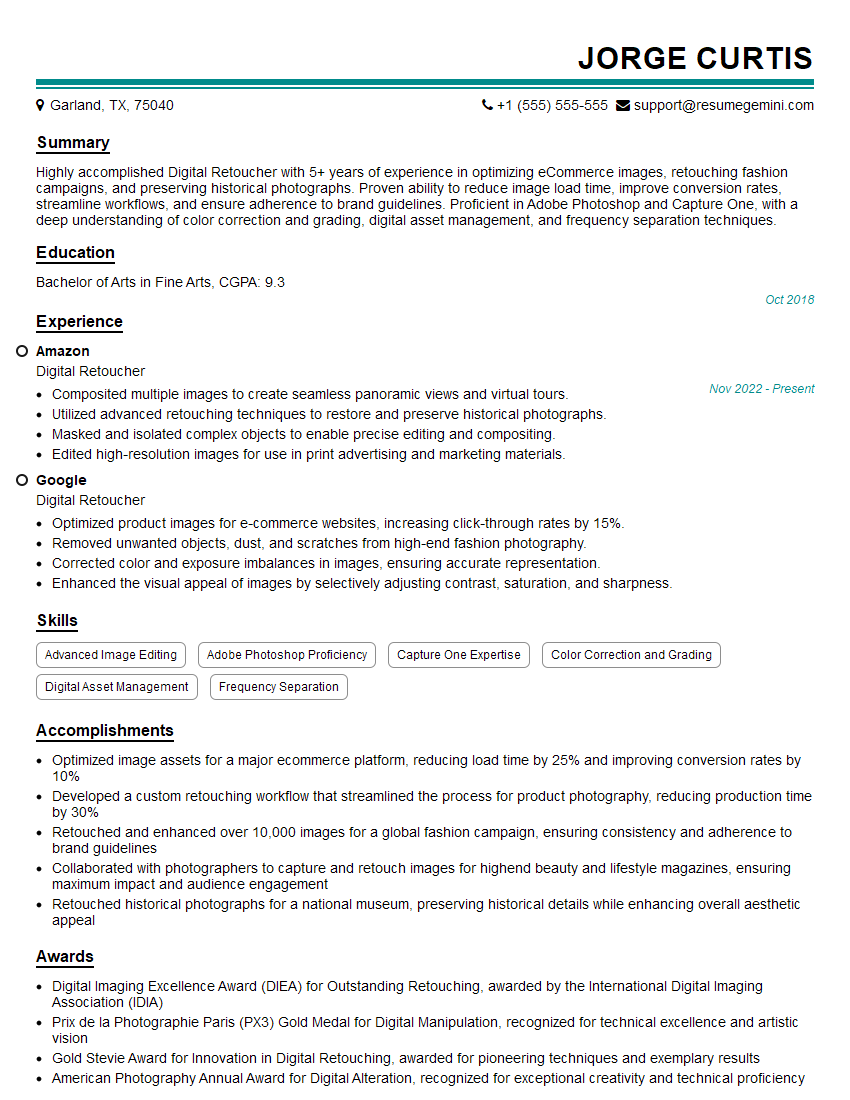
Mastering Photoshop retouching opens doors to exciting career opportunities in photography, advertising, e-commerce, and more. Your skills are highly valuable in today’s visual-centric world! To maximize your job prospects, creating a strong, ATS-friendly resume is crucial. ResumeGemini is a trusted resource to help you build a professional resume that truly showcases your talents. They provide examples of resumes specifically tailored to Photoshop Retouching professionals – take advantage of these resources to present yourself effectively to potential employers.

Explore more articles
Users Rating of Our Blogs
Share Your Experience
We value your feedback! Please rate our content and share your thoughts (optional).
What Readers Say About Our Blog
Very informative content, great job.
good