Interviews are more than just a Q&A session—they’re a chance to prove your worth. This blog dives into essential PowerPoint for Presentations interview questions and expert tips to help you align your answers with what hiring managers are looking for. Start preparing to shine!
Questions Asked in PowerPoint for Presentations Interview
Q 1. Explain your experience with different PowerPoint versions (e.g., 2016, 2019, 365).
My experience spans several PowerPoint versions, starting from PowerPoint 2016 and extending to the current Microsoft 365 subscription. Each version offers incremental improvements, primarily focusing on collaboration features, visual enhancements, and integration with other Microsoft Office apps. For example, PowerPoint 2016 provided a solid foundation with features like co-authoring, while PowerPoint 2019 brought refined animation tools and enhanced design capabilities. Microsoft 365 provides continuous updates, including new features, templates, and integrations – a crucial advantage for maintaining a cutting-edge presentation style.
The most significant shift I’ve experienced has been the transition from primarily offline work to cloud-based collaboration. The ability to co-author presentations in real-time with Microsoft 365 has drastically improved project workflows and accelerated turnaround times. Earlier versions required meticulous version control, whereas now, seamless updates and collaborative editing are the norm.
Q 2. Describe your process for creating visually appealing and effective presentations.
Creating visually appealing and effective presentations involves a structured approach that I’ve honed over the years. It begins with understanding the audience and the message. I always start by defining the key takeaways and crafting a narrative that will resonate with the target audience. Then, I select a visually consistent theme that supports the message, ensuring readability and clarity. Think of it like building a house: you wouldn’t start with the roof; you start with a strong foundation.
Next, I focus on minimalist design. I prioritize clear, concise text, avoiding cluttered slides. High-quality images and graphics are incorporated strategically, enhancing understanding and engagement. I frequently utilize the design principles of proximity, alignment, repetition, and contrast to create a visually harmonious presentation. For instance, consistent font choices and color palettes maintain visual unity, while using strategic white space prevents information overload.
Finally, I rigorously review the presentation for flow and clarity, ensuring a logical progression of ideas and a seamless viewing experience. Before delivering it, I always practice the presentation to confirm the content smoothly transitions between slides and the narrative is compelling.
Q 3. How do you ensure consistency in branding and design across multiple slides?
Maintaining branding and design consistency across multiple slides is achieved through meticulous planning and leveraging PowerPoint’s built-in tools. I typically start by creating a master slide with the predefined brand elements – logo, colors, fonts, and styles. This master slide then acts as a template for all subsequent slides, ensuring uniformity in design throughout the presentation.
PowerPoint’s ‘Themes’ feature is particularly useful for this. I often customize existing themes or create new ones that exactly reflect the brand guidelines. For example, I might define specific color palettes using hex codes to maintain absolute consistency across all visuals, ensuring the presentation aligns perfectly with the company’s brand identity. Additionally, consistent use of formatting styles, such as headings and body text, guarantees that the text maintains a uniform appearance.
For complex branding, I might even create separate master slides for different sections to handle variations while maintaining overall brand coherence. This methodical approach minimizes errors and ensures a professional and consistent presentation.
Q 4. What are your preferred methods for incorporating multimedia elements (images, videos, audio)?
Incorporating multimedia elements requires a thoughtful approach focusing on enhancing the presentation’s impact without distracting from the core message. I prioritize high-resolution images that are relevant to the content and visually appealing. I prefer using vector graphics whenever possible because they scale without loss of quality. For images, I ensure appropriate licensing and attribution to avoid copyright issues.
Videos are used sparingly, only when they significantly contribute to the understanding of the topic. I compress videos to minimize file size without compromising quality to ensure smooth playback during the presentation. Audio is used even more judiciously, primarily for short sound effects or background music that complements the overall mood. I always test the multimedia elements thoroughly before presenting to ensure they function correctly and don’t cause technical glitches.
In terms of embedding, I usually directly embed images and videos into PowerPoint, ensuring all elements are easily accessible without requiring separate files. This simplifies distribution and presentation delivery.
Q 5. How do you handle large amounts of data when creating a PowerPoint presentation?
Handling large amounts of data in a PowerPoint presentation requires strategic summarization and visualization. Instead of overwhelming the audience with raw data, I focus on presenting key findings and insights visually using charts and graphs. PowerPoint offers a range of chart types – bar charts, pie charts, line graphs – each suited for different data representations.
For instance, instead of displaying a large data table, I might use a bar chart to compare performance across different categories. Similarly, a line graph can effectively show trends over time. I always strive to make the visuals clear, concise, and easy to understand. Moreover, I might link to a separate data document for those who wish to review the raw data in detail. This allows for engagement of the primary audience while providing a resource for those seeking a more in-depth analysis.
If necessary, I use data visualization tools to pre-process the data and generate charts optimized for PowerPoint. The key is to prioritize clarity and understanding over sheer data volume.
Q 6. What strategies do you employ to create concise and impactful slide content?
Creating concise and impactful slide content demands discipline and strategic thinking. I follow the ‘less is more’ philosophy, ensuring each slide communicates a single, clear idea. I use bullet points sparingly, focusing on key phrases or short sentences that highlight essential information. The goal is to create visual aids that support, not replace, the presenter’s narrative.
Before writing any text, I define the key message for each slide. This helps avoid information overload and maintains focus. I always employ strong verbs and active voice to make the content dynamic and engaging. Using visuals to support the text is crucial; a single powerful image often conveys information more effectively than a paragraph of text. For example, instead of listing sales figures, a visually appealing chart could instantly communicate growth trends.
Finally, I always test the content for clarity and conciseness, ensuring that even a quick glance at the slide communicates the main point effectively. This approach keeps the audience engaged and allows them to focus on the presentation rather than struggling to decipher dense text.
Q 7. Explain your experience using PowerPoint’s animation and transition features.
I have extensive experience utilizing PowerPoint’s animation and transition features to enhance engagement and guide the audience’s attention. However, I use these features judiciously, avoiding over-animation that can be distracting. My approach is to use animation and transitions to support the narrative flow and highlight key points.
For example, I might use subtle animations to draw attention to specific bullet points as I discuss them, or use transitions to smoothly move between different sections of the presentation. I often favor simple transitions like ‘fade’ or ‘push’ to maintain a professional and clean aesthetic. Complex, flashy transitions can disrupt the flow and detract from the content.
I consider animation a tool to guide the audience’s eye and enhance the presentation’s rhythm, rather than a means of pure visual spectacle. Careful planning and testing are essential before deploying animation and transitions to ensure they seamlessly integrate with the overall narrative and do not feel jarring or distracting.
Q 8. How do you ensure accessibility for people with disabilities in your presentations?
Ensuring accessibility in PowerPoint presentations is crucial for inclusivity. It’s about making your content understandable and usable by everyone, regardless of disability. This involves several key strategies:
- Alternative Text for Images: Every image needs descriptive alternative text (alt text). This is what screen readers use to describe the image to visually impaired individuals. For example, instead of just adding an image of a graph, I’d add alt text like:
alt="Bar chart showing sales figures for Q1 2024, with a significant increase in April." - High Contrast: Using sufficient color contrast between text and background ensures readability for people with low vision. PowerPoint has a built-in accessibility checker that can highlight areas needing improvement.
- Clear Headings and Structure: Using proper heading levels (H1, H2, H3, etc.) creates a logical structure that screen readers can navigate. This allows users to quickly scan and understand the presentation’s organization. I always outline my presentations before designing the slides to ensure a clear structure.
- Captioning and Transcripts: For videos or audio clips, providing accurate captions and transcripts is essential for the hearing impaired. PowerPoint itself doesn’t directly create transcripts, but I usually use external tools and then paste the text into the slide notes or a separate document linked to the presentation.
- Keyboard Navigation: The entire presentation should be navigable using only a keyboard. This is important for people who cannot use a mouse. I always test this thoroughly before delivering a presentation.
By consistently applying these techniques, I create presentations that are inclusive and accessible to a much wider audience. In a recent project presenting quarterly results to a diverse team, adhering to these guidelines ensured everyone could easily understand the key data points and visual representations.
Q 9. Describe your experience with creating charts and graphs in PowerPoint.
I have extensive experience creating charts and graphs in PowerPoint, utilizing its features to effectively communicate data. My approach goes beyond simply inserting charts; I focus on clarity and visual appeal.
- Data Selection: I carefully select the appropriate chart type based on the data. Bar charts are excellent for comparisons, line charts for trends, pie charts for proportions, and scatter plots for correlations. Choosing the wrong chart can misrepresent data.
- Data Labeling and Formatting: I always clearly label axes, data points, and legends. I use consistent formatting, avoiding cluttered designs. I often use data labels directly on the chart elements for immediate understanding.
- Visual Appeal: While accuracy is paramount, visual appeal enhances understanding and engagement. I use appropriate colors, fonts, and avoid unnecessary visual elements. I find that a clean and simple design often works best.
- PowerPoint’s Built-in Tools: I leverage PowerPoint’s features for creating charts from existing data (Excel spreadsheets, for instance) and its formatting tools for customizing the appearance. I find the ability to directly edit data within the chart itself very convenient.
- Beyond Basic Charts: I’m comfortable creating more complex charts, such as combination charts and waterfall charts, to showcase intricate data relationships. I’ve used this skill to represent complex financial data in a way that is both accurate and understandable for a non-technical audience.
For example, in a presentation for a marketing campaign, I used a combination chart to show both the number of leads generated (bar chart) and the conversion rate (line chart) over time. This provided a clear picture of campaign effectiveness.
Q 10. How do you manage revisions and feedback from stakeholders?
Managing revisions and feedback is a crucial aspect of effective presentation creation. My approach involves a structured process:
- Version Control: I always save multiple versions of the presentation, clearly labeled with dates and descriptions of changes (e.g., “Version 1 – Initial Draft,” “Version 2 – Incorporating Stakeholder Feedback”).
- Centralized Feedback: I prefer to use features within PowerPoint itself or a collaborative tool like SharePoint, which allows stakeholders to leave comments directly on specific slides. This ensures clear communication and avoids confusion.
- Tracking Changes: I utilize PowerPoint’s track changes feature whenever substantial edits are needed, enabling a clear audit trail of all modifications and making it easy to accept or reject individual suggestions.
- Regular Check-ins: I schedule regular check-in meetings with stakeholders to discuss feedback and address any questions. This ensures everyone is on the same page and prevents misunderstandings.
- Iterative Approach: I view feedback as an iterative process, understanding that multiple rounds of revisions might be necessary to reach a final version that meets everyone’s needs. I use each round of feedback to improve the presentation.
In a recent project, stakeholder feedback led to a significant restructuring of the presentation’s narrative, ultimately resulting in a more compelling and effective final product. The ability to easily manage revisions and track changes was key to navigating this.
Q 11. What techniques do you use to engage your audience during presentations?
Engaging the audience during a presentation is key to effective communication. My strategies involve a blend of techniques:
- Storytelling: I incorporate storytelling elements to make the presentation more relatable and memorable. I weave data points into compelling narratives that resonate with the audience.
- Visual Aids: I utilize high-quality visuals, including images, infographics, and videos, to maintain audience interest and illustrate key points. Visuals break up text-heavy slides and keep the audience engaged.
- Interactive Elements: Where appropriate, I incorporate interactive elements such as polls, quizzes, or Q&A sessions to actively involve the audience. I’ve found that quick polls during presentations can be a great way to gauge understanding and boost engagement.
- Humor (When Appropriate): I strategically use humor to create a relaxed atmosphere and enhance audience connection, but I always ensure it’s appropriate for the context and audience.
- Strong Opening and Closing: I craft a strong opening that immediately grabs the audience’s attention and a concise, memorable closing that summarizes key takeaways.
- Body Language and Vocal Delivery: Maintaining good eye contact, using varied vocal tones, and incorporating purposeful movements enhance engagement and convey enthusiasm.
For example, in a presentation on sustainability initiatives, I used a compelling story about a local community’s successful recycling program to illustrate the impact of collective action. The combination of storytelling and visual aids helped make the data more impactful and memorable.
Q 12. What are your preferred methods for organizing and structuring a complex presentation?
Organizing and structuring a complex presentation requires a methodical approach. My preferred method involves these steps:
- Define Objectives: I begin by clearly defining the presentation’s objectives. What key message do I want the audience to take away? What actions do I want them to take?
- Audience Analysis: Understanding the audience’s background, knowledge level, and interests is crucial. This shapes the content and delivery style.
- Content Outlining: I create a detailed outline, breaking the presentation into logical sections with clear headings and subheadings. This forms the backbone of the presentation.
- Storyboarding: I often create a storyboard – a visual representation of each slide, including content and visuals – to ensure a cohesive flow and visual consistency.
- Logical Flow: I organize the content in a logical sequence, often using a narrative structure. This could be chronological, problem-solution, or comparative, depending on the topic.
- Prioritization: I focus on delivering the most crucial information first, gradually building upon it. I avoid overwhelming the audience with too much detail at once.
For a complex technical presentation, I might use a problem-solution framework, starting with the problem, then presenting the solution and its benefits, concluding with a call to action. The storyboard is invaluable in visualizing this complex flow.
Q 13. How do you incorporate data visualization best practices into your presentations?
Incorporating data visualization best practices ensures that data is not only presented accurately but also understood and remembered. My approach involves:
- Choosing the Right Chart Type: Selecting the chart type that best represents the data is fundamental. Misusing chart types can lead to misinterpretations.
- Data Clarity: Ensuring data is easily understandable is paramount. Labels, legends, and clear titles are crucial.
- Color Palette: Using a consistent and appropriate color palette enhances readability and visual appeal. Avoid overly bright or clashing colors.
- Minimalist Design: A clean and uncluttered design helps avoid overwhelming the audience. Less is often more when it comes to data visualization.
- Accessibility Considerations: Using sufficient color contrast and alt text for images ensures accessibility for all audience members.
- Data Integrity: Ensuring data accuracy is paramount. Any potential biases or limitations of the data should be clearly stated.
For example, in a presentation about market trends, I would avoid using a 3D pie chart, which can be difficult to interpret, and opt instead for a clear and concise bar chart or line graph with appropriate labels and color-coding.
Q 14. Explain your experience with creating interactive elements in PowerPoint.
While PowerPoint’s built-in interactivity is limited, I have experience incorporating interactive elements to enhance engagement and understanding. This often involves leveraging external resources and clever design:
- Hyperlinks: I frequently use hyperlinks to connect to supplementary materials, such as detailed reports, videos, or website resources. This allows the audience to explore topics in more depth.
- Embedded Videos: Integrating relevant videos can significantly increase audience engagement, especially when illustrating complex processes or concepts.
- Action Buttons: While not a direct PowerPoint feature, creating buttons that trigger actions (e.g., navigating to a specific slide) can be achieved through clever design using shapes and hyperlinks. I’ve used this to create a more interactive ‘choose your own adventure’ style presentation.
- PowerPoint Add-ins: Some add-ins offer advanced interactive features, but I’ve found it more reliable to create simpler interactivity methods directly within PowerPoint.
- External Tools: For more complex interactivity, I would use external tools to build interactive elements, then embed them into the presentation using video or image embedding. This method might require more technical expertise, but the result is far more effective for some audiences.
In a recent training presentation, I embedded short videos explaining complex procedures, significantly improving audience understanding and retention. The ability to supplement static information with dynamic video elements makes presentations more captivating.
Q 15. Describe your experience with PowerPoint templates and master slides.
PowerPoint templates and master slides are invaluable tools for creating consistent and efficient presentations. A template provides a pre-designed structure, including fonts, colors, and layouts, acting as a foundation for your presentation. The master slide, a hidden slide that controls the overall look and feel, allows you to make global changes that apply to all slides. For instance, changing the footer text on the master slide automatically updates it across all slides.
My experience involves extensively leveraging both. I often create custom templates tailored to specific clients or presentation types, ensuring brand consistency. This significantly reduces production time because I don’t have to repeatedly format individual slides. I also utilize master slides to add company logos, consistent footers with page numbers, and standardized headers. This maintains a professional and unified look across the entire presentation, regardless of its length or complexity. For example, I recently created a template for a financial report presentation, using the master slide to embed the company logo and a consistent color scheme throughout.
Career Expert Tips:
- Ace those interviews! Prepare effectively by reviewing the Top 50 Most Common Interview Questions on ResumeGemini.
- Navigate your job search with confidence! Explore a wide range of Career Tips on ResumeGemini. Learn about common challenges and recommendations to overcome them.
- Craft the perfect resume! Master the Art of Resume Writing with ResumeGemini’s guide. Showcase your unique qualifications and achievements effectively.
- Don’t miss out on holiday savings! Build your dream resume with ResumeGemini’s ATS optimized templates.
Q 16. How do you ensure the quality and consistency of your presentations?
Ensuring quality and consistency in presentations is paramount. My approach is multi-faceted. First, I meticulously plan the presentation’s structure and content, outlining a clear narrative and visual hierarchy. This prevents jarring transitions and maintains a logical flow. Second, I utilize the master slide functionality to enforce consistent branding elements, such as fonts, colors, and logos. Third, I employ a rigorous review process, involving several proofing stages. This includes a self-review for content accuracy and clarity, a peer review for feedback on presentation flow and visual appeal, and finally, a final check for any technical errors or inconsistencies before delivery.
For example, I once presented to a large client. After the first draft, the peer review revealed that some graphs lacked clarity and didn’t fully support the narrative. By redesigning these elements and tightening the supporting text, the final presentation was more impactful and successful.
Q 17. What software do you use to create high-resolution images for your presentations?
For high-resolution images in my presentations, I primarily use Adobe Photoshop and Illustrator. Photoshop is ideal for editing and retouching photographs, ensuring crisp, clear visuals. Illustrator excels at creating vector graphics, logos, and illustrations that maintain their quality at any resolution, which is crucial for high-definition displays or printing. I also occasionally use specialized software like Affinity Photo or GIMP as affordable alternatives depending on the project’s needs and budget.
The choice of software depends on the image type. If I need to enhance a photograph, I’ll use Photoshop’s powerful editing tools. If I need a scalable logo or a custom infographic, Illustrator is my go-to.
Q 18. How do you handle unexpected technical issues during a presentation?
Handling unexpected technical issues during a presentation requires preparedness and quick thinking. Before any presentation, I always test my equipment, including the projector, laptop, and any presentation remotes or clickers. I have backup copies of my presentation saved on multiple devices (USB drive, cloud storage) and prepare a printed version as a failsafe. During a presentation, if an issue arises, my approach is to stay calm, address the audience briefly, and attempt a quick fix. If the problem persists, I seamlessly switch to my backup plan—the printed copy or an alternative presentation format. I avoid panicking and prioritize maintaining a professional demeanor.
In one instance, my laptop unexpectedly froze mid-presentation. Because I had a backup on my USB, I calmly switched devices and continued without significant disruption. The audience was understanding, and the situation was resolved quickly and smoothly.
Q 19. How familiar are you with PowerPoint’s collaboration features (co-authoring)?
I’m very familiar with PowerPoint’s co-authoring features. I regularly use them for collaborative projects. Co-authoring allows multiple users to work on the same presentation simultaneously, improving efficiency and facilitating real-time feedback. It’s especially beneficial for large presentations or projects with multiple contributors. PowerPoint’s co-authoring capabilities streamline the review and editing process, enabling faster turnaround times and better integration of ideas.
In my previous role, I collaborated with a team of designers and marketers on a large product launch presentation. Using co-authoring, we were able to work concurrently on different sections, providing immediate feedback and reducing the time it took to finalize the presentation.
Q 20. What is your experience with creating presentations for different audiences?
Adapting presentations to different audiences is crucial for effective communication. My approach involves carefully considering the audience’s background, knowledge level, and interests. I tailor the language, content, and visual style accordingly. A technical presentation for engineers will differ significantly from a marketing presentation for potential investors. For example, I would use technical jargon sparingly or define it when addressing engineers, whereas I might focus on high-level business outcomes and simplified visuals for investors.
Recently, I delivered a presentation on a new software platform—once to a group of software developers and once to a group of senior executives. For the developers, I focused on the technical architecture and code. For the executives, I focused on the business value and market impact.
Q 21. Describe your process for reviewing and editing your own presentations.
My presentation review and editing process involves multiple stages. First, I take a break from the presentation and return to it with fresh eyes. This helps identify any logical inconsistencies or areas where the message could be improved. Second, I meticulously check for grammar, spelling, and punctuation errors. Third, I review the visual elements, ensuring clarity, consistency, and visual appeal. This includes checking for appropriate image resolution, font sizes, and a harmonious color palette. Finally, I test the presentation, confirming the flow, transitions, and any embedded media work correctly.
I use a checklist to ensure I don’t miss any critical steps in this process. This systematic approach guarantees a polished and error-free final product.
Q 22. How do you prioritize tasks when working on multiple PowerPoint presentations?
Prioritizing multiple PowerPoint presentations requires a structured approach. I utilize a project management methodology, often adapting the Eisenhower Matrix (urgent/important). First, I list all presentations with their deadlines. Then, I categorize each based on urgency and importance. Urgent and important presentations get immediate attention; important but not urgent are scheduled; urgent but not important are delegated or rescheduled if possible; and neither urgent nor important are deprioritized or postponed. For example, a presentation for a critical client meeting next week would be categorized as urgent and important, taking precedence over a less critical internal presentation a month out. I also use a task management tool to track progress, set reminders, and ensure I’m staying on schedule for all projects.
Q 23. What are your preferred methods for incorporating feedback into your presentations?
Incorporating feedback is crucial for presentation success. My preferred method involves a multi-step process. First, I actively listen and take detailed notes during feedback sessions, clarifying any points I don’t understand. Then, I systematically review the feedback, categorizing it by type (content, design, delivery). I prioritize feedback based on impact and feasibility. For instance, major content corrections take precedence over minor design tweaks. I then implement the changes, carefully documenting each adjustment. Finally, I share the revised presentation with the feedback provider to ensure alignment and address any further concerns. For example, if someone suggested a stronger opening, I’d re-work the introduction, testing different approaches until it meets the suggested criteria.
Q 24. Describe a time you had to create a presentation under a tight deadline.
Once, I had to create a 30-slide presentation on a complex financial model for a high-stakes investor meeting, with only 48 hours’ notice. My approach involved a focused and efficient workflow. I started with a clear outline, prioritizing the key messages. I leveraged pre-designed templates and graphics where appropriate, focusing my energy on crafting compelling content. I utilized PowerPoint’s features like SmartArt for visualizing data quickly and effectively. To save time, I collaborated with a colleague who handled data visualization, allowing me to concentrate on narrative and overall presentation flow. Despite the tight deadline, the final presentation was well-received, securing the investment. This experience taught me the importance of prioritizing key information, leveraging available resources, and working collaboratively when under pressure.
Q 25. How familiar are you with using PowerPoint within a project management environment?
I’m highly familiar with using PowerPoint within a project management environment. I utilize PowerPoint for various aspects of project management, including creating project timelines using SmartArt, presenting project progress reports to stakeholders, outlining project milestones and deliverables, and visualizing project budgets. For example, I’ve used Gantt charts within PowerPoint to visually represent task dependencies and deadlines, ensuring effective communication and tracking of progress. I also often incorporate data from project management software, such as Jira or Asana, to showcase key metrics and achievements within the presentations.
Q 26. What are your strategies for creating effective narratives within presentations?
Creating effective narratives is crucial for engaging audiences. I begin by identifying the central message I want to convey. Then, I structure the presentation around a clear beginning, middle, and end. The beginning introduces the topic and hooks the audience; the middle presents the supporting arguments and evidence, using a logical flow; the end summarizes key points and delivers a call to action. I use storytelling techniques, incorporating anecdotes and real-life examples to make the presentation more relatable. For example, instead of simply stating a statistic, I might share a brief story that illustrates the point. I also ensure a consistent tone and style throughout the presentation to maintain audience engagement.
Q 27. How do you ensure your presentations are visually consistent with the brand guidelines?
Maintaining visual consistency with brand guidelines is paramount. I start by thoroughly understanding the brand’s style guide, paying close attention to colors, fonts, logos, and imagery. I use PowerPoint’s master slide view to apply the brand’s style consistently across all slides. For example, I’ll set the master slide to use the company’s primary font and colors. I utilize the brand’s pre-approved logo and imagery, ensuring proper placement and sizing. I also use brand-consistent templates or create my own based on the style guide. This consistent application ensures a professional and recognizable brand image throughout the presentation.
Q 28. What are some common mistakes you see in PowerPoint presentations, and how would you avoid them?
Common mistakes I see in PowerPoint presentations include: excessive text, cluttered slides, inconsistent design, and ineffective visuals. To avoid these, I prioritize visual communication over lengthy text, using bullet points and visuals to convey information. I maintain a clean and uncluttered design, using white space effectively. I ensure consistent use of fonts, colors, and styles throughout the presentation. I utilize high-quality visuals, such as charts and images, to illustrate key points rather than overwhelming the audience with text. I always preview my presentation in different modes (normal, slide sorter, presenter view) to catch any inconsistencies or design flaws before the actual presentation. Finally, practicing the presentation beforehand helps identify areas that need improvement in terms of flow, pacing and clarity.
Key Topics to Learn for PowerPoint for Presentations Interview
- Mastering Slide Design Principles: Understanding visual hierarchy, color palettes, typography, and image selection for effective communication.
- Practical Application: Creating compelling narratives through strategic use of visuals, data visualization (charts & graphs), and concise text. Experience designing presentations for diverse audiences (e.g., executive summaries, client presentations, internal training).
- Advanced Features & Functionality: Proficiency in animations, transitions, multimedia integration (audio/video), and utilizing templates effectively.
- Data Integration & Visualization: Importing and formatting data from various sources (Excel, databases) and creating clear, insightful charts and graphs.
- Presentation Delivery & Engagement: Techniques for delivering a confident and engaging presentation, including storytelling and audience interaction.
- Troubleshooting & Problem-Solving: Addressing common technical issues, such as formatting problems, incompatible file types, and presentation glitches.
- Software Specific Skills: Demonstrating familiarity with PowerPoint’s advanced features and shortcuts, and potentially other presentation software (e.g., Google Slides, Keynote).
Next Steps
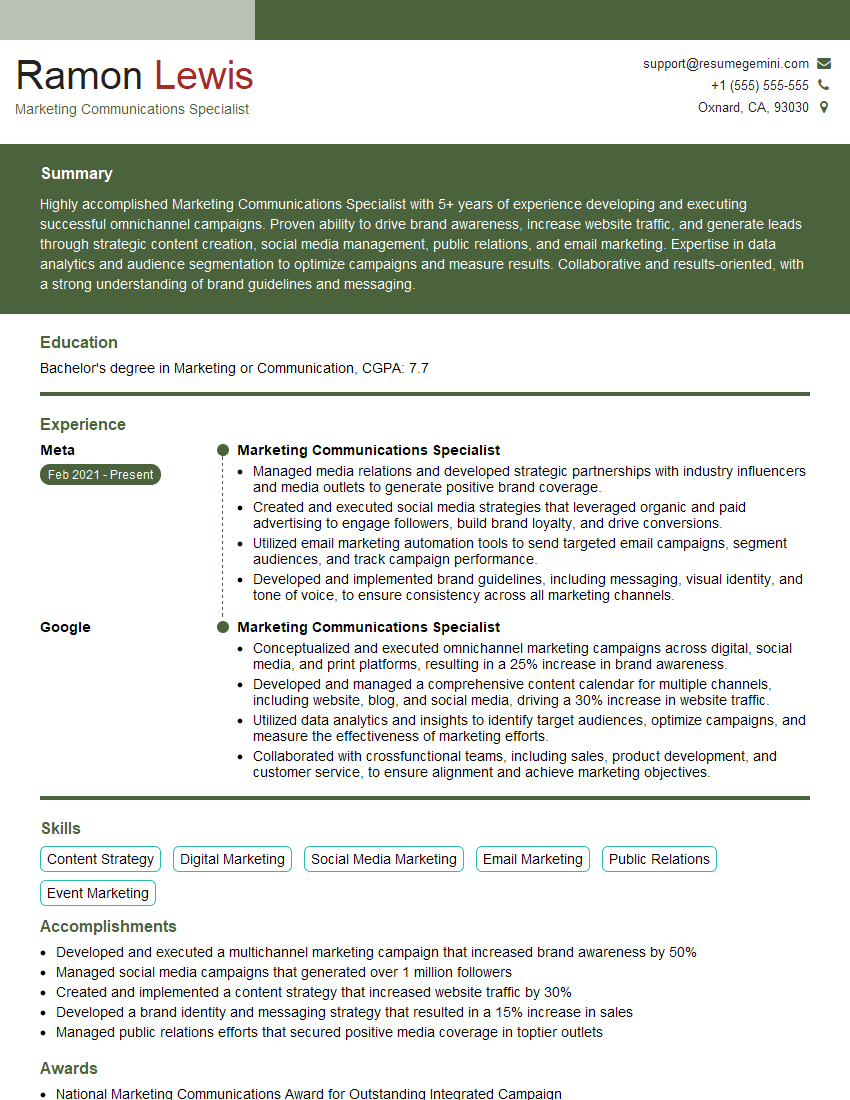
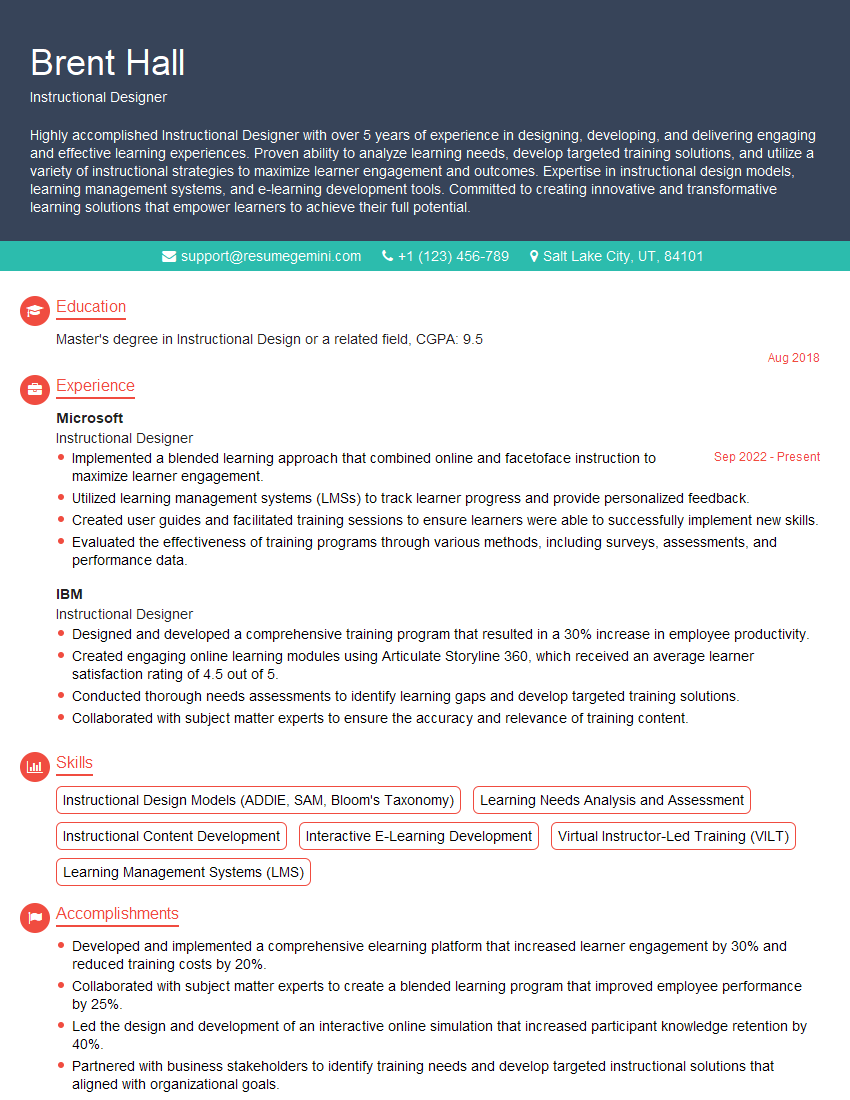
Mastering PowerPoint is crucial for effective communication and collaboration in today’s professional landscape. It’s a highly sought-after skill that can significantly boost your career prospects, opening doors to a wider range of opportunities and higher-level positions. To maximize your chances of landing your dream job, building an ATS-friendly resume is paramount. ResumeGemini can help you craft a compelling resume that showcases your PowerPoint skills and experience effectively. We offer examples of resumes tailored to highlight PowerPoint for Presentations expertise, providing a valuable resource for your job search.

Explore more articles
Users Rating of Our Blogs
Share Your Experience
We value your feedback! Please rate our content and share your thoughts (optional).
What Readers Say About Our Blog
Very informative content, great job.
good