Interviews are opportunities to demonstrate your expertise, and this guide is here to help you shine. Explore the essential Proficient in AVID Pro Tools interview questions that employers frequently ask, paired with strategies for crafting responses that set you apart from the competition.
Questions Asked in Proficient in AVID Pro Tools Interview
Q 1. Explain the difference between destructive and non-destructive editing in Pro Tools.
The core difference between destructive and non-destructive editing in Pro Tools lies in how changes are applied to your audio. Destructive editing permanently alters the original audio file, while non-destructive editing keeps the original audio intact, making changes via edits that are stored separately. Think of it like writing in pen versus pencil. Pen is destructive – you can’t erase; pencil is non-destructive – you can erase and revise.
Destructive Editing: Examples include trimming audio directly, applying fades using the fade tool’s default method (before Pro Tools 12 this was the only method), or using the ‘Normalize’ command that directly alters the audio file. This is irreversible unless you have an earlier version saved. You’re directly modifying the audio data.
Non-Destructive Editing: This involves using features like clip gain, automation, and using the ‘Normalize’ function in Pro Tools 12 or later (where the clip gain is affected instead of the audio itself). You’re manipulating how the audio is processed, not the audio data itself. You can always undo or change these adjustments.
In professional settings, prioritizing non-destructive editing is crucial. It allows for flexibility, experimentation, and the ability to revert to the original audio easily. Destructive editing is occasionally useful for small, quick fixes when undo functionality is unnecessary, such as a simple trim, but it should be the exception, not the rule.
Q 2. Describe your workflow for editing dialogue in Pro Tools.
My dialogue editing workflow in Pro Tools is meticulous and focuses on clarity and maintaining the natural performance. It usually involves these steps:
Import and Organization: I begin by meticulously organizing all my dialogue tracks, creating separate tracks for each character or source, clearly labeled. This makes navigating large sessions much easier.
Initial Cleanup: I address major issues like pops, clicks, and excessive room tone by using the Pro Tools’ built-in noise reduction tools. I often use spectral editing to isolate and remove unwanted sounds.
Selection and Editing: Next, I select the usable portions of each take, ensuring to get a smooth take without cuts that jar the viewer. I use various editing tools to trim and tighten the dialogue, aiming for seamless transitions.
Dialogue Matching and Comping: When working with multiple takes, I utilize the comping feature to select the best bits from each take, creating the perfect performance while maintaining consistency and natural timing.
Fine-tuning: Finally, I perform a careful listen for any remaining issues and address subtle inconsistencies in level, timing, or tone using automation. For further polish, I might use de-essing or equalization to optimize audio clarity.
Throughout this process, I maintain a strict version control using the ‘Save As’ function to ensure that there is always the option to revert to earlier versions of the project.
Q 3. How do you manage large session files in Pro Tools to maintain efficiency?
Managing large Pro Tools sessions requires a strategic approach. Inefficient practices lead to crashes, slow performance, and frustration. Here’s how I maintain efficiency:
Consolidation: Regularly consolidate audio clips to reduce the number of files. This makes the session size smaller and more manageable.
Offline Bounce: For sections not requiring constant editing, I ‘offline bounce’ them to create smaller, independent audio files. This frees up processing power and reduces session load.
Track Freezing: For heavily processed tracks (especially those with many plugins), freezing them renders the processed audio to a new track, freeing up CPU resources. When necessary, it can be unfrozen and re-edited.
Session Splitting: For extremely large projects, breaking them into smaller, logically organized sessions can significantly improve performance and organization. This could be based on scenes, acts, or musical sections.
External Hard Drives: I consistently use high-quality external hard drives with plenty of space and fast transfer rates. The project files should never reside on an internal hard drive for performance reasons.
By implementing these techniques, I ensure smooth workflow even with large, complex sessions.
Q 4. What are your preferred methods for noise reduction and restoration in Pro Tools?
My preferred methods for noise reduction and restoration in Pro Tools rely on a combination of plugins and techniques. I generally avoid overly aggressive processing, aiming for natural-sounding results.
Noise Reduction: For consistent background noise, I use Pro Tools’ built-in noise reduction tool or a high-quality third-party plugin such as iZotope RX. This involves selecting a sample of the noise, then having the plugin process the rest of the audio to attenuate the noise while preserving the audio signal.
Spectral Editing: I frequently use spectral editing to surgically remove clicks, pops, or other artifacts in the audio signal. This provides very fine control for removal of specific frequencies.
Restoration Plugins: For more complex restoration tasks, I turn to plugins from companies like iZotope or Waves. These offer specialized tools for things like declicking, decrackling, and repairing damage to recordings.
The key is to apply these tools judiciously. Over-processing can result in artifacts and unnatural-sounding audio. Always start with small adjustments and listen carefully, refining the settings until you reach a natural balance between noise reduction and audio preservation.
Q 5. Explain your understanding of different audio file formats (WAV, AIFF, MP3) and their applications.
Understanding audio file formats is crucial for efficient workflow and compatibility. Here’s a breakdown of WAV, AIFF, and MP3:
WAV (Waveform Audio File Format): This is a lossless format, meaning no audio data is discarded during encoding. It preserves the original audio quality and is widely used for professional audio production because of its accuracy and compatibility. However, it is also a larger file format that takes up more storage.
AIFF (Audio Interchange File Format): Similar to WAV, AIFF is a lossless format with very high fidelity. It’s common in Mac-based workflows but is largely interchangeable with WAV.
MP3 (MPEG Audio Layer III): This is a lossy format. It compresses audio files by discarding some audio data to make the files smaller in size. It’s suitable for online streaming and sharing due to its small file size, but there is a noticeable reduction in audio quality that is usually undesirable for professional audio work. Its biggest use case is distribution and streaming to consumers on a broader level.
In professional audio production, WAV and AIFF are preferred for their high fidelity, ensuring that the pristine audio quality is maintained throughout the entire workflow. MP3 is rarely used at the production level unless specifically preparing a delivery for consumer streaming or broadcast where the file size tradeoff is worth the reduction in quality.
Q 6. How do you use automation in Pro Tools to control mixing parameters?
Automation in Pro Tools is a powerful tool that allows for dynamic control over mixing parameters, adding nuanced movement and energy. This is done using automation lanes, where you can visually draw changes to a parameter over time.
For instance, I might use automation to:
Create subtle volume rides: Gradually bringing up and down the volume of an instrument over time to create a more organic feel.
Shape EQ changes: Adjusting the EQ of an instrument across a section, boosting highs during a specific phrase then cutting back later.
Animate send levels: Automatically changing the level sent to a reverb or delay effect for interesting spatial movement.
Implement dynamic panning: Moving an instrument across the stereo field for a wider, more three-dimensional sound.
To use it, you simply select the parameter you want to automate, click the automation lane, and draw your changes. In Pro Tools, you can choose between various automation modes such as Write, Latch, Trim, and Touch, giving you precise control. A well-executed automation is seamless and goes unnoticed; if you notice the movement it’s usually not a success.
Q 7. Describe your experience with Pro Tools plugins and effects processing.
My experience with Pro Tools plugins and effects processing is extensive, encompassing a range of both built-in and third-party plugins. I’m comfortable working with a wide variety of effects, from basic EQ and compression to more specialized plugins such as reverbs, delays, and dynamic processors.
I often use:
Waves plugins: Their plugins are industry-standard, providing high-quality results for everything from EQ and compression to more specialized tools.
iZotope plugins: Their noise reduction and restoration tools are invaluable for cleaning up audio, while their mixing and mastering plugins offer excellent flexibility.
FabFilter plugins: Known for their intuitive interfaces and outstanding sound quality, often used for high-end EQ, compression, and other dynamic processing.
Pro Tools native plugins: I utilise Pro Tools’ native plugins for quick and efficient tasks where quality doesn’t need to exceed that of the native effects.
My approach to effect processing is focused on achieving a natural and musical sound. I favor subtle and targeted adjustments over heavy processing, always aiming for clarity and a balanced mix.
Understanding the interaction of different plugins is crucial. For example, applying compression before EQ can affect how the EQ interacts with the signal. This is something that is obtained with practice and experience.
Q 8. How do you handle audio synchronization issues in Pro Tools?
Audio synchronization in Pro Tools is crucial for seamless projects. Issues arise from various sources, including discrepancies between video and audio timelines or inconsistencies within multi-track recordings. My approach involves a multi-pronged strategy.
Using the Elastic Audio feature: This powerful tool allows for time stretching and pitch shifting without significantly degrading audio quality. If a clip is slightly off-tempo, I can easily adjust it using Elastic Audio’s various algorithms (e.g., Time-to-Frequency, Elastique Pro) to perfectly align it with the rest of the project.
Spotting and trimming: For minor sync problems, precisely trimming the audio clips is sufficient. Pro Tools’ waveform display allows for pixel-perfect accuracy. I often use the Ripple Edit tool to maintain the overall timeline while making these adjustments.
Using the ‘Match Tempo’ or ‘Match Pitch’ commands: When working with multiple audio tracks of varying tempos, the ‘Match Tempo’ function ensures rhythmic consistency, and ‘Match Pitch’ helps correct pitch variations. These are invaluable when working with recordings where the audio tempo is inconsistent.
Employing external synchronization tools: For complex projects involving multiple sources, using an external synchronization device (like a Blackmagic Design video assist) ensures accurate syncing from the outset. This eliminates many potential sync issues during the post-production process.
Manually adjusting with the nudge tool: For minute adjustments, the nudge tool is very useful. I will use a combination of numerical entry (for precise adjustments) and the arrow keys for a more fluid and less abrupt repositioning of clips.
For instance, I once worked on a documentary where the audio from a handheld recorder was consistently a fraction of a second behind the synced camera footage. Using a combination of Elastic Audio and spot trimming, I managed to seamlessly align the audio, preserving the original performance quality.
Q 9. Explain your approach to creating and managing audio tracks in a Pro Tools session.
My approach to creating and managing audio tracks prioritizes organization and efficiency. I believe a well-structured session is essential for smooth workflow and easier collaboration.
Color-coding: I employ a standardized color-coding system for tracks—for example, drums are always red, vocals are blue, and guitars are green. This allows for immediate visual identification of each track’s function.
Descriptive track names: Instead of generic names like ‘Audio 1,’ I use clear, descriptive names like ‘Lead Vocal,’ ‘Acoustic Guitar (Verse 1),’ or ‘Room Ambience.’ This makes it easier to navigate even large sessions.
Using track groups and VCA faders: For complex projects, grouping related tracks (like drums, percussion, or backing vocals) reduces the number of individual tracks to manage. VCA faders provide global control over groups of tracks, making mixing far more efficient.
Folder tracks: Using folder tracks allows for a clean visual overview. It helps to organize and group related tracks by instrument, section, or busses.
Regular saving and backup: I save my work frequently and maintain an external backup system to safeguard against data loss—a crucial step in preventing many headaches.
For example, while working on a large orchestral recording, I divided the instruments into logical groups (strings, woodwinds, brass, percussion), further dividing the strings into sections (violins I, violins II, violas, cellos, basses). This structure not only facilitates mixing but also makes it easier to find specific parts if needed.
Q 10. What are your strategies for optimizing Pro Tools performance?
Optimizing Pro Tools performance is critical for maintaining a smooth workflow, particularly with large sessions. My strategies include:
Consolidation: Consolidating tracks reduces the processing load by rendering multiple edits into single audio files.
Freezing tracks: Freezing tracks renders them to audio, freeing up processing power. This is particularly helpful with complex plug-in chains.
Bounce in place: Similar to freezing, bouncing in place renders tracks to audio files within the session.
Offloading hard drive: Using a fast external hard drive significantly speeds up performance, particularly for large audio files and long sessions. SSDs are highly recommended for this purpose.
RAM management: Ensuring sufficient RAM is available is essential. If your system is short on RAM, consider upgrading.
Using less CPU-intensive plugins: Choosing high-quality yet efficient plugins reduces the computational load on the system. Sometimes using native plugins instead of third-party ones is beneficial.
Proper session organization: A well-organized session itself helps reduce overhead. Unnecessary tracks or plugins can consume unnecessary processing power.
For example, when working on a project with numerous instrument tracks and extensive use of plugins, I would regularly freeze and consolidate tracks to maintain a responsive mixing environment, ensuring I maintain my workflow without frustrating delays.
Q 11. How familiar are you with Pro Tools’ MIDI capabilities?
I’m very familiar with Pro Tools’ MIDI capabilities. I regularly use MIDI for sequencing, editing, and controlling virtual instruments and hardware synthesizers. My experience includes:
MIDI editing: I’m proficient in manipulating MIDI data, including notes, velocities, controllers, and automation.
Working with virtual instruments: I use a wide variety of virtual instruments (VSTs and AU plugins), and understand how to effectively use MIDI to control them within Pro Tools. This includes programming drum patterns, creating melodies, and layering synth sounds.
MIDI sequencing: I utilize MIDI sequencing techniques to create and arrange music, including composing, arranging, and editing musical parts.
Using external MIDI controllers: I am experienced in using external MIDI keyboards, drum pads, and other controllers to input and manipulate MIDI data in Pro Tools.
MIDI routing and manipulation: I understand concepts like MIDI filters, MIDI merging, and MIDI thru, and can effectively use them to create complex setups.
For instance, I recently composed a score for a short film using MIDI and virtual instruments in Pro Tools, creating orchestral arrangements with layered strings, brass, and woodwinds, which I could then export as audio to use in the film.
Q 12. Describe your experience with using external hardware with Pro Tools.
I have extensive experience using external hardware with Pro Tools, including:
Audio interfaces: I’m familiar with various audio interfaces from manufacturers like Universal Audio, Avid, Focusrite, and PreSonus, and understand the importance of selecting an interface that meets the specific project requirements.
External processors: I’ve used external hardware processors such as compressors, equalizers, and reverb units, and have an understanding of their advantages in specific mixing situations.
MIDI controllers: As mentioned earlier, I regularly employ various MIDI keyboards, drum pads, and other controllers for MIDI input and control.
ADAT and MADI interfaces: I’m familiar with integrating higher channel count systems using these digital audio formats, allowing for integration with larger projects.
In a recent project, I used a high-end Universal Audio Apollo interface along with several UAD plugins to process audio tracks. The combination of hardware and software processing provided the precise sound quality needed. The integration was seamless, and the workflow was very intuitive.
Q 13. How do you use markers and regions effectively in Pro Tools?
Markers and regions are invaluable tools in Pro Tools for organization and workflow efficiency. I use them extensively for:
Setting tempo and time signature changes: Markers are used to indicate changes in the tempo and time signature of a piece to ensure the software maintains accuracy. This can include various tempo maps.
Creating cues and sections: I use markers to mark important sections within a piece, such as intros, verses, choruses, and outros. This makes navigation significantly easier and speeds up editing. Regions can also be color coded to help visually identify sections.
Editing and navigation: Regions can encompass specific audio or MIDI sections that are easily manipulated as a group. Markers are useful for setting reference points to quickly jump to specific parts within a longer project.
Grouping and organizing: Both markers and regions facilitate a clearer picture of the overall project. This is particularly useful in collaborative projects.
Automation: Regions allow for precise control over automation parameters, such as volume, panning, and effects. Markers can be used as reference points for automated processes.
For example, when editing a large song, I use markers to identify sections such as verses, choruses, bridges, and solos. This allows me to quickly jump between parts while editing and helps prevent losing track of progress. Regions are used to group similar audio elements for easier manipulation and to create a clear visual representation of my project.
Q 14. Explain your workflow for mixing and mastering audio in Pro Tools.
My mixing and mastering workflow in Pro Tools is iterative and depends heavily on the project’s requirements. However, some core principles remain consistent:
Gain staging: I always start by carefully adjusting the gain levels of each track to avoid clipping and optimize headroom.
EQ and compression: I use EQ to shape the frequency response of each track and compression to control dynamics. These processes are typically done in an iterative fashion.
Effects processing: I incorporate reverbs, delays, and other effects to create a spacious and engaging sound, using careful placement to create depth. I usually prefer to use high-quality plugins for this step, to add more depth to each sound and improve its overall image.
Automation: I often automate volume, panning, and effects to add dynamic changes to the music. This is usually a late step, to ensure the mix sounds natural and doesn’t sound too processed.
Stereo imaging: I pay close attention to stereo width and imaging, ensuring that the mix sounds well-balanced and spacious.
Mastering: The mastering process is usually approached separately, but I often consider mastering requirements while mixing, ensuring appropriate headroom for the mastering engineer. During this stage, I’ll generally use specific plugins for mastering, and often consider the loudness and overall sound quality to ensure that it meets the client’s requirements.
For example, when mixing a pop song, I’d focus on creating a bright and clear sound using careful EQ, compression, and effects processing. The mastering stage then ensures that the final product is optimized for playback across different systems, maintaining dynamic range and ensuring the music translates well across all platforms.
Q 15. Describe your troubleshooting skills when facing technical issues in Pro Tools.
My troubleshooting approach in Pro Tools is systematic and methodical. I start by identifying the specific issue – is it a playback problem, a plugin error, a hardware malfunction, or something else? I then utilize a process of elimination.
- Check the obvious: I begin by verifying basic things like buffer size settings, sample rate compatibility, and ensuring all hardware connections are secure. A simple restart of Pro Tools often resolves minor glitches.
- Isolate the problem: If the issue persists, I try to isolate the source. If it’s a specific track, I disable plugins one by one to see if one is causing the crash or distortion. If it’s a hardware issue, I’ll try different interfaces or cables.
- Consult documentation and online resources: Avid’s website, the Pro Tools manual, and various online forums are invaluable resources. I’ll search for error messages or similar problems reported by others.
- Utilize Pro Tools’ diagnostics: Pro Tools has built-in tools for checking audio interfaces and I/O. I utilize these to pinpoint hardware or driver problems.
- Create a test session: To rule out session-specific issues, I’ll create a new, minimal session to see if the problem persists. This helps determine if the problem is within the session itself or a broader system issue.
For instance, I once had a session with persistent crackling during playback. By systematically disabling plugins on the affected tracks, I identified a faulty third-party reverb plugin causing the issue. Replacing it resolved the problem immediately.
Career Expert Tips:
- Ace those interviews! Prepare effectively by reviewing the Top 50 Most Common Interview Questions on ResumeGemini.
- Navigate your job search with confidence! Explore a wide range of Career Tips on ResumeGemini. Learn about common challenges and recommendations to overcome them.
- Craft the perfect resume! Master the Art of Resume Writing with ResumeGemini’s guide. Showcase your unique qualifications and achievements effectively.
- Don’t miss out on holiday savings! Build your dream resume with ResumeGemini’s ATS optimized templates.
Q 16. What is your experience with Pro Tools’ Elastic Audio functionality?
Elastic Audio in Pro Tools is a powerful tool for non-destructive time stretching and pitch shifting. I’ve extensively used it for tasks such as:
- Tempo adjustments: Quickly changing the tempo of a vocal performance without affecting pitch, maintaining a natural sound.
- Time alignment: Correcting timing inconsistencies in recordings or syncing audio to video more precisely.
- Creating rhythmic variations: Experimenting with rhythmic variations by subtly altering the timing of individual sections.
Elastic Audio offers various algorithms like ‘Time Compression,’ ‘Time Expansion,’ and ‘Formant Correction,’ each suited for different audio types and effects. I carefully select the algorithm based on the material and desired outcome. For example, ‘Formant Correction’ is crucial for vocal tracks, as it preserves the natural intonation even when stretching the audio. I also frequently use the ‘Warp’ function for more nuanced control over the time-stretching process.
Q 17. How do you use the Pro Tools clip gain and fader?
Clip gain and fader in Pro Tools serve different but complementary purposes in managing audio levels.
- Clip gain: This adjusts the overall level of an audio clip itself. It’s a non-destructive gain adjustment, meaning it doesn’t alter the underlying audio file. Changes made to clip gain are visible in the clip’s metadata but don’t affect the original audio file; it only adjusts the level sent to the track’s fader.
- Fader: The track fader controls the final output level of an audio track, affecting the signal after all plugins and other processing on that track. It’s a destructive adjustment.
Think of it like this: clip gain is like adjusting the volume on the source (e.g. a microphone) before sending it to a mixing board, while the fader is like adjusting the individual channel’s level on that mixing board before it reaches the master output. I use clip gain to perform initial level adjustments for consistency across multiple clips within a track, preventing clipping and improving overall level balance, while the fader is used for final mix adjustments and overall track level within the mix.
Q 18. How do you work with session templates in Pro Tools?
Session templates are crucial for streamlining my workflow in Pro Tools. I create templates tailored to specific project types (e.g., podcast, music production, Foley recording), saving a significant amount of time and ensuring consistency across projects.
- Pre-configured I/O: My templates include pre-configured inputs and outputs based on my usual studio setup.
- Standard plugins: Essential plugins are already inserted on tracks, eliminating repetitive plugin insertion. I often insert a default EQ, compressor and reverb on relevant tracks.
- Custom track configurations: Tracks are set up with appropriate names, colors and routing, based on the type of recording.
- Keyboard Shortcuts: I program my preferred keyboard shortcuts for specific tasks within templates.
By using templates, I avoid redundant setup tasks and can focus directly on recording and mixing. For instance, when starting a new podcast, I simply open my podcast template. All tracks, routing, and plugins are already configured, allowing me to start recording straight away.
Q 19. How familiar are you with various Pro Tools keyboard shortcuts?
I’m very familiar with numerous Pro Tools keyboard shortcuts, which significantly enhance my efficiency. I customize shortcuts to suit my preferences but frequently use shortcuts for common tasks, such as:
- Navigation:
CMD + ←/→(Mac) orCTRL + ←/→(Windows) for moving the playhead,CMD + ↑/↓(Mac) orCTRL + ↑/↓(Windows) for zooming. - Editing:
CMD + X/C/V(Mac) orCTRL + X/C/V(Windows) for cut, copy, and paste,CMD + Z(Mac) orCTRL + Z(Windows) for undo. - Playback: Spacebar for play/stop,
CMD + .(Mac) orCTRL + .(Windows) for stop. - Selection:
CMD + A(Mac) orCTRL + A(Windows) to select all, shift-click for selecting multiple clips. - Automation:
CMD + OPTION + A(Mac) orCTRL + ALT + A(Windows) to enable write automation.
My proficiency with keyboard shortcuts allows for rapid and seamless workflow and prevents me from constantly reaching for the mouse. This enhances my speed and focus while working.
Q 20. Explain the concept of routing and bussing in Pro Tools.
Routing and bussing are fundamental concepts in Pro Tools for organizing and processing audio signals.
- Routing: This refers to directing audio signals from one point (e.g., a track) to another (e.g., a bus, aux track or output). This allows for flexibility in signal flow.
- Bussing: This involves grouping multiple audio signals together onto a single track, often for applying effects or summing signals before sending them to the master output. Bussing helps consolidate and organize the mix.
For example, I might route all vocal tracks to a vocal bus, where I would apply a compressor and EQ to shape the overall vocal sound. This is more efficient than applying plugins to each individual vocal track. I might then send that bus to another aux track for reverb. Careful routing and bussing optimizes signal flow, improves workflow, and enables creative processing and mix control.
Q 21. Describe your experience with using the Pro Tools mixer.
I’m highly proficient in using the Pro Tools mixer. My experience includes:
- Gain staging: I carefully manage gain throughout the signal chain, preventing clipping and maximizing headroom.
- EQ and dynamics processing: I expertly use EQs and compressors to shape the sound of individual tracks and buses.
- Panning and stereo imaging: I strategically pan tracks for a wide and balanced stereo image. I use stereo width plugins and panning to create a realistic sound.
- Automation: I create smooth and natural automation for volume, pan, and other parameters, adding dynamic movement to the mix.
- Plugin management: I efficiently manage numerous plugins simultaneously, optimizing performance and CPU usage by utilizing bussing and strategically employing plugin types.
- Send and return tracks: I frequently utilize send and return tracks for effects processing, enabling parallel processing and more controlled mixing.
For instance, on a recent project with multiple instruments, I used extensive bussing to group similar instruments and then applied effects (like reverb and delay) to entire groups, enhancing the cohesiveness and improving the workflow. I also implemented complex automation to create gradual dynamic shifts in the mix.
Q 22. What methods do you use for quality control in your Pro Tools workflow?
Quality control in Pro Tools is paramount. My approach is multi-layered, starting even before recording. I meticulously prepare my session setup, ensuring proper sample rates and bit depths are selected for the project’s needs. During recording, I constantly monitor levels, using metering plugins to avoid clipping and maintain optimal headroom. After recording, I implement a rigorous process:
Gain Staging Review: I carefully check all track levels for consistency and optimal gain staging. This ensures a healthy signal-to-noise ratio and prevents unwanted noise amplification during mixing.
Phase Coherence Check: For multi-microphone recordings, I verify phase alignment to avoid comb filtering and muddiness in the final mix. This often involves visual inspection of waveforms and using correlation meters.
Editing and Cleaning: I meticulously edit out unwanted noise, clicks, pops, and other artifacts. This often involves using tools like Pro Tools’ noise reduction and restoration plugins.
Mixing and Mastering Checks: Throughout the mixing process, I regularly check the mix on different playback systems (near-field monitors, headphones, and even car stereo) to ensure a balanced and consistent sound across various listening environments. Mastering involves final level adjustments, limiting, and ensuring the mix is optimized for various playback platforms.
Final Export Check: Before final export, I perform a thorough listen for any remaining issues and carefully check the metadata embedded in the audio file to ensure proper labeling and compatibility.
This multifaceted approach helps guarantee a high-quality, professional-sounding final product.
Q 23. How do you collaborate with other team members using Pro Tools sessions?
Collaboration in Pro Tools is streamlined using various methods. We frequently employ:
Session Sharing (using shared storage): This is ideal for larger projects. Each team member accesses the same Pro Tools session from a central location (network drive or cloud storage), allowing concurrent work with clear version control. To avoid conflicts, we use a system where only one person is actively editing at a time for critical sections. Regular backups are crucial.
Pro Tools Collaboration Features: Pro Tools offers built-in features such as AAF (Advanced Authoring Format) export and import for sharing audio and editing decisions between different Pro Tools systems or even with other Digital Audio Workstations (DAWs).
Cloud-Based Collaboration Platforms (e.g., Dropbox, Google Drive): For smaller projects or individual track exchanges, cloud storage provides a simple way to share audio files and session backups efficiently.
Clear Communication: Regardless of the chosen method, consistent and clear communication is key. We use project management tools (like Asana or Trello), as well as regular team meetings to maintain alignment and address any arising issues.
The best method often depends on the project’s size, team structure, and technical capabilities. Choosing the right method keeps the workflow smooth and prevents conflicts.
Q 24. Explain your understanding of sample rates and bit depths.
Sample rate and bit depth are fundamental audio parameters affecting quality and file size. Think of it like this: sample rate is the resolution in time, while bit depth is the resolution in amplitude.
Sample Rate: This determines how many ‘snapshots’ or samples of the audio signal are taken per second. Measured in Hertz (Hz), a higher sample rate captures more detail, resulting in a clearer and more accurate representation of the original sound. Common rates include 44.1kHz (CD quality), 48kHz (standard for film and television), 88.2kHz, and 96kHz (used for higher fidelity recordings).
Bit Depth: This represents the number of bits used to represent each sample’s amplitude. A higher bit depth allows for a greater dynamic range and reduced quantization noise (a type of distortion introduced during digital conversion). Common bit depths include 16-bit (CD quality) and 24-bit (higher dynamic range, often used for professional recordings).
Choosing appropriate sample rate and bit depth is a crucial decision. Higher values generally result in better audio quality but increase file sizes significantly. The decision is a balance between quality and storage needs, often dictated by the project’s requirements and target platform.
Q 25. Describe your experience with exporting audio from Pro Tools in various formats.
Exporting audio from Pro Tools involves selecting the correct format, sample rate, and bit depth. My experience includes exporting to a variety of formats:
WAV (Waveform Audio File Format): A lossless format ideal for archiving, mastering, and exchange between professionals. It preserves the audio quality without compression.
AIFF (Audio Interchange File Format): Another lossless format, similar to WAV but primarily used on Mac systems.
MP3 (MPEG Audio Layer III): A lossy compressed format suitable for smaller file sizes. This is ideal for online distribution and web use, although some quality loss is inevitable.
AAC (Advanced Audio Coding): Another lossy format offering better quality than MP3 at comparable bit rates. It’s frequently used for digital distribution and streaming.
Ogg Vorbis: A royalty-free, open-source lossy format that offers a good balance between file size and quality.
The choice of format depends entirely on the intended use of the audio. For archiving or further processing, lossless formats are preferred. For online distribution or situations where file size is a significant concern, lossy formats are usually the better choice. I always ensure the metadata (artist, track title, etc.) is properly embedded in the exported file for easy identification and organization.
Q 26. How do you manage and organize your Pro Tools projects?
Organizing Pro Tools projects efficiently is critical for maintaining sanity and productivity. My system is based on a hierarchical folder structure and consistent naming conventions:
Project-Specific Folders: Each project resides in its own folder, containing all related audio files, session files, and any relevant documentation.
Subfolders: Within each project folder, I use subfolders to organize audio files by type (e.g., ‘Recordings,’ ‘Processed Audio,’ ‘Stems’). This makes finding specific files much easier.
Consistent File Naming: I use a clear and consistent naming convention for all audio files, ensuring that they are easily identifiable and searchable. This might include elements such as the project name, track number, and date.
Regular Backups: I regularly back up my projects to multiple locations (external hard drives, cloud storage) to safeguard against data loss.
Metadata Management: I use Pro Tools’ metadata features to tag audio files and sessions with relevant information, allowing me to easily search and filter my library.
This system ensures that even large and complex projects remain well-organized and easily manageable. Regular maintenance of this structure is equally important to prevent it from becoming cluttered and unworkable.
Q 27. What are some advanced techniques you utilize in Pro Tools?
Beyond basic recording and mixing, I leverage several advanced Pro Tools techniques:
Advanced Editing: I’m proficient in using the various editing tools, including the Elastic Audio suite, to manipulate timing and pitch precisely. This often involves fixing timing issues, creating rhythmic variations, or applying subtle pitch corrections. I also utilize clip gain automation to dynamically manage levels throughout a track without relying solely on faders.
Automation and MIDI: I extensively use automation to control various parameters (volume, panning, EQ, effects) throughout a mix, creating dynamic and expressive results. I also work with MIDI extensively, either to program instruments directly or to control external hardware synths and effects.
Advanced Mixing Techniques: My experience extends to parallel processing, using aux sends and returns, and employing advanced dynamic processing (compressing, limiting, gating) to shape the sound of instruments and vocals effectively. This creates depth and enhances the overall quality.
Plugin Expertise: I’m familiar with and proficient in using a wide array of audio plugins, including EQs, compressors, reverbs, delays, and other processing tools from leading manufacturers, allowing for highly creative and effective sound design.
External Hardware Integration: I’m experienced with integrating external hardware such as audio interfaces, preamps, compressors, and equalizers into the Pro Tools workflow, enhancing the recording and mixing process by utilizing the strengths of analog and digital components.
These advanced techniques allow me to create high-quality and professional-sounding mixes, pushing the boundaries of creative possibilities within Pro Tools.
Key Topics to Learn for Proficient in AVID Pro Tools Interview
- Audio Editing Fundamentals: Mastering basic editing techniques like cutting, trimming, and fades. Understand the concept of timecode and its importance in collaborative projects.
- MIDI Editing and Sequencing: Demonstrate your proficiency in working with MIDI data, including editing notes, velocity, and automation. Be prepared to discuss different MIDI controllers and their integration with Pro Tools.
- Mixing and Mastering Concepts: Explain your understanding of EQ, compression, reverb, and delay. Be ready to discuss signal flow and the importance of gain staging in achieving a professional mix.
- Advanced Pro Tools Features: Showcase your knowledge of advanced features like automation, group tracks, VCA faders, and using external plugins. Be prepared to discuss your workflow and how you optimize your sessions for efficiency.
- Audio File Management: Discuss your strategies for organizing audio files, sessions, and projects. Highlight your understanding of file formats and their compatibility within Pro Tools.
- Troubleshooting and Problem-Solving: Be ready to discuss common issues encountered in Pro Tools and your approaches to resolving them. Examples could include audio dropouts, plugin errors, or session corruption.
- Collaboration and Workflow: Explain how you collaborate on projects using Pro Tools, including file sharing, session management, and version control.
Next Steps
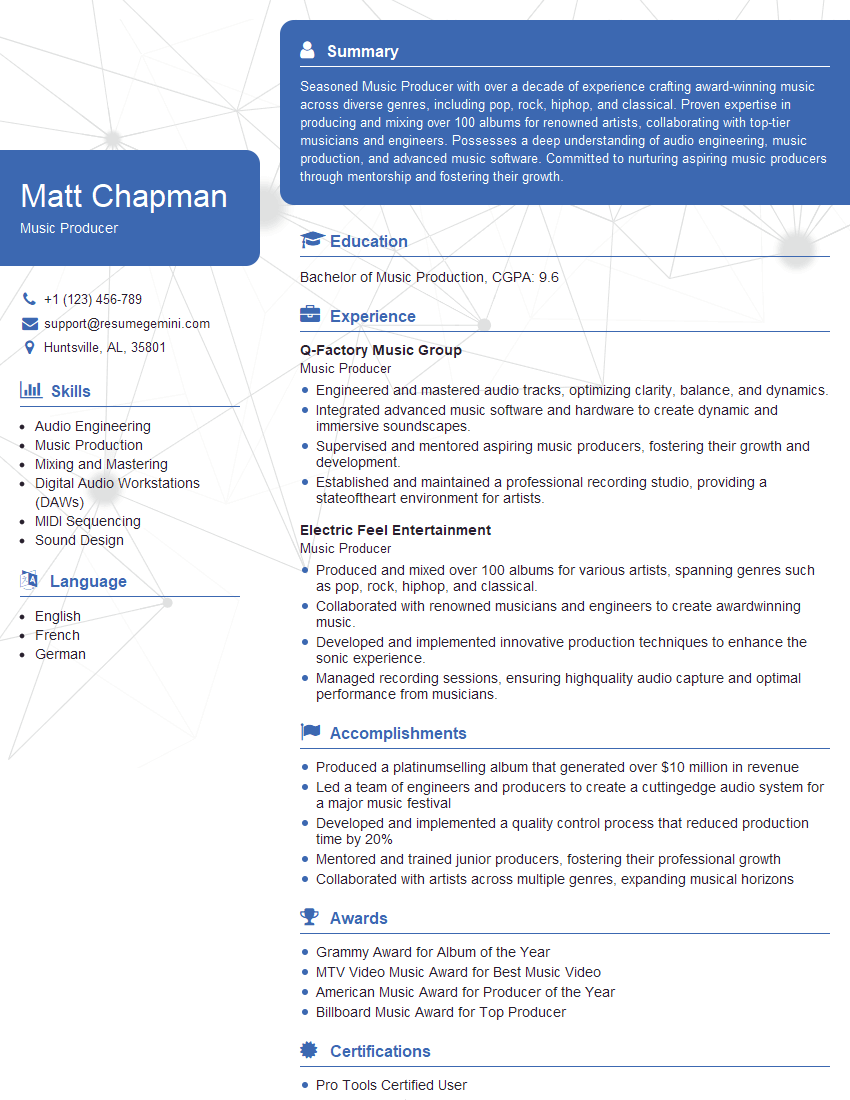
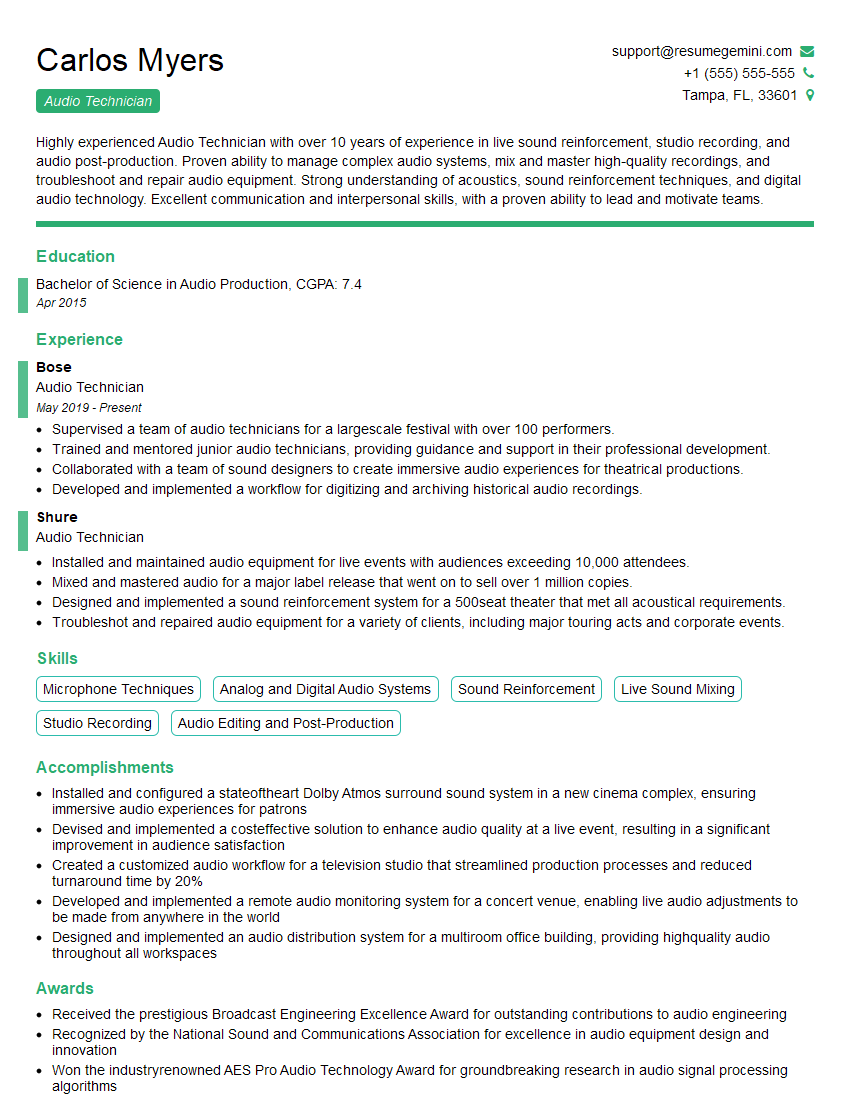
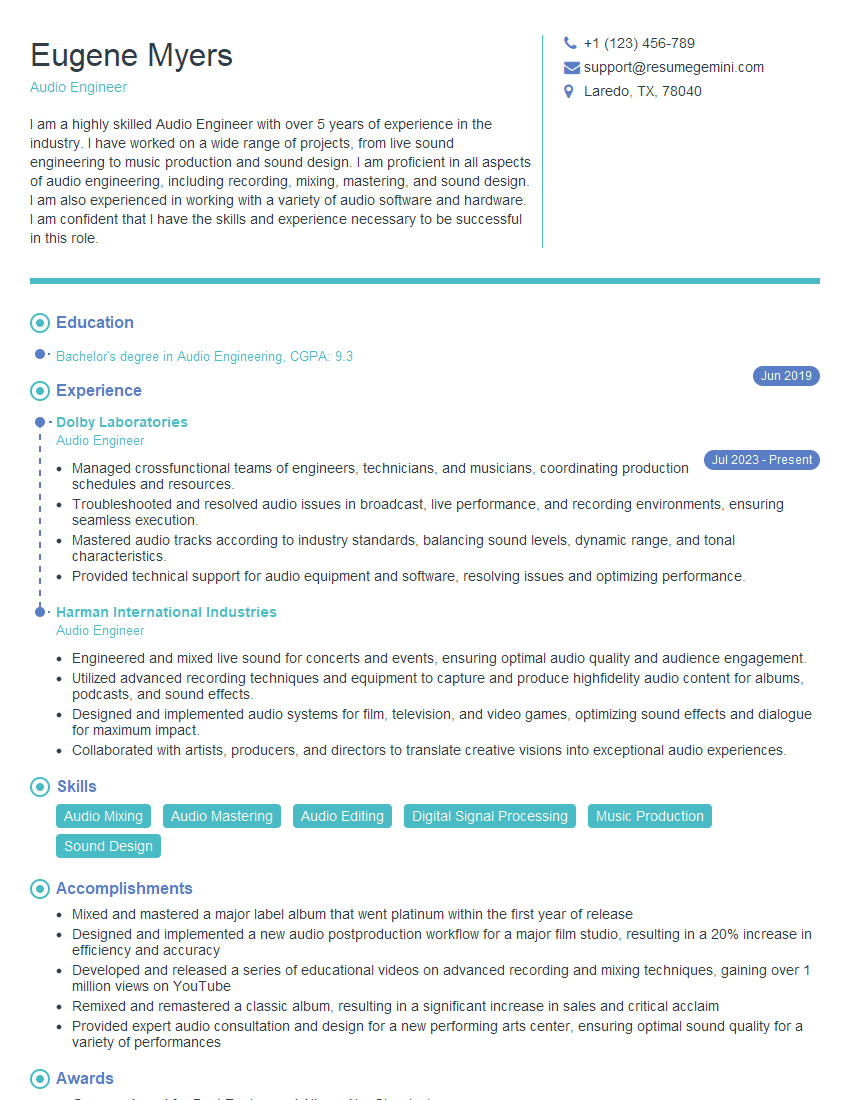
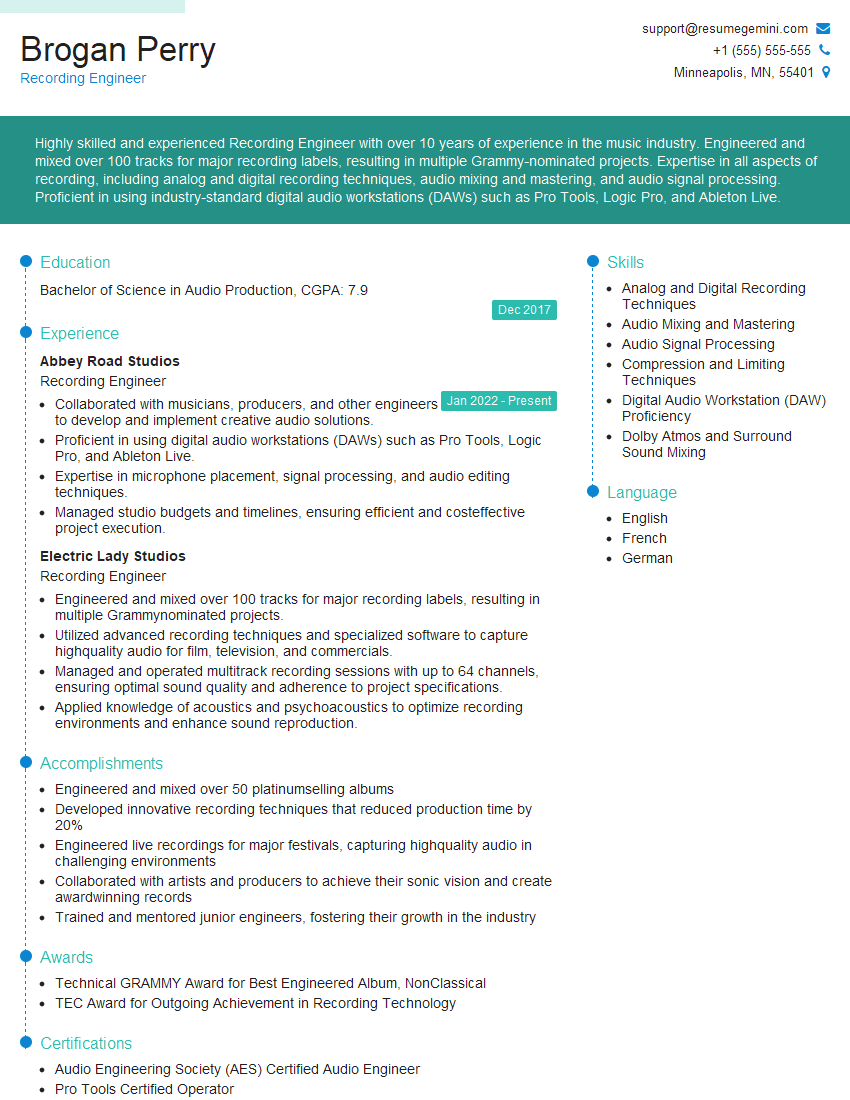
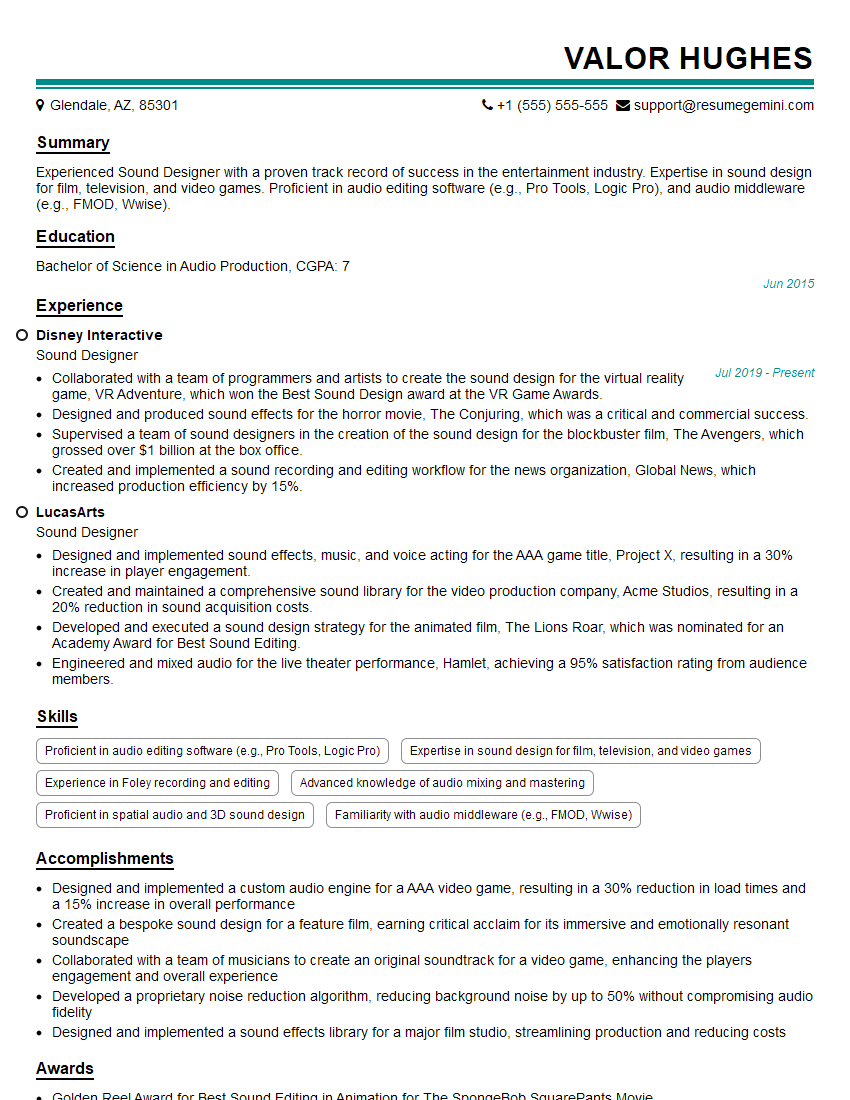
Mastering Pro Tools opens doors to exciting opportunities in audio engineering, music production, post-production, and sound design. A strong command of this industry-standard software significantly enhances your career prospects. To maximize your chances of landing your dream job, crafting a compelling, ATS-friendly resume is crucial. ResumeGemini is a trusted resource that can help you build a professional resume that highlights your Pro Tools skills effectively. Examples of resumes tailored to showcase Pro Tools proficiency are available on ResumeGemini to guide your creation.

Explore more articles
Users Rating of Our Blogs
Share Your Experience
We value your feedback! Please rate our content and share your thoughts (optional).
What Readers Say About Our Blog
good