Preparation is the key to success in any interview. In this post, we’ll explore crucial Proficient in Comic Software (e.g., Clip Studio Paint, Photoshop) interview questions and equip you with strategies to craft impactful answers. Whether you’re a beginner or a pro, these tips will elevate your preparation.
Questions Asked in Proficient in Comic Software (e.g., Clip Studio Paint, Photoshop) Interview
Q 1. Explain your experience using Clip Studio Paint’s layer management features.
Clip Studio Paint’s layer management is incredibly powerful, forming the backbone of my workflow. I rely heavily on its ability to create various types of layers – raster, vector, and correction layers – each serving a specific purpose in my comic creation. For example, I might have separate layers for line art, flat colors, shading, and text. This non-destructive workflow allows me to easily adjust and experiment without impacting other elements.
I frequently use layer folders to organize complex scenes. Imagine a panel with multiple characters; each character gets its own folder, containing sub-layers for line art, color, and shadows. This keeps my workspace clean and prevents accidental edits. Clip Studio’s layer masking features are also invaluable. I can use them to selectively apply effects or colors to specific areas without affecting others. For instance, I might use a mask to add a subtle glow around a character without affecting the background.
Furthermore, the ability to change layer blending modes is crucial for achieving various visual effects, such as overlaying textures or creating atmospheric depth. I might use a ‘Multiply’ mode for shadows or a ‘Screen’ mode for highlights. Clip Studio’s organizational features, including layer names and color coding, are essential for maintaining a clear and efficient process, especially when working on complex, multi-page comics.
Q 2. Describe your workflow for creating a comic page in Photoshop.
My Photoshop comic page workflow is heavily reliant on utilizing layer groups and smart objects. I start with a sketch on a low-resolution layer, then create a new layer for line art, often using a stabilizer brush to ensure clean lines. I then use a separate layer for flat colors, ensuring each color is on its own layer within a layer group for easy adjustment and editing later. Shading and highlights are applied on separate layers within that same group. This layered approach allows me to make changes at any stage without affecting other elements. I’ll often use adjustment layers (like Hue/Saturation or Curves) within layer groups to control color and contrast non-destructively.
After I’m satisfied with the artwork, I flatten the layer groups to improve performance and reduce file size. Then, I add text and sound effects on separate layers. I frequently use smart objects for elements that might need to be scaled or edited repeatedly, like backgrounds or recurring elements. Finally, I export the finished page at a high resolution suitable for printing or web publication, ensuring the proper color profile is used for the target platform.
Q 3. How do you manage color palettes and consistency across a comic series?
Maintaining color consistency across a comic series requires a meticulous approach. I typically create a master palette in either Clip Studio Paint or Photoshop, saving it as a custom palette. This palette contains all the core colors used throughout the series, including skin tones, hair colors, and background shades. I consistently refer back to this palette when working on new pages, ensuring that colors remain consistent across the entire run.
Additionally, I use color swatches to ensure consistency between different panels and pages. For example, if a character’s shirt is a specific shade of blue in one panel, I’ll make sure that same shade of blue is used in all subsequent panels featuring that character. I employ color adjustment layers sparingly, always checking against the master palette to avoid color drift over time. If there are significant changes in lighting or time of day, I ensure the shift is consistent and deliberate, rather than accidental.
Q 4. What are your preferred techniques for inking in Clip Studio Paint or Photoshop?
My inking techniques vary depending on the desired style, but I primarily favor digital methods in both Clip Studio Paint and Photoshop. In Clip Studio Paint, I frequently use the ‘G-Pen’ for its organic feel. I create clean lines and then refine them with smaller brushes to add details, making use of the software’s powerful stabilizer features to ensure line quality regardless of pressure variations. I also utilize vector layers, especially when inking elements which I may need to resize or modify later without losing quality.
In Photoshop, I tend to experiment with custom brushes more. I’ll create my own brushes to match a specific aesthetic, or adapt existing brushes. I always adjust brush settings like pressure sensitivity and opacity for precise control over line weight and variation. I’m also comfortable with a pen tablet, allowing me to use pressure sensitivity for dynamically varying line weight. A balance between a technical and artistic approach is essential for consistent results, irrespective of my choice of software.
Q 5. How do you handle complex perspective in your comic art?
Handling complex perspective requires a strong understanding of perspective principles and the use of guides within my chosen software. I use vanishing points and orthographic grids to build the foundational framework for my panels. In both Clip Studio Paint and Photoshop, I can create and manipulate these guides easily. I frequently start with a rough sketch incorporating the intended perspective, establishing vanishing points and guide lines before I begin inking or coloring.
For example, when drawing a cityscape, I’d establish multiple vanishing points to create a realistic sense of depth and distance. This approach helps maintain accuracy and consistency even in intricate compositions. While the perspective guides provide a structural foundation, I will often deviate slightly based on stylistic preferences; however, the guiding principles of perspective remain the backbone of my approach.
Q 6. Describe your process for creating dynamic character poses.
Creating dynamic character poses involves a combination of anatomical understanding, reference images, and digital tools. I begin by sketching from life or from references; I find understanding how the human body moves under tension is critical for creating believable, dynamic poses.
After establishing a solid sketch, I use software features like the ‘Transform’ and ‘Warp’ tools to refine the pose and add dynamic flair. I often utilize 3D models as pose references for quick refinement. I pay close attention to the character’s weight and balance, making sure the pose feels natural and believable, even in exaggerated situations. The interplay between dynamic lines, well-placed shadows, and expressive body language all contribute to the success of a dramatic pose. This is a critical skill for conveying emotion and narrative impact.
Q 7. Explain your understanding of different brush types and their applications in comic art.
Understanding brush types is fundamental to digital art. In both Clip Studio Paint and Photoshop, there is a wide variety of brush types, each with unique properties and applications.
For example, ‘Hard round brushes’ are ideal for sharp, clean lines, commonly used for inking or creating sharp details. ‘Soft round brushes’ are excellent for blending colors and creating smooth transitions. Texture brushes, which simulate the effects of real-world media like pencils or charcoal, are important for adding detail and visual interest. I often customize brushes to get very specific effects. For example, I might create a custom brush to imitate the texture of a particular type of paper or fabric. The interplay between brush characteristics and the artist’s technique determines the final artwork style and aesthetic.
My selection of brushes varies depending on the effect desired; for example, I use a different brush for sketching, inking, and coloring. Through experimentation, I’ve learned that selecting the right brush significantly streamlines the creative process and enhances the quality of the final artwork.
Q 8. How do you use vector layers effectively in your workflow?
Vector layers are a game-changer in comic creation, especially for line art. Unlike raster layers (made of pixels), vector layers use mathematical equations to define shapes. This means they can be scaled infinitely without losing quality – a crucial advantage when you need to resize panels or elements without blurriness. In my workflow, I use vector layers primarily for line art and any elements that might need resizing later, like speech bubbles or intricate patterns.
For example, I’ll create my character outlines on a vector layer in Clip Studio Paint. This allows me to adjust the thickness of lines, easily correct mistakes, and then smoothly scale the art for different print sizes or web publications without any degradation of quality. If I need to adjust the size of a character’s hand, I can freely scale it without worrying about pixelation, which would be a constant problem with raster-based line art. I’ll then rasterize the vector layers once I’m satisfied with the lines and move on to coloring. I find this workflow drastically reduces my time spent on corrections and resizing.
Q 9. How do you manage file sizes and resolutions for optimal printing and digital display?
Managing file sizes and resolutions is vital for both print and digital distribution. For print, high resolution is key to ensure sharp details. I typically work at 300 DPI (dots per inch) for print, aiming for a file size that balances quality and practicality, usually between 100 and 200 MB per page. For digital display, the resolution requirements are lower, ranging from 72 DPI to 150 DPI, allowing for smaller file sizes and faster loading times. I often create separate files optimized for each platform, preventing bloated files and potential issues.
To control file size, I use techniques like layering effectively (keeping similar elements together in groups or folders), avoiding unnecessary high resolution images if they are to be significantly reduced, and utilizing lossless compression techniques like PNG for line art and JPEG for color if appropriate. Regularly saving in the correct file format for the output also plays a crucial role. I always make sure to check and review the final file size before publishing or printing my work.
Q 10. Describe your experience with digital coloring techniques (cell shading, gradients, etc.).
Digital coloring is where I get to express my artistic vision. I’m proficient in both cell shading and gradient techniques, choosing the approach that best fits the style of the comic. Cell shading, with its bold, flat colors, creates a distinct comic book aesthetic – ideal for conveying a sense of graphic intensity or a classic feel. I often use it for action scenes or when a strong visual punch is needed. For a softer look, I utilize gradients to blend colors smoothly, creating a more realistic or painterly feel, especially beneficial for character portraits or environment details.
For instance, I might use cell shading to create the vibrant, eye-catching colors of a superhero costume, then use gradients to subtly shade the character’s face for a more naturalistic appearance, adding depth and realism. My approach involves experimenting with different layer blending modes (like Multiply, Overlay, Soft Light) to achieve the desired effects and carefully planning the color palette for each panel to ensure visual harmony and emotional impact. I find that a detailed understanding of light and shadow is crucial regardless of the techniques chosen.
Q 11. How do you approach lettering and typography in your comics?
Lettering is more than just adding words; it’s a crucial element of storytelling and visual pacing. I pay close attention to readability, font choice, and the placement of dialogue bubbles. I typically use vector-based lettering software, often within Clip Studio Paint, to ensure scalability and ease of modification. The choice of font dramatically affects the tone and atmosphere – a bold, sans-serif font might be perfect for action scenes, while a more delicate script might suit a romantic moment.
I also consider the overall layout: too much text in a panel can overwhelm the reader, whereas too little can feel sparse. I strive for a balance, ensuring readability while also maintaining the visual flow of the comic. I’ll often experiment with different font sizes, styles, and positioning until it feels right for the scene and character.
Q 12. Explain your understanding of color theory and its application to comic art.
Color theory is fundamental to comic art. Understanding the color wheel – primary, secondary, and tertiary colors – and concepts like complementary, analogous, and triadic color harmonies allows me to create visually appealing and emotionally resonant palettes. Warm colors (reds, oranges, yellows) can evoke feelings of energy and excitement, while cool colors (blues, greens, purples) can create a sense of calmness or mystery.
In practice, I might use complementary colors (colors opposite each other on the color wheel) to create contrast and visual interest, like pairing a bright orange with a deep blue. Or I might use analogous colors (colors next to each other on the wheel) to create a harmonious and cohesive feel, such as various shades of greens and blues for a forest scene. Mastering color theory allows me to use color strategically to enhance the narrative and guide the reader’s eye.
Q 13. How do you create believable textures and shading in your work?
Creating believable textures and shading is crucial for depth and realism. For textures, I employ a variety of techniques depending on the desired effect. I might use custom brushes in Clip Studio Paint to simulate different materials like rough fabrics, smooth metal, or weathered wood. For organic textures, I often photograph real-world objects and then use them as references or incorporate them directly into my digital artwork, applying blending modes to integrate them seamlessly.
Shading adds volume and form. I start with understanding light sources and how they affect objects. I utilize layer masks and multiple layers to blend and refine my shading, achieving smooth gradients or harsher contrasts based on the material and lighting. I often use a combination of digital and traditional techniques to bring depth and texture to my work. For instance, I might blend a digitally created shading gradient with texture created from a scanned watercolor wash.
Q 14. Describe your experience using 3D models as references for your comic art.
3D models are invaluable references, particularly for complex poses, anatomy, or environments. I use them to better understand perspective, form, and the play of light and shadow. I don’t directly trace from 3D models; instead, I use them as guides to enhance my own artistic interpretations. I might pose a 3D model in a particular action sequence, then use screenshots as references to help me accurately draw the same pose in my own comic style. This approach significantly improves the accuracy and believability of my characters and scenes.
For example, If I’m struggling with rendering a character performing a complex acrobatic feat, I will use a 3D model to observe the underlying muscle contractions and the flow of motion. I can then translate these observations to my drawing, creating a more dynamic and convincing pose. The process also helps me to avoid common mistakes like incorrect proportions or anatomical inaccuracies that can easily detract from the overall impact of the scene. It’s a powerful tool for enhancing the quality of my artwork.
Q 15. What are some of your favorite shortcuts in Clip Studio Paint or Photoshop?
My favorite shortcuts are heavily context-dependent, but some staples across Clip Studio Paint and Photoshop include:
Ctrl+Z (Cmd+Z): Undo – A lifesaver for those inevitable mistakes! I use this constantly.Ctrl+S (Cmd+S): Save – I’ve developed the habit of saving frequently, even every few minutes, to avoid catastrophic data loss. In Clip Studio Paint, the auto-save function is also invaluable.Ctrl+T (Cmd+T): Free Transform – Essential for resizing, rotating, and skewing elements. I use this for precise panel adjustments and character posing.[and]: Brush Size – Rapidly changing brush size is crucial for dynamic line work and detail. I often map these to a pen tablet’s buttons for even faster access.B: Brush Tool Selection – Quick selection of the brush tool, saving precious seconds.
In Clip Studio Paint, I also rely heavily on shortcuts for layer management like Ctrl+Shift+N (Cmd+Shift+N) for new layers and Ctrl+J (Cmd+J) to duplicate layers.
Career Expert Tips:
- Ace those interviews! Prepare effectively by reviewing the Top 50 Most Common Interview Questions on ResumeGemini.
- Navigate your job search with confidence! Explore a wide range of Career Tips on ResumeGemini. Learn about common challenges and recommendations to overcome them.
- Craft the perfect resume! Master the Art of Resume Writing with ResumeGemini’s guide. Showcase your unique qualifications and achievements effectively.
- Don’t miss out on holiday savings! Build your dream resume with ResumeGemini’s ATS optimized templates.
Q 16. How do you approach revisions and feedback on your comic art?
Revisions are an integral part of the comic creation process. I approach them with a collaborative mindset. I usually start by carefully reviewing the feedback, categorizing it into major and minor adjustments. For major changes, I might even create new sketches or redraw sections. For minor ones, I’ll use the software’s tools to make quick tweaks. I find it helpful to create a separate layer for each revision so I can easily compare versions and revert if needed. Open communication with the client or editor is key – I always clarify doubts and ensure we are on the same page before starting the revisions. For example, I had a client request a change to the background of a crucial scene. Rather than simply changing the color, I worked with them to understand their vision and provided a few alternatives before settling on a final design that added to the scene’s emotional impact.
Q 17. Explain your experience with creating and managing comic panels.
Creating and managing comic panels is a multi-step process. I typically begin by sketching panel layouts in a low-resolution layer, experimenting with different compositions. Once satisfied, I refine the layout in a higher-resolution layer, using guides and rulers for precision. Clip Studio Paint’s panel creation tools are incredibly helpful here. I use the ‘Create Frame Border’ tool to define each panel’s size and shape, often opting for a bleed to compensate for printing. The ‘Perspective Ruler’ is fantastic for creating dynamic angled panels. Each panel receives its own layer, maintaining organization. This layered approach also allows me to easily reorder panels during the editing stage. I also frequently utilize the ‘Selection’ tools to easily mask parts of the drawing for effects, and to isolate individual panels without cluttering my workflow.
Q 18. How do you ensure consistent line weights and styles throughout your comic?
Maintaining consistent line weights and styles is crucial for visual appeal. I achieve this by using custom brushes and employing several strategies: First, I create a set of brushes with varying weights, then select my preferred brush type for each stage of the process; rough sketch, refined lines, etc. I use the ‘Stabilizer’ option in both Photoshop and Clip Studio Paint to ensure my lines are smooth, preventing inconsistencies caused by hand tremors. A layer style with a consistent stroke weight can be added if necessary. Creating and saving templates helps for consistent elements. For instance, I might create a template for a character’s eyes to ensure uniform size and shape across different panels. Finally, I meticulously review the artwork, zooming in to ensure no jarring inconsistencies in line weight or style exist.
Q 19. Describe your experience with working with CMYK and RGB color modes.
CMYK (Cyan, Magenta, Yellow, Key/Black) and RGB (Red, Green, Blue) are different color modes. RGB is used for screens and digital displays, while CMYK is for print. I’m experienced in working with both. For webcomics or digital publishing, RGB is the standard. For print publications, I work in RGB initially and then convert to CMYK during the final stages, making sure to check for any color shifts. This conversion process often requires color adjustments to maintain accuracy. I carefully review the final CMYK version, checking for color saturation and potential banding effects. For example, vibrant blues and greens can sometimes lose their vibrancy in the CMYK conversion, requiring fine-tuning. Understanding these color mode differences and taking proper precautions is essential for high-quality results across both mediums.
Q 20. What are some common pitfalls to avoid when working with digital ink?
Common pitfalls with digital ink include:
- Overly complex linework: Intricate details can become difficult to print or appear muddy at smaller sizes. Simplify lines for clarity and readability.
- Inconsistent line weights: This can be avoided through using consistent brush settings and the stabilizer feature. Regularly check your work for inconsistencies.
- Insufficient resolution: Work at a sufficiently high resolution to avoid pixelation when the art is scaled.
- Lack of layers: Using separate layers for each ink element makes editing and revisions significantly easier.
Careful planning, consistent brush usage, and a layered workflow are crucial for preventing these problems. A preview at the final intended size is a great way to spot potential problems early on.
Q 21. How do you maintain a clean and organized file structure for your comic projects?
Maintaining a clean file structure is paramount for large projects like comics. My approach is based on a hierarchical system. I create a main folder for each comic project. Within that folder, I have subfolders for:
- Scripts: Containing all script versions.
- Thumbnails: Initial sketches and layouts.
- Pencils: Rough sketches.
- Inks: Clean inked artwork.
- Colors: Flat colors and shading layers.
- Final Art: High-resolution completed panels, ready for printing or web publishing.
Within each subfolder, I further organize files by chapter, page, or panel numbers. This system makes locating specific files quick and easy, preventing chaos and wasted time. Clear and descriptive file names, such as “Chapter 1_Page 3_Panel A.psd,” ensure efficient project management. Regular back-ups are essential to safeguard against data loss. I use cloud storage and external hard drives for redundancy.
Q 22. How would you address a deadline issue in a comic production environment?
Deadline issues are a common challenge in comic production. My approach is multifaceted and begins with proactive planning. I always start by breaking down the project into manageable tasks with realistic timeframes, using project management tools like Trello or Asana to visualize progress and dependencies. This allows for early identification of potential bottlenecks.
If a deadline is threatened, I immediately assess the situation: Is it a minor delay or a major setback? For minor delays, I might prioritize certain tasks or re-allocate my time to focus on the most critical aspects. For major setbacks, I communicate clearly and transparently with the client or team lead, proposing solutions such as adjusting the scope of work or requesting a deadline extension. Honesty and proactive communication are key to navigating these situations successfully.
For instance, during a project where I was creating a monthly comic page, I discovered a time constraint in the inking phase. I adjusted my workflow, focusing on a simplified inking style for less detailed areas, using layer masks to efficiently control areas with heavy line work. This allowed me to regain the schedule without compromising the overall quality.
Q 23. Explain your experience with exporting your work for various platforms (print, web, etc.)
Exporting for different platforms requires a deep understanding of resolution, color spaces, and file formats. For print, I typically use CMYK color space at a high resolution (300 DPI or higher) and save in TIFF or high-quality JPEG format. This ensures the print quality is sharp and vibrant.
For web, I usually use RGB color space and optimize the resolution to minimize file sizes for faster loading times. Common formats include PNG (for transparency and sharp lines) and JPEG (for photographs or less detailed areas). I always compress the files without compromising visual quality, using tools like TinyPNG or other lossy compression techniques. I also consider the target platform’s specific requirements – whether it’s a website, social media, or a digital comic reader.
Recently, I exported a comic page for a print anthology. I saved the file as a high-resolution CMYK TIFF for the printer and then created a smaller, RGB JPEG version for the anthology’s online promotional materials. It’s about understanding the different needs and adjusting accordingly.
Q 24. Describe your proficiency with using rulers, guides, and perspective tools.
Rulers, guides, and perspective tools are fundamental to creating clean, consistent, and professional-looking comics. I’m highly proficient in using them in both Clip Studio Paint and Photoshop. I use rulers for measuring distances and ensuring consistent panel sizes. Guides are invaluable for aligning elements precisely, maintaining symmetry, and creating clean layouts. Perspective tools help create believable three-dimensional spaces, adding depth and realism to my artwork.
For example, when creating a cityscape background, I use the perspective ruler to lay down the horizon line and vanishing points, ensuring that buildings and other elements correctly recede into the distance. For comic panels, I frequently use guides to establish consistent margins, making the final layout professional and consistent. I often create custom rulers and guides for specific projects, enhancing my efficiency and consistency. This attention to detail greatly impacts the overall visual quality and readability of my comics.
Q 25. How familiar are you with using actions or scripts for automation?
I’m very familiar with using actions and scripts to automate repetitive tasks. In both Clip Studio Paint and Photoshop, I frequently create actions to streamline processes like applying consistent color palettes, adding drop shadows, or resizing artwork. This significantly boosts my productivity and allows me to focus on the creative aspects of my work. For example, I created an action in Photoshop to automatically adjust the levels and contrast of my scanned inks, saving me considerable time.
While I’m not yet proficient in writing my own scripts from scratch, I understand the principles and can adapt and modify existing scripts to suit my needs. I often search for and utilize community-created scripts that perform specific functions, expanding my capabilities and workflow efficiency. This continual exploration of tools and techniques helps me enhance my process and stay current with best practices.
Q 26. How do you troubleshoot common technical issues that arise in digital comic creation?
Troubleshooting is an essential part of digital comic creation. Common issues I encounter include corrupted files, software crashes, and unexpected layer behavior. My approach is systematic. First, I identify the problem clearly: What exactly is happening? When did it start? What actions preceded it?
Then, I explore potential solutions. For corrupted files, I try to recover them using software features or online tools. If the software crashes, I check for updates, restart my computer, and look for conflicting applications. For layer issues, I carefully examine the layer settings, opacity, and blending modes. If the problem persists, I search online forums and support documentation for solutions. Often, I find answers from others who have encountered the same problem, learning from their experiences. Documenting solutions aids my future troubleshooting.
Q 27. Describe your experience using different printing techniques (e.g., offset, digital printing).
While my primary focus is digital creation, I have experience working with different printing techniques for comic projects. I understand the differences between offset and digital printing, considering factors such as cost, print quality, turnaround time, and run size.
Offset printing is generally preferred for large print runs due to its cost-effectiveness and high-quality results. However, it requires more upfront setup time and involves working closely with a printing press to ensure the correct color profiles and paper stock are utilized. Digital printing is ideal for smaller runs or quick turnarounds, though the cost per unit might be higher. It’s crucial to prepare files correctly for each method, ensuring the resolution and color space are appropriate to avoid issues. Understanding file preparation requirements for each print method is crucial to achieving high-quality results.
Q 28. Explain your understanding of copyright and licensing related to comic art.
Copyright and licensing are critical considerations for comic artists. I understand that my artwork is automatically protected by copyright as soon as it’s created. This means I have exclusive rights to reproduce, distribute, and display my work. However, I can choose to grant licenses to others for specific uses, such as publishing my work in a magazine or creating merchandise based on my characters.
I’m familiar with various licensing models, including Creative Commons licenses and standard commercial licenses. When working on collaborative projects, I always discuss copyright ownership and usage rights upfront to avoid future disputes. Understanding the implications of different licensing agreements is crucial for both protecting my work and working effectively with publishers or clients. Protecting my creative work ethically and legally is a cornerstone of my practice.
Key Topics to Learn for Proficient in Comic Software (e.g., Clip Studio Paint, Photoshop) Interview
- Digital Painting Techniques: Understanding brush dynamics, layer management, blending modes, and color theory for creating compelling visuals.
- Panel Composition and Layout: Applying principles of visual storytelling to create effective and engaging comic layouts. Practical application includes creating mock-ups of different panel arrangements and demonstrating understanding of pacing and visual flow.
- Line Art and Inking: Mastering techniques for creating clean, consistent lines, including vector vs. raster approaches and the use of stabilizers and line art tools.
- Coloring and Shading: Demonstrating proficiency in creating realistic or stylized color palettes, applying gradients, and utilizing shading techniques to add depth and dimension.
- File Management and Workflow: Optimizing your workflow for efficiency and organization, including understanding file formats (PSD, CLIP, etc.), non-destructive editing, and backup strategies.
- Software-Specific Features: Deep understanding of the specific features and tools within Clip Studio Paint or Photoshop relevant to comic creation (e.g., 3D models in CSP, actions in Photoshop).
- Understanding Print Considerations: Knowing how to prepare artwork for print, including resolution, color spaces (CMYK), and bleed.
- Problem-Solving and Troubleshooting: Demonstrating the ability to identify and resolve technical issues that arise during the comic creation process.
Next Steps
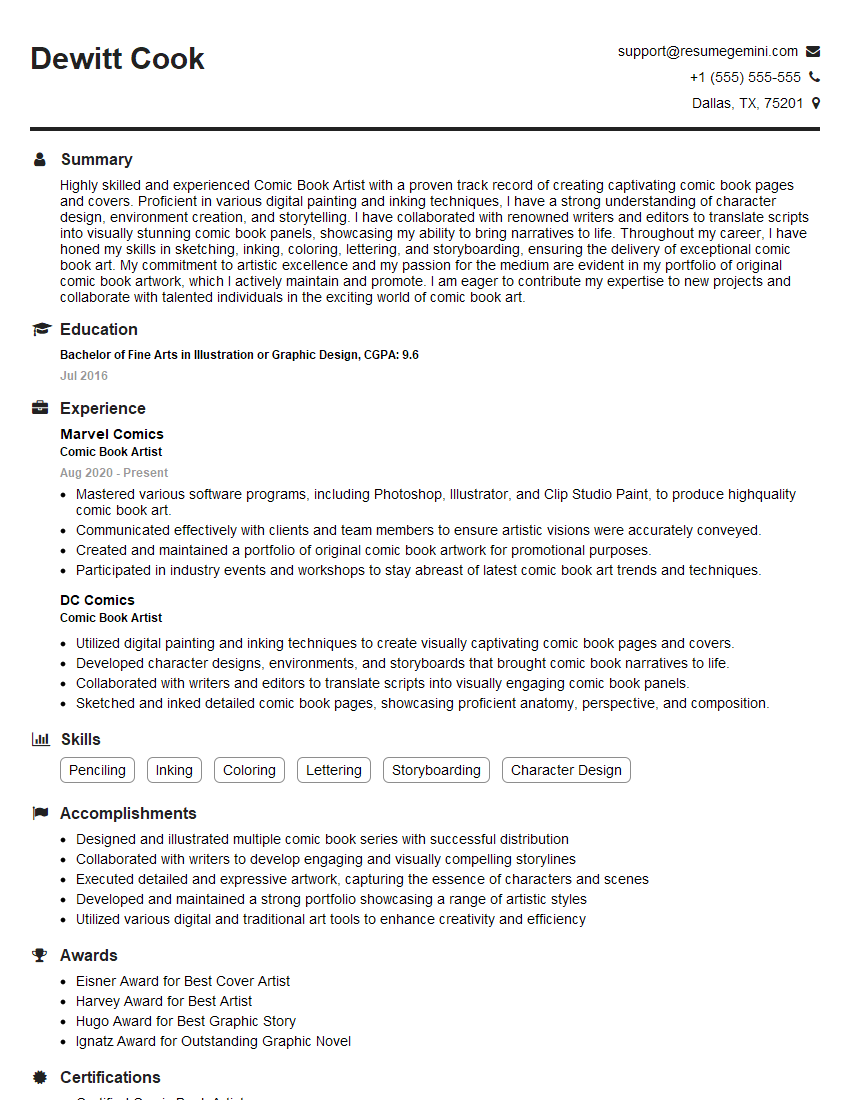
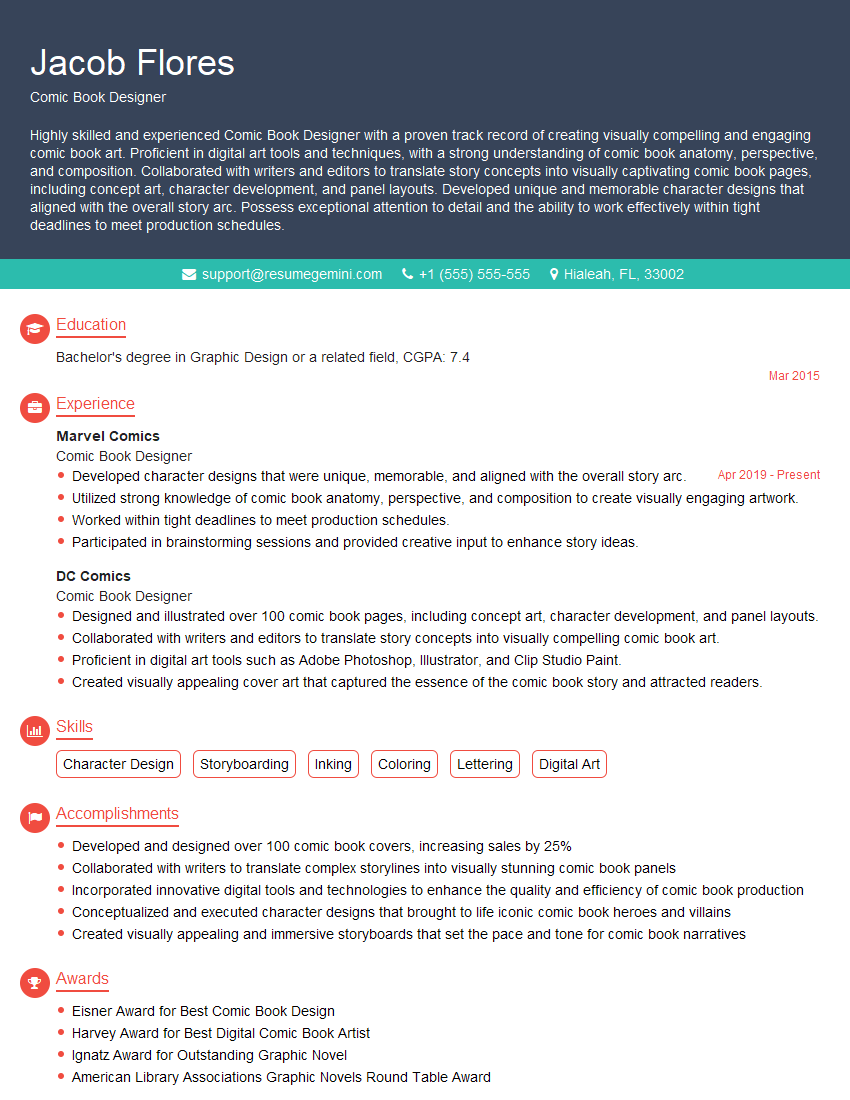
Mastering comic software like Clip Studio Paint and Photoshop is crucial for career advancement in the visual arts and publishing industries. A strong command of these tools opens doors to diverse opportunities, from freelance work to studio positions. To maximize your job prospects, crafting an ATS-friendly resume is essential. ResumeGemini is a trusted resource to help you build a professional and impactful resume that highlights your skills effectively. Examples of resumes tailored to showcasing proficiency in Clip Studio Paint and Photoshop are available – use them to inspire your own!
Explore more articles
Users Rating of Our Blogs
Share Your Experience
We value your feedback! Please rate our content and share your thoughts (optional).
What Readers Say About Our Blog
Very informative content, great job.
good