Every successful interview starts with knowing what to expect. In this blog, we’ll take you through the top Proficient in using CAD software interview questions, breaking them down with expert tips to help you deliver impactful answers. Step into your next interview fully prepared and ready to succeed.
Questions Asked in Proficient in using CAD software Interview
Q 1. Describe your experience with different CAD software packages.
My CAD software experience spans a variety of platforms, each suited for different tasks. I’m highly proficient in Autodesk Inventor, a powerful 3D parametric modeling software ideal for complex mechanical designs. I’ve extensively used it for designing everything from intricate machinery components to entire assembly lines. I’m also proficient in AutoCAD, primarily for 2D drafting and detailed technical drawings, excelling in creating precise architectural plans and manufacturing schematics. Furthermore, I have experience with SolidWorks, another leading 3D modeling software, which I’ve utilized for projects requiring surface modeling and advanced simulations. Finally, I’ve worked with Fusion 360, appreciating its cloud-based collaborative features and its ease of use for both 2D and 3D modeling.
For instance, in a recent project involving the design of a robotic arm, Inventor’s parametric modeling capabilities allowed for easy modification and optimization of the design based on simulation results. In contrast, AutoCAD was crucial for creating the detailed 2D manufacturing drawings needed for fabrication.
Q 2. Explain the difference between 2D and 3D CAD modeling.
The core difference between 2D and 3D CAD modeling lies in the dimensionality of the representation. 2D CAD focuses on creating flat, two-dimensional drawings, like blueprints or technical illustrations. Think of it like drawing on a piece of paper – you have length and width but no depth. It’s primarily used for documenting designs, creating technical drawings, and generating manufacturing specifications.
3D CAD, on the other hand, creates a three-dimensional model, encompassing length, width, and depth. This allows for a more realistic and complete representation of the object, enabling better visualization and analysis before physical prototyping. Imagine sculpting a clay model – you can see and manipulate the object from all angles. 3D modeling is essential for complex designs where understanding spatial relationships and performing simulations are vital.
For example, a 2D drawing might show the front view of a chair, but a 3D model allows you to view it from every angle, analyze its structural integrity, and even perform simulations to test its strength and stability under load.
Q 3. How do you manage large and complex CAD files?
Managing large and complex CAD files requires a strategic approach. Firstly, I always employ a well-organized file structure, using a logical naming convention to easily locate and identify files. This includes incorporating project names, revision numbers, and component identifiers. I frequently utilize data management tools integrated within CAD software or external database systems to track file versions and metadata.
Secondly, I utilize data lightweighting techniques such as simplifying geometry, deleting unnecessary history, and exporting files in optimized formats (like STEP or IGES) for external collaboration. For very large assemblies, I often break them down into smaller, more manageable sub-assemblies. This modular approach reduces file size and improves performance. Finally, investing in high-performance computing hardware with sufficient RAM and processing power is crucial. This significantly accelerates the rendering and manipulation of large files.
For instance, on a project involving a complete aircraft cabin design, we divided the model into sub-assemblies like seats, overhead bins, and galleys. This allowed multiple team members to work concurrently without performance issues.
Q 4. What are your preferred CAD modeling techniques?
My preferred CAD modeling techniques depend heavily on the project requirements, but I generally favor a combination of parametric and direct modeling. Parametric modeling, used extensively in Inventor and SolidWorks, allows me to define design features through parameters and relationships. This makes it incredibly efficient to modify designs and explore different design options. A change to a single parameter automatically updates related components, maintaining consistency and reducing errors.
Direct modeling, which is more prevalent in Fusion 360, offers greater flexibility for organic shapes and free-form designs. It’s excellent for quickly prototyping and iterating on concepts. I often combine both approaches; creating the core structure using parametric modeling for accuracy and control and then using direct modeling to refine details and create more organic shapes.
For example, when designing a complex mechanical gear, I’d use parametric modeling to define the gear’s parameters (number of teeth, module, pressure angle), while direct modeling might be used to refine the tooth profile for optimal performance.
Q 5. Describe your experience with CAD data management and version control.
Effective CAD data management and version control are paramount to avoid conflicts and ensure design integrity. I consistently utilize version control systems integrated within CAD software or dedicated platforms like PDM (Product Data Management) systems. These systems track revisions, manage file versions, and allow for easy rollback to previous states if needed. Each design iteration is meticulously documented with change logs outlining modifications and rationale. This is crucial for traceability and accountability in collaborative projects.
Furthermore, I employ a robust naming convention for files and folders to ensure clear organization and easy retrieval. Implementing a well-defined workflow for check-in/check-out of files further minimizes conflicts within teams. Clear communication and collaboration protocols within the team also contribute to streamlined data management.
In a recent team project, our PDM system ensured that multiple engineers could work concurrently on different aspects of the same design without overwriting each other’s changes. This seamless collaboration significantly accelerated the design process.
Q 6. How do you ensure the accuracy and precision of your CAD drawings?
Accuracy and precision are fundamental in CAD. I start by using precise input methods such as constraints, dimensions, and parameters to define geometry, minimizing manual estimations. Regularly checking units and scaling throughout the design process is essential. I leverage CAD software’s built-in tools for dimensional analysis, tolerance checking, and interference detection to identify and rectify errors early on. Furthermore, I frequently utilize geometric dimensioning and tolerancing (GD&T) standards to explicitly specify design requirements and tolerances.
Prior to finalizing any drawing, I perform thorough quality checks, verifying dimensions, alignments, and clearances. This frequently involves comparing the model against specifications and performing simulations to evaluate performance and identify potential issues. Lastly, independent reviews by colleagues are essential for catching any overlooked errors or inconsistencies.
For example, in designing a precision instrument, even minor discrepancies in dimensions could significantly impact its functionality. Rigorous quality checks and the use of GD&T ensured the design met the required precision.
Q 7. Explain your process for creating detailed technical drawings.
Creating detailed technical drawings involves a systematic process. It begins with a thorough understanding of the design intent and the intended use of the drawings. I start by creating a 3D model using the appropriate CAD software, ensuring it accurately reflects the design specifications. Then, I use the model to generate 2D views, selecting appropriate projections (orthographic, isometric, etc.) depending on the necessary information.
Next, I meticulously add dimensions, tolerances, notes, and other annotations using the CAD software’s annotation tools, adhering strictly to established standards like ASME Y14.5. This ensures clarity and unambiguous communication of design information. I also incorporate material specifications, surface finishes, and manufacturing processes where relevant. Finally, the drawing undergoes a thorough review process to verify accuracy and completeness before release.
For example, a technical drawing for a machined part would include dimensions for all critical features, tolerances to indicate allowable variations, material specifications, and potentially surface finish requirements. The drawing ensures that the part can be accurately manufactured by a machinist.
Q 8. How do you handle revisions and updates to CAD models?
Managing revisions and updates in CAD is crucial for maintaining project integrity and avoiding conflicts. I employ a robust version control system, often integrated directly within the CAD software or through a dedicated platform like a Product Data Management (PDM) system. This ensures that every change is tracked, documented, and easily retrievable.
For example, I might use a system that creates numbered revisions (e.g., Rev A, Rev B, etc.) for each model iteration. Each revision includes a change log detailing the modifications made. This allows for easy comparison between revisions and rollback if needed. Furthermore, I always clearly label files with revision numbers and dates, preventing accidental overwrites. If working collaboratively, a well-defined revision control protocol is vital, often involving check-in/check-out procedures to avoid conflicts. Think of it like tracking changes in a document using Google Docs – you can see who made which changes and when.
Q 9. How familiar are you with CAD standards and best practices?
I’m highly familiar with industry CAD standards and best practices. This includes adhering to relevant ISO standards (like ISO 10303 for STEP files) and company-specific drawing conventions. I understand the importance of clear layer management, consistent naming conventions for files and objects, and the use of blocks and symbols to standardize design elements. Best practices also extend to file organization, using descriptive file names and maintaining a structured folder system. I’m proficient in generating comprehensive title blocks that include crucial information like revision numbers, dates, and responsible parties. This standardized approach ensures drawings are easily understood and interpretable by others.
For instance, I ensure that all my drawings follow a specific company template, incorporating the company logo, a standardized title block including project name, revision number, date and other essential information, and adhere to standardized layer naming and line styles, consistent throughout. This allows for seamless integration and collaboration within our teams.
Q 10. Describe your experience with creating detailed assembly drawings.
Creating detailed assembly drawings is a core part of my expertise. My process begins with a thorough understanding of the assembly’s function and individual component specifications. I utilize advanced CAD features to model each component accurately, ensuring proper fit and clearance between parts. I then assemble these components in the 3D environment, verifying functionality and interference through collision detection tools. Finally, I generate detailed 2D drawings, including exploded views, section views, and detailed callouts to highlight critical features and dimensions. Each drawing includes comprehensive BOMs (Bills of Materials) listing all components and their respective quantities.
For example, while working on a complex robotic arm project, I created a detailed assembly drawing that included exploded views showing the hierarchical structure of the components, sectional views to illustrate internal mechanisms, and detailed drawings of individual parts with accurate dimensions and tolerances. The Bill of Materials ensured seamless sourcing and manufacturing of the final product. This clear and comprehensive documentation was crucial for the project’s success.
Q 11. How do you troubleshoot errors and issues in CAD software?
Troubleshooting in CAD involves a systematic approach. I start by identifying the error’s nature – is it a software crash, a modeling issue, or a rendering problem? I carefully examine the CAD software’s error messages and logs for clues. If the issue stems from a corrupted file, I might try recovering a previous version from backups or utilizing file repair tools. If the error is related to the model’s geometry, I’ll use diagnostic tools within the CAD software, like checking for invalid geometry or self-intersections. Often, the solution lies in carefully reviewing my modeling steps, looking for inconsistencies or errors in constraints or parameters.
For instance, I once encountered a slow rendering issue. Instead of immediately assuming a hardware problem, I started by investigating the model’s complexity, identifying high-polygon areas that were causing performance bottlenecks. After simplifying these areas, rendering times improved drastically. Understanding the software’s capabilities and limitations is crucial for effective troubleshooting.
Q 12. What are your experience with different file formats (.dwg, .dxf, .stp, etc.)?
I have extensive experience with various CAD file formats. .dwg and .dxf are native formats for Autodesk AutoCAD, commonly used for 2D drawings and some 3D models. .stp (STEP) is a neutral, industry-standard format for 3D models, ensuring compatibility across different CAD systems. Other formats I frequently use include .igs (IGES), .prt (Pro/Engineer), .sldprt (SolidWorks), and .iam (Inventor Assembly). Understanding the strengths and limitations of each format is key to selecting the appropriate one for a given task. .STEP files are ideal for data exchange between different CAD platforms because of their neutrality, while .dwg remains the most common for 2D drawings within the Autodesk ecosystem. I always check the file format compatibility before sending or receiving CAD files.
Q 13. Explain your experience with creating and using CAD templates.
Creating and utilizing CAD templates is a highly efficient workflow practice. I develop templates that include standardized settings, layers, title blocks, and common symbols relevant to specific project types. For example, I would have separate templates for architectural drawings, mechanical parts, and electrical schematics. These templates save significant time and effort, ensuring consistency across all projects and reducing the chance of errors caused by inconsistent settings. Templates also streamline the design process, allowing me to focus on design rather than repetitive setup.
In a recent project involving multiple mechanical parts, I created a template that included pre-defined layers for different part features (e.g., ‘outer shell,’ ‘internal mechanism’), a fully populated title block for easy documentation, and commonly used symbols for standard components like screws and fasteners. This reduced the initial setup time for each new component design.
Q 14. How do you collaborate effectively with colleagues using shared CAD models?
Effective collaboration on shared CAD models requires a well-defined workflow and clear communication. I typically utilize cloud-based PDM systems or shared network drives for model storage and access. However, it is crucial to follow a version control process to track changes, avoid conflicts and ensure that everyone is working with the most up-to-date version. Before making significant modifications, I ensure open communication with my colleagues to avoid conflicts and ensure that our efforts are coordinated.
We frequently utilize tools that allow for real-time collaboration, enabling simultaneous viewing and annotation of CAD models. This facilitates feedback and allows quick identification and resolution of issues. Clear naming conventions and comments within the models help in tracking changes and understanding design decisions. For complex projects, regular meetings are scheduled to review progress, discuss challenges and coordinate design tasks.
Q 15. Describe your experience with CAD rendering and visualization.
CAD rendering and visualization are crucial for transforming 2D designs into photorealistic images or animations, allowing for better client communication and design evaluation. My experience spans various software packages, including Autodesk 3ds Max, V-Ray, and Lumion. I’ve worked on projects ranging from architectural walkthroughs showcasing detailed interior designs and exterior landscaping to product visualizations for consumer goods, enabling clients to see exactly how the final product will appear. For example, in one project involving a luxury apartment complex, I created high-resolution renderings that accurately displayed materials, lighting, and shadows, which were instrumental in securing pre-sales. I’m proficient in using different rendering techniques, including ray tracing and path tracing, to achieve photorealistic results and manage render times efficiently. I also understand the importance of post-processing techniques to enhance the final render output.
Career Expert Tips:
- Ace those interviews! Prepare effectively by reviewing the Top 50 Most Common Interview Questions on ResumeGemini.
- Navigate your job search with confidence! Explore a wide range of Career Tips on ResumeGemini. Learn about common challenges and recommendations to overcome them.
- Craft the perfect resume! Master the Art of Resume Writing with ResumeGemini’s guide. Showcase your unique qualifications and achievements effectively.
- Don’t miss out on holiday savings! Build your dream resume with ResumeGemini’s ATS optimized templates.
Q 16. What is your experience with CAD automation and scripting?
CAD automation and scripting significantly increase efficiency and reduce repetitive tasks. I’m proficient in several scripting languages, including Python and Dynamo (for Autodesk Revit). I’ve used Python extensively to automate tasks such as generating reports, extracting data from CAD models, and creating custom tools to streamline workflows. For instance, I developed a Python script to automatically generate detailed material lists from architectural models, saving countless hours of manual data entry. My Dynamo experience includes automating complex design processes, such as creating repetitive elements in large-scale projects, ensuring consistency and minimizing errors. I’m also comfortable using macros and other built-in automation features within various CAD software packages. The key is to identify repetitive tasks and then design scripts to automate them, freeing up time for more creative and complex aspects of the design process.
Q 17. How do you ensure the compatibility of your CAD drawings across different platforms?
Ensuring compatibility across platforms requires adherence to industry standards and best practices. I consistently use industry-standard file formats like DWG (AutoCAD), DXF, and STEP. These formats are generally compatible across different CAD platforms, although minor issues can sometimes arise. I also thoroughly test files on multiple platforms before finalizing them, to catch any platform-specific compatibility problems. Furthermore, I minimize the use of software-specific features that may not be universally supported. The use of simple geometry, avoidance of complex nested blocks, and the prudent usage of layers significantly contributes to better file compatibility. If a project requires sharing with clients using different software, I’ll often provide files in multiple formats (like DWG and DXF) to guarantee seamless collaboration.
Q 18. How do you manage layers and object properties in your CAD drawings?
Effective layer management is crucial for organization and efficiency. I maintain a logical layer structure, using consistent naming conventions and grouping related objects. For example, in an architectural model, I would have separate layers for walls, doors, windows, MEP systems, etc. This allows for easy selection, modification, and visibility control. I also use layer states (like freezing or turning layers on/off) to manage the complexity of large drawings, simplifying the viewing experience. Proper use of object properties, including line weights, line types, colors, and layers, is essential for creating clear, readable drawings. I diligently use these properties to convey design intent and information efficiently. This approach is critical for both personal organization and for collaborative projects, where consistent layer management is paramount.
Q 19. Describe your experience with parametric modeling.
Parametric modeling is a powerful technique that allows for dynamic design changes. My experience with parametric modeling using software like Autodesk Inventor and SolidWorks is extensive. I’m comfortable creating and modifying parametric models, understanding the relationships between different design parameters. This allows for quick design iterations and optimization. For example, in designing a product with specific dimensional constraints, I can easily adjust parameters like length, width, and height, and the model will automatically update to reflect the changes, ensuring everything remains dimensionally consistent. This speeds up the design process and reduces the risk of errors associated with manual adjustments. Parametric modeling is invaluable for tasks that require numerous iterations and design exploration.
Q 20. How familiar are you with using constraints in CAD modeling?
Constraints are fundamental to parametric modeling, defining the relationships between elements in a model. I have extensive experience with geometric constraints (like parallel, perpendicular, concentric, etc.), dimensional constraints (specifying exact distances), and more advanced constraints in sophisticated software. For instance, using constraints ensures that when one part of a design is altered, other related parts will adjust automatically, maintaining the integrity of the overall model. My approach prioritizes well-defined constraints, simplifying the design process and reducing manual intervention. Using constraints not only streamlines the process but also leads to more robust and reliable designs. I understand the importance of properly applying constraints to manage complexity and avoid conflicts within the model.
Q 21. Explain your experience with creating and modifying 3D models.
Creating and modifying 3D models is a core part of my workflow. I’m proficient in using various 3D modeling techniques, including solid modeling, surface modeling, and mesh modeling, adapting my approach based on project requirements. I’m experienced with software like Autodesk Inventor, SolidWorks, and Blender. For example, I’ve designed complex assemblies of mechanical parts using solid modeling, ensuring proper clearances and fits. I’ve also used surface modeling to create aesthetically pleasing products with smooth, organic shapes. I utilize modeling techniques to create detailed models with textures and materials, enhancing the realism of the 3D representations. Understanding the strengths and limitations of each modeling technique is essential for creating efficient and accurate 3D models. I’m adept at utilizing Boolean operations (union, subtraction, intersection) to build and modify complex models. Proficiency in 3D modeling facilitates detailed design analysis and effective visualization.
Q 22. Describe your process for creating detailed sections and elevations.
Creating detailed sections and elevations in CAD involves a systematic approach to visually represent a design’s internal structure and external appearance. It’s like taking a building and slicing it up to show the inner workings, then displaying its facade from various angles. My process begins with a well-defined 3D model. I then strategically place section planes through the model to reveal the desired internal details. For elevations, I create orthographic views – essentially, ‘straight-on’ projections – of the model’s key faces.
- Section Plane Placement: I carefully choose section plane locations to showcase critical features and structural elements. For example, a section through a wall would reveal the framing, insulation, and electrical wiring, providing valuable information for construction. I use the CAD software’s tools to precisely place and adjust these planes, ensuring they cut through the model at the ideal locations.
- View Selection and Settings: After creating the sections, I utilize the software’s tools to optimize the visual clarity. This involves adjusting the line weights, hatching patterns, and material representations to highlight specific aspects of the design. I might use different hatching styles to differentiate materials, such as concrete versus wood.
- Annotation and Labeling: Detailed annotations are crucial. I add dimensions, notes, and material specifications directly to both sections and elevations. This ensures that the drawings are both visually informative and technically precise. Clear labeling enhances understanding and avoids ambiguity for the construction team.
- Elevation Views: For elevations, I focus on accurately depicting the building’s facade, including windows, doors, and other exterior elements. Multiple elevations from different angles may be necessary to fully illustrate the design. Again, precise dimensioning and labeling are essential.
For example, in designing a complex staircase, I’d create sections to show the detailed structure of the stringers, treads, and risers, while elevations would show the overall shape and placement of the staircase within the building’s context.
Q 23. How do you ensure dimensional accuracy and tolerance in your CAD designs?
Dimensional accuracy and tolerance are paramount in CAD design; they ensure the final product functions correctly. Think of it like baking a cake – if the measurements are off, the result won’t be right. I maintain accuracy through several strategies:
- Parametric Modeling: I extensively use parametric modeling techniques where possible. This means defining elements with parameters (like length, width, and height) rather than fixed values. If a dimension changes, the model updates automatically, ensuring consistency and avoiding errors.
- Constraints and Relations: I employ geometric constraints and relations to define relationships between model elements. This prevents geometry from drifting and maintains the integrity of the design. For instance, constraining the lengths of adjacent walls ensures that they meet properly without gaps.
- Tolerance Specification: I explicitly define tolerances for dimensions based on manufacturing capabilities and design requirements. This is usually done using annotations on the drawings. For example, specifying a ±0.5mm tolerance for a critical dimension gives the manufacturer some leeway while ensuring the component remains within acceptable limits. This also helps avoid costly rework.
- Regular Model Checks: I regularly check the model for dimensional inconsistencies using the software’s built-in tools, such as geometry checks and interference detection. This helps catch errors early in the design process.
- Version Control: I maintain version control of my designs, enabling me to track changes and revert to previous versions if necessary. This is crucial to avoid overwriting correct dimensions with erroneous ones.
For instance, in designing a precision machine part, I’d utilize extremely tight tolerances, perhaps ±0.01mm, to guarantee proper functionality. In contrast, a less critical component, like a simple housing, might tolerate larger deviations.
Q 24. Explain your experience with using CAD for design analysis and simulations.
CAD software offers powerful design analysis and simulation capabilities. This goes beyond simply creating visuals; it allows us to test and optimize the design before manufacturing. My experience includes using CAD for various simulations, including:
- Finite Element Analysis (FEA): I’ve used FEA to analyze the structural integrity of designs under various load conditions. This helps identify potential stress concentrations or areas prone to failure. It’s like virtually testing the strength of a bridge before building it.
- Computational Fluid Dynamics (CFD): I’ve utilized CFD to simulate fluid flow around objects, aiding the design of aerodynamic components. This was instrumental in optimizing the airflow in ventilation systems or around automotive parts.
- Motion Simulation: For mechanical designs, I use motion simulation to analyze the movement of parts and mechanisms. This helps identify potential collisions or interferences and optimize the design for smooth and efficient operation. This is vital for designing robots or other moving machinery.
For instance, in designing a car chassis, I’d use FEA to simulate the impact of a crash to ensure structural integrity. Or, in designing a cooling system for electronics, I’d utilize CFD to ensure proper heat dissipation.
Q 25. How do you generate detailed bill of materials (BOM) from CAD models?
Generating a detailed bill of materials (BOM) from a CAD model is crucial for manufacturing and cost estimation. Most modern CAD software packages offer tools for automatic BOM generation. My approach involves:
- Component Definition: I meticulously define each component in the CAD model with the necessary attributes like part number, description, material, and quantity. This ensures accurate data for the BOM.
- BOM Generation Tools: The CAD software’s built-in BOM generation tools extract this data and create a structured BOM list. I review this generated list carefully to confirm its accuracy.
- Customization and Reporting: I often customize the BOM to include specific information, such as supplier details or cost estimations. The software usually allows exporting the BOM in different formats (like Excel or CSV) for use in other applications, such as inventory management systems.
- Regular Updates: I regularly update the BOM as the design evolves. Changes in component specifications or quantities are reflected in the updated BOM.
For example, designing a piece of furniture automatically generates a BOM listing the number and type of screws, the quantity and type of wood, the number of hinges and other hardware pieces, etc. This is then readily accessible to the manufacturer for ordering and assembly.
Q 26. What are your experience with CAD integration with other software applications?
CAD integration with other software is essential for efficient design workflows. My experience includes integration with:
- Product Lifecycle Management (PLM) Systems: I’ve used CAD to collaborate with PLM systems, enabling data management, version control, and collaborative design across teams. It’s like a central hub for all design-related information.
- Finite Element Analysis (FEA) Software: Direct integration with FEA software allows for seamless transfer of CAD models for analysis and simulation. The results are then imported back into the CAD model for design refinement.
- Computer-Aided Manufacturing (CAM) Software: I have experience transferring CAD models to CAM software for generating CNC toolpaths for manufacturing. This ensures smooth transition from design to production.
- Rendering and Visualization Software: I’ve used CAD models as input for rendering and visualization software to create photorealistic images and animations for presentations or marketing materials.
For instance, seamlessly transferring a CAD model of a complex mechanical part directly into CAM software minimizes errors in translating the design for manufacturing and ensures greater precision.
Q 27. Describe your experience with creating and managing CAD libraries.
Creating and managing CAD libraries is crucial for efficiency and consistency in design. It’s like having a well-organized toolbox – you can readily access the right tools for the job. My experience includes:
- Standard Component Creation: I create and maintain libraries of standard components like fasteners, connectors, and commonly used parts. This ensures consistency and reduces the need to model these elements repeatedly.
- Custom Part Libraries: I develop libraries of custom parts specific to particular projects or company standards. This maintains design consistency across multiple projects.
- Library Organization: I organize libraries using a logical naming convention and folder structure. This ensures easy access and retrieval of parts.
- Metadata Management: Each component in the library is associated with appropriate metadata, such as material, dimensions, and other relevant attributes. This ensures that the correct part is selected and used.
- Regular Updates and Maintenance: I regularly update the library with new components and improvements, removing obsolete parts to keep the library current and relevant.
For example, in a project involving many similar components, a well-organized library will significantly reduce design time and maintain consistency. Having a library of standard bolts ensures that all bolts used across a project are the same, avoiding compatibility issues.
Q 28. How do you stay up-to-date with the latest advancements in CAD technology?
Staying up-to-date with CAD advancements is vital for maintaining a competitive edge. My methods include:
- Industry Publications and Websites: I regularly read industry publications and websites to stay informed about new features, software updates, and emerging trends in CAD technology. This is a great way to understand changes and learn about improvements.
- Online Courses and Webinars: I participate in online courses and webinars offered by CAD software vendors and industry experts. This provides hands-on training and in-depth knowledge of advanced features.
- Conferences and Workshops: Attending industry conferences and workshops offers opportunities to network with colleagues and learn about the latest innovations firsthand. This also helps understand the practical applications of new technologies.
- Professional Organizations: I am a member of relevant professional organizations that offer access to training resources and networking opportunities. This helps keep up-to-date on the latest industry standards and best practices.
- Self-Guided Learning: I regularly experiment with new features and functionalities within the CAD software, pushing my boundaries and broadening my skillset. Hands-on practice is key to mastering new tools and technologies.
For example, recently, I attended a webinar on generative design, a relatively new CAD technology that has greatly changed my approach to efficient design optimization.
Key Topics to Learn for Proficient in using CAD Software Interviews
- Software Proficiency: Demonstrate a deep understanding of your chosen CAD software (AutoCAD, SolidWorks, Revit, etc.). This includes mastery of the user interface, toolsets, and common functionalities.
- 2D & 3D Modeling Techniques: Be prepared to discuss your experience creating and manipulating 2D drawings and 3D models. Explain your approach to different modeling techniques and your ability to handle complex geometries.
- Design Principles & Best Practices: Highlight your knowledge of fundamental design principles like dimensioning, tolerances, layering, and annotation. Discuss how you ensure the accuracy and clarity of your designs.
- Data Management & Collaboration: Explain your experience managing CAD files, using version control, and collaborating with others on design projects using cloud storage or shared workspaces.
- Practical Applications & Case Studies: Prepare examples of past projects where you utilized CAD software. Emphasize the challenges you faced, the solutions you implemented, and the positive outcomes you achieved.
- Problem-Solving & Troubleshooting: Discuss your approach to resolving technical issues within the CAD software. Be ready to explain how you debug errors, optimize workflows, and troubleshoot complex design problems.
- Specific Software Features (Advanced): Depending on the job description, focus on mastering advanced features relevant to the role, such as rendering, simulations, or specific industry-specific add-ons.
Next Steps
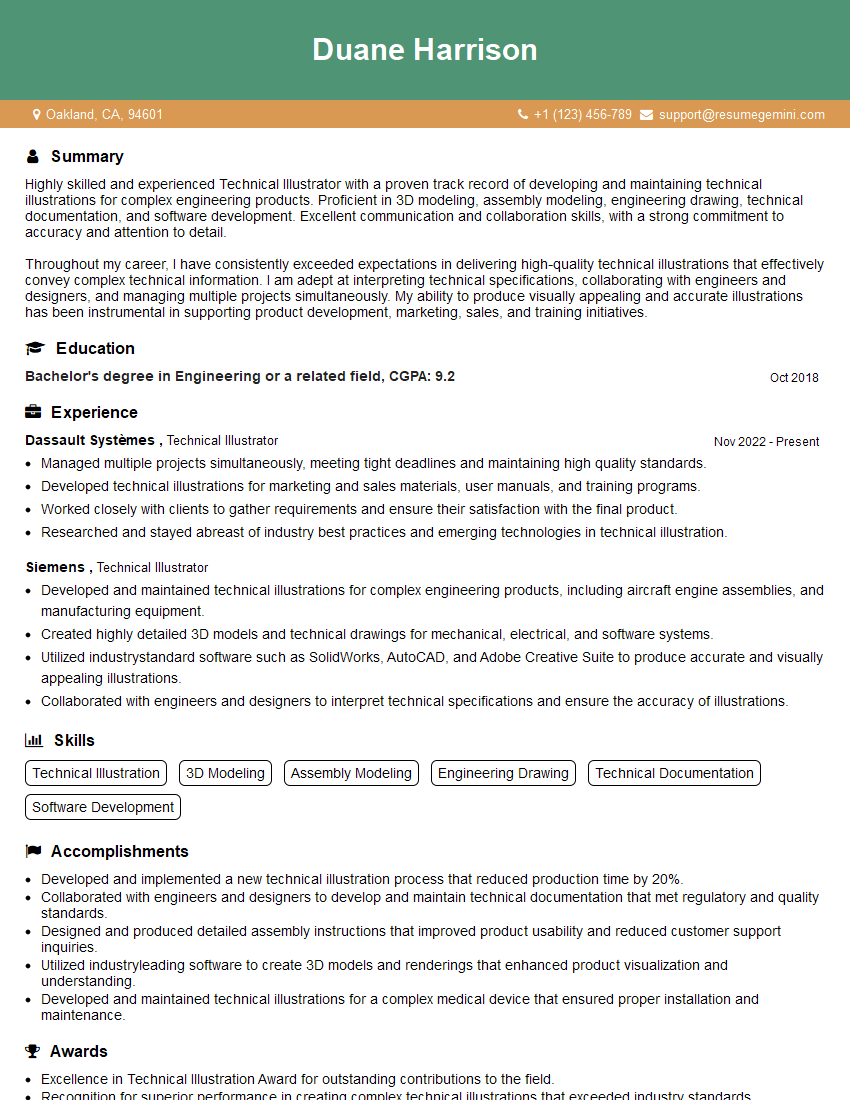
Mastering CAD software opens doors to exciting career opportunities in engineering, architecture, design, and manufacturing. A strong understanding of CAD is a highly sought-after skill that will significantly boost your career prospects. To make your skills shine, crafting an ATS-friendly resume is crucial. This ensures your application gets noticed by recruiters and hiring managers. ResumeGemini is a trusted resource for building professional resumes that effectively highlight your skills and experience. They offer examples of resumes tailored to roles requiring proficiency in CAD software, helping you create a compelling application that stands out from the competition.

Explore more articles
Users Rating of Our Blogs
Share Your Experience
We value your feedback! Please rate our content and share your thoughts (optional).
What Readers Say About Our Blog
Very informative content, great job.
good