The thought of an interview can be nerve-wracking, but the right preparation can make all the difference. Explore this comprehensive guide to Proficient in using image editing software interview questions and gain the confidence you need to showcase your abilities and secure the role.
Questions Asked in Proficient in using image editing software Interview
Q 1. Explain your proficiency in Adobe Photoshop.
My proficiency in Adobe Photoshop extends across a wide range of its functionalities. I’m highly skilled in retouching, utilizing tools like the Healing Brush, Clone Stamp, and Spot Healing Brush to seamlessly remove blemishes or unwanted objects. I’m adept at masking, layer management, and blending modes, which are crucial for creating complex compositions and achieving specific visual effects. For example, I recently used advanced masking techniques to composite a model onto a completely different background, maintaining realistic shadows and lighting. My experience also includes working with adjustment layers (like Curves and Levels) for precise color correction and grading, as well as proficient use of filters for creative effects and image enhancement. I’m also comfortable with actions and batch processing for streamlining repetitive tasks, significantly improving efficiency. Finally, I’m very familiar with preparing images for print and web, ensuring optimal resolution and file formats for different media.
Q 2. Describe your experience with Adobe Illustrator.
Adobe Illustrator is my go-to software for vector graphics. My expertise lies in creating and manipulating vector-based artwork, perfect for logos, illustrations, and designs that need to be scaled without losing quality. I’m proficient in using the Pen Tool for precise path creation, understanding the nuances of anchor points and Bézier curves. I have extensive experience with creating and manipulating shapes, applying gradients and effects, and working with type. For example, I recently designed a complex logo for a client, ensuring scalability for various applications, from business cards to billboards. I also routinely create illustrations for marketing materials, leveraging Illustrator’s powerful vector capabilities to produce clean, sharp images that maintain quality even at large sizes. My workflow in Illustrator is highly organized, ensuring easy collaboration and asset management.
Q 3. What are your preferred image editing software applications?
While Adobe Photoshop and Illustrator are my core applications, I also have experience with other image editing software. GIMP, a free and open-source alternative, is useful for quick edits or when budget is a constraint. I’ve used Affinity Photo and Designer as strong alternatives to Adobe’s Creative Suite. The choice depends on the specific project requirements; for instance, if a project requires extensive vector work, Illustrator remains my preference. For complex photo manipulation, Photoshop is unmatched. The familiarity with various software allows me to adapt to client preferences and project demands seamlessly.
Q 4. How do you manage large image files efficiently?
Managing large image files efficiently requires a multi-pronged approach. Firstly, I always shoot and save images at the lowest possible resolution necessary for the final output. This avoids unnecessary file sizes from the outset. Secondly, I utilize non-destructive editing techniques. This means using adjustment layers and smart objects whenever possible. This allows for modifications without altering the original pixel data, keeping file sizes smaller. For archival and storage, I use lossless compression formats like TIFF or PNG for maximum quality preservation, although for web use, optimized JPEGs are a better choice. Finally, I organize my files meticulously, using a clear folder structure and descriptive naming conventions to easily locate and manage images. For very large projects, I might use external hard drives or cloud storage services for efficient management.
Q 5. Explain the difference between raster and vector graphics.
Raster graphics are made up of pixels, like a grid of tiny squares of color. Think of a digital photograph – it’s a raster image. Resizing a raster image can result in a loss of quality, because you’re either increasing the gaps between pixels (making it blurry) or reducing the number of pixels (making it pixelated). Vector graphics, on the other hand, are made up of mathematical equations that describe shapes and lines. A logo is a great example of a vector graphic. Because they are based on mathematical formulas, vector graphics can be scaled to any size without loss of quality. This makes them ideal for logos, illustrations, and designs that need to be used at various sizes.
Q 6. Describe your experience with color correction and grading.
Color correction and grading are crucial aspects of my image editing workflow. Color correction aims to restore natural colors and fix color casts, ensuring accurate representation. This often involves using tools like Levels, Curves, and White Balance. Color grading, however, is more artistic and involves adjusting the overall mood and feel of an image, playing with saturation, contrast, and color temperature to achieve a specific look. For instance, I might use a warming filter to create a sunset effect or cool down an image to give it a more moody feel. I’m comfortable using both manual adjustments and presets, and understand the subtleties of color spaces, making sure the final output is suitable for the chosen medium (print or screen).
Q 7. How do you handle image resizing without compromising quality?
Resizing images without compromising quality requires understanding the image type and utilizing appropriate techniques. For vector graphics, resizing is simple; you can enlarge or reduce them without quality loss because they are based on mathematical formulas. For raster images, the goal is to minimize quality loss. Increasing size requires careful interpolation using algorithms like bicubic or bilinear. Reducing size, however, is generally easier, but techniques like saving as a JPEG with a higher quality setting help minimize artifacting. In both cases, starting with a high-resolution image is ideal to give you flexibility in resizing. Using high-quality resampling techniques is also paramount. Finally, depending on intended use, a bit of sharpening might be needed after resizing.
Q 8. Explain your workflow for retouching product images.
My retouching workflow for product images is a meticulous process, focusing on enhancing the product’s appeal while maintaining realism. It typically begins with a thorough assessment of the image – identifying blemishes, inconsistencies in lighting, and areas needing improvement. Then, I proceed systematically:
- Initial Adjustments: I start with global adjustments like white balance, exposure, contrast, and sharpness using tools available in Adobe Photoshop or similar software. This sets the overall tone and quality of the image.
- Spot Healing and Cloning: I meticulously remove blemishes, dust spots, and other imperfections using the spot healing brush and clone stamp tools. This requires careful attention to detail, matching textures and tones to avoid unnatural-looking patches.
- Color Correction: I often fine-tune the color balance and saturation to ensure consistent and vibrant colors throughout the image. This might involve adjusting individual color channels or using curves adjustments for more precise control.
- Sharpening and Noise Reduction: I selectively sharpen the image to enhance detail and clarity, particularly in areas like product textures. Simultaneously, I apply noise reduction where necessary, being careful not to over-smooth the image and lose detail.
- Final Checks and Export: Before exporting, I do a final review to ensure the retouching is seamless and the image is optimized for its intended use – whether it’s for e-commerce, print, or marketing materials. I then export the image in the appropriate format and resolution.
For example, when retouching a photograph of a piece of jewelry, I might use the healing brush to remove any dust particles on the surface, adjust the saturation to make the gems sparkle, and subtly sharpen the details of the intricate metalwork. The key is to enhance, not to create an unrealistic or artificial look.
Q 9. Describe your experience with masking and layer techniques.
Masking and layer techniques are fundamental to my image editing workflow. They allow for non-destructive editing, offering incredible flexibility and control. I regularly use layer masks to isolate specific areas of an image for editing, allowing me to make adjustments to one part of the image without affecting others. For instance, I might use a layer mask to selectively brighten a portion of a product image or to apply a vignette to draw attention to the central focus.
My experience includes using various masking techniques, such as:
- Quick Mask Mode: A fast and efficient way to create complex selections.
- Refine Edge: This tool allows me to finely adjust the edges of my selections for smoother, more natural-looking masks.
- Layer Masks with Gradient and Feathering: I use these to create soft transitions and blend edits seamlessly into the image.
Furthermore, I utilize multiple layers to organize my edits. Each adjustment (like color correction or sharpening) is applied on a separate layer, making it simple to review, adjust, or remove changes later without affecting the original image. Think of layers as transparent sheets stacked on top of each other, allowing for selective editing of each layer. This non-destructive approach is crucial for maintaining image integrity and enabling easy revisions.
Q 10. How do you create and utilize custom brushes?
Creating custom brushes significantly enhances my efficiency and creative control. In Photoshop, I can create brushes from various sources, including my own custom drawings, scanned textures, or even selections from existing images. This allows me to add unique textures, patterns, or effects that perfectly suit the project’s needs.
The process involves:
- Creating the Source: I start with a high-resolution image or drawing of the desired brush shape or texture. This could be anything from a simple splatter effect to a complex organic shape.
- Defining the Brush: In Photoshop, I go to the Brush Presets panel, and then click ‘Create New Brush’ from the flyout menu. This opens a Brush Settings panel where I define brush properties such as shape, spacing, scattering, and texture.
- Fine-tuning: I adjust the brush’s parameters—size, hardness, opacity, flow—to achieve the desired effect. This process might involve experimentation and multiple iterations until the brush performs exactly as needed.
- Saving the Brush: Once I’m satisfied, I save the brush as a preset for future use.
For example, I might create a custom brush from a scanned texture of watercolor paper to add a painterly effect to product images or a brush with scattered particles to simulate sparkling glitter.
Q 11. What are some common image file formats and their uses?
Several common image file formats cater to various needs. Choosing the right format is crucial for optimal image quality, file size, and compatibility.
- JPEG (JPG): This is a lossy format, meaning some image data is lost during compression. It’s ideal for photographs and images with many colors, offering a good balance between file size and quality. Its widespread compatibility makes it a popular choice for web use.
- PNG (Portable Network Graphics): A lossless format, retaining all image data during compression. It’s perfect for images with sharp edges, text, and graphics, as it avoids compression artifacts. Its support for transparency makes it ideal for logos and images with complex shapes.
- TIFF (Tagged Image File Format): Another lossless format, often used for high-resolution images intended for print. It offers a wider range of color depths and supports various compression methods. It’s a professional standard for print-ready images.
- GIF (Graphics Interchange Format): A lossless format best suited for simple images with limited colors. Its primary advantage is its support for animation, making it ideal for short animations or simple looping graphics.
The choice depends on the intended use. For web images, JPEG is often preferred for photographs due to its smaller file size. PNG is better for graphics with sharp edges, text, or transparency. TIFF is preferred for high-quality print work. GIFs are chosen for animated content.
Q 12. How do you optimize images for web use?
Optimizing images for web use is crucial for fast loading times and a positive user experience. This involves careful consideration of file size, format, and resolution.
- Choose the Right Format: JPEG is generally preferred for photographs, while PNG is suitable for graphics and images with transparency. WebP offers superior compression compared to both, but browser compatibility needs to be considered.
- Reduce File Size: I use image optimization tools (some are built into software like Photoshop, others are dedicated online tools) to compress the image without significant loss of quality. This involves carefully adjusting the compression level, balancing file size with image quality.
- Resize Images: Images should be resized to the dimensions they’ll appear on the website. Uploading large images unnecessarily increases page load time. Tools like Photoshop or online resizing tools are used for this purpose. I ensure the resolution is appropriate for the screen size; overly high resolutions are unnecessary and slow down page loading.
- Check Image Dimensions: Before uploading, I always check image dimensions using browser developer tools to ensure they align with the website’s design and don’t cause layout issues.
- Lazy Loading: I implement lazy loading techniques in the website code itself, which only loads images as they appear in the user’s viewport, optimizing page load speed.
For example, a large, high-resolution product image might be optimized by reducing its size to around 1500 pixels wide for most screens and saved as a JPEG with a high-quality compression level. This maintains good image quality while keeping the file size manageable.
Q 13. Explain your experience with image manipulation for print media.
My experience with image manipulation for print media necessitates a deep understanding of color profiles, resolution, and printing processes. Print requires significantly higher resolution than web, typically 300 DPI (dots per inch) or higher, to avoid pixelation. Color accuracy is also paramount, and I carefully manage color profiles (like CMYK) to ensure accurate color reproduction on the printed material.
Key aspects of my workflow include:
- High Resolution: I ensure images are at the required resolution for the printing process to prevent blurry or pixelated outputs. I also carefully scale up images, ensuring that the process doesn’t compromise quality. If necessary, I would source higher resolution images.
- Color Profile Conversion: Images usually need conversion from the RGB (screen) color space to the CMYK (print) color space. This often requires careful color adjustments to ensure accurate representation in print.
- Bleed and Margins: I understand the importance of bleed (the extra area around the image for printing) and safe margins (area within which important content should reside to avoid cropping). These aspects are crucial for professional-quality printing.
- File Format Selection: TIFF or high-quality JPEGs are common choices for print, ensuring the image quality is not compromised during the printing process.
For instance, designing a brochure requires ensuring all images are at 300 DPI, are in CMYK color mode, and have the appropriate bleed and margins to avoid printing errors.
Q 14. How do you create composite images?
Creating composite images involves skillfully combining multiple images into a single, cohesive image. This technique is widely used in advertising, editorial work, and even product photography to create visually striking and compelling visuals.
My process typically follows these steps:
- Image Selection: I carefully select source images with compatible lighting, color palettes, and perspectives. The better the quality of the source images, the easier it is to create a believable composite.
- Background Preparation: I typically begin by isolating the main subjects from their original backgrounds using various masking techniques. The goal is to get clean selections with smooth edges to avoid visible seams in the final composite.
- Color and Tone Matching: I use adjustment layers and other tools to match the color and tone of the individual elements to create a harmonious blend. This is crucial for a realistic and natural-looking result. Color grading and using curves or levels are usually helpful here.
- Compositing: I arrange and position the elements on separate layers within a single Photoshop file (or equivalent). I then carefully blend the layers using layer masks and blending modes to achieve seamless integration.
- Final Refinements: I use tools such as the healing brush, clone stamp, and dodge/burn to refine the composite, removing any remaining imperfections and blending the edges naturally. This ensures that the final composite looks convincing and doesn’t appear artificially constructed.
- Exporting: Finally, I save the composite in the appropriate format and resolution, considering the intended use (web, print, etc.).
For example, I might composite images of a model and a scenic background to create a travel advertisement or combine different product shots to showcase various aspects of a product.
Q 15. Explain your experience with using actions and automation in image editing.
Actions and automation in image editing are game-changers for efficiency. Think of them as pre-recorded sequences of edits that you can apply to multiple images with a single click. In Adobe Photoshop, for instance, you can record a series of adjustments – resizing, sharpening, color correction – and save it as an ‘action’. This is invaluable for batch processing, ensuring consistency across a large number of images. For example, I once worked on a project with over 500 product shots. Using actions, I automated the resizing, watermarking, and color correction, saving me days of repetitive work. This allowed me to focus on more creative aspects of the project. Beyond simple actions, many software packages allow for more complex automation using scripting languages like Javascript or AppleScript, enabling you to automate even the most intricate workflows. This can include things like automatically generating image variations for web use, resizing images based on calculated dimensions and creating composite images from multiple raw files.
- Time Savings: Actions drastically reduce repetitive tasks.
- Consistency: Ensures uniformity across numerous images.
- Scalability: Easily handles large volumes of images.
Career Expert Tips:
- Ace those interviews! Prepare effectively by reviewing the Top 50 Most Common Interview Questions on ResumeGemini.
- Navigate your job search with confidence! Explore a wide range of Career Tips on ResumeGemini. Learn about common challenges and recommendations to overcome them.
- Craft the perfect resume! Master the Art of Resume Writing with ResumeGemini’s guide. Showcase your unique qualifications and achievements effectively.
- Don’t miss out on holiday savings! Build your dream resume with ResumeGemini’s ATS optimized templates.
Q 16. How do you ensure color consistency across different projects?
Maintaining color consistency across different projects is paramount for professional image editing. It hinges on several key strategies: establishing a consistent color profile (like sRGB or Adobe RGB), using color management tools, and calibrating your monitor regularly. Inconsistency can lead to jarring differences in color when images are viewed on different screens or printed. I always begin a project by defining the target color space. For web projects, sRGB is the standard, while Adobe RGB is often preferred for print. Once the color space is chosen, I ensure all images are converted to that space at the beginning of my workflow, using a standardized method.
Furthermore, I regularly use tools within my editing software to compare color values between images, using features like eyedroppers and color pickers to make sure colors stay uniform between images from different sources or even across edits of the same image. This is especially helpful during image retouching, ensuring skin tones or color matches across a series of images.
Finally, I use a color calibration tool to ensure my monitor displays accurate colors consistently. A poorly calibrated monitor will lead to inaccurate color adjustments.
Q 17. Describe your experience with working with RAW image files.
RAW image files are uncompressed or minimally compressed digital camera image formats. They contain far more image data than JPEGs or other compressed formats. This means they provide far greater flexibility in post-processing. My experience working with RAW files is extensive. I routinely handle them in Adobe Lightroom and Capture One, utilizing their powerful adjustment tools to recover details from underexposed or overexposed areas, correct white balance, and fine-tune other aspects of the image. The non-destructive nature of RAW editing allows for extensive experimentation without jeopardizing the original image data. For example, I recently worked on a low-light photography project. Using RAW files, I was able to recover significant detail from the shadows that would have been lost in a JPEG. I was able to boost the overall exposure without introducing too much noise in the image. This ability to recover detail and adjust aspects of the image later is a key benefit of using RAW files.
Q 18. Explain your knowledge of color profiles (e.g., sRGB, Adobe RGB).
Color profiles define the color space – the range of colors a particular device or software can represent. sRGB (Standard Red Green Blue) is the most common color space for the web and is designed to be a reasonably small and accurate gamut of colors that can be displayed on most monitors. Adobe RGB (Adobe Red Green Blue) offers a wider range of colors, often preferred for print and professional photography. Understanding the differences is essential. Converting between these color spaces is vital. An image saved as Adobe RGB will likely look different if opened in an application that assumes sRGB; colors might appear oversaturated or desaturated. Choosing the appropriate color profile at the start of a project – and sticking with it throughout – ensures consistency and avoids unintended color shifts. For web graphics, always use sRGB to avoid color mismatches on the user’s screen.
Q 19. How do you handle different color spaces in image editing?
Handling different color spaces effectively requires meticulous attention to detail. The key is consistency. Before starting any project, I identify the target color space (e.g., sRGB for web, Adobe RGB for print). Then, I convert all images to that target space at the outset of my workflow, using the appropriate color management tools within my editing software. Using the wrong color space can lead to huge color shifts, so I make this a core part of my processes. I avoid repeatedly converting images between color spaces during editing unless strictly necessary, as repeated transformations can degrade image quality and introduce unforeseen color artifacts. Careful tracking of color spaces and meticulous conversions are critical.
Q 20. Describe your process for creating high-resolution images from lower-resolution sources.
Creating high-resolution images from lower-resolution sources is a challenging task; you can’t magically add detail that isn’t there. The best results come from starting with the highest quality original possible. However, if you must upscale, use AI-powered upscaling tools or techniques like bicubic interpolation. These algorithms can intelligently fill in details, reducing the appearance of pixelation. But, be realistic; results will not be perfect, and significant detail loss is inevitable. It’s always better to shoot or source higher-resolution images initially, as any enlargement will involve some compromise in visual fidelity. For example, if you have to enlarge a small image for use as a large billboard, the result will be somewhat blurry no matter how good the upscaling algorithm is. The goal is to minimize that blur.
Q 21. Explain your experience with non-destructive editing techniques.
Non-destructive editing is a cornerstone of my workflow. It means making edits to an image without permanently altering the original pixel data. This allows for flexibility and experimentation. In Photoshop, using adjustment layers, smart objects, and masks are all key components of non-destructive workflows. For example, instead of directly adjusting the brightness and contrast of an image, I use an adjustment layer. This allows me to modify the settings later without having to redo the entire edit. Similarly, working with smart objects allows me to scale and transform images without loss of quality. If I make a mistake, I can easily revert the change or further refine it. This approach is crucial for long-term projects and collaborative work because it protects the integrity of the original image and allows for changes as needed.
Q 22. How do you effectively use adjustment layers?
Adjustment layers are one of the most powerful features in image editing software. Think of them as non-destructive filters; they allow you to modify the appearance of an image without permanently altering the original pixel data. This is crucial because it lets you experiment freely and easily revert changes. Each adjustment layer acts independently, allowing for complex layering and precise control.
For example, let’s say I’m working on a portrait and want to brighten the subject’s face while leaving the background relatively untouched. I’d create a ‘Curves’ adjustment layer, selectively adjust the brightness using the curve, and then use a layer mask to apply the brightening effect only to the face. This is far superior to directly adjusting the brightness of the image itself, which would affect the entire picture.
Other commonly used adjustment layers include Levels (for adjusting contrast and color balance), Hue/Saturation (for altering colors), and Color Balance (for fine-tuning color tones). The key is understanding how these layers interact and how masks allow for targeted modifications. I often use multiple adjustment layers stacked on top of each other to achieve complex and nuanced effects – a technique particularly useful when working on high-end retouching or creating specific moods and atmospheres in my images.
Q 23. Describe your experience with image sharpening and noise reduction.
Sharpening and noise reduction are essential steps in post-processing. Noise, those little speckled imperfections, often appears in low-light photos or high-ISO shots. Noise reduction algorithms work by smoothing out these irregularities, but they can also soften details. The key is finding the right balance; too much reduction leads to a blurry, lifeless image.
I prefer using intelligent noise reduction algorithms found in software like Photoshop or Topaz Denoise. These algorithms analyze the image and selectively reduce noise while preserving fine details. Before applying noise reduction, I assess the image’s level of noise and the importance of detail preservation. If detail preservation is critical, I use a less aggressive approach.
Sharpening, on the other hand, enhances the edges and details, making the image appear crisper and more defined. I generally use unsharp masking for sharpening. I carefully adjust the amount, radius, and threshold parameters, ensuring that I don’t introduce halos or artifacts. For high-resolution images destined for print, I often use a combination of sharpening techniques, applying a subtle sharpening during the initial processing and then a more targeted sharpening at the very end.
Q 24. What are some of the common challenges you face during image editing, and how do you overcome them?
One common challenge is dealing with images that have significant color casts or uneven lighting. This often requires careful color correction using adjustment layers and masking, which can be time-consuming but essential for achieving a professional look. I sometimes need to work with images that are heavily compressed or low resolution. This is particularly challenging because detail recovery is limited, and aggressive editing can lead to artifacts. In these situations, I prioritize preserving existing detail and using selective sharpening to improve the apparent sharpness without introducing noise.
Another significant hurdle is dealing with client feedback and revisions. Effectively communicating the limitations of image editing, and managing expectations, is key. I always keep detailed record of all my edits, allowing for easy adjustments and efficient revisions. When faced with these challenges, I employ a systematic approach. I clearly define the problem, brainstorm possible solutions, and then test each solution before making final changes. Documentation of my process is essential for troubleshooting, particularly when dealing with complex edits requiring iterative adjustments.
Q 25. How do you maintain image quality during various editing processes?
Maintaining image quality throughout the editing process requires a multi-faceted approach. First and foremost, I work with the highest possible resolution images. This gives me a greater range of adjustments without introducing significant degradation. I avoid unnecessary sharpening and noise reduction, and carefully consider the impact of each editing step. I use non-destructive editing techniques, such as adjustment layers and smart objects, to ensure that I can always revert changes if necessary.
Furthermore, I regularly save my work at various stages, creating backups to prevent accidental data loss. If I’m making significant changes, I create a duplicate version of the image to ensure I can always return to the original. And for final output, I carefully choose the appropriate file format and compression settings based on the intended use of the image. For print, I typically use TIFF or high-quality JPEG; for web, I optimize for smaller file sizes while still preserving visual quality.
Q 26. Explain your knowledge of image compression techniques.
Image compression techniques reduce file size, which is essential for efficient storage and transmission. There are two primary types: lossy and lossless. Lossless compression, like PNG, preserves all the original image data, resulting in no quality loss, but the file sizes are often larger. Lossy compression, such as JPEG, discards some data to achieve smaller file sizes, leading to a reduction in image quality. The extent of quality loss depends on the compression level.
The choice of compression technique depends on the specific application. For images intended for web use, where file size is a major concern, JPEG is a common choice. However, for images with sharp edges or text, PNG is preferred due to its lossless nature. In my work, I carefully balance file size and image quality. I often experiment with different compression levels and file formats to find the optimal balance for each project. Understanding the trade-offs between compression and quality is critical for delivering high-quality images while managing storage and bandwidth efficiently.
Q 27. How do you manage and organize your image files?
Organization is paramount for efficient workflow. I use a hierarchical folder structure based on project name, date, and image type. This allows me to quickly locate specific images. I employ clear and consistent naming conventions, often including keywords to aid in searching. I utilize metadata extensively—I embed relevant information like client names, project details, and keywords directly into the image files using software features. This allows me to easily search and filter my image library.
For larger projects, I leverage dedicated digital asset management (DAM) systems. These systems offer advanced features like version control, keyword tagging, and collaborative workflows, significantly improving my organization and efficiency. Regular backups are a must, both locally and in the cloud, to protect against data loss. A solid organization system minimizes wasted time searching for files, allowing me to focus on creative tasks.
Q 28. Describe a time you had to troubleshoot a complex image editing problem.
I once had a client send me a severely overexposed image with significant color banding. The client needed the image for a high-profile publication, and the deadline was tight. The challenge wasn’t just recovering detail from the overexposed areas, but also eliminating the distracting color banding, which is often difficult to rectify completely.
My approach was systematic. First, I analyzed the histogram to understand the extent of the exposure problem. Then, I carefully applied a combination of techniques. I used adjustment layers to recover some detail in the shadows and reduce the highlights. Next, I employed noise reduction tools specifically designed to mitigate color banding. I also used frequency separation to tackle banding separately from the image’s overall texture. Finally, careful masking was used to blend corrections seamlessly.
Through this iterative process, combining different techniques and carefully monitoring the results, I was able to significantly improve the image’s quality. While I couldn’t completely eliminate the banding, the improvement was dramatic, and the client was very satisfied with the final result. This experience underscored the importance of having a range of problem-solving techniques in my arsenal and the ability to adapt my approach to each unique challenge.
Key Topics to Learn for Proficient in Using Image Editing Software Interviews
- Image Manipulation Fundamentals: Understanding core concepts like layers, masks, selections, and blending modes. Be prepared to discuss their practical applications in various scenarios.
- Software Proficiency: Demonstrate a deep understanding of at least one major image editing software (e.g., Adobe Photoshop, GIMP, Affinity Photo). Highlight your experience with specific tools and features within your chosen software.
- Color Correction and Retouching: Explain your experience with color balancing, white balance adjustment, blemish removal, and other retouching techniques. Prepare examples to showcase your skills.
- Image Resolution and File Formats: Discuss the importance of image resolution for different purposes (web, print) and the implications of various file formats (JPEG, PNG, TIFF, etc.).
- Workflow and Efficiency: Be ready to discuss your approach to image editing projects, including your workflow, shortcuts, and strategies for optimizing efficiency.
- Problem-Solving and Troubleshooting: Prepare examples of challenges you’ve faced during image editing and how you successfully overcame them. This demonstrates critical thinking and adaptability.
- Advanced Techniques (Optional): Depending on the role, you may also be asked about advanced techniques such as compositing, photo manipulation, 3D rendering integration, or specialized effects.
Next Steps
Mastering image editing software is crucial for career advancement in many creative fields, offering diverse opportunities and higher earning potential. A strong resume is key to unlocking these opportunities. Ensure your resume is ATS-friendly to maximize its visibility to potential employers. ResumeGemini can help you craft a compelling and effective resume tailored to highlight your image editing skills. Examples of resumes tailored to showcasing proficiency in image editing software are available – utilize these to inspire your own.

Art Director Resume Sample

Creative Director Resume Sample
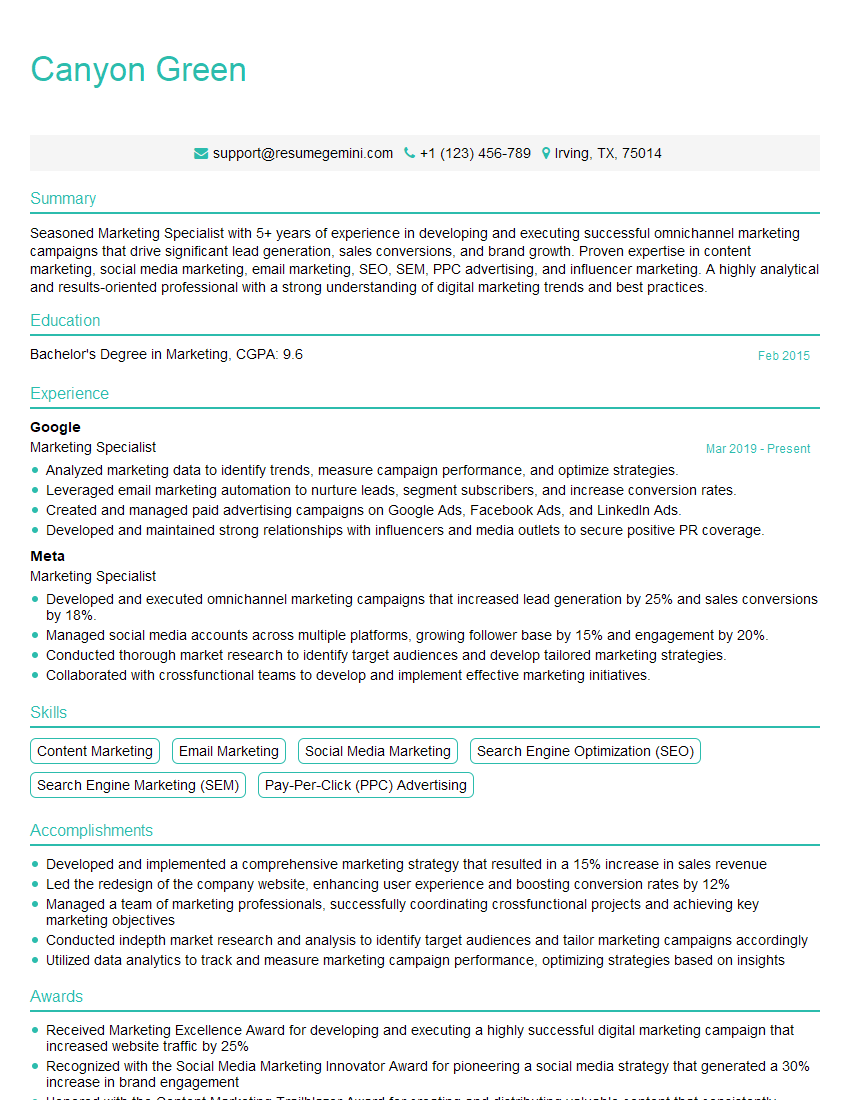
Marketing Specialist Resume Sample

Social Media Manager Resume Sample

Web Designer Resume Sample

Multimedia Specialist Resume Sample
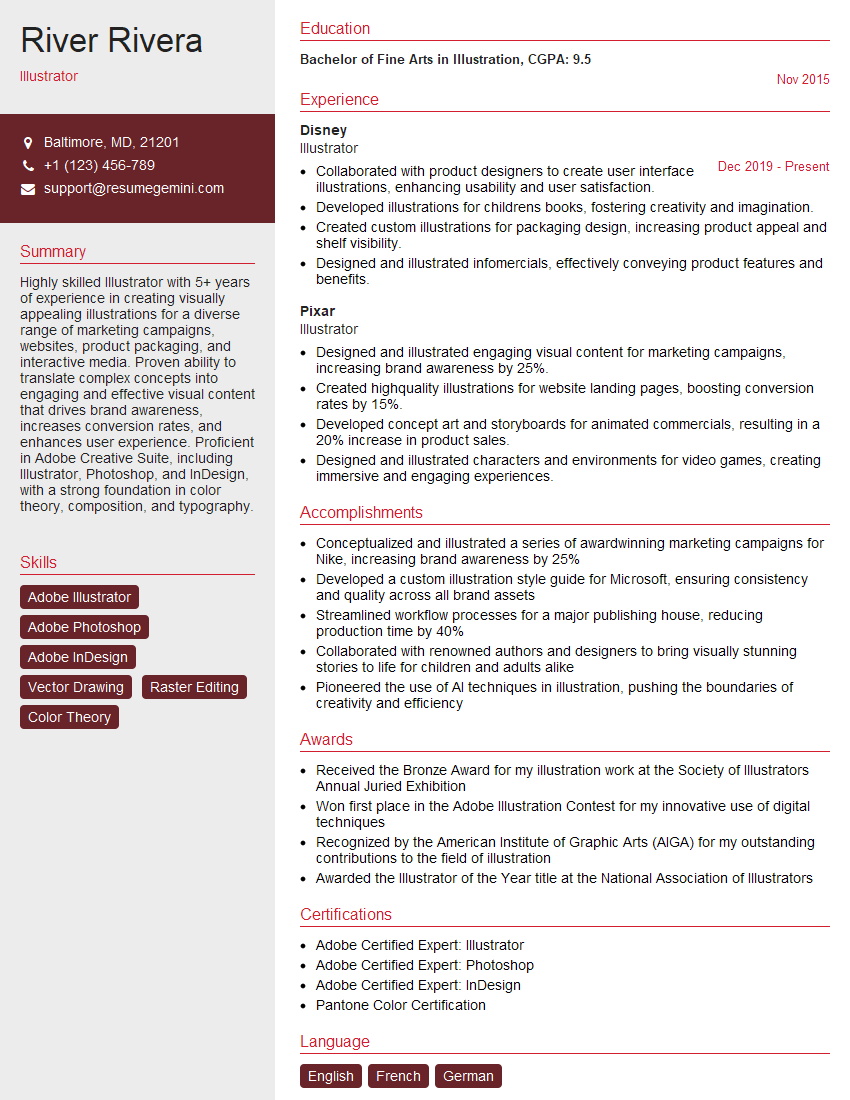
Illustrator Resume Sample
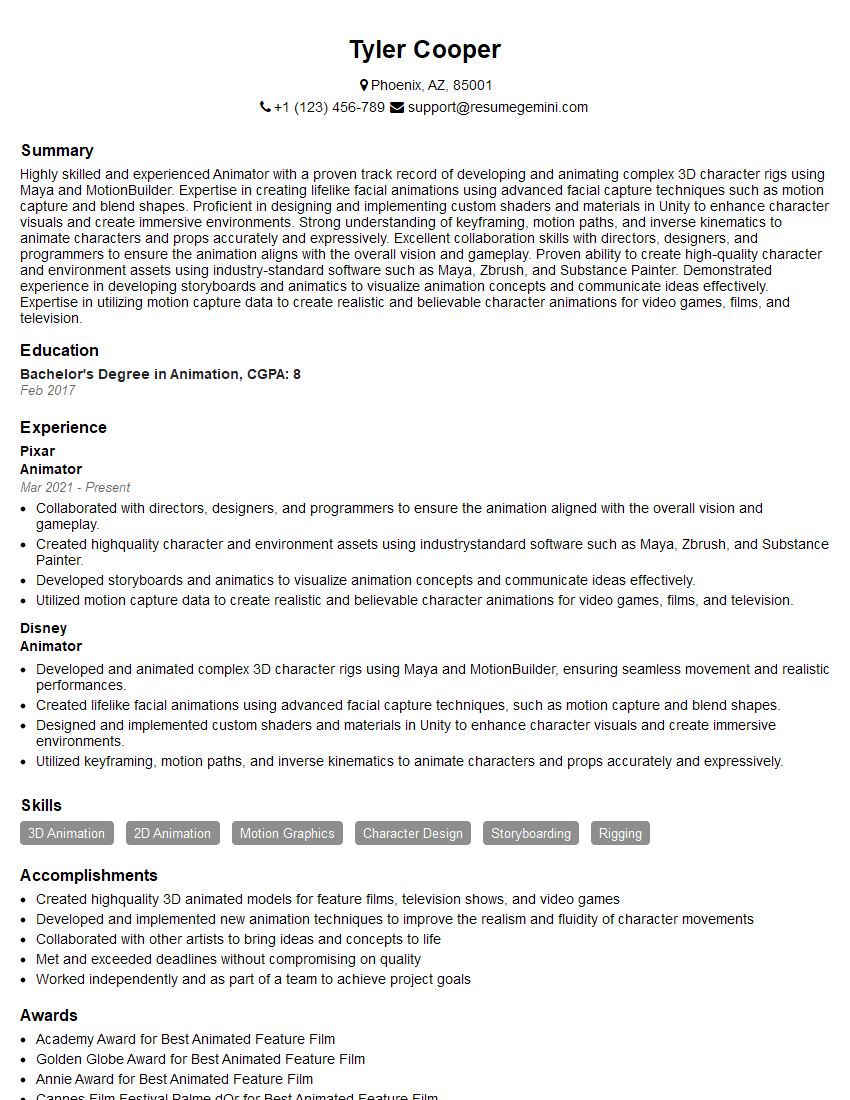
Animator Resume Sample
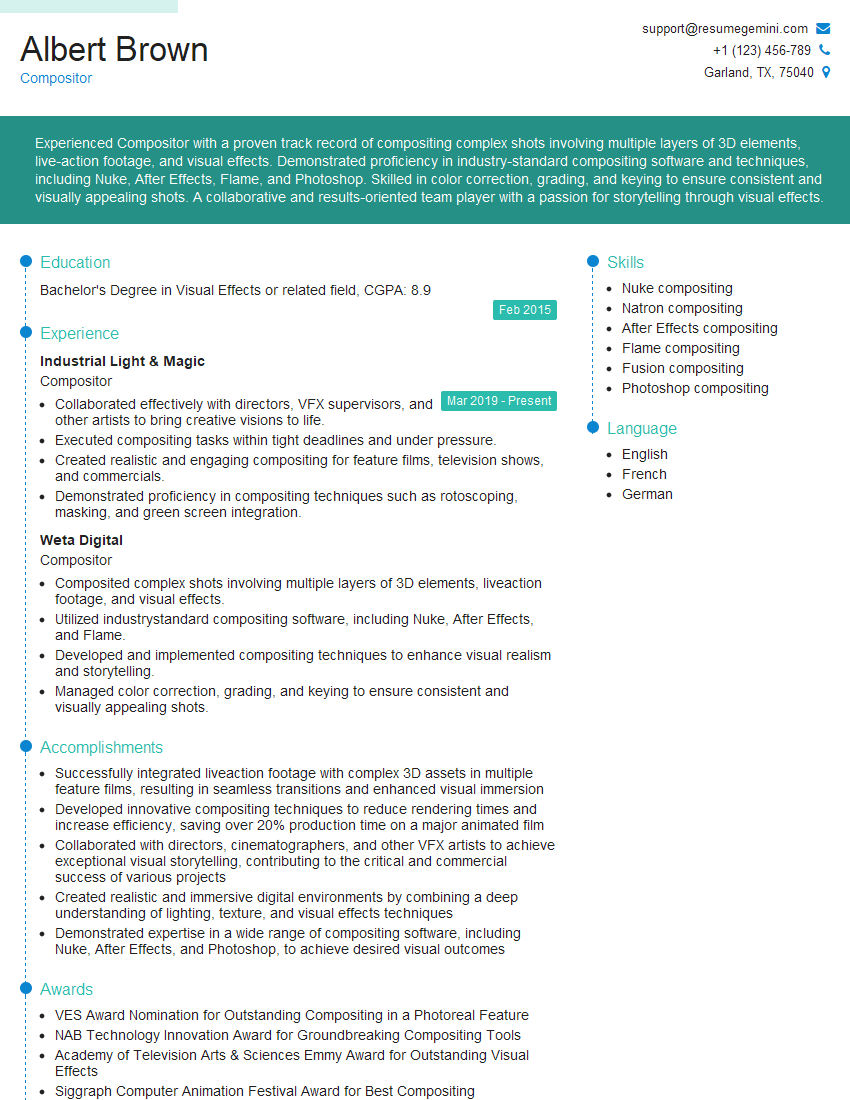
Compositor Resume Sample
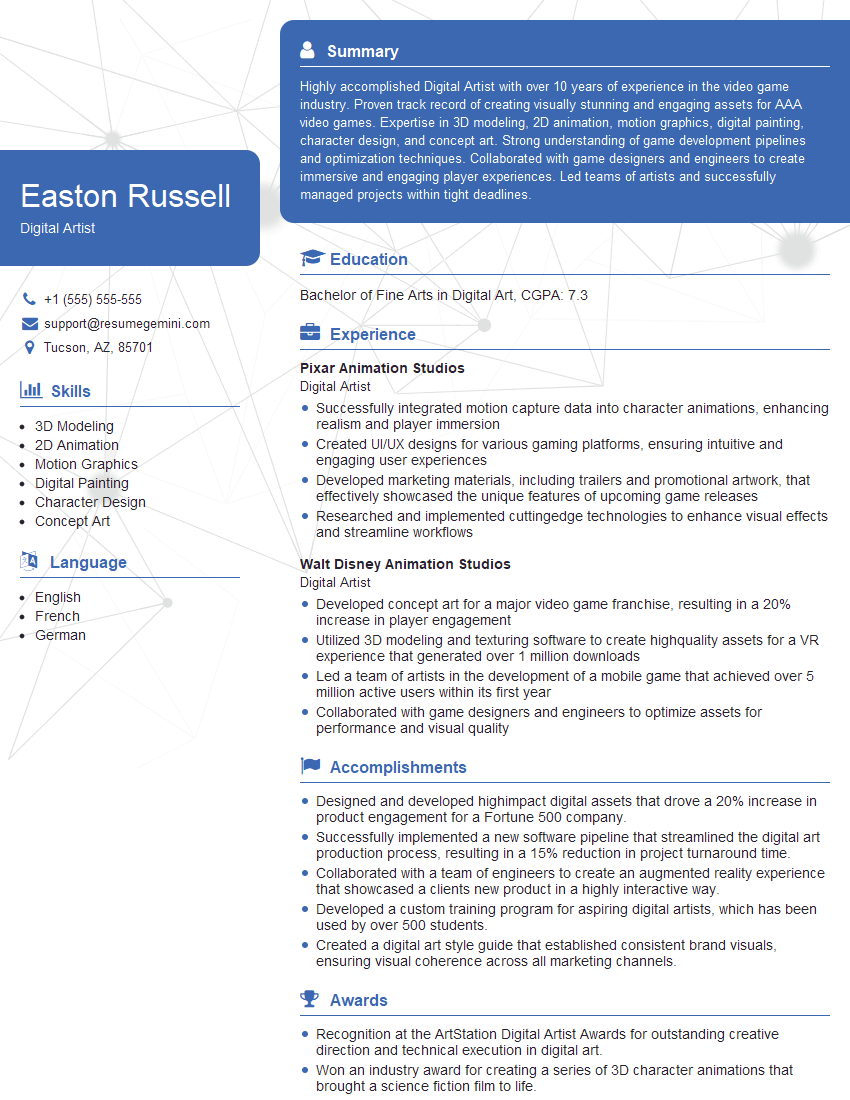
Digital Artist Resume Sample

Graphic Designer Resume Sample
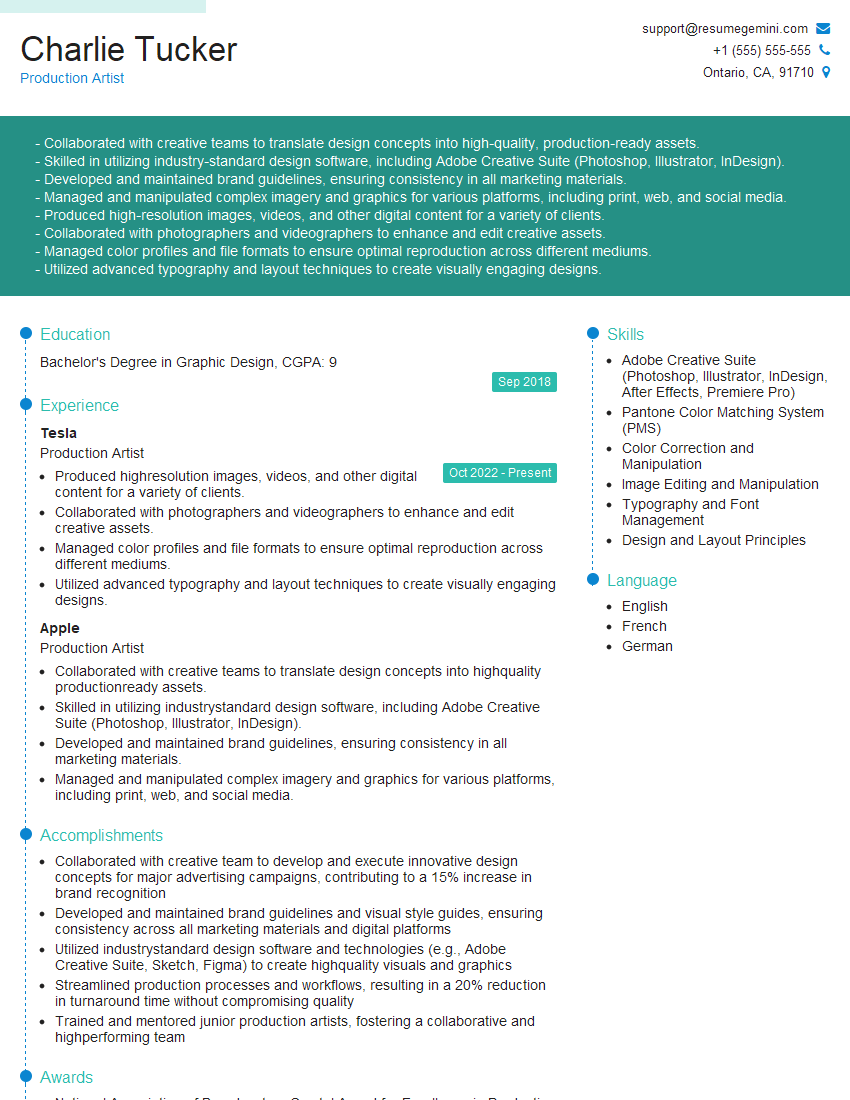
Production Artist Resume Sample

Photo Editor Resume Sample
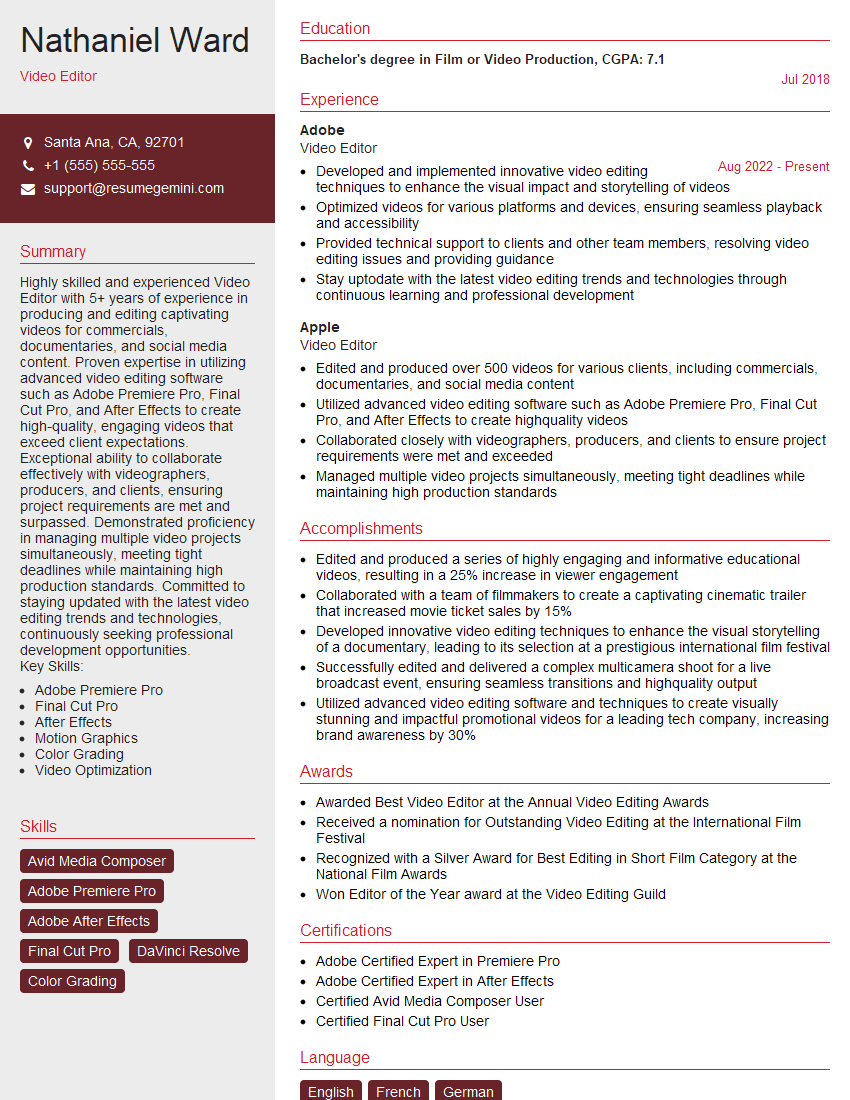
Video Editor Resume Sample
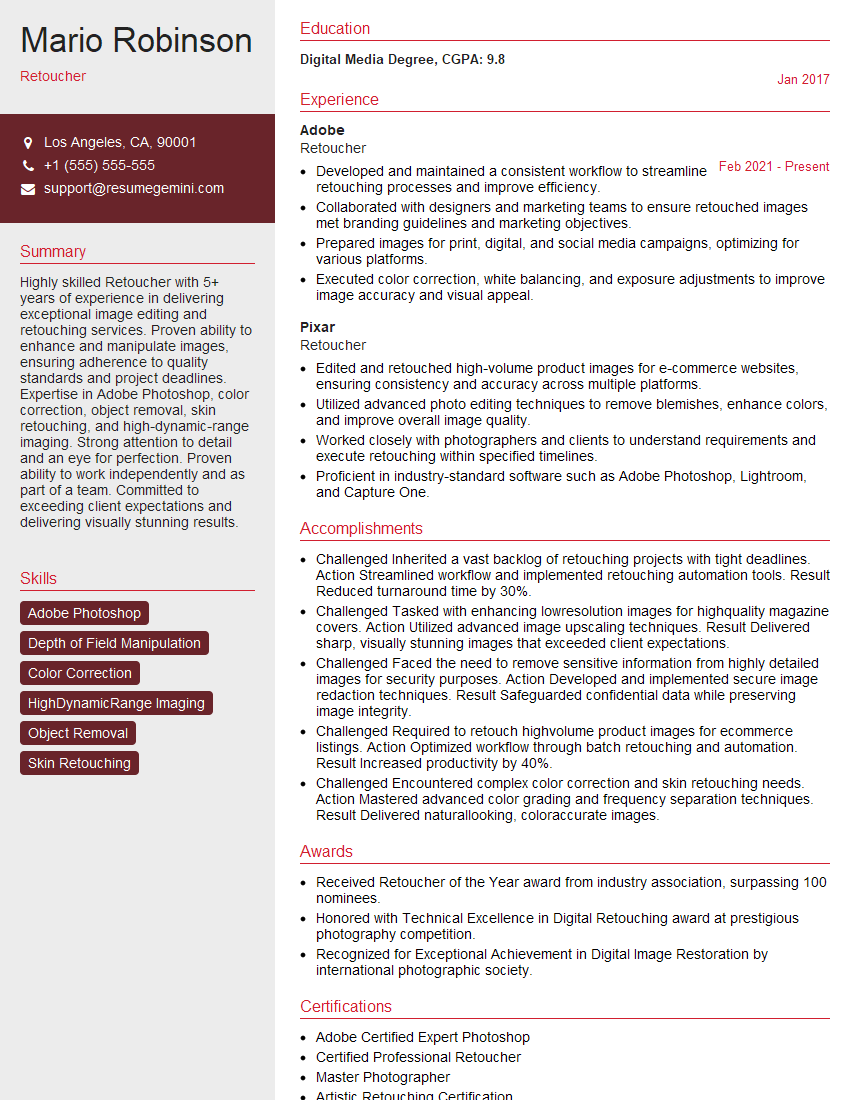
Retoucher Resume Sample

Content Creator Resume Sample
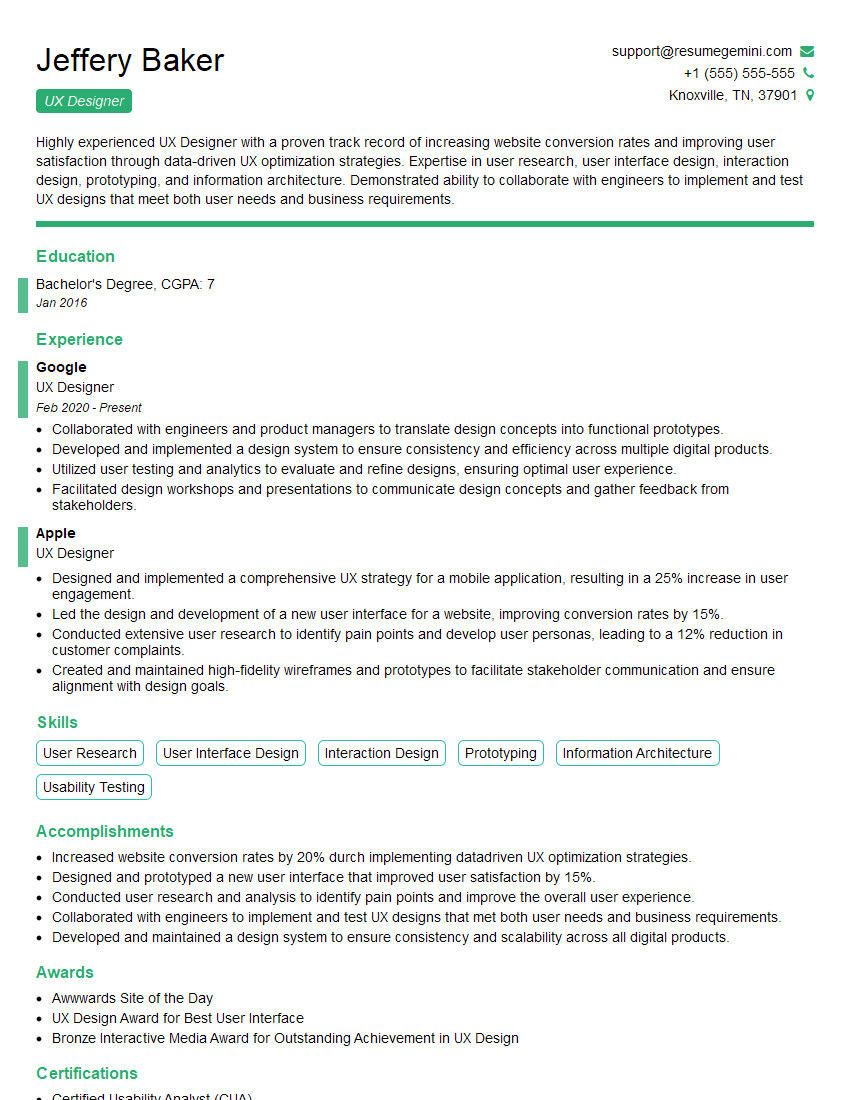
UX Designer Resume Sample
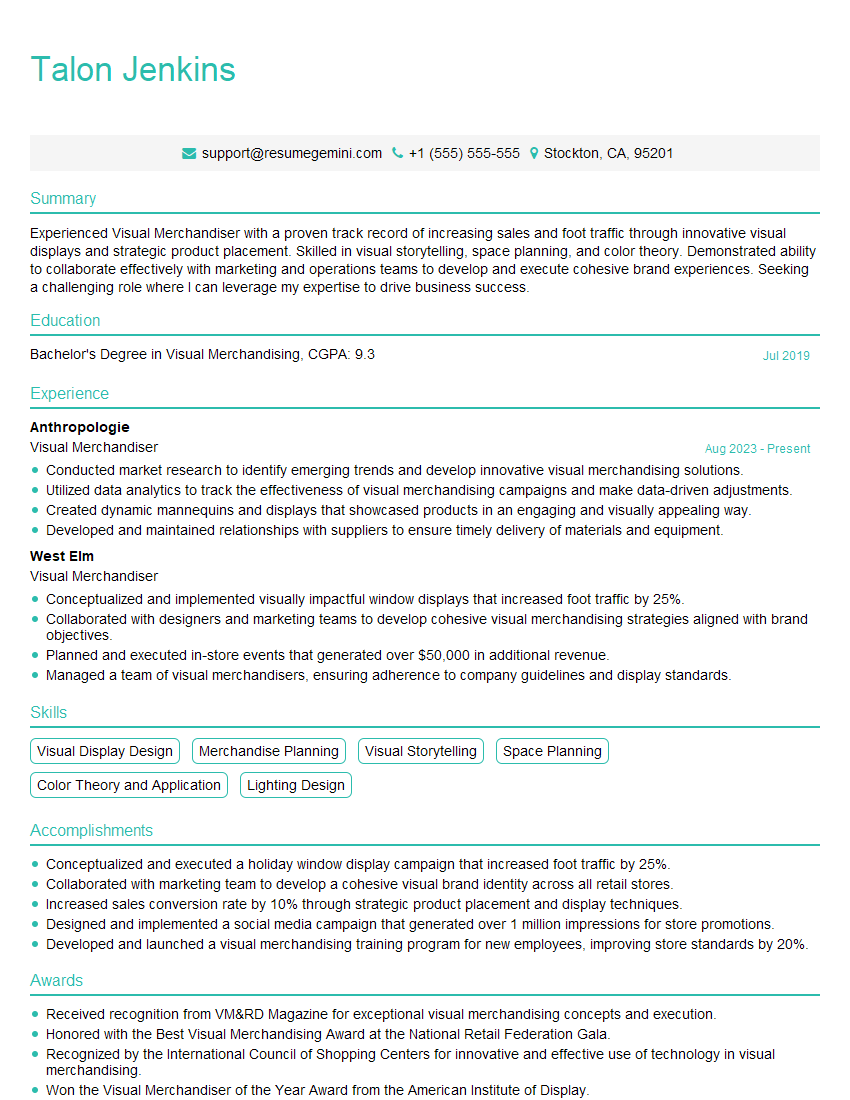
Visual Merchandiser Resume Sample
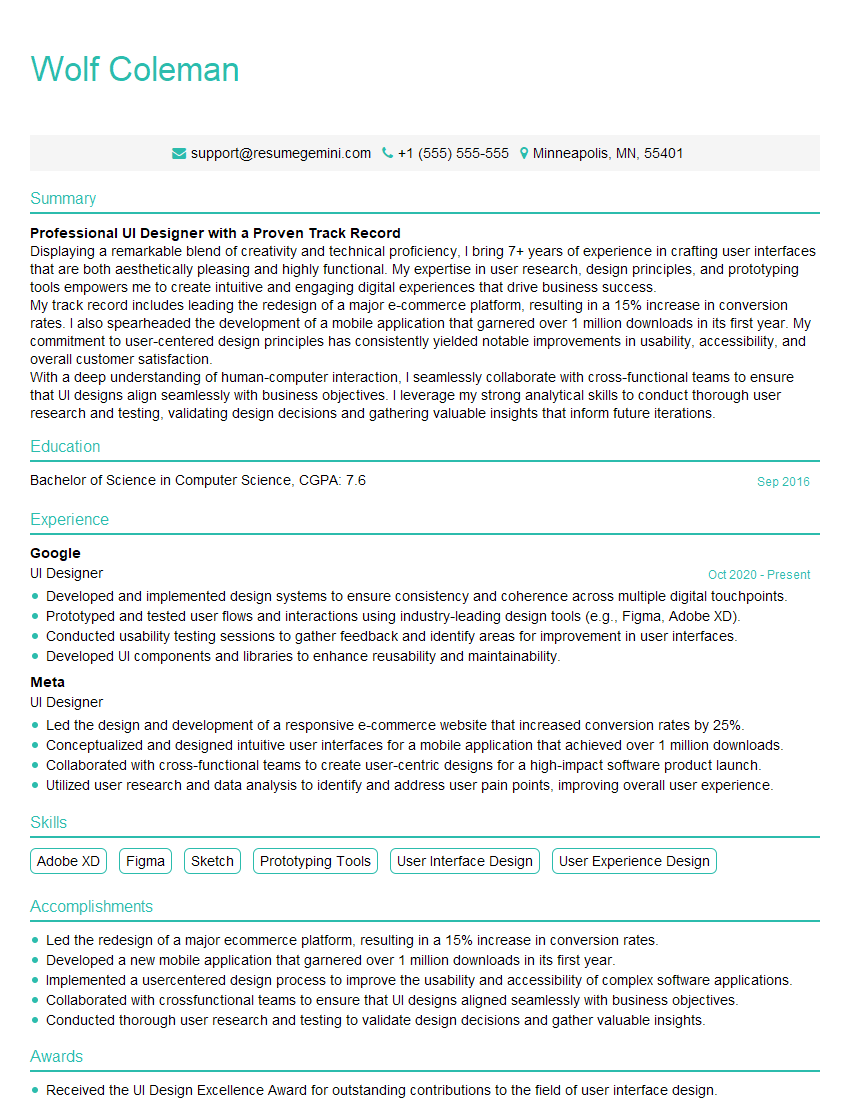
UI Designer Resume Sample
Explore more articles
Users Rating of Our Blogs
Share Your Experience
We value your feedback! Please rate our content and share your thoughts (optional).
What Readers Say About Our Blog
Very informative content, great job.
good