Every successful interview starts with knowing what to expect. In this blog, we’ll take you through the top Proficient in using SketchUp or Revit interview questions, breaking them down with expert tips to help you deliver impactful answers. Step into your next interview fully prepared and ready to succeed.
Questions Asked in Proficient in using SketchUp or Revit Interview
Q 1. Explain the difference between SketchUp and Revit.
SketchUp and Revit are both 3D modeling software, but they serve different purposes and have distinct workflows. SketchUp excels as a quick and intuitive tool for conceptual design and visualization, ideal for architects, designers, and hobbyists. It’s strong in its ease of use and its focus on creating visually appealing models quickly. Revit, on the other hand, is a Building Information Modeling (BIM) software primarily used by architects and engineers for detailed design, documentation, and collaboration on large-scale projects. It emphasizes accuracy, data management, and coordination across disciplines.
Think of it like this: SketchUp is like sketching with a pencil – fast, freeform, and great for exploring initial ideas. Revit is like drafting with precise instruments – detailed, accurate, and geared towards creating construction-ready documents. SketchUp’s strength is speed and visual appeal; Revit’s strength is accuracy, data richness, and collaborative capabilities.
Q 2. Describe your experience with parametric modeling in Revit.
My experience with parametric modeling in Revit is extensive. I regularly leverage families and parameters to create dynamic and adaptable models. For instance, I’ve built families of doors and windows with parameters for width, height, and material, allowing me to easily modify individual instances or update entire model components with a single change. This significantly reduces the time spent on repetitive tasks and ensures design consistency.
One project involved designing a large office complex. Using parametric modeling, I created a family for modular office partitions. By changing parameters like panel height and material, I could instantly generate various partition configurations, optimizing floor plans based on different space requirements. This parametric approach allowed for quick iterations and facilitated informed design choices.
Q 3. How do you manage large Revit models for optimal performance?
Managing large Revit models requires a multi-pronged approach. Firstly, I work with well-organized project structures, using appropriate worksets and phasing to isolate model components logically. This minimizes the amount of data each user has to load, improving performance. Secondly, I regularly purge and clean my model to remove unnecessary geometry and data, like unused families or orphaned elements. This keeps the file size manageable. Thirdly, I use Revit’s ‘Worksharing’ feature to allow efficient collaboration, ensuring different team members work on their assigned areas simultaneously without overwriting each other’s work. Finally, I utilize high-performance hardware and optimize my system settings for Revit, like turning off unnecessary visual effects.
For example, on a recent stadium project, we divided the model into worksets for structural, architectural, MEP, and landscaping components. This greatly enhanced the speed and efficiency of model review and analysis.
Q 4. What are your preferred SketchUp extensions and why?
My go-to SketchUp extensions include:
- SketchUp Style Builder: Provides fine-grained control over materials and rendering styles, allowing me to quickly create visually stunning presentations.
- Trimble Connect: Facilitates seamless collaboration and cloud storage for efficient teamwork and backup.
- Curviloft: Allows for precise creation of complex curves and surfaces, surpassing SketchUp’s standard tools for creating organic forms.
- TIG: This extension simplifies complex operations such as creating curves, fillets, and advanced geometrical entities. It significantly improves modeling precision.
The choice of these extensions reflects my need for efficient workflow, enhanced rendering capabilities, and the creation of intricate designs. They save significant time and allow me to achieve higher-quality visualizations and models.
Q 5. How do you handle clash detection in Revit?
Clash detection in Revit is crucial for avoiding costly construction errors. My process involves running automated clash detection analyses using Navisworks or Revit’s built-in tools. I define the criteria for clash detection, specifying which disciplines or model components need to be checked for interference. The software then generates a report highlighting potential clashes, which are then reviewed and resolved collaboratively with the relevant disciplines. After resolving the clashes, I frequently run a new detection to confirm that no new issues have been introduced.
In one project, clash detection revealed an interference between the HVAC ductwork and a structural beam. Early detection prevented costly rework during the construction phase. This process is vital for effective coordination within integrated design teams.
Q 6. Explain your workflow for creating detailed 3D models in SketchUp.
My SketchUp workflow for detailed 3D models begins with a well-defined concept sketch. I then import reference images and utilize accurate dimensions to build the foundational geometry. I leverage tools like the ‘Follow Me’ and ‘Push/Pull’ tools to efficiently shape complex forms. I meticulously model each component, ensuring accurate proportions and details. Once the base model is complete, I focus on adding textures and materials to enhance realism, often utilizing imported high-resolution images. Finally, I render the model using a suitable rendering engine to create high-quality visualizations.
For example, while modeling a historical building, I imported detailed architectural drawings and photos as reference guides. This methodical approach ensured that the final 3D model reflected the intricate details of the original structure with precision.
Q 7. Describe your experience with Revit families and creating custom families.
I have extensive experience with Revit families. I regularly create and modify custom families to suit the specific needs of a project. This involves understanding the family category, defining parameters, and creating geometry that responds dynamically to these parameters. For example, I’ve created custom families for specialized doors, site furniture, and even custom-designed lighting fixtures. This ensures that my models contain accurate and project-specific components rather than relying on generic library elements, improving the detail and accuracy of the model.
Creating a custom family requires meticulous planning and attention to detail. This careful approach ensures the reusability of the family across several projects. One recent project required a unique staircase design; I created a custom family for this element, allowing easy modification and replication throughout the building.
Q 8. How do you utilize layers and groups effectively in SketchUp?
Effective use of layers and groups in SketchUp is fundamental to organizing complex models and streamlining workflows. Think of layers as sheets of acetate stacked on top of each other, each holding different parts of your drawing. Groups are like containers that bundle related geometry together, allowing for easier manipulation and management.
- Layers: I use layers to separate elements by category (e.g., architecture, structure, MEP, landscaping). This allows me to easily show or hide specific elements during design review or rendering. For instance, I might have a separate layer for walls, another for windows, and another for doors, making it easier to select and edit individual components without affecting others. I also use layers for phasing, displaying different stages of a project on different layers.
- Groups: Groups are crucial for managing complex components. For example, I would group all the components of a window (frame, glass panes, hardware) into a single group. This allows for easy selection, moving, copying, and even component replacement without affecting the rest of the model. Nesting groups (groups within groups) is also a powerful technique for managing incredibly detailed models.
- Layer and Group Naming Conventions: I always use a clear and consistent naming convention for both layers and groups (e.g., ‘Level_1_Walls’, ‘Window_Type_A’, ‘Kitchen_Cabinets’). This dramatically improves model organization and collaboration.
By strategically using layers and groups, I can efficiently manage even the most intricate SketchUp models, ensuring a smooth and organized design process. This becomes especially crucial when collaborating with others on a project.
Q 9. Explain your process for importing and exporting files between SketchUp and Revit.
Importing and exporting between SketchUp and Revit involves careful consideration of file formats and data translation. Direct linking isn’t always feasible, so understanding the limitations is key. My process involves these steps:
- SketchUp to Revit: I typically export from SketchUp as a .SKP file and then import into Revit using the ‘Import CAD’ functionality. I prefer to export simpler geometry, avoiding excessive detail to minimize potential import issues. I then carefully check for any geometry errors or inconsistencies within Revit and clean them up as needed. The SKP format is usually reliable for transferring basic building geometries; however, details like textures and specific materials may be lost or require manual re-application within Revit.
- Revit to SketchUp: The reverse process is similar. I usually export relevant elements from Revit as a .DWG or .DXF file. This preserves the geometry and basic information; however, it will not transfer Revit-specific information, such as schedules, parameters, or family types. The imported data needs to be reviewed and checked in SketchUp for any discrepancies and cleaned up as needed.
- Data Loss Considerations: When transferring between platforms, some data loss or inconsistencies are almost inevitable. I always thoroughly review the imported model in the target software to ensure data integrity. This often involves manual cleanup and recreating elements that didn’t translate properly.
Understanding the strengths and limitations of both software packages in this process is crucial. For complex models, I would often plan the transfer in stages, working with simplified geometry first to establish the core model and then adding details later.
Q 10. How do you ensure accuracy and precision in your models?
Accuracy and precision are paramount in building information modeling. I employ several strategies to ensure my models meet these standards:
- Precise Modeling Techniques: I use the precise modeling tools available in both SketchUp and Revit. This includes using the ‘Line’ tool with precise measurements, utilizing components and families consistently, and employing inference and snapping functions. In Revit, I leverage dimensions and constraints to enforce accuracy.
- Regular Model Checks: I regularly check my models for consistency and errors. This might involve using the model checker in Revit or manually reviewing dimensions and geometry in SketchUp.
- Template Files: In Revit, I always start with well-defined template files that incorporate project standards and preferred settings. In SketchUp, I use well-organized layers and groups from the start.
- Real-World References: When creating models based on existing buildings or designs, I always use accurate plans and surveys to guide my work. I also cross-check models against these references regularly.
- Coordinate Systems: Accurate coordinate systems are vital in larger projects. In Revit, I carefully set up the project base point and coordinate systems to ensure consistency across the whole model and compatibility with other data sources. This is less of an issue in SketchUp unless importing/exporting to other software.
By employing these methods, I aim to create models that are not only visually appealing but also accurate and reliable for use in analysis, construction, and operation.
Q 11. Describe your experience with rendering in SketchUp or Revit.
Rendering plays a vital role in presenting design concepts effectively. My experience encompasses both SketchUp and Revit rendering capabilities.
- SketchUp Rendering: In SketchUp, I’ve used various plugins, such as V-Ray, to create high-quality photorealistic renderings. I am proficient in setting up lighting, materials, and camera angles to create visually compelling images that effectively communicate the design intent. I often use SketchUp’s style functionality for quick and efficient visualizations as well.
- Revit Rendering: Revit offers built-in rendering capabilities which I use for quick visual checks or early-stage presentations. For high-quality renders, I also leverage external rendering engines such as Enscape or Lumion. These engines allow me to create more photorealistic images with advanced lighting and material effects, resulting in images that effectively showcase the architectural details.
- Post-processing: In both platforms, I typically do post-processing in programs like Photoshop to refine images, adjust lighting and colors, and add final touches to enhance overall quality.
My goal is to create renderings that are not only aesthetically pleasing but also accurately reflect the design’s materiality, lighting, and spatial qualities.
Q 12. How do you use sections and elevations in Revit to communicate design intent?
Sections and elevations in Revit are powerful communication tools for conveying design intent. They provide a clear understanding of the building’s internal organization and its external appearance.
- Sections: I use sections to clearly showcase the internal organization of the building, such as room layouts, structural elements, and MEP systems. Multiple sections are usually necessary to fully document a design, strategically placed to show critical architectural or engineering elements.
- Elevations: Elevations demonstrate the exterior façade and building envelope. They communicate the design’s aesthetic qualities and clearly display critical dimensions, heights, and façade elements.
- Coordination: Sections and elevations are crucial for coordination between different disciplines (architectural, structural, MEP). For example, an elevation can clearly show how windows and doors are positioned on the exterior facade, while a section can show how they intersect with the interior walls and structure.
- Details and Callouts: I utilize details and callouts within sections and elevations to illustrate specific design elements or construction methods in detail. This helps in clear communication and avoids any design ambiguities.
By employing well-placed sections and elevations with detailed annotations, I can ensure that design intent is clearly and effectively communicated to all project stakeholders.
Q 13. How do you manage revisions and version control in your modeling software?
Managing revisions and version control is crucial in collaborative design environments. I use a combination of techniques to maintain organized and trackable project versions.
- Cloud-Based Collaboration: For both SketchUp and Revit, I utilize cloud-based platforms like BIM 360 or other similar services that provide version control, centralized data storage, and easy collaboration with other team members.
- Regular Backups: I regularly back up my project files locally and to the cloud, protecting against data loss and ensuring access to earlier versions if needed. I follow a well-defined backup schedule and naming convention.
- Revision Clouds: In Revit, I actively utilize revision clouds to highlight design changes and make them easily identifiable within the model. This is essential for tracking modifications over time.
- Naming Conventions: My naming convention for files includes version numbers and dates, allowing for easy identification and management of various revisions.
- Central Model Management (Revit): In Revit projects, I strongly adhere to the central model approach, ensuring that all team members work from a single, shared model to minimize conflicts and facilitate efficient collaboration.
By adopting these methods, I maintain a structured system for managing revisions, ensuring design integrity and seamless collaboration on projects.
Q 14. Explain your understanding of BIM workflows and collaboration.
BIM workflows and collaboration are integral to modern design practices. My understanding involves a holistic approach encompassing various aspects.
- Integrated Processes: I understand the importance of integrating different BIM software and tools into a unified workflow. This involves using tools that effectively communicate information between different disciplines and stakeholders.
- Coordination and Collaboration: I’m experienced in coordinating and collaborating with various design professionals, including architects, structural engineers, MEP engineers, and contractors, through shared models and cloud-based platforms. I also use clash detection software to identify and resolve issues before construction begins.
- Data Management: I know how to effectively manage the large datasets generated within BIM workflows. This encompasses appropriate file organization, naming conventions, and backup procedures.
- Communication: Effective communication is critical. I use clear communication channels (e.g., project meetings, email updates, online collaboration platforms) to keep everyone informed about the progress of the project and any design changes.
- BIM Standards: I adhere to industry best practices and BIM standards (such as IFC standards for interoperability) to ensure data consistency and seamless information exchange.
My experience shows a commitment to collaborative and efficient workflows, leveraging the power of BIM to improve design quality and enhance communication across project teams.
Q 15. How do you troubleshoot common issues encountered while using SketchUp or Revit?
Troubleshooting in SketchUp and Revit often involves a systematic approach. Think of it like diagnosing a car problem – you wouldn’t just start replacing parts randomly! First, I identify the symptom: Is the model crashing? Are textures missing? Are elements not displaying correctly? Then, I move to the cause. In SketchUp, common issues include slow performance due to overly complex geometry or a lack of sufficient RAM. I’d address this by simplifying geometry, purging unused components, or optimizing the model’s organization using groups and components. Revit has its own set of challenges, like corrupted files or family load order issues. For corrupted files, Revit’s built-in recovery tools are often sufficient; otherwise, a central model approach with version control becomes essential.
For example, I once encountered a model in Revit that was incredibly slow. After investigation, I discovered numerous unnecessary nested families and heavy use of complex geometry within simple elements. By simplifying those families and optimizing the geometry, I reduced the model size by over 50%, significantly improving performance.
- SketchUp Troubleshooting Steps: Check for memory leaks, simplify geometry, purge unused components, check for corrupt plugins, update SketchUp.
- Revit Troubleshooting Steps: Check for corrupted central model, check family load order, run audits, check for model in-place families, consider model cleanup tools.
Career Expert Tips:
- Ace those interviews! Prepare effectively by reviewing the Top 50 Most Common Interview Questions on ResumeGemini.
- Navigate your job search with confidence! Explore a wide range of Career Tips on ResumeGemini. Learn about common challenges and recommendations to overcome them.
- Craft the perfect resume! Master the Art of Resume Writing with ResumeGemini’s guide. Showcase your unique qualifications and achievements effectively.
- Don’t miss out on holiday savings! Build your dream resume with ResumeGemini’s ATS optimized templates.
Q 16. Describe your experience with using annotation tools in Revit.
Revit’s annotation tools are incredibly powerful and allow for precise and consistent documentation. My experience encompasses using tags, dimensions, text notes, keynotes, and schedules to create comprehensive construction drawings. I’m proficient in creating detailed callouts, section details, and elevation views, ensuring they adhere to industry standards and project requirements. I’m also familiar with annotation families, allowing me to customize annotation styles to maintain a consistent visual appearance. I frequently utilize shared parameters to link annotation data to model elements, enabling dynamic updates based on changes in the model. This is crucial for maintaining accuracy throughout the project lifecycle.
For instance, on a recent project, we used Revit’s keynotes to consistently label materials across multiple sheets. Any changes made to the keynote definition automatically updated across all sheets, ensuring consistency. This saved countless hours of manual checking and updating.
Q 17. What are your strategies for optimizing model size in Revit?
Optimizing Revit model size is crucial for performance and collaboration. It’s like cleaning your room – a cluttered space is hard to work in! My strategies include regularly purging unused elements, removing unnecessary geometry, simplifying families, using worksharing effectively, and employing level of detail (LOD) modeling. I also utilize Revit’s model cleanup tools to identify and remove corrupt or redundant data. Importantly, I work closely with the team to establish clear guidelines for model creation and maintenance.
- Purge Unused Elements: Regularly clean up unused elements using Revit’s ‘Purge Unused’ command.
- Simplify Families: Avoid overly complex families. Optimize geometry and avoid unnecessary nested families.
- Worksharing: Use a well-organized worksharing strategy with frequent synchronization.
- LOD Modeling: Use appropriate LODs (Level of Detail) for various stages of design.
- Model Cleanup Tools: Employ Revit’s built-in cleanup tools to remove corrupt or unnecessary data.
Q 18. How do you create detailed schedules and quantities in Revit?
Creating detailed schedules and quantities in Revit is fundamental to accurate cost estimations and material procurement. I leverage Revit’s scheduling capabilities extensively. This involves carefully defining parameters for each element, linking them to shared parameters, and establishing appropriate filters for the desired information. I create schedules for various elements, including doors, windows, finishes, and structural components, pulling data like quantity, dimensions, material, and cost. Beyond standard schedules, I often build custom schedules to extract project-specific data.
For example, on a recent project, we needed a schedule showing the quantity and location of specific lighting fixtures based on wattage and light temperature. By creating custom shared parameters and tailored filters, we easily generated this critical information for efficient procurement.
Q 19. How familiar are you with different rendering engines compatible with SketchUp or Revit?
I have extensive experience with several rendering engines compatible with SketchUp and Revit. In SketchUp, I frequently use V-Ray, Enscape, and Twilight Render for generating high-quality visualizations. Each has its strengths; V-Ray offers photorealistic rendering capabilities, Enscape excels in real-time rendering for quick iterations, and Twilight Render provides a good balance between speed and quality. In Revit, I’m proficient with Enscape, Lumion, and Autodesk Raytrace. Enscape’s real-time rendering capabilities are particularly useful for client presentations, while Lumion offers exceptional speed and stylistic control. I choose the rendering engine based on the project’s requirements, budget, and desired level of realism.
The choice is like choosing the right tool for a job: a hammer for nails, a screwdriver for screws. Enscape’s speed is perfect for quick feedback, while V-Ray provides the high-quality render needed for marketing materials.
Q 20. Describe your experience working with design templates in Revit.
Working with design templates in Revit significantly improves efficiency and consistency. A well-structured template pre-configures the project settings, including sheet sizes, title blocks, annotation styles, and families, saving valuable time and ensuring standardized output. I create and modify templates to align with specific project needs and company standards. This includes setting up views, creating shared parameters, defining naming conventions, and setting up phases for tracking design development. Consistent template usage eliminates repetitive tasks, fostering a streamlined workflow and reducing errors.
Imagine building with pre-cut lumber versus starting with a raw log – a template pre-sets the structure for efficient construction.
Q 21. How do you ensure consistency in your model’s design standards?
Maintaining consistency in design standards is critical for clarity, efficiency, and quality control. I achieve this through several methods: implementing a well-defined style guide, using shared parameters to enforce standards across the model, creating and adhering to naming conventions for families and views, and establishing clear guidelines for model creation and data management. Regular model reviews and collaboration with the team are vital. I also leverage Revit’s features like parameter management and family editors to maintain consistency across the entire project.
Think of it like an orchestra – everyone needs to play from the same sheet of music to create a harmonious composition. A consistent style guide acts as that sheet music, ensuring a well-coordinated and successful project.
Q 22. How would you approach modeling a complex building geometry in SketchUp?
Modeling complex building geometry in SketchUp hinges on a strategic approach that leverages its strengths: intuitive modeling and component-based design. I typically begin by breaking down the complex geometry into simpler, manageable parts. This involves creating individual components for repetitive elements like windows, doors, and roof sections. Think of it like assembling a complex Lego structure – you wouldn’t try to build the entire thing at once.
For example, when modeling a building with a multifaceted roof, I’d first model a single facet accurately, then create a component from it. I can then easily duplicate and rotate this component to create the entire roof, adjusting individual components as needed for variations. Using groups and components effectively keeps the model organized and prevents unnecessary computational overhead.
Furthermore, I extensively utilize SketchUp’s extensions, such as those for generating complex curves or importing 3D models from other software. This allows for efficient creation of intricate features that would be challenging to manually model. Finally, consistent use of layers and naming conventions maintains a clear and understandable model structure, simplifying the process and making revisions much easier.
Q 23. What is your experience with using Revit for coordination with other disciplines (MEP, Structural)?
My experience with Revit for interdisciplinary coordination is extensive. I’ve worked on multiple large-scale projects where seamless collaboration between architectural, MEP, and structural teams was critical. Revit’s collaborative features are invaluable in this context. The shared model allows all disciplines to work concurrently, reducing conflicts and improving project efficiency.
For instance, on a recent hospital project, the MEP team used Revit to design the HVAC system, while the structural engineers modeled the building’s frame. By utilizing Revit’s clash detection tools, we identified and resolved potential conflicts – like ductwork intersecting structural beams – early in the design phase, saving time and cost later on. The ability to visualize the integrated design within a single environment provides a level of clarity that traditional 2D drawings simply cannot match.
I’m proficient in setting up and managing Revit worksharing, ensuring smooth data transfer and maintaining version control. This experience directly contributes to efficient project delivery and better collaboration between all involved parties.
Q 24. Describe your experience with using point clouds in Revit.
My experience with point clouds in Revit involves their integration into the design process to accurately model existing conditions. Point cloud data, obtained through laser scanning, provides a highly detailed representation of the site or existing building. In Revit, I import these point clouds as reference models, allowing me to accurately model new designs that integrate with the existing environment.
For example, during a renovation project, a point cloud scan of the existing building was imported into Revit. This allowed me to accurately model new walls, doorways, and other features while ensuring they seamlessly integrated with the existing structure. The process involves careful cleaning and registration of the point cloud data before import, which is essential for accurate modeling. I also use the point cloud data to extract dimensions and details, enhancing the accuracy of the Revit model.
Effectively working with point clouds within Revit requires a good understanding of point cloud data formats, registration techniques, and the management of large datasets. This ensures that the process is both efficient and produces an accurate model.
Q 25. How do you use views and view templates effectively in Revit?
Effective use of views and view templates in Revit is paramount for creating clear and organized documentation. View templates act as pre-configured settings for different types of views, ensuring consistency across the project. I typically create view templates for various disciplines (architectural, structural, MEP), setting up specific graphic displays, visibility settings (like hiding certain categories), and annotation styles (for dimensions, tags, etc.).
This ensures that all drawings conform to the standards of the project, reducing the time spent manually configuring each view individually. For example, I might create a template for architectural plans showing walls, doors, windows, and annotations, then another for structural sections showing beams, columns, and foundations. This standardization makes the model much easier to navigate and understand for all stakeholders.
Beyond templates, utilizing sheets and sheet sets for organization is crucial. This effectively arranges views into a logical sequence, facilitating comprehensive document management and easy navigation.
Q 26. Describe a time you had to solve a challenging modeling problem. What was your approach?
One challenging modeling problem involved creating a complex, double-curved facade for a high-rise building in Revit. The design involved intricate geometric patterns that couldn’t be easily achieved through standard modeling techniques. My approach involved a combination of strategies.
Firstly, I carefully analyzed the design intent and broke down the complex geometry into simpler, parametrically defined curves. I then utilized Revit’s family creation capabilities to create a custom facade element that could accommodate these curves. This element incorporated parameters which allowed me to adjust the pattern’s characteristics easily.
Secondly, I leveraged Revit’s massing tools to create the initial building form and then used the custom facade element to clad the building’s exterior. This approach allowed me to maintain control over the overall building geometry while providing flexibility for the facade’s intricate details. It was a time-consuming process, requiring iterative testing and refinement, but the resulting model accurately represented the design intent and greatly facilitated coordination with other disciplines.
Q 27. Explain your understanding of building information modeling (BIM) principles.
Building Information Modeling (BIM) is more than just creating a 3D model; it’s about creating a digital representation of physical and functional characteristics of a place. It’s a collaborative process that leverages intelligent 3D models to provide insight to support better decision-making during design, construction, and operation of a building.
Key BIM principles include: data-rich models containing not just geometry, but also materials, quantities, and other relevant information; interoperability – allowing various software and disciplines to exchange data seamlessly; collaboration – facilitating teamwork across disciplines and project stages; and data analysis – enabling efficient extraction of information for cost estimations, scheduling, and facility management.
BIM enhances accuracy, reduces errors and clashes, optimizes design, and enables better project management. In essence, it’s a paradigm shift from traditional 2D drawings to a dynamic, data-driven approach to design and construction.
Q 28. How do you stay current with the latest updates and features of SketchUp and Revit?
Staying current with SketchUp and Revit updates is crucial. I employ several methods:
- Regularly attending webinars and online courses: Both Trimble (SketchUp) and Autodesk (Revit) offer a wealth of online resources, including tutorials and training sessions, covering new features and best practices.
- Actively following industry blogs and forums: I engage with online communities focused on BIM and digital design to learn from other professionals and stay abreast of new developments.
- Experimenting with new features and extensions: I actively try out new functionalities and extensions to understand their applications and integrate them into my workflow.
- Participating in user groups and conferences: Networking with peers provides invaluable insights and facilitates the exchange of knowledge and experiences.
This multi-pronged approach ensures that my skills remain sharp and relevant, enabling me to use the latest features and techniques in my work.
Key Topics to Learn for Proficient in using SketchUp or Revit Interview
- Modeling Techniques: Mastering fundamental modeling techniques like extrusion, push/pull, and component creation in both SketchUp and Revit. Understand the differences in workflow and application between the two programs.
- Material Application & Rendering: Showcase your skills in applying realistic materials and textures. Practice creating compelling renderings to effectively communicate design intent. Understand the rendering capabilities and limitations of each software.
- Annotation & Documentation: Demonstrate proficiency in creating detailed construction documents, including plans, sections, elevations, and details. Understand industry standards for drawing presentation and organization.
- Collaboration & Teamwork: Discuss your experience working on projects collaboratively using cloud-based platforms or file sharing methods. Explain your ability to manage different versions and collaborate effectively.
- Project Management in SketchUp/Revit: Explain how you organize your models, manage layers and components, and handle large datasets efficiently. Describe your approach to project planning and organization within the software.
- Problem-Solving & Troubleshooting: Be prepared to discuss challenges encountered during projects and how you overcame them. Highlight your problem-solving skills within the context of using SketchUp and Revit.
- Specific Software Features (SketchUp): Showcase advanced knowledge of features like Styles, Layers, Components, and Extensions if applicable to your experience.
- Specific Software Features (Revit): Showcase advanced knowledge of features like Families, Views, Schedules, and Worksets, if applicable to your experience. Understand the Building Information Modeling (BIM) workflow in Revit.
Next Steps
Mastering SketchUp and/or Revit is crucial for career advancement in architecture, design, and construction. Demonstrating proficiency in these programs significantly enhances your job prospects. To maximize your chances, create a strong, ATS-friendly resume that highlights your skills and experience. ResumeGemini is a trusted resource that can help you build a professional resume tailored to the specific demands of the job market. Examples of resumes tailored to showcasing proficiency in SketchUp and Revit are available to guide your resume creation.
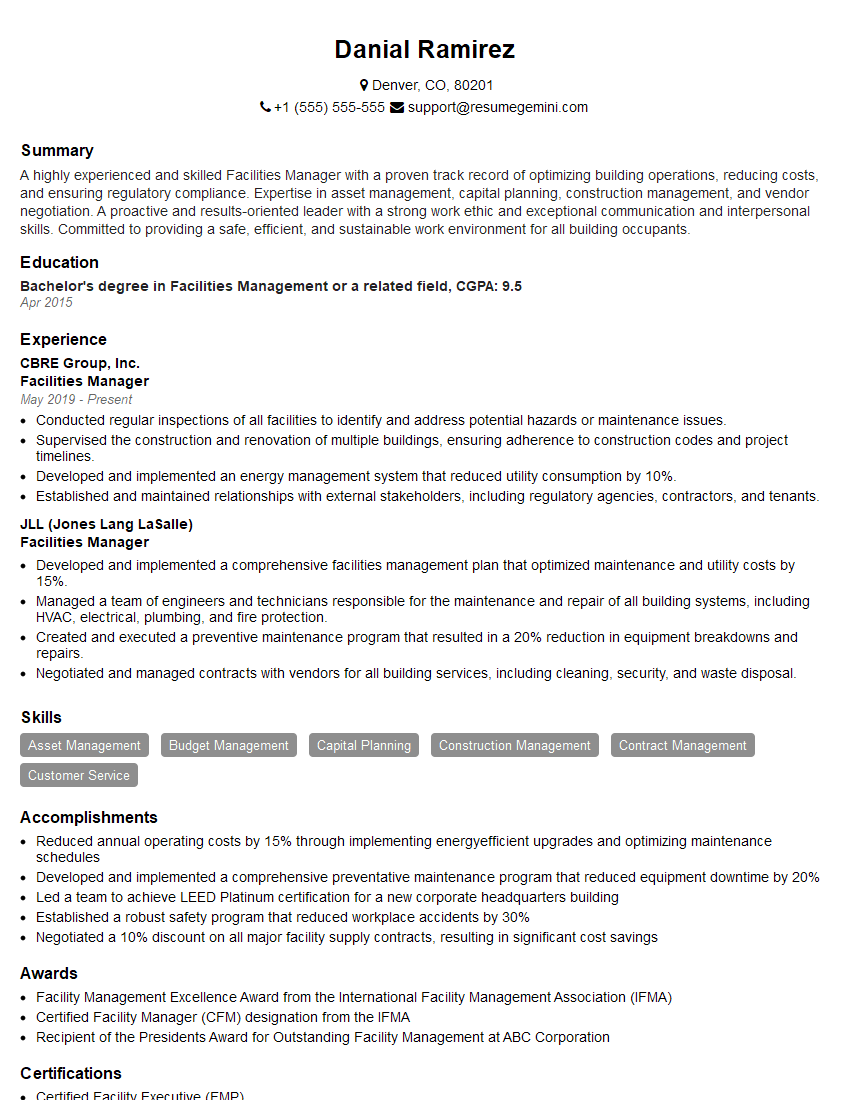
Facilities Manager Resume Sample
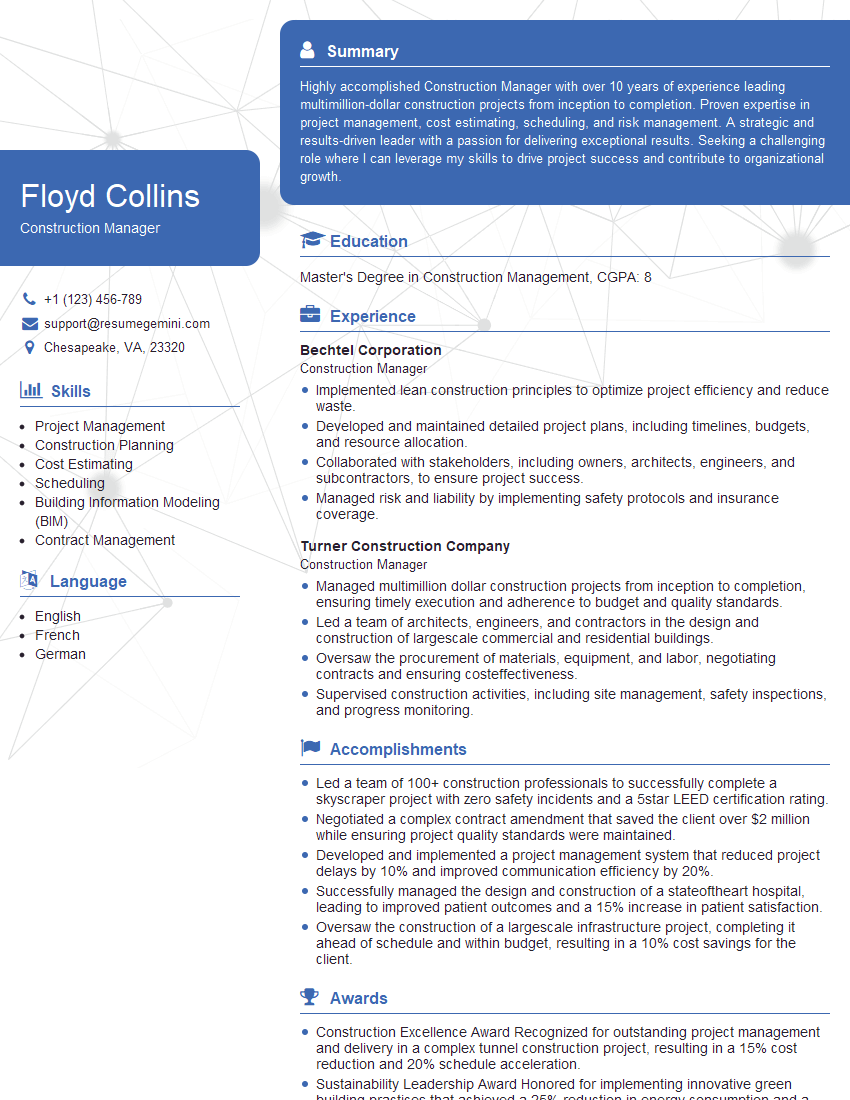
Construction Manager Resume Sample

Project Engineer Resume Sample

Sustainability Consultant Resume Sample
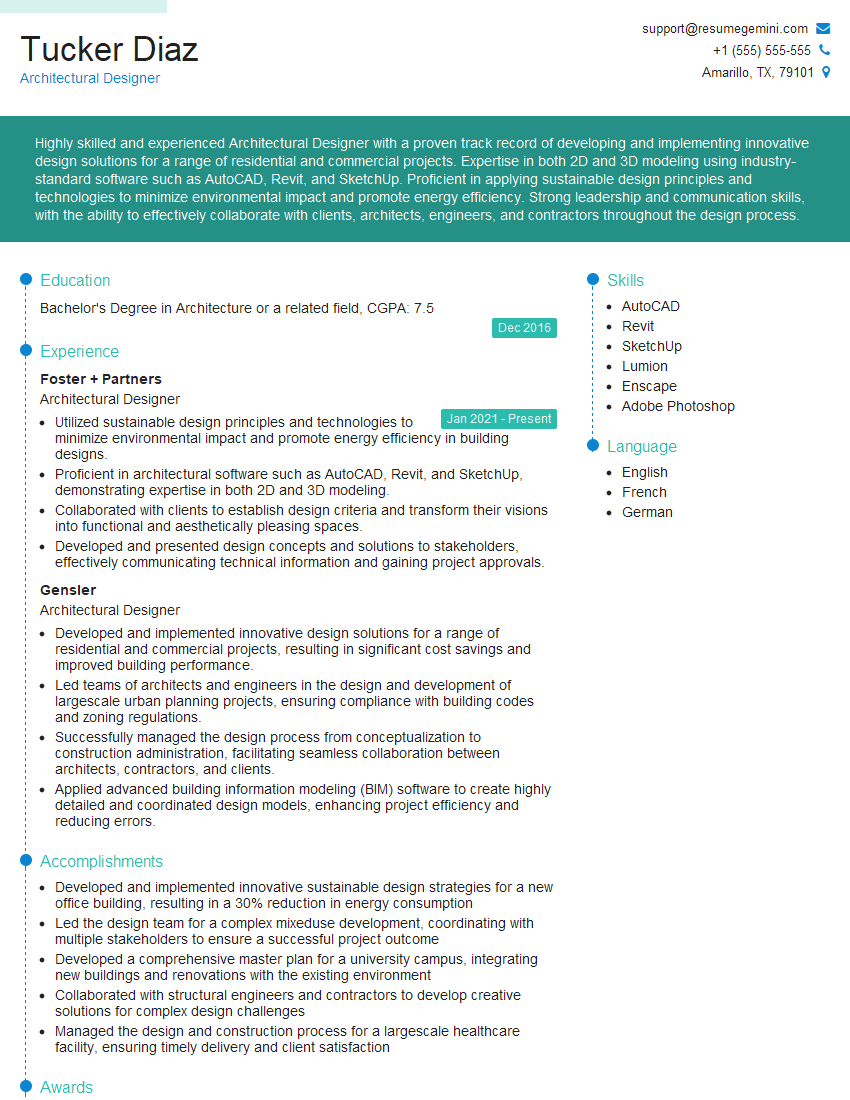
Architectural Designer Resume Sample
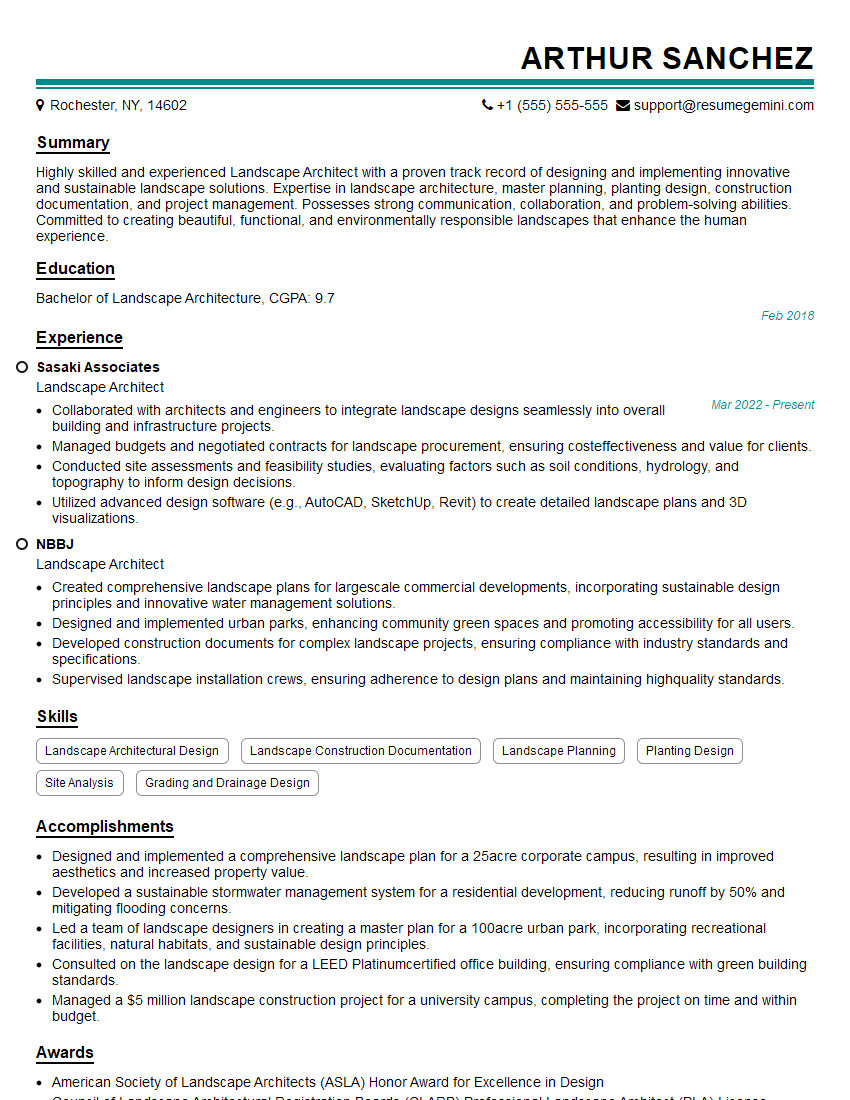
Landscape Architect Resume Sample
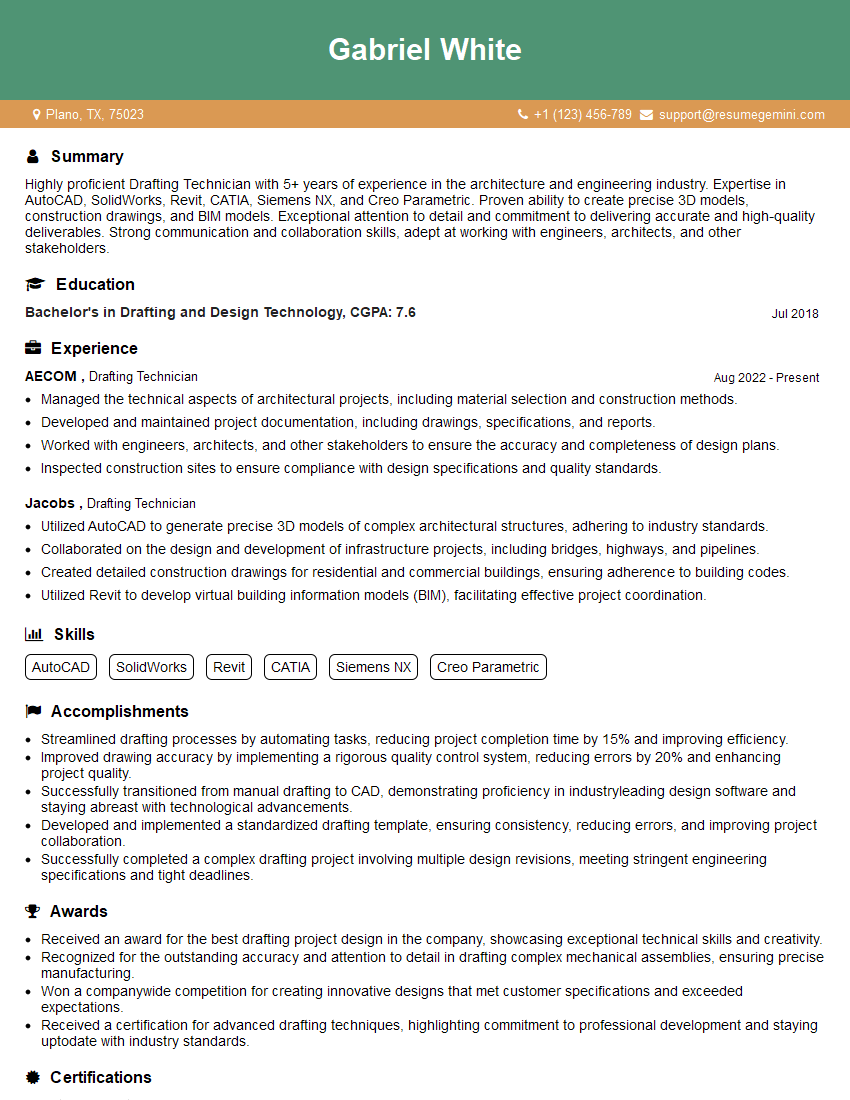
Drafting Technician Resume Sample
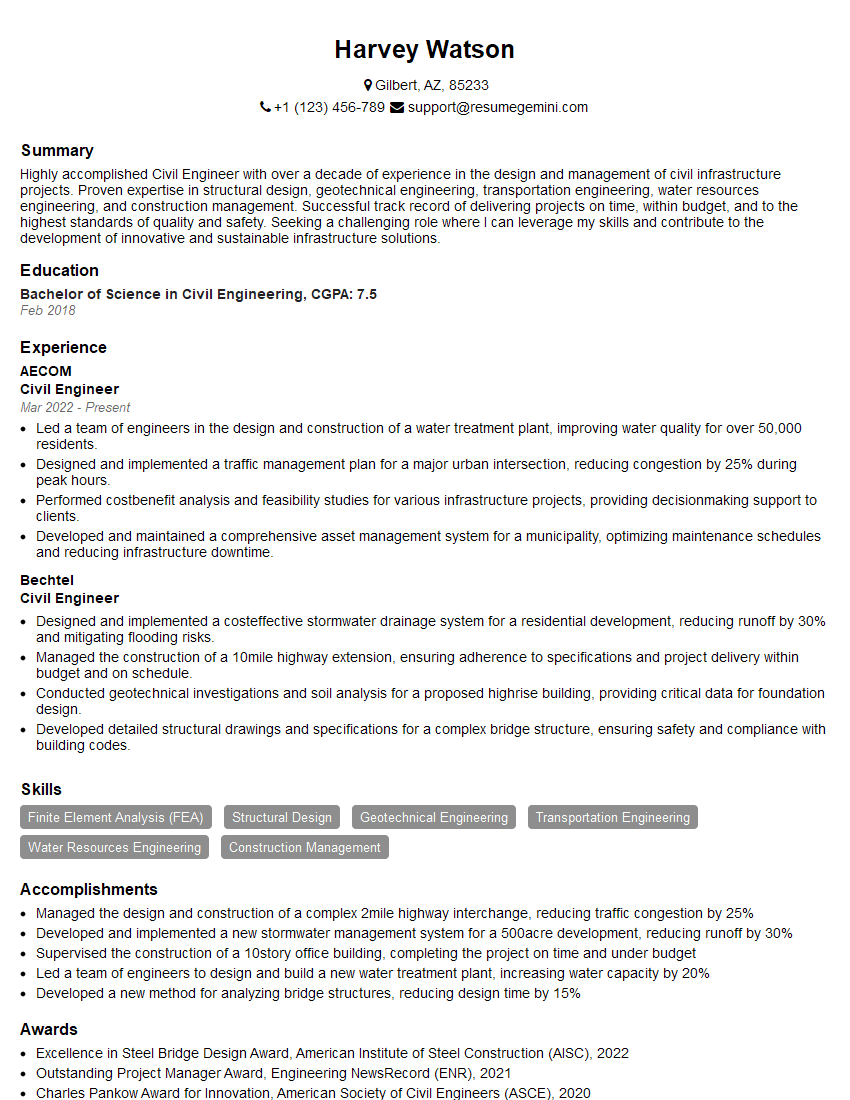
Civil Engineer Resume Sample
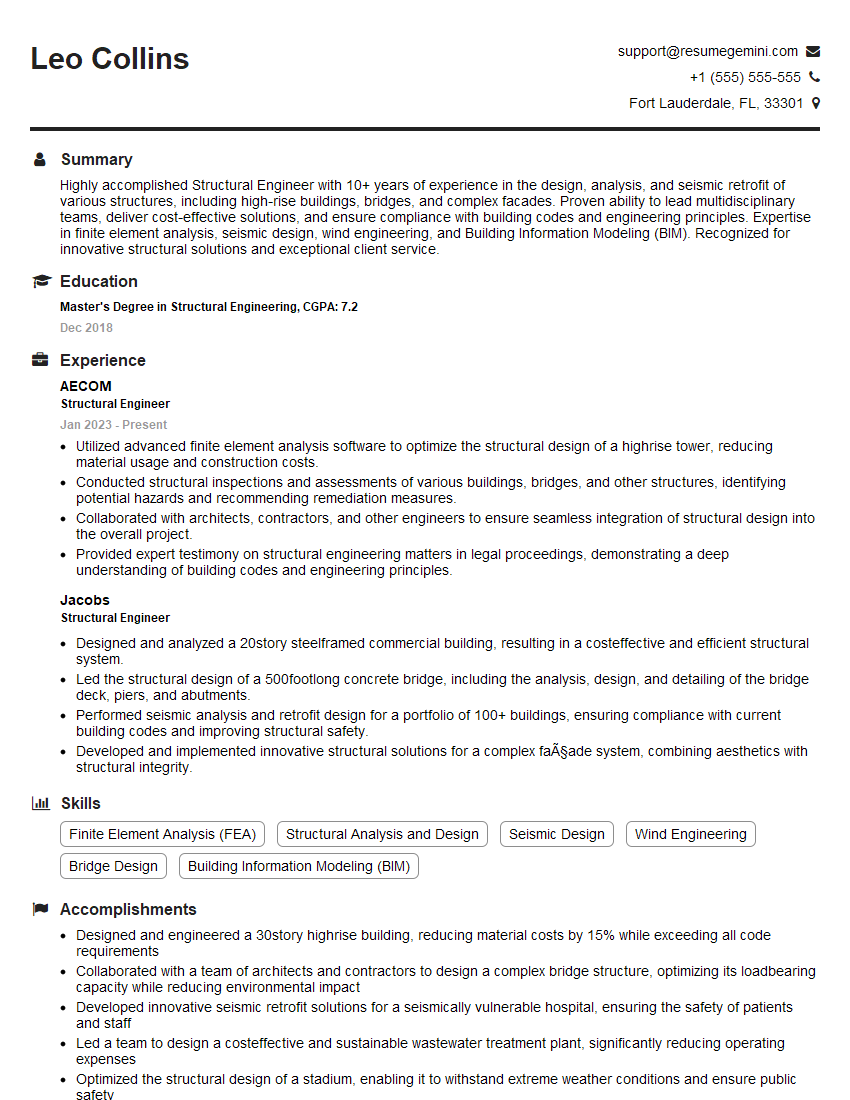
Structural Engineer Resume Sample
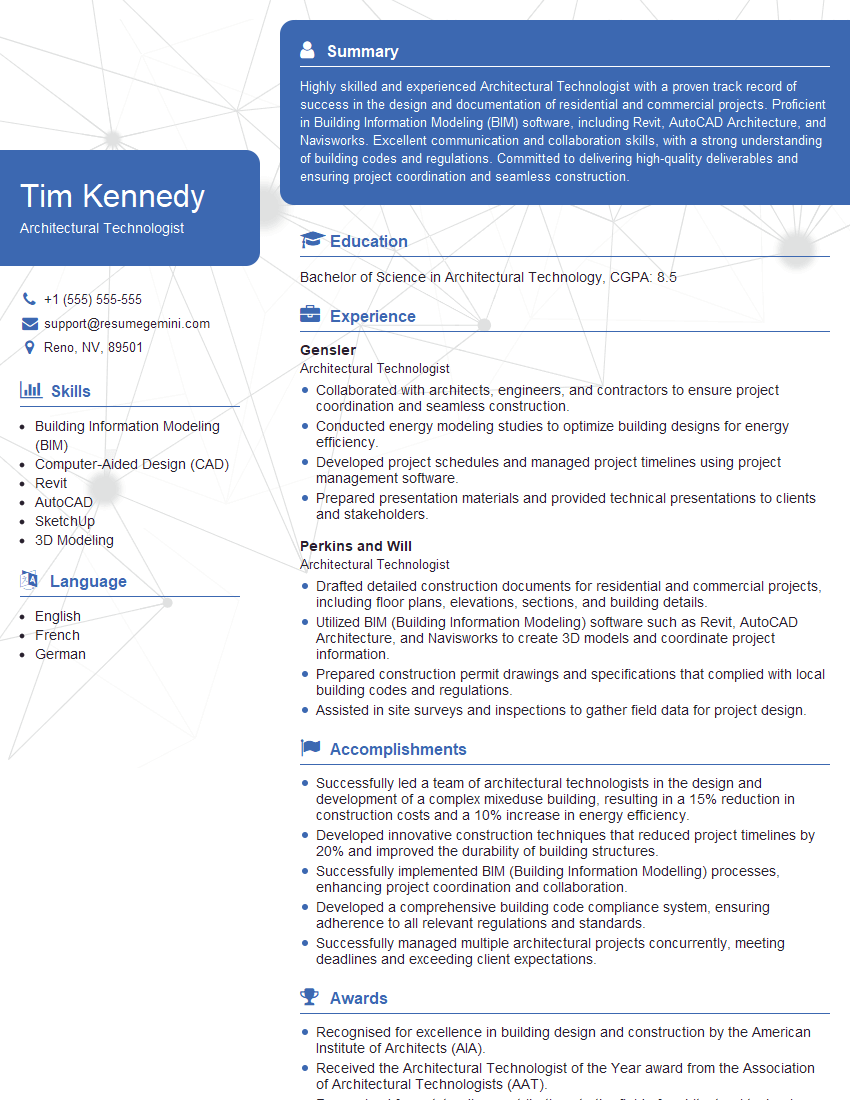
Architectural Technologist Resume Sample
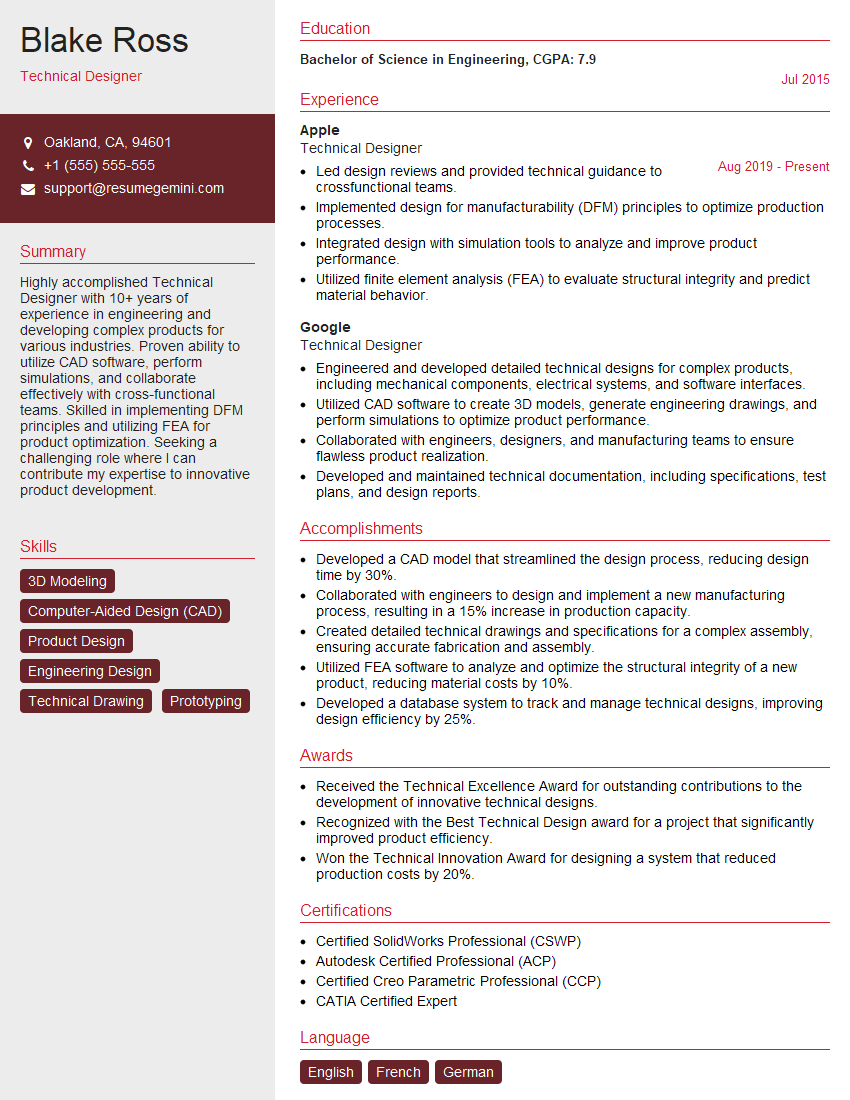
Technical Designer Resume Sample
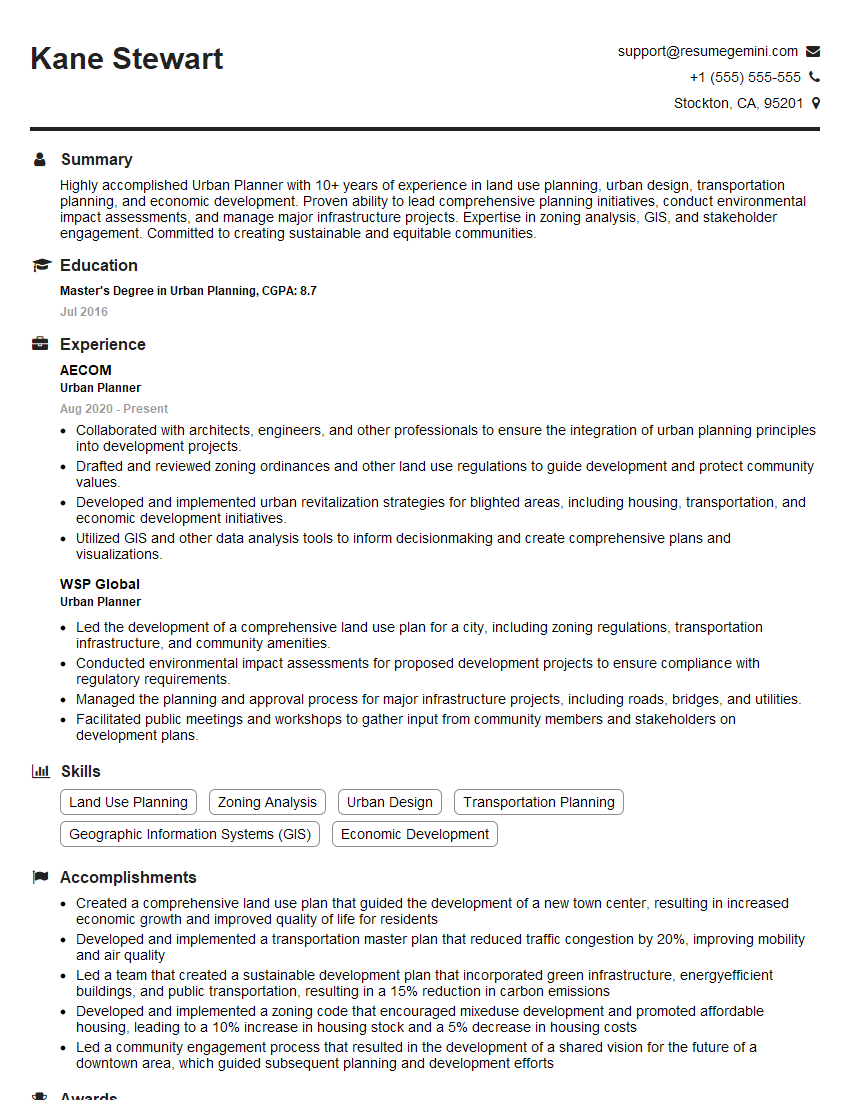
Urban Planner Resume Sample
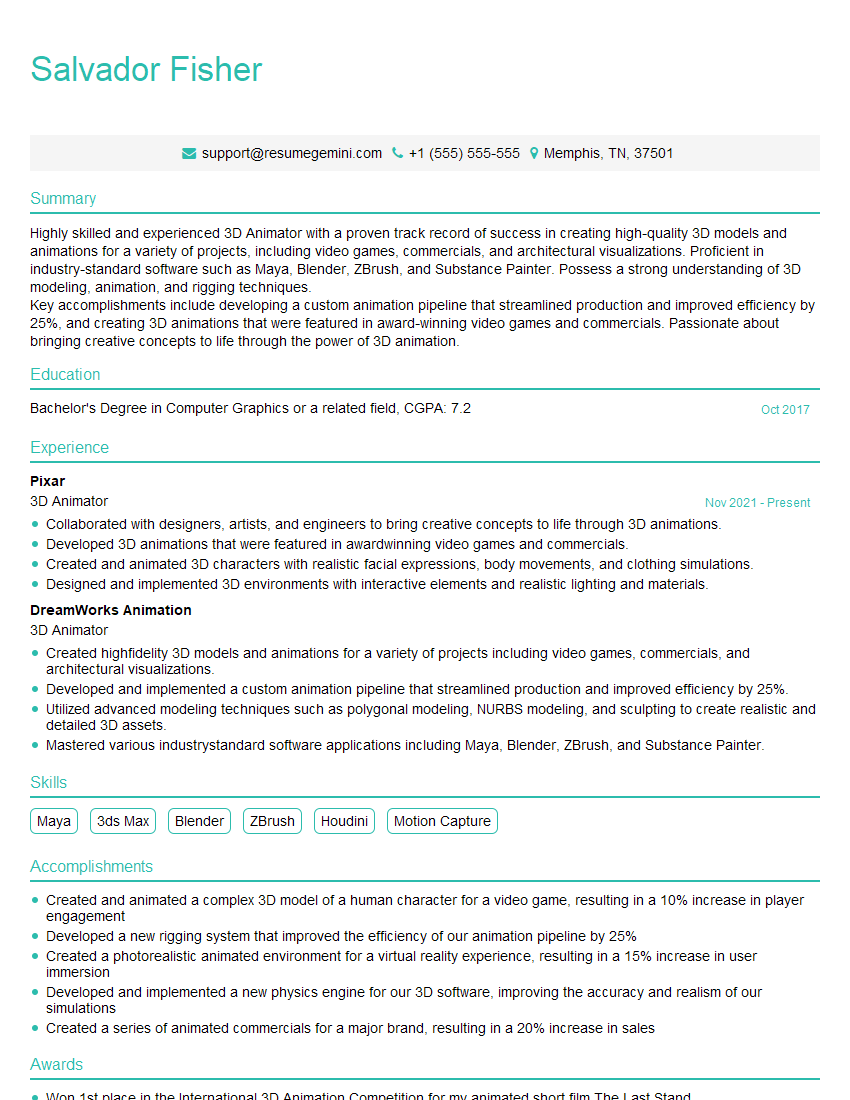
3D Animator Resume Sample

3D Modeler Resume Sample
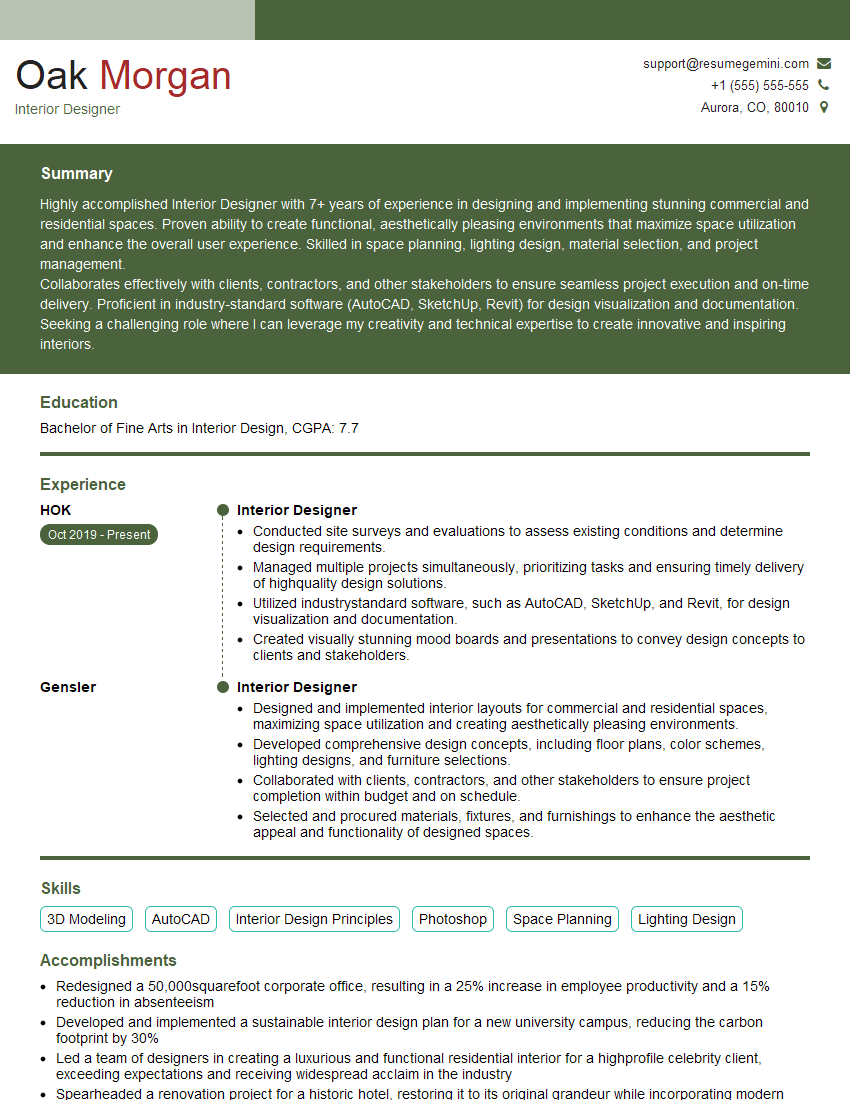
Interior Designer Resume Sample
Explore more articles
Users Rating of Our Blogs
Share Your Experience
We value your feedback! Please rate our content and share your thoughts (optional).
What Readers Say About Our Blog
Very informative content, great job.
good