Cracking a skill-specific interview, like one for Slider, requires understanding the nuances of the role. In this blog, we present the questions you’re most likely to encounter, along with insights into how to answer them effectively. Let’s ensure you’re ready to make a strong impression.
Questions Asked in Slider Interview
Q 1. Explain the difference between a carousel and a slider.
While the terms ‘carousel’ and ‘slider’ are often used interchangeably, there’s a subtle difference. A slider typically focuses on showcasing a single item at a time, often with a smooth transition between items. Think of a product image showcase where you want to highlight specific features. A carousel, on the other hand, usually displays multiple items simultaneously, allowing the user to scroll through a horizontal or vertical row of content. Imagine a news website showcasing multiple articles in a rotating display. The key distinction lies in the focus: single item vs. multiple items.
Consider a travel website. A slider might show a single breathtaking landscape image, while a carousel might display thumbnails of various destinations, with the main image changing upon selection.
Q 2. How would you implement a responsive slider?
Implementing a responsive slider involves ensuring it adapts seamlessly to different screen sizes and orientations. This requires a combination of techniques:
- Fluid Widths: Use percentage-based widths instead of fixed pixel values for the slider container and its elements. This allows the slider to scale proportionally with the screen size.
- Media Queries: Employ CSS media queries to adjust the slider’s layout and behavior based on screen size (e.g., different numbers of items visible on larger vs. smaller screens). You might even use different slider configurations altogether for mobile and desktop.
- JavaScript Libraries: Most popular slider libraries like Slick, Swiper, and Splide are responsive by design. They handle adjustments automatically, often providing configuration options for breakpoints and responsiveness.
For instance, you might set the number of visible items to 3 on a large screen, 2 on a medium screen, and 1 on a small screen using a library’s built-in responsive settings or custom media queries.
/* Example media query */@media (max-width: 768px) {.slider { width: 100%; /* Full width on smaller screens */}}Q 3. Describe your experience with various slider libraries (e.g., Slick, Swiper).
I have extensive experience with several popular slider libraries. Slick is known for its ease of use and customization, making it ideal for quick implementations. I’ve used it for projects requiring simple image carousels with basic transitions. Swiper offers more advanced features and flexibility, allowing for complex layouts and interactions. I employed Swiper on a project requiring a parallax effect within the slider, and its versatility made it the perfect choice. I also have experience with Splide, appreciating its performance and modern approach to slider functionality. The choice of library depends heavily on project needs: Slick for simplicity, Swiper or Splide for more advanced requirements and performance.
Q 4. How do you handle image loading and optimization in a slider?
Efficient image loading and optimization are crucial for slider performance, especially on mobile devices. I employ several strategies:
- Responsive Images: Using the
srcsetattribute within - Image Compression: Optimizing images with tools like TinyPNG or ImageOptim reduces file sizes without significant quality loss, speeding up loading times.
- Lazy Loading: Implementing lazy loading ensures images only load when they’re about to become visible in the viewport. Many slider libraries offer this feature built-in. This significantly improves initial page load performance.
- WebP Format: If supported by the browser, using the WebP image format offers better compression compared to JPEG or PNG, further reducing file sizes.
For example, using lazy loading might delay the loading of images several slides away from the currently viewed one.
Q 5. Explain how to create infinite scrolling in a slider.
Creating infinite scrolling in a slider involves cleverly manipulating the slider’s content and position. Most slider libraries provide this functionality directly through a configuration option. The underlying logic is to clone the first few slides and append them to the end, and vice-versa for the last slides. When the slider reaches the end, it seamlessly transitions to the cloned beginning, creating the illusion of continuous scrolling. Similarly, when reaching the beginning, it smoothly transitions to the cloned end. This effect requires careful handling of the slider’s index and boundary conditions to maintain smooth navigation.
Q 6. How would you implement accessibility features in a slider (e.g., keyboard navigation, screen reader compatibility)?
Accessibility is paramount. For sliders, this includes:
- Keyboard Navigation: Ensure users can navigate the slider using keyboard arrows or tab keys. This is often handled automatically by slider libraries but needs verification.
- Screen Reader Compatibility: Provide meaningful ARIA attributes (like
aria-label,aria-current) to describe the slider’s content and current position for screen readers. Proper semantic HTML also aids screen reader understanding. - Focus Management: When an item is selected, ensure proper focus management, such as visually highlighting the selected slide and using ARIA attributes to indicate focus to assistive technologies.
Failing to provide keyboard navigation and screen reader support significantly limits the usability of the slider for many users.
Q 7. How would you handle different screen sizes and orientations in a slider?
Handling different screen sizes and orientations is crucial for responsive design. As mentioned earlier, responsive techniques like fluid widths, media queries, and JavaScript libraries are key. Slider libraries often provide options to change the number of items displayed, the slider’s orientation (horizontal or vertical), and even the slider’s overall layout depending on the screen size. It’s also important to test the slider thoroughly on various devices and orientations to ensure consistent performance and a positive user experience.
Q 8. Explain how to implement pagination in a slider.
Implementing pagination in a slider involves breaking down a large set of slides into smaller, manageable pages. Think of it like flipping through a photo album – instead of seeing all photos at once, you see them one page at a time. This is crucial for usability, especially when dealing with many slides, as it prevents overwhelming the user.
Here’s a common approach:
- Determine the number of slides per page: This depends on the slider’s design and screen size. A responsive design would adjust this dynamically.
- Use JavaScript to control visibility: Hide all slides initially. On each page transition, display only the slides belonging to the current page.
- Implement navigation: Add ‘Next’ and ‘Previous’ buttons, or page numbers, that update the displayed slide range.
- Update the UI: Visually indicate the current page and total number of pages.
Example (conceptual): Let’s say you have 12 slides and 4 slides per page. Page 1 shows slides 1-4, Page 2 shows slides 5-8, and Page 3 shows slides 9-12. The ‘Next’ button would increment the starting slide index by 4.
//Conceptual JavaScript snippet (requires further adaptation to a specific slider library)let slidesPerPage = 4;let currentPage = 1;function showPage(page){ let startIndex = (page - 1) * slidesPerPage; //Show slides from startIndex to startIndex + slidesPerPage -1 }Q 9. How would you implement touch support in a slider?
Touch support is essential for a modern slider, especially on mobile devices. It allows users to interact naturally by swiping. We leverage touch events to detect swipes and translate them into slider transitions.
Implementation typically involves these steps:
- Event Listeners: Attach event listeners to the slider container for
touchstart,touchmove, andtouchendevents. - Gesture Recognition: Calculate the swipe direction and distance using the touch coordinates from these events. A swipe to the right might move to the previous slide, while a left swipe moves to the next.
- Transition Handling: Use the calculated swipe distance to determine the transition speed and smoothness. This might involve animation libraries or CSS transitions.
- Prevention of Default Behavior: Prevent the default browser behavior (scrolling) when a swipe is detected on the slider.
Consider using a touch event library or framework to simplify the process and handle edge cases like accidental taps.
//Conceptual snippet: This would need adjustments depending on your librarylet startX;slider.addEventListener('touchstart', e => { startX = e.touches[0].clientX;});slider.addEventListener('touchmove', e => { e.preventDefault(); //prevent default scroll behavior});slider.addEventListener('touchend', e => { let endX = e.changedTouches[0].clientX; let diffX = startX - endX; //Use diffX to determine swipe direction and trigger slider transition});Q 10. Describe your approach to testing a slider for different browsers and devices.
Thorough testing is crucial for a slider to ensure cross-browser and cross-device compatibility. My approach is multi-faceted:
- BrowserStack or similar: Use a cross-browser testing platform to automatically test on various browsers (Chrome, Firefox, Safari, Edge) and their versions. This ensures consistent behavior across different rendering engines.
- Device Testing: Test on real devices, especially mobile phones and tablets with varying screen sizes and operating systems (iOS, Android). This identifies device-specific issues that emulators may miss.
- Automated Tests: Use a testing framework (like Jest or Cypress) to write automated tests for core slider functionality, ensuring regression-free development and identifying bugs early.
- Manual Testing: Manually test edge cases, such as resizing the browser window, rapidly switching between slides, or interacting with other page elements near the slider.
- Accessibility Testing: Verify that the slider is accessible to users with disabilities (e.g., keyboard navigation, screen reader compatibility).
Documentation of test results is important for tracking issues and ensuring future consistency.
Q 11. How would you handle slider performance optimization for large numbers of images?
Performance optimization for sliders with many images is critical to avoid lag and a poor user experience. Here’s a strategic approach:
- Lazy Loading: Only load images when they are about to be displayed. This significantly reduces initial load time. Libraries like Intersection Observer API are helpful.
- Image Optimization: Optimize images for web using appropriate formats (WebP for better compression), dimensions, and quality. Tools can help compress images without significant quality loss.
- Caching: Utilize browser caching to store images for faster subsequent loads. Proper HTTP headers (cache-control) can manage this effectively.
- Virtualization: For extremely large numbers of images, consider using a virtualization technique. Only render the visible slides and a small buffer around them, creating the illusion of a larger number of slides without loading them all.
- Efficient JavaScript: Write efficient JavaScript code to minimize unnecessary calculations and DOM manipulations during transitions.
Profiling tools can help identify performance bottlenecks in your slider implementation.
Q 12. Explain how to implement autoplay functionality with pause and resume options in a slider.
Autoplay with pause and resume is a common slider feature, enhancing user engagement. Here’s how to implement it:
- Interval-Based Approach: Use
setInterval(orrequestAnimationFramefor smoother animation) to automatically advance the slider after a set time interval. - Pause Functionality: Implement a ‘Pause’ button that clears the interval using
clearInterval. - Resume Functionality: Add a ‘Resume’ button or functionality that restarts the interval with the same settings, ensuring that autoplay continues from where it left off.
- State Management: Track whether autoplay is currently active using a boolean variable to manage the pause/resume behavior.
- User Interaction: Consider pausing autoplay when a user manually interacts with the slider (e.g., clicks a navigation button).
Example (Conceptual JavaScript):
let autoplayInterval;let isAutoplaying = false;function startAutoplay(){ autoplayInterval = setInterval(nextSlide, 3000); //3 seconds interval isAutoplaying = true;}function pauseAutoplay(){ clearInterval(autoplayInterval); isAutoplaying = false;}Q 13. How would you implement custom animations in a slider?
Custom animations add personality and style to a slider. You can implement them using various techniques:
- CSS Transitions and Animations: Use CSS properties like
transitionandanimationto create smooth transitions and effects. This leverages the browser’s rendering engine for efficiency. - JavaScript Animation Libraries: Libraries like GSAP (GreenSock Animation Platform) or Anime.js provide powerful tools for creating complex and highly customizable animations. They handle easing functions and other advanced animation features.
- Custom JavaScript: For complete control, you can write your own animation logic using JavaScript. This involves manually updating element positions or styles over time.
The choice of method depends on the complexity of the desired animation. For simple transitions, CSS is usually sufficient. For advanced effects, a library or custom JavaScript might be necessary.
Remember to consider performance implications when creating custom animations. Overly complex animations can slow down the slider.
Q 14. Describe your approach to handling errors and edge cases in a slider.
Robust error handling is vital for a reliable slider. Here’s how to address potential issues:
- Image Loading Errors: Handle cases where images fail to load. This might involve displaying a placeholder image or logging an error message.
- Invalid Data: Implement checks to ensure that the data provided to the slider (e.g., slide information) is valid. This prevents unexpected behavior or crashes.
- Browser Compatibility: Use feature detection to gracefully handle scenarios where browser capabilities are limited. For example, providing fallback mechanisms for animations if CSS transitions aren’t supported.
- User Input Validation: Validate user input to prevent unexpected behavior. For instance, ensure that page numbers entered are within the valid range.
- Logging and Debugging: Implement comprehensive logging to track errors and diagnose issues. Use debugging tools to inspect the slider’s behavior during development and testing.
A well-structured approach to error handling contributes significantly to the robustness and reliability of your slider.
Q 15. How would you implement a slider with lazy loading?
Lazy loading in a slider is crucial for performance, especially with many high-resolution images. It involves loading only the images currently visible or immediately about to be visible, deferring the loading of others until needed. This significantly improves initial load time and reduces bandwidth consumption.
Implementation typically involves JavaScript and observing the slider’s current position. We can use Intersection Observer API for efficient detection of elements entering the viewport. When an image’s container enters the viewport, its src attribute is populated, triggering the image load. A placeholder image can be displayed initially for a better user experience.
Example (Conceptual):
const observer = new IntersectionObserver(entries => { entries.forEach(entry => { if (entry.isIntersecting) { const img = entry.target; img.src = img.dataset.src; // data-src attribute holds the actual image URL observer.unobserve(img); // Stop observing once loaded } }); }); // Observe each image container const imageContainers = document.querySelectorAll('.slider-image-container'); imageContainers.forEach(container => { observer.observe(container); });This approach prevents unnecessary image downloads, resulting in faster load times and a smoother user experience, particularly beneficial on mobile devices with slower connections.
Career Expert Tips:
- Ace those interviews! Prepare effectively by reviewing the Top 50 Most Common Interview Questions on ResumeGemini.
- Navigate your job search with confidence! Explore a wide range of Career Tips on ResumeGemini. Learn about common challenges and recommendations to overcome them.
- Craft the perfect resume! Master the Art of Resume Writing with ResumeGemini’s guide. Showcase your unique qualifications and achievements effectively.
- Don’t miss out on holiday savings! Build your dream resume with ResumeGemini’s ATS optimized templates.
Q 16. How would you integrate a slider with other JavaScript frameworks (e.g., React, Angular, Vue)?
Integrating a slider with JavaScript frameworks like React, Angular, or Vue involves treating the slider as a component. This promotes reusability and maintainability. You can use a dedicated slider library, or build one from scratch using the framework’s component model.
React Example (Conceptual):
function MySlider({ images }) { const [currentIndex, setCurrentIndex] = useState(0); return ( <div className='slider'> <img src={images[currentIndex]} alt='Slider Image' /> <button onClick={() => setCurrentIndex((prev) => (prev - 1 + images.length) % images.length)}>Prev</button> <button onClick={() => setCurrentIndex((prev) => (prev + 1) % images.length)}>Next</button> </div> ); } Similar patterns apply to Angular and Vue. The key is to encapsulate the slider’s logic and rendering within a reusable component. You would manage the slider’s state (current slide, animation etc.) and use the framework’s lifecycle methods to control transitions and updates.
Q 17. How would you debug common slider issues (e.g., responsiveness problems, animation glitches)?
Debugging slider issues involves a systematic approach. Start with browser developer tools (Network, Console, Elements). For responsiveness problems, check media queries and how the slider adapts to different screen sizes. Use the browser’s inspector to analyze CSS styles and ensure proper layout across various screen sizes and orientations.
Responsiveness Problems: Check if your CSS media queries are correctly targeting different breakpoints. Inspect the slider’s layout in the browser’s developer tools to see if elements are overflowing or misaligned. Ensure that images are scaled appropriately using CSS properties like max-width and height: auto;.
Animation Glitches: Use the browser’s animation timeline tools to step through animations frame-by-frame. This can help identify specific frames where glitches occur. Check for conflicts between different CSS animation properties or JavaScript animation libraries. Ensure smooth transitions by using consistent easing functions.
General Debugging Tips:
- Console Logging: Strategically use
console.logto track the values of variables and the slider’s state during transitions. - Breakpoints: Set breakpoints in your JavaScript code to pause execution and inspect variable values at specific points in the slider’s logic.
- Simplify: Temporarily remove complex features or styles to isolate the problem. A process of elimination helps pinpoint the cause.
Remember to always test across various browsers and devices.
Q 18. Explain the importance of using semantic HTML in a slider.
Semantic HTML enhances accessibility, maintainability, and SEO of your slider. Instead of using generic elements like div for everything, use elements that convey the meaning of the content.
Example:
<div class="slider"> <ul class="slider-list"> <li class="slider-item">...</li> <li class="slider-item">...</li> </ul> </div>
Here, ul and li represent an unordered list of slides which is semantically more accurate than using only divs. Screen readers can then more effectively convey the structure to visually impaired users. Using appropriate ARIA attributes enhances accessibility further.
Q 19. Explain how you would handle different image aspect ratios in a slider.
Handling different aspect ratios in a slider requires careful consideration of layout and image sizing. Avoid distorting images by maintaining their original aspect ratio. You can use CSS to contain images within a fixed area while maintaining their aspect ratio. This might involve some cropping if an image’s ratio doesn’t perfectly match the slider’s container.
Methods:
- CSS
object-fit: This CSS property controls how an image is resized to fit its container.object-fit: cover;covers the entire container while maintaining aspect ratio, potentially cropping parts of the image.object-fit: contain;fits the image within the container without cropping, but may leave some empty space. - Responsive Images: Use
<picture>orsrcsetin<img>tags to provide different image sizes for various screen resolutions. This approach ensures optimal image quality without unnecessarily loading large images on smaller screens. - JavaScript Calculation and Resizing: Calculate the aspect ratio of each image and adjust its container’s dimensions accordingly. This can provide more fine-grained control but requires more JavaScript code.
Choose the method that best suits your needs and complexity requirements. For simple cases, CSS object-fit is efficient. More complex scenarios may necessitate using a combination of techniques.
Q 20. How would you create a slider with multiple items per slide?
Creating a slider with multiple items per slide involves adjusting the slider’s layout and logic. Instead of displaying one image per slide, you’ll display multiple images within a single slide container. This means modifying how you calculate the slide’s width and how navigation interacts with multiple items.
Implementation:
- CSS Grid or Flexbox: Use CSS Grid or Flexbox to arrange multiple items within a slide container. This allows you to control the spacing and layout of items within each slide.
- JavaScript Navigation: Adjust your slider’s navigation logic to move multiple items simultaneously. You’ll need to calculate the correct amount of movement based on the number of items per slide.
- Responsive Design: Consider how the layout will adapt to different screen sizes. You might need to adjust the number of items per slide depending on the screen width to maintain a good user experience.
This approach requires careful consideration of layout and the relationship between the number of items per slide and screen size to ensure responsiveness and an effective user experience.
Q 21. How would you implement a slider with different transition effects?
Implementing different transition effects involves using CSS transitions or animations, or JavaScript animation libraries. CSS offers a straightforward way to create basic transitions, while JavaScript libraries provide more advanced and customizable animation effects.
CSS Transitions (Example):
.slider-item { transition: transform 0.5s ease-in-out; /* Adjust duration and easing function */ } .slider-item.active { transform: translateX(100%); /* Or other transformations */ } This code provides a smooth transition when the active class is added or removed. The transform property is commonly used for transitions, although other properties can be used too. The transition property defines the properties to be animated, the duration, and the easing function that controls the speed of the animation.
JavaScript Animation Libraries: Libraries like GSAP (GreenSock Animation Platform) or Anime.js provide more fine-grained control over animations, allowing for complex effects beyond what CSS can offer easily. These libraries handle things like easing functions, animation chains, and other advanced features.
The choice depends on your needs. CSS transitions are great for simple effects, whereas JavaScript animation libraries provide more power and flexibility for complex scenarios.
Q 22. Explain how to implement a vertical slider.
Implementing a vertical slider involves rotating the slider content and its controls 90 degrees. Instead of horizontal movement, the content will slide vertically. This requires careful manipulation of CSS properties like transform: rotate(90deg) and adjusting the slider’s dimensions and positioning.
Here’s a breakdown of the approach:
- HTML Structure: Maintain a similar structure to a horizontal slider, using a container for the slider, an area for the visible content, and the elements to be slid.
- CSS Styling: Apply
transform: rotate(90deg)to the slider’s content area. You’ll also need to adjustwidthandheightto match the desired vertical dimensions. Crucially, you’ll manage thetopproperty instead ofleftin your JavaScript for vertical movement. - JavaScript Logic: Modify your JavaScript to control the
topproperty instead ofleft. The logic for transitions and animations remains the same; only the CSS property being manipulated changes.
Example (Conceptual): Imagine a carousel of images. In a horizontal slider, the images move left and right. In a vertical slider, the same images would slide up and down, as if viewed on a vertically oriented screen.
Consider using a well-tested library, which would abstract away much of the complexity of this implementation. Building a vertical slider from scratch can be complex and prone to bugs.
Q 23. Describe your experience with using CSS animations and transitions in a slider.
CSS animations and transitions are invaluable for creating smooth and visually appealing sliders. Transitions provide a smooth change between states, while animations offer more control over complex movements. I’ve used them extensively to create various slider effects.
For example, I’ve used transition: transform 0.5s ease-in-out; for smooth transitions between slide positions. The transform property is crucial for moving the slider elements. ease-in-out is one of several easing functions that determine the speed of the transition. For more complex animations, like a fade-in effect combined with sliding, I’ve utilized @keyframes in CSS.
@keyframes slideIn { 0% { opacity: 0; transform: translateX(100%); } 100% { opacity: 1; transform: translateX(0); } } .slider-item { animation: slideIn 0.5s ease-in-out; }
In one project, I created a slider with a parallax effect using CSS animations. Each slide element had its own animation to create a subtle depth effect, enhancing user engagement. The key was managing the timing and easing functions to ensure a visually pleasing and intuitive user experience.
Q 24. How would you handle slider interactions with other elements on the page?
Handling slider interactions with other page elements requires careful consideration of event propagation and potentially using JavaScript’s event delegation. The goal is to prevent slider events from interfering with other elements and vice versa.
Here are some key strategies:
- Event Delegation: Attach event listeners to a parent container encompassing both the slider and other elements. This improves efficiency, particularly with many slider elements.
- Event Propagation Control: Use
stopPropagation()to prevent events triggered on the slider from bubbling up and triggering handlers on parent elements. This helps isolate slider functionality. - Z-index Management: Use the
z-indexCSS property to control the stacking order of elements. Ensure that the slider doesn’t get covered by other elements and vice versa, especially if the user interacts with elements behind the slider. - Conditional Logic: Use JavaScript to conditionally disable certain actions on other elements while the slider is being actively interacted with (e.g., prevent scrolling if the user is dragging a slider).
For example, if the slider overlaps a button, and you don’t manage event propagation, the button’s click event might trigger even if the user is clicking on the slider. stopPropagation() attached to the slider prevents this.
Q 25. Explain the considerations for slider performance on low-powered devices.
Performance on low-powered devices is paramount. For sliders, optimizing for these devices involves minimizing resource usage and reducing computational load.
Key considerations include:
- Lightweight Images: Use optimized images with smaller file sizes. Consider using responsive images (
srcsetattribute) to serve appropriately sized images for different screen resolutions. - Efficient JavaScript: Avoid complex or unnecessary JavaScript calculations within the slider’s animation loop. Use techniques like requestAnimationFrame for smooth, performance-friendly animations.
- CSS Optimization: Avoid overly complex CSS selectors and animations. Keep CSS concise and well-structured.
- Lazy Loading: Only load images or content that is currently visible. Lazy loading prevents unnecessary resource consumption.
- Hardware Acceleration: Utilize CSS transforms and transitions (e.g.,
transform: translateX(...)) which leverage the GPU for faster rendering, especially beneficial on lower-powered devices.
In practice, I’ve used profiling tools to identify performance bottlenecks in sliders on various devices, ensuring optimal load times and smooth animations.
Q 26. How would you implement a slider with drag-and-drop functionality?
Implementing drag-and-drop functionality in a slider requires capturing mouse or touch events and updating the slider position accordingly. It typically involves using JavaScript event listeners.
Here’s a general approach:
- Event Listeners: Attach
mousedownortouchstartevents to initiate the drag.mousemoveortouchmoveevents track the drag’s movement, andmouseuportouchendevents signal the end of the drag. - Position Calculation: Calculate the difference between the initial and current mouse/touch positions to determine how far the slider should move.
- Slider Update: Update the slider’s position using CSS’s
transform: translateX(...)ortransform: translateY(...)properties. - Boundary Checks: Ensure the slider doesn’t move beyond its defined boundaries.
- Snap to Position: After the drag ends, optionally snap the slider to the nearest slide position for a cleaner user experience.
Libraries like Hammer.js can simplify touch event handling across different devices and browsers.
Q 27. How would you create a responsive slider with a custom navigation system?
Creating a responsive slider with custom navigation requires a combination of CSS media queries and JavaScript. The goal is to adapt the slider’s appearance and behavior seamlessly across various screen sizes.
Responsive Design: Use CSS media queries to adjust the slider’s layout and size based on the viewport width. This ensures it looks good on desktops, tablets, and smartphones. Consider using flexbox or grid for flexible layout.
Custom Navigation: Create custom navigation elements (e.g., buttons, thumbnails) and link their behavior to the slider’s position. JavaScript will handle updating the slider’s position based on navigation clicks.
Example structure (Conceptual):
- HTML: Include slider container, slide elements, and custom navigation buttons (previous and next buttons, or thumbnails).
- CSS: Use media queries (
@media (max-width: 768px), for example) to adjust slider size and layout for different screen sizes. Style navigation elements. - JavaScript: Handle click events on navigation elements to control slider positioning via CSS transforms (
translateX). Implement responsive functionality, potentially changing the behavior (like the number of slides visible) at different breakpoints.
Using a JavaScript framework or library (like React, Vue, or Angular) simplifies this process and provides a more structured and maintainable codebase.
Q 28. Explain your approach to ensuring a slider is SEO-friendly.
Making a slider SEO-friendly requires ensuring search engines can understand and index its content.
Here’s my approach:
- Semantic HTML: Use semantic HTML elements (like
<article>for each slide) to structure the slider content. This helps search engines understand the context of each slide’s content. - Alt Text for Images: Provide descriptive alt text for all images within the slider. This is essential for accessibility and SEO, especially for users who cannot see the images.
- Accessible Navigation: Ensure keyboard navigation is possible for users who cannot use a mouse. This can involve adding ARIA attributes or using standard keyboard event listeners.
- Structured Data Markup: Consider using schema.org markup (JSON-LD) to provide additional information about the slider content, which can help search engines better understand the content and potentially improve its ranking.
- Unique Content: Each slide should have unique, relevant, and valuable content. Avoid duplicate content across slides.
- Page Speed: Optimize the slider’s performance to avoid slow loading times, which negatively impacts SEO.
By focusing on these aspects, I ensure the slider’s content is accessible and understandable for both users and search engines.
Key Topics to Learn for Slider Interview
- Slider Fundamentals: Understanding the core concepts of Slider technology, including its architecture and functionalities. Explore different types of sliders and their use cases.
- Implementation and Integration: Gain hands-on experience integrating Slider into various projects. Practice using different libraries and frameworks. Focus on efficient and clean coding practices.
- Performance Optimization: Learn techniques for optimizing Slider performance, including minimizing load times and ensuring smooth transitions. Understand how to handle large datasets efficiently.
- Responsiveness and Accessibility: Master creating responsive sliders that adapt seamlessly to different screen sizes and devices. Prioritize accessibility best practices to ensure inclusivity.
- Customization and Styling: Explore advanced customization options to tailor Slider’s appearance and behavior to specific design requirements. Understand CSS and its role in Slider styling.
- Troubleshooting and Debugging: Develop strong debugging skills to identify and resolve common Slider issues. Learn to effectively use browser developer tools for efficient problem-solving.
- Testing and Quality Assurance: Understand the importance of thorough testing to ensure Slider functionality and reliability across different browsers and devices.
Next Steps
Mastering Slider opens doors to exciting opportunities in dynamic web development, showcasing your proficiency in creating engaging and user-friendly interfaces. To significantly boost your job prospects, invest time in crafting an ATS-friendly resume that highlights your Slider skills effectively. ResumeGemini is a trusted resource that can help you build a professional and impactful resume tailored to the specific demands of the job market. Examples of resumes tailored to Slider roles are available to guide you.

Principal Engineer Resume Sample

Software Engineer Resume Sample

Software Architect Resume Sample

Game Developer Resume Sample
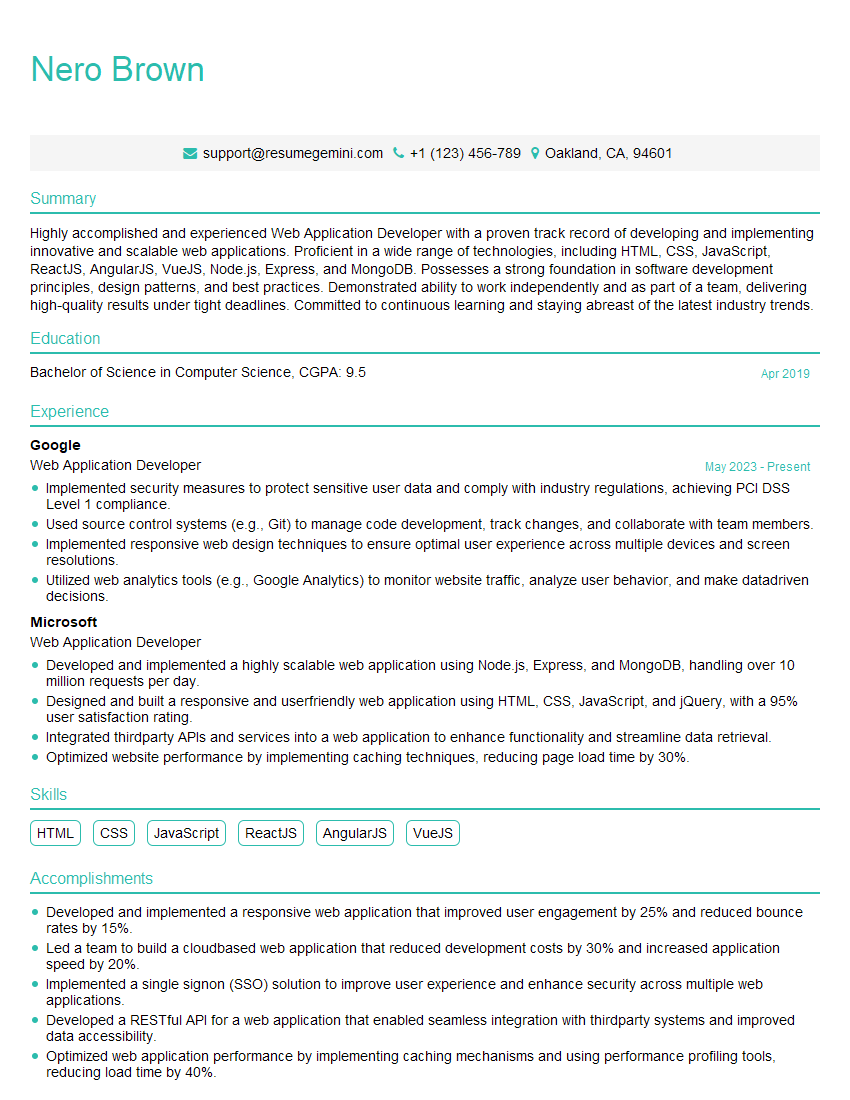
Web Application Developer Resume Sample

Web Designer Resume Sample

Application Developer Resume Sample

Web Developer Resume Sample

Full Stack Developer Resume Sample
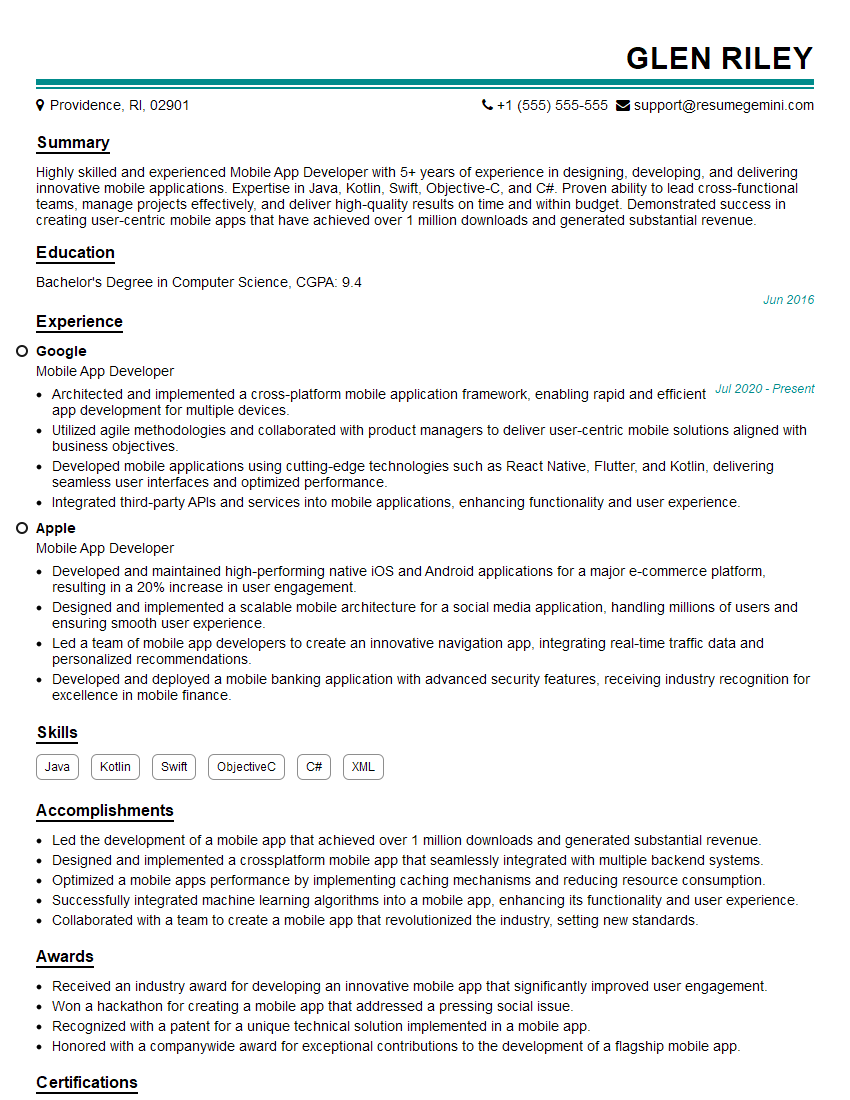
Mobile App Developer Resume Sample

Technical Lead Resume Sample
Explore more articles
Users Rating of Our Blogs
Share Your Experience
We value your feedback! Please rate our content and share your thoughts (optional).
What Readers Say About Our Blog
Very informative content, great job.
good