Unlock your full potential by mastering the most common Software Knowledge (e.g., Adobe Creative Suite) interview questions. This blog offers a deep dive into the critical topics, ensuring you’re not only prepared to answer but to excel. With these insights, you’ll approach your interview with clarity and confidence.
Questions Asked in Software Knowledge (e.g., Adobe Creative Suite) Interview
Q 1. Explain your workflow for creating a marketing banner using Photoshop.
My workflow for creating a marketing banner in Photoshop is highly iterative and depends on the specific requirements, but generally follows these steps:
- Brief & Research: I start by thoroughly understanding the client’s brief, target audience, and the marketing campaign’s goals. This includes analyzing competitor banners and identifying best practices.
- Sketching (Optional): For complex designs, I often sketch initial ideas to get a feel for the layout and composition before diving into Photoshop.
- Setting up the Document: I create a new document in Photoshop with the correct dimensions (considering the platform – Facebook, Instagram, website, etc.) and resolution (usually 72dpi for web). I also set up color profiles for consistent color reproduction.
- Gathering Assets: I collect all necessary assets like images, fonts, and logos. High-resolution images are crucial for maintaining quality even when scaled down.
- Layout & Design: I begin designing the banner, focusing on a clear message, strong visuals, and a compelling call to action. I leverage Photoshop’s tools like layers, masks, and adjustment layers to manipulate images and create visual effects. This stage involves experimenting with different compositions and color palettes.
- Text & Typography: I add text, ensuring readability and visual hierarchy. Font selection is critical; I choose fonts that align with the brand and message. I use Photoshop’s text tools to style and position the text effectively.
- Refinement & Polish: This stage involves making fine adjustments to colors, contrast, and sharpness. I might use filters and other tools to enhance the overall look and feel.
- Saving & Exporting: Finally, I save the banner in multiple formats (e.g., JPG, PNG) optimized for different platforms and uses. This ensures compatibility and reduces file sizes.
For example, I recently created a banner for a coffee shop’s Instagram campaign. I started with mood board research, focusing on images that conveyed warmth and energy. The final design incorporated high-quality product shots, a vibrant color palette, and a clear call to action, all optimized for Instagram’s dimensions.
Q 2. How would you optimize images for web using Photoshop?
Optimizing images for web in Photoshop involves reducing file size without compromising visual quality. This is crucial for faster loading times and a better user experience. My process involves these key steps:
- Saving in the Right Format: JPG is generally preferred for photographic images due to its good compression ratio. PNG is better for images with sharp lines, text, or transparency. WebP is a newer format offering superior compression.
- Resizing Images: Scale images down to the dimensions required for their intended use. Avoid unnecessarily large images.
- Compression: Use Photoshop’s ‘Save for Web (Legacy)’ or ‘Export As’ options to adjust the compression level. A higher compression level results in a smaller file size but might slightly reduce image quality. Experiment to find the optimal balance.
- Lossless Compression (for PNG): For PNGs, utilize lossless compression to retain image quality without data loss.
- Layer Optimization: Before saving, flatten the image if you don’t need individual layers anymore. This reduces file size significantly.
- Progressive JPEGs (Optional): For JPGs, consider using progressive JPEGs. They allow the image to gradually load, providing a better user experience, even on slow connections.
For instance, when preparing images for a website’s image gallery, I’d use ‘Save for Web (Legacy)’ to compress JPGs to a size that balances visual quality with fast loading, while using PNG for logos and icons to maintain crispness.
Q 3. Describe your experience with Illustrator’s vector tools.
I have extensive experience with Illustrator’s vector tools, utilizing them to create scalable graphics for various applications. My proficiency includes:
- Pen Tool Mastery: I’m adept at creating precise paths and shapes using the pen tool, essential for crafting complex illustrations and logos.
- Shape Tools: I effectively use the rectangle, ellipse, polygon, and other shape tools to construct foundational elements and combine them to form intricate designs. I understand how to manipulate anchor points and paths for accurate adjustments.
- Pathfinder Panel: I proficiently use the Pathfinder panel for combining, subtracting, and manipulating shapes, creating intricate compositions from simpler forms. This is a powerful tool for creating complex designs efficiently.
- Working with Type: I leverage Illustrator’s type tools to create and manipulate text, ensuring accurate kerning and tracking for professional-looking typography. I understand the nuances of creating outlines for compatibility with different software.
- Live Trace: I use Live Trace to convert raster images into vectors, allowing me to work with existing images in a scalable format.
For example, I recently designed a logo for a tech startup. Using Illustrator’s vector tools, I created a clean, modern logo that could be scaled seamlessly for use on business cards, websites, and marketing materials without loss of quality. The clean lines and precise curves were only possible because of the precise control that vector tools afford.
Q 4. How do you create and manage layers effectively in Photoshop?
Effective layer management is critical in Photoshop for maintaining organization and ensuring efficient workflow. My approach emphasizes these key aspects:
- Naming Conventions: I use a consistent naming convention (e.g., descriptive names, using underscores or hyphens) to easily identify each layer’s purpose.
- Grouping Layers: I group related layers into folders to maintain a structured hierarchy. For example, all elements related to the header of a banner will be grouped together in a folder called ‘Header’.
- Color-Coding Layers (Optional): Color-coding layers can aid in visual identification, particularly in complex projects. I might assign different colors to various sections of a design to speed up my workflow.
- Layer Styles: I leverage layer styles to non-destructively apply effects like drop shadows, bevels, and glows. This prevents overwriting original layer data and makes modifications easy.
- Adjustment Layers: I use adjustment layers (Brightness/Contrast, Hue/Saturation, etc.) to modify image properties globally without altering the original pixel data. This ensures flexibility and allows non-destructive editing.
- Masks: I frequently employ layer masks to selectively hide or reveal portions of a layer, enabling precise control over image elements and blending.
Imagine creating a complex website banner with multiple elements. Without proper layer management, it would become a chaotic mess. My structured approach ensures that even intricate projects remain manageable and easy to edit.
Q 5. What are the key differences between raster and vector graphics?
Raster and vector graphics are fundamentally different in how they represent images. Understanding this difference is crucial for choosing the right format for a particular task.
- Raster Graphics (e.g., JPG, PNG, TIFF): Raster images are made up of a grid of pixels. Each pixel has a specific color value. When you enlarge a raster image, you see pixelation because you’re essentially stretching the grid of pixels. Raster images are best suited for photographs and other images where photorealistic detail is important.
- Vector Graphics (e.g., SVG, AI, EPS): Vector images are made up of mathematical equations that define shapes and lines. These equations can be scaled to any size without losing quality because the image is not made up of pixels. Vector graphics are ideal for logos, illustrations, and designs that need to be scaled for different applications (e.g., print, web).
Think of it like this: a raster image is like a mosaic – many small tiles forming an image. A vector image is like a drawing – lines and shapes that can be infinitely resized without losing definition. Choosing between raster and vector depends entirely on the project’s needs – a photograph would be best as a raster image while a logo requires vector format.
Q 6. Explain your process for designing a user interface using Adobe XD.
My process for designing a user interface using Adobe XD is iterative and focuses on user-centered design principles. Here’s a breakdown:
- Research & Planning: I begin by understanding the project’s goals, target audience, and user needs. This involves user research, competitor analysis, and defining key features.
- Wireframing: I create low-fidelity wireframes in XD to map out the overall structure and layout of the UI. This stage prioritizes functionality and information architecture.
- Prototyping: I then build interactive prototypes using XD’s features. This allows me to test user flows and interactions early in the process, identifying potential usability issues.
- Visual Design: Once the functionality is established, I focus on the visual design, applying branding, choosing color palettes, and selecting typography.
- Testing & Iteration: I test the prototype with users, gathering feedback to iterate and improve the design. This iterative process is crucial for ensuring usability and user satisfaction.
- Specifications & Handoff: Finally, I create design specifications and asset exports for developers, ensuring smooth handoff and implementation.
For example, when designing a mobile app, I would start by creating user flows and wireframes in XD to map out the user journey. Then, I’d add visual elements, create interactive prototypes, and test them with potential users before finalizing the design.
Q 7. How do you ensure consistency in design across different platforms?
Maintaining design consistency across different platforms requires careful planning and a well-defined design system. My strategies include:
- Style Guides: Creating comprehensive style guides that specify typography, color palettes, spacing, and other design elements ensures consistency across all platforms.
- Component Libraries (in XD): Using component libraries in Adobe XD allows me to reuse design elements, guaranteeing consistency across screens and platforms. Any updates to a component automatically update all instances.
- Modular Design: Adopting a modular design approach helps break down complex interfaces into reusable components, simplifying design and promoting consistency.
- Responsive Design Principles: Understanding and applying responsive design principles ensures that the design adapts gracefully to different screen sizes and devices.
- Version Control: Using version control systems (like Git) for design assets allows for collaboration and tracking of changes, helping maintain design consistency throughout the development lifecycle.
For instance, when designing a website and a mobile app for the same brand, I’d use a shared style guide and component library in XD. This would ensure that the logo, colors, fonts, and other design elements remain consistent across both platforms, creating a cohesive brand experience.
Q 8. Describe your experience with Adobe InDesign and its layout features.
Adobe InDesign is my go-to application for creating sophisticated layouts, particularly for print and digital publications. My experience encompasses everything from basic page design to complex multi-page documents with intricate features. I’m proficient in using master pages to maintain consistency across a publication, creating styles to manage text and paragraph formatting efficiently, and leveraging InDesign’s powerful tools for image placement and manipulation.
For instance, I recently designed a 60-page brochure for a client. Using master pages, I established a consistent header and footer across all pages, saving significant time and ensuring a professional look. To manage the text styles (headings, body copy, captions), I created paragraph styles which allowed for quick updates and maintained uniformity. The image placement involved meticulous alignment and cropping, utilizing InDesign’s features for precise control over image positioning and scaling to ensure optimal visual appeal.
Furthermore, I’m comfortable working with tables, creating custom columns and grids for complex layouts, and utilizing advanced features like text wrapping and object linking to manage large and complex documents effectively. I understand the importance of optimizing layouts for different screen sizes and resolutions, ensuring the publication maintains its quality across various platforms.
Q 9. How do you handle color management in your design workflow?
Color management is crucial for maintaining design consistency across different devices and printing processes. My workflow begins with setting up a color profile that matches the final output destination – whether it’s print or web. For print, I typically use CMYK color space, and for web, I use RGB. I always work in a color-managed workspace in InDesign, Photoshop, and Illustrator, using Adobe’s Color Settings dialog to define my profiles.
I carefully select color palettes, ensuring they are consistent and appropriate for the project. I often use color swatches to maintain consistency, and I leverage tools like the Eyedropper tool to sample colors from images or other sources. When working with images, I make sure they’re properly color-profiled before importing them into InDesign or other applications to avoid color shifts.
To ensure accuracy, I perform color proofing to see how the colors will appear on different output devices. I understand the importance of soft proofing (previewing on screen) and hard proofing (actual print samples) to verify color accuracy before finalizing the design. For clients, I always communicate clearly about color expectations and potential variations in different output environments.
Q 10. Explain your proficiency in using Adobe After Effects for motion graphics.
My proficiency in Adobe After Effects extends to creating a wide range of motion graphics, from simple animations to complex visual effects. I’m comfortable using keyframes to animate various properties like position, scale, opacity, and rotation. I can work with layers, masks, and blending modes to achieve creative visual effects.
I have experience creating animated logos, lower thirds for videos, and explainer video animations. For example, I recently created an animated logo reveal for a client using shape layers, keyframes, and a subtle lighting effect. Another project involved creating an animated infographic, using After Effects to bring static data to life, improving viewer engagement. I’m familiar with utilizing expressions for dynamic animations and working with pre-rendered footage to integrate live-action elements with motion graphics. I’m also adept at using third-party plugins to expand After Effect’s capabilities.
Beyond basic animation, I’m also experienced in compositing, rotoscoping, and working with particle effects. I understand the importance of optimizing compositions for efficient rendering and maintaining high-quality output.
Q 11. Describe your experience with Adobe Premiere Pro for video editing.
My experience with Adobe Premiere Pro involves a comprehensive understanding of the entire video editing workflow, from ingest and logging to color correction, sound design, and final export. I’m skilled in assembling sequences, utilizing various transitions and effects, and working with audio tracks to create a cohesive and engaging final product.
I’ve worked on a range of video projects, including corporate videos, promotional content, and short films. For example, I recently edited a corporate video for a technology company, assembling various footage types (interviews, screen recordings, B-roll) and crafting a compelling narrative. This involved cutting clips to a precise rhythm, syncing audio, and incorporating color grading to achieve a consistent visual style.
My skillset also encompasses audio mixing and mastering, which are critical elements in post-production. I’m comfortable using keyframing for audio levels and effects to enhance the overall sound design. I understand the importance of optimizing video files for different platforms and delivery methods, ensuring the final product is of high quality and optimized for distribution.
Q 12. How do you ensure your designs are accessible to users with disabilities?
Accessibility is a critical factor in my design process. I strive to create designs that are usable and enjoyable for everyone, regardless of ability. I follow established accessibility guidelines like WCAG (Web Content Accessibility Guidelines) to ensure inclusivity.
This includes using sufficient color contrast between text and background, ensuring text is legible at various sizes, providing alternative text for images (alt text), and creating keyboard-navigable interfaces. For example, I always check color contrast ratios using tools like WebAIM’s Color Contrast Checker to ensure sufficient visibility for users with visual impairments. When using images, I carefully write descriptive alt text providing context and meaning for screen readers. I also avoid relying solely on color to convey information, using alternative cues like patterns and text labels.
In video editing, I ensure captions and transcripts are included to make content accessible to users with hearing impairments. I use appropriate font sizes and styles, avoiding overly stylized text that might be difficult to read. This commitment to accessibility is not merely a technical requirement but an ethical one, ensuring my work is inclusive and benefits a wider audience.
Q 13. What are your preferred methods for collaborating on design projects?
Collaboration is integral to my design process. I’m proficient in using various methods for efficient teamwork, including cloud-based platforms like Adobe Creative Cloud Libraries and collaborative document editing tools. This allows for real-time feedback and efficient version control.
Using Creative Cloud Libraries allows me and my team to share assets, ensuring consistency across projects. I’m also comfortable using version control systems like Git for managing larger, collaborative projects. When working remotely, I utilize video conferencing and project management tools like Slack or Asana to stay connected with the team and facilitate clear communication.
Regular feedback sessions, both formal and informal, are key to collaborative success. I believe in open communication and encourage constructive criticism, understanding that different perspectives enrich the creative process. Clear communication and proactive updates are essential to maintain project momentum and meet deadlines.
Q 14. How do you handle feedback and revisions on your designs?
Handling feedback and revisions is a crucial part of the design process. I approach feedback constructively, viewing it as an opportunity to improve the design. I listen actively, ask clarifying questions, and ensure I fully understand the concerns raised before making any changes.
My approach involves carefully documenting all feedback, using version control to track changes, and maintaining open communication with stakeholders. I often present multiple design options to address feedback, allowing clients to choose the best approach. I always provide a timeline for revisions and keep clients informed of progress.
When integrating feedback, I pay close attention to details, ensuring the changes enhance the design without compromising its overall integrity. After implementing changes, I always present the revised designs to the client for final approval, ensuring they’re happy with the final outcome. The goal is a positive collaborative experience that leads to a successful final product.
Q 15. Describe a time you had to solve a complex design problem.
One complex design challenge involved creating a visually appealing and highly functional website for a client with a very specific, and somewhat contradictory, brand identity. They wanted a modern, minimalist design, yet also incorporate intricate, hand-drawn illustrations that would be consistent across all pages.
The complexity stemmed from balancing these competing aesthetic goals. A purely minimalist approach wouldn’t do justice to the artistic elements, while overcrowding the site with illustrations would clash with the minimalist intention. My solution involved a modular design system. I created a set of reusable components, such as header styles, button designs, and illustration containers. This ensured consistency throughout the website while allowing me to strategically incorporate the intricate illustrations into carefully chosen sections, preventing visual clutter. The minimalist background highlighted the illustrations effectively and emphasized the clean design aesthetic. We also implemented a responsive design so it functioned equally well across different devices. Client feedback was positive; they appreciated the balance between the modern simplicity and the rich illustrative content.
Career Expert Tips:
- Ace those interviews! Prepare effectively by reviewing the Top 50 Most Common Interview Questions on ResumeGemini.
- Navigate your job search with confidence! Explore a wide range of Career Tips on ResumeGemini. Learn about common challenges and recommendations to overcome them.
- Craft the perfect resume! Master the Art of Resume Writing with ResumeGemini’s guide. Showcase your unique qualifications and achievements effectively.
- Don’t miss out on holiday savings! Build your dream resume with ResumeGemini’s ATS optimized templates.
Q 16. What design principles guide your work?
My design work is guided by several key principles. Clarity is paramount; the design should clearly communicate its message to the target audience without confusion. Consistency is crucial for creating a cohesive brand experience. This involves maintaining a consistent color palette, typography, and overall visual style across different platforms and mediums. Usability is another key consideration. The design should be intuitive and easy to navigate, ensuring a positive user experience. I also prioritize accessibility, designing with inclusivity in mind, making sure designs are usable for people with disabilities. Finally, I strive for aesthetic appeal, creating designs that are not just functional but also visually engaging and memorable.
Q 17. What are your favorite Adobe Creative Suite plugins and why?
My favorite Adobe Creative Suite plugins often depend on the specific project, but a few standouts include:
- Fontself Maker (Illustrator): This allows me to create custom fonts from my own vector artwork. This is invaluable for branding projects where a unique font perfectly aligns with the brand identity. It provides enormous flexibility in typography.
- Astute Graphics plugins (Illustrator): This suite provides a range of tools that streamline complex tasks, like creating perfect paths or manipulating objects with greater precision. It significantly boosts my workflow efficiency.
- Rype (Photoshop): Rype facilitates non-destructive editing, allowing me to experiment with different looks without altering the original image data. This is invaluable when working with client assets and ensuring version control.
My plugin choices are dictated by efficiency and the need for creative control. These tools help me achieve a higher level of quality and detail in my work while significantly reducing the time spent on repetitive tasks.
Q 18. Explain your experience with using Adobe Bridge for asset management.
Adobe Bridge is essential for my asset management workflow. I use it to organize, preview, and manage all my design assets – images, fonts, and vector files – within a central location. Its metadata capabilities are particularly useful; I can easily tag and keyword assets, making them easily searchable. This eliminates the time wasted searching through numerous folders. For example, if I’m working on multiple projects simultaneously, I can quickly locate specific images using keywords or metadata tags without navigating through complex folder structures. The ability to create collections and sort assets is also incredibly helpful in managing large projects. Overall, Bridge is crucial for maintaining a well-organized and efficient workflow, ensuring that I can access the right assets promptly and easily.
Q 19. How do you stay current with the latest design trends and technologies?
Staying current in design is an ongoing process. I actively follow leading design publications like Awwwards, Behance, and Dribbble to see cutting-edge work and identify emerging trends. I also subscribe to relevant newsletters and attend online webinars and workshops offered by Adobe and other industry leaders. Following design influencers on social media platforms like Instagram and Twitter helps me stay informed about the latest tools and techniques. Experimentation plays a key role; I regularly try out new design software and plugins, pushing my creative boundaries and improving my skillset. Continuous learning is essential in this field to remain competitive and deliver innovative solutions.
Q 20. What is your approach to creating a consistent brand identity?
Creating a consistent brand identity begins with thorough research and understanding the client’s brand values, target audience, and competitive landscape. I then develop a comprehensive brand style guide that outlines all aspects of the brand’s visual identity. This includes the logo, color palette, typography, imagery style, and even the brand’s voice and tone. The style guide acts as a blueprint, ensuring consistency across all design elements and marketing materials. For instance, I’ll define specific font pairings, color codes with variations, and guidelines for image usage. This guide is shared with the client and all stakeholders involved in the project. Regular review and updates of the style guide are vital to adapt to evolving brand needs and ensure long-term consistency.
Q 21. Explain your understanding of typography and its importance in design.
Typography is the art and technique of arranging type to make written language legible, readable, and appealing. It’s far more than just choosing a font; it encompasses font selection, size, spacing (kerning and tracking), leading (line height), and overall visual hierarchy. Typography significantly impacts the readability and overall aesthetic of a design. A well-chosen typeface can evoke specific emotions and enhance the design’s message. For example, a serif font might be used for a classic, sophisticated feel, while a sans-serif font could project a modern and clean aesthetic. Poor typography, on the other hand, can lead to decreased readability and a less professional impression. Understanding typographic principles is crucial for creating effective and visually pleasing designs, ensuring the message is clearly and aesthetically communicated.
Q 22. How do you handle file formats and their compatibility across different applications?
Handling file format compatibility is crucial for seamless workflows. Different Adobe applications, and even different versions of the same application, may have varying levels of support for various file formats. My approach involves understanding the strengths and limitations of each format and choosing accordingly.
- Prioritizing Native Formats: Whenever possible, I stick to the native file format of the application I’m using. For example, using .ai for Illustrator, .psd for Photoshop, and .indd for InDesign. This preserves all the editing information and avoids potential loss of quality or features during conversion.
- Understanding File Compression: I’m aware that some formats, like JPEG, prioritize file size over quality through lossy compression. Conversely, formats like TIFF and PNG offer lossless compression, preserving the original data. I choose the right format based on the project’s requirements—a high-resolution print job demands lossless formats, while a web image might benefit from a smaller JPEG.
- Employing Compatibility Techniques: When sharing files with others who may be using different software, I often provide files in widely supported formats like PDF (for vector-based or raster-based images), or SVG (specifically for vector graphics) ensuring maximum compatibility. I carefully consider the intended use: a PDF intended for print will have different settings (e.g., higher resolution, embedded fonts) compared to one designed for online viewing.
- Version Control: Utilizing cloud storage services with version history allows for easy retrieval of previous file versions, especially helpful in collaborative projects.
For instance, I recently worked on a project where the client needed both a high-resolution print-ready file and a web-optimized version. I initially worked in Adobe Illustrator (.ai), created the print-ready PDF, and then exported a compressed PNG version for the web, ensuring both outputs met the specific requirements.
Q 23. Describe your experience with creating interactive PDFs using Acrobat.
Creating interactive PDFs with Acrobat is a powerful way to enhance document engagement. My experience encompasses various functionalities, including adding interactive elements such as buttons, links, form fields, multimedia content, and animations.
- Interactive Forms: I often design interactive forms for data collection, using Acrobat’s form creation tools to add fillable fields, dropdowns, radio buttons, and checkboxes. This streamlines data gathering and improves efficiency.
- Multimedia Integration: I frequently embed videos, audio files, and animations within PDFs to enhance the user experience, especially useful for presentations or training materials. Properly sizing and compressing these files is important to avoid lengthy loading times.
- Navigation and Links: I strategically place bookmarks and internal/external links to create intuitive navigation, allowing users to quickly jump to specific sections within a lengthy document or access related resources online.
- Annotations and Comments: I use annotation tools to add interactive comments and markup, which is invaluable for reviewing and collaborating on documents.
For example, I recently developed an interactive training manual using Acrobat. This involved creating a table of contents with clickable links, embedding videos demonstrating specific techniques, and incorporating a quiz at the end with interactive scoring. This resulted in a much more engaging and effective learning experience compared to a static PDF.
Q 24. How do you use Adobe Illustrator to create logos and branding elements?
Adobe Illustrator is my go-to tool for logo design and branding. Its vector-based nature ensures scalability without loss of quality – crucial for logos that need to appear crisp at various sizes, from business cards to billboards.
- Sketching and Conceptualization: I begin with sketching ideas, either digitally or traditionally, to refine the concept before diving into Illustrator. This ensures a solid foundation for the design.
- Vector Drawing Techniques: I utilize Illustrator’s tools, such as the Pen Tool, Shape Builder Tool, and Pathfinder, to create precise and clean vector graphics. I meticulously work on details, ensuring consistency in line weights and color palettes.
- Color Management and Palettes: Accurate color management is critical for branding. I meticulously select and define colors using color swatches, ensuring consistency across all brand applications.
- Exporting for Various Formats: I understand the importance of exporting in various formats (e.g., .ai, .eps, .svg, .png) to meet different client needs and compatibility requirements.
For instance, I recently designed a logo for a startup. The process started with several sketched concepts, followed by refining the chosen design in Illustrator, ensuring the logo would appear crisp and scalable at any size. The final logo was provided in various formats, including vector formats for print and web-optimized formats for online usage.
Q 25. Explain your process for preparing artwork for print.
Preparing artwork for print involves understanding the nuances of print production and ensuring the artwork meets the printer’s specifications to avoid costly reprints and delays.
- High Resolution: Print requires much higher resolution than screen. I ensure images are at least 300 DPI (dots per inch) to avoid pixelation. I also avoid upscaling low-resolution images, as this will result in a blurry print.
- Color Mode: I work in CMYK color mode (Cyan, Magenta, Yellow, Key/Black) for print, as RGB (Red, Green, Blue) is intended for screen display and won’t accurately translate to print colors.
- Bleed and Margins: I always include bleed (extra space beyond the trim line) to prevent white edges when the paper is cut, and I adhere to the printer’s specified margins.
- Font Embedding: To prevent font issues, I embed fonts in the PDF, ensuring they are included regardless of the viewer’s font collection. I also ensure fonts are outlined for compatibility across systems.
- File Format: I usually deliver artwork as high-resolution PDFs (PDF/X-1a is a common standard), which are widely accepted by printers.
For example, when preparing artwork for a brochure, I carefully checked for correct bleeds and margins, ensured the resolution was at 300 DPI in CMYK, and provided the final files as PDF/X-1a to maintain color consistency and accuracy throughout the printing process.
Q 26. How familiar are you with Adobe Audition for audio editing?
I have a good working knowledge of Adobe Audition for audio editing. While not my primary focus, I’m proficient in basic to intermediate audio tasks.
- Audio Cleaning and Restoration: I can use Audition to reduce noise, eliminate clicks and pops, and restore damaged audio recordings.
- Basic Editing: I’m comfortable with trimming, cutting, and splicing audio segments.
- Effects and Processing: I can apply basic effects such as equalization, compression, and reverb to enhance audio quality.
- Mixing and Mastering (basic): I possess a fundamental understanding of audio mixing and mastering techniques, although I primarily rely on specialized audio engineers for advanced tasks.
For example, I’ve used Audition to clean up audio recordings for podcasts and to edit audio for short video projects. While I recognize the complexities of professional audio engineering, I’m comfortable handling basic audio editing and enhancement.
Q 27. What are your preferred methods for creating animations using Adobe Animate?
Adobe Animate allows for creating diverse animations, and my preferred methods depend on the project’s complexity and style. I frequently utilize both frame-by-frame animation and motion tweening.
- Frame-by-Frame Animation: This is ideal for detailed animations requiring precise control over each frame. It’s more time-consuming but offers unmatched artistic precision. I often use it for character animation where subtle movements are key.
- Motion Tweening: This method is faster and suitable for simpler animations involving object movements or transitions. It’s very efficient for creating smooth animations of objects moving across the screen.
- Symbol Usage: I effectively utilize symbols to create reusable elements within the animation. This simplifies the workflow and maintains consistency.
- ActionScript (basic): For more complex interactions, I can incorporate basic ActionScript to add functionality like button clicks and other user interactions.
For instance, I created a simple explainer video using motion tweening for ease and speed, and another project used frame-by-frame animation to create a stylized cartoon character that required detailed movement. The choice of technique is determined by the project’s specific needs and aesthetic goals.
Q 28. Describe your experience with Adobe Lightroom for photo management and editing.
Adobe Lightroom is an essential tool for my photo workflow, from importing and organizing to enhancing and exporting images. I utilize its non-destructive editing features extensively.
- Import and Organization: I use Lightroom’s import features to manage and catalog large volumes of photographs, leveraging keywords, ratings, and collections to efficiently organize my image library.
- Non-Destructive Editing: Lightroom’s strength lies in its non-destructive editing. Adjustments are applied as metadata, allowing me to revert to the original image at any time, maintain flexibility and prevent permanently altering my images.
- Color Correction and Enhancement: I use Lightroom’s powerful tools to adjust white balance, exposure, contrast, and color saturation to enhance the overall look and feel of my photos.
- Exporting for various uses: I tailor the export settings to meet the needs of each project – adjusting resolution, color space, and file format (e.g., JPEG, TIFF) accordingly.
For example, I recently used Lightroom to process a large number of photographs for a client’s portfolio. The non-destructive editing capabilities were invaluable, allowing me to experiment with different looks without affecting the original files. I then exported the images in various formats and sizes for both online and print use, with the appropriate metadata for each. The whole process was efficient and maintained the integrity of the original images.
Key Topics to Learn for Software Knowledge (Adobe Creative Suite) Interview
Ace your interview by mastering these core Adobe Creative Suite concepts. Focus on both the “why” and the “how” – understanding the underlying principles will help you tackle any challenge.
- Adobe Photoshop: Image manipulation, layer management, retouching techniques, understanding color modes (RGB, CMYK), non-destructive editing workflows. Practical application: Explain how you’d retouch a product image for an e-commerce website, addressing potential issues like lighting and imperfections.
- Adobe Illustrator: Vector graphics, creating and manipulating shapes, working with type, understanding the difference between raster and vector images, designing logos and illustrations. Practical application: Describe your process for designing a logo, considering factors like scalability and brand identity.
- Adobe InDesign: Page layout, typography, master pages, working with images and text frames, creating brochures, flyers, and other print materials. Practical application: Detail your approach to designing a multi-page brochure, outlining your decisions regarding page layout and hierarchy.
- Adobe After Effects: Motion graphics, compositing, keyframing, animation techniques, working with video and audio. Practical application: Explain how you would create a simple animated title sequence for a video project.
- File Formats and Workflow: Understanding different file formats (PSD, AI, INDD, JPG, PNG, etc.), optimizing images for web and print, efficient file management strategies. Practical application: Discuss your preferred workflow for a project involving multiple Creative Suite applications and file types.
- Problem-Solving and Creativity: Articulate your approach to tackling design challenges, showcasing your creative thinking and problem-solving skills. Practical application: Describe a time you had to overcome a technical hurdle while working on a design project.
Next Steps
Mastering the Adobe Creative Suite is crucial for career advancement in design and related fields. A strong understanding of these tools demonstrates your proficiency and opens doors to exciting opportunities. To significantly boost your job prospects, it’s essential to present your skills effectively through a well-crafted, ATS-friendly resume. ResumeGemini is a trusted resource to help you build a professional resume that showcases your abilities. We provide examples of resumes tailored to highlight Adobe Creative Suite expertise, helping you stand out from the competition and land your dream job.

Art Director Resume Sample

Creative Director Resume Sample

Web Designer Resume Sample

Multimedia Specialist Resume Sample
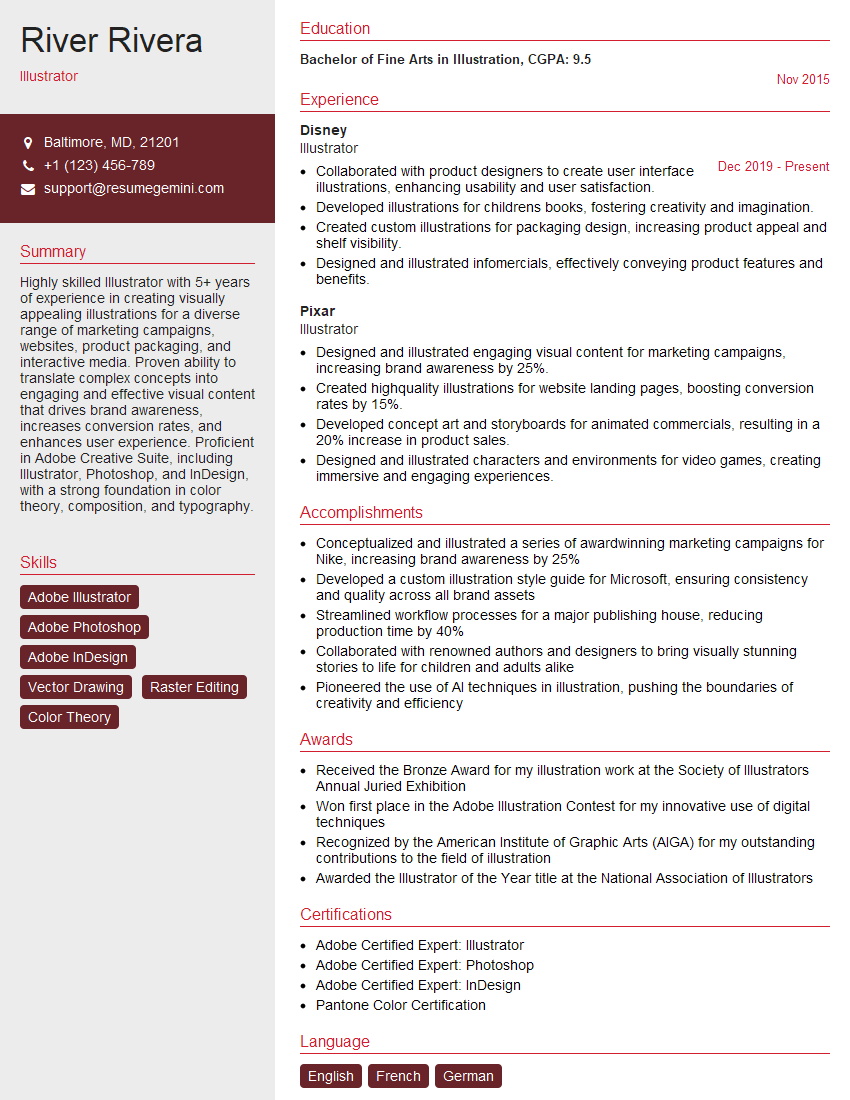
Illustrator Resume Sample
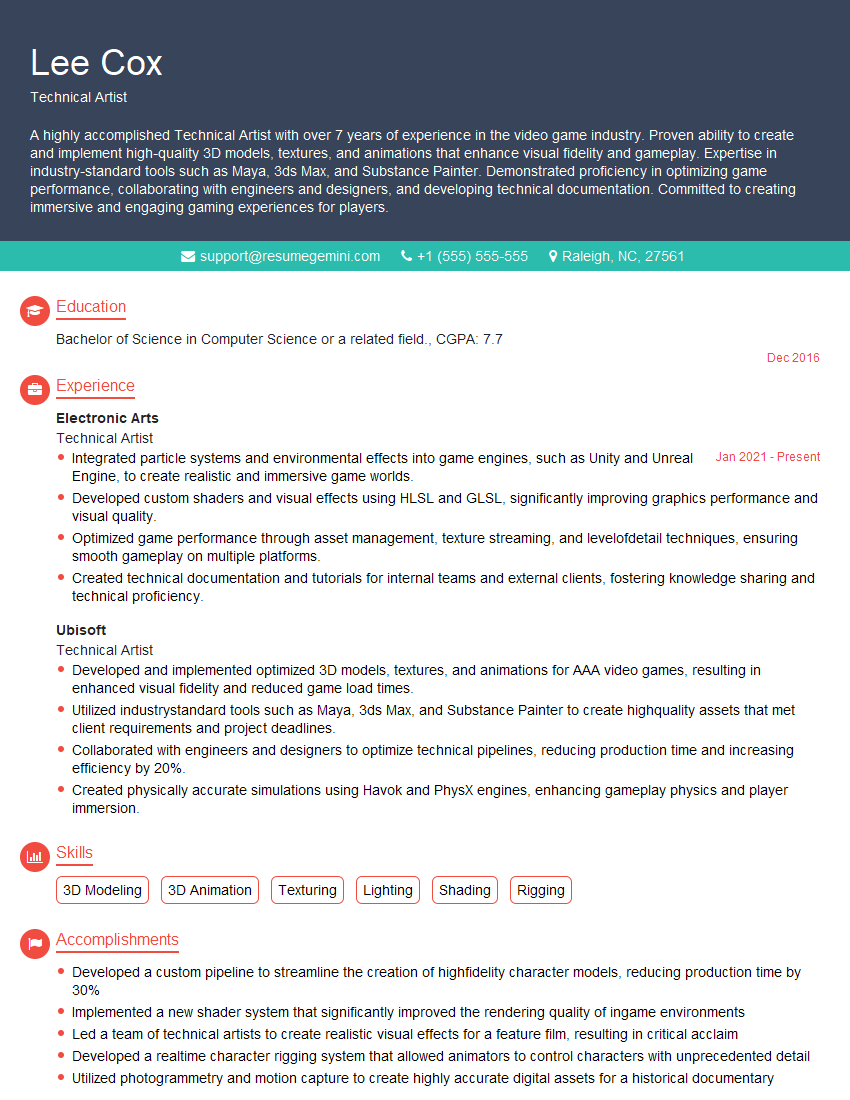
Technical Artist Resume Sample
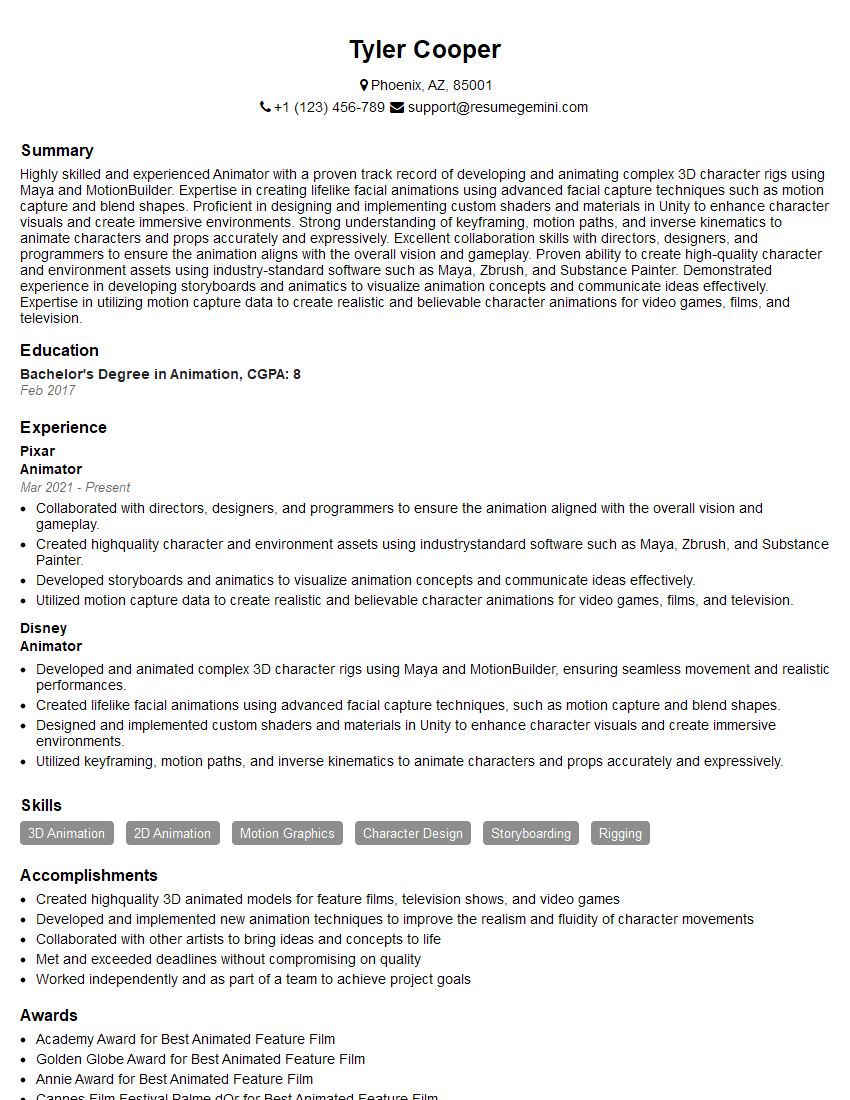
Animator Resume Sample
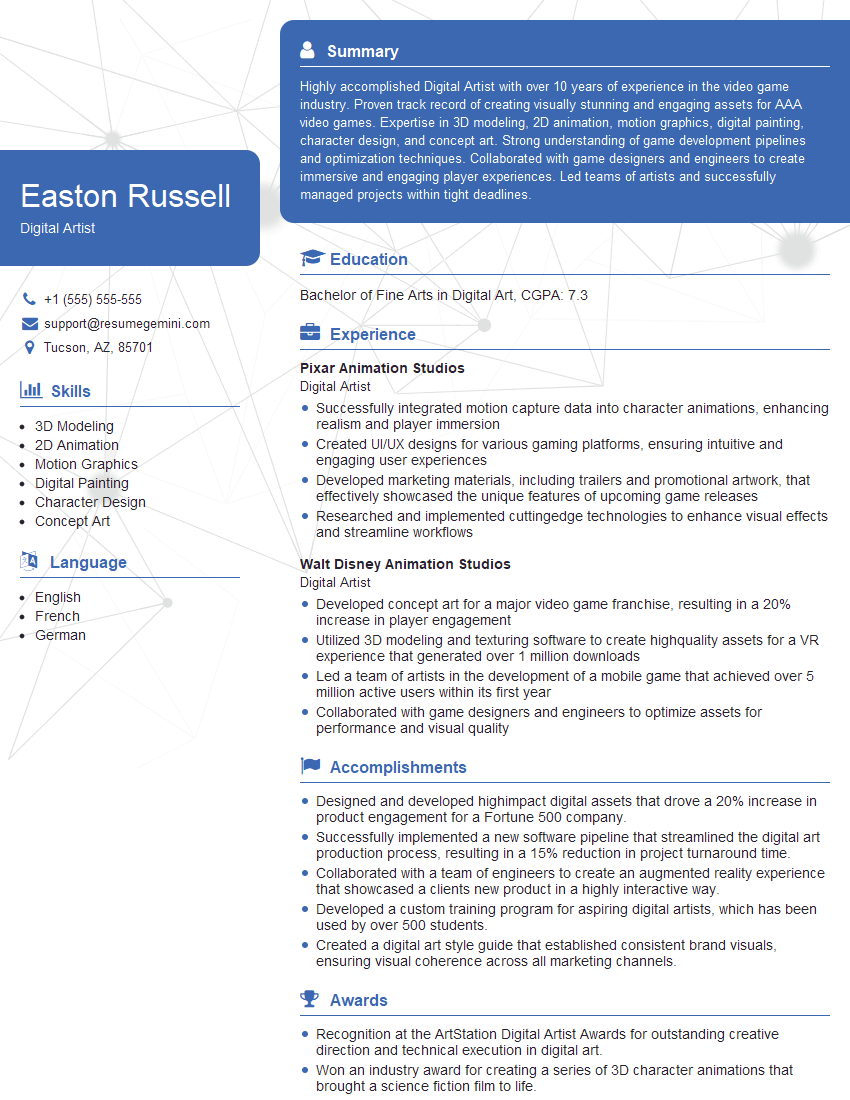
Digital Artist Resume Sample

Graphic Designer Resume Sample
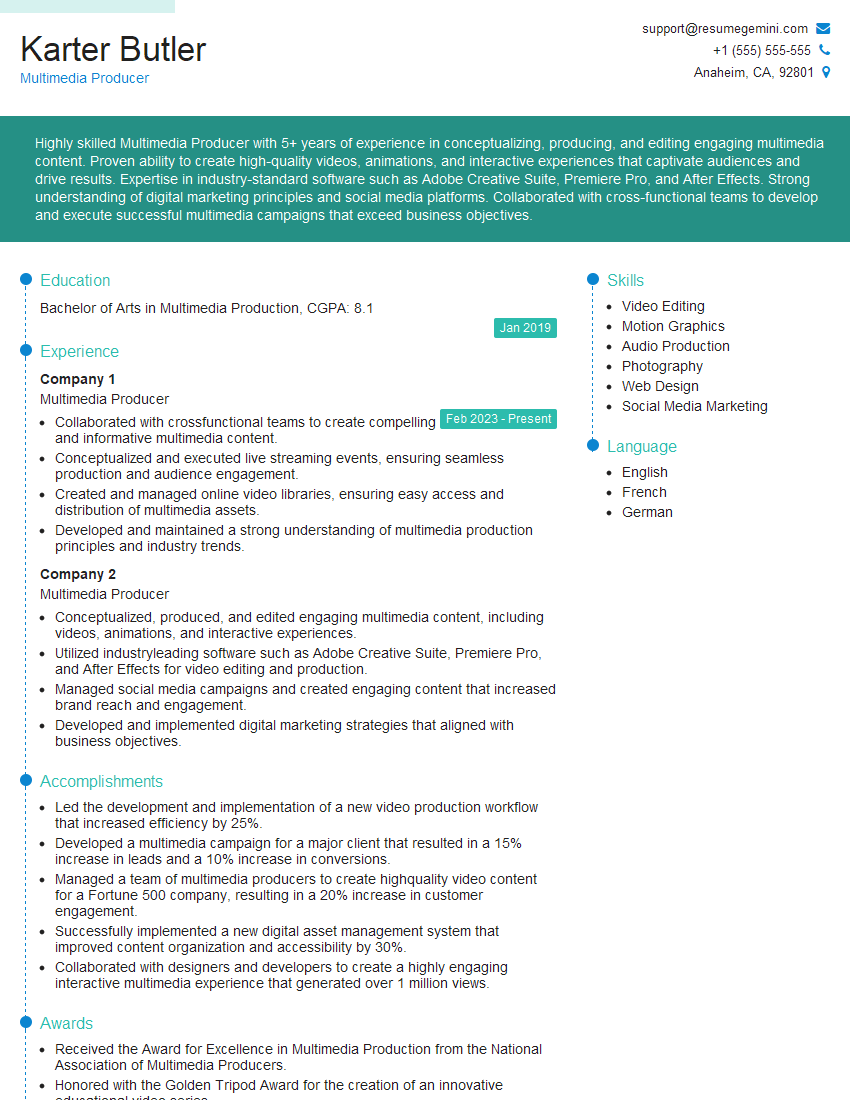
Multimedia Producer Resume Sample
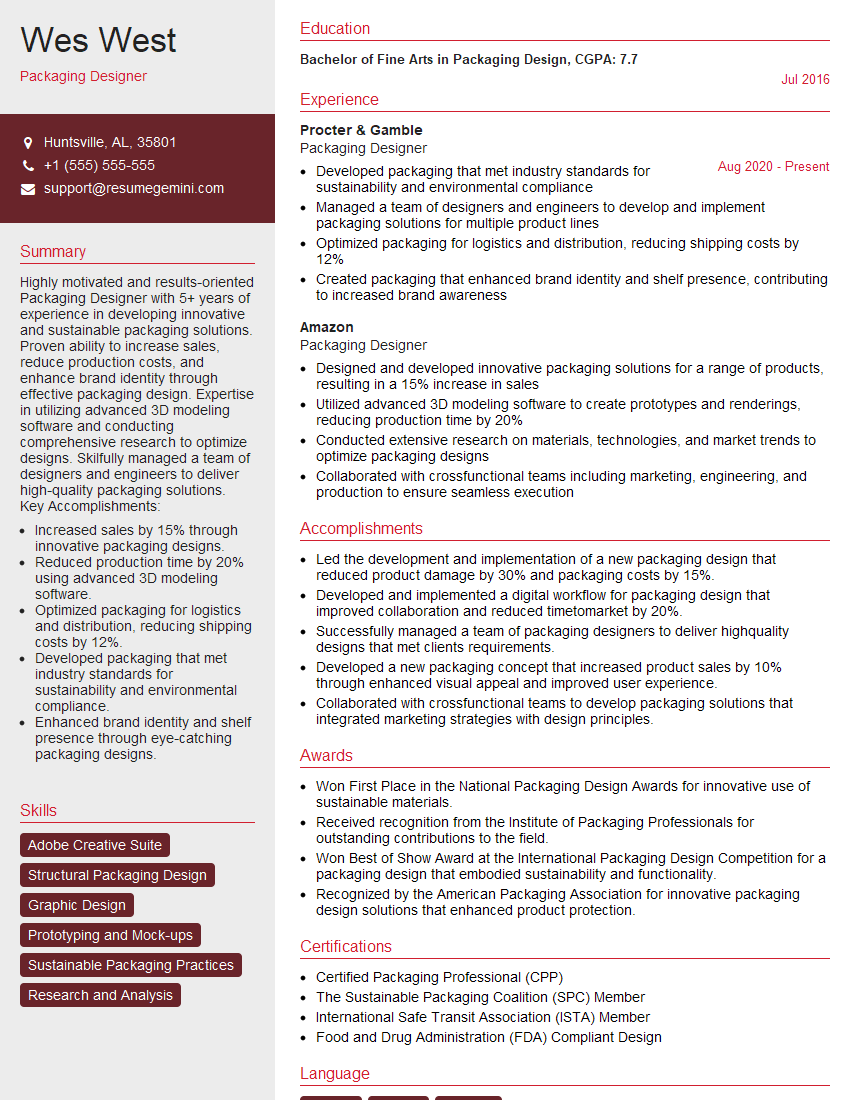
Packaging Designer Resume Sample

Photo Editor Resume Sample
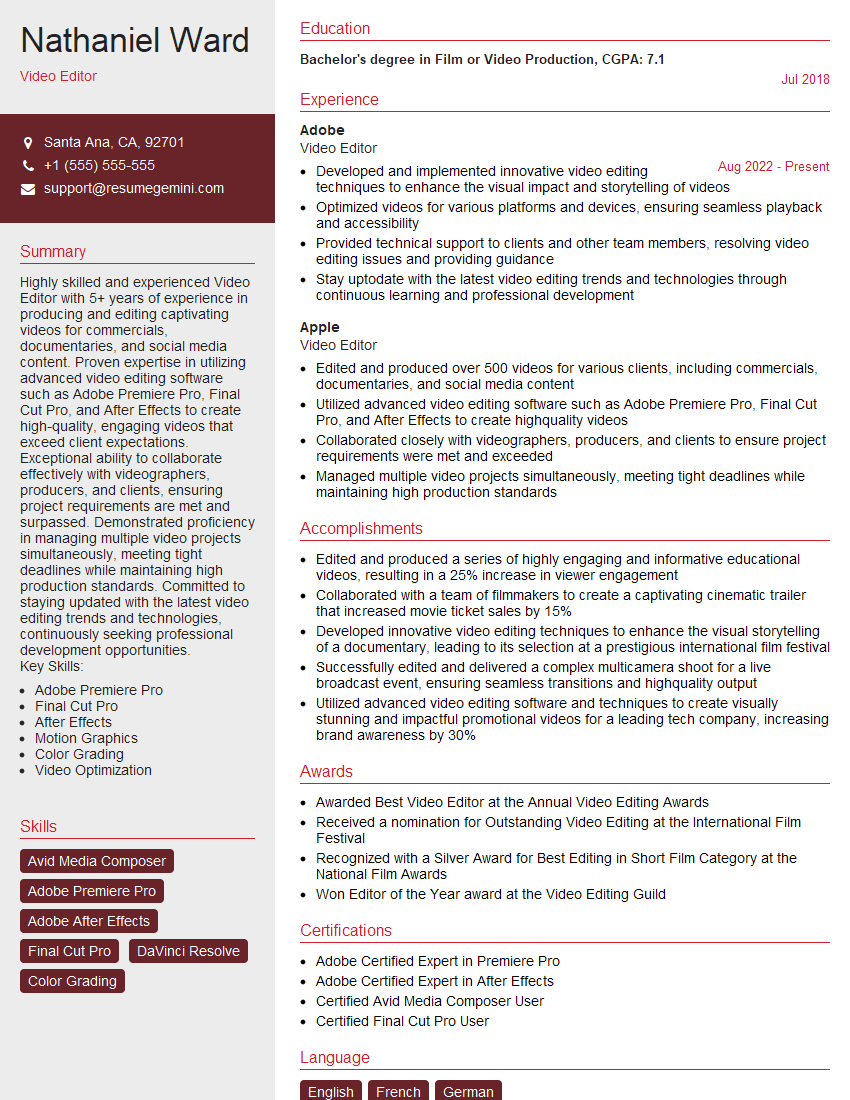
Video Editor Resume Sample
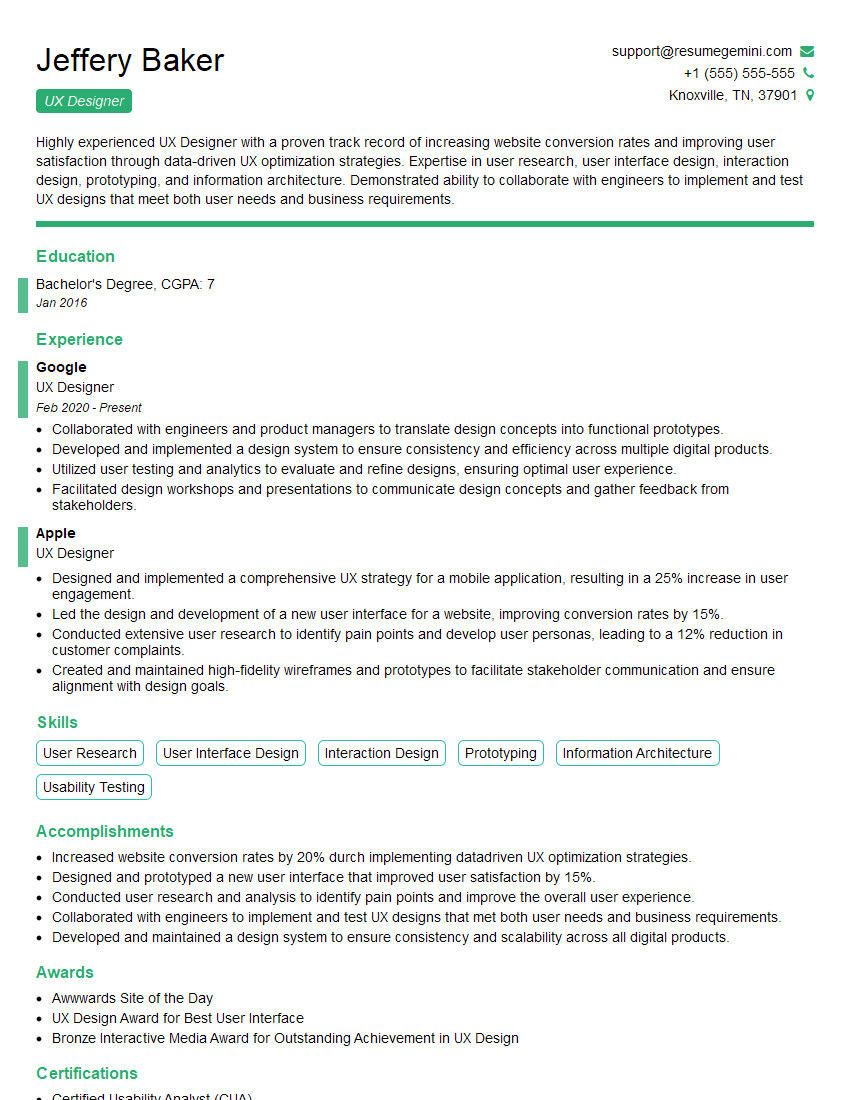
UX Designer Resume Sample
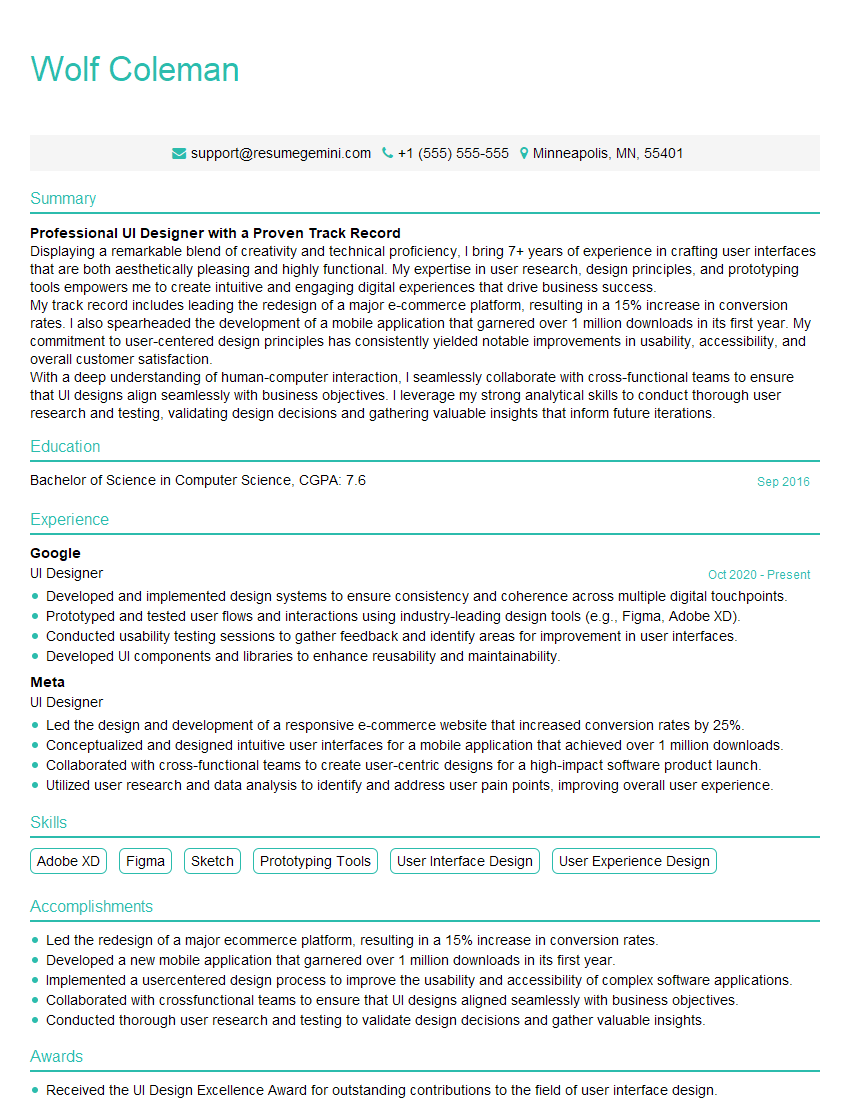
UI Designer Resume Sample
Explore more articles
Users Rating of Our Blogs
Share Your Experience
We value your feedback! Please rate our content and share your thoughts (optional).
What Readers Say About Our Blog
good