Interviews are opportunities to demonstrate your expertise, and this guide is here to help you shine. Explore the essential Version Control Systems (VCS) interview questions that employers frequently ask, paired with strategies for crafting responses that set you apart from the competition.
Questions Asked in Version Control Systems (VCS) Interview
Q 1. Explain the difference between Git and SVN.
Git and SVN (Subversion) are both Version Control Systems (VCS), but they differ fundamentally in their architecture. SVN is a centralized VCS, meaning there’s a single central repository where all the version history is stored. Every developer works with a copy of the central repository. Git, on the other hand, is a distributed VCS. Each developer has a complete copy of the repository, including the entire history. This is a key difference impacting how you collaborate and manage code.
- Centralized (SVN): Think of it like a library. Everyone borrows books (code) from the central library and returns updated versions. If the library burns down (central server failure), all the work is lost.
- Distributed (Git): Think of it like a network of libraries. Each library has a complete set of books. If one library is damaged, others can still access the information. Collaboration happens through syncing these libraries.
In short, Git offers greater flexibility, offline access, and resilience compared to SVN, but requires a more thorough understanding of branching and merging.
Q 2. What are the advantages of using a distributed version control system like Git?
Distributed Version Control Systems (DVCS), like Git, offer several significant advantages:
- Offline Work: Developers can commit changes locally without a constant network connection. This increases productivity and reduces dependence on network availability.
- Faster Operations: Many common operations, such as viewing history or switching branches, are much faster as they are performed locally.
- Enhanced Collaboration: Multiple developers can independently work on features, creating branches and merging them later without constant conflicts. This fosters parallel development and a more agile workflow.
- Backup and Redundancy: Each developer’s repository acts as a backup. Losing a central server doesn’t mean losing the entire project’s history.
- Experimentation and Flexibility: Developers can create and test experimental branches locally without affecting the main codebase. This encourages code experimentation and risk-free exploration.
- Better Code Review: The ability to easily create branches simplifies the code review process, as changes can be reviewed and tested separately.
For example, imagine a large team working on a software project. With Git, developers can each work on their assigned tasks, commit locally, and later integrate their changes smoothly without waiting for others to complete their work. This accelerates the development process significantly.
Q 3. Describe the Git workflow you are most familiar with (e.g., Gitflow, GitHub Flow).
I’m most familiar with the Gitflow workflow. It’s a branching model designed for larger projects that require more structured releases. It involves several key branches:
main(ormaster): The production-ready branch, reflecting the latest released version.develop: The integration branch, where features are integrated before release.- Feature Branches: Created from
developfor individual features. Once completed, they’re merged back intodevelop. - Release Branches: Created from
developto prepare a release. Bug fixes are made on this branch before merging intomainanddevelop. - Hotfix Branches: Created from
mainto address critical production bugs. These are merged into bothmainanddevelop.
This structured approach provides a clear separation of concerns and improves the stability and maintainability of the project, especially in teams. Other workflows like GitHub Flow are simpler, focusing on frequent integration to the main branch, which is better suited for smaller, agile projects.
Q 4. How do you resolve merge conflicts in Git?
Merge conflicts arise when two or more developers modify the same lines of code in a file. Git cannot automatically determine which version to keep. To resolve this:
- Identify the Conflict: Git will mark the conflicting sections in the affected files, usually with special markers like
<<<<<<<,=======, and>>>>>>>. - Edit the File: Manually review the conflicting changes and edit the file to incorporate the desired changes, removing the conflict markers.
- Stage and Commit: Stage the resolved file using
git addand commit the changes usinggit commit. Git will usually provide a helpful commit message explaining the resolution.
It's crucial to understand the context of the changes when resolving conflicts. Effective communication among developers can significantly reduce the frequency and complexity of merge conflicts.
Q 5. What is the difference between `git merge` and `git rebase`?
Both git merge and git rebase integrate changes from one branch into another, but they do so differently:
git merge: Creates a new merge commit on the target branch that combines the changes from both branches. The history remains intact, showing the merge point clearly. This preserves the project's full history.git rebase: Moves the branch's commits onto the target branch as if they were made sequentially. It rewrites the project's history by creating new commits, resulting in a cleaner, linear history. This can make the history easier to read, but altering history can cause complications if the branch was already shared with others.
In essence, merge preserves the complete history, while rebase creates a more streamlined history. Rebase is often preferred for personal branches before merging into shared branches. However, it should be used with caution when working with shared branches to avoid disrupting collaboration.
Q 6. Explain the purpose of a `.gitignore` file.
A .gitignore file specifies files and directories that Git should ignore. It's crucial for excluding files that are not relevant to the project's version control, such as temporary files, build artifacts, or system-specific configurations.
Without a .gitignore file, these files would be tracked by Git, cluttering the repository and leading to unnecessary commits. For instance, you might want to ignore files generated during the build process (e.g., *.o, *.class), operating system specific files, and IDE configuration files.
Creating a .gitignore file is straightforward. Simply list the patterns of files or directories you want to exclude, one per line. You can use wildcards for flexibility. For example:
*.log
temp/*
build/
*.tmp
This .gitignore file would exclude all log files, everything in the temp directory, the build directory, and all files ending in .tmp.
Q 7. How do you create and manage branches in Git?
Branches are essential for parallel development and managing different features or bug fixes without affecting the main codebase.
- Creating a Branch: Use
git branchto create a new branch. This creates a new branch pointer, but you'll need to switch to it. - Switching Branches: Use
git checkoutto switch to a different branch. This changes your working directory to the files in the selected branch. - Creating and Switching Simultaneously: Use
git checkout -bto create and switch to a new branch in one step. - Merging Branches: After making changes on a branch, merge it back into the main branch (often
mainordevelop) withgit checkout main(ordevelop) thengit merge. Resolve any merge conflicts if necessary. - Deleting Branches: Use
git branch -dto delete a branch (use-Dto force delete a branch with unmerged commits).
For example, to create a new branch called 'feature-x', switch to it, and later merge it back into 'main':
git checkout -b feature-x
# Make changes and commit them
git checkout main
git merge feature-x
Q 8. How do you revert a commit in Git?
Reverting a commit in Git depends on whether you want to keep the history or rewrite it. Think of it like editing a document; you can either undo a change and keep a record of the previous version or completely overwrite the previous version.
Method 1: Using git revert (Preserves History): This creates a *new* commit that undoes the changes introduced by the commit you want to revert. This is generally the safer option, as it maintains a complete history of your project.
git revert Replace
Method 2: Using git reset (Rewrites History - Use with Caution!): This method moves the branch pointer back to an earlier commit, effectively discarding commits after the specified point. This should be avoided if the commit has already been shared with others. It alters the project history, which can cause issues for collaborators.
git reset --hard This command forcefully resets your local branch to the specified commit. Only use --hard if you are absolutely sure you want to lose the changes. The safer alternative is git reset --soft which keeps the changes in your staging area.
Example: Let's say you want to revert commit a1b2c3d4. Using git revert a1b2c3d4 creates a new commit that reverses the changes, whereas git reset --hard a1b2c3d4 removes a1b2c3d4 and subsequent commits from your history.
Q 9. What is a Git tag, and when would you use it?
A Git tag is like a bookmark for a specific point in your project's history. It's a way to label a commit with a name, usually to mark significant releases (e.g., v1.0, v2.0) or milestones. Think of it as giving a descriptive label to a specific version of your software.
When to use Git tags:
- Releases: Tagging releases allows you to easily identify and revert to specific versions. You can create tags to represent your stable releases (e.g., v1.0, v2.1).
- Milestones: Mark significant points in your development process, such as completing a major feature or reaching a particular development stage.
- Backups: To create a backup of a working version of your project.
Creating a tag:
git tag -a v1.0 -m "Release version 1.0" This command creates an annotated tag named v1.0 with a message describing the release. You can replace HEAD for the latest commit.
Listing tags:
git tagPushing tags to a remote repository:
git push origin --tagsQ 10. Explain the concept of a Git stash.
A Git stash is a temporary storage area for changes you've made but aren't ready to commit yet. Imagine it as a side pocket where you can quickly put away your work without committing it to your branch. This is particularly useful when you need to switch branches or resolve a conflict without losing your progress.
Common use cases:
- Switching branches: You're working on a feature branch and need to quickly switch to another branch to fix a bug. Stashing your changes allows you to switch without committing incomplete work.
- Cleaning up your working directory: You have uncommitted changes that are not ready for a commit but want a clean working directory. Stashing helps you temporarily move the changes away.
- Emergency fixes: When you need to quickly fix a critical issue on the main branch but are in the middle of another task, stashing lets you quickly switch and make the changes.
Stashing changes:
git stashListing stashes:
git stash listApplying a stash:
git stash pop(This applies the most recent stash and removes it from the stash list. Use git stash apply stash@{1} to apply a specific stash)
Q 11. How do you work with remote repositories in Git?
Working with remote repositories in Git involves connecting your local repository to a remote server (like GitHub, GitLab, or Bitbucket) where the project is shared with others. It's like having a central hub where everyone's contributions are stored and synchronized.
Key commands:
git remote add origin: Adds a remote repository named 'origin' (a common convention). Replacegit clone: Clones (copies) a remote repository to your local machine.git push origin: Uploads your local commits to the specified branch on the remote repository.git pull origin: Downloads changes from the remote repository and merges them into your local branch.git fetch origin: Downloads the changes from the remote repository but doesn't merge them into your local branch. This lets you review changes before merging.git remote -v: Lists all remote repositories associated with your local repository, along with their URLs.
Workflow: A typical workflow involves cloning the remote repository, making changes locally, pushing your commits, and pulling changes from others to keep your local copy up-to-date.
Q 12. What is the difference between `git pull` and `git fetch`?
Both git pull and git fetch download changes from a remote repository, but they differ in how they handle those changes:
git fetch: Downloads the changes from the remote repository to your local machine but does not merge them into your local branches. It updates your local repository's knowledge of the remote branches but keeps your working directory untouched. Think of it as just getting the latest information without integrating it.git pull: This is essentially a shortcut forgit fetchfollowed bygit merge. It downloads the changes from the remote repository and automatically merges them into your current branch. It's a convenient command, but it's crucial to understand that it can cause merge conflicts if changes on the remote and your local branch overlap.
In short: Use git fetch to get the updates without merging, inspect them, and then use git merge to integrate them deliberately, providing better control and reducing the risk of unintended consequences. git pull is handy for simple updates, but it can create more complex scenarios in case of merge conflicts.
Q 13. How do you handle a corrupted Git repository?
A corrupted Git repository is a serious issue, but often recoverable. The first step is to identify the problem – are you seeing strange errors, are specific commands failing? Prevention is key: regular backups and a clean working directory helps.
Recovery Steps:
- Attempt a repair: Git offers a built-in repair command:
git fsck --full. This checks the repository's integrity and may attempt to fix minor issues. If there's more than a few issues, this will likely fail. - Clone the repository: If
git fsckdoesn't resolve the problem, clone the remote repository to a new location. This creates a fresh copy of the repository, bypassing the corrupted parts of the old one. This is often the most reliable option. Use `git clonenew_repo_location`. - Recover from backups: If you have backups of your repository, restoring from a backup is usually the quickest method.
- Use
git reflog: If you suspect corruption affecting specific commits, inspect yourgit reflog. This logs every change to the head, and may reveal a point before the corruption.
Prevention:
- Regular backups: Regularly back up your Git repositories to prevent data loss due to corruption or accidental deletion.
- Avoid direct manipulation of the `.git` folder: Avoid manual edits of files within the
.gitdirectory unless you're an experienced Git user. - Use a version control host: Using a version control platform (GitHub, GitLab, Bitbucket) provides an additional layer of redundancy.
Q 14. What are some common Git commands you use frequently?
My most frequently used Git commands depend on the task, but here are some essentials:
git status: Shows the status of your working directory and staging area – what files have been modified, added, or deleted.git add .: Stages all changes in the working directory. Using `. ` adds all, but you should be selective and add specific files.git commit -m "Your commit message": Commits the staged changes with a descriptive message.git push origin: Pushes your local commits to the remote repository.git pull origin: Downloads changes from the remote repository and merges them into your local branch.git branch: Lists all local branches.git checkout: Switches to a different branch.git log: Shows the commit history.git diff: Shows the differences between commits, files, or the working directory and staging area.git merge: Merges a branch into your current branch.
These commands form the foundation of most of my daily Git interactions. Proficiency with these enables efficient workflow and reduces the chances of error.
Q 15. Describe your experience with different branching strategies.
Branching strategies are crucial for managing concurrent development and feature releases in version control systems. They dictate how developers create separate lines of development that can later be merged back into the main codebase. I have extensive experience with several popular strategies:
- Gitflow: This is a robust model that uses dedicated branches like
develop(integration branch),master(production-ready code),feature(for new features),release(for preparing releases), andhotfix(for urgent bug fixes). It's great for larger teams and complex projects where stability is paramount. Think of it like a well-organized factory assembly line – each branch has a specific role. - GitHub Flow: A simpler approach, it relies primarily on the
masterbranch and feature branches that are regularly merged back intomaster. Pull requests are extensively used for code review. It's very suitable for smaller teams and projects that emphasize rapid iteration and frequent deployments. It's like a more agile workshop where everyone contributes and merges quickly. - Gitlab Flow: Similar to GitHub Flow but adds support for environment-specific branches like
production,staging, etc., facilitating better management of deployments to different environments. It extends the agility of GitHub Flow with a more structured deployment pipeline. - Trunk-Based Development: This strategy prioritizes frequent integration into a single main branch (usually
trunkormain). Features are developed in short-lived branches and integrated frequently. This minimizes integration issues and encourages continuous integration. Imagine it as a team working on a single canvas, with frequent updates and collaborations.
My choice of branching strategy depends on the project's size, complexity, team size, and release cadence. I've successfully implemented and managed all these strategies in various professional projects, adapting them as needed.
Career Expert Tips:
- Ace those interviews! Prepare effectively by reviewing the Top 50 Most Common Interview Questions on ResumeGemini.
- Navigate your job search with confidence! Explore a wide range of Career Tips on ResumeGemini. Learn about common challenges and recommendations to overcome them.
- Craft the perfect resume! Master the Art of Resume Writing with ResumeGemini's guide. Showcase your unique qualifications and achievements effectively.
- Don't miss out on holiday savings! Build your dream resume with ResumeGemini's ATS optimized templates.
Q 16. What are the benefits of using a centralized version control system?
Centralized Version Control Systems (CVCS), like SVN, offer several key benefits:
- Single Source of Truth: All code resides in a central repository, providing a clear and unambiguous view of the project's current state. This eliminates the confusion that can arise with multiple copies of code.
- Simplified Collaboration: Developers can easily check out, modify, and check in code, making collaboration relatively straightforward. Access control is easily managed.
- Easier Management: Administrators have a centralized point of control, making it easier to manage user permissions, track changes, and enforce coding standards.
- Good for Beginners: CVCS's tend to have a simpler workflow, making them easier for teams new to version control.
However, it's worth noting that distributed VCS (like Git) have largely superseded CVCS in popularity due to their enhanced capabilities for branching, merging, and offline work. But CVCS still holds relevance for specific use cases, particularly simpler projects with smaller teams or organizations with strict security requirements and limited bandwidth.
Q 17. What are some common challenges when working with VCS?
Working with VCS presents several challenges:
- Merge Conflicts: When multiple developers modify the same lines of code simultaneously, merge conflicts occur. Resolving these conflicts requires careful attention and understanding of the changes involved. I have extensive experience using various merge conflict resolution tools and strategies and find that clear communication amongst team members minimizes the frequency and complexity of these issues.
- Large Repository Size: Very large repositories can lead to slow clone times, inefficient branching, and difficulty in managing history. Using techniques like Git LFS (for managing large binary files) and strategic refactoring are essential to keep repositories manageable.
- Loss of History: Accidental deletion of commits or branches can lead to irretrievable loss of work. Utilizing proper branching strategies, regular backups, and a good understanding of version control commands help prevent this.
- Branch Management: Tracking and managing numerous branches, especially in large projects, can be daunting. Adopting a clear branching strategy and using tools to visualize branch relationships are key to effective management.
- Learning Curve: VCS have a learning curve. Teams need to be properly trained and documentation should be clear and accessible.
Addressing these challenges requires proactive planning, adherence to best practices, proper training, and the use of appropriate tools. For example, a well-defined branching strategy can greatly mitigate merge conflicts. Regular code reviews and clear communication among team members also help.
Q 18. How do you ensure code quality and maintainability using VCS?
VCS are indispensable for ensuring code quality and maintainability. Here's how:
- Code Reviews: VCS facilitate code reviews through pull requests and change history. This allows multiple developers to inspect code before merging, catching bugs, improving style, and enforcing coding standards. I’m a strong proponent of rigorous code reviews.
- Version History: The ability to revert to previous versions allows easy rollback of faulty code. This minimizes the risk of major disruptions and allows for swift recovery from mistakes.
- Branching for Experimentation: Experimenting with new features or fixing bugs in isolated branches prevents destabilizing the main codebase. This allows for risk-free experimentation and controlled implementation of changes.
- Automated Testing: VCS can be integrated with automated testing frameworks, ensuring that new code does not introduce regressions. This proactive approach to testing significantly reduces bug counts.
- Clear Change Logs: Each commit provides a clear description of the changes made. This creates a detailed audit trail that greatly enhances maintainability and comprehension of the codebase.
In my experience, the combination of these practices consistently leads to a more robust, maintainable, and higher-quality codebase.
Q 19. Explain the importance of version control in a team environment.
In a team environment, version control is not just beneficial; it's essential. It's the cornerstone of collaborative software development. Here’s why:
- Concurrent Development: Multiple developers can work on the same project simultaneously without overwriting each other's changes. This dramatically accelerates development.
- Centralized Management: Everyone has a single, up-to-date view of the project, minimizing confusion and ensuring everyone works with the latest version.
- Simplified Collaboration: Version control facilitates seamless collaboration through features like branching, merging, and pull requests.
- Conflict Resolution: VCS provide mechanisms to efficiently manage and resolve conflicts that arise from concurrent modifications.
- Improved Code Quality: Version control enables code reviews, making it easier to catch bugs and enforce coding standards.
- Enhanced Accountability: Every change is tracked, making it easy to identify who made a change, when it was made, and why.
Without version control, team development becomes chaotic, inefficient, and prone to errors. It’s a non-negotiable tool for any team serious about software quality and productivity.
Q 20. How do you handle situations where multiple developers are working on the same files?
When multiple developers work on the same files, conflicts are inevitable. Here's how I handle such situations:
- Branching: Each developer works on a separate branch, isolating their changes until they're ready for integration. This minimizes the likelihood of conflicts and allows for independent work.
- Frequent Merging: Developers regularly merge their branches to integrate changes, keeping the branches relatively small and minimizing the risk of major conflicts when the final merge happens.
- Communication: Clear communication amongst team members is crucial. Discussing work in progress helps anticipate potential conflicts. Using project management and communication tools helps ensure coordination.
- Conflict Resolution: When conflicts do occur, I carefully review the changes in both versions. I often prioritize using a visual merge tool to compare the changes and make sure that both the changes are merged to the target branch. Understanding the context of the changes helps to decide what to keep or discard.
- Code Reviews: Thorough code reviews help identify potential conflicts early and reduce the chance of merging problematic code.
By combining these strategies, I aim to proactively prevent conflicts and efficiently resolve those that do arise, ensuring smooth collaboration and minimal disruption.
Q 21. What is your experience with using VCS in a CI/CD pipeline?
I have significant experience integrating VCS into CI/CD pipelines. The process typically involves these steps:
- Version Control as the Source of Truth: The CI/CD pipeline begins by checking out the latest code from the VCS repository (typically a specific branch like
developormain). Changes are triggered whenever a commit is pushed to that branch. - Automated Builds: The pipeline automatically builds the code, running tests to verify its functionality. This ensures that the code is compilable and meets basic quality criteria.
- Automated Testing: Unit tests, integration tests, and end-to-end tests are automatically executed. Failure at this stage halts the pipeline.
- Deployment: Upon successful testing, the code is automatically deployed to a staging environment, and then possibly to production, based on the pipeline configuration. Various strategies are utilized based on the requirement. For instance, feature flags can be used to roll out features in a controlled manner.
- Automated Rollbacks: In case of failures, the pipeline can be configured to automatically revert to a previous stable version, reducing downtime and mitigating risks.
Using tools like Jenkins, GitLab CI, or GitHub Actions, I have helped automate many aspects of the software development lifecycle, greatly improving efficiency, speed, and code quality. I also have experience utilizing various deployment strategies like blue-green deployments and canary releases to further enhance the reliability and speed of our CI/CD process.
Q 22. Explain your experience with different VCS platforms (e.g., GitHub, GitLab, Bitbucket).
My experience with VCS platforms is extensive, encompassing GitHub, GitLab, and Bitbucket. I've used each for various projects, from personal hobby projects to large-scale enterprise applications. Each platform offers similar core functionalities – version control using Git – but their features and strengths differ.
- GitHub: I've extensively used GitHub for open-source contributions and collaborative projects. Its strength lies in its vast community, robust pull request system, and extensive integration with other development tools. I've leveraged its features like GitHub Actions for automated workflows and GitHub Pages for project documentation.
- GitLab: GitLab impressed me with its comprehensive DevOps capabilities. Beyond Git repository management, it offers CI/CD pipelines, issue tracking, and even a built-in container registry. I utilized GitLab's features for managing entire software development lifecycles in a single platform, streamlining workflows significantly.
- Bitbucket: Bitbucket's integration with Atlassian products like Jira and Confluence makes it ideal for teams already using that ecosystem. I've employed it in projects needing seamless integration with those tools for task management and documentation. Its smaller community compared to GitHub might be a drawback for some, but it offers excellent performance for private repositories.
In summary, my experience covers the spectrum of utilizing these platforms for various needs and project scales, allowing me to select the most appropriate platform depending on the project requirements.
Q 23. Describe a time you had to troubleshoot a VCS issue. How did you resolve it?
During a recent project involving a large monorepo (a single repository containing multiple projects), we encountered a merge conflict that seemed unsolvable. It involved several intertwined branches with numerous conflicting changes across different projects within the monorepo.
Initial attempts to resolve the conflict using standard merge tools proved fruitless due to the complexity and sheer size of the conflicting code blocks. My approach involved a multi-step process:
- Branch Analysis: I carefully examined the commit history of all involved branches to identify the root cause of the conflicts. This involved visualizing the branching structure and pinpointing the commits responsible for introducing conflicting changes.
- Strategic Rollback: Instead of directly resolving the complex merge conflict, I decided to strategically revert to a previous, stable commit point before the conflicting changes were introduced. This required carefully analyzing the impact of the rollback on various project components.
- Incremental Merge: After rolling back, I created individual branches, each addressing specific aspects of the conflicting changes. These smaller, manageable merges were much easier to resolve and tested rigorously.
- Comprehensive Testing: Following each incremental merge, thorough testing was crucial to confirm the functionality of each project within the monorepo.
- Careful Reintegration: Once all conflicts were resolved on their separate branches, I integrated them back into the main branch incrementally, ensuring that each merge was properly tested before proceeding to the next.
This methodical, iterative approach, prioritizing careful analysis and thorough testing, proved far more effective than a direct head-on approach to resolving such a large and complex merge conflict.
Q 24. What are your preferred strategies for managing large codebases using VCS?
Managing large codebases requires a well-defined strategy involving modularity, branching strategies, and effective communication within the development team. Think of it like building a large city – you wouldn't build the entire city at once!
- Modular Design: Breaking the codebase into smaller, well-defined modules (like independent districts in a city) is crucial. This allows for independent development and versioning, reducing the overall complexity and risk of large-scale merge conflicts.
- Gitflow or similar branching strategy: Adopting a robust branching strategy like Gitflow is essential. This provides a clear structure for feature development, bug fixes, and releases. A well-defined process ensures that changes are integrated methodically and prevents chaos.
- Frequent Commits and Small Changes: Encouraging developers to commit changes frequently and in small, logical units makes it easier to track progress and identify the source of issues. This is similar to tracking construction progress in small sections rather than waiting for the entire building to be complete.
- Clear Naming Conventions and Commit Messages: Using a consistent naming convention for branches and writing clear, descriptive commit messages is key to maintaining a readable and understandable history. Imagine clear street signs and building names in a city - they guide everyone through it effortlessly.
- Code Reviews: Implementing thorough code reviews helps maintain code quality and ensures that changes integrate smoothly with the existing codebase. Think of it as building inspections that catch issues before they become major problems.
By implementing these strategies, we can effectively manage large codebases, promoting collaboration and maintainability.
Q 25. How familiar are you with using VCS hooks?
I'm very familiar with VCS hooks. They are scripts that run automatically before or after events in a Git repository. They're like little automated assistants that perform specific tasks at critical points in the workflow. For instance:
- Pre-commit hooks: These run before a commit is made. I frequently use them to enforce code style guidelines (using tools like linters), run tests, and check for security vulnerabilities. This ensures that only code conforming to established standards is committed.
- Post-commit hooks: These run after a commit is made. A practical use is automatically updating a documentation site after a commit to the main branch or pushing code to a CI/CD pipeline. This saves manual steps and provides consistent updates.
- Pre-receive and post-receive hooks (server-side): These hooks reside on the server and control what gets pushed. I've used them to enforce stricter policies, such as preventing pushes to the main branch without a successful code review, or to automate deployments to staging or production environments.
Hooks allow for automation and standardization, improving consistency and reducing errors within the development process. They significantly enhance the efficiency and maintainability of version control.
Q 26. How would you approach version controlling large binary files?
Version controlling large binary files presents unique challenges due to their size and frequent changes. Simply storing them directly in Git can lead to large repository sizes, slow clone times, and inefficient collaboration. Therefore, a well-considered approach is crucial.
My preferred strategy is to use Git Large File Storage (LFS). LFS replaces large binary files in the repository with text pointers, keeping the repository relatively small while storing the actual files on a separate LFS server. This allows Git to efficiently track changes without bloating the repository.
Alternatively, for certain types of binary files, like images or videos, consider using cloud storage services like Amazon S3 or Google Cloud Storage. The file references can be stored in the Git repository, facilitating easy access and versioning, leaving the actual files outside the main repository and avoiding bloat.
The key is to choose the method that best balances storage efficiency, collaboration, and ease of access, based on the specific needs of the project and the type of binary files involved. Always weigh the benefits against the trade-offs before implementing a solution.
Q 27. Explain your understanding of cherry-picking commits.
Cherry-picking allows you to selectively apply individual commits from one branch to another. Imagine you've got a branch with several commits, and one specific commit fixes a critical bug that needs to be immediately applied to the main branch, without merging the entire feature branch. Cherry-picking is your solution.
The command git cherry-pick allows you to apply the changes introduced by that specific commit to your current branch. This is useful for isolating bug fixes, applying specific features, or selectively merging changes without the risk of merging unrelated work.
It's crucial to note that cherry-picking creates a *new* commit with the same changes but a different commit hash. This is essential to understand the history accurately; the original commit remains in its original branch. Cherry-picking is incredibly powerful but should be used carefully to avoid confusing the project's history.
Q 28. How can you effectively use VCS to track changes and collaborate on a project?
VCS is fundamental to efficient collaboration and change tracking. Think of it as a shared notebook that everyone on the project uses.
- Branching for Feature Development: Each developer should work on a separate branch for new features or bug fixes, preventing conflicts with the main codebase. This isolates work and promotes parallel development.
- Regular Commits: Frequent commits with clear, concise messages are key. These act as checkpoints allowing rollback if something goes wrong and providing clarity to the evolution of the code.
- Pull Requests/Merge Requests: Before merging changes into the main branch, pull requests (GitHub, Bitbucket) or merge requests (GitLab) are critical. They enable code review and discussion among team members, ensuring code quality and catching potential issues before they make their way into production.
- Issue Tracking: Integrating VCS with an issue tracker (like Jira or GitLab Issues) connects changes directly to specific tasks or bug reports, improving project management and traceability. This provides context for each commit.
- Clear Communication: Effective communication within the team is vital. Using comments in the code, commit messages, and issue trackers creates a common understanding of the changes made, facilitating collaboration and reducing potential conflicts.
By carefully employing these best practices, we can leverage VCS to ensure smooth collaboration, accurate tracking of changes, and high-quality software development.
Key Topics to Learn for Version Control Systems (VCS) Interview
- Fundamental VCS Concepts: Understanding the core principles of version control, including branching, merging, and committing. Consider the differences between centralized and distributed systems.
- Popular VCS Tools: Gain practical experience with Git (and potentially others like SVN or Mercurial). Practice common commands such as `git add`, `git commit`, `git push`, `git pull`, `git branch`, `git merge`, and `git rebase`. Understand their implications and when to use them.
- Branching Strategies: Explore different branching models (like Gitflow or GitHub Flow) and understand their advantages and disadvantages. Be prepared to discuss how you'd choose a branching strategy for a given project.
- Conflict Resolution: Practice resolving merge conflicts. Understand how to identify, understand, and correct conflicting changes. This is a crucial skill for collaborative development.
- Version Control Workflow: Demonstrate a clear understanding of a typical workflow, from initial project setup to deployment. Be able to explain your process for managing changes and collaborating with others.
- Remote Repositories: Understand the role of remote repositories (like GitHub, GitLab, or Bitbucket) in collaborative development and deployment. Discuss best practices for using pull requests and code reviews.
- Ignoring Files: Learn how to use the `.gitignore` file to prevent unnecessary files from being tracked in your repository. This is crucial for maintaining a clean and efficient version history.
- Advanced Git Concepts (Optional): For senior roles, consider exploring more advanced topics like rebasing, cherry-picking, and using Git hooks.
Next Steps
Mastering Version Control Systems is essential for any developer's career. A strong understanding of VCS demonstrates collaboration skills, attention to detail, and a commitment to best practices – all highly valued by employers. To maximize your job prospects, create an ATS-friendly resume that clearly highlights your VCS expertise. ResumeGemini is a trusted resource that can help you build a professional and impactful resume. Examples of resumes tailored to Version Control Systems (VCS) expertise are available to guide you.
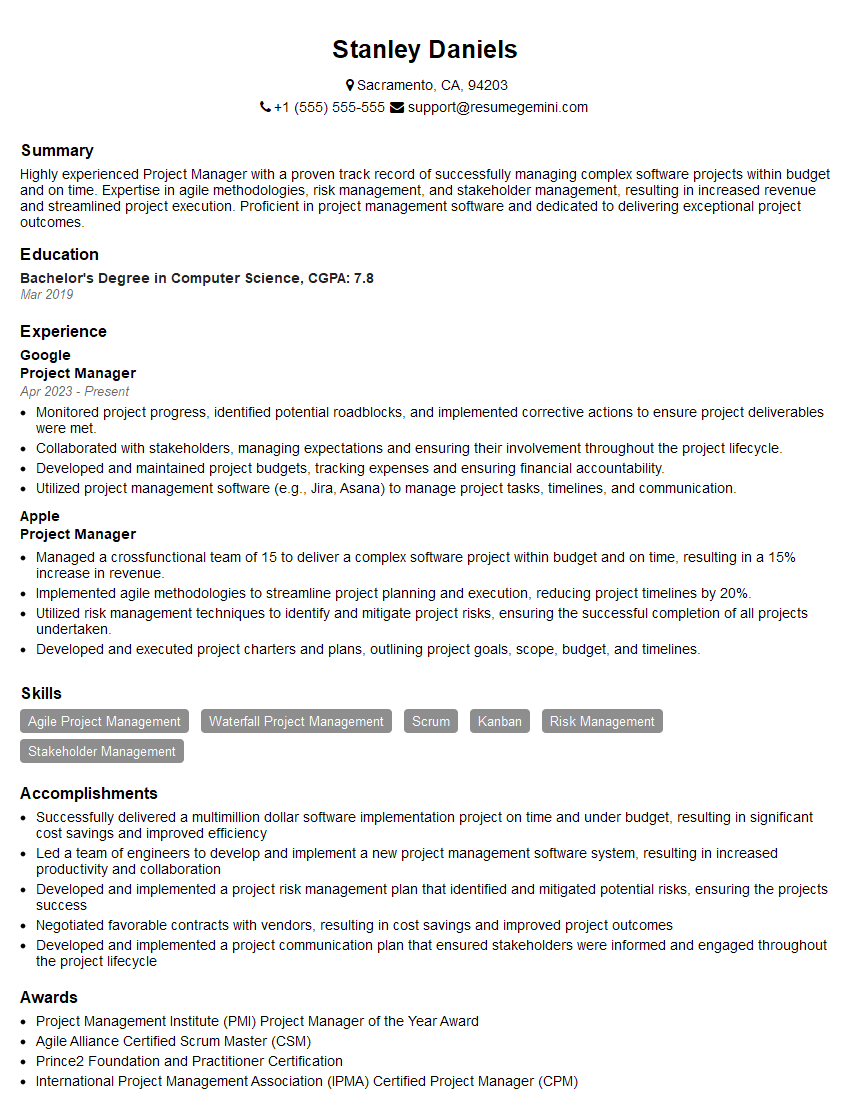
Project Manager Resume Sample
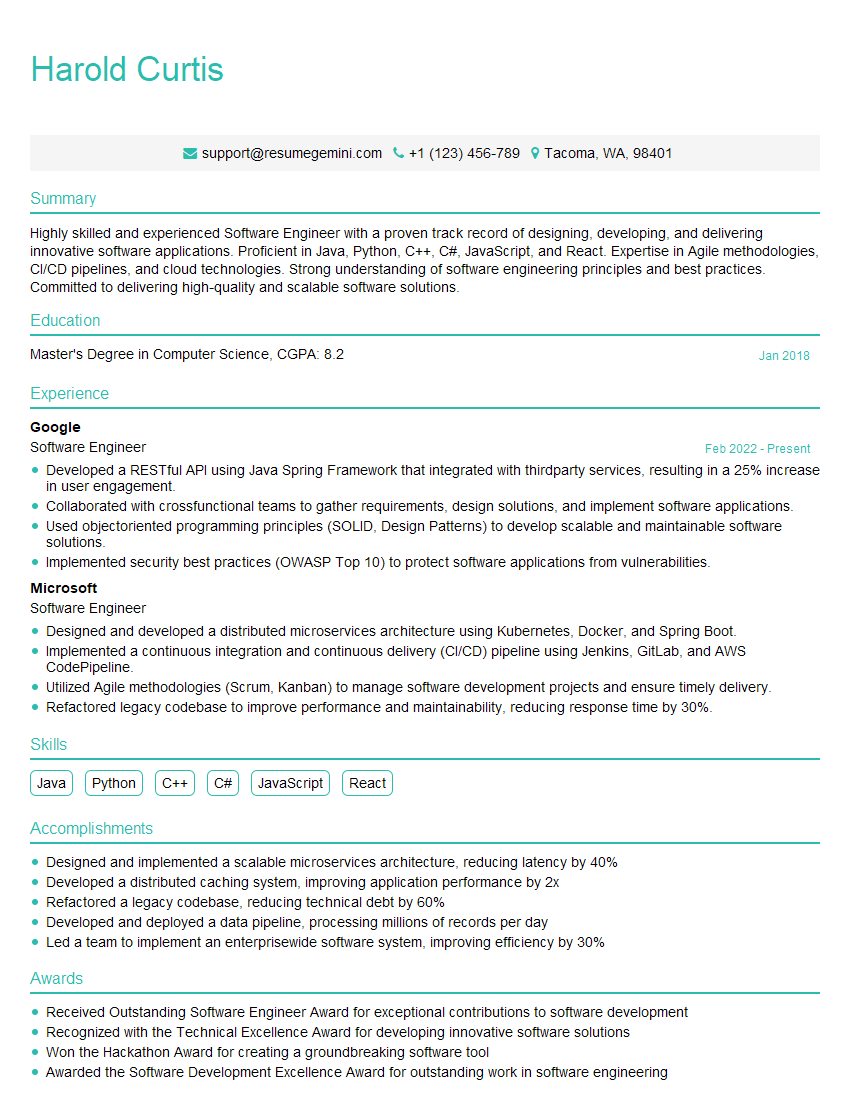
Software Engineer Resume Sample
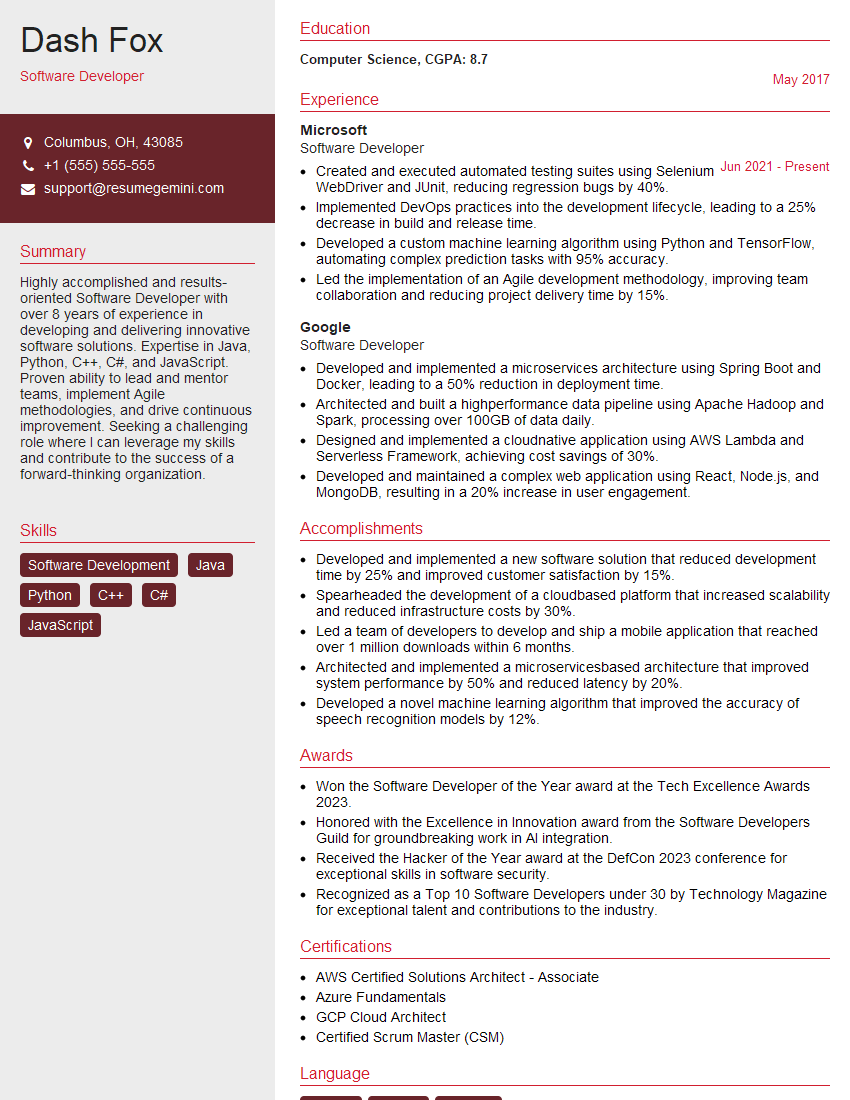
Software Developer Resume Sample
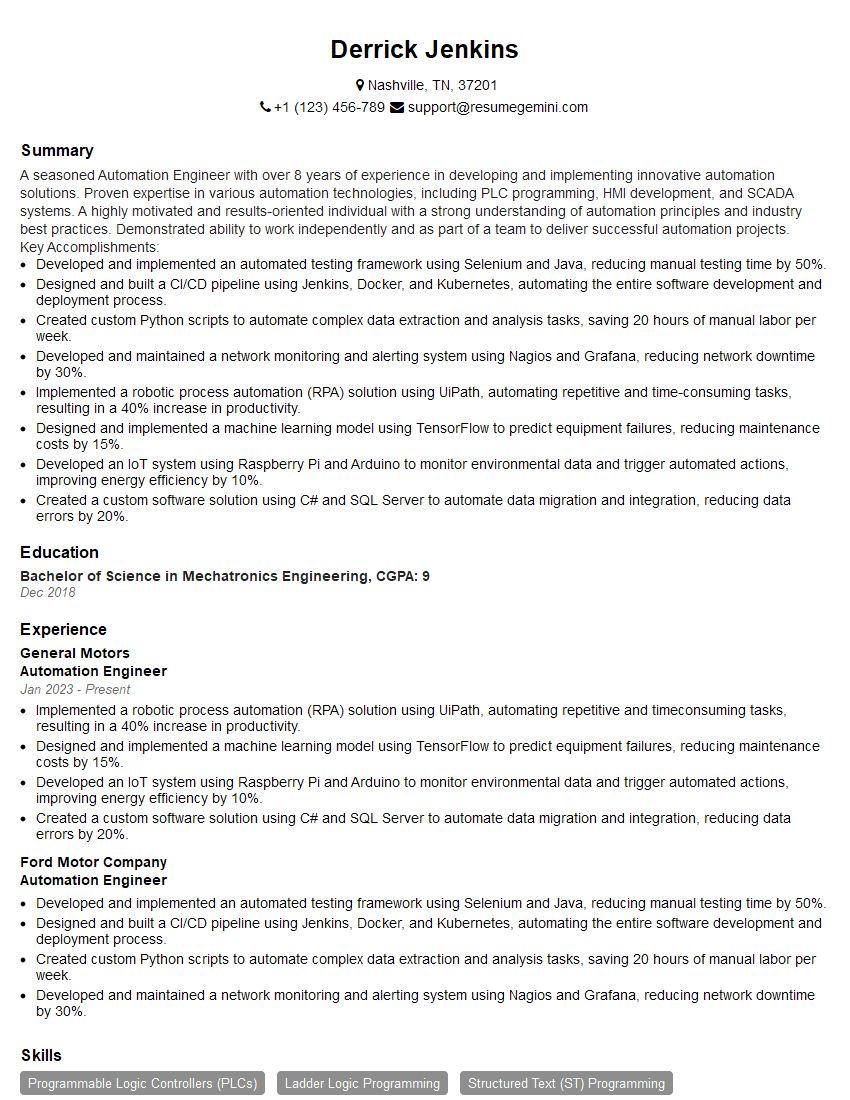
Automation Engineer Resume Sample
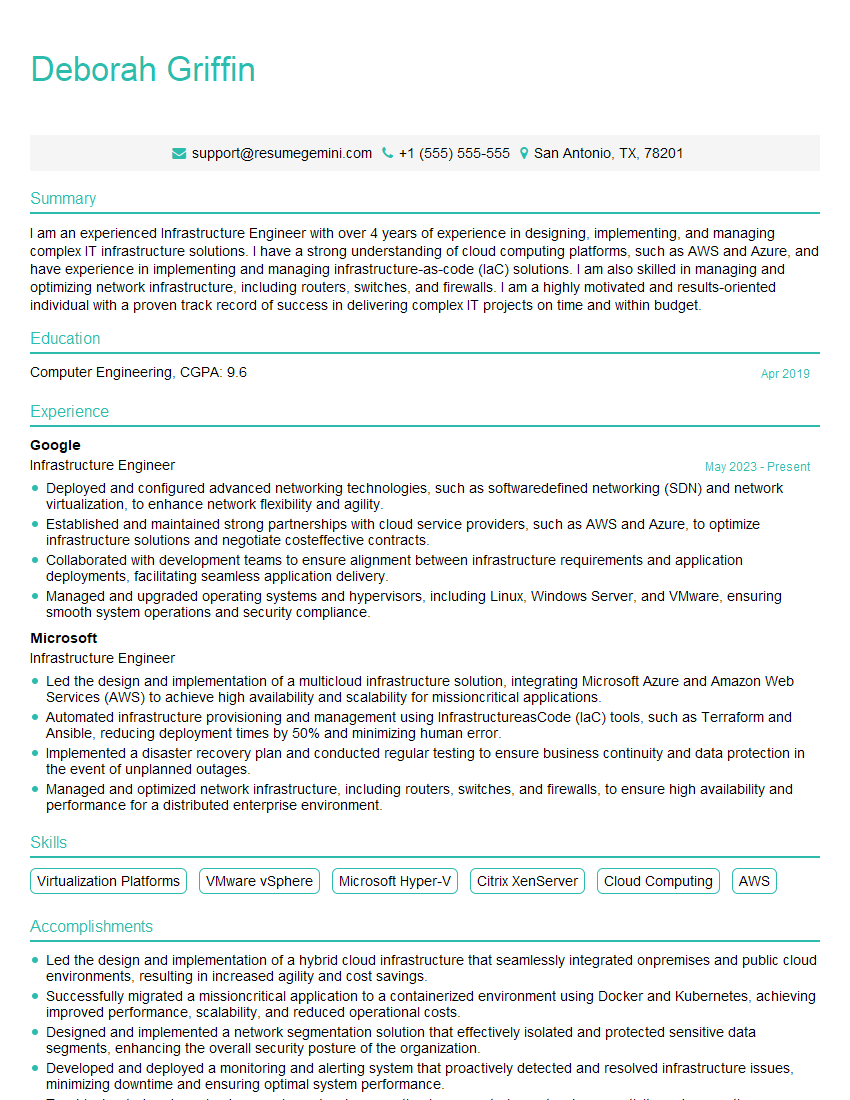
Infrastructure Engineer Resume Sample

Senior Software Engineer Resume Sample
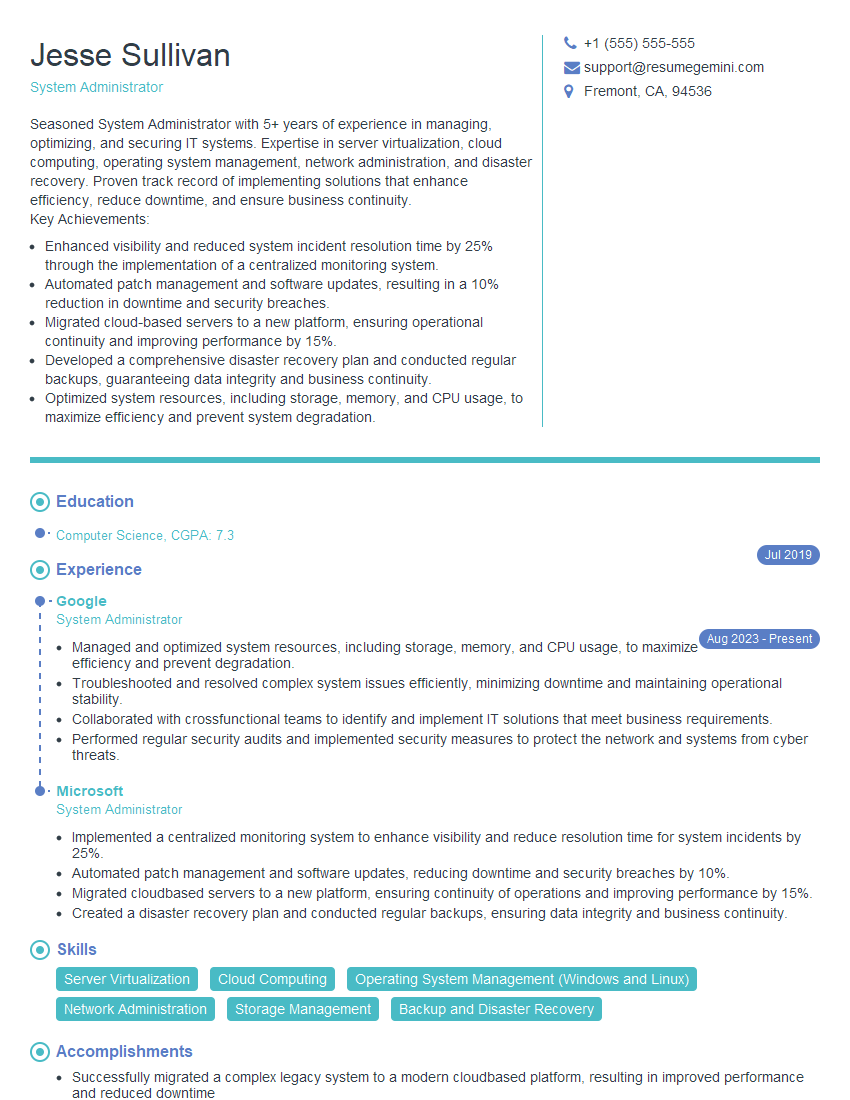
System Administrator Resume Sample

IT Manager Resume Sample
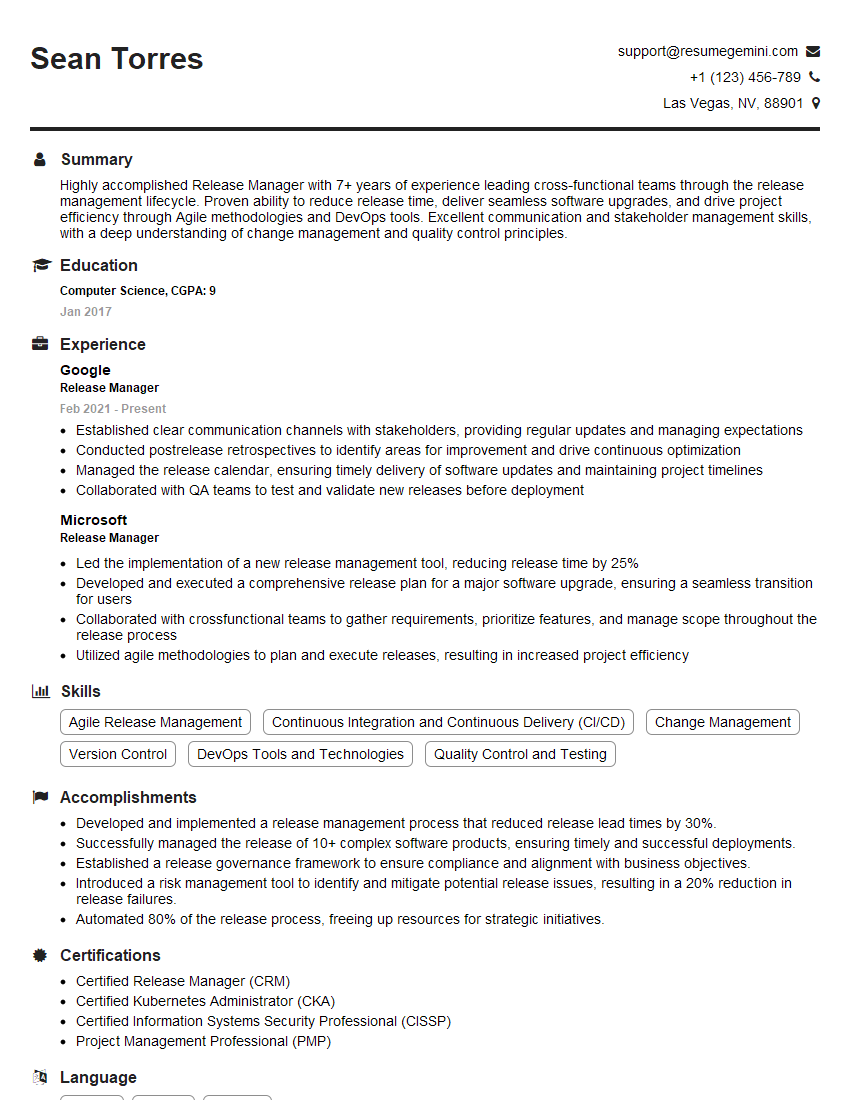
Release Manager Resume Sample
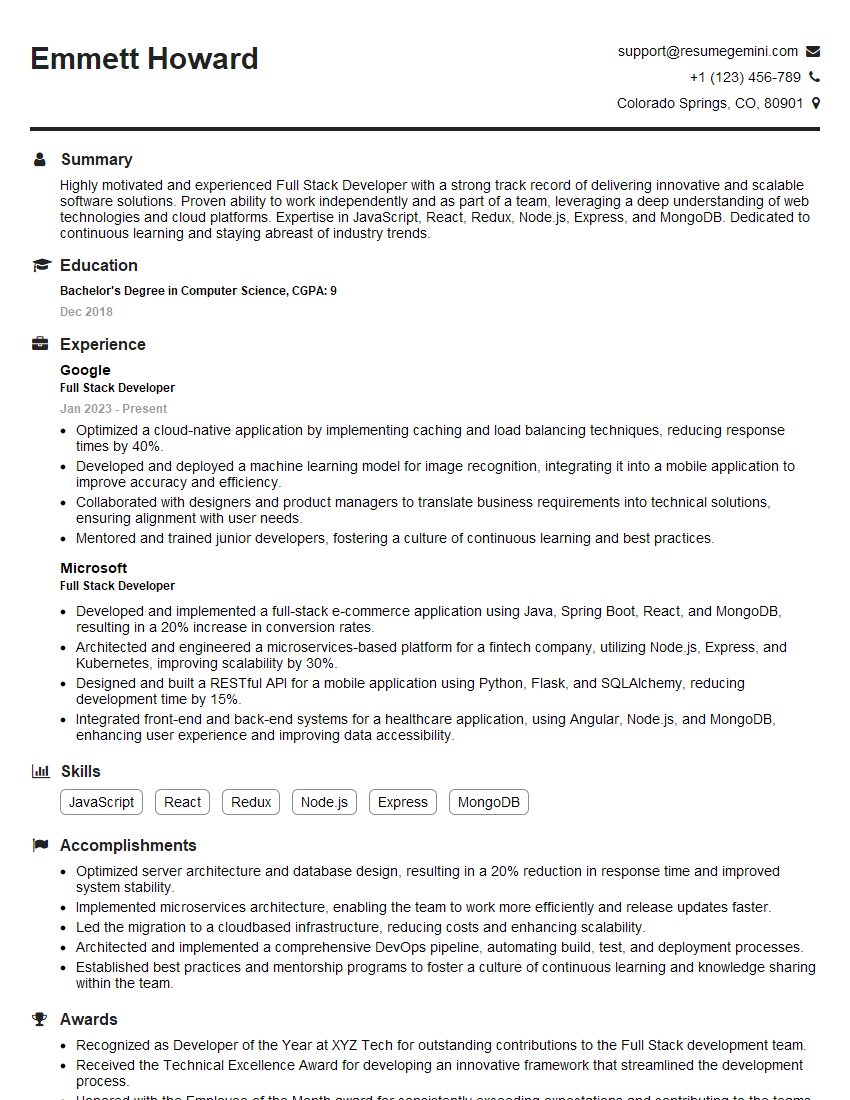
Full Stack Developer Resume Sample
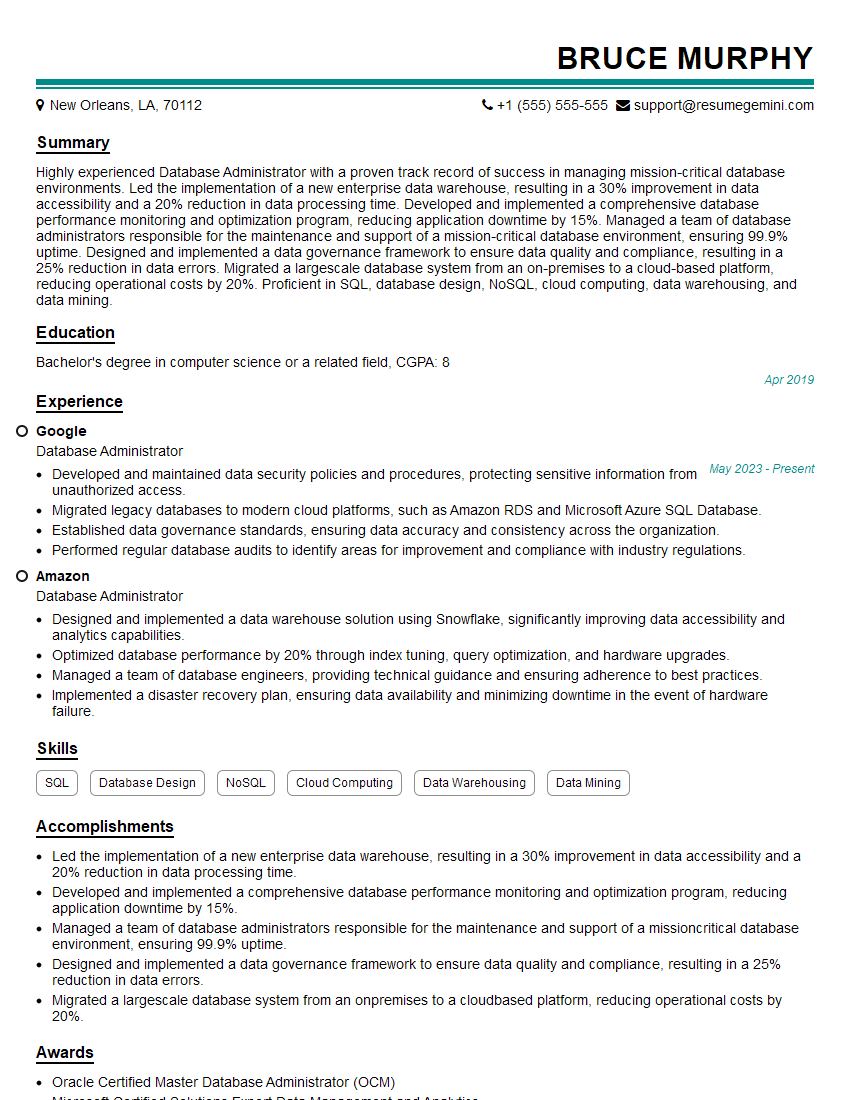
Database Administrator Resume Sample
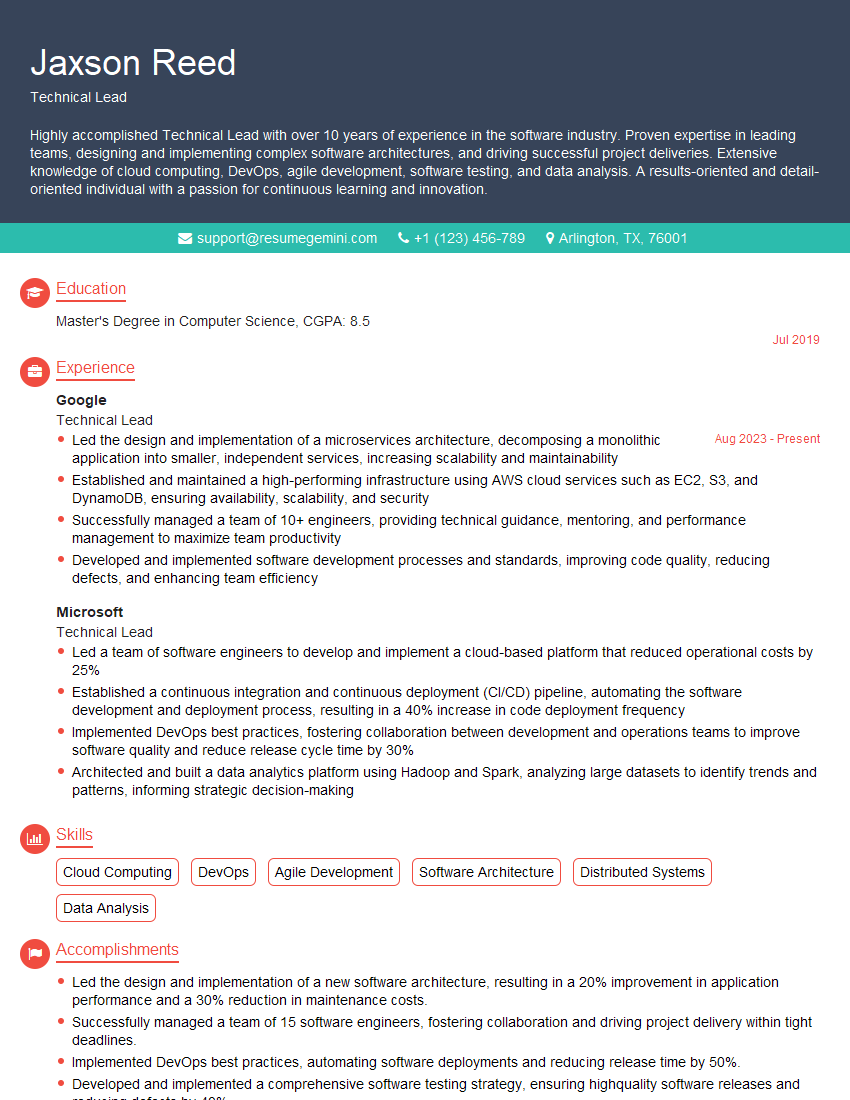
Technical Lead Resume Sample

DevOps Engineer Resume Sample
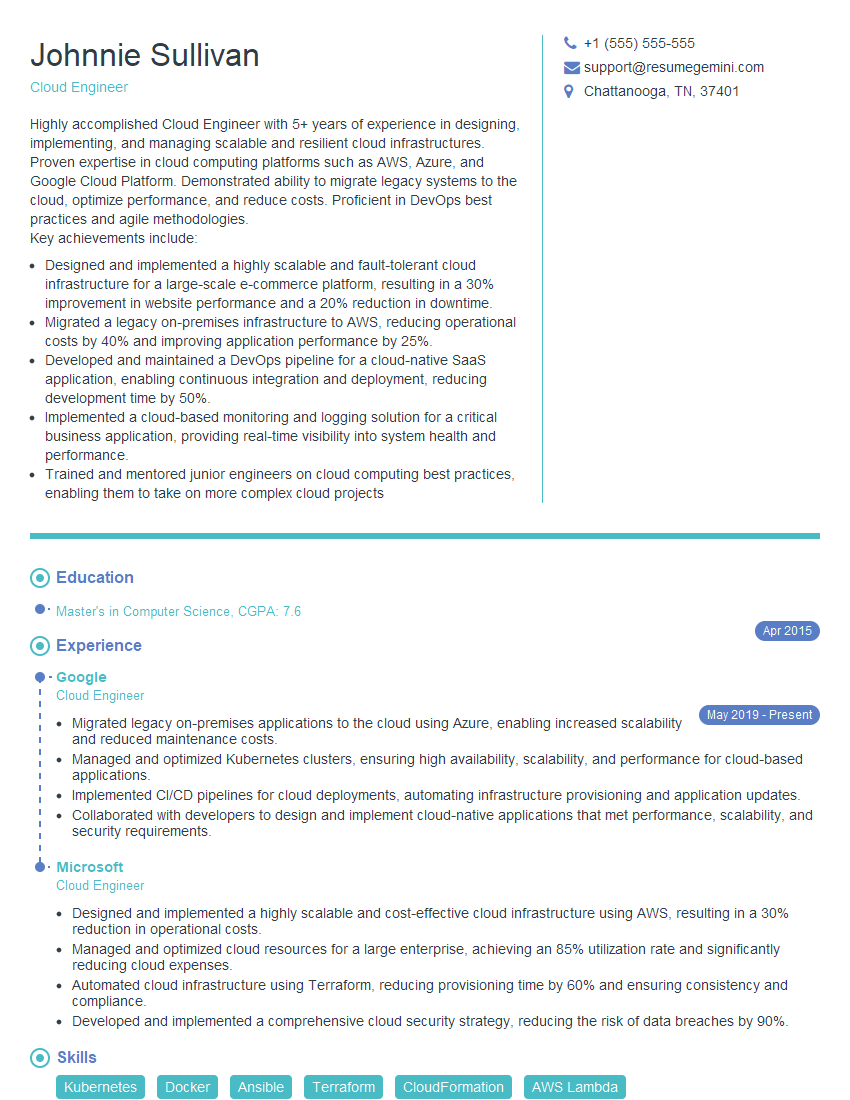
Cloud Engineer Resume Sample
Explore more articles
Users Rating of Our Blogs
Share Your Experience
We value your feedback! Please rate our content and share your thoughts (optional).
What Readers Say About Our Blog
Very informative content, great job.
good