Preparation is the key to success in any interview. In this post, we’ll explore crucial 3D AutoCAD interview questions and equip you with strategies to craft impactful answers. Whether you’re a beginner or a pro, these tips will elevate your preparation.
Questions Asked in 3D AutoCAD Interview
Q 1. Explain the difference between 2D and 3D AutoCAD.
The core difference between 2D and 3D AutoCAD lies in the dimensionality of the designs. 2D AutoCAD operates in two dimensions (length and width), creating flat drawings like blueprints or floor plans. Think of it like drawing on a piece of paper – you can only represent objects from a single viewpoint. 3D AutoCAD, on the other hand, adds depth, enabling the creation of fully three-dimensional models. This allows you to represent objects with height, width, and length, view them from any angle, and perform more advanced analyses. It’s like having a physical model you can rotate and examine.
Imagine designing a house: 2D AutoCAD would give you floor plans, elevations, and sections, but 3D AutoCAD lets you create a complete virtual model, allowing you to ‘walk through’ the design before construction even begins. This provides a much more comprehensive and realistic representation of the final product.
Q 2. Describe your experience with 3D modeling techniques in AutoCAD.
My experience with 3D modeling in AutoCAD encompasses a wide range of techniques, including solid modeling, surface modeling, and mesh modeling. I’m proficient in using various commands to create complex 3D objects, from extrusion and revolution to the creation of complex curves and surfaces using splines and NURBS. I’ve worked extensively with Boolean operations (union, subtraction, intersection) to combine and modify 3D solids, creating intricate shapes that wouldn’t be possible with simpler methods.
For instance, I recently modeled a complex assembly for a robotic arm using solid modeling. By using individual components created through extrusion and revolution, then combining them using Boolean operations, I built a highly detailed and functional model. This allowed for efficient collision detection and analysis during the design process.
I’m also comfortable using surface modeling to create organic shapes and free-form designs, leveraging tools like the ‘Revolve’ and ‘Sweep’ commands. This is particularly useful in architectural visualization or product design where smooth, flowing shapes are desired.
Q 3. How do you manage large and complex 3D models in AutoCAD?
Managing large and complex 3D models in AutoCAD requires a strategic approach. Key strategies include efficient organization, utilizing layers effectively, and employing data lightweighting techniques. I regularly use named layers to organize different components of the model, making selection and manipulation easier. For example, one layer might contain walls, another doors, another windows, and so forth. This significantly simplifies the process of editing or selecting specific parts of the model.
Furthermore, I leverage AutoCAD’s features for managing external references (xrefs), allowing me to link in components from separate files. This helps prevent file bloat and allows for easier collaboration. Xrefs enable different teams to work on various parts of a project simultaneously without the risk of data corruption.
Finally, for extremely large models, I explore techniques like proxy geometry to reduce the file size and improve performance. Proxy geometry replaces detailed objects with simplified representations until they are needed, reducing the computational load on the system and speeding up operations. This is critical when working on projects with thousands of parts.
Q 4. What are your preferred methods for creating 3D solids in AutoCAD?
My preferred methods for creating 3D solids in AutoCAD hinge on the complexity and nature of the object. For simple shapes, I often use extrusion and revolution. Extrusion takes a 2D profile and extends it along a path, while revolution rotates a 2D profile around an axis, creating three-dimensional forms.
For more complex shapes, I utilize Boolean operations (union, subtraction, intersection) to combine or modify primitive solids. Imagine creating a complex mechanical part: I would start with basic shapes like cubes and cylinders, then use Boolean subtraction to cut out holes or add features. This allows for precise control over the final geometry.
Additionally, I’m adept at using the ‘Sweep’ command to create complex 3D forms by sweeping a profile along a path. This is ideal for creating curved surfaces and more intricate designs. For truly organic forms, I may use surface modeling techniques combined with solids. The choice of method always depends on the desired outcome and efficiency.
Q 5. Explain your experience with AutoCAD’s rendering capabilities.
My experience with AutoCAD’s rendering capabilities includes utilizing both its native rendering tools and integrating with external rendering engines. AutoCAD’s built-in rendering offers a quick and easy way to generate realistic visuals. I often use this for initial design reviews or to quickly produce images for presentations.
However, for high-quality photorealistic renderings, I often integrate AutoCAD with external rendering software like V-Ray or Arnold. These external renderers offer significantly greater control over lighting, materials, and textures, enabling the creation of stunningly realistic visuals that enhance client communication and product presentations. For example, I used V-Ray to create photorealistic renderings of a new office building design, complete with realistic lighting and material properties, which were instrumental in securing client approval.
Q 6. How do you handle version control and collaboration in a 3D AutoCAD project?
Version control and collaboration in 3D AutoCAD projects are crucial for efficient workflow. I leverage cloud-based solutions like Autodesk’s BIM 360 or similar platforms for effective version control. These platforms allow multiple team members to work on the same project concurrently, track changes, and resolve conflicts effectively. It’s like having a shared, central repository where everyone can access the most up-to-date version of the model.
Each revision is tracked, allowing me to revert to previous versions if necessary. Clear communication and established protocols are essential. For instance, before making significant changes, I ensure everyone is aware, and any conflicts are resolved promptly. The use of clearly defined layer naming conventions and a robust folder structure further streamlines the collaboration process.
Q 7. Describe your experience with using external references (xrefs) in 3D AutoCAD.
My experience with external references (xrefs) in 3D AutoCAD is extensive. I utilize xrefs to manage large projects by breaking down complex models into smaller, more manageable files. This is particularly useful when working on large-scale projects or collaborating with different teams. Each team can work on their specific components without interfering with others’ work. For example, one team might work on the structural model, another on the MEP (Mechanical, Electrical, Plumbing) systems, and a third on the architectural details – all using xrefs.
Furthermore, xrefs allow for easy updates. If a change is made to a referenced file, it automatically updates in the main project file, simplifying the update process and ensuring consistency throughout the project. I always carefully manage xref paths to avoid issues with linking and updating the project.
Q 8. How do you troubleshoot common errors encountered in 3D AutoCAD?
Troubleshooting in 3D AutoCAD often involves systematically checking various aspects of the model. Think of it like diagnosing a car problem – you need a methodical approach. Common errors include corrupted files, incorrect object snaps, and issues with layers or UCS (User Coordinate System).
Corrupted Files: If a file is corrupted, AutoCAD might crash or behave erratically. The first step is trying to recover the file using AutoCAD’s built-in recovery options. If that fails, try opening it in a previous version of AutoCAD. As a preventive measure, regularly saving your work and using the ‘Autosave’ feature is crucial.
Incorrect Object Snaps: Improper object snaps (like endpoint, midpoint, center) can lead to inaccurate geometry. Double-check your object snap settings (OSNAP) to ensure you’re snapping to the correct points. Using the dynamic input feature, which provides real-time feedback as you draw, helps significantly.
Layer and UCS Issues: Incorrect layer settings or an improperly aligned UCS can cause objects to appear invisible or in unexpected locations. Make sure your layers are thawed, unlocked, and set to the correct plot style. Carefully review and reset your UCS as needed. Regularly auditing your layers for cleanliness is paramount.
Missing References: External references (xrefs) or linked files might be missing or corrupted. Check your xref paths and ensure that all linked files are accessible.
Remember to always save frequently and back up your work to prevent data loss. A structured approach, like checking these common areas systematically, can quickly resolve most issues. I often start by checking the simplest solutions first, gradually progressing to more complex ones.
Q 9. What are your preferred methods for creating and modifying 3D surfaces in AutoCAD?
Creating and modifying 3D surfaces in AutoCAD involves a range of tools, each with its strengths. My preference depends on the complexity and desired outcome. I often use a combination of methods for optimal results.
Surfaces of Revolution: For symmetrical objects, I utilize the ‘REVOLVE’ command. It’s efficient and produces clean results. Imagine creating a vase – starting with a 2D profile and revolving it around an axis. This method is incredibly efficient for creating symmetrical shapes.
Extrusion: The ‘EXTRUDE’ command is versatile and allows for creating 3D solids or surfaces from 2D profiles. Imagine taking a footprint of a building and extending it upwards – this is how extrusion works.
3D Solids Modeling: For more complex forms, I use 3D solids modeling commands like ‘BOX’, ‘CYLINDER’, ‘CONE’, and Boolean operations (‘UNION’, ‘SUBTRACT’, ‘INTERSECT’). This allows for precise control over the model. Combining these commands allows for very complex, nuanced shapes to be created.
Editing Surfaces: Once surfaces are created, I use editing tools like ‘EDIT SURFACE’ to manipulate control points, change surface properties, and refine shapes. This is like sculpting clay – fine-tuning the surface to get the exact details needed.
Choosing the right method is crucial for efficiency. For instance, while extrusion is simple, it’s not ideal for complex curved surfaces, where surfaces of revolution or other solid modeling techniques might be more appropriate.
Q 10. How do you ensure the accuracy and precision of your 3D models?
Accuracy and precision in 3D modeling are paramount. Several strategies ensure the integrity of my models:
Precise Units and Snaps: I always start by setting precise units (millimeters, inches, etc.) and enable appropriate object snaps. Using correct units prevents scaling errors, and object snaps ensure I’m attaching objects precisely.
Geometric Constraints: I utilize geometric constraints (like parallel, perpendicular, equal length) to define relationships between objects. This helps create and maintain accurate geometry, and helps ensure geometric integrity. If you are working with a large number of elements, this can be essential to managing them.
Regular Checks and Audits: Periodically checking the model for errors using ‘AUDIT’ command is vital. This command identifies and fixes inconsistencies, preventing issues from accumulating.
Using Real-World Data: When possible, I incorporate real-world data like survey data or point clouds to enhance model accuracy. This ensures the model is grounded in reality, which can drastically improve accuracy.
Model Verification: I use tools like section views, and measuring tools to validate dimensions and ensure the model adheres to specifications. A thorough model review prior to completion is essential.
These methods, applied systematically, drastically reduce the likelihood of errors and increase confidence in the model’s accuracy. In my experience, attention to detail at every step is essential.
Q 11. Explain your experience with AutoCAD’s various 3D visualization tools.
AutoCAD offers several visualization tools that are crucial for presenting and analyzing 3D models. My experience spans a range of these:
Shading and Rendering: I use AutoCAD’s built-in shading and rendering capabilities to create realistic visual representations of my models. This is essential for communicating designs to clients.
Visual Styles: I adjust visual styles (like wireframe, hidden, shaded) to highlight different aspects of the model. Changing the visual style can help to identify design flaws or gaps in the model.
Sections and Elevations: Creating sections and elevations allows for detailed analysis of internal features and helps in design review. These tools are invaluable in visualizing aspects of the model that aren’t immediately apparent from an exterior view.
Walkthroughs and Animations: While AutoCAD’s capabilities might be less advanced than dedicated animation software, basic walkthroughs can be created to showcase designs in a more engaging way. This is particularly useful in presenting to clients or stakeholders.
The choice of visualization tool depends on the task. For quick visual checks, shading might suffice. For detailed presentation, rendering with more complex lighting and textures becomes necessary.
Q 12. How familiar are you with the AutoCAD command line interface?
I am very familiar with AutoCAD’s command line interface (CLI). While the graphical interface is convenient for many tasks, the CLI provides greater control, speed, and access to a wider range of commands. I believe that combining graphical and command line methods maximizes efficiency.
Efficiency: Typing commands is often faster than navigating menus, particularly for repetitive tasks. For example,
_lineis much quicker than clicking through menus.Precision: The CLI allows for precise input of coordinates and other parameters. This is invaluable for high-precision modeling.
Automation: Automating tasks through scripts or Lisp routines is facilitated by a strong understanding of the CLI.
Problem Solving: The CLI provides direct access to many troubleshooting tools and utilities.
I frequently use the CLI for tasks like precise object placement, creating custom hatches and complex geometry using commands such as _pline or _region. My proficiency with the command line allows for a more efficient and nuanced approach to modeling.
Q 13. Describe your experience with creating 3D drawings from 2D blueprints.
Creating 3D models from 2D blueprints requires a methodical approach, combining precision and interpretation. I typically follow these steps:
Import and Setup: I begin by importing the 2D blueprint into AutoCAD. I carefully set up the coordinate system and units to match the blueprint’s scale and dimensions.
Trace and Extract: I then carefully trace the important elements of the 2D drawing, creating accurate 2D representations of walls, doors, windows, etc. This is painstaking work, requiring careful attention to detail.
3D Modeling: Once the 2D elements are defined, I use extrusion, revolution, or other 3D modeling techniques to give these elements volume and depth. The choice of tool depends on the characteristics of the shape.
Adding Details: I subsequently add details like roofs, fixtures, and other elements based on the provided information and any additional specifications. This involves using a range of modeling commands in conjunction with the existing elements.
Verification: Throughout the process, I regularly verify dimensions and check for consistency with the blueprint. This continuous checking improves the quality of the final 3D model.
Experience is key here. Understanding architectural conventions and being able to interpret construction details from 2D blueprints is critical. I find that working methodically and cross-checking frequently dramatically increases the likelihood of success and produces a high-fidelity 3D model.
Q 14. How do you use layers and layer properties effectively in a 3D model?
Effective use of layers and layer properties is crucial for managing the complexity of 3D models. It’s like organizing a large project – proper organization simplifies things significantly.
Organizational Structure: I create a clear layer structure, grouping related elements together (e.g., walls, doors, windows, electrical, plumbing). This keeps the model organized and easily manageable.
Layer Properties: I utilize layer properties like color, linetype, and lineweight to visually distinguish between different elements and enhance readability. For example, different colors may be used to visually differentiate the different parts of a building.
Layer States: I use layer states (freezing, thawing, locking, unlocking) to control the visibility of different parts of the model. This improves performance and allows focused work on specific areas without the clutter of irrelevant information.
Layer Filters: I use layer filters to quickly isolate and visualize specific layers or groups of layers. This greatly speeds up the workflow when you need to focus on specific aspects of the model.
Layer Naming Conventions: Using consistent naming conventions ensures clarity and ease of identification. A consistent nomenclature greatly assists in maintaining control over complex layer structures.
A well-organized layer structure not only makes the model easier to manage but also significantly improves collaboration and simplifies future modifications. This aspect is essential for the maintenance of the design process.
Q 15. What are your experiences with different 3D modeling workflows?
My experience encompasses a variety of 3D modeling workflows in AutoCAD, adapting my approach based on project needs and complexity. I’m proficient in both solid modeling and surface modeling techniques. For instance, I frequently use solid modeling for mechanical parts where precise dimensions and tolerances are crucial. This involves using commands like EXTRUDE, REVOLVE, and SWEEP to create solid objects from 2D profiles. For more organic shapes or complex freeform designs, like architectural models, I leverage surface modeling techniques, employing commands such as REVOLVE, RULESURF, and EDGESURF. I also have experience integrating parametric design, utilizing tools and techniques which allow for dynamic modification and iterative design improvements. This is particularly helpful in projects requiring multiple design iterations or where changes to one parameter automatically update dependent elements, saving significant time and effort.
I’ve successfully applied these workflows on projects ranging from designing intricate machinery components to developing architectural models with detailed landscaping and interior spaces. Understanding the strengths and weaknesses of each technique allows me to select the most efficient method for each specific challenge, ensuring accuracy and project completion within time constraints.
Career Expert Tips:
- Ace those interviews! Prepare effectively by reviewing the Top 50 Most Common Interview Questions on ResumeGemini.
- Navigate your job search with confidence! Explore a wide range of Career Tips on ResumeGemini. Learn about common challenges and recommendations to overcome them.
- Craft the perfect resume! Master the Art of Resume Writing with ResumeGemini’s guide. Showcase your unique qualifications and achievements effectively.
- Don’t miss out on holiday savings! Build your dream resume with ResumeGemini’s ATS optimized templates.
Q 16. Explain your process for creating detailed 3D annotations and callouts.
Creating detailed 3D annotations and callouts in AutoCAD involves a layered approach. First, I ensure the model’s clarity by using appropriate layers organized by type (e.g., dimensions, annotations, notes). I then use the DIM commands (linear, angular, radial, etc.) to add precise dimensions directly to the model. For more complex callouts, I’ll leverage the MULTILEADER command, creating detailed leader lines connected to specific model features. Text is carefully styled for legibility, often using styles to maintain consistency throughout the drawing.
For enhanced visual clarity, I utilize hatches and fill patterns to highlight sections or components. I’ll also employ the TABLE command to create organized lists of specifications, materials, or other relevant information directly within the model. Finally, I make heavy use of blocks (as explained in question 5) to create standardized annotation symbols, ensuring uniformity across the project. This methodical approach ensures annotations are not only informative but also visually appealing and easy to understand.
Imagine annotating a complex mechanical assembly. Using a systematic approach allows a viewer to quickly find critical dimensions and specifications, rather than hunting them down amidst a chaotic collection of unorganized text and lines. This organized approach ensures efficient communication and minimizes errors.
Q 17. How do you manage different units and coordinate systems in your 3D models?
Managing units and coordinate systems is crucial for accurate 3D modeling. Before starting any project, I meticulously define the desired units (e.g., millimeters, inches, feet) using the UNITS command. I always verify that all objects and dimensions are set to these units to prevent scaling discrepancies. To avoid coordinate system conflicts, I utilize AutoCAD’s coordinate system functionalities (UCS) extensively. For example, if modeling different sections of a building, I’d create separate UCS for each section (basement, ground floor, etc.), ensuring each section is properly oriented and positioned relative to the overall project coordinate system. This becomes increasingly important in large and complex models to maintain accuracy and prevent overlapping or misaligned components. I make frequent use of UCSICON to visually confirm the active coordinate system throughout the design process. Consistent use of these tools prevents common errors stemming from mismatched units or improperly oriented parts.
Q 18. What is your experience with exporting 3D models to other software applications?
I have extensive experience exporting 3D models from AutoCAD to various applications. This typically involves using the EXPORT command to save the model in a format compatible with the target software. Common formats include DWG (for other AutoCAD users), DXF (for wider compatibility), 3DS, FBX, and STEP. The selection of the appropriate format depends heavily on the receiving software’s capabilities and the level of detail required. For instance, exporting to a rendering program like 3ds Max or V-Ray might require a format that preserves textures and materials, while exchanging data with a structural analysis program requires a format that accurately represents geometric data. I’m familiar with the nuances of each format and can anticipate and resolve potential issues resulting from format conversion.
For instance, when exporting a highly detailed model to a game engine, I might use FBX to preserve animation data and materials, but may need to simplify the geometry to enhance performance.
Q 19. Describe your experience with creating and managing 3D blocks and block attributes.
Creating and managing 3D blocks and block attributes is a cornerstone of efficient AutoCAD workflow. I regularly create blocks representing recurring elements like doors, windows, furniture, or even entire building components. This dramatically streamlines the design process by enabling the insertion of pre-defined objects, ensuring consistency and reducing the potential for errors. Attributes within these blocks store crucial information such as dimensions, material type, and part numbers. This linked data is extremely useful for generating schedules and reports.
My workflow involves creating well-organized block libraries, often categorized by project type or element. I carefully name and document each block for easy identification and retrieval. I am proficient in using the ATTEDIT command to edit block attributes and BEDIT for modifying the block’s geometry. For instance, I might create a block for a standard door, then use attributes to specify its height, width, and material, ensuring these details are readily available within the model and can easily be updated if needed.
Q 20. How proficient are you with using AutoCAD’s various selection tools in a 3D environment?
My proficiency with AutoCAD’s selection tools in a 3D environment is very high. I’m adept at using various selection methods, including window selection, crossing selection, fence selection, and lasso selection, to efficiently target objects in complex 3D models. I regularly use the SELECTSIMILAR command to quickly select groups of objects with shared properties. Furthermore, I effectively use object snaps (OSNAP) – Endpoint, Midpoint, Center, Quadrant, Intersection, etc. – to precisely select points and edges within the model. Understanding and applying different selection strategies saves considerable time, particularly when working with large and intricate 3D models. Choosing the right selection method for a particular task is critical for smooth and efficient work, avoiding mis-selections and wasted time.
Q 21. How do you ensure the consistency and standards of your 3D models?
Maintaining consistency and adhering to standards in 3D models is paramount for both project quality and collaborative efficiency. My approach involves establishing a set of design standards at the project outset. This encompasses layer naming conventions, linetypes, text styles, and block libraries, all carefully documented. I adhere rigorously to these standards throughout the modeling process. To ensure consistency, I use layer states, effectively controlling the visibility of elements during the design phases. I also leverage the power of named views for consistent presentations and communication amongst collaborators. This reduces confusion and ensures everyone is working from the same information. Regular model checks, often employing the AUDIT command, helps to identify and correct inconsistencies early in the process, avoiding major revisions later.
Consider a large architectural project with multiple team members. Consistent standards ensure everyone understands the design intent and avoids conflicts caused by differing interpretations or naming conventions. This approach saves significant time and resources while improving the overall quality of the project.
Q 22. Describe your experience working with 3D constraints and relationships.
3D constraints and relationships are fundamental to creating accurate and robust 3D models in AutoCAD. They define how different parts of a model interact and behave, ensuring consistency and preventing errors. Think of it like building with LEGOs – constraints are the invisible connections that hold your creation together and allow for movement and adjustment.
My experience encompasses a wide range of constraints, including geometric constraints (like parallel, perpendicular, coincident, and concentric), dimensional constraints (specifying precise distances and angles), and parametric constraints (linking dimensions and geometry). I routinely utilize these constraints to build complex assemblies, ensuring that components maintain their intended relationships even after modifications. For example, when designing a chair, I would use constraints to ensure the legs remain perpendicular to the seat, and the seat maintains a specific distance from the floor. This ensures that even if I adjust the leg length, the overall geometry remains consistent and functional.
Furthermore, I’m proficient in using relationships to create more flexible and dynamic models. This allows for the manipulation of one element to automatically update related elements. Imagine designing a building – changing the dimensions of one window might necessitate updates to related walls and beams. Relationships make managing these types of interdependent changes much easier and more efficient.
Q 23. What are your methods for optimizing 3D model performance?
Optimizing 3D model performance in AutoCAD is crucial for maintaining responsiveness and preventing crashes, especially when working with large or complex models. My approach involves a multi-pronged strategy focusing on several key areas:
- Purge and Audit: Regularly purging unused blocks, layers, and other data is essential to reduce file size and improve performance. The Audit command helps to identify and fix errors that can impact performance.
- Simplify Geometry: Using simpler geometric primitives where possible reduces the overall complexity and improves rendering times. High-polygon models can dramatically impact performance; I often optimize geometry by reducing polygon counts through decimation or other mesh simplification techniques where appropriate.
- Layer Management: Properly organizing layers and turning off unnecessary layers during work sessions significantly improves rendering speeds and prevents system slowdowns. This is especially crucial in projects with many components and overlapping elements.
- Xrefs and External References: Using external references efficiently improves workflow. I only attach necessary Xrefs, keep them updated and attach them when necessary, rather than having them loaded all the time.
- Hardware Considerations: Working with a powerful computer with sufficient RAM and a dedicated graphics card greatly impacts overall performance. I ensure that my system meets the recommended specifications for the size and complexity of the projects I undertake.
I regularly monitor model performance using AutoCAD’s built-in tools and adjust my workflow based on the specific demands of each project.
Q 24. How familiar are you with using custom tool palettes in AutoCAD?
I’m highly proficient in creating and utilizing custom tool palettes in AutoCAD. They are invaluable for streamlining workflows and increasing efficiency. A well-designed tool palette reduces repetitive tasks, making the design process much faster and more intuitive.
I create custom tool palettes containing frequently used commands, blocks, and hatches specific to particular projects or disciplines. For instance, I might create a palette with tools dedicated to architectural detailing, containing commands for creating doors, windows, and common architectural symbols. Another palette might be dedicated to mechanical engineering components, populated with frequently used fasteners, connectors and standardized parts. This eliminates the constant need to search for commands and improves productivity significantly.
Beyond simply creating palettes, I understand how to organize and customize them for maximum usability. This includes logically grouping tools, using descriptive names and icons, and leveraging the palette’s properties to enhance functionality. The ability to quickly access these specialized tools substantially reduces the time spent on repetitive tasks and allows for a more focused and efficient workflow.
Q 25. Explain your experience with using AutoCAD’s parametric modeling features.
AutoCAD’s parametric modeling capabilities are essential for creating dynamic and flexible designs. Parametric modeling allows me to define relationships between different design elements, so changing one parameter automatically updates related elements. It’s like having a self-updating spreadsheet for your 3D model.
My experience includes using constraints and equations to control the geometry and dimensions of models. This is invaluable for design exploration and optimization. For example, I might define a parameter for the overall length of a beam, and other dimensions (like width and height) would automatically adjust based on pre-defined relationships. If I decide to change the overall length, the entire beam’s dimensions update accordingly, maintaining its proportions and structural integrity. This is especially useful in iterative design processes, where multiple variations of a design need to be tested quickly and easily.
I often use this technique to develop families of parts or components, where one master model controls multiple instances. Any modifications to the master model are automatically propagated to all linked instances, saving significant time and effort.
Q 26. How do you create and manage section views in 3D AutoCAD?
Creating and managing section views in 3D AutoCAD is a critical skill for visualizing internal structures and providing detailed design information. The process begins with defining a section plane, essentially a cutting plane that slices through the 3D model.
In AutoCAD, I use the SECTION command to generate section views. This involves specifying the cutting plane’s location and orientation. I can then create multiple section views from different angles, each providing a unique perspective of the model’s interior. I frequently use named views to easily switch between different sections, or even create an animation showing a walk-through of a model’s cross-section.
Beyond generating sections, effective management includes proper naming conventions, layer organization, and annotation. I ensure that each section view is clearly labelled and annotated with dimensions and other relevant information. This is crucial for clear communication with colleagues and stakeholders.
Q 27. Describe your experience with creating realistic materials and textures in your 3D models.
Creating realistic materials and textures is vital for enhancing the visual appeal and conveying accurate information in 3D models. My process typically involves selecting or creating materials that accurately represent the physical properties of the objects being modeled.
I have extensive experience using AutoCAD’s material libraries and applying textures to surfaces. For example, I might use a wood texture for a table or a metal texture for a pipe, with the option of specifying parameters such as roughness, reflectivity, and color. The goal is to achieve visual realism and understand how light interacts with surfaces. I also understand the importance of high-resolution textures for detailed visualization and rendering. The right materials drastically enhance the overall quality and impact of a design.
In more complex scenarios, I leverage external rendering software to achieve photorealistic results. This involves exporting the AutoCAD model and importing it into a rendering package that offers more advanced material and lighting controls.
Q 28. How do you handle revisions and updates to existing 3D models?
Handling revisions and updates to existing 3D models is a crucial aspect of the design process, requiring careful planning and execution to maintain data integrity and avoid conflicts. My approach involves several key strategies:
- Version Control: I utilize AutoCAD’s version control features or external version control systems like Git to track changes and revert to previous versions if necessary. This ensures that I can always return to a stable working version should any problems arise.
- Layer Management: Organizing layers logically and using descriptive layer names helps in isolating and modifying specific parts of the model. This makes it easy to understand what has been changed and why.
- External References (Xrefs): Using Xrefs effectively allows me to update components independently and propagate those changes across multiple models. This is crucial for large projects with multiple collaborators.
- Change Logs: Maintaining a comprehensive change log documenting all modifications, including the date, author, and description of changes, is essential for transparency and traceability.
- Revision Clouds: In drawings, I use revision clouds to visually highlight areas that have been altered, facilitating the identification of changes by myself and others.
By consistently employing these strategies, I ensure that revisions are tracked meticulously, leading to a more organized and efficient workflow and reducing the risk of errors.
Key Topics to Learn for Your 3D AutoCAD Interview
- 3D Modeling Fundamentals: Understanding the basics of wireframes, surfaces, and solids. Practical application: Modeling simple objects to demonstrate your grasp of these core concepts.
- Working with Layers and Blocks: Efficiently organizing your models and reusing components. Practical application: Explain how you would manage a complex project involving numerous parts and assemblies.
- Constraints and Parameters: Utilizing constraints to create associative geometry and parameters for dynamic design modifications. Practical application: Describe a scenario where using constraints saved time and improved accuracy.
- Rendering and Visualization: Producing high-quality visuals to communicate design intent effectively. Practical application: Explain your experience with different rendering techniques and their appropriate uses.
- 3D Navigation and Viewports: Mastering efficient navigation techniques within the 3D environment and managing multiple viewports. Practical application: Explain how you would effectively present different perspectives of a complex design.
- Data Extraction and Reporting: Generating reports and extracting data from your 3D models. Practical application: Describe your experience with creating reports for clients or internal stakeholders.
- Collaboration and Teamwork: Working effectively with others on large projects using tools like Xrefs and external references. Practical application: Describe a situation where you had to collaborate effectively on a 3D CAD project.
- Troubleshooting and Problem Solving: Diagnosing and resolving common issues encountered during the 3D modeling process. Practical application: Provide an example of a problem you encountered and how you solved it.
Next Steps
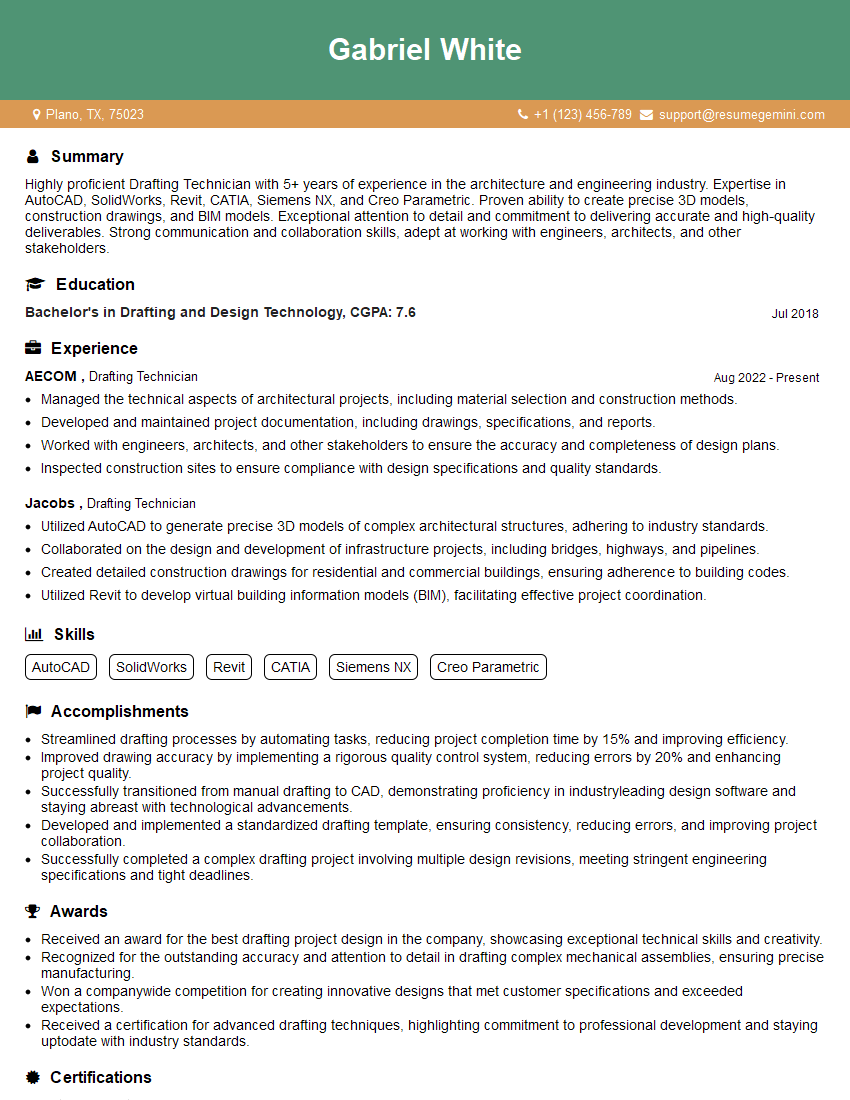
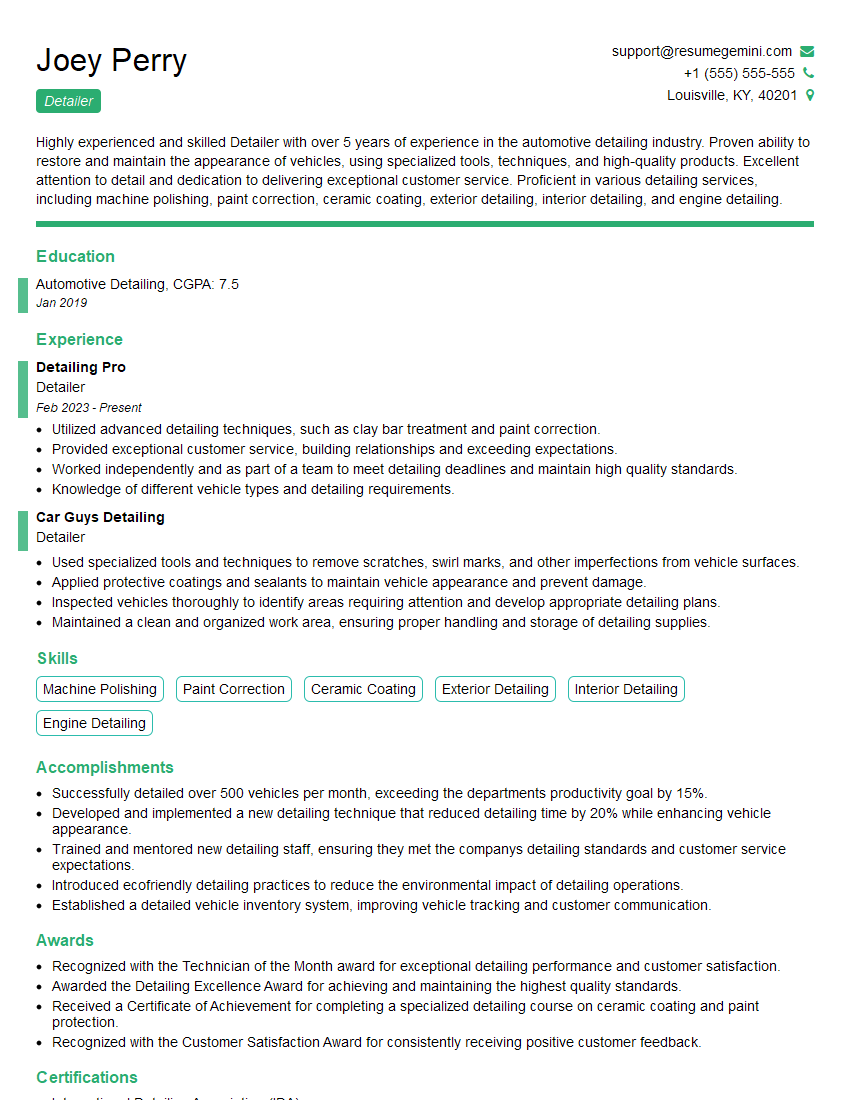
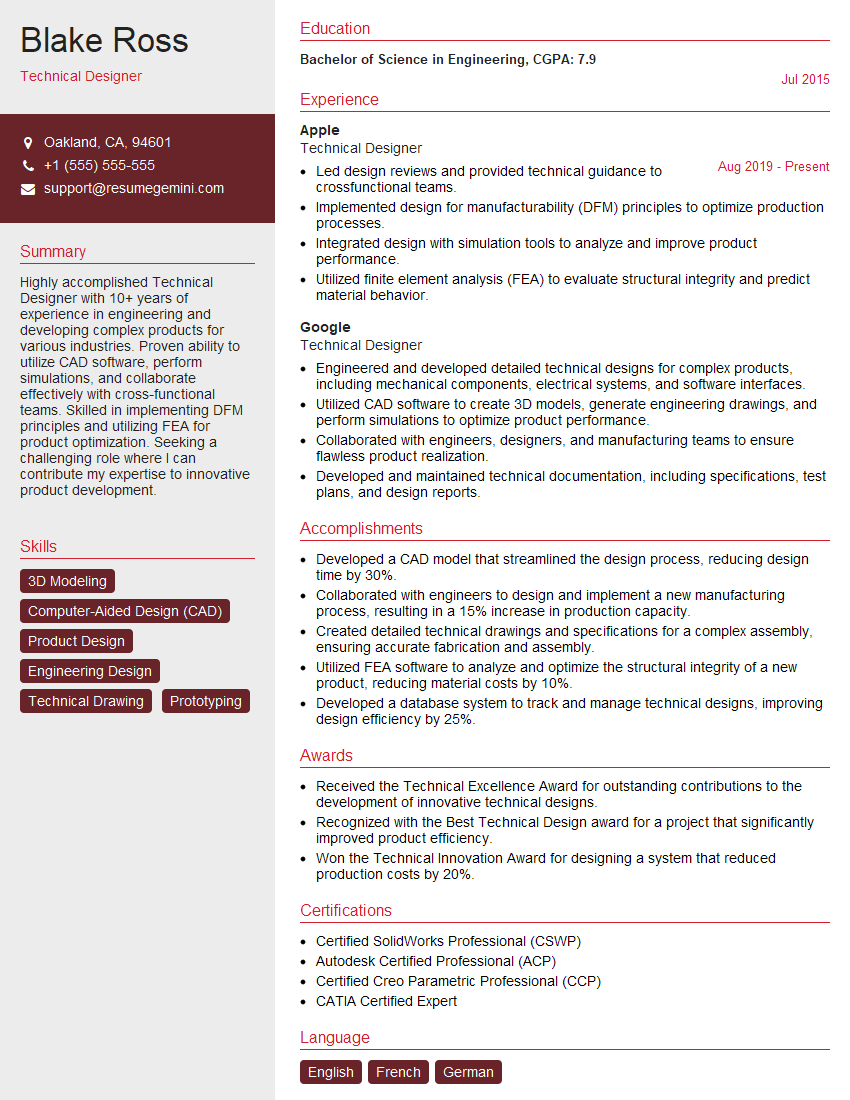
Mastering 3D AutoCAD is crucial for career advancement in many fields, opening doors to exciting opportunities and higher earning potential. A well-crafted resume is your first impression – ensure yours is ATS-friendly and highlights your 3D AutoCAD skills effectively. ResumeGemini can help you create a professional, impactful resume that showcases your abilities to potential employers. They offer examples of resumes tailored specifically to 3D AutoCAD professionals to help guide you. Take the next step towards your dream job – build a resume that makes you stand out!

Explore more articles
Users Rating of Our Blogs
Share Your Experience
We value your feedback! Please rate our content and share your thoughts (optional).
What Readers Say About Our Blog
Very informative content, great job.
good