Unlock your full potential by mastering the most common Ability to Use Microsoft Office Suite (e.g., Word, Excel, PowerPoint) interview questions. This blog offers a deep dive into the critical topics, ensuring you’re not only prepared to answer but to excel. With these insights, you’ll approach your interview with clarity and confidence.
Questions Asked in Ability to Use Microsoft Office Suite (e.g., Word, Excel, PowerPoint) Interview
Q 1. Describe your experience using Microsoft Word’s mail merge feature.
Mail merge in Microsoft Word is a powerful tool that allows you to create personalized documents from a single template and a data source. Imagine sending hundreds of customized letters to clients – instead of typing each one individually, you use mail merge. You create a main document (your letter template) with placeholders for personalized information like names and addresses. Then, you link it to a data source, such as an Excel spreadsheet or a database, containing the individual recipient details. Word then automatically populates each letter with the correct information from your data source.
In my experience, I’ve used mail merge extensively for creating personalized marketing materials, customized invoices, and even personalized holiday cards for clients. For example, I once created a series of thank-you letters for a large non-profit organization, using an Excel spreadsheet containing donor names, addresses, and donation amounts. The process streamlined the creation of hundreds of unique letters, ensuring each donor received a personalized message expressing gratitude for their contribution. I’m proficient in using various data source types and managing complex merge fields to create highly customized documents.
Q 2. How proficient are you in using Excel formulas like VLOOKUP, SUMIF, and COUNTIF?
I’m highly proficient in using Excel formulas, particularly VLOOKUP, SUMIF, and COUNTIF. These are essential tools for data analysis and manipulation. Think of them as your Swiss Army knife for Excel.
- VLOOKUP searches for a specific value in the first column of a table and returns a value in the same row from a specified column. For example, you could use VLOOKUP to find a customer’s address based on their ID number.
=VLOOKUP(A2,Sheet2!A:B,2,FALSE)This formula looks up the value in cell A2 in the first column of Sheet2 and returns the corresponding value from the second column (column B). - SUMIF adds values in a range that meet a specified criterion. Imagine calculating the total sales for a specific product.
=SUMIF(A:A,"Product X",B:B)This formula sums the values in column B only if the corresponding cell in column A is “Product X”. - COUNTIF counts the number of cells within a range that meet a given criterion. For instance, you could use COUNTIF to determine how many customers are from a particular region.
=COUNTIF(A:A,"Region A")This counts the number of cells in column A that contain “Region A”.
I frequently combine these formulas and other functions to create sophisticated spreadsheets for reporting and analysis, ensuring accurate and efficient data management. I understand the nuances of each function and how to troubleshoot errors effectively.
Q 3. Explain your experience creating and formatting tables in Microsoft Word.
Creating and formatting tables in Word is a fundamental skill I’ve developed over years of document creation. I can design tables for various purposes, from simple data presentations to complex layouts for reports and brochures. Beyond just creating tables, I understand the importance of formatting for clarity and professionalism. This includes:
- Adjusting column widths and row heights: Ensuring optimal readability and visual balance.
- Applying borders and shading: Enhancing readability and visual appeal.
- Using different font styles and sizes: Highlighting key information and maintaining a consistent design.
- Adding headers and footers: Providing context and structure to the table.
- Using table styles for consistency: Applying pre-defined or custom styles for uniformity across documents.
I’ve used these skills to create professional-looking reports, proposals, and presentations, ensuring the data presented is clear, organized, and easy to understand. For example, I recently created a detailed project timeline using a Word table, incorporating shading, borders, and a clear layout to ensure the information was easily digestible by the project team.
Q 4. How would you troubleshoot a slow-performing Excel spreadsheet?
A slow-performing Excel spreadsheet can be frustrating. Troubleshooting involves a systematic approach. Here’s my strategy:
- Identify the bottleneck: Is it calculations, data volume, or formatting? Start by checking the processing time of individual sheets or sections.
- Reduce data volume: Remove unnecessary columns, rows, or entire sheets. Consider using external data sources instead of embedding large datasets directly into the workbook. This significantly improves efficiency.
- Optimize formulas: Avoid unnecessary calculations and use efficient functions. For example, replace nested IF statements with VLOOKUP or INDEX/MATCH for faster lookups.
- Turn off automatic calculations: Manually calculate the spreadsheet only when necessary by going to ‘Formulas’ -> ‘Calculation Options’ -> ‘Manual’.
- Check for circular references: These can cause infinite loops and lock up the spreadsheet. Excel provides error detection for circular references.
- Review formatting: Excessive formatting, especially conditional formatting, can impact performance. Simplify formatting where possible.
- Consider using Power Query: Power Query enables efficient data cleaning, transformation, and loading, making your workbooks more efficient.
By systematically addressing these potential issues, I can significantly improve Excel spreadsheet performance and responsiveness, leading to increased productivity.
Q 5. Describe your experience with PowerPoint’s animation and transition features.
PowerPoint’s animation and transition features are crucial for creating engaging and dynamic presentations. My experience includes using various animation effects to highlight key information and transitions to create a smooth flow between slides.
I understand the importance of using animations and transitions thoughtfully – overusing them can be distracting. I focus on creating a clear narrative flow and using animations to support, not overwhelm, the message. For instance, I might use a ‘fade’ transition between sections of a presentation to create a smoother shift, or an ‘appear’ animation to draw attention to a crucial data point. I’m proficient in customizing animation settings, such as speed, timing, and triggering events, to create precisely the desired effect. In my experience, creating effective animations is less about flashy effects, and more about using them strategically to enhance audience comprehension and maintain engagement. A well-placed animation can dramatically increase the impact of a presentation.
Q 6. How do you ensure data consistency and accuracy in Excel?
Data consistency and accuracy are paramount in Excel. My approach is multi-faceted:
- Data validation: I use data validation rules to restrict the type of data entered into cells (e.g., numbers only, specific dates). This prevents errors from entering the spreadsheet in the first place.
- Formulas and checks: I employ formulas and functions, such as
SUMandCOUNT, to check the accuracy of calculations and data entry. I frequently use conditional formatting to highlight inconsistencies or potential errors in real-time. - Regular backups: Frequent saving and creating backups safeguard against data loss and allow reverting to earlier versions if issues arise.
- Clear data structures and naming conventions: Well-organized spreadsheets with consistent naming conventions for sheets and data fields are crucial for clarity and efficient error detection.
- Data cleaning: Prior to any analysis, I always clean the data, removing duplicates, addressing missing values, and correcting inconsistencies. This often involves using Power Query for advanced data manipulation.
By applying these practices consistently, I ensure that the data within my Excel spreadsheets is reliable and accurate, leading to trustworthy analysis and informed decision-making.
Q 7. What are your preferred methods for creating professional-looking charts in Excel?
Creating professional-looking charts in Excel requires attention to both data representation and visual aesthetics. My preferred methods include:
- Choosing the appropriate chart type: Selecting the right chart type (e.g., column chart, line chart, pie chart) is crucial for effectively communicating the data. A bar chart is best for comparing categories, while a line chart shows trends over time. Choosing the wrong chart type can misrepresent the data.
- Clear and concise labels and titles: Labels should clearly identify data points and the chart title should accurately summarize the data presented.
- Consistent formatting: Using consistent fonts, colors, and styles ensures a professional and easy-to-understand chart.
- Data visualization best practices: Avoiding clutter, using appropriate color schemes, and ensuring sufficient whitespace are essential for a clean and effective chart.
- Leveraging Excel’s chart formatting options: Using built-in features to customize chart elements, such as gridlines, legends, and data labels, improves visual clarity. I also often use custom formatting to achieve a polished, professional look.
I always strive to create charts that are not only visually appealing but also effectively communicate the key insights from the data. I’ve found that a well-designed chart can significantly improve the impact and understanding of data analysis.
Q 8. How familiar are you with using templates in Word and PowerPoint?
Templates in Word and PowerPoint are pre-designed documents and presentations that provide a head start on creating professional-looking content. They offer pre-formatted layouts, styles, and even placeholder text, significantly reducing the time spent on basic formatting. I’m highly proficient in utilizing both.
In Word, I frequently use templates for reports, letters, resumes, and even flyers. For example, when preparing a client report, I’ll choose a template that already includes sections for executive summary, findings, and recommendations, ensuring consistency and a professional look. I also customize templates extensively, adapting them to specific project requirements.
Similarly, in PowerPoint, templates are invaluable for presentations. They ensure visual consistency across slides and often include master slide designs which automatically apply formatting to new slides. I’ve used templates for everything from sales pitches to internal training sessions, adjusting the colour schemes, fonts, and imagery to suit the audience and message.
Q 9. Explain your experience with data validation in Excel.
Data validation in Excel is a crucial feature for ensuring data accuracy and integrity. It involves setting rules that restrict the type of data entered into specific cells, preventing errors and inconsistencies. My experience encompasses a wide range of validation techniques.
For instance, I’ve used data validation to restrict entries to specific numbers (e.g., only positive integers for quantities), dates within a particular range, or text that matches a predefined list (e.g., a dropdown list of product names). I’ve also used custom formulas for more complex validation scenarios, such as checking if a value in one cell is dependent on another. Imagine a spreadsheet tracking inventory; data validation would ensure that quantity ordered doesn’t exceed available stock.
I regularly utilize error alerts to inform users of invalid entries. This ensures that mistakes are caught immediately, maintaining data quality and saving time during data analysis. I consider data validation an essential step in building robust and reliable Excel spreadsheets.
Q 10. How do you handle large datasets in Excel?
Handling large datasets in Excel efficiently requires a strategic approach, as performance can significantly degrade with very large files. My approach involves several key strategies.
- Data partitioning: For extremely large datasets, I often break them down into smaller, more manageable chunks to perform analysis more efficiently. This allows faster processing and avoids freezing of the application.
- Power Query (Get & Transform): This powerful tool allows for data cleaning, transformation, and importing from various sources in a much more efficient way than manual data entry. It also allows me to connect to external data sources without needing to import the entire dataset into Excel.
- Data filtering and sorting: I use advanced filtering and sorting techniques to isolate specific data subsets for analysis. This significantly speeds up processing time and prevents working with unnecessary data.
- Pivot Tables and Pivot Charts: These tools are essential for summarizing and analyzing large datasets without directly manipulating the raw data, leading to improved performance and easier data interpretation.
- External Databases: For extremely large datasets, I would recommend using an external database like Access or SQL Server and connecting to it through Excel. This offers much better performance and scalability.
For example, when analyzing sales data across multiple years and regions, I would use Power Query to clean the data, then use pivot tables to summarize sales by region and year, avoiding processing the entire dataset at once.
Q 11. Describe your experience using macros in Excel or Word.
I have significant experience using macros in both Excel and Word to automate repetitive tasks and enhance productivity. Macros are essentially small programs written in VBA (Visual Basic for Applications) that can be assigned to buttons or triggered by events within the application.
In Excel, I’ve used macros to automate tasks like formatting reports, generating charts based on specific criteria, and consolidating data from multiple worksheets. For instance, I created a macro that automatically formats monthly sales reports, inserting charts, calculating totals, and adding headers and footers, saving hours of manual work.
In Word, I’ve used macros to automate mail merges, creating personalized letters or documents from a list of recipients. I also used macros to automate the process of inserting specific headings, footers and watermarks, saving significant time in standardized document creation. I’m comfortable writing and debugging VBA code, tailoring macros to specific needs and integrating them seamlessly into workflows.
Q 12. How would you create a pivot table in Excel to analyze sales data?
Creating a pivot table in Excel to analyze sales data is a straightforward yet powerful process. Let’s assume our sales data includes columns like ‘Date’, ‘Region’, ‘Product’, and ‘Sales Amount’.
- Select your data: Highlight all the sales data, including headers.
- Insert PivotTable: Go to the ‘Insert’ tab and click ‘PivotTable’. Choose where you want to place the new pivot table (a new worksheet or the existing one).
- Drag and drop fields: In the PivotTable Fields pane, drag ‘Region’ and ‘Product’ to the ‘Rows’ area. Drag ‘Date’ to the ‘Columns’ area, and ‘Sales Amount’ to the ‘Values’ area. Excel automatically sums the sales amount by default. You can also choose to calculate averages, maximums, minimums, or other aggregate functions.
- Analyze and refine: Now you have a summary of sales data broken down by region, product, and date. You can further refine this by adding slicers or filters to focus on specific regions, products, or time periods. You can also group data by week, month or quarter easily.
This approach allows for quick identification of top-selling products, regions with the highest sales, and trends over time. Pivot tables are incredibly versatile and can handle far more complex sales analyses with ease.
Q 13. What are your strategies for creating effective PowerPoint presentations?
Creating effective PowerPoint presentations involves more than just assembling slides; it’s about crafting a compelling narrative. My strategy focuses on several key areas:
- Storytelling: I always start by defining a clear narrative. Every slide should contribute to a cohesive story, guiding the audience through the key points. I avoid information overload, focusing on key messages.
- Visual Appeal: Visual consistency is essential. I use a consistent color palette, font styles, and imagery, creating a professional and memorable presentation. I use high-quality images and graphics to enhance understanding, avoiding cluttered slides.
- Audience Engagement: I tailor the presentation to the audience’s knowledge and interests. This might involve using interactive elements, incorporating data visualizations, or including relevant anecdotes. Keeping it concise and interactive is vital.
- Structure and Flow: A logical flow is critical. I use a clear introduction, build upon points systematically, and provide a strong conclusion. Transitions between slides should be smooth and logical.
- Less is More: I use concise bullet points instead of lengthy paragraphs, and avoid overwhelming the audience with too much text on a single slide. The visual should support, not dominate, the message.
For example, when presenting to executives, I prioritize concise data visualizations and strong conclusions, while a presentation to a technical audience might require more detailed explanations and diagrams.
Q 14. How do you organize and manage multiple documents in Word?
Organizing and managing multiple Word documents effectively involves a multi-pronged approach. I utilize a combination of techniques depending on the complexity of the project.
- Clear Folder Structure: I create a well-organized folder system on my computer or cloud storage, categorizing documents by project, client, or topic. Using subfolders further refines organization.
- Consistent File Naming: A logical file-naming convention is crucial. I use descriptive names that clearly indicate the document’s content and date (e.g., ‘2024-10-27_ClientX_Report.docx’).
- Metadata and Properties: I use Word’s built-in metadata features to add keywords, author information, and other relevant details to each document, making searching and retrieval easier.
- Master Documents: For large projects involving numerous related documents, I leverage Word’s master document feature. This allows me to combine multiple documents into a single file for easy navigation and printing, while still maintaining individual document edits.
- Cloud Storage and Version Control: For collaborative projects, I rely on cloud storage services (like OneDrive or Google Drive) that offer version history and allow multiple users to access and edit documents simultaneously.
For example, a large project might involve several sub-folders dedicated to different phases, with each sub-folder containing relevant documents. I also regularly back up my files to an external drive to ensure data security.
Q 15. Explain your experience using conditional formatting in Excel.
Conditional formatting in Excel allows you to automatically apply formatting, like highlighting, color-coding, or adding icons, to cells based on their values or other criteria. It’s like giving your spreadsheet superpowers to visually emphasize important data without manual intervention. For instance, you could highlight all sales figures exceeding a target in green, or flag cells containing errors in red.
Example: Let’s say you’re tracking sales targets. You could use conditional formatting to highlight cells where actual sales exceed the target. You’d select the cells containing the sales data, go to ‘Conditional Formatting,’ choose ‘Highlight Cells Rules,’ then ‘Greater Than.’ You’d enter your target sales value, and select a format (e.g., green fill). Any cell with sales exceeding the target automatically turns green.
In a project management context, I’ve used conditional formatting to visually represent project task completion. Tasks marked as ‘complete’ are automatically highlighted in green, while overdue tasks are highlighted in red. This instantly provides a clear visual representation of project status.
Career Expert Tips:
- Ace those interviews! Prepare effectively by reviewing the Top 50 Most Common Interview Questions on ResumeGemini.
- Navigate your job search with confidence! Explore a wide range of Career Tips on ResumeGemini. Learn about common challenges and recommendations to overcome them.
- Craft the perfect resume! Master the Art of Resume Writing with ResumeGemini’s guide. Showcase your unique qualifications and achievements effectively.
- Don’t miss out on holiday savings! Build your dream resume with ResumeGemini’s ATS optimized templates.
Q 16. How would you use Excel to track project progress?
Excel is an excellent tool for tracking project progress. I typically create a spreadsheet with columns for tasks, deadlines, assigned individuals, status (e.g., ‘Not Started,’ ‘In Progress,’ ‘Completed’), and percentage completion. I might also add columns for actual start and end dates to compare against planned dates.
Example: A project’s tasks are listed in one column. A separate column uses a dropdown menu to select the status (Not Started, In Progress, Completed, Blocked). A third column tracks percentage completion (e.g., 0%, 25%, 50%, 100%). Conditional formatting (as described earlier) can then be used to highlight overdue or at-risk tasks, instantly providing a visual summary of the project’s health. I often use charts (Gantt charts are especially useful) to visualize the timeline and progress visually.
I also leverage Excel’s features like formulas (e.g., SUM, AVERAGE) to calculate overall project completion percentages and identify potential bottlenecks. This data-driven approach offers a clear, organized method to monitor progress and flag any issues early on.
Q 17. How do you ensure accessibility in your Word documents?
Ensuring accessibility in Word documents is crucial for inclusivity. My approach involves utilizing features that make documents usable by everyone, including people with disabilities. This includes using alt text for images, creating clear headings and subheadings with appropriate styles, using a consistent font size and style, and ensuring sufficient color contrast.
- Alt Text for Images: I always add descriptive alt text to all images. This allows screen readers to convey the image content to visually impaired users.
- Headings and Styles: I use heading styles (Heading 1, Heading 2, etc.) to structure the document logically. This improves readability for everyone and allows screen readers to navigate the document more easily.
- Color Contrast: I choose colors with sufficient contrast to ensure readability for users with low vision.
- Tables: For tables, I clearly define headers and use appropriate row and column structures for better accessibility.
- Check Accessibility Features: Before finalizing the document, I always use Word’s built-in ‘Accessibility Checker’ tool to identify and rectify any potential accessibility issues.
Accessibility isn’t just about compliance; it’s about ensuring everyone can access and understand your information, which is vital for effective communication in professional settings.
Q 18. Describe your experience using different chart types in Excel (bar, line, pie, etc.).
I’m proficient in using various chart types in Excel, each serving different purposes in data visualization. The choice of chart depends on the data being presented and the message I aim to convey.
- Bar Charts: Ideal for comparing discrete categories, such as sales across different regions or product categories.
- Line Charts: Best for showing trends over time, such as website traffic or stock prices.
- Pie Charts: Effective for illustrating proportions or percentages of a whole, like market share or budget allocation. However, avoid using too many slices, as it can become cluttered.
- Scatter Charts: Useful for identifying correlations between two variables, such as weight and height.
- Column Charts: Similar to bar charts, but values are displayed vertically instead of horizontally.
Example: In a sales report, I might use a bar chart to compare sales performance across different regions. For tracking website traffic over a year, a line chart would be more suitable. If I need to show the proportion of different product sales to the total, a pie chart would be the most appropriate choice. Selecting the right chart type is critical to clearly and effectively communicate the data’s insights.
Q 19. How do you protect your workbooks and documents from unauthorized access?
Protecting workbooks and documents is paramount, and I employ several strategies to prevent unauthorized access.
- Passwords: I use strong passwords to protect workbooks and documents, restricting access to authorized individuals only. In Excel, you can password-protect both the workbook itself and individual sheets.
- Restrict Editing: I use the ‘Restrict Editing’ feature in Word and Excel to control what changes users can make. This feature allows me to specify who can edit the document and which parts they can modify.
- Digital Rights Management (DRM): For sensitive documents, I may explore using DRM solutions to further control access and prevent unauthorized copying or distribution.
- Version Control (More below): Maintaining proper version control also indirectly contributes to security as it creates a record of changes and prevents accidental overwriting of important files.
- Secure Storage: I store my files securely on encrypted cloud services or company servers, reducing the risk of unauthorized access.
The specific method I use depends on the sensitivity of the document and the level of security required.
Q 20. What are some tips for creating visually appealing PowerPoint slides?
Visually appealing PowerPoint slides are key to effective presentations. I focus on several key aspects:
- Keep it Simple: Avoid cluttering slides with too much text or images. Use bullet points and concise statements.
- High-Quality Images: Use professional, high-resolution images that complement the text and enhance understanding. Avoid low-resolution or blurry images.
- Consistent Design: Maintain a consistent design throughout the presentation. This includes using the same fonts, colors, and layout on all slides.
- Visual Hierarchy: Use visual cues like size, color, and font weight to guide the audience’s attention to the most important information.
- White Space: Don’t overcrowd slides. Use plenty of white space to make the information easier to read and digest.
- Color Palette: Choose a limited and consistent color palette to create a professional and cohesive look. Consider accessibility when choosing colors; ensure sufficient contrast.
I always preview my presentation in presentation mode to ensure readability and visual appeal before delivering it. Think of it as storytelling through visuals – each slide should be a clear and impactful piece of the narrative.
Q 21. How do you handle version control in Microsoft Office documents?
Version control in Microsoft Office documents is essential for tracking changes, collaborating effectively, and preventing accidental data loss. Several methods can be used:
- Saving Multiple Versions: The simplest method is saving multiple versions of the document with different names (e.g., ‘Report_v1,’ ‘Report_v2’). This is suitable for smaller projects but can become cumbersome for larger or collaborative projects.
- File History (for OneDrive or SharePoint): If your files are stored on OneDrive or SharePoint, leverage their built-in version history. This allows you to revert to previous versions if needed and provides a clear audit trail of changes.
- Cloud Collaboration Features: Tools like Microsoft Teams or SharePoint allow multiple users to work on a document simultaneously. The software generally tracks changes and allows you to revert to prior versions.
- Dedicated Version Control Systems (e.g., Git): For very large or complex projects, integrating a dedicated version control system like Git (though not directly integrated with MS Office) alongside a cloud storage solution would be ideal. This offers the most robust version control functionality.
The chosen approach will depend on the complexity and collaboration needs of the project. The key is to maintain a record of changes and the ability to revert to previous versions if required.
Q 22. Describe your experience with data analysis techniques using Excel.
My experience with data analysis in Excel is extensive. I’ve used it for everything from simple descriptive statistics to more complex forecasting models. I’m proficient in using various functions to clean, transform, and analyze datasets. For instance, I regularly utilize functions like SUMIF, COUNTIF, and AVERAGEIF for conditional aggregation. To perform more advanced analysis, I leverage PivotTables to summarize large datasets, identify trends, and create insightful reports. I also use functions like VLOOKUP and INDEX & MATCH for efficient data retrieval and manipulation. For example, I once used these techniques to analyze sales data for a client, identifying key performance indicators (KPIs) like top-selling products, average order value, and regional sales performance. This allowed the client to make data-driven decisions regarding inventory management and marketing strategies.
Beyond basic functions, I’m comfortable with statistical analysis tools within Excel. This includes calculating measures of central tendency (mean, median, mode), dispersion (standard deviation, variance), and correlation. I have also used Excel’s charting capabilities to visually represent data findings, making them easy to understand for both technical and non-technical audiences. Think of summarizing monthly sales figures into a clear, visually appealing bar chart to highlight growth trends or seasonal fluctuations.
Q 23. How would you use Word to create a formal business letter?
Creating a formal business letter in Word is straightforward, leveraging its built-in features for a professional look and feel. First, I’d utilize Word’s templates for a consistent, pre-formatted starting point. Many templates are available, specifically designed for business correspondence. Next, I’d ensure proper formatting with clear sectioning for the recipient’s address, my return address (often using the letterhead option), the date, salutation, body text, closing, and signature block.
I would employ Word’s style features to maintain consistency throughout the letter. Defining styles for headings, paragraphs, and other text elements ensures uniformity and a polished look. For example, I’d create a specific style for the main body text with appropriate font, size, and spacing. Headers and footers can include page numbers, company logos, or confidential markings as needed. Finally, I’d carefully proofread and use Word’s spell and grammar check tools to ensure the letter is free from errors before sending. Remember, a well-formatted business letter makes a great first impression!
Q 24. Explain your familiarity with Excel’s data analysis toolpak.
The Data Analysis Toolpak in Excel is a powerful add-in that provides a range of statistical functions and analysis tools. It significantly expands Excel’s analytical capabilities beyond its basic functions. I’m very familiar with using it for tasks such as descriptive statistics (mean, standard deviation, etc.), regression analysis (to model relationships between variables), t-tests (to compare means of two groups), ANOVA (for comparing means of multiple groups), and correlation analysis.
For example, I used the Data Analysis Toolpak to analyze survey data, performing a regression analysis to predict customer satisfaction based on factors like product quality and customer service. This helped identify areas for improvement and prioritize resource allocation. Activating the Toolpak is simple—found within the Excel Options under Add-Ins. Once activated, it provides a user-friendly interface to execute these statistical tests, providing the results in a clear, organized table. It simplifies many complex calculations, making advanced data analysis accessible to a broader range of users.
Q 25. How would you create a professional-looking presentation using PowerPoint in under an hour?
Creating a professional-looking PowerPoint presentation in under an hour is achievable with a planned approach. I’d start by outlining the key message and the supporting points, ensuring a logical flow. I’d then leverage PowerPoint’s built-in themes to establish a consistent visual style. Instead of starting from scratch, using a pre-designed theme saves significant time. Then, I would strategically use high-quality images or graphics—finding relevant visuals online or from existing company resources. Remember, a picture is worth a thousand words!
To maintain consistency, I’d use PowerPoint’s master slide feature to control the overall look and feel. This ensures that fonts, colors, and logos remain consistent throughout all slides. Animation and transitions should be used sparingly and strategically to emphasize key points; excessive use can be distracting. Finally, I’d ensure all data is accurate and presented clearly, possibly using charts and graphs from Excel for data visualization. A quick proofread is essential before concluding the presentation. Using a template and focusing on clarity ensures a polished presentation is created effectively within the time constraint.
Q 26. What is your experience working with Microsoft Access?
While my primary expertise lies in Word, Excel, and PowerPoint, I have experience working with Microsoft Access, particularly in database design and query creation. I’ve used it to manage and analyze larger datasets that would be cumbersome to handle in Excel. My experience includes designing relational databases, creating tables with appropriate data types and relationships, developing queries using SQL to extract specific information, and generating reports. For example, in a previous project, I built an Access database to manage contact information for a large marketing campaign, which allowed for efficient segmentation and targeted outreach. However, my proficiency in Access is less extensive compared to the Microsoft Office suite’s core applications.
Q 27. How do you utilize advanced formatting options in Word (e.g., styles, headers, footers)?
Advanced formatting in Word is crucial for creating professional-looking documents. I extensively use styles to maintain consistency and easily update formatting across the entire document. By defining styles for headings, paragraphs, and other elements, I ensure uniform formatting—for example, ensuring that all headings are in a specific font size and style. This saves time and ensures a professional look.
Headers and footers are effectively used to include page numbers, document titles, dates, or company logos. I also utilize features like section breaks to apply different formatting to different parts of a document—allowing for different headers, footers, or page orientations if required. Furthermore, I leverage Word’s advanced features like tables of contents and indexes to organize lengthy documents and enhance navigation. These are generated automatically based on defined headings, ensuring that the document remains well-structured and easy to use.
Q 28. How familiar are you with using different types of Excel charts and graphs to present data effectively?
I’m highly familiar with using various Excel charts and graphs to present data effectively. The choice of chart depends on the type of data and the message I want to convey. For instance, I’d use column charts to compare values across categories, line charts to show trends over time, pie charts to show proportions of a whole, scatter plots to show correlations between two variables, and bar charts for categorical comparisons.
The key is to select the chart type that best represents the data and communicates the insights clearly. I pay close attention to details like axis labels, titles, legends, and data labels to ensure clarity and avoid misleading interpretations. For example, when presenting sales data, I’d select a chart that directly compares sales figures across different product lines or regions and clearly labels the axes for easy interpretation. Data visualization is vital in making data accessible and understandable. A well-designed chart can quickly convey complex information, allowing the reader to grasp key trends and patterns immediately.
Key Topics to Learn for Ability to Use Microsoft Office Suite (e.g., Word, Excel, PowerPoint) Interview
- Word Processing (Word): Mastering document formatting, styles, tables, mail merge, and advanced features like track changes and collaboration tools. Consider practical applications like creating professional reports, letters, and proposals.
- Spreadsheet Software (Excel): Understanding formulas, functions (VLOOKUP, SUMIF, etc.), data manipulation, charting, pivot tables, and data analysis techniques. Practice creating budgets, analyzing sales data, and building interactive dashboards.
- Presentation Software (PowerPoint): Designing effective presentations, incorporating visuals, animations, and transitions, managing slide layouts and transitions, and utilizing presenter notes. Think about creating compelling presentations for various audiences and purposes.
- Data Visualization: Learn how to effectively present data using charts and graphs in both Excel and PowerPoint. Understanding best practices for clear and concise data representation is crucial.
- File Management & Collaboration: Demonstrate proficiency in saving files in various formats, sharing documents effectively, and collaborating on projects using online versions of Office applications.
- Problem-solving using Office Suite: Be prepared to discuss how you’ve used the Office suite to solve real-world problems, such as streamlining workflows or analyzing complex data sets. Focus on your approach and results.
Next Steps
Mastering the Microsoft Office Suite is essential for success in virtually any professional field. Proficiency demonstrates valuable skills in organization, data analysis, and communication, boosting your employability significantly. To maximize your job prospects, creating an ATS-friendly resume that highlights these skills is crucial. ResumeGemini can be a trusted resource to help you build a professional and impactful resume that showcases your abilities effectively. Examples of resumes tailored to showcasing Microsoft Office Suite expertise are available to help you get started.
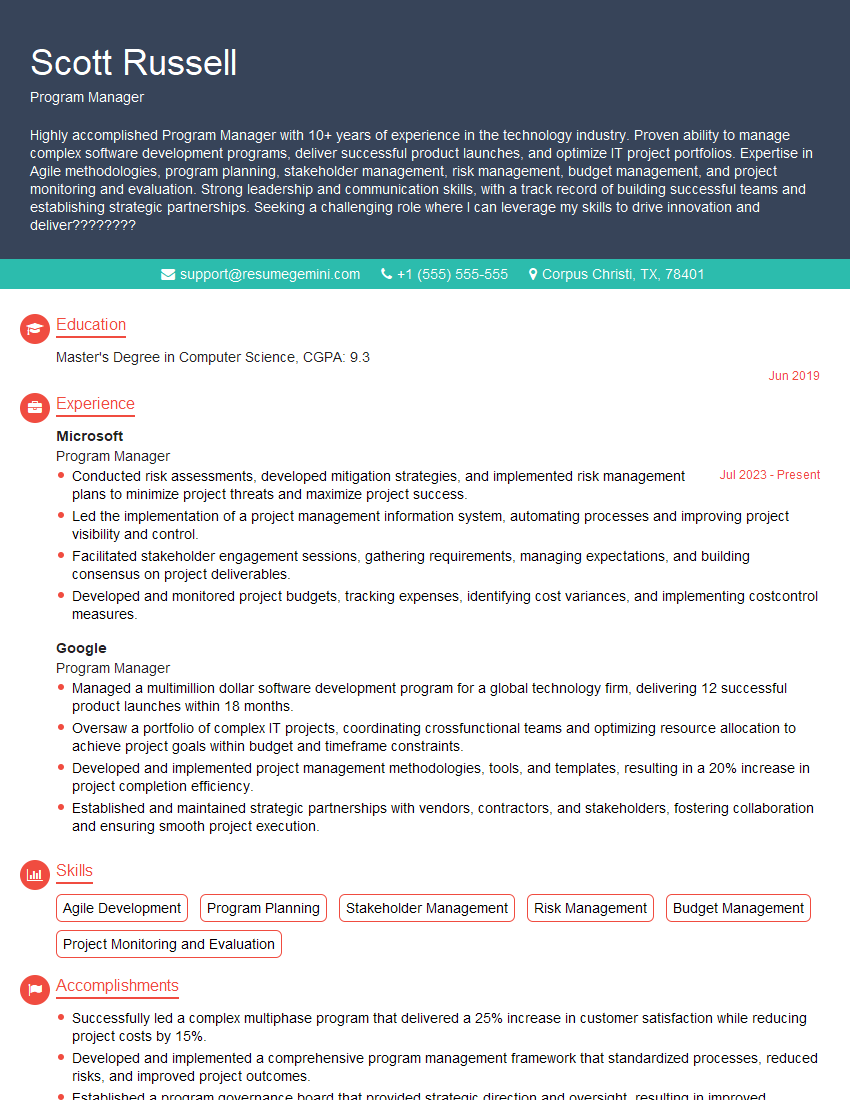
Program Manager Resume Sample

Office Manager Resume Sample
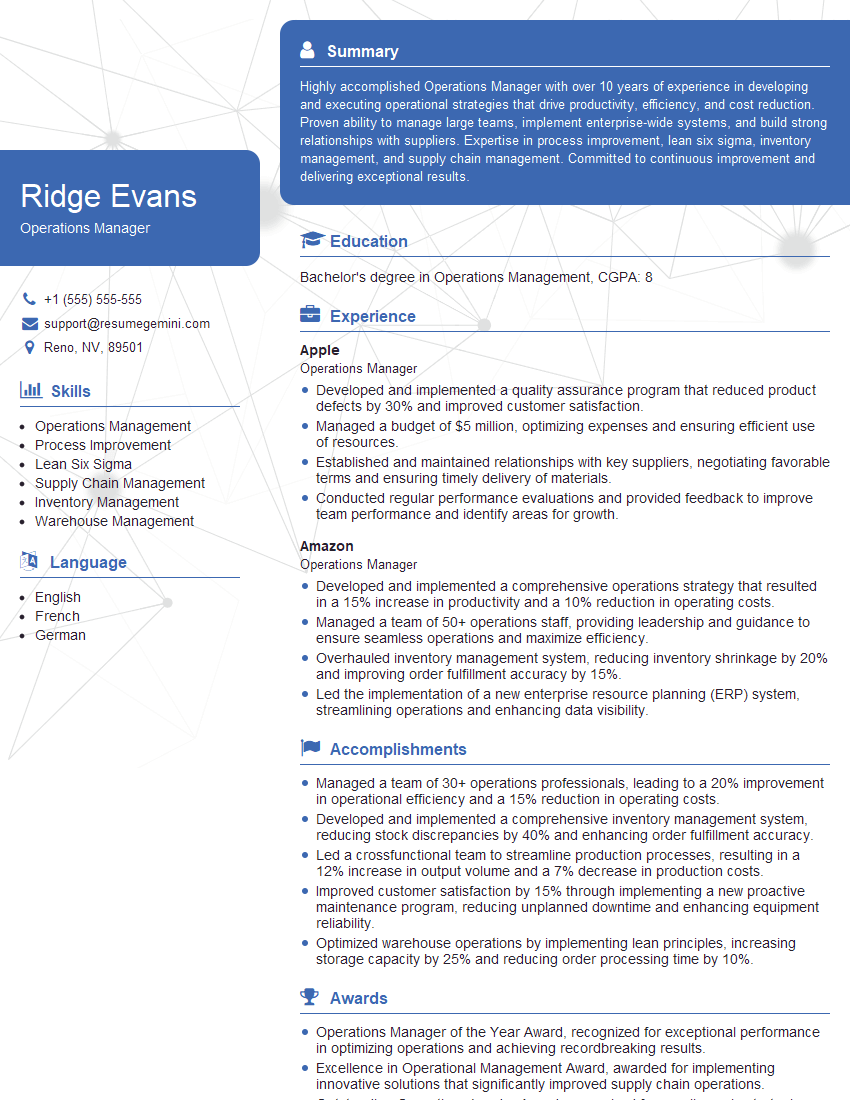
Operations Manager Resume Sample
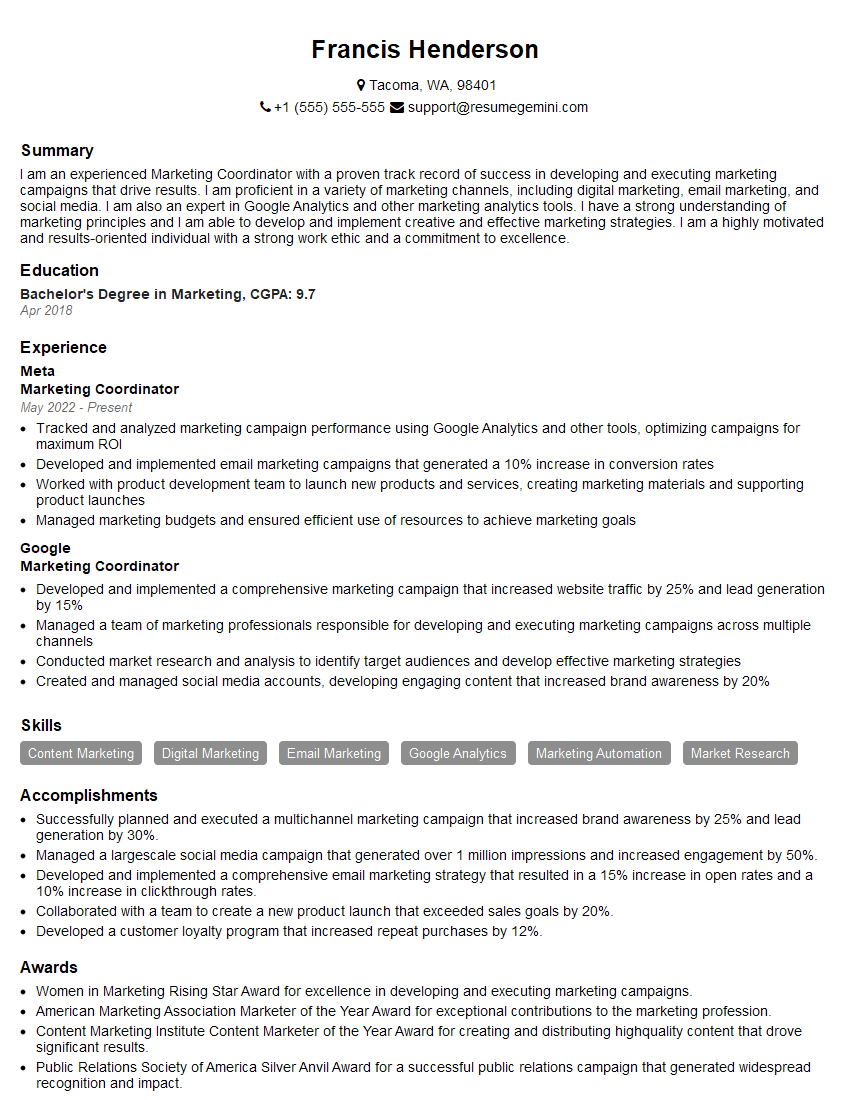
Marketing Coordinator Resume Sample
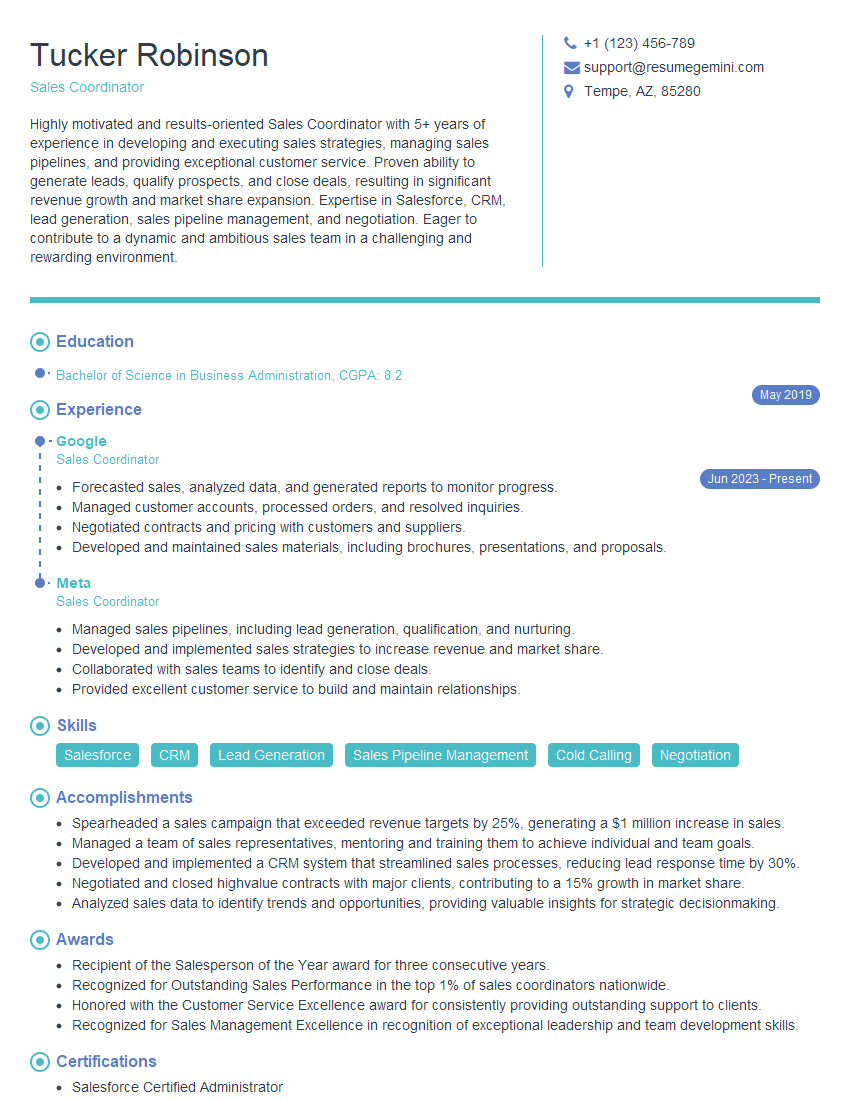
Sales Coordinator Resume Sample

Communications Manager Resume Sample

Administrative Assistant Resume Sample
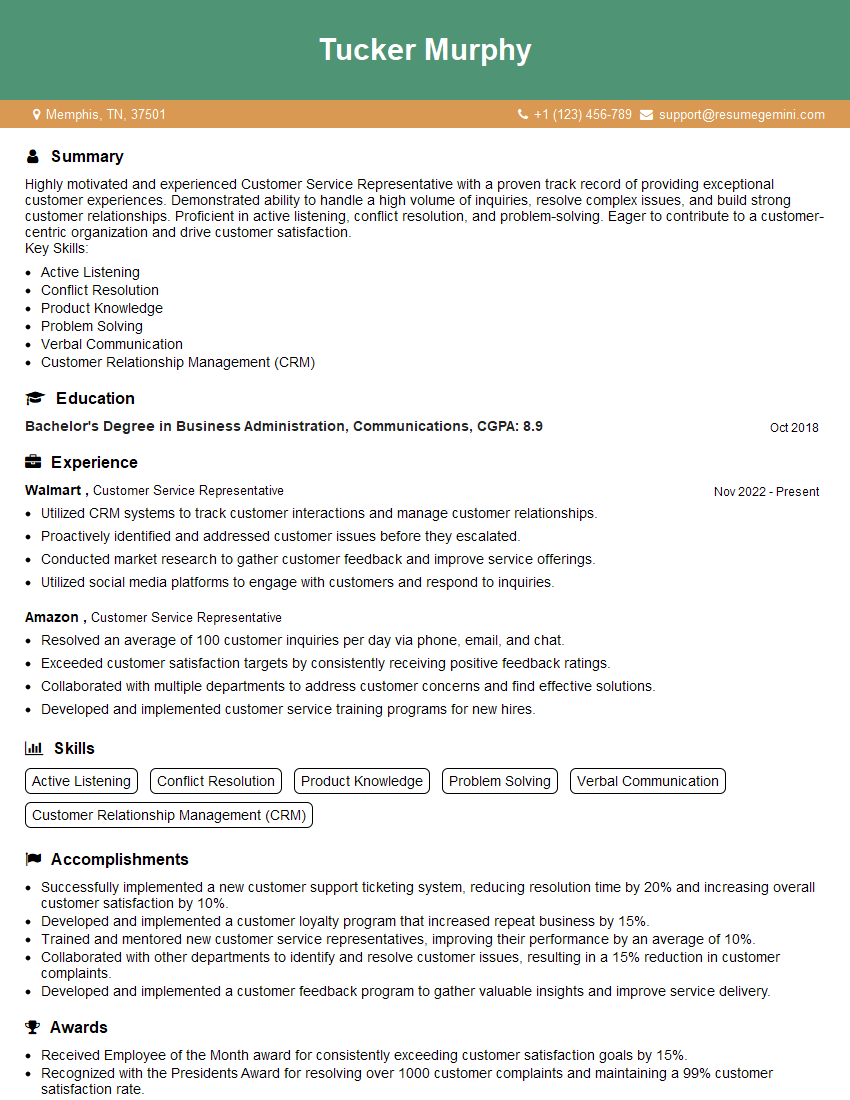
Customer Service Representative Resume Sample
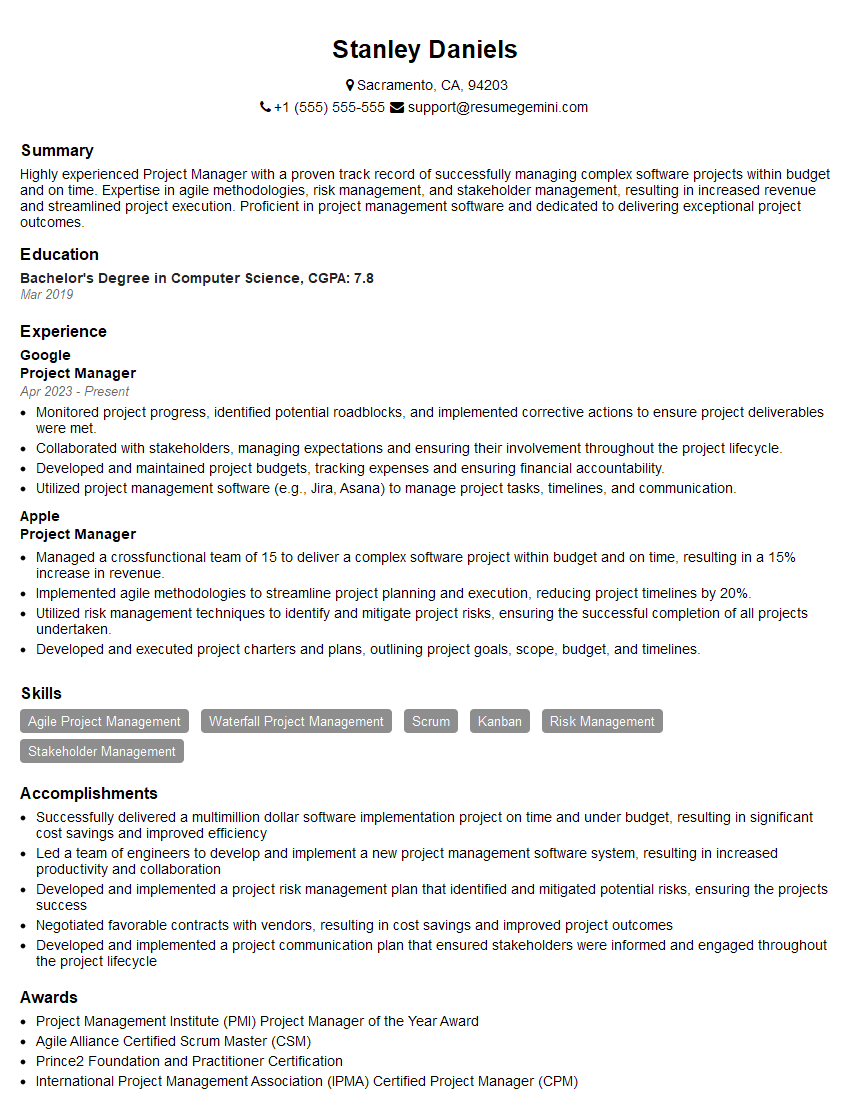
Project Manager Resume Sample

Business Analyst Resume Sample
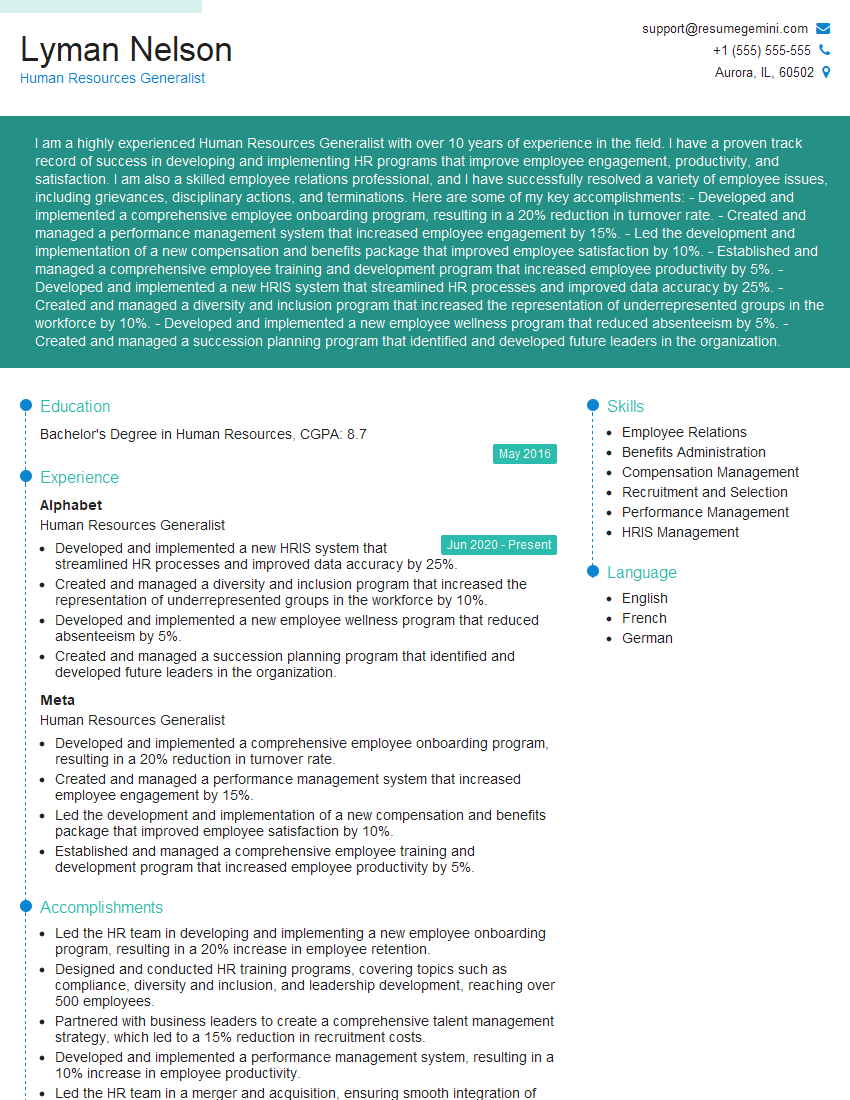
Human Resources Generalist Resume Sample
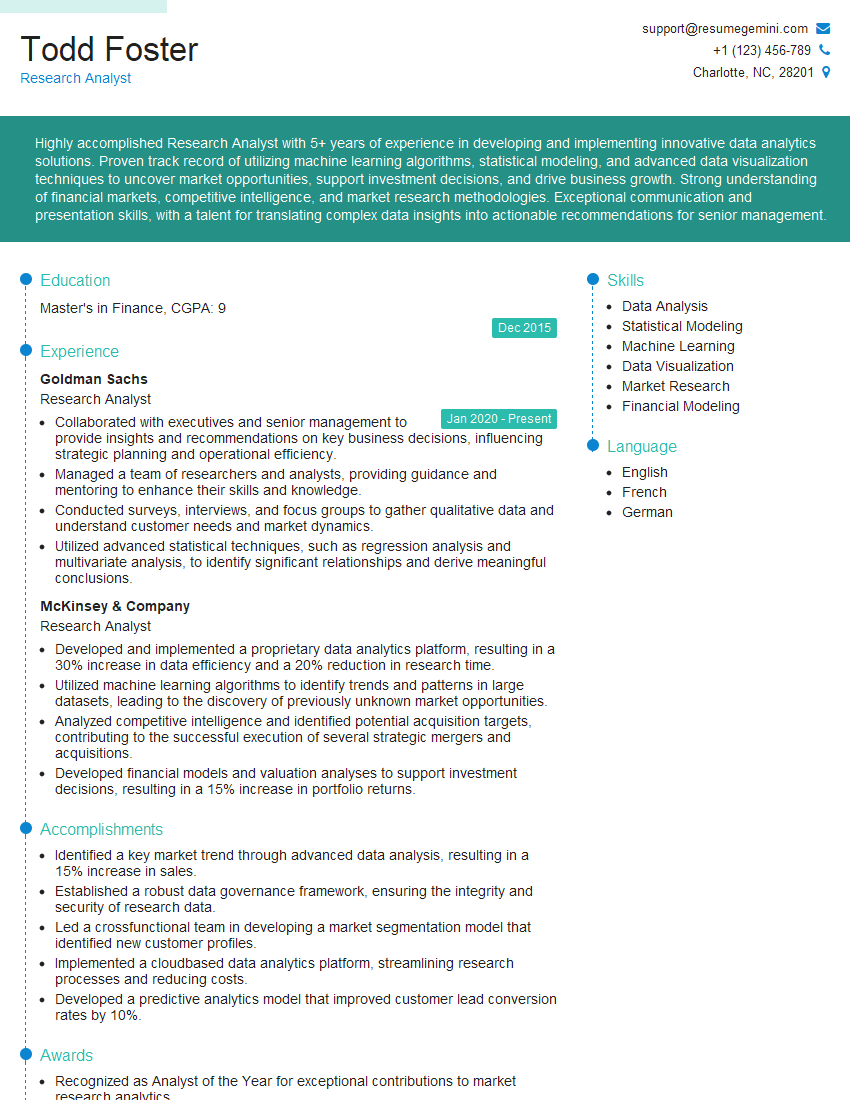
Research Analyst Resume Sample
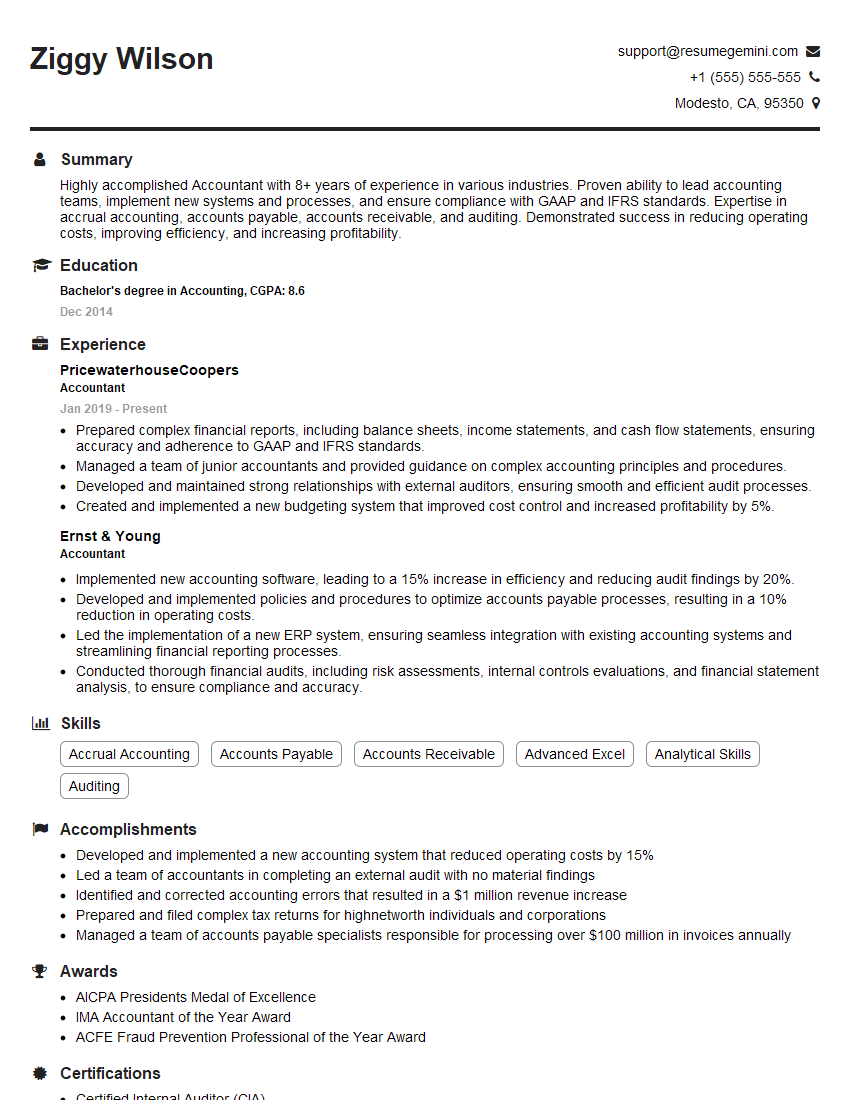
Accountant Resume Sample
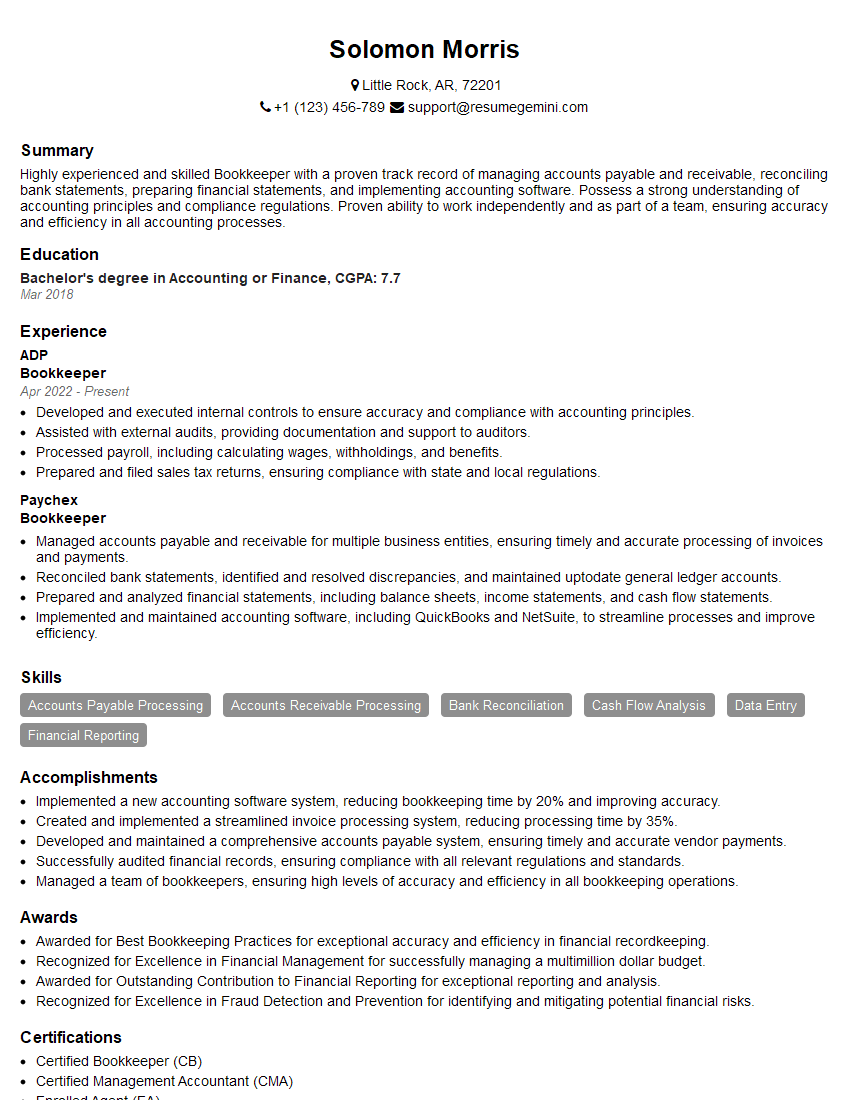
Bookkeeper Resume Sample
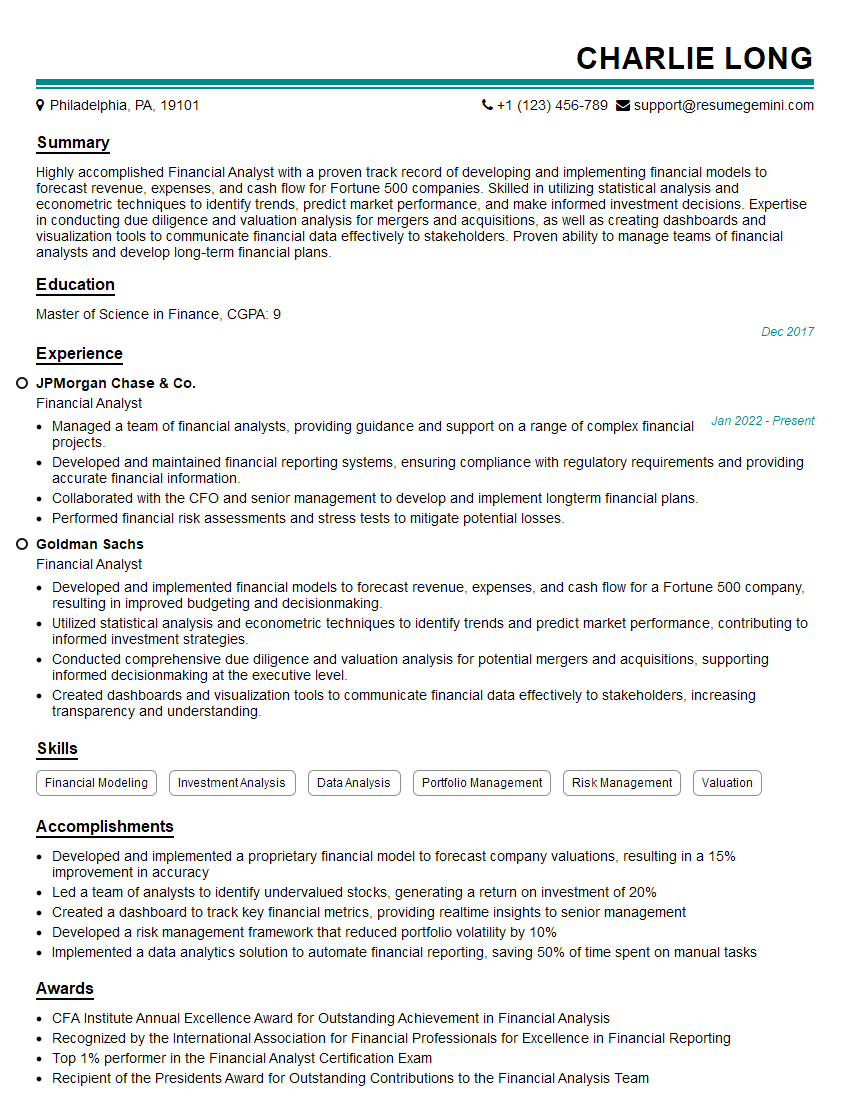
Financial Analyst Resume Sample

Data Analyst Resume Sample
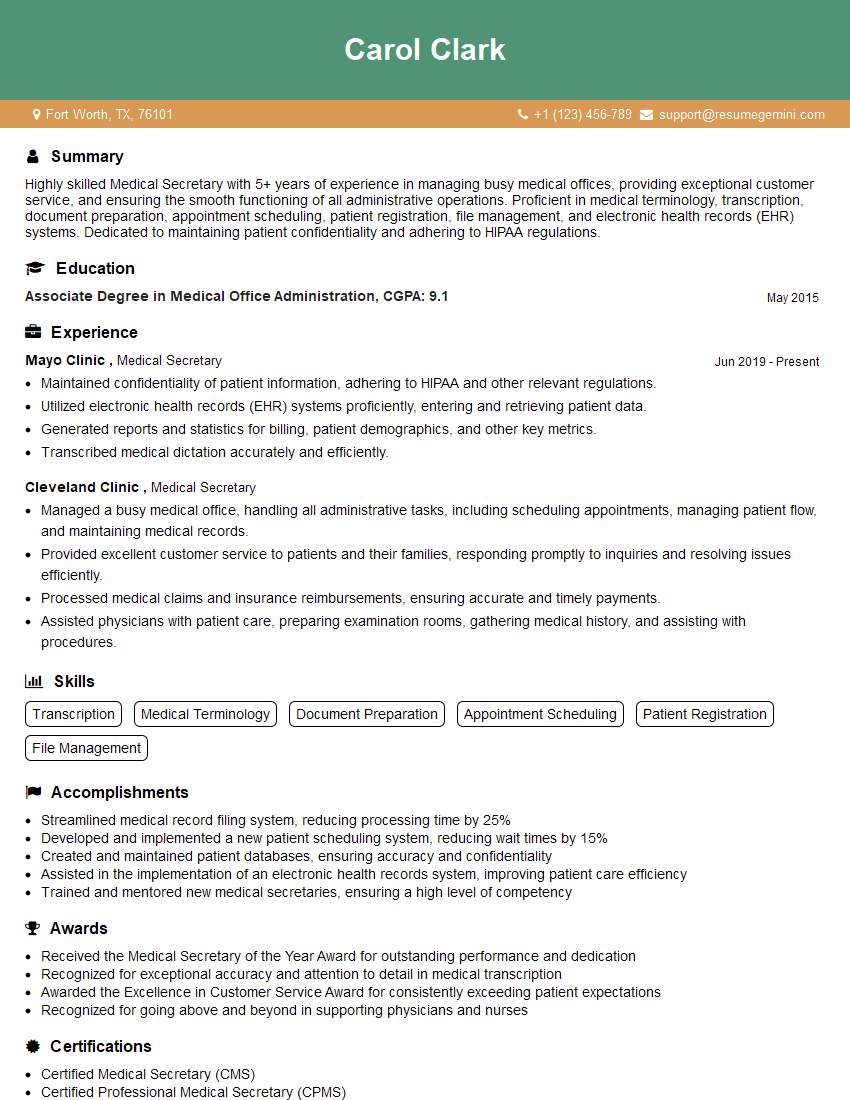
Medical Secretary Resume Sample
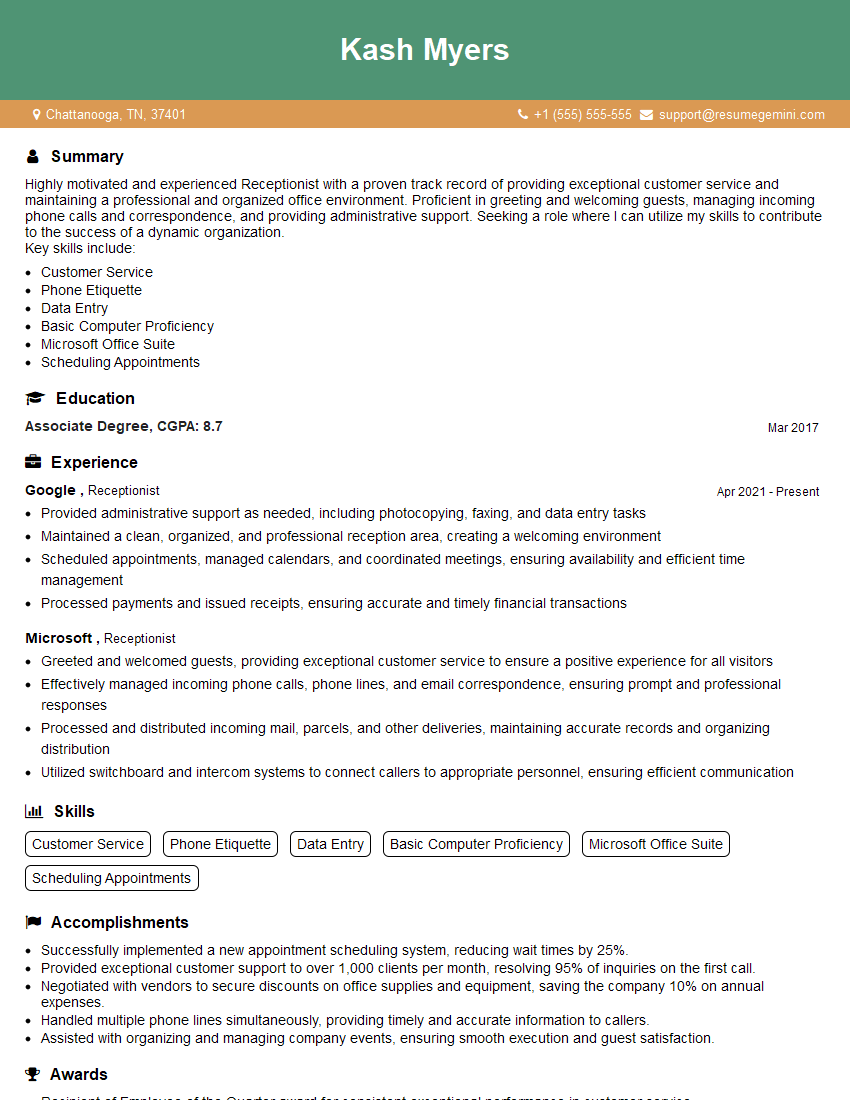
Receptionist Resume Sample

Executive Assistant Resume Sample
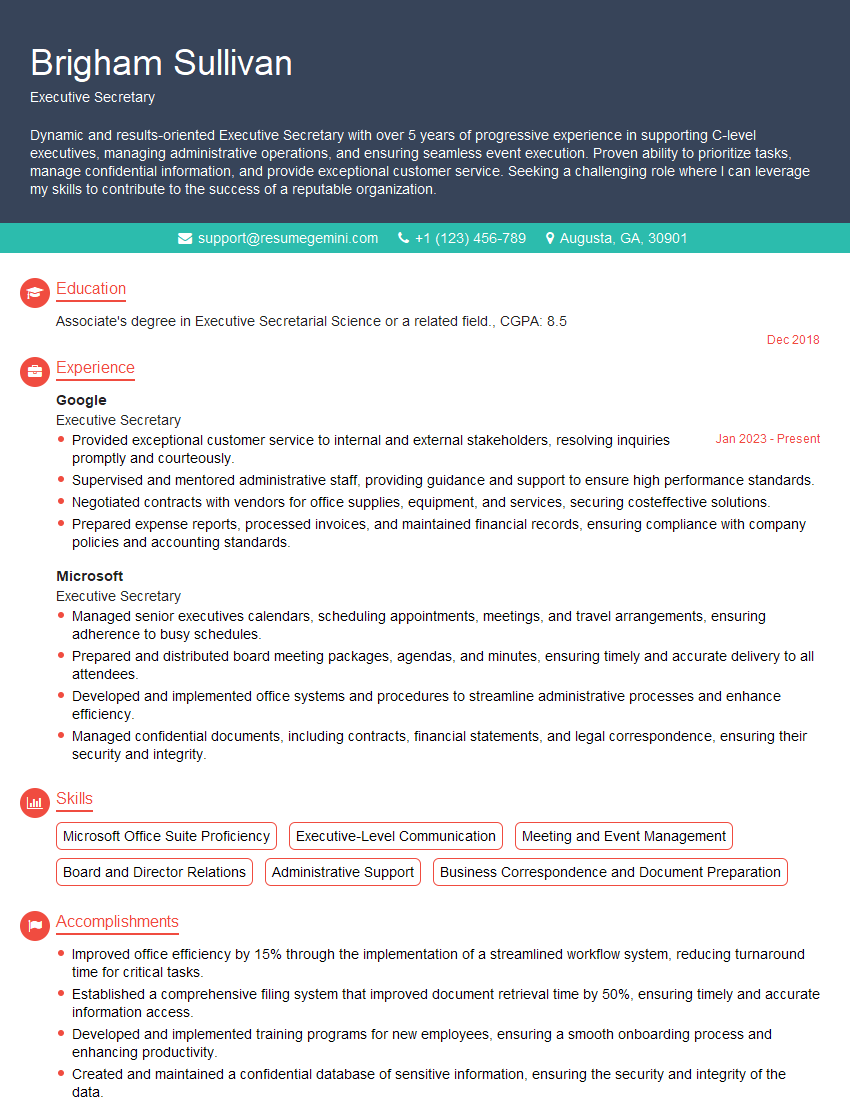
Executive Secretary Resume Sample
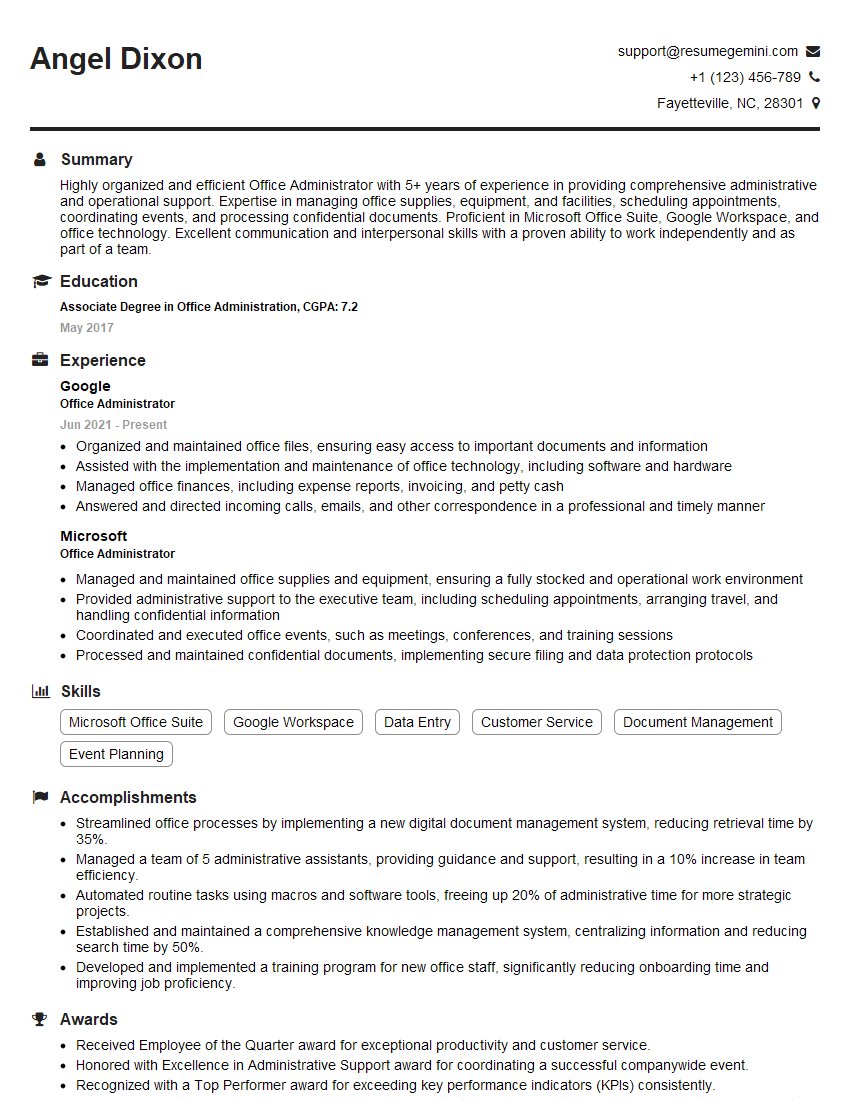
Office Administrator Resume Sample
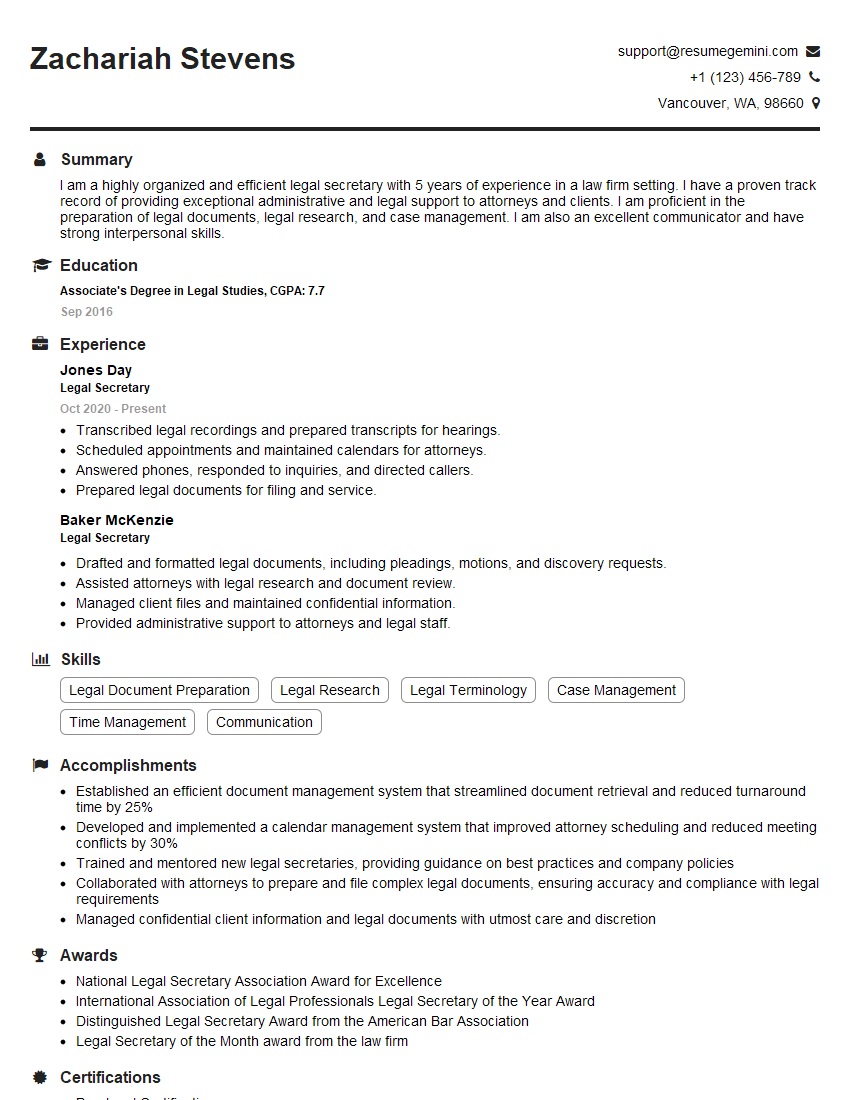
Legal Secretary Resume Sample

Data Entry Clerk Resume Sample
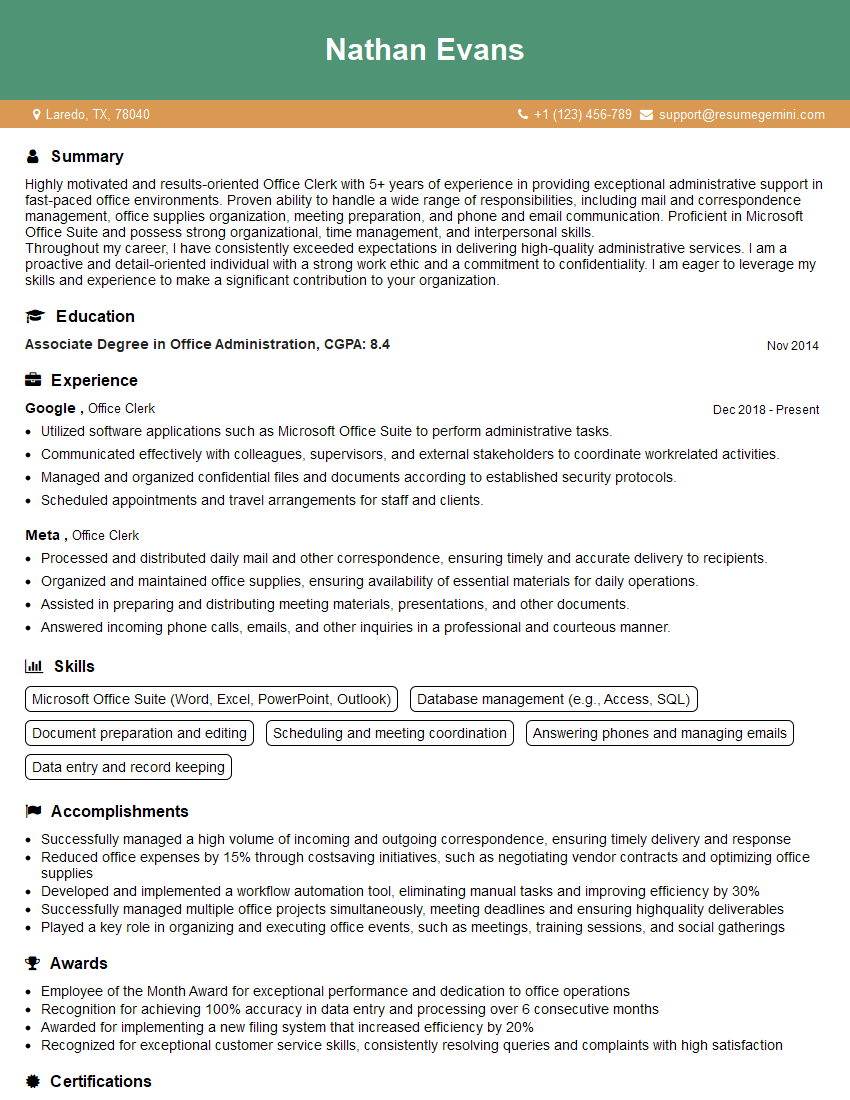
Office Clerk Resume Sample
- Program Manager
- Office Manager
- Operations Manager
- Marketing Coordinator
- Sales Coordinator
- Communications Manager
- Administrative Assistant
- Customer Service Representative
- Project Manager
- Business Analyst
- Human Resources Generalist
- Research Analyst
- Accountant
- Bookkeeper
- Financial Analyst
- Data Analyst
- Medical Secretary
- Receptionist
- Executive Assistant
- Executive Secretary
- Office Administrator
- Legal Secretary
- Data Entry Clerk
- Office Clerk
Explore more articles
Users Rating of Our Blogs
Share Your Experience
We value your feedback! Please rate our content and share your thoughts (optional).
What Readers Say About Our Blog
good