Are you ready to stand out in your next interview? Understanding and preparing for Adobe Photoshop or Similar Image Editing Software interview questions is a game-changer. In this blog, we’ve compiled key questions and expert advice to help you showcase your skills with confidence and precision. Let’s get started on your journey to acing the interview.
Questions Asked in Adobe Photoshop or Similar Image Editing Software Interview
Q 1. Explain the difference between RGB and CMYK color modes.
RGB and CMYK are two different color models used in image editing, each suited for different purposes. RGB (Red, Green, Blue) is an additive color model, meaning colors are created by adding light. This is the standard for screens, like computer monitors and TVs. CMYK (Cyan, Magenta, Yellow, Key – black) is a subtractive color model used in printing. Colors are created by subtracting light from white.
Think of it this way: An RGB screen starts with black and adds light to create colors. A CMYK printer starts with white paper and subtracts light (ink) to create colors. This is why an image that looks vibrant on screen might appear slightly duller when printed – the color spaces are different, and perfect conversion isn’t always possible. For web design, you’ll primarily use RGB. For print projects like brochures or posters, you’ll work in CMYK.
Q 2. Describe the purpose and application of layers in Photoshop.
Layers are the foundation of non-destructive editing in Photoshop. Imagine them as transparent sheets stacked on top of each other. Each layer can contain different elements of your image – a background, text, graphics, etc. The beauty of this is that you can edit individual layers without affecting others. Need to change the color of a subject? Simply edit the layer containing that subject. Want to reposition text? No problem, just move the text layer. This allows for flexibility, experimentation, and easy correction of mistakes without permanently altering your base image. Layers also support layer masks, blending modes, and layer styles, adding significant creative control.
- Organization: Layers help keep your project organized, especially for complex images.
- Non-destructive editing: Changes are made to individual layers without altering the original image data.
- Flexibility: You can easily adjust, reposition, and delete layers without affecting the rest of the image.
Q 3. How do you use adjustment layers to non-destructively edit images?
Adjustment layers are a powerful tool for non-destructive editing. Unlike directly adjusting the image’s color or tone, adjustment layers sit above your image layers and apply their effects without permanently changing pixel data. This allows you to experiment with different effects, and easily tweak settings later without having to redo your work. Examples include Levels, Curves, Hue/Saturation, and Brightness/Contrast. To use them, simply create a new adjustment layer from the Layers panel menu. Then, adjust the settings to your liking. The changes will affect all underlying layers, but you can always modify the adjustment layer’s properties or even delete it entirely.
For example, let’s say you’re editing a portrait. Instead of directly adjusting the image’s brightness, you’d create a Brightness/Contrast adjustment layer. If you later decide the brightness is too high, you can simply adjust the slider in the adjustment layer panel. This maintains the original image data, allowing for flexibility and control throughout your editing process.
Q 4. What are clipping masks and how are they used?
Clipping masks are a way to apply the effects of a layer only to the pixels of the layer directly beneath it. Imagine it like a stencil: only the parts of the top layer that align with the visible parts of the bottom layer are visible. They’re incredibly useful for adding effects or textures to specific areas of an image without affecting the surrounding areas. To create a clipping mask, simply Alt-click (Option-click on Mac) between the two layers in the Layers panel. The top layer will now be clipped to the shape of the layer below.
A practical example would be adding a textured overlay to a product image. By using a clipping mask, the texture will only appear on the product itself, leaving the background unaffected. This helps create a more refined and professional-looking final image.
Q 5. Explain the difference between Smart Objects and regular layers.
Smart Objects and regular layers differ significantly in their editing capabilities. Regular layers edit pixels directly. Smart Objects, however, contain a linked copy of the original image data. Edits made to a Smart Object are non-destructive, meaning you can always revert back to the original image or keep editing the Smart Object without permanently affecting the image’s base pixels. They also support resizing and transformations without losing quality, making them ideal for logos, graphics, or elements that require repeated scaling or manipulation.
Consider a logo. If you place the logo as a Smart Object, you can resize it many times without losing sharpness, as opposed to a regular layer which may become pixelated and blurry upon repeated transformations. Smart Objects also allow for editing the original file which is reflected in all instances of the Smart Object throughout your document.
Q 6. How do you use the healing brush tool effectively?
The Healing Brush tool is essential for seamlessly removing blemishes or unwanted objects from an image. It works by sampling pixels from the surrounding area to blend the imperfections naturally. There are two main types: the Spot Healing Brush and the Healing Brush. The Spot Healing Brush automatically samples and blends, while the Healing Brush requires you to choose a sample area to blend from, giving you more control. The key to effective use is selecting the right brush size and opacity. Start with a small brush and gradually increase the size as needed. Lower opacity can create a more subtle blend, reducing the risk of an unnatural look.
When healing, try to sample from areas with similar tone and texture to the blemish. Multiple smaller brush strokes are often better than one large stroke. Practice makes perfect! Experiment on various images to find the optimal settings for each image’s texture and imperfections.
Q 7. Describe your experience with retouching skin imperfections.
Retouching skin is a common task requiring a delicate balance between improving imperfections and preserving a natural look. I typically use a combination of tools, starting with the Spot Healing Brush or Clone Stamp tool for large blemishes or marks. For fine lines or textures, I might employ the frequency separation technique to address texture and color separately. This allows for more nuanced control over smoothing while maintaining skin pores and other natural texture. The key is subtlety. Over-retouching can lead to an artificial, plastic-like appearance. I frequently use low opacity and soft brush tips to create a smooth but realistic effect. Adjustment layers such as Curves or Levels may also help fine-tune the overall skin tone.
In a professional context, the goal isn’t to make the skin flawless, but to enhance its natural beauty. This involves understanding lighting, skin tones, and subtle variations to create a realistic and visually appealing result. I always consider the overall style and aesthetic of the image when retouching skin to maintain consistency.
Q 8. How do you create and apply custom brushes?
Creating and applying custom brushes in Photoshop opens a world of creative possibilities, allowing you to paint with textures, shapes, and patterns beyond the pre-set options. You can build brushes from scratch or modify existing ones.
Creating a Brush from Scratch:
- Start with a shape: Begin by creating a shape in Photoshop using the Ellipse, Rectangle, or Custom Shape tools. This could be anything from a simple circle to a complex illustration. Ensure the shape is on its own layer.
- Refine the shape (optional): Use tools like the Pen Tool for precise adjustments or the Eraser Tool to clean up edges. Experiment with adding details or texture.
- Define the Brush Preset: Go to
Edit > Define Brush Preset. Give your brush a name and click OK. You’ll find it in the Brushes panel. - Customize Brush Settings: Now, you can further tweak your brush’s behavior using the Brush Panel (Window > Brush). Experiment with settings like Shape Dynamics (for size and angle variations), Scattering (for random placement), and Texture (for adding surface texture). This allows for incredible control over your brushstrokes.
Modifying Existing Brushes:
- Select a brush: Choose a brush from the Brushes panel.
- Adjust settings: Experiment with the Brush Panel settings. For instance, you can change the spacing, angle jitter, and size jitter to create different effects. Consider using the Texture settings to add a paper or fabric texture to your strokes.
Example: Imagine creating a brush from a scanned leaf texture. By adjusting the scattering and shape dynamics, you can paint realistic foliage with unique strokes for each brush mark, much faster than painstakingly drawing each leaf.
Q 9. Explain the process of color correction and color grading.
Color correction and color grading are crucial steps in post-processing images, but they serve distinct purposes. Color correction aims to fix inaccuracies and restore natural colors, while color grading is a stylistic choice used to achieve a specific mood or look.
Color Correction: This process focuses on fixing color imbalances, ensuring skin tones are accurate, and resolving issues like color casts (an unnatural tint across the image). Tools like Levels, Curves, and White Balance are frequently employed.
- Levels: Adjusts the tonal range by modifying the highlights, midtones, and shadows.
- Curves: Offers more precise control over tonal adjustments, allowing for targeted corrections in specific areas of the tonal range.
- White Balance: Corrects color temperature, ensuring that whites appear truly white and correcting any color casts due to different lighting conditions.
Color Grading: This is more about artistic expression. It involves selectively altering colors to create a specific visual style. This might involve introducing a warm or cool tone, increasing saturation in certain areas, or adding a specific color cast to create a specific mood, such as a film noir look or a vibrant fantasy style.
- Color Lookup Tables (LUTs): Preset color transformations which apply a specific color profile to your image.
- Selective Color: Modifies the color mixture of individual color channels (Cyan, Magenta, Yellow, and Black).
- Hue/Saturation: Adjusts the hue, saturation, and lightness of color ranges.
Example: Imagine a landscape photo with a strong blue cast due to an overcast sky. Color correction would focus on neutralizing the blue to reveal the true colors of the scene. Color grading might then involve warming the overall tones, perhaps deepening the shadows and saturating the greens for a more dramatic effect.
Q 10. How do you work with different file formats (JPEG, TIFF, PNG)?
Understanding the strengths and weaknesses of different file formats is key to maintaining image quality and optimizing file size for specific uses. Each format serves a unique purpose.
JPEG (JPG): A lossy compression format. It offers good compression, resulting in smaller file sizes, making it ideal for web use and situations where file size is a priority. However, repeated saving will degrade image quality. Not ideal for print or situations where preserving fine details and colors are crucial.
TIFF: A lossless format that preserves all image data. It is the standard for high-quality print work, archiving, and situations where lossless preservation of detail is critical. However, file sizes are significantly larger than JPEGs.
PNG: A lossless format excellent for images with sharp lines and text, especially those containing transparency (alpha channel). Often used for web graphics, logos, and illustrations where crisp edges are necessary. Compression is generally less than JPEG, resulting in larger files than JPEG but smaller than TIFF for images with transparent backgrounds.
Workflow Considerations:
- Web Design: JPEGs and PNGs are commonly used; JPEG for photographs and PNG for graphics with transparency.
- Print Design: TIFF is preferred for print production because of its lossless compression.
- Archiving: TIFF is ideal for storing master copies of images to preserve quality.
Example: For a website, I would use JPEGs for photos and PNGs for logos to balance image quality and file size. When preparing images for high-resolution printing, I would always opt for TIFF to maintain detail.
Q 11. What is the purpose of Actions in Photoshop?
Actions in Photoshop automate repetitive tasks, streamlining workflows and saving significant time. They record a series of steps and replay them with a single click, ensuring consistency and efficiency.
Creating an Action:
- Open the Actions panel: Go to
Window > Actions. - Create a new set: Click the Create new set icon at the bottom of the panel.
- Create a new action: Click the Create new action icon at the bottom of the panel. Give it a name and assign a function key (optional).
- Record the steps: Click the Record button and perform the desired steps in Photoshop. Everything you do will be recorded into the action.
- Stop recording: Click the Stop button once the steps are complete.
Using an Action:
- Select the action: Choose the action from the Actions panel.
- Play the action: Click the Play button or press the assigned function key. Photoshop will automatically perform all the recorded steps.
Applications:
- Batch processing: Apply the same edits to multiple images quickly.
- Watermark addition: Automatically add a watermark to a series of images.
- Image resizing and sharpening: Create a consistent workflow for preparing images for web or print.
Example: I often create actions for resizing images to specific dimensions, sharpening them, and adding my watermark. This automates a repetitive task, saving me considerable time when processing multiple images for client delivery.
Q 12. Explain your experience with using Photoshop for web design.
Photoshop is invaluable for web design, from creating website banners and button graphics to manipulating photographs and generating textures. My experience includes using Photoshop extensively to produce assets for various website projects.
Specific Applications in Web Design:
- Creating website mockups: I use Photoshop to design website layouts and visual representations before implementation in coding.
- Designing web graphics: This encompasses icons, buttons, banners, and other visual elements requiring precise control over shapes, colors, and text.
- Image manipulation and optimization: This includes resizing images, adjusting colors and contrast, and optimizing file formats (JPEG, PNG) for web performance.
- Creating website assets with transparency: Utilizing PNGs to create elements with transparency for seamless integration into website designs.
- Slice and Export for web: Using the Slice Tool to divide images into smaller chunks for efficient web page loading, optimized for different screen sizes.
Example: Recently, I created a series of responsive banner ads for a client using Photoshop. I designed the banners in high resolution, then used Photoshop’s slicing features to export them in appropriately sized versions for different screen resolutions (desktop, tablet, mobile).
Q 13. Describe your workflow for creating a composite image.
My workflow for creating a composite image is methodical and focuses on ensuring seamless integration and realistic results. It’s a blend of technical skill and artistic vision.
Step-by-step Workflow:
- Gather Source Images: Collect high-resolution images of the elements you want to combine.
- Background Preparation: Choose a strong base image for your background and prepare it; this may involve color correction, adjustments to contrast or brightness, and potentially removing distracting elements.
- Element Selection and Extraction: Carefully select and extract the elements from their original images using tools like the Pen Tool, Lasso Tool, or Quick Selection Tool. Paying close attention to the edges is crucial to maintaining realism.
- Size and Position Adjustment: Resize and position the extracted elements within the background, considering perspective, lighting, and scale.
- Color and Lighting Matching: Adjust the colors and lighting of the extracted elements to match the background seamlessly. Using adjustment layers (Curves, Levels, Color Balance) is crucial for precise control.
- Masking and Blending: Use masks to refine the edges of the elements and blend them smoothly into the background. Experiment with blending modes to achieve the desired effect.
- Refinement and Detailing: Add details and refinements to create a more realistic and believable composition. This might include adding shadows, highlights, or texture.
- Final Adjustments: Make final adjustments to color, contrast, and sharpness before saving your final image.
Example: I recently created a composite image of a person standing on a mountain top overlooking a vast landscape. I meticulously selected the person from one image, matched the lighting and colors to the mountaintop image, and used layer masks to create a natural transition.
Q 14. How do you resize images while maintaining image quality?
Resizing images without losing quality requires careful consideration of the resizing method and the image format. Simply enlarging an image using a standard interpolation method will result in pixelation.
Methods for Resizing While Maintaining Quality:
- Image Upscaling: If you need to enlarge an image, consider using AI-powered upscaling techniques which intelligently fill in missing detail. Software such as Topaz Gigapixel AI or Photoshop’s own upscaling algorithms can improve quality compared to simpler methods. However, it doesn’t create true detail, it’s an educated guess.
- Downscaling: Reducing image size (downscaling) is generally less problematic, as you’re removing pixels, not creating them. Use bicubic interpolation to minimize loss of detail.
- High-Resolution Source Material: Start with the highest resolution image possible. The more information you have in the original, the better the results after resizing.
- Saving in Lossless Formats: When saving the resized image, using a lossless format like TIFF or PNG will preserve more information compared to lossy formats like JPEG.
Example: When preparing an image for large-format printing, I would start with a very high-resolution image. If downscaling were required for the web, I would use bicubic resampling to minimize quality loss and ensure a sharp result.
Q 15. What are different ways to select specific areas in an image?
Selecting specific areas in an image is fundamental to image editing. Photoshop offers a variety of selection tools, each suited to different tasks and image characteristics. Think of it like choosing the right tool from a toolbox – a hammer for nails, a screwdriver for screws.
- Marquee Tools (Rectangular, Elliptical, Single Row, Single Column): These are great for selecting perfectly rectangular or elliptical areas. Imagine cropping a perfectly square photo or selecting a circular object.
- Lasso Tools (Regular, Polygonal, Magnetic): The Lasso tools provide freehand selections. The Regular Lasso is for precise, hand-drawn selections; the Polygonal Lasso allows you to create straight-edged selections by clicking points; and the Magnetic Lasso intelligently snaps to edges, making it ideal for selecting objects with defined borders against a contrasting background – think of selecting a person against a plain backdrop.
- Magic Wand Tool: This tool selects pixels of similar color and tone. It’s perfect for quickly selecting large areas of uniform color, like a blue sky or a solid-colored wall. You can adjust the tolerance setting to control how similar the pixels need to be.
- Quick Selection Tool: This tool intelligently selects areas based on color and edge detection. It’s a fast way to select larger areas, but you might need to refine the selection afterwards using other tools.
- Object Selection Tool: This tool is perfect for selecting objects in an image using AI, automatically detecting and selecting the object with minimal manual intervention.
The choice of tool depends heavily on the image and the desired selection. For instance, I might use the Magnetic Lasso for selecting a person from a photograph, but the Magic Wand for selecting a large area of a single color.
Career Expert Tips:
- Ace those interviews! Prepare effectively by reviewing the Top 50 Most Common Interview Questions on ResumeGemini.
- Navigate your job search with confidence! Explore a wide range of Career Tips on ResumeGemini. Learn about common challenges and recommendations to overcome them.
- Craft the perfect resume! Master the Art of Resume Writing with ResumeGemini’s guide. Showcase your unique qualifications and achievements effectively.
- Don’t miss out on holiday savings! Build your dream resume with ResumeGemini’s ATS optimized templates.
Q 16. Explain your experience with masking techniques.
Masking is a non-destructive editing technique crucial for precise image manipulation. It’s like using a stencil – you can reveal or hide parts of an image without permanently altering the original pixels. I extensively use layer masks and vector masks.
Layer Masks: These allow me to hide or reveal portions of a layer without affecting the underlying layers. Think of it as painting on a layer’s transparency. Black hides, white reveals, and shades of gray create varying degrees of transparency. This is invaluable for compositing images (combining multiple images), retouching portraits (removing blemishes), and selective color adjustments. For example, I might use a layer mask to selectively apply a blur effect to a specific part of an image without blurring the entire thing.
Vector Masks: These are created using vector shapes (like paths from the Pen tool) and are resolution-independent, meaning they won’t lose quality when scaled. They’re perfect for making precise selections, especially with complex shapes and curves that wouldn’t be easy to select with other tools. I often use vector masks when working with logos or intricate designs that require sharp, clean edges.
My experience includes leveraging both mask types to create seamless compositions, intricate retouches, and complex selections where pixel-perfect precision is paramount. The non-destructive nature of masking allows me to easily refine or adjust my work at any stage without fear of making irreversible changes.
Q 17. How do you use the pen tool to create precise selections?
The Pen tool is a powerful tool for creating precise selections, especially when dealing with complex shapes or curved lines. It allows for creating vector paths, which can then be converted to selections. Think of it as drawing with incredibly precise control.
To create precise selections:
- Create a Path: Click to set anchor points along the edge of your subject. For curves, add anchor points and drag the handles to adjust the curve’s shape. Be patient and meticulous; accuracy is key.
- Refine the Path: Zoom in to ensure your path accurately follows the contours of your subject. Use the Direct Selection Tool (A) to adjust individual anchor points and handles after the path is created.
- Convert to Selection: Once you’re satisfied, right-click on the path and choose ‘Make Selection’. Adjust the ‘Feather’ radius (to soften the edges of the selection) and ‘Anti-alias’ (to smooth the selection edges) as needed. This controls the softness and precision of your final selection.
I often use the Pen tool when I need pixel-perfect accuracy for tasks like isolating objects for compositing or creating detailed cutouts. The precision offered by the Pen tool is unparalleled, especially in situations requiring precise masking or clipping.
Q 18. Explain your experience with using filters in Photoshop.
Filters in Photoshop are powerful tools for non-destructive image enhancement and creative effects. They allow you to modify an image without permanently changing the original pixel data. I consider them an essential part of my workflow.
My experience ranges across various filter categories:
- Sharpening Filters (Unsharp Mask, Smart Sharpen): Used to enhance detail and improve clarity, particularly helpful in low-resolution images or images needing a crisp look.
- Blur Filters (Gaussian Blur, Motion Blur, Radial Blur): Used to soften images, create depth of field effects, or achieve artistic blurs.
- Distortion Filters (Liquify, Wave): Used to creatively warp or distort images for artistic effects or minor corrections (like removing wrinkles or slimming a subject).
- Stylization Filters (Find Edges, Glowing Edges): Used to create artistic effects by emphasizing specific image characteristics.
- Noise Reduction Filters: Used to reduce graininess or digital noise, improving image quality.
I often utilize Smart Filters, a non-destructive approach allowing adjustments to be modified even after application. I carefully select filters based on the desired effect and always preview the results before committing. The choice of filter is heavily dependent on the image’s content and the intended outcome. For example, I’d use a Gaussian Blur to soften a background in a portrait, but a Smart Sharpen to enhance the subject’s facial details.
Q 19. What are your preferred methods for sharpening images?
Sharpening images requires a delicate balance – too much, and the image becomes grainy and artificial; too little, and it remains dull. My preferred methods prioritize preserving image detail while enhancing sharpness.
- Smart Sharpen: This filter offers precise control over sharpening parameters like Amount, Radius, and Reduce Noise. I often tweak these settings depending on the image’s details and noise levels. It’s non-destructive, allowing for adjustments later on.
- Unsharp Mask: A classic sharpening filter that’s quick and efficient for most images. While less feature-rich than Smart Sharpen, it’s still effective for basic sharpening needs.
- High Pass Sharpening: This technique involves duplicating the layer, applying a high-pass filter, and changing the blend mode to Overlay or Soft Light. This is a very effective method for subtle sharpening whilst maintaining a natural look.
Before sharpening, I usually assess the image for noise and adjust accordingly. If an image is very noisy, I’ll address the noise first to prevent over-sharpening emphasizing the noise artifacts. My approach is always iterative – I’ll apply sharpening subtly, evaluate the results, and make further adjustments until I achieve the desired level of sharpness without introducing artifacts. It’s all about finding that sweet spot between crispness and preserving a natural look.
Q 20. How do you manage large image files effectively?
Managing large image files effectively is essential for maintaining workflow efficiency and preventing software crashes. My strategies include:
- Working with Smart Objects: Smart Objects are non-destructive containers for layers or images, allowing for lossless scaling and editing without affecting original image quality, even when dealing with massive files. This ensures that no matter how many adjustments I make, my original file remains uncompromised.
- Using Proxies: For extremely large images, creating a lower-resolution proxy for editing significantly speeds up the workflow. Once satisfied with edits, I can then work on the full resolution image.
- Layer Comps: This feature enables saving different versions of an image without duplicating the file. It keeps different versions in one file and switching between them is instantaneous. This is invaluable for comparing multiple edits and revisions.
- Saving in Optimized Formats: I use lossy compression formats like JPEG for web images and lossless formats like TIFF or PSD for archiving and further editing. This approach keeps file sizes manageable without sacrificing image quality when appropriate.
- Using External Storage: To prevent computer strain and improve speed, especially when working with many large files, using an external SSD drive is crucial.
My goal is always to balance image quality with file management efficiency. By strategically employing these techniques, I can handle large files effectively, avoid slowdowns, and maintain the integrity of my images throughout the editing process.
Q 21. Describe your understanding of resolution and DPI.
Resolution and DPI (dots per inch) are crucial aspects of image quality and printing. Understanding their relationship is vital for producing high-quality output.
Resolution: refers to the number of pixels in an image. A higher resolution (e.g., 3000 x 2000 pixels) means more detail and sharper images. It’s represented as pixels per inch (PPI) which does not affect the printed output unless specifically changed.
DPI (dots per inch): refers to the number of ink dots printed per inch on a physical print. DPI is relevant only for printed output, determining the print’s sharpness and quality. A higher DPI generally leads to a finer print, but also a larger file size. The PPI is used when the image is viewed digitally. If you’re printing an image with a PPI of 72 and a DPI of 300, the image will be smaller than if the PPI were 300 as well.
Consider this analogy: Resolution is like the number of bricks in a wall (more bricks mean more detail). DPI is like how closely those bricks are placed together when building the actual wall (closer placement means more detail in the final wall).
For web images, a resolution of 72 PPI is usually sufficient. However, for print, a resolution of 300 DPI is generally recommended to achieve sharp, high-quality prints. Failing to consider these factors can lead to blurry or pixelated prints, even if the image looks fine on screen. Mismatching these values can result in suboptimal prints.
Q 22. How do you create a vector shape from a raster image?
Converting a raster image (like a JPG or PNG) into a vector shape (like an SVG or AI) involves tracing its outlines. Raster images are made of pixels, while vectors are made of mathematical equations defining lines and curves. This means a vector image can be scaled infinitely without losing quality, unlike a raster image.
In Photoshop, you can’t directly convert a raster image *into* a vector; you create a *vector representation* of it. The most common method is using the Image Trace feature (if available in your version – it’s more robust in Illustrator). Alternatively, you can manually trace the image using the Pen Tool.
- Image Trace: This automates the process. You’d open your raster image, go to
Image > Image Trace(or a similar menu option depending on your Photoshop version), and experiment with the preset options or customize the settings (paths, corners, etc.) to achieve the desired level of detail and vectorization. The result is a vector shape layer that you can then edit. - Pen Tool (Manual Tracing): For more control and finer details, use the Pen Tool (
P). Carefully click around the edges of the image to create vector paths. This takes longer, but you have complete control over the final result. Think of it like meticulously drawing over the image with perfectly smooth lines.
For example, imagine you have a photograph of a leaf. Using Image Trace, you can quickly generate a vector shape representing its outline. Manual tracing would allow you to even refine the veins of the leaf for a more intricate vector illustration. The resulting vector can then be used in other applications like Illustrator or even for laser cutting designs.
Q 23. How familiar are you with using Photoshop with plugins?
I have extensive experience integrating plugins into my Photoshop workflow. Plugins significantly expand Photoshop’s capabilities, adding features that Adobe might not provide directly or offering specialized tools for particular tasks.
I’ve worked with various types, including:
- Filter plugins: These add new effects and filters, allowing for unique creative manipulations beyond Photoshop’s built-in options. Examples include Topaz Labs’ suite for sharpening and noise reduction, or Nik Collection for advanced color grading.
- Productivity plugins: These streamline workflows and enhance efficiency. A common example would be a plugin that automates batch renaming and resizing of images, saving significant time.
- File format plugins: These enable the opening and saving of file formats not natively supported by Photoshop.
My approach involves researching and selecting plugins based on specific needs. For instance, if I need to create a highly realistic HDR image, I’d choose a specific HDR plugin. The installation and integration process is typically straightforward – usually just downloading and installing the plugin, then restarting Photoshop. I then carefully explore the plugin’s functionalities and learn its unique parameters to ensure optimal use in my projects.
Q 24. How do you optimize images for web use?
Optimizing images for web use involves reducing file size without significantly compromising quality. This is crucial for fast loading times and improved user experience. The key factors are file format, dimensions, and compression.
- File Format: For photographs, JPEG is generally preferred due to its good compression ratio. For images with sharp lines and text, PNG is better as it supports transparency and lossless compression (no quality loss).
- Dimensions: Resize images to the exact dimensions required for their intended use on the web. Avoid unnecessarily large images. Web-optimized dimensions are commonly found on sites using image galleries or blog platforms.
- Compression: Use Photoshop’s
Save for Web (Legacy)(or the updatedExport Asfunction) to control the level of compression. Higher compression means smaller file size but potentially slightly lower quality. The ‘Save for Web’ function provides a preview to see the changes and balance the quality/size trade off.
For example, before uploading a product image to an e-commerce site, I would resize it to the dimensions specified by the site (e.g., 800×600 pixels), save it as a JPEG, and experiment with the compression settings in ‘Save for Web’ to find the best balance between file size and visual fidelity. Using this systematic method ensures images load quickly and maintain visual appeal.
Q 25. Explain your experience with using Photoshop actions for batch processing?
Photoshop Actions are incredibly useful for batch processing. They allow you to record a sequence of steps and then apply them to multiple images automatically, saving considerable time and effort. This is invaluable when working with large numbers of images requiring similar edits.
My experience involves creating actions for various tasks, such as:
- Batch resizing and renaming: Creating a consistent image size and naming convention across a large set of images is crucial for organization.
- Applying filters and adjustments: Applying the same filter or color correction to numerous images consistently is effortless with actions.
- Watermarking: Adding watermarks to protect copyright across a collection of images.
For instance, I created an action to automatically resize all images in a folder to 1024 x 768 pixels, apply a specific sharpening filter, and add a watermark with my logo. This eliminated tedious manual work for hundreds of images. The process of creating an action usually involves recording the actions one performs manually. Then, executing it on a batch of images is usually accomplished through the ‘Batch’ processing window in Photoshop’s ‘Actions’ palette.
Q 26. Describe your experience using layer styles.
Layer Styles are a powerful feature allowing you to add effects to layers non-destructively. This means you can modify the effects at any time without altering the original image data. This is especially important for maintaining editing flexibility and creating reusable styles.
I extensively utilize Layer Styles for:
- Adding shadows and glows: Creating depth and dimension in images.
- Applying gradients and textures: Adding visual interest and stylistic elements.
- Creating bevels and emboss effects: Giving text and shapes a three-dimensional appearance.
- Creating custom styles: I often build a library of custom layer styles to ensure consistency and speed up my workflow. A consistent style sheet for project branding greatly enhances efficiency.
For example, when designing a logo, I use Layer Styles to add a subtle drop shadow and inner glow, giving it a clean and professional appearance. The benefit is that I can easily adjust the intensity of these effects later if necessary, without affecting the original logo design. This non-destructive editing is crucial for flexibility in the design process.
Q 27. What is your preferred method for creating seamless textures?
Creating seamless textures involves making sure the edges of the texture seamlessly blend together when repeated. This is crucial for tiling textures in 3D modeling or background designs. There are several methods, but my preferred approach involves utilizing Photoshop’s offset feature and careful masking.
My process typically involves:
- Creating a large base image: Begin with a larger canvas than the final desired texture size to allow for overlapping and blending.
- Offsetting the image: Duplicate the layer and offset it horizontally and/or vertically so the edges overlap. The precise offset amount depends on the texture and its repeating pattern.
- Blending modes: Experiment with different blend modes (like ‘Overlay’ or ‘Soft Light’) to create a smooth transition between the overlapping edges. The best blend mode may need adjusting depending on the colors of your texture.
- Masking: Use a mask to carefully erase any visible seams or discontinuities, ensuring a smooth transition. This often requires careful manual refinement.
For example, when creating a seamless wood texture, I’d create a large image of wood grain, offset it, and carefully blend the edges using a combination of blend modes and masking. The final result would be a tileable texture that appears continuous when repeated, without any noticeable seams or breaks in the pattern.
Q 28. How do you handle color inconsistencies across different images?
Color inconsistencies across different images are a common issue, often caused by variations in lighting, camera settings, or image processing. Addressing this requires careful color correction and matching.
My approach involves:
- Using adjustment layers: I prefer adjustment layers (like Levels, Curves, Color Balance) to non-destructively correct color balance in each image independently, avoiding direct modification of the original pixel data.
- Matching color profiles: Ensure all images are using the same color profile (e.g., sRGB) to establish a common baseline for comparison.
- Using the Color Sampler Tool: This helps to identify specific color values within the target image and then applying those same color values to the images needing adjustments. I often use several sample points to account for color variations within a single image.
- Reference Image: Choosing a reference image (the most color-accurate image) can serve as a guide for matching color balance in other images. In this instance, I work to match all other images to this reference.
Imagine I’m editing photos from a product photoshoot with slight color variations. I might select the most accurately colored shot as my reference. I then adjust the color balance of the other images, using adjustment layers and the Color Sampler Tool, to match the color tones and overall balance of the reference image. The result is a series of images with a consistent and professional look.
Key Topics to Learn for Adobe Photoshop or Similar Image Editing Software Interview
- Image Manipulation Fundamentals: Understanding layers, blending modes, and adjustment layers. Practical application: Explain how you’d retouch a product image for e-commerce, highlighting your use of specific tools and techniques.
- Selection Tools and Masking: Mastering various selection tools (lasso, pen, magic wand) and creating precise selections using masks. Practical application: Describe a scenario where you used masking to isolate and manipulate a specific element within a complex image.
- Color Correction and Enhancement: Utilizing tools for color balance, curves, levels, and hue/saturation adjustments. Practical application: Explain your approach to correcting color casts in a photograph and ensuring consistent color across multiple images.
- Working with Text and Typography: Creating and manipulating text, applying styles, and integrating text effectively within image compositions. Practical application: Describe a project where you designed text overlays for an image, considering readability and visual harmony.
- File Formats and Resolution: Understanding different file formats (JPEG, PNG, TIFF) and their implications for image quality and file size; working with resolution and print-ready images. Practical application: Explain the considerations you’d make when preparing an image for web versus print.
- Filters and Effects: Understanding and applying various filters and effects to achieve specific creative results. Practical application: Describe how you’d use filters to enhance a portrait photograph or create a specific artistic effect.
- Workflow and Organization: Efficiently managing layers, organizing files, and streamlining your workflow for optimal productivity. Practical application: Explain your preferred methods for organizing a complex Photoshop project with numerous layers and assets.
Next Steps
Mastering Adobe Photoshop or similar software significantly enhances your career prospects in design, photography, marketing, and many other creative fields. Demonstrating proficiency in these skills is crucial for securing your dream role. To maximize your chances, crafting a strong, ATS-friendly resume is essential. ResumeGemini is a trusted resource for building professional resumes that highlight your skills effectively. We provide examples of resumes tailored to Adobe Photoshop and similar software expertise to help you showcase your abilities to potential employers. Take the next step towards your career success today!

Art Director Resume Sample

Creative Director Resume Sample

Web Designer Resume Sample

Multimedia Specialist Resume Sample
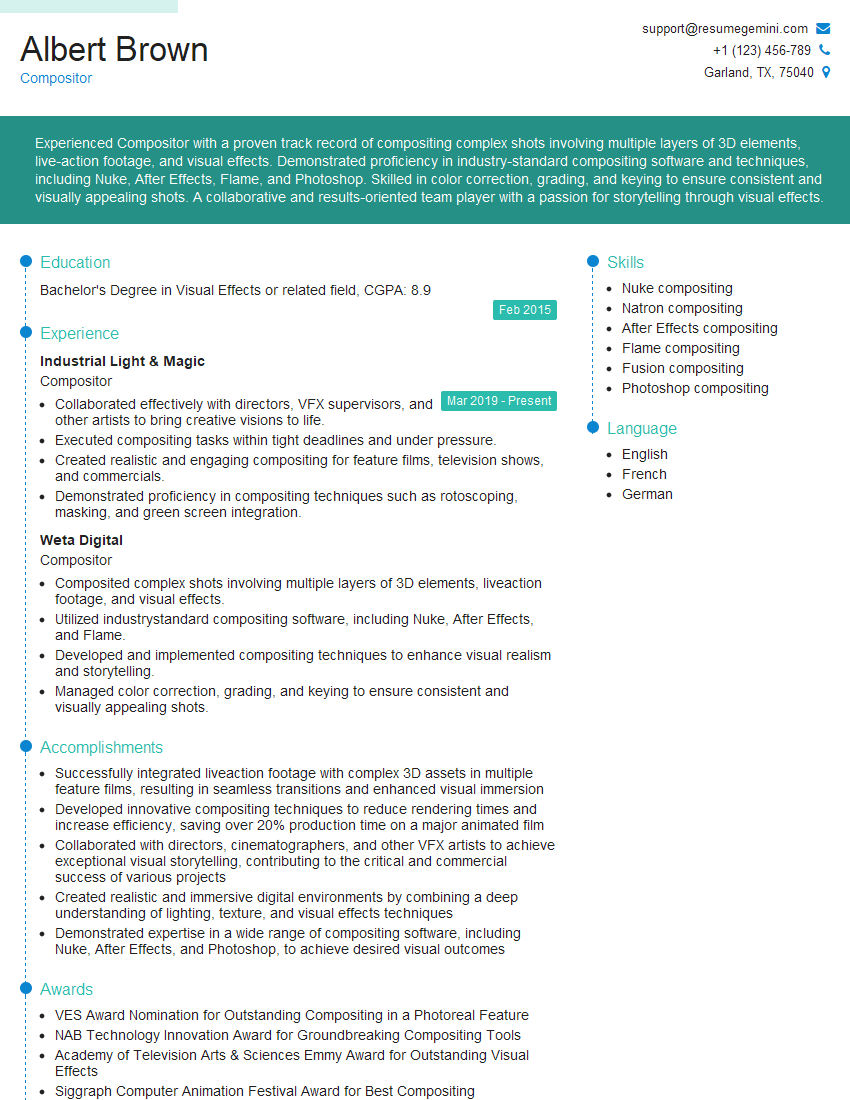
Compositor Resume Sample
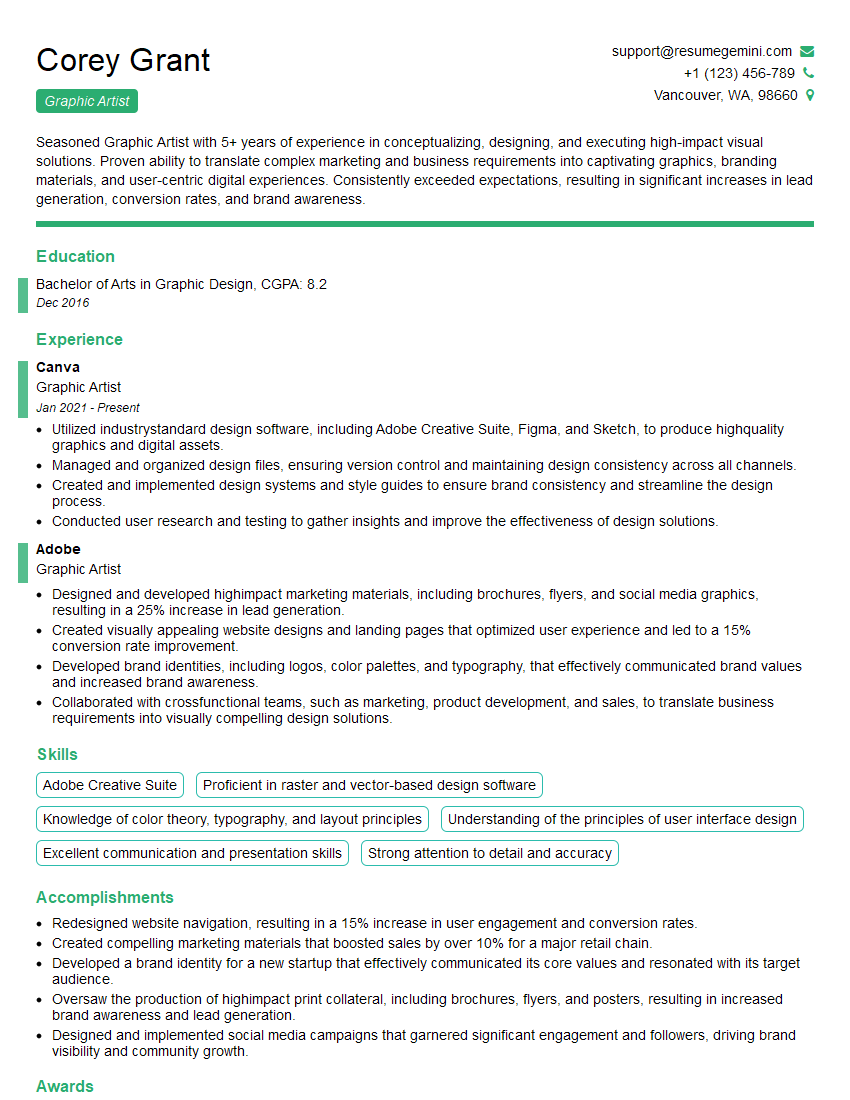
Graphic Artist Resume Sample

Graphic Designer Resume Sample
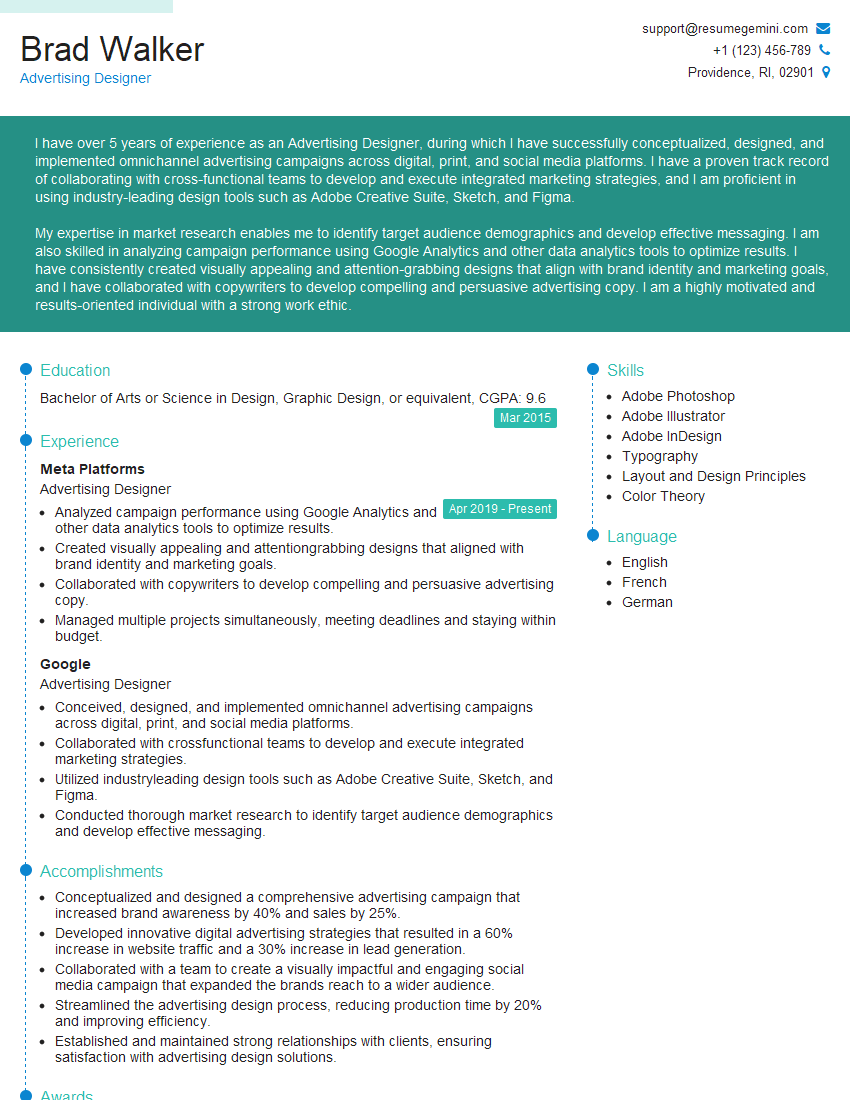
Advertising Designer Resume Sample
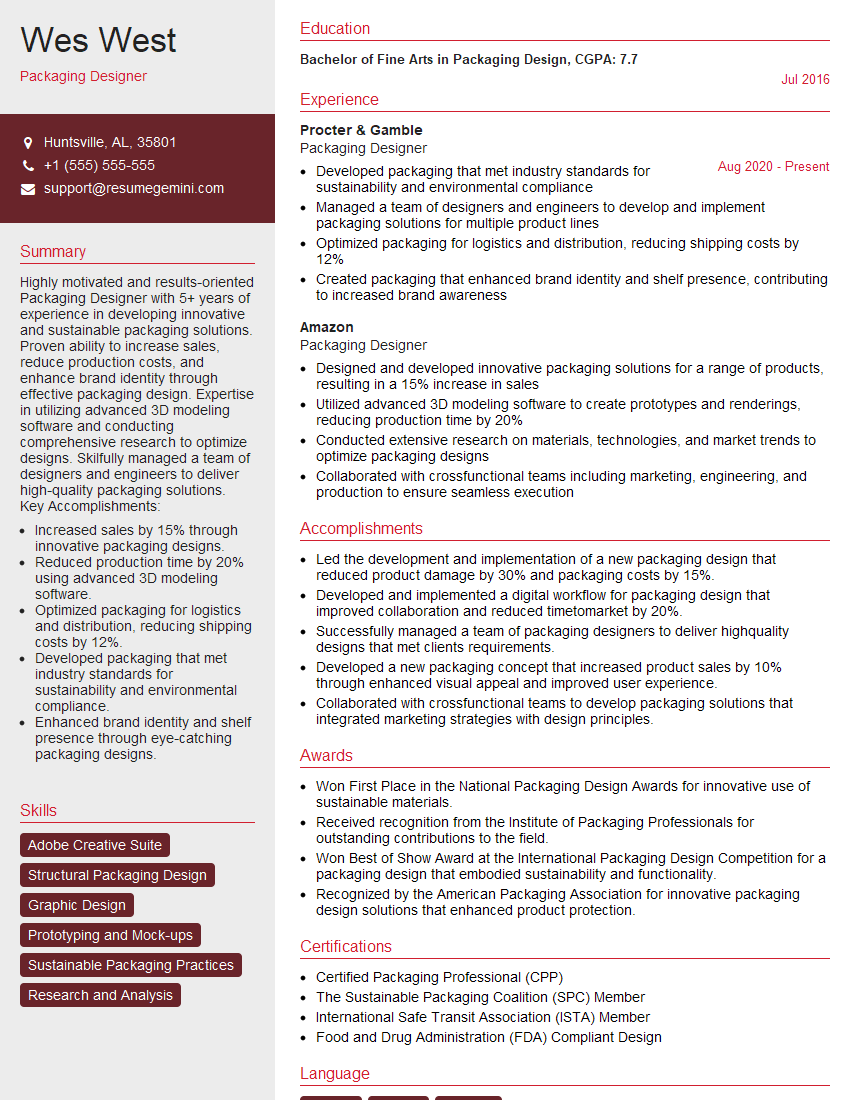
Packaging Designer Resume Sample
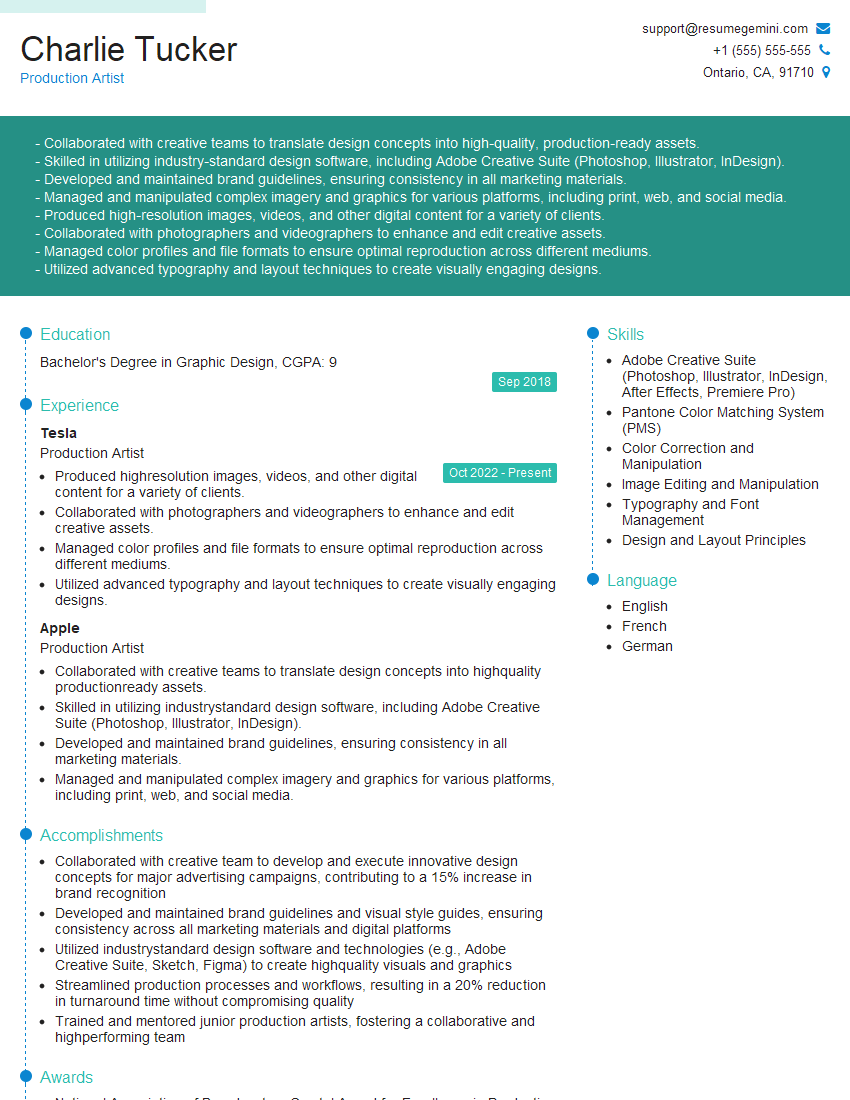
Production Artist Resume Sample

Photo Editor Resume Sample
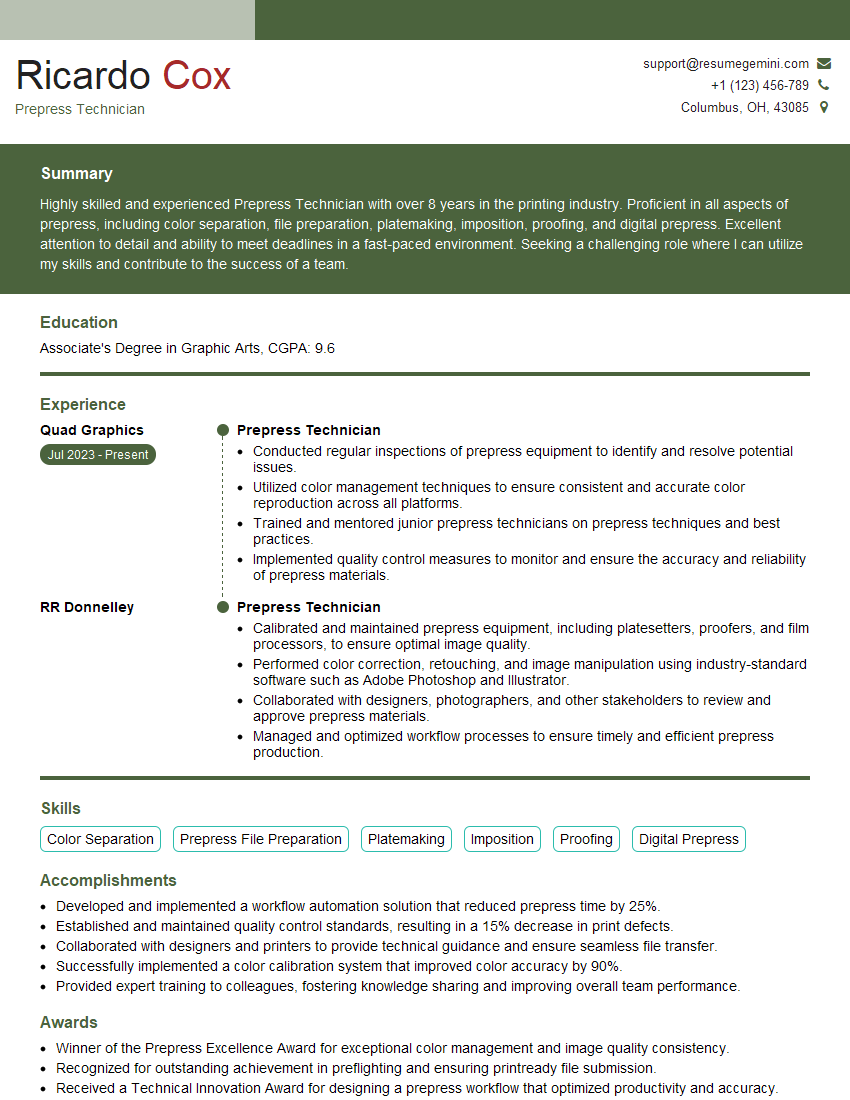
Prepress Technician Resume Sample
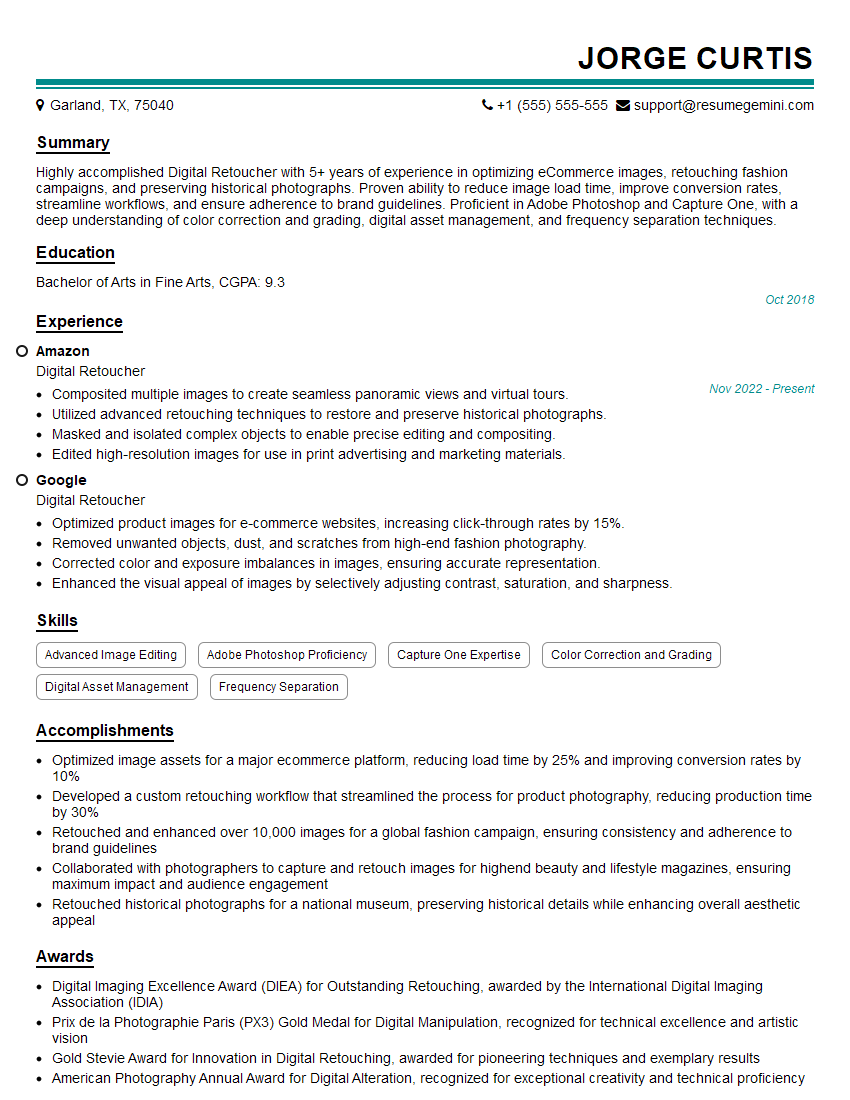
Digital Retoucher Resume Sample
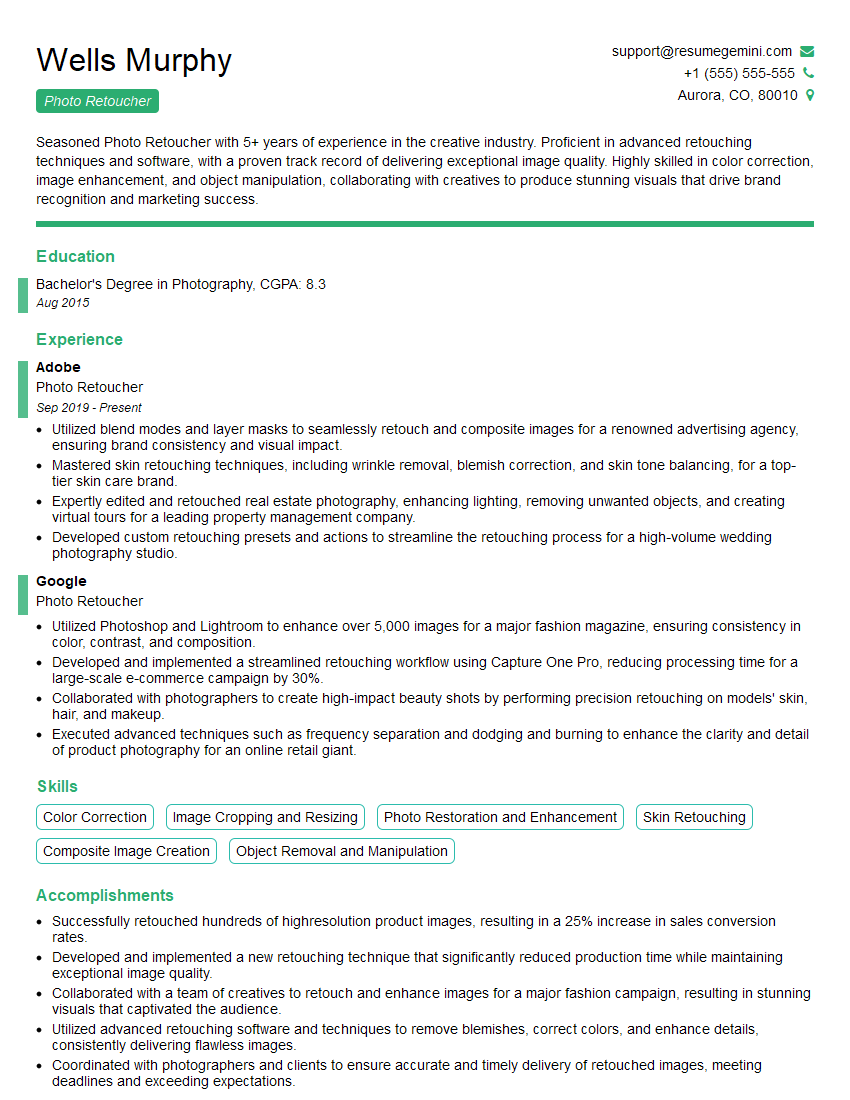
Photo Retoucher Resume Sample
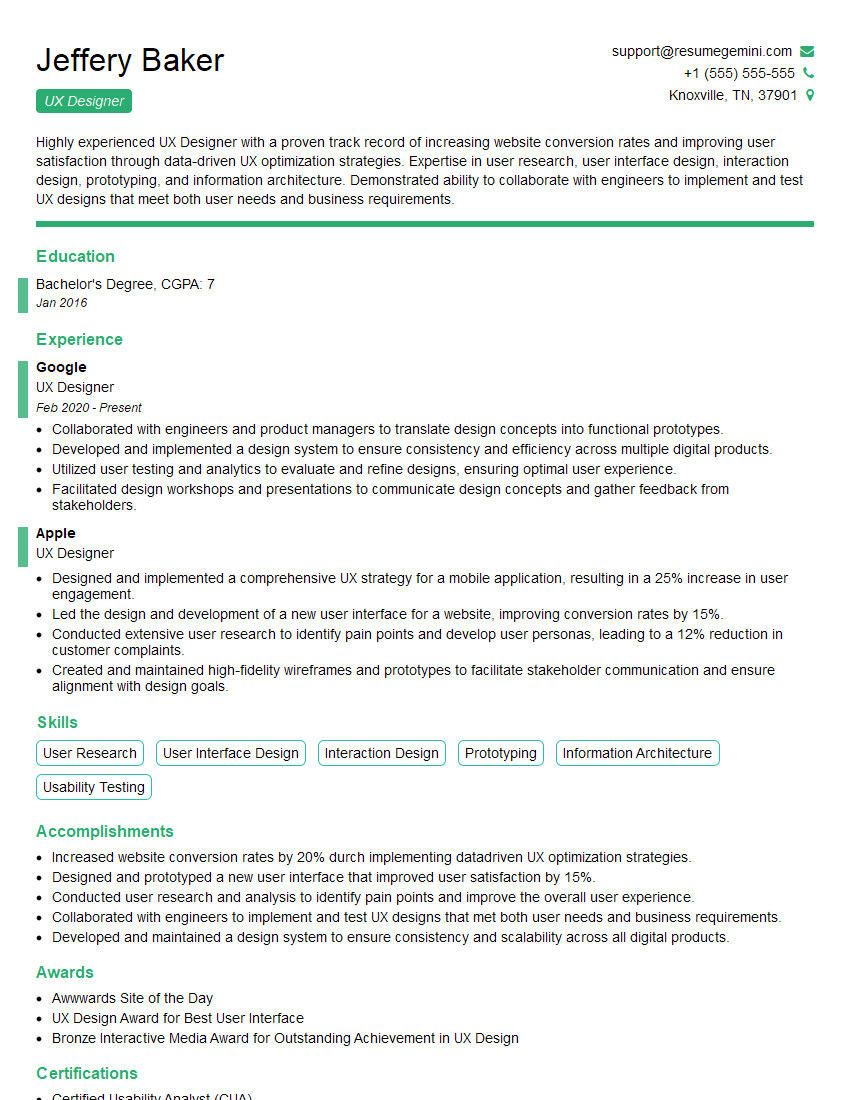
UX Designer Resume Sample
Explore more articles
Users Rating of Our Blogs
Share Your Experience
We value your feedback! Please rate our content and share your thoughts (optional).
What Readers Say About Our Blog
Very informative content, great job.
good