Every successful interview starts with knowing what to expect. In this blog, we’ll take you through the top Advanced Adobe Creative Suite Proficiency interview questions, breaking them down with expert tips to help you deliver impactful answers. Step into your next interview fully prepared and ready to succeed.
Questions Asked in Advanced Adobe Creative Suite Proficiency Interview
Q 1. Explain your workflow for creating a high-resolution print-ready document in Adobe InDesign.
Creating a high-resolution print-ready document in InDesign involves meticulous planning and execution. My workflow begins with establishing the correct document settings: selecting the appropriate page size, bleed (typically 0.125 inches on all sides for professional printing), and resolution (at least 300 DPI for high-quality results). I then organize my content using master pages for consistent branding and layout across multiple pages.
Next, I import high-resolution images (ensuring they are already optimized in Photoshop), carefully placing them within designated frames. I meticulously check for image resolution and color mode (CMYK for print) to avoid any surprises during the printing process. Text is carefully styled using paragraph and character styles for consistency and ease of editing.
Before exporting, I perform a thorough preflight check to identify any potential issues such as missing fonts, low-resolution images, or overset text. This step is crucial to ensure a smooth printing experience. Finally, I export the document as a high-resolution PDF/X-1a compliant file, a standard for professional print production that guarantees color consistency and compatibility across different printing systems. This entire process is iterative, meaning that I often refine the layout and content throughout the process.
For example, when designing a brochure for a client, I’d first create a client-approved design mockup in InDesign, then ensure all images are 300 DPI and in CMYK. Once approved, the final version goes through a final preflight check before being exported as a PDF/X-1a for print.
Q 2. Describe your experience with Adobe Illustrator’s Pathfinder panel.
The Pathfinder panel in Illustrator is a powerful tool for manipulating vector shapes. My experience encompasses using its various functions to create complex designs efficiently. I frequently use functions like ‘Unite,’ ‘Minus Front,’ ‘Intersect,’ and ‘Exclude’ to combine, subtract, or overlay shapes to achieve the desired visual effect.
For instance, I might use ‘Minus Front’ to cut a hole in a larger shape, creating a unique logo element. Or, I would use ‘Unite’ to combine multiple smaller shapes into a single, more complex form. The Pathfinder panel allows for non-destructive editing, which means I can always go back and adjust the original shapes without losing the combined result. Understanding boolean operations and their applications is key to mastering the Pathfinder panel.
Consider designing a complex logo: by using basic shapes and the Pathfinder panel’s functionalities, we can build up layers of intricacy very quickly and non-destructively. Changes can be made to the individual shapes at any point, with the final combined shape updating automatically. This is far more efficient than manually creating each component.
Q 3. How would you optimize images for web use in Adobe Photoshop?
Optimizing images for web use in Photoshop requires a balance between quality and file size. My approach starts with selecting the appropriate file format. JPEG is generally preferred for photographs due to its good compression and color support, while PNG is better for images with sharp edges, text, or transparent backgrounds.
I then use ‘Save for Web (Legacy)’ or the ‘Export As’ option to control compression settings. For JPEGs, I carefully adjust the quality slider, finding the sweet spot that balances visual fidelity with a manageable file size. For PNGs, I select the appropriate level of compression, minimizing file size without sacrificing image quality.
Crucially, before optimizing, I resize the image to the dimensions needed for the web, avoiding unnecessarily large files. This is done to maintain a good balance of visual sharpness without excessively large file sizes, thereby improving website loading times.
For example, if I’m optimizing a hero image for a website, I’ll resize it to the appropriate dimensions first, then use ‘Save for Web’ to choose the JPEG format with a quality setting around 70-80%, which usually provides a good balance between visual quality and file size. This optimized image will load quickly, enhancing the user experience.
Q 4. What are the key differences between raster and vector graphics, and which Adobe programs best utilize each?
Raster graphics are composed of pixels arranged in a grid, while vector graphics are made of mathematical equations that define lines and curves. Raster graphics (like JPEGs and PNGs) are best for photorealistic images and detailed artwork, while vector graphics (like AI and SVG files) are ideal for logos, illustrations, and typography that need to be scaled without losing quality.
Adobe Photoshop excels at working with raster graphics, offering advanced tools for image editing and manipulation. Adobe Illustrator is the go-to program for creating and editing vector graphics, enabling the creation of scalable artwork suitable for various applications. The key difference lies in scalability: raster images become pixelated when enlarged, while vector images maintain crispness at any size.
Think of it this way: a raster image is like a mosaic – made up of tiny tiles (pixels). If you zoom in, you see the individual tiles. A vector image is like a blueprint – the underlying mathematical instructions determine how it’s drawn, regardless of the size. You can zoom in infinitely, and it remains sharp.
Q 5. Explain your approach to designing a responsive website using Adobe XD.
Designing a responsive website in Adobe XD involves creating artboards for different screen sizes (e.g., mobile, tablet, desktop). I begin by establishing a consistent design system with reusable components like buttons, navigation bars, and text styles. This ensures a unified look and feel across all screen sizes.
I use auto-animate feature to create smooth transitions between different states and screen sizes. This creates a seamless user experience. I leverage XD’s prototyping capabilities to link artboards and simulate user interactions, allowing for easy testing and iterative improvements. The entire process is very collaborative, and XD allows for easy sharing of the prototypes to clients.
For example, when designing an e-commerce website, I would create separate artboards for mobile, tablet, and desktop views. The navigation would be adapted for each view, but the overall branding and design system would be consistent. Auto-animate would ensure that when a user navigates to a product page, the transition between screens is smooth and engaging.
Q 6. How do you use layers effectively in Adobe Photoshop?
Effective layer management in Photoshop is crucial for efficient workflow and non-destructive editing. My approach involves naming layers clearly and logically (e.g., ‘Background,’ ‘Logo,’ ‘Text Overlay’). I use layer groups to organize related layers into manageable sections. This helps maintain a clean and organized layer panel.
I frequently utilize layer masks to selectively edit parts of a layer without altering the original content. This allows for more precise editing and adjustments, making the work non-destructive. I also frequently use adjustment layers (brightness/contrast, hue/saturation, etc.) to make global adjustments without modifying the underlying pixels. This helps in maintaining the flexibility to make alterations during the design and editing stages.
For example, when retouching a product photograph, I would create separate layers for each adjustment (e.g., one for sharpening, another for color correction), allowing me to fine-tune each aspect individually and easily adjust the opacity or visibility of each layer, as needed.
Q 7. Describe your experience with Adobe After Effects and its keyframing capabilities.
My experience with Adobe After Effects centers around creating motion graphics and visual effects. I am proficient in using keyframes to animate various properties, such as position, scale, opacity, and rotation. I understand the importance of using easing functions to create natural-looking movement.
Beyond basic animation, I am comfortable with using expressions to automate tasks and create more complex animations. I also have experience with creating and using pre-compositions to organize complex projects, improving efficiency and workflow. I frequently use After Effects to create animated logos, lower thirds, and transitions for video projects.
For example, when creating an animated logo for a client, I would use keyframes to animate the logo’s appearance, potentially using expressions to create a more complex, dynamic reveal. Pre-compositions would be used to ensure that sections of the logo can be animated and adjusted independently before being brought together in the final project.
Q 8. How do you manage color consistency across different Adobe applications?
Maintaining color consistency across Adobe applications is crucial for a professional, polished final product. Inconsistencies can lead to a disjointed and unprofessional look. My approach involves leveraging color management features built into each application and employing a few key strategies.
Color Profiles: I always begin by ensuring all my applications are using the same color profile (e.g., Adobe RGB (1998) or sRGB). This ensures that colors are interpreted and displayed consistently. Choosing the right profile depends on the project’s final destination – print or web.
Linked Files: When working with multiple applications (e.g., Photoshop, Illustrator, InDesign), I use linked files whenever possible. This ensures that changes made to a source file (like a logo in Illustrator) automatically update in other documents. This avoids the dreaded ‘out-of-sync’ color nightmare.
Proofing: Before finalizing any project, I always perform a soft proof to see how the colors will look in the target output medium (print or web). This helps me catch any discrepancies early on.
Color Swatches/Libraries: I meticulously create and maintain consistent color swatches or libraries within each Adobe program and then utilize those libraries across the project ensuring consistent color implementation across documents.
For example, I recently worked on a branding project, creating a logo in Illustrator, then using it in InDesign for brochures and Photoshop for website mockups. By using linked files and a consistent color profile (Adobe RGB for print), I guaranteed that the brand’s colors remained uniform across all deliverables.
Q 9. What techniques do you use to create realistic shadows and highlights in Adobe Photoshop?
Creating realistic shadows and highlights in Photoshop is about understanding light behavior and leveraging the tools effectively. It’s less about specific techniques and more about a conceptual understanding of how light interacts with surfaces.
Understanding Light Sources: I start by identifying the primary and secondary light sources in the scene. This helps me determine the direction, intensity, and color of shadows and highlights.
Layer Styles: For quick and easy shadows, I often use layer styles (Drop Shadow, Inner Shadow). I adjust the parameters—opacity, angle, distance, size, blend mode—to fine-tune the effect to match my scene. This is great for subtle shadows.
Gradient Tools: For more complex and realistic highlights and shadows, I’ll create custom gradients. I might blend a light color with a darker shade to create a gradual transition that simulates realistic light reflection or shadow diffusion.
Dodge and Burn Tool: These tools allow precise manipulation of light and shadows, especially when refining details. By using soft brushes, I can gently lighten (dodge) or darken (burn) areas, mimicking natural light reflection and shadow distribution.
Blending Modes: Experimenting with blending modes like Multiply, Overlay, Soft Light, and Screen allows for nuanced control over the interplay of lights and shadows. For instance, Overlay is fantastic for adding highlights with a soft glow.
For instance, when retouching product photos, I use a combination of these techniques to enhance realism. A careful application of layer styles for initial shadowing, followed by the Dodge and Burn tools for finesse adds depth and believability to the product images.
Q 10. Describe your experience with Adobe Premiere Pro and video editing techniques.
My experience with Adobe Premiere Pro spans several years and encompasses a wide range of video editing techniques. From basic cuts and transitions to advanced color grading and VFX integration, I have a solid understanding of the workflow.
Workflow: My typical workflow involves importing footage, organizing it with bins, creating rough cuts, and refining the timeline with various edits. I incorporate transitions smoothly, always maintaining consistency in pacing and style.
Color Correction and Grading: I use Lumetri Color tools to enhance the visual appeal. I’m adept at correcting color imbalances, adjusting contrast, and applying creative color grading effects to achieve a desired mood or aesthetic.
Audio Editing: High-quality audio is crucial, and I’m proficient in syncing audio, adjusting levels, adding sound effects, and working with music tracks. I understand the importance of balancing audio and video elements for a polished final product.
Advanced Techniques: I have experience with keyframing, motion tracking, and adding visual effects using plugins and built-in tools. I am comfortable working with various video formats and resolutions.
For example, I recently edited a corporate video which involved interviews, screen recordings and B-roll footage. I used Lumetri Color to achieve a uniform look and feel throughout the video, adjusted the audio levels to ensure clarity and used motion tracking to incorporate subtle animated graphics. The final product was engaging and professionally presented.
Q 11. Explain your process for creating and exporting animations using Adobe Animate.
Creating and exporting animations in Adobe Animate involves a structured approach, combining drawing skills, animation principles and technical understanding of the software.
Planning and Design: Before diving into Animate, I plan my animation meticulously. This involves storyboarding, creating character designs, and defining the animation’s key poses and movements.
Drawing and Importing Assets: I might create assets in Illustrator and import them into Animate, keeping a consistent art style throughout the animation. This ensures vector-based scalability.
Animation Techniques: I use various animation techniques, including tweening (classic and shape), frame-by-frame animation, and motion guides. The choice depends on the animation style and complexity.
Timeline Management: Effective timeline management is crucial. I organize layers clearly and use symbols to reuse and manage assets efficiently.
Testing and Refinement: I regularly test the animation to check for timing, spacing, and overall flow. I make iterative refinements based on my testing.
Exporting: Finally, I export the animation in the appropriate format (e.g., GIF, MP4, SWF) and resolution for the target platform.
For example, I recently animated a short explainer video for a client. I planned each scene, created the assets in Illustrator, then animated them in Animate using a combination of tweening and frame-by-frame animation. The result was a smooth and engaging animation suitable for web use. I exported it as an MP4 to ensure compatibility with various devices.
Q 12. How do you utilize smart objects in Adobe Photoshop?
Smart Objects in Photoshop are a game-changer for non-destructive editing and efficient workflow. They essentially allow you to embed a file (like an image or Illustrator file) into a Photoshop document, without flattening it.
Non-Destructive Editing: The key benefit is non-destructive editing. Transformations (scaling, rotating, skewing) and filter applications are recorded as instructions, not directly applied to the embedded file. This means you can undo changes without affecting the original asset, providing flexibility and ensuring high quality.
Reusability: You can reuse the same Smart Object across multiple documents and even layers, saving time and file size. Any change made to the original Smart Object will automatically update in all instances.
Organization: They help you organize complex projects. You can nest Smart Objects, creating layers of non-destructive edits within each other.
High-Resolution Editing: If you’re working with high-resolution images, Smart Objects help you maintain detail without memory issues. You edit a smaller preview and the high resolution file is only used at output.
For instance, in a web design project I recently worked on, I used a Smart Object for the website’s logo. I placed the Smart Object on several mockups and made adjustments such as scaling without affecting the original logo file, saving a lot of time and ensuring the logo quality.
Q 13. Discuss your experience with Adobe Acrobat Pro and PDF editing.
Adobe Acrobat Pro is more than just a PDF viewer; it’s a powerful tool for creating, editing, and managing PDFs. My experience includes a range of tasks.
PDF Creation: I create PDFs from various sources – scanned documents, other file types (Word, Excel, InDesign), and directly within Acrobat Pro.
Editing and Markup: I can edit text, images, and other elements within PDFs using Acrobat Pro’s editing tools. I frequently use markup tools for reviewing documents (adding comments, highlighting text, and drawing annotations).
Form Creation and Management: I design and create interactive forms, including fillable fields, checkboxes, and more. I also manage the distribution and collection of form data.
Security and Accessibility: I utilize Acrobat Pro’s security features to protect sensitive documents by adding passwords, restrictions, and digital signatures. I also ensure the accessibility of PDFs by adding tags and alternative text for better usability.
File Optimization: I optimize PDF files to reduce their size without compromising the quality, crucial for fast online viewing or sharing.
For example, I recently helped a law firm by converting all client contracts into a searchable, editable PDF format using Acrobat Pro. I added digital signatures for authentication and implemented security features to protect sensitive information. This streamlined their workflow significantly.
Q 14. How do you create and manage styles in Adobe InDesign?
Creating and managing styles in InDesign is paramount for efficiency and consistency, particularly in large projects. Styles ensure that text formatting, paragraph styles, and object styles remain consistent throughout the document.
Paragraph Styles: I create paragraph styles for different text elements (headings, body text, captions). These styles define font, size, spacing, indentation, and other formatting attributes.
Character Styles: For specific character formatting (e.g., bold, italic, superscript), I use character styles. They can be applied within paragraph styles for added flexibility.
Object Styles: These styles control the formatting of objects like images, text boxes, and frames. They define things like stroke weight, fill color, and effects.
Style Organization: I keep my styles organized within the Styles panel, using descriptive names. This makes it easy to find and reuse styles consistently.
Nested Styles: InDesign supports nested styles. You can create a parent style and then create child styles that inherit from the parent while allowing for unique modifications. This helps to maintain consistency with variations.
For example, when designing a multi-page brochure, I create paragraph styles for each heading level (H1, H2, H3), a body text style, and caption styles. Then, instead of manually formatting each element, I apply the appropriate styles, ensuring consistency across all pages and drastically reducing editing time.
Q 15. Describe your familiarity with different file formats (e.g., PSD, AI, EPS, PDF).
Understanding file formats is crucial for efficient workflow in the Adobe Creative Suite. Each format has its strengths and weaknesses, impacting file size, editing capabilities, and compatibility.
- PSD (Photoshop Document): The native format for Photoshop, retaining all layers, effects, and adjustments. Ideal for ongoing editing but can result in large file sizes. Think of it as a fully editable master file.
- AI (Adobe Illustrator): The native vector format for Illustrator. Vector graphics are resolution-independent, meaning they can be scaled to any size without losing quality. Perfect for logos, illustrations, and designs intended for various outputs – from business cards to billboards.
- EPS (Encapsulated PostScript): A widely compatible vector format that can be used across various applications. While less editable than AI, it ensures consistent appearance across platforms. Often used for print-ready artwork.
- PDF (Portable Document Format): A universally compatible format suitable for final output and sharing. Various settings allow for different levels of editing and security. It’s your go-to for distributing finished designs.
Choosing the right format depends on the project’s needs. For instance, I’d use PSD for a complex image manipulation project where layered editing is essential, while AI would be my choice for a scalable logo design. I always consider the final output and the client’s requirements when selecting a file format.
Career Expert Tips:
- Ace those interviews! Prepare effectively by reviewing the Top 50 Most Common Interview Questions on ResumeGemini.
- Navigate your job search with confidence! Explore a wide range of Career Tips on ResumeGemini. Learn about common challenges and recommendations to overcome them.
- Craft the perfect resume! Master the Art of Resume Writing with ResumeGemini’s guide. Showcase your unique qualifications and achievements effectively.
- Don’t miss out on holiday savings! Build your dream resume with ResumeGemini’s ATS optimized templates.
Q 16. How do you handle large, complex files in Adobe Creative Suite applications?
Working with large, complex files requires a strategic approach to maintain efficiency and prevent crashes. Here’s how I tackle it:
- Efficient File Management: I organize files into well-structured folders, using clear naming conventions. This helps me quickly locate specific assets.
- Layer Organization: In Photoshop, I meticulously group and name layers. This makes selecting, editing, and hiding specific elements much easier. Think of it as building with Lego – organized bricks make complex structures manageable.
- Smart Objects: I frequently use Smart Objects in Photoshop. These allow non-destructive editing, preserving the original image quality even after multiple transformations or edits. This is like having a master template that can be easily updated without altering individual instances.
- High-Resolution Monitor: A large, high-resolution monitor is a must. It allows for clearer viewing of detailed elements and better precision while working.
- System Optimization: I ensure my system has enough RAM and a fast processor to handle the demands of complex files. Regularly clearing cache and temporary files also improves performance.
- File Saving Strategies: I save frequently and employ incremental saving techniques to avoid losing substantial work in case of a crash. I also use Photoshop’s ‘Save As’ function to create backup copies with different file names to prevent accidental overwriting.
By employing these methods, I ensure smooth workflow even when dealing with extremely complex files.
Q 17. How do you troubleshoot common issues encountered in Adobe Creative Suite applications?
Troubleshooting is a key skill. My approach involves a systematic process:
- Identify the Problem: First, I pinpoint the specific issue. Is it a software bug, a file corruption, or a user error?
- Check Error Messages: Carefully review any error messages provided by the application. These often provide clues to the root cause.
- Restart the Application/System: A simple restart often resolves temporary glitches.
- Update Software: Outdated software can lead to instability and bugs. I ensure I’m using the latest versions of Adobe Creative Suite applications.
- Check File Integrity: File corruption can cause unexpected behavior. I might try opening the file in a different application or creating a new file from scratch.
- Utilize Online Resources: Adobe’s support forums and online communities are invaluable resources. Searching for similar issues and their solutions is a very efficient approach.
- Seek Professional Help: If all else fails, contacting Adobe support or a qualified technician can resolve complex problems.
For example, if I encounter a ‘memory allocation’ error in Photoshop, I know I need to close unnecessary applications, increase the application’s memory allocation settings, or save the file as a smaller format.
Q 18. What are your preferred methods for color correction and color grading?
Color correction and color grading are crucial for achieving visually appealing and consistent results. My preferred methods leverage the power of Adobe applications.
- Color Correction in Photoshop: I begin with color correction to fix inaccuracies and inconsistencies in the image’s colors, using tools like Levels, Curves, and Color Balance. This is like adjusting the lighting and contrast to match real-life conditions.
- Color Grading in Photoshop and Lightroom: For more creative control, I use color grading to enhance the overall mood and style. Lightroom is excellent for initial global adjustments, while Photoshop offers finer, more localized control using adjustment layers and blending modes. This is akin to choosing a specific film style or adding a filter for artistic expression.
- Camera Raw Filter: The Camera Raw filter (available in Photoshop) offers powerful adjustment tools for both raw and non-raw image files, giving me great control over exposure, contrast, white balance, and more.
- Color Lookup Tables (LUTs): I use LUTs to apply pre-defined color styles, speeding up the color grading process significantly. These are essentially preset color palettes that can instantly transform the mood of the image.
The strategy depends on the image and the desired outcome. A product photograph needs accurate color correction, while a stylized portrait might benefit from more dramatic color grading.
Q 19. Describe your experience with using plugins and extensions within Adobe Creative Suite.
Plugins and extensions significantly enhance the functionality of Adobe Creative Suite. I use them frequently to streamline my workflow and access specialized tools.
- Examples: I regularly use plugins like (mention specific examples relevant to your experience, e.g., for Photoshop, for Illustrator, etc.)
- Workflow Optimization: Plugins often automate repetitive tasks, saving valuable time. For instance, a batch processing plugin can apply the same adjustments to multiple images simultaneously.
- Specialized Features: Plugins provide access to specialized features not included in the core applications. This could be advanced retouching tools, unique effects, or new file format support.
- Compatibility: It’s crucial to check the compatibility of plugins with the specific version of the Adobe Creative Suite I’m using to avoid conflicts.
Before using any plugin, I always thoroughly review user feedback and ensure it’s from a reputable source to avoid security risks. I carefully assess which plugins best suit my current needs and project requirements, to maximize efficiency and avoid performance issues.
Q 20. Explain your understanding of typography and how you apply it in your designs.
Typography is far more than just choosing a font; it’s about conveying meaning and enhancing the overall design. It’s the voice of your design.
- Font Selection: The choice of font should align with the project’s message and target audience. A serif font might suit a formal document, while a sans-serif font might be better for a modern website.
- Hierarchy and Readability: I use different font sizes, weights, and styles to create a visual hierarchy that guides the reader’s eye. Readability is paramount; I ensure sufficient contrast between text and background, appropriate kerning (spacing between letters), and leading (spacing between lines).
- Pairing Fonts: Skillfully pairing different fonts can add visual interest and enhance the overall design, but it requires a keen eye for balance and harmony. I avoid using too many different fonts in a single project to maintain consistency.
- Contextual Usage: I tailor my typography choices to the context. For example, the typography used for a website header will differ significantly from the body text.
Think of fonts as musical instruments. You need to select the right ones and play them harmoniously to create a pleasing composition. Good typography enhances the user experience and makes the design more impactful.
Q 21. How do you work with clients to understand their design needs and vision?
Understanding client needs is critical for a successful design project. My approach is collaborative and iterative:
- Initial Consultation: I begin with a thorough discussion to understand the client’s goals, target audience, and brand identity. I ask open-ended questions to uncover their vision and any specific requirements.
- Mood Boards and Inspiration: I often create mood boards and share relevant design inspiration to ensure we are on the same page aesthetically.
- Concept Presentations: I present initial concepts, gathering feedback and making revisions based on the client’s preferences and suggestions. This iterative process allows for refinement and ensures alignment.
- Regular Communication: I maintain open communication throughout the design process, providing regular updates and addressing any concerns promptly. Transparency builds trust and ensures a smooth collaboration.
- Feedback Incorporation: I actively incorporate client feedback into the design, balancing their preferences with my design expertise to achieve the best possible outcome. It’s about finding the sweet spot where their vision meets design best practices.
I see myself as a partner to my clients, guiding them through the design process and helping them achieve their creative goals.
Q 22. Describe a time you had to solve a complex design problem using Adobe Creative Suite.
One particularly challenging project involved designing a complex infographic for a scientific publication. The data was multifaceted and required a clear, visually engaging presentation. Initially, I struggled to effectively represent the relationships between various data points without overwhelming the viewer. My solution involved a multi-stage process using Adobe Illustrator and Photoshop. First, in Illustrator, I created a series of vector icons representing each data point. This allowed for scalability and precise control. I then leveraged Illustrator’s powerful charting capabilities to map relationships between these icons, employing color-coding and size variations for emphasis. Finally, in Photoshop, I refined the composition, adding visual elements like background textures and subtle gradients to enhance the infographic’s overall appeal. The result was a visually stunning infographic that successfully conveyed complex information in an easily digestible format. This experience reinforced the power of combining Illustrator’s precision with Photoshop’s editing capabilities for optimal results.
Q 23. How do you stay up-to-date with the latest trends and developments in Adobe Creative Suite?
Staying current in the ever-evolving world of Adobe Creative Suite requires a multi-pronged approach. I regularly subscribe to Adobe’s official blog and newsletters for updates on new features and application improvements. I actively participate in online communities and forums such as Adobe’s user groups and relevant subreddits where professionals discuss best practices and share tips. Furthermore, I attend webinars and workshops hosted by Adobe and industry professionals. This combination of official sources and community engagement ensures I’m always aware of the latest developments, from subtle workflow enhancements to entirely new features. For example, I recently learned about a significant update to Photoshop’s Neural Filters, significantly enhancing my ability to perform complex image manipulations quickly and efficiently.
Q 24. What are some of your favorite features or shortcuts within your most-used Adobe applications?
My workflow heavily relies on Photoshop and Illustrator. In Photoshop, I frequently use the Content-Aware Fill tool (Shift+Ctrl+I on Windows, Shift+Cmd+I on macOS) for seamless object removal and image retouching. It saves countless hours compared to traditional manual masking. Another invaluable shortcut is the Quick Selection Tool (W) combined with the refine edge feature for precise selections of complex shapes. In Illustrator, the Pen Tool (P) remains my go-to for precise vector drawing, and the Artboards feature is crucial for designing multi-page layouts. Mastering keyboard shortcuts like these dramatically increases efficiency and minimizes repetitive actions.
Q 25. Describe your experience with using Adobe Bridge for asset management.
Adobe Bridge is indispensable for asset management in my workflow. Its ability to preview files, organize them into collections, and apply metadata is invaluable for large-scale projects. I frequently use Bridge to batch rename files, apply keywords for easy searching, and create contact sheets for client review. The ability to directly open files from Bridge into various Adobe applications streamlines my workflow considerably. For example, when working on a marketing campaign with hundreds of images, I use Bridge to organize the images into folders by product, client, and date, making retrieval and editing incredibly efficient. This prevents the chaos of misnamed or misplaced files and maintains a professional level of organization.
Q 26. How do you ensure accessibility in your designs using Adobe Creative Suite tools?
Accessibility is a critical aspect of design. In Adobe Creative Suite, I ensure accessibility through several key methods. When creating documents, I utilize built-in features like alt text for images (essential for screen readers) and appropriate color contrasts to ensure readability for individuals with visual impairments. I follow WCAG (Web Content Accessibility Guidelines) as my benchmark. For instance, in Photoshop, I can use the Accessibility Inspector to check color contrast ratios, and in Illustrator, I carefully select fonts with good legibility. I also prioritize creating scalable vector graphics (SVGs) when possible for optimal display on various devices. Designing with accessibility in mind not only improves user experience but also promotes inclusivity and broadens the reach of my designs.
Q 27. What is your experience with version control systems and collaborative workflows in Adobe Creative Cloud?
My experience with version control and collaborative workflows within Adobe Creative Cloud is extensive. I’m proficient in using Creative Cloud Libraries to share assets and maintain consistency across multiple projects. I also leverage Creative Cloud’s built-in sharing and commenting features for streamlined collaboration. For larger projects, I use Git, a popular version control system, alongside Adobe Creative Cloud. This allows for more robust version management, tracking changes, and collaborative editing without conflicts. For example, in a recent team project, we utilized Git to manage our design assets, allowing multiple designers to work simultaneously on different components of the design while ensuring all changes were tracked and merged effectively. This approach prevents design conflicts and allows for seamless project handover and version management.
Q 28. Explain your process for creating interactive elements within Adobe XD or After Effects.
Creating interactive elements depends on the application. In Adobe XD, I use interactive prototyping features to design clickable elements, transitions, and micro-interactions. I define states and triggers to simulate user interactions, allowing me to test usability and navigation flows early in the design process. For example, creating a button with hover and click states, or adding a scroll animation on a webpage mockup. In After Effects, I craft interactive elements through expressions, animation presets, and custom scripts. This allows for dynamic animations and responses based on user input (though usually requiring integration with external software or APIs). This often involves creating animations triggered by events, like mouse-overs or button clicks, to enhance the visual experience. For instance, I might create a loading animation that reacts to a progress bar, dynamically changing its visual appearance based on the progress percentage.
Key Topics to Learn for Advanced Adobe Creative Suite Proficiency Interview
- Mastering Photoshop: Beyond basic editing, delve into advanced techniques like advanced masking, layer styles, actions, and automation for efficient workflow. Understand color management and printing best practices.
- Illustrator Expertise: Focus on vector graphics creation, complex path manipulation, advanced typography, creating and utilizing brushes, symbols, and gradients. Practice creating scalable and editable artwork for various outputs.
- InDesign Mastery: Go beyond basic layout. Explore advanced features like creating complex master pages, using styles effectively, managing long documents, creating interactive PDFs, and prepress preparation.
- After Effects Proficiency: Understand keyframing, animation principles, compositing, effects and presets, and working with 3D elements. Demonstrate your ability to create compelling motion graphics and visual effects.
- Practical Application & Problem-Solving: Practice applying your knowledge to real-world scenarios. Consider projects involving branding, website design mockups, marketing materials, or animation shorts to showcase your skills.
- Workflow Optimization: Discuss your methods for streamlining your creative process, using actions, templates, and efficient file management. Highlight your ability to adapt your workflow to different project needs.
- Collaboration & Version Control: Explain your understanding of collaborative workflows, file sharing protocols, and version control systems within the Adobe Creative Suite environment.
- Understanding Color Theory and Typography: Demonstrate a solid understanding of these foundational design principles and how they impact the overall effectiveness of your designs.
Next Steps
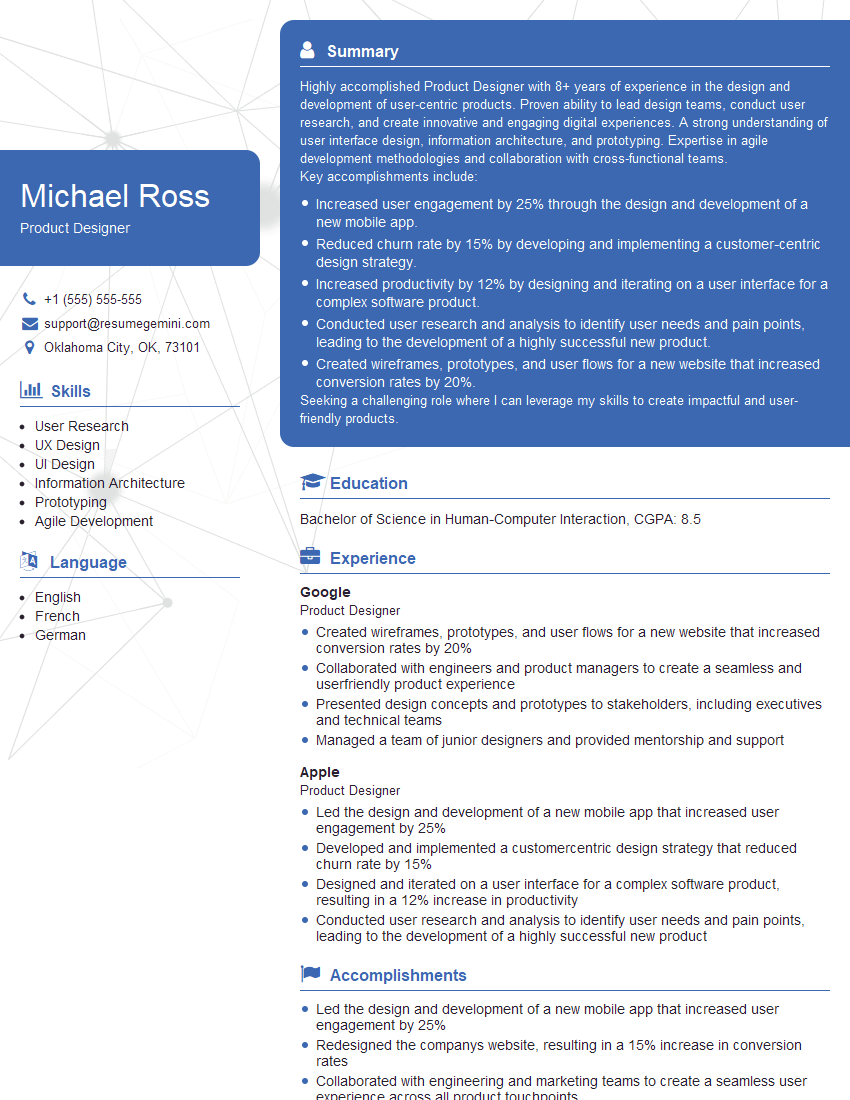
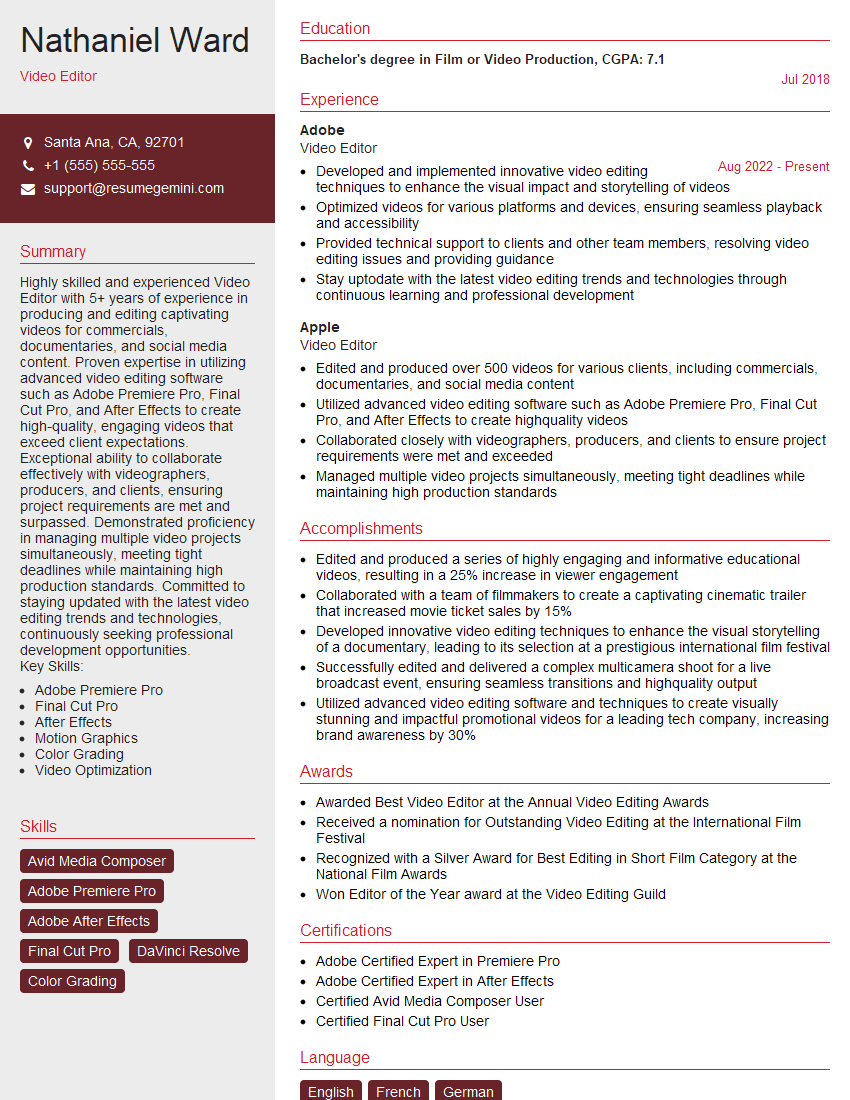
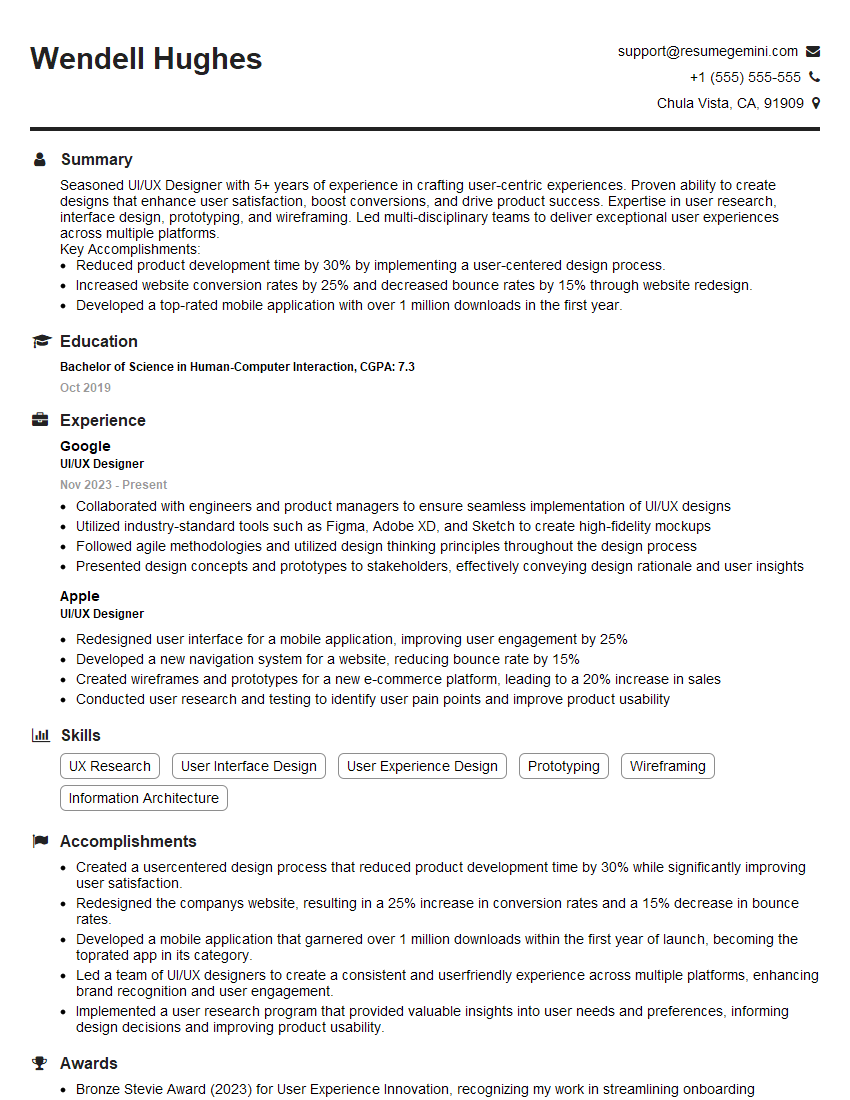
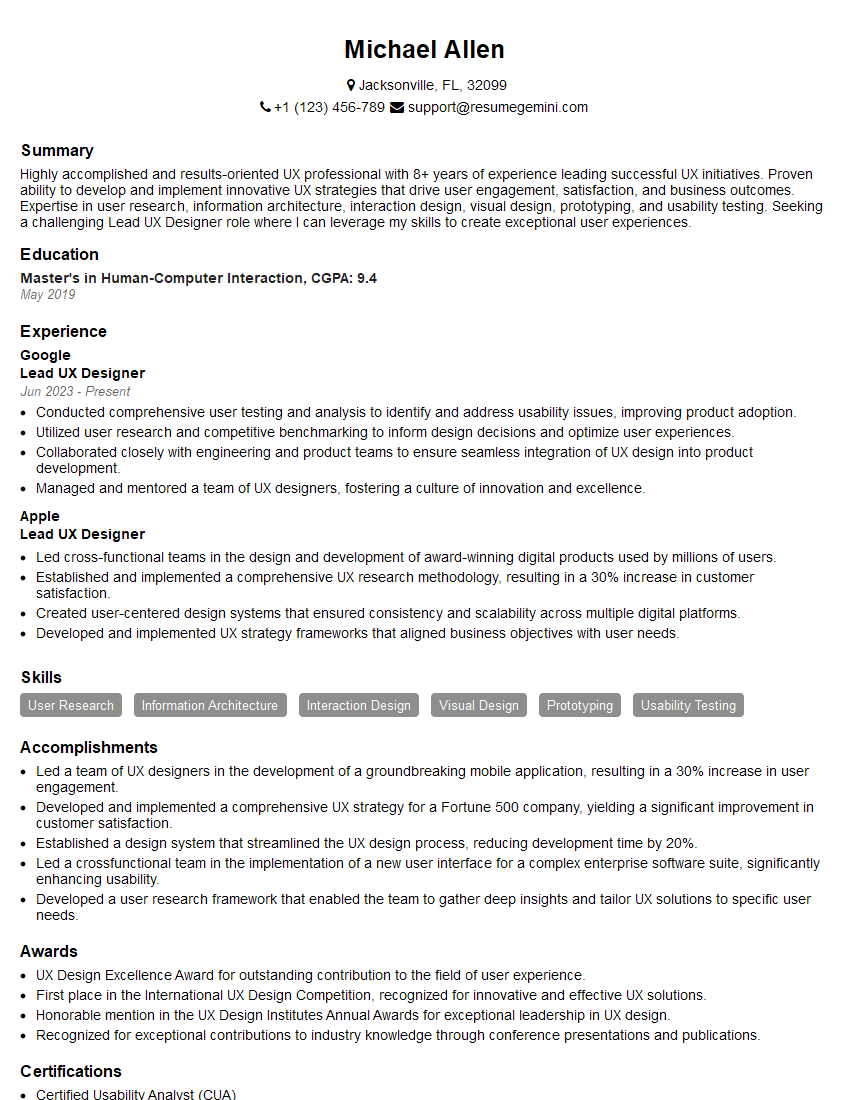
Mastering the Advanced Adobe Creative Suite is crucial for career advancement in design, marketing, and multimedia fields. It opens doors to higher-paying roles and more challenging, fulfilling projects. To maximize your job prospects, crafting an ATS-friendly resume is paramount. ResumeGemini is a trusted resource to help you build a professional resume that highlights your unique skills and experience. Examples of resumes tailored to Advanced Adobe Creative Suite Proficiency are available through ResumeGemini to help you create a compelling application that showcases your capabilities effectively.




Explore more articles
Users Rating of Our Blogs
Share Your Experience
We value your feedback! Please rate our content and share your thoughts (optional).
What Readers Say About Our Blog
Very informative content, great job.
good