The thought of an interview can be nerve-wracking, but the right preparation can make all the difference. Explore this comprehensive guide to CAD (AutoCAD, Revit, SolidWorks) interview questions and gain the confidence you need to showcase your abilities and secure the role.
Questions Asked in CAD (AutoCAD, Revit, SolidWorks) Interview
Q 1. Explain the difference between AutoCAD and Revit.
AutoCAD and Revit are both powerful CAD software, but they cater to different needs. AutoCAD is primarily a 2D drafting program, excellent for creating precise 2D drawings, details, and documentation. Think of it as a sophisticated digital drafting board. Revit, on the other hand, is a Building Information Modeling (BIM) software. It focuses on creating 3D models that are data-rich, allowing for better collaboration and management of building projects. Imagine Revit as a virtual building constructor, providing a comprehensive digital representation of the entire structure, including its components and properties.
Here’s a table summarizing the key differences:
| Feature | AutoCAD | Revit |
|---|---|---|
| Primary Focus | 2D Drafting & Detailing | 3D BIM Modeling |
| Model Type | Primarily 2D, with limited 3D capabilities | Primarily 3D, with automated 2D views |
| Data Management | Limited data association within the model | Extensive data association; changes in the 3D model update the 2D drawings automatically |
| Collaboration | Relatively less collaborative | Highly collaborative; facilitates shared models and data |
| Typical Use Cases | Site plans, floor plans, detailed drawings | Building design, coordination, analysis, and construction documentation |
In essence, if you need precise 2D drawings, AutoCAD is your go-to. If you’re involved in a building project requiring comprehensive 3D modeling and data management, Revit is the more suitable choice. I’ve used both extensively, and understanding their strengths allows for optimal workflow selection.
Q 2. Describe your experience with parametric modeling in SolidWorks.
Parametric modeling in SolidWorks is a game-changer. It allows you to create models based on parameters, or variables, rather than just fixed dimensions. This means that changing one parameter, like the diameter of a hole, automatically updates all related components. It’s like having a living, breathing model that adapts to your design changes.
For example, let’s say I’m designing a gear. I can define parameters for the number of teeth, module (size), pressure angle, and other critical features. Changing the number of teeth automatically adjusts the overall diameter, pitch circle diameter, and other related dimensions. This drastically reduces design errors and speeds up the iterative design process.
My experience with parametric modeling includes designing complex assemblies with hundreds of parts. The ability to easily modify parameters and see the impact on the entire assembly in real-time saved me countless hours of rework and ensured design consistency. Furthermore, I’ve used configurations in SolidWorks to create multiple design variations of a single model based on differing parameter values, simplifying the management of diverse design options.
Q 3. How do you manage large and complex CAD files?
Managing large and complex CAD files requires a multi-pronged approach. The key is to optimize the model itself, utilize efficient file management practices, and leverage the software’s features.
- Model Simplification: Before beginning work on a large CAD file, I always assess the model for unnecessary geometry or complexity. Simplifying geometry, using proxies for distant objects, and avoiding over-use of features can significantly reduce file size and improve performance.
- Xrefs and External References: Breaking down a large model into smaller, manageable components that are linked using external references (Xrefs in AutoCAD or Revit) dramatically improves performance and ease of management. This is very similar to building with Lego blocks; each block (part) can be changed without affecting others.
- Data Management Software: I rely heavily on version control systems such as Vault, or cloud-based solutions like Autodesk BIM 360 for larger projects. These systems track changes, manage revisions, and prevent conflicts in collaborative environments.
- Purge and Audit: Regularly purging unused data and auditing the model for errors within AutoCAD or Revit helps to reduce file bloat and improves stability.
- Hardware and Software Optimization: A well-equipped machine with sufficient RAM and a fast processor is crucial. Utilizing a 64-bit operating system and optimizing the software settings helps maximize performance.
By combining these strategies, I’ve effectively managed files that were originally too large to open or process, bringing them down to manageable sizes and improving workflows for both solo and collaborative projects.
Q 4. What are your preferred methods for creating 2D drawings in AutoCAD?
My preferred methods for creating 2D drawings in AutoCAD prioritize efficiency and precision. I heavily leverage AutoCAD’s powerful tools and features.
- Object Snaps: I rely heavily on object snaps (endpoint, midpoint, center, etc.) to ensure precise placement and alignment of objects. This is fundamental for accurate and clean drawings.
- Layers and Layer Management: Effective layer management is paramount. I create specific layers for different drawing elements (walls, doors, annotations, etc.) for organization and control.
- Blocks and Attributes: I use blocks extensively to create reusable components, reducing repetitive drawing tasks and ensuring consistency across the project. Attributes within blocks allow me to easily manage data associated with each component. For example, I create a block for a door, then include attributes for door type, dimensions, manufacturer, etc.
- Dynamic Blocks: These provide even greater flexibility by allowing for parameters to be adjusted, adapting the block’s geometry on-the-fly. Think of them as mini-parametric models within AutoCAD.
- External References (Xrefs): For larger projects, managing drawings through external references ensures efficient collaboration and modification control.
By combining these techniques, I can generate clean, well-organized, and highly accurate 2D drawings quickly and efficiently. This is critical for effective communication and coordination within a project.
Q 5. Explain your experience with Revit families and their creation.
Revit families are pre-defined components that serve as the building blocks within a Revit model. Creating and managing families is crucial for efficient BIM workflow. Each family represents a specific building element, such as a door, window, fixture, or even a custom piece of furniture.
My experience encompasses creating both simple and complex families. The process typically involves:
- Family Category Selection: First, I determine the appropriate category for the family. This determines its properties and behavior within the project.
- Parameter Definition: Next, I define parameters that control the family’s geometry and properties (dimensions, material, etc.). These parameters are crucial for parametric modeling within Revit.
- Geometry Creation: Then, I model the geometry of the family using Revit’s modeling tools. This is where my understanding of 3D modeling is essential.
- Loading and Testing: Finally, I load the created family into a project to test its functionality and make any necessary adjustments.
I have extensive experience in creating families for various elements, including custom stairs, specialized furniture, and even complex site elements. Efficient family creation ensures consistency, simplifies design, and enhances the overall collaborative experience in a project.
Q 6. How do you handle version control in a collaborative CAD environment?
Version control in a collaborative CAD environment is essential to prevent conflicts, track changes, and maintain a clear history of the project’s development. I’ve used various methods, but the most effective is a dedicated version control system integrated with the CAD software.
For example, Autodesk Vault is a powerful tool that I’ve used extensively. It provides centralized file storage, revision control, and workflow management features. It allows multiple users to work simultaneously on a project, while seamlessly integrating with AutoCAD and Revit. It tracks changes, resolves conflicts automatically (whenever possible), and allows for rollback to previous revisions. Each check-in is timestamped and attributed to a specific user, providing an auditable trail of changes.
Other methods I’ve utilized include cloud-based collaborative platforms such as BIM 360, which provides similar functionality with added benefits of accessibility from anywhere with an internet connection. In smaller projects, where a robust version control system isn’t strictly required, I often use the native version control features found within the CAD software itself. However, for large collaborative projects with multiple team members, a dedicated version control system like Vault or BIM 360 is an absolute necessity to ensure project integrity and success.
Q 7. Describe your experience with rendering techniques in your chosen CAD software.
My experience with rendering techniques spans across various CAD software. The goal is always to produce high-quality visuals that accurately represent the design and convey the intended aesthetic. The choice of rendering technique often depends on the project requirements, deadline, and desired level of realism.
- Ray Tracing: I’ve used ray tracing extensively in SolidWorks and Revit, often leveraging integrated renderers or plugins like V-Ray. Ray tracing is computationally intensive, but it delivers photorealistic results with accurate lighting and reflections, ideal for showcasing detailed designs.
- Raster-Based Rendering: AutoCAD has built-in raster-based rendering capabilities, sufficient for simple visualizations. For advanced raster rendering, I might use external software like Photoshop for post-processing.
- Real-time Rendering: In Revit, I often use real-time rendering capabilities for quick feedback during the design process, allowing for iterative adjustments based on visual representation.
- Cloud-Based Rendering Services: For larger and more complex scenes, I utilize cloud-based rendering services such as those offered by Autodesk, which allow for parallel processing across multiple computers for very fast render times. This is particularly helpful for large architectural visualizations.
My approach involves selecting the optimal rendering method based on the project demands, balancing the desired level of realism with the available time and computational resources. Post-processing techniques in image editing software are often used to enhance the final output.
Q 8. How familiar are you with creating and managing layers in AutoCAD?
Layer management in AutoCAD is fundamental for organizing and controlling the display of drawing elements. Think of layers as stacked transparent sheets, each holding specific types of information. Effective layer management makes complex drawings easier to understand, edit, and plot.
- Creating Layers: I typically create layers using the LAYER command or through the Layer Properties Manager. I name layers descriptively (e.g., ‘Walls’, ‘Doors’, ‘Plumbing’), using a consistent naming convention to maintain organization. I also assign colors and linetypes to each layer for visual clarity.
- Managing Layers: This involves controlling layer visibility, locking layers to prevent accidental modification, and freezing layers to improve drawing performance. For example, when focusing on electrical design, I might freeze layers related to structural elements to reduce clutter. The Layer Properties Manager provides comprehensive control over these attributes.
- Practical Example: In a residential building plan, I might have separate layers for foundations, framing, MEP (Mechanical, Electrical, Plumbing), and finishes. This allows me to easily turn off or isolate specific layers to focus on particular aspects of the design.
Q 9. Explain your understanding of BIM workflows and its implementation in Revit.
BIM (Building Information Modeling) workflows leverage Revit’s capabilities to create a digital representation of a building, incorporating architectural, structural, and MEP data. It’s more than just 3D modeling; it’s about creating a central, intelligent model that facilitates coordination, analysis, and collaboration throughout the project lifecycle.
- Implementation in Revit: A typical BIM workflow begins with conceptual design, moving into detailed modeling, analysis (structural, energy, etc.), and finally construction documentation. In Revit, families (pre-built components like doors, windows, etc.) are crucial. I create and use families extensively, ensuring that they accurately reflect real-world building components and properties.
- Coordination and Collaboration: Revit’s cloud capabilities allow for real-time collaboration among team members. Clash detection—identifying conflicts between different disciplines (e.g., a duct running through a beam)—is a key feature. I actively utilize this feature to prevent costly errors during construction.
- Real-world Application: On a recent project, using Revit’s BIM capabilities allowed us to identify and resolve conflicts between the HVAC system and structural elements before construction began, saving significant time and money.
Q 10. What are your preferred techniques for creating 3D models in SolidWorks?
My preferred techniques for creating 3D models in SolidWorks depend on the complexity and geometry of the part. However, I consistently prioritize techniques that enhance efficiency and accuracy.
- Feature-based modeling: This is my go-to method, building the model through a series of logical steps—extrudes, revolves, cuts, etc. This approach promotes design intent and makes it easier to modify the model later. For instance, I might start with an extruded base, then add features like holes and fillets to refine the design.
- Part assembly: For complex assemblies, I utilize SolidWorks’ assembly environment, creating individual parts and then assembling them. Constraints are critical here, ensuring parts move and interact realistically. I use mates (fixed, sliding, etc.) and component patterns extensively for efficiency.
- Surfaces and Freeform Modeling: When dealing with complex, organic shapes, I often utilize surface modeling techniques or freeform modeling tools within SolidWorks.
- Example: To design a complex injection-molded part, I begin with a basic shape using extrusion. Then, I use features to create internal cavities, ribs for strength, and precise draft angles for easy mold release. This process is then verified through simulations to analyze stresses and potential problems.
Q 11. How do you troubleshoot common errors encountered in your CAD software?
Troubleshooting CAD errors involves a systematic approach. I start by identifying the symptoms, then investigate potential causes. My process typically includes:
- Checking Layer Visibility and Locking: Often, a missing element is simply on a hidden or locked layer.
- Reviewing Units and Precision Settings: Inconsistent units or insufficient precision can cause significant errors. I double-check these settings frequently.
- Checking for Geometric Errors: SolidWorks and Revit have tools to detect issues like overlapping surfaces or gaps in models. AutoCAD’s AUDIT command can identify and repair drawing corruption.
- Rebuilding the Model (if necessary): In complex situations, rebuilding parts of the model from scratch might be necessary.
- Using Online Resources and Forums: Searching for error messages on the software’s online help or user forums can provide valuable insights and solutions.
- Example: A common error is a ‘circular reference’ in a sketch. This usually indicates an unexpected constraint. I then carefully review the sketch constraints to find and eliminate the circular dependency.
Q 12. Describe your experience with creating and modifying design templates.
Creating and modifying design templates is crucial for maintaining consistency and efficiency across projects. A well-structured template saves time by predefining settings, layers, styles, and frequently used components.
- AutoCAD Templates: I create AutoCAD templates (`.dwt` files) with pre-set layers, text styles, dimension styles, and plot settings tailored to the project type (e.g., architectural, mechanical). This ensures consistency in drawing presentation.
- Revit Templates: In Revit, templates (`.rte`) are similar but encompass family loading, view templates, and project standards. I customize these to ensure the project follows company standards and best practices.
- SolidWorks Templates: SolidWorks templates define the default settings for new parts and assemblies. I customize templates to include commonly used materials, units, and default sketch settings.
- Modifying Templates: I regularly update templates to reflect changes in company standards or improvements in workflow. This ensures that all new projects benefit from the latest best practices.
Q 13. How do you ensure the accuracy and precision of your CAD drawings?
Ensuring accuracy and precision is paramount in CAD. My approach integrates several strategies:
- Accurate Input Data: I always start with precise measurements and specifications. This is especially crucial when importing data from surveys or other sources.
- Using Constraints and Relations: In SolidWorks and Revit, using constraints ensures geometric relationships are accurately maintained. This prevents errors that can propagate throughout the model.
- Regular Checks and Verification: I frequently perform checks during the modeling process to identify and correct any discrepancies. This includes visual inspection and using software’s built-in tools for geometric analysis.
- Coordinate Systems and Reference Planes: Using proper coordinate systems and reference planes provides a consistent and precise foundation for the model.
- Dimensioning and Annotation: Clear and accurate dimensioning is essential for communicating design intent. I follow company standards and best practices for dimensioning.
- Example: When modeling a complex assembly, I use constraints to link parts together precisely. This ensures that the final assembly is dimensionally correct and avoids interference between components.
Q 14. Explain your experience with data extraction and reporting from CAD models.
Data extraction and reporting from CAD models is essential for analysis, cost estimation, and project management. I utilize various techniques for this:
- Revit Schedules and Quantities: Revit excels at extracting data from the model. I create schedules to generate reports on quantities of materials, areas, volumes, and other parameters. This information is then used for cost estimation and material ordering.
- SolidWorks Simulation Results: SolidWorks’ simulation tools generate detailed reports on stress, strain, displacement, and other engineering parameters. These reports are crucial for verifying the structural integrity of designs.
- AutoCAD Data Extraction Tools: AutoCAD’s ability to export data in various formats (e.g., DXF, DWG, CSV) allows for data extraction. External scripts or programs can then process this data to generate customized reports.
- Third-party Plugins and Software: Specialized software and plugins can significantly enhance data extraction capabilities, providing advanced analysis and reporting options.
- Example: On a recent project, I used Revit to generate a schedule of doors and windows to help the procurement team accurately order materials based on the model’s data.
Q 15. How do you handle design changes and revisions in a CAD project?
Handling design changes and revisions effectively is crucial for any CAD project. My approach centers around version control, clear communication, and a robust revision management system. Think of it like a well-organized library – each version is clearly labeled and easily accessible.
- Version Control: I consistently save different versions of my designs, using a clear naming convention (e.g., drawing name_revision number). This allows for easy rollback to previous versions if needed. Software like Autodesk Vault or similar version control systems significantly enhance this process.
- Change Orders and Logs: All changes are documented, ideally through formal change orders. This includes descriptions of alterations, the date, and the person responsible. Maintaining a comprehensive change log ensures everyone is informed and on the same page.
- Cloud Collaboration: Utilizing cloud-based platforms allows for real-time collaboration and easy access for all team members. This facilitates smoother revisions and reduces the risk of working with outdated files.
- Redlining and Markups: I leverage the redlining and markup tools within CAD software to clearly highlight and communicate proposed design modifications. This is especially useful for collaborative review and feedback loops.
For example, during a recent project designing a manufacturing plant, a change order required relocating a critical piece of equipment. By meticulously documenting this change, creating a new version, and using redlines, I ensured that all stakeholders were aware and the updated design was flawlessly integrated into the overall project.
Career Expert Tips:
- Ace those interviews! Prepare effectively by reviewing the Top 50 Most Common Interview Questions on ResumeGemini.
- Navigate your job search with confidence! Explore a wide range of Career Tips on ResumeGemini. Learn about common challenges and recommendations to overcome them.
- Craft the perfect resume! Master the Art of Resume Writing with ResumeGemini’s guide. Showcase your unique qualifications and achievements effectively.
- Don’t miss out on holiday savings! Build your dream resume with ResumeGemini’s ATS optimized templates.
Q 16. Describe your proficiency in using different CAD tools and commands.
My proficiency in CAD tools spans AutoCAD, Revit, and SolidWorks, each with its own strengths and applications. I’m comfortable using a wide range of commands within each software.
- AutoCAD: I’m adept at 2D drafting, using commands like
OFFSET,ARRAY,TRIM, andEXTENDfor precise drawing creation. I’m proficient in creating and managing blocks, layers, and xrefs for efficient project management. My experience also includes using AutoCAD’s dynamic input for faster and more intuitive modeling. - Revit: In Revit, I’m skilled in creating and managing building information models (BIM). My expertise includes using families, views, sheets, and schedules. I also have experience with Revit’s collaboration features, including worksharing and model coordination tools. Commands like
Create Wall,Create Door, andPlace Familyare second nature. - SolidWorks: SolidWorks allows for 3D modeling, and I’m comfortable using its various tools, including features like extrude, revolve, and sweep. My proficiency extends to assembly modeling, creating complex parts from multiple components. I also have experience using SolidWorks’ simulation and analysis tools for design validation.
Imagine designing a complex machine – AutoCAD provides the precision for 2D schematics, Revit builds the entire facility around it, and SolidWorks allows for accurate 3D modeling of the machine itself, all seamlessly integrating through proper file management and exchange.
Q 17. What are your methods for ensuring drawing compliance with industry standards?
Ensuring drawing compliance with industry standards is paramount. My methods involve a multi-pronged approach focusing on templates, regular checks, and continuous learning.
- Standard Templates: I utilize industry-standard templates to begin each project. These templates incorporate pre-defined settings, layers, and text styles that conform to specific standards (e.g., ANSI, ISO). This pre-emptive measure significantly reduces the risk of errors.
- Regular Audits and Checks: Throughout the project, I regularly audit my drawings to ensure compliance with established standards. This includes checking dimensions, tolerances, annotation styles, and layer organization. AutoCAD’s and Revit’s built-in tools often help automate parts of this check.
- Staying Updated: The industry standards are frequently updated. I actively participate in professional development to stay informed about the latest standards and best practices. This includes attending workshops and webinars and keeping abreast of relevant publications.
- Utilizing External Resources: I leverage industry standard checkers and plugins, where available, for additional validation and compliance verification.
For example, in a recent architectural project, adhering to the local building code was crucial. Using a pre-defined template, regular audits against the code, and continuous learning helped us ensure that the final drawings flawlessly met all requirements.
Q 18. Explain your understanding of different file formats used in CAD.
Understanding different CAD file formats is essential for seamless collaboration and data exchange. Each format has its strengths and weaknesses, influencing its suitability for various tasks.
- DWG (AutoCAD Drawing): The native format for AutoCAD, offering broad compatibility but potential for version conflicts. Different versions of AutoCAD might have slight incompatibilities.
- DXF (Drawing Exchange Format): A neutral format for exchanging data between different CAD applications, ensuring interoperability. However, it might lose some formatting information during the transfer.
- RVT (Revit): Revit’s native format, storing rich BIM data, including geometry, materials, and parameters. It requires Revit to open and edit.
- IPT, IAM (SolidWorks Part & Assembly): Native formats for SolidWorks parts and assemblies, containing complete 3D model information. They usually require SolidWorks to be opened.
- PDF (Portable Document Format): A widely supported format suitable for sharing and archiving. It is suitable for sharing the final design, but not for editing.
- IFC (Industry Foundation Classes): An open standard for interoperability between different BIM software. It is beneficial for projects requiring data exchange across multiple platforms.
Selecting the right format depends heavily on the project’s context and the intended use. For example, sharing a design with a consultant might require DXF or IFC, while internal collaboration often relies on native formats like DWG or RVT for preserving all the rich information within the model.
Q 19. How do you utilize external references (xrefs) in AutoCAD?
External references (xrefs) in AutoCAD are incredibly useful for managing large projects and incorporating pre-existing drawings. They essentially link external files into your current drawing without embedding the data, saving storage space and simplifying updates.
- Attaching Xrefs: The
XREFcommand allows attaching external drawings as references. You can choose to attach them as an overlay or underlay, influencing how they’re displayed. The key benefit here is that changes to the referenced file are automatically reflected in the main drawing. - Managing Xrefs: The
XREF MANAGERpalette provides tools to manage attached xrefs, including detaching, reloading, and binding. This helps maintain control over the project and prevents accidental modification of source files. - Path Management: Properly managing the paths to your xrefs is crucial. If the source files are moved, you might need to update the paths in your main drawing to prevent broken links.
- Overlays and Underlays: Choosing between overlays (the xref appears on top of your drawing) and underlays (the xref is behind) affects the visual representation and editing capabilities.
Think of it as including a pre-drawn component into your design without needing to copy and paste. If the component changes in the source file, your main drawing automatically reflects those updates, saving significant time and effort.
Q 20. Describe your experience with creating and using sheets and viewports in Revit.
Creating and utilizing sheets and viewports in Revit are fundamental aspects of presenting the BIM model effectively. Sheets are essentially the printable pages, while viewports act as windows into the 3D model, displaying specific views on those sheets.
- Sheet Creation: Revit provides various sheet sizes and templates for creating drawings to fit specific needs. Each sheet can contain multiple viewports, presenting various perspectives of the building.
- Viewport Creation and Management: Viewports allow selecting and framing specific views from the model. They can be 3D views, sections, elevations, or plans. Their size and scale are adjustable, ensuring the desired level of detail is shown.
- Sheet Organization: Organizing sheets and viewports logically is crucial. A well-organized sheet set facilitates clear communication and navigation.
- Annotation: Sheets are used for adding annotations, dimensions, labels, and title blocks. This ensures that the drawings provide all necessary information for construction and review.
- Coordination: Viewports can be utilized to coordinate different disciplines by showing multiple views (e.g., architectural, structural, MEP) in a single sheet.
Imagine a building design. Each sheet would represent a specific floor plan, elevation, or section, with viewports showcasing the details of each area. This allows for a structured and organized presentation of the complete design.
Q 21. How familiar are you with SolidWorks simulations and analysis tools?
My familiarity with SolidWorks simulation and analysis tools is substantial. These tools are indispensable for verifying the structural integrity and performance of designs before physical prototyping.
- Static Analysis: I’m proficient in conducting static analysis to assess a model’s response to external loads, determining stress, strain, and displacement. This helps identify potential weaknesses and areas for improvement.
- Dynamic Analysis: For understanding how a design responds to dynamic forces (like vibration or impact), I utilize dynamic simulation tools within SolidWorks. This might involve simulating shock or vibration testing.
- Finite Element Analysis (FEA): SolidWorks’ FEA capabilities allow for a detailed analysis of complex geometries and loading conditions. I’m capable of meshing the model and interpreting the results to optimize designs.
- Fatigue Analysis: For products subjected to repeated loading cycles, I use fatigue analysis to predict the lifespan and identify potential fatigue failure points.
- Simulation Types: I have experience in performing various simulations, including linear static, nonlinear static, modal, and frequency response analyses.
Consider designing a car part. SolidWorks Simulation helps validate the structural strength, assess deformation under load, and predict potential failure points, ensuring the part can withstand real-world conditions before costly manufacturing begins.
Q 22. Explain your process for creating detailed shop drawings.
Creating detailed shop drawings involves a meticulous process that ensures clarity and accuracy for construction. It’s like baking a cake – you need the right ingredients and steps to achieve the desired outcome. My process begins with a thorough review of the architectural and structural plans to fully understand the design intent. Then, I meticulously model the components in a suitable CAD software (Revit for building information modeling, AutoCAD for 2D drawings, or SolidWorks for detailed components). I utilize layers and layer states effectively to manage complexity and maintain clarity.
Next, I create detailed views, sections, and elevations that clearly show dimensions, materials, and any special construction details. Each drawing is meticulously annotated with dimensions, notes, and specifications to avoid ambiguity. For example, for a steel beam, I’d include details on the beam’s size, grade, connection details, and any necessary fabrication markings. This detailed information ensures that the fabricators and installers have everything they need to build accurately. I conduct thorough quality checks, comparing the drawings to the model and the original design documentation, and conduct revisions until everything aligns. The final product is a set of precise, unambiguous drawings ready for construction.
- Review Design Documents: Understanding the project’s scope and requirements.
- CAD Modeling: Creating accurate 3D and/or 2D models.
- Detailed Views & Sections: Generating clear visual representations.
- Annotation & Detailing: Adding dimensions, notes, and specifications.
- Quality Control: Verifying accuracy and completeness.
Q 23. Describe your experience with CAD automation and scripting.
I’ve extensively used CAD automation and scripting to streamline my workflow and enhance productivity. Think of it as using a robot to perform repetitive tasks, freeing me to focus on the creative aspects of design. I’ve leveraged Dynamo in Revit for automating tasks like generating schedules, creating families, and managing parameters. In AutoCAD, I’ve used AutoLISP and VBA to automate repetitive drawing tasks such as creating blocks, annotating drawings, and generating reports. For example, I wrote a script in Dynamo to automatically generate hundreds of unique family instances based on a spreadsheet of parameters, a task that would have taken hours manually.
My scripting skills extend to SolidWorks, where I’ve used VBA to automate assembly creation, parts generation from design parameters, and generating custom reports. A recent project involved creating a script in SolidWorks to automatically create variations of a product based on different customer specifications. This reduced the design time significantly and ensured consistency across different product versions.
'Example VBA code snippet (SolidWorks):' Sub CreateAssembly() ' Code to create a new assembly and add parts End SubQ 24. What are your strategies for optimizing CAD model performance?
Optimizing CAD model performance is crucial, especially for large and complex projects. It’s like decluttering your computer – the cleaner and more organized it is, the faster it runs. My strategies involve using efficient modeling techniques. I avoid unnecessary geometry, purge unused data, and use appropriate levels of detail. For instance, in Revit, I use worksets to manage model complexity and assign specific tasks to different team members. This avoids multiple users editing the same elements simultaneously, causing performance issues.
I also regularly clean up my models by deleting unnecessary geometry, purging unused layers, and optimizing my model’s structure. This involves simplifying complex geometries and using proxies for distant objects. Furthermore, I carefully manage the number of families and instances used. For very large models, I might utilize external references (xrefs) to load data as needed, rather than keeping everything in a single, massive file. Proper file management, including regular saving and backup routines, is also crucial for avoiding data loss and maintaining model health. This approach greatly improves overall project workflow.
Q 25. How do you effectively communicate design ideas using CAD models?
Effective communication of design ideas using CAD models requires more than just creating a visually appealing model. It’s about presenting the design’s key aspects clearly and concisely. I achieve this by creating high-quality renderings and animations to showcase the design’s aesthetics and functionality. For example, I used realistic renderings of a building project to help clients visualize the final product and understand the design’s impact on the surrounding environment. Animations are particularly useful for showcasing complex movements or features within a design.
Beyond visuals, I also use annotations, detailed sections, and walkthroughs to communicate the design’s intricacies. For instance, when presenting a mechanical design, I would use cutaway views and animations to illustrate the inner workings of a device. In the presentation itself, I focus on clear and concise explanations, addressing the client’s specific questions and concerns. I always tailor my communication to the audience’s level of technical understanding, ensuring everyone can grasp the essential details. Furthermore, I provide supporting documentation such as detailed specifications, and schedules to complement the visual presentation.
Q 26. Explain your understanding of coordinate systems and their applications in CAD.
Coordinate systems are fundamental to CAD, defining the location and orientation of objects within a model. They are the underlying framework upon which everything is built, similar to the latitude and longitude system on Earth. Understanding them is essential for accurate modeling and data exchange. There are several types, including World Coordinate System (WCS), User Coordinate System (UCS), and Project Coordinate System (PCS). WCS is the default, a global reference point for the entire model. UCS allows creating local coordinate systems for easier modeling of specific parts or areas. PCS is crucial in surveying and GIS integration, establishing a real-world reference for the model.
Applications span various scenarios: For example, accurately aligning different components in an assembly (SolidWorks), defining precise locations for building elements (Revit), or ensuring seamless integration with surveying data (AutoCAD). Misunderstanding coordinate systems can lead to dimensional inaccuracies and errors during fabrication or construction. Therefore, meticulous attention to selecting and using the correct coordinate system is crucial to guarantee project accuracy. When working on projects involving multiple disciplines, a consistent understanding of and adherence to a common coordinate system is critical to ensure smooth data exchange and interoperability between different software and teams.
Q 27. Describe your experience with working on large-scale CAD projects.
I have extensive experience working on large-scale CAD projects, involving complex geometries, multiple disciplines, and large teams. My experience includes working on projects with models exceeding 100GB in size. Managing such projects requires a robust workflow and strategic planning. It’s like managing a large orchestra – each section needs to play its part in harmony, and precise coordination is essential. We employ various strategies, including data management tools, efficient file structures, and work sharing protocols.
For example, on a large infrastructure project, our team utilized a centralized data management system to control access to the model and track revisions. This ensures everyone works on the most up-to-date data and helps to minimize conflicts. We established clear roles and responsibilities, ensuring each team member understands their scope of work. Regular coordination meetings, clear communication protocols, and version control systems (like BIM 360 or similar platforms) were implemented to maintain model integrity, streamline workflow and prevent conflicts. Proper planning, efficient organization, and teamwork are critical to success in large-scale projects. The effective use of cloud-based collaboration tools and data management solutions is often essential.
Q 28. How do you stay updated with the latest advancements in CAD technology?
Staying updated in the rapidly evolving CAD landscape is crucial for maintaining my professional edge. It’s like continually upgrading your software – you need to keep up with the latest features and updates. My methods include attending industry conferences and webinars (Autodesk University, SOLIDWORKS World), participating in online forums and communities, and subscribing to industry publications. This allows me to learn about new features, best practices, and emerging trends.
I actively seek out online training courses and tutorials offered by the software vendors and third-party providers to improve my skills in specific areas. Regularly experimenting with new features and exploring advanced techniques within the software is also beneficial. Keeping up with industry blogs, podcasts, and YouTube channels focused on CAD and related technologies is an excellent way to remain informed. I also participate in online professional communities to interact with other CAD professionals and share knowledge and best practices. This continuous learning ensures I’m equipped with the latest skills and knowledge to tackle any challenge.
Key Topics to Learn for CAD (AutoCAD, Revit, SolidWorks) Interview
- AutoCAD:
- Understanding 2D drafting principles: layers, linetypes, text styles, dimensioning.
- Practical application: Creating detailed 2D drawings from sketches or specifications, including annotation and dimensioning.
- Advanced topics: AutoLISP, Dynamic Blocks, Customization and automation.
- Revit:
- Building Information Modeling (BIM) concepts: families, views, sheets, schedules.
- Practical application: Developing and managing building models, coordinating with other disciplines (MEP, structural).
- Advanced topics: Rendering, parametric modeling, Revit API.
- SolidWorks:
- 3D modeling techniques: part modeling, assembly modeling, drawing creation.
- Practical application: Designing and simulating mechanical parts and assemblies, generating manufacturing drawings.
- Advanced topics: Finite Element Analysis (FEA), simulation, design optimization.
- General CAD Principles:
- Geometric dimensioning and tolerancing (GD&T): Understanding and applying GD&T standards.
- Data management and file formats: Working with various file types and version control.
- Problem-solving and troubleshooting: Identifying and resolving common CAD issues.
Next Steps
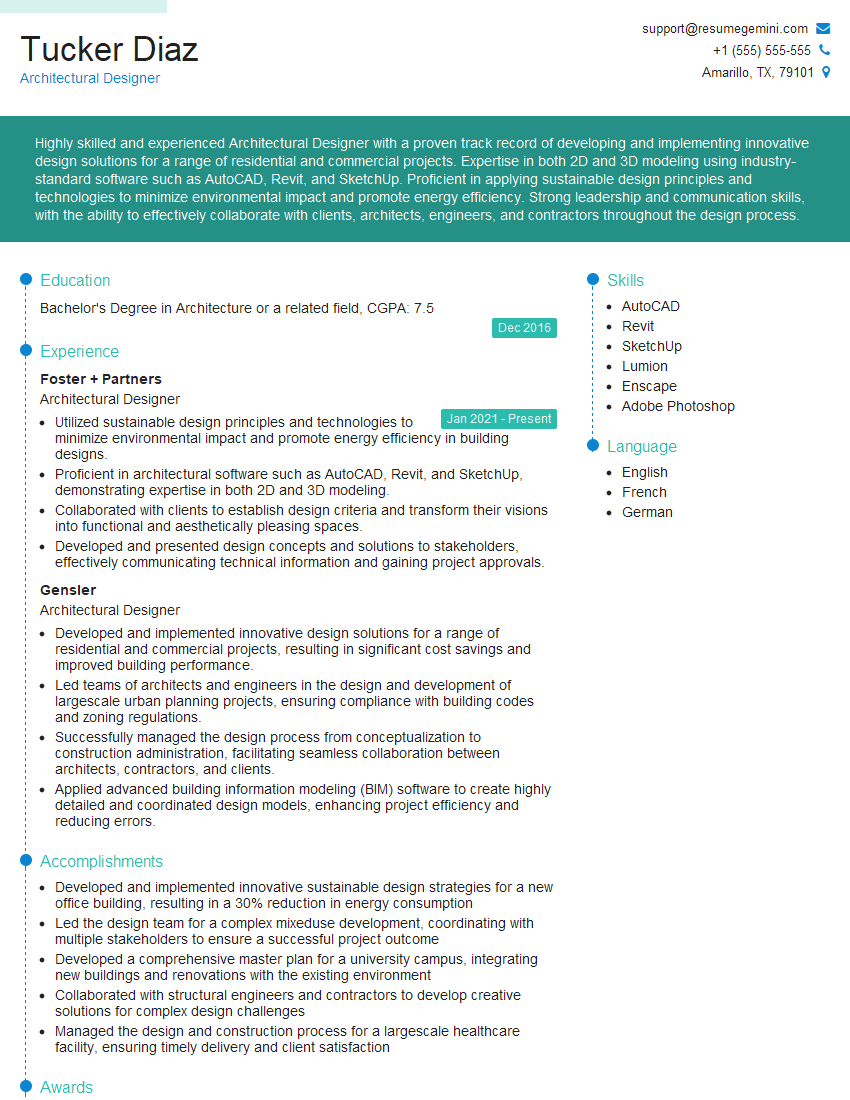
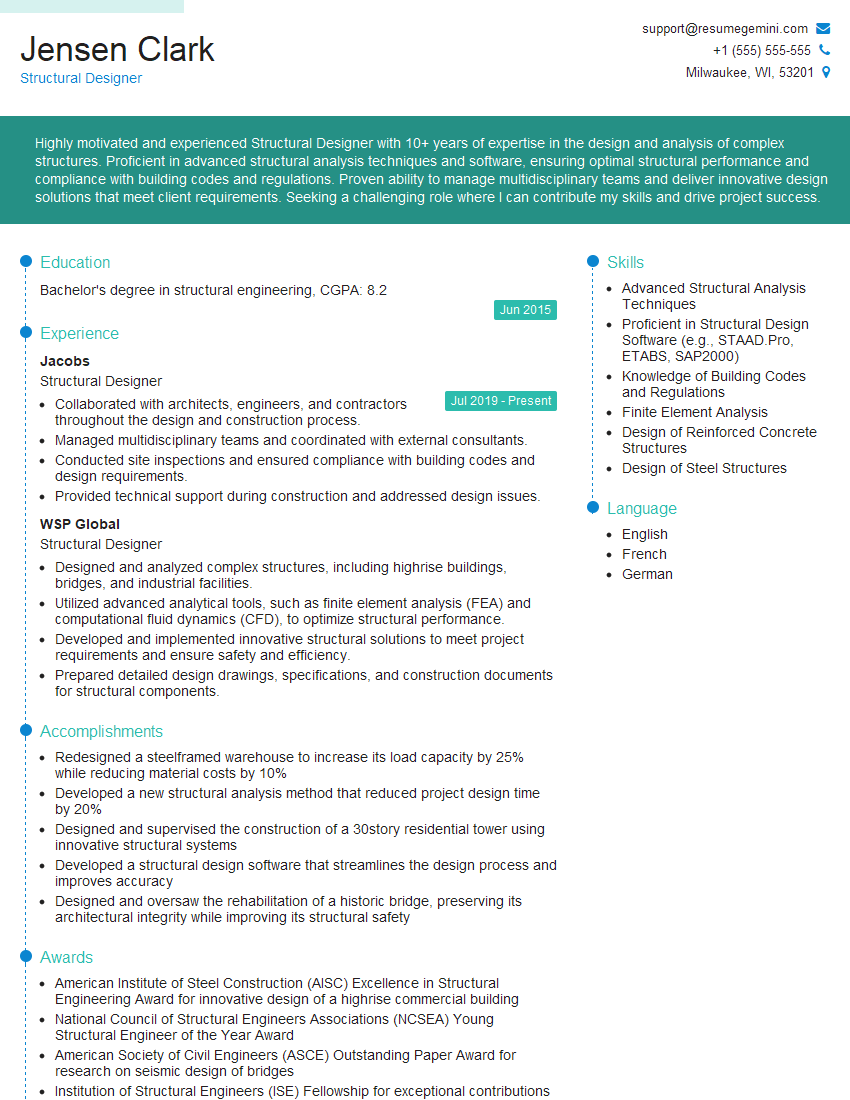
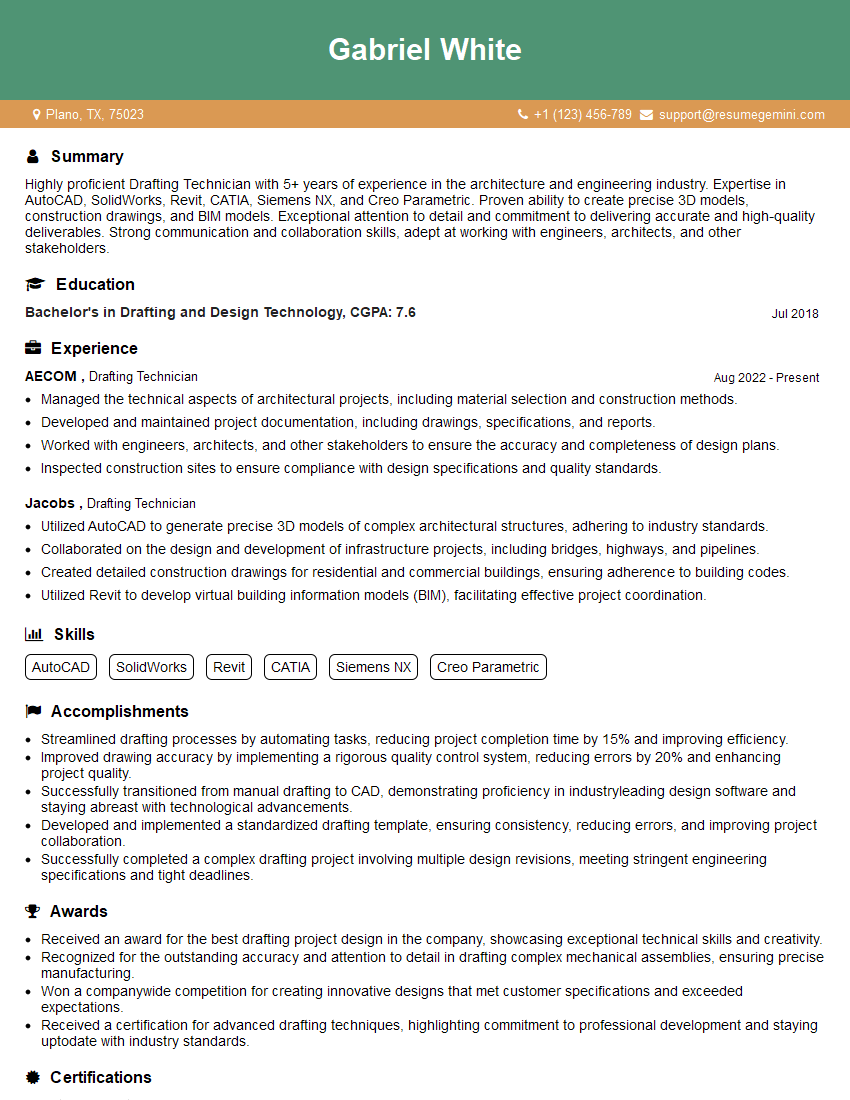
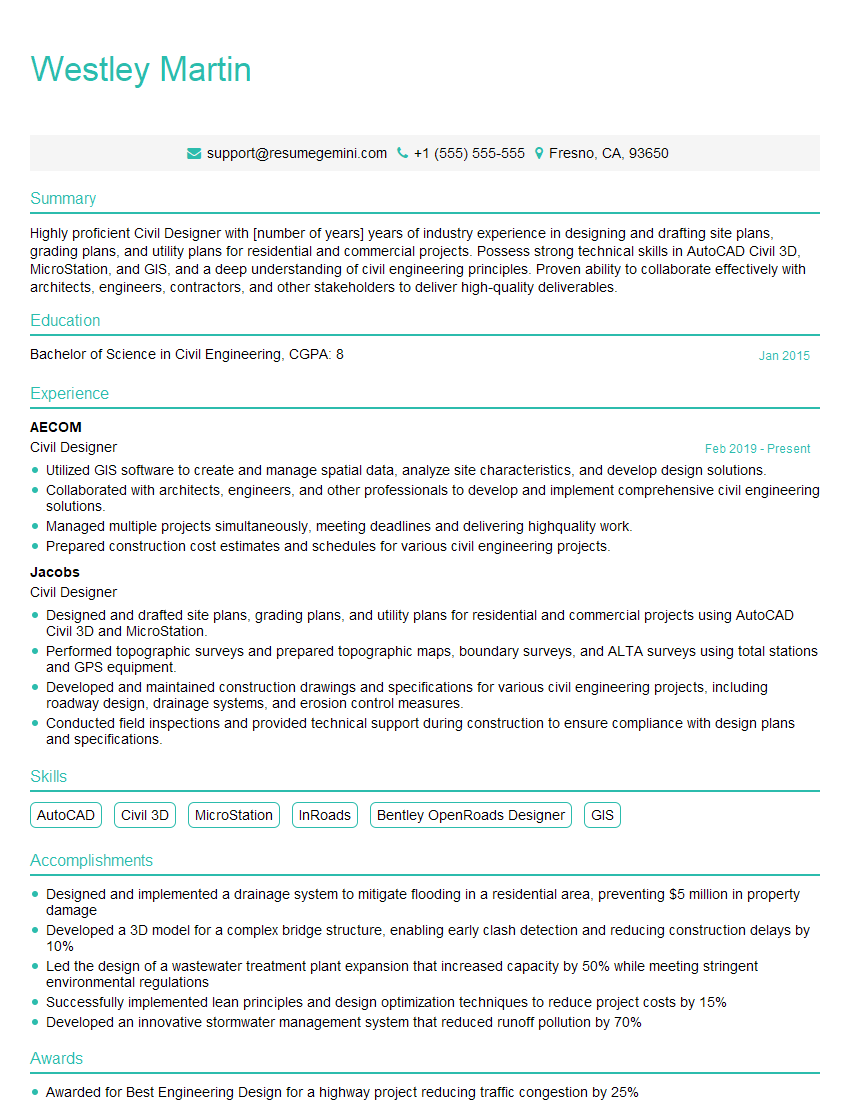
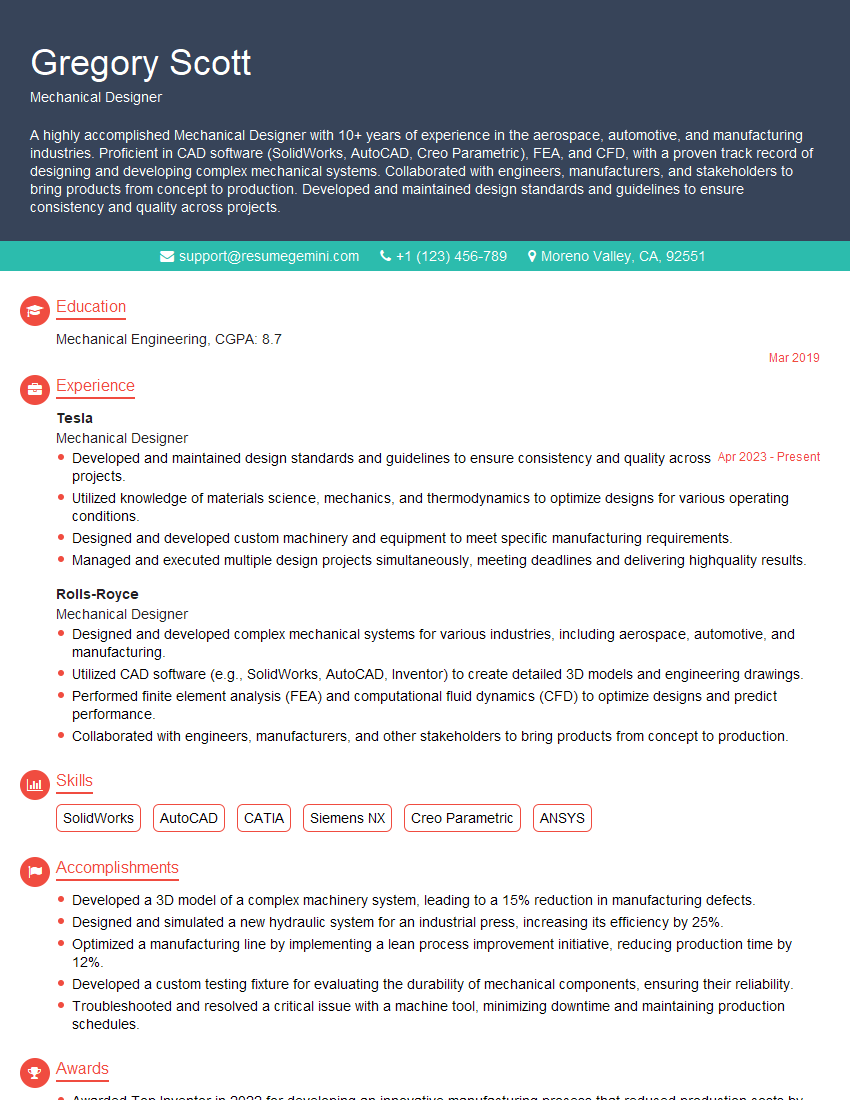
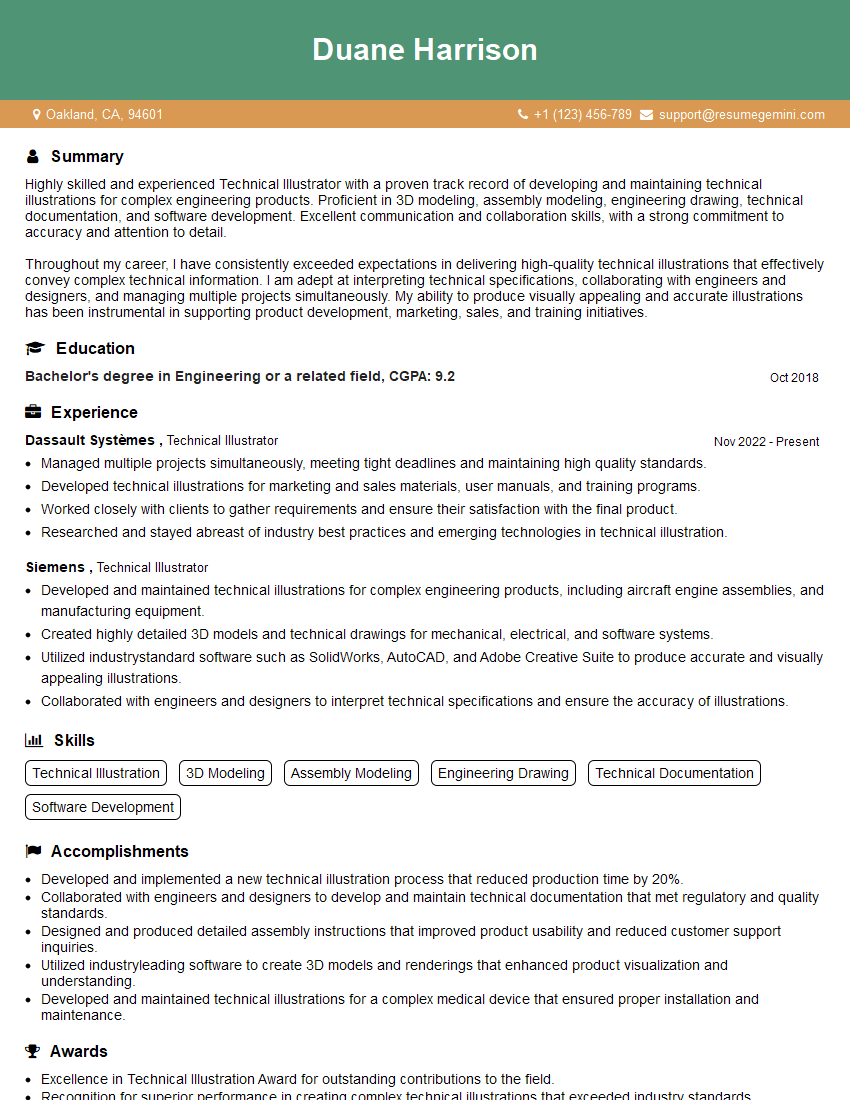
Mastering CAD software like AutoCAD, Revit, and SolidWorks is crucial for a successful and rewarding career in engineering, architecture, and design. These skills are highly sought after, opening doors to exciting opportunities and career advancement. To significantly improve your job prospects, it’s essential to create a resume that Applicant Tracking Systems (ATS) can easily read and understand. This is where ResumeGemini can help! ResumeGemini offers a powerful and user-friendly platform to build an ATS-friendly resume, highlighting your CAD skills effectively. We provide examples of resumes tailored to CAD (AutoCAD, Revit, SolidWorks) professionals to guide you. Take the next step towards your dream job – build your best resume with ResumeGemini.

Explore more articles
Users Rating of Our Blogs
Share Your Experience
We value your feedback! Please rate our content and share your thoughts (optional).
What Readers Say About Our Blog
Very informative content, great job.
good