Are you ready to stand out in your next interview? Understanding and preparing for CAD/CAE (SolidWorks, AutoCAD) interview questions is a game-changer. In this blog, we’ve compiled key questions and expert advice to help you showcase your skills with confidence and precision. Let’s get started on your journey to acing the interview.
Questions Asked in CAD/CAE (SolidWorks, AutoCAD) Interview
Q 1. Explain the difference between wireframe, surface, and solid modeling.
The three modeling techniques—wireframe, surface, and solid—represent different levels of geometric complexity in CAD. Think of them as building a house: wireframe is the basic outline, surface is adding the walls and roof, and solid is the fully constructed, inhabitable house.
- Wireframe modeling: This is the simplest form, using only lines and curves to define the edges of an object. It’s like a sketch; it shows the shape but doesn’t represent volume or mass. Useful for initial design concepts and quick visualizations. It’s limited because it doesn’t provide information about the object’s internal structure or solid properties.
- Surface modeling: Builds upon wireframe by adding surfaces to the edges. These surfaces can be curved or planar, creating a representation of the object’s exterior. Think of car body design—surface modeling is ideal for capturing complex curves and aesthetics. However, it doesn’t inherently represent volume; you have an exterior shell but not a solid object.
- Solid modeling: This is the most comprehensive approach. It defines both the object’s exterior and interior, accurately representing its volume and mass. This is crucial for engineering analysis (CAE) because you need a solid model to perform simulations like finite element analysis (FEA). Solid modeling allows for complex operations like boolean operations (union, subtraction, intersection) and feature-based design.
In short, wireframe is for basic shapes, surface for aesthetic designs, and solid for engineering and manufacturing.
Q 2. Describe your experience with SolidWorks feature-based modeling.
I have extensive experience with SolidWorks’ feature-based modeling, which is my preferred method for creating parts and assemblies. My workflow typically involves starting with a basic sketch, extruding or revolving it to create a base feature, and then adding subsequent features like holes, fillets, cuts, and patterns to build complexity. This approach is highly efficient and allows for easy modification later on. For instance, I recently designed a complex injection-molded plastic part. I began with a base extrusion, then used revolved features to create curved sections. Following this, I added several holes and counterbores using pattern features to streamline the process and ensure design consistency. Finally, I applied fillets to smooth out sharp edges to improve manufacturing feasibility and aesthetics. The parametric nature of SolidWorks allowed me to easily modify dimensions without having to redraw the entire part. I’m also proficient in using SolidWorks’ advanced features like sweeps, lofts, and ribs to create intricate geometries.
Q 3. How proficient are you with AutoCAD commands like TRIM, EXTEND, and OFFSET?
I’m highly proficient with AutoCAD’s TRIM, EXTEND, and OFFSET commands. They’re fundamental tools for precise editing and creating geometric elements. Think of them as surgical instruments for your drawings.
TRIMremoves portions of objects that extend beyond an intersection with another object. Imagine trimming excess material from a sheet metal part to fit a specific shape.EXTENDlengthens a line or curve to intersect with another object. Think of extending a line to meet a circle, essentially creating a tangent line.OFFSETcreates parallel lines, curves, or regions at a specified distance. This is incredibly useful for creating parallel pathways, setting margins, or generating offsets to create thickened parts.
I frequently use these commands together for creating detailed and accurate drawings. For example, I recently used these commands in tandem to create a precise architectural drawing. I began by drawing the overall footprint and then used OFFSET to create building setbacks. TRIM and EXTEND were instrumental in ensuring all lines and curves intersected perfectly.
Q 4. What are the various types of constraints used in SolidWorks?
SolidWorks offers a variety of constraints for defining relationships between geometric elements, ensuring accurate and well-defined models. These are crucial for creating robust and modifiable designs. They’re like the glue that holds your digital construction together.
- Geometric Constraints: These define relationships between geometric entities (points, lines, planes, etc.). Examples include:
Mate:Aligns faces, edges, or points.Concentric:Aligns the centers of circular features.Collinear:Aligns lines along a common axis.Tangent:Creates a tangent relationship between curves.- Dimensional Constraints: These specify exact distances, angles, or radii. They ensure precise geometric dimensions are maintained. Examples include specifying the length of a line or the diameter of a circle.
- Advanced Constraints: SolidWorks includes more sophisticated constraints like symmetrical, equal, parallel, perpendicular, and fixed constraints, providing flexible control over your model’s geometry and relationships.
Proper constraint usage is essential for creating robust designs that can be easily modified. Over-constraining can lead to issues, but under-constraining leads to instability. The balance requires careful planning and experience.
Q 5. Explain the concept of parametric modeling.
Parametric modeling is a powerful technique where the model’s geometry is defined by parameters (variables) rather than fixed dimensions. It’s like creating a blueprint with adjustable settings. Changing a parameter automatically updates the entire model, maintaining consistency and relationships.
For example, if you design a box with parameters for length, width, and height, changing the length automatically adjusts the overall dimensions while maintaining the box’s shape. This is significantly more efficient than manually adjusting individual dimensions every time you need a variation. Parametric modeling allows for quick design iterations, better design management, and consistency across different versions. It’s extremely useful in design optimization where multiple parameters can be varied to evaluate performance, such as changing the dimensions of a structural beam to optimize for strength and weight.
Q 6. How do you manage large assemblies in SolidWorks?
Managing large assemblies in SolidWorks efficiently requires a strategic approach. It’s like organizing a large construction project—you can’t just throw everything together at once.
- Component Management: Use component folders and organization within the assembly to keep things structured. Think of it as constructing separate modules before joining them.
- Lightweight Components: Convert components into lightweight components to reduce file size and improve performance. This involves preserving critical assembly relationships while reducing detailed geometry.
- Sub-assemblies: Break down complex assemblies into smaller, manageable sub-assemblies. This modular approach significantly speeds up the loading and manipulation of the larger assembly.
- Top-Down Assembly Design: Start with the top-level assembly and work down to the individual components. This approach helps establish relationships between parts early on.
- Configuration Management: Utilize SolidWorks’ configuration management tools to create multiple versions of the assembly without increasing file size, enabling efficient exploration of design variations.
By effectively employing these strategies, it’s possible to manage very large and complex assemblies without compromising performance or manageability.
Q 7. Describe your experience with creating detailed drawings in AutoCAD.
I have extensive experience creating detailed drawings in AutoCAD, following industry standards like ANSI or ISO. My process involves creating geometrically accurate models, applying appropriate layers and styles, and using annotation tools to label dimensions, tolerances, and other critical details. This is akin to creating a highly detailed and accurate blueprint for manufacturing.
I’m proficient in creating various drawing types, including orthographic projections, section views, detail views, and assembly drawings. I use AutoCAD’s dimensioning tools, text styling, and annotation features to produce clean, professional drawings that comply with industry best practices. For example, I recently completed a set of manufacturing drawings for a custom-designed robotic arm. This involved creating multiple orthographic views, section views to detail internal mechanisms, and detailed parts drawings with ballooning and parts lists. Accurate dimensioning and clear annotations were critical to the manufacturing process.
Q 8. What are your preferred methods for creating 3D models from 2D drawings?
Creating 3D models from 2D drawings is a fundamental task in CAD. My preferred methods depend on the complexity and detail of the 2D drawings. For simpler drawings, I often use SolidWorks’ sketch-based modeling. I’ll import the 2D drawing as a reference, create sketches based on its dimensions and geometry, and then extrude, revolve, or use other features to build the 3D model. This is like sculpting with digital clay, starting from a flat image and building up the form layer by layer.
For more complex drawings with multiple views or intricate details, I might employ a combination of techniques. I could use the ‘Project Curve’ command in SolidWorks to project geometry from the 2D drawing onto 3D planes, or leverage SolidWorks’ ‘Import’ functionality to directly import the 2D drawing and use it as a guide for creating 3D features. This is particularly useful for drawings containing many different components which can be individually recreated in 3D and assembled in a virtual environment. Finally, for very detailed drawings, I may consider using a combination of SolidWorks and AutoCAD, using AutoCAD to clean and prepare drawings or extract specific data, then importing into SolidWorks for 3D model creation.
Regardless of the method, accuracy is paramount. I always cross-check dimensions and tolerances with the 2D drawing to ensure the 3D model faithfully represents the design intent.
Q 9. Explain your understanding of design for manufacturing (DFM).
Design for Manufacturing (DFM) is a crucial process that considers the manufacturing process from the very beginning of the design phase. It’s about ensuring that a product is not only functional and aesthetically pleasing but also cost-effective and manufacturable. Think of it as anticipating and eliminating potential problems before they even arise in the factory.
A good DFM process involves understanding the manufacturing capabilities of the chosen method (e.g., injection molding, CNC machining, 3D printing). I consider factors like material selection, tolerances, assembly methods, surface finishes, and tooling requirements. For example, designing sharp corners on a plastic injection molded part is problematic since it may lead to stress concentration and breakage. I would instead create rounded corners to increase structural integrity and improve mold-flow during manufacturing. Similarly, considering the number of parts needed to assemble a product is crucial – minimizing the number of parts reduces costs and the risk of assembly defects.
DFM isn’t just about cost; it’s about quality, reliability, and efficiency. By designing for manufacturability, I can help create products that are better, cheaper, and easier to produce.
Q 10. How familiar are you with finite element analysis (FEA)?
I’m very familiar with Finite Element Analysis (FEA). It’s a powerful computational method used to predict the behavior of a product or component under various loads and conditions. I think of FEA as a virtual testing lab where we can simulate real-world scenarios without the cost and time involved in physical prototyping.
My understanding encompasses meshing techniques (creating the numerical model), defining material properties, applying boundary conditions (loads, constraints, etc.), running the simulation, and interpreting the results (stress, strain, displacement, etc.). I’m proficient in using FEA software to analyze and validate my designs to ensure their structural integrity, thermal performance, or fluid flow characteristics.
Q 11. What are the different types of FEA simulations you have performed?
I have performed various FEA simulations, including:
- Static Stress Analysis: To determine the stress and strain distribution in a component under static loads. For instance, I used this to analyze the stress in a bicycle frame under rider weight.
- Dynamic Analysis: To study the response of a component to dynamic loads like vibrations or impacts. An example is analyzing the vibration response of a car engine mount.
- Modal Analysis: To determine the natural frequencies and mode shapes of a component, crucial for avoiding resonance issues. I utilized this to ensure a speaker cabinet wouldn’t vibrate excessively at certain frequencies.
- Thermal Analysis: To predict temperature distribution and heat transfer within a component. This has been applied to optimize the cooling system of an electronic enclosure.
- Linear and Non-Linear Analysis: I understand the differences and appropriately apply each depending on the complexity of the problem.
Choosing the appropriate type of analysis depends on the specific needs of the project and the expected behavior of the product under the given load conditions. The results help me optimize the design, identify potential failure points, and ensure the product meets its performance requirements.
Q 12. How do you handle design revisions and version control?
Handling design revisions and version control is crucial for maintaining the integrity and traceability of a project. My approach typically involves using a version control system such as SolidWorks PDM (Product Data Management) or a cloud-based solution like Autodesk Vault. This allows me to track all changes, revert to previous versions if needed, and collaborate effectively with team members.
Before making any changes, I always create a new revision or version in the system. This ensures that the original design is preserved and that any modifications are clearly documented. Each revision includes a description detailing the changes made, the date, and the author. This detailed documentation aids in communication and simplifies troubleshooting down the line. Furthermore, access controls within the PDM system can help protect against accidental overwrites or unauthorized modifications. Imagine working on a complex aircraft component – this systematic approach ensures that everyone is on the same page and that the latest version is always readily accessible.
Q 13. Describe your experience with data management in SolidWorks or AutoCAD.
My experience with data management in SolidWorks and AutoCAD involves utilizing their integrated data management tools and implementing best practices for file organization and naming conventions. In SolidWorks, I’m comfortable using PDM Professional for managing revisions, collaborating with others, and controlling access to design files. It helps prevent version conflicts and ensures everyone’s working with the most up-to-date information. I use similar strategies with AutoCAD’s data management tools, using organized folders and precise file naming to maintain control over large projects. For example, when working on a large building project involving many drawings and models, a well-organized data structure is absolutely crucial to avoid confusion and maintain productivity.
Beyond the software’s inherent tools, I focus on establishing a consistent file naming convention that includes project information, part number, revision number, and date. This system drastically simplifies searching and sorting through numerous files. This is not just about tidiness—it’s about maintaining efficiency and avoiding costly mistakes that arise from data mismanagement.
Q 14. What are some common SolidWorks drawing annotations and their uses?
SolidWorks drawings utilize a variety of annotations to convey critical information. Here are some common ones and their uses:
- Dimensions: Precise measurements of features, ensuring accuracy and providing manufacturing information.
10.00 +/- 0.05shows a dimension of 10.00 with a tolerance of +/- 0.05 - Geometric Tolerances (GD&T): Specifies permissible variations in form, orientation, location, and runout of features, crucial for ensuring proper fit and function. They often use symbols like positional tolerance symbols to define allowable variations.
- Notes and Text: Convey non-dimensional information like material specifications, surface finishes, or special instructions to the manufacturer.
Material: Aluminum 6061-T6shows material specification - Leader Lines and Balloons: Direct the viewer’s attention to specific features or details by connecting text or symbols. This is really helpful for highlighting key aspects of a complex assembly
- Section Views: Show an internal cross-section of a part to reveal hidden features. This enables the manufacturer to understand hidden details important for manufacturing.
- Break Lines: Shorten long, uniform features to save space on the drawing without sacrificing information.
Proper use of these annotations ensures clear communication between designers and manufacturers, avoiding misunderstandings and ensuring the parts are manufactured to specification.
Q 15. Explain your experience with rendering and visualization techniques.
Rendering and visualization are crucial for communicating design intent and evaluating aesthetics. My experience encompasses a range of techniques, from simple photorealistic renderings in SolidWorks Visualize to more complex animations and simulations. I’m proficient in using different rendering engines, adjusting lighting, materials, and camera angles to achieve desired visual effects. For instance, I once used SolidWorks Visualize to create a series of high-quality renderings for a client showcasing their new product line, highlighting its features and design details with realistic textures and lighting. This helped the client secure significant investor interest.
Beyond still images, I’m also experienced in creating animations and walkthroughs to demonstrate product functionality or assembly processes. This involves using software’s animation tools to create a dynamic visual representation of a product or system. Think of creating a step-by-step virtual assembly to demonstrate how a complex mechanism works. This is particularly helpful for communicating intricate designs to clients or manufacturing teams.
Furthermore, I leverage techniques like ray tracing and global illumination to achieve highly realistic results. I understand how different rendering settings affect rendering times and image quality, allowing me to optimize the process for specific project requirements. For instance, for quick iterations, I might use a less computationally intensive rendering setting; for final presentation renders, I’ll utilize higher-quality settings to showcase the model’s details.
Career Expert Tips:
- Ace those interviews! Prepare effectively by reviewing the Top 50 Most Common Interview Questions on ResumeGemini.
- Navigate your job search with confidence! Explore a wide range of Career Tips on ResumeGemini. Learn about common challenges and recommendations to overcome them.
- Craft the perfect resume! Master the Art of Resume Writing with ResumeGemini’s guide. Showcase your unique qualifications and achievements effectively.
- Don’t miss out on holiday savings! Build your dream resume with ResumeGemini’s ATS optimized templates.
Q 16. How do you troubleshoot errors and unexpected results in your CAD models?
Troubleshooting in CAD is a crucial skill. My approach is systematic, starting with identifying the error’s nature. Is it a geometric error (e.g., overlapping faces), a topological error (e.g., gaps or holes), or a performance issue (e.g., slow regeneration)?
- Geometric Errors: I often use SolidWorks’ inspection tools (e.g., interference detection) to pinpoint overlaps or gaps. Manually checking for inconsistencies in sketches or feature creation is another method. For example, a seemingly minor error in a sketch could lead to problems in the 3D model, causing failure in downstream processes.
- Topological Errors: Tools like SolidWorks’ ‘Check Model’ command assist in finding surface-related issues. If the problem persists, I often rebuild the model section by section to isolate the source.
- Performance Issues: This might involve simplifying the model’s complexity, reducing the number of features, or improving the model’s organization (e.g., using components and sub-assemblies efficiently). I always ensure that my files are well-organized and optimized to prevent future performance issues.
For example, once I was working on a complex assembly, and the regeneration was exceptionally slow. By strategically using component suppression, I was able to isolate the problematic components and identify a circular reference in constraints which I then resolved. Documentation is key! I always carefully document my design decisions and changes to easily retrace my steps during troubleshooting.
Q 17. Describe your workflow for creating and managing a complex assembly in SolidWorks.
Managing complex assemblies in SolidWorks requires a well-defined workflow to ensure efficiency and maintainability. My workflow generally involves these steps:
- Planning: I start by thoroughly understanding the assembly’s function and hierarchy. This includes creating a detailed assembly structure chart to define relationships between components.
- Component Creation: I create individual components in a modular manner, ensuring they are self-contained and easily reusable. This might include creating custom features or using standard library parts. I make sure to design for manufacturability; this ensures that my components are realistically manufacturable.
- Assembly Creation: I use SolidWorks’ assembly tools to combine components, employing efficient techniques like top-down assembly or bottom-up assembly depending on complexity. I leverage mates and constraints effectively, ensuring a robust and stable assembly.
- Configuration Management: I extensively use configurations to manage different variations of the assembly (e.g., different material options or design alternatives). This simplifies managing various design options without creating multiple separate assemblies.
- Documentation: I rigorously document the assembly, including detailed drawings, BOMs (Bills of Materials), and any specific instructions or notes.
For example, when I was designing a complex robotic arm, I used a modular approach, creating individual components for each joint and link. This allowed me to easily modify and test different configurations and ensure that the final assembly was robust and functional.
Q 18. What are your experiences with creating and working with custom parts libraries?
Creating and managing custom parts libraries is essential for efficiency and consistency in design. I’ve extensively used SolidWorks’ capabilities to create and populate libraries with frequently used components like fasteners, standard parts, or company-specific components. This ensures design consistency and significantly reduces design time.
My approach involves creating well-organized folders and naming conventions within the library to easily locate components. I utilize SolidWorks’ ‘Content Center’ effectively to manage these libraries, allowing for easy updating and version control. I also meticulously document each part with its specifications and relevant metadata, making searching and retrieval streamlined. For instance, in a previous project, we created a library of custom connectors used across multiple products. This ensured consistency, reduced errors, and facilitated efficient design reuse. We implemented a rigorous version control system to manage changes over time and maintain library integrity.
Furthermore, I’m familiar with the import and export functionalities for integrating parts from external sources, and I can adapt my approach depending on the specific needs of the project or company. This might involve importing existing parts in various formats, cleaning them up, and integrating them into the custom library. This ability ensures that we make maximum use of pre-existing components and optimize the design process overall.
Q 19. How would you approach creating a complex surface model using SolidWorks?
Creating complex surface models in SolidWorks requires a good understanding of surface modeling techniques. My approach generally involves a combination of techniques, depending on the model’s complexity and desired outcome:
- Sketch-Based Surfaces: I begin by creating accurate 2D sketches to define the underlying geometry. These sketches then serve as the foundation for creating surfaces using tools like ‘Revolve,’ ‘Sweep,’ ‘Extrude,’ or ‘Fill.’ I use precise sketch constraints to maintain control over the surface’s shape and dimensions.
- Surface Editing Tools: Once the initial surfaces are created, I utilize SolidWorks’ surface editing tools to refine the model, adjusting curves, blending surfaces, and creating fillets and chamfers. I often use ‘Move/Copy Face,’ ‘Fill,’ and ‘Boundary Surface’ for creating and manipulating complex shapes.
- Imported Data: If the surface data originates from another source (e.g., a point cloud or a scan), I’m experienced in importing this data into SolidWorks and utilizing reverse-engineering tools to create the corresponding surface model.
- Advanced Techniques: For highly complex models, I employ techniques like surface lofting, ruled surfaces, and network surfaces to create smooth and aesthetically pleasing transitions between different shapes.
For example, when designing a sleek car body, I used a combination of revolve and sweep features to create the basic shapes, followed by extensive use of fillet and blend commands to create smooth transitions between different surfaces and refine the overall aesthetic. I pay particular attention to surface continuity, ensuring that the surfaces are visually appealing and free of abrupt changes.
Q 20. Describe your experience with AutoCAD’s dynamic input feature.
AutoCAD’s dynamic input is a powerful feature that significantly enhances efficiency by providing real-time feedback during drawing. It allows users to enter coordinates, dimensions, and other parameters directly at the cursor, eliminating the need for constant switching between the command line and the drawing area.
I regularly utilize dynamic input for various tasks, including drawing lines, arcs, circles, and other geometric entities. It improves precision by displaying the exact values as I draw, allowing for immediate adjustments. For example, I can draw a line and specify its exact length and angle simultaneously, ensuring accuracy without resorting to separate dimensioning commands.
Furthermore, dynamic input is particularly useful when working with polar coordinates. It allows for easy specification of angles and distances, simplifying the creation of complex shapes and arrangements. The ability to easily switch between absolute and relative coordinates makes it very efficient for creating precise drawings in varied settings. It has significantly reduced my drawing time and increased the precision of my work, particularly helpful in projects requiring intricate details and precise measurements.
Q 21. What are your experiences with different file formats used in CAD/CAM (e.g., STEP, IGES, DXF)?
Different file formats are essential for data exchange between CAD systems and CAM software. My experience covers several widely used formats, each with its strengths and weaknesses:
- STEP (Standard for the Exchange of Product data): This is a neutral, widely accepted format that preserves much of the original model’s geometry and topology. I often use it for exchanging models between different CAD software packages, ensuring that design data remains consistent.
- IGES (Initial Graphics Exchange Specification): Similar to STEP, IGES is a neutral file format for exchanging CAD data. While not as feature-rich as STEP, it’s still widely used, particularly in older systems.
- DXF (Drawing Exchange Format): This is an AutoCAD-native format, primarily used for exchanging 2D drawings. It’s commonly used for collaboration and data exchange with external parties, specifically those using AutoCAD. However, it may lose some 3D model data during conversion.
Understanding the capabilities and limitations of each format is crucial. For example, when sharing a complex 3D model with a manufacturing partner, I might choose STEP to preserve crucial geometry and topology. However, for simpler 2D drawings, DXF might be sufficient. Selecting the right format for the specific purpose ensures the integrity and efficiency of the data transfer.
Q 22. Explain the concept of tolerance analysis in design.
Tolerance analysis in design is the process of determining how variations in dimensions and tolerances of individual components affect the overall functionality and performance of an assembly. Think of it like building a house with slightly imperfect bricks – each brick might be a little bigger or smaller than expected, and tolerance analysis helps us understand whether those small imperfections will lead to a crooked wall or a structurally unsound building.
It involves analyzing the cumulative effect of these variations, identifying critical dimensions, and ensuring the final assembly meets specified requirements. This is crucial to prevent costly rework, failures, and product recalls. We use statistical methods, often employing software tools integrated within CAD systems, to predict the probability of assembly issues based on the tolerances assigned to each part.
- Geometric Dimensioning and Tolerancing (GD&T): GD&T is a symbolic language used to precisely define part dimensions and tolerances on engineering drawings, enhancing communication and minimizing ambiguity. For example, a positional tolerance might specify that a hole must be within a certain distance from a datum feature regardless of its size variations.
- Monte Carlo Simulation: This statistical method simulates numerous assembly scenarios with randomly generated dimensions within their tolerance ranges. The results provide a distribution of possible assembly outcomes, showing the likelihood of meeting or exceeding design limits.
For instance, in designing a precision gear assembly, tolerance analysis helps ensure that gear teeth mesh correctly even with slight variations in tooth size and position. Without it, the gears might not mesh efficiently, leading to noise, wear, and ultimately, failure.
Q 23. How do you ensure the accuracy of your CAD models?
Ensuring the accuracy of CAD models requires a multi-faceted approach, focusing on both the modeling process and the verification of results. I always start by employing best practices from the outset, building a solid foundation for my model.
- Precise Sketching and Constraints: I meticulously create sketches with fully defined geometry, using appropriate constraints to ensure dimensional accuracy and prevent over- or under-constrained models. This avoids any ambiguity or errors that might propagate throughout the model.
- Reference Geometry: Utilizing planes, axes, and points as references throughout the modeling process provides a robust framework, simplifying the creation of complex features and avoiding errors caused by relying on visual estimations.
- Model Verification: I use various tools to check for errors, including SolidWorks’ built-in tools for detecting gaps, intersections, and self-intersections, ensuring a clean and unambiguous model. I also routinely perform design reviews with colleagues to catch potential oversights.
- Unit Consistency: Maintaining consistent units throughout the project (e.g., always using millimeters or inches) is essential to avoid scaling errors. I check units regularly and use model checking tools to flag any inconsistencies.
Furthermore, I often utilize advanced techniques such as finite element analysis (FEA) to validate model behavior under various loads and conditions. This allows for early detection of potential design flaws before prototyping, saving both time and resources. A real-world example is validating the structural integrity of a chassis component under stress using FEA to ensure it can withstand anticipated loads without failure.
Q 24. What are your strengths and weaknesses in CAD/CAE software?
My strengths lie in my proficiency with both SolidWorks and AutoCAD, allowing me to tackle diverse design challenges effectively. I’m particularly skilled in creating complex assemblies and performing detailed tolerance analysis in SolidWorks, and I am comfortable using AutoCAD for 2D drafting and detailed drawings. I also possess a strong understanding of FEA, enabling me to perform simulations and validate designs.
One area I am continually striving to improve is my proficiency with advanced surfacing techniques in SolidWorks, especially for organic shapes and freeform designs. While I possess a working knowledge, further practice would refine my efficiency and allow me to explore more creative design possibilities.
Q 25. Describe a time you had to solve a complex design problem using CAD/CAE software.
During a project designing a robotic arm, we encountered a significant challenge in optimizing the arm’s reach and dexterity while minimizing its weight and maximizing its load-bearing capacity. The initial design was too heavy and cumbersome, failing to meet the required specifications.
To address this, I employed a combination of iterative design modifications in SolidWorks and FEA simulations. I started by simplifying the arm’s geometry, using lighter materials where appropriate. I then conducted several FEA simulations, varying the materials, thicknesses, and geometry of different components to assess their stress and deformation under various loads. This allowed me to identify areas of stress concentration and refine the design accordingly.
Through this iterative process of design modification and simulation, I was able to reduce the arm’s weight by 25% while improving its load-bearing capacity by 15%, significantly exceeding the initial project requirements. The project demonstrated my ability to leverage CAD and CAE software to tackle complex design problems efficiently and effectively.
Q 26. What are some of the industry best practices you follow in CAD modeling?
I adhere to several industry best practices to ensure model quality and efficiency:
- Clear Naming Conventions: Consistent and descriptive naming of components and features makes managing large assemblies much simpler and improves collaboration.
- Parameterization: Defining design parameters early on allows for easy modification and exploration of various design iterations, simplifying the optimization process.
- Feature Management: Using features effectively, suppressing and restoring components as needed, ensures better control over complex assemblies and enhances collaboration.
- Version Control: Implementing a version control system (e.g., SolidWorks PDM) helps track changes, collaborate seamlessly with team members, and prevent accidental overwrites.
- Data Management: Maintaining organized project folders and using appropriate file naming conventions is crucial for long-term project management and collaboration.
These practices not only improve the quality and efficiency of my work but also ensure maintainability and facilitate collaboration within design teams.
Q 27. How do you stay updated with the latest advancements in CAD/CAE software?
Staying updated on advancements in CAD/CAE software is crucial. I employ several strategies to achieve this:
- Vendor-Specific Training and Webinars: I regularly participate in online webinars and training sessions offered by SolidWorks and Autodesk, learning about new features and techniques.
- Industry Publications and Journals: I read industry publications and journals to stay abreast of the latest trends and software updates relevant to my field.
- Online Communities and Forums: Engaging in online communities and forums allows me to learn from the experience of other engineers and stay informed about new techniques and best practices.
- Hands-on Practice with New Features: I actively test and implement new features in my projects, gaining hands-on experience and deepening my understanding.
This proactive approach ensures I remain at the forefront of CAD/CAE technology, enhancing my ability to tackle increasingly complex design challenges.
Q 28. Describe your experience working with CAM software (if any).
While my primary focus has been on CAD and CAE, I have experience working with CAM software, specifically Mastercam. My experience includes:
- Generating CNC Toolpaths: I’ve generated toolpaths for milling and turning operations, utilizing various machining strategies depending on the workpiece material and geometry.
- Post-Processor Configuration: I have experience configuring post-processors to match the specific requirements of different CNC machines.
- Simulation and Verification: I’ve used CAM software to simulate machining operations, verifying toolpaths and identifying potential collisions or issues before actual machining.
This experience has greatly enhanced my understanding of the manufacturing process, enabling me to design parts with manufacturability in mind. Understanding CAM allows me to create designs that are not only functionally sound but also feasible to manufacture efficiently and cost-effectively.
Key Topics to Learn for CAD/CAE (SolidWorks, AutoCAD) Interview
- SolidWorks: Part Modeling Fundamentals: Understanding features like extrudes, revolves, sweeps, and pattern creation. Practical application: Designing a simple mechanical part from scratch, demonstrating proficiency in feature-based modeling.
- AutoCAD: 2D Drafting and Annotation: Mastering the creation of technical drawings, including dimensions, tolerances, and annotations. Practical application: Producing a detailed drawing of a pre-designed assembly, showcasing accuracy and annotation skills.
- SolidWorks: Assemblies and Constraints: Creating and managing complex assemblies, utilizing constraints to define relationships between parts. Practical application: Assembling a multi-component mechanism and demonstrating understanding of mate constraints and motion studies.
- AutoCAD: Layering and Organization: Efficiently organizing drawings using layers and layer properties. Practical application: Creating a clean and organized drawing that is easy to understand and modify.
- SolidWorks: Simulation and CAE Basics: Introduction to basic stress analysis, utilizing simulation tools to validate designs. Practical application: Performing a simple static analysis on a designed part to identify potential stress concentrations.
- AutoCAD: Customization and Automation: Exploring tools to customize the workspace and automate repetitive tasks (optional, depending on experience level). Practical application: Developing a simple script or LISP routine to automate a common task.
- Data Management: Understanding version control and collaborative design workflows within both platforms. Practical application: Explaining your approach to managing design files in a team environment.
- Technical Drawing Standards: Familiarity with industry standards (e.g., ASME Y14.5). Practical application: Correctly applying dimensioning and tolerancing techniques to a drawing.
Next Steps
Mastering CAD/CAE software like SolidWorks and AutoCAD is crucial for a successful career in engineering and design. These skills are highly sought after, opening doors to diverse and rewarding opportunities. To maximize your job prospects, invest time in creating a compelling and ATS-friendly resume that highlights your skills and experience effectively. ResumeGemini is a trusted resource to help you build a professional resume that grabs recruiters’ attention. They offer examples of resumes tailored to CAD/CAE (SolidWorks, AutoCAD) roles, ensuring your application stands out from the competition.

Project Engineer Resume Sample
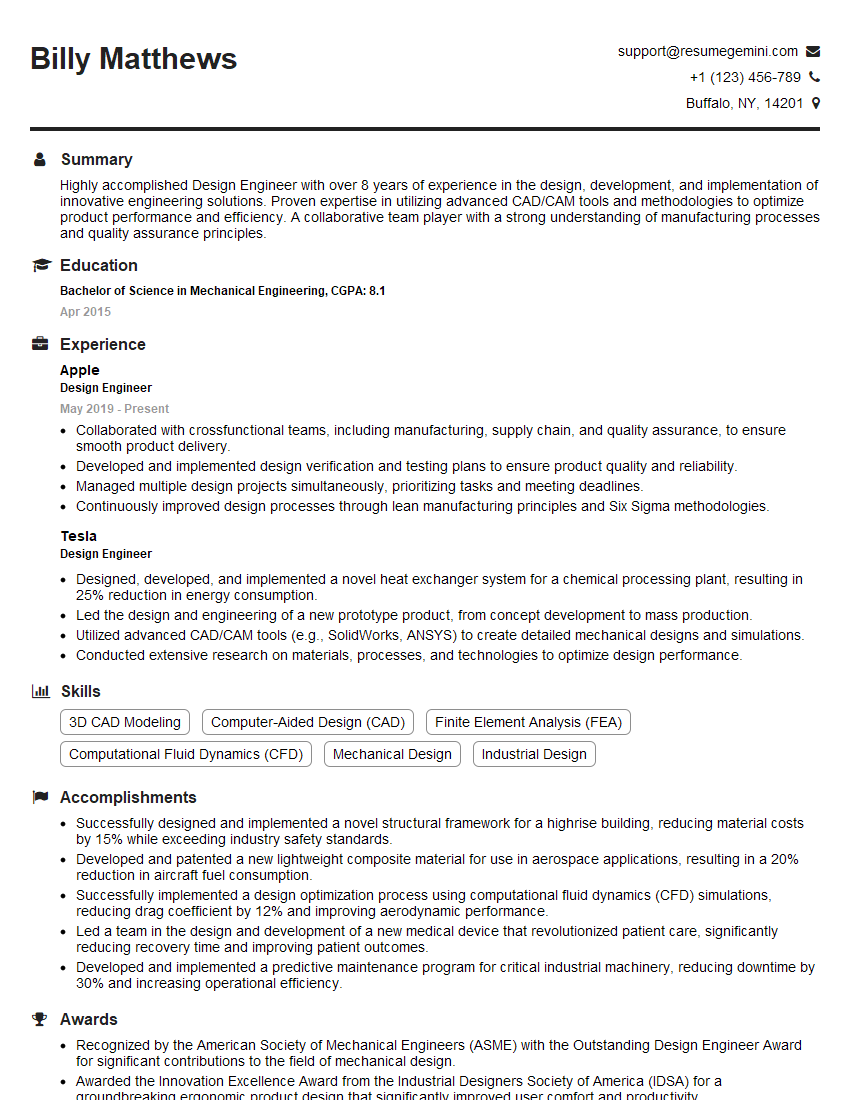
Design Engineer Resume Sample
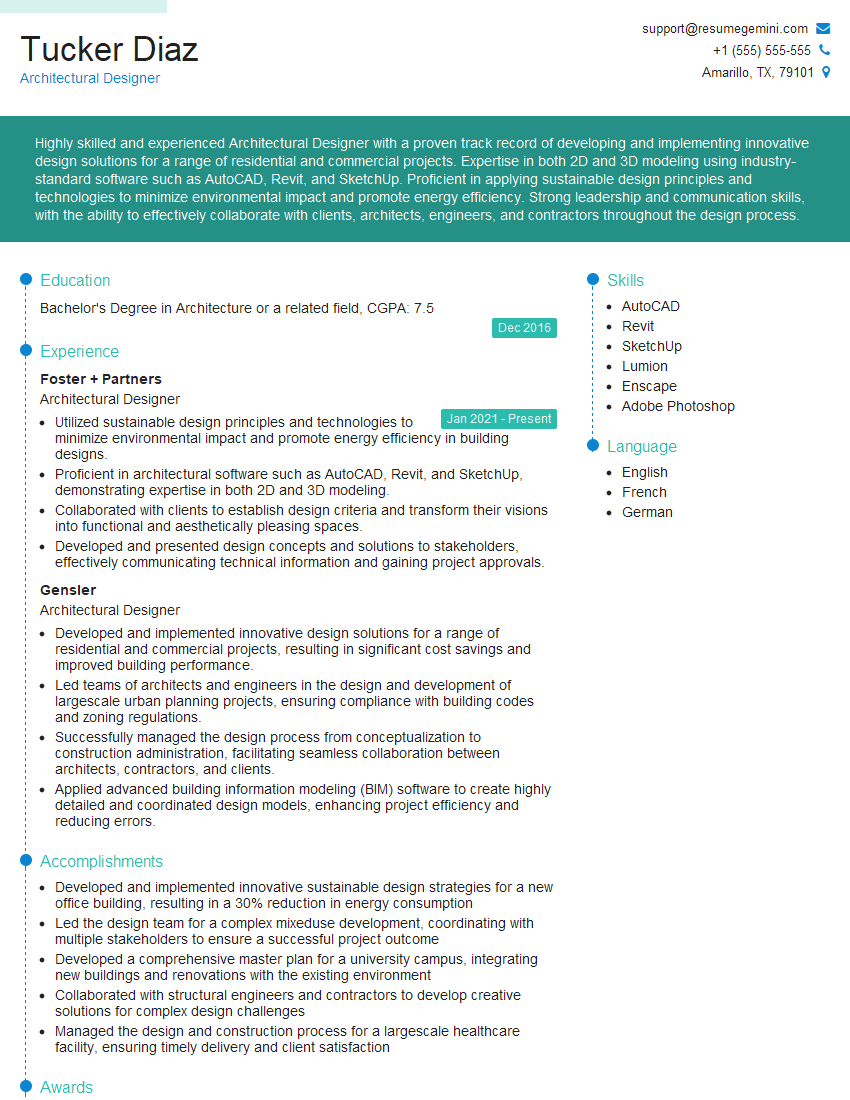
Architectural Designer Resume Sample
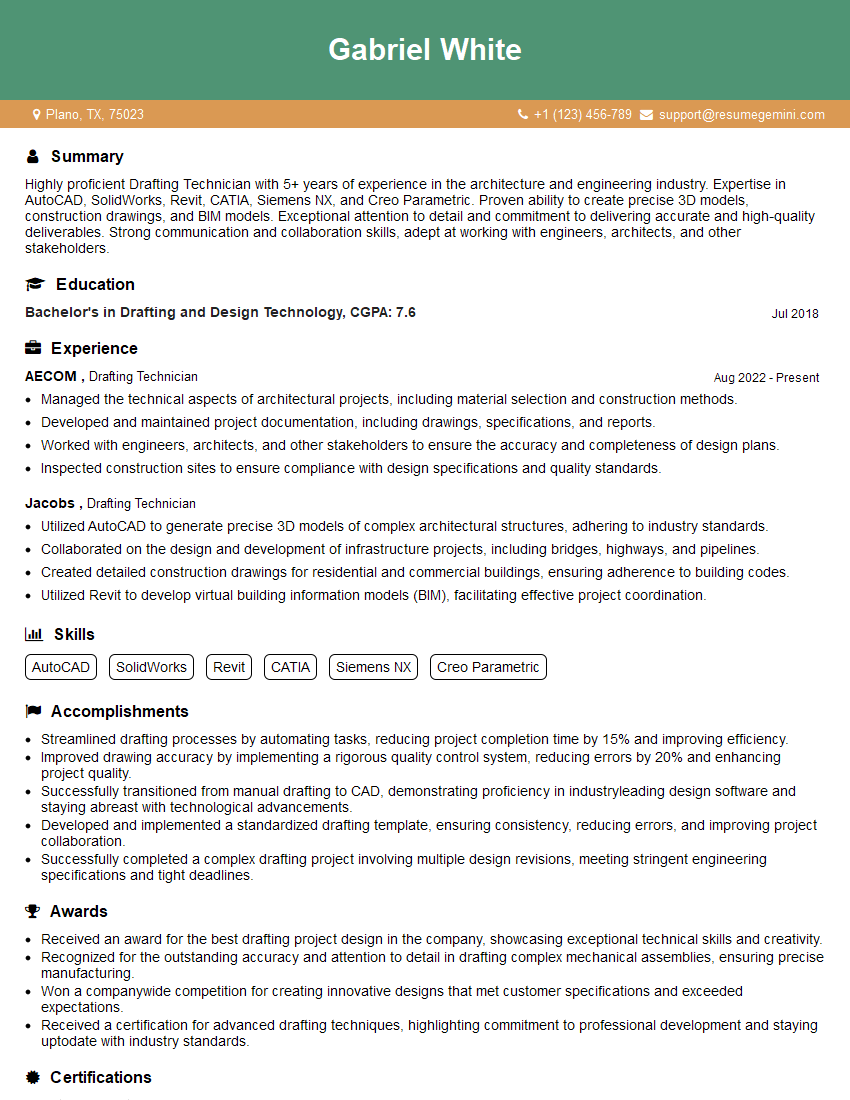
Drafting Technician Resume Sample
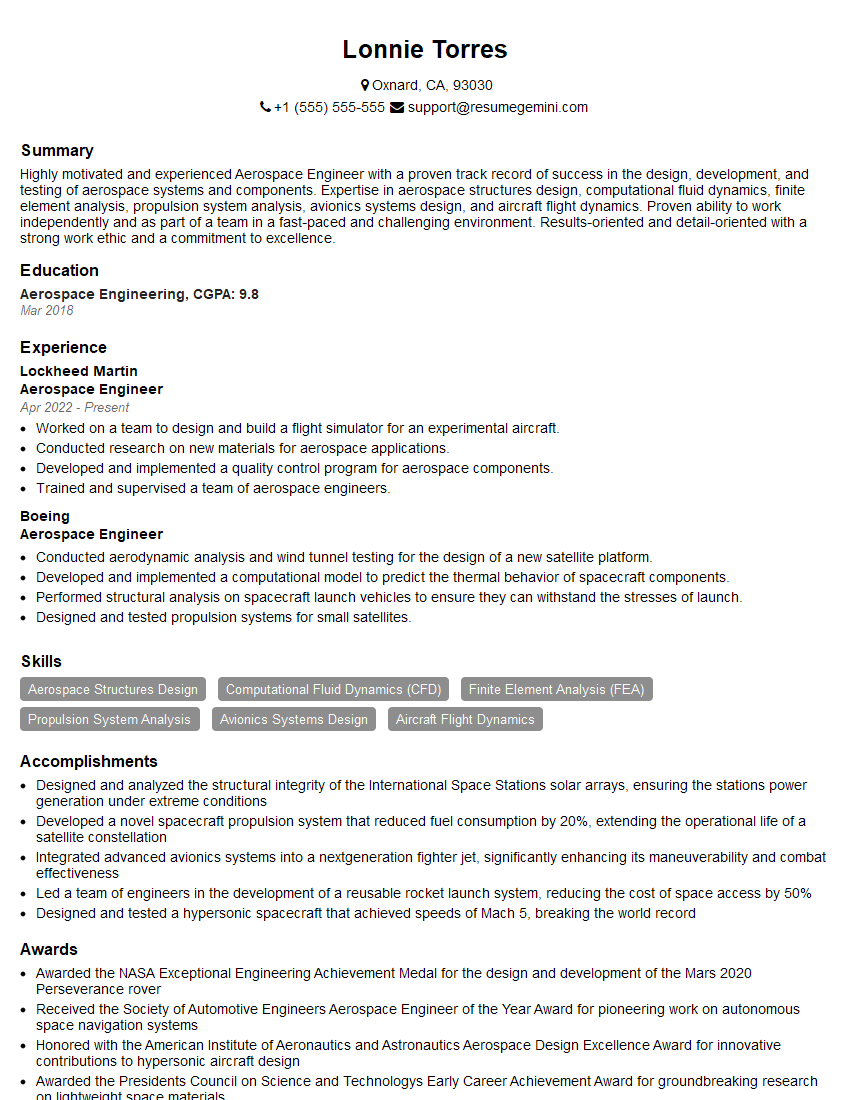
Aerospace Engineer Resume Sample
Civil Engineer Resume Sample
Structural Engineer Resume Sample
Manufacturing Engineer Resume Sample
Automotive Engineer Resume Sample
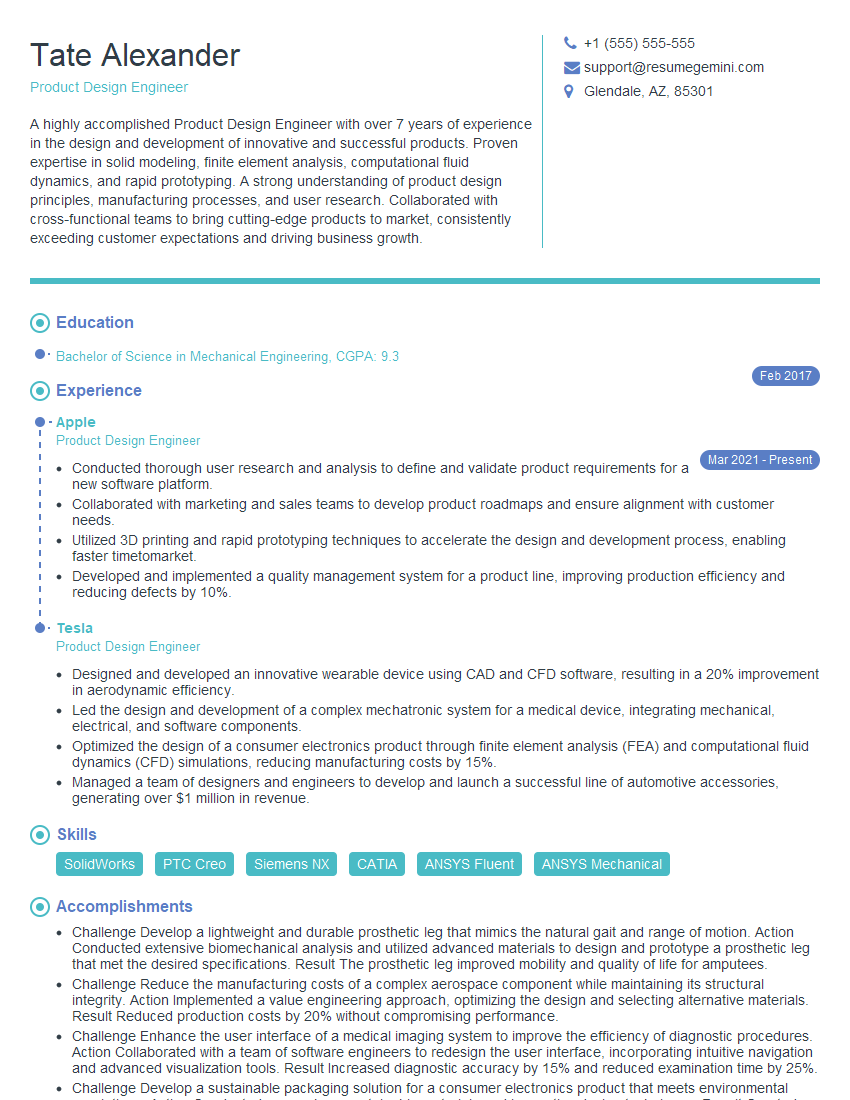
Product Design Engineer Resume Sample
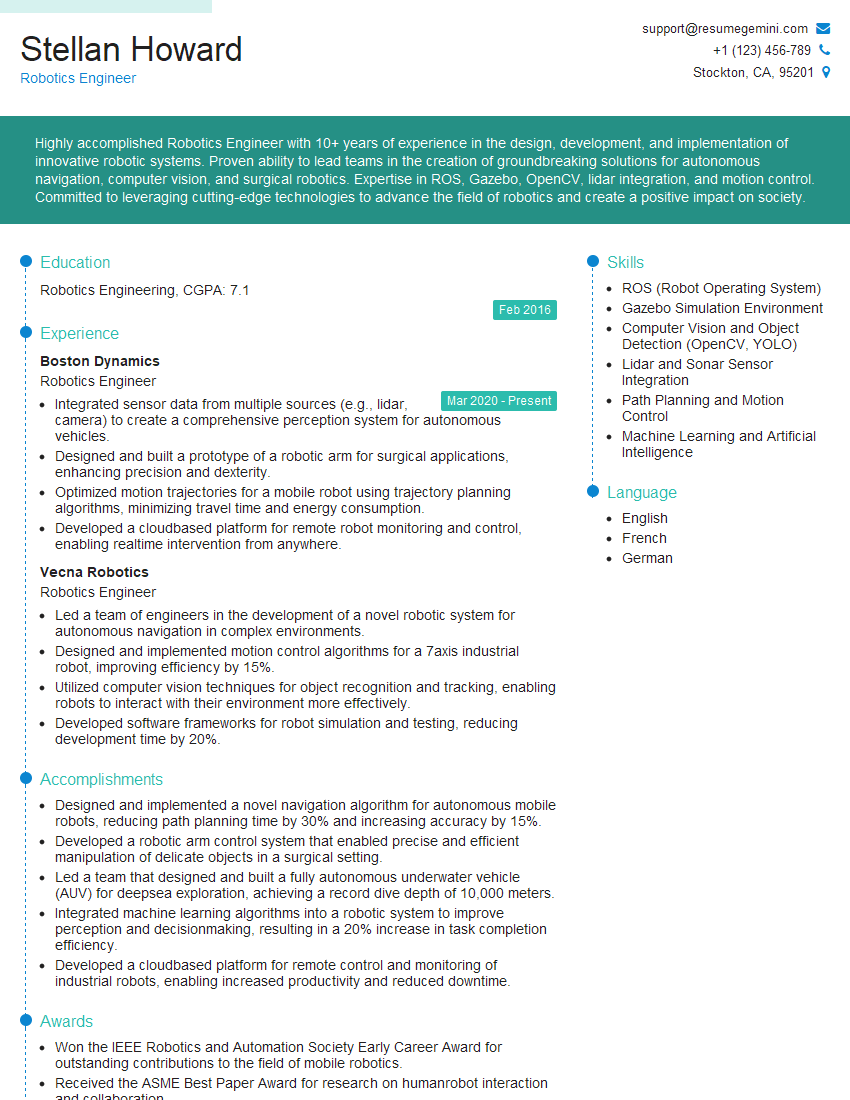
Robotics Engineer Resume Sample
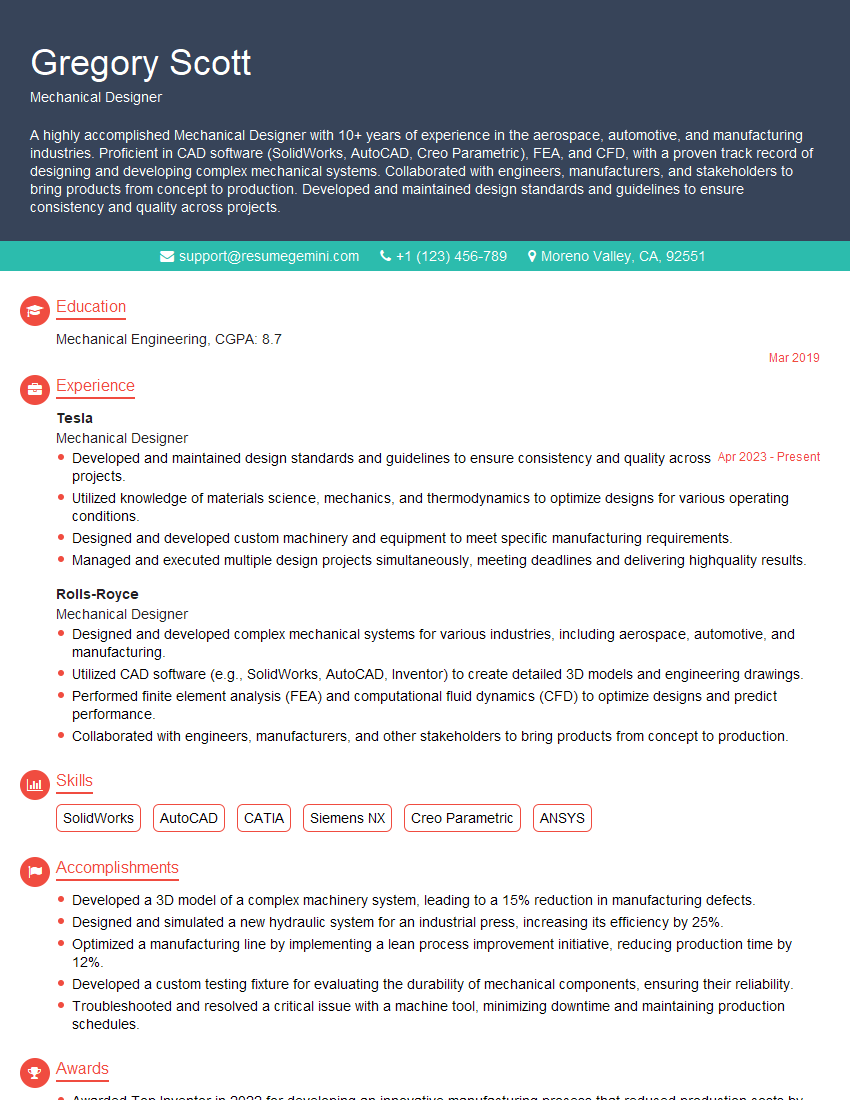
Mechanical Designer Resume Sample
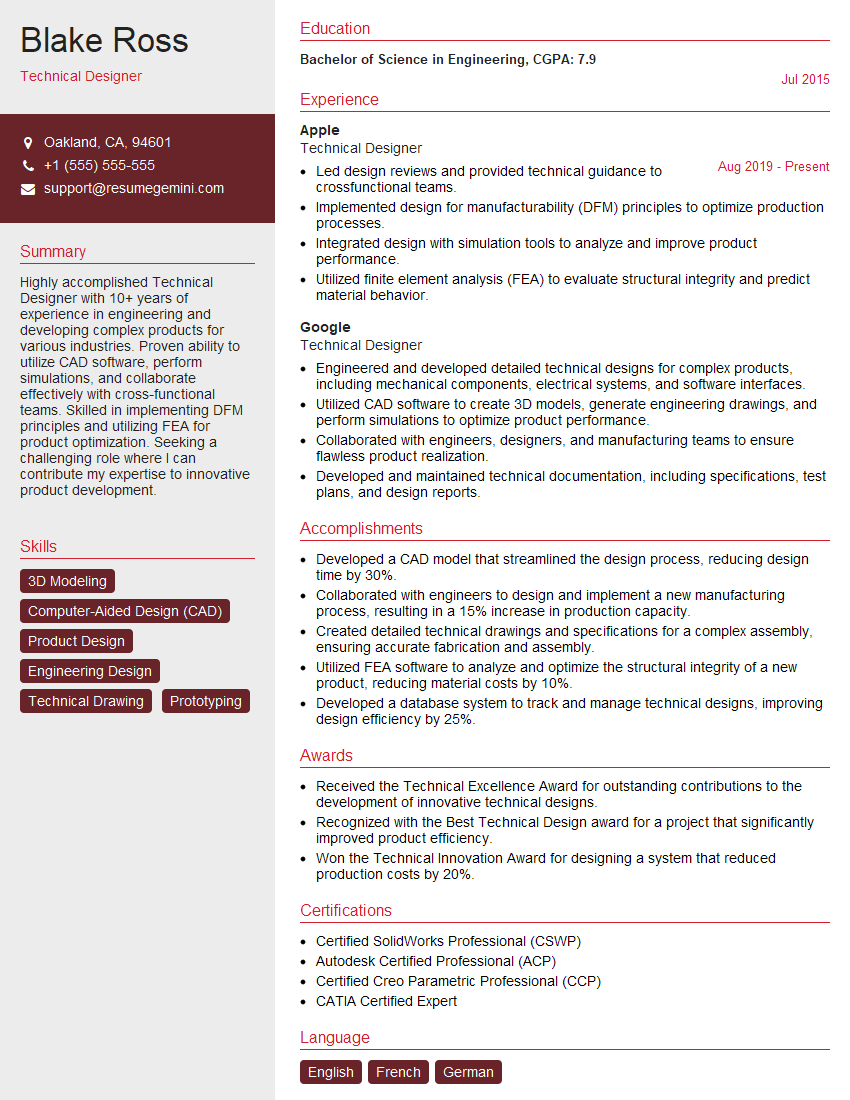
Technical Designer Resume Sample

3D Modeler Resume Sample
Explore more articles
Users Rating of Our Blogs
Share Your Experience
We value your feedback! Please rate our content and share your thoughts (optional).
What Readers Say About Our Blog
Very informative content, great job.
good