Cracking a skill-specific interview, like one for CAD/Drafting, requires understanding the nuances of the role. In this blog, we present the questions you’re most likely to encounter, along with insights into how to answer them effectively. Let’s ensure you’re ready to make a strong impression.
Questions Asked in CAD/Drafting Interview
Q 1. Explain your experience with different CAD software packages (e.g., AutoCAD, Revit, SolidWorks).
My CAD software experience spans a wide range of industry-standard packages. I’m highly proficient in AutoCAD, having used it extensively for over eight years on projects ranging from architectural detailing to mechanical design. My expertise includes utilizing AutoCAD’s powerful commands for 2D drafting, creating complex parametric drawings, and managing large drawing sets. I’m also experienced with Revit, specifically for Building Information Modeling (BIM). I’ve worked on several large-scale building projects, leveraging Revit’s features for collaborative design, clash detection, and quantity take-offs. Finally, I have solid experience with SolidWorks for 3D modeling, focusing on creating detailed parts, assemblies, and simulations for mechanical engineering applications. For instance, I recently used SolidWorks to design and simulate a complex robotic arm, optimizing its functionality through iterative modeling and analysis.
- AutoCAD: 2D drafting, parametric drawing, annotation, data extraction.
- Revit: BIM workflows, family creation, clash detection, quantity surveying, rendering.
- SolidWorks: 3D modeling, assembly design, simulation, finite element analysis (FEA).
Q 2. Describe your proficiency in 2D and 3D modeling techniques.
My 2D and 3D modeling skills are deeply intertwined, complementing each other for complete project lifecycle management. In 2D, I’m adept at creating precise and detailed technical drawings, using tools like AutoCAD to generate orthographic views, sections, and details. I meticulously manage layers, dimensions, and annotations to ensure clarity and accuracy. A recent project involved creating detailed shop drawings for custom cabinetry, requiring precise 2D representations for accurate manufacturing. For 3D modeling, I utilize SolidWorks to create realistic representations of products or components, allowing for effective visualization and analysis. I regularly use features like extrude, revolve, and sweep to create complex geometries. For example, while designing a new type of bicycle component, I utilized 3D modeling to test different design iterations for strength and weight before committing to manufacturing.
The synergy between 2D and 3D is crucial; I often use 3D models to generate accurate 2D drawings, ensuring consistency and minimizing errors.
Q 3. How do you manage large and complex CAD projects?
Managing large and complex CAD projects requires a structured approach and meticulous planning. My strategy involves breaking down the project into smaller, manageable tasks, assigning clear responsibilities to team members (if applicable), and utilizing a version control system. This ensures that everyone is working with the most up-to-date information and prevents conflicts. I also rely heavily on project management software to track progress, deadlines, and resource allocation. For data management, I utilize techniques such as external referencing and xrefs to efficiently manage large assemblies and drawings, reducing file sizes and improving performance. Regularly scheduled project meetings and consistent communication are crucial to maintaining transparency and addressing challenges proactively. Think of it like building a skyscraper – you don’t construct the whole thing at once; you build in stages, ensuring the foundation is strong before moving to the next level.
Q 4. What are your preferred methods for creating accurate and detailed drawings?
Creating accurate and detailed drawings relies on a combination of precise measurements, proper annotation, and adherence to industry standards. I begin by gathering comprehensive information from specifications, sketches, and site surveys. I use precise dimensioning techniques, including geometric dimensioning and tolerancing (GD&T) where appropriate, to ensure that all tolerances are clearly defined. I meticulously annotate drawings with notes, callouts, and material specifications to provide a complete set of instructions for fabrication or construction. The use of layers and templates standardizes the presentation of drawings and makes them easier to review and understand. For example, when creating architectural drawings, I ensure each layer is clearly named (e.g., walls, doors, windows) making selections and modifications easy.
Q 5. How do you ensure the accuracy and consistency of your CAD work?
Maintaining accuracy and consistency is paramount. I employ several strategies to achieve this. First, I rigorously check my work at each stage, using built-in CAD tools for verification of dimensions and geometry. Second, I adhere strictly to company or project-specific drawing standards, templates and naming conventions. Third, regular quality checks ensure that the final product aligns with client requirements and industry best practices. Finally, I always work in a well-organized manner, utilizing layer management and external references to prevent conflicts and errors. Think of it as quality control in a manufacturing process: consistent checks at different stages guarantee a high-quality final product.
Q 6. Describe your experience with CAD standards and best practices.
My experience with CAD standards and best practices is extensive. I’m well-versed in ISO standards for technical drawings, including the use of specific line types, dimensioning conventions, and sheet layouts. I’m also familiar with industry-specific standards, such as those used in architectural, mechanical, or electrical engineering. I incorporate these standards throughout my workflow, ensuring that all drawings meet the required level of precision and clarity. Furthermore, I use templates and drawing management tools that help enforce these standards and maintain consistency across multiple projects. This ensures that my work is easily understood and interpreted by colleagues and stakeholders, regardless of their location or background.
Q 7. How do you handle revisions and updates to existing CAD drawings?
Handling revisions and updates to existing CAD drawings requires a systematic and organized approach. I always begin by creating a new revision of the drawing, clearly indicating the changes made in the revision history. I utilize version control systems to track changes, ensuring that all team members have access to the most up-to-date version. I make changes using version control, and clearly identify and document all modifications. For example, I would utilize a revision cloud to highlight the specific area of change in the drawing and add a note explaining the alteration. This ensures complete transparency and traceability. This method helps to avoid confusion and minimizes errors arising from ambiguity.
Q 8. Explain your process for creating detailed sections and elevations.
Creating detailed sections and elevations involves a methodical approach focused on clearly conveying design intent and construction information. It begins with understanding the project’s requirements – what aspects need highlighting? What information must be communicated to builders or clients?
My process typically starts with selecting the appropriate planes of section and elevation within the 3D model. I then carefully consider the scale and the level of detail required. For instance, a section through a complex building component might necessitate a larger scale and more detailed annotation than a simpler section through a wall.
- Section Creation: I use the section tool in my CAD software to cut through the 3D model along the desired plane. I pay close attention to ensuring the section cut precisely captures the necessary elements. Post-section creation, I meticulously clean up the section view, removing any unnecessary elements while retaining crucial details. I employ hatching patterns to differentiate materials and provide visual clarity.
- Elevation Creation: Similar to section creation, I use the elevation tool, choosing the viewing angle that best represents the design. I ensure all key features, dimensions, and materials are clearly displayed. I often use callouts to highlight critical details. Accurate scaling and clean lines are paramount to avoid confusion.
- Annotation: Finally, thorough annotation is key. This involves adding dimensions, notes, material specifications, and other pertinent information. Consistency in annotation styles is vital for professional presentation. I always follow industry standards and company style guides to ensure readability.
For example, in a recent residential project, I created detailed sections through the kitchen area, showing the layout of cabinetry, plumbing, and electrical fixtures. This was essential for the contractor’s understanding of the installation process. For the building elevations, I provided detailed window and door schedules, showcasing their sizes and placements, ensuring the facade design was correctly interpreted by the builders.
Q 9. How familiar are you with BIM (Building Information Modeling)?
I’m very familiar with BIM (Building Information Modeling). My experience extends beyond just using BIM software; I understand the underlying principles and benefits of a collaborative, data-rich design process. BIM is not just about 3D modeling; it’s about integrating data into a central repository to support project lifecycle management.
I’ve worked extensively with Revit, which allows for the creation of intelligent 3D models that contain information beyond geometry. This data is crucial for coordination between various disciplines (structural, MEP, architectural), quantity take-offs, clash detection, and construction scheduling. I am proficient in creating and managing families and utilizing the various analysis tools available within BIM software.
For example, on a recent large-scale project, I used Revit’s clash detection feature to identify and resolve conflicts between mechanical, electrical, and plumbing (MEP) systems and structural elements before construction commenced, saving significant time and cost.
Q 10. Describe your experience with data extraction from CAD models.
Data extraction from CAD models is a crucial aspect of my workflow, enabling me to generate reports, schedules, and other critical information. The specific methods used depend on the desired data and the CAD software employed. Common methods include:
- Direct Querying: Many CAD packages allow you to query the model directly, selecting objects based on properties (material, layer, etc.) and extracting relevant data like dimensions, area, volume.
- Exporting to Spreadsheets: CAD models can be exported to common spreadsheet formats (CSV, Excel) for further analysis and report generation. This allows for sorting, filtering, and calculating data from the extracted information.
- Using Third-Party Plugins and Extensions: Specialized plugins enhance data extraction capabilities. For instance, plugins can automate the extraction of specific information such as quantities for a bill of materials (BOM) or generate reports automatically.
For example, during a renovation project, I extracted data from the existing AutoCAD model to create a detailed schedule of all doors and windows, including their dimensions and material specifications. This was used for accurate cost estimation and ordering materials.
Q 11. How do you troubleshoot common CAD software issues?
Troubleshooting CAD software issues requires a systematic approach. My approach typically involves:
- Identifying the Problem: Clearly defining the issue is crucial. Is it a software crash, a corrupted file, or a display problem? Recording the error messages is helpful.
- Checking Basic Issues: Simple solutions often resolve problems. Restarting the software, checking the system’s memory and processing power, and ensuring the CAD file is not corrupt or overly large can quickly address many issues.
- Consulting Online Resources: I utilize online forums, help documentation, and the software vendor’s support channels for guidance. Many common errors have solutions readily available online.
- Re-creating the Problem: If possible, replicating the error helps understand the root cause and identify potential solutions. This involves carefully documenting the actions leading to the issue.
- Seeking Professional Support: For complex or persistent issues, contacting the software’s technical support is necessary.
For instance, I once encountered a recurring crash during a large rendering process. By systematically reviewing the model, I discovered that a highly complex component was causing the issue. Simplification of that component resolved the problem.
Q 12. What are your strategies for optimizing CAD file sizes?
Optimizing CAD file sizes is important for efficient workflow and collaboration. Large files can slow down performance and lead to software crashes. Strategies I use include:
- Purge and Audit: Regularly purging unused blocks, layers, and styles significantly reduces file size. Auditing for errors and fixing them also helps.
- Using External References (Xrefs): For large projects, using external references instead of embedding all drawings into a single file improves performance and reduces file size. Changes in one drawing update automatically in other references.
- Simplify Geometry: Avoiding unnecessary detail and using simplified geometry where possible can drastically reduce file size. For example, using simpler curves instead of complex splines when appropriate.
- Compressing Files: Many CAD software packages allow compression of files, further reducing their size without losing data.
- Using Appropriate Units and Precision: Defining appropriate units and precision minimizes the size of the data stored in the model.
For example, on a complex landscape design project, I used Xrefs to manage different areas of the design separately. This minimized the overall file size and made the project more manageable.
Q 13. How do you collaborate effectively with other team members on CAD projects?
Effective collaboration is essential in CAD projects. My strategies for collaboration include:
- Clear Communication: Regular communication with team members is crucial. I actively participate in project meetings, use collaborative platforms, and maintain a clear communication channel for updates and issue resolution.
- Version Control: Using a centralized data management system or version control software ensures everyone works on the most recent version of the drawings and prevents conflicting edits. Cloud-based solutions are very useful for this.
- Standard Operating Procedures (SOPs): Establishing clear guidelines for file naming conventions, layer management, and annotation standards ensures consistency across the project.
- Regular Reviews and Feedback: Consistent feedback sessions help identify and resolve potential issues early on. This is crucial for ensuring the quality of the final product.
- Using Collaborative Software: Leveraging cloud-based CAD platforms or plugins that allow multiple users to work on the same file simultaneously promotes efficient teamwork.
For instance, on a recent architectural project, we used a cloud-based BIM platform that enabled all team members (architects, structural engineers, MEP engineers) to access and modify the model concurrently, facilitating seamless collaboration and efficient issue resolution.
Q 14. Explain your experience with CAD plotting and output processes.
My experience with CAD plotting and output processes encompasses a wide range of techniques optimized for different outputs and media. The process begins with setting up the plot configuration, which includes selecting the correct printer or plotter, paper size, scale, and plot style.
I am proficient in using various plot styles to control line weights, colors, and text sizes to ensure clear and professional-looking prints. I meticulously check plot preview to ensure accurate representation before proceeding. For larger projects, I often generate plot files in PDF format for easy sharing and distribution.
I have experience with various plotters, including large format inkjet plotters and laser printers. I understand the nuances of different media types, such as paper, film, and mylar. I also utilize nested plotting to manage large drawings efficiently, breaking them down into smaller, more manageable plots. Additionally, I’m familiar with outputting CAD data in various formats like DWG, DXF, and other industry-standard formats for interoperability and data sharing.
For instance, during the finalization of construction drawings for a commercial building, I generated large-format prints using a wide-format plotter for the contractor and smaller-scale PDFs for the client for easier review on screen or for printing from their own printer.
Q 15. How do you manage and organize CAD files and project data?
Effective CAD file and project data management is crucial for efficiency and collaboration. I employ a multi-pronged approach. Firstly, I use a robust folder structure, mirroring the project’s phases and deliverables. For example, a project might have folders for ‘Concept Designs’, ‘Revised Drawings’, ‘Submitted Documents’, and ‘Client Communications’. Each folder is further organized by drawing number or component. Secondly, I leverage the file naming conventions established by the project team, ensuring consistency across all files. This often includes project initials, revision number, and a descriptive name (e.g., ProjectABC_Rev2_FoundationPlan.dwg). Thirdly, I utilize cloud storage or a central server for easy access and version control. This allows for collaborative work and prevents data loss. Finally, metadata within the CAD files themselves is meticulously updated with project details, author information, and revision dates. This ensures that anyone accessing the drawings understands their context. In larger projects, I would also use a dedicated project management software to track all files and revisions in a centralized repository.
Career Expert Tips:
- Ace those interviews! Prepare effectively by reviewing the Top 50 Most Common Interview Questions on ResumeGemini.
- Navigate your job search with confidence! Explore a wide range of Career Tips on ResumeGemini. Learn about common challenges and recommendations to overcome them.
- Craft the perfect resume! Master the Art of Resume Writing with ResumeGemini’s guide. Showcase your unique qualifications and achievements effectively.
- Don’t miss out on holiday savings! Build your dream resume with ResumeGemini’s ATS optimized templates.
Q 16. Describe your understanding of different file formats used in CAD (e.g., DWG, DXF, IFC).
Several file formats are common in CAD, each with its strengths and weaknesses. DWG (Drawing) is the native format for AutoCAD, preserving all drawing data, layers, and objects. It’s proprietary to Autodesk, meaning it might require specific software to open. DXF (Drawing Exchange Format) is a neutral, non-proprietary format that allows for easier exchange of data between different CAD programs. However, some features might not transfer perfectly. IFC (Industry Foundation Classes) is a standardized, open format used for interoperability primarily in the building information modeling (BIM) context. IFC files store building information as structured data, enabling communication between different design disciplines and software packages. Selecting the right format depends on the project’s requirements and collaboration needs. For example, when collaborating with a team using different software, DXF is often preferred for exchanging simpler geometric information, whereas DWG is used within a homogeneous Autodesk-based workflow. For a BIM project with multiple disciplines, IFC is the standard for data exchange.
Q 17. What are your experience with CAD layering and annotation?
CAD layering is fundamental for organizational clarity and efficient design modification. Each layer represents a specific aspect of the drawing, such as architecture, structures, MEP (Mechanical, Electrical, Plumbing), or landscaping. This allows for selective display and modification of elements without affecting other parts of the drawing. For example, I would create separate layers for walls, doors, windows, and electrical fixtures in an architectural drawing. Proper annotation is equally important. It enhances the drawing’s clarity by providing dimensions, notes, specifications, and symbols. I utilize tools like text styles and dimension styles to ensure consistency and readability. Furthermore, I maintain a clear layering structure and annotation style guide to improve team collaboration and standardization of the final drawings.
Q 18. How do you ensure that your CAD drawings comply with relevant building codes and regulations?
Ensuring compliance with building codes and regulations is paramount. My process begins with a thorough understanding of the applicable codes relevant to the project’s location and type. I then incorporate these requirements into the design process. This includes checking dimensions against minimum requirements for accessibility, ensuring appropriate fire safety measures are incorporated (e.g., fire-rated walls and egress routes), verifying structural load-bearing capacities, and meeting energy efficiency standards. I may use specialized CAD plugins or extensions that integrate relevant code compliance checks directly into the design. Regularly reviewing the design against code requirements throughout the project lifecycle and collaborating with engineers and other consultants is also critical. Finally, I create detailed schedules and annotations that clearly document compliance, aiding in successful inspections and approvals.
Q 19. Explain your experience working with different units of measurement in CAD.
I’m experienced working with various units of measurement (metric and imperial) in CAD. It’s crucial to set the correct units from the project outset to avoid errors. Most CAD software allows for easy unit switching and conversion between systems (e.g., millimeters, meters, inches, feet). I always double-check the project specifications to determine the required unit system, and diligently maintain consistency throughout the design process. Converting between systems requires careful attention to detail to avoid errors in scaling and dimensions. For example, I might use the software’s built-in conversion features to convert an imperial dimension provided by a client into the metric system if the project is using metric units. Clear communication and meticulous record-keeping are vital for effective unit management in a design project.
Q 20. How do you handle conflicting design requirements in CAD?
Conflicting design requirements are common in collaborative projects. My approach involves open communication with all stakeholders, documenting all requirements clearly, and developing a prioritized list based on project goals and feasibility. I often use visual aids like design option matrices to illustrate the trade-offs between conflicting requirements. For example, a conflict might arise between maximizing floor space and meeting accessibility requirements. In such a case, we might explore different design options, analyzing the pros and cons of each, and collaborating to find a compromise. The solution is often a balance between conflicting needs, using iterative design revisions and clear justification for decisions made. Proper documentation of the decision-making process is crucial for transparency and future reference.
Q 21. Describe your experience with CAD rendering and visualization techniques.
I’m proficient in CAD rendering and visualization techniques using various software and plugins. These are essential for communicating design intent, evaluating aesthetics, and showcasing projects to clients. I use tools to create photorealistic renderings, animations, and walkthroughs that vividly illustrate the proposed design. For example, I might use a ray-tracing renderer to create high-quality images, showing materials and lighting effects accurately. Furthermore, I utilize virtual reality (VR) or augmented reality (AR) tools when necessary, which greatly enhance client understanding and enable interactive design reviews. The choice of rendering technique depends on the project’s specific needs and budget. High-fidelity renderings are ideal for showcasing final design iterations to clients, while faster, simpler renderings can be used for preliminary design reviews.
Q 22. How familiar are you with CAD-based design review processes?
CAD-based design review processes are crucial for ensuring accuracy, consistency, and compliance in engineering and architectural projects. They typically involve a structured workflow where designs are collaboratively reviewed by multiple stakeholders, including designers, engineers, and clients. This often leverages features within CAD software like markups, redlining, and commenting tools, enabling efficient feedback and revision tracking.
My familiarity extends to various methodologies, from informal visual checks to formal processes using cloud-based collaboration platforms. I’m proficient in using tools like markups in Autodesk AutoCAD and Revit, and have experience with dedicated design review software that allows for centralized management of revisions and communication.
For example, during a recent project, we used a cloud-based review platform to manage revisions to a large-scale building design. Each reviewer could leave comments directly on the 3D model, which helped identify clashes and inconsistencies early in the process, preventing costly rework later.
Q 23. Explain your experience using CAD to create shop drawings.
Creating shop drawings using CAD software involves translating design concepts into detailed, constructible documents for fabrication and construction. This requires a deep understanding of both design intent and manufacturing processes. My experience includes generating precise drawings for various disciplines, such as structural steel, MEP (Mechanical, Electrical, and Plumbing), and architectural millwork.
I’m adept at using CAD to create detailed drawings with precise dimensions, annotations, and material specifications. This includes generating sections, elevations, details, and assembly drawings. I’m also experienced in incorporating fabrication tolerances and manufacturing constraints into the shop drawings.
For instance, I once created shop drawings for a complex steel structure. I used AutoCAD to model the structure and generate detailed drawings showing weld locations, bolt patterns, and cut details. The precision of the CAD model and the shop drawings resulted in smooth fabrication and on-site assembly, minimizing errors and delays.
Q 24. How do you use CAD to perform design calculations or analysis?
While CAD software is primarily a design tool, many advanced packages offer integrated or compatible analysis capabilities. Direct design calculations might involve using built-in formulas or macros to calculate areas, volumes, and other geometric properties. More complex analysis often requires linking CAD models to specialized engineering software for structural, thermal, or fluid dynamics simulations.
My approach involves using the CAD software for geometry definition and data extraction. I then use this data as input for dedicated analysis programs. For example, I might use Revit to model a building, extract relevant data (like loads and material properties), and then import that information into structural analysis software like Robot Structural Analysis to perform finite element analysis. The results of these analyses can then be visualized back in the CAD model to inform design modifications.
I understand the limitations of using CAD for in-depth analysis; it’s a tool best utilized in conjunction with specialized software for thorough engineering calculations.
Q 25. Describe your experience with parametric modeling techniques.
Parametric modeling is a powerful technique in CAD where design elements are defined by parameters, allowing for dynamic updates and design exploration. Instead of creating static geometry, you define relationships and constraints between elements. Changing a single parameter automatically updates the entire model, ensuring consistency and reducing errors.
My experience includes working extensively with parametric modeling in both Autodesk Inventor and SolidWorks. I’ve utilized this technique to design complex assemblies where many parts are related. For example, changing the overall dimensions of a product will automatically resize all related components, which simplifies the design modification process significantly.
A real-world example is designing a custom enclosure. Instead of manually adjusting dimensions for each part (cover, base, etc.), I’d define parameters for overall size and wall thickness. Modifying a single parameter automatically adjusts all related parts, maintaining design integrity and saving significant time.
Q 26. How do you stay up-to-date with the latest advancements in CAD technology?
Staying current in the rapidly evolving field of CAD requires a multi-pronged approach. I actively participate in online forums, attend webinars and industry conferences, and subscribe to relevant publications and newsletters.
Furthermore, I regularly explore new software features and plugins. Many CAD software companies offer training resources and tutorials, which I utilize to broaden my skill set. I also engage in personal projects to test and experiment with the latest tools and techniques.
For instance, I recently completed a course on generative design and explored the capabilities of cloud-based rendering services to enhance my visualization skills.
Q 27. Describe a time you had to solve a complex problem using CAD.
During a project involving the design of a complex HVAC system for a high-rise building, we encountered significant clash detection issues between the ductwork and other building services within the 3D model. The traditional method of manual clash detection was proving both time-consuming and prone to errors.
To solve this, I implemented a coordinated workflow using Revit’s clash detection features in conjunction with Navisworks. This involved creating a central model where all disciplines (MEP, structural, architectural) collaborated. The clash detection software identified areas of interference, providing precise location data. We then utilized this data to iteratively redesign portions of the system, resolving conflicts efficiently and preventing costly rework during construction. This approach significantly shortened the project timeline and reduced overall costs.
Q 28. What are your strengths and weaknesses as a CAD professional?
My strengths lie in my meticulous attention to detail, my ability to visualize complex 3D designs, and my proficiency in various CAD software packages. I am a highly efficient and organized worker, capable of managing multiple projects simultaneously. I am also adept at collaborating within a team and am always willing to learn and adapt to new challenges.
One area I am continually working on is expanding my expertise in generative design. While I understand the principles, I aim to improve my proficiency in utilizing these techniques for advanced design optimization. This is an area of significant growth within the industry, and I am committed to expanding my skillset accordingly.
Key Topics to Learn for Your CAD/Drafting Interview
- Fundamentals of CAD Software: Understand the interface, navigation, and basic drawing tools of popular CAD software (AutoCAD, Revit, SolidWorks, etc.). Practice creating simple 2D and 3D models.
- Drafting Standards and Practices: Master industry-standard drafting techniques, including dimensioning, layering, annotation, and title blocks. Be prepared to discuss different drawing scales and sheet sizes.
- Geometric Tolerancing and Dimensioning (GD&T): Learn to interpret and apply GD&T symbols to ensure precise manufacturing and assembly. Understanding tolerances is crucial for successful design.
- 3D Modeling Techniques: Develop proficiency in creating and manipulating 3D models, including surface modeling, solid modeling, and parametric modeling. Practice applying different modeling techniques to diverse projects.
- Blueprint Reading and Interpretation: Demonstrate the ability to accurately interpret and understand technical drawings, including orthographic projections, section views, and detailed annotations.
- CAD Software Specifics: Deepen your understanding of specific commands, features, and customization options within the CAD software you’re most proficient in. Be ready to discuss your experience with add-ons or plugins.
- Problem-Solving and Design Thinking: Showcase your ability to approach design challenges creatively and efficiently. Be prepared to discuss how you troubleshoot technical issues and optimize your workflow.
- Collaboration and Teamwork: Highlight your experience working collaboratively on CAD projects, sharing files, and coordinating with other team members. Discuss your communication skills in a technical setting.
Next Steps
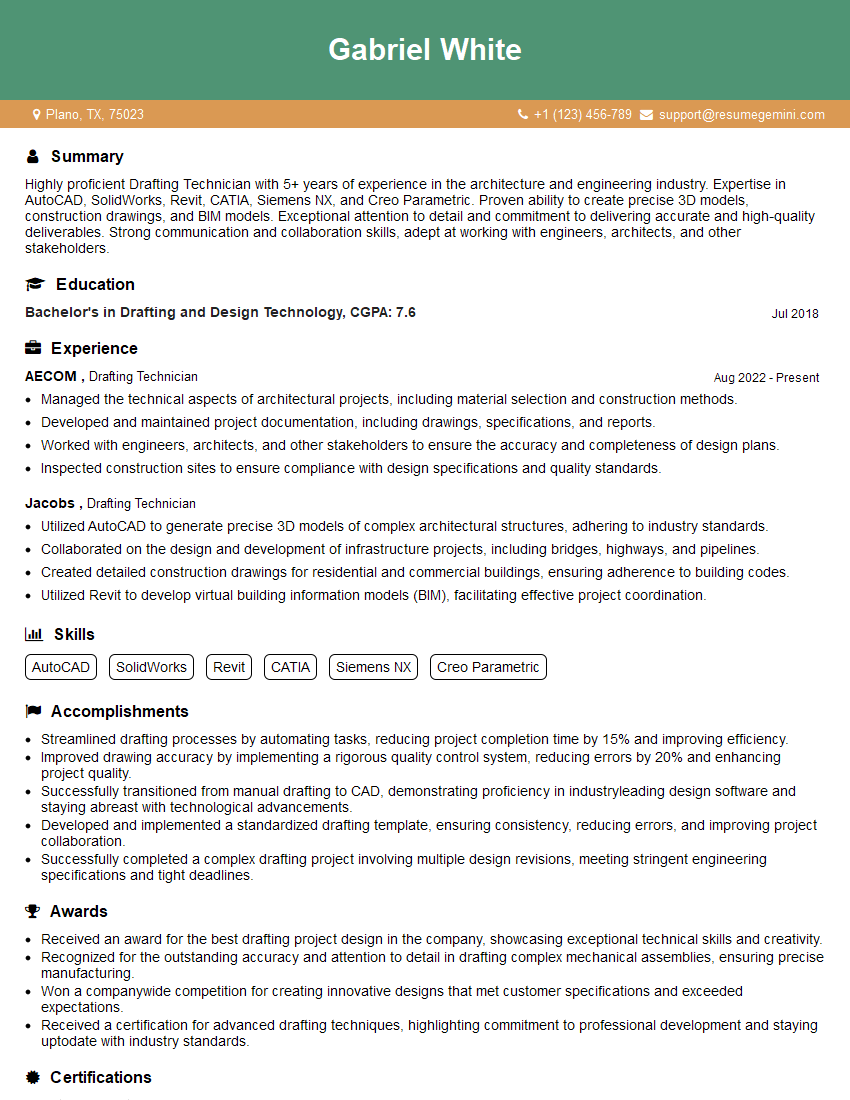
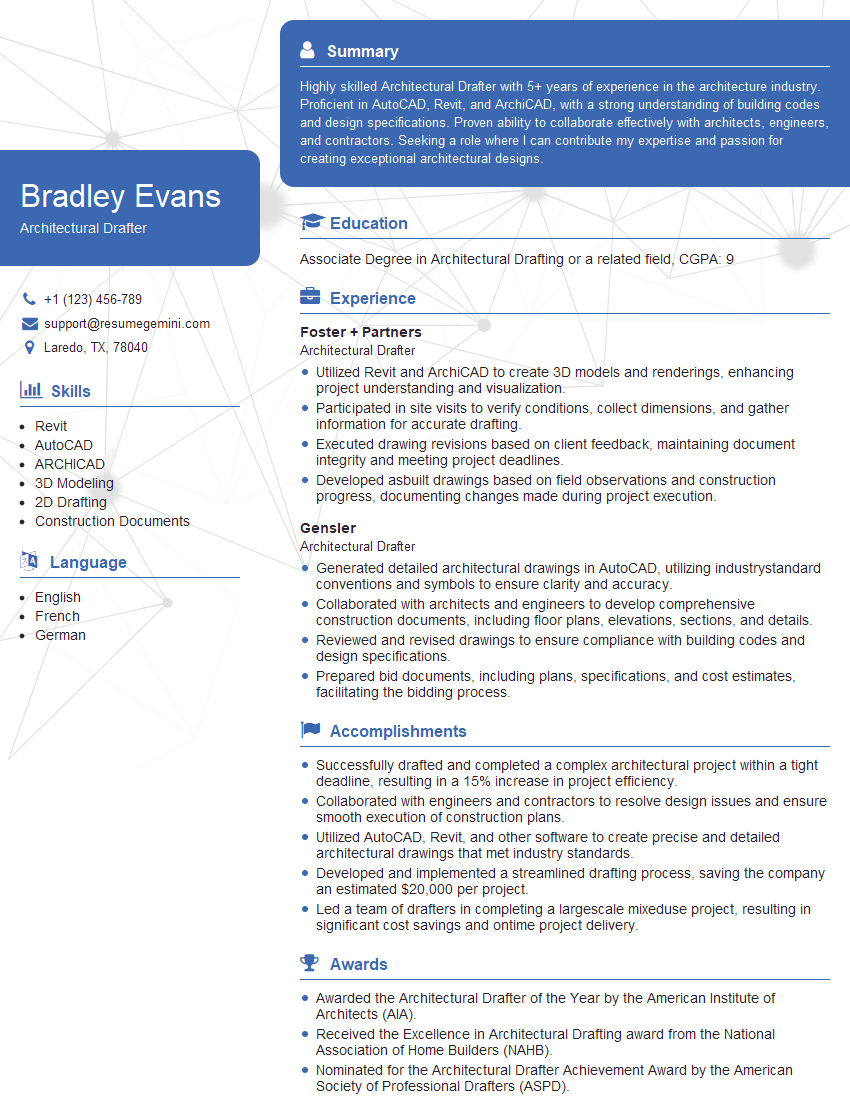
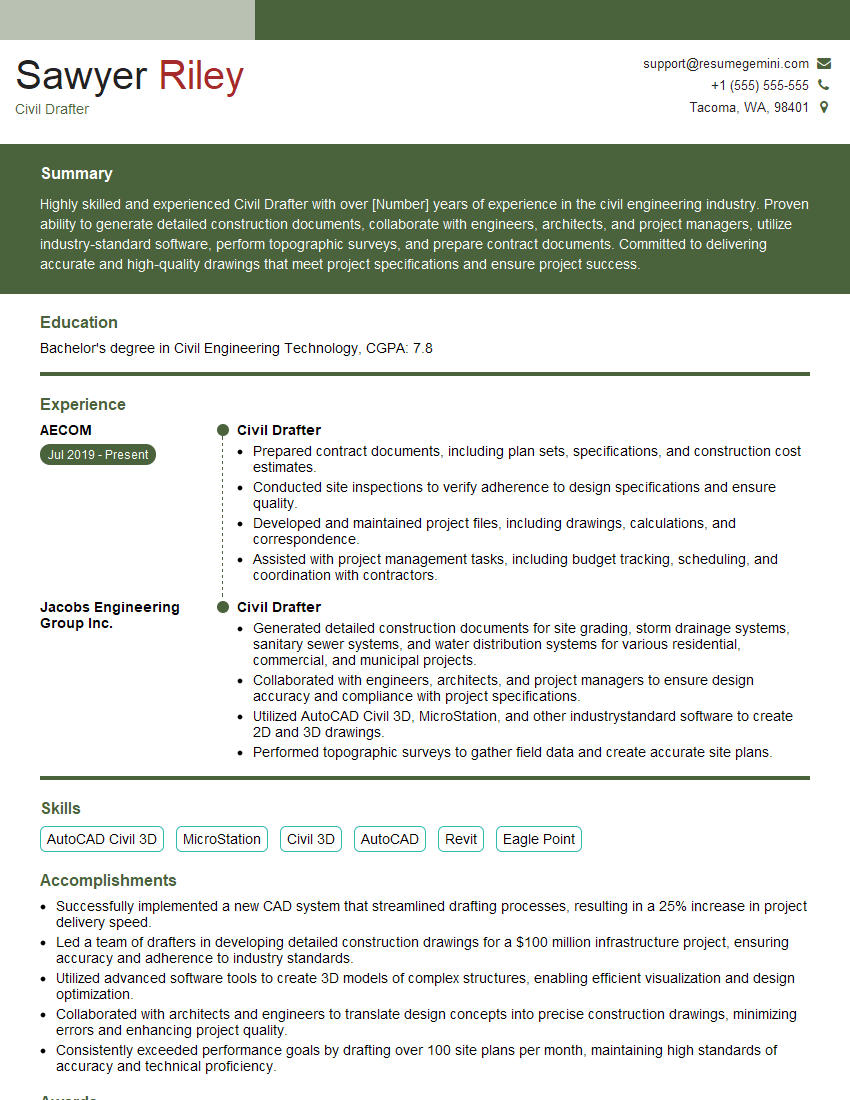
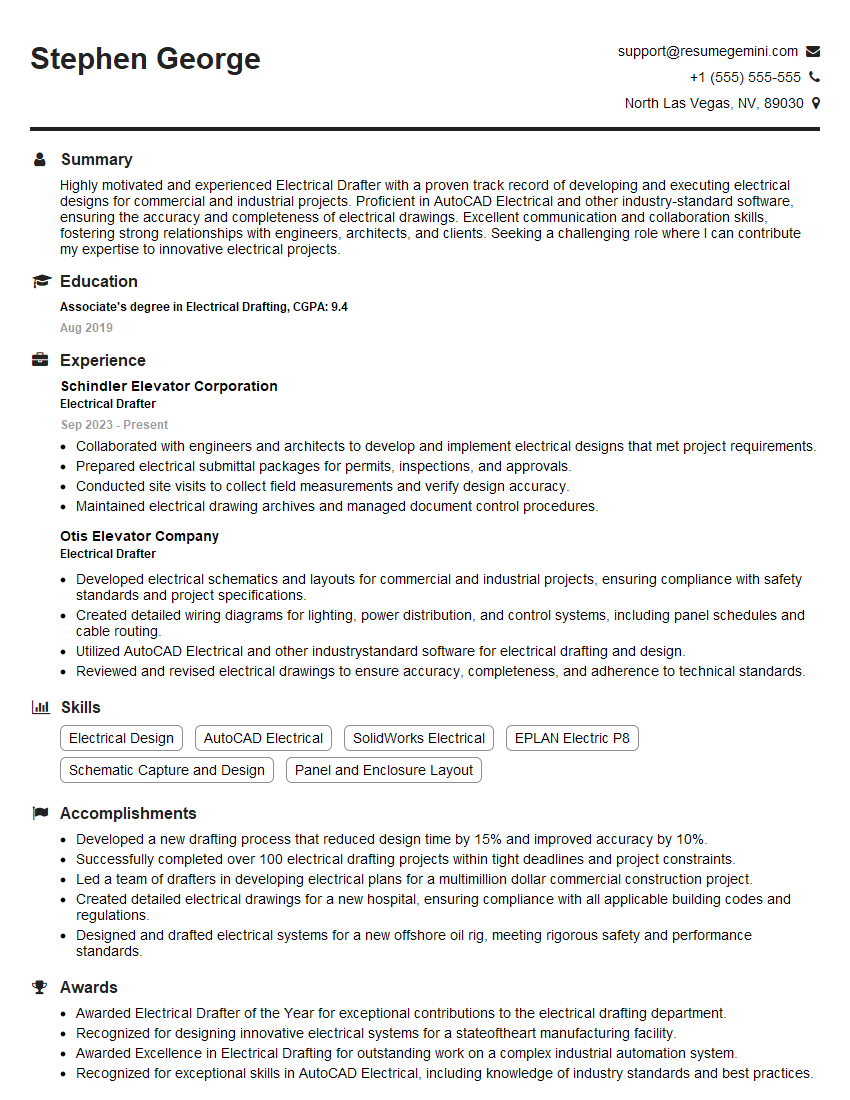
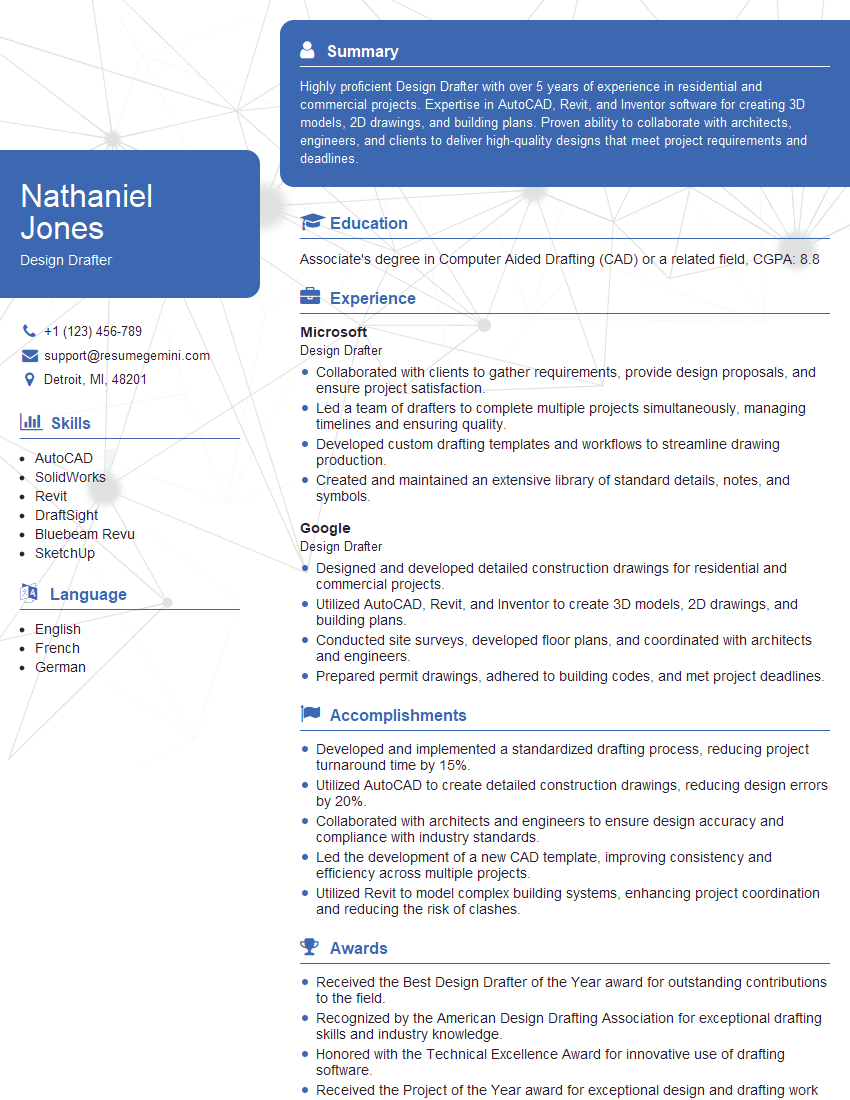
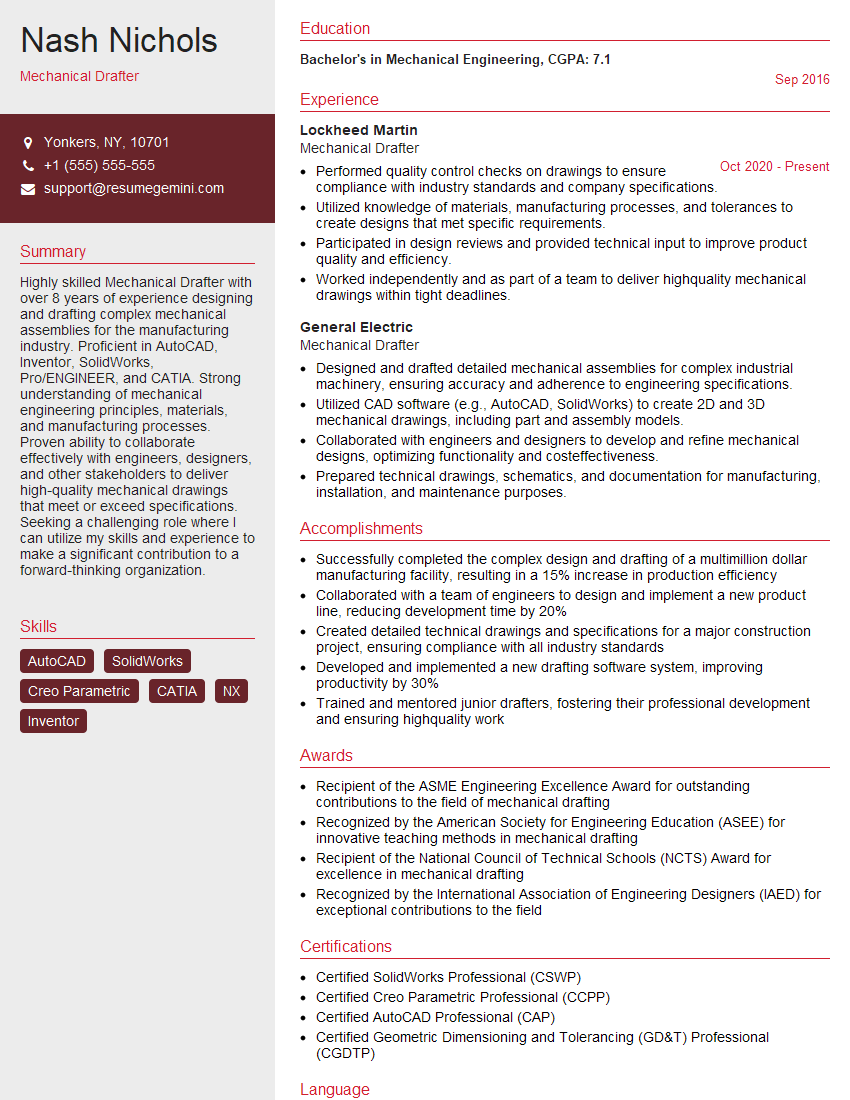
Mastering CAD/Drafting opens doors to exciting career opportunities in architecture, engineering, manufacturing, and many other fields. Your skills are highly sought after, and a strong resume is your key to unlocking these opportunities. Creating an ATS-friendly resume is crucial for getting your application noticed. We strongly encourage you to utilize ResumeGemini to craft a professional and effective resume that highlights your CAD/Drafting expertise. ResumeGemini provides tools and examples of resumes specifically tailored to CAD/Drafting roles, helping you present your qualifications in the best possible light. Take the next step in your career journey – build a winning resume today!

Explore more articles
Users Rating of Our Blogs
Share Your Experience
We value your feedback! Please rate our content and share your thoughts (optional).
What Readers Say About Our Blog
Very informative content, great job.
good