Interviews are opportunities to demonstrate your expertise, and this guide is here to help you shine. Explore the essential CAD software proficiency (e.g., AutoCAD, SolidWorks) interview questions that employers frequently ask, paired with strategies for crafting responses that set you apart from the competition.
Questions Asked in CAD software proficiency (e.g., AutoCAD, SolidWorks) Interview
Q 1. Explain your experience with AutoCAD’s command line interface.
AutoCAD’s command line interface is the heart of the software, offering a powerful and efficient way to execute commands and manipulate objects. Think of it as a conversation with the software – you type a command, and AutoCAD responds. It’s faster than using the menus for repetitive tasks and allows for precise control. My experience spans years of using the command line for everything from creating basic lines and circles (LINE, CIRCLE) to complex tasks like creating blocks (BLOCK), manipulating layers (LAYER), and scripting repetitive actions with AutoLISP. For example, I’ve used the _ARRAY command countless times to quickly create multiple instances of an object, saving hours of manual work on projects involving repetitive components. I am adept at using command aliases and shortcuts for improved speed and efficiency. I find the command line crucial for automating tasks and achieving high levels of accuracy, particularly when dealing with intricate details and precise dimensions.
A real-world example: On a recent project designing a large industrial plant layout, I used the command line extensively to create accurate building outlines, place equipment, and create detailed piping networks. The speed and precision provided by the command line interface were critical to meeting the project’s tight deadlines.
Q 2. How proficient are you with SolidWorks’ part modeling tools?
My proficiency in SolidWorks’ part modeling tools is extensive. I’m comfortable using all the primary features including extruding, revolving, sweeping, and lofting to create complex three-dimensional models. I’m proficient in using features like shell, pattern, and mirror to streamline the modeling process. I understand the importance of using appropriate features for different modeling situations and am confident in creating robust and manufacturable parts. I regularly employ techniques like creating datum planes, axes, and points to precisely constrain geometry. I’m also experienced in using advanced features such as chamfers, fillets, and holes to add realistic details and functionality to my models.
For instance, I recently modeled a highly intricate medical device requiring precise tolerances. By using SolidWorks’ advanced features, combined with meticulous attention to detail, I created a model that met all design specifications and facilitated efficient manufacturing planning.
Q 3. Describe your process for creating detailed 2D drawings in AutoCAD.
My process for creating detailed 2D drawings in AutoCAD begins with a well-defined plan. I start by setting up the drawing template with appropriate units, layers, and text styles. Then, I meticulously sketch the geometry using precise commands like LINE, ARC, and CIRCLE. Throughout this process, I meticulously organize layers to maintain clarity and control. Once the geometry is complete, I add dimensions and tolerances, adhering to industry standards and client requirements. My annotation is clear, concise, and easily understood. I make use of text styles and annotation scales for consistency. Finally, I perform a thorough quality check, verifying dimensions, tolerances, and overall clarity before generating the final drawing.
I use tools like the DIMSTYLE command for creating and managing dimensioning styles and the QTEXT command to control text size and placement. I also leverage features such as creating blocks and external references (Xrefs) to reuse common components and manage large drawings efficiently. A recent example involves creating shop drawings for a custom staircase; precision and clear communication were critical, and my methodical approach ensured the drawings were perfectly suitable for fabrication.
Q 4. How do you manage layers and layer properties in AutoCAD?
Effective layer management is crucial for creating organized and manageable AutoCAD drawings. I approach this by establishing a consistent layer naming convention (e.g., using prefixes for different object types) right from the beginning. I create layers based on the drawing’s components, separating elements like architecture, structure, MEP, etc. Each layer has specific properties defined including color, line type, lineweight, and plot style. Using layer states, I can easily freeze or thaw layers to control the visibility of specific elements, improving performance when dealing with complex drawings. This allows me to focus on specific aspects of the design while keeping the other layers organized but out of sight. The LAYER command and the Layer Properties Manager are my primary tools. Freezing unnecessary layers significantly speeds up drawing regeneration, especially in large files.
For example, on a large architectural project, managing layers allowed my team to work concurrently on different aspects of the building without interfering with each other’s work. The organized layer structure also significantly simplified the plotting and printing process.
Q 5. Explain your experience with SolidWorks assemblies and constraints.
My experience with SolidWorks assemblies and constraints is extensive. I understand the importance of creating well-constrained assemblies to ensure stability and accuracy. I use a variety of constraints like mate constraints (e.g., flush, concentric, parallel), geometric constraints (e.g., point-to-point, midpoint), and insert constraints to accurately position and orient components within the assembly. My approach focuses on creating a balanced system of constraints, avoiding over-constraining or under-constraining, which could lead to problems with assembly movement and part deformations. I use advanced assembly techniques like configurations, patterns, and exploded views to manage and present complex assemblies effectively.
For example, in designing a robotic arm, careful use of constraints was critical in ensuring the correct range of motion and stability. A poorly constrained assembly could lead to unexpected movements or collisions, potentially damaging the finished product. My experience in managing these constraints ensured the final design functioned as intended.
Q 6. How do you handle large, complex CAD files?
Handling large, complex CAD files requires a strategic approach. Firstly, I optimize the model for performance by using techniques like purging unused blocks, cleaning up geometry, and removing unnecessary layers. Secondly, I leverage SolidWorks’ tools for managing large assemblies, such as using lightweight components, and optimizing the display settings to improve performance. Thirdly, I use external references (Xrefs in AutoCAD) to link drawings rather than embedding them in the main file, reducing file size. Furthermore, I regularly save and regularly back up my work to prevent data loss. Finally, I use version control systems whenever appropriate to manage revisions and collaboration amongst team members. This systematic approach ensures that even the most demanding designs remain manageable and efficient.
A project involving a 100+ component assembly required careful file management to prevent performance issues. Utilizing the lightweight components and other strategies mentioned above made it possible to work efficiently and prevent file corruption.
Q 7. What are your preferred methods for dimensioning and tolerancing?
My preferred methods for dimensioning and tolerancing follow industry best practices and adhere to standards like ASME Y14.5. In AutoCAD, I use the DIMSTYLE manager to create and control dimension styles ensuring consistency and clarity. I prioritize clear and unambiguous dimensions, using appropriate dimension types (linear, angular, radial, etc.) for each situation. Tolerance values are clearly indicated using standard tolerance notations, such as plus/minus values or geometric dimensioning and tolerancing (GD&T) symbols as needed. SolidWorks offers similar capabilities, with tools to directly incorporate GD&T symbols and ensure consistency across the model. I always aim for clarity – dimensions and tolerances should be readily understandable to ensure effective manufacturing and prevent errors during the production process.
For example, designing a precision part for a aerospace application required meticulous attention to tolerance specifications. Using GD&T allowed me to clearly and precisely convey the allowable variations in the part’s dimensions, minimizing production errors and improving the overall quality of the finished product.
Q 8. Describe your experience with CAD rendering and visualization techniques.
CAD rendering and visualization are crucial for communicating design intent and evaluating a product’s aesthetics and functionality before physical prototyping. My experience encompasses a wide range of techniques, from basic wireframe rendering to photorealistic visualizations using tools like Keyshot and V-Ray integrated with SolidWorks and AutoCAD.
For instance, I recently worked on a project designing a new ergonomic chair. Using SolidWorks’ rendering capabilities, I created photorealistic images showcasing the chair in various settings and color options. This allowed the client to visualize the final product and provide valuable feedback before manufacturing. I also employed animation to demonstrate the chair’s adjustability and articulation, further enhancing the client’s understanding.
Beyond photorealistic rendering, I’m proficient in creating simplified renderings like shaded views and exploded views, particularly helpful for assembly instructions and technical documentation. I also understand the importance of choosing the appropriate rendering technique based on project requirements, balancing visual fidelity with render time and file size.
Q 9. How do you ensure accuracy and precision in your CAD work?
Accuracy and precision are paramount in CAD work; errors can have costly consequences in manufacturing. My approach involves a multi-layered strategy.
- Precise Input: I meticulously input dimensions and constraints, leveraging tools like geometric constraints and parametric modeling to ensure dimensional consistency and avoid manual errors. For example, instead of manually typing in dimensions, I use relations to automatically update dimensions based on changes to other parts of the design.
- Regular Checks: I routinely check my work using tools like dimension verification, tolerance analysis, and interference detection. This helps to identify and correct errors early in the design process. Think of it like proofreading a document; multiple passes help to catch mistakes.
- Units and Precision: Consistent use of units and precision settings throughout the project is vital. I always double-check the units and precision settings before starting a new project and maintain consistency throughout. Inconsistencies can lead to major errors down the line.
- Reference Models: Whenever possible, I incorporate reference models and drawings to ensure alignment with existing designs or industry standards. This acts as a quality control mechanism, reducing the chance of discrepancies.
Ultimately, precision is a mindset. It’s about taking the time to thoroughly verify every step, rather than rushing through the process.
Q 10. What is your experience with different CAD file formats (e.g., DWG, DXF, STEP)?
I have extensive experience working with a wide variety of CAD file formats, including DWG (AutoCAD’s native format), DXF (a neutral exchange format), STEP (a widely used 3D model data format), and IGES (another neutral exchange format).
Understanding the nuances of each format is crucial for seamless collaboration and data exchange. For example, DWG files retain much of the software-specific data, while DXF and STEP files are more neutral, allowing for better compatibility across different CAD platforms. I’m adept at both exporting and importing files in these formats, ensuring data integrity and avoiding any loss of information during the transfer.
I’ve encountered situations where a client provided a model in IGES format, which required careful cleaning and repair in SolidWorks before further modifications could be made. My experience allows me to anticipate and address these potential compatibility issues proactively.
Q 11. How do you use CAD software to collaborate with other team members?
Collaboration is a cornerstone of effective CAD work. I utilize several strategies to work effectively with team members.
- Cloud-Based Collaboration Platforms: I’m proficient in using cloud-based platforms like Autodesk A360 and SolidWorks PDM (Product Data Management) for sharing and managing CAD files. This enables real-time collaboration, version control, and easy access for all team members.
- Version Control: I rigorously use version control systems to track changes, revert to previous versions if necessary, and maintain a clear history of the project’s evolution. This avoids conflicts and simplifies collaboration when multiple team members are working on the same file.
- Clear Communication: Effective communication is essential. I ensure that all team members are informed of changes, updates, and potential issues through regular meetings, email updates, and detailed comments within the CAD files themselves.
- Defined Roles: When working on large projects, I advocate for clear task assignments and responsibilities to streamline workflows and prevent duplication of effort.
By combining these techniques, we minimize errors, ensure everyone is on the same page, and create a more efficient and productive collaborative environment.
Q 12. Describe your experience with CAD data management and version control.
Effective CAD data management and version control are critical for maintaining project integrity and avoiding costly mistakes. My experience includes working with both centralized and decentralized systems.
I’m skilled in utilizing Product Data Management (PDM) systems like SolidWorks PDM, which provide robust features for file management, version control, workflow automation, and access control. These systems ensure that only authorized personnel can access and modify files, preventing accidental overwrites or data corruption.
In projects lacking dedicated PDM systems, I utilize version control strategies within the CAD software itself. This includes saving multiple versions of files with descriptive names and maintaining a well-organized file structure. This simple yet effective method prevents chaos and allows for easy retrieval of past versions when needed.
I also ensure proper metadata is attached to files, including project name, date, author, and revision number. This enhances searchability and improves overall project organization.
Q 13. How do you troubleshoot common CAD software issues?
Troubleshooting CAD software issues is a routine part of the design process. My approach is systematic and methodical.
- Identify the Problem: The first step is to accurately define the issue. What is happening? When does it happen? What are the error messages (if any)?
- Check the Obvious: Simple issues often get overlooked. I start by checking for things like incorrect units, missing references, corrupted files, or insufficient system resources.
- Consult Documentation and Online Resources: Autodesk, SolidWorks, and other software vendors provide extensive online documentation and support forums. I utilize these resources to identify solutions to common issues.
- Isolate the Problem: If the issue persists, I try to isolate the source of the problem by simplifying the model or creating a minimal reproducible example. This helps to pinpoint the exact cause.
- Seek External Help: If I’m unable to resolve the problem independently, I consult with colleagues or seek assistance from the software vendor’s support team.
A recent example involved a complex assembly in SolidWorks that was causing the software to crash. By isolating the problem to a specific component, I identified a geometric error that was causing the software to generate conflicting data. Fixing this error solved the crash issue.
Q 14. Explain your familiarity with parametric modeling versus direct modeling.
Parametric modeling and direct modeling are two fundamental approaches in CAD software. Understanding their differences is key to choosing the right technique for a given project.
Parametric Modeling: This approach uses parameters (variables such as dimensions and relationships) to define the geometry of a model. Changes to a parameter automatically update the entire model, maintaining consistency and relationships between parts. Think of it like a spreadsheet – changing a cell’s value automatically recalculates dependent cells. SolidWorks is a prime example of a software heavily reliant on parametric modeling.
Direct Modeling: In direct modeling, you directly manipulate the geometry without explicitly defining parameters. This offers flexibility for quick design iterations and sculpting, but maintaining consistency can be challenging as changes are not automatically propagated throughout the model. Examples of software where direct modeling is prominent include some sculpting tools and certain functions within CAD software.
Choosing between the two depends on the project requirements. Parametric modeling is ideal for designs requiring precise control and consistency, such as mechanical parts, where dimensions and relationships are critical. Direct modeling excels in scenarios requiring quick design iterations and intuitive shape manipulation, like early concept design or organic forms.
In practice, I often use a combination of both methods, leveraging parametric modeling for the core structure and direct modeling for finer details or quick adjustments.
Q 15. Describe your experience with creating and modifying 3D models.
Creating and modifying 3D models is the core of my CAD work. My experience spans several years and numerous projects, using both AutoCAD and SolidWorks extensively. I’m comfortable with a wide range of modeling techniques, from extrusion and revolution to surface modeling and advanced solid modeling. For instance, in a recent project designing a complex injection-molded plastic part, I started with a 2D sketch in SolidWorks, then used the extrude feature to create the basic shape. I further refined the model using features like fillets, chamfers, and holes to meet the design specifications. I then utilized the simulation tools within SolidWorks to analyze stress and deformation under various load conditions, ensuring the part’s structural integrity before proceeding to manufacturing. Another example involved creating a detailed 3D model of a building using AutoCAD’s 3D modeling tools, including the use of blocks and layers for efficient organization and management of complex geometries.
Modifying existing models often involves troubleshooting design flaws, incorporating design changes, or adapting designs for different manufacturing processes. A common scenario is receiving a model from a client that requires adjustments. I meticulously examine the model to understand its structure and the relationships between different parts. I then use the software’s editing tools to make the necessary changes, ensuring that the modifications don’t compromise the overall integrity or functionality of the design. Version control is crucial here; I always maintain clear documentation of changes and make use of revision control within the CAD software to track updates.
Career Expert Tips:
- Ace those interviews! Prepare effectively by reviewing the Top 50 Most Common Interview Questions on ResumeGemini.
- Navigate your job search with confidence! Explore a wide range of Career Tips on ResumeGemini. Learn about common challenges and recommendations to overcome them.
- Craft the perfect resume! Master the Art of Resume Writing with ResumeGemini’s guide. Showcase your unique qualifications and achievements effectively.
- Don’t miss out on holiday savings! Build your dream resume with ResumeGemini’s ATS optimized templates.
Q 16. How do you use CAD software for generating manufacturing drawings?
Generating manufacturing drawings is a critical part of my workflow. I utilize the drafting capabilities of both AutoCAD and SolidWorks to create detailed 2D drawings that provide all the necessary information for manufacturing. This includes creating orthographic projections (top, front, side views), sectional views, detailed dimensions, tolerances, material specifications, and surface finish requirements. Think of it like providing a detailed recipe for the factory to follow. For example, I’ve worked on projects where I’ve created detailed assembly drawings, showing the relationship between various components, along with individual part drawings for each component, including annotations for specific manufacturing processes like welding or machining. In SolidWorks, I frequently utilize the automated drawing generation feature which greatly speeds up the process while maintaining accuracy. For projects involving complex parts requiring specific manufacturing processes, I utilize specialized annotations and symbols in accordance with industry standards (like ASME Y14.5).
Accuracy is paramount; I double-check all dimensions and tolerances to ensure they are consistent with the 3D model and meet the project requirements. I also employ techniques like creating detailed bill of materials (BOMs) directly linked to the CAD model. This minimizes errors and makes the whole process smoother, faster and more efficient.
Q 17. What is your experience with creating and using custom macros or scripts?
I possess significant experience in creating and using custom macros and scripts to automate repetitive tasks and improve efficiency within CAD software. In AutoCAD, I’ve developed LISP routines to automate the creation of repetitive drawing elements, such as annotation blocks or complex geometrical patterns. These scripts have saved considerable time on projects involving large numbers of identical components or when dealing with highly repetitive design tasks. For instance, I created a LISP routine that automatically generates a set of standard detail drawings from a library of pre-defined components.
Similarly, in SolidWorks, I’ve used VBA (Visual Basic for Applications) to create macros that automate tasks like generating reports, updating model parameters, and creating custom features. A good example is a macro I developed to automatically generate a detailed BOM for a complex assembly based on selected components. This significantly reduces the risk of manual errors when preparing manufacturing documentation. By using these automated processes, I’m able to focus more time on the creative and problem-solving aspects of the design process rather than on repetitive tasks.
Q 18. How do you incorporate design standards and best practices into your CAD work?
Incorporating design standards and best practices is fundamental to my CAD workflow. I adhere to relevant industry standards (e.g., ASME Y14.5 for dimensioning and tolerancing, ISO standards for various industries) and company-specific guidelines. This ensures consistency, clarity, and accuracy in my designs and drawings. For example, I always use consistent layer naming conventions, text styles, and dimensioning standards to maintain a clear and organized drawing. I also utilize templates and standards files created by our company to ensure consistency across different projects and team members.
Best practices include proper model organization – using appropriate layer management, creating named views, and employing design components to promote model reusability and prevent errors. I always aim for efficient file management, keeping files organized and using appropriate file naming conventions. This makes it easy for myself and others to collaborate, update, and maintain the projects in the long run. Regular quality checks are important – before handing a model over for manufacturing, I thoroughly review it for errors, inconsistencies, and compliance to standards.
Q 19. Describe your experience with using CAD software for design analysis or simulations.
I have extensive experience using CAD software for design analysis and simulations. SolidWorks, in particular, offers powerful simulation tools such as finite element analysis (FEA) and computational fluid dynamics (CFD). I frequently use FEA to analyze the stress and strain on components under various loading conditions, ensuring that they meet the required strength and durability requirements. For example, in a recent project designing a bicycle frame, I used FEA to simulate the stresses on the frame under various riding conditions. This allowed me to identify potential weak points and optimize the design for improved strength and reduced weight.
Similarly, I’ve used CFD simulations to analyze airflow around aerodynamic components, such as car bodies or aircraft wings. These simulations help to optimize the design for improved performance and efficiency. Understanding the results of these simulations is critical, and I’m proficient in interpreting the data and using the findings to make design improvements. The ability to perform these analyses early in the design process helps to reduce the need for costly prototypes and revisions later on.
Q 20. Explain your understanding of geometric constraints and their application in CAD.
Geometric constraints are fundamental to creating robust and accurate CAD models. They define the relationships between different geometric elements, such as points, lines, and surfaces, ensuring that the model maintains its intended shape and dimensions even when modifications are made. These constraints can be things like fixing the distance between two points, making lines parallel or perpendicular, or defining the tangency between curves. Think of them as the rules that govern the shape and behavior of your design elements.
In both AutoCAD and SolidWorks, I extensively use geometric constraints to define relationships between parts. For instance, when designing an assembly, I use constraints to fix the position and orientation of parts relative to each other, ensuring that the assembly remains stable and functional. This method makes it far easier to modify the design later on because changes are automatically reflected across all related parts due to the defined constraints. By using constraints effectively, I prevent over-constraint (where too many constraints create conflicts) and under-constraint (where the model is too flexible and unpredictable). Proper use of geometric constraints leads to more stable, efficient, and accurate models that are easier to modify and maintain.
Q 21. How do you handle revisions and updates to existing CAD models?
Handling revisions and updates to existing CAD models is a crucial aspect of my work, often involving collaboration with multiple engineers and stakeholders. My approach emphasizes clear version control and meticulous record-keeping. I typically use the built-in revision control features of the CAD software (like SolidWorks’ PDM or AutoCAD’s Vault) to manage different versions of a model, enabling me to track changes, revert to previous versions if necessary, and maintain a clear history of modifications. Each revision is clearly documented, explaining the reason for the change and the person who made it.
When incorporating changes, I always start by creating a backup copy of the original model. Then, I carefully implement the revisions, ensuring that they don’t introduce errors or inconsistencies. I use layers to distinguish between different revisions or design iterations, and I carefully manage references within the model to prevent unexpected behavior. Effective communication with stakeholders is key; I always confirm design changes before saving the new revision to ensure that everyone is aware of and agrees with the updates. This structured approach helps to prevent errors, minimizes confusion, and ensures that the final product meets everyone’s expectations.
Q 22. Describe your proficiency in using various CAD tools for annotation and labeling.
My proficiency in CAD annotation and labeling extends beyond basic text insertion. I’m adept at leveraging the full potential of each software’s annotation tools to create clear, concise, and standardized drawings. This includes using various text styles, leader lines, dimensions (linear, radial, angular, ordinate), and symbols (geometric, specific to industry standards, or custom created).
For instance, in AutoCAD, I utilize multi-line text for complex notes, employing features like justification, text height, and line spacing for optimal readability. In SolidWorks, I leverage the drawing annotation tools to create detailed views with comprehensive dimensioning schemes, following ASME or ISO standards based on project requirements. I’m also experienced in creating and using custom annotation blocks to improve efficiency and maintain consistency across multiple projects. This ensures that all drawings adhere to company or industry standards, making collaboration and interpretation effortless.
I am equally comfortable using callouts to highlight specific features, creating balloons for parts lists, and adding revision clouds for changes. I prioritize clarity and accuracy, understanding that effective annotation is crucial for proper manufacturing and construction.
Q 23. What is your experience with creating detailed sections and elevations in CAD?
Creating detailed sections and elevations is fundamental to my CAD workflow. I understand the importance of accurately conveying spatial relationships and intricate design features. My process begins with selecting the appropriate sectioning planes and carefully considering the views needed to fully illustrate the design intent.
In SolidWorks, I leverage the section view tools to generate precise cross-sections, hatching different materials to provide clear visual distinction. In AutoCAD, I utilize the section commands to create both plan and elevation views, ensuring correct scaling and orientation. I pay close attention to detail, ensuring the proper representation of hidden lines, and creating labeled callouts to indicate specific features or materials. I often use custom hatch patterns based on project specifications. For complex assemblies, I employ exploded views to illustrate the arrangement of components and their relative positions. These techniques are crucial in presenting designs clearly and unambiguously for clients, contractors, or manufacturers.
Q 24. Explain your experience with creating and working with CAD templates.
Creating and managing CAD templates is a vital part of my workflow, streamlining the design process and maintaining consistency across multiple projects. Templates provide a standardized framework that ensures all drawings follow consistent formats, layer structures, and annotation styles.
I create templates incorporating pre-defined layers organized by type (e.g., geometry, dimensions, annotations, title block). This ensures clear separation and easy management of different drawing elements. I include a title block with essential information fields that automatically populate with project-specific data, saving time and reducing the potential for errors. My templates usually include pre-defined text styles, dimension styles, and hatch patterns that comply with company or industry standards. For example, a template for architectural drawings might include pre-set layer names for walls, doors, windows, etc., while a mechanical engineering template might pre-define layers for parts, assemblies, and sections. This standardized setup improves efficiency and consistency across all drawings produced.
I regularly review and update templates to incorporate best practices and reflect any changes in standards or company preferences. This continuous improvement ensures the templates remain effective and relevant.
Q 25. How do you ensure the compatibility of your CAD files across different platforms?
Ensuring CAD file compatibility across different platforms is paramount for seamless collaboration. I adhere to industry-standard file formats like DWG (AutoCAD) and STEP (neutral format) to guarantee broadest compatibility.
When working with different software packages, I regularly export files in formats that maintain data integrity as much as possible. For example, exporting a SolidWorks part as a STEP file allows other CAD software to open and work with the geometry, though sometimes feature-specific information might be lost. To avoid issues, I strive to keep the design process as simple as possible; overly complex models or features can lead to compatibility issues. Regularly saving and backing up files in a consistent format is another key step for avoiding unforeseen issues.
I also thoroughly check the file after exporting, confirming dimensions, geometry, and annotations have translated accurately. This proactive approach helps prevent costly errors arising from incompatibility issues. Communication and agreement on file formats with collaborators is crucial for maintaining compatibility throughout the project.
Q 26. What are your preferred methods for organizing and managing CAD project files?
Organizing and managing CAD project files requires a structured approach to avoid confusion and ensure efficient retrieval. I employ a hierarchical file naming convention that includes project name, drawing number, revision number, and date.
For example, a file might be named ‘Project Alpha_DWG-001_RevA_20240315.dwg’. This allows for straightforward identification and retrieval of specific files. I use a project-based folder structure mirroring the design’s phases, separating files into folders for different drawing types (e.g., plans, sections, details). I regularly archive completed projects on a network drive or cloud storage solution, maintaining a robust backup system to prevent data loss. I also regularly purge and audit drawings to reduce file sizes and improve performance. This structured approach minimizes search time and ensures that files are always easily accessible and organized.
Q 27. Describe your approach to problem-solving during the CAD design process.
My approach to problem-solving in CAD design is systematic and iterative. I begin by clearly defining the problem, identifying the root cause, and exploring potential solutions.
If I encounter geometric errors, I utilize the software’s diagnostic tools to identify inconsistencies. For example, if dimensions clash, I use SolidWorks’s ‘measure’ tool to check geometry. If problems are complex, I break the problem into smaller, more manageable parts, addressing each systematically. If I get stuck on a specific feature or command, I consult the software’s documentation, online forums, or colleagues for guidance. If I find myself repeatedly encountering a particular issue, I might develop a custom macro or script to automate the solution for future projects, reducing errors and improving workflow. Documenting my problem-solving process, including solutions and workarounds, aids in troubleshooting similar issues in the future. It is also crucial to recognize when help is needed and reach out to others for support and guidance.
Q 28. How do you stay updated with the latest advancements in CAD software and technology?
Staying current with advancements in CAD software and technology is crucial for maintaining a competitive edge. I actively participate in online communities, forums, and webinars related to CAD software.
I subscribe to industry publications and newsletters to remain informed about new features and updates. I regularly attend industry conferences and workshops to network with other professionals and learn about the latest trends. I also make use of online training resources provided by the software vendors, which allow me to hone my skills in new features and techniques. Experimenting with new tools and techniques on personal projects keeps my skills sharp. Continuous learning is a priority; I aim to actively improve my abilities and explore the full capabilities of the software, maximizing my efficiency and productivity.
Key Topics to Learn for CAD Software Proficiency (e.g., AutoCAD, SolidWorks) Interview
- Fundamentals: Mastering the interface, basic drawing tools, and navigation commands. Understanding the coordinate system and units is crucial.
- 2D Drafting: Proficiency in creating precise 2D drawings, including geometric construction, dimensioning, annotation, and layering. Practice creating detailed drawings from sketches or specifications.
- 3D Modeling (if applicable): Solid modeling techniques, part creation, assembly modeling, and understanding different modeling methods (e.g., extrude, revolve, sweep). Familiarize yourself with constraints and relations.
- Advanced Features: Explore features like parametric modeling, surface modeling, rendering, and animation (depending on the specific software and role). Understanding these demonstrates a deeper understanding of the software’s capabilities.
- Design Standards & Best Practices: Familiarize yourself with industry-standard drawing practices, layer management, and file organization techniques. This showcases professionalism and efficiency.
- Practical Application: Work on personal projects or use online tutorials to solidify your understanding. Practice solving design problems and translating conceptual designs into CAD models.
- Problem-Solving & Troubleshooting: Develop your skills in identifying and resolving common CAD issues. Practice using the help features and online resources to overcome challenges.
- Software Specific Knowledge: Deepen your knowledge of the specific CAD software required for the role (AutoCAD, SolidWorks, etc.). Understand its unique features and functionalities.
Next Steps
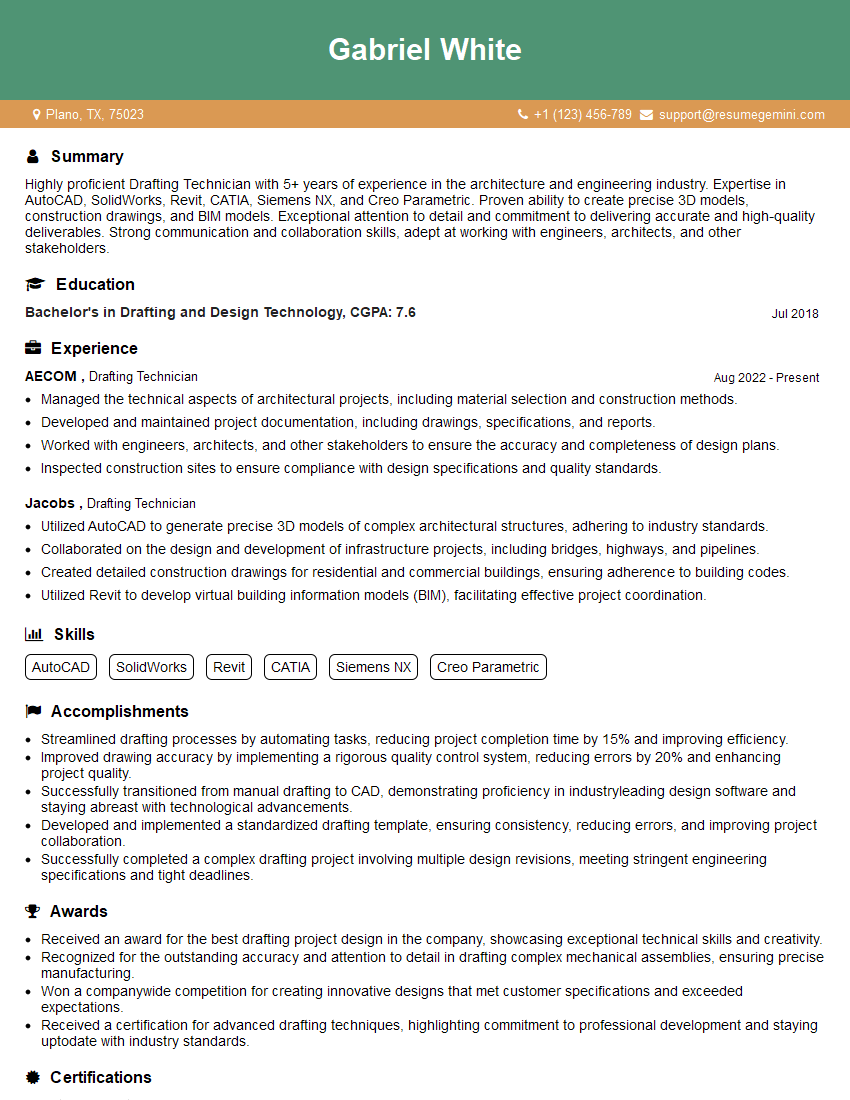
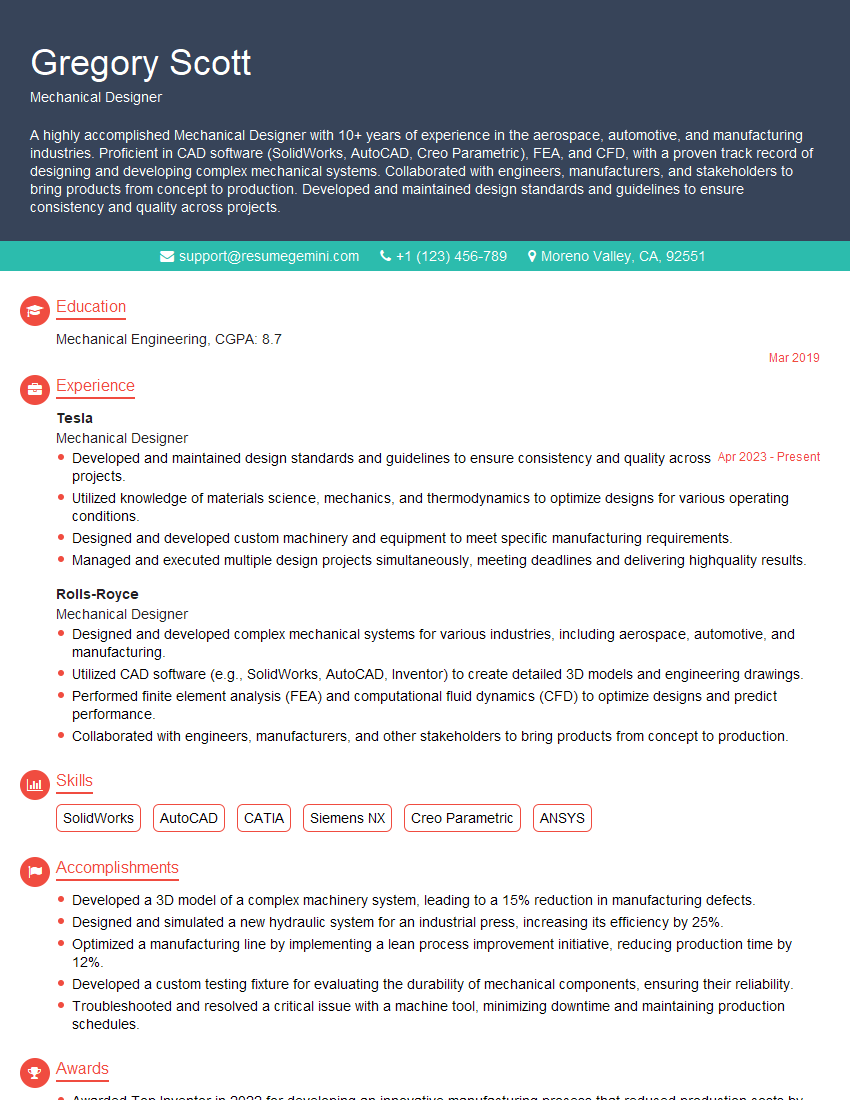
Mastering CAD software proficiency is paramount for career advancement in engineering, design, and manufacturing. A strong command of these tools significantly enhances your employability and opens doors to exciting opportunities. To maximize your job prospects, creating an ATS-friendly resume is essential. This ensures your application gets noticed by recruiters and hiring managers. We recommend using ResumeGemini to craft a professional and impactful resume tailored to your skills and experience. ResumeGemini provides examples of resumes specifically designed for professionals proficient in CAD software like AutoCAD and SolidWorks, helping you present your qualifications effectively.

Explore more articles
Users Rating of Our Blogs
Share Your Experience
We value your feedback! Please rate our content and share your thoughts (optional).
What Readers Say About Our Blog
Very informative content, great job.
good