Feeling uncertain about what to expect in your upcoming interview? We’ve got you covered! This blog highlights the most important Canvas Enlargement and Reduction interview questions and provides actionable advice to help you stand out as the ideal candidate. Let’s pave the way for your success.
Questions Asked in Canvas Enlargement and Reduction Interview
Q 1. Explain the difference between nearest-neighbor, bilinear, and bicubic interpolation.
Image scaling relies on interpolation techniques to determine pixel values in the enlarged or reduced image. Nearest-neighbor, bilinear, and bicubic interpolation differ in how they estimate these values.
- Nearest-neighbor interpolation: This is the simplest method. For each pixel in the new image, it selects the value of the nearest pixel in the original image. This is fast but results in a blocky, pixelated appearance, especially with enlargement.
- Bilinear interpolation: This method considers the four nearest pixels in the original image to calculate a weighted average for the new pixel’s value. It produces smoother results than nearest-neighbor but can still appear blurry or lack detail.
- Bicubic interpolation: This is a more sophisticated method that uses a 4×4 grid of neighboring pixels and a cubic polynomial to estimate the new pixel value. It offers the best quality, producing smoother and sharper results, but it’s computationally more expensive.
Imagine enlarging a pixelated image of a face. Nearest-neighbor would create a very blocky, obviously enlarged face. Bilinear would create a somewhat blurry face, while bicubic would give a smoother, higher quality result, though some detail might still be lost.
Q 2. Describe the advantages and disadvantages of each interpolation method.
Each interpolation method has its own strengths and weaknesses:
- Nearest-neighbor: Advantages: Very fast, simple to implement. Disadvantages: Produces blocky artifacts, especially noticeable in enlargements; significant loss of detail.
- Bilinear: Advantages: Faster than bicubic, smoother results than nearest-neighbor. Disadvantages: Can still appear blurry, especially in enlargements; moderate loss of detail.
- Bicubic: Advantages: Produces the sharpest and smoothest results, minimizes artifacts. Disadvantages: Computationally expensive, slower than other methods; may introduce slight ringing artifacts (a halo effect around edges).
For quick previews or applications where speed is prioritized, nearest-neighbor might suffice. For higher quality results where processing time isn’t critical, bicubic interpolation is generally preferred. Bilinear is a compromise between speed and quality.
Q 3. How does image scaling affect file size?
Image scaling directly impacts file size. Enlarging an image generally increases the file size because more pixels are needed to represent the larger image. Conversely, reducing an image decreases its file size because fewer pixels are required.
The extent of the file size change depends on several factors including the scaling factor (how much the image is enlarged or reduced), the original image resolution, and the file format (e.g., JPEG compression level). A 2x enlargement might roughly quadruple the file size, while a 50% reduction might reduce it to roughly a quarter of the original.
Q 4. What are the common artifacts associated with image scaling, and how can they be minimized?
Common artifacts from image scaling include:
- Aliasing: Jagged edges and stair-step patterns resulting from the loss of detail during downscaling.
- Blurriness: Loss of sharpness and detail, particularly noticeable in enlargements using low-quality interpolation.
- Pixelation: Blocky appearance from using nearest-neighbor interpolation, mainly in enlargements.
- Ringing: Halo effect around high-contrast edges, sometimes observed with bicubic interpolation.
Minimizing these artifacts requires careful selection of the interpolation method, using techniques like anti-aliasing (discussed below), and potentially employing more advanced image processing techniques.
Q 5. Explain the concept of anti-aliasing in image scaling.
Anti-aliasing addresses the problem of aliasing during image scaling. Aliasing happens when high-frequency details (sharp edges, fine lines) are undersampled, causing jagged edges. Anti-aliasing attempts to mitigate this by smoothing out these edges before downsampling, resulting in a cleaner, less jagged appearance.
Imagine a black-and-white diagonal line. Without anti-aliasing, during downscaling, this line would appear jagged. With anti-aliasing, the edges are softened before downscaling, producing a smoother line even in a smaller representation.
Q 6. What are some techniques used to reduce aliasing during scaling?
Several techniques reduce aliasing:
- Pre-filtering: Smoothing the image before downscaling, often using a low-pass filter to reduce high-frequency components that cause aliasing.
- Subpixel rendering: Calculating pixel values at subpixel precision, then averaging them to get the final pixel value. This is effective in creating smoother transitions.
- Advanced interpolation methods: Bicubic interpolation, and even more advanced techniques like Lanczos resampling, offer superior results to simpler methods by better handling high-frequency details.
Software like Photoshop and image editing libraries often incorporate these techniques. The choice depends on the desired balance between speed and quality.
Q 7. How does image scaling impact image sharpness?
Image scaling significantly impacts sharpness. Reducing an image generally reduces sharpness because details are lost during downscaling. Enlarging an image can also reduce sharpness if a low-quality interpolation method is used, resulting in a blurry image. However, with higher-quality methods like bicubic interpolation, enlargement can sometimes maintain acceptable sharpness, depending on the original image quality and the extent of the enlargement.
A highly detailed photo downscaled aggressively will lose a significant amount of sharpness. Conversely, a low-resolution image enlarged may look blurry, regardless of the interpolation method.
Q 8. How can you maintain image quality while reducing its size?
Reducing image size without significant quality loss is crucial for web optimization and storage efficiency. The key is to employ smart downsampling techniques instead of simply shrinking the image. Think of it like carefully removing bricks from a wall instead of smashing it – you want to maintain the overall structure.
One effective method is to use a resampling algorithm that intelligently averages pixel values. Simple averaging can lead to blurry results, so more sophisticated techniques like bicubic or Lanczos resampling are preferred. These algorithms consider surrounding pixels to create a smoother transition, reducing the appearance of jagged edges (aliasing).
Another important factor is the file format. Lossy formats like JPEG discard some image data to achieve smaller file sizes. The amount of compression (quality setting) determines the trade-off between size and quality. A higher quality setting results in a larger file size but better image fidelity. Lossless formats like PNG maintain all image data, resulting in larger file sizes but no quality loss during downscaling.
Q 9. Discuss the trade-offs between speed and quality in image scaling algorithms.
Image scaling algorithms present a constant balancing act between speed and quality. Faster algorithms, such as nearest-neighbor, simply copy the nearest pixel to the new location. While incredibly fast, this results in blocky, pixelated images, especially when downscaling. This is like making a mosaic using only large, individual tiles – the detail is lost.
On the other hand, high-quality algorithms like bicubic or Lanczos interpolation take more time because they consider multiple neighboring pixels to calculate the color value of each new pixel. This is akin to using smaller, more numerous tiles to create a more detailed mosaic. The result is a smoother, less pixelated image, especially when enlarging images, but processing time increases significantly.
In practice, the choice depends on the application. For real-time applications like video conferencing, speed might be prioritized over perfect image quality, using nearest-neighbor or bilinear interpolation. For applications where quality is paramount, such as photo editing, high-quality algorithms such as bicubic or Lanczos are preferred, even if it means slower processing times.
Q 10. What are some common libraries or APIs used for image resizing (e.g., OpenCV, PIL)?
Several powerful libraries and APIs simplify image resizing. Here are a few popular choices:
- OpenCV (Open Source Computer Vision Library): A comprehensive library offering a wide range of image processing functions, including efficient resizing using various interpolation methods. It’s highly optimized and suitable for performance-critical applications.
- PIL (Python Imaging Library): A user-friendly Python library providing a straightforward interface for common image manipulations, including resizing. Its simplicity makes it ideal for quick prototyping and educational purposes.
- ImageMagick: A powerful command-line tool and library available across various platforms. It offers extensive control over image processing tasks, including advanced resizing options.
- GraphicsMagick: Similar to ImageMagick, a robust alternative known for its faster processing speeds in some cases.
The choice of library depends on factors such as programming language, required functionalities, and performance requirements. OpenCV provides extensive functionality and optimization for performance-critical tasks, while PIL offers a simpler, more Pythonic approach for less demanding projects.
Q 11. How would you handle scaling an image up to a very large size while maintaining acceptable quality?
Scaling an image up to a very large size without introducing noticeable artifacts requires careful consideration. Simple enlargement techniques often lead to pixelation and blurring. The secret lies in using techniques that intelligently fill in the missing pixel information.
One effective approach is to use a super-resolution algorithm. These algorithms leverage machine learning to infer missing details and enhance the image quality. They analyze the existing image to predict the colors and textures of the upscaled pixels. Think of it as smart guessing based on what’s already there.
Another approach is to use high-quality interpolation methods like bicubic or Lanczos interpolation, coupled with noise reduction techniques to minimize the appearance of artifacts. It’s also crucial to ensure the original image has high enough resolution to begin with. If your original image is low resolution, no amount of upscaling will create detail that wasn’t originally present.
Q 12. How would you handle scaling an image down while preserving important details?
Preserving important details when downscaling requires choosing the right resampling algorithm and potentially employing techniques to mitigate aliasing (jagged edges). Simple averaging of pixel values can lead to blurry results, losing fine details.
High-quality downsampling utilizes algorithms like Lanczos or bicubic interpolation to create smoother transitions between pixels. These algorithms consider the values of multiple surrounding pixels, resulting in a better representation of the original image’s details after downscaling. This minimizes blurring and retains more edges and fine details.
Furthermore, techniques like edge-aware scaling can further enhance the preservation of important details. These algorithms detect edges and attempt to preserve their sharpness during the scaling process, helping to maintain clarity in the final result. This is especially crucial for images with sharp lines or text.
Q 13. Explain the importance of color space considerations during image scaling.
Color space is critical during image scaling because different color spaces represent color information differently. For instance, RGB (Red, Green, Blue) is an additive color space used for displaying images on screens, while CMYK (Cyan, Magenta, Yellow, Key/Black) is a subtractive color space commonly used in printing.
Scaling in the wrong color space can lead to color shifts and distortions. For example, scaling an image in the RGB space and then converting it to CMYK might result in incorrect color reproduction in the final print. It’s best to perform scaling operations in a color space suitable for the final output. For web applications, RGB is typically preferred; for print, CMYK is often necessary.
Additionally, some color spaces, like LAB (L*a*b*), are designed to be perceptually uniform, meaning equal changes in color values correspond to equal perceived changes in color. Scaling in a perceptually uniform color space can minimize the appearance of color distortions during the process, leading to higher visual fidelity.
Q 14. How does pixel aspect ratio affect image scaling?
Pixel aspect ratio refers to the ratio of a pixel’s width to its height. A square pixel has an aspect ratio of 1:1, but some displays or images use pixels with non-square aspect ratios (e.g., 4:3, 16:9). Ignoring pixel aspect ratio during scaling can lead to distorted images. Imagine stretching a rectangular photograph to fit a square frame – it would look unnatural.
Correctly handling pixel aspect ratio involves considering the true dimensions of the pixels, not just the number of pixels. Scaling algorithms should account for this ratio to avoid stretching or squeezing the image in one direction, preserving the original image proportions. Accurate scaling requires knowing and using both the pixel dimensions and the pixel aspect ratio.
If the pixel aspect ratio is unknown or not considered, the resulting image might be stretched or compressed along one axis, leading to an incorrect visual representation. Therefore, maintaining the correct aspect ratio is vital for accurate and visually pleasing image scaling.
Q 15. Describe the process of resizing images in different file formats (e.g., JPEG, PNG, GIF).
Resizing images, regardless of format (JPEG, PNG, GIF), involves changing the number of pixels in the image. However, the process and resulting quality can vary significantly depending on the file format.
JPEG (JPG): JPEG uses a lossy compression algorithm, meaning some image data is discarded during compression. Enlarging a JPEG typically results in noticeable artifacts such as blurring and pixelation because the algorithm tries to reconstruct missing data. Reducing a JPEG generally preserves more quality but still may lead to minor loss of detail. Think of it like repeatedly copying a photocopy – each copy loses a little bit of sharpness.
PNG: PNG uses lossless compression, meaning no image data is lost during compression. Enlarging a PNG results in smoother scaling as the pixels can be interpolated (calculated) with greater accuracy. However, enlarging still stretches the image. Reducing a PNG usually preserves the original quality perfectly.
GIF: GIFs are similar to PNGs in that they support lossless compression, but they’re limited to a palette of 256 colors or less. This impacts resizing, especially when enlarging. The limited color palette can lead to banding (visible color transitions) during upscaling. Reducing a GIF will typically preserve original colors and quality but, again, simply reduce the number of pixels.
In all cases, resizing is done using image editing software or libraries. The choice of resampling algorithm (e.g., bicubic, bilinear) significantly influences the final quality. Generally, more sophisticated algorithms yield better results at larger scale changes.
Career Expert Tips:
- Ace those interviews! Prepare effectively by reviewing the Top 50 Most Common Interview Questions on ResumeGemini.
- Navigate your job search with confidence! Explore a wide range of Career Tips on ResumeGemini. Learn about common challenges and recommendations to overcome them.
- Craft the perfect resume! Master the Art of Resume Writing with ResumeGemini’s guide. Showcase your unique qualifications and achievements effectively.
- Don’t miss out on holiday savings! Build your dream resume with ResumeGemini’s ATS optimized templates.
Q 16. What are the considerations for scaling images for different display resolutions?
Scaling images for different display resolutions requires careful consideration of pixel density (PPI or DPI) and aspect ratio. High-resolution displays (e.g., Retina displays) have much higher pixel densities than standard displays. If you simply resize an image to fit a higher-resolution screen without considering pixel density, the image may appear blurry or pixelated.
Strategies:
- Provide multiple image versions: Create separate image files optimized for different resolutions. For example, you might provide a small version for low-resolution devices and larger versions for high-resolution displays.
- Use vector graphics: Vector graphics (like SVG) are resolution-independent. They scale smoothly to any size without loss of quality. This is particularly beneficial when scaling for various resolutions.
- Responsive design techniques: Using CSS techniques such as `max-width` and `width: 100%` allows the browser to scale images appropriately while maintaining their aspect ratio.
Consider a scenario where you have a logo. Creating different sizes (e.g., 32×32, 64×64, 128×128, etc.) ensures the logo looks crisp on any device. Similarly, a website’s hero image should be prepared in a high resolution to accommodate high-resolution screens.
Q 17. How does image scaling relate to resolution and DPI?
Image scaling, resolution, and DPI (dots per inch) are intricately linked. Resolution refers to the number of pixels in an image (e.g., 1920 x 1080 pixels). DPI represents the number of pixels per inch of physical space. When scaling an image, you’re essentially changing its resolution. Changing the DPI without changing the resolution affects only how the image is displayed on a printed output or on screen (if the system accounts for DPI). If you are just scaling on a screen and DPI is not considered, there is no effect from DPI.
Example: If you have a 1000 x 1000 pixel image at 72 DPI, and you double its size (2000 x 2000 pixels), the DPI remains 72 DPI unless explicitly modified in the image metadata. However, the printed output will be larger. If you increase the DPI without changing the pixel dimensions, the same number of pixels will be distributed across a smaller physical area, resulting in a sharper, higher-resolution printed image. But the image on the screen would remain the same, unless the system interprets DPI information.
In digital display contexts, the actual DPI may be less relevant as screens don’t have a fixed physical size in the same way as a printed page; only pixel dimensions and screen resolution are crucial for scaling.
Q 18. Explain the impact of scaling on image compression techniques.
Scaling significantly impacts image compression techniques. When an image is enlarged, compression algorithms have to fill in missing pixel data, often leading to a reduction in quality and an increase in file size, even with lossless formats. With lossy compression, this effect is amplified. When an image is reduced, the file size decreases as there’s less data to store, but the quality generally remains better, especially with lossless formats.
Lossy Compression (JPEG): Enlarging a JPEG after compression exacerbates artifacts; reducing it has a milder impact. The compression algorithm already discarded some data; further scaling might reveal these artifacts or generate new ones during upscaling.
Lossless Compression (PNG): Lossless compression maintains all data, so the impact of scaling on file size is generally proportional to the change in resolution. Enlarging means a larger file, reducing means a smaller file. The quality loss is minimal (though interpolation may still produce slightly different pixel values).
Therefore, careful consideration of the scaling factor and the chosen compression technique is crucial for balancing file size and visual quality. It might be beneficial to pre-scale images to the optimal size before compression to maximize quality and minimize file size.
Q 19. How would you handle scaling images with transparency?
Handling transparency when scaling images requires choosing an appropriate algorithm that preserves the alpha channel (transparency information). The alpha channel determines the opacity of each pixel. When resizing, you want to ensure this information is properly interpolated to avoid artifacts or unexpected results.
Methods:
- Use appropriate image formats: PNG or GIF are preferred for images with transparency because they support alpha channels.
- Choose suitable resampling filters: Bicubic or Lanczos resampling filters are generally better at preserving alpha channel data than simpler methods like nearest-neighbor.
- Image processing libraries: Use well-tested image processing libraries (like Pillow in Python or ImageMagick) that can handle alpha channels correctly.
Example (conceptual): Imagine you’re scaling a PNG with a transparent background. If you use a simple algorithm, the scaling process might introduce some blurring or artifacts at the edges of the transparent area, making the transparency look jagged or uneven. Using a more sophisticated algorithm will preserve the smooth transition between the image and the transparent area.
Q 20. What are some performance optimization strategies for image scaling in real-time applications?
Performance optimization for real-time image scaling involves strategies to minimize processing time. Real-time applications, such as video games or video conferencing, require quick image manipulation. Here are some key techniques:
- Hardware acceleration: Utilize the GPU (Graphics Processing Unit) for parallel processing of image data. Modern GPUs are highly efficient for image manipulation tasks.
- Caching: Store previously scaled images in memory. If the same image is scaled repeatedly, retrieve the cached version instead of recalculating.
- Efficient algorithms: Use fast image resampling algorithms like bilinear or bicubic downscaling rather than slower, higher-quality methods. For upscaling consider techniques like super-resolution, but these are computationally intensive.
- Image pyramids: Generate a hierarchy of scaled images (a pyramid) in advance. This avoids the need to rescale from the original each time. This is an effective pre-processing step.
- Multithreading/Multiprocessing: If possible, distribute the scaling workload across multiple CPU cores to speed up processing.
The specific techniques will depend on the application, target hardware, and acceptable performance trade-offs. Finding the right balance between speed and image quality is essential.
Q 21. How would you debug issues related to image scaling?
Debugging image scaling issues often involves systematically checking different aspects of the process.
Steps:
- Inspect the input image: Ensure the original image is correctly loaded and doesn’t have inherent issues that might be amplified by scaling (e.g., corruption).
- Examine the scaling parameters: Verify the scaling factor and resampling algorithm are correctly set. Incorrect settings can easily produce blurry or distorted results.
- Check the output image: Carefully inspect the scaled image for visual artifacts (blurriness, pixelation, color banding). Visual inspection is the most direct way to find problems.
- Test different algorithms: If the results are poor, try different resampling algorithms (bicubic, nearest-neighbor, Lanczos) to see if the issue is algorithm-specific.
- Use debugging tools: If you’re using programming libraries, leverage debugging features (e.g., print statements, debuggers) to check intermediate values (e.g., verify the alpha channel is being handled correctly).
- Test on different devices/browsers: Inconsistent results across devices might indicate issues with browser rendering or device-specific quirks.
- Consult image processing literature and forums: Complex scaling issues may necessitate seeking guidance from experts.
It’s also important to consider if the issue is a software bug in a library you are using, or a bug in your own code. Isolate the problem methodically, step-by-step.
Q 22. How can you improve the performance of image scaling in a web application?
Improving image scaling performance in a web application hinges on optimizing several key areas. The primary goal is to minimize the processing load and reduce the time it takes to display the scaled image. This can be achieved through a combination of techniques.
- Using appropriate image formats: Vector graphics (SVG) scale perfectly without loss of quality, making them ideal for logos and illustrations. For photos, consider using optimized formats like WebP, which offers superior compression compared to JPEG or PNG, resulting in faster loading times.
- Employing efficient scaling algorithms: Simple algorithms like nearest-neighbor interpolation are fast but can produce blocky results. More sophisticated algorithms like bicubic interpolation offer better quality but require more processing power. The choice depends on the trade-off between speed and quality. Consider using hardware acceleration where available (e.g., via WebGL or canvas’s built-in scaling methods).
- Caching scaled images: Store frequently accessed scaled versions of images to avoid redundant computations. This can involve browser caching or server-side caching mechanisms. Using a service worker could further enhance this caching strategy.
- Lazy loading: Only load images when they’re visible in the viewport. This technique reduces the initial load time and bandwidth consumption, significantly impacting the perceived performance.
- Responsive image techniques: Utilize the
srcsetattribute in
For instance, consider a photo gallery application. Lazy loading would ensure only the visible images are loaded, improving initial page load. Using WebP would reduce image file sizes, and caching frequently accessed thumbnails could drastically improve performance.
Q 23. Describe the differences in approaches for scaling vector graphics versus raster graphics.
Scaling vector graphics and raster graphics differ fundamentally due to their inherent nature. Raster graphics are composed of pixels, while vector graphics are defined by mathematical equations describing lines and curves.
- Raster Graphics (e.g., JPEG, PNG): Scaling raster graphics involves resampling the pixels. Enlarging a raster image typically results in a loss of quality, while reducing it might cause aliasing (jagged edges). Different resampling algorithms (discussed later) determine the quality of the scaled image.
- Vector Graphics (e.g., SVG): Scaling vector graphics is lossless. The image is redefined mathematically at the new scale, maintaining its crispness and detail regardless of the size change. There’s no pixel manipulation involved, making scaling computationally inexpensive and always sharp.
Imagine enlarging a company logo. If it’s a raster graphic, enlarging it might make it blurry. However, if it’s a vector graphic, it will remain sharp at any size.
Q 24. What is the impact of different resampling filters on image quality?
Resampling filters in image scaling determine how pixel values are calculated during the scaling process. Different filters offer varying trade-offs between speed, sharpness, and the presence of artifacts.
- Nearest-neighbor: This is the fastest but least accurate method. It simply uses the nearest pixel’s value for the new pixel, resulting in a blocky appearance, especially when enlarging.
- Bilinear: This averages the values of the four nearest pixels, producing smoother results than nearest-neighbor but can still show some blurring.
- Bicubic: This uses a weighted average of 16 neighboring pixels, resulting in a sharper and smoother image than bilinear. It’s a good balance between speed and quality but can introduce ringing artifacts (oscillations around sharp edges).
- Lanczos: This sophisticated filter uses a larger kernel (more neighboring pixels) and a sinc function to achieve very sharp results, especially when reducing images, but it is computationally expensive.
The best filter depends on the specific application. For fast thumbnail generation, nearest-neighbor or bilinear might suffice. For high-quality prints or web images, bicubic or Lanczos offer superior results, despite the increased processing time.
Q 25. How would you implement a custom image scaling algorithm?
Implementing a custom image scaling algorithm involves several steps, typically utilizing a programming language like JavaScript and the canvas API.
Let’s outline a simplified bicubic interpolation algorithm:
function bicubicScale(imageData, newWidth, newHeight) {
  // ... (Implementation details involving obtaining pixel data,
  // calculating weights using bicubic interpolation kernel,
  // and setting pixel data in the new imageData object) ...
}
The core of this algorithm lies in the bicubic interpolation kernel, which calculates the weights for each neighboring pixel. The precise implementation can be quite complex and may involve matrix calculations. Libraries like OpenCV (not directly in browser JS, but potentially via WASM) offer pre-built, highly optimized implementations of advanced scaling algorithms.
A real-world example would be a photo editing application that allows users to perform custom scaling with adjustable filter settings. Implementing such an application would require extensive knowledge of image processing and efficient algorithm implementation.
Q 26. What are some common challenges faced during image scaling?
Several challenges are commonly encountered during image scaling:
- Aliasing and Jagged Edges: Enlarging images can lead to jagged edges and a loss of detail. This is especially noticeable with simple resampling algorithms.
- Blurriness and Loss of Detail: Reducing images can cause blurring and a loss of fine details. Choosing the right resampling filter can mitigate this effect.
- Computational Cost: Sophisticated algorithms like Lanczos are computationally intensive, requiring significant processing power, which is important to consider for performance, particularly on mobile devices.
- Memory Management: Processing large images can consume substantial memory, especially when handling high-resolution images.
- Maintaining Aspect Ratio: Scaling images while preserving their aspect ratio often requires careful calculations and potentially cropping or letterboxing.
For example, in a social media platform, users frequently upload images of various sizes. The system needs to efficiently scale and resize these images for display on different devices while minimizing the loss of quality and maintaining performance.
Q 27. What techniques would you use for scaling images to different aspect ratios?
Scaling images to different aspect ratios requires a strategy to handle the mismatch between the original aspect ratio and the target aspect ratio. The common approaches include:
- Letterboxing/Pillarboxing: Add black bars (or bars of another color) to maintain the aspect ratio. This preserves the original image without distortion but adds extra space.
- Cropping: Trim portions of the original image to fit the new aspect ratio. This approach might result in the loss of some image content. You can choose to crop from the center, top, bottom, or sides, depending on the application’s requirements.
- Scaling and then padding: Scale the image proportionally to fit either the width or height of the target area, and then add padding to fill the remaining space.
- Stretching/Compression: Stretch or compress the image to fit the new aspect ratio. This distorts the original image, making it appear unnatural.
Consider an online image editor. Users may want to fit an image into a specific frame size, like a social media post. The editor will have to decide between cropping, letterboxing, or scaling/padding, depending on the user’s preferences or pre-set options.
Q 28. How would you handle the case where an image needs to be scaled non-uniformly?
Non-uniform scaling means scaling an image differently along the horizontal and vertical axes. This is less common than uniform scaling, but it can be achieved by applying different scaling factors to the width and height. The process remains similar to uniform scaling, but the calculations need to account for the different scaling factors.
Technically, you’d simply adjust the scaling parameters within your chosen resampling algorithm. For example, in a bicubic interpolation algorithm, you would apply separate scaling factors for the x and y coordinates during the weight calculation process. The canvas API allows specifying the width and height independently when drawing an image, effectively performing non-uniform scaling.
An example of non-uniform scaling would be stretching a banner image horizontally to fit a wider screen while maintaining its original vertical height. This preserves the text or design elements within the vertical space, while allowing the banner to effectively use the available horizontal space.
Key Topics to Learn for Canvas Enlargement and Reduction Interview
- Understanding Scaling Algorithms: Explore different scaling algorithms like nearest-neighbor, bilinear, bicubic, and Lanczos resampling. Understand their strengths and weaknesses in terms of speed and image quality.
- Image Quality Considerations: Discuss how different scaling methods affect image sharpness, aliasing, and artifacts. Be prepared to explain how to mitigate these issues.
- Performance Optimization: Describe techniques for optimizing canvas scaling performance, including using efficient data structures and minimizing redundant calculations. Consider the impact of different browser engines.
- Coordinate Transformations: Explain how to correctly transform coordinates when scaling the canvas. Understand the relationship between the original and scaled coordinates.
- Practical Applications: Discuss real-world applications of canvas scaling, such as image zooming, image editing tools, and responsive web design.
- Handling High-Resolution Images: Explain strategies for efficiently handling and scaling very large images without causing browser crashes or performance bottlenecks.
- Canvas API Integration: Demonstrate a firm understanding of the relevant Canvas API methods and properties involved in image scaling and manipulation.
- Debugging and Troubleshooting: Be prepared to discuss common problems encountered during canvas scaling and how to debug and resolve them effectively.
Next Steps
Mastering canvas enlargement and reduction is crucial for many roles in front-end development and graphics programming, significantly enhancing your value to potential employers. A strong grasp of these concepts showcases your problem-solving skills and technical proficiency. To maximize your job prospects, it’s vital to create an ATS-friendly resume that highlights your expertise. ResumeGemini is a trusted resource that can help you build a professional and effective resume, showcasing your skills in Canvas Enlargement and Reduction. Examples of resumes tailored to this specialization are available to guide you through the process.
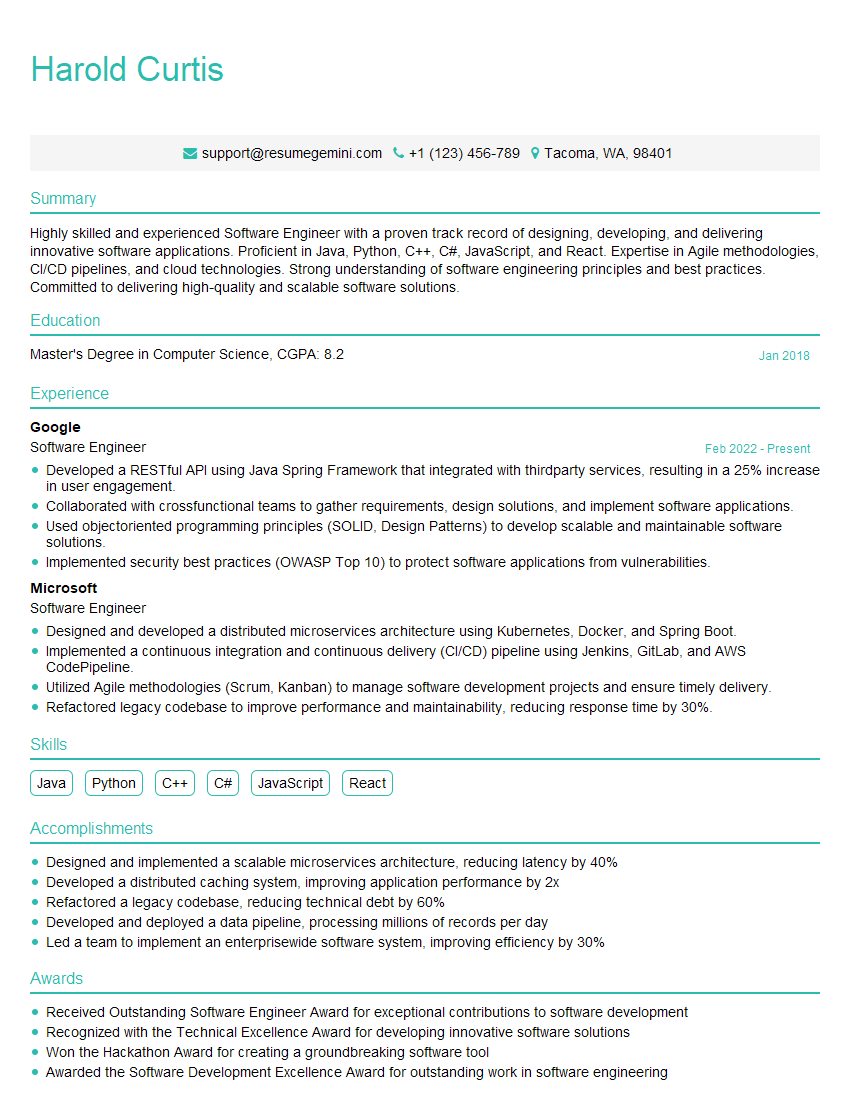
Software Engineer Resume Sample
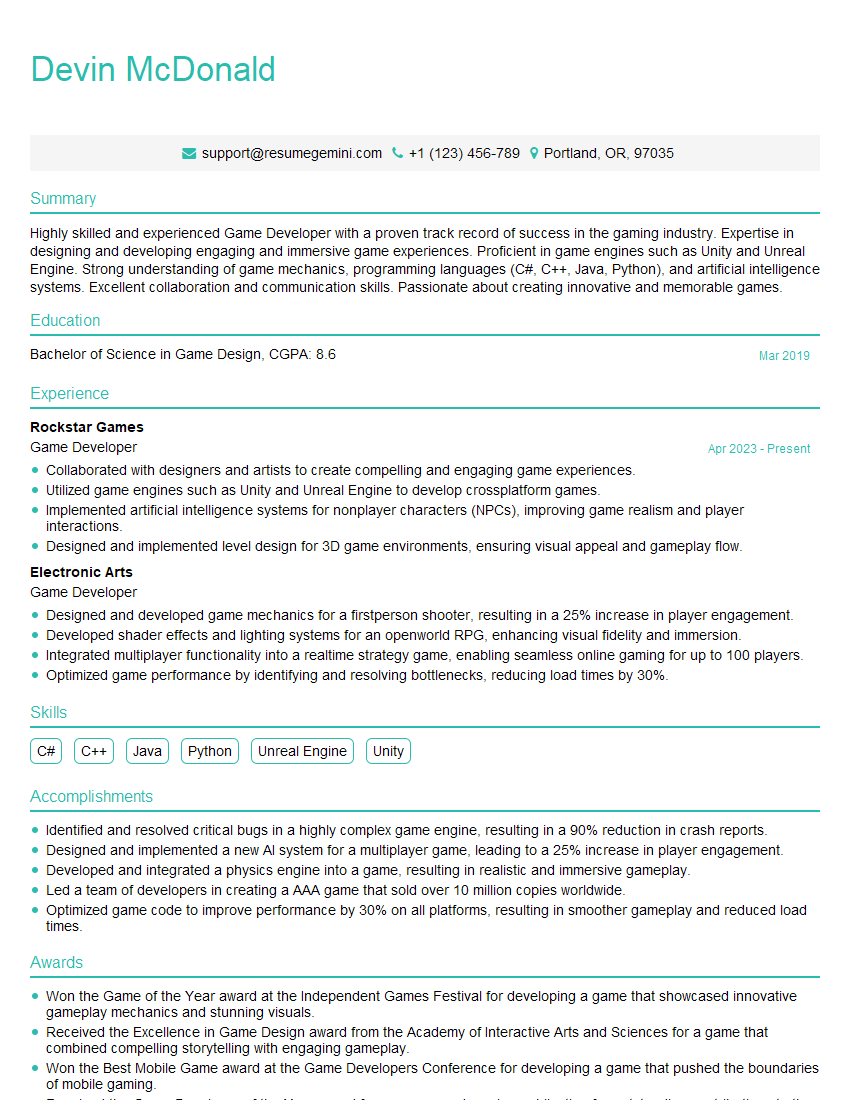
Game Developer Resume Sample
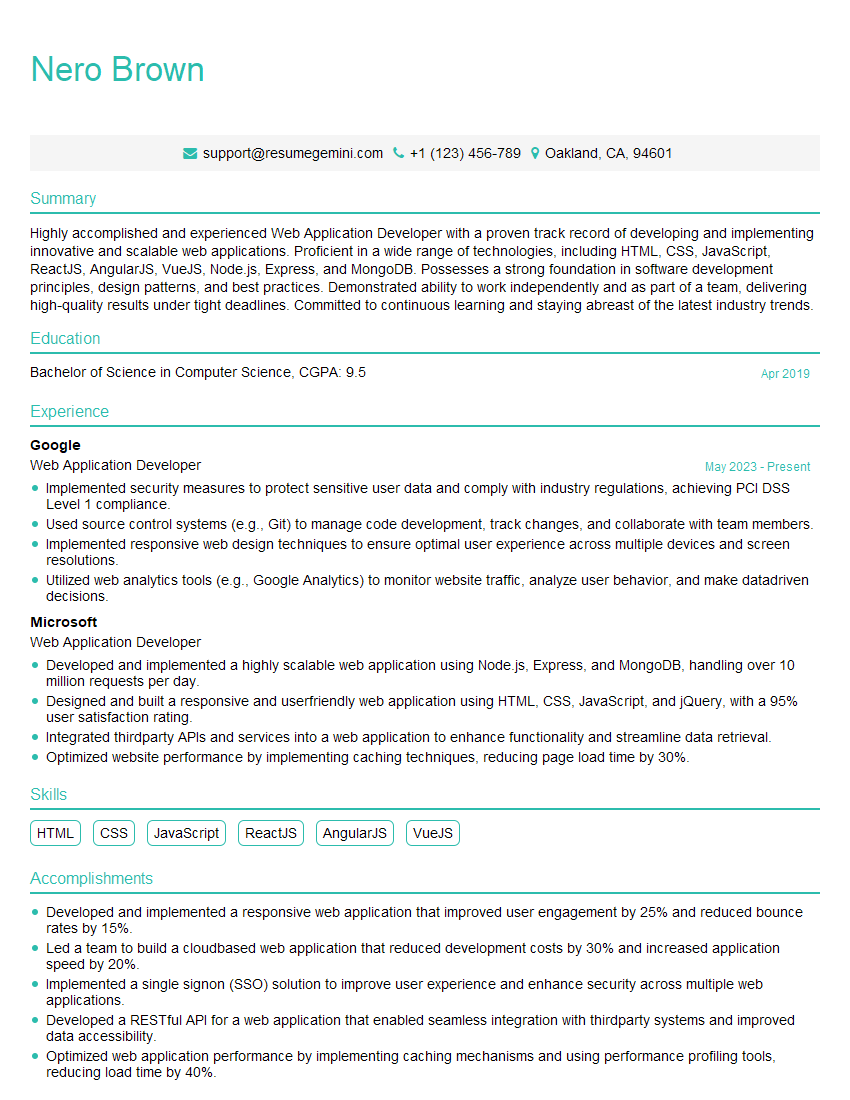
Web Application Developer Resume Sample

Web Designer Resume Sample
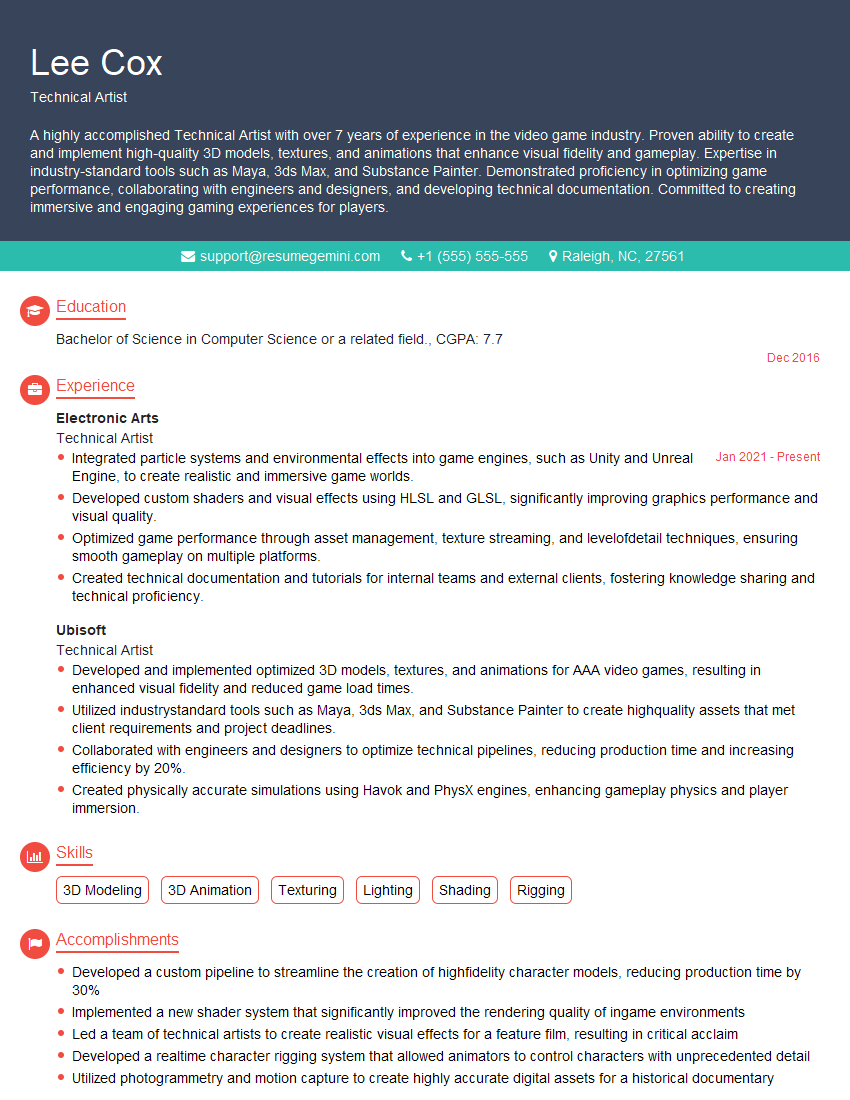
Technical Artist Resume Sample
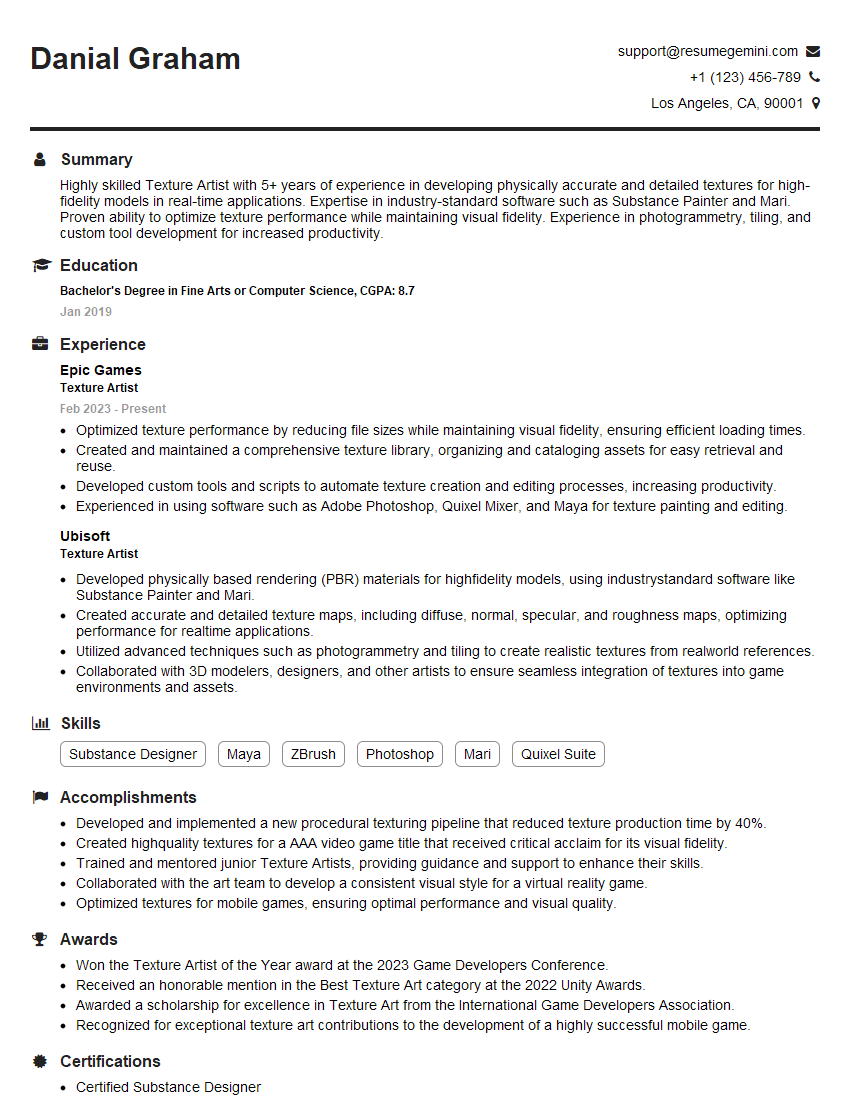
Texture Artist Resume Sample

3D Modeler Resume Sample
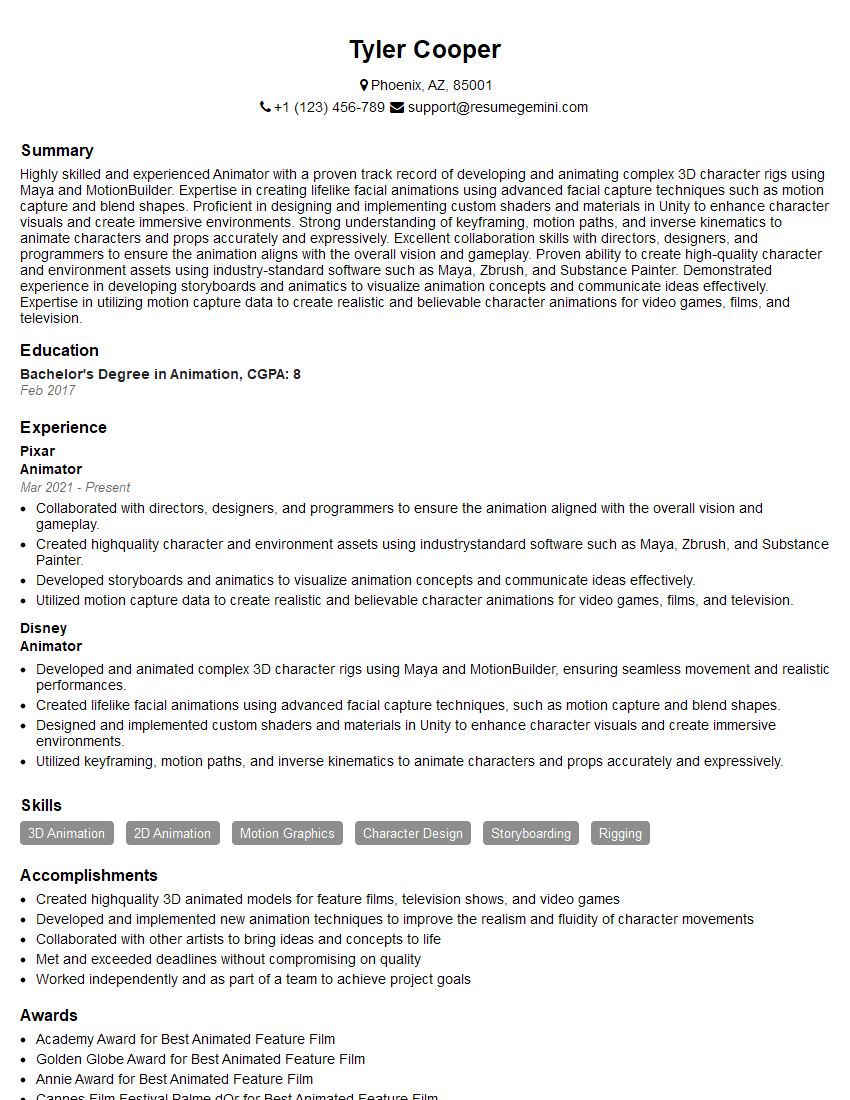
Animator Resume Sample
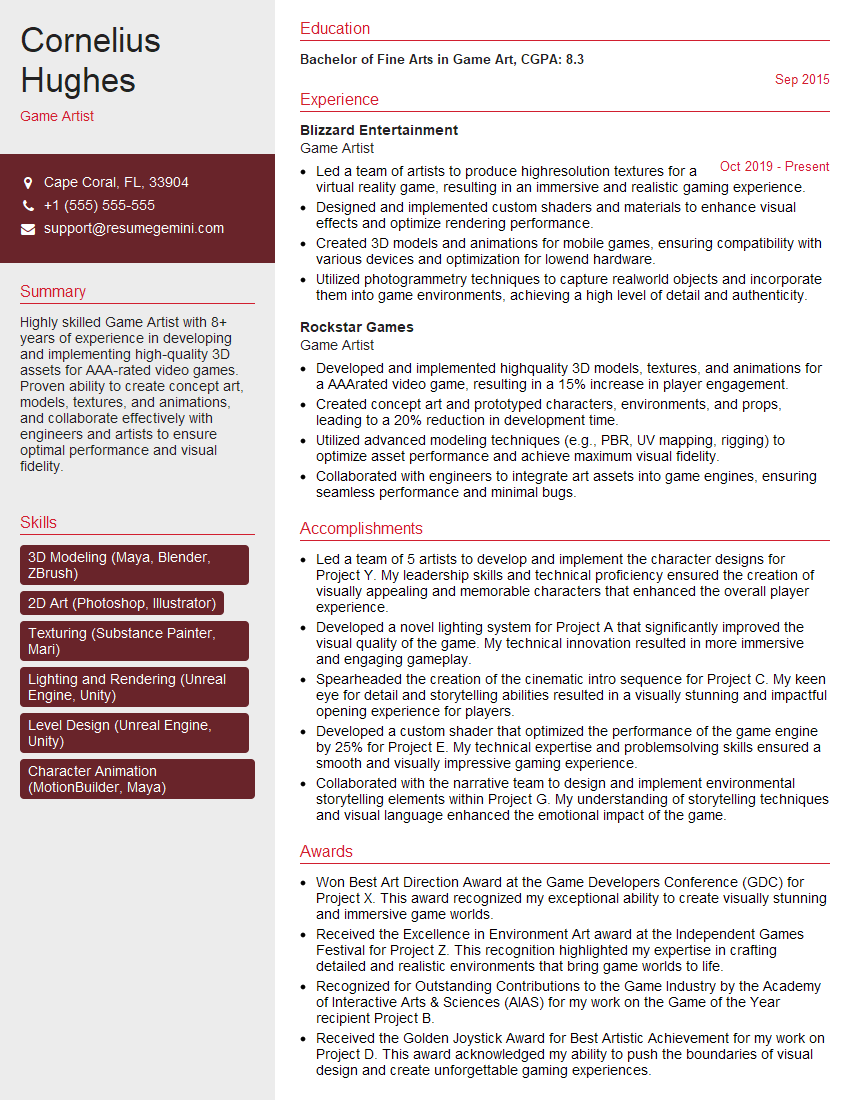
Game Artist Resume Sample

Graphic Designer Resume Sample
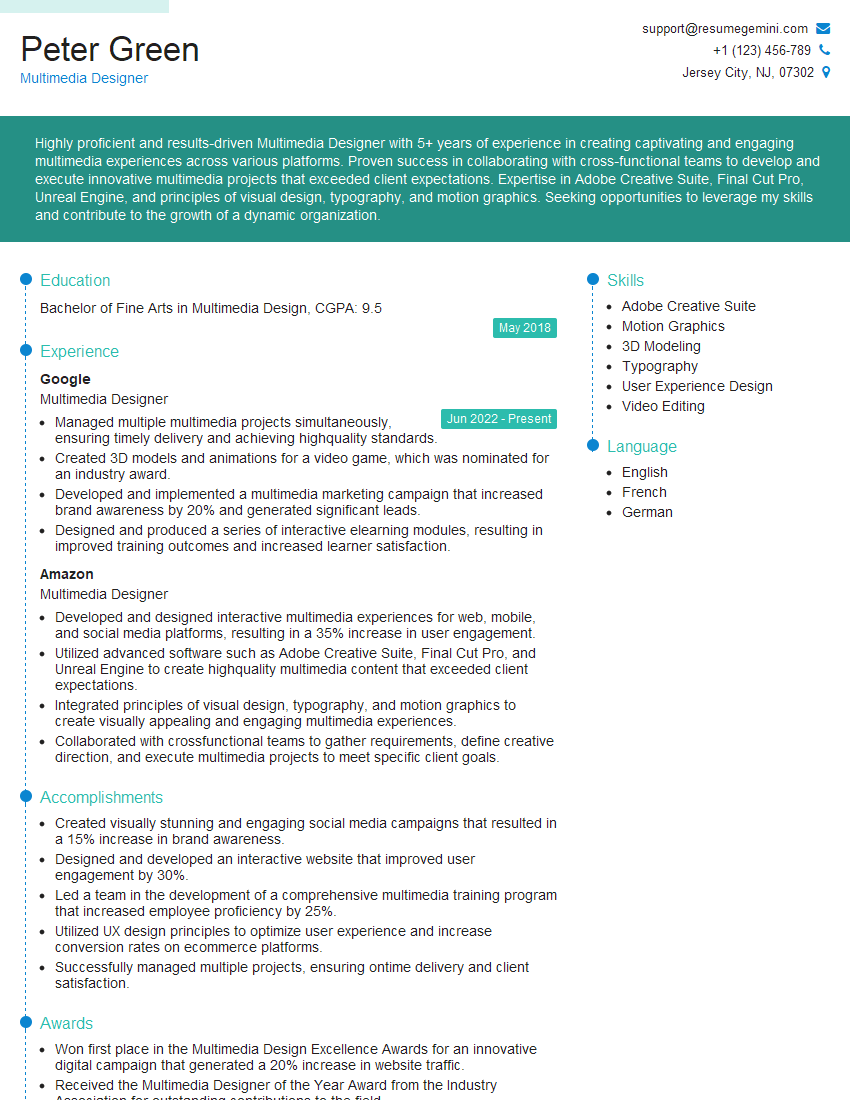
Multimedia Designer Resume Sample
Visual Effects Artist Resume Sample
Digital Imaging Technician Resume Sample
Explore more articles
Users Rating of Our Blogs
Share Your Experience
We value your feedback! Please rate our content and share your thoughts (optional).
What Readers Say About Our Blog
Very informative content, great job.
good