Are you ready to stand out in your next interview? Understanding and preparing for Computer-Aided Drafting (CAD) Software (e.g., AutoCAD) interview questions is a game-changer. In this blog, we’ve compiled key questions and expert advice to help you showcase your skills with confidence and precision. Let’s get started on your journey to acing the interview.
Questions Asked in Computer-Aided Drafting (CAD) Software (e.g., AutoCAD) Interview
Q 1. Explain your experience with AutoCAD’s various drawing tools.
My experience with AutoCAD’s drawing tools is extensive, encompassing the entire spectrum from basic line creation to complex 3D modeling. I’m proficient in using tools like LINE, ARC, CIRCLE, POLYLINE, and SPLINE for creating precise 2D geometries. For 3D modeling, I regularly utilize tools such as EXTRUDE, REVOLVE, 3D SOLID, and SURFACE commands. I also leverage advanced tools like OFFSET for parallel lines and curves, ARRAY for replicating objects, and MIRROR for creating symmetrical designs. I’m adept at using these tools to create efficient and accurate drawings, often employing shortcuts and keyboard commands for increased productivity. For example, when creating a complex building facade, I utilize POLYLINE with its various editing options to efficiently generate precise shapes, followed by ARRAY to replicate patterns quickly and accurately. This helps maintain consistency and minimizes the risk of errors.
Q 2. How do you manage layers and layer properties in AutoCAD?
Managing layers and layer properties in AutoCAD is crucial for organizing complex drawings. Think of layers as stacked sheets of transparent paper, each containing different elements of a drawing. I meticulously organize my drawings by assigning distinct layers for different aspects like walls, doors, windows, and annotations. This allows me to easily control the visibility and properties of each element independently. I utilize layer properties like color, linetype, and lineweight to enhance visual clarity and differentiate between various components. For instance, I might assign a red color and a thicker lineweight to structural elements for better emphasis. The LAYER command is my primary tool; I often use layer states to save and recall different layer visibility configurations – very useful when working on large, intricate projects. For example, when presenting a design to a client, I may switch to a layer state showing only the final product, concealing work-in-progress details.
Q 3. Describe your process for creating and modifying blocks in AutoCAD.
Creating and modifying blocks in AutoCAD is a cornerstone of efficient design. Blocks are essentially reusable drawing components. I frequently create blocks for frequently used elements such as doors, windows, fixtures, and symbols, significantly speeding up the design process and maintaining consistency. I use the BLOCK command to create blocks, carefully selecting the objects to include. The INSERT command efficiently places these blocks into the drawing. I also make extensive use of attributes within blocks to manage data associated with those blocks (e.g., size, material, specifications). For example, I create a block for a standard door, and then I can easily modify its attributes (like the door’s width or swing direction) without re-drawing the whole door each time. When creating detailed floor plans, the ability to reuse these blocks efficiently saves considerable time and effort. For modification, I use the BLOCK EDITOR to make changes to the block definition, affecting all instances of that block across the entire drawing. This is where attribute definitions are also managed.
Q 4. How proficient are you with AutoCAD’s dimensioning tools?
My proficiency with AutoCAD’s dimensioning tools is high. I’m comfortable with all types of dimensions—linear, angular, radial, diameter, and aligned. I understand the importance of accurate and clear dimensioning for manufacturing and construction purposes. I understand how to control dimension styles, including text height, precision, and arrowheads to meet specific project requirements and standards. For example, when drafting architectural plans, I meticulously apply dimensions adhering to industry standards, ensuring accuracy and clarity for construction. I often use the DIMSTYLE manager to create custom styles which can be saved and reused across multiple drawings. This ensures consistency and professionalism, and saves time during the dimensioning process.
Q 5. Explain your experience with creating and modifying hatches in AutoCAD.
Creating and modifying hatches in AutoCAD is a routine part of my workflow. I use hatches to represent various materials and surfaces in my drawings. The HATCH command is my primary tool; I’m adept at selecting different hatch patterns from the library or creating custom patterns to represent materials accurately. I use this frequently for things like concrete flooring or brick walls. I understand how to control hatch properties such as scale, angle, and spacing to perfectly match the desired representation. For example, I’ll use a specific hatch pattern and scale to illustrate a wood floor in a house plan, paying close attention to detail so that the final result is both realistic and professional. Managing hatch boundaries is also crucial for accurate representation and I ensure this is precise and accurate when generating the final drawings.
Q 6. How do you work with external references (xrefs) in AutoCAD?
Working with external references (xrefs) is essential for managing large and complex projects collaboratively. An xref allows me to link external drawings into my current drawing, updating automatically when the referenced file changes. I frequently use xrefs to incorporate elements designed by other team members or to reuse pre-designed components from a library of drawings. I understand how to manage xref paths, attach and detach xrefs, and manage their visibility and layers. I also utilize xref overrides to customize the appearance of xref elements within the current drawing without modifying the original xref file. This is especially important for collaborative projects, where multiple designers may be working concurrently on separate aspects of a larger design project. Managing this effectively reduces file sizes and avoids conflicts.
Q 7. Describe your experience using AutoCAD’s plotting and printing features.
My experience with AutoCAD’s plotting and printing features is comprehensive. I’m proficient in configuring plot settings, including paper size, scale, plotter configuration, and plot styles. I frequently utilize plot styles to control the output appearance of different line types and colors, particularly crucial for achieving accurate and consistent printed outputs. I know how to manage plot configurations for various plotters and printers, ensuring high-quality and accurate prints suitable for specific project needs. For instance, when preparing drawings for a construction site, I need to ensure the print is legible, clear, and has the appropriate scale for the site managers to use. I also regularly use the PAGE SETUP manager to save my preferred configurations for future reuse.
Q 8. How familiar are you with AutoCAD’s dynamic input options?
AutoCAD’s dynamic input is a powerful feature that allows you to enter commands and coordinates directly on the screen, eliminating the need to constantly switch between the command line and the drawing area. Think of it as a real-time, interactive command prompt that follows your cursor.
I’m highly proficient with dynamic input. I routinely use it for tasks such as specifying lengths, angles, and coordinates during drawing creation. For instance, if I’m drawing a line, I can simply hover my cursor, type in the desired length, and press Enter – all without ever having to type the ‘LINE’ command in the command line. Similarly, I can specify an angle and distance for creating lines at specific orientations. This significantly speeds up my workflow and reduces errors. The ability to easily constrain input to points, objects, and grid snaps further enhances accuracy and efficiency. Dynamic input options also show me the running values of my inputs, ensuring greater control and precision. I customize the settings to display the information I need most frequently, ensuring a highly tailored experience.
Beyond line creation, I use dynamic input extensively for various other commands such as circles, arcs, and polylines, making my drawing process significantly faster and more intuitive. It’s become an indispensable part of my day-to-day workflow.
Q 9. Explain your experience with AutoCAD’s parametric design capabilities.
AutoCAD’s parametric design capabilities allow for the creation of intelligent drawings where dimensions and relationships between objects are dynamically linked. This means changing one element can automatically update related components. Imagine building a house; if you change the length of a wall, all connected components—doors, windows—automatically adjust. This is parametric modeling in action.
My experience with parametric design in AutoCAD is extensive. I leverage constraints, parameters, and equations to create designs that are easily modified and updated. For example, I’ve worked on projects where I needed to generate multiple design variations by simply adjusting key parameters, such as overall dimensions. This eliminated the need for laborious manual redrawing. I’m familiar with using both the built-in parametric features and third-party add-ons to further enhance this capability. The ability to manage design changes efficiently and consistently is crucial, especially in large-scale projects, and I frequently utilize this capability.
Furthermore, I use this capability to create families of parts that can be reused and adapted across various projects, saving considerable time and effort. This also enhances design consistency and reduces errors.
Q 10. How do you manage large and complex AutoCAD drawings?
Managing large and complex AutoCAD drawings requires a structured approach and a solid understanding of organizational techniques. It’s like organizing a massive library—you can’t just throw everything onto the shelves haphazardly.
My strategy involves several key steps: First, I utilize external references (xrefs) to break down the drawing into manageable, smaller files. This keeps the individual files smaller and easier to manage. Second, I utilize layers effectively and meticulously. Each layer is assigned a specific purpose, with clear naming conventions to easily identify and manage elements. I regularly purge unused layers and objects to maintain file size and performance. Third, I employ blocks to store frequently used components, reducing file size and enhancing design consistency. Fourth, I utilize named views and viewports to organize and display different aspects of the drawing efficiently. Finally, I implement a rigorous file-naming convention that includes project information and revision numbers to keep track of multiple versions.
These techniques ensure that my large drawings remain manageable, maintain good performance, and are easy to navigate and update. It allows for seamless collaboration on projects with multiple team members.
Q 11. Describe your experience with AutoCAD’s annotation tools.
AutoCAD’s annotation tools are essential for creating clear, comprehensive drawings that communicate design intent effectively. They are the tools we use to ‘label’ our designs.
My experience encompasses a wide range of annotation tools, including dimensions, text, leaders, and tables. I’m proficient in creating various dimension styles to meet different project requirements, including those specified by industry standards. I use different text styles to clearly differentiate between various labels, notes, and titles within the drawing. Leaders are effectively used to connect annotations to specific drawing elements. I am skilled in the use of tables for summarizing data and creating schedules. I understand the importance of creating clear and precise annotations to ensure that the drawings are easily understood by all stakeholders. The accuracy and clarity of annotations are paramount in ensuring successful construction and manufacturing processes.
I also understand the importance of using proper annotation scales, layers, and layer properties for effective drawing management and revision control. For example, I often use separate layers for dimensions and text to easily manage and control the visibility of these elements.
Q 12. How do you create and manage custom linetypes in AutoCAD?
Creating and managing custom linetypes in AutoCAD allows for the creation of drawings that communicate information more effectively. Think of it like using different fonts to emphasize different types of text – but instead of text, it’s lines.
I frequently create custom linetypes to represent specific materials, conditions, or design features. The process involves using the LINETYPE command or the Linetype Manager. This involves defining a name, a description, and a pattern using dashes, dots, and spaces. For example, a dashed line might represent a center line, while a dot-dash line could indicate a hidden line. A,.5,-.2,.5; is a simple example of a linetype pattern. The ‘A’ indicates that it’s an aligned linetype, while the numbers define the length of each dash and space. I’ve created custom linetypes representing everything from different types of pavement in civil engineering drawings to specialized electrical cabling in architectural plans. Properly managed custom linetypes are crucial for clarity and consistency in technical drawings.
After creating a custom linetype, I can load it into the current drawing and apply it to any line or polyline. I ensure that the linetypes are properly named and organized for easy access and management within large projects.
Q 13. Explain your process for creating and editing text styles in AutoCAD.
Text styles in AutoCAD are fundamental for ensuring consistency and readability in drawings. Just like choosing a font for a document, text styles dictate the appearance of text in your AutoCAD drawings.
My approach to creating and editing text styles involves carefully considering factors like font, height, width factor, and obliquing. I utilize the TEXTSTYLE command or the Text Style Manager to define these parameters. For instance, I might create one style for titles with a larger font size and bold weight, another for general notes with a smaller, regular font, and a third for dimensions with a specific height and justification. This ensures readability and clarity throughout the drawing. The creation of specific text styles is crucial for maintaining consistency and professional presentation of the final drawings. The styles are carefully named to be easily identifiable. I often create a ‘standard’ set of text styles for use across various projects, further ensuring consistency and streamlining the workflow.
Managing these styles effectively includes regular review to ensure they are appropriate for ongoing projects. This helps maintain consistency and accuracy throughout the entire project lifecycle.
Q 14. How proficient are you with AutoCAD’s 3D modeling features?
I possess a strong proficiency in AutoCAD’s 3D modeling capabilities. 3D modeling is like sculpting digitally, allowing you to create realistic representations of objects or environments.
My experience includes creating 3D models using a variety of techniques, including extrusion, revolution, and the more advanced solid modeling tools. I’m comfortable working with surfaces, meshes, and solids. I’ve used these tools to model everything from simple components to complex assemblies. I frequently use 3D modeling to create realistic visualizations for clients, to simulate designs and to perform analysis. For example, I’ve created 3D models of buildings for architectural visualization, designed mechanical components for manufacturing, and developed 3D simulations for construction sequencing. I understand the importance of creating accurate and detailed models to ensure the success of the project. I can also effectively render and export models in various formats for use in other applications and design reviews.
I’m also proficient in using the various 3D navigation tools to effectively maneuver and manipulate the 3D models, ensuring efficient and effective design and modeling workflow.
Q 15. Describe your experience with AutoCAD’s rendering capabilities.
AutoCAD’s rendering capabilities have significantly evolved, offering photorealistic visuals from 2D drawings. I’ve extensively used features like RENDER to create high-quality images for presentations and client approvals. My experience encompasses various rendering settings, from adjusting lighting and materials to employing advanced techniques like ray tracing and global illumination for achieving realistic shadows and reflections. For example, I once used AutoCAD’s rendering tools to create a photorealistic visualization of a proposed building design, complete with realistic textures for the building materials and accurate lighting conditions based on the time of day. This helped the client visualize the final product far more effectively than traditional 2D drawings. I’m also familiar with exporting rendered images in various formats, optimizing them for print and web usage.
Beyond basic rendering, I’ve worked with rendering engines and plugins that integrate with AutoCAD to enhance the quality and control over the final render. This includes experimenting with different render styles, tweaking lighting schemes to best represent the model, and using post-processing techniques for final enhancements. Understanding the balance between render quality and rendering time is also a critical aspect of my workflow, as complex scenes can require significant processing power.
Career Expert Tips:
- Ace those interviews! Prepare effectively by reviewing the Top 50 Most Common Interview Questions on ResumeGemini.
- Navigate your job search with confidence! Explore a wide range of Career Tips on ResumeGemini. Learn about common challenges and recommendations to overcome them.
- Craft the perfect resume! Master the Art of Resume Writing with ResumeGemini’s guide. Showcase your unique qualifications and achievements effectively.
- Don’t miss out on holiday savings! Build your dream resume with ResumeGemini’s ATS optimized templates.
Q 16. How do you utilize AutoCAD’s customization options?
AutoCAD’s customization is key to boosting productivity and tailoring the software to individual workflows. I leverage this extensively. I primarily use CUI (Custom User Interface) editor to personalize toolbars, menus, and shortcuts. For instance, I’ve created custom tool palettes containing frequently used commands and blocks, significantly reducing the time spent searching for tools. This makes repetitive tasks more efficient. I often create custom keyboard shortcuts for commands that I use frequently, like _OFFSET, _ARRAY, and _DIMLINEAR. This allows me to work more quickly and intuitively. Furthermore, I utilize LISP routines (AutoLISP) for automating complex tasks, especially those requiring repetitive actions on multiple drawings. A specific example would be a routine I wrote to automatically generate title blocks and add revision information to multiple drawings based on a central database.
Q 17. Explain your experience using AutoCAD’s command line interface.
I’m highly proficient with AutoCAD’s command line interface. While the graphical interface is user-friendly, command-line input offers greater speed and precision for experienced users. This is especially valuable for repetitive tasks or when dealing with complex geometric constructions. For instance, I routinely use commands like LINE, CIRCLE, ARC, and OFFSET directly from the command line, specifying precise coordinates to ensure accuracy. Understanding the command-line syntax allows for quick execution and precise control. Furthermore, I utilize command aliases (for instance, creating a shorter alias for a lengthy command sequence) and utilize the command history to easily recall and modify previous commands. This methodology significantly streamlines my workflow, especially when dealing with large and intricate designs.
It’s worth noting that understanding the command line allows me to troubleshoot drawing issues effectively, access powerful functions not readily apparent in the graphical interface, and understand the underlying logic of AutoCAD itself – an invaluable asset for problem-solving.
Q 18. How do you troubleshoot common AutoCAD errors and issues?
Troubleshooting AutoCAD errors is a regular part of my workflow. My approach is systematic. I start by identifying the error message precisely, noting the specific command or action that triggered it. I then consult AutoCAD’s help files, searching the online knowledge base for solutions pertaining to that specific error code or message. This frequently provides quick solutions. If this fails, I examine the drawing itself, checking for corrupted objects, incorrect layer configurations (e.g., frozen or locked layers), and other potential drawing inconsistencies. I frequently use the AUDIT command to detect and repair drawing errors automatically.
For more persistent issues, I’ll consider using the PURGE command to remove unused blocks, layers, and other objects to declutter the drawing and resolve potential conflicts. If the issue is related to specific objects, I use the PROPERTIES palette to examine their attributes and potentially fix settings or coordinates. Sometimes, restarting AutoCAD can resolve temporary glitches. In severe cases, creating a backup of the drawing file and attempting to open it in a different version of AutoCAD can be helpful in pinpointing the root cause.
Q 19. Describe your experience working with AutoCAD templates.
AutoCAD templates are crucial for maintaining consistency and efficiency across projects. I consistently create and utilize templates customized to specific project needs. A standard template will include pre-configured layers (e.g., for annotations, dimensions, and various construction elements), pre-set text styles, line types, and even standard title blocks containing project-specific information. This ensures consistency across all drawings within a project. For example, I have templates for architectural drawings, mechanical drawings, and electrical schematics, each with their specific layer structures and title block designs. This eliminates the need to repeatedly set up these settings manually for every new drawing, saving a significant amount of time and effort.
Q 20. How do you ensure drawing accuracy and precision in AutoCAD?
Ensuring drawing accuracy and precision in AutoCAD is paramount. I employ several strategies: First, I use precise units (e.g., millimeters or inches) depending on the project requirements, making sure the drawing units match the project’s requirements. I extensively use object snaps (endpoint, midpoint, center, intersection, etc.) to precisely place objects relative to each other. This minimizes errors caused by estimations. Second, I regularly check dimensions using constraints and relations between objects. This prevents inconsistencies during modifications. Lastly, I use the DIMSTYLE command to set up dimension styles that reflect the necessary precision for the project, employing appropriate precision settings for distances and angles.
Regularly auditing the drawing helps identify geometrical errors early on. Using the OVERKILL command to remove redundant geometry further improves efficiency and maintains drawing integrity. Moreover, I consistently perform quality checks by zooming in to various drawing areas to visually inspect the accuracy of lines, arcs, and other geometrical elements and ensure the overall drawing satisfies all project needs and specified tolerances.
Q 21. Explain your experience with AutoCAD’s data extraction capabilities.
AutoCAD offers powerful data extraction capabilities which I use frequently. I primarily employ the DATAEXTRACTION command to extract specific data from drawings and export this information to external spreadsheets or databases. This enables efficient analysis and reporting on projects. For instance, I’ve extracted data on area calculations, quantities of materials, and other details directly from building plans for cost estimations. Other methods used include the use of external APIs and the ability to export data into various formats including DXF, DWG, and CSV. The extracted data allows me to generate reports efficiently, communicate information clearly to other team members, and inform crucial project decisions based on readily available data that was extracted automatically. Furthermore, using external scripts or macros can also automate the data extraction process for more complex scenarios.
Q 22. How familiar are you with other CAD software packages?
My experience extends beyond AutoCAD. I’m proficient in several other CAD packages, including Revit for building information modeling, SolidWorks for 3D modeling and mechanical design, and MicroStation for large-scale infrastructure projects. This breadth of experience allows me to adapt quickly to different project requirements and leverage the strengths of each software for optimal results. For instance, while AutoCAD excels in 2D drafting, Revit’s capabilities in BIM are invaluable for coordinating complex building designs. Understanding these nuances enables me to choose the right tool for the job and efficiently collaborate with teams using different platforms.
- AutoCAD: Extensive experience in 2D drafting, design, and annotation.
- Revit: Proficient in building information modeling (BIM), including family creation and coordination.
- SolidWorks: Skilled in 3D modeling, assembly design, and simulation.
- MicroStation: Experience with large-scale infrastructure projects and data management.
Q 23. Describe your experience with version control in a CAD environment.
Version control in a CAD environment is crucial for managing revisions, preventing conflicts, and ensuring data integrity. I’ve extensively used Autodesk Vault, a dedicated data management system that integrates seamlessly with AutoCAD. It allows me to check in and check out drawings, track revisions, and revert to previous versions if necessary. Think of it like Google Docs for CAD – multiple users can work simultaneously, but changes are managed and tracked meticulously. This helps to avoid overwriting each other’s work and provides a clear audit trail for every modification made to a drawing. I also have experience using cloud-based solutions that offer similar functionality, promoting collaboration and secure access to project files. In one project, using Vault prevented a costly error when a team member accidentally deleted crucial design elements; we simply reverted to a previous version.
Q 24. How do you collaborate with other team members on CAD projects?
Collaboration is key in CAD projects. I utilize a multi-pronged approach involving version control systems (as mentioned above), cloud-based storage and sharing platforms, and regular team meetings. We use shared project folders, often on a cloud service, allowing everyone to access the latest revisions. Clear communication channels are essential; we frequently use instant messaging and project management software to discuss design changes, assign tasks, and troubleshoot issues. Furthermore, I’m adept at using model coordination tools within Revit and other software to detect clashes between different disciplines (e.g., architectural, structural, MEP). These tools highlight potential conflicts before they become costly problems on-site. It’s like a collaborative puzzle; each team member contributes their piece, and we use various tools to ensure a perfect fit.
Q 25. Explain your understanding of CAD standards and best practices.
Adherence to CAD standards and best practices is fundamental for creating clear, consistent, and easily understood drawings. This includes using standardized layers, linetypes, text styles, and annotation techniques. For example, we use layer naming conventions that clearly define the purpose of each layer (e.g., ‘00_SITE’, ‘10_ARCH’, ‘20_STRUCT’). Consistent use of these standards improves drawing organization, maintainability, and collaboration. We also adhere to company-specific standards and industry best practices, such as those defined by ISO or ANSI, to ensure compatibility and data exchange across different organizations and projects. This ensures that our drawings are not just aesthetically pleasing but also highly functional and readily understood by others.
Q 26. How do you handle revisions and updates to existing CAD drawings?
Handling revisions and updates requires a structured approach. I employ a revision control system, usually integrated with our version control software. Each revision is documented with a revision number, date, and a description of the changes made. This detailed record allows us to track the evolution of the design and easily revert to previous versions if needed. I also use revision clouds to highlight specific changes on the drawing itself, making it easy to identify what has been updated. This method ensures that all stakeholders are aware of the latest changes and can understand the rationale behind them. This prevents confusion and ensures that the final design reflects all necessary modifications.
Q 27. Describe your experience with creating and using custom tool palettes in AutoCAD.
Creating and using custom tool palettes is a highly efficient way to streamline my workflow in AutoCAD. I regularly create palettes that contain frequently used commands, blocks, and hatches specific to a project or company standard. For instance, I created a palette for a recent project with commonly used architectural symbols, saving me significant time and effort. This also ensures consistency in the drawings. The process involves using the ‘Create a New Tool Palette’ command, then dragging and dropping frequently used commands or blocks into the palette. You can organize the palette by categories, making it easy to locate the required tools quickly. Customizing tool palettes significantly increases productivity and reduces errors by promoting consistency.
Q 28. How do you ensure the compatibility of your CAD drawings with different software and hardware?
Ensuring compatibility is paramount. I adhere to industry-standard file formats such as DWG and DXF, which are widely supported across different CAD software and hardware platforms. Before sharing drawings, I always check the file format and purge unnecessary data to reduce file size and improve performance on different systems. Furthermore, I avoid using software-specific features that might not be compatible with other platforms. For instance, I ensure that any custom linetypes or hatches are defined in a way that is easily understood by other applications. In essence, I treat the drawings as universally-accessible documents, regardless of the platform used to open them.
Key Topics to Learn for Computer-Aided Drafting (CAD) Software (e.g., AutoCAD) Interview
- Fundamentals of CAD Software: Understanding the interface, navigation tools, and basic drawing commands (line, circle, arc, etc.). Practice creating simple 2D drawings.
- Drawing Creation & Modification: Mastering techniques for creating precise drawings, utilizing layers, and effectively modifying existing drawings through commands like trim, extend, and offset.
- Dimensioning and Annotation: Learn to accurately dimension drawings and add annotations (text, leaders, symbols) to clearly convey design intent. Practice different dimensioning styles.
- Working with Blocks and External References (Xrefs): Understand the efficiency of using blocks for reusable components and managing large drawings using Xrefs. Practice creating and managing both.
- 3D Modeling Basics: Familiarize yourself with the fundamentals of creating and manipulating 3D models, including extrusion, revolution, and other 3D modeling techniques. Understand basic 3D navigation.
- Printing and Plotting: Learn to configure plot settings, choose appropriate plot styles, and produce high-quality prints or plots of your drawings.
- Layer Management: Develop efficient layer management strategies to organize and control the visibility of different drawing elements.
- Customization and Settings: Understand how to personalize the AutoCAD environment to optimize your workflow. This includes customizing toolbars and shortcuts.
- Problem-Solving & Troubleshooting: Develop the ability to identify and resolve common CAD errors and challenges. Practice debugging your drawings and finding solutions to common issues.
- CAD Standards and Best Practices: Familiarize yourself with industry-standard drawing practices and conventions to ensure consistency and clarity in your work.
Next Steps
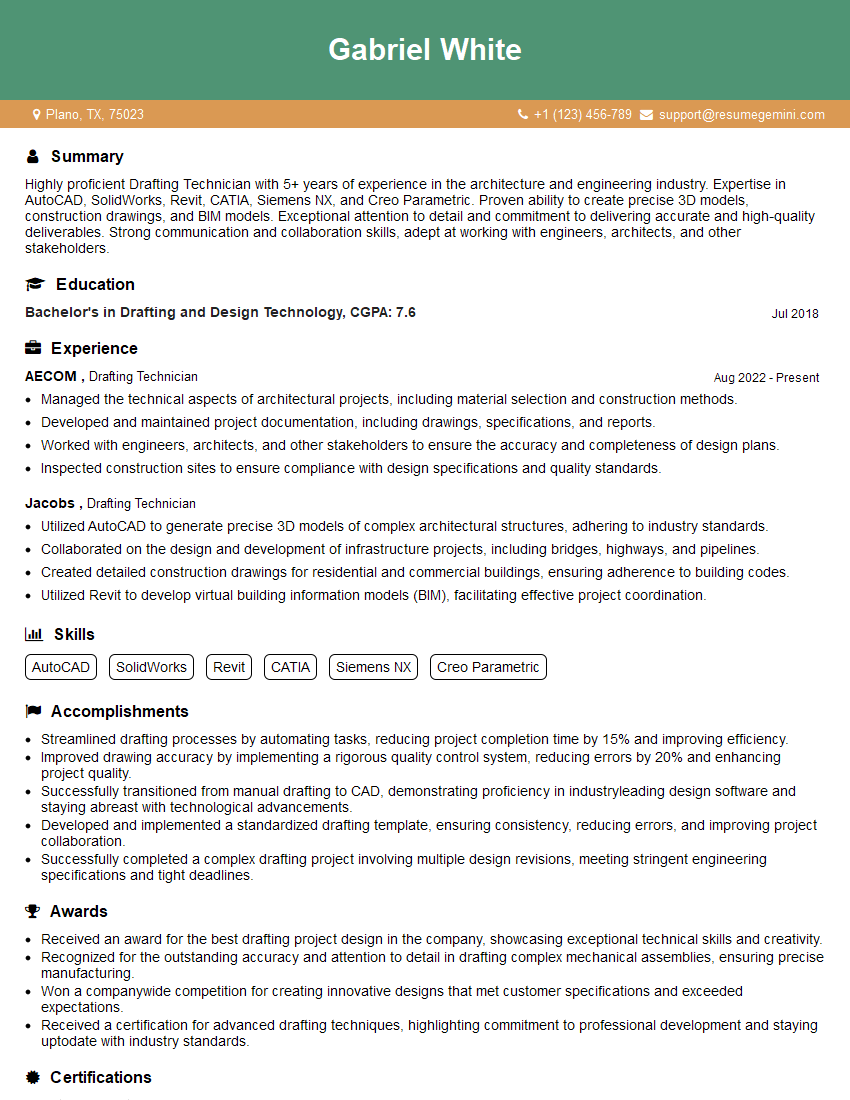
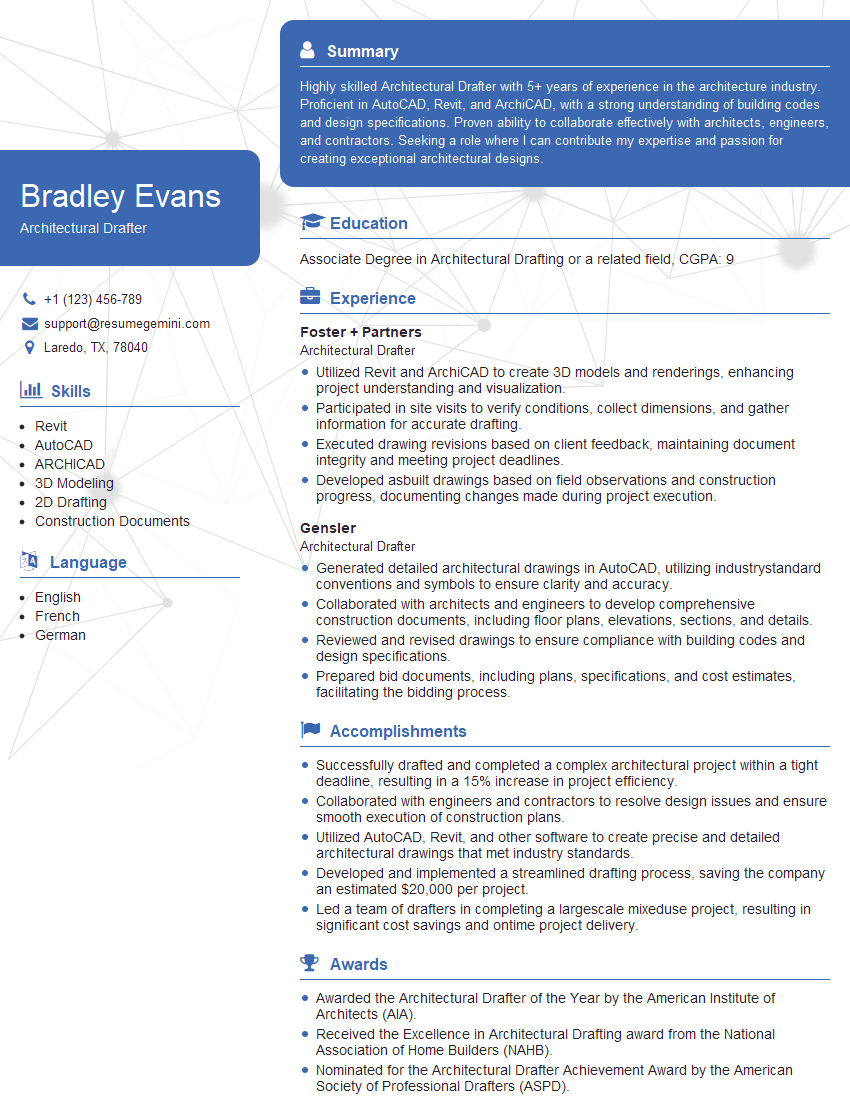
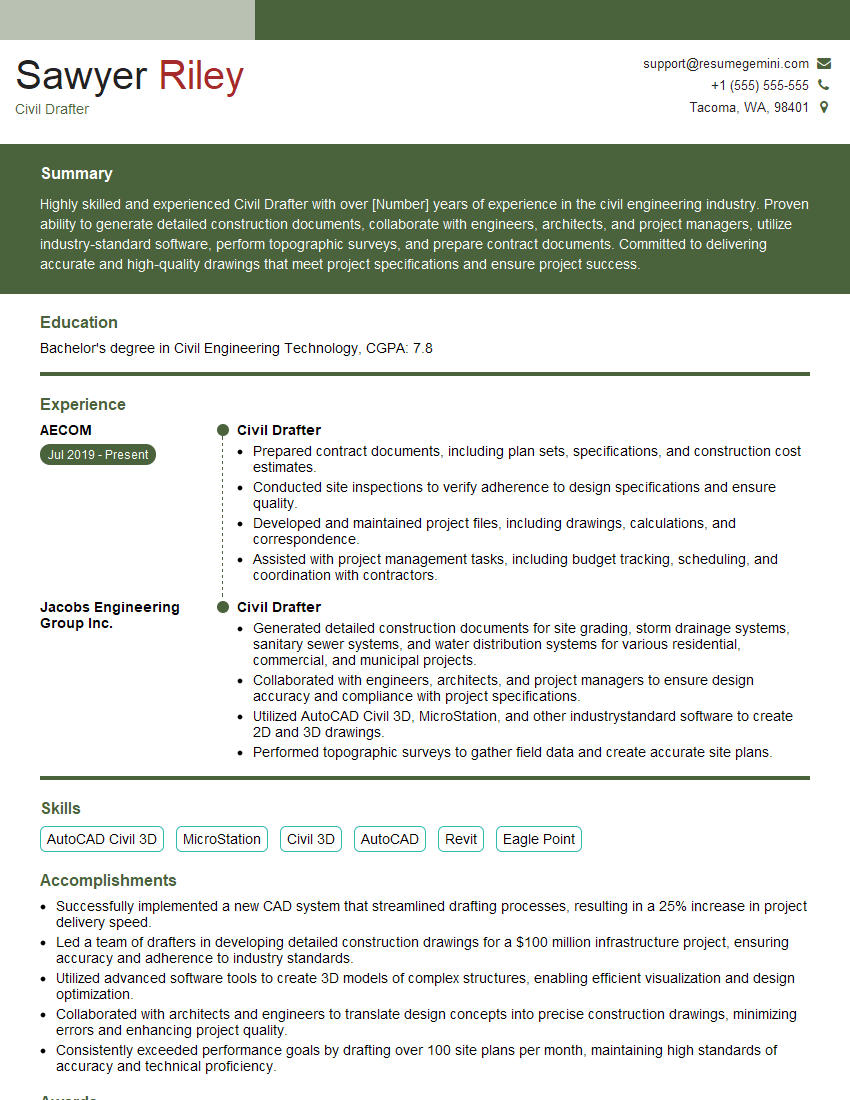
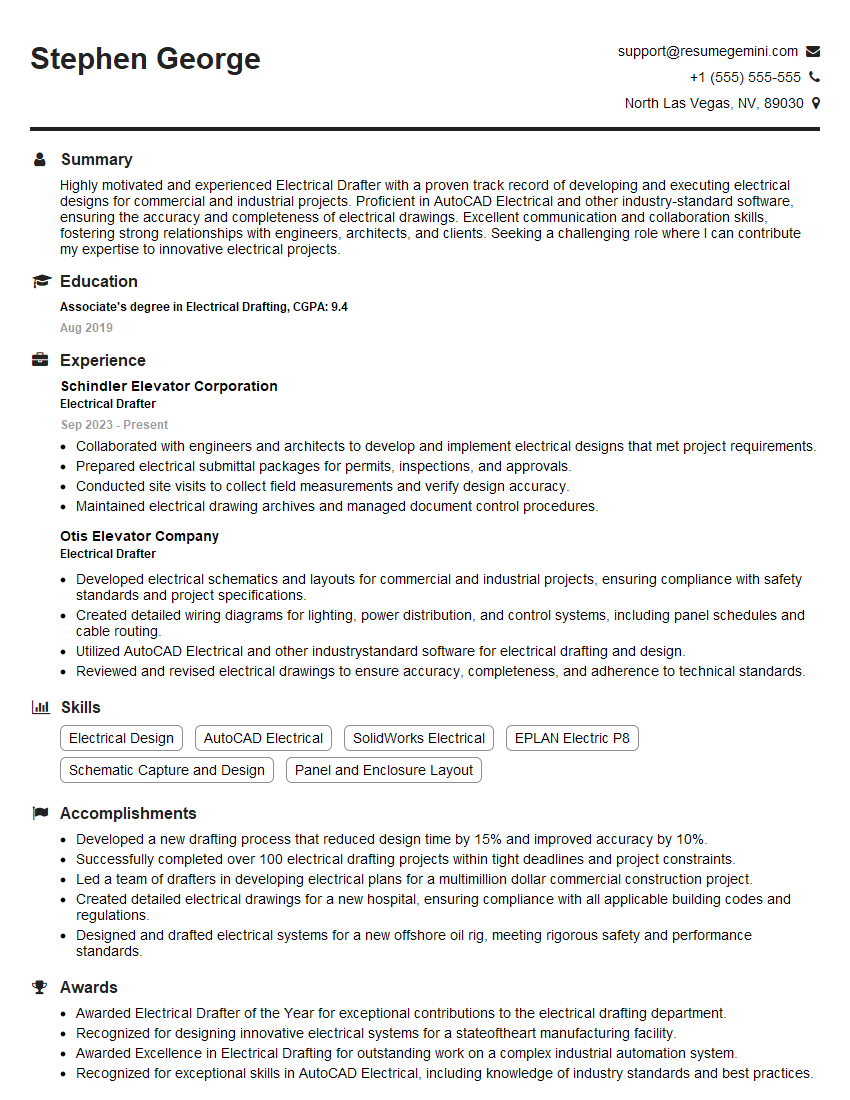
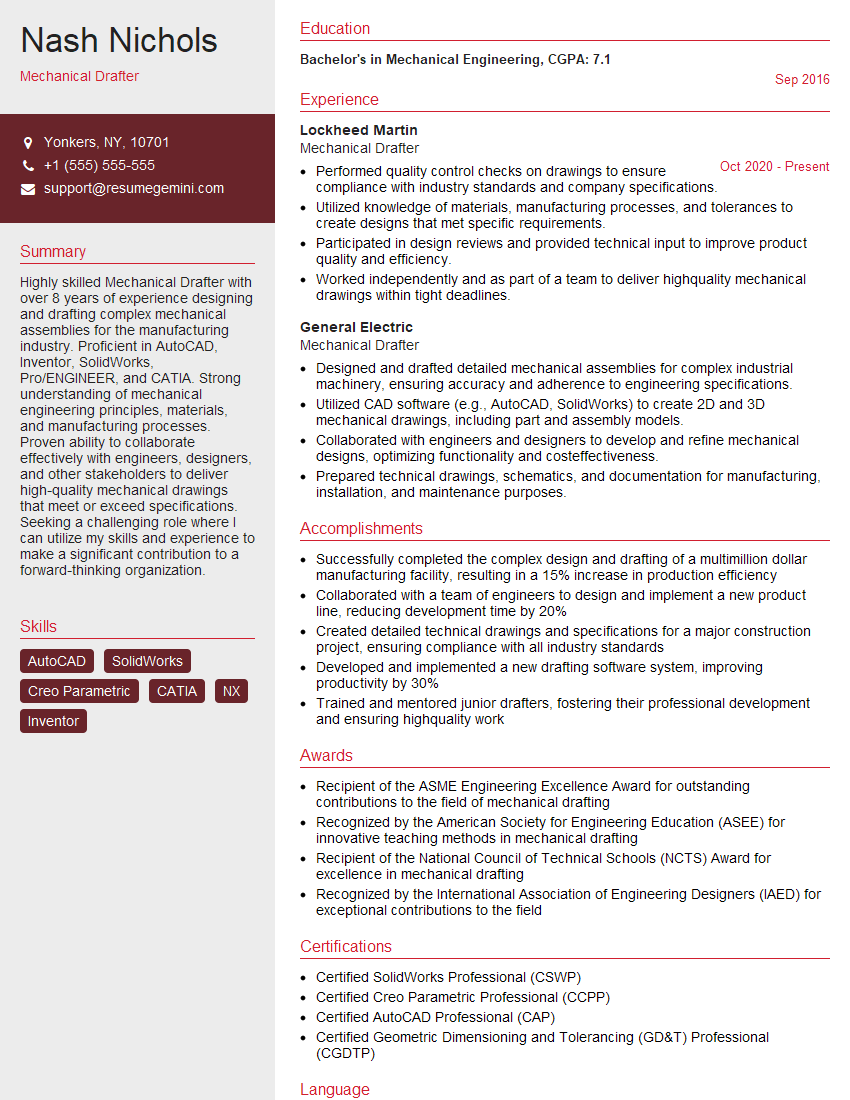
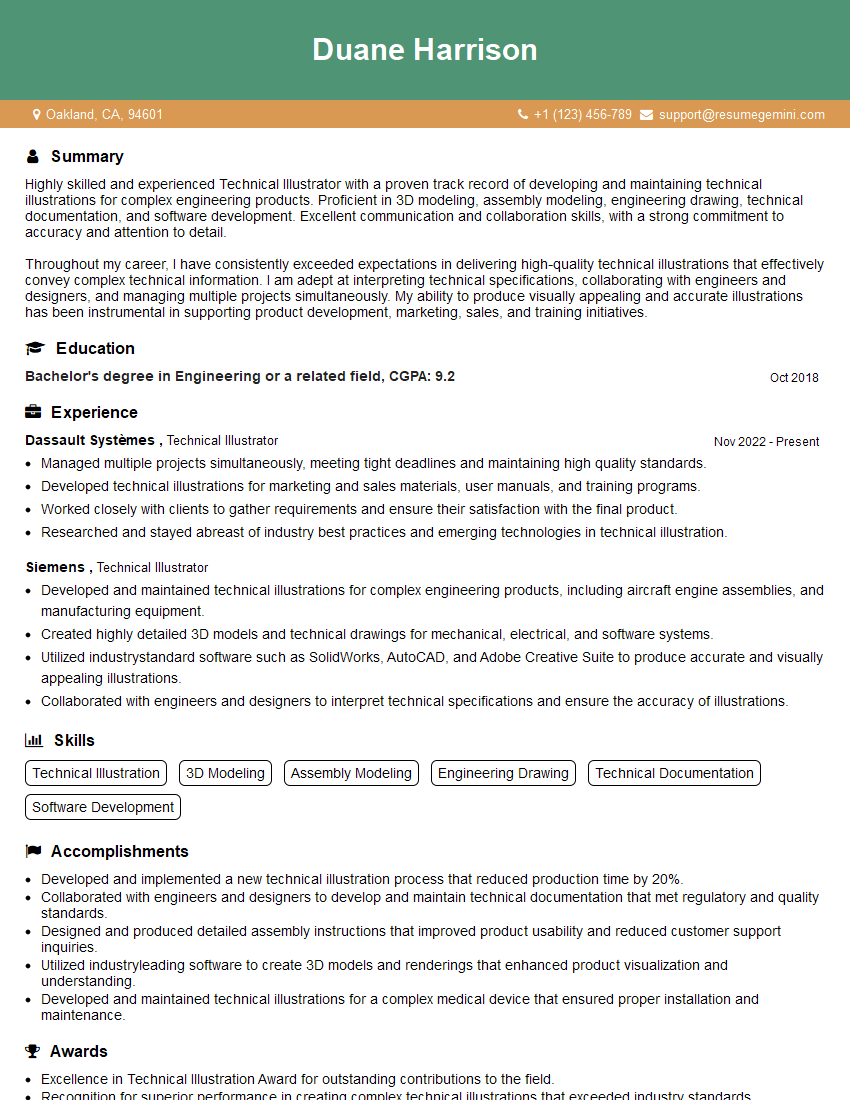
Mastering CAD software like AutoCAD is crucial for a successful career in many fields, opening doors to exciting opportunities in design, engineering, and construction. To maximize your job prospects, invest time in creating a strong, ATS-friendly resume that showcases your skills and experience. ResumeGemini is a trusted resource to help you build a professional resume that stands out. Examples of resumes tailored to Computer-Aided Drafting (CAD) Software roles (e.g., AutoCAD) are available to guide you.


Explore more articles
Users Rating of Our Blogs
Share Your Experience
We value your feedback! Please rate our content and share your thoughts (optional).
What Readers Say About Our Blog
Very informative content, great job.
good