Preparation is the key to success in any interview. In this post, we’ll explore crucial Document Management Systems (e.g., SharePoint) interview questions and equip you with strategies to craft impactful answers. Whether you’re a beginner or a pro, these tips will elevate your preparation.
Questions Asked in Document Management Systems (e.g., SharePoint) Interview
Q 1. Explain your experience with SharePoint Online vs. SharePoint On-Premises.
My experience encompasses both SharePoint Online and SharePoint On-Premises, and understanding their differences is crucial for effective implementation. SharePoint On-Premises, as the name suggests, is hosted on your own servers. This offers greater control over customization and security but necessitates significant upfront investment in infrastructure and ongoing maintenance. Think of it like owning your own car – you have complete control, but you’re responsible for all repairs and upkeep.
SharePoint Online, on the other hand, is a cloud-based service hosted by Microsoft. It’s a Software as a Service (SaaS) model offering scalability, reduced maintenance overhead, and automatic updates. It’s like renting a car – you get the benefits without the hassle of ownership. I’ve worked extensively with both, leveraging On-Premises for clients requiring very specific customization and control, while utilizing Online for its cost-effectiveness and ease of deployment in projects with less stringent customization requirements. For example, a highly regulated financial institution might prefer On-Premises for tighter security control, while a smaller company might find Online perfectly suitable.
Key differences include infrastructure management, security configuration, update cycles, and cost models. My experience allows me to strategically recommend the optimal solution based on each client’s unique needs and budget.
Q 2. Describe your experience with SharePoint workflows and their customization.
SharePoint workflows are automated processes that streamline tasks and improve efficiency. I have extensive experience designing, customizing, and troubleshooting workflows using both SharePoint Designer and Power Automate (formerly Microsoft Flow). These workflows can automate everything from document approval processes to task assignments.
For example, I’ve built workflows to automate the document approval process for contracts. A contract would be submitted, routed to the appropriate approvers based on pre-defined rules, and automatically archived upon final approval. This significantly reduced processing times and improved accuracy. I’ve also used Power Automate to integrate SharePoint with other Microsoft 365 applications, such as creating a workflow that automatically sends an email notification when a new document is uploaded to a specific library.
Customization involves leveraging SharePoint Designer or Power Automate to tailor workflows to specific business needs. This often includes creating custom actions, integrating external systems, and modifying existing workflow templates. I’m proficient in using both declarative and code-based approaches to workflow development, allowing me to adapt to different levels of complexity.
Q 3. How do you manage user permissions and access control in SharePoint?
Managing user permissions and access control in SharePoint is critical for data security and compliance. This involves leveraging SharePoint’s robust permission model, which allows granular control over who can access what and what actions they can perform. Think of it like a sophisticated door lock system with multiple keys for different rooms.
My approach involves creating well-defined permission groups based on roles and responsibilities. For example, I might create groups for ‘Document Authors’, ‘Reviewers’, and ‘Administrators’, each with distinct permissions. I then assign these groups to specific site collections, libraries, or individual documents, enabling granular control over access.
I utilize SharePoint’s inheritance feature to efficiently manage permissions across different levels of the site hierarchy. This minimizes redundant configurations and ensures consistent access control. In addition, I regularly review and audit permissions to identify any potential security vulnerabilities or unnecessary access grants. This proactive approach helps maintain a secure and efficient environment.
Q 4. What are your preferred methods for migrating data to SharePoint?
Migrating data to SharePoint requires a well-defined strategy, and my preferred methods depend heavily on the source system and data volume. For smaller datasets, I often use SharePoint’s built-in import features or the ‘Copy Documents’ functionality. However, for larger migrations, I leverage more sophisticated tools and approaches.
For larger migrations, I’ve successfully employed tools like Microsoft’s SharePoint Migration Tool (SMT), which offers a robust and efficient way to move data from various sources, including file shares, other SharePoint instances, and even third-party systems. This tool allows for mapping metadata and managing permissions during the migration process. For particularly complex migrations, I might utilize third-party migration tools that offer advanced features and better control over the process.
Regardless of the tool, a well-defined plan is crucial, including thorough data assessment, testing, and validation. This ensures a smooth and error-free migration.
Q 5. Explain your understanding of SharePoint metadata and its importance.
SharePoint metadata is essentially data about data. Think of it as adding descriptive tags or labels to your documents to make them easily searchable and manageable. It’s incredibly important for effective information governance, search, and retrieval.
For example, assigning metadata like ‘Project Name,’ ‘Document Type,’ ‘Author,’ and ‘Date Created’ to a document allows for easy filtering and searching. Imagine trying to find a specific contract without metadata – it would be like searching for a needle in a haystack. With metadata, you can easily filter contracts by project, author, or date.
I often work with clients to define and implement robust metadata schemas that are tailored to their specific business needs. This involves selecting appropriate metadata fields, establishing controlled vocabularies, and ensuring consistency in metadata application. Effective metadata management significantly improves information organization and retrieval, leading to improved efficiency and productivity.
Q 6. How do you troubleshoot common SharePoint issues?
Troubleshooting SharePoint issues requires a systematic approach. I start by identifying the symptoms and gathering relevant information such as error messages, user reports, and the affected components. My troubleshooting process often follows these steps:
- Reproduce the issue: Attempt to recreate the problem to better understand the circumstances.
- Check event logs: Examine SharePoint and server event logs for error messages and clues.
- Verify user permissions: Ensure users have the necessary permissions to access resources.
- Check server health: Monitor CPU usage, memory, and disk space on the SharePoint servers.
- Review configuration settings: Examine SharePoint’s web application and site settings.
- Use SharePoint’s built-in diagnostics tools: Leverage tools like the ULS Viewer and PowerShell cmdlets.
- Consult Microsoft documentation and support resources: Seek assistance from official sources.
For example, if users report slow performance, I might investigate server resource usage, analyze query performance, or optimize SharePoint search configuration.
Q 7. Describe your experience with SharePoint search functionality.
SharePoint’s search functionality is a powerful tool for finding information within the system. I have experience configuring and optimizing SharePoint search to ensure users can quickly and effectively find the documents they need. This includes understanding search crawlers, managed properties, and refining search results.
My experience involves configuring search scopes, refining managed properties to improve search relevance, and optimizing crawl rules. I’ve worked on projects to improve search relevancy by mapping specific metadata fields to managed properties, making searches more accurate and efficient. For example, if users frequently search for documents by project name, I would ensure the ‘Project Name’ metadata field is mapped to a relevant managed property to improve search results.
Beyond basic configuration, I also understand the importance of regular maintenance. This includes ensuring the search index is up-to-date, analyzing search logs to identify areas for improvement, and addressing any performance bottlenecks.
Q 8. How familiar are you with SharePoint’s versioning and auditing features?
SharePoint’s versioning and auditing features are crucial for maintaining data integrity and accountability. Versioning allows you to track changes made to documents over time, enabling you to revert to previous versions if needed. Think of it like having a detailed history of every edit, much like using the ‘track changes’ feature in Word, but on a much larger scale. This is particularly useful in collaborative projects where multiple people might be working on the same document simultaneously. Auditing, on the other hand, logs who accessed, modified, or deleted files, providing a clear audit trail for compliance and security purposes. This is essential for identifying potential security breaches or resolving conflicts.
For example, in a legal firm, versioning ensures that you can always access previous drafts of a legal document, should it be needed. Auditing helps demonstrate compliance with regulations regarding document access and modifications.
I’m proficient in configuring both major and minor versioning, setting version retention policies, and utilizing the audit logs for investigations and reporting. I understand how to customize the versioning settings to best suit the needs of different projects and departments, optimizing storage and ensuring that the system isn’t bogged down by excessive version history.
Q 9. Explain your experience with SharePoint lists and libraries.
SharePoint lists and libraries are fundamental building blocks for organizing and managing information. Lists are excellent for structured data like contact information or project tasks – think of them as digital spreadsheets, allowing for easy sorting, filtering, and viewing. Libraries, however, are ideal for storing and managing documents like Word files, PDFs, or images; they offer versioning and metadata management, crucial for document control.
In a previous role, I used SharePoint lists to manage project tasks, assigning deadlines and responsibilities to team members. We leveraged the built-in workflows to automate notifications and updates. For document management, I utilized libraries to store client contracts and project proposals, making sure to implement proper metadata tagging for easy searching and retrieval. This significantly improved our document management workflow, ensuring that everyone could access the correct documents whenever they needed them.
My experience also extends to configuring advanced list and library features such as views, forms, and content types to tailor them to specific business needs. I’m comfortable working with both classic and modern experiences.
Q 10. How do you ensure SharePoint content is properly organized and accessible?
Ensuring SharePoint content is properly organized and accessible requires a structured approach. This involves careful planning, consistent metadata tagging, and the utilization of folders, libraries, and site navigation. Think of it like organizing a well-stocked library – you need a clear system for categorizing books so that you can easily find them.
- Metadata Management: Using consistent metadata tags (keywords, document type, project name, etc.) allows for efficient searching and filtering.
- Folder Structure: A well-defined folder structure that aligns with your organization’s workflow is key. Avoid overly complex structures that confuse users.
- Information Architecture: Designing a logical site structure with intuitive navigation helps users quickly find the information they need.
- Content Types: Utilizing SharePoint content types enforces consistency and facilitates metadata management.
For example, in a marketing department, implementing a metadata scheme with tags like ‘campaign name,’ ‘target audience,’ and ‘date’ would allow marketers to quickly locate specific marketing materials.
Q 11. Describe your experience with SharePoint Designer or similar tools.
I have extensive experience using SharePoint Designer 2013 and the modern SharePoint Framework (SPFx). SharePoint Designer is a powerful tool for customizing SharePoint sites, including modifying layouts, creating workflows, and developing custom solutions without extensive coding. SPFx, on the other hand, allows for the development of more advanced, client-side web parts and applications using modern JavaScript frameworks.
I’ve used SharePoint Designer to create custom list forms, improve site navigation, and develop simple workflows to automate tasks like document approval processes. For more complex applications, I’ve leveraged SPFx to build custom web parts that integrate with external systems and provide advanced features to end-users.
My experience in these tools enables me to create efficient, user-friendly SharePoint environments that meet specific business requirements.
Q 12. How do you handle SharePoint site backups and recovery?
SharePoint site backups and recovery are critical for data protection. There are several strategies, depending on the size and complexity of the environment. For smaller sites, manual backups using the SharePoint Central Administration might suffice. However, larger environments benefit from automated solutions leveraging tools like Microsoft Azure Backup or third-party backup software.
In my previous role, we employed a combination of automated backups to Azure and regular manual backups of crucial sites. This provided redundancy and allowed us to quickly restore data in case of failure or accidental deletion. We established a clear recovery plan outlining the steps to be taken during a disaster recovery scenario, detailing which backups to use, and the time it would take to recover the environment.
It’s crucial to test the recovery process regularly to ensure the backups are valid and the recovery procedures are effective. Regular testing minimizes downtime and confirms the resilience of the backup and recovery strategy.
Q 13. What are your experiences with PowerShell scripting in SharePoint?
PowerShell scripting is an invaluable tool for SharePoint administration. It allows for automation of repetitive tasks, bulk operations, and custom solutions that cannot be achieved through the user interface. Think of it as a powerful command line interface for managing and interacting with SharePoint.
I’ve extensively used PowerShell to automate user provisioning, site creation, content migration, and the management of permissions. For example, I’ve written scripts to automatically create new team sites upon project initiation, complete with pre-defined permissions and content, thereby saving considerable time and effort.
Here’s a snippet showing a basic example of adding a user to a SharePoint group using PowerShell:
Add-PnPUser -User "domain\username" -Group "SharePointGroupName"My scripting skills allow for efficient management and automation of SharePoint, resulting in increased productivity and reduced manual intervention.
Q 14. Explain your familiarity with SharePoint security best practices.
SharePoint security best practices are crucial for protecting sensitive information. They involve a layered approach, including user authentication, authorization, encryption, and regular security audits. This is like securing a building; you need multiple layers of security to effectively prevent unauthorized access.
- Principle of Least Privilege: Grant users only the necessary permissions to perform their tasks.
- Strong Passwords and Multi-Factor Authentication (MFA): Enforce strong password policies and implement MFA for added security.
- Regular Security Audits: Conduct periodic security audits and vulnerability scans to identify and address potential threats.
- Information Rights Management (IRM): Use IRM to control access and usage of sensitive documents.
- Regular Patching and Updates: Keep SharePoint software updated with the latest security patches.
For instance, in a healthcare setting, strict access controls are essential to protect patient data. Implementing strong passwords, MFA, and granular permission management ensures that only authorized personnel can access protected health information (PHI). Regular security audits and vulnerability scanning help identify and mitigate potential security risks, reducing the chances of data breaches.
Q 15. How do you manage SharePoint storage and capacity planning?
Managing SharePoint storage and capacity planning requires a proactive approach, combining monitoring, forecasting, and optimization strategies. Think of it like managing the storage space in your house – you need to know how much you have, how much you’re using, and plan for future needs.
- Monitoring: Regularly track storage usage using SharePoint’s built-in reports and third-party tools. Identify trends in growth to predict future needs. This is like regularly checking your pantry to see what’s running low.
- Forecasting: Based on historical data and projected growth, estimate future storage requirements. Consider factors like user growth, document sizes, and retention policies. It’s like planning your grocery shopping based on expected guests and meal plans.
- Optimization: Implement strategies to reduce storage consumption. This includes deleting unnecessary files, archiving older content to less expensive storage tiers (like Azure Blob Storage), and optimizing file sizes (e.g., using image compression). This is like decluttering your house and getting rid of unused items.
- Alerting: Set up alerts to notify you when storage usage reaches predefined thresholds. This provides early warning of potential capacity issues, similar to a low-fuel warning light in your car.
For example, in a previous role, we used PowerShell scripting to automate the archiving of older project documents to a separate Azure Blob Storage account, significantly reducing our SharePoint storage costs while ensuring easy retrieval when needed.
Career Expert Tips:
- Ace those interviews! Prepare effectively by reviewing the Top 50 Most Common Interview Questions on ResumeGemini.
- Navigate your job search with confidence! Explore a wide range of Career Tips on ResumeGemini. Learn about common challenges and recommendations to overcome them.
- Craft the perfect resume! Master the Art of Resume Writing with ResumeGemini’s guide. Showcase your unique qualifications and achievements effectively.
- Don’t miss out on holiday savings! Build your dream resume with ResumeGemini’s ATS optimized templates.
Q 16. Describe your experience with SharePoint integration with other systems.
SharePoint’s strength lies in its ability to seamlessly integrate with other systems. I’ve worked extensively with integrations using various methods, creating a cohesive information ecosystem. Think of it as connecting different parts of a well-oiled machine.
- Workflow Integrations: I’ve integrated SharePoint with workflow engines like Nintex Workflow and Microsoft Power Automate to automate document approval processes, routing, and notifications. This streamlines document handling and reduces manual intervention. For example, a new contract would automatically route through different departments for review and approval.
- Data Connections: I’ve utilized SharePoint’s external data connections to link it with databases (SQL Server, Oracle) and other applications (CRM, ERP). This allows for central access to information without data replication, providing a single source of truth. Imagine seamlessly accessing customer information from your CRM directly within your SharePoint project documents.
- APIs: I have experience using SharePoint’s REST APIs to build custom integrations and extend its functionality. This allows for bespoke solutions tailored to specific business requirements. For example, creating a custom application that pulls data from SharePoint and displays it on a dashboard.
- Third-Party Tools: I’ve used various third-party tools that streamline integration with SharePoint, improving data migration and overall efficiency. These tools often help bridge compatibility gaps between different systems.
Q 17. How would you approach implementing a new document management system?
Implementing a new document management system is a strategic initiative requiring a phased approach. Think of it as building a house – you need a solid plan and execution.
- Needs Assessment: Thoroughly understand the organization’s current document management practices, pain points, and future needs. Conduct interviews, analyze existing processes, and define key requirements.
- Solution Selection: Evaluate different DMS options, considering factors like cost, scalability, ease of use, integration capabilities, and security features. This includes SharePoint, but also other potential platforms.
- Planning and Design: Design the system’s architecture, including metadata schemas, security groups, workflows, and content types. Create detailed documentation and get buy-in from stakeholders.
- Implementation: Migrate existing documents, configure the system, and train users. This should be a phased roll-out to minimize disruption.
- Testing and Deployment: Conduct thorough testing to identify and resolve issues before full deployment. This involves user acceptance testing and performance testing.
- Ongoing Maintenance: Establish processes for ongoing maintenance, updates, and user support. Regular reviews of the system’s performance and effectiveness are crucial.
In one project, we adopted an agile approach, implementing the system in iterative phases. This allowed us to incorporate user feedback early on and minimize the risk of a failed implementation.
Q 18. Explain your understanding of information governance in SharePoint.
Information governance in SharePoint encompasses the policies, processes, and technologies used to manage the entire lifecycle of information. It’s about ensuring the right information is available to the right people at the right time, while adhering to legal and regulatory requirements. Think of it as establishing clear rules for how information is created, stored, accessed, and ultimately disposed of.
- Retention Policies: Defining how long different types of information should be retained based on legal, regulatory, and business needs. This ensures compliance and prevents data overload.
- Records Management: Establishing processes for managing official records, ensuring their authenticity, integrity, and accessibility. This is essential for compliance and auditing.
- Metadata Management: Using metadata (data about data) to categorize and manage information effectively. This improves searchability and retrieval. For example, applying metadata like ‘Project Name’, ‘Client’, and ‘Document Type’ to every document.
- Security and Access Control: Implementing robust security measures to protect sensitive information. This involves using SharePoint’s permissions model to control access to documents and sites.
- eDiscovery: Implementing processes for locating and retrieving information for legal or regulatory investigations. SharePoint’s eDiscovery features are crucial here.
For example, I helped implement a metadata schema to ensure all financial documents were properly tagged for easier retrieval and compliance auditing.
Q 19. What is your experience with SharePoint app development?
My SharePoint app development experience spans several technologies and approaches, always focusing on creating efficient and user-friendly solutions.
- SharePoint Framework (SPFx): I’ve built custom web parts, extensions, and applications using SPFx, leveraging React, Angular, or other modern JavaScript frameworks. This allows for building highly interactive and responsive components within SharePoint.
- Power Apps: I’ve developed no-code/low-code applications using Power Apps, quickly building solutions for specific business needs. This is ideal for rapid prototyping and simpler applications.
- Workflows (Power Automate/Nintex): I’ve created automated workflows within SharePoint, integrating with other systems to streamline processes and improve efficiency.
- Azure Functions: I’ve utilized Azure Functions to create serverless backend services for SharePoint applications, handling tasks such as data processing and API integrations.
A recent project involved building an SPFx web part that integrated with a third-party API to display real-time sales data directly within a SharePoint dashboard.
Q 20. How do you ensure compliance with relevant regulations in SharePoint?
Ensuring compliance with relevant regulations in SharePoint requires a multi-faceted approach focusing on data security, access control, and auditability. Think of it as building a secure vault for sensitive information.
- Data Loss Prevention (DLP): Implementing DLP policies to prevent sensitive data from leaving the organization. SharePoint offers built-in DLP features and integrates with Microsoft 365’s DLP capabilities.
- Access Control: Strictly controlling access to sensitive information using SharePoint’s permission levels and security groups. This ensures that only authorized users can access specific documents.
- Information Rights Management (IRM): Utilizing IRM to protect documents with additional controls such as encryption and restrictions on printing or copying. This provides an extra layer of security.
- Auditing: Regularly auditing SharePoint activity to monitor access, changes, and potential security breaches. SharePoint provides detailed audit logs for this purpose.
- Compliance Policies: Implementing and enforcing organization-wide compliance policies within SharePoint, aligning with regulations such as GDPR, HIPAA, or industry-specific standards. This often involves customizing SharePoint settings and integrating with other compliance tools.
In a previous project, I implemented a comprehensive DLP policy to prevent sensitive customer data from being emailed outside the organization, meeting GDPR compliance requirements.
Q 21. Describe your experience with SharePoint content types and their management.
SharePoint content types are the building blocks for organizing and managing information. They define the structure and properties of documents and items within SharePoint. Think of them as blueprints for your documents, defining what information should be included.
- Creating Content Types: I’ve created custom content types to cater to specific business requirements, adding custom columns, metadata fields, and workflow associations. This improves data organization and consistency.
- Managing Content Types: I’ve managed content type hierarchies, inheriting properties and customizing them for specific document libraries or lists. This promotes reusability and reduces redundancy.
- Content Type Publishing: I have experience publishing content types to different site collections, ensuring consistency across the organization. This centralizes management and simplifies updates.
- Content Type Relationships: I understand how to establish relationships between content types, allowing for complex document structures and workflows. For example, a ‘Project Proposal’ content type might be related to a ‘Project Contract’ content type.
In a previous engagement, we created custom content types for legal documents, including specific metadata fields required for compliance and improved search capabilities.
Q 22. How would you optimize SharePoint performance?
Optimizing SharePoint performance is crucial for a smooth user experience and efficient workflow. It’s a multifaceted process involving several key areas. Think of it like tuning a car engine – you need to address various components for optimal performance.
Content Optimization: Large files can significantly impact performance. We can implement strategies like using compression techniques (like ZIP files) for documents, converting large image formats to smaller ones (like WebP), and utilizing libraries for versioning and managing document size. Consider using SharePoint’s built-in features for managing file size and type.
Indexing and Search: Ensure your SharePoint search is properly configured and indexed. Regular crawls are essential, as is optimizing metadata to improve search relevance and speed. Think of indexing as creating a detailed index of a book – the more efficient the index, the faster you find information.
Caching: Leveraging browser and server-side caching mechanisms can dramatically reduce load times. This is similar to how your web browser saves frequently visited website pages locally for faster access.
Hardware and Infrastructure: Adequate server resources (RAM, CPU, storage) are fundamental. Monitoring server usage and scaling resources appropriately as needed are crucial. Undersized servers are like a small engine trying to tow a large trailer – it will struggle.
Database Optimization: Regularly analyze and optimize your SharePoint databases. This often involves cleaning up unnecessary data, optimizing database queries, and ensuring proper indexing. This is like decluttering your hard drive – the cleaner it is, the faster your system runs.
User Permissions and Access: Inefficiently configured permissions can slow down access. Regularly review and streamline permissions, making sure users only have access to necessary content. This is akin to only giving keys to those who truly need them – enhancing security and efficiency.
By systematically addressing these areas, you can significantly improve SharePoint’s performance and create a far more efficient workspace.
Q 23. Explain your understanding of SharePoint’s architecture.
SharePoint’s architecture is complex but can be understood by breaking it down into key layers. Think of it like an onion, with several layers working together.
Front-End: This is what users interact with – the web interface, mobile apps, and any custom interfaces. This is the ‘skin’ of the onion.
Application Server: This layer handles user requests, processes data, and interacts with the databases. This is the ‘flesh’ of the onion, doing most of the work.
Database Server: This stores all the SharePoint content, lists, libraries, user information, and configurations. This is the ‘core’ of the onion, containing all essential data.
Search Server: This handles indexing, searching, and retrieving content. Think of it as a very advanced library catalog system.
Security Infrastructure: This layer manages user authentication, authorization, and access control. This is vital for protecting data and maintaining compliance.
These layers interact to provide the functionality users expect. Understanding this layered architecture is essential for troubleshooting performance issues, designing effective solutions, and implementing appropriate security measures. For instance, a slow search could indicate a problem with the search server, while slow loading times could point to front-end issues or overloaded application servers.
Q 24. How familiar are you with SharePoint’s REST API?
I’m highly familiar with SharePoint’s REST API. It’s a powerful tool for interacting with SharePoint data programmatically. Think of it as the key that allows developers to unlock and work with SharePoint’s features without using the traditional user interface.
I’ve extensively used the REST API for various tasks, including:
Custom application development: Creating solutions that integrate with SharePoint, extending its functionality.
Data migration: Moving data from other systems to SharePoint and vice-versa efficiently and reliably.
Automation: Automating repetitive tasks, such as creating lists, uploading files, or updating content.
For example, I’ve used the POST method to create new list items and the GET method to retrieve data. A common code snippet for retrieving all items from a list using JavaScript might look like this:
$.ajax({ url: "_api/web/lists/GetByTitle('MyList')/items", method: "GET", headers: { "Accept": "application/json;odata=verbose" }, success: function(data) { // Process the data } });My understanding of RESTful principles and HTTP methods allows me to build robust and efficient SharePoint solutions using its REST API.
Q 25. What is your experience with SharePoint governance and compliance?
SharePoint governance and compliance are crucial for ensuring data integrity, security, and regulatory adherence. Think of it as the rulebook for maintaining order and security in your SharePoint environment.
My experience encompasses:
Metadata management: Designing and implementing metadata schemas to ensure consistent and searchable content. Proper metadata is like creating a detailed index for a library, enabling easy search and retrieval.
Information architecture: Structuring SharePoint sites and libraries logically for optimal navigation and accessibility. A well-structured site is like a well-organized office; things are easy to find and everything has its place.
Security and access control: Implementing robust security policies and permissions to protect sensitive information. This ensures only authorized users have access to specific content, like using a key to access a safe.
Records management: Establishing retention policies and procedures for managing electronic records, ensuring compliance with relevant regulations. This ensures legal and regulatory compliance, and proper record-keeping.
Compliance with industry regulations (e.g., GDPR, HIPAA): Designing and implementing solutions to meet specific industry regulations concerning data privacy and security. This guarantees adherence to regulatory standards.
I have a strong understanding of the various compliance and governance requirements, and I’ve worked with organizations to implement robust governance frameworks, ensuring compliance and minimizing risk.
Q 26. Describe your approach to problem-solving within a SharePoint environment.
My approach to problem-solving in SharePoint follows a structured methodology. Think of it as a detective investigating a case – systematic and thorough.
Identify the problem: Clearly define the issue. What’s not working? What are the symptoms? This is the first step, like determining the nature of the case.
Gather information: Collect relevant data – error logs, user feedback, usage statistics. This is like gathering evidence to support the investigation.
Analyze the problem: Examine the gathered information to determine the root cause. Is it a configuration issue, a permissions problem, or something else? This is about analyzing evidence to find the culprit.
Develop a solution: Based on the analysis, propose a solution. This could involve configuration changes, code fixes, or training users.
Implement the solution: Put the solution into practice, carefully testing its effectiveness.
Monitor and evaluate: After implementation, monitor the system to ensure the problem is resolved and to identify any unintended consequences. This is like following up on a case to ensure everything is resolved.
This systematic approach ensures that problems are addressed effectively and efficiently, minimizing disruption and maximizing productivity.
Q 27. How do you handle conflicting versions of documents in SharePoint?
SharePoint offers several mechanisms to handle conflicting document versions. Think of it as a version control system for your documents, similar to how Git works for software development.
Version history: SharePoint automatically tracks all changes to documents, allowing users to revert to previous versions. This allows you to see the entire evolution of a document, like looking through a timeline.
Check-out/check-in: This feature prevents multiple users from editing the same document simultaneously, avoiding conflicting changes. It’s like locking a document to prevent accidental overwriting.
Co-authoring: For specific file types, SharePoint allows multiple users to edit a document concurrently. It cleverly merges changes, minimizing conflicts. This is like multiple people collaboratively working on a Google Doc.
Resolve conflicts: When conflicts do occur, SharePoint provides tools to compare and merge different versions, allowing users to choose which changes to keep. This is like using a merge tool to combine different code branches.
The best approach depends on the specific scenario and user needs. For instance, co-authoring is ideal for collaborative projects, while check-out/check-in is better suited for sensitive documents requiring careful version control.
Q 28. What are some common challenges in managing a SharePoint environment, and how have you addressed them?
Managing a SharePoint environment presents various challenges, and I’ve tackled many of them. Think of it like managing a complex ecosystem – it requires proactive maintenance and attention to detail.
Performance issues: Slow loading times, search issues, and general unresponsiveness are common. Addressing these requires optimizing database settings, improving indexing, and ensuring adequate server resources, as discussed earlier.
Storage management: Managing large amounts of data efficiently can be challenging. Regularly purging unnecessary content, implementing storage quotas, and utilizing SharePoint’s storage management features are crucial.
User adoption and training: Ensuring users effectively utilize SharePoint’s capabilities often requires robust training and ongoing support. This is like teaching new employees how to use a new software.
Security vulnerabilities: Protecting sensitive data requires vigilance. Regular security assessments, implementing strong passwords, and regularly reviewing and updating user permissions are essential.
Information silos: Content scattered across multiple locations hinders collaboration. Strategic information architecture, proper metadata, and establishing clear guidelines for content organization are needed.
To address these, I use a combination of technical expertise, process improvement methodologies, and effective communication. By proactively addressing these common challenges, we can ensure a smooth and efficient SharePoint environment.
Key Topics to Learn for Document Management Systems (e.g., SharePoint) Interview
- Metadata Management: Understanding the importance of metadata for efficient document retrieval and organization. Practical application: Explain how you would design a metadata schema for a specific project or department.
- Version Control and Collaboration: Mastering SharePoint’s versioning features and collaborative workflows. Practical application: Describe a scenario where version control prevented a critical error or facilitated team collaboration.
- Security and Permissions: Implementing robust security measures to protect sensitive information within a DMS. Practical application: Explain how you would configure permissions to ensure appropriate access levels for different user roles.
- Workflow Automation: Designing and implementing automated workflows to streamline document processes. Practical application: Describe a workflow you automated to improve efficiency and reduce manual tasks.
- Search and Retrieval: Optimizing search functionality for efficient document discovery. Practical application: Explain strategies for improving search results and reducing irrelevant hits.
- Content Types and Libraries: Understanding how to create and manage content types and document libraries to organize information effectively. Practical application: Design document libraries for different departments with varying needs.
- Integration with other systems: Understanding how SharePoint integrates with other business applications. Practical application: Explain how you would integrate SharePoint with other systems within an organization.
- Troubleshooting and Problem Solving: Demonstrate your ability to identify and resolve common issues within a SharePoint environment. Practical application: Describe a time you successfully troubleshooted a SharePoint problem.
Next Steps
Mastering Document Management Systems like SharePoint is crucial for career advancement in today’s digital landscape. These systems are central to many organizations’ operations, and proficiency in them significantly increases your value to potential employers. To maximize your job prospects, it’s essential to create an ATS-friendly resume that effectively showcases your skills and experience. ResumeGemini is a trusted resource for building professional, impactful resumes. They offer examples of resumes tailored to Document Management Systems (e.g., SharePoint) roles, to help you present your qualifications in the best possible light. Take the next step and craft a resume that highlights your expertise and lands you your dream job!

Knowledge Manager Resume Sample
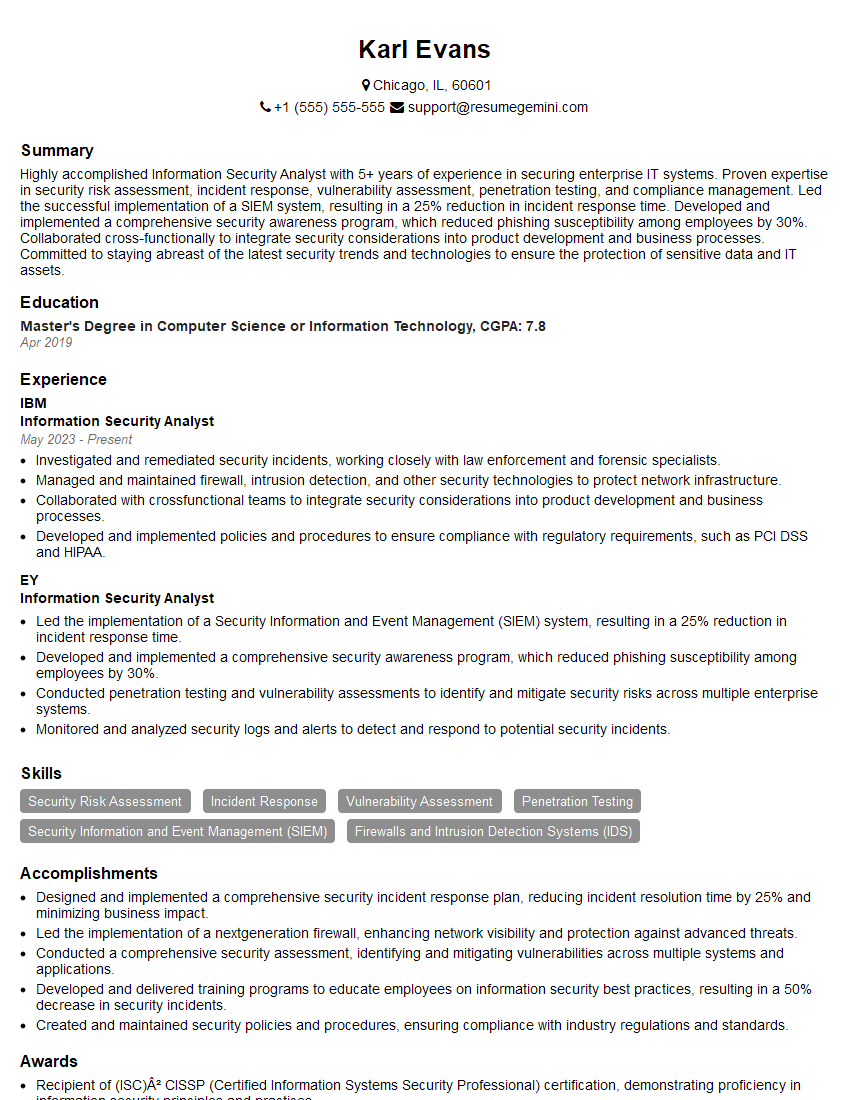
Information Security Analyst Resume Sample
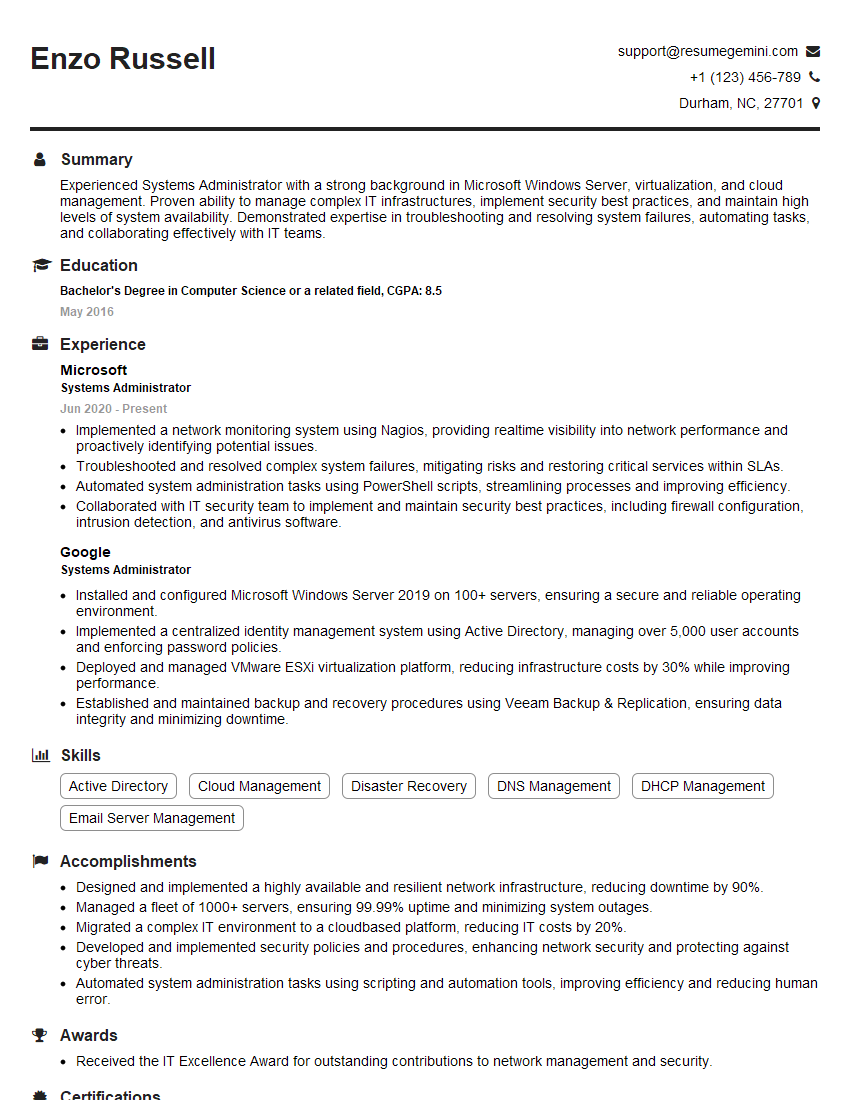
Systems Administrator Resume Sample
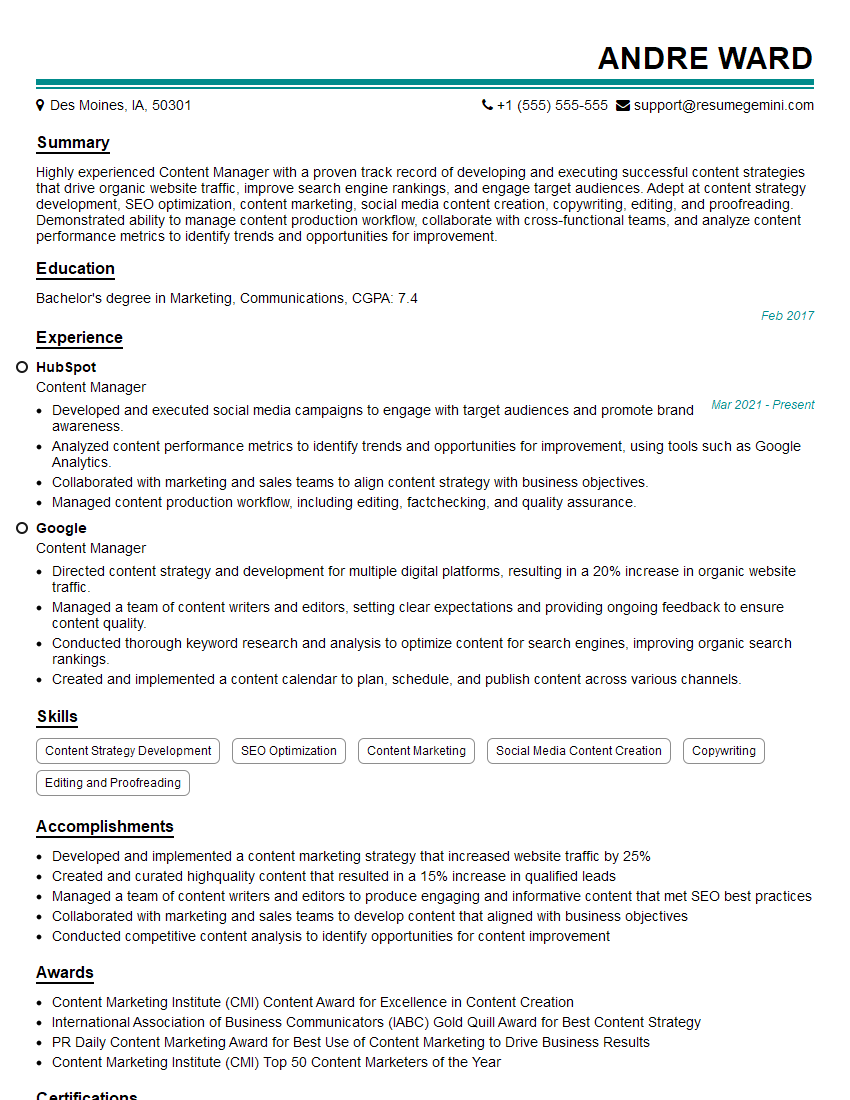
Content Manager Resume Sample

Information Architect Resume Sample
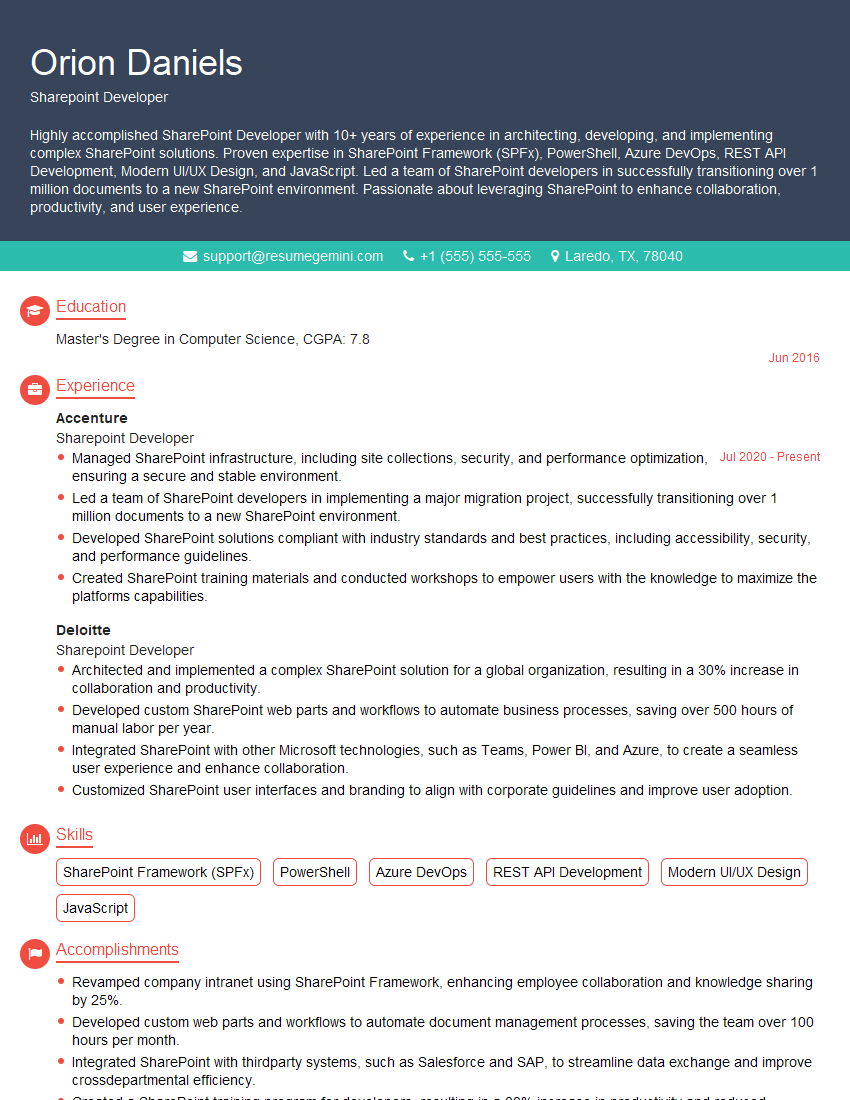
Sharepoint Developer Resume Sample

IT Manager Resume Sample
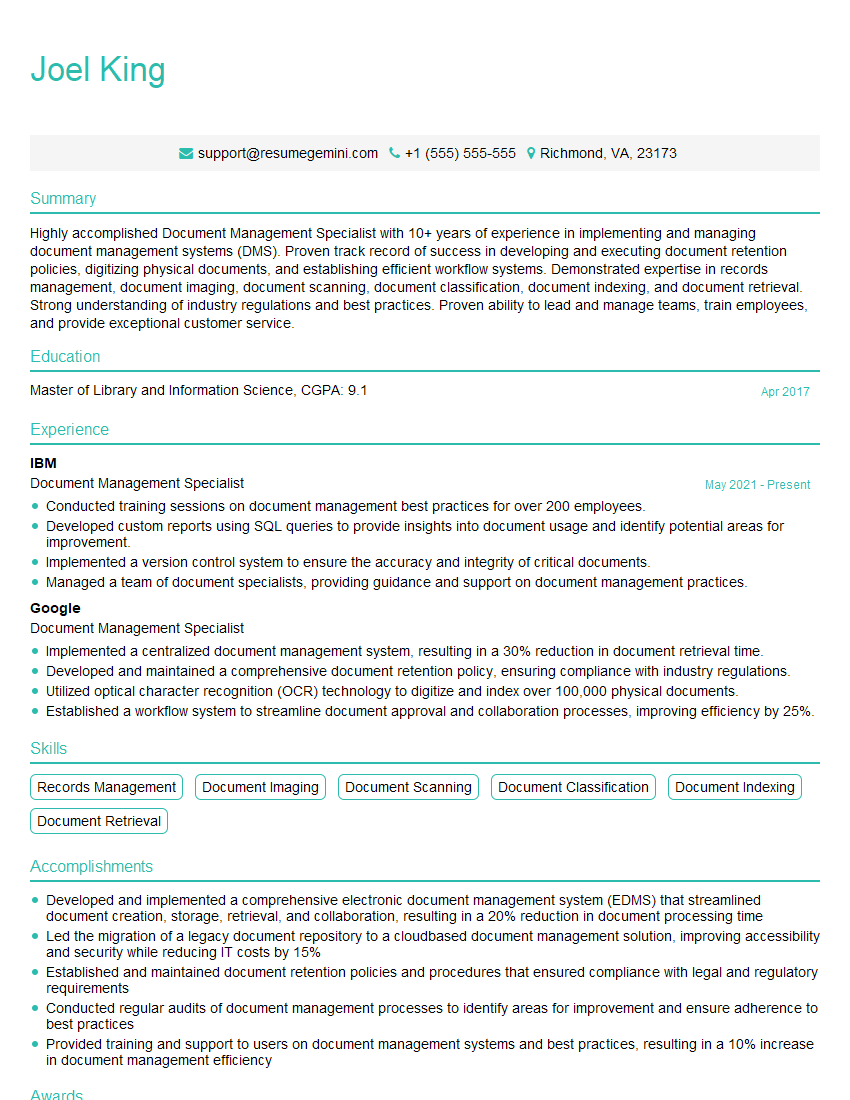
Document Management Specialist Resume Sample
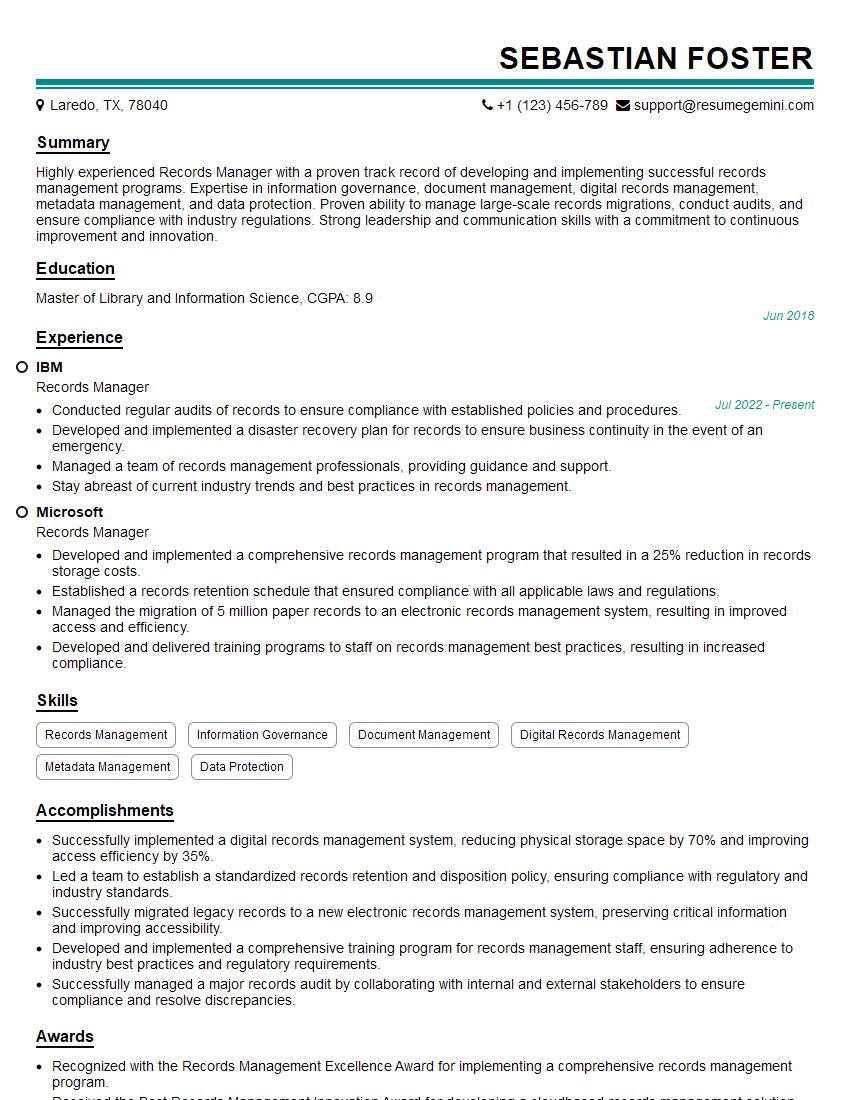
Records Manager Resume Sample
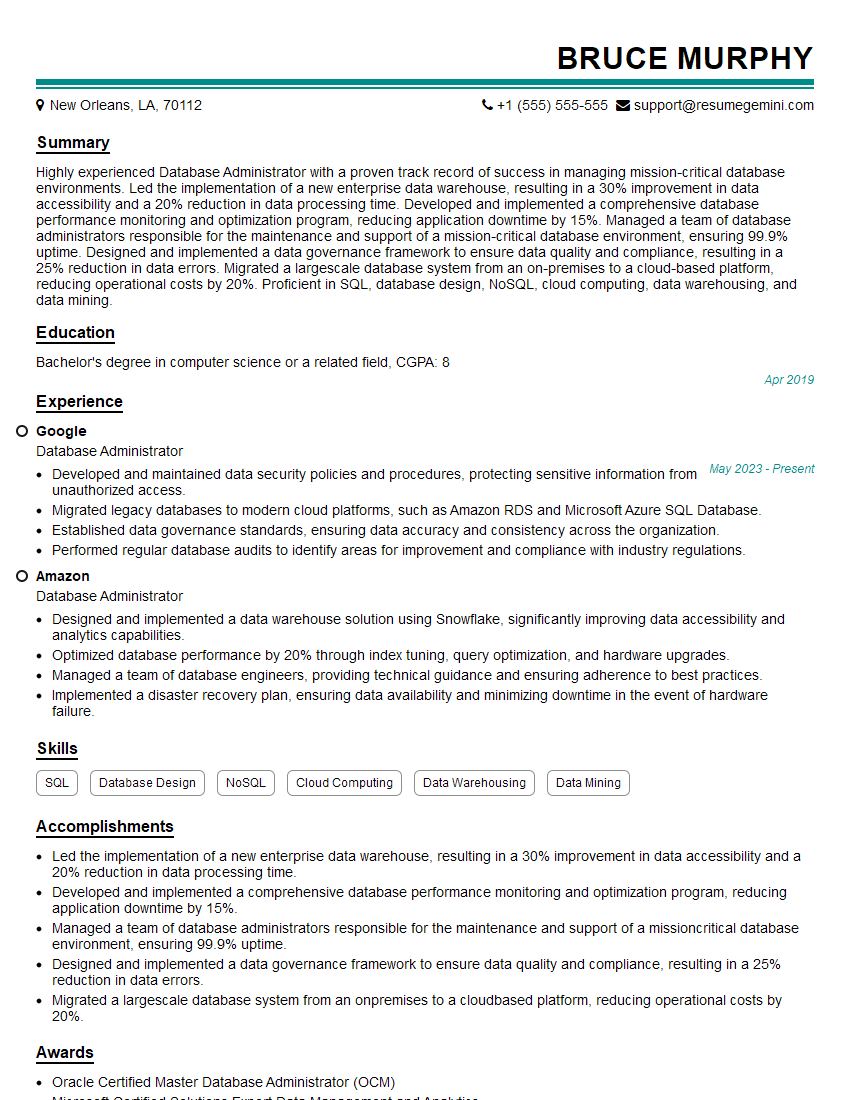
Database Administrator Resume Sample
Explore more articles
Users Rating of Our Blogs
Share Your Experience
We value your feedback! Please rate our content and share your thoughts (optional).
What Readers Say About Our Blog
Very informative content, great job.
good