The thought of an interview can be nerve-wracking, but the right preparation can make all the difference. Explore this comprehensive guide to Eclips interview questions and gain the confidence you need to showcase your abilities and secure the role.
Questions Asked in Eclips Interview
Q 1. Explain the architecture of the Eclipse IDE.
Eclipse’s architecture is based on a plugin-based framework. Imagine it as a toolbox where each tool (plugin) provides specific functionality. At the core is the Eclipse Platform, a runtime environment that manages these plugins. This platform provides essential services like the user interface (UI), workspace management, and the extension registry. Plugins then extend the core functionality, offering features like Java development tools (JDT), support for various programming languages, debugging capabilities, and Git integration.
The key components include:
- The Eclipse Platform: This forms the foundation, providing the core services and infrastructure.
- The Eclipse Runtime: This is the Java Virtual Machine (JVM) on which Eclipse runs.
- Plugins: These are modular extensions that add specific functionalities to the Eclipse IDE. They are the building blocks of Eclipse’s extensibility.
- Equinox: This is the OSGi (Open Services Gateway initiative) framework that manages the plugins and their dependencies.
This architecture’s strength lies in its flexibility. Users can customize their Eclipse environment by installing or uninstalling plugins as needed, effectively tailoring it to specific development needs. For instance, a web developer might install plugins for JavaScript, HTML, and CSS support, while a data scientist might prefer plugins for Python or R.
Q 2. Describe the difference between a plugin and a feature in Eclipse.
In Eclipse, plugins and features are closely related but distinct concepts. Think of a feature as a collection of plugins that work together to provide a specific functionality. A plugin is a single unit of functionality, a self-contained module that extends Eclipse. A feature acts as a package or an installer for one or more plugins.
For example, the Java Development Tools (JDT) in Eclipse is a feature. This feature bundles together numerous plugins providing functionalities like code completion, debugging, refactoring, and compiling Java code. You don’t install the individual plugins of JDT directly; you install the JDT feature, which then installs the necessary plugins.
In simpler terms, a plugin is the part, while a feature is the whole – the assembled package offering a cohesive functionality. You can create a plugin without necessarily making it part of a feature, but features are typically built from a collection of plugins.
Q 3. How do you create and manage Eclipse projects?
Creating and managing Eclipse projects is straightforward. Within the Eclipse IDE, you typically use the ‘File > New > Project’ menu option. This opens a dialog where you select the project type – be it Java, C++, Maven, or any other supported type based on the installed plugins. You provide a project name and choose a location on your file system.
For a Java project, you might be prompted to specify source folders, output folders, and libraries. Eclipse automatically sets up the project structure according to the chosen project type. Managing projects involves organizing source code, managing dependencies (JAR files, libraries), and building the project (compiling the code).
Example: To create a new Java project, you select ‘Java Project’ in the New Project wizard. You’ll be prompted for a project name, location, and execution environment (JRE). After creation, you can add new source files, packages, and classes within the project’s structure. Eclipse’s project explorer view visually displays the project files and folders.
Q 4. Explain the role of the Eclipse workspace.
The Eclipse workspace is a central directory that acts as a container for all your projects. Think of it as a logical organization unit. It’s where Eclipse stores project settings, configuration files, and other related data. When you open Eclipse, you specify a workspace location. All your projects within that workspace are isolated from projects in other workspaces. This helps in managing multiple projects for different clients or projects with varying configurations without conflicts.
For instance, you might have one workspace for your personal projects and another for your work projects, keeping your coding environment neatly separated. Each project within a workspace has its own files and folder structure, but the workspace acts as the overarching container to hold all of them.
Switching workspaces is a simple process, done through the ‘Workspace’ option in the Eclipse welcome screen, allowing you to seamlessly transition between different development contexts.
Q 5. What are the different perspectives in Eclipse?
Perspectives in Eclipse provide different views and toolbars tailored to specific tasks. Imagine them as different lenses you use to view the same underlying data. Each perspective offers a unique layout organized to facilitate a particular type of work.
Examples of common perspectives include:
- Java Perspective: Optimized for Java development, showing views like the Package Explorer, Outline, and Problems.
- Debug Perspective: Provides tools for debugging, including the Variables, Expressions, and Breakpoints views.
- CVS Perspective: Tailored for version control using CVS.
- Git Perspective: Similar to CVS Perspective but for Git.
The choice of perspective depends on what you’re doing. For example, when debugging, the Debug perspective is most helpful, while for browsing and managing your project files, the Java perspective is ideal. Switching perspectives is quick and straightforward, enhancing workflow efficiency by organizing the UI for the task at hand.
Q 6. How do you debug Java code within Eclipse?
Debugging Java code in Eclipse is a powerful feature. You set breakpoints in your code, run your application in debug mode, and then step through the code line by line, inspecting variables and the program’s state at each step. This process helps you identify and resolve errors.
Here’s a general process:
- Set Breakpoints: Click in the left gutter next to the line number where you want to pause execution.
- Run in Debug Mode: Instead of running normally, choose ‘Debug’ from the run menu.
- Step Through Code: Use the step over (F6), step into (F5), and step return (F7) buttons to navigate through your code. Step over executes the current line, step into enters any method calls, and step return returns from a method call.
- Inspect Variables: The ‘Variables’ view shows the values of variables at the current breakpoint.
- Use Watch Expressions: Add expressions to the ‘Expressions’ view to monitor specific values.
- Resume, Terminate, etc.: You can resume execution, terminate the debug session, or step to the next breakpoint.
Eclipse’s debugger provides features such as conditional breakpoints (breakpoints that only trigger under certain conditions), stepping into and out of methods, variable inspection, and the ability to evaluate expressions during debugging.
Q 7. Describe your experience with Eclipse debugging tools.
I have extensive experience using Eclipse’s debugging tools across various Java projects. I routinely leverage breakpoints, including conditional breakpoints to efficiently pinpoint errors. I’m proficient in using step-over, step-into, and step-return functionality for granular control during debugging. The Variables and Expressions views are regularly used to inspect variable values and evaluate expressions. I’ve utilized the ability to set watches on specific variables, making complex debugging tasks manageable.
In one instance, I was debugging a multi-threaded application experiencing race conditions. Eclipse’s debugging tools, specifically the ability to pause threads individually and inspect their states, proved invaluable in identifying and resolving the concurrency issues. My experience encompasses debugging a wide spectrum of issues, from simple null pointer exceptions to complex memory leaks, often in large-scale applications. The advanced features offered by Eclipse’s debugger significantly enhance my troubleshooting effectiveness.
Q 8. How do you use version control systems (e.g., Git) with Eclipse?
Integrating Git with Eclipse is seamless and crucial for collaborative development. Eclipse offers excellent Git integration through plugins like the EGit plugin (which is often pre-installed or easily installable from the Eclipse Marketplace). This allows you to perform all standard Git operations directly within the Eclipse IDE.
Typical Workflow:
- Cloning a repository: You can clone a Git repository directly from within Eclipse using the ‘Import’ wizard, selecting ‘Git’ and then ‘Projects from Git’. This guides you through specifying the repository URL and local directory.
- Committing changes: After making changes to your code, you can stage and commit those changes from the ‘Git Staging’ view within Eclipse. This view lets you select specific files to commit, write a commit message, and then commit the changes to your local repository.
- Pushing and pulling changes: Eclipse makes it straightforward to push your local commits to a remote repository (e.g., GitHub, GitLab, Bitbucket) and to pull changes from the remote repository to your local copy. These actions are typically initiated through the context menu on a project or specific files.
- Branching and merging: EGit provides support for creating, switching between, and merging different branches within a repository directly within Eclipse’s interface. This greatly simplifies managing concurrent development efforts.
Example: Imagine a team working on a large Java project. Each developer can clone the project, work on their assigned features, commit changes regularly, push their work to a shared repository, and then pull in updates from other developers, all without leaving the Eclipse IDE. This ensures efficient version control and smooth collaboration.
Q 9. Explain your experience with Eclipse build tools (e.g., Maven, Gradle).
I’ve extensively used both Maven and Gradle as build tools within Eclipse. Both offer powerful features for managing dependencies, compiling code, running tests, and packaging applications, but they differ in their approach.
Maven: Maven uses a declarative approach. You define your project’s structure and dependencies in a pom.xml file. This provides a standardized way to manage projects. Eclipse integrates well with Maven, offering automatic project setup, dependency resolution, and build execution directly from the IDE. I frequently use Maven for Java projects, particularly those with numerous external libraries.
Gradle: Gradle offers a more flexible and customizable build process. It uses a Groovy-based DSL (Domain-Specific Language) for defining build scripts, allowing for greater control over the build process. It is also very efficient for larger projects. Eclipse’s integration with Gradle is equally strong, allowing seamless execution of Gradle tasks, such as building, testing and deploying from within the IDE. I tend to prefer Gradle for larger, more complex projects where highly customized builds are necessary.
Example: In a recent project, we used Gradle to manage a multi-module Java application. The flexibility of Gradle’s build scripts allowed us to implement custom tasks for code analysis, automated testing, and deployment to different environments. If the project was simpler, Maven’s easier configuration might have been a better choice.
Q 10. How do you create and manage plugins in Eclipse?
Creating and managing Eclipse plugins involves understanding the Eclipse plugin development environment and the OSGi framework. The process typically involves these key steps:
- Creating a plugin project: You begin by creating a new plugin project in Eclipse using the ‘New’ wizard, selecting ‘Plug-in Project’. This sets up a basic project structure with a
MANIFEST.MFfile and other necessary files. - Defining the plugin’s functionality: The
MANIFEST.MFfile is central. Here, you define the plugin’s name, version, dependencies, extension points, and exported packages. This is where you specify what your plugin does and how it interacts with Eclipse. - Developing the plugin’s code: You then write the Java code that implements the functionality of your plugin. This will usually involve interacting with the Eclipse platform APIs.
- Testing and debugging: Thorough testing is essential. Eclipse provides debugging tools for testing the plugin within the IDE itself.
- Deploying the plugin: After thorough testing, you can package the plugin as a JAR file or update site. This JAR can be then easily installed into Eclipse.
Example: I once developed a plugin to automate the process of generating Javadoc documentation for Java projects. The plugin integrated with the Eclipse build system and provided a menu option to generate the documentation with a single click. This saved significant time and effort during the development process.
Q 11. What are the different types of Eclipse editors?
Eclipse boasts a rich set of editors, each tailored to different file types and programming languages. Some prominent examples include:
- Java Editor: The default editor for Java files. It offers features like code completion, syntax highlighting, error checking, refactoring, and code navigation. It intelligently supports features like code formatting and automatic imports.
- XML Editor: Provides specialized features for editing XML files, including syntax highlighting, validation, and code completion specific to XML constructs.
- Text Editor: A basic editor for any plain text file, useful for configuration files or general text editing.
- HTML Editor: Offers syntax highlighting, validation, and assistance specific to HTML tags and attributes.
- Other language editors: Depending on the installed plugins, Eclipse supports editors for various other programming languages such as C++, Python, PHP, and more, all with language-specific features.
These editors enhance developer productivity by offering context-aware features tailored to each programming language, which makes coding, debugging, and managing projects more efficient.
Q 12. How do you handle exceptions in your Eclipse applications?
Exception handling in Eclipse applications, like in any Java application, relies on the standard try-catch block. It is also critical to understand the different types of exceptions (checked and unchecked), when to use which exception handling mechanisms, and how to log exceptions appropriately.
Example:
try {
    // Code that might throw an exception
    int result = 10 / 0;
} catch (ArithmeticException e) {
    // Handle the ArithmeticException
    System.err.println("Error: Division by zero:" + e.getMessage());
    // Log the exception using a logging framework like Log4j or SLF4j
} catch (Exception e) {
    // Handle other exceptions
    System.err.println("An unexpected error occurred:" + e.getMessage());
    // Log the exception
}
Best Practices:
- Specific Exception Handling: Catch specific exceptions instead of relying on a generic
catch (Exception e)block. This ensures that you handle each exception type appropriately. - Logging: Use a logging framework (e.g., Log4j, SLF4j) to log exceptions with sufficient detail. This is crucial for debugging and monitoring production applications.
- Proper Error Reporting: Provide informative error messages to the user, without exposing sensitive information.
- Resource Management: In the
finallyblock, release resources such as file handles or database connections, regardless of whether an exception occurred.
In a production system, exceptions shouldn’t crash the application entirely. Using robust logging and error handling keeps your application running and provides valuable debugging information for maintenance.
Q 13. Explain your experience with Eclipse refactoring tools.
Eclipse’s refactoring tools are a cornerstone of efficient and maintainable code. These tools allow you to make significant changes to your codebase while minimizing the risk of introducing errors. I regularly use several key refactoring capabilities:
- Rename: Safely rename variables, methods, classes, and packages throughout the entire project. Eclipse automatically updates all references to the renamed elements.
- Extract Method: Extract a block of code into a new method, improving code readability and organization. This reduces code duplication and improves modularity.
- Move Method/Class: Move methods or classes to different packages, enhancing code structure and organization. Eclipse handles updating references and import statements.
- Introduce Variable: Create a new variable to replace a complex expression, improving code clarity.
- Pull Up/Push Down: Refactor fields and methods between superclasses and subclasses to better organize your class hierarchy.
Example: In a recent project, we used the ‘Rename’ refactoring tool to change the name of a core class. This automated the process of updating all references to that class across our extensive codebase, preventing potential errors that would have taken many hours to fix manually.
Effective use of Eclipse’s refactoring tools significantly reduces the time required for code modifications and helps maintain a clean, well-structured codebase. It’s a crucial aspect of professional software development.
Q 14. Describe your experience with JUnit testing in Eclipse.
JUnit is a widely used unit testing framework, and Eclipse offers excellent support for it. I regularly use JUnit to write and run unit tests within my Eclipse projects. The process usually involves these steps:
- Creating a test class: I start by creating a new JUnit test class using Eclipse’s ‘New’ wizard and selecting the ‘JUnit Test Case’ option. This generates a basic test class with a default test method. This will depend on the preferred version of JUnit (JUnit 4 or JUnit 5).
- Writing test methods: I then write individual test methods for different aspects of my code, using JUnit’s assertions (e.g.,
assertEquals(),assertTrue()) to verify the expected behavior. - Running tests: Eclipse makes running tests straightforward. You can run individual test methods, entire test classes, or the complete test suite from the context menu or from within the JUnit view.
- Analyzing results: The JUnit view displays the results of the tests, indicating whether each test passed or failed. This provides immediate feedback during development.
Example: Suppose I have a method to calculate the sum of two numbers. I’d write a JUnit test method like this:
@Test
public void testSum() {
    assertEquals(5, Calculator.sum(2, 3));
    assertEquals(0, Calculator.sum(-2, 2));
    assertEquals(-5, Calculator.sum(-7, 2));
}
Regular use of JUnit improves code quality by proactively identifying and resolving issues early in the development process and ensures that any changes don’t break existing functionality. It is an indispensable part of my development workflow.
Q 15. How do you use the Eclipse memory analyzer (MAT)?
The Eclipse Memory Analyzer (MAT) is a powerful tool for diagnosing memory leaks and performance issues in Java applications. I’ve used it extensively to pinpoint the root cause of memory problems, saving significant time and resources. My process typically involves these steps:
- Heap Dump Acquisition: First, I obtain a heap dump file from the running application. This can be done using various methods, including JConsole, the JVM’s
-XX:+HeapDumpOnOutOfMemoryErrorflag, or specialized tools. The size of the dump is important; very large dumps require more time and resources to analyze. - MAT Import: Next, I import this heap dump into MAT. MAT automatically parses the dump and provides various tools for analysis.
- Leak Suspects Report: MAT’s ‘Leak Suspects Report’ is my starting point. This report intelligently analyzes the heap and identifies potential memory leaks, showing which objects are holding onto large amounts of memory unexpectedly. It often presents these findings in a user-friendly, visual format, making it easy to comprehend.
- Dominator Tree: The Dominator Tree is crucial for drilling down. It visualizes the object graph, showing which objects retain others, helping me trace memory usage back to its source. I use this to understand the chain of object references leading to the memory leak.
- Histogram: The Histogram view offers a count of objects by class. I use it to quickly identify classes with a large number of instances, potential areas of high memory consumption that need closer examination.
- Path to GC Roots: Once I’ve identified suspect objects, I utilize the ‘Path to GC Roots’ feature. This traces the references from the suspect objects back to the GC roots (objects that are directly reachable by the JVM). Understanding this path helps pinpoint exactly where the unwanted references originate.
- Retaining Objects: This view is important to understand *what* is holding a reference to the objects. It can show you the object responsible for preventing the garbage collector from reclaiming the memory.
For example, I once used MAT to identify a memory leak caused by a static map in a web application that was growing unboundedly. By analyzing the Dominator Tree and Path to GC Roots, I traced the issue to improper handling of session data. Addressing this improved application performance considerably.
Career Expert Tips:
- Ace those interviews! Prepare effectively by reviewing the Top 50 Most Common Interview Questions on ResumeGemini.
- Navigate your job search with confidence! Explore a wide range of Career Tips on ResumeGemini. Learn about common challenges and recommendations to overcome them.
- Craft the perfect resume! Master the Art of Resume Writing with ResumeGemini’s guide. Showcase your unique qualifications and achievements effectively.
- Don’t miss out on holiday savings! Build your dream resume with ResumeGemini’s ATS optimized templates.
Q 16. What are your preferred Eclipse keyboard shortcuts?
My preferred Eclipse keyboard shortcuts are heavily used to improve efficiency. I rely on these extensively:
Ctrl+Shift+T(Open Type): Quickly opens a class file. This is invaluable when working on larger projects.Ctrl+Shift+R(Open Resource): Quickly finds and opens any file in the project.Ctrl+1(Quick Assist/Quick Fix): Provides suggestions for code improvements and fixes common problems. It’s like having a built-in code mentor.Ctrl+Shift+F(Format): Formats code automatically for consistent readability. Helps maintain consistent code quality across the project.Ctrl+Space(Content Assist): Triggers code completion suggestions. Saves typing and reduces errors.Alt+Shift+R(Rename): Renames variables, methods, and classes throughout the project safely.Ctrl+D(Delete Line): Quickly deletes the current line of code.Ctrl+Z(Undo): Critical for quick error correction.
The efficient use of these shortcuts drastically reduces the time spent navigating through the IDE, allowing more focus on problem-solving.
Q 17. Explain your experience with Eclipse performance tuning.
Eclipse performance tuning is a crucial skill, especially when working with large projects. My experience involves several strategies:
- Increase Heap Size: The JVM’s heap size significantly impacts Eclipse performance. I often adjust the
-Xmxand-Xmssettings (maximum and initial heap size) in the eclipse.ini file to provide more memory for Eclipse to work with. Experimentation is key to finding the optimal balance. - Disable Unnecessary Plugins: Every plugin adds overhead. I disable plugins I don’t regularly use. This simplifies the IDE and reduces resource consumption.
- Optimize Workspace Settings: Reducing the number of projects open simultaneously and disabling automatic building can improve responsiveness. Regular workspace cleanup (removing unnecessary files) also helps.
- Use a Faster Drive: A Solid State Drive (SSD) provides much faster project loading compared to a traditional hard disk drive. This drastically enhances the responsiveness of Eclipse.
- Update Java Version: Using a newer, well-supported Java version often leads to significant performance improvements.
- Profiling: For complex performance issues, I utilize profiling tools within Eclipse or external profilers to pinpoint performance bottlenecks in my code. These allow for efficient identification of specific performance problems.
For example, in one project with a large codebase, increasing the heap size and disabling several seldom-used plugins reduced Eclipse’s startup time by over 50% and dramatically improved its responsiveness.
Q 18. How do you troubleshoot common Eclipse problems?
Troubleshooting Eclipse problems often involves a systematic approach:
- Check the Error Log: Eclipse maintains a detailed error log (usually accessible via
Window > Show View > Error Log). This log provides invaluable information on the source of the problem. - Restart Eclipse: A simple restart often resolves temporary glitches.
- Update Eclipse: Outdated versions can introduce bugs or incompatibility issues. Updating to the latest version often fixes problems.
- Check Plugin Compatibility: Conflicting plugins can cause various issues. Disabling or updating plugins is a common solution.
- Workspace Corruption: A corrupted workspace can lead to unpredictable behavior. Creating a new workspace and importing projects can solve this.
- JVM Configuration: Improper JVM settings (memory allocation, etc.) can impact performance and stability. Check the
eclipse.inifile. - Search Online Resources: The Eclipse community is vast and helpful. Searching online for the specific error message often yields solutions.
- Reinstall Eclipse: In persistent cases, reinstalling Eclipse as a last resort is a valid option.
For instance, I once encountered an issue where Eclipse would freeze intermittently. By checking the error log, I found a plugin causing the problem. Disabling it resolved the issue.
Q 19. Describe your experience with Eclipse code completion and suggestions.
Eclipse’s code completion and suggestions are invaluable productivity boosters. I leverage it constantly:
- Smart Code Completion: Eclipse’s code completion goes beyond simple keyword suggestions. It offers context-aware suggestions based on the current code, the project’s structure, and even imported libraries. This greatly reduces typing and minimizes errors.
- Quick Fix Suggestions: As mentioned earlier,
Ctrl+1provides quick fix suggestions. These often offer fixes for coding style violations, potential bugs, or even suggest better alternatives for coding practices. - Content Assist Customization: The preferences allow customization of code completion behavior, allowing tailoring it to individual coding styles and project needs.
- Import Suggestions: Eclipse intelligently suggests necessary imports as I type, saving me from manually searching for the right package.
- Method Parameter Hints: When calling a method, Eclipse displays hints showing the expected parameters, improving code accuracy and reducing errors.
In a recent project, the code completion feature helped me quickly navigate a large, unfamiliar codebase by suggesting relevant classes and methods. It significantly accelerated my understanding of the project’s structure.
Q 20. How do you use the Eclipse help system?
Eclipse’s help system is well-structured and comprehensive. I use it in several ways:
- Help Contents: The built-in documentation provides detailed information on Eclipse’s features, functionalities, and preferences.
- Search Functionality: The help system offers a powerful search function to quickly find specific information. It’s efficient for finding solutions to particular problems or understanding how specific features work.
- Examples and Tutorials: The help system often provides examples and tutorials, which helps in understanding the practical application of features.
- Contextual Help: Right-clicking on many elements in the IDE will bring up context-sensitive help related to the selected element.
I’ve often relied on Eclipse’s help system to understand more advanced features, such as debugging techniques or advanced project configurations.
Q 21. Explain your experience with Eclipse update manager.
The Eclipse Update Manager is the mechanism for installing, updating, and managing plugins and features within Eclipse. It’s crucial for maintaining a functional and up-to-date IDE.
- Installing Plugins: I regularly use it to install new plugins that enhance Eclipse’s capabilities, like support for specific frameworks, additional code analysis tools, or version control integration.
- Updating Plugins: Regular updates are critical for security patches and bug fixes. The Update Manager simplifies this process, ensuring the IDE remains stable and secure.
- Managing Plugin Versions: Sometimes, updates to one plugin might break compatibility with another. The Update Manager’s ability to manage plugin versions is key to preventing conflicts.
- Installing Eclipse Updates: The Update Manager itself is updated periodically. These updates improve the Update Manager’s performance and add new features.
- Uninstalling Plugins: When plugins are no longer needed, I use the Update Manager to safely uninstall them to reduce unnecessary overhead.
I recently used the Update Manager to install a new plugin that integrated our codebase with a specific version control system. This improved our workflow significantly.
Q 22. How do you integrate external tools into Eclipse?
Integrating external tools into Eclipse leverages its powerful extensibility features. Primarily, this is achieved through the use of plugins. These plugins act as bridges, connecting Eclipse to external applications or functionalities. There are several ways to do this:
External Tools Configurations: This is the simplest method for running commands or scripts. You define the location of the external tool, its arguments, and working directory within Eclipse’s preferences. For instance, you might configure a tool to run a specific compiler or a code formatter.
Example:To run a custom script, you’d point to the script’s path, specify any inputs it needs (like file paths), and define the working directory. Eclipse then executes the script directly from within the IDE.Plugins: More complex integrations usually require custom plugins. These plugins interact directly with Eclipse’s internal APIs, enabling seamless integration with richer external tools. For example, you might develop a plugin to integrate a version control system, like Git, or a specific testing framework.
Example:A plugin might extend the context menu in the Project Explorer view, offering an option to run a specific tool on selected files. The plugin would handle the interaction with the external tool and the display of results within Eclipse.Launch Configurations: For launching applications outside Eclipse but still managing them within the IDE, launch configurations are crucial. They allow you to define all the parameters required to start an external application, debugging it or monitoring its progress from within Eclipse.
In practice, choosing the right approach depends on the complexity of the integration. Simple tools can be integrated via configurations, while sophisticated integrations require custom plugins leveraging Eclipse’s extensive API.
Q 23. What are your experiences with Eclipse RCP development?
My experience with Eclipse Rich Client Platform (RCP) development spans several projects. I’ve built applications ranging from specialized IDE extensions to standalone desktop applications. I’m proficient in all aspects of RCP development including application design, UI development using SWT and JFace, plugin development, dependency management, and deployment.
One notable project involved creating a custom RCP application for managing and visualizing large datasets. This required extensive use of SWT for the UI, JFace for structuring the application, and careful management of performance due to the data size. We structured the application using a modular plugin architecture, making it maintainable and extensible. I’ve also leveraged OSGi concepts for flexible dependency management, and employed best practices to ensure a responsive user experience. A key challenge was optimizing the UI for responsiveness with large datasets. To address this, we implemented asynchronous loading and data caching strategies along with using highly optimized data structures.
Q 24. Describe your experience with different Eclipse frameworks (e.g., SWT, JFace).
SWT (Standard Widget Toolkit) and JFace are foundational frameworks in Eclipse development. SWT provides the underlying widgets that create the graphical user interface, while JFace builds upon SWT to provide higher-level abstractions and utilities. I have extensive experience with both.
SWT: I’ve used SWT extensively for creating custom widgets and layouts. It offers direct access to native widgets, resulting in applications that feel native to the operating system. While offering great control, SWT can be more complex than other UI toolkits.
JFace: JFace simplifies many common UI tasks by providing ready-made components and utilities. I’ve leveraged JFace for implementing features such as viewers (tables, trees), actions, and dialogs. It significantly accelerates development by handling many UI details behind the scenes, reducing boilerplate code.
In a project involving a custom Eclipse plugin, I used SWT to create a specialized editor with custom drawing capabilities and JFace to integrate seamlessly with the existing Eclipse workbench using the standard actions and menus. This approach combined the low-level control of SWT with the high-level convenience of JFace.
Q 25. How do you manage dependencies in your Eclipse projects?
Managing dependencies in Eclipse projects is crucial for maintainability and avoiding conflicts. I typically use Maven or Gradle, leveraging their dependency management capabilities. These build tools provide a centralized, declarative way to specify project dependencies, handling version conflicts and transitive dependencies automatically.
Using Maven, for example, you define dependencies in the pom.xml file. This file lists all the external libraries needed by your project along with their versions. Maven then downloads and manages these libraries, ensuring that the correct versions are used. This promotes consistency and reproducibility across different development environments. Similarly, Gradle uses build.gradle files to manage dependencies.
Beyond the build tools, Eclipse’s built-in support for these systems integrates seamlessly. Eclipse can understand the dependency definitions in these files, making it easy to view dependencies, resolve conflicts, and download needed libraries during the build process. This tightly integrates the dependency management system with the IDE.
Q 26. What is your experience with Eclipse’s extension point mechanism?
Eclipse’s extension point mechanism is a powerful feature that allows for flexible extensibility. It’s a core component of the Eclipse platform, allowing plugins to contribute functionalities to the core workbench or other plugins. I’ve used extension points extensively to create plugins that integrate with various parts of Eclipse.
Extension points define specific areas where other plugins can contribute features. For example, there are extension points for adding new editors, views, perspectives, and menu items. A plugin declares its contribution through an extension element in its plugin.xml file, specifying which extension point it targets and how it contributes to it.
Example: To add a custom view, you would use the org.eclipse.ui.views extension point. The plugin would provide the details of the view’s class, name, and icon. This would then register that view with Eclipse, making it available in the workbench’s view menu.
I’ve leveraged this mechanism to build modular plugins, allowing independent teams to develop components that work together harmoniously within a single Eclipse application. This promotes flexibility and reduces the overall complexity of large projects.
Q 27. Explain your experience with creating custom views in Eclipse.
Creating custom views in Eclipse involves several steps. It typically starts with defining the view’s UI using SWT or JFace, which then interacts with the underlying Eclipse data model. To create a custom view you have to follow these steps:
- Define the View Class: This class extends
org.eclipse.ui.part.ViewPartor a similar class, and implements methods to create and manage the view’s UI. - Create the UI: Use SWT or JFace widgets to construct the UI. This may involve tables, trees, text fields, or custom controls.
- Populate the View: Use the Eclipse API to access and display relevant data in the view. This might involve interacting with the workbench’s data model or accessing external resources.
- Handle User Interaction: Implement event handlers to respond to user actions, such as selecting items or changing settings.
- Declare the View as an Extension: Add an extension to the
org.eclipse.ui.viewsextension point in theplugin.xmlfile, providing details about the view’s class, name, and icon.
In one project, I created a custom view to display a project’s dependency graph, making it easy to visualize the relationships between different modules. This involved writing custom algorithms to render the graph, integrating it smoothly into the Eclipse environment, and handling user interactions like zooming and panning. The result was a highly intuitive and useful feature that enhanced developer productivity.
Q 28. Describe your approach to optimizing Eclipse performance for large projects.
Optimizing Eclipse performance for large projects requires a multi-pronged approach. Performance issues often stem from slow loading times, unresponsive UI, and excessive memory consumption.
Profiling: Start with profiling tools to identify performance bottlenecks. Eclipse’s own profiling tools or external profilers can pinpoint areas requiring optimization.
Lazy Loading: Load data and resources only when needed. Avoid loading large datasets or performing computationally expensive operations during startup or when the UI is not directly using the data.
Data Caching: Cache frequently accessed data to reduce the overhead of repeated computations or data retrieval. Use appropriate caching strategies depending on the data and its characteristics.
Asynchronous Operations: Offload long-running tasks to background threads to prevent blocking the UI thread. This keeps the UI responsive even during complex operations.
Efficient Data Structures: Use data structures appropriate for the task. Avoid inefficient data structures that increase processing time or memory consumption. For example, using efficient algorithms for searching and sorting can drastically improve the responsiveness of the application.
Plugin Management: Review installed plugins. Unnecessary plugins contribute to slower startup times and higher memory usage. Disable or uninstall unused plugins to improve the overall performance.
Garbage Collection Tuning: Fine-tune the JVM’s garbage collection settings if necessary, based on profiling results. Choosing the right garbage collection strategy can significantly reduce pause times.
In a past project, we faced a slow load time for a large project. Through profiling, we discovered that a particular plugin was loading a massive dataset during startup. By implementing lazy loading and data caching, we dramatically improved the startup time and responsiveness of the application.
Key Topics to Learn for Your Eclips Interview
- Eclipse IDE Fundamentals: Mastering the interface, workspace management, and essential shortcuts is crucial for efficient development.
- Project Setup and Configuration: Understand how to create, import, and manage projects within the Eclipse environment, including build path configurations.
- Debugging and Troubleshooting: Learn to effectively use the Eclipse debugger to identify and resolve code errors efficiently. Practice with different breakpoint types and debugging techniques.
- Version Control Integration (e.g., Git): Demonstrate your proficiency in using Git within Eclipse, including committing, branching, merging, and resolving conflicts.
- Plugin Management and Extension: Understand how to install and manage plugins to extend Eclipse’s functionality to suit specific development needs.
- Refactoring and Code Optimization: Showcase your ability to improve code quality through refactoring techniques, enhancing readability and maintainability.
- Testing and Unit Testing Frameworks: Familiarity with integrating and utilizing testing frameworks within the Eclipse IDE is a valuable asset.
- Specific Frameworks/Languages (if applicable): If the job description specifies certain frameworks (e.g., Spring, Java EE) or languages (e.g., Java, Python), tailor your preparation accordingly.
- Problem-Solving and Analytical Skills: Interviewers will assess your ability to approach and solve problems using logical reasoning and your Eclipse expertise.
Next Steps
Mastering Eclipse is a significant step towards advancing your career in software development. Many employers rely heavily on Eclipse, making proficiency a highly sought-after skill. To maximize your job prospects, invest time in creating a strong, ATS-friendly resume that highlights your Eclipse skills and relevant projects. ResumeGemini is a trusted resource to help you build a professional and impactful resume. Examples of resumes tailored to showcasing Eclips expertise are available to help guide you.
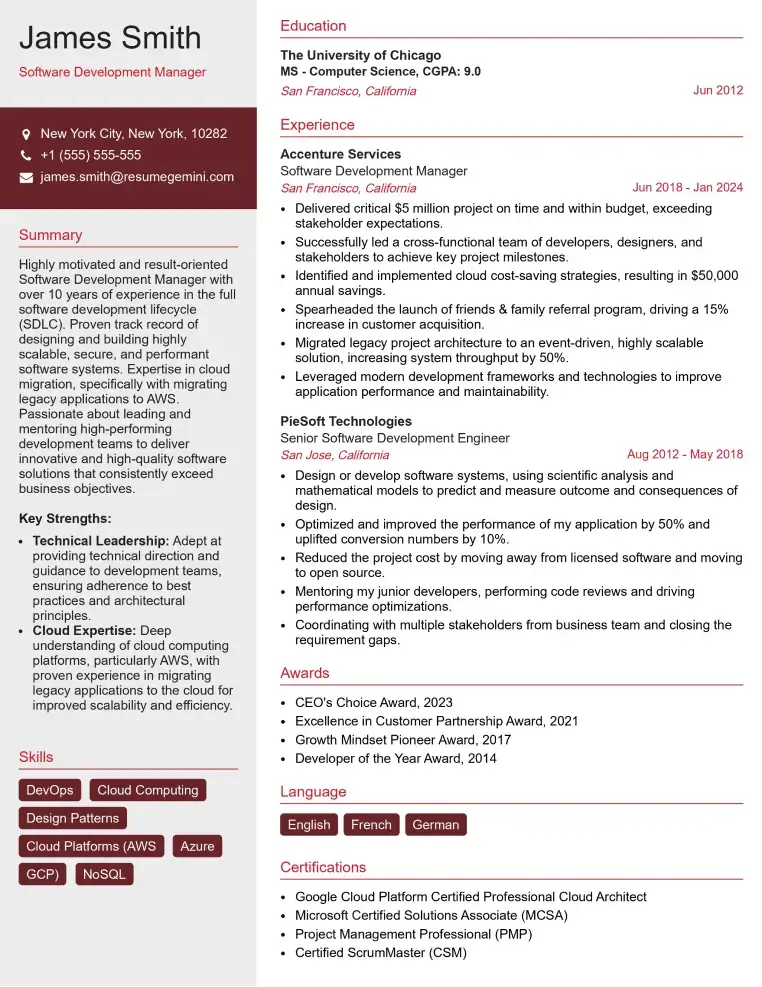
Check Out Resume Samples at ResumeGemini
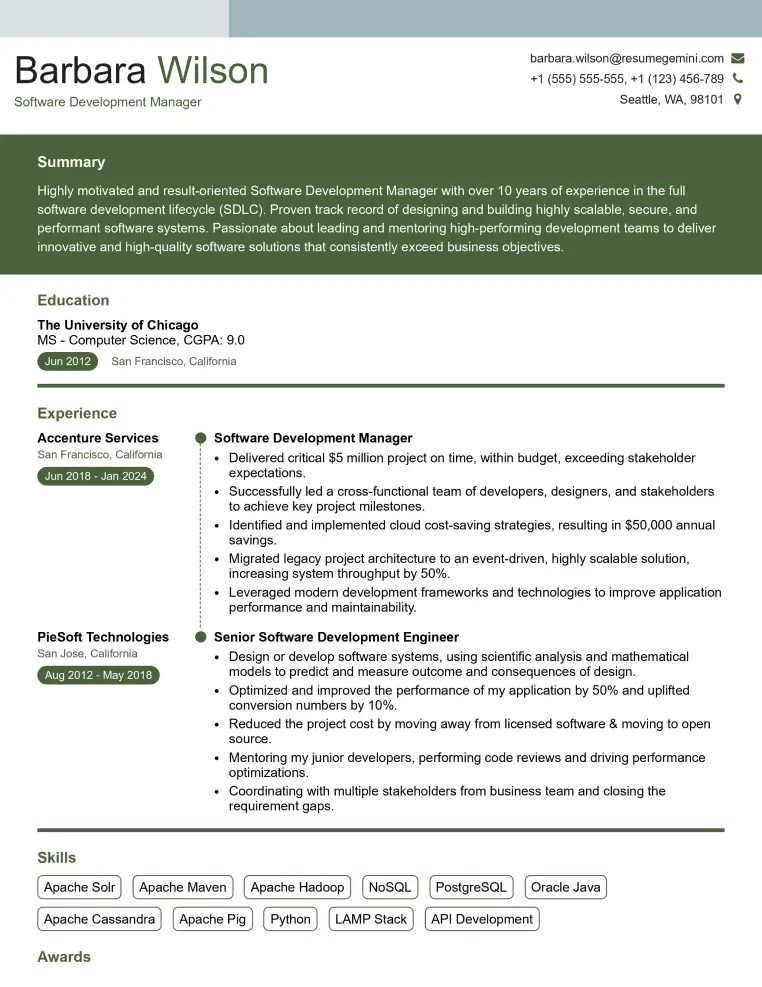
Check Out Resume Samples at ResumeGemini
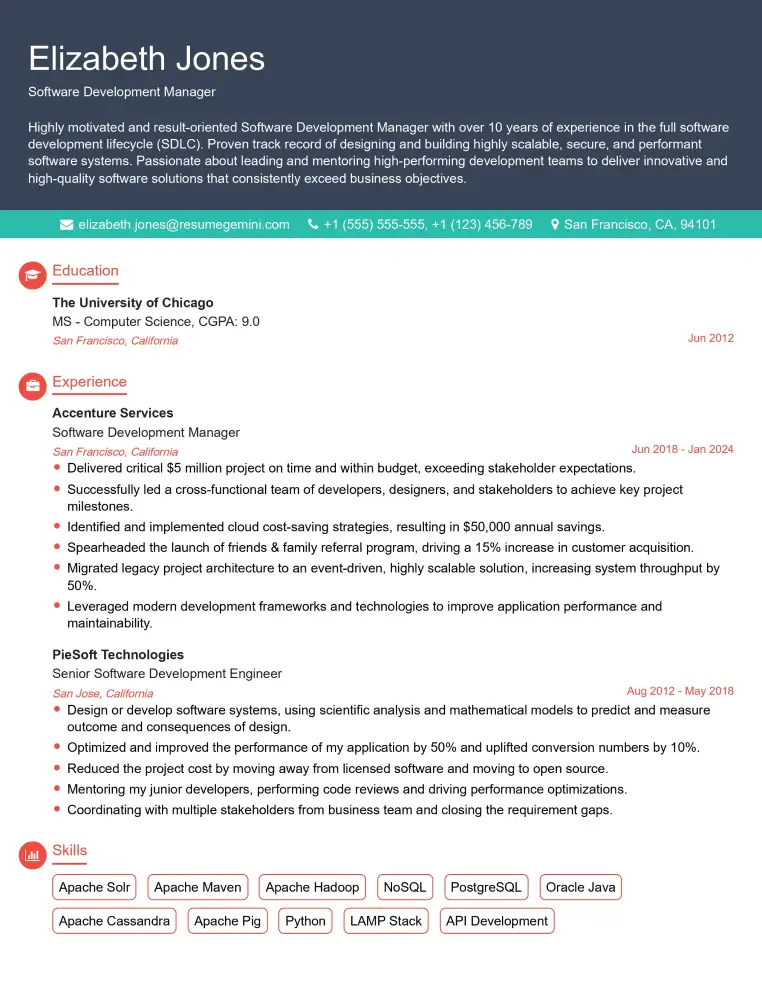
Check Out Resume Samples at ResumeGemini
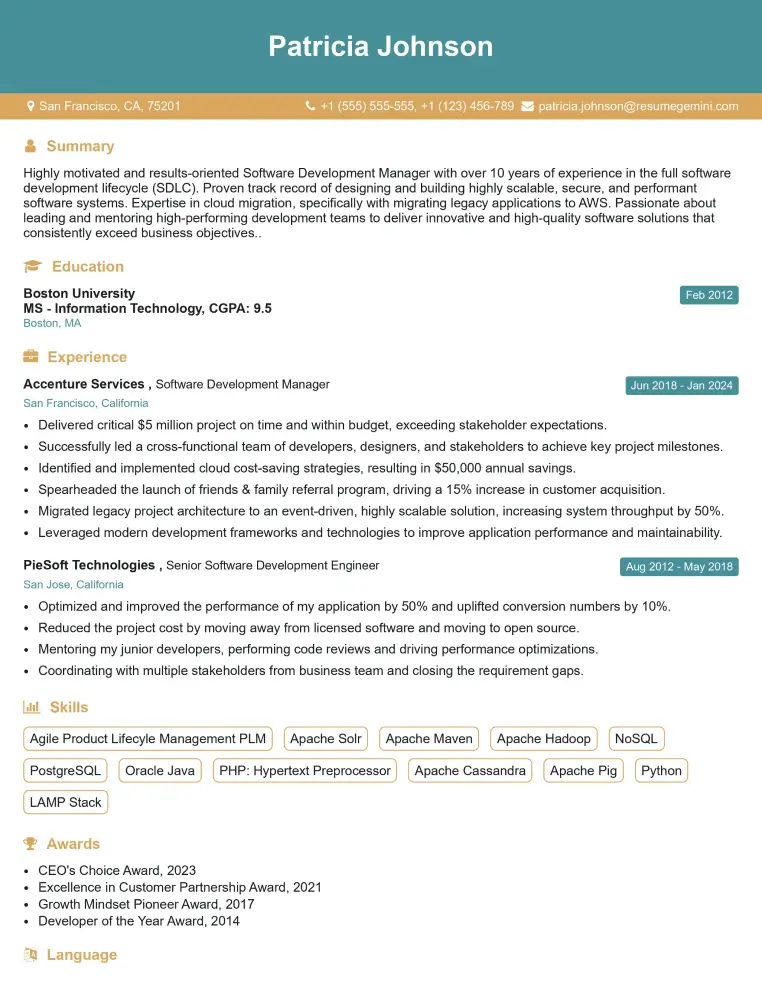
Check Out Resume Samples at ResumeGemini
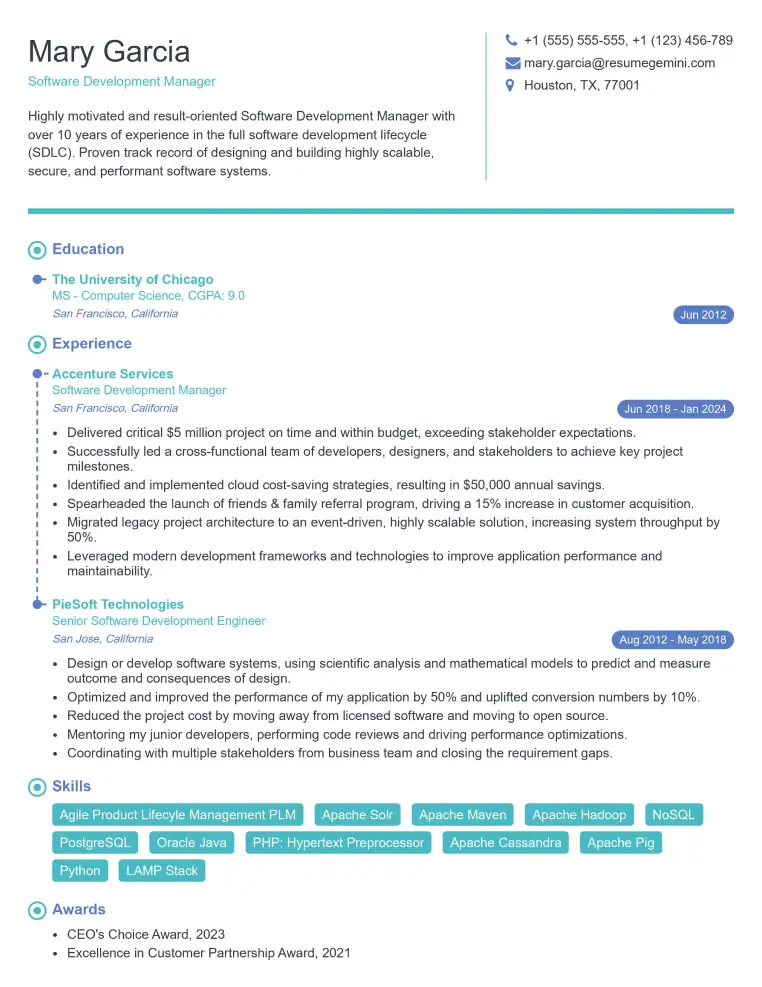
Check Out Resume Samples at ResumeGemini
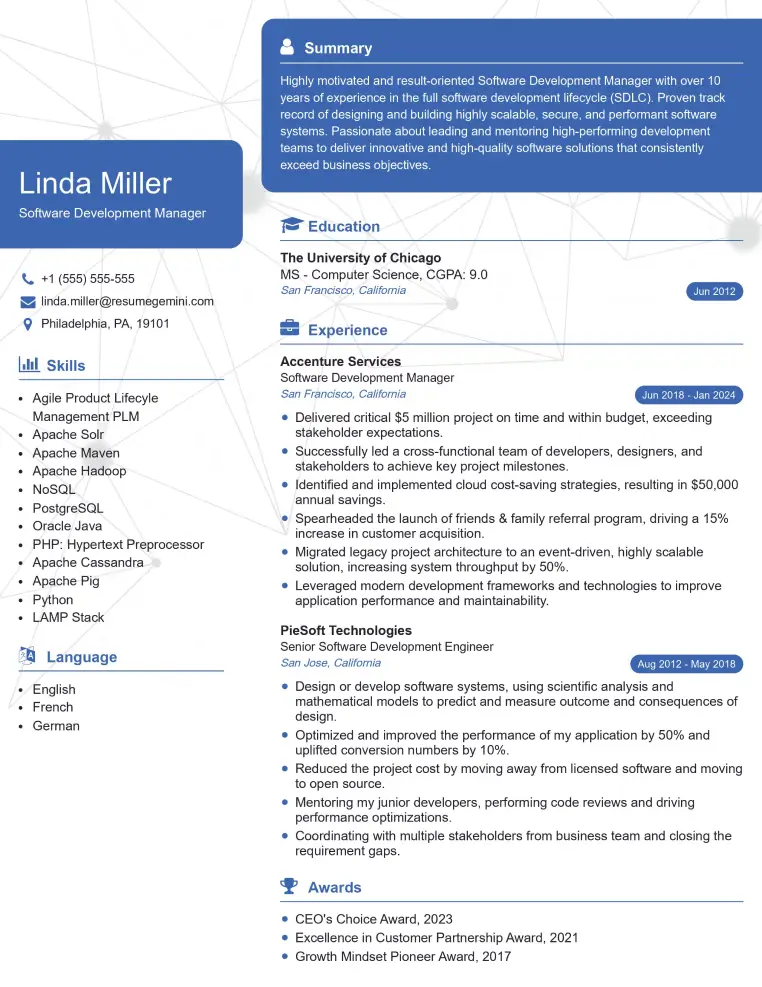
Check Out Resume Samples at ResumeGemini
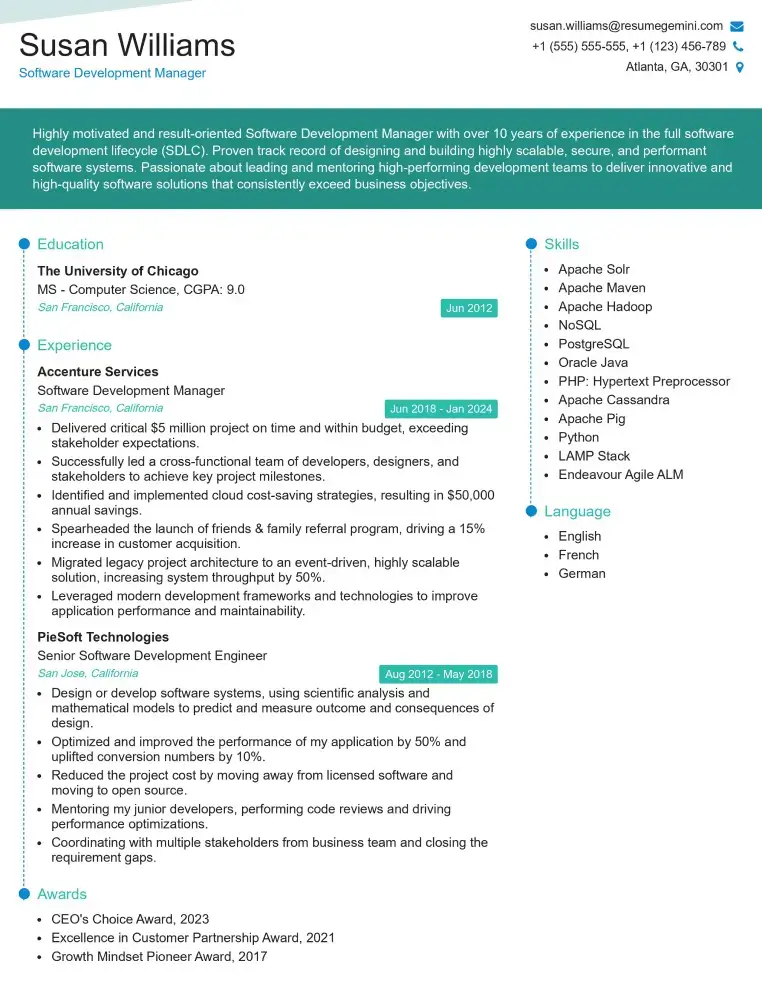
Check Out Resume Samples at ResumeGemini
Explore more articles
Users Rating of Our Blogs
Share Your Experience
We value your feedback! Please rate our content and share your thoughts (optional).
What Readers Say About Our Blog
Very informative content, great job.
good