Unlock your full potential by mastering the most common Experience with Color Correction and Retouching interview questions. This blog offers a deep dive into the critical topics, ensuring you’re not only prepared to answer but to excel. With these insights, you’ll approach your interview with clarity and confidence.
Questions Asked in Experience with Color Correction and Retouching Interview
Q 1. Explain the difference between color correction and color grading.
Color correction and color grading are often confused, but they serve distinct purposes. Think of color correction as fixing inaccuracies, while color grading is about enhancing the mood and look.
- Color Correction: This aims to restore the image’s colors to their natural or intended state. It involves neutralizing color casts (e.g., a blue tint from shade), adjusting white balance for accurate representation of whites, and fixing exposure issues to ensure proper brightness across the image. It’s like fixing a slightly out-of-tune instrument – you’re making it play accurately.
- Color Grading: This is a more creative process where you manipulate the colors to achieve a specific aesthetic. You might increase saturation, shift the overall color temperature (making it warmer or cooler), or use color filters to create a particular style. This is like composing a song; you’re making artistic choices to evoke certain feelings.
For example, correcting a photo taken indoors under tungsten lighting would involve adjusting the white balance to eliminate the orange cast, while grading the same image might involve deepening the blues and greens to create a cooler, more serene feel.
Q 2. Describe your workflow for retouching a product image for e-commerce.
My workflow for retouching e-commerce product images is meticulous and follows these steps:
- Initial Assessment: I carefully examine the image for flaws, considering the product’s nature and the e-commerce platform’s requirements. This includes checking for dust, blemishes, lighting inconsistencies, and background issues.
- Pre-Processing: I adjust the overall exposure, contrast, and white balance for a good foundation. This is crucial for efficient color correction and retouching. I often use non-destructive editing techniques to retain flexibility.
- Background Removal/Enhancement: I remove or refine the background, ensuring a clean and visually appealing presentation. This often involves masking and layer techniques for precision.
- Retouching: This is where I address any blemishes, wrinkles (if applicable), or imperfections on the product. I focus on achieving a natural look, avoiding overly processed results. The approach varies significantly depending on the nature of the product; for example, a handmade ceramic vase will require more subtle retouching than a mass-produced item.
- Color Correction and Grading: I carefully correct color casts and inconsistencies while considering the brand’s guidelines and aesthetic preferences. Color grading is used sparingly, primarily to enhance visual appeal rather than drastically alter the product’s look.
- Sharpening and Export: Finally, I sharpen the image subtly to enhance details and export it at the correct resolution and file format, optimized for web use. I always review the final product against the original image to ensure I’ve only improved it, not distorted it.
Q 3. What software are you proficient in for color correction and retouching?
I’m highly proficient in Adobe Photoshop and Lightroom. I also have experience with Capture One, which is excellent for raw image processing. The choice of software often depends on the project’s specific needs. Lightroom’s strengths lie in efficient batch processing and cataloging, while Photoshop’s power lies in its extensive retouching and masking capabilities. Capture One provides an excellent alternative workflow with strong raw file capabilities.
Q 4. How do you handle color casts in photographs?
Color casts arise from various factors, including lighting conditions (e.g., tungsten lighting casts an orange hue). I handle them using tools like:
- White Balance Adjustment: In both Lightroom and Photoshop, I use the white balance tools to neutralize casts by identifying a neutral area (ideally, pure white or grey) in the image. The software then uses this to adjust the overall color temperature.
- Selective Color Correction: If the cast is uneven, I use selective color correction tools, like curves or HSL adjustments in Photoshop or Lightroom, to target specific color ranges and adjust their hue, saturation, and luminance. I often use masking techniques to apply corrections only to the affected areas.
- Color Balance: This allows adjusting the overall balance of colors (cyans, magentas, yellows) to fine-tune the correction. This is particularly helpful in adjusting subtle casts.
It’s crucial to be subtle; over-correction can result in unnatural-looking images.
Q 5. Explain your process for removing blemishes and wrinkles from a portrait.
Removing blemishes and wrinkles involves a combination of techniques, emphasizing natural-looking results. I avoid cloning directly, opting for more subtle approaches like:
- Healing Brush Tool: This blends the texture seamlessly. The key is using small brush sizes and selecting sample areas carefully to maintain the skin’s natural texture and avoid creating unnatural patches.
- Patch Tool: This is effective for larger blemishes where sampling a nearby area with similar texture is suitable. It’s important to match the tones and textures precisely.
- Frequency Separation: For advanced retouching, I use frequency separation to edit texture and color separately. This allows adjusting the skin’s texture without affecting the color balance and keeps the results more natural. This is an advanced technique requiring careful skill and practice.
- Dodge and Burn: Subtly lightening and darkening areas is essential to smoothing out wrinkles without creating unnatural flatness. It’s about creating depth, not eliminating all texture.
The goal is to create smooth, even-toned skin without making it look artificial or mask-like. It’s important to retain natural texture for a realistic effect.
Q 6. How do you achieve skin retouching that looks natural and not over-processed?
Achieving natural-looking skin retouching is paramount. Over-processed skin looks artificial and unrealistic. Here’s how I achieve a natural look:
- Subtlety is Key: Avoid aggressive retouching. My focus is on enhancing, not eliminating, the natural textures and features of the skin.
- Frequency Separation: This technique keeps the color and texture edits separate, preventing overly smooth or unrealistic results.
- Layer Masks: I meticulously mask all retouching to refine my edits and control how much retouching is applied to specific areas. Using opacity for softening transitions also provides flexibility and control.
- Texture Retention: I ensure some level of natural skin texture remains, avoiding an overly smooth, mask-like appearance.
- Color Balance: I adjust skin tone carefully, avoiding dramatic shifts in color.
I often use before-and-after comparisons to ensure the changes are subtle yet effective in enhancing the image’s quality.
Q 7. Describe your experience with masking techniques in retouching.
Masking is fundamental to my retouching workflow. I use various masking techniques depending on the specific needs of the image:
- Layer Masks: These are non-destructive, allowing me to edit and refine my masks without permanently altering the image. I use them extensively for selective color corrections, retouching, and background adjustments. This is my go-to method for most retouching tasks.
- Quick Mask Mode: This offers a flexible way to create selections, particularly for complex shapes or intricate details. I often use this for refining selections before creating layer masks.
- Refine Edge: This tool in Photoshop is invaluable for refining mask edges, smoothing out harsh boundaries, and achieving a more natural blend between edited and unedited areas. This is especially crucial when working with hair or fur.
- Channel Masking: This advanced technique leverages the color information in individual channels (red, green, blue) to create highly precise selections, perfect for separating fine details like hair strands from the background.
Mastering masking techniques requires practice and patience, but it’s crucial for precise and natural-looking retouching.
Q 8. How do you manage large batches of images for retouching efficiently?
Efficiently managing large batches of images for retouching requires a strategic approach combining automation, organization, and workflow optimization. Think of it like an assembly line, where each step is streamlined for maximum productivity.
Batch Processing: Utilize software features for batch renaming, resizing, and initial adjustments. This saves significant time compared to manual processing of each image individually. For example, in Photoshop, using Actions to automate repetitive tasks is crucial.
Folder Organization: Create a clear folder structure to categorize images based on project, client, or status (e.g., ‘Raw Images,’ ‘Processed,’ ‘Final’). This prevents chaos and allows easy access to specific files.
Non-Destructive Editing: Always work non-destructively using adjustment layers and smart objects in Photoshop. This allows for easy modification and adjustment without damaging the original image data. Think of it as working with building blocks rather than permanently altering the image’s structure.
Prioritization: Assess the images and prioritize those requiring the most extensive retouching. This helps manage time effectively and meet deadlines.
Templates and Presets: Create custom presets and templates for consistent color grading and retouching styles. This speeds up the process and ensures uniformity across a project.
Q 9. Explain the importance of color management in your workflow.
Color management is paramount; it’s the foundation upon which all color correction and retouching are built. Without proper color management, the colors you see on your screen might not accurately represent the final printed or displayed image. Imagine painting a portrait with the wrong shade of blue—the whole piece would be off.
Consistent Color Space: Working in a consistent color space (like Adobe RGB or sRGB) throughout the entire process is vital. This ensures color accuracy from capture to output.
Profile Matching: Correctly matching color profiles between your camera, monitor, and printer is crucial. Inconsistencies lead to color shifts and inaccuracies. For example, if your monitor is not calibrated, your color corrections will not translate correctly to other screens or print outputs.
Soft Proofing: Soft proofing simulates how an image will look in different output settings (print, web, etc.). This allows for making adjustments before final output, preventing unpleasant surprises.
Calibration Tools: Using a colorimeter or spectrophotometer to calibrate your monitor and printer is essential for accurate color representation.
Q 10. How do you deal with difficult clients who have unrealistic expectations for retouching?
Handling clients with unrealistic expectations requires diplomacy, professionalism, and a clear understanding of the technical limitations of retouching. It’s about managing expectations effectively and delivering a high-quality result within realistic boundaries. Think of it as a collaborative process, not a dictatorial one.
Education: Explain the technical aspects and limitations of retouching clearly and patiently. Show examples of what’s achievable and what’s not.
Demonstration: Showcase before-and-after images illustrating the possibilities. This helps clients visualize the realistic results.
Setting Boundaries: Clearly define the scope of work and the deliverables in a contract. This prevents misunderstandings and protects both parties.
Compromise: Where possible, explore compromises that satisfy both the client’s desires and the technical realities of image retouching. Sometimes finding middle ground is better than prolonged conflict.
Documentation: Keep a detailed record of communications, revisions, and approvals to avoid disputes later.
Q 11. What are some common pitfalls to avoid in color correction?
Several common pitfalls can sabotage color correction efforts. Avoiding these ensures a polished final product. Imagine a chef neglecting basic techniques – the dish wouldn’t taste its best.
Over-correction: Going overboard with adjustments can lead to unnatural and artificial-looking images. Subtlety is key in achieving a natural look.
Ignoring Skin Tones: Incorrectly adjusting skin tones can result in an unrealistic or unhealthy appearance. Pay close attention to preserving natural skin tones.
Neglecting White Balance: An improperly set white balance drastically affects color accuracy. Ensure proper white balance correction is done first.
Incorrect Color Space: Working in the wrong color space can lead to color shifts and inaccuracies throughout the workflow.
Lack of Calibration: An uncalibrated monitor will lead to inconsistent color representation and inaccurate adjustments.
Q 12. How do you maintain consistency in color and retouching across multiple images?
Maintaining consistency across multiple images involves leveraging several techniques. This is crucial for professional projects that require a unified look and feel. It’s like using a recipe—following the same steps ensures consistent results.
Reference Image: Select one image as a reference and maintain its color and retouching style as a benchmark for others.
Adjustment Layers and Presets: Utilize adjustment layers and custom presets to apply consistent color corrections and retouching styles across all images.
Batch Processing: Where appropriate, leverage batch processing tools to apply consistent adjustments across multiple images simultaneously.
Color Matching: Use color matching tools in your software to ensure consistency between images.
Regular Checks: Frequently check the consistency of color and retouching throughout the process to catch any inconsistencies early on.
Q 13. Explain your approach to retouching images with varying lighting conditions.
Retouching images with varying lighting conditions requires a nuanced approach. Think of it as balancing different musical instruments—each requires a different technique to sound harmonious.
Exposure Adjustments: Carefully adjust exposure levels for each area of the image to balance the overall lighting. Tools like curves and levels are crucial here.
Highlight and Shadow Recovery: Use tools to recover detail in overexposed highlights and underexposed shadows to bring out more information without introducing noise.
Selective Adjustments: Use masks and selections to target specific areas of the image and apply adjustments locally, avoiding affecting other areas.
Color Balancing: Correct color casts caused by different lighting sources to achieve a unified color balance.
HDR Techniques (When Appropriate): In some cases, combining multiple exposures using HDR techniques can help balance lighting conditions and bring out more detail.
Q 14. What techniques do you use to enhance the sharpness of an image?
Enhancing image sharpness involves a combination of techniques. It’s like polishing a gemstone—multiple steps are needed to achieve maximum brilliance.
Unsharp Mask: This classic technique enhances edges and details by increasing contrast around them. Careful adjustment is key, as overusing it can create a halo effect.
High-Pass Filtering: A high-pass filter isolates high-frequency details and adds them back to the image as a layer, enhancing sharpness without impacting the overall image tone.
Smart Sharpen: This Photoshop filter offers more control over the sharpening process, allowing for adjustments based on image details and noise levels. It’s a more sophisticated approach to unsharp mask.
Noise Reduction: Before sharpening, reducing noise is critical as noise can be amplified during the sharpening process, leading to a grainy or muddy look.
Lens Correction: Correcting lens distortion can significantly improve overall sharpness and clarity.
Q 15. Describe your experience with high-dynamic range (HDR) imaging.
High-Dynamic Range (HDR) imaging captures a much wider range of tonal values than standard photography, resulting in images with greater detail in both highlights and shadows. Think of it like expanding the dynamic range of your camera sensor to encompass the full range of light your eyes can perceive, from the brightest sun to the deepest shadows. I’ve extensively used HDR techniques in landscape and architectural photography to create images with greater realism and impact. My workflow typically involves capturing multiple exposures of the same scene at different exposures (bracketing), then merging these exposures in software like Photoshop or Luminar AI using tone mapping algorithms. These algorithms intelligently combine the details from each exposure, minimizing noise and preserving detail in both the highlights and shadows. The final result is an image with an incredible depth and richness.
For example, when photographing a sunset, standard photography might clip the highlights (losing detail in the bright sky) or crush the shadows (losing detail in the darker landscape elements). HDR imaging, however, allows me to retain detail in both, resulting in a more visually appealing and accurate representation of the scene. I carefully consider the final application and intended output – if it’s a print, I’ll optimize for that print medium’s capabilities; for digital use, there’s more flexibility. It’s a delicate balance to avoid the image looking unnatural or over-processed.
Career Expert Tips:
- Ace those interviews! Prepare effectively by reviewing the Top 50 Most Common Interview Questions on ResumeGemini.
- Navigate your job search with confidence! Explore a wide range of Career Tips on ResumeGemini. Learn about common challenges and recommendations to overcome them.
- Craft the perfect resume! Master the Art of Resume Writing with ResumeGemini’s guide. Showcase your unique qualifications and achievements effectively.
- Don’t miss out on holiday savings! Build your dream resume with ResumeGemini’s ATS optimized templates.
Q 16. How do you handle the retouching of images with significant motion blur?
Retouching images with significant motion blur is challenging because it inherently involves reconstructing lost information. You can’t magically add detail where there is none. The approach depends on the severity and nature of the blur. For minor motion blur, the use of Photoshop’s sharpening tools like Unsharp Mask or Smart Sharpen can help improve the perceived sharpness, but it won’t restore the lost detail entirely. This is best done subtly to avoid amplifying noise.
For more severe motion blur, however, there are limitations. Techniques such as content-aware fill or using advanced AI-based tools in software like Topaz DeNoise AI can sometimes help fill in gaps, but the results are often imperfect and require careful masking and blending to look natural. Sometimes, the best solution is to accept the blur or even crop the affected areas to remove them from the image. Remember, the goal is not to eliminate all blur, but to improve the overall visual impact of the image while maintaining realism.
For instance, I once had a photograph of a moving car with significant motion blur. I couldn’t fully restore the car’s sharp details. Instead, I carefully masked out the severely blurred areas and creatively used a soft blur brush to blend the edge of the mask with the surrounding scene, maintaining a cohesive image without unrealistic sharp details.
Q 17. Explain your experience with different file formats (e.g., RAW, TIFF, JPEG).
My workflow incorporates all three file formats: RAW, TIFF, and JPEG, each serving distinct purposes. RAW files contain the most image data, offering maximum flexibility for adjustments during post-processing. They are lossless, meaning no information is discarded when the image is initially saved. I primarily shoot in RAW to maintain the highest quality and allow the greatest creative control. Think of it like a digital negative.
TIFF (Tagged Image File Format) is a lossless format that offers good quality and compatibility across different applications. I often use TIFF as an intermediate format, especially when working with large files or sending images to clients or printers that require a high-quality, non-compressed image.
JPEG (Joint Photographic Experts Group) is a lossy format, meaning some data is discarded when the image is saved, resulting in smaller file sizes. This format is suitable for sharing images online or for final web delivery. While JPEG compression sacrifices some image quality, it’s often an acceptable trade-off for smaller file sizes. I typically convert to JPEG only in the final stages for delivery to ensure web-optimality. The choice depends heavily on the intended use and desired balance between image quality and file size.
Q 18. Describe your experience with using layers and adjustment layers in Photoshop.
Layers and adjustment layers in Photoshop are fundamental tools in my retouching workflow. They provide non-destructive editing, allowing me to make changes without permanently altering the original image. I regularly utilize layers to isolate different elements within the image, enabling precise adjustments to specific areas. For example, I might use one layer for skin retouching, another for color correction, and a third for adding details. This layered approach lets me easily adjust and experiment without affecting other elements of the image.
Adjustment layers are invaluable for global or localized color and tonal adjustments. I use curves, levels, hue/saturation, and color balance adjustment layers to fine-tune the overall look of the image. The advantage of using adjustment layers is that I can modify these adjustments at any time without having to redo the entire process. If I decide I need to adjust the contrast, I can simply alter the settings within the adjustment layer. This allows for flexibility and iterative refinement. I consider layers the backbone of my workflow, promoting efficiency and control in all my image editing endeavors.
Q 19. How do you handle color spaces (e.g., RGB, CMYK) in your workflow?
Color spaces, such as RGB and CMYK, are critical considerations in my workflow. RGB (Red, Green, Blue) is the additive color model used for digital displays and screen-based outputs. CMYK (Cyan, Magenta, Yellow, Key/Black) is the subtractive color model used in printing. Understanding the differences is crucial to avoid color mismatches. I typically work in RGB for most of the retouching process, as this is the native color space of my camera and monitor.
When preparing images for print, I convert to CMYK in the final stages, ensuring I use the appropriate color profile for the printer and paper I’m using. Incorrect conversion can lead to significant color shifts. Therefore, I frequently consult color profiles and utilize color management tools within Photoshop to achieve the most accurate color reproduction in both digital and printed outputs. Understanding the nuances of color spaces and managing them correctly ensures the final product matches the intended visual outcome, whether displayed on a screen or printed on paper. I usually check my work on multiple devices and screens to ensure consistency.
Q 20. What are some common file formats for saving retouched images and why?
The choice of file format for saving retouched images depends heavily on the intended use. For clients or for archiving high-quality versions, I often save in TIFF or PSD (Photoshop Document) format to retain all the layered information and preserve the maximum level of quality without any loss. TIFF is broadly compatible, while PSD maintains all the layers and settings from Photoshop.
For web use or sharing, JPEG is the most common format due to its smaller file sizes and broad compatibility with web browsers. While JPEG is lossy, the compression artifacts are often negligible at appropriate quality settings (typically 80-90%). The key is to balance file size and quality based on the intended application. Sometimes, I might provide both a high-resolution TIFF or PSD version and a lower-resolution JPEG version for web use.
Q 21. How do you back up your work to prevent data loss?
Data loss prevention is paramount. My backup strategy employs a multi-layered approach: First, I regularly save my work, utilizing the autosave function in Photoshop and manually saving at various stages of the retouching process. I also use version history in Photoshop to track changes, allowing me to revert to earlier versions if necessary. Second, I employ a RAID storage system to protect against hard drive failures, as well as regular incremental backups to an off-site cloud storage service. This redundancy minimizes the risk of complete data loss. Third, for particularly important projects, I create duplicate copies of the final images on external hard drives kept in separate locations. Finally, I maintain a detailed log of all projects and their associated backup locations, ensuring traceability and accessibility.
This comprehensive approach ensures that even in the unlikely event of a hardware failure or disaster, I can easily recover my work. It’s an investment that protects not only my time and effort, but also the valuable assets entrusted to me by clients.
Q 22. Describe your understanding of color theory.
Color theory is the foundational knowledge of how colors interact with each other. It’s crucial for effective color correction and retouching because it allows for a precise and intentional manipulation of hues, saturation, and brightness to achieve desired aesthetic results. Understanding the color wheel, including primary, secondary, and tertiary colors, is fundamental. This allows me to predict the outcomes of mixing colors and to make informed decisions about color adjustments. For example, I understand that complementary colors (like blue and orange) offer high contrast, while analogous colors (like blue, blue-green, and green) create harmony. I also deeply understand color temperature (warm vs. cool) and how to balance it within an image. This knowledge allows me to identify and correct color casts, ensuring a visually pleasing and realistic outcome.
Moreover, I have a practical understanding of color modes (RGB, CMYK) and their implications. RGB is used for screen displays, while CMYK is used for print. Understanding the differences is critical for preparing images for the intended output medium and preventing color shifts. Finally, I’m adept at using various color correction tools and techniques to effectively apply color theory principles in my work.
Q 23. What is your experience with using color lookup tables (LUTs)?
Color Lookup Tables (LUTs) are pre-defined color transformations that can be applied to images to quickly achieve specific stylistic effects or color grading. I have extensive experience using LUTs in various software like Adobe Photoshop, Lightroom Classic, and DaVinci Resolve. I use them for both creative and corrective purposes. For instance, I might use a LUT to instantly create a cinematic look or to correct a color imbalance by applying a LUT tailored for a specific camera profile or lighting condition.
However, I don’t rely solely on LUTs. I find them most effective when used as a starting point, which I then refine using selective adjustments and masking techniques. Over-reliance on LUTs can lead to unnatural-looking results. My approach emphasizes maintaining a balance between efficiency and artistic control. I often create my own custom LUTs based on the specific needs of a project or client preferences, allowing for maximum consistency and personalized results.
Q 24. Explain your process for preparing images for print.
Preparing images for print requires a meticulous workflow that accounts for the limitations of the printing process and ensures optimal color accuracy and detail. My process typically involves these key steps:
- Color Space Conversion: I convert the image from RGB (screen) to CMYK (print). This conversion can introduce subtle color shifts, so I carefully manage this process, often using a custom CMYK profile created for the specific printer and paper I will be using.
- Sharpening: Images often need careful sharpening for print, as print resolution is usually lower than screen resolution. I use unsharp masking techniques, adjusting the amount, radius, and threshold carefully to avoid halos or unnatural artifacts.
- Color Proofing: Before sending to print, I create a soft proof to preview the final product, simulating the printing conditions. This allows me to make final adjustments to ensure the colors are accurate and the image looks its best on the chosen paper.
- File Format and Resolution: I save the image in a high-resolution format, typically TIFF or high-quality JPEG, at the appropriate resolution specified by the printer.
- Communication: Clear and detailed communication with the printer is essential throughout the process. I ensure I provide them with all the necessary information regarding color profiles, paper type, and desired output.
This meticulous approach minimizes surprises and maximizes the quality of the final printed piece.
Q 25. How do you ensure the quality of your retouching work meets client standards?
Meeting client standards is paramount. My process includes several steps to ensure quality:
- Clear Communication: I always begin by thoroughly discussing the client’s vision and expectations, clarifying their requirements for style, tone, and level of retouching.
- Reference Images and Mood Boards: I often request reference images or mood boards to better understand the client’s aesthetic preferences and ensure consistency.
- Test Edits: I perform several test edits, providing regular updates and seeking client feedback throughout the process. This iterative approach allows for corrections and adjustments based on client preferences.
- Version Control: I maintain detailed version control of my work, allowing for easy rollback to previous stages if needed. This transparency builds trust and ensures clients see the evolution of the project.
- Quality Assurance Check: Before final delivery, I conduct a comprehensive quality assurance (QA) check, meticulously reviewing the image for any flaws, inconsistencies, or imperfections. This includes a careful review of color balance, sharpness, detail, and overall aesthetic quality.
This multi-layered approach guarantees that the final product accurately reflects the client’s vision and meets the highest quality standards.
Q 26. What are some of the challenges you have faced in color correction and retouching, and how did you overcome them?
One of the most significant challenges I’ve encountered is dealing with images that have significant color casts or inconsistencies due to poor lighting conditions during the shoot. Overcoming this involves a combination of global and selective color correction techniques, making use of tools like curves, levels, and color balance. Sometimes, it’s necessary to use masking techniques to selectively correct only specific areas of the image. For example, I might use a radial filter to adjust the color temperature in a specific area of an image, leaving other parts unaffected.
Another challenge is dealing with images containing significant noise or artifacts. Here, advanced noise reduction techniques and careful sharpening are crucial. It’s an iterative process, balancing noise reduction to preserve detail. The goal is to achieve a balance between removing noise and maintaining image sharpness and texture. This often requires a careful and nuanced approach.
Q 27. Describe your approach to time management when handling multiple retouching projects.
Effective time management is crucial when juggling multiple projects. I use a combination of strategies:
- Prioritization: I prioritize tasks based on deadlines and client urgency, using project management software to track progress and deadlines.
- Time Blocking: I allocate specific time blocks for each task, minimizing distractions and ensuring focused work sessions.
- Task Breakdown: I break down large projects into smaller, more manageable tasks, making progress more visible and less overwhelming.
- Batching Similar Tasks: I group similar tasks together (e.g., color correction for a series of images) to streamline my workflow and improve efficiency.
- Regular Breaks: I take regular short breaks to avoid burnout and maintain focus throughout the day. This is crucial for consistent quality.
By employing these strategies, I am able to effectively manage my workload, meet deadlines, and deliver high-quality results on all my projects.
Q 28. How do you stay up-to-date with the latest trends and techniques in color correction and retouching?
Staying current in this dynamic field is crucial. I consistently engage in several activities:
- Industry Publications and Blogs: I follow leading publications and blogs in the photography and retouching industry to stay abreast of new software, techniques, and trends.
- Online Courses and Workshops: I regularly participate in online courses and workshops to deepen my understanding of new tools and advanced techniques. This allows me to continually expand my skill set.
- Professional Networks: I actively engage in professional online communities and networks where I can interact with other professionals, share knowledge, and learn from their experiences.
- Experimentation: I dedicate time to personal experimentation, trying new techniques and software to hone my skills and broaden my creative horizons.
- Industry Events: Attending industry conferences and workshops helps to stay informed about the latest industry trends and advancements. This also provides opportunities for networking and collaboration.
This ongoing commitment to learning ensures I maintain a high level of expertise and remain at the forefront of the color correction and retouching field.
Key Topics to Learn for Your Color Correction and Retouching Interview
- Color Theory Fundamentals: Understanding color models (RGB, CMYK, LAB), color temperature, white balance, and color harmonies is crucial for effective correction.
- Software Proficiency: Demonstrate your expertise in industry-standard software like Adobe Photoshop, Lightroom, or Capture One. Be prepared to discuss your workflow and preferred techniques.
- Retouching Techniques: Mastering techniques like blemish removal, skin retouching, frequency separation, and dodging and burning will showcase your skills.
- Color Correction Workflow: Explain your approach to correcting color imbalances, adjusting exposure, contrast, and saturation, and achieving a consistent look across multiple images.
- Non-Destructive Editing: Highlight your understanding of non-destructive editing techniques and why they’re important for maintaining image integrity and flexibility.
- Image Sharpening and Noise Reduction: Discuss your strategies for sharpening images without introducing artifacts and effectively reducing noise while preserving detail.
- Understanding Client Needs: Explain how you interpret client briefs and translate their vision into a polished final product. Showcase your ability to adapt your techniques to different styles and aesthetics.
- Problem-Solving and Troubleshooting: Be ready to discuss how you approach challenging images, such as correcting difficult color casts or dealing with problematic lighting situations.
- File Management and Organization: Demonstrate your understanding of efficient file management practices to maintain organized projects and ensure easy collaboration.
Next Steps
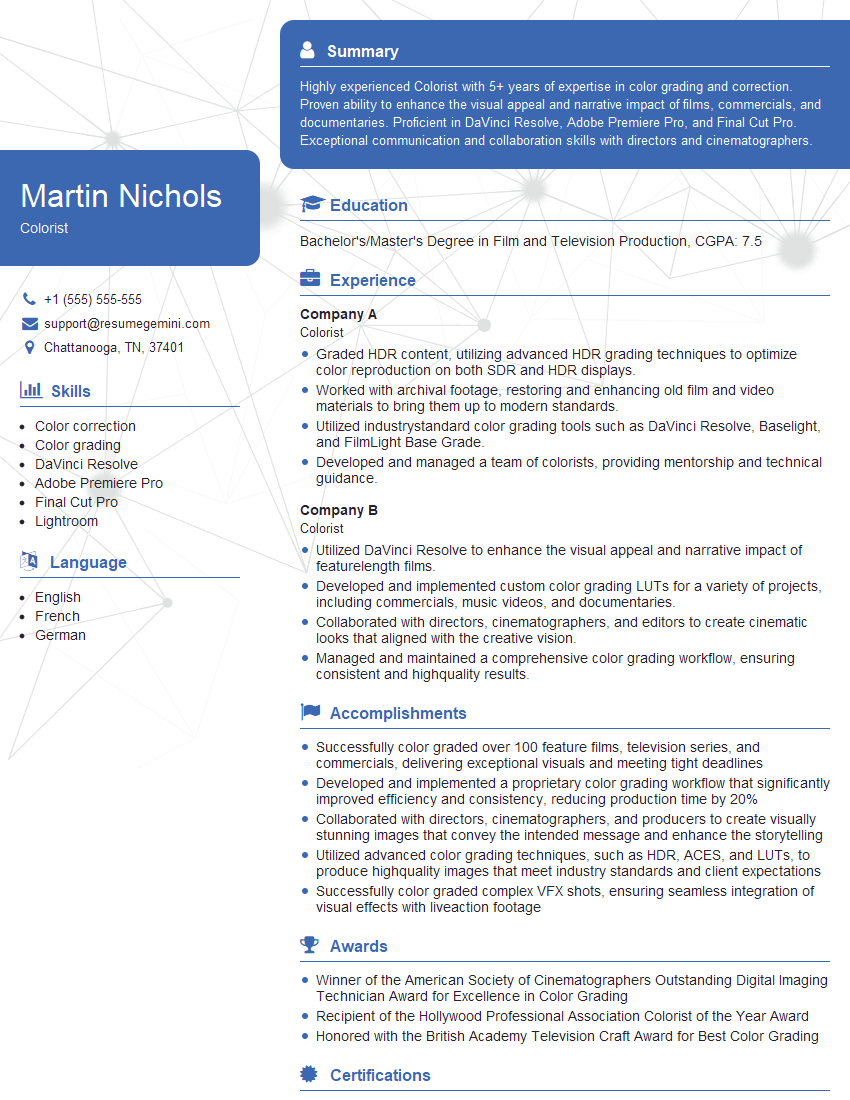
Mastering color correction and retouching is vital for career advancement in photography, graphic design, and related fields. A strong portfolio is essential, but a well-crafted resume is your first impression. Building an ATS-friendly resume increases your chances of getting noticed by recruiters. To help you create a compelling resume that highlights your skills and experience, consider using ResumeGemini. ResumeGemini offers valuable tools and resources to build a professional resume, and they provide examples of resumes tailored to roles emphasizing experience with color correction and retouching. Take the next step towards your dream job today!

Explore more articles
Users Rating of Our Blogs
Share Your Experience
We value your feedback! Please rate our content and share your thoughts (optional).
What Readers Say About Our Blog
Very informative content, great job.
good