Every successful interview starts with knowing what to expect. In this blog, we’ll take you through the top Gazebo Simulation Environment interview questions, breaking them down with expert tips to help you deliver impactful answers. Step into your next interview fully prepared and ready to succeed.
Questions Asked in Gazebo Simulation Environment Interview
Q 1. Explain the architecture of the Gazebo simulator.
Gazebo’s architecture is a sophisticated blend of several key components working in concert to create a realistic simulation environment. At its core, it’s a client-server system. The server manages the physics engine, sensors, models, and the overall simulation world. The client, typically a graphical user interface (GUI), allows users to interact with and visualize the simulation.
Key components include:
- World: Represents the simulated environment, including terrain, objects, and lighting.
- Physics Engine: Handles the physical interactions between objects (e.g., collisions, gravity). Gazebo supports multiple physics engines (more on this later).
- Models: Represent physical objects in the simulation, defined using SDF (Simulation Description Format) files. These files specify geometry, links, joints, and other properties.
- Plugins: Extend Gazebo’s functionality. They allow developers to add custom sensors, controllers, and other components.
- Sensors: Simulate various sensors, providing data about the environment (e.g., cameras, lasers, IMUs).
- Transport Layer: Facilitates communication between the server and clients, and also between Gazebo and other systems (like ROS).
Think of it like a well-orchestrated play. The server is the stage manager, the models are the actors, the physics engine dictates their movements, and plugins add special effects.
Q 2. Describe the difference between Gazebo Classic and Gazebo Ignition.
Gazebo Classic and Gazebo Ignition represent distinct generations of the simulator, each with its own strengths and weaknesses. Gazebo Classic, while mature and widely used, relies on older technologies and has a more complex architecture. Ignition Gazebo, on the other hand, is a newer, more modular, and performant version built from the ground up with modern technologies.
- Gazebo Classic: Mature, large codebase, supports many features, but can be resource-intensive and less easily extensible.
- Gazebo Ignition: Modern, modular architecture, more performant, improved graphics, easier to extend with plugins, but with a slightly smaller community and less extensive feature set compared to Classic (although this is rapidly changing).
The choice between them depends on your project’s needs. If you need maximum feature compatibility and a large community, Classic might be preferred. If performance, modern architecture, and ease of extension are paramount, Ignition is the way to go. Many are migrating to Ignition for its long-term advantages.
Q 3. How do you model sensors in Gazebo?
Modeling sensors in Gazebo involves defining their type, parameters, and placement within the simulated world. This is primarily achieved through SDF (Simulation Description Format) files. You specify the sensor type (e.g., camera, lidar, IMU), its position and orientation within a model’s frame, and its characteristics like noise levels, field of view, and range.
Example (Camera):
30 1.047 640 480 R8G8B8 /camera/image_raw This snippet shows a camera sensor with a specific update rate, field of view, and image resolution. A plugin is often used to publish the sensor data to a ROS topic, enabling integration with other ROS components. Different sensor types will require different parameters, but the basic approach using SDF is consistent.
Q 4. Explain how to create a custom plugin in Gazebo.
Creating a custom Gazebo plugin involves writing code (typically in C++) that interacts with the Gazebo simulation environment. This code must adhere to Gazebo’s plugin API, which provides functions to access and modify simulation data. The plugin is compiled into a shared library (typically a .so file).
Steps:
- Include Headers: Include necessary Gazebo headers.
- Create a Plugin Class: Define a class that inherits from a relevant Gazebo plugin base class (e.g.,
gazebo::ModelPlugin). - Implement Plugin Methods: Override virtual functions such as
Load()(called when the plugin loads),Init(), andUpdate()(called periodically). - Register the Plugin: Use macros to register the plugin with Gazebo.
- Compile: Compile the code into a shared library.
- Load in Gazebo: Load the plugin in your Gazebo world using the SDF file.
Example (Simple Plugin Structure):
#include // ... other includes ... namespace gazebo { class MyPlugin : public ModelPlugin { public: void Load(physics::ModelPtr _parent, sdf::ElementPtr _sdf) { // Plugin initialization logic here } }; GZ_REGISTER_PLUGIN(MyPlugin) } This provides a basic framework. The complexity of your plugin depends on its functionality. You’ll likely need to interact with the physics engine, sensors, or other Gazebo components to implement more complex behavior.
Q 5. How do you handle collisions in Gazebo?
Gazebo handles collisions using its physics engine. When two objects collide, the physics engine detects the collision and applies forces based on the objects’ properties (mass, elasticity, friction) and the collision parameters. This results in realistic physical interactions, like bouncing, stopping, or deformation (depending on the physics engine and material properties).
Collision detection is implemented using various algorithms (often based on bounding volume hierarchies or other efficient spatial data structures), ensuring accurate and timely detection even with many objects. You can configure collision parameters within the SDF file, including material properties that affect how the collision is handled. You can also use plugins to handle collision events in specific ways (e.g., triggering actions when a collision occurs).
For instance, you can define collision groups to control which objects interact with each other. This allows you to simulate situations where some objects pass through others without interacting (e.g., a robot arm passing through a table but colliding with an object on the table).
Q 6. Describe different physics engines available in Gazebo and their strengths/weaknesses.
Gazebo offers several physics engines, each with its own characteristics:
- ODE (Open Dynamics Engine): A mature and widely used engine, known for its stability and robustness. It can be slower for highly complex simulations, especially with many contacts.
- Bullet: A more modern and performant engine, often preferred for its speed and handling of large numbers of objects and contacts. It might be less stable in certain edge cases than ODE.
- Simbody: A high-fidelity engine developed at Stanford. It’s known for its accuracy and ability to handle complex multibody dynamics but may be more resource-intensive.
- DART: A flexible and efficient physics engine well-suited for robotics applications. It allows for differentiable physics simulations.
The choice of physics engine depends on the specific needs of your simulation. For simple simulations, ODE might be sufficient. For larger, more complex scenarios with many objects and intricate interactions, Bullet or DART might offer better performance. Simbody is ideal when high accuracy is paramount, even at the cost of computational resources. You usually specify the physics engine to use in your Gazebo world file.
Q 7. How do you integrate ROS with Gazebo?
Integrating ROS with Gazebo involves using ROS topics and services to exchange information between the simulation and ROS nodes. Gazebo plugins can publish sensor data (e.g., camera images, lidar scans) to ROS topics, while ROS nodes can send control commands to Gazebo (e.g., robot joint positions, velocities). Gazebo also provides ROS interfaces for spawning models, setting parameters, and controlling other aspects of the simulation.
Common methods include:
- ROS plugins: Create Gazebo plugins that publish and subscribe to ROS topics.
gazebo_rospackage: Provides a set of tools and utilities for easier integration.- ROS services: Use ROS services to control aspects of the simulation programmatically (e.g., spawning and deleting models).
Consider a robotic arm picking up an object. The robot’s controller (a ROS node) receives visual data from a Gazebo camera (via a ROS topic). It then uses this data to calculate the arm’s movements, sending commands (via another ROS topic) to the robot’s simulated joints within Gazebo. The Gazebo physics engine updates the arm’s position, and the loop continues.
Q 8. Explain the use of SDF (Simulation Description Format) in Gazebo.
SDF, or Simulation Description Format, is the primary language used in Gazebo to describe the environment, robots, sensors, and other elements within a simulation. Think of it as the blueprint for your virtual world. It’s an XML-based format, meaning it’s human-readable and easily editable. An SDF file defines everything from the physical properties of objects (like mass, inertia, and geometry) to sensor characteristics (noise levels, update rates) and joint types (revolute, prismatic, etc.).
For example, you might use SDF to define a simple box:
<model name='simple_box'> <static>true</static> <link name='link'> <inertial> <mass>1.0</mass> </inertial> <collision name='collision'> <geometry> <box> <size>1 1 1</size> </box> </geometry> </collision> <visual name='visual'> <geometry> <box> <size>1 1 1</size> </box> </geometry> </visual> </link> </model>This snippet creates a static, 1x1x1 meter box. You can extend this to create complex robots with multiple links, joints, sensors, and actuators, all meticulously defined within the SDF framework. This allows for precise control and reproducibility in your simulations. In a professional setting, a well-structured SDF file is crucial for collaboration and version control, ensuring everyone works with a consistent description of the simulation environment.
Q 9. How do you debug simulations in Gazebo?
Debugging Gazebo simulations often involves a multi-pronged approach. First, leverage Gazebo’s built-in logging capabilities. Gazebo provides detailed logs about the simulation’s internal state, including sensor readings, joint positions, and error messages. You can often find the root cause of problems simply by examining these logs. Secondly, visualize your data. Using tools like RViz (often used in conjunction with ROS), you can observe the state of your robot and environment in real-time, identifying unexpected behaviors. Thirdly, utilize Gazebo’s plugins and debugging tools. There are plugins that allow for stepping through the simulation, inspecting variable values, and setting breakpoints, much like a regular debugger. Finally, consider using a debugger within your control code. If the issues are arising from your control algorithms rather than Gazebo itself, your IDE’s debugger can be invaluable. For instance, if your robot isn’t moving as expected, stepping through your control code might reveal a calculation error or a faulty sensor reading.
Imagine your robot isn’t following a planned path. By checking the Gazebo logs, you might discover a communication error between your robot and the path planner. Visualizing the robot’s trajectory in RViz could reveal the robot is colliding with an obstacle. Finally, debugging your control code might uncover a subtle bug in your path following algorithm.
Q 10. How do you visualize data in Gazebo?
Gazebo offers several ways to visualize data. The most common approach is using RViz, a powerful visualization tool that integrates seamlessly with ROS. RViz can display a wide range of data, including robot poses, sensor readings (like laser scans and camera images), and force/torque readings. You can create custom visualizations to display specific data relevant to your simulation. Gazebo also has its own built-in visualizer, offering a basic 3D view of the simulation. For more specialized visualizations, consider using external tools like Matplotlib or other plotting libraries to process and display data extracted from Gazebo. This data could be logged to files during the simulation and then processed after it is complete. You might visualize the path a robot took, the forces acting on it, or the evolution of a specific sensor reading over time.
For example, if you’re testing a robot’s navigation capabilities, you might use RViz to visualize the robot’s path along with the point cloud from its LiDAR sensor. This allows for easy identification of path planning errors or sensor noise affecting navigation.
Q 11. Explain the concept of world files in Gazebo.
World files in Gazebo are essentially SDF files (or sometimes collections of SDF files) that define the entire simulation environment. This includes the terrain, obstacles, lights, and any models present, such as robots. Think of it as the complete setup for your simulation. You can create a complex world with many elements, defining their positions, orientations, and properties. These files allow for easy sharing and reproducibility of simulations, as you can simply provide the world file to others and they can recreate your exact environment.
For instance, you might have a world file describing a warehouse with specific dimensions, obstacles representing shelves and pallets, and a designated starting and ending position for a robot. This allows multiple developers to use and reproduce the same warehouse environment in their Gazebo simulations. This world file also defines the static aspects of the simulation, simplifying setup and ensuring consistency.
Q 12. Describe different ways to control robots in Gazebo.
Controlling robots in Gazebo typically involves one or more of the following methods: manual control (using a joystick or keyboard), programmatic control (via ROS or other APIs), and pre-programmed control (using pre-defined trajectories or motion plans). Manual control is suitable for basic testing and demonstration but is not ideal for automated tasks. Programmatic control offers fine-grained control over the robot’s actions and is vital for research and development. Pre-programmed control allows you to define sequences of actions, perfect for repeatable tasks or testing specific behaviors. The choice depends on your application and its complexity.
For example, you might use a joystick to manually maneuver a robot during a demonstration, write a ROS node to implement a PID controller for precise trajectory tracking, or load a pre-recorded trajectory to test a robot’s ability to follow a predetermined path. The variety of options allows for testing at different levels, from simple user interaction to complex autonomous actions.
Q 13. How do you perform path planning within a Gazebo simulation?
Path planning within Gazebo usually involves integrating a path planning algorithm with your robot control system, often using ROS. Popular path planning algorithms include A*, RRT, and Dijkstra’s algorithm. You’ll need to provide the algorithm with information about the environment (obtained from sensors or the world file) and the robot’s capabilities (e.g., maximum velocity, turning radius). The algorithm then generates a path from a starting point to a goal, avoiding obstacles. Once the path is generated, your robot controller will follow the computed path, using feedback from sensors to correct for deviations. The Gazebo environment provides the necessary feedback, allowing real-time adjustment and observation of the path planning process in action.
For example, you might use a ROS package like MoveIt! which provides a framework for integrating various path planning algorithms with your robot model in Gazebo. It receives sensor data from the simulated environment, plans a path, and sends commands to the robot to execute the plan. The simulation then provides visualization of the plan and execution, aiding in identifying any issues.
Q 14. How do you handle different robot models in Gazebo?
Gazebo handles different robot models using SDF descriptions. Each robot model is represented by an SDF file, defining its geometry, joints, links, and sensors. You can import existing robot models (often provided as URDF or SDF files) or create your own. Once defined, the robot model is added to the world file, specifying its initial pose (position and orientation) within the simulation. Gazebo’s physics engine then simulates the robot’s behavior based on its properties and the interactions with the environment. You can switch between different robot models easily by modifying the world file; Gazebo’s flexibility makes it adept at handling complex multi-robot scenarios.
Suppose you’re working on a project comparing the performance of two different robot designs. You can define both robots in their respective SDF files, and then add them to the same world file to simulate them in the same environment. This allows for direct comparison of their capabilities under identical conditions.
Q 15. Explain the process of creating a custom Gazebo model.
Creating a custom Gazebo model involves several key steps, much like building with LEGOs but in a digital world. First, you need to design your model’s 3D geometry. Popular tools include Blender, SolidWorks, or even simpler tools like MeshLab. The output is typically a COLLADA (.dae) or URDF (.urdf) file. The URDF (Unified Robot Description Format) is preferred for robots as it defines the robot’s links and joints, allowing for kinematic and dynamic simulation. Next, you create an SDF (Simulation Description Format) file, the core of your Gazebo model. This XML file describes the model’s visual aspects (using the 3D geometry), collision properties, physics parameters (mass, inertia), and any sensors or plugins attached. Finally, you package your model into a reusable plugin. This involves creating a specific directory structure and a manifest file describing your model’s components. Once this is done, you can easily insert your model into different Gazebo worlds.
Example: Let’s say you’re creating a simple box model. Your .dae file would define the box’s shape, your .urdf would specify its mass and inertia properties, and your .sdf file would link the visual and collision aspects. The model would then be packaged into a folder with a manifest to allow easy insertion into Gazebo.
Career Expert Tips:
- Ace those interviews! Prepare effectively by reviewing the Top 50 Most Common Interview Questions on ResumeGemini.
- Navigate your job search with confidence! Explore a wide range of Career Tips on ResumeGemini. Learn about common challenges and recommendations to overcome them.
- Craft the perfect resume! Master the Art of Resume Writing with ResumeGemini’s guide. Showcase your unique qualifications and achievements effectively.
- Don’t miss out on holiday savings! Build your dream resume with ResumeGemini’s ATS optimized templates.
Q 16. How do you manage multiple robots in a single Gazebo simulation?
Managing multiple robots in Gazebo is straightforward thanks to its modular design. Each robot is essentially an independent model, defined by its own SDF file. You can simply include multiple robot models within a single world file (.world). This world file acts like a stage, specifying the environment (ground, obstacles) and the positions and orientations of all the robots. Gazebo handles the physics and interactions between these robots concurrently. This allows you to simulate complex multi-robot scenarios like cooperative tasks, multi-agent path planning, or even robot swarm behavior. The key is using appropriate namespaces for unique identification of each robot and its components to avoid naming conflicts. You can also leverage Gazebo’s plugin architecture to facilitate communication and coordination between the robots.
<world> <model name="robot1"> ... </model> <model name="robot2"> ... </model> </world>Q 17. How do you implement different control algorithms within Gazebo?
Implementing control algorithms in Gazebo typically involves using ROS (Robot Operating System) nodes which communicate with the simulated robots. ROS provides various tools and libraries for developing control algorithms. You’d create a ROS node that subscribes to sensor data from the robot (e.g., odometry, IMU) and publishes control commands (e.g., wheel velocities, joint torques) to Gazebo. The communication happens over topics, which are essentially data channels. Popular control algorithms like PID controllers, model predictive control (MPC), or even reinforcement learning algorithms can be implemented as ROS nodes and integrated with Gazebo. Gazebo acts as the physics engine, simulating the robot’s response to the commands sent from your algorithm.
Example: A simple PID controller for maintaining a desired robot velocity would read the current velocity from an odometry topic and calculate the required control signal to reach the target velocity. This signal would then be published to a topic which is subscribed to by a Gazebo plugin to adjust the robot’s wheel velocities.
Q 18. Explain how to add custom forces or torques to a robot in Gazebo.
Adding custom forces or torques to a robot in Gazebo can be achieved through Gazebo plugins. These plugins allow you to interact directly with the physics engine. You’d write a plugin (often in C++) that subscribes to a ROS topic or accesses the robot’s state directly. Within the plugin, you’d calculate the desired force or torque based on your criteria, and then apply it to the specific link of the robot using Gazebo’s API. This enables simulation of external forces, like wind, impacts, or even simulating actuators with specific torque profiles.
Example: To simulate a wind force pushing a robot, you would calculate the force vector based on the wind speed and direction. Your plugin would then apply this force vector to the robot’s base link using the appropriate Gazebo API function. This allows for realistic simulation of environmental effects.
Q 19. How do you utilize Gazebo’s logging capabilities?
Gazebo provides robust logging capabilities for capturing simulation data. You can log various data points, including sensor readings, robot states (position, velocity, etc.), and even custom variables defined within your plugins or ROS nodes. The logging is typically handled using either the Gazebo logging system itself or through ROS’s logging tools, such as rosbag. rosbag allows you to record and replay data from different topics, capturing the entire simulation state over time. This is invaluable for post-processing, analyzing simulation results, and debugging.
Example: To log sensor data, you might use a rosbag record command to capture the messages published to the respective sensor topics. Post-simulation, you could replay the data using rosbag play and analyze it using visualization tools like rviz or custom scripts.
Q 20. Describe different ways to visualize sensor data from a robot in Gazebo.
Visualizing sensor data is crucial for understanding the robot’s perception in the simulation. The primary tool is RViz, a 3D visualization tool integrated with ROS. RViz allows you to visualize various sensor data types, such as point clouds (from LiDAR), images (from cameras), and laser scans. You need to configure RViz to subscribe to the relevant ROS topics publishing the sensor data. Another approach involves custom visualization plugins within Gazebo itself, allowing direct integration with the simulation environment. You could create plugins that display sensor information as overlays on the main Gazebo view or use specialized visualization libraries within your plugins or ROS nodes for more tailored visualizations.
Example: To visualize a point cloud from a LiDAR, you’d configure RViz to subscribe to the topic publishing the point cloud data. RViz would then display the point cloud in 3D, providing a visual representation of the robot’s surroundings.
Q 21. How would you troubleshoot a slow-running Gazebo simulation?
Troubleshooting a slow Gazebo simulation often involves systematic investigation. First, check your model complexity. High-polygon models or excessively detailed environments can significantly impact performance. Simplify your models where possible, and use level of detail (LOD) techniques if necessary. Next, analyze the physics settings in your world file. Overly precise simulations with many complex physics interactions can be computationally expensive. Experiment with reducing physics update rates or simplifying collision detection parameters. Then, profile your code. If you’re using custom plugins, profile them to identify performance bottlenecks. This could reveal inefficient algorithms or excessive computations. Also investigate the number of sensors and plugins running, reducing unnecessary components can significantly improve performance. Finally, upgrade hardware and ensure sufficient RAM and CPU resources are allocated to Gazebo.
Example: If profiling reveals a plugin is computationally expensive, optimization strategies like using multithreading or rewriting inefficient code segments can help. Reducing the simulation step size might also improve performance.
Q 22. Explain how to use Gazebo’s built-in tools for performance analysis.
Gazebo offers several built-in tools for performance analysis, primarily focusing on identifying bottlenecks in your simulation. The most crucial aspect is monitoring CPU and memory usage. Gazebo’s logging system provides detailed information about simulation performance, including the time taken for various physics steps and rendering processes. You can access this through the Gazebo server logs.
For a more visual approach, external tools like system monitors (like htop or similar) can be used alongside the simulation. By observing CPU, RAM and disk I/O while the simulation runs, you can pinpoint the resource-intensive parts of your model or environment. Analyzing these metrics will guide you to optimize your model design (reducing complexity, lowering the simulation frequency, etc.) or environment (reducing the number of objects, opting for simpler physics engines).
Example: Let’s say your simulation slows down significantly when a complex robot model moves. By monitoring CPU usage with htop while the robot is moving, you might discover high CPU usage from the robot’s physics calculations. This indicates that you may need to simplify the robot’s model or use a more efficient physics engine.
Furthermore, profiling tools can be integrated with Gazebo plugins, allowing for a deeper dive into specific code sections. This can be particularly useful when dealing with custom plugins where performance issues may arise from inefficient algorithms.
Q 23. How do you handle asynchronous events within a Gazebo simulation?
Handling asynchronous events in Gazebo typically involves leveraging the ROS (Robot Operating System) framework, as Gazebo tightly integrates with ROS. Asynchronous events, like sensor readings or external commands, are handled through ROS topics and services.
Example: Imagine a robot receiving laser scan data. The laser scanner plugin publishes the scan data to a ROS topic at a regular interval. Your robot control code subscribes to this topic, processes the data asynchronously (without blocking the main loop), and then takes action accordingly. This is achieved using callback functions in ROS.
// Example ROS subscriber callback function (C++) void laserScanCallback(const sensor_msgs::LaserScan::ConstPtr& msg) { // Process the laser scan data asynchronously. This function won't block the main thread. // ... process laser data ... }
Another approach involves using Gazebo’s system calls and custom plugins. You can create plugins that trigger events based on specific simulation conditions, like a collision or timer expiration, using signals and slots, or direct C++ callbacks provided by the plugin interface.
Proper use of multi-threading or asynchronous programming within plugins ensures responsiveness and avoids blocking the main Gazebo simulation loop. Remember that carelessly implemented multi-threading can introduce issues like race conditions, so careful synchronization mechanisms might be necessary.
Q 24. How do you implement a custom communication protocol between a robot and Gazebo?
Implementing a custom communication protocol between a robot and Gazebo often involves using ROS, UDP, or TCP sockets. The choice depends on factors like bandwidth requirements, latency tolerance, and the complexity of the data exchange.
Using ROS: This is the most common and recommended approach, due to its robust features and integration with Gazebo. You define custom ROS messages to encapsulate the data exchanged. The robot’s control software publishes messages to ROS topics, and a Gazebo plugin subscribes to these topics (or vice versa). This provides a structured and flexible communication pathway.
Using UDP or TCP sockets: If direct communication outside of ROS is needed, UDP (for low latency, unreliable data transfer) or TCP (for reliable, ordered data transfer) sockets offer a more direct communication path. You’d need to implement custom code within a Gazebo plugin to handle socket communication. The robot’s software would connect to the socket that the Gazebo plugin listens on.
// Conceptual Example (C++ using TCP): // In the Gazebo plugin: // ... open and listen on a TCP socket ... // ... receive data from the socket ... // ... process data and update the robot's state ... // In the robot control code: // ... connect to the Gazebo plugin's socket ... // ... send data over the socket ...
Regardless of the chosen protocol, careful consideration of data serialization, error handling, and synchronization mechanisms is crucial for a reliable communication link.
Q 25. Explain how to use Gazebo’s plugin system to interact with external applications.
Gazebo’s plugin system allows extending its functionalities by creating custom modules written in C++ that interact with the simulation. These plugins can interact with external applications through various mechanisms, primarily via ROS (the preferred method), or direct inter-process communication (IPC) using sockets or shared memory.
Using ROS: A plugin can publish or subscribe to ROS topics, enabling communication with external nodes that might run your robot control algorithms, data logging systems, or visualization tools. This loosely couples the external application to Gazebo, offering flexibility in their independent development and deployment.
Direct IPC: For performance-critical scenarios, direct IPC offers lower latency but requires careful management of memory and synchronization. The plugin would create a socket or shared memory segment, allowing another application to read from or write to it. This is more complex to implement correctly but can be advantageous when direct control is necessary.
Example: A plugin might provide a custom sensor reading. The plugin publishes the sensor data via ROS, while a separate application subscribes and uses the data for path planning or control. It also allows for external applications to send control commands through ROS topics to be interpreted by plugins within Gazebo.
When choosing a method, consider the level of integration needed, real-time constraints, and the complexity of the communication infrastructure. ROS offers greater simplicity and robustness for most applications, but direct IPC may be necessary for extremely high-performance needs.
Q 26. Discuss your experience with different Gazebo plugins.
My experience with Gazebo plugins encompasses a wide range of functionalities. I’ve worked extensively with:
- Sensor plugins: Creating and modifying plugins for various sensors (LIDAR, cameras, IMUs) to simulate realistic sensor readings with noise models and specific characteristics. This involved understanding sensor data formats (e.g., point clouds, images) and integrating them into the simulation.
- Robot control plugins: Implementing plugins to control robot movements based on different algorithms (e.g., PID controllers, trajectory tracking). These plugins often require interaction with Gazebo’s physics engine to apply forces and torques to the robot.
- World control plugins: Creating plugins to modify the simulation environment dynamically, such as adding or removing objects, changing lighting conditions, or simulating environmental factors like wind.
- GUI plugins: Developing custom interfaces to visualize or control aspects of the simulation. This may involve integrating with Qt or similar GUI frameworks.
- ROS interface plugins: Building plugins to facilitate smooth communication between Gazebo and ROS, allowing seamless integration with other ROS nodes and tools.
Each plugin type requires a deep understanding of Gazebo’s API, ROS, and potentially other libraries (depending on the plugin’s purpose). A solid grasp of C++ and software engineering principles is fundamental for effective plugin development.
Q 27. Describe a challenging Gazebo simulation project you worked on and how you overcame difficulties.
One challenging project involved simulating a complex multi-robot system for autonomous warehouse operations. The difficulty stemmed from the need to accurately model robot-robot interactions, dynamic obstacle avoidance, and efficient task allocation amidst numerous robots and obstacles within a large warehouse environment.
The main challenges included:
- Performance: Simulating many robots in a large environment placed a significant strain on computational resources. We addressed this by optimizing robot models, employing efficient collision detection algorithms, and using techniques like spatial partitioning to limit the number of pairwise collision checks.
- Realism: Accurate modeling of robot dynamics and sensor noise was crucial for realistic testing. We addressed this by using detailed robot models, calibrated sensor noise parameters, and incorporating environmental factors like slight variations in floor surfaces.
- Synchronization: Maintaining synchronized actions among multiple robots, while handling asynchronous sensor data, required careful planning. We addressed this by relying heavily on ROS’s robust communication capabilities, employing message queues for efficient data exchange, and utilizing appropriate synchronization primitives within the plugins.
Overcoming these challenges involved a combination of model optimization, careful algorithm design, and thoughtful use of Gazebo’s features and ROS. The project’s success ultimately demonstrated the power of Gazebo for complex multi-robot simulation and highlighted the importance of a systematic approach to performance tuning and synchronization.
Key Topics to Learn for Gazebo Simulation Environment Interview
- Gazebo’s Architecture and Core Components: Understand the underlying architecture, including the world server, plugins, and communication mechanisms. Explore the relationship between Gazebo and ROS (Robot Operating System).
- Modeling and Simulation: Master the creation and manipulation of robot models within Gazebo. Practice working with different sensor models (e.g., cameras, lidar, IMU) and understanding their limitations and noise characteristics.
- Physics Engine and Dynamics: Gain a firm grasp of how Gazebo’s physics engine simulates realistic robot behavior. Understand concepts like collision detection, joint dynamics, and force/torque calculations. Practice troubleshooting physics-related issues.
- Sensors and Sensor Data: Learn how to utilize various sensor models within Gazebo and process the data they generate. Understand different sensor noise models and how to handle them effectively.
- Plugins and Extensions: Explore Gazebo’s plugin architecture and how to extend its functionality. This includes developing custom plugins for sensors, controllers, and visualization.
- Scenario Design and Testing: Develop proficiency in creating complex and realistic scenarios within Gazebo for testing and validation of robotic systems. Understand how to create repeatable and reliable tests.
- Troubleshooting and Debugging: Develop strong debugging skills to identify and resolve common issues encountered while working with Gazebo. This includes understanding log files and using debugging tools effectively.
- Integration with ROS: Understand how to seamlessly integrate Gazebo with ROS for a complete robotics simulation environment. This includes topics such as ROS topics, services, and actions.
Next Steps
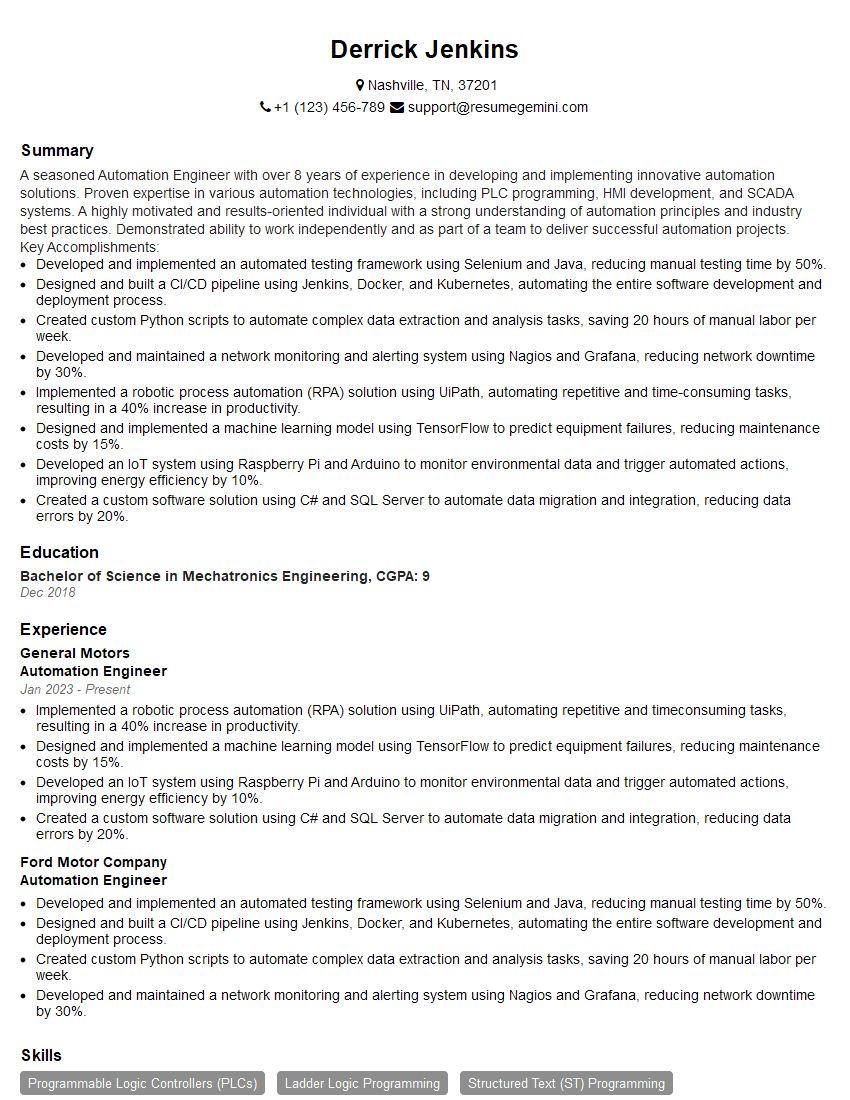
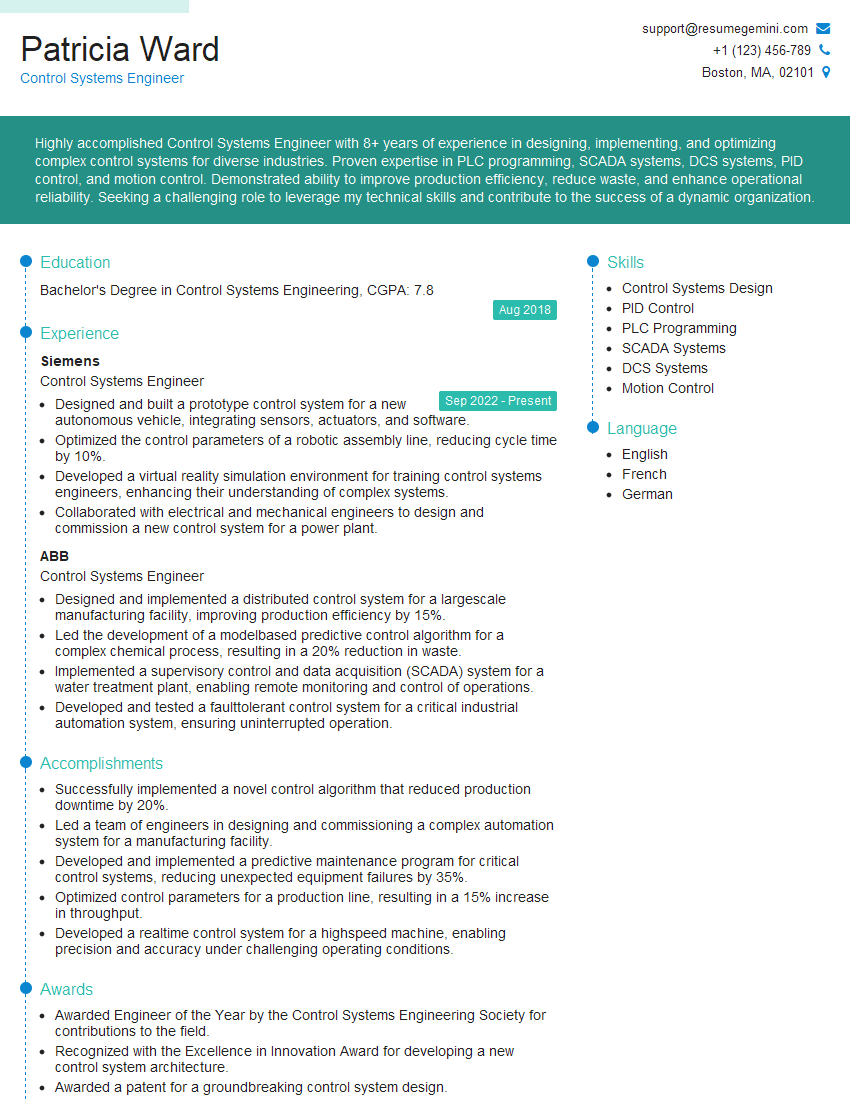
Mastering Gazebo Simulation Environment is crucial for a successful career in robotics, autonomous systems, and related fields. It demonstrates a strong understanding of fundamental robotics concepts and the ability to translate theoretical knowledge into practical applications. To significantly improve your job prospects, focus on building an ATS-friendly resume that highlights your skills and experience effectively. ResumeGemini is a trusted resource to help you craft a professional and impactful resume. Examples of resumes tailored to Gazebo Simulation Environment are available to guide you through this process.
Explore more articles
Users Rating of Our Blogs
Share Your Experience
We value your feedback! Please rate our content and share your thoughts (optional).
What Readers Say About Our Blog
Very informative content, great job.
good