Unlock your full potential by mastering the most common GCP Cloud Logging interview questions. This blog offers a deep dive into the critical topics, ensuring you’re not only prepared to answer but to excel. With these insights, you’ll approach your interview with clarity and confidence.
Questions Asked in GCP Cloud Logging Interview
Q 1. Explain the architecture of GCP Cloud Logging.
GCP Cloud Logging’s architecture is designed for scalability and reliability. At its core, it’s a highly distributed system. Log entries, originating from various GCP services or your own applications, are ingested by agents running on your infrastructure or within GCP. These agents then transmit the logs to Cloud Logging’s ingestion pipeline. This pipeline processes and validates the logs, ensuring data integrity. The logs are then stored in a highly available and durable storage system, optimized for fast retrieval and querying. Finally, the processed and indexed logs are available through the Cloud Logging UI, API, and command-line tools for analysis and monitoring.
Think of it like a sophisticated postal service: your applications (the senders) send logs (the letters) to various post offices (ingestion points). These post offices sort and deliver the letters (process and validate logs) to a central archive (storage system). You can then access this archive to retrieve specific letters (logs) based on your needs.
Q 2. How does GCP Cloud Logging handle high-volume log ingestion?
Cloud Logging handles high-volume log ingestion through a combination of techniques. Firstly, it employs a distributed architecture, meaning the ingestion process isn’t centralized, reducing bottlenecks. Secondly, it uses a buffered approach. Agents collect logs locally and periodically send batches to Cloud Logging, improving efficiency. Thirdly, the underlying storage is designed for massive scale, employing sharding and replication to handle massive ingestion rates without impacting performance. Finally, advanced techniques like sampling are available if you need to handle truly astronomical log volumes. Sampling lets you analyze a representative subset of your logs to gain insights without processing everything.
Imagine a busy airport: to manage the large number of incoming and outgoing flights, the airport uses multiple gates, organized runways, and efficient baggage handling systems. Cloud Logging utilizes similar strategies to efficiently process a large number of logs.
Q 3. Describe the different log entry types in GCP Cloud Logging.
Cloud Logging supports various log entry types, all structured as JSON. The core components are:
severity: Indicates the severity level of the log message (e.g., DEBUG, INFO, WARNING, ERROR, CRITICAL). This is crucial for prioritizing alerts and identifying critical issues.timestamp: The time the log entry was created. Essential for time-series analysis.logName: Identifies the source of the log. This usually reflects the application or service generating the logs.resource: Provides context about the resource generating the log, such as the VM instance or Kubernetes pod. This allows you to filter and analyze logs based on the resource type and ID.traceandspanId: These fields are used for distributed tracing, allowing you to link related log entries across multiple services.jsonPayload: Contains additional structured data about the event.
These elements combine to give a rich context to each log, making analysis much more powerful. For instance, by combining severity with resource, you can identify critical errors from a specific service immediately.
Q 4. What are sinks in GCP Cloud Logging and how are they used?
Sinks in Cloud Logging are powerful mechanisms that allow you to export your logs to other destinations. Think of them as pipelines directing log data to different locations for various purposes. For example, you can create a sink to export logs to BigQuery for advanced analytics, or to Pub/Sub to trigger downstream processes based on log events.
Common uses include:
- BigQuery export: For detailed analysis and querying of logs.
- Cloud Storage export: For archiving logs.
- Pub/Sub export: To trigger functions or workflows based on log events.
Creating a sink involves specifying the source (your log filter), the destination (BigQuery, Cloud Storage, etc.), and the desired formatting. This allows for a highly flexible and scalable way to manage log data. This is particularly useful for compliance reasons or when your needs extend beyond the standard Cloud Logging interface.
Q 5. How do you filter logs in GCP Cloud Logging using advanced log filters?
Advanced log filters in Cloud Logging leverage the power of the Advanced Logs Viewer and allow you to perform sophisticated filtering using various operators and functions. You can filter logs based on any field within the log entry, including the structured JSON payload. For example, you can filter logs based on severity level, timestamp, resource, specific values within the JSON payload, and more.
Example:
resource.type="gae_app" severity>=ERROR jsonPayload.user="john.doe"This filter retrieves logs from Google App Engine applications (resource.type="gae_app") with severity ERROR or higher (severity>=ERROR), where the user field in the JSON payload is “john.doe” (jsonPayload.user="john.doe"). The flexibility of advanced filters allows for powerful and precise log analysis, tailored to your specific monitoring and troubleshooting needs.
Q 6. Explain the concept of log-based metrics in GCP Cloud Logging.
Log-based metrics in Cloud Logging allow you to aggregate and summarize log data into time-series metrics that can be used in dashboards and monitoring systems. Instead of manually sifting through logs, you can create metrics that represent key performance indicators (KPIs) directly from your log entries. For instance, you can create a metric to count the number of error logs per minute, or to track the average latency of a specific operation.
This transforms log data from raw textual information into actionable insights visualized in graphs and dashboards, providing a quick overview of system health and performance. Think of it as creating summary statistics from raw data – making large amounts of information more digestible and actionable.
Q 7. How do you create and manage custom log metrics?
Custom log metrics are created by defining a filter that selects the relevant log entries and specifying an aggregation function (such as count, average, sum, etc.). This filter defines which log entries will contribute to the metric. The aggregation function determines how the selected log entries are combined to produce a single metric value. Cloud Logging then automatically calculates and updates the metric based on new incoming logs matching your filter.
For example, to create a metric counting the number of error logs from a specific service, you would create a filter selecting logs from that service with a severity level of ERROR and use the “count” aggregation function. You can then manage these custom metrics through the Cloud Logging UI or API, adjusting filters, aggregation functions, or even deleting metrics as needed. This allows you to monitor precisely the data important to you, tailoring your dashboards to specific operational requirements.
Q 8. How do you visualize logs and metrics using the Cloud Logging console?
The Cloud Logging console provides a powerful interface for visualizing logs and metrics. Think of it as a sophisticated search engine and dashboard combined. You can explore logs using a variety of filters and advanced queries, allowing you to pinpoint specific events. For visualization, the console offers:
- Log entries display: The primary view shows individual log entries with timestamps, severity levels, and the log message itself. You can easily sort and filter these entries based on various criteria like resource type, severity, timestamp, and custom fields.
- Charts and graphs: Cloud Logging generates charts and graphs based on your log data, giving you a visual representation of trends and patterns. For instance, you can see the number of errors over time, or the distribution of request latency. This is crucial for spotting anomalies or performance bottlenecks.
- Interactive exploration: The console’s interactive nature allows you to drill down into specific log entries, examining their details and context. Clicking on a data point in a chart, for example, will often filter the log entries below to show you the underlying data.
- Pre-built dashboards: Google provides pre-built dashboards to give you a quick overview of key metrics and log events, especially useful for monitoring the overall health of your applications.
For example, if you’re monitoring application performance, you might filter logs by severity level (ERROR) and see a chart showing the number of errors over the last 24 hours. A sudden spike in errors would immediately highlight a potential problem.
Q 9. Describe different ways to export logs from GCP Cloud Logging.
Exporting logs from Cloud Logging is essential for long-term storage, analysis using external tools, or compliance requirements. Several methods exist:
- BigQuery export: This is the most common and robust method. Logs are streamed to BigQuery, a fully managed data warehouse, allowing for powerful analytics and querying capabilities using SQL. You can define export destinations based on log filters, providing flexibility in what data you archive.
- Cloud Storage export: You can export logs to Cloud Storage in various formats like JSON or text. This is suitable for situations needing offline access or analysis with specific tools that don’t integrate directly with BigQuery. Remember to handle the storage costs associated with this method.
- Pub/Sub export: Logs can be streamed to Pub/Sub, a real-time messaging service. This allows for near real-time processing and routing of logs to other systems for immediate analysis or action (e.g., triggering alerts or sending logs to a SIEM).
- Third-party integrations: Cloud Logging integrates with various third-party logging and analytics tools via its API, enabling you to export logs into your existing infrastructure.
Imagine you need to analyze your application logs over a longer period than what Cloud Logging’s retention policies offer. Exporting to BigQuery provides a permanent, highly scalable solution for this. Or perhaps you require real-time anomaly detection. Pub/Sub can feed log data to a custom anomaly detection system that then triggers alerts.
Q 10. How do you use Cloud Logging to troubleshoot application issues?
Cloud Logging is invaluable for troubleshooting application issues. It provides a detailed audit trail of your application’s execution, revealing the sequence of events leading up to a problem. The key is to structure your logs effectively.
- Structured logging: Instead of plain text messages, use structured logging with key-value pairs (JSON is ideal). This allows efficient filtering and querying, crucial for finding relevant information amidst vast log volumes.
- Contextual information: Include relevant context in your logs, such as request IDs, user IDs, and timestamps. This helps trace issues across different components of your application.
- Correlation IDs: Assign unique correlation IDs to requests that span multiple services. This helps piece together the entire request flow when investigating distributed system errors.
- Advanced filtering and querying: Use Cloud Logging’s advanced query language to filter logs based on specific criteria, pinpoint errors, and understand patterns. The query syntax supports sophisticated filtering, enabling you to isolate the specific events contributing to the problem.
For instance, if your application reports intermittent failures, you can search logs for error messages containing specific keywords and filter by request ID to pinpoint the problematic requests. The associated timestamps help you understand the timeline of the error.
Q 11. What are some best practices for designing a robust logging strategy for GCP?
Designing a robust logging strategy for GCP involves careful consideration of several factors:
- Structured logging: Use structured logs (JSON) to facilitate efficient querying and analysis. Include key-value pairs that provide essential context.
- Severity levels: Utilize standardized severity levels (e.g., DEBUG, INFO, WARNING, ERROR, CRITICAL) to prioritize logs and easily identify critical issues.
- Log rotation and retention policies: Implement appropriate log rotation and retention policies to manage storage costs and comply with regulations. Older logs can be archived to cheaper storage options.
- Centralized logging: Aggregate logs from all your applications and services into a central location (Cloud Logging) for unified monitoring and analysis.
- Monitoring and alerting: Set up monitoring and alerting based on key metrics derived from your logs, providing early warning of potential problems.
- Security considerations: Avoid logging sensitive data, and use appropriate security controls to protect your log data.
- Cost optimization: Choose appropriate log retention policies and leverage features like log sinks to efficiently manage costs.
Think of your logging strategy as an insurance policy. You invest upfront to avoid costly investigations down the road.
Q 12. How does GCP Cloud Logging integrate with other GCP services?
Cloud Logging integrates seamlessly with many other GCP services, enhancing its capabilities and providing a holistic monitoring solution:
- Cloud Monitoring: Integrates directly with Cloud Monitoring to create dashboards and alerts based on log data metrics. You can define custom metrics from your logs and visualize them alongside other system metrics.
- Cloud Functions: Trigger Cloud Functions based on specific log events, enabling real-time responses to critical situations (e.g., automatically restarting a failing service).
- BigQuery: Allows exporting logs to BigQuery for advanced analytics and reporting. This integration opens the door to complex queries and data exploration beyond what the Logging console provides.
- Cloud Composer (formerly Cloud Dataflow): Process logs using data pipelines built with Cloud Composer to perform complex analysis and transformations.
- Security Command Center: Cloud Logging’s data feeds into Security Command Center, enabling security information and event management (SIEM) capabilities.
For example, you can set up an alert in Cloud Monitoring that triggers an email when the number of error logs from a specific service exceeds a threshold. This leverages the close integration between Logging and Monitoring for proactive problem management.
Q 13. Explain the role of logging in security monitoring and incident response.
Logging plays a crucial role in security monitoring and incident response. It provides an auditable record of system events, enabling security teams to detect, investigate, and respond to security incidents.
- Threat detection: Logs contain valuable clues about potential security breaches, like failed login attempts, unauthorized access, or malicious activities. Analyzing logs for suspicious patterns is fundamental to threat detection.
- Incident investigation: When a security incident occurs, logs provide crucial context, allowing security teams to reconstruct the sequence of events and identify the root cause of the attack.
- Forensic analysis: In the event of a security breach, detailed logs are essential for forensic analysis to determine the extent of the damage and identify the attacker’s methods.
Consider a scenario where a data breach occurs. Cloud Logging records will be essential in pinpointing the compromised systems, the time of the breach, and the data that might have been accessed. This information is critical in containing the breach and taking appropriate remedial measures.
Q 14. How do you monitor and manage the cost of GCP Cloud Logging?
Managing the cost of Cloud Logging involves careful planning and optimization. The primary cost drivers are log ingestion and storage. Here’s how to monitor and manage costs:
- Log retention policies: Define appropriate log retention policies to minimize storage costs. Delete logs that are no longer needed for analysis or compliance purposes. Consider archiving less frequently accessed logs to cheaper storage options.
Proactive cost management is vital. Regularly review your retention policies and filtering rules to ensure they are aligned with your needs and minimizing unnecessary expenditure.
Q 15. Compare and contrast GCP Cloud Logging with other log management solutions.
GCP Cloud Logging is a fully managed log management service, but it’s not the only game in town. Let’s compare it to other solutions. Key differentiators often revolve around integration, scalability, pricing, and specific features. Cloud Logging excels in seamless integration with other GCP services, offering unparalleled scalability and leveraging GCP’s global infrastructure. This makes it incredibly efficient for large-scale deployments and applications running across multiple regions.
Cloud Logging vs. Other Solutions:
- Scalability and Cost: Cloud Logging scales automatically with your needs, adjusting to changes in log volume without manual intervention. Pricing is generally competitive, often based on storage and retrieval, making it cost-effective for diverse workloads. Other solutions may have different pricing models or scaling limitations.
- Integration with GCP Ecosystem: The tight integration with other GCP services (Compute Engine, Kubernetes Engine, App Engine, etc.) is a major advantage. Logs are automatically collected and indexed, simplifying monitoring and troubleshooting. Other solutions might require more manual configuration and integration efforts.
- Features: Cloud Logging provides advanced features like log filtering, advanced log analysis using Log-based Metrics, and log-based alerting. While many competitors offer similar functionalities, the specifics, user experience, and integration with other tools may vary significantly.
- Data Security and Compliance: Cloud Logging inherits the robust security and compliance features of GCP, ensuring data protection and adherence to various regulations (like HIPAA, PCI DSS, etc.). The level of security and compliance features offered by other solutions will differ.
Example: Imagine a large e-commerce platform. Cloud Logging’s ability to efficiently handle massive log volumes generated during peak shopping seasons, coupled with its tight integration with other GCP services monitoring the application’s health, provides a significant advantage over less scalable or less integrated solutions.
Career Expert Tips:
- Ace those interviews! Prepare effectively by reviewing the Top 50 Most Common Interview Questions on ResumeGemini.
- Navigate your job search with confidence! Explore a wide range of Career Tips on ResumeGemini. Learn about common challenges and recommendations to overcome them.
- Craft the perfect resume! Master the Art of Resume Writing with ResumeGemini’s guide. Showcase your unique qualifications and achievements effectively.
- Don’t miss out on holiday savings! Build your dream resume with ResumeGemini’s ATS optimized templates.
Q 16. What are the different levels of logging severity?
Cloud Logging uses severity levels to categorize log entries based on their importance and urgency. This allows for prioritization in monitoring and alerting. The severity levels are hierarchical, progressing from least to most critical:
- DEBUG: Detailed information, useful for developers during debugging. Usually not displayed in production monitoring dashboards unless specifically configured.
- INFO: Informational messages indicating normal operation. These are often used to track application events.
- NOTICE: Events that may require attention but are not necessarily errors. Often used for significant state changes.
- WARNING: Indicates a potential problem; the application is still functional but needs monitoring. Might trigger alerts in many monitoring configurations.
- ERROR: Indicates a significant problem; the application is experiencing errors impacting functionality.
- CRITICAL: Indicates a critical failure; the application is severely compromised or unavailable. Should always trigger immediate alerts.
- ALERT: Similar to CRITICAL, but often used for urgent situations needing immediate human intervention.
- EMERGENCY: The most severe level, indicating system-wide failure requiring immediate action. Very rarely used.
Practical Application: Imagine a web server. A DEBUG log might record a successful database query, while an ERROR log would indicate a failed request. The severity levels let you focus on critical issues while still retaining all the detailed information needed for troubleshooting.
Q 17. How do you configure log routing rules for efficient log management?
Log routing rules in Cloud Logging allow you to control where your logs are sent. This is crucial for efficient management, enabling separation of logs based on source, content, or severity, for example. You can route logs to different destinations, like BigQuery for analytics, Pub/Sub for real-time processing, or other logging systems.
Configuring Log Routing Rules: This is done within the Cloud Logging console or via the Cloud Logging API. You define sinks, which specify the source filter, destination, and any transformations. Filters use advanced expression syntax to select specific log entries.
Example: Let’s say you want to route all ERROR and CRITICAL logs from your application servers to a separate BigQuery dataset for detailed analysis, while all INFO logs go to a cheaper storage location. You would create two sinks:
- Sink 1 (BigQuery): Filter:
severity>=ERROR, Destination: BigQuery dataset. - Sink 2 (Cloud Storage): Filter:
severity=INFO, Destination: Cloud Storage bucket.
Best Practices:
- Use clear and descriptive sink names.
- Start with simple filters and gradually add complexity as needed.
- Regularly review and update your routing rules to ensure efficiency and relevance.
Practical Application: This allows for separate analysis of critical errors, performance monitoring, security auditing, and cost optimization. High-priority logs receive immediate attention, while less critical logs are stored cost-effectively.
Q 18. Describe different methods for monitoring the performance of Cloud Logging.
Monitoring Cloud Logging’s performance ensures its efficiency and effectiveness. Several methods exist:
- Monitoring Log Ingestion Rate: Track the volume of logs ingested per unit time. A significant drop indicates a potential issue with log collection or agent configuration.
- Checking Sink Performance: Monitor the latency and throughput of log sinks. Slow performance may point to issues with the destination service or network connectivity.
- Analyzing Log Search Latency: Measure the time taken for log searches to complete. High latency can impact your ability to quickly troubleshoot issues. Consider using advanced query features efficiently to limit search scope.
- Using Monitoring Tools: Integrate Cloud Logging with other GCP monitoring tools like Cloud Monitoring. This provides dashboards and alerts for various metrics related to ingestion rate, latency, and storage usage.
- Reviewing Logs of the Logging Agent Itself: The logging agent itself generates logs that provide insights into its own health and operation. This can help troubleshoot agent-specific issues.
Example: If the ingestion rate suddenly drops, you could investigate potential bottlenecks in your application’s logging configuration or network connectivity issues.
Q 19. How do you troubleshoot connectivity issues with Cloud Logging?
Troubleshooting connectivity issues with Cloud Logging involves a systematic approach.
- Verify Agent Installation and Configuration: Ensure the Cloud Logging agent is correctly installed and configured on your instances. Check the agent’s logs for any errors.
- Check Network Connectivity: Confirm your instances can reach the Cloud Logging service. This might involve checking firewall rules, network policies, and DNS resolution.
- Inspect Agent Logs: The logging agent itself generates logs. These logs provide detailed information about its status, connections, and any errors encountered.
- Examine Cloud Logging API Logs: If using the API directly, review its logs for any errors related to authentication or authorization issues.
- Check for Rate Limits: If you’re ingesting a very large number of logs, you might be hitting rate limits. Review the Cloud Logging quotas and adjust your ingestion strategy if needed.
- Verify Authentication: Ensure the correct credentials are used for authenticating with Cloud Logging. Incorrect credentials will lead to connection failures.
- Check for Transient Network Issues: If the problem is intermittent, it could be due to temporary network glitches. Use tools like
pingortracerouteto check connectivity.
Example: If the agent logs show an error related to a specific port being blocked, you would adjust firewall rules to allow traffic on that port.
Q 20. How do you ensure log data is secure and compliant with regulations?
Securing and ensuring compliance of log data in Cloud Logging is paramount. Several key strategies exist:
- IAM Roles and Permissions: Use IAM (Identity and Access Management) to control access to your Cloud Logging resources. Grant only necessary permissions to users and services.
- Encryption: Leverage Cloud Logging’s built-in encryption capabilities to protect your log data both in transit and at rest. This helps meet regulatory requirements like GDPR or HIPAA.
- Data Retention Policies: Define clear data retention policies to manage storage costs and meet compliance needs. This could involve setting retention periods for different log types.
- Log Auditing: Monitor and audit all access to Cloud Logging resources to detect unauthorized activities.
- Compliance Certifications: Ensure that GCP’s compliance certifications (like SOC 2, ISO 27001) align with your regulatory obligations.
- Data Masking and De-identification: If required, apply data masking or de-identification techniques to sensitive information in your logs to prevent breaches of privacy.
Example: For a healthcare application subject to HIPAA, you’d ensure logs are encrypted at rest and in transit, implement strict access controls via IAM, and maintain detailed audit logs of all activities.
Q 21. Explain the concept of log aggregation in GCP Cloud Logging.
Log aggregation in Cloud Logging is the process of centralizing logs from multiple sources into a single repository. This simplifies monitoring, analysis, and troubleshooting by providing a unified view of your application’s activity. Cloud Logging automatically aggregates logs from various GCP services and custom applications. You can define custom filters to collect logs from specified sources and apply advanced analysis techniques.
How Log Aggregation Works: Cloud Logging agents or integrations collect logs from various sources. These logs are ingested into Cloud Logging, where they’re indexed for efficient searching and analysis. This indexing allows you to search and filter logs based on numerous criteria such as timestamps, severity levels, resource types, and custom log attributes.
Benefits of Log Aggregation:
- Centralized Monitoring: Gain a holistic view of your entire system’s health by consolidating logs from various components.
- Simplified Troubleshooting: Quickly pinpoint the root cause of issues by correlating logs across different sources.
- Improved Security: Efficiently detect security breaches by analyzing logs from various security-related systems.
- Enhanced Performance Analysis: Monitor application performance across multiple services to identify and resolve bottlenecks.
Example: Imagine your application consists of a web server, an application server, and a database. Log aggregation combines logs from all three into a single place, simplifying your troubleshooting efforts by enabling you to correlate events across the different system components.
Q 22. How do you use Cloud Logging to analyze trends and patterns in your logs?
Analyzing trends and patterns in Cloud Logging involves leveraging its powerful query language and visualization tools. Think of it like detective work, but instead of clues, we have log entries. We use filters and aggregations to sift through massive amounts of data, uncovering insights that might otherwise be hidden.
For instance, we might want to see if error rates for a specific service are increasing over time. We can achieve this by writing a log-based metric query that counts errors over various time intervals, such as hourly or daily. This allows us to spot upward trends that might indicate a problem. Another scenario is identifying peak usage times by aggregating log entries based on timestamps. This helps with capacity planning and resource allocation. Cloud Logging’s charting capabilities then visualize these trends, making it easy to identify patterns and potential issues.
Example: Let’s say we want to see the number of HTTP 5xx errors (server errors) over the past 24 hours. We’d use a query similar to this (the exact syntax might vary slightly depending on the specific log structure):
resource.type="gae_app" severity>=ERROR http_response_code:5xx | count(*)This query filters for logs from Google App Engine applications (resource.type="gae_app"), focuses on errors and above (severity>=ERROR), pinpoints HTTP 5xx errors (http_response_code:5xx), and finally counts them (count(*)). The result would be a graph showing the number of 5xx errors over time, revealing any trends.
Q 23. Describe the role of log analysis in application performance optimization.
Log analysis plays a crucial role in application performance optimization by providing insights into the application’s behavior and identifying bottlenecks. Imagine your application as a complex machine; logs are the diagnostic reports from each component. Analyzing these reports helps pinpoint exactly where the machine is struggling.
For example, slow response times could be due to database queries, network latency, or inefficient code. By analyzing logs correlated with performance metrics, we can determine the root cause. We might find that a specific database query is taking excessively long, leading to slowdowns. This information allows developers to optimize the query or database schema to improve performance. Similarly, frequent exceptions or error messages within logs provide crucial clues to fix bugs and improve the application’s reliability.
In essence, log analysis empowers us to move from reactive problem-solving (fixing issues after they occur) to proactive optimization (identifying and addressing potential problems before they impact users).
Q 24. How do you handle log rotation and retention policies in Cloud Logging?
Cloud Logging handles log rotation and retention automatically, but understanding the configuration is vital for cost management and compliance. Log rotation refers to the process of moving older log data to cheaper storage or deleting it to prevent storage costs from spiraling out of control. Retention policies define how long logs are kept.
Cloud Logging offers different log buckets with customizable retention policies. You can specify a retention period (e.g., 30 days, 90 days, or even indefinite). Logs exceeding the retention period are automatically deleted. To manage this, you can navigate to the Cloud Logging console and adjust the settings for each log bucket. It’s important to strike a balance—keeping logs long enough for troubleshooting and analysis, but not so long that costs become prohibitive.
Example: For debugging purposes, you might keep logs from your production application for 90 days, while less critical logs from your development environment could be retained for only 30 days. Proper configuration of these policies prevents the accumulation of unnecessary data while guaranteeing sufficient historical context for effective troubleshooting.
Q 25. Explain the importance of structured logging for efficient log analysis.
Structured logging is incredibly important for efficient log analysis. Instead of unstructured text logs (think of a wall of text), structured logging organizes log entries into key-value pairs or JSON. This structured data is like a well-organized spreadsheet compared to a chaotic pile of papers.
Imagine trying to find a specific error in a large text log file – it’s like finding a needle in a haystack. But with structured logs, you can easily filter and search based on specific fields (e.g., error type, user ID, timestamp). This drastically speeds up analysis. The data becomes directly queryable and analyzable by advanced tools.
Example: Instead of logging "Error processing order 1234", structured logging might look like this (in JSON format):
{ "event": "order_processing_error", "order_id": 1234, "error_message": "Insufficient inventory", "timestamp": "2024-10-27T10:00:00Z" }This structured format allows for efficient filtering and aggregation based on order_id, error_message, or timestamp, resulting in quicker identification of issues.
Q 26. How can you leverage Cloud Logging for anomaly detection?
Cloud Logging facilitates anomaly detection using its advanced querying and metrics capabilities. Anomaly detection is about identifying unusual patterns or behaviors in your logs that might signal problems. This isn’t simply about error counts; it’s about recognizing deviations from the norm.
One approach involves creating log-based metrics that track key performance indicators (KPIs) and then using anomaly detection tools (either built into Cloud Logging or integrated third-party services). For instance, if you notice a sudden spike in latency or a significant drop in request throughput, it’s an anomaly that deserves investigation. Another technique is employing statistical methods (e.g., moving averages) to identify significant deviations from established baselines.
Example: You might monitor the number of successful login attempts per minute. A sudden and unexpected drop could indicate a security breach or a service outage. Cloud Logging’s alerting capabilities can be configured to notify you when such anomalies are detected, allowing for prompt response and mitigation.
Q 27. Discuss the integration of Cloud Logging with monitoring tools like Prometheus and Grafana.
Cloud Logging integrates seamlessly with monitoring tools like Prometheus and Grafana, enriching your monitoring capabilities. Think of it as bringing together different pieces of the puzzle to get a complete picture of your application’s health.
The integration typically involves exporting logs from Cloud Logging to a format that Prometheus understands (usually through the use of exporters). Prometheus then scrapes this data, creating metrics that you can visualize and analyze in Grafana. This combination enables correlating log events with performance metrics. For instance, you could see a graph of request latency in Grafana and then drill down into the associated logs in Cloud Logging to understand the root cause of any performance dips.
This combined approach gives you a holistic view—performance metrics from Prometheus and Grafana, context from Cloud Logging—allowing for a more efficient debugging and troubleshooting process.
Key Topics to Learn for GCP Cloud Logging Interview
- Core Concepts: Understand the fundamental architecture of Cloud Logging, including sinks, filters, and log entries. Grasp the different log types and their sources.
- Log Management: Explore practical applications like centralizing logs from various GCP services, implementing log routing and filtering for efficient analysis, and setting up alerts based on log patterns.
- Monitoring and Troubleshooting: Learn how to use Cloud Logging to monitor application performance, identify errors, and debug issues. Practice using advanced filtering and querying techniques to isolate specific events.
- Metrics and Monitoring Integration: Understand how Cloud Logging integrates with other GCP monitoring tools like Cloud Monitoring, and how to leverage log data for generating custom metrics.
- Security and Compliance: Explore log retention policies, access control, and compliance considerations related to Cloud Logging. Understand how to secure your log data and ensure auditability.
- Advanced Features: Familiarize yourself with advanced features such as log-based metrics, exporting logs to external systems, and using Cloud Logging’s APIs for automation.
- Cost Optimization: Understand how to optimize your Cloud Logging costs by managing log volume, retention policies, and resource usage.
Next Steps
Mastering GCP Cloud Logging is crucial for career advancement in cloud computing. Proficiency in this area demonstrates valuable skills in monitoring, troubleshooting, and managing complex systems. To significantly increase your job prospects, create a compelling and ATS-friendly resume that highlights your expertise. We strongly encourage you to utilize ResumeGemini to build a professional and effective resume tailored to your skills and experience. Examples of resumes specifically tailored for GCP Cloud Logging roles are available to help guide you.
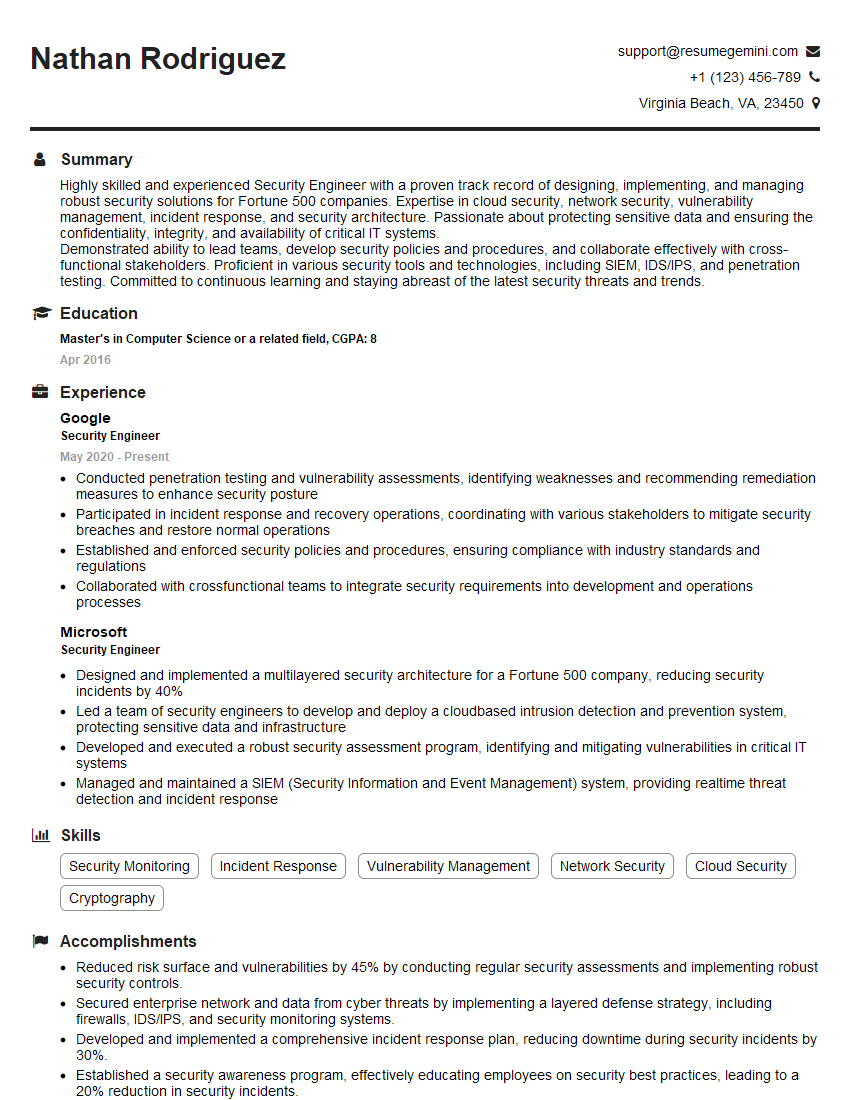
Security Engineer Resume Sample
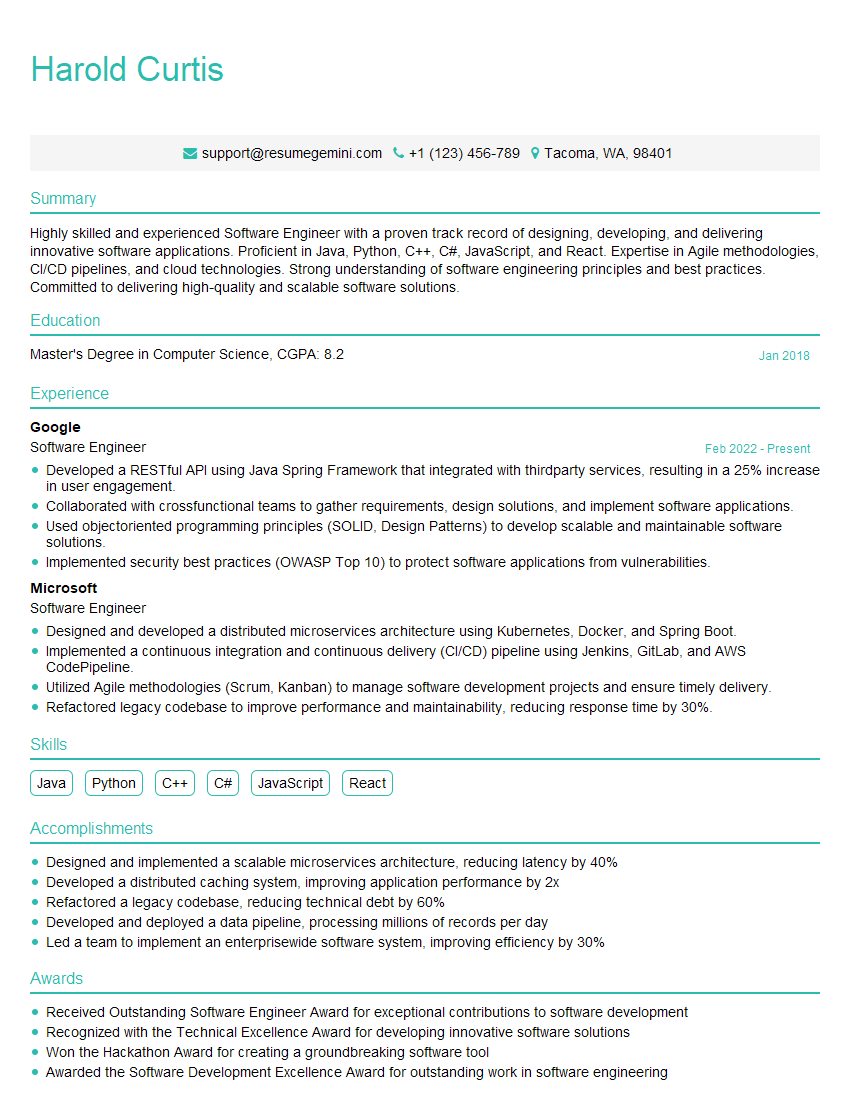
Software Engineer Resume Sample
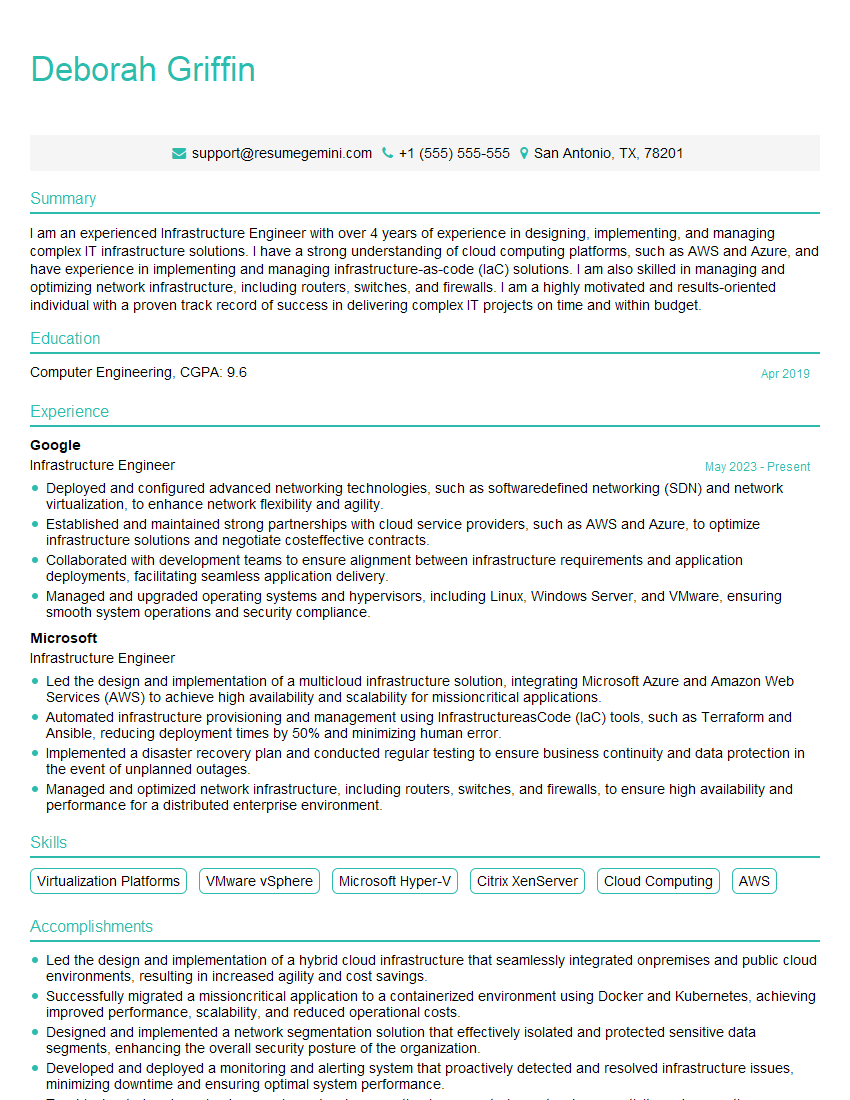
Infrastructure Engineer Resume Sample
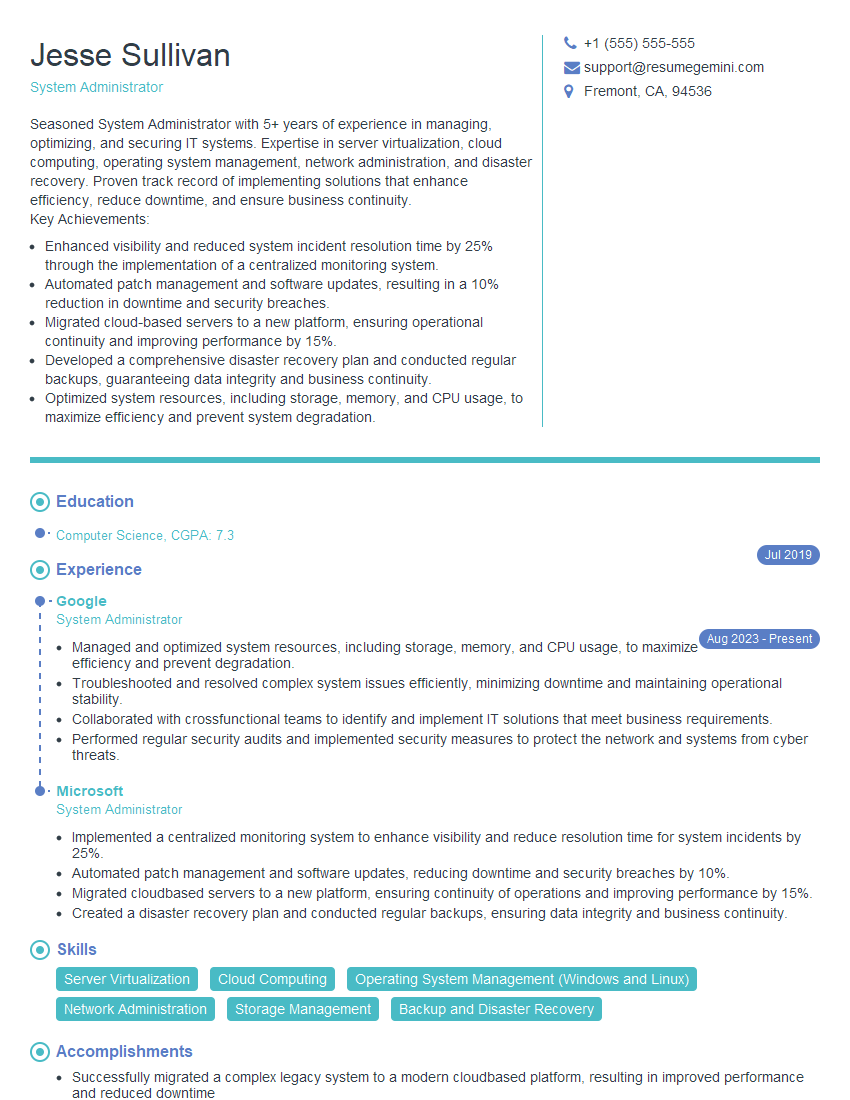
System Administrator Resume Sample
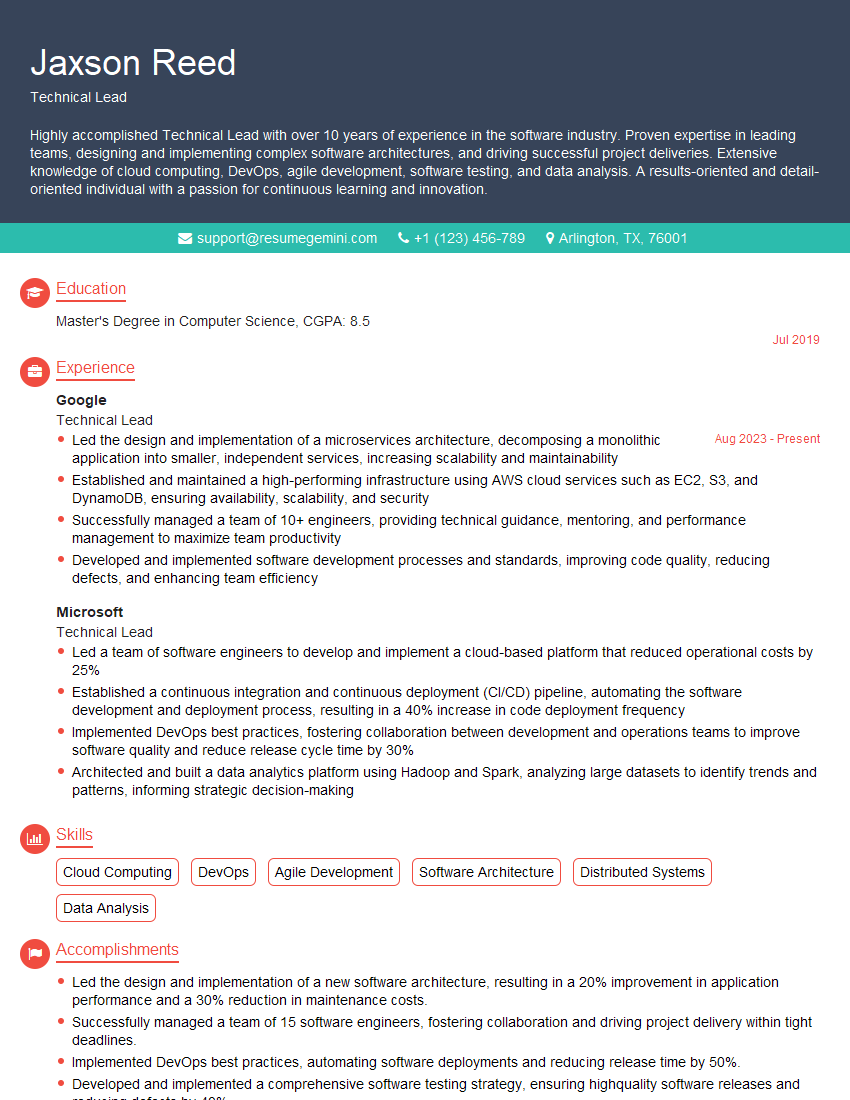
Technical Lead Resume Sample

DevOps Engineer Resume Sample
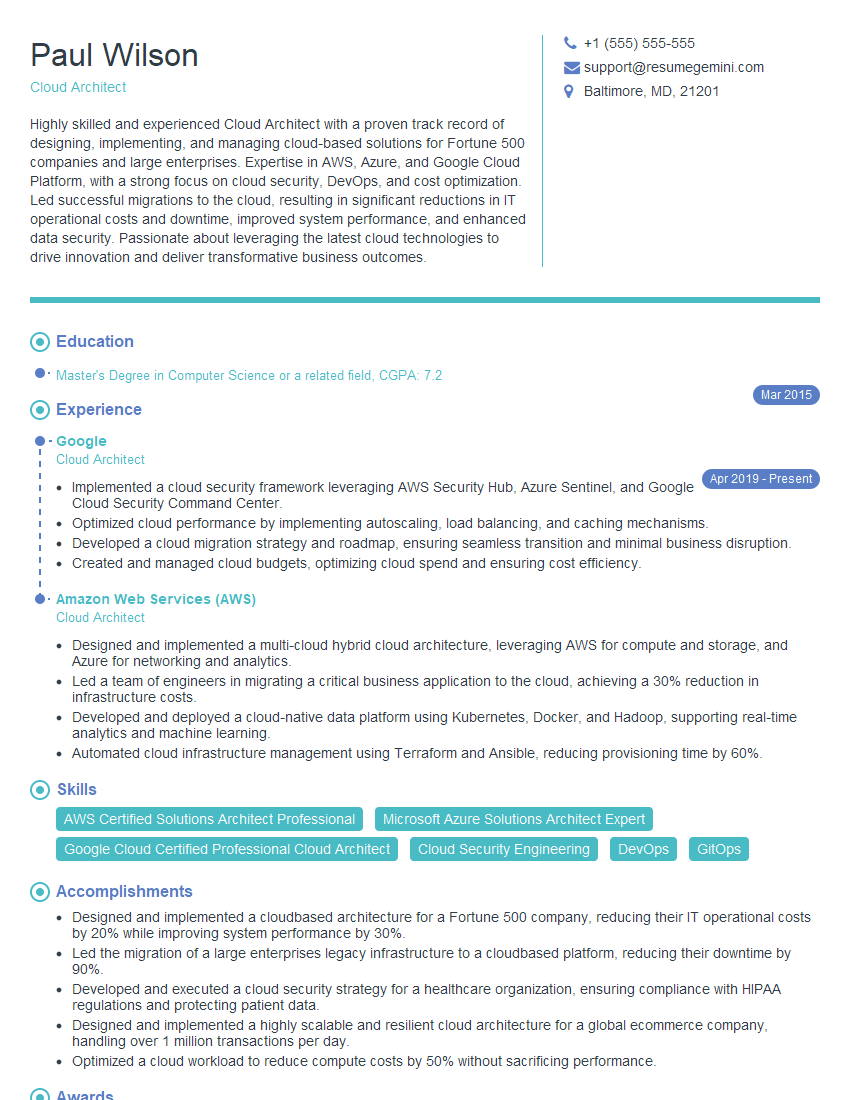
Cloud Architect Resume Sample
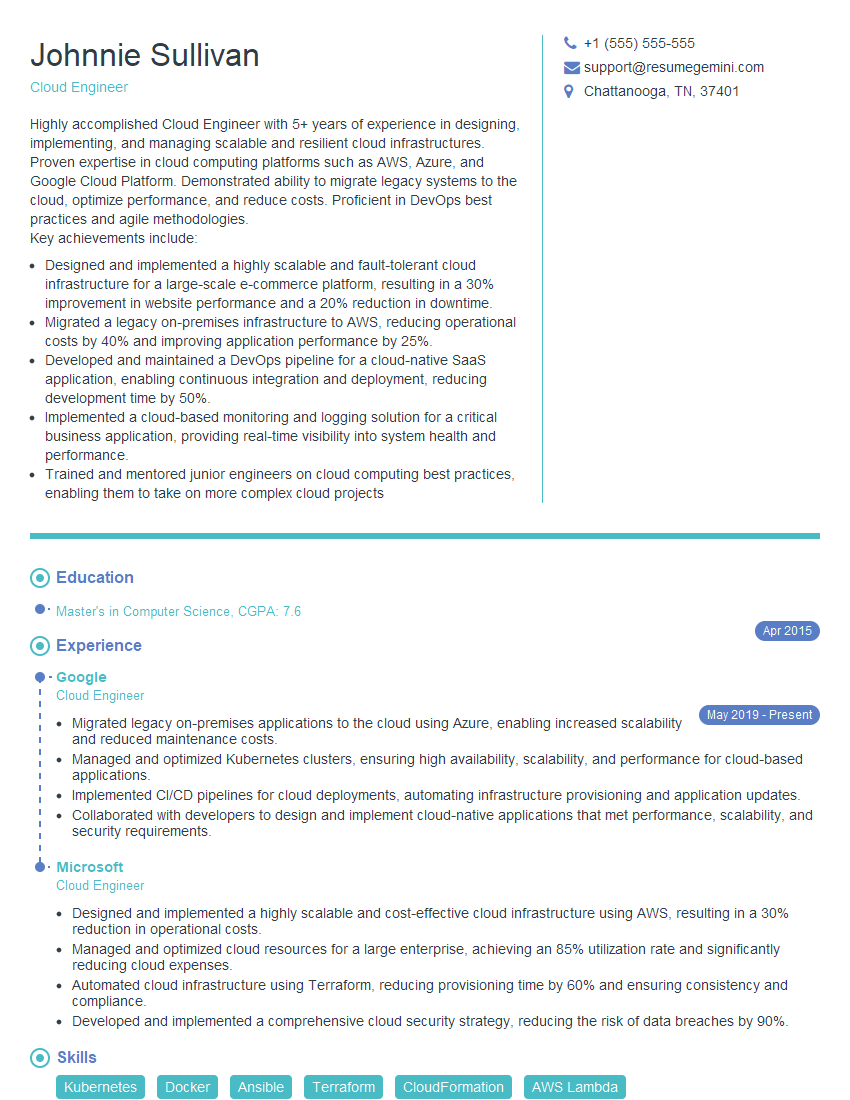
Cloud Engineer Resume Sample
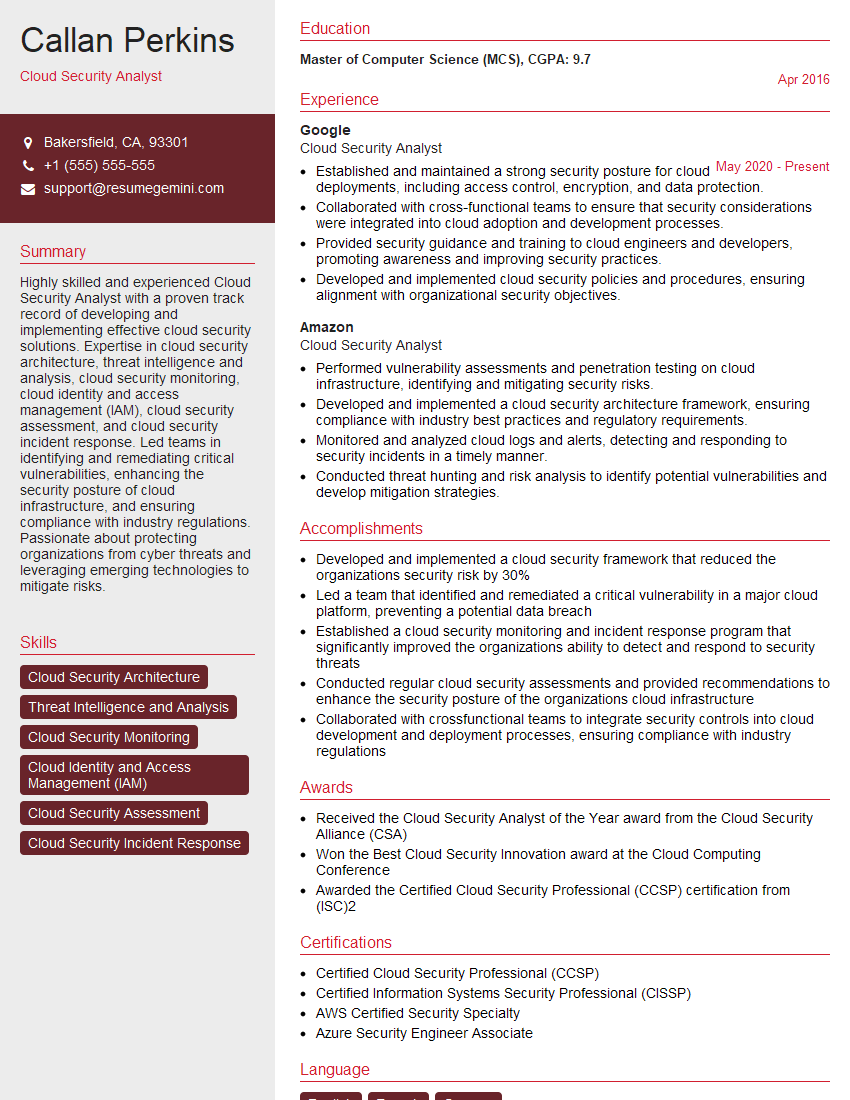
Cloud Security Analyst Resume Sample
Cloud Security Engineer Resume Sample
Data Engineer Resume Sample
Explore more articles
Users Rating of Our Blogs
Share Your Experience
We value your feedback! Please rate our content and share your thoughts (optional).
What Readers Say About Our Blog
Very informative content, great job.
good