Cracking a skill-specific interview, like one for GSuite, requires understanding the nuances of the role. In this blog, we present the questions you’re most likely to encounter, along with insights into how to answer them effectively. Let’s ensure you’re ready to make a strong impression.
Questions Asked in GSuite Interview
Q 1. Explain the difference between Google Drive, Google Docs, Google Sheets, and Google Slides.
Google Drive, Docs, Sheets, and Slides are all part of the G Suite ecosystem, but they serve distinct purposes. Think of Google Drive as the central storage location – your online hard drive. It’s where you store all your files, including those created in Docs, Sheets, and Slides.
Google Docs is a word processor, analogous to Microsoft Word. You use it to create and edit documents like letters, reports, and essays. For example, you might use Docs to write a project proposal for your team.
Google Sheets is a spreadsheet program similar to Microsoft Excel. It’s excellent for data organization, analysis, and calculations. Imagine using Sheets to track project budgets or analyze sales figures. You can create charts and graphs directly within Sheets to visualize your data.
Google Slides is a presentation software program like Microsoft PowerPoint. You’d use it to create compelling presentations for meetings or training sessions. For example, you could use Slides to present quarterly earnings to investors.
In short: Drive stores, Docs writes, Sheets calculates, and Slides presents.
Q 2. How do you manage user permissions and access control in GSuite?
Managing user permissions and access control in G Suite is crucial for security and collaboration. It’s all handled through the Google Admin console. You can control access at various levels, from individual users to entire organizational units (OUs).
For example, you can grant specific users ‘editor’ access to a document, allowing them to modify it, while others might only have ‘viewer’ access, allowing them to see but not change the content. You can also set up sharing permissions for individual files, folders, or even entire Google Drive sections.
Beyond basic access levels, G Suite offers advanced controls. You can create custom roles with specific permissions, and enforce settings like two-factor authentication (2FA) for enhanced security. Using OUs allows for efficient management of permissions for large groups of users; you can easily apply policies to entire departments or teams.
Imagine a scenario where you need to share a sensitive budget document. You would use the granular permission controls to share it only with specific team members who need access, restricting others. This approach ensures confidentiality and prevents unauthorized changes.
Q 3. Describe your experience with GSuite’s security features.
G Suite boasts a robust suite of security features. Data encryption both in transit and at rest is a fundamental aspect; your data is protected from unauthorized access, even if a device is lost or stolen. Data Loss Prevention (DLP) tools help prevent sensitive information from leaving the organization, for instance, by blocking emails containing credit card numbers. Intrusion detection systems monitor for suspicious activity, and access controls, as discussed previously, limit who can access what.
Multi-factor authentication (MFA) adds an extra layer of protection, requiring users to verify their identity using multiple methods, significantly reducing the risk of unauthorized logins. Audit logging provides a detailed record of all user actions within the system, facilitating investigations and compliance audits.
Furthermore, G Suite integrates seamlessly with other security tools and platforms. This allows for a comprehensive security posture by combining G Suite’s capabilities with other systems. For example, we often integrate it with our organization’s Security Information and Event Management (SIEM) system for broader threat detection and response.
Q 4. How would you troubleshoot a user’s inability to access their GSuite account?
Troubleshooting a user’s inability to access their G Suite account follows a structured approach. First, I’d verify the user’s credentials – ensuring the correct username and password are used. Next, I would check if the user account is still active and hasn’t been accidentally suspended.
If the problem persists, I’d investigate whether the user is experiencing network connectivity issues; a simple network test could determine if the user’s internet connection is functioning. If the network is fine, I would check the user’s browser settings – ensuring that cookies and JavaScript are enabled, as they are crucial for proper G Suite functionality. I’d also examine browser extensions or add-ons that might be interfering. In some cases, using an incognito or private browsing mode can resolve browser-related conflicts.
If all else fails, I’d check the G Suite admin console for any account-specific restrictions or policies that might be preventing access. Finally, I would engage with the G Suite support team if necessary for advanced troubleshooting. I always document every step in the troubleshooting process to maintain a clear record and facilitate future investigations.
Q 5. What are the different types of Google Groups and how are they used?
Google Groups provides a way to organize users for communication and collaboration. There are several types:
- Basic Groups: These are simple groups for email distribution. You could create a group for announcements to all employees, where emails are sent to every member. Imagine using a ‘team-updates’ group for sharing project information.
- Collaborative Inboxes: These are groups that share a single inbox. Multiple users can access and respond to emails from a shared address. This is useful for support teams, customer service, or shared project communications where multiple individuals handle the same inbox.
- Security Groups: These groups are primarily used for managing access permissions. You could use a group like ‘Marketing Team’ to easily grant access to specific G Suite resources to all its members. This simplifies permissions management compared to managing each user individually.
The type of group you create depends on its intended use. For simple announcements, a basic group suffices. For shared responsibility, a collaborative inbox is more appropriate. For access control, security groups are essential.
Q 6. How do you manage storage quotas in GSuite?
Managing storage quotas in G Suite is done through the Google Admin console. Each user, and the organization as a whole, has a specific amount of storage space allocated. The admin can monitor storage usage and set policies to manage it. This includes setting alerts when storage reaches a specific threshold, allowing for proactive management.
The admin can adjust individual user quotas or implement organizational-wide limits. They can also delete or archive unused files to free up space, or even explore options like upgrading the organization’s storage plan. Regular audits of data, identifying and deleting outdated files, are vital for storage optimization.
For example, if the organization is nearing its storage limit, the admin might analyze user storage usage, identifying users consuming the most space. They might then proactively work with those users to free up space or adjust their quotas accordingly. Clear communication and storage usage awareness are key elements in successful quota management.
Q 7. Explain your experience with Google Calendar scheduling and resource management.
Google Calendar is a powerful tool for scheduling and resource management. It enables individuals and teams to schedule meetings, appointments, and events efficiently. Its robust features extend to resource management, allowing the administrator to reserve resources such as conference rooms or equipment.
I have extensive experience setting up and managing Google Calendar resources, including defining resource availability, access permissions and creating complex scheduling rules. For example, I’ve configured calendars to automatically block out time for regular meetings, preventing double-booking. This is especially useful for shared resources like meeting rooms.
Furthermore, Google Calendar integrates well with other G Suite applications, enabling seamless integration with emails and documents. The calendar’s notification system reminds users of upcoming events and appointments. The resource management features within Google Calendar allow organizations to optimize their resource utilization and minimize conflicts in scheduling, which is crucial for efficiency and smooth operations.
Q 8. How would you migrate data from another platform to GSuite?
Migrating data to G Suite from another platform involves a strategic approach, considering factors like data volume, type, and the source system. There isn’t a one-size-fits-all solution, but common methods include using Google’s Migration for Microsoft Exchange (for email), Google Workspace Migration for Microsoft Outlook (for emails and contacts), and third-party migration tools.
For example, migrating emails from an on-premise Exchange server typically involves installing the Google Workspace Migration for Microsoft Exchange tool, configuring it with credentials, and scheduling a migration. The tool handles the transfer of emails, calendars, and contacts, minimizing downtime. Similarly, Google offers tools for migrating data from other platforms like IMAP and Lotus Notes. A crucial step is meticulously planning the migration to minimize disruption and ensure data integrity through thorough testing and phased rollouts. This includes verifying connectivity, data mapping, and thoroughly checking migrated data for accuracy and completeness.
For larger, more complex migrations, engaging a Google Cloud Partner with expertise in data migration is often beneficial. They can offer tailored solutions, handle potential challenges, and provide ongoing support during the transition.
Q 9. Describe your experience with GSuite’s mobile applications.
I’ve extensively used G Suite’s mobile applications across various iOS and Android devices. The apps are consistently well-designed and intuitive, making them highly productive even on the go. The Gmail app, for instance, excels in its offline capabilities, allowing access to emails and attachments even without an internet connection. I find the Google Calendar app’s integration with other apps, particularly for scheduling meetings and setting reminders, to be exceptionally useful.
Google Drive’s mobile app provides seamless file access, editing, and sharing. I frequently use it for reviewing documents, creating presentations, and collaborating with colleagues, even while traveling. The Google Meet app has been invaluable for conducting virtual meetings; its ease of use and features like screen sharing have significantly boosted our team’s remote collaboration. Overall, my experience shows that G Suite’s mobile apps are powerful, reliable, and well-integrated, enhancing productivity regardless of location.
Q 10. What are some best practices for using Google Meet for virtual meetings?
Effective use of Google Meet hinges on planning and execution. Before the meeting, share the agenda and any relevant materials beforehand. This sets clear expectations and allows participants to prepare. During the meeting, use features like screen sharing effectively, but remember to mute microphones when not speaking to minimize background noise. Encourage active participation by posing questions and allowing ample time for discussion.
For larger meetings, consider using breakout rooms to facilitate smaller group discussions. Recordings can be invaluable for those who missed the meeting or need to review key points; however, always obtain consent before recording. Post-meeting, share a summary of key decisions and action items to maintain accountability and ensure follow-up. Testing the technology beforehand is crucial to avoid technical glitches during the actual meeting. Proper lighting and a clean background also contribute to a professional impression.
Q 11. Explain your understanding of GSuite’s integration with other applications.
G Suite’s strength lies in its seamless integration with other applications. This integration is achieved through various methods, including APIs (Application Programming Interfaces), third-party integrations, and native features. For instance, Google Calendar integrates smoothly with other scheduling tools, enabling easy event management. Similarly, Google Drive allows for the integration of various file types and apps like DocuSign for electronic signatures.
Many CRM (Customer Relationship Management) systems, project management software, and other business applications offer native integrations with G Suite. This allows for streamlined data flow, reducing manual data entry and improving overall efficiency. For example, integrating G Suite with a CRM allows sales teams to easily access customer information directly within Gmail or Google Docs, enhancing collaboration and responsiveness. This flexibility is key to building a customized workflow tailored to the organization’s specific needs.
Q 12. How would you implement a data loss prevention (DLP) strategy in GSuite?
Implementing a Data Loss Prevention (DLP) strategy in G Suite involves a multi-layered approach, combining technical measures and user education. First, leverage G Suite’s built-in DLP features to define data loss prevention rules based on sensitive information types like credit card numbers, social security numbers, or confidential customer data. These rules can trigger alerts or automatically prevent actions like sending emails or downloading files containing this sensitive data.
Secondly, educate users on data security best practices. This includes training on recognizing phishing attempts, securing devices, and following company policies regarding handling sensitive information. Regularly review and update DLP rules based on evolving threats and data security standards. Consider integrating with third-party security information and event management (SIEM) tools for advanced monitoring and threat detection. Combining technical controls with a strong emphasis on user awareness and training forms the bedrock of a robust DLP strategy.
Q 13. Describe your experience with GSuite’s advanced search operators.
G Suite’s advanced search operators are powerful tools for efficiently finding specific information within Gmail, Google Drive, and other G Suite applications. These operators refine searches beyond simple keyword searches. For example, using the from: operator allows you to search for emails from a specific sender. subject: limits results to emails with a particular subject line.
The before: and after: operators refine searches by date, while has:attachment finds emails with attachments. Combining these operators allows for highly targeted searches. For instance, from:john.doe subject:projectX before:2024/01/01 would find all emails from John Doe with the subject ‘projectX’ sent before January 1st, 2024. Mastering these operators significantly improves productivity and efficiency when navigating large volumes of data within G Suite.
Q 14. How would you use Google Sites to create an intranet for a company?
Creating a company intranet using Google Sites is straightforward. Begin by creating a new site and structuring it logically using pages and sections. Designate pages for announcements, company news, policies, employee directories, and other relevant information. Use Google Drive to store and link documents, ensuring easy access to important files.
Integrate Google Groups for internal communication and discussions. This provides a centralized space for employees to interact and share information. Incorporate Google Calendar to display important company events and deadlines. Customize the site’s design using templates and images to reflect the company’s branding. Regularly update the intranet with fresh content to ensure it remains a valuable resource for employees. Consider user feedback for improvements, constantly evolving the intranet to meet changing organizational needs.
Q 15. What are the different authentication methods available in GSuite?
GSuite offers several authentication methods to secure user access. The primary method is password-based authentication, where users log in using their username and password. However, for enhanced security, Google strongly encourages the use of multi-factor authentication (MFA). MFA adds an extra layer of security by requiring a second verification method, such as a verification code sent to a phone or a security key, in addition to the password.
Beyond these, GSuite also supports:
- SAML-based Single Sign-On (SSO): This allows users to access GSuite applications using their existing credentials from another identity provider, like Okta or Azure Active Directory. This simplifies access management and enhances security, especially in enterprise environments.
- Google Cloud Identity-Aware Proxy (IAP): IAP provides secure access to GCP resources and internal web applications, enhancing security by verifying user identity before granting access. It’s particularly useful for protecting sensitive GSuite-integrated applications hosted on GCP.
- Third-party authentication providers: GSuite can integrate with various third-party authentication services, allowing for flexible and customized authentication workflows. This expands options for organizations with specific security requirements or existing identity management systems.
The choice of authentication method depends on the organization’s security posture, existing infrastructure, and user needs. For instance, a small business might rely primarily on password authentication with MFA, while a large enterprise would likely leverage SAML SSO for seamless integration with their existing identity provider.
Career Expert Tips:
- Ace those interviews! Prepare effectively by reviewing the Top 50 Most Common Interview Questions on ResumeGemini.
- Navigate your job search with confidence! Explore a wide range of Career Tips on ResumeGemini. Learn about common challenges and recommendations to overcome them.
- Craft the perfect resume! Master the Art of Resume Writing with ResumeGemini’s guide. Showcase your unique qualifications and achievements effectively.
- Don’t miss out on holiday savings! Build your dream resume with ResumeGemini’s ATS optimized templates.
Q 16. How do you manage and configure Google Apps Script?
Managing and configuring Google Apps Script involves a straightforward yet powerful process. You primarily work within the Apps Script editor, accessible through the Google Workspace platform. This editor provides a JavaScript-based environment to write and debug scripts.
Here’s a breakdown of key aspects:
- Script Creation and Editing: You create new scripts, write your code (JavaScript), and utilize the built-in libraries to interact with various Google services like Gmail, Drive, Sheets, and Calendar.
- Deployment: Once a script is complete and tested, you can deploy it as a web app, a time-driven trigger (which automatically executes the script at set intervals), or an installable trigger (which runs when a specific event occurs within a Google service).
- Authorization: Apps Script requires authorization to access specific Google services. This is typically handled through the OAuth 2.0 authorization framework, granting your script the necessary permissions to work with your data.
- Version Control: For larger projects, using version control (like Git) is recommended. This allows you to track changes, collaborate effectively, and revert to previous versions if needed.
- Debugging: The Apps Script editor has a built-in debugger, facilitating code testing and identifying issues before deployment. Log statements are also invaluable for tracking script execution.
Example (Simple Script to send an email):
function sendEmail() { MailApp.sendEmail({ to: 'recipient@example.com', subject: 'Test Email', body: 'This email was sent using Google Apps Script.' }); }This code snippet demonstrates the basic structure of an Apps Script function. Remember that proper error handling and security considerations are crucial for production scripts.
Q 17. Explain your experience with Google Cloud Platform (GCP) services related to GSuite.
My experience with GCP services related to GSuite centers around leveraging GCP’s infrastructure for enhanced scalability, security, and performance of GSuite applications and data. I have worked with:
- Cloud Storage: Utilizing Cloud Storage for archiving large volumes of GSuite data, like emails and files, providing a cost-effective and secure storage solution outside the primary GSuite environment.
- Cloud SQL: Integrating Cloud SQL databases with GSuite applications for more robust and scalable data storage and management. This is useful for custom applications relying on structured data.
- Compute Engine: Deploying custom applications and servers that integrate with GSuite APIs, potentially for tasks like data processing or custom integrations.
- Cloud Functions: Implementing serverless functions triggered by events within GSuite, such as receiving emails or file uploads, automating processes without managing servers.
- Identity and Access Management (IAM): Leveraging IAM to control access to both GSuite and GCP resources, establishing granular permission levels to ensure only authorized users can access sensitive data and services.
For example, I worked on a project where we migrated large email archives from legacy systems to Cloud Storage for cost-effective long-term storage, while ensuring data integrity and accessibility. The use of GCP significantly increased the reliability and scalability of our GSuite environment.
Q 18. How would you handle a security breach involving GSuite data?
Handling a GSuite security breach requires a swift and systematic approach. My strategy would involve these key steps:
- Containment: Immediately isolate the affected accounts or systems to prevent further compromise. This might involve disabling user accounts, revoking access tokens, and blocking malicious IP addresses.
- Investigation: Thoroughly investigate the nature and scope of the breach. This includes analyzing logs, identifying the entry point, determining the compromised data, and assessing the potential impact.
- Notification: Notify affected users and relevant authorities (depending on legal requirements and the severity of the breach). Provide clear and timely communication about the incident and the steps being taken to address it.
- Remediation: Implement corrective measures to eliminate vulnerabilities and prevent future breaches. This might involve updating software, strengthening passwords, implementing MFA, reviewing access controls, and conducting employee security awareness training.
- Recovery: Restore compromised data and systems to a secure state. This could involve restoring from backups or utilizing data recovery tools.
- Post-incident Review: Conduct a thorough post-incident review to analyze the root causes, identify lessons learned, and implement improvements to security policies and procedures. This helps prevent similar incidents from occurring in the future.
Throughout this process, it’s critical to maintain thorough documentation and collaborate closely with security experts and legal counsel if necessary.
Q 19. What are some common GSuite administration tasks you’ve performed?
My experience encompasses a wide range of GSuite administration tasks. These include:
- User Account Management: Creating, modifying, suspending, and deleting user accounts; assigning appropriate permissions and roles.
- Group Management: Creating, managing, and organizing user groups for efficient communication and access control.
- Security Configuration: Implementing and enforcing security policies, including password complexity requirements, MFA, and data loss prevention (DLP) rules.
- Mobile Device Management (MDM): Setting up and managing mobile devices to ensure secure access to GSuite applications and data. This involves configuring policies for device encryption, remote wipe, and app management.
- Storage Management: Monitoring and managing storage quotas to ensure sufficient capacity for users and organizations.
- Apps Marketplace Integration: Adding and managing third-party applications from the GSuite Marketplace to extend functionality within the organization.
- Data Backup and Recovery: Implementing and testing backup and recovery procedures to ensure business continuity in case of data loss or system failure.
- Reporting and Analytics: Utilizing GSuite’s reporting and analytics tools to monitor usage, identify trends, and optimize resource allocation.
For example, I implemented a comprehensive MFA policy across the organization, significantly improving our security posture. I also streamlined user onboarding processes by automating account creation and assigning default settings.
Q 20. Describe your experience with GSuite’s reporting and analytics features.
GSuite offers a robust suite of reporting and analytics features to monitor usage and gather insights into user activity and organizational performance. I’ve extensively used:
- Google Admin console reports: These provide detailed reports on user activity, login attempts, storage usage, and application usage. These reports are invaluable for understanding user behavior, identifying potential security issues, and optimizing resource allocation.
- Third-party analytics tools: Integrating third-party analytics platforms with GSuite data can offer more advanced insights and visualizations, such as custom dashboards and reports. This allows for more sophisticated data analysis and trend identification.
- Google Data Studio: Creating custom dashboards and reports to visualize key metrics and trends within GSuite data. This enables effective communication of insights to stakeholders and decision-makers.
- Gmail API reporting: Accessing data through the Gmail API allows for more granular analysis of email traffic, such as identifying spam or phishing attempts, understanding communication patterns, and measuring the effectiveness of internal communication strategies.
In a previous role, I used these reporting tools to identify patterns in user storage usage and proactively address potential storage quota issues. This helped avoid potential disruptions and ensure optimal resource allocation across the organization.
Q 21. How do you manage user accounts and profiles in GSuite?
Managing user accounts and profiles in GSuite is a critical administrative task. The primary tool for this is the Google Admin console. Here’s a detailed look at common management activities:
- Account Creation: Creating new user accounts, specifying usernames, passwords, and assigning them to organizational units (OUs) for efficient management.
- Account Modification: Updating user information, such as names, email addresses, contact details, and password resets.
- Account Suspension and Deletion: Temporarily suspending or permanently deleting user accounts when necessary.
- Profile Customization: Allowing users to customize their profiles within certain parameters, including profile pictures, signatures, and contact information.
- Role-Based Access Control (RBAC): Assigning roles and permissions to users and groups based on their responsibilities within the organization, ensuring appropriate access levels to GSuite services and data.
- Bulk Management: Utilizing bulk upload/download features for efficient account creation, modification, and deletion, particularly useful for large organizations.
- Delegated Administration: Granting specific administrative privileges to other users or groups, enabling efficient delegation of administrative tasks.
Effective user account management requires careful planning, secure password policies, and ongoing monitoring to prevent unauthorized access and maintain data security.
Q 22. Explain your understanding of GSuite’s API and its applications.
GSuite’s API (Application Programming Interface) is a set of tools and protocols that allows developers to integrate third-party applications with various GSuite services like Gmail, Drive, Calendar, and Docs. Think of it as a bridge connecting different software systems, enabling automation, data exchange, and enhanced functionality.
Applications range from creating custom workflows to streamlining business processes. For example, a developer could build an app that automatically archives emails based on specific criteria, or an app that extracts data from Google Sheets and imports it into a CRM. Another application could be building a custom reporting dashboard that pulls data from various GSuite apps, providing real-time business intelligence.
- Automation: Automating repetitive tasks like email filtering or document generation.
- Integration: Connecting GSuite with other business applications for seamless data flow.
- Customization: Building custom tools tailored to specific organizational needs.
- Data Analysis: Accessing and analyzing GSuite data for insightful reporting.
For instance, imagine a marketing team using the API to automatically send personalized email campaigns based on data stored in Google Sheets, drastically improving efficiency and campaign performance. This illustrates the power and flexibility provided by the GSuite API.
Q 23. How would you troubleshoot a slow-performing Google Docs file?
Troubleshooting a slow-performing Google Docs file involves a systematic approach. First, I’d identify if the slowness is specific to that file or impacts all Docs. If it’s isolated, I’d check the file’s size – large files with numerous images or embedded objects are notorious for sluggishness. Reducing the image resolution or using compressed image formats can significantly improve performance.
Next, I’d investigate the number of collaborators actively editing the document. Too many simultaneous edits can cause lag. Suggesting collaborative editing strategies, like assigning sections to different editors, would help. I would also check for complex formulas or scripts within the document if applicable as they are major performance bottlenecks.
Further investigation would involve checking the browser’s cache and cookies, ensuring the browser is up-to-date, and testing performance across different browsers. If the issue persists, examining the document’s history for any unusual activity or changes might point to underlying problems. Finally, contacting Google Workspace support could resolve hardware or server-side issues beyond the user’s control.
Q 24. What are the advantages and disadvantages of using GSuite?
GSuite, now Google Workspace, offers significant advantages, primarily its collaborative capabilities and accessibility. It facilitates seamless teamwork, allowing multiple users to work on documents concurrently, share calendars, and communicate effortlessly through email and chat.
- Advantages: Collaboration, accessibility from anywhere with an internet connection, cost-effectiveness compared to traditional office software, strong security features, automatic data backup and recovery, and seamless integration between apps.
However, it also has some disadvantages. Internet connectivity is essential, and offline access is limited. Customization is restricted compared to on-premise solutions, and heavy reliance on a third-party provider introduces potential risks during outages. The dependency on Google’s infrastructure is a key consideration.
- Disadvantages: Internet dependency, limited offline access, potential for vendor lock-in, reliance on Google’s infrastructure for availability.
For example, a small business might find GSuite ideal for its ease of use and cost-effectiveness but a large enterprise with highly specific security needs and regulatory compliance requirements might find it insufficient compared to an on-premise solution.
Q 25. How do you ensure data backup and recovery in GSuite?
GSuite inherently provides robust data backup and recovery. Google’s infrastructure regularly backs up all data stored within the platform, ensuring high data durability. There’s no need for manual backups in most cases. Google’s systems handle this automatically.
However, proper data management practices enhance this built-in protection. Organizations should establish a data retention policy, defining how long specific data types need to be stored. They should also regularly review their data, deleting obsolete files and utilizing GSuite’s version history to restore previous versions if necessary. For added security, users should also enable multi-factor authentication and enforce strong password policies.
In the event of data loss or accidental deletion, Google’s version history is invaluable. Users can retrieve previous versions of documents, spreadsheets, or presentations, mitigating the impact of accidental changes or deletions. For more serious incidents, contacting Google Workspace support is crucial for assistance with data recovery.
Q 26. Describe your experience with GSuite’s collaboration features.
My experience with GSuite’s collaboration features has been extensive and overwhelmingly positive. I’ve witnessed teams effortlessly collaborate on projects using Google Docs, Sheets, and Slides, allowing for real-time co-editing and streamlined communication. The integrated chat feature enables instant feedback and quick discussions without switching between applications.
For example, in a project involving the creation of a marketing presentation, multiple team members could simultaneously edit the Slides presentation, providing instant feedback and incorporating suggestions seamlessly. The version history functionality ensured that previous versions were always available, facilitating easy rollback if needed.
Beyond document collaboration, shared calendars allow for easy scheduling and appointment management, eliminating the common issues of scheduling conflicts and missed appointments. This has increased overall team efficiency significantly. Google Meet facilitates video conferencing for effective remote collaboration, streamlining the communication and collaboration processes.
Q 27. How would you optimize GSuite for improved productivity and efficiency?
Optimizing GSuite for improved productivity and efficiency involves a multi-pronged approach focusing on user training, organizational strategies, and leveraging advanced features. Comprehensive training on GSuite applications empowers users to utilize the full potential of the platform, thereby maximizing productivity.
Implementing consistent naming conventions and folder structures across shared drives promotes better organization and reduces the time spent searching for documents. Leveraging features like Google Drive’s search functionality and advanced filters also saves time and improves retrieval of documents. Utilizing templates for frequently used documents, spreadsheets, and presentations streamlines workflows and reduces redundant work.
Furthermore, establishing clear communication channels and protocols for collaborative work using GSuite’s built-in features (like shared drives, comments, and chat) fosters teamwork and reduces ambiguity. Regularly reviewing and updating workflows and leveraging add-ons and integrations as per organizational needs can further enhance efficiency and productivity.
Q 28. What are some emerging trends in GSuite and Google Workspace?
Emerging trends in Google Workspace (the successor to GSuite) point toward enhanced AI integration, improved collaboration tools, and a stronger focus on security and compliance. AI-powered features are becoming increasingly sophisticated, with capabilities like smart compose in Gmail, intelligent suggestions in Docs, and automated data analysis in Sheets.
Collaboration tools are constantly evolving, with improvements to real-time co-editing capabilities, enhanced video conferencing options (like breakout rooms in Google Meet), and better integration with other communication platforms. The focus on enhanced security and compliance is notable, with features like data loss prevention (DLP) and advanced access controls to protect sensitive information and meet regulatory requirements.
Increased integration with third-party applications is another significant trend. Google Workspace is constantly adding integrations with other popular business applications, further improving workflows and reducing the need for context switching. Finally, the move toward a more personalized and flexible experience, catering to the specific needs of different users and organizations, is a major ongoing effort.
Key Topics to Learn for GSuite Interview
- Gmail & Communication: Mastering efficient email management, utilizing advanced search operators, and understanding effective communication strategies within a professional context. Practical application: Demonstrate your ability to organize your inbox, prioritize emails, and compose professional communications.
- Google Calendar & Scheduling: Proficiently managing schedules, creating and sharing events, setting reminders, and utilizing time zones. Practical application: Explain how you would manage multiple calendars and avoid scheduling conflicts in a busy work environment.
- Google Drive & Collaboration: Understanding file management, sharing documents, collaborative editing features, version history, and different file types supported. Practical application: Describe a situation where you leveraged Google Drive’s collaborative features to complete a project successfully.
- Google Docs, Sheets & Slides: Proficiency in creating, editing, and formatting documents, spreadsheets, and presentations. Understanding formulas, data analysis in Sheets, and effective visual communication in Slides. Practical application: Showcase your ability to create a compelling presentation or analyze data using spreadsheet functions.
- Google Meet & Video Conferencing: Experience with conducting and participating in virtual meetings, utilizing features like screen sharing, recording, and chat. Practical application: Describe your experience using video conferencing tools for effective collaboration and communication.
- Google Workspace Administration (if applicable): Understanding user management, security settings, and basic administrative tasks. Practical application: If relevant to the role, outline your familiarity with user provisioning, access control, and security best practices within GSuite.
Next Steps
Mastering GSuite is crucial for enhancing your productivity and collaboration skills, making you a highly valuable asset in today’s workplace. Many organizations rely heavily on GSuite, so demonstrating proficiency significantly boosts your job prospects. To increase your chances of landing your dream role, it’s essential to create a resume that Applicant Tracking Systems (ATS) can easily parse and understand. We highly recommend using ResumeGemini to build a professional and ATS-friendly resume that showcases your GSuite expertise effectively. Examples of resumes tailored to GSuite roles are available for your review to provide further guidance.

Office Manager Resume Sample
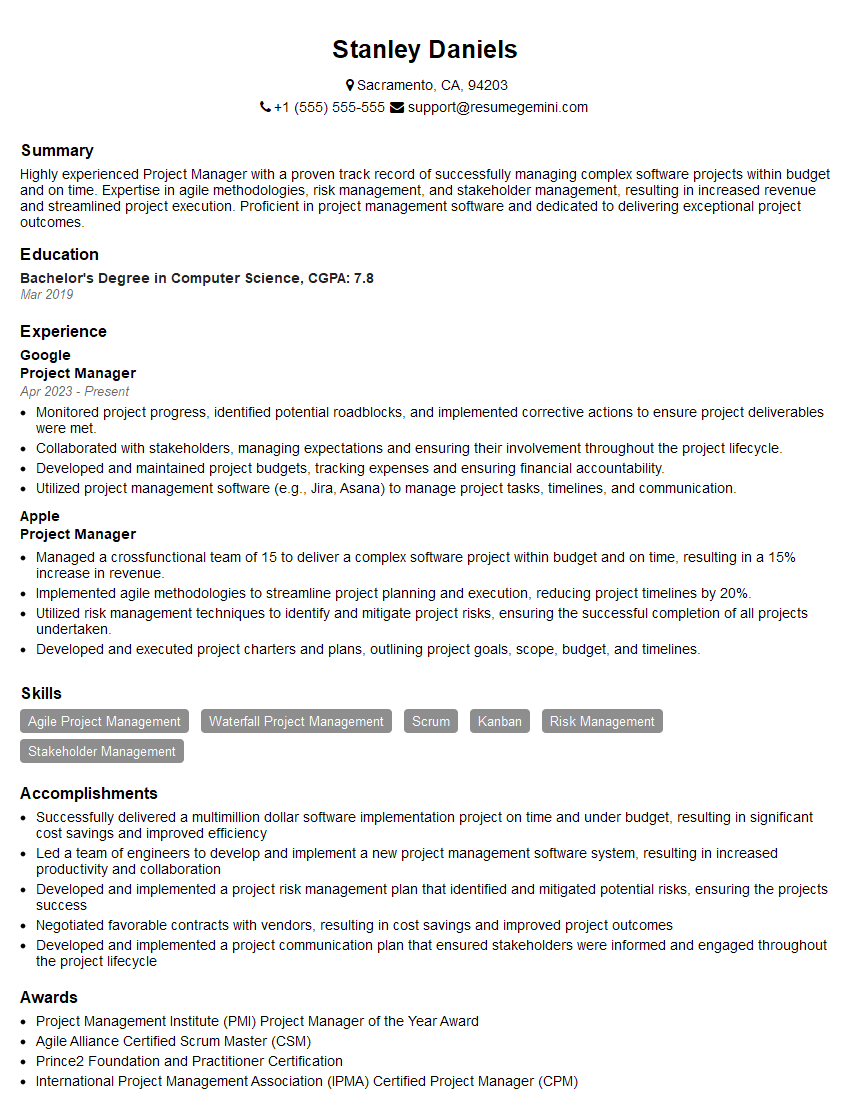
Project Manager Resume Sample

Business Analyst Resume Sample

Data Analyst Resume Sample
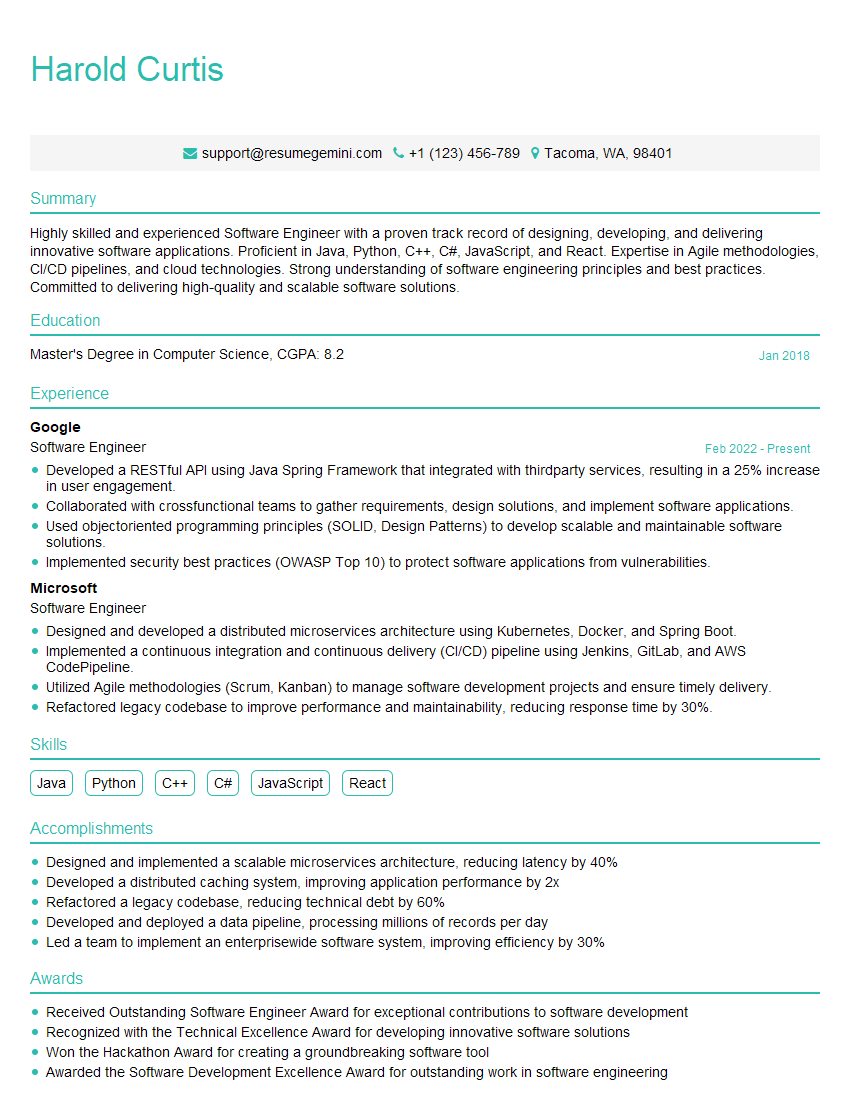
Software Engineer Resume Sample
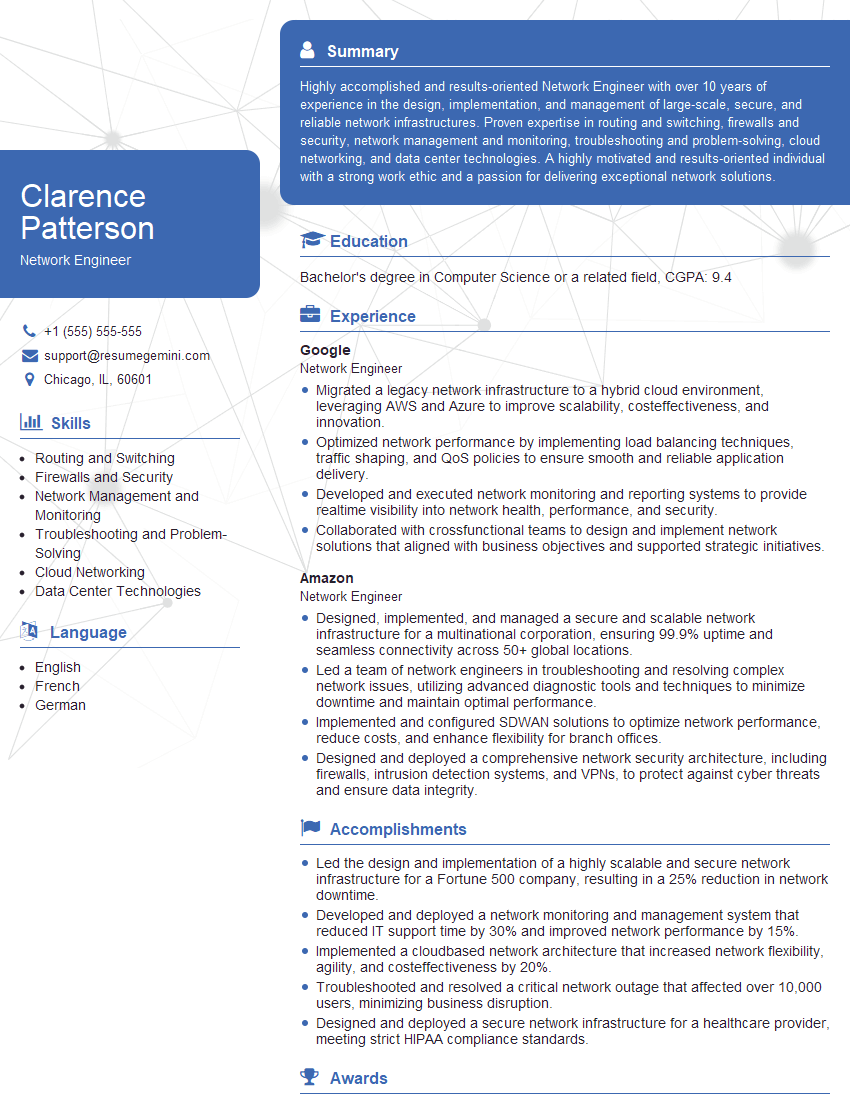
Network Engineer Resume Sample
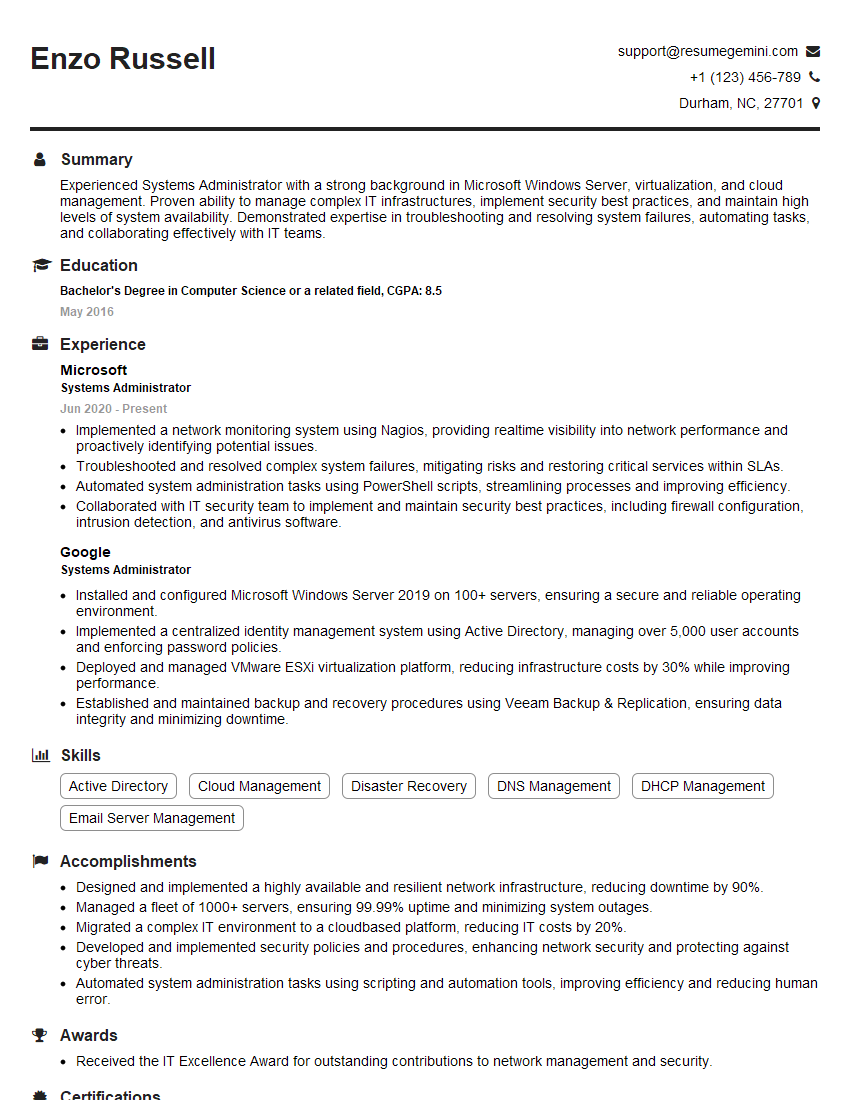
Systems Administrator Resume Sample
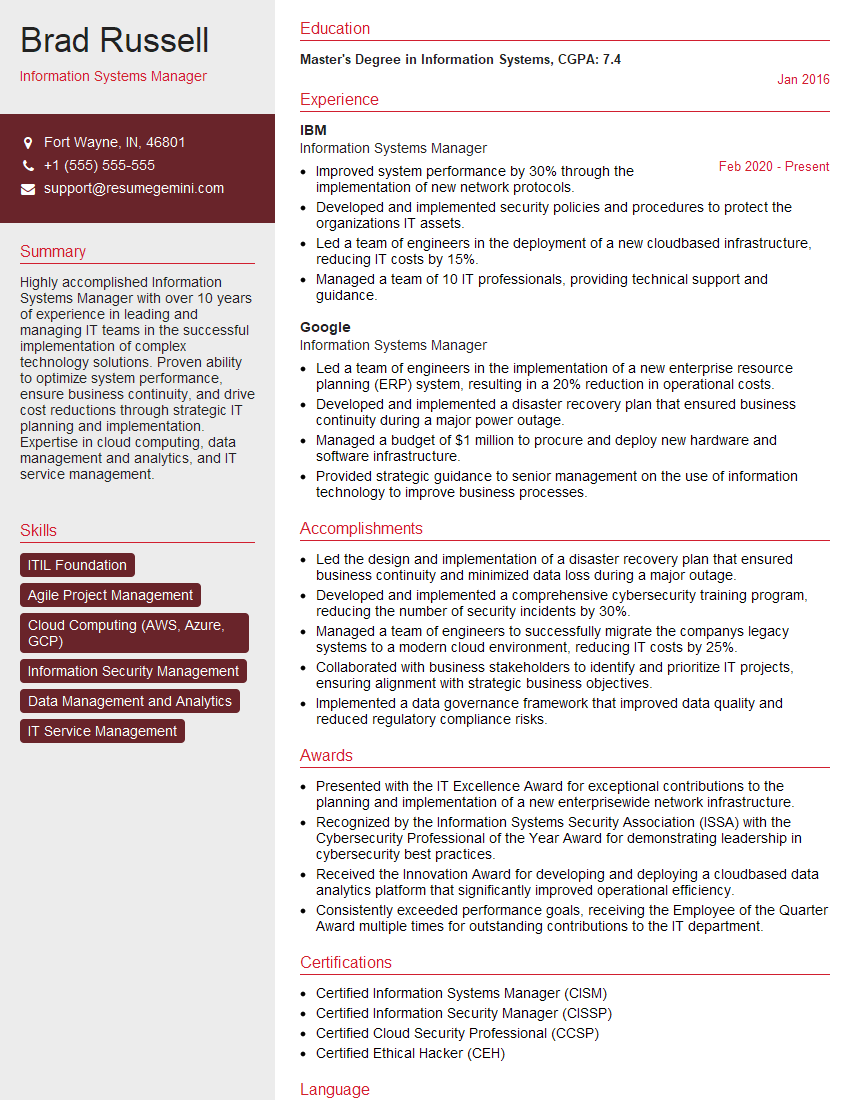
Information Systems Manager Resume Sample
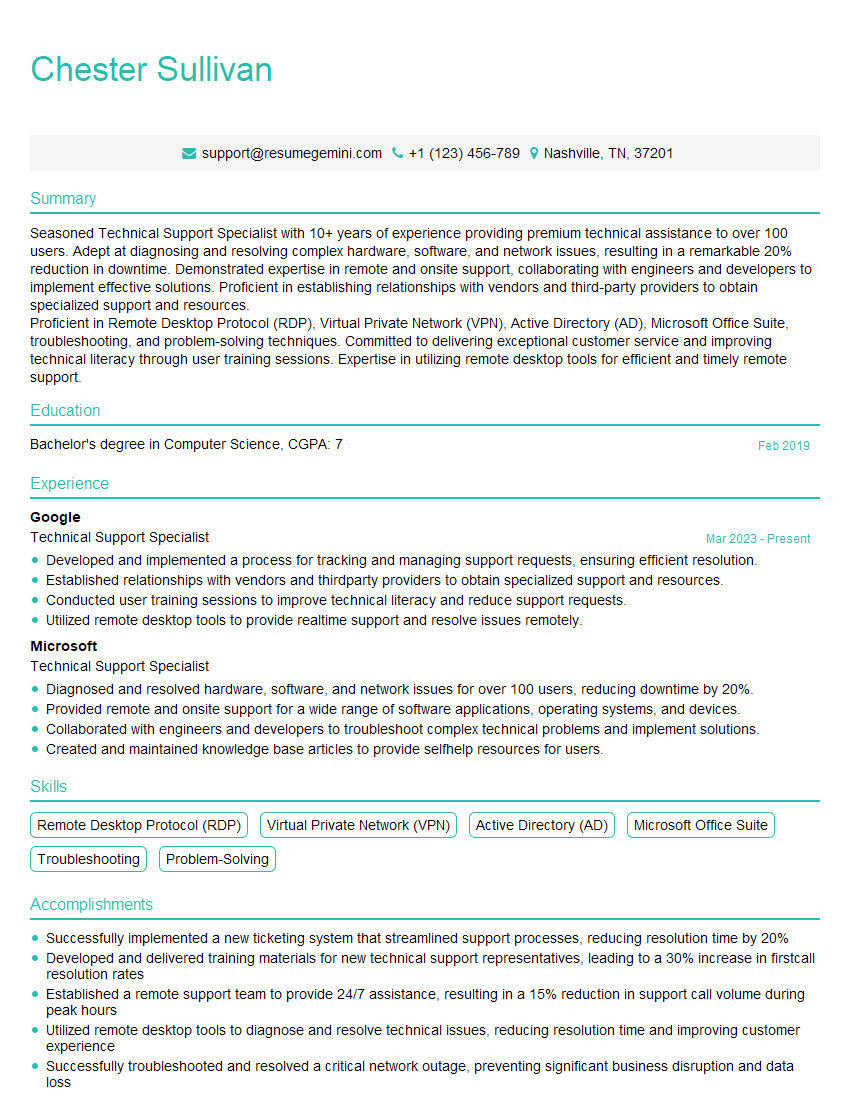
Technical Support Specialist Resume Sample
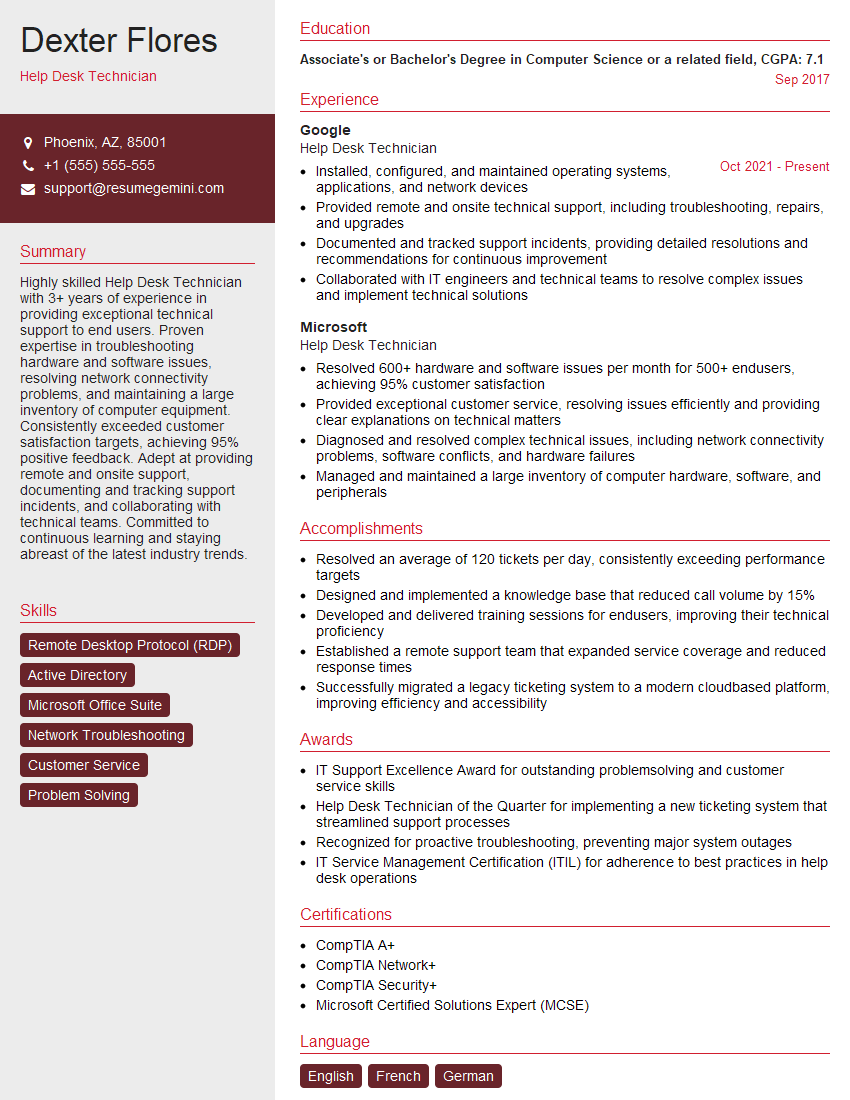
Help Desk Technician Resume Sample

IT Manager Resume Sample
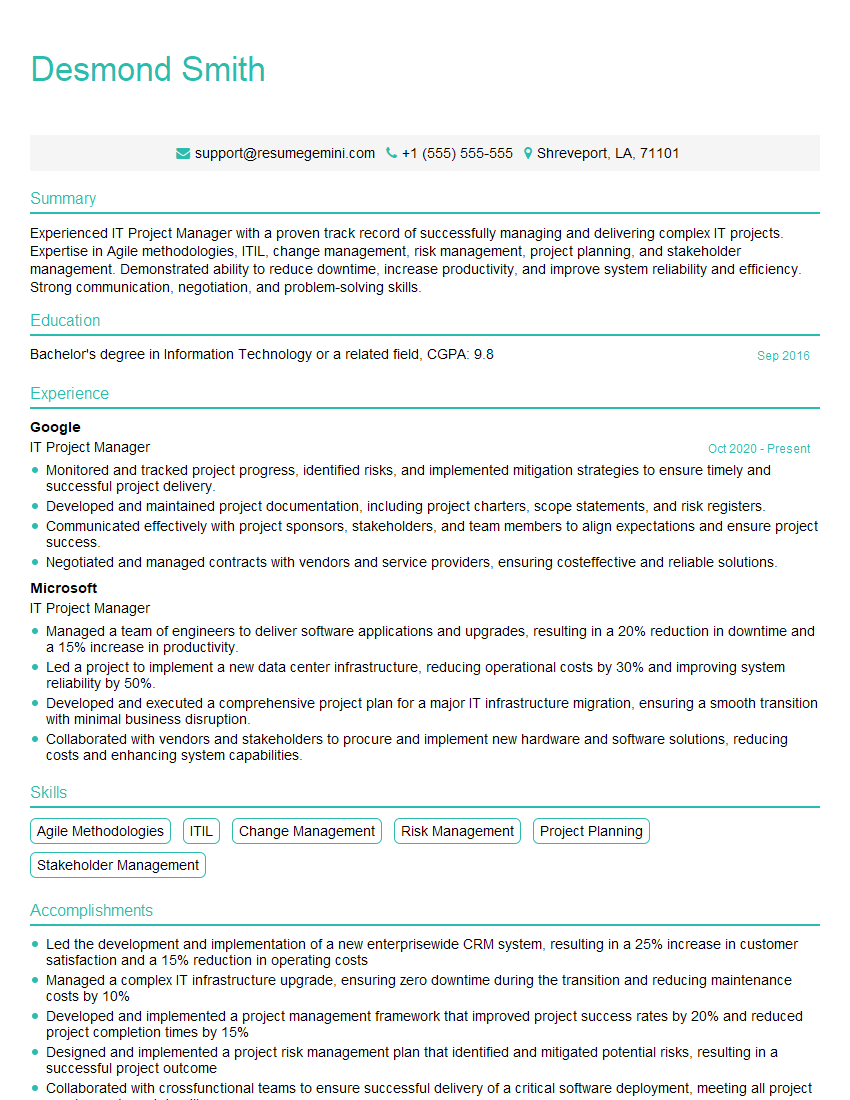
IT Project Manager Resume Sample

Executive Assistant Resume Sample
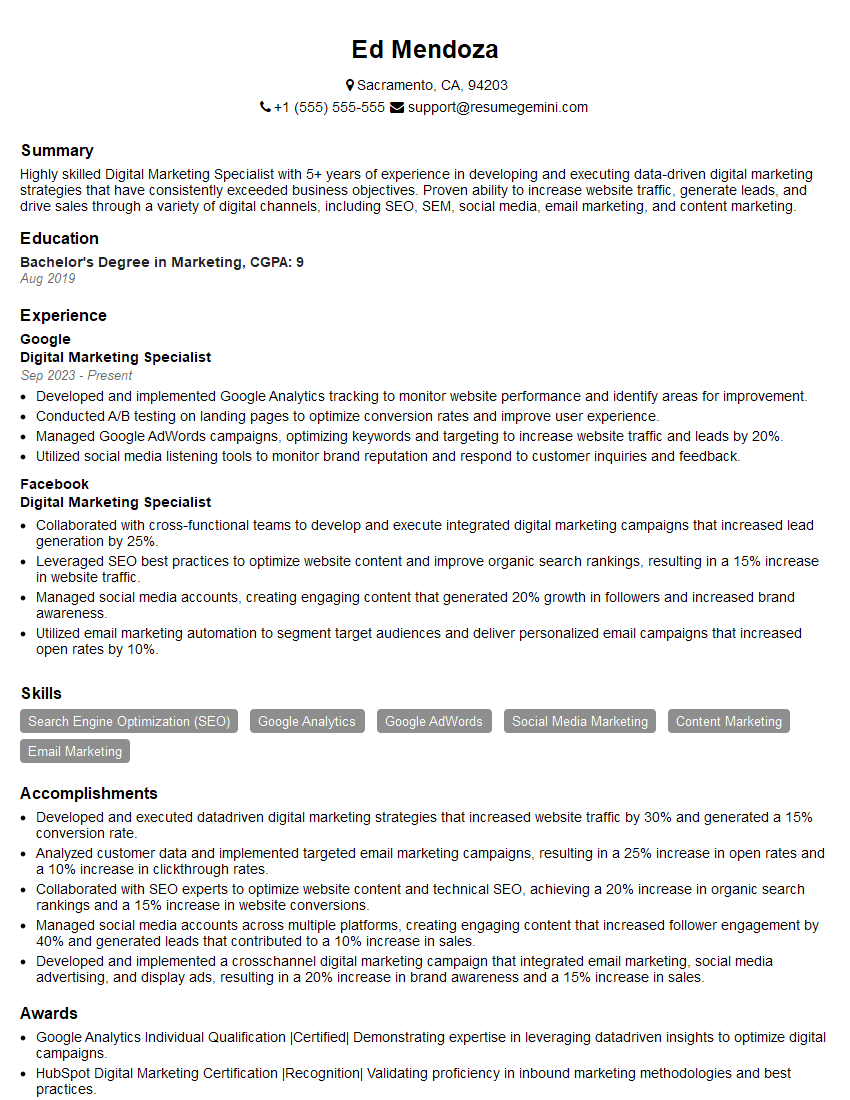
Digital Marketing Specialist Resume Sample

DevOps Engineer Resume Sample
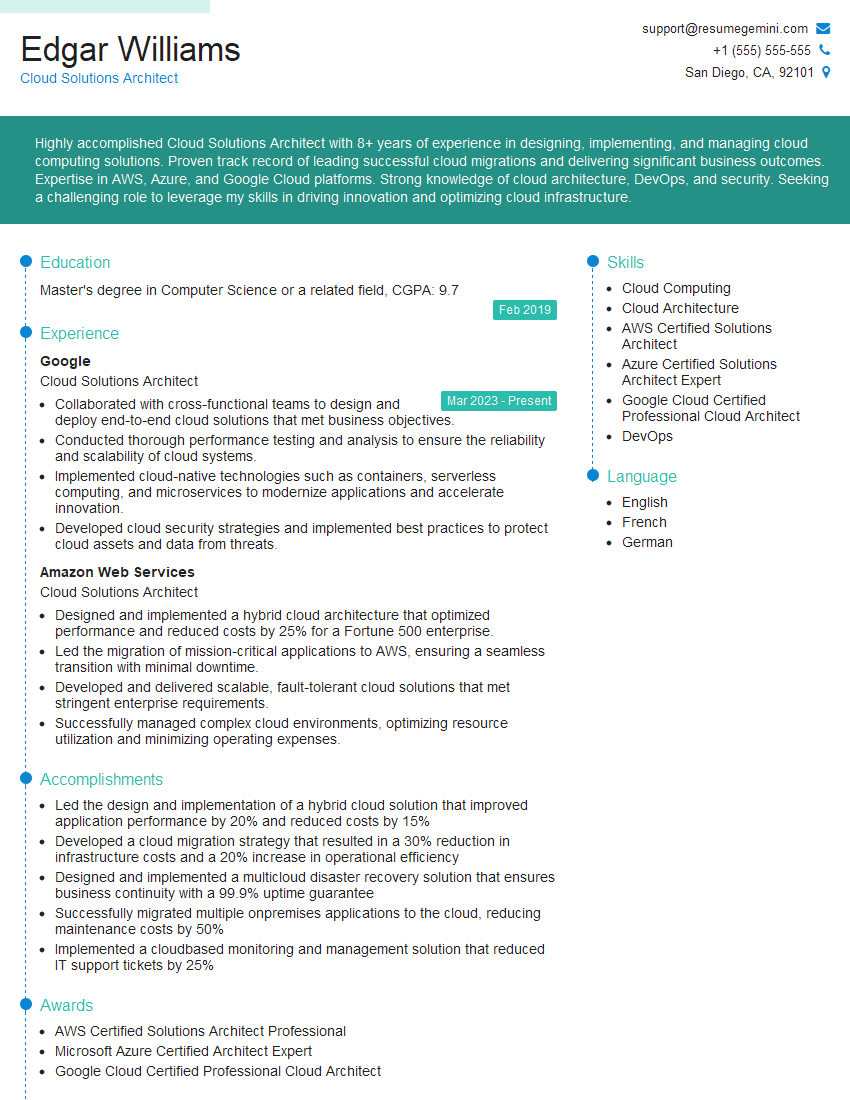
Cloud Solutions Architect Resume Sample
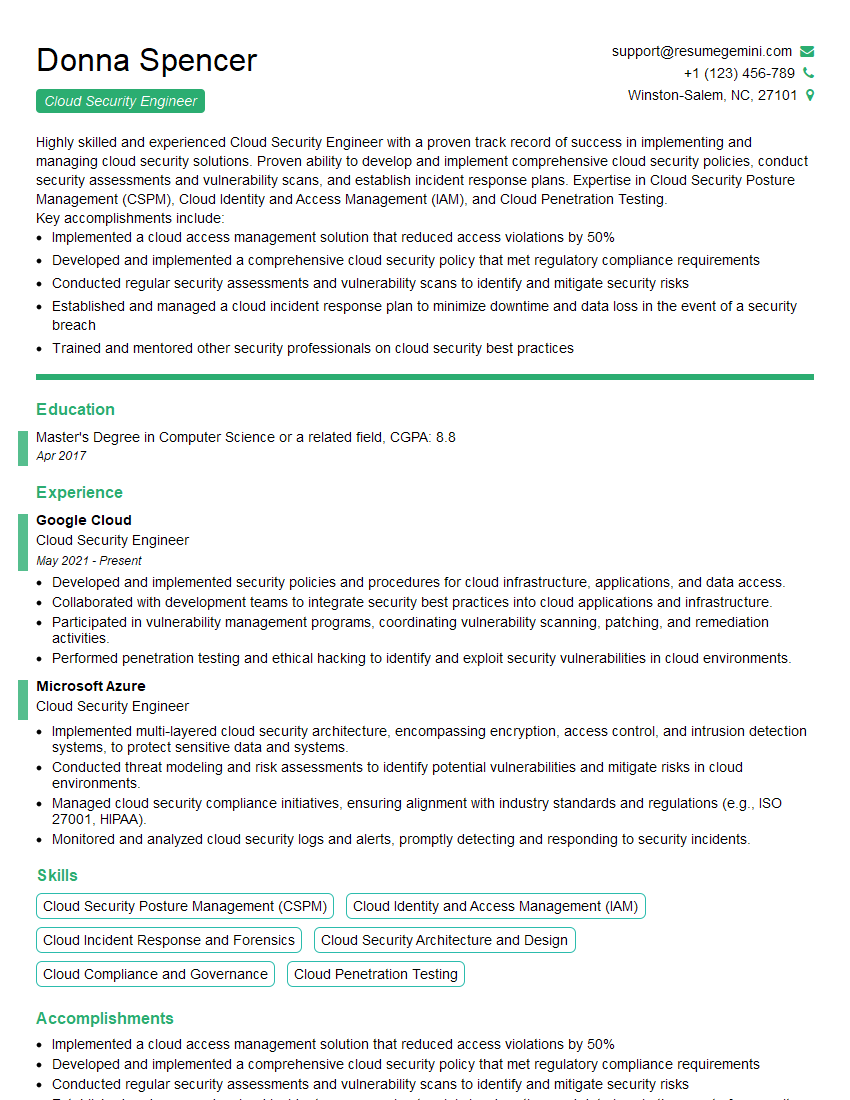
Cloud Security Engineer Resume Sample
- Office Manager
- Project Manager
- Business Analyst
- Data Analyst
- Software Engineer
- Network Engineer
- Systems Administrator
- Information Systems Manager
- Technical Support Specialist
- Help Desk Technician
- IT Manager
- IT Project Manager
- Executive Assistant
- Digital Marketing Specialist
- DevOps Engineer
- Cloud Solutions Architect
- Cloud Security Engineer
Explore more articles
Users Rating of Our Blogs
Share Your Experience
We value your feedback! Please rate our content and share your thoughts (optional).
What Readers Say About Our Blog
Very informative content, great job.
good