Interviews are opportunities to demonstrate your expertise, and this guide is here to help you shine. Explore the essential Office Suite Proficient interview questions that employers frequently ask, paired with strategies for crafting responses that set you apart from the competition.
Questions Asked in Office Suite Proficient Interview
Q 1. Explain your experience with Microsoft Word’s mail merge functionality.
Mail merge in Microsoft Word is a powerful tool that allows you to create personalized documents from a single template. Imagine you need to send personalized thank-you notes to 100 clients – instead of writing each one individually, you can use mail merge. You create a main document (the template) with placeholders for personalized information, like names and addresses. Then, you link it to a data source (like an Excel spreadsheet or a database) containing the individual client details. Word automatically populates the placeholders with the correct information from the data source for each recipient, generating a unique document for each.
My experience with mail merge includes creating personalized marketing materials, mass email campaigns (by generating personalized email bodies), and customized certificates for large groups. I’m comfortable with using various data sources, managing complex merge fields, and troubleshooting common issues such as incorrect data formatting or field mapping errors. I also understand the importance of previewing the merged documents before printing or sending to ensure accuracy.
- Example: I once used mail merge to create personalized invitations for a company’s anniversary event, drawing data from an employee database. The final output included customized greetings, personalized schedules, and individual RSVP information.
Q 2. How proficient are you in creating and formatting tables in Microsoft Word?
I’m highly proficient in creating and formatting tables in Microsoft Word. This goes beyond simply inserting a table; I understand how to effectively utilize features like table styles, cell merging, text wrapping, borders and shading to create visually appealing and organized tables that accurately represent the data. I also know how to convert tables to text and vice-versa, and adapt tables to various document formats.
For instance, I can use advanced table formatting techniques to create complex layouts with nested tables, headers, footers, and captions. I can also ensure that tables are responsive and adjust well to different screen sizes. I’m adept at applying different formatting styles for different table elements, like using bold fonts for column headers and creating different color schemes to highlight important information. My experience includes creating tables for reports, presentations, and other documents that require a clean and professional look.
Q 3. Describe your experience with advanced Excel features like VLOOKUP and PivotTables.
VLOOKUP and PivotTables are two essential Excel features for data analysis. VLOOKUP allows you to search for a specific value in a table and return a corresponding value from a different column. Imagine a spreadsheet with employee IDs and their corresponding salaries; VLOOKUP can quickly retrieve an employee’s salary given their ID. PivotTables, on the other hand, are dynamic data summarization tools that allow you to analyze large datasets by grouping, aggregating, and filtering data in various ways. Think of them as interactive summaries that help you extract meaningful insights from your raw data.
My experience includes using VLOOKUP to link data across multiple worksheets, effectively streamlining data management processes. I’ve used PivotTables extensively to create interactive reports, analyze sales trends, summarize survey results, and identify key performance indicators (KPIs) from large datasets. I understand how to customize PivotTable fields, create calculated fields, and use slicers and filters to efficiently manipulate and analyze data.
Q 4. How would you use Excel to analyze a large dataset?
Analyzing a large dataset in Excel requires a strategic approach. My process usually involves the following steps:
- Data Cleaning and Preparation: I begin by cleaning the data, removing duplicates, handling missing values, and correcting inconsistencies. This ensures data accuracy and reliability.
- Data Transformation: I may need to transform the data using functions or pivot tables to make it easier to analyze. This might involve creating calculated columns, summarizing data, or changing data types.
- Data Visualization: I use charts, graphs, and PivotTables to visually represent the data and identify patterns or trends. Different chart types are chosen depending on the data and the message I want to convey.
- Statistical Analysis: Depending on the requirements, I may perform basic statistical analysis using built-in Excel functions, like calculating averages, standard deviations, etc.
- Data Filtering and Sorting: Excel’s filtering and sorting capabilities are crucial for focusing analysis on subsets of data, isolating specific trends, or segmenting the data by certain criteria.
For exceptionally large datasets, I might consider using Power Query (Get & Transform Data) to efficiently import, clean, and transform data before analysis in Excel.
Q 5. How familiar are you with creating charts and graphs in Excel?
I’m very familiar with creating charts and graphs in Excel. I understand the strengths and weaknesses of various chart types (bar charts, line charts, pie charts, scatter plots, etc.) and know how to choose the most appropriate type for a given dataset and analytical objective. Beyond basic chart creation, I understand how to customize charts to improve their clarity and visual appeal. This includes adjusting axis labels, adding titles and legends, modifying colors and fonts, and using data labels to highlight key information.
My experience includes creating charts to visualize sales data, project timelines, financial performance, and various other datasets. I’m adept at using chart formatting tools to create professional-looking charts that effectively communicate insights. I also understand how to create interactive charts using Excel’s features to explore the data dynamically.
Q 6. Explain your experience with PowerPoint presentations, including animation and transitions.
My experience with PowerPoint presentations extends beyond basic slide creation. I’m proficient in using animation and transitions to enhance engagement and clarity. Animations can highlight key points, draw attention to specific elements, and build narrative flow. Transitions, on the other hand, provide visual cues between slides, creating a smoother and more professional presentation. I understand the importance of using these features sparingly and tastefully, avoiding overly distracting or overwhelming effects.
I also know how to work with different slide layouts, incorporate images, videos and audio, and create consistent design themes using master slides. I’m meticulous about creating visually appealing presentations that enhance communication and information retention. I also focus on ensuring the presentation is readable and easily digestible for the audience, regardless of the size of the screen or room.
Q 7. How would you create a professional-looking PowerPoint presentation for a client?
Creating a professional-looking PowerPoint presentation for a client requires a meticulous approach, considering the client’s brand, audience, and the message being conveyed. I would start by understanding the client’s needs and objectives through thorough communication. This includes gathering all necessary information, clarifying the desired outcomes, and defining the target audience.
Next, I would develop a clear presentation structure, ensuring a logical flow and a compelling narrative. This includes carefully crafting the content, selecting appropriate visuals, and incorporating data effectively. The design would be consistent with the client’s brand guidelines, ensuring consistency in fonts, colors, and logos. I would use high-quality images and graphics, and always maintain professional typography and layout. Finally, I would present the finished presentation to the client for review and feedback, making any necessary revisions to meet their satisfaction.
Q 8. Describe your experience with Microsoft Outlook, including calendar management and email organization.
Microsoft Outlook is my primary tool for communication and scheduling. My experience encompasses proficient email management, including organizing messages into folders, utilizing rules for automated sorting (e.g., filtering junk mail, automatically filing emails from specific senders), and effectively employing the search function to quickly locate specific emails. Calendar management is equally crucial; I’m adept at scheduling meetings, setting reminders, and managing multiple calendars simultaneously (personal and work, for instance). I leverage Outlook’s features like recurring appointments, all-day events, and color-coding to maintain a clear and organized overview of my commitments. For example, I recently used Outlook to coordinate a complex project involving multiple team members across different time zones, successfully scheduling meetings and managing deadlines using its calendar features and shared folders.
Q 9. How do you manage multiple email accounts and prioritize your inbox?
Managing multiple email accounts involves strategically utilizing Outlook’s ability to connect to various email providers (Gmail, Yahoo, etc.). I typically use separate folders for each account to maintain a clear distinction between personal and professional communications. Prioritizing my inbox involves a combination of techniques. I employ the ‘flag’ function to mark important emails requiring immediate action. I also utilize Outlook’s rules to automatically move less urgent emails into specific folders for later review. This allows me to focus on high-priority messages first. Think of it like triage in a hospital – you address the most critical cases first. Finally, I dedicate specific time slots each day to address my emails, rather than constantly checking throughout the day, which improves focus and productivity.
Q 10. Explain your experience with Microsoft Access databases.
My experience with Microsoft Access extends to designing, building, and maintaining relational databases. I’m proficient in creating tables with appropriate data types, establishing relationships between tables, and implementing queries to retrieve specific information. I’ve also worked with forms and reports to present data in a user-friendly manner. For instance, I once created a database to track customer information, orders, and payments for a small business. This involved designing tables for customers, products, orders, and payments, linking them appropriately, and creating reports to analyze sales trends and customer behavior. This project significantly improved the business’s record-keeping and decision-making processes.
Q 11. How would you create a simple database in Access to track inventory?
To create an inventory tracking database in Access, I would start by defining the necessary tables. At a minimum, I would need a ‘Products’ table (Product ID, Product Name, Unit Price, Quantity on Hand) and a ‘Transactions’ table (Transaction ID, Product ID, Date, Quantity, Transaction Type – ‘In’ or ‘Out’). The ‘Product ID’ field would be the primary key in the ‘Products’ table and a foreign key in the ‘Transactions’ table, linking the two tables. I would then create forms for adding new products and recording transactions. Finally, I would create queries and reports to view current inventory levels, track sales, and generate reports on low-stock items. This structure allows for easy tracking and analysis of inventory levels, preventing stockouts and optimizing ordering processes.
Q 12. Describe your experience with using formulas and functions in Excel.
I have extensive experience with Excel formulas and functions, ranging from simple calculations like SUM and AVERAGE to more advanced functions like VLOOKUP, INDEX, and MATCH. I routinely use these functions for data analysis, financial modeling, and report generation. For example, I recently used VLOOKUP to automate the process of matching product codes to pricing information from a separate spreadsheet. This saved significant time and reduced the risk of manual errors. Mastering these functions allows for efficient data manipulation and enables the creation of sophisticated spreadsheets for decision-making.
Q 13. What are some common Excel error messages and how do you troubleshoot them?
Common Excel error messages often indicate problems with formulas or data. The #VALUE! error usually arises when a formula attempts to perform an operation on an incompatible data type. For instance, adding a number to text will result in this error. The #REF! error occurs when a formula refers to a cell that no longer exists, often due to deleted rows or columns. The #DIV/0! error appears when a formula tries to divide by zero. Troubleshooting involves carefully reviewing the formula, checking for errors in cell references, and ensuring data types are consistent. I often use the ‘Evaluate Formula’ feature (Formulas tab) to step through the formula and identify the source of the error. This methodical approach ensures accuracy and helps to quickly resolve spreadsheet issues.
Q 14. How would you use conditional formatting in Excel to highlight specific data?
Conditional formatting in Excel is a powerful tool for visually highlighting data that meets specific criteria. For example, if I have a spreadsheet of sales data, I could use conditional formatting to highlight cells with sales above a certain target (e.g., highlighting cells with sales exceeding $10,000 in green). This is achieved by selecting the data range, going to the ‘Conditional Formatting’ option in the ‘Home’ tab, selecting ‘Highlight Cells Rules,’ and then choosing ‘Greater Than.’ I would then specify the threshold value ($10,000 in this case). This simple yet effective technique helps quickly identify key data points and facilitates better data analysis. The possibilities are endless – you can highlight duplicates, values within a range, or even use data bars to visualize trends visually.
Q 15. Explain your experience with data validation in Excel.
Data validation in Excel is a crucial feature that helps maintain data accuracy and consistency by restricting the type of data entered into specific cells. Think of it as setting guardrails for your data. It prevents errors like typos, incorrect formats, or illogical entries from creeping into your spreadsheets. This is especially important when working with large datasets or collaborative projects.
For example, if you have a column for ages, you can use data validation to ensure only numerical values within a certain range (e.g., 0-120) are accepted. Similarly, you could restrict a column for email addresses to only accept valid email formats. This prevents invalid data from interfering with your analysis or calculations.
- How it works: You define rules (e.g., whole number, specific range, list of values) for a cell or range of cells. Excel then enforces these rules, preventing users from entering data that violates them. Users will see an error message if they try to enter invalid data.
- Types of Validation: Excel offers various validation types including whole number, decimal, date, text length, list from a range, custom formulas.
- Real-world example: In a sales database, you could use data validation to ensure that only valid product IDs are entered in the ‘Product ID’ column, preventing errors caused by typos or incorrect entries.
I’ve extensively used data validation in various projects, such as creating inventory management systems, sales reports, and customer databases to maintain consistency and prevent errors.
Career Expert Tips:
- Ace those interviews! Prepare effectively by reviewing the Top 50 Most Common Interview Questions on ResumeGemini.
- Navigate your job search with confidence! Explore a wide range of Career Tips on ResumeGemini. Learn about common challenges and recommendations to overcome them.
- Craft the perfect resume! Master the Art of Resume Writing with ResumeGemini’s guide. Showcase your unique qualifications and achievements effectively.
- Don’t miss out on holiday savings! Build your dream resume with ResumeGemini’s ATS optimized templates.
Q 16. How do you ensure data accuracy and integrity in spreadsheets?
Data accuracy and integrity are paramount when working with spreadsheets. Think of it like building a house – a shaky foundation leads to a shaky structure. My approach to ensuring data accuracy involves a multi-pronged strategy:
- Data Validation (as explained above): This is the first line of defense against incorrect data entry.
- Data Cleaning: Before analysis, I always cleanse the data. This includes removing duplicates, handling missing values (either by removing rows with missing data, imputing values based on statistical methods, or flagging them for attention), and correcting inconsistencies.
- Formula Auditing: I regularly check formulas to ensure they’re correctly calculating the intended results and are referencing the right cells. Excel’s built-in formula auditing tools are immensely helpful here.
- Cross-checking: I often cross-check data from multiple sources, or compare it against known values, to verify accuracy. This might involve comparing a spreadsheet against a database or verifying totals using manual calculations.
- Documentation: Clear documentation of data sources, formulas, and assumptions is crucial for ensuring long-term data integrity and facilitating future audits.
For example, in a financial model, a small error in a formula could propagate throughout the entire model, leading to incorrect conclusions. My rigorous data-checking process ensures that doesn’t happen.
Q 17. Describe your experience working with large spreadsheets.
Working with large spreadsheets requires a different mindset than working with smaller ones. It’s like managing a large team versus a small one – different strategies are needed. My experience with large spreadsheets involves using various techniques to optimize performance and maintain organization:
- Data Segmentation: Breaking down large datasets into smaller, manageable chunks improves performance and reduces processing time. Think of it like breaking down a large construction project into smaller, more manageable tasks.
- Pivot Tables and Power Query: I heavily rely on PivotTables for summarizing and analyzing large datasets efficiently, and Power Query for data transformation and cleaning of large and diverse data sources.
- Optimized Formulas: I avoid complex nested formulas, preferring to break them down into smaller, more efficient parts to improve calculation times. Think of it like writing modular code in programming to improve performance.
- Data Modeling: When dealing with very large and complex datasets, creating a robust data model is important. This usually involves using separate sheets for different data elements and using formulas and relationships between sheets to maintain data integrity and efficiency.
- Excel Add-ins: I explore and utilize relevant Excel add-ins to boost efficiency, depending on the context of the data and the type of analysis needed.
For instance, I once worked with a spreadsheet containing over 100,000 rows of sales data. By effectively using Power Query to clean and transform the data, and then using PivotTables to summarize the information, I was able to generate insightful reports in a timely and efficient manner.
Q 18. How would you handle a corrupted Excel file?
Handling a corrupted Excel file requires a systematic approach. It’s like dealing with a broken machine – you need to diagnose the problem before you can fix it. My strategy involves these steps:
- Attempt to Open in Safe Mode: Start Excel in Safe Mode (usually by holding down Ctrl while launching Excel) to see if add-ins are causing the corruption.
- Try Opening with Previous Versions (if available): Check for previous versions of the file stored by your operating system or cloud storage service.
- Use Excel’s Repair Feature: When opening the file, Excel might offer a ‘Repair’ option. This attempts to recover as much data as possible.
- Use Third-Party Recovery Tools: If Excel’s repair function fails, there are specialized third-party data recovery tools that can sometimes salvage data from corrupted files. Caution is needed when using these tools. Back up data if possible before attempting to recover.
- Open in Compatibility Mode: If the file was created in a newer version of Excel, trying to open it in an older version might yield better results.
- Contact IT support: If possible, seek assistance from the IT support team for more advanced troubleshooting.
The key is to act quickly. The longer you wait, the less likely it is that the data can be recovered. I always advocate for regular backups to mitigate this type of issue.
Q 19. What methods do you use for data backup and recovery?
Data backup and recovery are fundamental to preventing data loss. It’s like having an insurance policy for your work. My strategies include:
- Regular Saving and Autosave: I always set Excel to autosave frequently (e.g., every 5 minutes) to minimize data loss in case of crashes. Regular manual saving is also a must.
- Cloud Storage: Storing files on cloud services (like OneDrive, Google Drive, Dropbox) provides an automatic backup and allows access from multiple devices. This is like having a second copy of your important documents.
- Version Control: Using version control systems (though less common for simple Excel files) allows you to track changes and revert to previous versions if needed.
- External Hard Drives or Network Drives: Regularly backing up to external hard drives or network drives offers another layer of protection against local hardware failures.
- File Sharing and Collaboration Platforms: When working collaboratively, utilize platforms that track file versions and offer recovery options.
I always prioritize multiple backup methods to ensure redundancy and reduce the risk of complete data loss. This ensures that even if one backup fails, there are other options available.
Q 20. Explain your experience with Microsoft OneNote.
Microsoft OneNote is a powerful note-taking application that I frequently use for various purposes beyond simply jotting down notes. It’s a digital notebook that helps organize information in a flexible manner.
- Meeting Notes and Project Management: I use OneNote to take detailed meeting minutes, organize project tasks, and track progress. Its ability to integrate images, audio recordings, and web links makes it ideal for capturing comprehensive information.
- Research and Information Gathering: When researching a topic, I’ll collect relevant information from various sources (web pages, articles, emails) and organize them within OneNote notebooks. This allows for easy access and organization of research materials.
- Idea Generation and Brainstorming: The flexibility of OneNote makes it great for brainstorming sessions. I can quickly add ideas, images, and even sketches, making it a collaborative and visually engaging tool.
- Knowledge Management: I often use OneNote to organize my personal knowledge base, creating separate notebooks for various topics and linking related notes together. This helps to build a structured library of information for future use.
For example, during a client project, I used OneNote to maintain meeting notes, track progress on various deliverables, and collect client feedback – keeping all information organized in one central location.
Q 21. How familiar are you with using templates in Microsoft Office applications?
Templates are pre-designed documents that provide a structure for creating new files. Think of them as pre-fabricated house components – saving you time and effort in building something from scratch. I’m very familiar with using templates in Microsoft Office applications, leveraging them for efficiency and consistency.
- Time Savings: Templates save significant time by providing a ready-made layout, formatting, and even default content. This is particularly beneficial for tasks that are frequently repeated.
- Consistency: Using templates ensures consistency in formatting and structure across multiple documents, improving the professional look and feel of your work.
- Data Integration: Many templates are designed to facilitate data integration. For example, an invoice template might already have formulas set up for automatically calculating totals.
- Customization: While templates offer a starting point, they are highly customizable. You can modify content, formatting, and even add new features to meet specific needs.
I’ve used templates extensively for creating standardized reports, presentations, letters, and spreadsheets. For example, I created a custom template for project proposals which included predefined sections for project goals, timelines, and budget allocations. This ensured consistency and reduced preparation time for future proposals.
Q 22. Describe your experience with customizing toolbars and ribbon options in Microsoft Office.
Customizing toolbars and ribbon options in Microsoft Office applications allows you to tailor the interface to your specific workflow, increasing efficiency and reducing time spent searching for commands. This is done through the application’s built-in options.
In Word and Excel, for example, you can right-click on the ribbon and select “Customize the Ribbon.” This opens a dialog box where you can add or remove tabs, groups, and individual commands. You can even create custom groups and add your frequently used commands there. Think of it like organizing your desk – you only keep what you need within easy reach.
In PowerPoint, the process is similar, allowing you to customize the ribbon to suit the type of presentations you regularly create. For instance, if you frequently use animation effects, you might add the animation tools to a more prominent position on the ribbon for quicker access.
For Outlook, customizations generally center around the toolbar, where you can add and remove frequently used functions, like creating new emails or scheduling meetings, making your email management more streamlined.
By strategically customizing these options, users can significantly improve their productivity by having the tools they need immediately at their fingertips.
Q 23. How would you troubleshoot a printing issue in Microsoft Word?
Troubleshooting printing issues in Microsoft Word involves a systematic approach, starting with the simplest solutions and progressing to more complex ones. It’s like detective work!
First, check the printer itself: Is it turned on? Does it have paper? Is it online and connected to your computer? These are often overlooked but crucial.
Next, verify your printer settings within Word: Go to File > Print. Make sure the correct printer is selected and that the properties are set appropriately (paper size, orientation, etc.). Sometimes, simply selecting a different printer and then switching back to the original can resolve a temporary glitch.
Then, consider the document itself: Is it too large for your printer’s memory? Does it contain any unusual formatting that might cause printing problems? Try printing a smaller section or a different document to see if the issue is document-specific.
If the problem persists, check your computer’s drivers. Outdated or corrupted printer drivers are a common cause of printing difficulties. Updating or reinstalling your printer drivers can often fix the issue.
Finally, as a last resort, you may need to restart your computer or check your network connection if you’re using a network printer. A simple reboot often resolves temporary software conflicts.
Q 24. How familiar are you with using macros in Microsoft Excel or Word?
Macros are automated sequences of commands that streamline repetitive tasks in Microsoft Office applications. They’re like pre-programmed shortcuts for complex actions.
In Excel, macros are often used for data manipulation, formatting, and report generation. For example, I’ve used macros to automatically format hundreds of rows of data, saving significant time and effort. You can record a macro by performing the actions you want to automate, and Excel will generate the VBA (Visual Basic for Applications) code. This code can then be modified and tweaked to fit specific requirements.
In Word, macros can be used for tasks such as creating automated mail merges, inserting headers and footers, and automatically generating specific formatting. For instance, I created a macro to automatically format research papers to my university’s specific guidelines, saving countless hours across multiple papers.
My familiarity with macros extends to understanding and modifying existing code, debugging errors, and creating custom macros to fit specific needs. While not a programmer by profession, I possess the skills to use VBA effectively to enhance my productivity.
Q 25. Explain your experience with collaborating on Microsoft Office documents with others.
Collaborating on Microsoft Office documents is a crucial aspect of my work experience. I’ve extensively used features like co-authoring in Word, Excel, and PowerPoint to work with teams in real-time. This allows for simultaneous editing, making the collaborative process much more efficient and dynamic.
For example, in one project, we utilized real-time co-authoring in Word to draft a large marketing proposal. Multiple team members could work on different sections simultaneously, ensuring quicker turnaround times and efficient feedback incorporation. We also leveraged Excel’s co-authoring features to collaboratively update spreadsheets tracking project progress and budgets.
Beyond real-time editing, I utilize features such as version history and comments to track changes, provide feedback, and ensure that everyone is on the same page. Understanding change tracking and commenting tools is essential for effective team collaboration.
Q 26. How do you ensure version control when multiple people are working on the same document?
Ensuring version control when multiple people work on the same document is crucial to prevent data loss and confusion. Microsoft Office provides several built-in features to help with this. It’s like keeping a detailed log of all changes to a project.
First, the built-in version history feature allows you to see previous versions of a document. This is available in Word, Excel, and PowerPoint. You can revert to older versions if necessary, ensuring that no work is lost due to accidental changes or errors.
Secondly, co-authoring features with tracked changes minimize conflict by allowing multiple people to work concurrently. However, even with co-authoring, it’s vital to regularly save your work. Regular saving minimizes the potential for loss should an unexpected error occur.
Thirdly, for larger projects or situations requiring more robust version control, using external tools like SharePoint or Microsoft Teams is recommended. These platforms provide advanced version history and collaboration features, enabling seamless document management even for complex projects with multiple contributors.
Finally, establishing clear communication protocols among team members can significantly prevent version control issues. Setting guidelines about saving documents and tracking changes improves the efficiency of the collaborative workflow and reduces the likelihood of conflicts or data loss.
Q 27. Describe your experience with exporting data from Excel to other formats (e.g., PDF, CSV).
Exporting data from Excel to other formats is a common task, and I’m proficient in exporting to various formats such as PDF, CSV, and others. It’s like packaging your data for different uses.
Exporting to PDF preserves the formatting of your spreadsheet, making it ideal for sharing visually consistent reports or presentations. You can simply go to File > Export > Create PDF/XPS Document. This ensures that recipients see exactly what you intended.
Exporting to CSV (Comma Separated Values) is preferred when you need to import data into other applications like databases or statistical software. The CSV format is a simple, universally understood way to exchange tabular data. You can select this in the same export menu.
Other formats like TXT (text file), or various database formats are also accessible through the Export options or by using the “Save As” function, allowing you to tailor the data export to specific application needs. The choice of format always depends on the intended use of the exported data.
Q 28. How would you use Microsoft Office applications to improve efficiency in a workplace setting?
Microsoft Office applications significantly enhance workplace efficiency in numerous ways. They’re versatile tools that go beyond simple document creation.
Improved Communication: Email management in Outlook, combined with the ability to share documents efficiently through platforms like SharePoint or Teams, improves communication flow and reduces reliance on cumbersome alternative methods.
Streamlined Data Management: Excel’s capabilities for data analysis and manipulation, coupled with pivot tables and charting, enable faster data-driven decision-making and reporting, ultimately leading to improved business strategies.
Automated Tasks: Macros can automate repetitive tasks, allowing for increased productivity and reduced human error. For example, automated report generation or data cleaning scripts can save significant time.
Enhanced Collaboration: Real-time co-authoring in various applications allows for seamless collaboration among teams, leading to faster project completion and improved teamwork.
Professional Presentations: PowerPoint’s features for creating visually compelling presentations allow effective communication of ideas and data to clients or stakeholders.
In summary, effective use of Microsoft Office applications results in a more efficient, organized, and collaborative work environment, directly translating to increased productivity and better business outcomes.
Key Topics to Learn for Office Suite Proficient Interview
- Word Processing (e.g., Microsoft Word, Google Docs): Mastering document formatting, styles, tables, mail merge, advanced features like track changes and macros. Consider practical applications like creating professional reports, proposals, or letters.
- Spreadsheet Software (e.g., Microsoft Excel, Google Sheets): Focus on data manipulation, formula creation (including advanced functions like VLOOKUP and pivot tables), data visualization (charts and graphs), and data analysis techniques. Practice building budgets, analyzing sales data, or creating insightful dashboards.
- Presentation Software (e.g., Microsoft PowerPoint, Google Slides): Learn to create engaging presentations with effective visuals, transitions, and animations. Practice incorporating data from spreadsheets and designing presentations for different audiences. Explore advanced features like speaker notes and presenter view.
- Database Management (Optional, depending on role): If the role requires database interaction, familiarize yourself with basic database concepts, data entry, querying, and report generation using tools like Access or similar database software.
- Collaboration & Sharing: Understand how to effectively collaborate on documents using cloud-based platforms, track changes, and manage version control. This is crucial for demonstrating teamwork and efficiency.
- Problem-Solving & Efficiency: Practice applying your knowledge to solve real-world problems using Office Suite applications. Showcase your ability to efficiently accomplish tasks and automate processes where possible.
Next Steps
Mastering Office Suite Proficient significantly enhances your employability across various industries. Proficiency demonstrates crucial skills in organization, data analysis, and communication—highly valued by employers. To maximize your job prospects, create an ATS-friendly resume that highlights these skills effectively. ResumeGemini is a trusted resource to help you build a professional and impactful resume. We provide examples of resumes tailored to Office Suite Proficient roles to help you get started. Take the next step toward your dream job today!

Office Manager Resume Sample
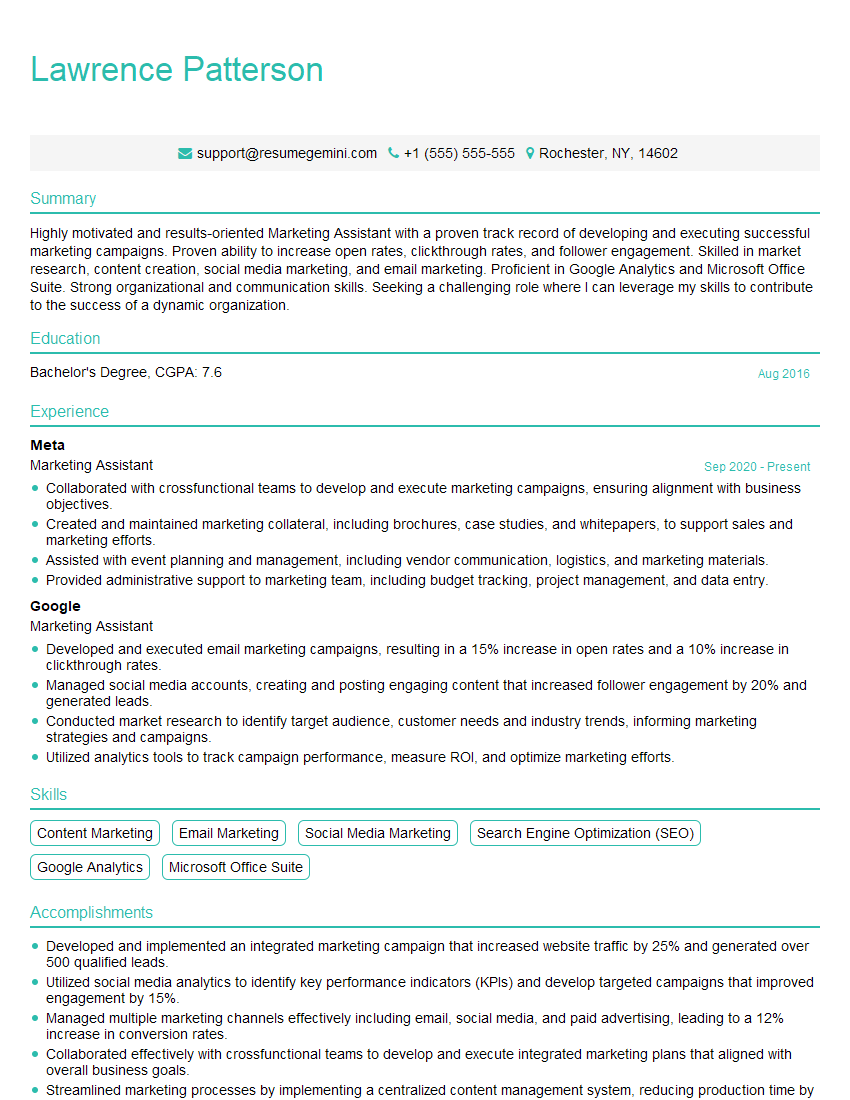
Marketing Assistant Resume Sample
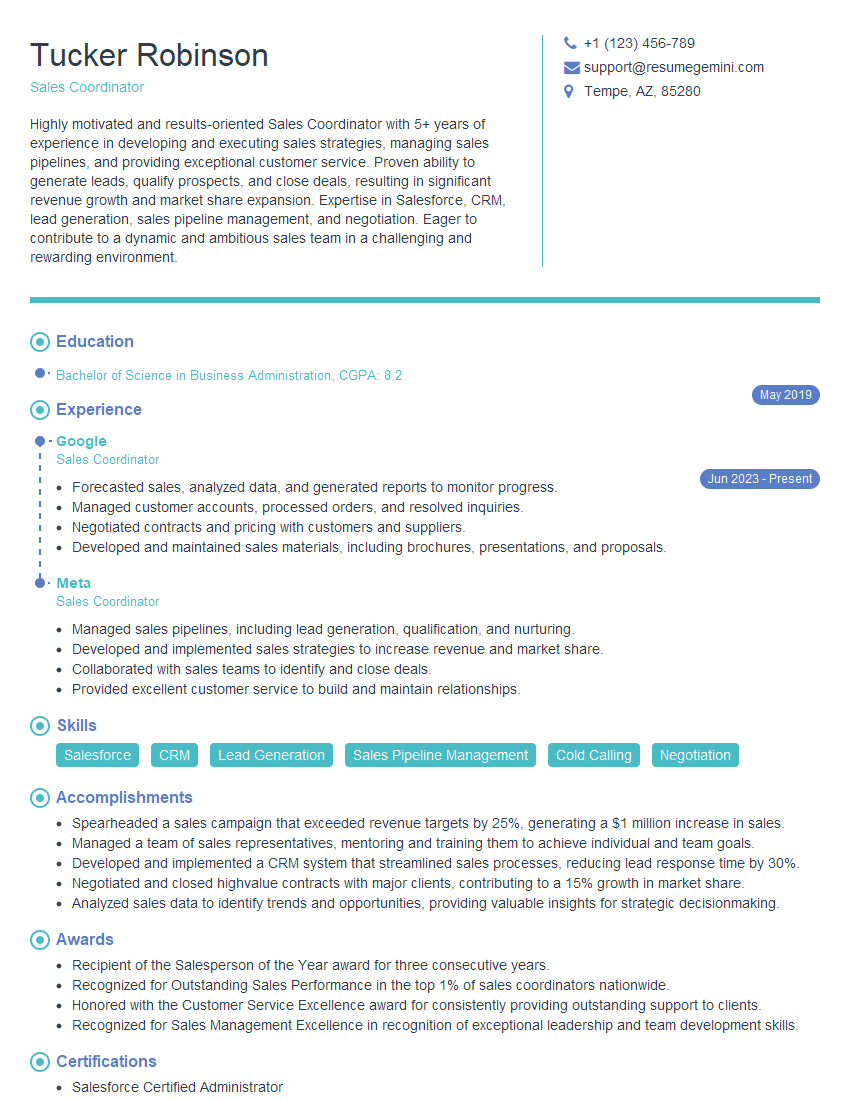
Sales Coordinator Resume Sample

Administrative Assistant Resume Sample
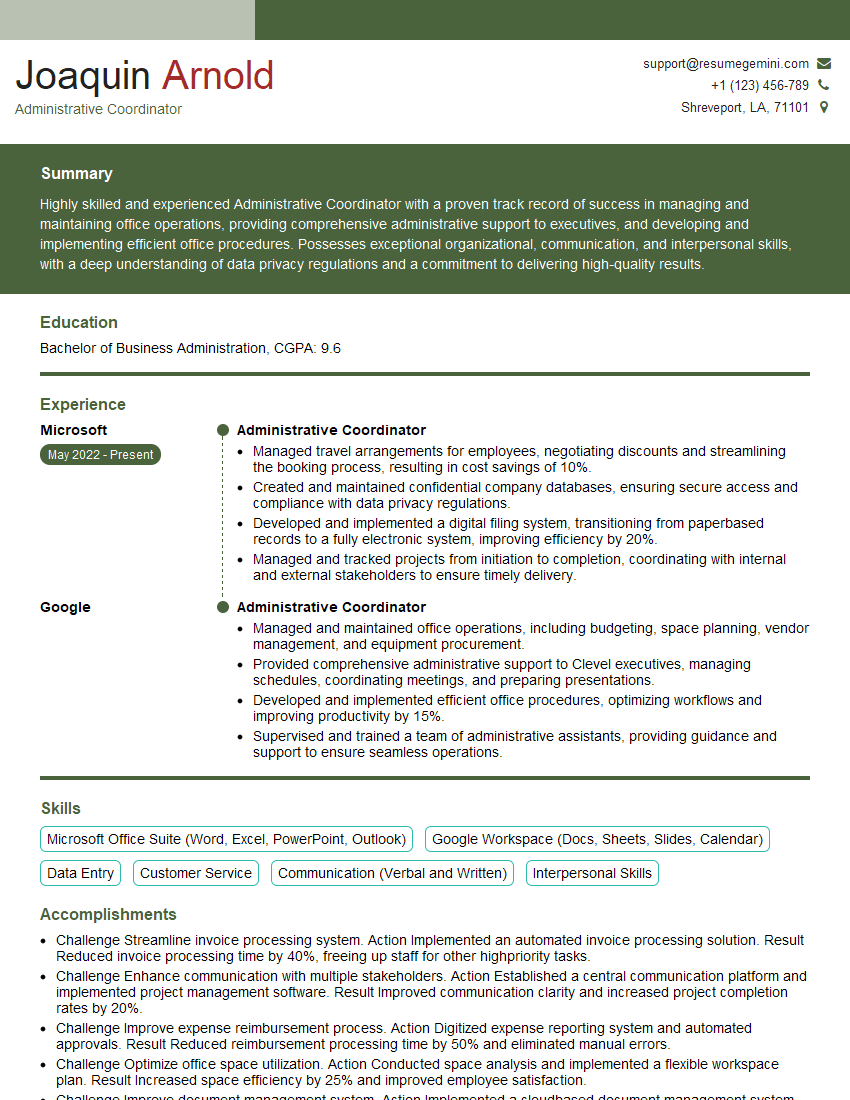
Administrative Coordinator Resume Sample
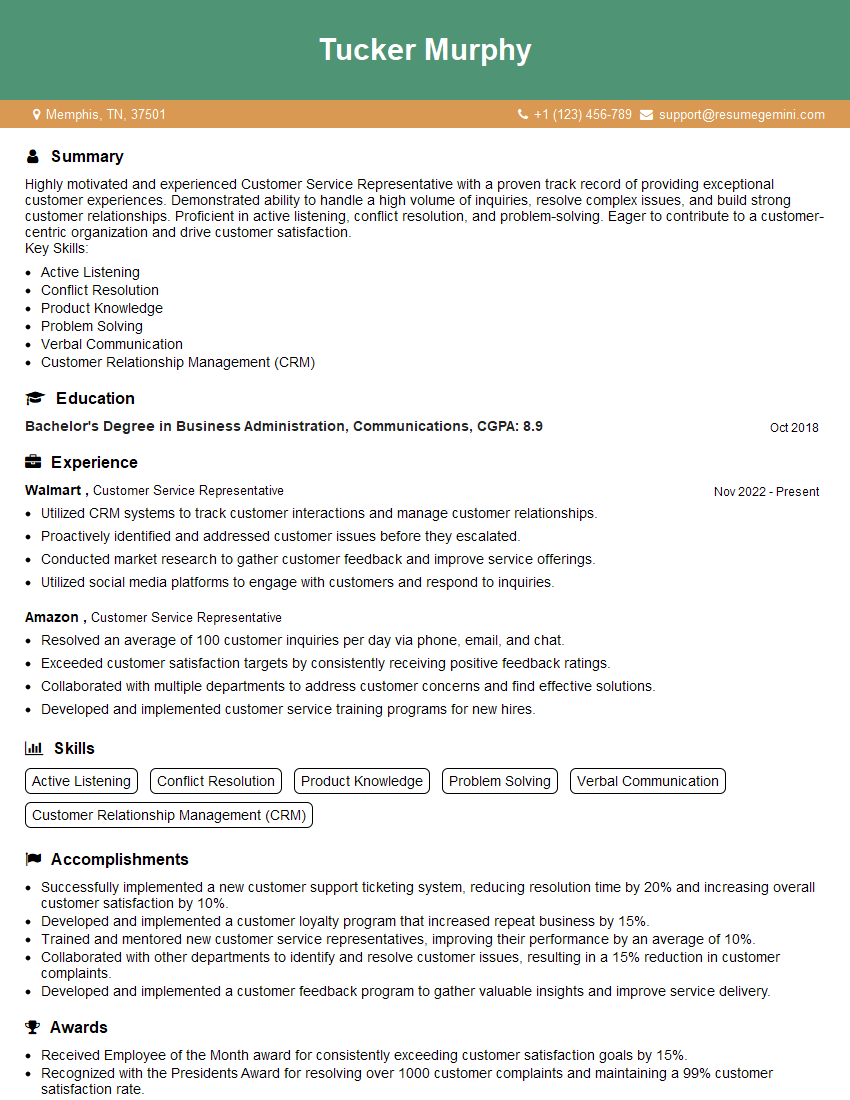
Customer Service Representative Resume Sample
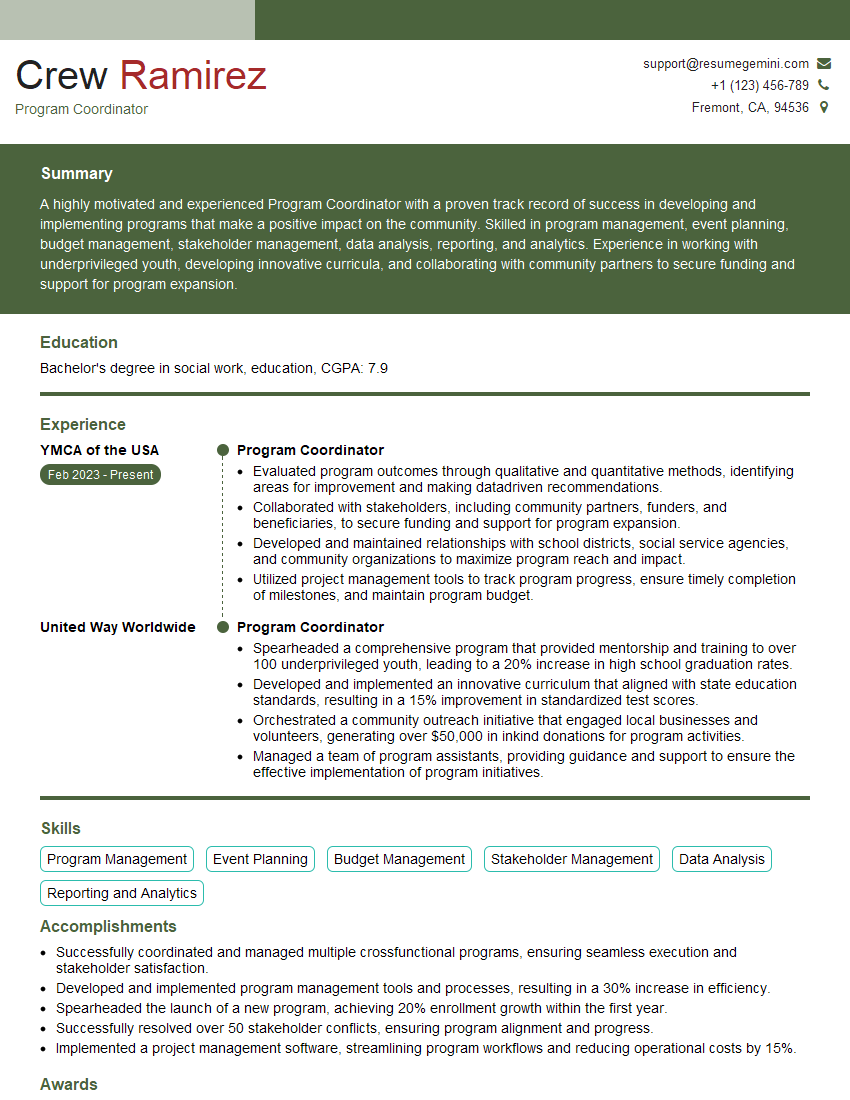
Program Coordinator Resume Sample
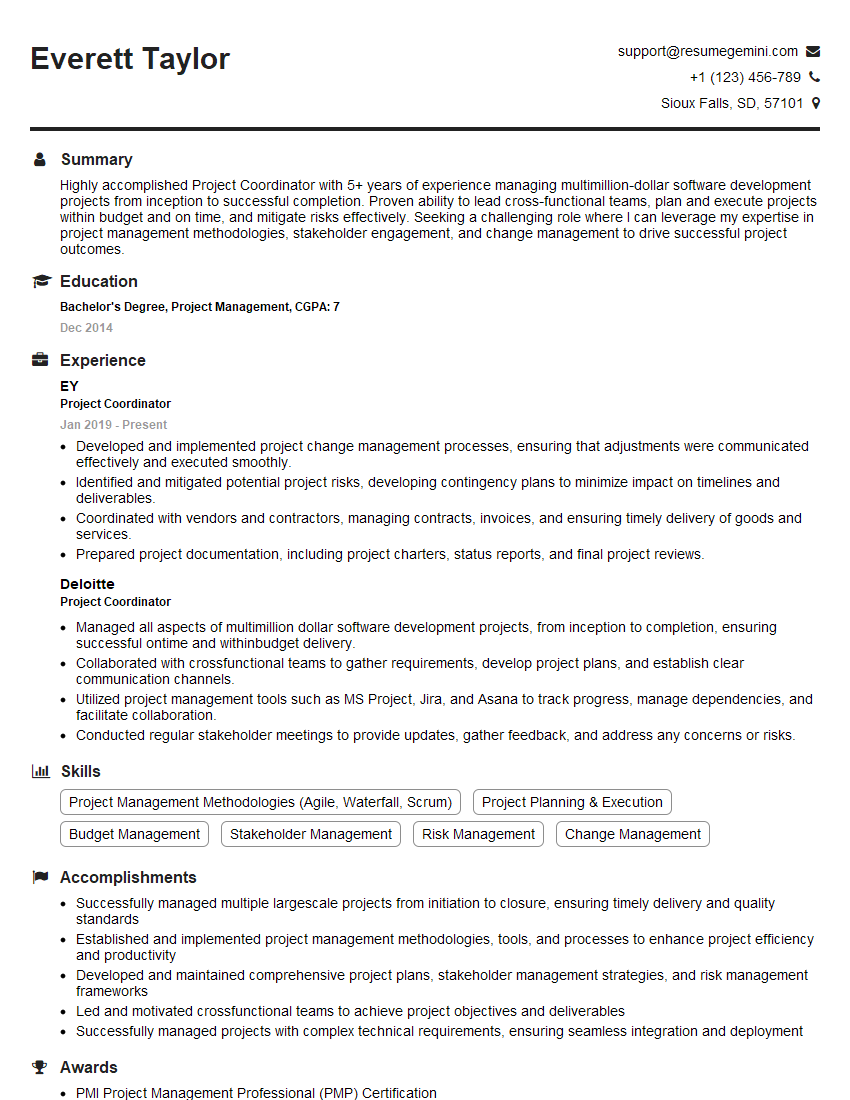
Project Coordinator Resume Sample
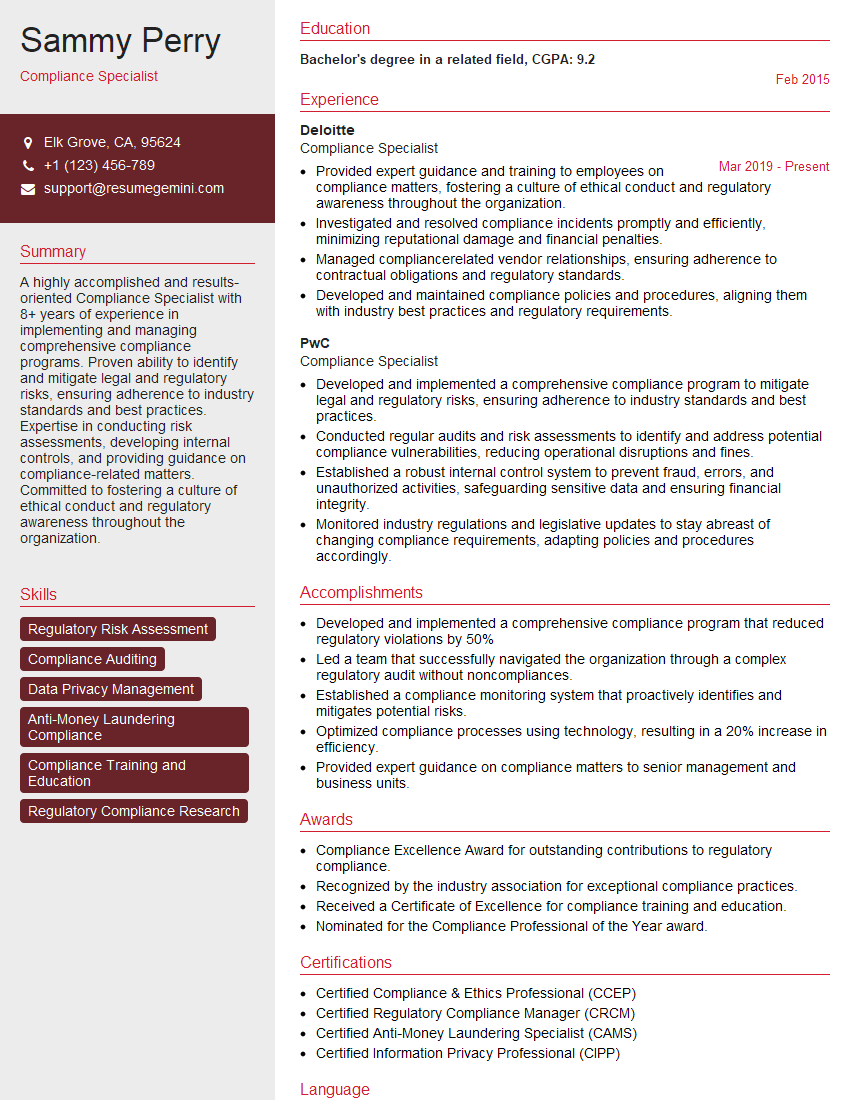
Compliance Specialist Resume Sample

Business Analyst Resume Sample
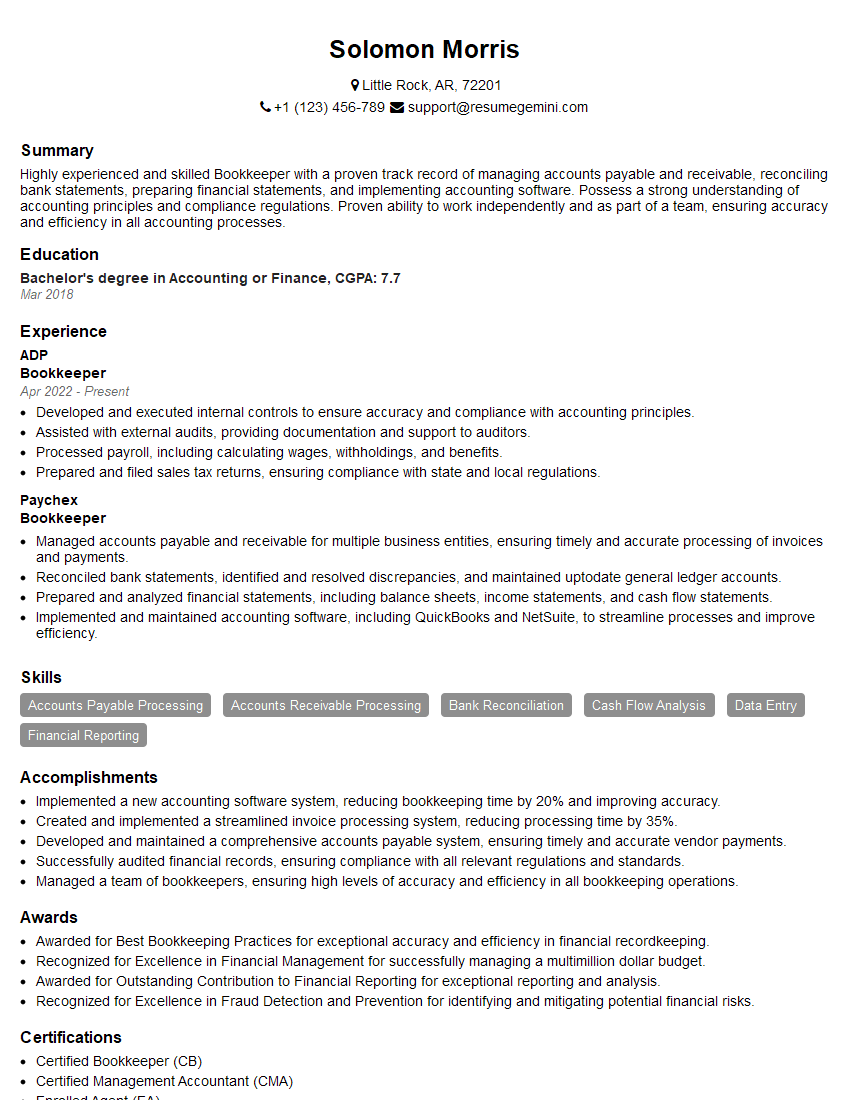
Bookkeeper Resume Sample
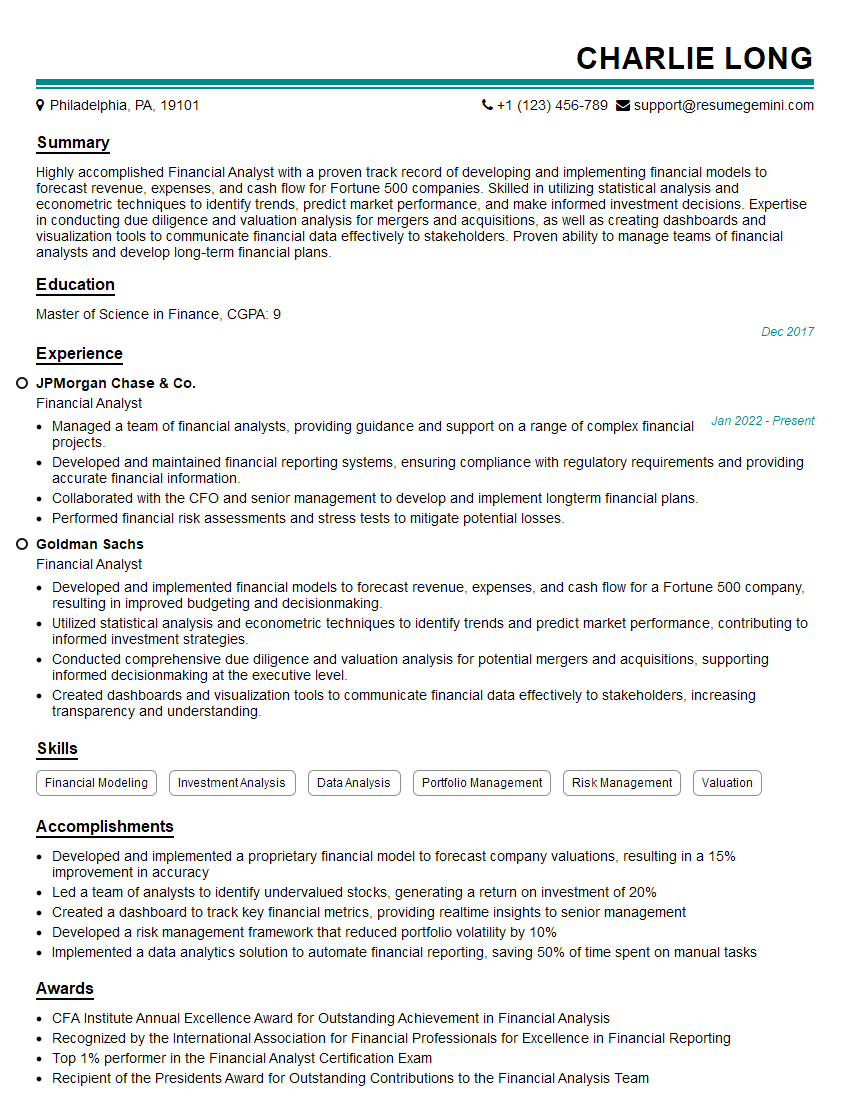
Financial Analyst Resume Sample

Data Analyst Resume Sample
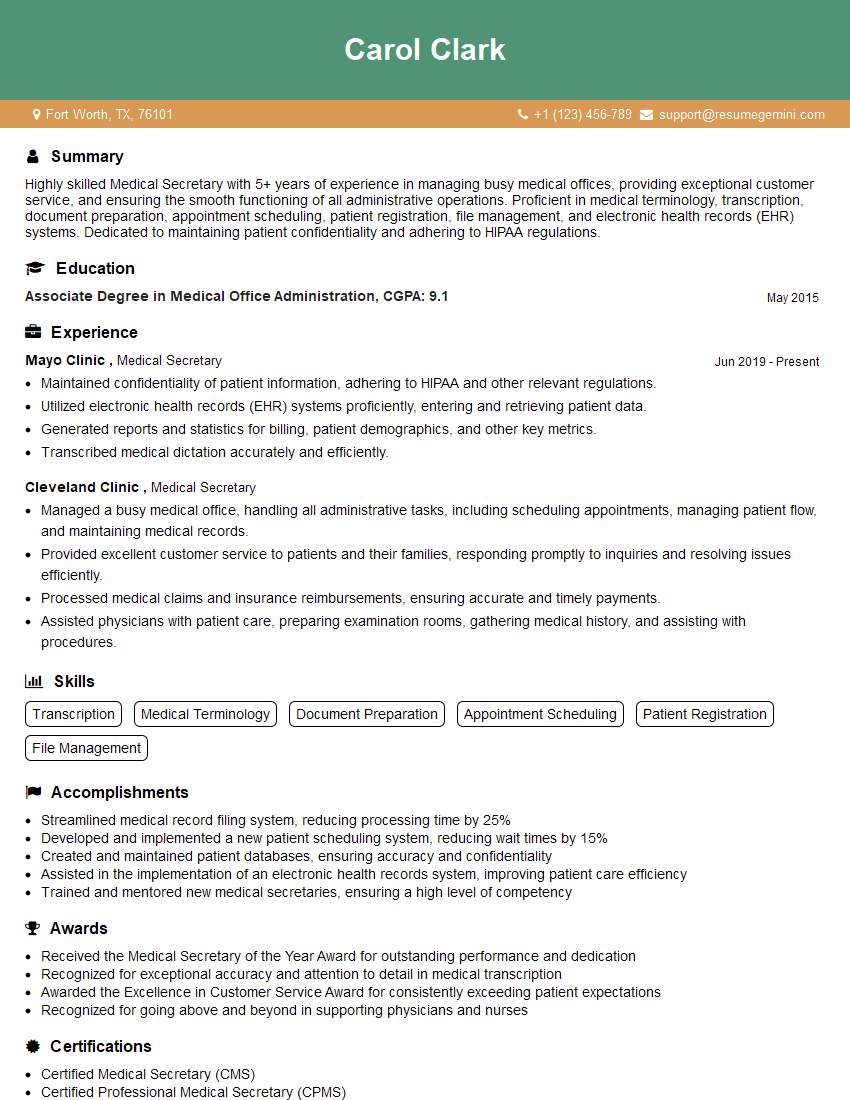
Medical Secretary Resume Sample
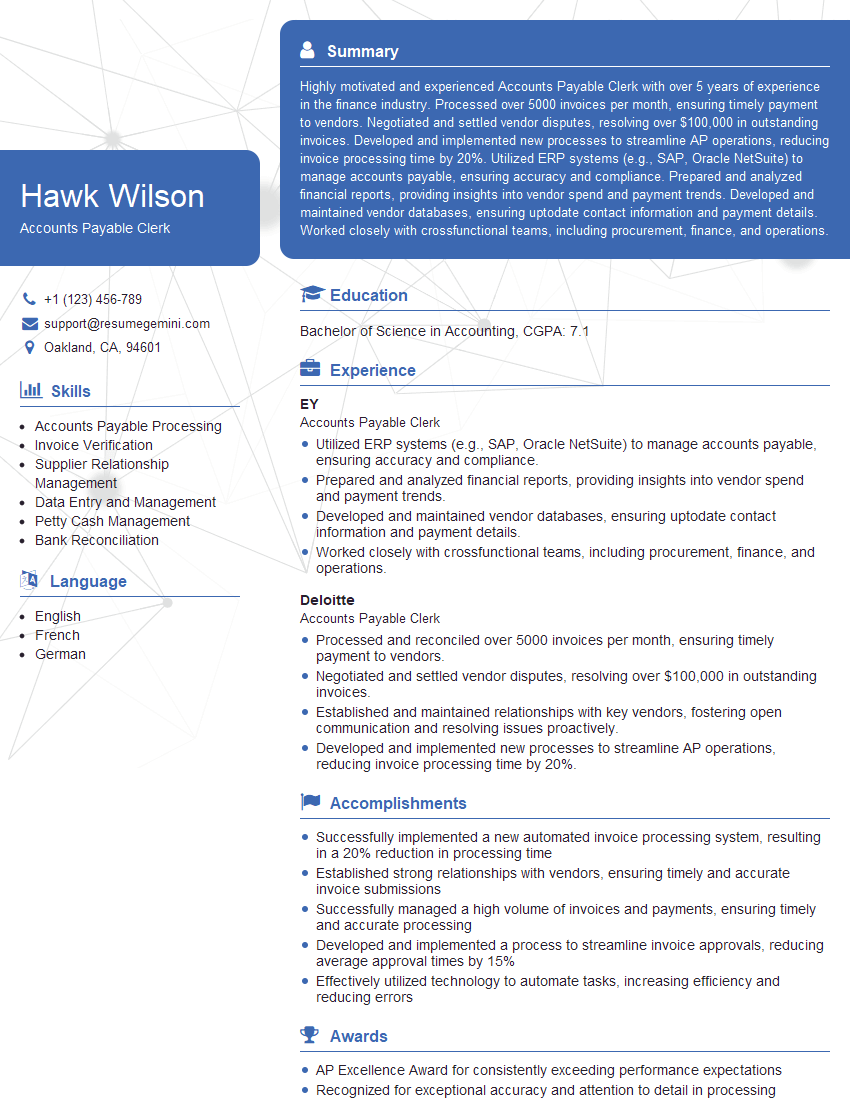
Accounts Payable Clerk Resume Sample
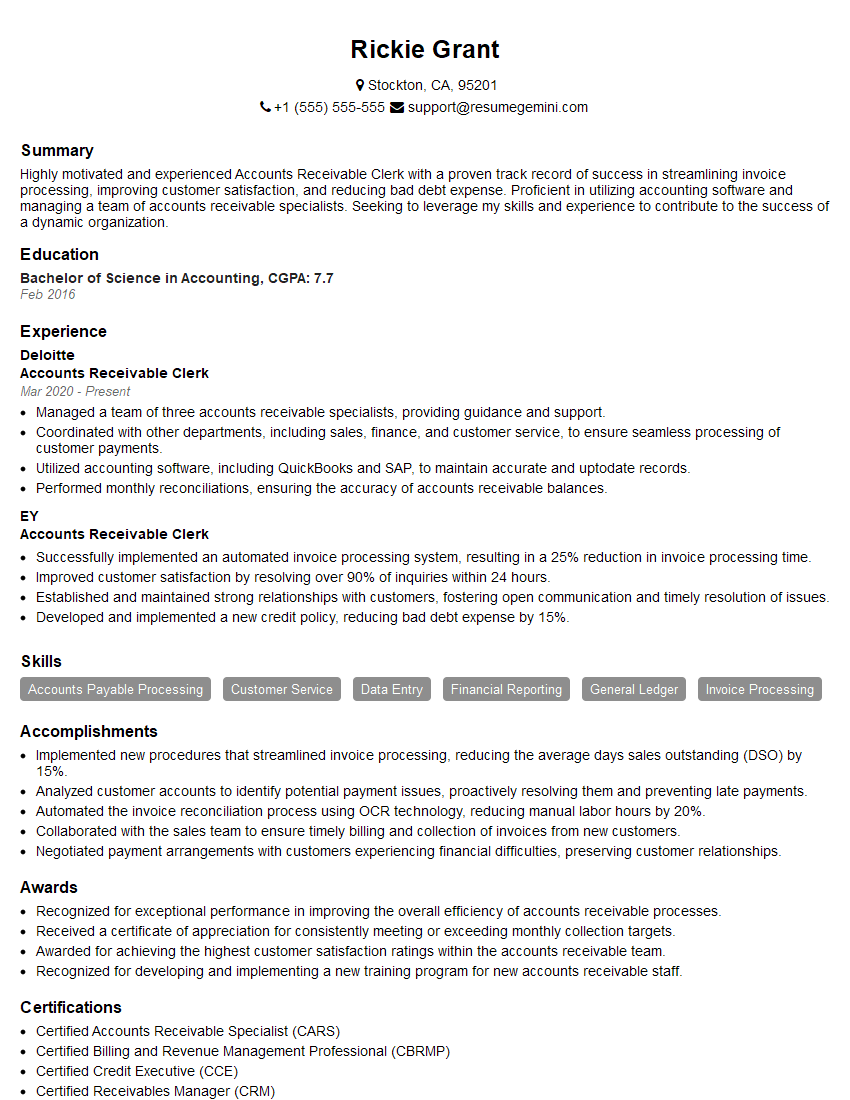
Accounts Receivable Clerk Resume Sample
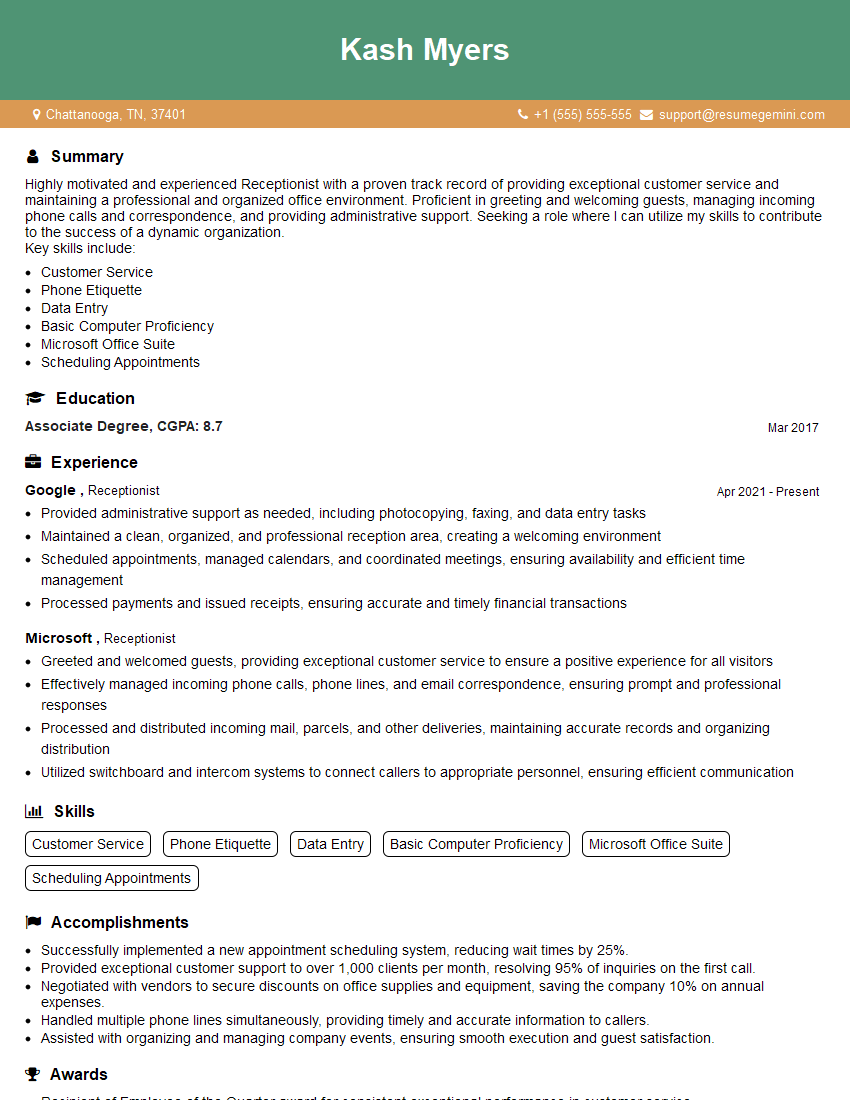
Receptionist Resume Sample

Executive Assistant Resume Sample
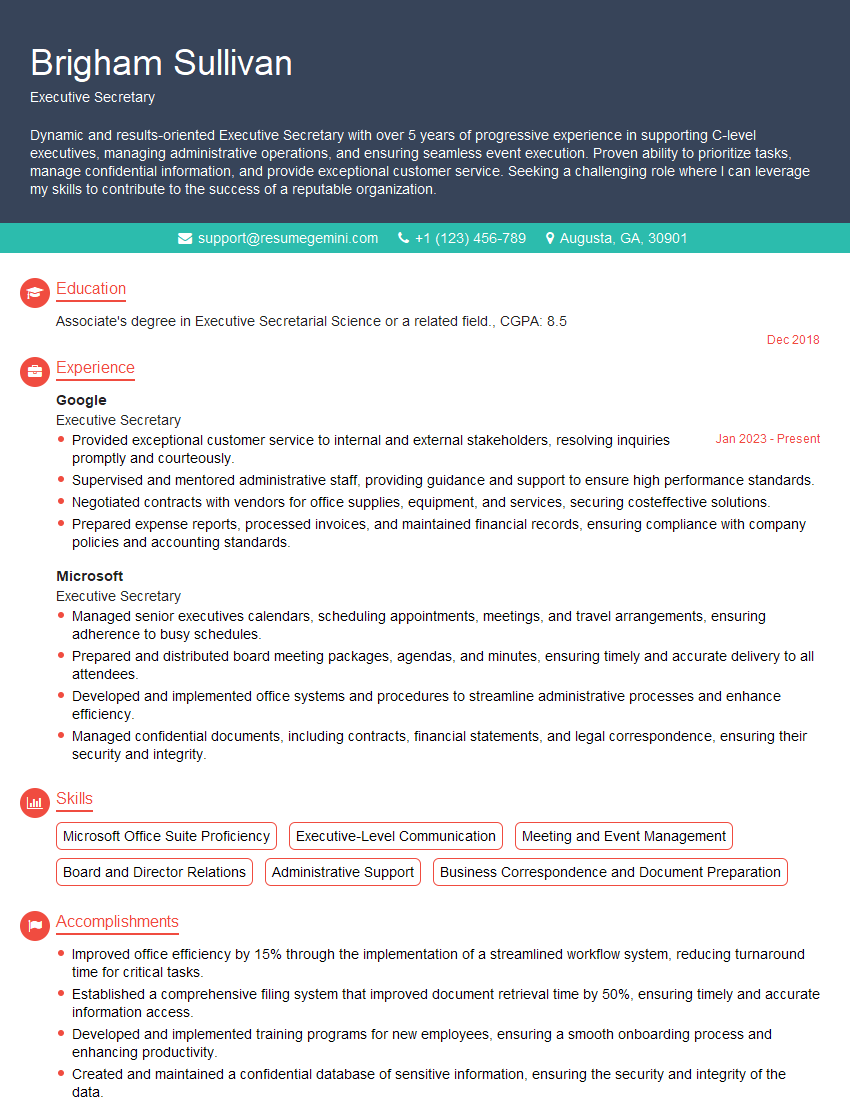
Executive Secretary Resume Sample
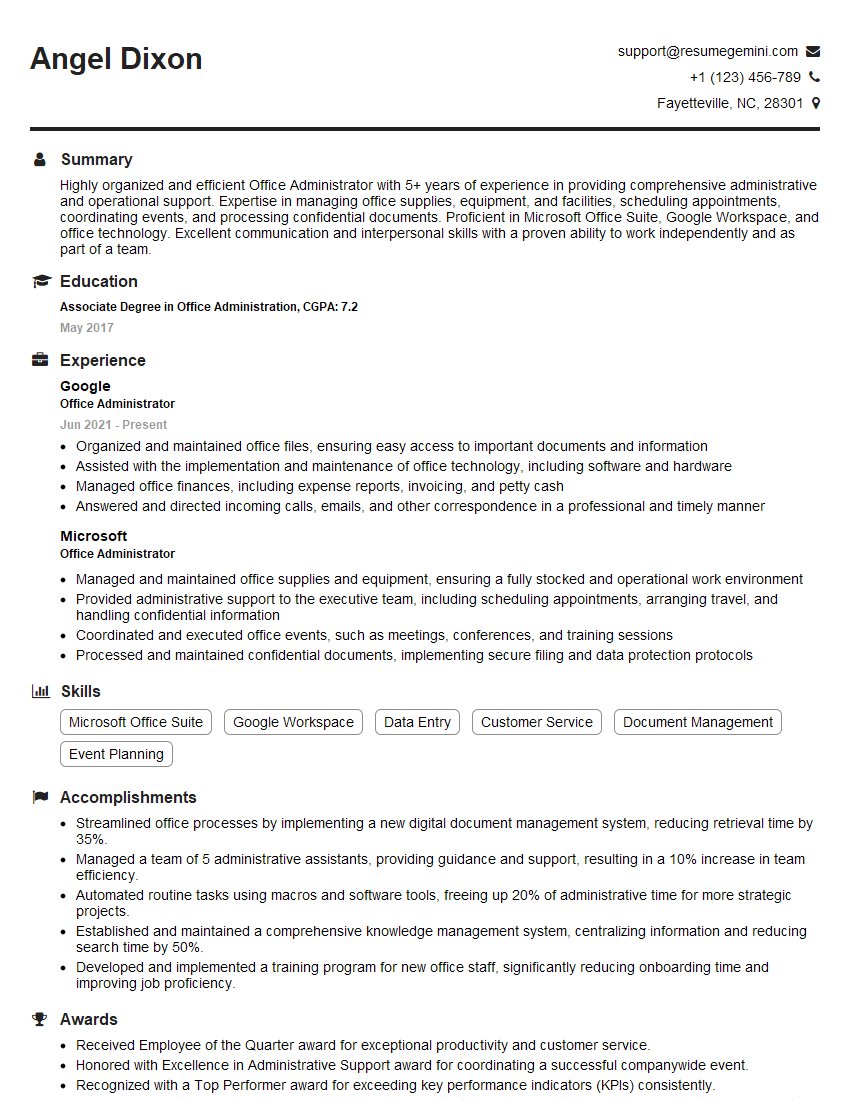
Office Administrator Resume Sample
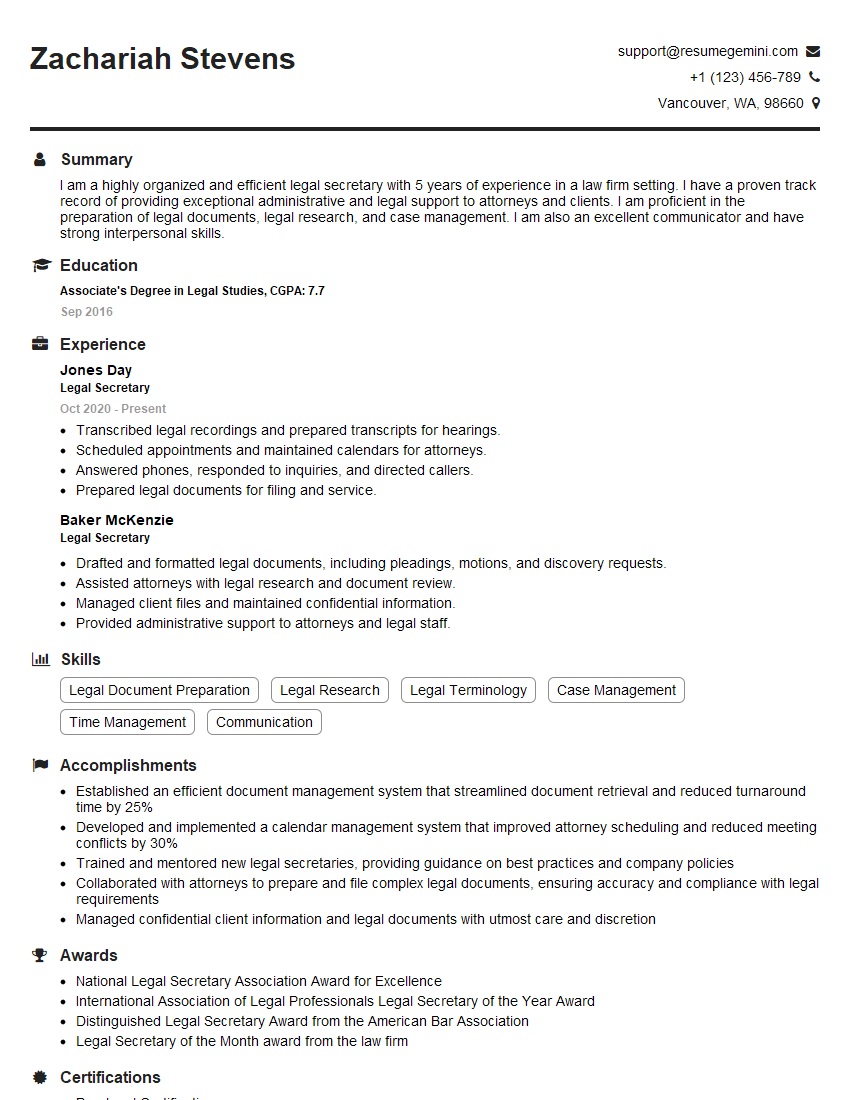
Legal Secretary Resume Sample

Data Entry Clerk Resume Sample
- Office Manager
- Marketing Assistant
- Sales Coordinator
- Administrative Assistant
- Administrative Coordinator
- Customer Service Representative
- Program Coordinator
- Project Coordinator
- Compliance Specialist
- Business Analyst
- Bookkeeper
- Financial Analyst
- Data Analyst
- Medical Secretary
- Accounts Payable Clerk
- Accounts Receivable Clerk
- Receptionist
- Executive Assistant
- Executive Secretary
- Office Administrator
- Legal Secretary
- Data Entry Clerk
Explore more articles
Users Rating of Our Blogs
Share Your Experience
We value your feedback! Please rate our content and share your thoughts (optional).
What Readers Say About Our Blog
Very informative content, great job.
good