Unlock your full potential by mastering the most common Inks interview questions. This blog offers a deep dive into the critical topics, ensuring you’re not only prepared to answer but to excel. With these insights, you’ll approach your interview with clarity and confidence.
Questions Asked in Inks Interview
Q 1. Explain the difference between raster and vector graphics.
The core difference between raster and vector graphics lies in how they represent images. Raster graphics, like JPEGs and PNGs, are composed of a grid of pixels. Each pixel has a specific color, and changing the image size alters the pixel count, leading to pixelation or blurring. Think of it like a mosaic – zooming in reveals the individual tiles. Vector graphics, on the other hand, are defined by mathematical equations that describe shapes, lines, and curves. This means they can be scaled to any size without loss of quality because the computer is simply recalculating the equations, not stretching pixels. Imagine it as a blueprint – you can enlarge the blueprint and still have crisp, clear lines.
For example, a photograph would be a raster graphic, while a logo created in Illustrator would be a vector graphic. Raster images are ideal for photorealistic imagery, whereas vector graphics are superior for illustrations, logos, and typography where scalability and crispness are crucial.
Q 2. Describe your experience with Inkscape’s path manipulation tools.
Inkscape’s path manipulation tools are fundamental to my workflow. I extensively use the Node Tool to edit the individual points that make up a path, allowing for precise adjustments to curves and lines. The ability to add, delete, and move nodes gives incredible control over the shape. I frequently utilize the Path effects, like offsetting and rounding corners, to quickly create variations and complex shapes without manually manipulating nodes. The Boolean operations (Union, Intersection, Difference, Exclusion) are indispensable for combining and subtracting paths to generate intricate compositions. For example, I recently used these tools to create a stylized leaf by combining several overlapping circles and crescent shapes, using the difference operation to create the leaf’s unique shape. My proficiency with these tools allows me to rapidly iterate designs and create highly detailed illustrations.
Q 3. How do you manage color profiles in Adobe Illustrator?
Managing color profiles in Adobe Illustrator is critical for ensuring accurate color reproduction across different devices and print outputs. I start by setting the document’s color profile to the appropriate standard (e.g., Adobe RGB (1998) for screen work, or a specific CMYK profile for print). This ensures consistent color representation throughout the design process. When importing images, I always check and convert their color profiles to match the document’s profile to avoid color shifts. Furthermore, I utilize the ‘Proof Colors’ feature to preview the document’s appearance under different color profiles (such as simulating a specific printer’s color space), thereby catching potential color discrepancies before sending it to print. The ‘Convert to CMYK’ command is carefully used for print-ready files, ensuring proper color management for the chosen print process.
Q 4. What are the benefits of using vector graphics for print?
Vector graphics offer several significant advantages for print: Firstly, they are resolution-independent, meaning they can be scaled to any size without losing quality – essential for large-format printing like posters or billboards. Secondly, they produce cleaner, sharper lines and text compared to raster images, avoiding the pixelation that can occur when enlarging raster graphics. Thirdly, vector files are generally smaller in size than comparable raster files, making them easier to manage and transfer. This is especially beneficial for complex designs with numerous elements. For instance, a company logo created using vector graphics can be scaled up for a billboard and down for a business card, without any compromise in quality. This avoids the need to create multiple versions of the logo for different print applications.
Q 5. Explain your workflow for creating a complex illustration in Illustrator.
My workflow for creating complex illustrations in Illustrator is a layered approach. I begin by sketching out the composition using a low-opacity layer, often using a tablet and stylus for natural strokes. This acts as my blueprint. Next, I meticulously create individual vector elements, each on its own layer. This layered approach allows for easy adjustments and modification of individual components without affecting the rest of the artwork. I regularly group related elements to maintain organization. Once the individual elements are complete, I refine their positioning and interactions, using blending modes to achieve the desired visual effect. For instance, I might use ‘Multiply’ to create depth or ‘Screen’ to add a sense of light. Finally, I meticulously check the outlines and colors, ensuring consistency and preparing the artwork for export.
Q 6. How do you optimize vector graphics for web use?
Optimizing vector graphics for web use focuses on reducing file size without compromising visual quality. The most effective strategy is to use the simplest path possible. Avoid overly complex paths or unnecessary nodes, which bloat the file size. If possible, I use simpler shapes instead of complex paths to reduce the overall complexity of the file. Before exporting, I check the outlines; sometimes a stroke with a thickness of 1pt can be changed to 0.5pt with little visual impact, significantly reducing the file size. I also choose the appropriate file format. SVG (Scalable Vector Graphics) is the most common and preferred format for web use, as it supports interactivity and animation, offering good compression. For logos or simple icons, optimized PNGs can be a good option, particularly if browser compatibility is a concern.
Q 7. What are some common file formats used for vector graphics?
Several common file formats are used for vector graphics. The most prevalent is SVG (Scalable Vector Graphics), an open standard supported by all major browsers. It allows for embedding text and other interactive elements. AI (Adobe Illustrator) is the proprietary format for Adobe Illustrator, offering the best preservation of layer information and effects, especially for complex documents. EPS (Encapsulated PostScript) is another widely used format, particularly in print environments, known for its compatibility across different applications. Finally, PDF (Portable Document Format) is a versatile choice that can contain both vector and raster data, suitable for both print and web distribution, depending on the export settings. The choice of format depends on the specific application and the intended use of the graphic.
Q 8. Describe your experience with color separation in print production.
Color separation is crucial in print production, as it breaks down a full-color image into individual plates, one for each primary color (Cyan, Magenta, Yellow, and Key/Black – CMYK). Each plate contains only the information for a single color. This allows the printing press to print each color separately, and when combined, they create the full-color image.
My experience involves working extensively with both pre-press software and understanding the limitations of various printing processes. For example, I’ve handled complex jobs requiring accurate color management using ICC profiles to ensure consistent color reproduction across different printers and substrates. I’ve also tackled situations requiring spot color separation, where specific Pantone colors need to be accurately matched and printed. Troubleshooting issues like incorrect color registration or moiré patterns (undesired patterns caused by color interference) has also been a regular part of my workflow. One memorable project involved separating a highly detailed, multi-colored illustration for a luxury packaging job, requiring meticulous attention to detail and precise color matching to ensure brand consistency.
- Understanding CMYK limitations: CMYK doesn’t reproduce all colors as accurately as RGB, so careful color adjustments are often necessary.
- Spot color management: Requires using Pantone libraries and accurate color conversions to match specific colors consistently.
- Proofing: Comparing soft proofs (digital representations of the final product) with hard proofs (physical prints) is critical for quality control.
Q 9. How do you troubleshoot common printing issues related to vector files?
Troubleshooting printing issues with vector files often boils down to identifying problems with the file itself or its interaction with the printer/RIP (Raster Image Processor) software. Common issues include incorrect fonts, missing linked images, corrupt files, and problems with the vector software’s settings.
My approach involves a systematic process:
- Verify file integrity: Start by opening the file in the original vector editor (e.g., Illustrator, Inkscape). Check for missing fonts (replace with suitable alternatives), broken links, or any visible corruption. Saving the file again in a newer version sometimes resolves corruption.
- Check for overlapping objects: Overlapping objects can cause unexpected printing results. Carefully inspect the file to ensure all objects are correctly positioned and grouped.
- Examine software settings: Ensure the correct color space (CMYK for print), resolution settings (for rasterized elements), and output settings are used within your vector editor.
- Test print: A small test print on the target printer can help quickly identify issues like color shifts or font problems before committing to a large print run.
- RIP settings: If possible, work with the print shop or access the printer’s RIP software and ensure settings are appropriate for the selected vector file format (e.g., PDF/X-1a).
For instance, I once resolved a printing issue by simply replacing a corrupted font. Another time, a client was experiencing incorrect color in their print. It turned out they had accidentally saved their file in RGB mode instead of CMYK.
Q 10. What are the advantages of using layers in vector graphics editors?
Layers are fundamental in vector graphics editors, offering a powerful way to organize complex artwork and make editing much more efficient. Think of layers as transparent sheets stacked on top of each other. Each layer can contain different elements, allowing you to manipulate them independently.
- Organization: Layers dramatically improve organization, particularly in complex projects with numerous elements. Instead of a messy single layer with everything intertwined, layers provide a neat, hierarchical structure.
- Non-destructive editing: Changes to one layer don’t affect other layers, enabling experimentation and revisions without compromising the whole artwork. This is vital for iterative design processes.
- Isolation: Working on a single layer isolates that specific element, reducing the chance of accidentally modifying other parts of the design.
- Grouping: Layers easily support grouping of related objects, making complex artwork easier to manage. You can create folders within layers as well to nest groupings.
- Visibility control: Layers can be easily hidden or shown, making it easy to focus on specific aspects of the artwork.
For example, in a logo design, I might use separate layers for the text, the main graphic element, and any background elements. This enables independent adjustments to each component without affecting the others. Layers can significantly shorten design times and reduce errors by making complex projects less overwhelming.
Q 11. Explain your experience with creating and managing brushes in Illustrator.
Creating and managing custom brushes in Illustrator is a powerful tool for achieving unique artistic effects and streamlining workflows. Illustrator offers a wide variety of brush types, each offering distinct capabilities.
My experience covers the creation of both art brushes (based on vector shapes) and calligraphic brushes (simulating brush strokes). I have regularly created custom brushes for illustration, logo design, and pattern creation. For example, I once designed a brush set based on hand-drawn textures to simulate the look of watercolors, increasing efficiency and consistency in my illustration projects.
The process typically involves:
- Choosing the right brush type: Select the brush type that best suits the desired effect (art brush, calligraphic brush, scatter brush, etc.).
- Defining brush settings: Adjust the stroke width, shape, angle, and other settings to fine-tune the brush properties.
- Experimentation: I always experiment with different settings to achieve the desired look. This often involves trial and error, iterating until the brush perfectly fits my creative vision.
- Saving and organizing brushes: Once I’m happy with the brush, I save it as a custom brush, carefully organizing it within my brush libraries for easy access.
Creating custom brushes helps automate repetitive tasks, saving time and ensuring consistency across multiple projects. It allows me to achieve a unique style and establish a consistent visual identity in my work.
Q 12. How do you handle image tracing in Inkscape or Illustrator?
Image tracing converts raster images (like JPEGs or PNGs) into vector graphics, making them scalable without losing quality. Both Inkscape and Illustrator offer powerful tracing tools.
The process often involves:
- Image preparation: High-resolution images generally produce better results. I sometimes clean up the raster image (e.g., removing backgrounds or noise) before tracing to improve the outcome.
- Choosing tracing settings: Both programs provide options to adjust parameters such as paths, colors, and detail level. Experimentation is key to finding optimal settings.
- Trace: Initiate the tracing process. The software will analyze the image and create vector paths based on its content.
- Refinement: Rarely does the initial tracing output perfectly match the image. Manual cleanup is often required to refine the vector paths, ensuring the proper representation of shapes and details. I often use Illustrator’s ‘Image Trace’ panel or Inkscape’s Poth trace tool.
- Testing: After cleaning and refinement, I test the scaling capability to see if the vector image looks clean at different sizes.
I’ve used image tracing to convert logos, illustrations, and even photographs into vector formats for print, web, and animation projects. The key is to manage expectations; complex images can require significant manual cleanup after tracing.
Q 13. Describe your experience with using gradients and meshes in vector graphics.
Gradients and meshes are powerful tools for creating smooth color transitions and complex shading effects in vector graphics. They enable the creation of realistic and visually appealing artwork.
My experience involves using gradients for simple to complex color blends. Linear, radial, and freeform gradients are often applied for backgrounds or to add depth to shapes. I frequently utilize meshes to create nuanced shading and lighting effects, adding realism and dimension to objects.
- Gradients: Offer a simple way to create smooth transitions between two or more colors. Experimentation with gradient angles and color stops allows for diverse results.
- Meshes: Meshes provide greater control over color distribution, enabling the creation of complex shading effects with multiple color points. The more nodes you add, the smoother the gradient.
- Combining gradients and meshes: Both techniques can be combined to achieve incredibly realistic effects. For instance, you might use a gradient as a base for a mesh, to quickly create a basic gradient, then add complexity with the mesh.
I’ve used meshes to create realistic-looking glass or metal textures, and gradients to create atmospheric effects in illustrations. These tools significantly increase the visual richness and complexity that can be achieved within vector graphics.
Q 14. How do you ensure your vector artwork is scalable without losing quality?
The inherent advantage of vector graphics is their scalability without loss of quality. Unlike raster images (made of pixels), vectors use mathematical formulas to define shapes, meaning they can be enlarged or reduced infinitely without pixelation.
To ensure scalability:
- Use vector formats: Always save the artwork in vector formats such as AI (Adobe Illustrator), SVG (Scalable Vector Graphics), or EPS (Encapsulated PostScript).
- Avoid raster effects: Minimize the use of raster images embedded within the vector artwork. If necessary, ensure these images are high-resolution.
- Expand strokes: For lines, expanding the stroke to a filled path ensures it maintains its thickness at any scale.
- Check for pixelation: Zoom in significantly to your artwork and make sure no pixelation or jagged edges appear when scaling. This helps to pinpoint any unexpectedly embedded raster images.
- Test scaling: Always test how the artwork scales at various sizes to verify there are no unexpected artifacts.
My workflow always prioritizes vector formats and ensures that any raster elements are high-resolution and appropriately managed to ensure the artwork remains sharp and crisp at any size. I’ve saved many projects from issues by using this process.
Q 15. What are your preferred techniques for creating detailed vector illustrations?
Creating detailed vector illustrations hinges on a meticulous approach combining precision tools and strategic planning. My preferred techniques involve leveraging the power of the pen tool for organic shapes, coupled with the shape builder tool for efficient manipulation and combination of multiple shapes. I often start with rough sketches to establish the composition and then meticulously recreate those sketches in vector format. For intricate details, I frequently use the pathfinder tools to create complex shapes from simpler components, allowing for non-destructive editing and easy modification. Think of it like building with LEGOs – starting with simple bricks and combining them to create an elaborate structure.
For instance, if I were illustrating a detailed botanical illustration, I’d start by outlining the major elements (leaves, petals, stem) with the pen tool, ensuring smooth curves and precise joins. Then I’d use the shape builder tool to combine and subtract sections to create overlapping leaves and complex petal structures. Finally, the pathfinder’s ‘unite’ function might be used to combine multiple petal shapes into a single, seamless element.
Career Expert Tips:
- Ace those interviews! Prepare effectively by reviewing the Top 50 Most Common Interview Questions on ResumeGemini.
- Navigate your job search with confidence! Explore a wide range of Career Tips on ResumeGemini. Learn about common challenges and recommendations to overcome them.
- Craft the perfect resume! Master the Art of Resume Writing with ResumeGemini’s guide. Showcase your unique qualifications and achievements effectively.
- Don’t miss out on holiday savings! Build your dream resume with ResumeGemini’s ATS optimized templates.
Q 16. Describe your experience with typography in vector graphics editors.
Typography is integral to effective vector illustration. My experience encompasses a wide range of techniques, from simple text placement to advanced typographic treatments. I’m proficient in using glyph panels to access a broad range of characters and symbols beyond the standard keyboard. I understand the nuances of kerning (adjusting space between individual letters) and tracking (adjusting space between entire words) to optimize readability and visual appeal. I also frequently utilize the capabilities of vector editors to manipulate text as shapes, allowing for distortion, warping, and other creative effects. Think of transforming a flat letter ‘A’ into a three-dimensional, sculpted form, something only achievable with vectors.
For example, in a logo design, I might use a custom font and carefully kern the letters to create a clean and professional look. Or, in a more illustrative context, I might convert text to outlines and then distort it to integrate it seamlessly within the overall composition. Working with outlines allows for complete freedom in manipulating the text’s shape and appearance.
Q 17. How do you create and use symbols in Illustrator or Inkscape?
Symbols in Illustrator or Inkscape are incredibly useful for creating reusable elements within illustrations and across multiple projects. To create a symbol, you select the artwork, then use the ‘New Symbol’ command (the exact menu location varies slightly between programs). This converts the artwork into a reusable symbol that remains linked to the original. Any changes to the master symbol update all instances automatically. This is incredibly efficient for maintaining consistency and simplifying editing. Think of it as creating a custom stamp for repeating elements.
For instance, I might create a symbol of a recurring design element in a pattern or a small graphic element that repeats throughout an infographic. If I later decide to change the design of the symbol, all instances are updated instantly, saving considerable time and ensuring consistency. When you’re working with a complex illustration containing many repeated elements, using symbols is a game-changer in terms of efficiency and workflow.
Q 18. What are some common pitfalls to avoid when working with vector graphics?
Several common pitfalls can significantly impact the quality and efficiency of vector graphics workflows. One major issue is overcomplicating paths. Excessive nodes and unnecessary points lead to bloated files, slower performance, and difficulties in editing. Always aim for the simplest path that achieves the desired shape. Another common issue is neglecting proper organization. Unorganized layers and groups make finding and editing specific elements incredibly difficult, especially in complex illustrations. A well-organized file makes the design process significantly smoother and more enjoyable.
Furthermore, relying solely on expanding outlines can lead to irreversible changes and loss of editability. Always try to work with live shapes and avoid unnecessary expansions unless absolutely necessary for specific outputs. Finally, neglecting image resolution during export can lead to pixelated outputs when scaling up. Always ensure the resolution setting matches the final intended use.
Q 19. Explain your understanding of clipping masks in vector graphics.
Clipping masks are a powerful tool for selectively revealing portions of artwork. They allow you to use one object to mask another, revealing only the parts that fall within the mask’s boundaries. It’s like using a stencil—the mask shapes what you see of the underlying image. The masked object remains editable; only its visibility is affected by the clipping mask.
For example, you might use a circle as a clipping mask to reveal only a circular section of a photograph within a larger design. This offers a great deal of flexibility and control over the appearance of your illustrations. Or, consider an illustration of a person’s face where a different textured surface is used for the skin. You can use a mask to ensure the texture only appears on the face, providing a seamless blend between elements.
Q 20. How do you handle complex paths and shapes in vector graphics editors?
Handling complex paths and shapes efficiently requires a combination of techniques and careful planning. Proper use of the pen tool is paramount—making sure curves are smooth and nodes are placed strategically reduces the complexity of the path. Utilizing pathfinder operations to combine, subtract, or intersect shapes simplifies intricate forms, resulting in cleaner, simpler paths. This can significantly reduce file size and improve performance.
For example, when creating an intricate floral design, I might start by creating individual petals and leaves using the pen tool, then use Pathfinder’s ‘unite’ function to combine them into larger, more complex shapes. This allows me to manage multiple paths more efficiently than attempting to create every single curve with the pen tool. Another strategy is to break down complex shapes into simpler, more manageable components, combining them strategically as the design evolves.
Q 21. Describe your experience with exporting vector graphics for different purposes.
Exporting vector graphics for different purposes requires understanding the various file formats and their strengths. For print, high-resolution PDF or EPS files are essential to ensure sharp output at any scale. For web use, SVG is ideal for its scalability and compatibility with web browsers. For use within other applications, AI (Adobe Illustrator) or SVG files are usually the most compatible options.
When exporting for web use, I optimize the SVG file for browser compatibility and performance. When exporting for print, I carefully check color profiles and ensure high-resolution output. Each application demands a specific export approach – and understanding those requirements is key to delivering professional-quality results.
Q 22. What are the key differences between Illustrator and Inkscape?
Adobe Illustrator and Inkscape are both powerful vector graphics editors, but they cater to different needs and workflows. Illustrator, a commercial software, boasts a significantly more robust feature set, superior performance with complex files, and extensive plugin support. Its industry-standard status means near-universal compatibility and a vast online community for support and learning resources. Inkscape, on the other hand, is a free and open-source alternative. While it offers many similar functionalities, its performance can lag behind Illustrator, particularly with large, intricate files. Its interface may also feel less intuitive for users familiar with Adobe’s ecosystem. The lack of extensive plugin support is another key difference. Think of it like this: Illustrator is the high-end sports car, powerful and feature-rich, while Inkscape is a reliable, efficient sedan – perfectly capable, but with fewer bells and whistles.
- Cost: Illustrator is subscription-based; Inkscape is free.
- Performance: Illustrator generally performs better with large files.
- Features: Illustrator has a broader range of advanced features and tools.
- File Compatibility: Both support common vector formats, but Illustrator offers more nuanced control.
- Community and Support: Illustrator benefits from a larger and more established community.
Q 23. How do you work effectively with clients to deliver vector graphics solutions?
Effective client collaboration hinges on clear communication and meticulous project management. Before starting, I thoroughly discuss the project scope, desired outcomes, and any specific requirements with the client. This includes understanding their brand guidelines, target audience, and intended use for the final graphics. I establish a clear timeline, outlining key milestones and deadlines, ensuring transparency throughout the process. I regularly share work-in-progress updates, seeking feedback at critical junctures. This iterative approach allows for revisions and adjustments, ensuring the final product aligns perfectly with the client’s vision. For instance, I might present low-fidelity sketches or wireframes initially to gather feedback on the overall concept before moving to detailed vector design. Finally, I meticulously document the entire process, including revisions and approvals, to avoid any confusion or disputes. Open communication and a collaborative spirit are vital for delivering exceptional results that exceed client expectations.
Q 24. What are your preferred methods for organizing and managing your files?
Organizing and managing my files is paramount for efficiency and avoiding chaos. I employ a hierarchical folder structure, categorizing projects by client name and project title. Within each project folder, I maintain subfolders for different file types (e.g., source files, final assets, client communications). I utilize descriptive file naming conventions – incorporating the project name, date, and file type – to ensure effortless identification. For example, Project_Acme_Logo_v2_2024-03-08.ai clearly identifies the file’s content, version, and creation date. Furthermore, I use cloud-based storage solutions like Dropbox or Google Drive to ensure backups and facilitate collaboration. Regular backups to an external hard drive offer an additional safeguard against data loss. This organized system streamlines my workflow and prevents the frustration of searching for lost files.
Q 25. Describe your experience with collaborative workflows using vector graphics.
I’ve extensive experience collaborating on vector graphics projects using cloud-based platforms. For example, I’ve successfully used collaborative tools like Adobe Creative Cloud Libraries and Google Drive to share files, provide feedback, and track revisions in real-time. On larger projects, using version control systems is crucial. We’ve successfully used Git, managing design assets as if they were code. This allows for tracking changes, reverting to previous versions, and collaborating efficiently with multiple designers. Clear communication protocols are essential, ensuring all team members are aware of their responsibilities and the project’s progress. Regular check-ins and progress reports keep everyone informed and aligned. For example, we utilize project management tools like Asana or Trello to centralize communication and coordinate tasks.
Q 26. How do you stay current with the latest trends and technologies in vector graphics?
Staying current with vector graphics trends and technologies is crucial for professional development. I actively follow industry blogs, online forums, and subscribe to newsletters from leading design publications. Attending online webinars and workshops keeps me abreast of new software features and design techniques. Experimenting with new software and plugins allows me to practically evaluate emerging tools and their potential benefits. I actively participate in online design communities, engaging in discussions and sharing knowledge with other professionals. This continuous learning ensures my skills remain sharp and adaptable to the ever-evolving landscape of vector graphics. Participating in online courses and attending conferences offer more formal opportunities for professional development.
Q 27. Describe a challenging vector graphics project you completed and how you overcame obstacles.
One challenging project involved creating a highly detailed, animated vector graphic for a large-scale interactive installation. The complexity stemmed from the sheer number of intricate elements and the need for seamless animation across multiple screens. The initial approach resulted in a file size that was too large for optimal performance. To overcome this, I employed techniques like optimizing paths, simplifying shapes, and using symbols effectively. I also experimented with different animation formats to find the most efficient approach. This involved breaking down the animation into smaller, manageable segments, optimizing each part, and then recombining them. Through meticulous optimization and a phased approach, I was able to drastically reduce the file size without compromising visual quality, ensuring a smooth and engaging user experience. The project reinforced the importance of planning, optimization, and a flexible approach to problem-solving in large-scale vector projects.
Q 28. How do you ensure color consistency across different output devices?
Color consistency across different output devices is crucial for maintaining brand identity and ensuring accurate representation. I use color profiles (e.g., sRGB, Adobe RGB) and color management systems to ensure consistent color reproduction. This involves specifying the intended color profile for the design files and using a calibrated monitor. When preparing files for print, I work in CMYK mode and use a professional color management workflow. For web, I use RGB color spaces, ensuring the conversion process is appropriately managed. Using Pantone color matching system for critical brand colors provides a consistent reference across devices and outputs, providing a common standard that ensures accurate color replication irrespective of the output method. This careful attention to color management minimizes discrepancies and guarantees a consistent visual experience across various platforms.
Key Topics to Learn for Inks Interview
- Inkscape Interface and Workspace: Understanding the user interface, toolbars, and workspace configuration is crucial for efficient workflow. Practice navigating and customizing the environment.
- Vector Graphics Fundamentals: Mastering concepts like paths, nodes, handles, and Bézier curves is essential for creating and manipulating vector artwork. Practice creating various shapes and manipulating them precisely.
- Drawing and Editing Techniques: Explore different drawing tools, including the pen tool, pencil tool, and shape tools. Learn to effectively edit paths, apply transformations, and utilize layers for organized workflow.
- Color Management and Color Profiles: Understand how color profiles work and how to manage colors effectively within Inkscape to ensure consistency and accuracy across different outputs.
- Text Handling and Typography: Learn how to work with text, apply different fonts, manage text alignment and kerning, and create visually appealing typography.
- Filters and Effects: Explore the various filters and effects available in Inkscape to enhance your artwork. Practice using them creatively and understand how they impact your designs.
- Import and Export Options: Familiarize yourself with different file formats supported by Inkscape and learn how to import and export artwork for various applications.
- Extension Management and Customization: Learn how to install and manage extensions to extend Inkscape’s functionality and customize it to your needs.
- Advanced Techniques (for Senior Roles): Explore topics like creating complex illustrations, working with gradients, mesh gradients, and advanced path manipulation techniques.
- Troubleshooting and Problem-Solving: Develop your problem-solving skills by working through common Inkscape issues and finding effective solutions. Practice diagnosing errors and finding workarounds.
Next Steps
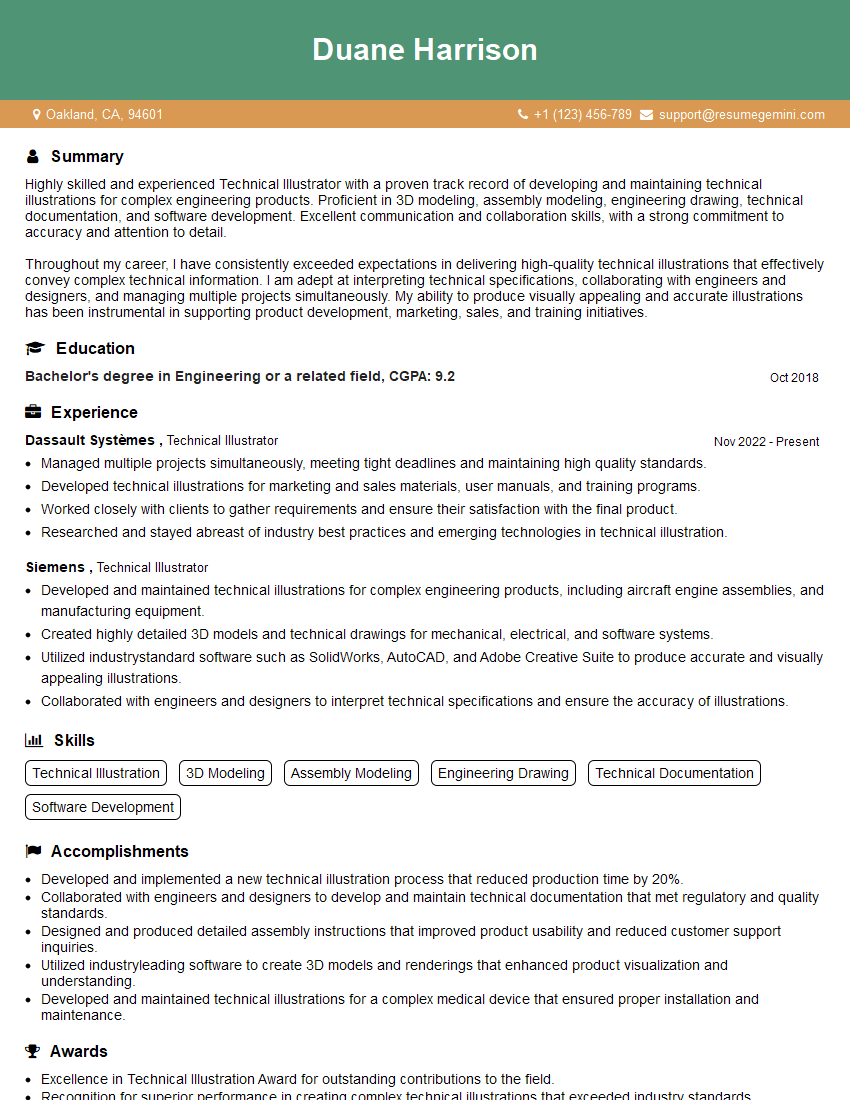
Mastering Inkscape significantly enhances your graphic design skills, opening doors to a wider range of opportunities in various industries. To boost your job prospects, creating a strong, ATS-friendly resume is vital. ResumeGemini is a trusted resource to help you build a professional and impactful resume that highlights your Inkscape skills effectively. Examples of resumes tailored to Inkscape roles are available to guide you.
Explore more articles
Users Rating of Our Blogs
Share Your Experience
We value your feedback! Please rate our content and share your thoughts (optional).
What Readers Say About Our Blog
Very informative content, great job.
good