Feeling uncertain about what to expect in your upcoming interview? We’ve got you covered! This blog highlights the most important Knowledge of Hardware interview questions and provides actionable advice to help you stand out as the ideal candidate. Let’s pave the way for your success.
Questions Asked in Knowledge of Hardware Interview
Q 1. Explain the difference between RAM and ROM.
RAM (Random Access Memory) and ROM (Read-Only Memory) are both types of computer memory, but they differ significantly in how they store and access data. Think of RAM as your computer’s short-term memory – it’s where the computer keeps data it’s actively using. ROM, on the other hand, is like its long-term, unchangeable memory – it holds essential instructions needed to start the computer.
RAM: Volatile memory; data is lost when the power is turned off. It’s fast and allows for quick reading and writing of data. Imagine it like a whiteboard – you can easily write and erase information. This is where your operating system, running applications, and currently open files reside.
ROM: Non-volatile memory; data is permanently stored and remains even when the power is off. It’s slower than RAM but crucial for the boot process. Think of it as a set of instructions permanently etched in stone – they can’t be changed easily. It typically contains the BIOS (Basic Input/Output System) or UEFI (Unified Extensible Firmware Interface), firmware needed for the initial startup sequence.
In essence, RAM is for temporary storage of actively used data, while ROM contains permanent instructions essential for the system’s operation.
Q 2. What are the different types of RAM?
Several types of RAM exist, each with its own performance characteristics and applications. The most common types include:
- DRAM (Dynamic Random Access Memory): The most prevalent type of RAM. It requires constant refreshing to maintain data. It’s relatively inexpensive but slower than other RAM types.
- SRAM (Static Random Access Memory): Faster and more expensive than DRAM. It doesn’t require refreshing, making it ideal for cache memory. Think of it as a high-speed, temporary storage area for frequently accessed data.
- DDR SDRAM (Double Data Rate Synchronous Dynamic Random Access Memory): A widely used type of DRAM that transfers data on both the rising and falling edges of the clock signal, doubling the data transfer rate. Various generations exist, like DDR3, DDR4, and DDR5, with each generation offering improved speed and efficiency.
- LPDDR (Low-Power Double Data Rate): A low-power version of DDR SDRAM, commonly used in mobile devices and embedded systems. It prioritizes power efficiency over raw speed.
The choice of RAM type depends on factors like cost, performance requirements, and power consumption. For example, high-performance gaming PCs would use high-speed DDR4 or DDR5 RAM, while mobile devices would leverage LPDDR RAM for its energy efficiency.
Q 3. Describe the function of a CPU.
The CPU (Central Processing Unit), often called the ‘brain’ of the computer, is responsible for executing instructions within a computer program. It’s the heart of any computing device. Imagine it as a super-fast calculator that can perform billions of operations per second. These operations range from simple arithmetic calculations to complex logical decisions.
The CPU’s core functions include:
- Fetching instructions: Retrieving instructions from memory.
- Decoding instructions: Interpreting the instructions.
- Executing instructions: Performing the operations specified by the instructions.
- Storing results: Saving the results of the operations in memory.
Modern CPUs often incorporate multiple cores, allowing for parallel processing – performing multiple tasks simultaneously. This is like having multiple assistants working on different parts of a project concurrently, leading to significantly faster processing.
Q 4. What is the role of a motherboard?
The motherboard is the central printed circuit board (PCB) in a computer. It’s the backbone of the system, connecting all the major components like the CPU, RAM, storage devices, and expansion cards. Think of it as a city’s central infrastructure, with roads (busses) connecting different areas (components).
Key roles of the motherboard include:
- Connecting components: Providing slots and connectors for various hardware components.
- Facilitating communication: Enabling communication between different components through bus systems.
- Power distribution: Distributing power to different components.
- Supporting expansion: Allowing for the addition of extra functionality through expansion slots (like PCIe slots for graphics cards).
The motherboard’s chipset plays a vital role in determining the system’s capabilities, such as the type of CPU it supports and the speed of its memory interface.
Q 5. Explain the purpose of a GPU.
A GPU (Graphics Processing Unit) is a specialized electronic circuit designed to rapidly manipulate and alter memory to accelerate the creation of images in a frame buffer intended for output to a display device. In simpler terms, it’s a processor specifically designed for handling graphics and video. Think of it as a dedicated artist working solely on visuals, freeing up the CPU to handle other tasks.
The GPU is responsible for rendering images, videos, and 3D graphics. It plays a crucial role in gaming, video editing, and other visually intensive applications. Modern GPUs are incredibly powerful, capable of handling billions of calculations per second to create realistic and detailed visuals.
Its importance extends beyond gaming and includes tasks like machine learning, scientific computing, and cryptocurrency mining, leveraging its parallel processing capabilities to accelerate calculations. The ability to handle many calculations simultaneously is a key to its success in diverse applications.
Q 6. What are different types of storage devices and their characteristics?
Several types of storage devices exist, each with its own characteristics:
- Hard Disk Drives (HDDs): Traditional mechanical storage devices that use spinning platters and a read/write head to store data. They are relatively inexpensive but slower than other options. Think of them as old-fashioned record players – they require mechanical movement to access data.
- Solid State Drives (SSDs): Modern storage devices that use flash memory to store data. They are faster and more durable than HDDs but generally more expensive. Imagine them as a digital library – data is instantly accessible without needing physical movement.
- Optical Drives (CD/DVD/Blu-ray): Storage devices that use lasers to read and write data onto optical discs. They are used for storing large amounts of data but are comparatively slow and have limited write cycles.
- USB Flash Drives: Portable storage devices that use flash memory. They are small, convenient, and commonly used for transferring files.
- Network Attached Storage (NAS): Devices that provide centralized storage accessible over a network. They are often used in homes and businesses for data backup and sharing.
The choice of storage device depends on factors like budget, performance needs, portability, and data capacity. For example, a gaming PC might use an SSD for fast boot times and game loading, while a NAS might be used for home network backup.
Q 7. Describe the BIOS/UEFI boot process.
The BIOS/UEFI boot process is the sequence of events that occur when you turn on your computer. It’s the initial startup sequence that prepares the system for the operating system to load. BIOS (Basic Input/Output System) is an older standard, while UEFI (Unified Extensible Firmware Interface) is a more modern and advanced replacement. Both perform essentially the same function.
The process generally involves these steps:
- Power On Self-Test (POST): The computer performs a self-test to check its hardware components.
- BIOS/UEFI Initialization: The BIOS or UEFI firmware loads and initializes.
- Boot Device Selection: The BIOS/UEFI identifies and selects a bootable device (e.g., hard drive, SSD, USB drive).
- Bootloader Loading: The bootloader (a small program) loads from the selected device.
- Operating System Loading: The bootloader loads the operating system from the hard drive or other storage device. This involves loading the operating system’s kernel and other critical files into memory.
- Operating System Initialization: The operating system starts and initializes itself, preparing the system for user interaction.
If any hardware failures or errors are detected during the POST, the system might display an error message, preventing the boot process from completing. UEFI offers advantages such as improved security features, support for larger hard drives, and faster boot times compared to the older BIOS.
Q 8. How does a computer’s cooling system work?
A computer’s cooling system is crucial for preventing overheating, which can lead to performance degradation or even hardware failure. It works by dissipating heat generated by components like the CPU and GPU. This heat is a byproduct of electrical energy being converted into work. The system typically involves a combination of methods:
- Fans: These move air across heat sinks, drawing heat away from components. Think of them as tiny windmills, creating a breeze to cool things down.
- Heatsinks: Passive cooling devices with large surface areas that absorb heat from components. The larger the surface area, the more efficiently heat is dissipated. Imagine them as radiators for your computer parts.
- Liquid Cooling: More advanced systems use liquid (usually water or specialized coolant) to absorb heat from components and transfer it to a radiator where it’s cooled by fans. This is like having a car’s radiator system within your computer case, offering significantly improved cooling for high-performance hardware.
- Thermal Paste: A crucial element that improves heat transfer between the component (like the CPU) and the heatsink. It fills microscopic gaps, ensuring efficient heat conduction. Think of it as glue, but for heat!
Different cooling solutions are used depending on the system’s power consumption and the user’s needs. A simple fan and heatsink might suffice for a low-power system, while a high-end gaming PC might require liquid cooling for optimal performance.
Q 9. What are the common types of computer buses?
Computer buses are sets of electrical conductors that allow different components within a computer to communicate. They are like the highways and roads of your computer, enabling data transfer. There are several types:
- Front Side Bus (FSB): (Older systems) This connected the CPU to the northbridge chipset, which then connected to other components like RAM and PCI devices. Think of it as a main highway connecting the CPU to other key areas.
- System Bus (or Internal Bus): A high-speed internal bus used for communication between the CPU and various internal components.
- Address Bus: Carries memory addresses to specify the location of data being accessed. Think of this as the street address in a city.
- Data Bus: Transports the actual data being processed and transferred. This is like the mail carrier delivering the information.
- Control Bus: Transmits control signals to coordinate the activities of different components. It acts as a traffic controller, managing data flow.
- PCI Express (PCIe): A high-speed serial bus commonly used for connecting graphics cards, sound cards, and other expansion devices. This is like a very fast expressway connecting specialized devices to the main system.
- USB (Universal Serial Bus): A versatile external bus for connecting various peripherals like keyboards, mice, and external storage devices. It’s the convenient local road connecting to your computer.
Q 10. Explain the concept of cache memory.
Cache memory is a small, fast memory that acts as a buffer between the CPU and main memory (RAM). It’s like a well-organized desk next to your computer, keeping frequently accessed items within easy reach. Because accessing data from RAM takes longer, the CPU uses cache to store frequently used instructions and data. This drastically speeds up processing.
There are different levels of cache:
- L1 Cache: The smallest and fastest cache, integrated directly into the CPU. This is like your immediate workspace, the papers you’re currently working on.
- L2 Cache: Larger and slightly slower than L1, but still significantly faster than RAM. This is like your desk drawers, containing items you frequently use.
- L3 Cache: (In some CPUs) Shared by all CPU cores, even larger and slower than L2. This is like your filing cabinet – more storage, but slower access.
The more levels of cache a system has and the larger the size of each level, the better the overall system performance.
Q 11. What are different types of connectors used in computers?
Computers use a variety of connectors to connect internal and external devices. Here are some common types:
- USB (A, B, C, Micro-B, Mini-B): Versatile connectors for peripherals.
- HDMI: High-Definition Multimedia Interface for video and audio.
- DisplayPort: Another digital display interface competing with HDMI.
- SATA: Serial ATA for connecting hard drives and SSDs.
- PCIe: Peripheral Component Interconnect Express for expansion cards.
- PS/2: Older connector for keyboards and mice (being phased out).
- Ethernet: RJ45 connector for network connections.
- Power Connectors (e.g., Molex, SATA power): For providing power to various internal components.
The choice of connector depends on the device and the required data transfer speed and power needs.
Q 12. How does a power supply unit (PSU) work?
The Power Supply Unit (PSU) is the heart of a computer’s power system. It converts the AC power from your wall outlet into the DC power needed by the various components. Think of it as a transformer and regulator, converting the raw power into something usable by the computer’s delicate internal components.
The process generally involves these steps:
- AC Input: The PSU takes in alternating current (AC) from the wall outlet.
- Transformer: The AC voltage is stepped down to a lower voltage using a transformer.
- Rectification: The AC is converted to direct current (DC) using rectifiers (diodes).
- Regulation: Voltage regulators ensure a stable DC voltage for each component, despite fluctuations in the input power.
- DC Output: The regulated DC power is distributed to various components via different connectors.
PSUs are rated by their wattage (power output), which indicates how much power they can supply. Choosing a PSU with sufficient wattage is vital to ensure stable operation and prevent damage to components.
Q 13. What is overclocking, and what are its risks?
Overclocking involves increasing the clock speed of a computer component (typically the CPU or GPU) beyond its manufacturer’s specified rating. This can lead to improved performance, but carries significant risks.
Benefits: Higher frame rates in games, faster application processing, and improved overall system responsiveness.
Risks:
- System Instability: The increased speed can lead to crashes and system instability.
- Hardware Damage: Running components at higher voltages and temperatures for extended periods can shorten their lifespan or cause permanent damage.
- Heat Generation: Overclocking generates significantly more heat, which can necessitate more aggressive cooling solutions and potentially lead to thermal throttling (reducing performance to prevent overheating).
- Voiding Warranty: Overclocking often voids warranties on components.
Overclocking requires careful monitoring of temperatures and voltages using specialized software. It is not recommended for beginners and should only be undertaken with a thorough understanding of the risks involved.
Q 14. Explain the concept of virtualization.
Virtualization is the creation of a virtual version of something, often a physical computer. It allows you to run multiple operating systems or applications on a single physical machine, each appearing as if it has its own dedicated hardware resources. Think of it as having multiple apartments within a single building, each with its own ‘private’ space.
Benefits:
- Resource Efficiency: Consolidating multiple systems onto one reduces hardware costs and energy consumption.
- Isolation: Virtual machines are isolated from each other, preventing interference and enhancing security.
- Flexibility: Easily create, delete, and modify virtual machines as needed, making it easy to test new software or configurations.
- Disaster Recovery: Virtual machines can be easily backed up and restored, reducing downtime in case of system failure.
Examples of virtualization software include VMware Workstation, VirtualBox, and Hyper-V. Virtualization is widely used in data centers, cloud computing, and software development for testing and deployment.
Q 15. Describe different types of network interfaces.
Network interfaces are the hardware components that allow a computer to connect to a network. They translate data from the computer’s internal format to a format suitable for transmission over the network and vice-versa. Different types cater to various needs and speeds.
- Ethernet: The most common type, using twisted-pair cables (RJ45 connectors) for wired connections. Speeds range from 10 Mbps to 10 Gbps and beyond. Think of it as the main highway for most local area networks (LANs).
- Wi-Fi (Wireless LAN): Uses radio waves to provide wireless connectivity. Standards like 802.11ax (Wi-Fi 6E) offer high speeds and capacity, ideal for homes and offices needing mobility.
- Fiber Channel: A high-speed networking standard commonly used in storage area networks (SANs). It utilizes fiber optic cables for significantly faster data transfer rates compared to Ethernet, crucial for applications needing immense bandwidth, like video editing or large database access.
- Infiniband: A high-performance interconnect technology often found in high-performance computing (HPC) clusters and data centers. It provides exceptionally low latency and high bandwidth, essential for applications like scientific simulations and machine learning.
- USB Network Adapters: These compact devices plug into a USB port and provide network connectivity. They are a convenient solution for laptops or desktops needing additional or wireless networking capabilities.
Choosing the right interface depends on the application’s bandwidth needs, budget, and required distance.
Career Expert Tips:
- Ace those interviews! Prepare effectively by reviewing the Top 50 Most Common Interview Questions on ResumeGemini.
- Navigate your job search with confidence! Explore a wide range of Career Tips on ResumeGemini. Learn about common challenges and recommendations to overcome them.
- Craft the perfect resume! Master the Art of Resume Writing with ResumeGemini’s guide. Showcase your unique qualifications and achievements effectively.
- Don’t miss out on holiday savings! Build your dream resume with ResumeGemini’s ATS optimized templates.
Q 16. What are common hardware troubleshooting techniques?
Hardware troubleshooting involves systematically identifying and resolving issues with physical components. It requires a methodical approach.
- Visual Inspection: Carefully examine the hardware for any physical damage, loose connections, or unusual indicators like overheating (fans running loudly or components feeling unusually hot). Think of it as a doctor’s initial examination.
- Power Cycle: Simply turning the device off and then back on can resolve temporary glitches. This often clears minor software or power-related issues.
- Reseat Components: Carefully remove and reinsert any cards or modules (like RAM or network adapters). A loose connection can disrupt functionality.
- Replace Suspect Components: If visual inspection or testing points to a specific component, replacing it is often the quickest solution. This is analogous to replacing a faulty part in a car engine.
- Diagnostic Tools: Using diagnostic software or built-in tests can help pinpoint problems. Motherboards often have built-in diagnostic LEDs to indicate potential failures.
- BIOS/UEFI Settings: Check your system’s BIOS or UEFI settings to ensure that boot order, hardware detection, and power management are correctly configured. Incorrect settings can lead to boot failures or hardware malfunctions.
Remember safety precautions when working with computer hardware: always ground yourself to avoid electrostatic discharge (ESD), and never work with power on unless absolutely necessary.
Q 17. How do you diagnose a hardware failure?
Diagnosing hardware failure starts with observing symptoms, then progresses to isolating the source. It often resembles detective work.
- Identify Symptoms: What’s wrong? Is the system not booting? Are specific applications crashing? Is it overheating?
- Isolate the Problem: Is it a single component, or a system-wide issue? Try swapping components if possible (e.g., RAM sticks) to see if the problem moves.
- Use Diagnostic Tools: Utilize built-in diagnostics (often through the BIOS/UEFI or operating system) or specialized hardware diagnostic utilities. These tools test various components individually.
- Check Error Logs and System Events: Examine system logs and event viewers for error messages related to hardware components. These provide clues about potential failures.
- Monitor System Health: Use monitoring software (like HWMonitor or similar) to check temperatures, fan speeds, and voltage levels. Anomalous values may indicate a problem.
If the problem persists after these steps, a professional repair may be needed. Detailed error messages and logs are crucial for effective diagnosis and repair.
Q 18. Explain the difference between hardware and software.
The difference between hardware and software is fundamental. Hardware is the physical components of a computer system – the tangible parts you can touch; software is the set of instructions (programs) that tell the hardware what to do – intangible instructions.
- Hardware: Examples include the CPU, RAM, hard drive, motherboard, graphics card, and keyboard. It’s the physical embodiment of the computing machine.
- Software: This includes the operating system (like Windows, macOS, or Linux), applications (like word processors or games), and drivers (which allow the operating system to interact with hardware). It’s the brains that direct the hardware’s actions.
Imagine a car: the engine, wheels, and steering wheel are the hardware; the driver’s instructions and the car’s control system are the software. They work together to achieve a specific goal.
Q 19. Describe your experience with different operating systems at a hardware level.
My experience encompasses working with various operating systems at a hardware level. This includes understanding their interaction with different hardware components and troubleshooting related issues.
- Windows: I’m proficient in troubleshooting Windows-based systems, including driver installation and configuration, BIOS settings, and resolving hardware conflicts. I’ve worked extensively with diverse hardware configurations under Windows, from embedded systems to high-end workstations.
- macOS: I have experience with macOS, focusing on its interactions with Apple-specific hardware like iMacs and MacBooks. My knowledge covers resolving boot issues, managing system resources, and troubleshooting hardware malfunctions specific to Apple’s ecosystem.
- Linux: My experience extends to Linux distributions. I’m familiar with configuring kernel parameters for optimal hardware performance, installing and managing drivers for various hardware components, and optimizing system resources under different Linux kernels.
This experience allows me to effectively diagnose and resolve hardware-related issues across multiple operating system environments.
Q 20. What are common hardware security threats?
Hardware security threats are physical attacks or vulnerabilities that can compromise a system’s integrity or data. They are often overlooked compared to software vulnerabilities.
- Physical Theft: Stealing laptops, servers, or other hardware devices containing sensitive data.
- Data Breach through Hardware Tampering: Unauthorized access to internal components to extract data or install malicious hardware (e.g., a keylogger).
- Hardware Trojans: Malicious components integrated into hardware during manufacturing or supply chain compromises. These can be extremely difficult to detect.
- Supply Chain Attacks: Compromising the hardware supply chain to introduce malicious components into legitimate products. This poses a significant risk to large organizations.
- Side-Channel Attacks: Exploiting unintentional information leakage from a hardware component (e.g., power consumption or electromagnetic emissions) to extract sensitive data. This is a more advanced attack that requires specialized tools.
Mitigation includes physical security measures (like secure data centers and access control), thorough hardware vetting, and secure supply chain management. Regular hardware audits are also vital.
Q 21. Explain your experience with various hardware components.
My experience spans a broad range of hardware components. I’m familiar with the intricacies of their functionality and interaction.
- CPUs (Central Processing Units): I understand different CPU architectures (x86, ARM), clock speeds, cache sizes, and their impact on system performance. Experience with overclocking and troubleshooting CPU-related issues.
- RAM (Random Access Memory): Knowledgeable about various types (DDR3, DDR4, DDR5), capacities, speeds, and their effect on system responsiveness. Experience in troubleshooting RAM errors and identifying faulty modules.
- Storage Devices: Expertise with HDDs (Hard Disk Drives), SSDs (Solid State Drives), NVMe drives, and their performance characteristics. Experience with RAID configurations and storage management.
- Motherboards: Understanding of motherboard chipsets, expansion slots (PCIe, etc.), and their role in connecting various hardware components. Experience with troubleshooting motherboard failures and BIOS configuration.
- Graphics Cards (GPUs): Familiar with different GPU architectures (Nvidia, AMD), their capabilities in rendering graphics and computing, and troubleshooting GPU-related issues. Experience with various GPU technologies (e.g., Ray Tracing).
- Networking Hardware: Experience with routers, switches, network interface cards, and other networking devices. Troubleshooting network connectivity problems and configuring network settings.
This experience allows me to effectively assemble, configure, and troubleshoot computer systems efficiently.
Q 22. What is your experience with diagnosing and repairing hardware issues?
Diagnosing and repairing hardware issues requires a systematic approach. I start by gathering information – observing symptoms, checking error logs, and asking the user about the issue’s onset. This helps me narrow down the possibilities. Then, I use a combination of tools and techniques, starting with the most non-invasive. This could involve checking connections, running diagnostic software (like Memtest86+ for RAM or CrystalDiskInfo for hard drives), and visually inspecting components for damage. If software diagnostics don’t pinpoint the problem, I might proceed to more involved steps, like replacing suspect components one by one. For instance, if a computer repeatedly crashes, I might swap out the RAM modules to see if that resolves the problem. Throughout the process, meticulous documentation is crucial – recording every step, test results, and component replacements. One memorable instance involved a server experiencing intermittent network drops. After ruling out software issues, I discovered a loose cable connection within the server chassis causing the problem. This highlights the importance of thorough checks, even the seemingly mundane ones.
Q 23. Describe your experience working with different hardware architectures.
My experience spans various hardware architectures, including x86 (Intel and AMD), ARM (found in smartphones, tablets, and embedded systems), and RISC-V (a newer open-source architecture). I’m familiar with their respective strengths and weaknesses. For instance, x86 is known for its robust performance and extensive software support, while ARM architectures excel in power efficiency. Working with different architectures requires understanding their instruction sets, memory management schemes, and peripheral interfaces. In a recent project, I worked on optimizing an embedded system using an ARM Cortex-M4 processor. The focus was on minimizing power consumption without compromising performance, which necessitated a deep understanding of the ARM architecture’s low-power features. I achieved a significant reduction in energy usage by implementing optimized code and carefully managing the processor’s clock speed.
Q 24. Explain your understanding of hardware maintenance and preventative measures.
Hardware maintenance is crucial for ensuring system reliability and longevity. Preventive measures fall into several categories. First is environmental control: maintaining proper temperature and humidity to prevent overheating and component degradation. Second, it involves regular cleaning; dust accumulation can impede cooling and cause overheating. Third, it includes firmware and driver updates, patching vulnerabilities, and optimizing system settings for better performance. Fourth, and often overlooked, is stress testing – regularly pushing the system to its limits to identify potential issues before they cause significant problems. A good example is running a memory test tool to catch failing RAM modules before they lead to data corruption. Finally, proactive component replacement is important; components like hard drives and fans have limited lifespans and should be replaced before they fail, preventing data loss or system damage.
Q 25. Describe your experience with troubleshooting networking hardware.
Troubleshooting networking hardware involves a blend of practical skills and methodical thinking. I typically begin by identifying the affected area – is it the entire network, a specific segment, or a single device? Then, I use diagnostic tools like ping, traceroute, and network analyzers (like Wireshark) to pinpoint the problem’s source. I’ll examine cabling, network interfaces, routers, switches, and firewalls, checking for physical damage, configuration errors, or bandwidth bottlenecks. For example, if a workstation can’t connect to the network, I’d first check the cable, then the network interface card (NIC) on the workstation and the switch port it connects to. I might inspect the workstation’s IP configuration, DNS settings, and gateway address. If the issue is network-wide, I’d investigate the router or network infrastructure for problems like misconfigurations or hardware failures. Effective communication with network administrators is vital during troubleshooting large network issues.
Q 26. Explain your experience with building or configuring computer systems.
I have extensive experience in building and configuring computer systems, from basic desktops to high-performance servers. This includes selecting components based on performance requirements, budget, and client needs. I’m proficient in assembling the system, installing the operating system, configuring BIOS settings (like boot order and CPU settings), and installing and configuring necessary drivers and software. For example, when building a workstation for video editing, I’d prioritize a powerful CPU, a high-capacity and high-speed SSD, and a dedicated graphics card. During configuration, I would optimize the system’s power settings and install appropriate software, like Adobe Premiere Pro or DaVinci Resolve. I also have experience with RAID configurations for data redundancy and performance in server environments. Each build is thoroughly tested to ensure stability and performance before delivery.
Q 27. How familiar are you with different chipsets?
My familiarity with chipsets is comprehensive. I understand that a chipset is a set of integrated circuits that manage the communication between various components of a computer system, such as the CPU, RAM, storage devices, and expansion slots. I’m aware of different chipset manufacturers like Intel, AMD, and NVIDIA and their various product lines. For example, I understand the differences between Intel’s H610, B660, and Z690 chipsets, knowing that the Z690 offers higher overclocking capabilities compared to the H610, which is more budget-friendly. My knowledge extends beyond just desktop chipsets; I understand the chipsets used in laptops, servers, and embedded systems. This includes recognizing the trade-offs between features, performance, and cost for each chipset.
Q 28. What is your experience with embedded systems?
My experience with embedded systems includes working on projects involving microcontrollers and other processors designed for specific tasks within larger systems. This involves programming in languages like C and assembly, depending on the constraints of the system. I’ve worked with various real-time operating systems (RTOS) and understand the importance of resource management in embedded systems. A recent project involved developing firmware for a device monitoring system using an ARM Cortex-M0+ microcontroller. The challenge was to balance the system’s power efficiency, processing capabilities, and the need for secure data transfer. We achieved this by implementing a low-power sleep mode, carefully scheduling tasks, and using cryptographic techniques for secure data communication. This project enhanced my understanding of constraints related to memory, power, and real-time responsiveness in embedded systems.
Key Topics to Learn for Your Knowledge of Hardware Interview
- Computer Architecture: Understand fundamental concepts like CPU, memory hierarchy (cache, RAM, storage), buses, and input/output systems. Explore the interplay between these components and their impact on system performance.
- Operating Systems (OS) Interaction with Hardware: Learn how different OSes manage and interact with hardware resources. This includes device drivers, interrupt handling, and memory management from a hardware perspective.
- Networking Hardware: Familiarize yourself with network topologies, protocols, and the function of network interface cards (NICs), routers, and switches. Consider the practical implications of different hardware choices on network performance.
- Troubleshooting and Diagnostics: Develop your problem-solving skills by exploring common hardware issues, diagnostic tools, and techniques for identifying and resolving malfunctions. Practice applying these skills to hypothetical scenarios.
- Peripherals and Interfaces: Gain a strong understanding of various input/output devices (printers, scanners, monitors) and their connection interfaces (USB, PCIe, etc.). Analyze the impact of different interface technologies on performance and compatibility.
- Hardware Security: Explore security considerations related to hardware components, including vulnerabilities and mitigation strategies. This includes topics like firmware security and secure boot processes.
- Specific Hardware Technologies (Depending on the Role): Depending on the job description, you may need to focus on specific hardware technologies, such as server hardware, embedded systems, or mobile device components. Research the relevant technologies for the positions you are applying for.
Next Steps
Mastering knowledge of hardware is crucial for career advancement in many tech fields. A strong understanding of these concepts demonstrates valuable problem-solving skills and a deeper comprehension of how technology functions at a fundamental level. This directly translates to higher earning potential and more challenging, rewarding roles.
To significantly increase your chances of landing your dream job, invest time in crafting an ATS-friendly resume that highlights your skills and experience effectively. ResumeGemini is a trusted resource that can help you build a professional and impactful resume, ensuring your application stands out. ResumeGemini provides examples of resumes tailored to Knowledge of Hardware, giving you a head start in presenting yourself as the ideal candidate.
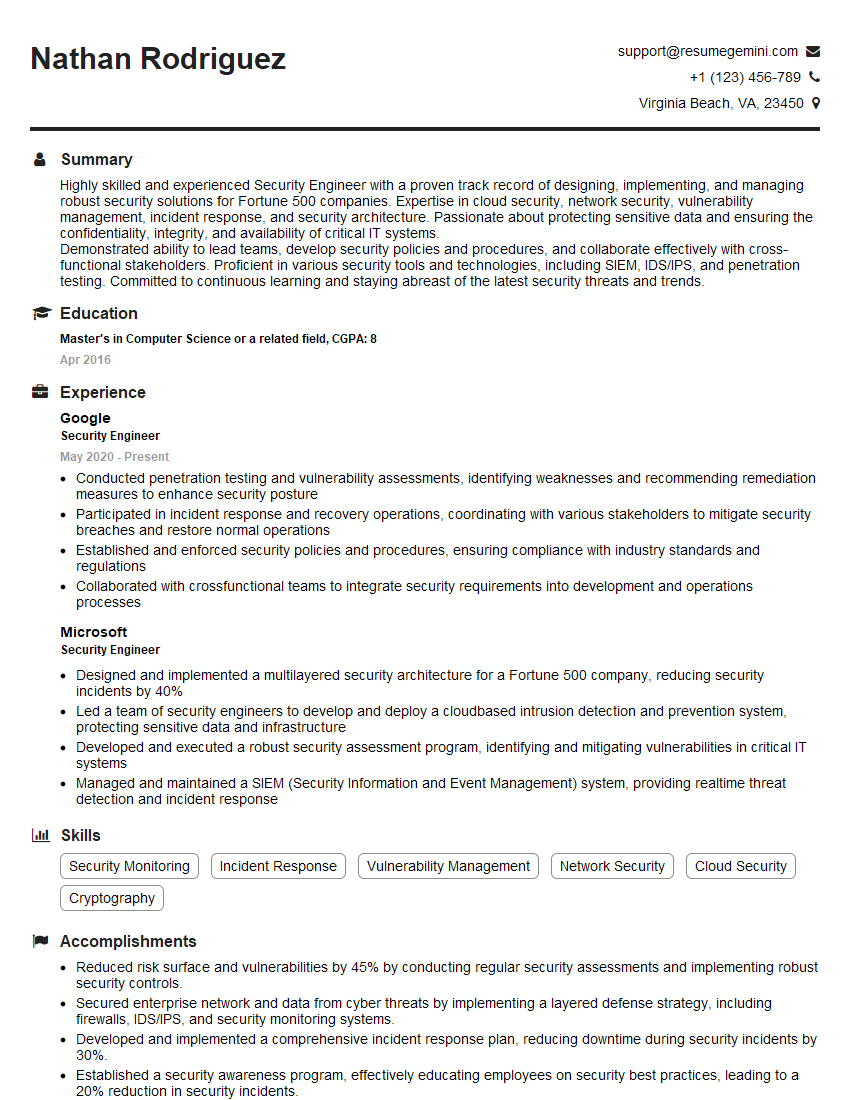
Security Engineer Resume Sample
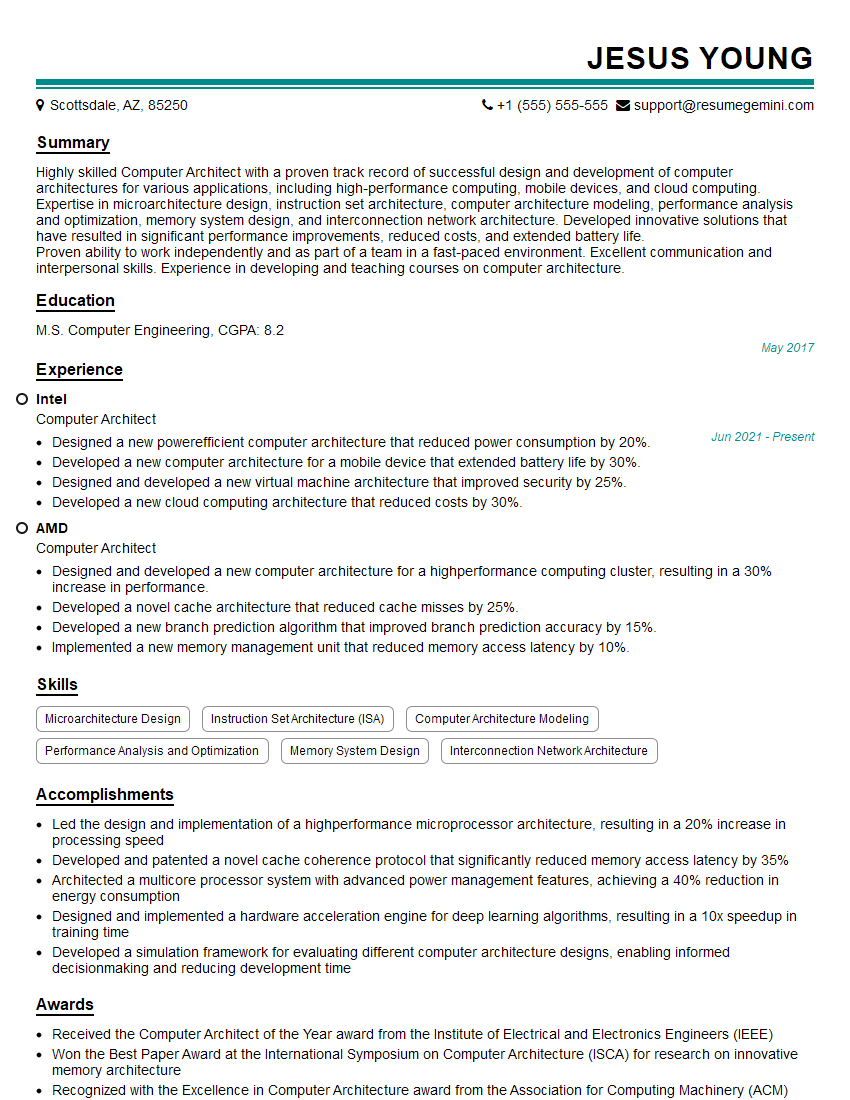
Computer Architect Resume Sample
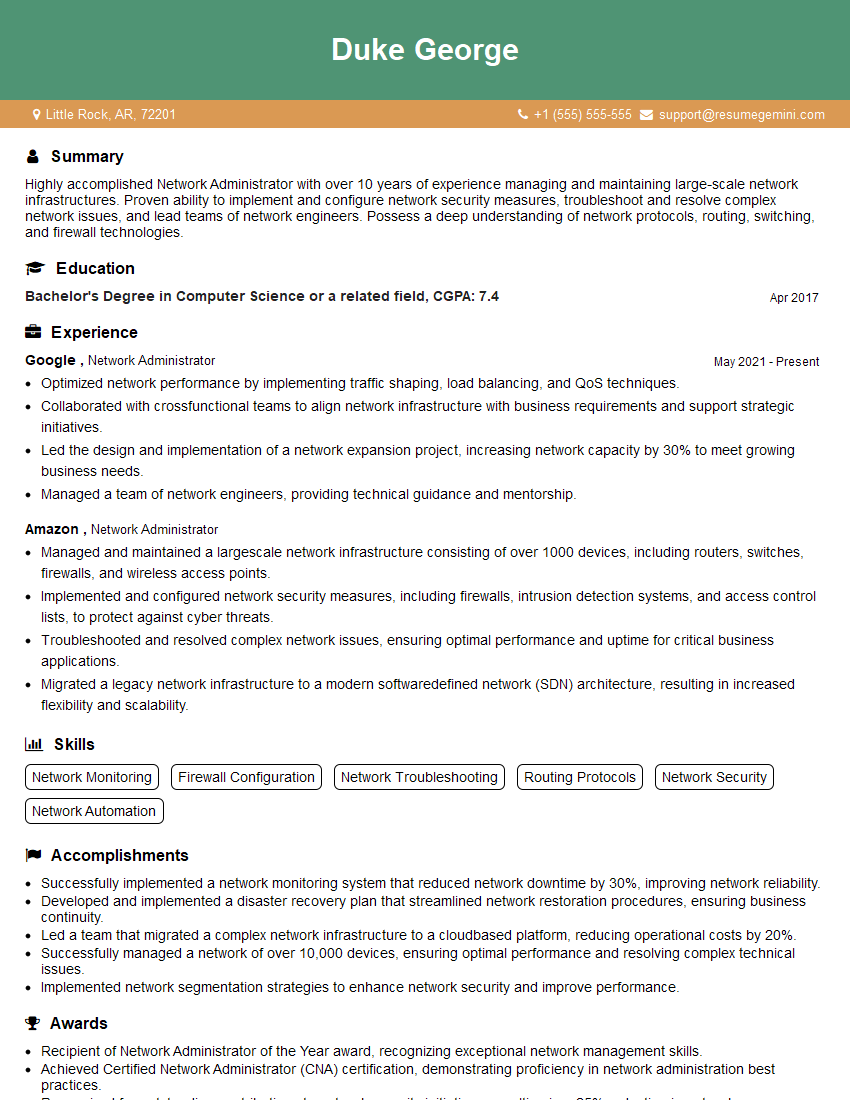
Network Administrator Resume Sample
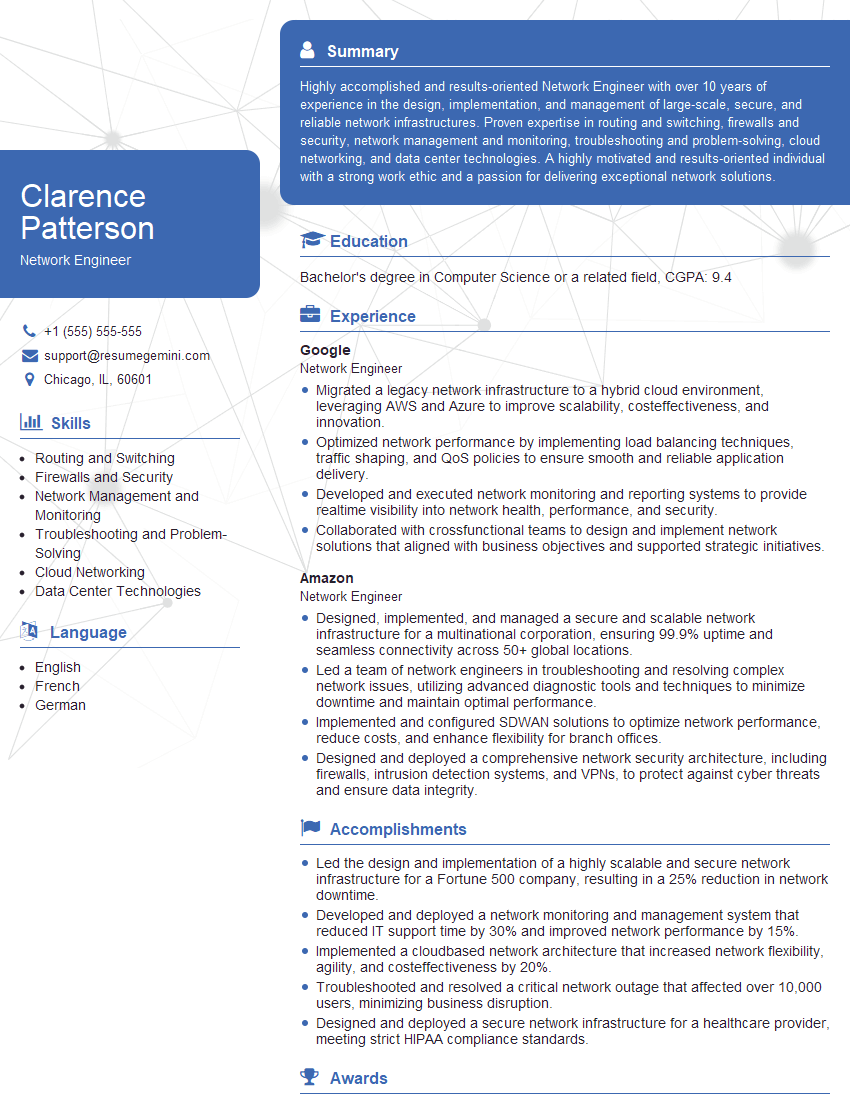
Network Engineer Resume Sample
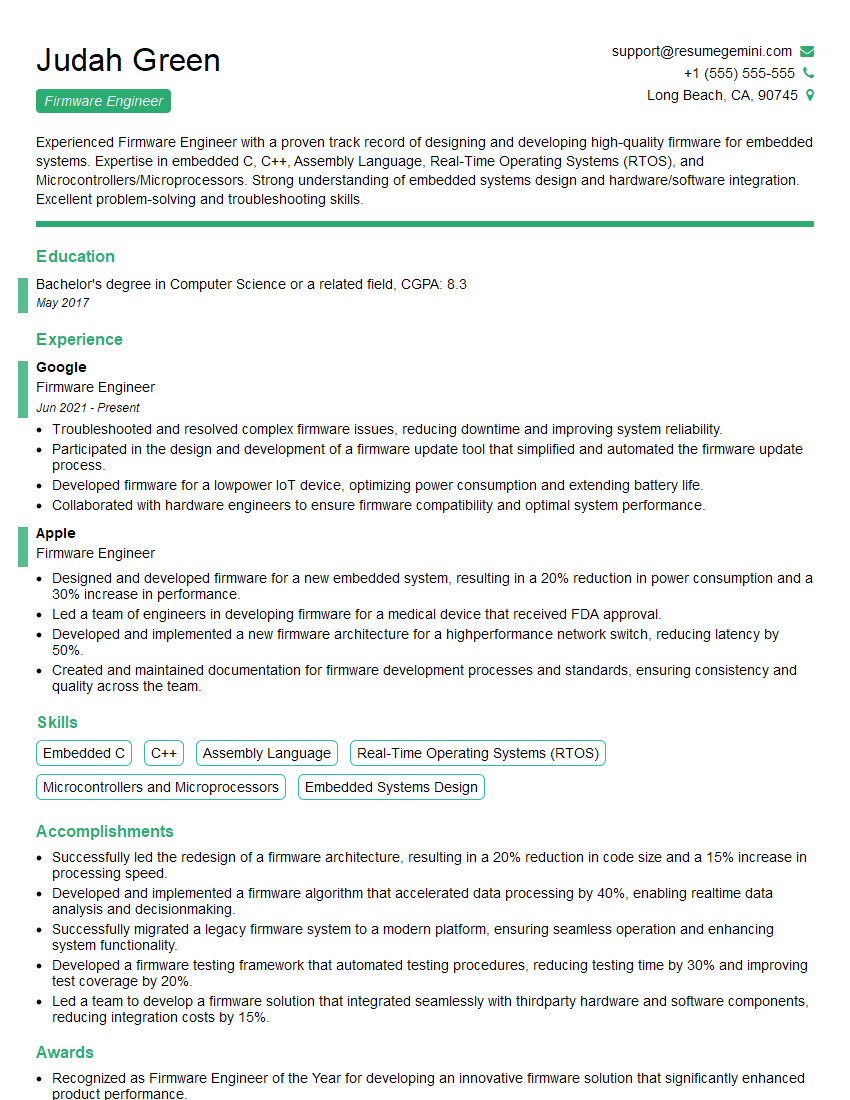
Firmware Engineer Resume Sample

Technical Support Engineer Resume Sample
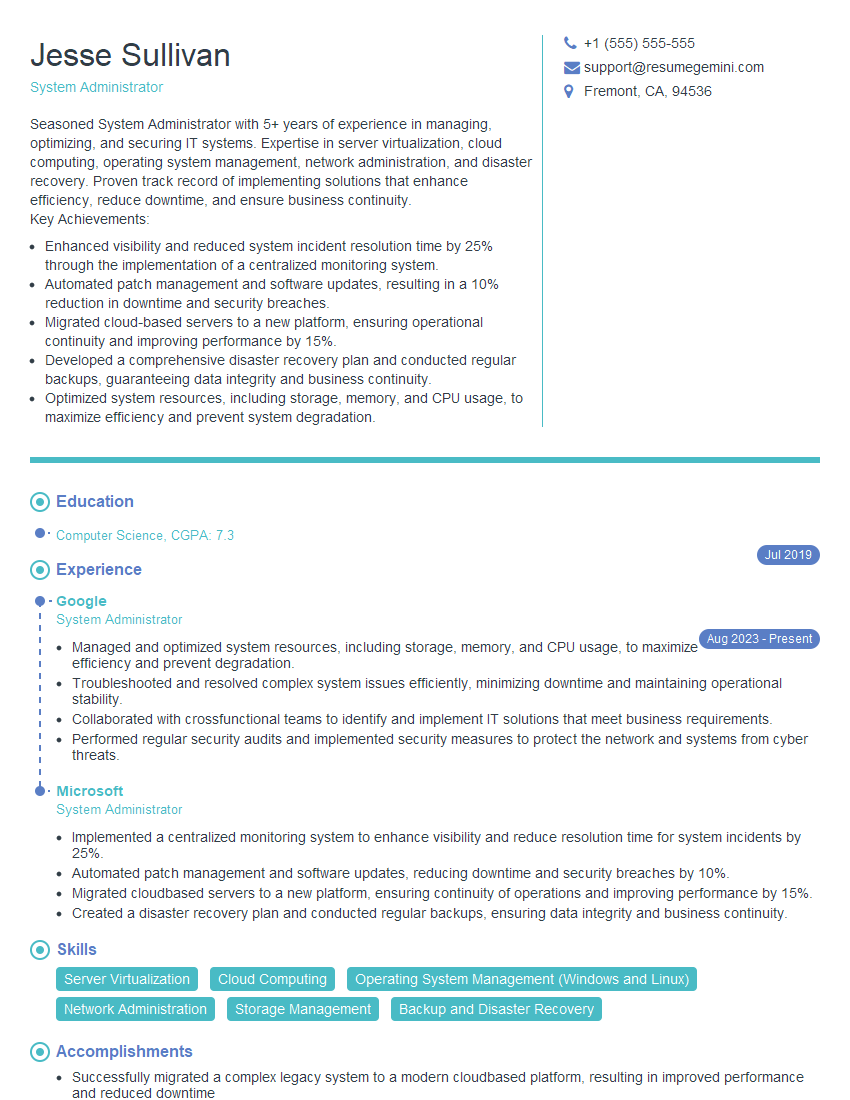
System Administrator Resume Sample
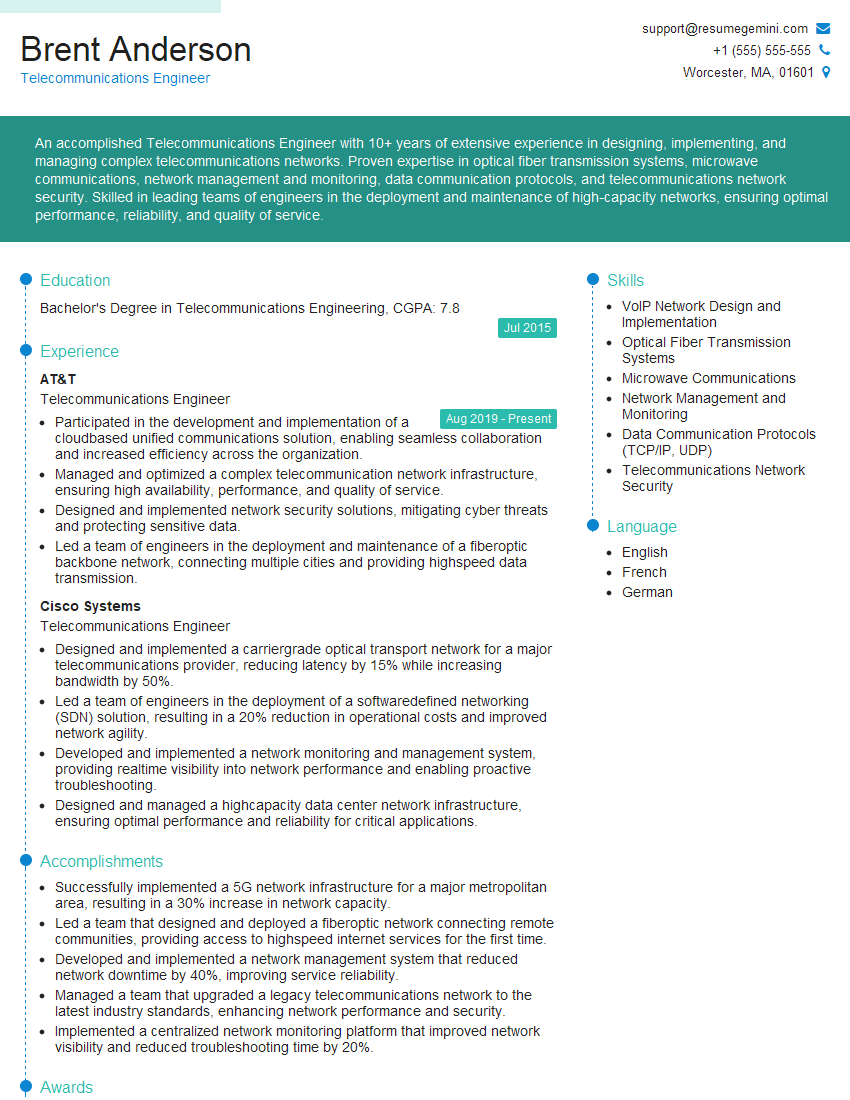
Telecommunications Engineer Resume Sample
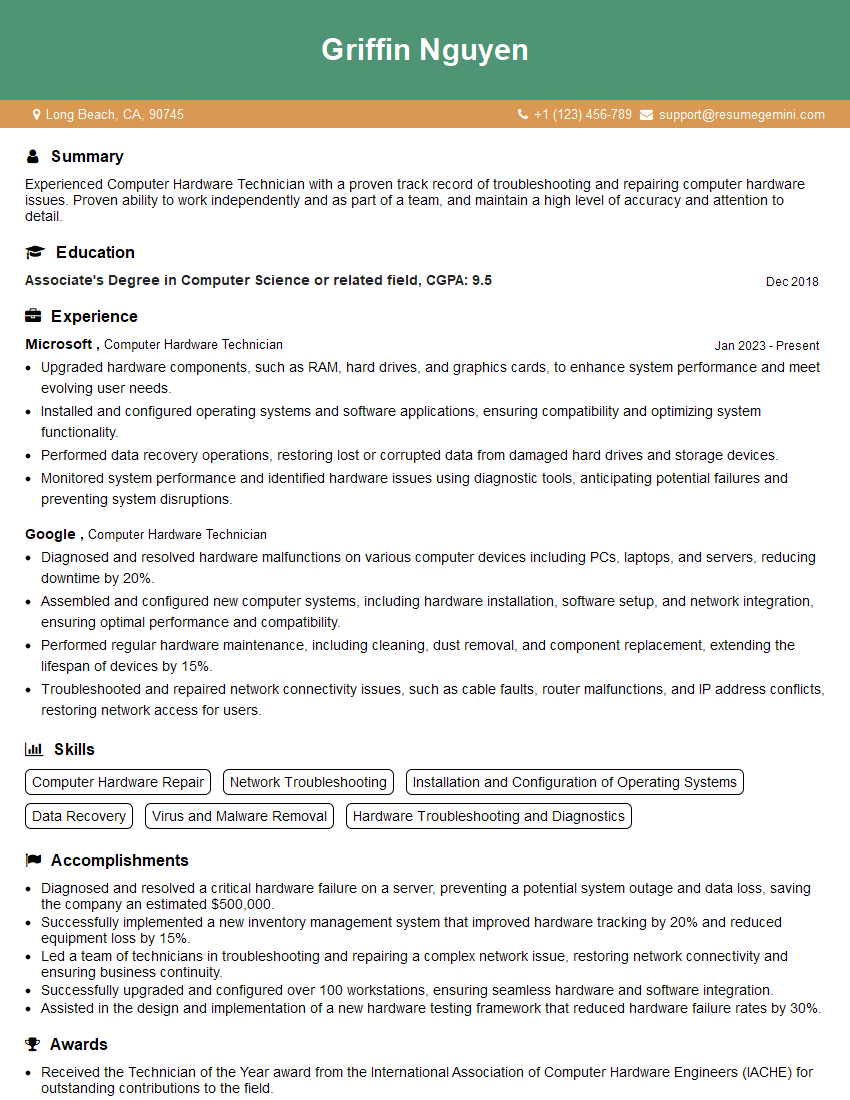
Computer Hardware Technician Resume Sample
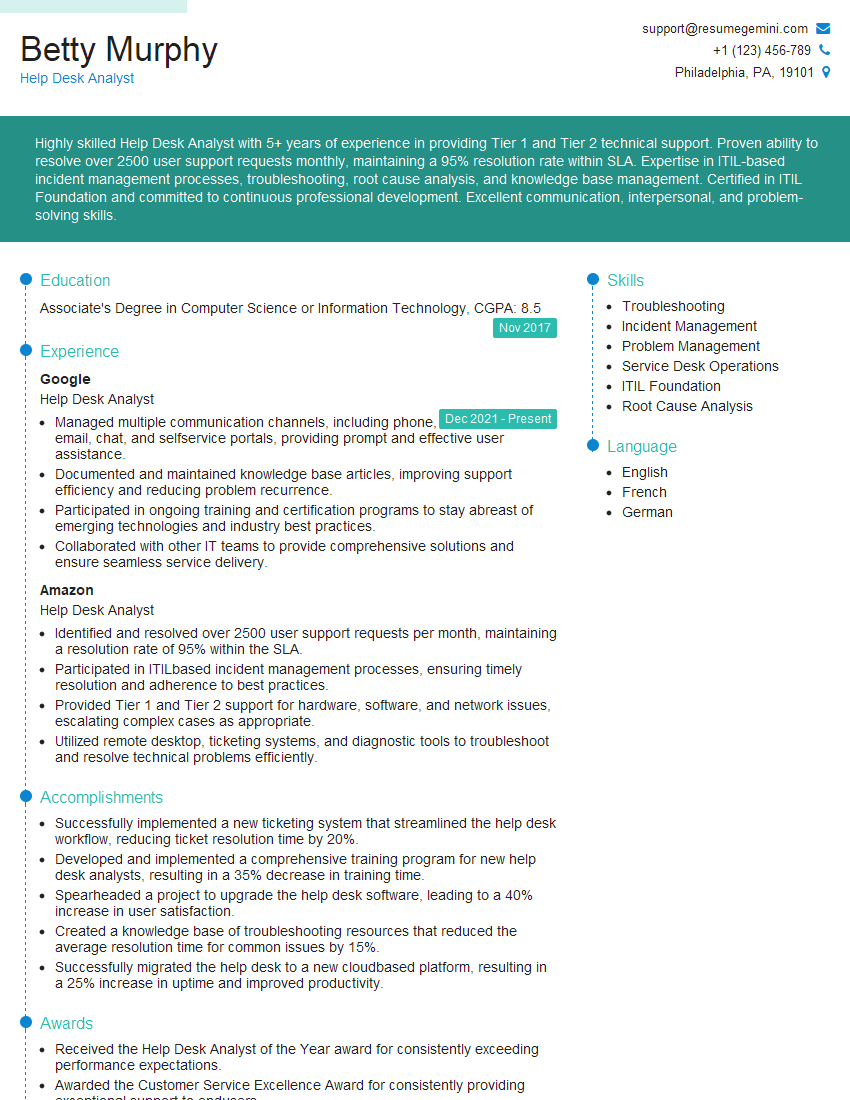
Help Desk Analyst Resume Sample

IT Manager Resume Sample
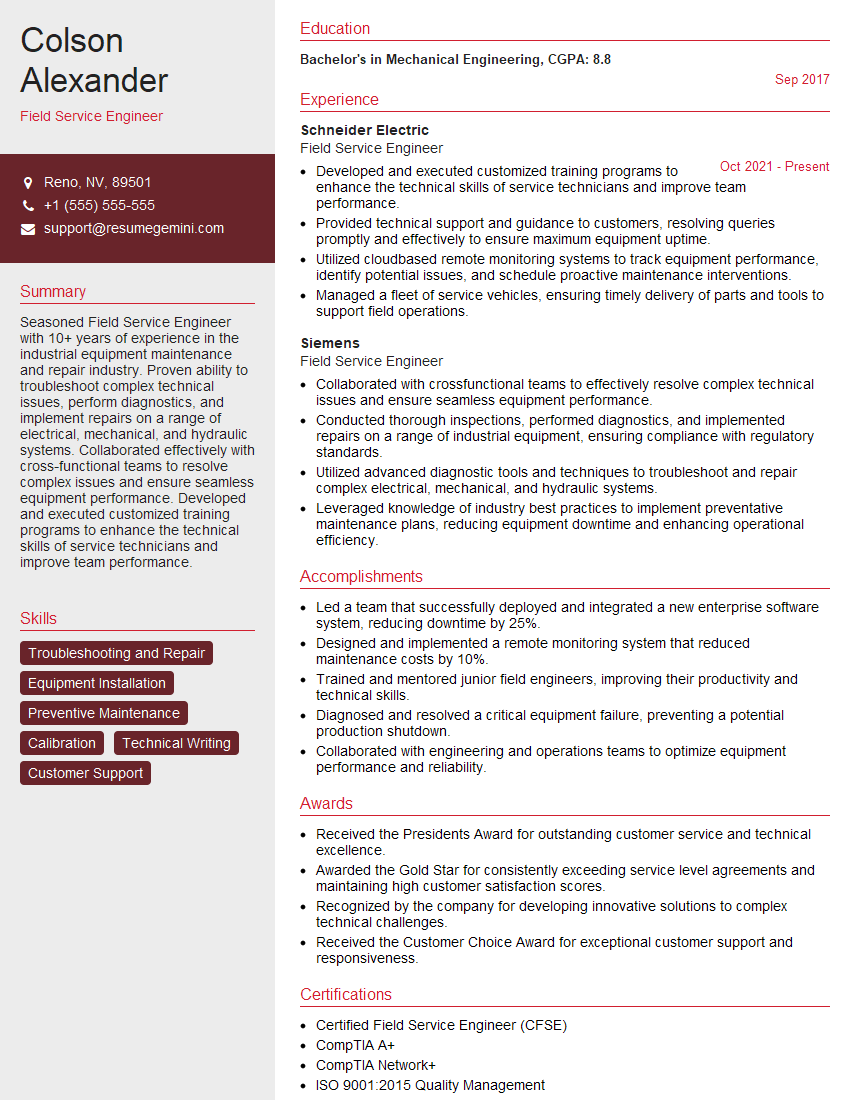
Field Service Engineer Resume Sample
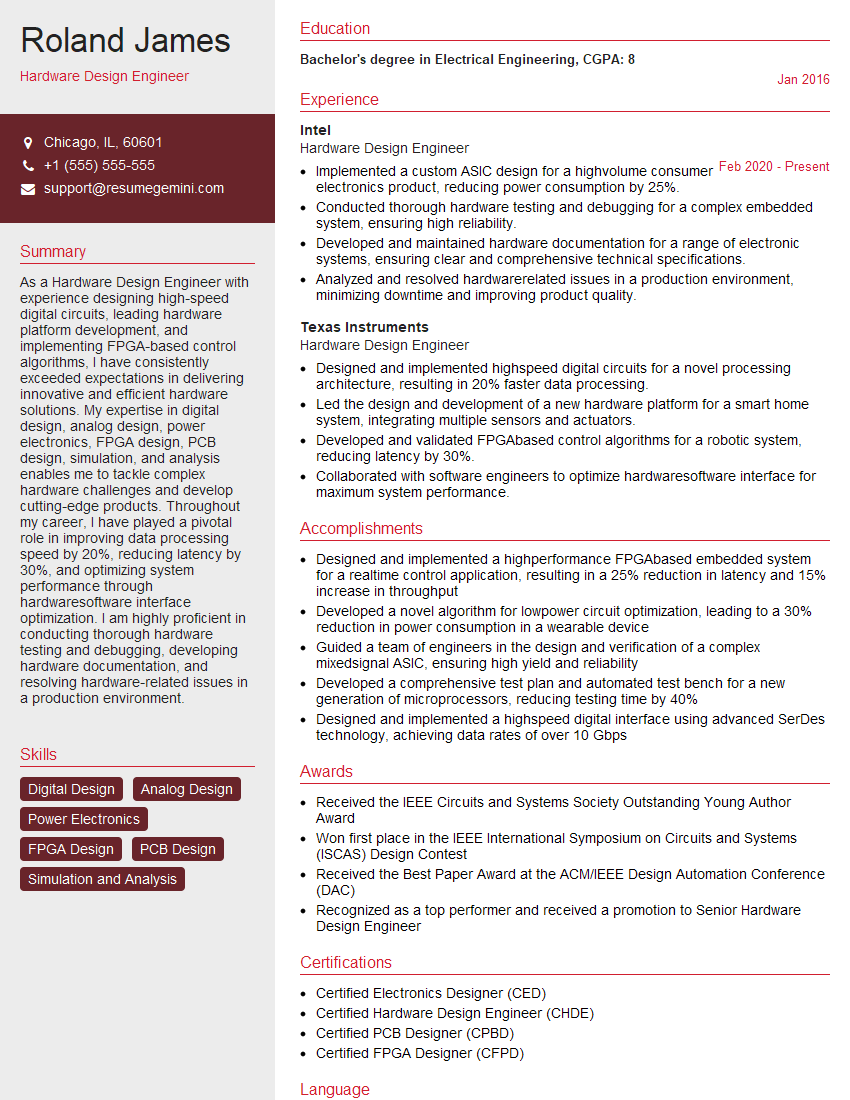
Hardware Design Engineer Resume Sample

Hardware Engineer Resume Sample
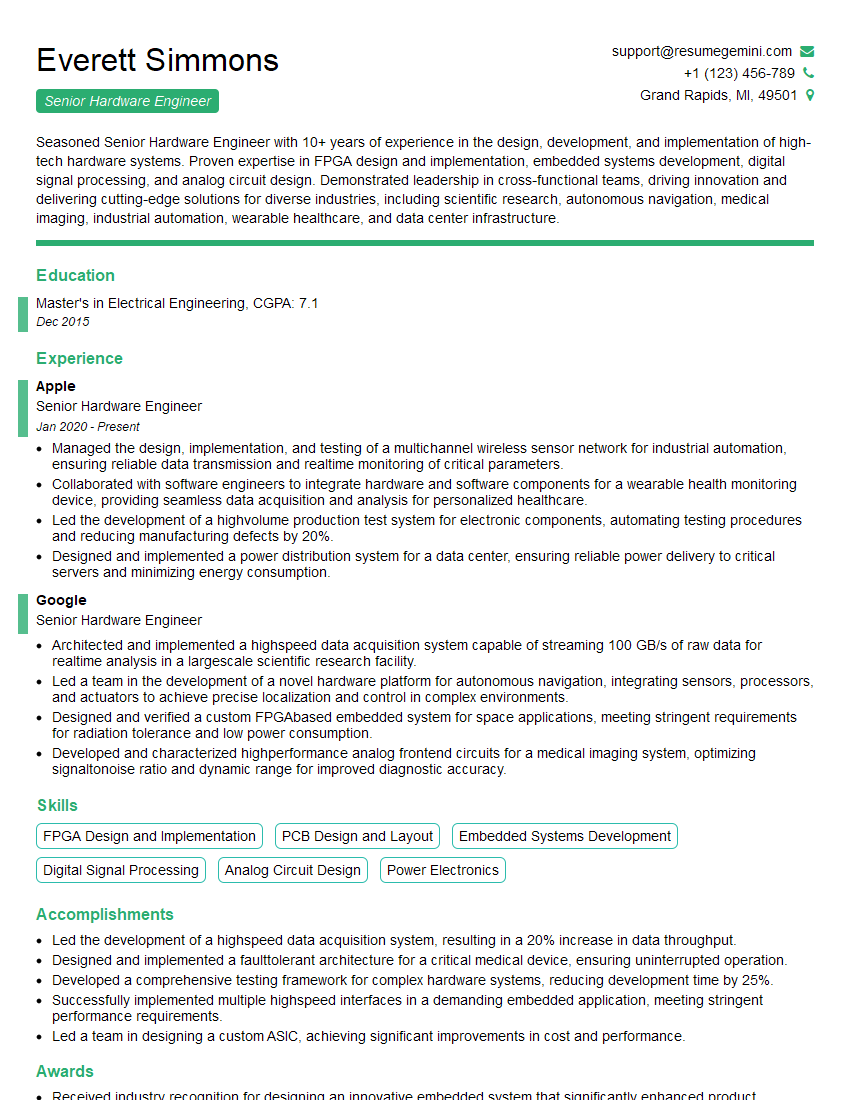
Senior Hardware Engineer Resume Sample
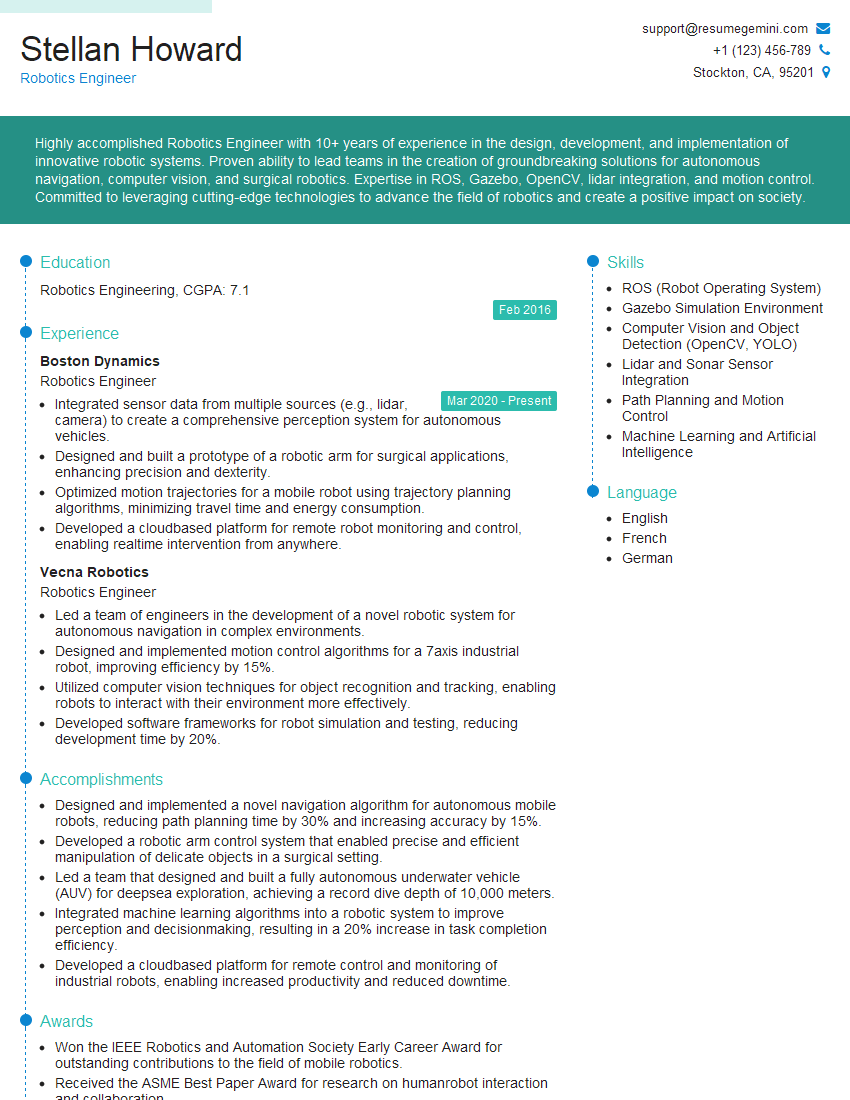
Robotics Engineer Resume Sample
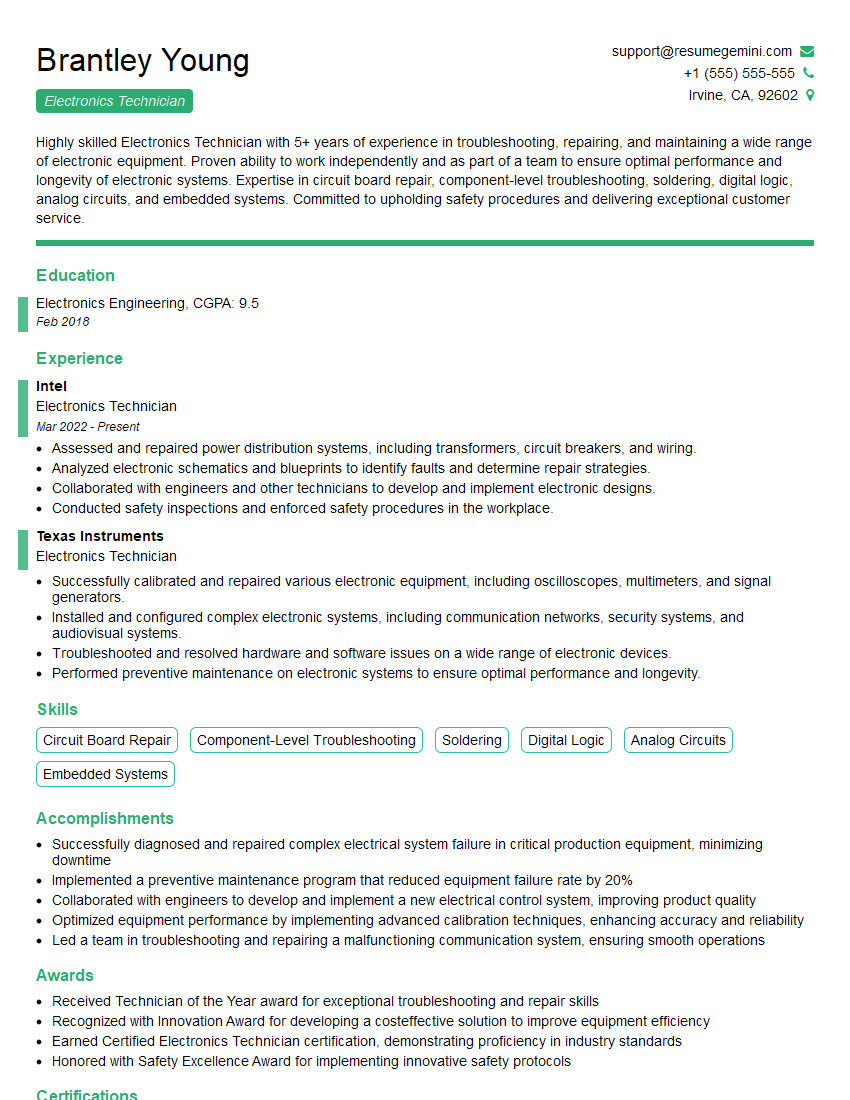
Electronics Technician Resume Sample
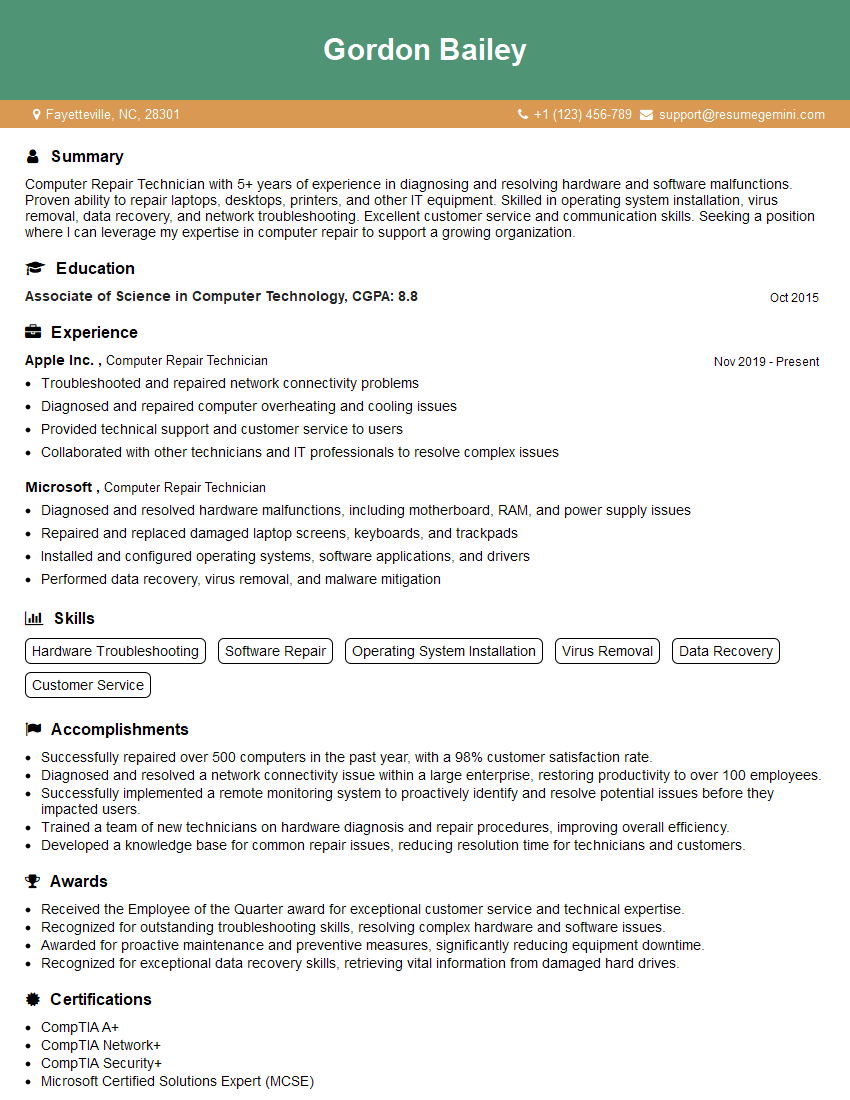
Computer Repair Technician Resume Sample
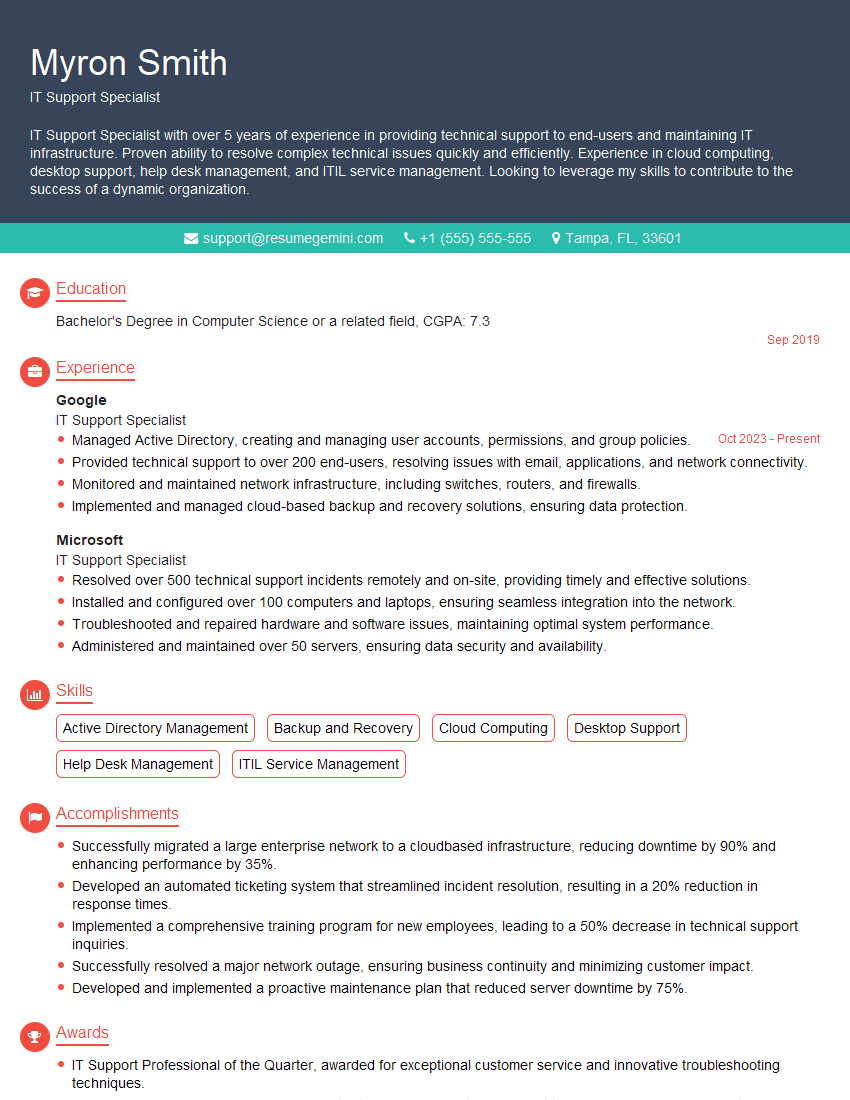
IT Support Specialist Resume Sample
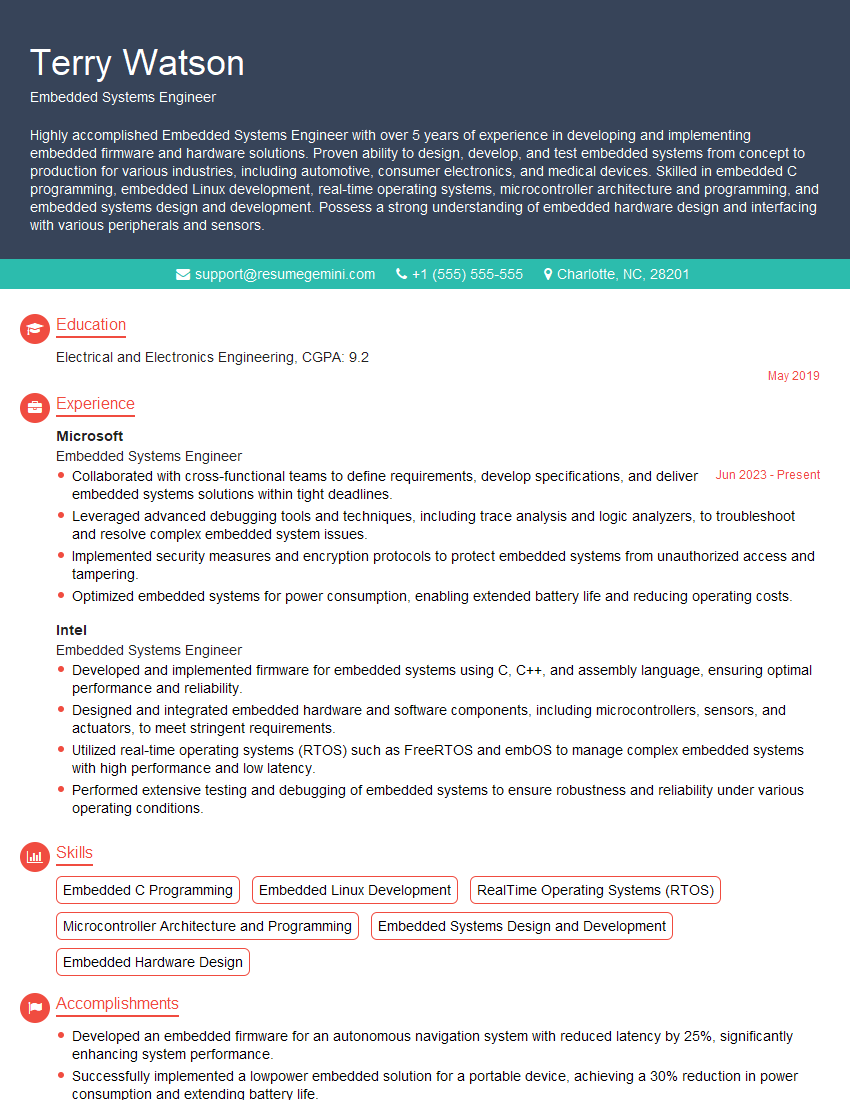
Embedded Systems Engineer Resume Sample

DevOps Engineer Resume Sample
- Security Engineer
- Computer Architect
- Network Administrator
- Network Engineer
- Firmware Engineer
- Technical Support Engineer
- System Administrator
- Telecommunications Engineer
- Computer Hardware Technician
- Help Desk Analyst
- IT Manager
- Field Service Engineer
- Hardware Design Engineer
- Hardware Engineer
- Senior Hardware Engineer
- Robotics Engineer
- Electronics Technician
- Computer Repair Technician
- IT Support Specialist
- Embedded Systems Engineer
- DevOps Engineer
Explore more articles
Users Rating of Our Blogs
Share Your Experience
We value your feedback! Please rate our content and share your thoughts (optional).
What Readers Say About Our Blog
Very informative content, great job.
good