The right preparation can turn an interview into an opportunity to showcase your expertise. This guide to Kubernetes Helm interview questions is your ultimate resource, providing key insights and tips to help you ace your responses and stand out as a top candidate.
Questions Asked in Kubernetes Helm Interview
Q 1. Explain the purpose of Helm in Kubernetes.
Helm is a package manager for Kubernetes. Think of it like apt for Debian or yum for Red Hat, but specifically designed for deploying and managing applications within a Kubernetes cluster. It simplifies the process of defining, installing, and upgrading complex applications composed of multiple Kubernetes resources (Deployments, Services, ConfigMaps, etc.). Instead of manually creating and managing each individual resource, Helm allows you to package them into a single, reusable unit called a chart.
In a professional setting, Helm is invaluable for streamlining CI/CD pipelines and ensuring consistency across different environments (development, staging, production). It significantly reduces the operational overhead associated with managing Kubernetes applications, making deployments more efficient and less error-prone.
Q 2. What is a Helm chart, and what are its main components?
A Helm chart is a collection of files that describe a related set of Kubernetes resources. It’s essentially a template for deploying an application. Imagine it as a blueprint for your application’s infrastructure within Kubernetes. The main components are:
Chart.yaml: A YAML file containing metadata about the chart, such as its name, version, and description.values.yaml: A YAML file containing configurable values used to customize the chart’s deployment (e.g., number of replicas, resource limits). This allows you to deploy the same chart with different configurations for different environments.templates/directory: Contains template files written in Go’s templating language (using{{ }}). These files define the Kubernetes manifests (Deployments, Services, etc.) that will be created when the chart is deployed. The values fromvalues.yamlare injected into these templates during deployment.charts/directory (optional): Contains sub-charts, allowing you to break down complex applications into smaller, manageable components.
For example, a chart for a simple web application might include a Deployment template to define the application pods, a Service template to expose the application, and a ConfigMap to store configuration data.
Q 3. Describe the different types of Helm charts.
While there isn’t a strict formal categorization of Helm chart types, we can classify them based on their purpose and complexity:
- Application Charts: These are the most common type and represent a single application or service (e.g., a web server, a database, a message queue).
- Library Charts: These are reusable components designed to be included as dependencies in other charts. They often provide common functionalities or infrastructure elements (e.g., a chart for setting up a specific logging solution).
- Infrastructure Charts: These charts deploy and manage infrastructure components within Kubernetes, such as network configurations, storage solutions, or monitoring tools.
The line between these categories can sometimes be blurry, and a single chart might incorporate elements from multiple types.
Q 4. How do you create a new Helm chart?
Creating a new Helm chart is straightforward using the helm create command. Let’s say we want to create a chart named my-app:
helm create my-appThis command generates a basic chart directory structure with the necessary files. You then populate the templates/ directory with your Kubernetes manifest templates and customize the values.yaml file with your default values. You can then further refine the chart by adding more sophisticated templating logic, setting up dependencies, and including documentation.
Q 5. Explain the process of installing a Helm chart.
Installing a Helm chart involves using the helm install command. Assuming your chart is located in the my-app directory, you would use the following command:
helm install my-app-release my-appThis command installs the chart with the release name my-app-release. The release name is an identifier used to track the deployment. You can also specify values at installation time using the --set flag:
helm install my-app-release my-app --set replicaCount=3This would override the default replicaCount value in values.yaml to 3.
Q 6. How do you upgrade a Helm chart?
Upgrading a Helm chart is done using the helm upgrade command. It uses the same release name used during installation to identify the chart to be updated:
helm upgrade my-app-release my-appThis command will apply any changes made to the chart since its last installation. You can also supply new values during the upgrade process using the --set flag. Helm intelligently manages the changes, updating only the necessary resources. This ensures minimal downtime and a smooth transition to the newer version.
Q 7. How do you uninstall a Helm chart?
To uninstall a Helm chart, use the helm uninstall command, providing the release name:
helm uninstall my-app-releaseThis command removes all Kubernetes resources created by the chart. Note that this is a destructive action and cannot be undone. Helm keeps track of the release history which is helpful for auditing and troubleshooting.
Q 8. What is a Helm repository, and how do you create one?
A Helm repository is essentially a central location where you store and manage your Helm charts. Think of it like a package manager’s repository (like npm or pip) but specifically for Kubernetes applications packaged as Helm charts. These repositories typically use a simple HTTP or HTTPS server that serves chart metadata, allowing Helm to discover and download charts.
Creating a Helm repository usually involves setting up a web server (like Apache or Nginx) and configuring it to serve a directory containing your charts. Each chart directory should contain a index.yaml file, which is a catalog of your charts. You’ll also need to structure your charts correctly, including the Chart.yaml and other necessary files within each chart directory. The index.yaml file will point to these chart directories.
Example: Let’s say you have two charts: my-app and my-db. You’d create directories for each and put a Chart.yaml file within each. You’d then create an index.yaml in the parent directory that lists both, allowing Helm to access them from the repository.
The complexity of setting up the repository itself depends on the infrastructure you use. Services like GitHub or GitLab can act as simple repositories if they serve the chart directory correctly. For larger-scale deployments, more robust solutions might be necessary.
Q 9. How do you add a Helm repository?
Adding a Helm repository is straightforward. You use the helm repo add command, specifying a name for the repository and its URL. This tells Helm where to find charts. The name you choose is local to your Helm client and makes it easier to manage multiple sources of charts.
helm repo add stable https://charts.helm.sh/stableThis command adds the official Helm stable repository, commonly used. Replace stable with a custom name if desired and the URL with your custom repository URL.
After adding a repository, it’s good practice to update the repository index using helm repo update. This ensures your local Helm client has the latest chart metadata from that repository.
Q 10. Explain the difference between `helm install` and `helm upgrade`.
helm install is used to deploy a Helm chart for the first time. It creates a new release in your Kubernetes cluster. helm upgrade, on the other hand, is used to update an existing release. It modifies the resources based on changes in the chart definition or values.
Analogy: Think of helm install as building a house from scratch, while helm upgrade is like renovating or expanding an existing house.
Crucially, helm upgrade uses the release name to identify the existing deployment. If you attempt to upgrade a non-existent release, Helm will throw an error. Also, helm upgrade will intelligently manage changes, ensuring an orderly transition without completely re-deploying everything unless necessary. This makes upgrades safer and more efficient.
Q 11. What are Helm values, and how are they used?
Helm values are configuration parameters that customize your charts. They allow you to avoid hardcoding values into your chart templates, making charts reusable and adaptable across different environments (e.g., development, staging, production). Values are specified in YAML files.
Example: A chart for a database might use values for the database name, username, and password. These values would be different in development than in production. The values file allows you to specify these parameters without altering the chart itself.
Values files can be passed as command line arguments using the --set flag (for single values) or specified using the --values flag to point to a YAML file.
helm install my-app my-chart --set database.name=mydb --set database.user=myuser --values values-prod.yamlQ 12. How do you manage secrets in Helm charts?
Managing secrets securely in Helm charts is critical. Avoid hardcoding secrets directly into your charts. Instead, use Kubernetes Secrets and leverage Helm’s capabilities to inject these secrets into your application’s configuration at deployment time.
Common approaches include:
- Using Kubernetes Secrets: Define a Kubernetes Secret separately and reference it in your Helm chart templates using the
{{ .Values.secrets.mySecret }}syntax, ensuring the secret data is accessible only to your application pods. - Helm Secrets Plugins: Plugins like
helm-secretsor similar offer enhanced security features for managing and encrypting sensitive data. They often handle secret encryption and decryption transparently, improving security and operational efficiency. - External Secret Management Systems: For enterprise-grade solutions, integrate with external secret management systems that handle key management, rotation, and access control.
Choose the method that best suits your security requirements and infrastructure.
Q 13. How do you use Helm templates?
Helm templates use Go’s templating engine to generate Kubernetes manifests from chart templates. These templates are written using the {{ . }} syntax, which uses data from the Values file and other contexts. This allows you to create dynamic manifests adapted to your specific environment.
Example:
apiVersion: apps/v1
kind: Deployment
metadata:
  name: {{ .Chart.Name }}-deployment
spec:
  replicas: {{ .Values.replicas }}
  selector:
    matchLabels:
      app: {{ .Chart.Name }}
  template:
    metadata:
      labels:
        app: {{ .Chart.Name }}
    spec:
      containers:
      - name: {{ .Chart.Name }}
        image: {{ .Values.image.repository }}:{{ .Values.image.tag }}
This snippet shows how values from your values.yaml can dynamically populate the Deployment manifest.
Q 14. What are the different ways to debug a Helm chart?
Debugging Helm charts often involves identifying issues within the templates, values, or the Kubernetes cluster itself.
Here are common strategies:
helm lint: This command validates your chart’s syntax and structure, helping catch errors early.helm install --dry-run: This simulates a deployment without actually applying changes to the cluster, allowing you to inspect the generated manifests.helm template: Use this command to render the templates with your values, allowing for detailed examination of the outputted YAML files.- Kubernetes Logs and Events: Check the Kubernetes logs and events for specific pods and deployments to diagnose application-level issues.
- Debug logging in your application: Adding extra logging statements in your application’s code can provide insights into its behavior and help pinpoint issues.
- Step-by-step deployment: Consider deploying smaller components or subsets of your application, one at a time, to isolate problems.
The most effective approach depends on the nature of the problem; start with simpler checks and progressively investigate deeper if needed.
Q 15. Explain Helm hooks and their use cases.
Helm hooks are special Kubernetes resources that allow you to execute commands or scripts at specific points in a Helm chart’s lifecycle. Think of them as strategically placed triggers within your deployment process. They’re defined within a chart’s templates/ directory and are executed by the helm install or helm upgrade commands.
There are several types of hooks, each triggered at a different stage:
- Pre-install: Runs before the chart is installed. Useful for preparing the environment, like checking for prerequisites.
- Post-install: Runs after successful installation. Ideal for tasks like updating configuration files or notifying a monitoring system.
- Pre-upgrade: Runs before an upgrade. Used for backing up data or preparing for changes.
- Post-upgrade: Runs after a successful upgrade. Perfect for tasks like running database migrations or restarting applications.
- Pre-delete: Runs before a chart is deleted. Can be used for cleaning up resources or performing final actions.
- Post-delete: Runs after a chart is deleted. Generally less common but could be used for logging or audit trails.
Example Use Case: Imagine you’re deploying a database. A pre-install hook could check if the database server is running and accessible. A post-install hook could then run database migrations to set up the initial schema.
Implementation Example (Post-install hook): You could define a Job in your chart’s template using a post-install hook to run a script which updates a configuration file after successful deployment. The script would be packaged with the chart.
Career Expert Tips:
- Ace those interviews! Prepare effectively by reviewing the Top 50 Most Common Interview Questions on ResumeGemini.
- Navigate your job search with confidence! Explore a wide range of Career Tips on ResumeGemini. Learn about common challenges and recommendations to overcome them.
- Craft the perfect resume! Master the Art of Resume Writing with ResumeGemini’s guide. Showcase your unique qualifications and achievements effectively.
- Don’t miss out on holiday savings! Build your dream resume with ResumeGemini’s ATS optimized templates.
Q 16. How do you handle dependencies between Helm charts?
Managing dependencies between Helm charts is crucial for complex applications. Helm uses the requirements.yaml file within a chart’s directory to specify dependencies. This file lists the other charts needed and their versions.
The requirements.yaml file uses a simple YAML format to define dependencies. For example:
dependencies:
- name: my-database
  version: 1.2.3
  repository: https://my-repo.com/charts
This indicates a dependency on a chart named my-database, version 1.2.3, located in the specified repository. Helm will automatically fetch and install these dependencies when you install or upgrade the main chart, ensuring all required components are present and compatible.
Managing Dependency Versions: It’s vital to specify version constraints (e.g., using semantic versioning) to avoid unexpected issues during upgrades. You can define a range of compatible versions in the requirements.yaml to allow flexibility while maintaining stability.
Repository Management: You’ll often need to add new repositories to your Helm client using helm repo add to access the charts listed in requirements.yaml. This step ensures that Helm knows where to find your dependent charts.
Q 17. Describe Helm’s lifecycle management features.
Helm doesn’t directly manage the lifecycle of Kubernetes resources in the same way a deployment controller does. Instead, Helm focuses on managing the *chart* lifecycle, which involves installing, upgrading, and deleting the set of Kubernetes resources described within the chart.
Key lifecycle features include:
- Installation (
helm install): This creates a release, a named instance of your chart, and applies the defined Kubernetes manifests to your cluster. - Upgrade (
helm upgrade): This updates an existing release with a new version of the chart. Helm intelligently compares the old and new configurations and only applies necessary changes, minimizing disruption. - Rollback (
helm rollback): Helm keeps track of previous releases. This allows you to easily revert to a previous state if an upgrade causes issues. This is a vital feature for recovery. - Deletion (
helm delete): This removes a release and its associated Kubernetes resources from the cluster. - Status (
helm status): This command provides the status of a specific release, including resource details and potential errors.
Release Management: Helm maintains a history of your releases. You can inspect this history using helm history to examine the changes made over time and to easily perform rollbacks to any of the previous deployments.
Q 18. What are some best practices for creating Helm charts?
Creating robust and maintainable Helm charts requires following best practices:
- Modular Design: Break down complex applications into smaller, independent charts to improve reusability and manageability.
- Clear Structure: Maintain a consistent directory structure and use meaningful names for files and templates.
- Values Management: Use a comprehensive
values.yamlfile for configuring your chart, separating values from templates to enhance flexibility and reduce repetitive YAML configurations. - Version Control: Use a version control system (like Git) to track changes, collaborate effectively, and maintain a history of your chart’s development.
- Proper Templating: Use Go templates effectively. Avoid complex logic within templates and utilize helper functions where appropriate.
- Comprehensive Documentation: Include clear and concise documentation explaining how to use the chart, its dependencies, and any specific configurations.
- Testing: Thoroughly test your charts using various methods, including linting, unit tests and integration tests within a CI/CD pipeline.
- Security Considerations: Avoid hardcoding sensitive information in the chart. Use secrets management solutions to securely handle sensitive data.
Example: A well-structured chart would have separate charts for the application, database, and any sidecar containers, allowing for independent management and deployment.
Q 19. How do you test a Helm chart?
Testing a Helm chart is crucial to ensure stability and reliability. Testing should cover different aspects of your chart.
- Lint Tests: Tools like
helm lintcheck for syntax errors and best practice violations in your chart’s structure and templates. This is the first and easiest testing step. - Unit Tests: Test individual components of your chart’s templates to ensure they generate the expected Kubernetes manifests under various conditions. This often involves using Go testing frameworks to test the template functions directly.
- Integration Tests: These tests deploy the chart into a test environment (like a local Kubernetes cluster or a dedicated test cluster) and verify that the deployed resources are functioning correctly. Tools like
kind(Kubernetes IN Docker) are great for local cluster testing. - End-to-End Tests: Verify that the complete application deployed using the chart functions as expected. These tests simulate real-world usage scenarios.
Example: You might write a unit test to check if your template correctly generates a Deployment manifest with the correct number of replicas based on the value set in values.yaml. An integration test would then deploy the chart and verify that the replicas are actually running and that the application is accessible.
Q 20. Explain the concept of Helm pipelines.
Helm pipelines refer to the automated processes used to build, test, and deploy Helm charts. These pipelines typically integrate with CI/CD (Continuous Integration/Continuous Delivery) systems, automating the entire lifecycle of the chart, from code changes to production deployment.
A typical Helm pipeline might involve these stages:
- Source Code Management (SCM): The pipeline starts by checking out the latest code from a repository (e.g., Git).
- Building: The pipeline builds the chart, performing checks like linting and unit tests.
- Testing: The pipeline performs integration tests and potentially end-to-end tests to ensure the chart works correctly.
- Packaging: The pipeline packages the chart into a distributable format.
- Deployment: The pipeline deploys the chart to different environments (e.g., development, staging, production), often using Helm’s
installandupgradecommands. - Notification: The pipeline provides notifications about the success or failure of each stage.
Tools: Tools like Jenkins, GitLab CI, GitHub Actions, and CircleCI are commonly used to implement Helm pipelines. These tools offer features for automating the various stages, managing dependencies, and handling errors.
Using a pipeline ensures that changes to the chart are consistently built, tested, and deployed, significantly reducing manual effort and the risk of errors.
Q 21. How do you troubleshoot common Helm issues?
Troubleshooting Helm issues often involves careful examination of logs and error messages.
- Check Helm Logs: Start by reviewing the output of Helm commands for error messages and warnings. These often provide clues to the root cause.
- Examine Kubernetes Logs: Check the logs of the pods and other Kubernetes resources deployed by your chart for errors. This can reveal problems within your application or dependencies.
- Resource Limits: Ensure that your Kubernetes resources (CPU, memory, etc.) are appropriately configured to handle the application’s workload. Insufficient resources can lead to failures.
- Network Connectivity: Confirm that network connectivity is properly established between the pods deployed by your chart. Issues with networking can cause deployments to fail.
- Permissions: Verify that the Kubernetes service account associated with your Helm deployment has the necessary permissions to create and manage the required resources.
- Helm History: Inspect the Helm release history using
helm historyto review past deployments and rollbacks, often identifying the point at which issues began. - kubectl Describe: Use
kubectl describeto get detailed information about any Kubernetes resource (pods, services, deployments) to find reasons for their failure. - Use `helm install –debug` or `helm upgrade –debug` for detailed output from the helm command. This can provide a wealth of information to diagnose any potential issues.
Remember to always check for relevant error messages and logs at each step of the Helm installation/upgrade process. Combining these debugging strategies will usually provide enough information to locate and resolve any problem.
Q 22. What are the advantages and disadvantages of using Helm?
Helm is a package manager for Kubernetes, simplifying the deployment and management of applications. Think of it as ‘apt’ or ‘yum’ but for Kubernetes.
Advantages:
- Simplified Deployment: Helm packages applications into charts, making deployment consistent and repeatable across environments.
- Version Control: Charts can be versioned, allowing for rollback to previous versions if needed. This is crucial for maintaining stability.
- Configuration Management: Helm allows for easy configuration customization through values files, reducing the need to modify chart templates directly.
- Reusable Components: Charts can be shared and reused across different projects, promoting consistency and efficiency.
- Automated Deployment: Helm integrates with CI/CD pipelines, enabling automated application deployments.
Disadvantages:
- Learning Curve: While generally user-friendly, mastering advanced features and templating requires effort.
- Complexity for Simple Deployments: For very basic deployments, Helm might introduce unnecessary overhead.
- Dependency Management: Managing dependencies between charts can sometimes be challenging.
- Security Concerns: If not handled properly, Helm charts can pose security risks if they contain vulnerabilities or insecure configurations.
Q 23. Compare and contrast Helm with other Kubernetes deployment tools.
Helm excels at managing complex applications with many components. Other tools offer different strengths:
- kubectl apply: This is Kubernetes’ built-in command-line tool for deploying resources directly from YAML files. It’s great for simple deployments but becomes unwieldy for complex applications.
- Kustomize: Similar to Helm, Kustomize allows for customization of base YAML configurations. However, it doesn’t offer the templating capabilities or package management of Helm.
- Operator SDK: The Operator SDK enables building custom controllers for Kubernetes that automate application management. This is ideal for managing stateful applications or those requiring complex lifecycle management. It offers more sophisticated control than Helm but is more involved to set up.
In short: kubectl is for simple deployments, Kustomize for configuration overlays, Helm for packaged applications, and the Operator SDK for complex, stateful applications.
Q 24. How do you manage different environments (dev, staging, prod) with Helm?
Helm manages different environments using values.yaml files and Helm environments. Instead of modifying the chart template directly, we create separate values.yaml files for each environment (dev, staging, prod).
Example:
A values.yaml file for the development environment might look like:
replicaCount: 1
image: my-image:dev
databaseUrl: dev-db.example.com
While the production values.yaml would use different values:
replicaCount: 3
image: my-image:prod
databaseUrl: prod-db.example.com
We can then deploy to each environment using the appropriate values file:
helm install my-app ./my-chart -f ./values-dev.yaml # For developmenthelm install my-app ./my-chart -f ./values-prod.yaml # For productionMore advanced techniques include using Helm’s environment variable support or dedicated Helm environments to manage the configuration and deployment across different stages.
Q 25. Explain the concept of Helm plugins.
Helm plugins extend Helm’s functionality. They provide additional commands or features, allowing for custom integrations and enhanced capabilities. For instance, a plugin might add support for a new chart repository or provide improved logging.
Imagine plugins as add-ons for your browser; they increase your productivity and efficiency. The process of creating and using them generally involves writing a Go program that adheres to Helm’s plugin API. Then, you can install this plugin locally, thereby adding new commands to the Helm CLI.
Common uses include improving chart linting, adding integrations with other tools, or providing advanced deployment strategies.
Q 26. Describe how to use Helm’s built-in templating engine.
Helm uses Go’s templating engine. Templates are written in Go’s templating language and are used to generate Kubernetes manifests from a chart’s template files. These templates use variables defined in values.yaml and other data sources.
Example:
A simple deployment template (templates/deployment.yaml):
apiVersion: apps/v1
kind: Deployment
metadata:
  name: {{ .Release.Name }}-deployment
spec:
  replicas: {{ .Values.replicaCount }}
  selector:
    matchLabels:
      app: {{ .Chart.Name }}
  template:
    metadata:
      labels:
        app: {{ .Chart.Name }}
    spec:
      containers:
      - name: {{ .Chart.Name }}
        image: {{ .Values.image }}
This template uses variables like .Values.replicaCount and .Values.image, which are populated from the values.yaml file during the rendering process. The double curly braces {{ }} indicate the Go template expressions.
Q 27. How do you secure your Helm charts and repositories?
Securing Helm charts and repositories is critical. Here’s a multi-layered approach:
- Chart Signing: Sign charts to verify their authenticity and integrity, preventing tampering. This is an essential step in establishing trust.
- Secure Repositories: Use secure repositories like JFrog Artifactory or ChartMuseum with appropriate authentication and authorization mechanisms (e.g., HTTPS, RBAC).
- Image Scanning: Scan images used in your charts for vulnerabilities using tools like Trivy or Clair before deployment.
- Input Validation: Validate user-provided input (from
values.yaml) to prevent injection attacks. - Least Privilege: Deploy with minimal permissions to restrict potential damage from compromised components.
- Regular Audits: Periodically audit charts and repositories to identify and address vulnerabilities.
By implementing a combination of these measures, you significantly enhance the security of your Helm deployments.
Q 28. What are some advanced Helm techniques you’ve used?
I’ve used several advanced Helm techniques, including:
- Helm Hooks: These allow executing custom commands before or after deployment phases, enabling actions like database migrations or configuration updates. For example, a pre-install hook can setup a database, while a post-install hook can perform initial data population.
- Helm Templating Advanced Functions: Leveraging advanced Go template functions to handle complex logic within templates, such as conditional rendering and looping.
- Custom Helm Plugins: Developing custom plugins to extend Helm functionality for specific needs in our deployment pipeline.
- Helmfile: Utilizing Helmfile to manage multiple Helm releases across different namespaces and clusters. This is particularly useful when you have a large number of applications needing orchestration.
- Chart Dependencies: Effectively managing chart dependencies to ensure consistent and reliable application deployment across environments.
These techniques allowed me to automate complex deployments, improve reliability, and streamline the overall application lifecycle management process.
Key Topics to Learn for Kubernetes Helm Interview
- Understanding Helm Charts: Dive deep into the structure of a Helm chart, including the
Chart.yaml,values.yaml, and templates. Practice creating and modifying charts for different applications. - Helm Package Management: Master the commands for installing, upgrading, rolling back, and uninstalling Helm charts. Understand the lifecycle of a Helm release and how to manage dependencies.
- Templating with Go Templates: Become proficient in using Go templates to dynamically generate Kubernetes manifests. Learn how to leverage built-in functions and custom functions for complex configurations.
- Helm Values and Configuration: Explore how to effectively manage configurations using
values.yaml, including secrets management and environment-specific configurations. - Helm Repositories: Understand how to create, manage, and interact with Helm repositories for sharing and distributing charts.
- Troubleshooting and Debugging: Develop strategies for troubleshooting common Helm issues, including deployment failures, configuration errors, and chart conflicts. Learn to effectively use Helm’s logging and debugging mechanisms.
- Advanced Helm Concepts: Explore more advanced topics such as hooks, plugins, and custom resource definitions (CRDs) to demonstrate a deeper understanding of the platform.
- Security Best Practices: Understand the security implications of using Helm, including best practices for managing secrets and access control.
- Real-world Application: Think through how you would use Helm to deploy a complex application to Kubernetes, including considerations for scalability, resilience, and maintainability.
Next Steps
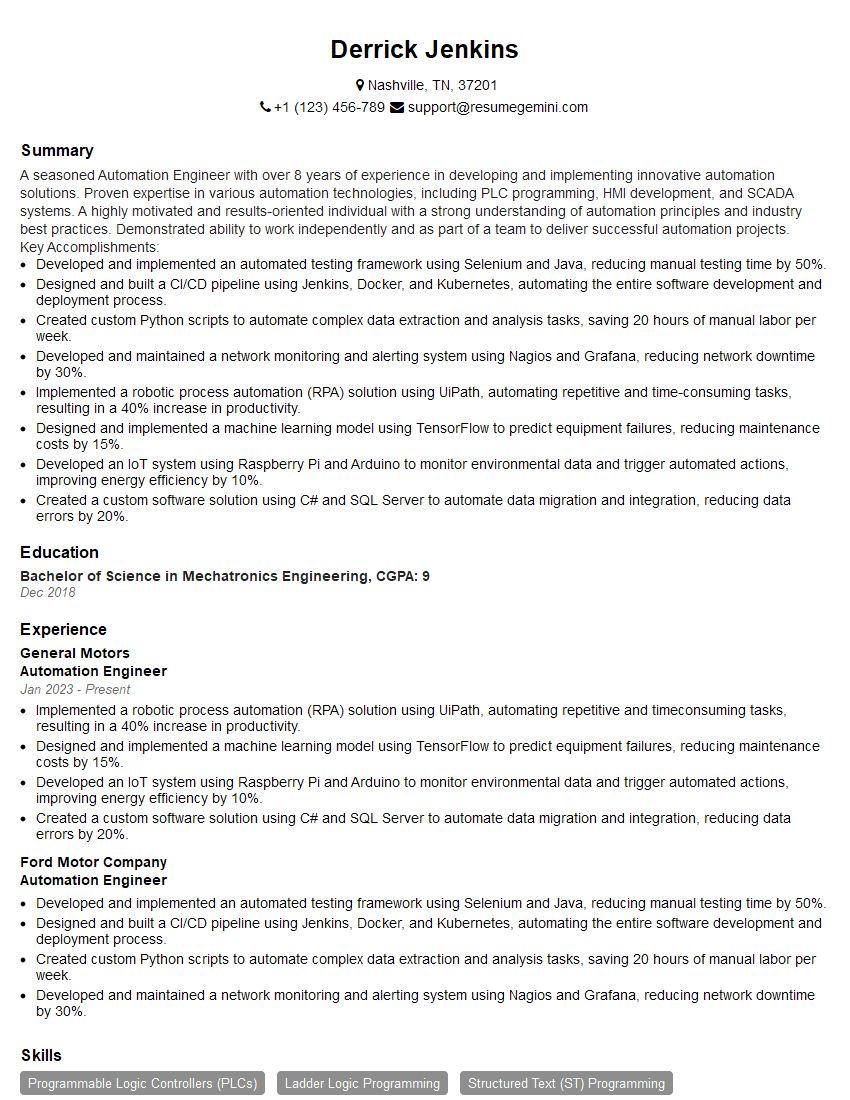
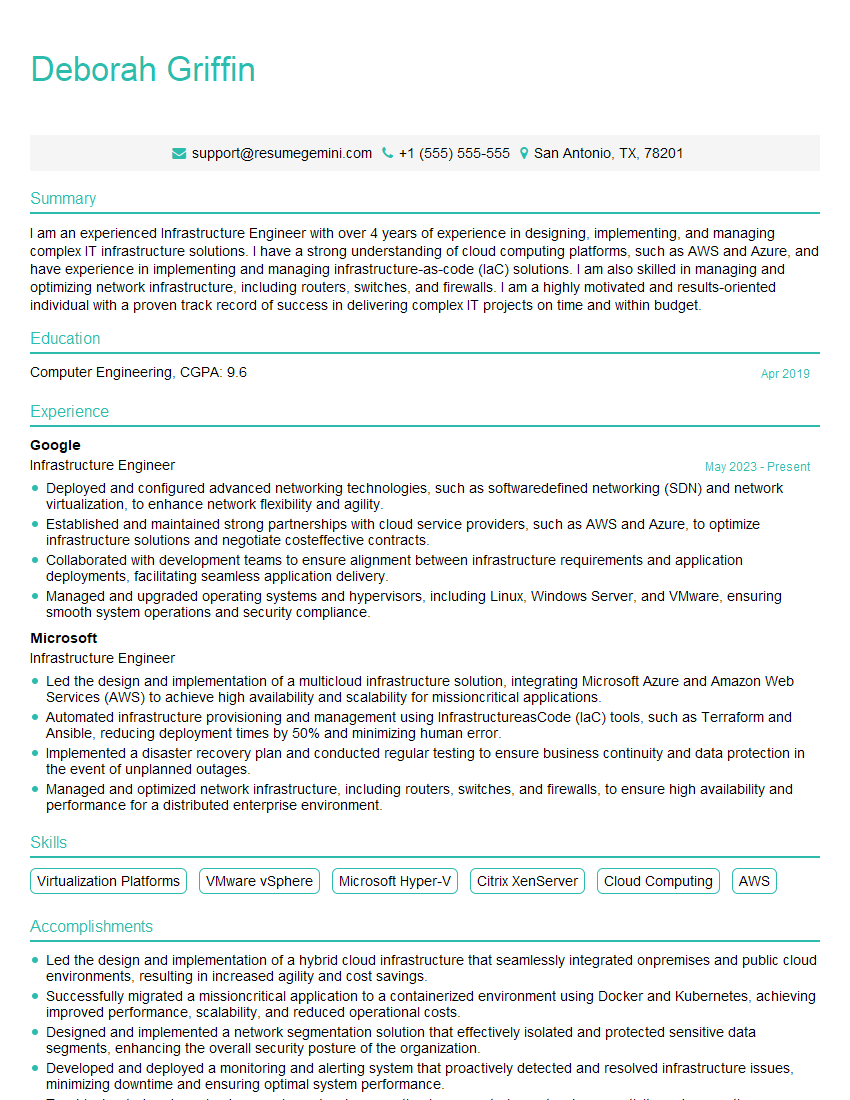
Mastering Kubernetes Helm significantly enhances your cloud-native skillset, making you a highly sought-after candidate in the competitive tech market. To maximize your job prospects, it’s crucial to present your expertise effectively. Crafting an ATS-friendly resume is key to getting your application noticed. We highly recommend leveraging ResumeGemini to build a professional and impactful resume that highlights your Kubernetes Helm proficiency. ResumeGemini offers examples of resumes tailored to Kubernetes Helm roles to help you create a compelling application. Invest time in crafting a strong resume—it’s your first impression and a critical step in securing your dream job.
Explore more articles
Users Rating of Our Blogs
Share Your Experience
We value your feedback! Please rate our content and share your thoughts (optional).
What Readers Say About Our Blog
Very informative content, great job.
good