Cracking a skill-specific interview, like one for Label Printer Operation, requires understanding the nuances of the role. In this blog, we present the questions you’re most likely to encounter, along with insights into how to answer them effectively. Let’s ensure you’re ready to make a strong impression.
Questions Asked in Label Printer Operation Interview
Q 1. What types of label printers have you operated?
Throughout my career, I’ve had extensive experience operating a variety of label printers. This includes thermal transfer printers, both desktop and industrial models from manufacturers like Zebra, Datamax-O’Neil, and Sato. I’ve also worked with direct thermal printers, primarily used for short-term applications and simpler labeling needs. Furthermore, I’m familiar with laser printers used for specialized high-volume label production, and even some older dot matrix printers for legacy systems. My experience spans different label sizes, materials (from paper to vinyl), and applications, ranging from basic inventory tags to complex barcoded shipping labels.
Q 2. Describe your experience with thermal transfer printing.
Thermal transfer printing is my area of expertise. It’s a precise and durable method, ideal for labels needing to withstand harsh conditions or require long-term readability. My experience involves selecting the correct ribbon type – wax, wax/resin, or resin – based on the label material and the application’s demands. For instance, a wax ribbon is suitable for standard paper labels, while a resin ribbon is necessary for durable labels like those used in outdoor applications or on products subjected to abrasion. I’m proficient in configuring the printer’s settings, including print speed, darkness, and ribbon tension, to achieve optimal print quality and prevent issues such as ribbon breakage or label smearing. I’ve also worked extensively with different thermal transfer ribbons from various manufacturers, understanding their unique properties and compatibility with specific printers and label materials.
For example, I once had to troubleshoot a thermal transfer printer producing faded labels. By carefully examining the ribbon and label stock, I identified that the ribbon was nearing depletion, and the printer’s heat settings were too low. Adjusting the settings and replacing the ribbon resolved the issue immediately. This highlights the importance of regular monitoring of consumable supplies and printer parameters.
Q 3. Explain the difference between thermal transfer and direct thermal printing.
The core difference between thermal transfer and direct thermal printing lies in how the image is created on the label. In direct thermal printing, the printer’s heated printhead directly reacts with the heat-sensitive label material to create the image. Think of it like a fax machine – the heat changes the color of the label’s surface. This is simpler and cheaper, but the resulting labels are less durable and prone to fading from exposure to heat, sunlight, or chemicals.
Thermal transfer printing, on the other hand, uses a ribbon (ink ribbon) as an intermediary. The printer’s heated printhead melts a small amount of ink from the ribbon onto the label. This creates a sharper, more durable image that’s resistant to many environmental factors. It’s like using a stamp with ink – the image is transferred from the ribbon to the label, resulting in a much more permanent and high-quality print.
In short: Direct thermal is simple, fast, and cost-effective for short-term labels; thermal transfer is more durable and produces higher-quality prints ideal for long-term applications.
Q 4. How do you troubleshoot a label printer that is not printing correctly?
Troubleshooting a misbehaving label printer involves a systematic approach. I always start by checking the most common culprits:
- Media (Labels): Ensure the correct label type and size are loaded. Misaligned labels or incorrect media settings are frequent causes of printing errors.
- Ribbon (for thermal transfer): Verify that the ribbon is correctly installed and hasn’t run out. Check for wrinkles or tears in the ribbon.
- Connections: Examine the printer’s power cord, USB or network cable to confirm proper connections.
- Driver Settings: Check the printer driver settings on your computer to make sure they’re compatible with the printer and the labels. Incorrect settings can lead to print quality issues, such as blurry prints or incorrect label size.
- Print Settings: Review the print settings in your application (e.g., Word, Excel, label design software) – incorrect label size, orientation, or resolution can cause misalignment or other problems.
If these basic checks don’t solve the problem, I’d move on to more advanced troubleshooting:
- Printer Self-Test: Many printers have a built-in self-test that can help identify hardware problems.
- Error Messages: Pay close attention to any error messages displayed on the printer’s control panel. These often provide valuable clues about the issue.
- Cleaning the Printer: Dust and debris can accumulate inside the printer, affecting print quality and causing jams. Regularly cleaning the printer can resolve many problems.
- Firmware Update: Check the manufacturer’s website for firmware updates which often resolve known bugs and improve performance.
- Call for Support: If the problem persists, contacting the manufacturer’s support team is the next step. They possess specialized tools and knowledge to resolve more complex issues.
I always document my troubleshooting steps, noting the results of each action taken. This helps in finding the root cause and provides a record for future reference.
Q 5. What are the common causes of label jams?
Label jams are frustrating but often preventable. Common causes include:
- Incorrect Label Loading: Improper loading of labels is the most frequent culprit. The labels must be aligned correctly and the label gap correctly set.
- Damaged or Wrinkled Labels: Labels that are damaged, curled, or wrinkled often cause jams.
- Dirty or Obstructed Print Mechanism: Dust, debris, or sticky residue can obstruct the printer’s internal mechanisms, leading to jams. This can be minimized by regular printer maintenance.
- Incorrect Media Settings: If the printer’s media settings (label type, size, gap) don’t match the actual label, it can lead to jamming.
- Low-Quality Labels: Sometimes, the problem stems from the label material itself. Using poor-quality labels can lead to frequent jams due to sticking or tearing.
- Overheating: Excessive printing, particularly at high speeds, can overheat the printer, causing labels to stick and jam.
Q 6. How do you maintain and clean a label printer?
Regular maintenance is crucial for optimal printer performance and lifespan. My maintenance routine includes:
- Cleaning: I regularly clean the printer’s exterior and interior, using a soft, lint-free cloth. For stubborn dirt, I use a slightly damp cloth (avoid excessive moisture). I also pay close attention to the printhead area, ensuring it’s free from debris.
- Inspecting the Rollers: I periodically inspect and clean the printer’s rollers. These rollers feed the labels through the printer, and any buildup of dust or debris can hinder their function.
- Checking the Sensors: Label printers utilize sensors to detect the presence of labels. I check these sensors to ensure they are clean and functioning correctly. A faulty sensor can lead to various errors, including jams.
- Replacing Consumables: I monitor ribbon levels (for thermal transfer printers) and ensure timely replacement to prevent print quality issues.
- Firmware Updates: I regularly check the manufacturer’s website for firmware updates to enhance printer performance and address potential bugs.
Following a preventative maintenance schedule avoids unexpected downtime and ensures the printer’s optimal performance.
Q 7. What safety precautions do you take when operating a label printer?
Safety is paramount when operating any label printer. My safety practices include:
- Proper Power Handling: Always ensure the printer is properly connected to a grounded power outlet and never unplug the printer while it’s running.
- Avoiding Obstructions: Keep the area around the printer clear of obstructions to prevent accidental injury. Never reach into the printer while it’s operating.
- Handling Consumables: Handle label rolls and ribbons carefully, avoiding skin contact with any chemicals or inks.
- Eye Protection: When changing ribbons or dealing with potential toner spillage, consider wearing safety glasses.
- Heat Awareness: Thermal printers use heat; never touch the printhead while the printer is operational. Allow it to cool down before handling.
- Following Manufacturer Instructions: Always adhere to the manufacturer’s safety instructions and guidelines specified in the user manual. These instructions contain specific recommendations for safe operation and maintenance.
Q 8. How do you ensure the accuracy of label printing?
Ensuring accurate label printing involves a multi-faceted approach, starting with the design phase and continuing through to the final printed product. Accuracy hinges on verifying every step of the process.
Design Verification: Before printing, meticulously check the label design for errors in text, graphics, and barcodes. Using a high-resolution preview is crucial. A simple typo can lead to costly reprints. For instance, a barcode with a single incorrect digit renders it unreadable.
Printer Settings: Correct printer settings are paramount. This includes verifying the correct label size, media type (paper, vinyl, etc.), and print resolution. Incorrect settings can result in skewed prints, cut errors, or improper alignment. Imagine printing shipping labels with incorrect addresses!
Calibration: Regular calibration ensures the printer’s mechanisms are working in perfect harmony. This involves adjusting settings to match the physical dimensions of the label stock, preventing misalignment or cutting issues. A regular calibration schedule prevents gradual drift and ensures consistent output.
Test Prints: Always perform test prints before committing to a large print run. Inspect the test print for clarity, alignment, and any defects. This simple step allows for corrections before wasting materials and time. Think of it as a quality control checkpoint.
Material Inspection: Regularly examine the label stock for any defects like wrinkles or damage that could affect the print quality. Storing label rolls correctly and managing the environmental conditions helps prevent these issues.
Q 9. Describe your experience with different label materials (e.g., paper, vinyl).
My experience encompasses a wide range of label materials, each with its own properties and printing considerations.
Paper Labels: These are cost-effective for applications where durability isn’t critical, like temporary pricing labels or internal inventory tags. The absorption rate needs consideration, as some paper types might cause ink bleeding. I’ve worked with thermal paper, which changes color upon heat application, and direct thermal transfer paper, perfect for simple, quick prints.
Vinyl Labels: Vinyl labels offer superior durability and resistance to harsh environmental conditions, making them ideal for outdoor use or applications needing long-term adhesion. They’re perfect for product labeling and asset tracking. I have experience with both gloss and matte vinyl, and understand the differences in their printing properties and adhesives. Gloss vinyl often provides a more vibrant print, but matte vinyl offers better resistance to scratches.
Polyester Labels: Polyester labels provide exceptional durability, chemical resistance, and high-temperature tolerance. These are commonly used in industrial settings, for example, for wiring identification or hazardous material labeling. I’ve worked with various thicknesses and types, recognizing that printer settings often require adjustments based on the thickness of the material.
Understanding the nuances of each material is critical for selecting the right material for a specific application and optimizing printer settings for the best print quality.
Q 10. How do you handle different label sizes and formats?
Handling diverse label sizes and formats is a routine task. Modern label printers typically support a wide range of label dimensions, but proper configuration is key.
Software Configuration: Most label design software allows you to specify label dimensions (width, height, and gap between labels) directly. This information is then sent to the printer, which adjusts accordingly. For instance, creating a template in Bartender for a specific label size and then loading that template into the printer ensures correct output.
Media Sensor Adjustment: Some printers require adjustments to the media sensor to accurately detect the label start and end points. Improper sensor adjustment can lead to skewed printing or incorrect label cutting. There are clear guidelines provided by each manufacturer to ensure the media sensor correctly reads your label media.
Manual Adjustment: In some cases, you might need to manually adjust the label feed mechanism if the labels aren’t feeding correctly, a situation that often occurs when working with unusual sizes or materials.
Experience with configuring different printer models and managing various media formats is crucial to efficiently handle diverse label requirements.
Q 11. What is your experience with label design software?
My experience with label design software is extensive. I am proficient in several industry-standard applications, including:
BarTender: I’m highly skilled in using BarTender to create complex labels incorporating barcodes, serial numbers, and variable data. I understand its database connectivity, allowing me to efficiently manage and print large volumes of labels with dynamically generated information. For example, I’ve successfully utilized BarTender to integrate with our ERP system to print accurate shipping labels directly from order details.
NiceLabel: I’m familiar with NiceLabel’s user-friendly interface and its capabilities for designing and managing various label formats. I’ve leveraged its features to create both simple and complex label designs for various clients and internal projects. One example involved creating a multi-panel label with different information on each panel using NiceLabel’s sophisticated template capabilities.
Other Software: I’m also experienced in using other label design software and possess a strong understanding of common industry standards and best practices for label design.
My expertise extends beyond simple label creation, including database integration, variable data printing, and the management of print jobs to ensure efficient workflow and accurate labeling.
Q 12. How do you troubleshoot ribbon issues (e.g., wrinkles, jams)?
Troubleshooting ribbon issues is a common occurrence. Here’s my approach:
Wrinkles: Ribbon wrinkles are often caused by improper ribbon loading or incorrect tension. I systematically check the ribbon’s placement within the printer, making sure it’s correctly seated and the tension is properly adjusted according to manufacturer instructions. Improper storage or handling can also cause wrinkles; ensuring the ribbon is stored in a cool and dry place avoids issues.
Jams: Ribbon jams typically arise from ribbon creases, misalignment, or insufficient tension. I carefully inspect the ribbon path for any obstructions. Sometimes, a small piece of debris can cause a jam. I also verify the ribbon’s proper seating and tension. If the problem persists, a deeper check of the printer’s mechanics might be necessary, which might require seeking assistance from a specialist.
Other Issues: Other ribbon problems include fading, streaks, or uneven printing, which can indicate issues with the ribbon itself, the printhead, or even the printer’s calibration. A systematic approach, starting with the simplest checks, is crucial for quick resolution.
Experience allows for rapid identification of the root cause, minimizing downtime and ensuring efficient operation. I approach these problems methodically, following a clear troubleshooting workflow, and document my steps for future reference and training purposes.
Q 13. What is your experience with label printer calibration?
Label printer calibration is essential for maintaining accuracy and print quality. The process varies depending on the printer model but generally involves:
Media Calibration: This step aligns the printer’s sensors to accurately detect the label’s edges. It involves feeding a sample label and allowing the printer to measure its dimensions. This ensures labels are printed and cut at the correct size and position.
Printhead Alignment: This step is crucial for ensuring sharp and clear prints. It might involve adjusting the printhead’s position horizontally and vertically to match the reference points on the media. This is usually done through the printer’s control panel or software.
Sensor Adjustment: The printer’s sensors play a critical role in determining label positions and feeding. Calibration ensures that these sensors function correctly, providing accurate feedback to the printer’s control system.
Regular calibration, as per manufacturer recommendations, is crucial for consistent high-quality printing. I always keep detailed calibration logs for future reference.
Q 14. How do you handle label printer malfunctions?
Handling label printer malfunctions requires a systematic and logical approach. My process includes:
Identify the Problem: Begin by accurately identifying the malfunction. Is it a print quality issue, a mechanical jam, or an error message on the display? Detailed observation of the error messages and the printer’s behavior provides crucial clues.
Check Obvious Causes: Often, simple fixes solve the problem. Check for things like paper jams, ribbon issues, and incorrect media loading. Verify power connections and check the printer’s status.
Consult Documentation: Refer to the printer’s manual or online resources for troubleshooting tips. Manufacturer documentation usually provides step-by-step instructions and error codes descriptions.
Seek External Assistance: If the problem persists, escalate the issue to the relevant support team or seek assistance from experienced technicians. Some problems require specialized knowledge or tools.
A methodical and documented approach to troubleshooting ensures efficient problem resolution, minimizes downtime, and prevents recurring issues. I also maintain a log of all maintenance and repair activities for future reference.
Q 15. What is your understanding of different print resolutions?
Print resolution in label printing refers to the density of dots per inch (DPI) used to create the image on the label. Higher DPI translates to sharper, more detailed images, while lower DPI results in coarser, less defined images. Think of it like comparing a low-resolution pixelated photo to a high-resolution, crisp one. A higher resolution is crucial for labels with small text or intricate graphics, like barcodes or fine line artwork. Lower resolutions are suitable for simpler labels where detail isn’t paramount. For example, a label with just a company logo might only require 300 DPI, whereas a label containing complex barcodes and small text might require 600 DPI or even higher.
Common resolutions include 200 DPI, 300 DPI, and 600 DPI. The optimal resolution depends on the label’s content complexity and the printer’s capabilities. Choosing the correct resolution balances print quality with printing speed and cost – higher resolutions are slower and can use more ink.
Career Expert Tips:
- Ace those interviews! Prepare effectively by reviewing the Top 50 Most Common Interview Questions on ResumeGemini.
- Navigate your job search with confidence! Explore a wide range of Career Tips on ResumeGemini. Learn about common challenges and recommendations to overcome them.
- Craft the perfect resume! Master the Art of Resume Writing with ResumeGemini’s guide. Showcase your unique qualifications and achievements effectively.
- Don’t miss out on holiday savings! Build your dream resume with ResumeGemini’s ATS optimized templates.
Q 16. Explain your process for loading labels and ribbons.
Loading labels and ribbons correctly is critical for smooth printing. First, I always check the label and ribbon type compatibility with the printer model. Mismatched supplies can lead to jams or poor print quality. Then, I power down the printer for safety. For the labels, I carefully open the media path, ensuring I don’t touch the print surface of the labels. I gently insert the label roll, ensuring the leading edge is aligned correctly with the printer’s guides. The label roll should be firmly seated to prevent slippage during printing. Ribbons typically go into a separate compartment; again, I follow the manufacturer’s instructions carefully, noting the correct orientation and ensuring it’s securely in place. The process usually involves guiding the ribbon through several rollers and ensuring it’s tightly wound. After loading, I test print a few labels to check for alignment and overall print quality, verifying the labels are feeding smoothly and no jams occur.
Q 17. Describe your experience with different types of label applicators.
My experience includes working with various label applicators, from simple manual dispensers to sophisticated automated systems. Manual dispensers are best for low-volume applications and are straightforward to use, only needing the operator to peel and stick labels. I’ve used semi-automatic applicators which help speed up the process – often using a pressure roller to apply the label to the product. These are great for mid-volume applications and reduce manual labor. For high-volume, demanding applications, automated applicators such as those integrated with conveyor systems are essential. These systems can precisely apply labels at high speed, ensuring consistency and accuracy. The choice depends on the required application speed, precision, and the volume of labels to be applied. I have hands-on experience with all these types, allowing me to troubleshoot various issues and optimize label application workflows for different production environments.
Q 18. How do you manage label inventory?
Efficient label inventory management is key to avoid production delays. I utilize a combination of strategies, including a first-in, first-out (FIFO) system to prevent label expiration. A regularly updated spreadsheet or inventory management software tracks label types, quantities on hand, reorder points, and suppliers. This system helps me accurately forecast demand and ensures a timely supply of labels. Regular stock checks are part of my routine, and any discrepancies are immediately investigated. I also maintain a close relationship with our suppliers, regularly communicating expected demand to ensure timely delivery. Proper storage conditions, keeping labels away from extreme temperatures and direct sunlight, are crucial for label longevity and quality.
Q 19. How do you ensure the quality of printed labels?
Ensuring printed label quality involves a multi-faceted approach. First, I always verify the printer settings match the label and ribbon specifications. Factors like print resolution, print speed, and ribbon tension can significantly impact quality. Regularly cleaning the printhead, removing dust or debris, is crucial. I periodically calibrate the printer to ensure accurate label alignment and prevent skewed or misaligned prints. Furthermore, I visually inspect printed labels for defects—checking for smudging, blurring, or any other imperfections. I also use test prints to check for consistency and adjust settings if needed. A systematic approach including preventative maintenance and regular quality checks ensures high-quality, consistent label printing.
Q 20. What is your experience with barcode printing?
I have extensive experience with barcode printing, including generating and printing various barcode symbologies like Code 128, EAN-13, UPC-A, and QR codes. Understanding barcode standards is critical; ensuring the correct symbology is used is vital for accurate data capture. I’m proficient in using different label printing software to generate barcodes and integrate them into label designs. My experience includes troubleshooting issues related to barcode readability, such as insufficient print quality or incorrect barcode settings. I also understand the importance of barcode verification to ensure the generated barcodes meet industry standards and can be reliably scanned.
Q 21. How familiar are you with different connectivity options (e.g., USB, Ethernet)?
I’m familiar with a range of connectivity options for label printers. USB connectivity is common for simpler setups, providing a straightforward connection to a single computer. Ethernet connectivity offers network capabilities, allowing multiple computers or devices to access the printer simultaneously. This is particularly useful in larger operations or shared printer environments. Some printers also support wireless connections via Wi-Fi, providing flexibility in placement. I’m comfortable working with all these options, understanding the configuration and troubleshooting connectivity problems for optimal printer operation, regardless of the chosen connection method.
Q 22. What is your experience with preventative maintenance on label printers?
Preventative maintenance on label printers is crucial for ensuring consistent, reliable operation and preventing costly downtime. My approach is multifaceted and includes a regular schedule of checks and cleaning. This involves inspecting the printhead for debris or damage – think of it like regularly cleaning the nozzle on a spray paint can to prevent clogging. I also check the ribbon for wear and tear, ensuring it’s properly seated, and inspect the label supply for wrinkles or jams. Beyond the physical components, I regularly update the printer’s firmware to benefit from bug fixes and performance improvements, just like updating software on your phone. Finally, I perform print tests to identify any potential issues early on, allowing for proactive intervention instead of reactive troubleshooting.
- Regular Cleaning: This includes removing dust and debris from the print mechanism and rollers using appropriate cleaning supplies.
- Supply Checks: Verifying the label rolls and ribbons are properly installed and have sufficient stock to avoid interruptions.
- Firmware Updates: Staying current with the latest firmware ensures optimal performance and addresses potential vulnerabilities.
- Print Tests: Conducting routine test prints helps identify minor issues before they escalate into major problems.
Q 23. How do you interpret error messages from a label printer?
Interpreting label printer error messages requires a systematic approach. I begin by carefully reading the entire message, paying attention to any codes or numbers. These often provide clues to the nature of the problem. For example, an error code might indicate a sensor malfunction, a communication error, or a paper jam. I then consult the printer’s manual for detailed explanations of these error codes. The manual often suggests troubleshooting steps, such as checking connections or replacing certain parts. If the manual doesn’t provide a solution, I leverage online resources or contact the printer manufacturer’s technical support. I find that keeping a log of error messages and resolutions is invaluable for future reference, it helps me build up a troubleshooting database over time.
For instance, a message like “Ribbon Out” is self-explanatory and requires replacing the ribbon. However, a more cryptic message like “Error Code 123” needs further investigation using the printer’s manual or online resources.
Q 24. What software programs are you proficient in related to label printing?
My experience encompasses a range of software used in label printing. I’m proficient in label design software like Bartender and NiceLabel, which allow for creating complex, customized labels. I’m also comfortable with enterprise resource planning (ERP) systems, such as SAP and Oracle, that integrate with label printers for automated label generation. Beyond design and integration, I have experience using printer-specific drivers and utilities for managing printer settings and configurations. I’m also comfortable using scripting languages such as VBscript and PowerShell to automate tasks and create custom label printing solutions. Think of it like knowing multiple languages—each tool allows for different levels of control and automation.
Q 25. Describe your experience with troubleshooting network connectivity issues for label printers.
Troubleshooting network connectivity issues for label printers often involves a methodical approach. First, I verify the printer’s network settings – IP address, subnet mask, gateway – to ensure they are correctly configured for the network. Then, I check the physical network connection: Is the Ethernet cable securely plugged in at both ends? I then test the network connection from the printer’s control panel, usually through a network test or ping. I also check the network’s connectivity by pinging the printer from another device. If issues persist, I check the network infrastructure, such as switches and routers, to rule out any network-wide problems. Sometimes the issue is as simple as a faulty cable, and other times it could be a more complex problem with network settings or even a firewall.
One memorable instance involved a printer that couldn’t connect after a network upgrade. After confirming the IP address was correct, I discovered the network switch had a faulty port, which is why the printer was unable to connect. Replacing the switch resolved the problem.
Q 26. How do you prioritize tasks when multiple label printing jobs are needed?
Prioritizing multiple label printing jobs involves understanding the urgency and dependencies of each. I use a combination of factors to determine the order of operations: Job deadlines, required quantities, and the complexity of the labels themselves. I often use a job ticketing system to track all the jobs and their priorities. For example, a rush order for a small quantity of simple labels would take precedence over a larger order of complex labels with a later deadline. I also communicate proactively with users about potential delays, keeping them informed throughout the process. This ensures that everyone’s expectations are met, and any potential conflicts are addressed promptly.
Q 27. What is your experience with integrating label printers into larger systems?
Integrating label printers into larger systems is a process requiring both technical and organizational skills. My experience covers integrating label printers with warehouse management systems (WMS), ERP systems, and other business applications. This typically involves configuring the printer’s network settings, setting up communication protocols like TCP/IP or serial communication, and establishing data transfer methods using standard formats (e.g., XML, CSV). This requires a good understanding of each system’s API and data structures. The goal is to seamlessly integrate the printing process into the existing workflow, allowing for automated label generation based on data from the larger system. Proper testing and documentation of the integration are crucial to ensure it functions reliably and provides comprehensive tracking.
Q 28. Describe a time you had to solve a complex label printing problem.
One of the most challenging label printing issues I encountered involved a complex barcode label that was intermittently failing to print correctly. The labels contained multiple barcodes, text fields, and graphics, all precisely positioned. The problem wasn’t consistent; sometimes the labels printed perfectly, other times one or more elements would be missing or misplaced. After investigating the printer settings, drivers, and design software, the issue turned out to be a subtle incompatibility between the label design software and the printer’s driver. The software was slightly misinterpreting the printer’s capabilities, leading to inconsistent printing. The solution involved updating the printer driver and fine-tuning the label design software settings to ensure precise alignment and output. The careful recalibration of printer settings alongside updates solved the issue permanently. This experience highlighted the importance of thorough testing and version compatibility for successful label printing, particularly with complex label designs.
Key Topics to Learn for Label Printer Operation Interview
- Printer Mechanics & Maintenance: Understanding the internal workings of label printers (thermal transfer, direct thermal, etc.), routine maintenance procedures (cleaning, calibration), and troubleshooting common mechanical issues.
- Label Material & Supply Management: Knowledge of different label materials (paper types, adhesives), ribbon types, and their impact on print quality. Experience managing inventory and ordering supplies efficiently.
- Software & Interface: Familiarity with label design software (e.g., BarTender, NiceLabel), printer drivers, and network connectivity. Understanding how to configure print settings for optimal results.
- Print Quality & Troubleshooting: Identifying and resolving common print quality issues (e.g., blurry text, incorrect colors, label jams). Applying problem-solving skills to diagnose and fix malfunctions.
- Safety Procedures & Regulations: Understanding and adhering to safety protocols related to printer operation and handling of materials. Awareness of relevant industry regulations.
- Production Efficiency & Optimization: Strategies for maximizing printer output, minimizing downtime, and improving overall production efficiency. Understanding concepts like print speed and resolution trade-offs.
- Data Integration & Connectivity: Experience integrating the label printer with other systems (e.g., ERP, databases) for automated label generation and data management.
Next Steps
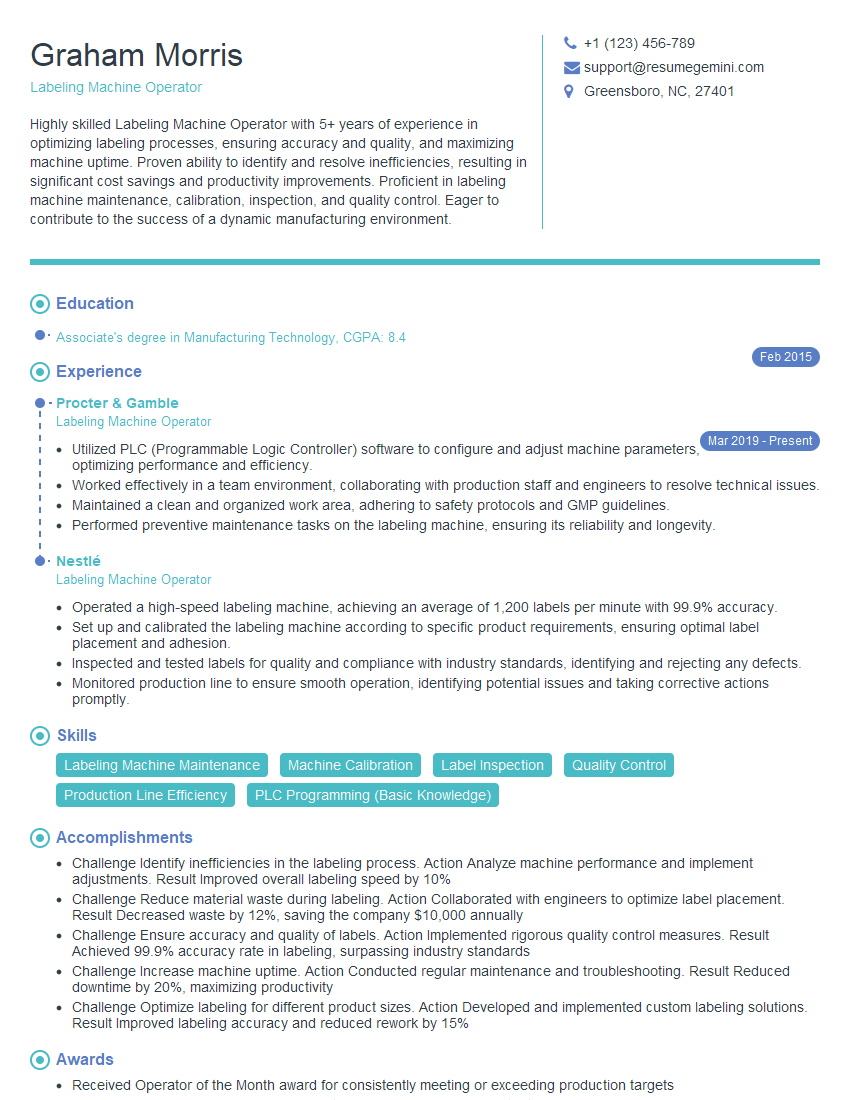
Mastering label printer operation opens doors to exciting career opportunities in manufacturing, logistics, and various other industries. Proficiency in this area demonstrates valuable technical skills and attention to detail, making you a highly sought-after candidate. To significantly boost your job prospects, create an ATS-friendly resume that highlights your expertise. ResumeGemini is a trusted resource to help you craft a professional and impactful resume that gets noticed by recruiters. Examples of resumes tailored to Label Printer Operation are available to help guide you.
Explore more articles
Users Rating of Our Blogs
Share Your Experience
We value your feedback! Please rate our content and share your thoughts (optional).
What Readers Say About Our Blog
Very informative content, great job.
good