Cracking a skill-specific interview, like one for Motion Graphics and Video Editing (After Effects, Premiere Pro), requires understanding the nuances of the role. In this blog, we present the questions you’re most likely to encounter, along with insights into how to answer them effectively. Let’s ensure you’re ready to make a strong impression.
Questions Asked in Motion Graphics and Video Editing (After Effects, Premiere Pro) Interview
Q 1. Explain your experience with After Effects’ keyframing techniques.
Keyframing in After Effects is the foundation of animation. It’s the process of setting values for a property (like position, scale, opacity) at specific points in time, and After Effects smoothly interpolates between those points to create the animation. I’m proficient in various keyframe techniques, including:
- Linear Keyframes: These create a constant rate of change between keyframes, resulting in a uniform animation. Imagine a car moving at a steady speed—that’s linear keyframing.
- Bezier Keyframes: Offering much more control, Bezier keyframes allow adjustment of the speed and easing of the animation using handles. You can create acceleration, deceleration, or even pauses within the animation, making movements feel more natural. Think of a bouncing ball; its speed changes throughout its trajectory.
- Hold Keyframes: These maintain a property’s value for a specific duration, creating a pause in the animation. Useful for emphasizing a certain moment or creating a still frame.
- Auto Keyframes: A time saver, auto keyframing automatically adds keyframes whenever a property’s value changes. It’s perfect for quick, iterative animation.
I regularly utilize different keyframe types depending on the desired effect. For example, I’d use Bezier keyframes for character animation to ensure smooth, lifelike movements, while linear keyframes might suffice for simple transitions.
Q 2. Describe your workflow for creating a motion graphics sequence in After Effects.
My workflow for creating a motion graphics sequence in After Effects is iterative and organized. It generally involves these steps:
- Planning & Pre-Production: I start with a storyboard or detailed sketch outlining the sequence’s visuals and timing. This ensures a cohesive and efficient production.
- Asset Creation/Import: I gather necessary assets like illustrations, footage, and audio. If needed, I create assets in other programs (Illustrator, Photoshop) and import them into After Effects.
- Composition Setup: I create compositions, organizing layers logically. I often use pre-composition to manage complexity. Naming conventions are crucial here for easy navigation.
- Animation & Effects: This stage involves keyframing, using effects (like blur, glow, particle effects), and applying expressions for dynamic animation.
- Refinement & Iteration: I constantly review the sequence, making adjustments to timing, pacing, and visual effects until I’m satisfied.
- Rendering & Export: Finally, I render the final composition in the desired resolution and format, optimizing settings for file size and quality.
Throughout this process, I utilize the ‘Save As’ function frequently to create versions and back up my work.
Q 3. How do you manage complex After Effects compositions with many layers?
Managing complex compositions with numerous layers requires a systematic approach. My strategies include:
- Pre-compositions: Breaking down the composition into smaller, manageable pre-compositions is essential. This improves performance and organization. Think of it as modular design, making it easier to manage and update individual components.
- Layer Organization: Using color-coded folders and clear layer naming conventions is crucial. I often group related layers together for easy selection and manipulation. This is like organizing a toolbox—each tool has its place and is easy to find.
- Layer Styles: I use layer styles to visually distinguish between elements and quickly apply consistent effects to multiple layers.
- 3D Layers: Utilizing 3D layers allows for complex spatial arrangements without the visual clutter of numerous 2D layers.
- Null Objects: These act as invisible containers for grouping and animating multiple layers simultaneously. They’re great for parenting and complex movements.
These methods not only enhance organization but also significantly improve render times by allowing After Effects to process smaller sections more efficiently.
Q 4. What are your preferred methods for optimizing After Effects project performance?
Optimizing After Effects performance is crucial for larger projects. My strategies include:
- Using Proxy Files: Replacing high-resolution footage with lower-resolution proxies during editing drastically speeds up the workflow. I switch back to the high-resolution files only for final rendering.
- Caching & RAM Previews: Leveraging After Effects’ caching and RAM preview features minimizes render time during playback. This reduces lag and enhances the editing experience.
- Minimizing Effects: Excessive use of CPU-intensive effects can significantly slow down performance. I always explore alternative techniques to achieve similar visual results with less processing power.
- Layer Reduction: Keeping the number of layers and effects to a minimum improves performance considerably. Consolidating layers where possible is key.
- Regularly Saving & Closing Unnecessary Files: This keeps your system from being bogged down and frees up RAM space.
By employing these strategies, I ensure smooth and efficient workflow even when dealing with demanding projects.
Q 5. Explain your experience with rotoscoping in After Effects.
Rotoscoping in After Effects involves tracing over video footage to isolate specific areas. I use it primarily for:
- Removing unwanted elements: This could involve removing a distracting background or isolating a subject from its surroundings.
- Creating matte effects: The resulting rotoscoped area can be used as a matte for compositing or applying effects to a specific section of the footage.
My rotoscoping workflow usually involves using the Roto Brush tool, which uses AI to assist with edge detection. For complex shapes or movements, I often use the Pen tool for precise control. It’s a time-consuming process, but I always ensure accurate edge detection for seamless integration into the final composite.
I’ve used rotoscoping extensively in projects involving special effects, where isolating a person from a background to add a visual effect is needed. Accuracy is key for a believable result.
Q 6. Describe your experience using masks and mattes in After Effects.
Masks and mattes are essential tools for isolating and manipulating specific areas of a composition in After Effects. Masks define a shape within a layer, while mattes use one layer to control the visibility of another.
- Masks: I use masks to select areas for applying effects, isolating subjects, or creating intricate shapes. The Bezier mask tool allows for precise control over the shape and edges.
- Mattes: Mattes provide more advanced control, allowing the alpha channel (transparency) of one layer to control the visibility of another. This is particularly useful for complex compositing and creating realistic visual effects.
I’ve frequently employed masks and mattes in creating keyhole effects, isolating elements, and achieving seamless integration of different footage segments. For instance, I recently used a luma matte to isolate a bright object from a dark background, enabling precise control over its illumination and integration.
Q 7. How familiar are you with expressions in After Effects?
I’m very familiar with expressions in After Effects. They are powerful tools that enable dynamic animation and control of layer properties using JavaScript. I utilize expressions for:
- Animating properties based on other properties: For example, an expression can link the rotation of one layer to the position of another, creating complex, interconnected animations.
- Creating procedural animations: Expressions allow you to create animations based on mathematical functions, generating intricate patterns and effects that would be impossible to create manually with keyframes.
- Simplifying repetitive tasks: Expressions automate tasks like applying consistent changes across multiple layers, reducing the need for manual adjustments.
Example: A simple expression to make a layer’s opacity change based on its position could look like this:
opacity = transform.position[1]/100;This code makes the layer’s opacity a percentage of its vertical position. I often find myself using expressions to create realistic wiggling or waving animations that would otherwise be extraordinarily tedious to accomplish manually. My proficiency with expressions significantly enhances my speed and creative potential in After Effects.
Q 8. Explain your experience with Premiere Pro’s editing tools and workflows.
My experience with Premiere Pro’s editing tools is extensive. I’m proficient in all aspects of the non-linear editing workflow, from ingesting footage to final export. I’m comfortable using the standard tools like the razor tool for precise cuts, the selection tool for manipulating clips, and the ripple edit/roll edit functions for seamless transitions. I understand the importance of using keyboard shortcuts for efficiency, speeding up my workflow significantly. For example, I routinely use Cmd+K (Mac) or Ctrl+K (Windows) for creating in and out points quickly.
Beyond the basics, I’m skilled in advanced techniques such as nested sequences for complex projects, using adjustment layers for global edits, and working with markers and subclips for detailed organization. I’ve used Premiere Pro to edit everything from short corporate videos to longer-form documentaries, and I’m adept at adapting my workflow to the specific requirements of each project.
A recent project involved creating a promotional video with a fast-paced style. Using Premiere Pro’s multi-cam editing capabilities, I seamlessly integrated footage from multiple cameras to create a dynamic and engaging final product. This required careful synchronization and selection of the best takes, highlighting my ability to manage large amounts of footage efficiently.
Q 9. How do you handle color correction and grading in Premiere Pro?
Color correction and grading in Premiere Pro is a crucial part of my post-production process. I typically start with basic color correction using the Lumetri Color panel, adjusting exposure, contrast, highlights, and shadows to establish a consistent look across all clips. I then move to color grading, using curves and HSL adjustments to fine-tune the colors and create a specific mood or style.
I’m experienced with using color wheels and scopes (vectorscope, waveform monitor, parade) to ensure color accuracy and avoid unintended color casts. For example, I frequently use the waveform monitor to identify areas of clipping (pure white or pure black), helping me achieve a balanced and dynamic range. I also often create custom LUTs (Look Up Tables) to maintain visual consistency across multiple projects or to quickly apply a specific look.
For a recent commercial project, I used Lumetri Color to achieve a vintage, desaturated look, carefully controlling the saturation and adjusting the white balance to give it an authentic feel. This involved careful selection of color points on the curves and meticulous refinement of the HSL secondary color correction.
Q 10. Describe your experience with audio editing and mixing in Premiere Pro.
Audio editing and mixing are just as critical as the video editing. I’m experienced in cleaning up audio tracks, removing unwanted noise and hiss using noise reduction tools, and adjusting levels to ensure a balanced mix. I use EQ (equalization) to shape the sound of individual tracks, and compression to control dynamics and prevent clipping. I also utilize audio effects like reverb and delay to create a more immersive soundscape.
I understand the importance of good audio quality and routinely utilize features like keyframing audio levels for subtle adjustments throughout a scene. For example, I might use keyframes to subtly reduce the background music during dialogue-heavy scenes to maintain clarity. I often work with separate audio tracks for music, sound effects, and voiceover, enabling precise control and flexibility during the mixing process.
In one project, I had to completely rebuild a dialogue track from multiple takes, using several audio effects to remove ambient noise and improve intelligibility. The final result was clean, clear, and free from distracting artifacts, proving my expertise in sophisticated audio editing.
Q 11. What are your preferred methods for organizing and managing Premiere Pro projects?
Organizing and managing Premiere Pro projects is crucial for efficiency and maintainability. My preferred method involves a structured bin system within the project panel. I create bins for different aspects of the project – footage, graphics, audio, sequences – and further subdivide those bins as needed. For instance, I might have a ‘Footage’ bin, with sub-bins for ‘Interviews,’ ‘B-Roll,’ and ‘Establishing Shots’.
I use descriptive naming conventions for all files, including clips, sequences, and projects themselves, using a consistent format to quickly locate assets. I also use color-coding to visually distinguish different types of media or to denote status (e.g., approved, rejected). Furthermore, I regularly back up my projects to an external hard drive to prevent data loss.
For larger projects, I create detailed spreadsheets that document assets, shot lists, and notes, further aiding in organization and collaboration. This meticulous approach reduces confusion and improves overall workflow, ultimately enhancing efficiency and preventing project-related setbacks.
Q 12. How do you handle media management and transcoding in Premiere Pro?
Media management and transcoding are integral to efficient video editing. I always ensure my footage is properly organized on my hard drive before importing into Premiere Pro. This helps to avoid import issues and unnecessary delays. I often work with proxy media for smoother editing, particularly with high-resolution footage. Premiere Pro’s native proxy workflow is invaluable for this.
When transcoding, I select appropriate codecs and resolutions based on the final output specifications. I prioritize codecs that offer a good balance between quality and file size, such as ProRes or DNxHD. For web delivery, I might choose H.264 or H.265, optimizing the settings for the target platform. I understand the potential quality loss during transcoding and always test different settings to ensure the best possible result while keeping files manageable.
A recent project involved 8K footage. To maintain a smooth workflow, I created and used proxies before moving on to the final high-resolution editing and rendering phase. The use of proxies saved significant time and computer processing power without compromising the quality of the final deliverable.
Q 13. Describe your experience with exporting video in various formats and resolutions from Premiere Pro.
Exporting video in various formats and resolutions is a fundamental part of my post-production workflow. I’m experienced in exporting to a wide range of formats, including H.264 for web platforms, ProRes for broadcast, and DNxHD for offline editing. I select the appropriate codec, resolution, bitrate, and frame rate according to the client’s needs and the intended distribution platform. Premiere Pro’s export settings are very robust and allow for fine-grained control over these parameters.
I always test my exports thoroughly to ensure compatibility and quality. This often involves exporting to multiple devices and platforms to identify any potential issues before delivery. For example, I might export a test version to YouTube and Vimeo to check compatibility and encoding quality. I also pay close attention to metadata, embedding relevant information such as copyright details and keywords to enhance searchability and organization.
In a recent project, the client needed the final video in multiple formats—high-resolution for broadcast, a compressed version for web, and an even smaller version for mobile platforms. My expertise enabled me to efficiently generate these different versions without compromising the quality of each intended format.
Q 14. How familiar are you with using Lumetri Color in Premiere Pro?
I’m very familiar with Lumetri Color in Premiere Pro. It’s my primary tool for color correction and grading. I understand the intricacies of its features, including the Basic Correction section (exposure, contrast, whites, blacks, etc.), the Curves panel for precise adjustments, and the HSL Secondary controls for targeting specific color ranges.
I’m proficient in using Lumetri Color’s creative color grading tools, like the Color Wheels for hue and saturation adjustments and the Color Mixer to refine color balance. I also use Lumetri scopes (vectorscope, waveform, parade) effectively for evaluating color accuracy and preventing issues like clipping or color imbalances. The ability to use Lumetri color effectively allows me to create aesthetically pleasing and consistent looks across the entire project, and it is often what clients notice and appreciate most.
For instance, I recently used Lumetri Color’s advanced features—particularly the use of selective color correction using the HSL secondary panel—to match the color of a new shot to existing footage. The result was seamless integration, preventing jarring tonal differences in the final cut.
Q 15. Explain your experience with dynamic linking between After Effects and Premiere Pro.
Dynamic linking between After Effects and Premiere Pro is a powerful feature that allows for seamless integration and real-time updates between the two applications. Instead of rendering a final composition in After Effects and then importing it into Premiere Pro, dynamic linking allows you to work with the After Effects composition directly within your Premiere Pro timeline. Any changes made in After Effects are instantly reflected in Premiere Pro, saving significant time and streamlining the workflow.
For example, imagine you’re creating a title sequence in After Effects. With dynamic linking, you can place the After Effects composition directly onto your Premiere Pro timeline. As you refine the animation and effects in After Effects, those changes are instantly visible in your Premiere Pro edit, without the need for re-rendering or re-importing.
This is especially beneficial for iterative projects, allowing for fluid collaboration and quick adjustments. It reduces render times and allows for more spontaneous creative exploration. I frequently use this feature for motion graphics, lower thirds, and complex animated elements integrated within a larger video project.
Career Expert Tips:
- Ace those interviews! Prepare effectively by reviewing the Top 50 Most Common Interview Questions on ResumeGemini.
- Navigate your job search with confidence! Explore a wide range of Career Tips on ResumeGemini. Learn about common challenges and recommendations to overcome them.
- Craft the perfect resume! Master the Art of Resume Writing with ResumeGemini’s guide. Showcase your unique qualifications and achievements effectively.
- Don’t miss out on holiday savings! Build your dream resume with ResumeGemini’s ATS optimized templates.
Q 16. What are your preferred methods for troubleshooting common After Effects errors?
Troubleshooting After Effects errors often involves a systematic approach. My first step is always to carefully read the error message. Many errors provide clues to the source of the problem. If the message is cryptic, I’ll search the Adobe support forums or the After Effects documentation for solutions related to that specific error code.
If the error is related to memory or performance, I’ll try closing unnecessary applications, increasing After Effects’ RAM allocation in the Preferences, and checking my hard drive space. Sometimes, pre-rendering parts of a complex composition can alleviate problems.
A common issue is corrupted project files. In such cases, I’ll attempt to open the project in a new, clean instance of After Effects, or try to save the project in a different location. If necessary, I resort to manually recreating portions of the project that have become corrupted. I always save frequently and regularly back up my projects to prevent data loss.
Q 17. How do you approach collaborating with other team members on video projects?
Collaboration is key in video production. My approach focuses on clear communication and efficient workflows. We typically use cloud-based storage platforms like Dropbox or Google Drive to share project files, ensuring everyone has access to the most up-to-date versions.
For larger projects, we use project management tools to assign tasks and track progress. Regular team meetings are vital for discussing creative direction, addressing challenges, and ensuring everyone is on the same page. I believe in open feedback, and I encourage team members to share their ideas and concerns proactively.
In terms of file organization, we adopt a consistent file naming convention and folder structure to maintain clarity and avoid confusion. I also make extensive use of version control, saving different versions of the project with clear descriptions of the changes made. This ensures that we can easily revert to earlier versions if necessary.
Q 18. Describe your experience working with different codecs and file formats.
Working with various codecs and file formats is crucial for efficient post-production. I have extensive experience with codecs like ProRes (Apple ProRes 422 being my go-to for intermediate editing), H.264, and H.265 for delivery, understanding the trade-offs between quality, file size, and editing performance.
For example, I’ll typically edit using ProRes to ensure smooth performance during editing and effects application. When it’s time to export for web distribution, I’ll compress to H.264 or H.265 for smaller file sizes suitable for online platforms, carefully selecting appropriate bitrates to balance quality and file size. Knowing which codec to choose for specific output targets is vital.
I’m also familiar with a variety of file formats like MOV, MP4, AVI, and others, ensuring compatibility with different platforms and software. Understanding file format compatibility is key to avoiding unnecessary conversion steps and maintaining image quality.
Q 19. What strategies do you use to maintain consistent branding and style across video projects?
Maintaining consistent branding is crucial for creating a cohesive visual identity. I achieve this by creating and adhering to style guides for each project. These style guides typically include specifications for: color palettes, fonts, logo usage, and general aesthetic guidelines.
For example, I’ll create a master template in After Effects containing all brand elements – logo animations, color schemes, and preferred fonts – then use that template as a starting point for all related video assets. In Premiere Pro, I use consistent lower thirds and title templates, based on the brand’s established style. Creating master templates ensures consistency across different projects.
Close communication with the client or creative director is key to ensuring the style guide accurately reflects their brand vision. Regular reviews of the project help maintain consistency throughout the production process, preventing inconsistencies from creeping in.
Q 20. How do you incorporate feedback and revisions into your video editing process?
Incorporating feedback is an iterative process, and I use a structured approach. I actively listen to feedback, making detailed notes on all comments and suggestions. I then organize the feedback into categories based on priority and nature of the change.
For minor revisions, I’ll implement them directly. For more substantial changes, I create a new version of the project, clearly labeling it with revision numbers. This ensures we can easily revert to previous versions if needed. I’ll often provide clients with a video demonstrating the implemented changes.
Clear and concise communication is vital. I explain why certain changes may not be feasible or require more significant adjustments. The goal is to ensure a collaborative and productive feedback cycle that ultimately results in a finished product that meets both creative and technical requirements.
Q 21. Describe your experience with using plugins and extensions in After Effects and Premiere Pro.
Plugins and extensions dramatically expand the capabilities of After Effects and Premiere Pro. I frequently use plugins for tasks like color grading (e.g., Magic Bullet Looks), advanced effects (e.g., Red Giant Universe), and workflow optimization. I’m selective in choosing plugins, focusing on those that provide significant value and integrate seamlessly with my workflow.
Before installing any plugin, I carefully research its compatibility with my software versions and system specifications. I thoroughly test any new plugin to ensure it functions correctly and doesn’t introduce instability into my applications. I find that well-integrated plugins can significantly accelerate the post-production process.
For example, using a plugin for rotoscoping can significantly reduce the time spent manually keyframing complex shapes. Other plugins help automate repetitive tasks, freeing up time for creative exploration. Managing plugin updates is also crucial to maintain system stability and benefit from the latest features and bug fixes.
Q 22. How do you stay up-to-date with the latest industry trends and technologies?
Staying current in the dynamic field of motion graphics and video editing requires a multi-pronged approach. It’s not just about learning new software features; it’s about understanding evolving design trends and technological advancements. I actively engage in several strategies:
- Following industry blogs and publications: Sites like AECTuts+, Creative Bloq, and Motionographer provide insightful articles, tutorials, and showcases of cutting-edge work. This keeps me abreast of the latest techniques and software updates.
- Attending webinars and online courses: Platforms like Skillshare, LinkedIn Learning, and Udemy offer comprehensive courses taught by industry professionals. These courses provide structured learning and often delve into advanced topics.
- Engaging with online communities: Forums, subreddits (like r/AfterEffects and r/videoediting), and social media groups dedicated to motion graphics and video editing are invaluable resources. They offer a space to learn from others’ experiences, ask questions, and stay informed about new tools and techniques. I actively participate in discussions and share my knowledge as well.
- Experimenting with new software and plugins: I dedicate time to exploring new software versions and plugins. This hands-on experience is crucial for understanding their capabilities and limitations. I often try out free trials or explore open-source options.
- Analyzing successful projects: I regularly review award-winning motion graphics and video editing work to understand the creative choices and technical skills involved. Breaking down these projects helps me learn from the best in the field.
This holistic approach ensures that I’m not only aware of the latest trends but also actively incorporate them into my workflow, enhancing the quality and innovation of my projects.
Q 23. What is your experience with motion tracking in After Effects?
Motion tracking in After Effects is a core skill in my arsenal. I’m proficient in using both the built-in tracker and third-party plugins for more complex scenarios. My experience encompasses various tracking challenges, from simple camera movements to intricate object tracking across multiple shots. For instance, I’ve used motion tracking to seamlessly integrate CGI elements into live-action footage, accurately overlay text onto moving objects, and stabilize shaky camera footage.
I understand the importance of selecting the appropriate tracking method based on the footage’s complexity and the desired outcome. For example, if I’m tracking a relatively simple, predictable movement, the built-in tracker is often sufficient. However, for more complex scenarios, such as tracking objects with significant perspective changes or occlusion, I leverage plugins like Mocha Pro or PFTrack for enhanced accuracy and control.
Beyond technical proficiency, I also understand the importance of preparing footage correctly for tracking – ensuring sufficient contrast, avoiding excessive motion blur, and shooting with enough camera coverage are critical for optimal results. I’ve successfully handled numerous projects requiring precise motion tracking, demonstrating my ability to deliver high-quality results even under challenging conditions.
Q 24. How familiar are you with 3D compositing techniques in After Effects?
3D compositing in After Effects allows for the creation of visually stunning and complex scenes by integrating 3D elements with 2D footage. My experience includes working with various 3D models and elements, including those created in Cinema 4D, Blender, or Maya, and bringing them into After Effects for compositing and animation. This involves using techniques like camera tracking, 3D layer manipulation, and the effective use of lighting and shadows to create a cohesive and realistic result.
I’m proficient in utilizing After Effects’ 3D capabilities to achieve depth and realism. This includes accurately matching camera perspectives, creating realistic shadows and reflections, and integrating 3D models seamlessly into live-action or animated footage. For example, I’ve worked on projects that required adding realistic explosions, integrating product models into a scene, and creating immersive environments by combining live-action plates with 3D elements.
Furthermore, I am familiar with using various techniques for optimizing performance when working with 3D layers in After Effects, particularly when dealing with complex models or scenes. This includes techniques like pre-rendering parts of the scene and using efficient compositing strategies.
Q 25. Describe your experience creating lower thirds and other on-screen graphics.
Creating engaging lower thirds and on-screen graphics is crucial for enhancing video clarity and visual appeal. My approach focuses on both functionality and aesthetics. I start by understanding the overall style and tone of the project. Then, I design graphics that are not only visually appealing but also seamlessly integrate into the video’s aesthetic and enhance viewer comprehension.
I utilize After Effects to create dynamic and animated lower thirds, incorporating various techniques like subtle animations, color grading, and stylistic treatments to ensure they complement the content without distracting from it. I’ve designed various styles, from clean and minimalist designs for corporate videos to more playful and illustrative styles for online content. I pay close attention to typography, ensuring readability and choosing fonts that align with the brand and the overall aesthetic.
Beyond lower thirds, my experience extends to a wide range of on-screen graphics, including title sequences, animated logos, and informational overlays. I ensure all graphics maintain consistency throughout the video, using a unified style guide to maintain brand coherence.
Q 26. What are some of the common challenges you’ve faced in motion graphics and video editing?
Motion graphics and video editing, while creatively rewarding, present various challenges. Some common hurdles I’ve faced include:
- Client revisions and feedback incorporation: Managing client feedback and incorporating revisions effectively, while maintaining project timelines and creative integrity, can be demanding.
- Time constraints and tight deadlines: Meeting strict deadlines while maintaining the quality of the final product requires meticulous planning and efficient workflow management.
- Technical difficulties and troubleshooting: Software glitches, compatibility issues, and unexpected technical problems can disrupt the workflow and require creative problem-solving.
- Balancing creative vision with technical feasibility: Sometimes, a visually compelling idea might be challenging to execute technically. Finding creative solutions that blend artistic vision with technical limitations is crucial.
- Managing large files and project organization: Working with high-resolution footage and numerous assets requires efficient file management and project organization to avoid confusion and optimize performance.
Overcoming these challenges requires a combination of strong organizational skills, effective communication, proactive problem-solving, and a flexible approach to adapting to changing circumstances. I’ve developed strategies to mitigate these issues, including establishing clear communication channels, meticulous planning, and utilizing efficient workflow techniques.
Q 27. How do you approach creating engaging and visually appealing animations?
Creating engaging and visually appealing animations involves a multifaceted approach. It’s not just about technical skill; it’s about understanding storytelling, visual communication, and audience engagement.
I begin by meticulously planning the animation’s narrative structure. This involves creating storyboards, defining keyframes, and establishing a clear visual style. This ensures that the final animation is not just visually appealing but also conveys a clear message. I then select the appropriate animation techniques to bring my vision to life. This might involve using 2D techniques, 3D animation, or a combination of both.
Color palettes and typography play a vital role in setting the mood and style of the animation. I meticulously select colors and fonts that complement the animation’s narrative and align with the overall brand aesthetic. The use of motion design principles such as easing, timing, and spacing significantly impacts the perceived quality and emotional impact of the animation. By carefully controlling the speed and flow of movement, I ensure a smooth and enjoyable viewing experience.
Finally, I continuously test and refine the animation to ensure that the end result not only looks visually appealing but also emotionally resonates with the intended audience. I often seek feedback from peers or potential viewers during the process to ensure that the animation effectively achieves its purpose.
Q 28. How do you ensure that your work meets the client’s expectations and deadlines?
Meeting client expectations and deadlines requires a proactive and organized approach. My process begins with thorough communication during the initial stages of a project. I ensure that I understand the client’s vision, objectives, and any specific requirements. This includes discussing the desired style, timeline, budget, and deliverables.
To manage expectations, I provide regular updates and share progress reports with the client throughout the project lifecycle. I utilize project management tools to track progress, identify potential roadblocks, and stay on schedule. I am always transparent about any challenges or potential delays, ensuring that the client is fully informed and involved in the process.
I prioritize clear and consistent communication, using tools like email, video conferencing, and project management software to maintain open communication channels. I encourage client feedback at various stages to ensure the project aligns with their vision. By proactively addressing potential issues and maintaining open communication, I strive to exceed client expectations while consistently delivering projects on time and within budget.
Key Topics to Learn for Motion Graphics and Video Editing (After Effects, Premiere Pro) Interview
- Compositing Techniques: Understanding layer management, blending modes, masking, and rotoscoping in After Effects for seamless integration of elements.
- Animation Principles: Applying the 12 principles of animation (e.g., squash and stretch, anticipation, follow-through) to create engaging and believable motion graphics.
- Kinetic Typography: Mastering the art of animating text to enhance readability and convey a message dynamically within After Effects.
- Video Editing Workflow in Premiere Pro: Efficiently organizing projects, utilizing keyboard shortcuts, and mastering color correction and grading techniques.
- Audio Editing and Mixing: Understanding audio levels, synchronization, and basic sound design to create a polished and professional final product.
- Exporting and Rendering: Choosing appropriate codecs, resolutions, and frame rates for different platforms and delivery methods. Optimizing render settings for efficiency.
- Workflow Optimization: Implementing efficient techniques to manage large projects, including pre-composing and using proxies in After Effects and Premiere Pro.
- Problem-Solving & Troubleshooting: Developing strategies to identify and resolve common technical issues encountered during post-production.
- Understanding Color Spaces: Familiarity with various color spaces (e.g., RGB, Rec.709, DCI-P3) and their implications for color accuracy and consistency across platforms.
- Collaboration and Teamwork: Demonstrating an understanding of effective communication and collaboration within a team environment for larger projects.
Next Steps
Mastering Motion Graphics and Video Editing with After Effects and Premiere Pro opens doors to exciting career opportunities in film, television, advertising, and more. A strong portfolio showcases your skills, but a well-crafted resume is your first impression. Creating an ATS-friendly resume is crucial for getting your application noticed by recruiters and hiring managers. ResumeGemini is a trusted resource to help you build a professional and impactful resume that highlights your unique skills and experience. We provide examples of resumes tailored to Motion Graphics and Video Editing (After Effects and Premiere Pro) roles to guide you.

Multimedia Specialist Resume Sample
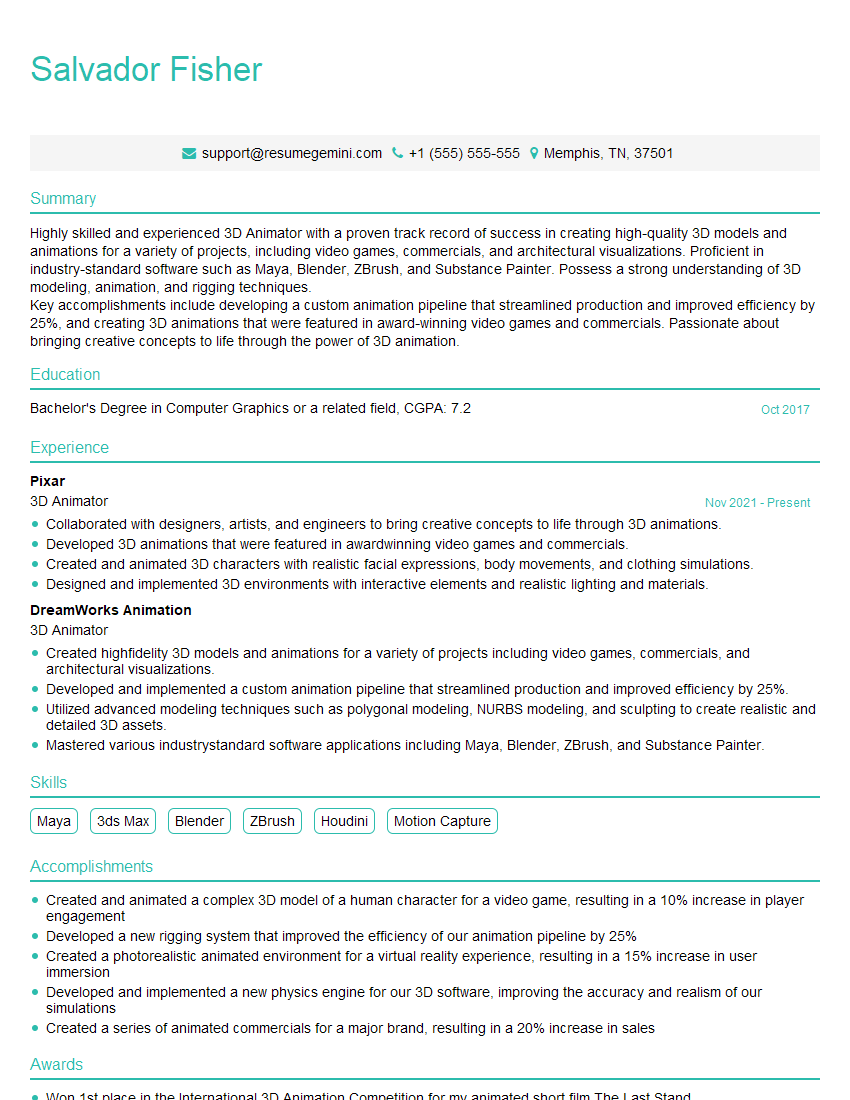
3D Animator Resume Sample
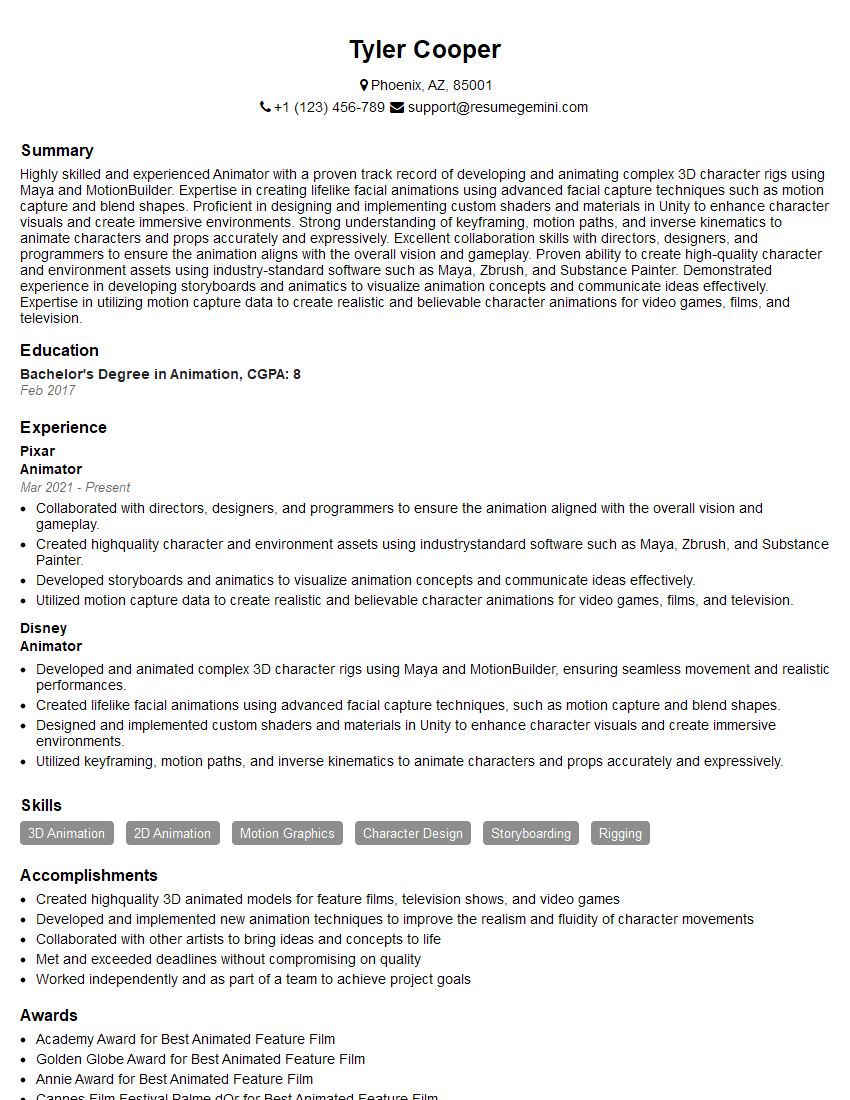
Animator Resume Sample
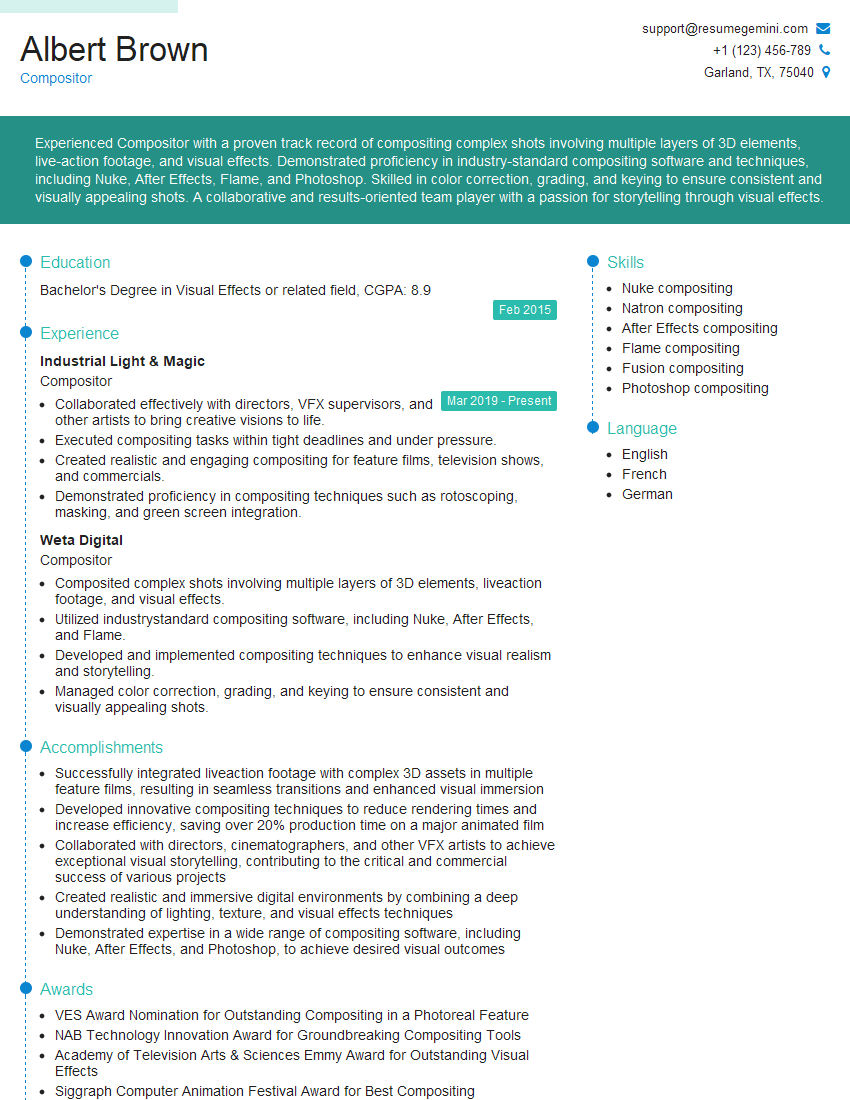
Compositor Resume Sample

Graphic Designer Resume Sample
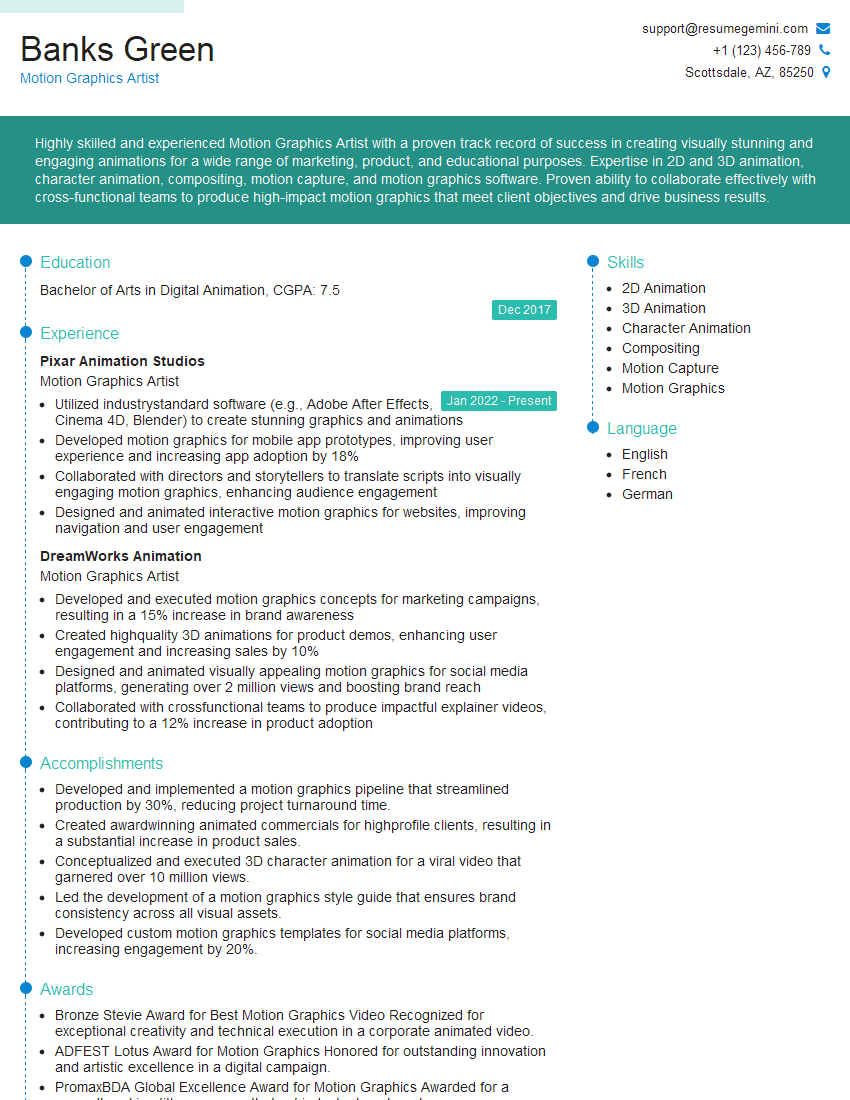
Motion Graphics Artist Resume Sample
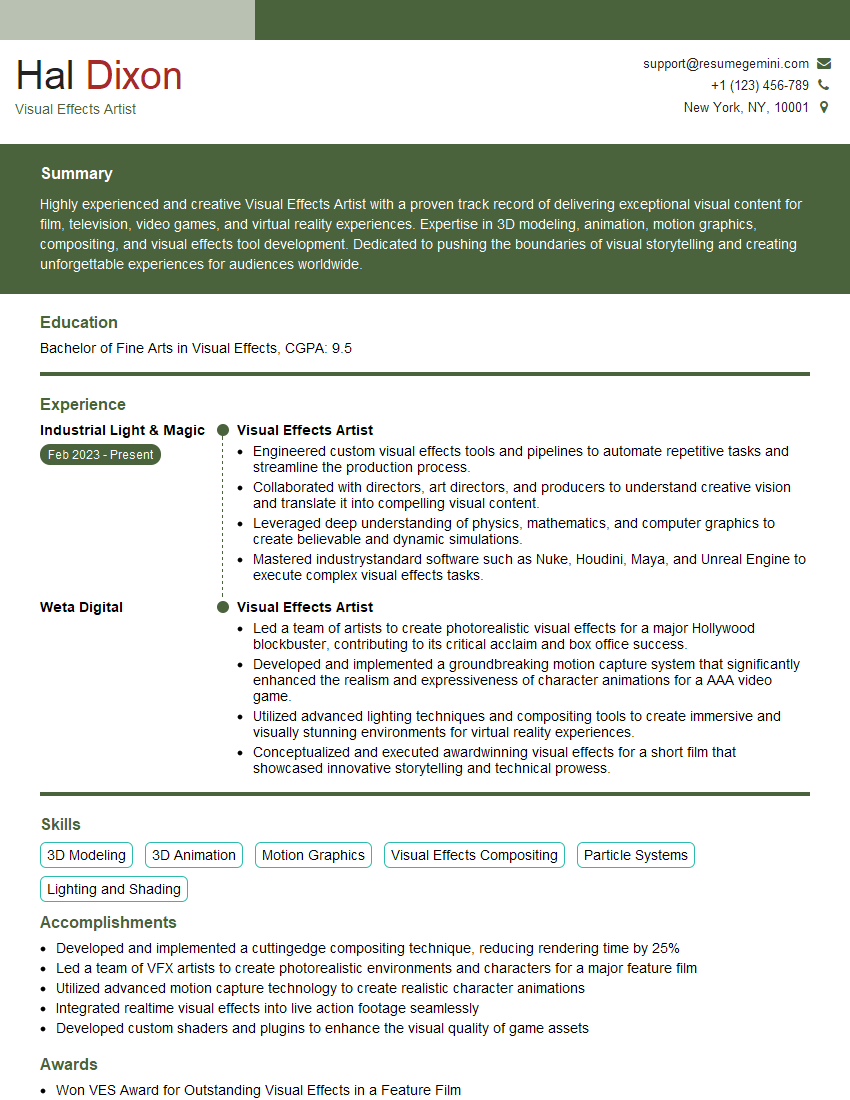
Visual Effects Artist Resume Sample
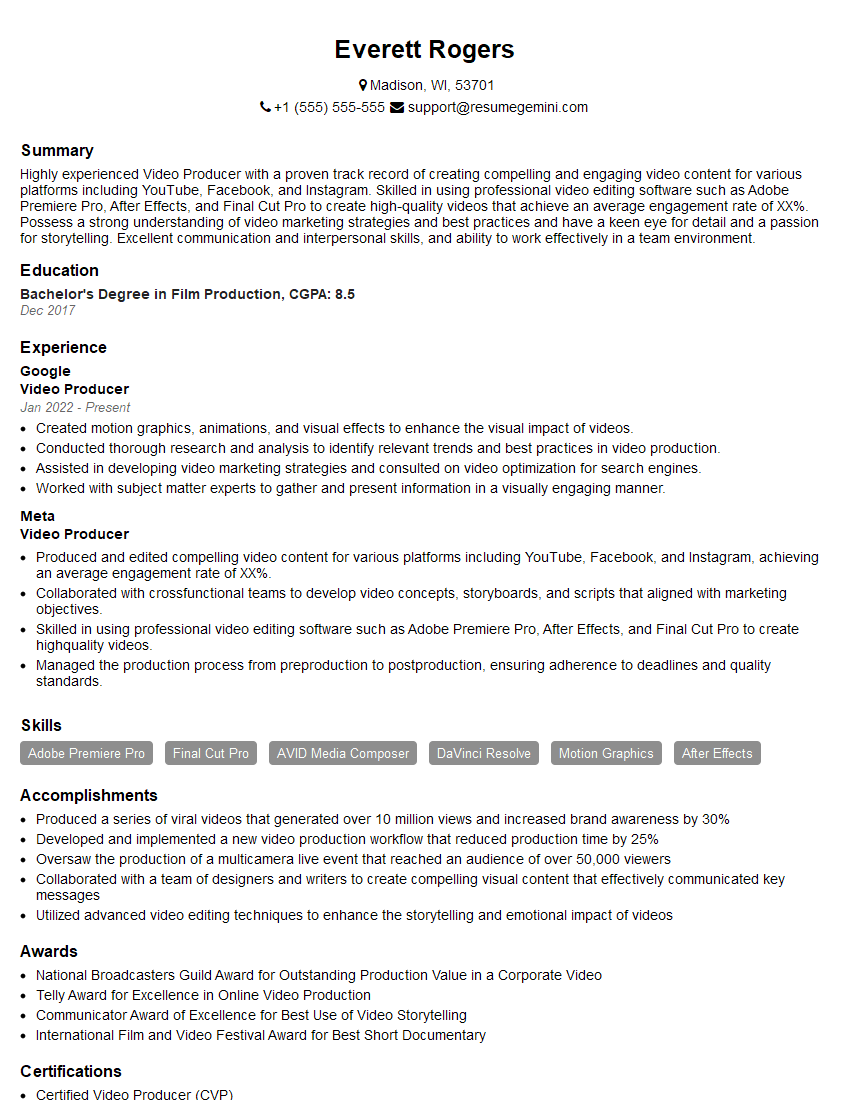
Video Producer Resume Sample
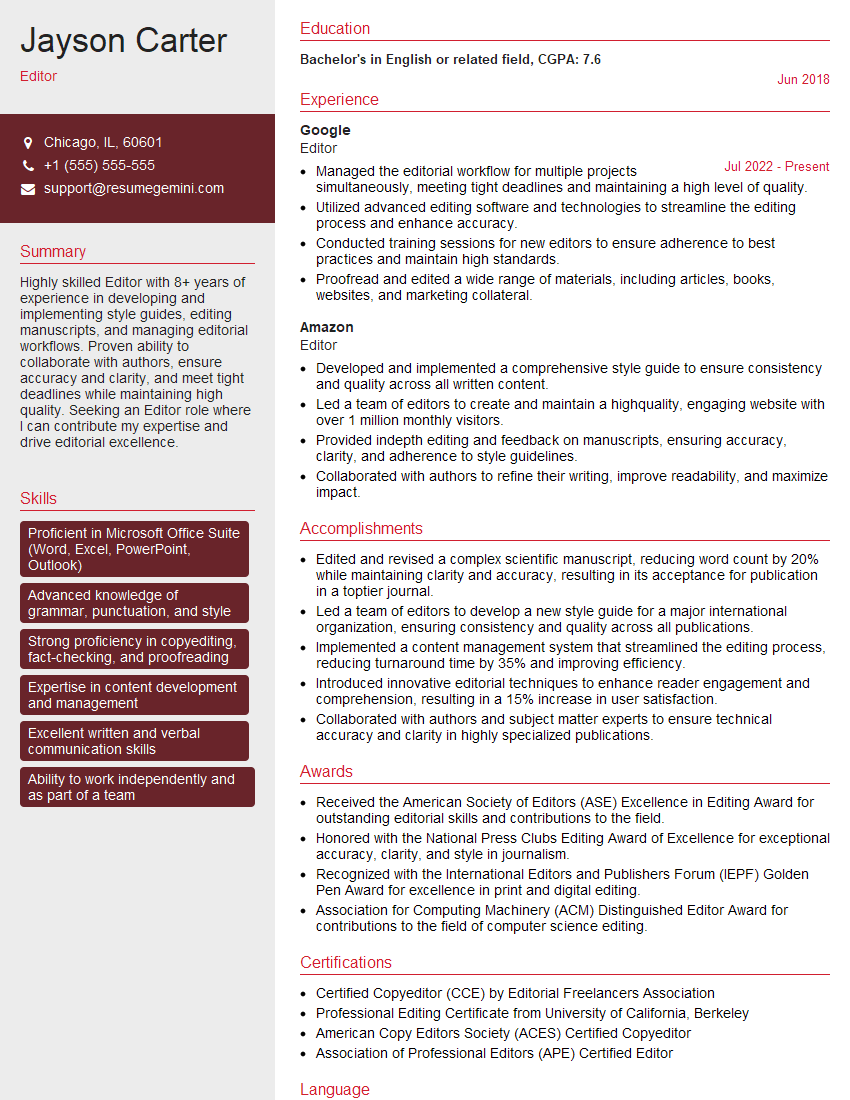
Editor Resume Sample
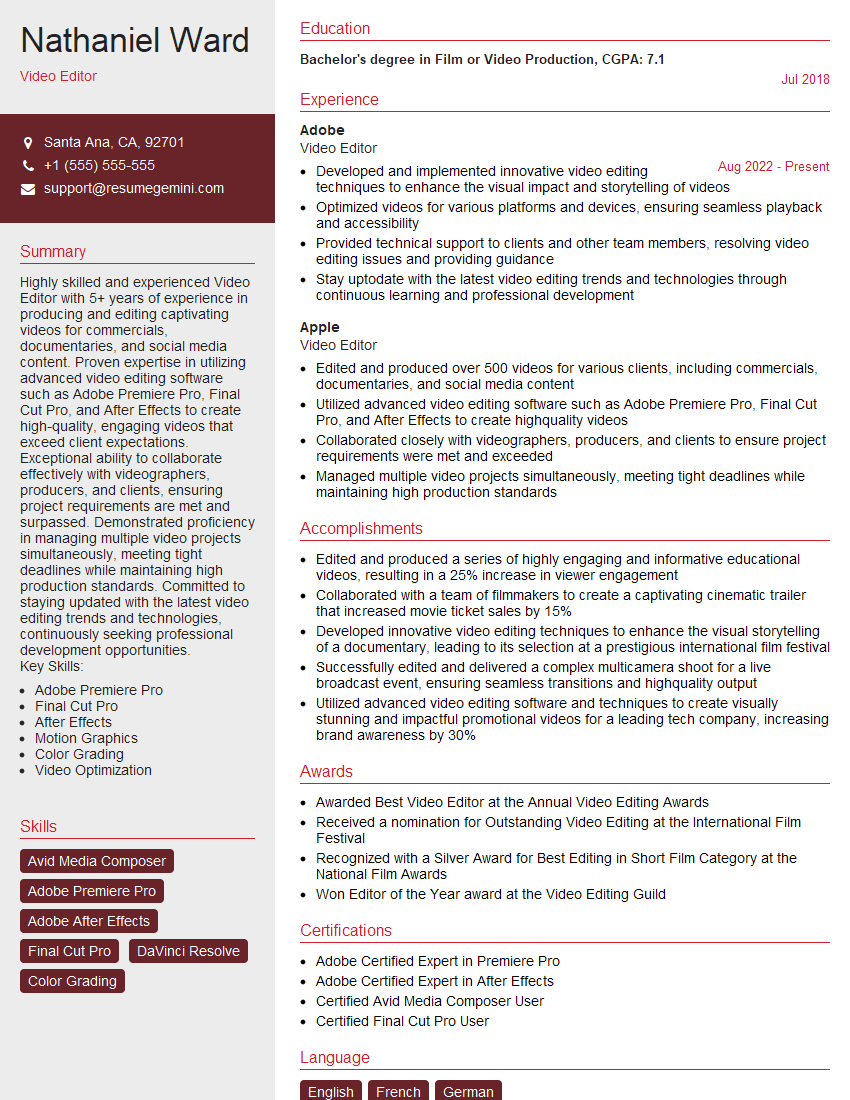
Video Editor Resume Sample
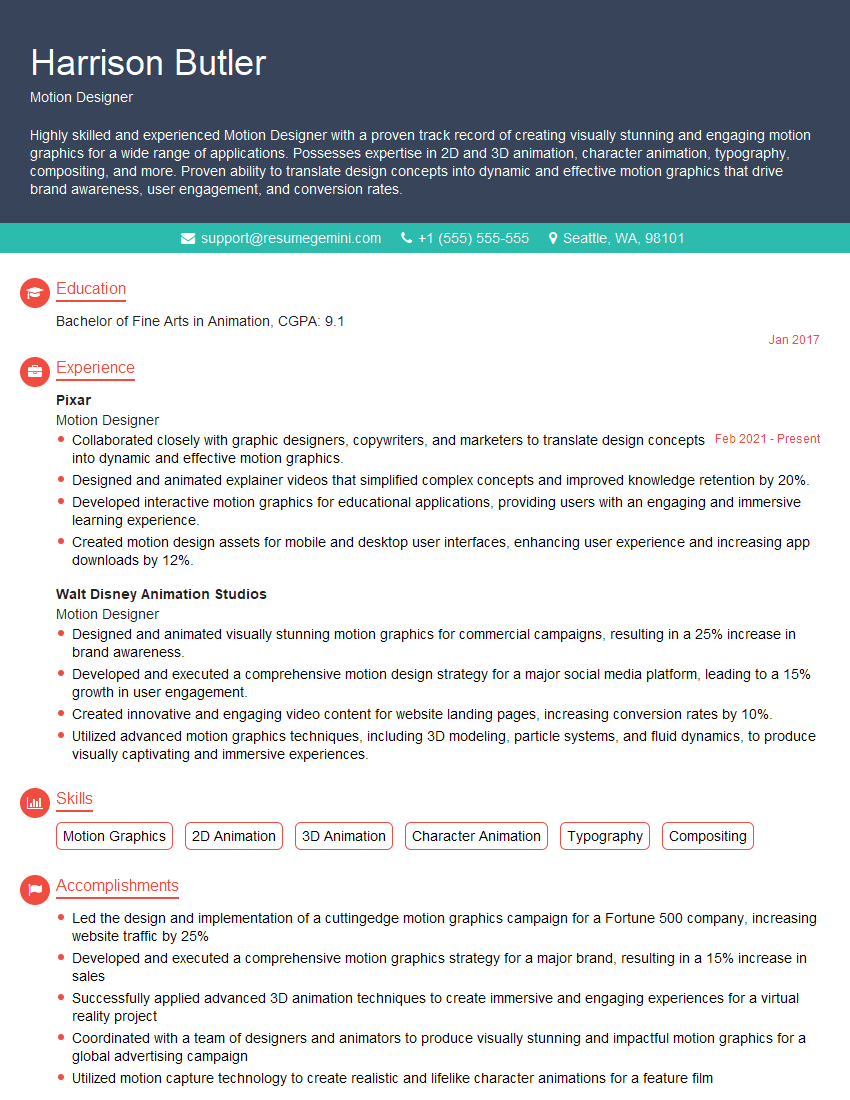
Motion Designer Resume Sample
Explore more articles
Users Rating of Our Blogs
Share Your Experience
We value your feedback! Please rate our content and share your thoughts (optional).
What Readers Say About Our Blog
Very informative content, great job.
good