Feeling uncertain about what to expect in your upcoming interview? We’ve got you covered! This blog highlights the most important Proficiency in AutoCAD, Revit, and other construction software interview questions and provides actionable advice to help you stand out as the ideal candidate. Let’s pave the way for your success.
Questions Asked in Proficiency in AutoCAD, Revit, and other construction software Interview
Q 1. Explain your experience with AutoCAD’s various drawing tools and commands.
My experience with AutoCAD’s drawing tools spans over a decade, encompassing everything from basic linework to complex 3D modeling. I’m proficient in using a wide array of commands, including:
- Line, Circle, Arc, Polygon: These fundamental tools form the basis of any AutoCAD drawing. I frequently utilize these for creating precise geometric shapes and defining boundaries.
- Trim, Extend, Offset: These editing commands are crucial for refining drawings and ensuring accuracy. For instance, I’ve used them extensively to clean up imported survey data and ensure precise alignment with architectural plans.
- Array, Mirror, Rotate: These commands significantly speed up the drawing process, particularly when dealing with repetitive elements. I’ve used arrays to efficiently create patterns of windows on a building facade, for example.
- Dimensioning Tools: Accurate and consistent dimensioning is paramount. I’m skilled in using linear, angular, radial, and ordinate dimensioning tools, ensuring drawings are clear and easy to understand. In one project, I created a dimension style that automatically reflected company standards.
- 3D Modeling Commands: I’m experienced in creating and manipulating 3D models using commands like
EXTRUDE,REVOLVE, andSOLID. I used these to create detailed 3D models of structures for client presentations and construction simulations.
Beyond individual commands, I’m adept at using AutoCAD’s dynamic input, object snaps, and grips to enhance efficiency and precision. I consistently strive to optimize my workflow for maximum speed and accuracy.
Q 2. Describe your proficiency in creating and managing layers in AutoCAD.
Layer management is critical for organizing and managing complex AutoCAD drawings. My approach involves a structured system that ensures clarity and maintainability. I typically create layers based on the object type (e.g., ‘Walls,’ ‘Doors,’ ‘Plumbing’), discipline (e.g., ‘Architectural,’ ‘Structural,’ ‘MEP’), or phase (e.g., ‘Existing,’ ‘Proposed’).
I use layer properties such as color, linetype, and lineweight to visually differentiate between layers. This makes it easy to identify and manage specific elements within the drawing. For example, I’d use a red dashed line for proposed demolition lines, clearly contrasting them with existing features.
Layer states are critical for managing the visibility of various elements. I frequently use layer states to isolate specific aspects of a drawing for review or analysis. For instance, I might turn off all layers except ‘Structural’ to focus on structural analysis without the clutter of other elements. This significantly improves workflow during complex projects.
Furthermore, I’m proficient in using layer filters and xrefs (external references) for managing large projects. Xrefs allow me to incorporate drawings from other team members without the issues of version control that can arise from merging files. This has been invaluable in collaborative projects.
Q 3. How do you handle large and complex AutoCAD drawings efficiently?
Handling large and complex AutoCAD drawings efficiently requires a combination of techniques and best practices. My approach focuses on optimization and a well-structured workflow. This includes:
- Regular Purging and Auditing: I regularly purge unused blocks, layers, and other objects to reduce file size and improve performance. Auditing helps identify and resolve errors in the drawing.
- External References (Xrefs): Breaking down complex drawings into smaller, manageable Xrefs is crucial. This improves collaboration and prevents file corruption.
- Optimized Drawing Setup: I ensure proper layer management, consistent use of blocks, and efficient object selection techniques.
- Using Proxy Graphics: For extremely large drawings, employing proxy graphics can significantly improve performance during view manipulation. Proxy graphics display simplified representations of complex objects, speeding up rendering.
- High-Performance Hardware: Using a computer with ample RAM, a powerful processor, and a solid-state drive (SSD) significantly improves performance.
- Data Extraction and Analysis: I also utilize data extraction tools within AutoCAD to analyze information quickly rather than manually sorting through large drawings.
For instance, on a recent large-scale infrastructure project, we utilized external references to manage the massive drawing efficiently, allowing various teams to work on their respective portions without interfering with each other’s work. The implementation of these measures drastically reduced the time spent on resolving drawing-related issues and significantly accelerated the project.
Q 4. Explain your experience with Revit families and their creation.
Revit families are the building blocks of a Revit model. My experience encompasses creating families for a wide range of architectural, structural, and MEP elements. I’m proficient in creating both in-place and loaded families.
The process typically begins with understanding the family’s purpose and parameters. This involves identifying the key properties that need to be controlled, such as dimensions, material, and type. I use family categories to appropriately group similar elements.
I’m familiar with different family types including:
- Generic Models: For custom elements that don’t fit into standard categories.
- System Families: For elements like walls, floors, and roofs that have inherent properties.
- Detail Components: For smaller, non-parametric elements.
I meticulously create parameters to control the family’s behavior, ensuring accurate geometry and data association. For example, when creating a window family, I’d create parameters for height, width, and material, allowing the user to adjust these properties without manually redrawing the element. This ensures consistency across the entire project. I’ve used this approach to build custom families for complex architectural elements.
Q 5. How do you manage clashes in a Revit model?
Clash detection in Revit is crucial for coordinating different disciplines and preventing construction errors. My process involves a multi-step approach:
- Model Coordination: Ensuring all models (architectural, structural, MEP) are properly coordinated and aligned is the first step. This involves using tools within Revit to verify the correct alignment of models.
- Clash Detection Software: Utilizing Revit’s built-in clash detection tools, I set up appropriate criteria based on the project’s needs. This may involve defining clearance distances between specific elements.
- Clash Review: After running the clash detection, I review the results thoroughly, prioritizing clashes based on their severity and potential impact on the project. This involves a detailed review of the clash report and visualizing the clashes within the model.
- Clash Resolution: Working collaboratively with other disciplines, I help resolve the clashes by modifying the model. This could involve adjusting the position of an element, changing its dimensions, or making other necessary modifications.
- Documentation: Documenting the clash resolution process is also important. This helps in tracking the progress and maintaining a record of changes.
I’ve used this process in several large-scale projects, saving countless hours and preventing costly construction errors. One instance involved detecting a clash between the ductwork and a structural beam, which we resolved by rerouting the ductwork, preventing a major delay and cost overrun.
Q 6. Describe your experience with Revit’s scheduling and quantity takeoff features.
Revit’s scheduling and quantity takeoff features are invaluable for accurate cost estimation and project management. My experience includes creating and managing schedules for various elements, such as doors, windows, and walls. I’m proficient in customizing schedules to extract specific data relevant to the project.
The process starts with creating a schedule template relevant to the specific project’s needs. This includes selecting the appropriate fields, such as material, quantity, length, and cost. I also utilize parameters to customize schedules with relevant project-specific data.
Quantity takeoff in Revit is closely linked to schedules. By defining parameters and relationships between elements within a family, accurate quantities can be calculated automatically. This eliminates manual counting and reduces the risk of human error. I use this functionality to generate reports for material procurement and cost estimation. In one project, this saved several days worth of manual quantity surveying.
I’m adept at exporting schedules to other applications such as Excel for further analysis and report generation. This allows for greater flexibility in data manipulation and presentation.
Q 7. Explain your understanding of BIM (Building Information Modeling) principles.
BIM (Building Information Modeling) is a process of creating and managing digital representations of physical and functional characteristics of places. My understanding goes beyond simply using BIM software; it encompasses its core principles of collaboration, data integration, and lifecycle management.
Key principles of BIM that I embrace include:
- Centralized Model: A single, shared model serves as the source of truth, eliminating discrepancies caused by multiple versions of drawings. This improves collaboration and reduces errors.
- Collaboration: BIM fosters collaboration between architects, engineers, and contractors. This integrated approach improves coordination and reduces clashes.
- Data-Rich Model: A BIM model is not just a visual representation but contains comprehensive data about each element. This data is used for analysis, scheduling, and cost estimation.
- Lifecycle Management: BIM supports the building lifecycle, from design and construction to operation and maintenance. This allows for better decision-making throughout the project’s lifespan.
- Visualization and Simulation: BIM facilitates 3D visualization and simulation, allowing stakeholders to better understand the project’s design and functionality.
I’ve actively applied these principles in various projects, significantly improving project efficiency, reducing errors, and enhancing communication among team members. The result is smoother projects with fewer costly mistakes.
Q 8. How familiar are you with different Revit workflows (e.g., collaborative, design-bid-build)?
Revit workflows are crucial for successful BIM projects. I’m proficient in several, including collaborative workflows using centralized worksharing, where multiple team members work concurrently on a single model, managing their individual worksets. This requires meticulous coordination and a deep understanding of Revit’s worksharing capabilities, including conflict resolution strategies. For design-bid-build projects, the workflow shifts to a more linear approach. The design team completes the model, and then the model is transferred to the construction team, often as a read-only file to prevent accidental modifications. I’ve managed both, adapting my methods to the specific project requirements and contractual agreements. For example, on a recent large-scale hospital project, we utilized a centralized worksharing model, implementing strict version control and regular model checks to ensure consistency. In contrast, a smaller residential project utilized a more simplified workflow focused on efficient model transfer to the contractor for construction sequencing.
Q 9. Describe your experience with linking and importing data into Revit.
Linking and importing data into Revit is essential for integrating information from different sources. Linking allows for dynamic updates; changes in the linked file are reflected in the Revit model, provided the linked file is updated. This is invaluable when coordinating with external consultants, such as structural or MEP engineers. For instance, I regularly link in structural models provided by engineers to coordinate architectural elements around structural columns and beams. Importing, on the other hand, brings data into the model as static information. This is useful for data such as topography from a survey file or CAD drawings of existing conditions. I carefully consider whether to link or import based on the type of data and the need for dynamic updates. For example, I would link a landscape architect’s model to allow for easy updates as the design evolves, but I would import a survey file as its information generally doesn’t change after the initial survey.
Q 10. How do you ensure data accuracy and consistency in a BIM project?
Data accuracy and consistency are paramount in BIM. My approach is multi-faceted. Firstly, I enforce strict naming conventions and element organization throughout the model. This involves using consistent naming schemes for families, views, and sheets. Secondly, I leverage Revit’s in-built features like the ‘Check Model’ tool to identify inconsistencies and errors early on. Thirdly, I conduct regular quality control checks, comparing model data against design documents and specifications. Finally, I utilize clash detection software to identify conflicts between different disciplines’ models, allowing for proactive problem-solving. Think of it like baking a cake: precise measurements (data accuracy) and following the recipe (established workflows) ensure a delicious, consistent result. In a recent project, a rigorous quality control process highlighted a clash between the HVAC ductwork and a structural beam; this was resolved proactively, avoiding costly on-site modifications.
Q 11. Explain your experience with coordinating multiple disciplines within a Revit model (e.g., architectural, structural, MEP).
Coordinating multiple disciplines in Revit requires excellent communication and a strong understanding of each discipline’s requirements. I facilitate this by establishing a clear BIM Execution Plan (BEP) outlining roles, responsibilities, and model coordination protocols. I then utilize Revit’s worksharing capabilities to allow different teams to work concurrently on the same model, actively participating in regular coordination meetings to address potential clashes. Clash detection software is also critical; we perform regular clash detection analyses, identifying conflicts between architectural, structural, and MEP systems, such as pipes running through walls. Clear communication and proactive issue resolution are key to ensuring a coordinated and constructible model. For instance, on a recent project, the early detection of a clash between electrical conduit and a structural column saved significant time and cost by allowing for design adjustments before construction began.
Q 12. Describe your experience using Dynamo or other scripting tools within Revit.
I’m proficient in Dynamo, a visual programming language for Revit. It’s a powerful tool for automating repetitive tasks and creating customized solutions. I’ve used Dynamo to automate tasks such as creating schedules, generating reports, and manipulating geometry. For example, I developed a Dynamo script to automatically generate detailed shop drawings for steel framing based on the Revit model, significantly reducing manual drafting time. Dynamo allows for efficient design exploration and iterative design processes. Another example includes a script I wrote to analyze solar shading and optimize building design based on daylighting requirements. The visual nature of Dynamo makes it accessible for others to understand and modify the scripts, promoting collaboration.
Q 13. How would you troubleshoot common errors encountered in AutoCAD or Revit?
Troubleshooting in AutoCAD and Revit often involves a systematic approach. I start by identifying the error message, if any. Then, I investigate potential causes, such as corrupted files, conflicting add-ins, or insufficient system resources. For Revit, I’ll often check the Revit journal file for clues. I also look for patterns and inconsistencies within the model. Simple solutions include closing and restarting the software, regenerating the model, or repairing corrupted files. For more complex issues, I might utilize online forums, Autodesk’s knowledge base, or contact Autodesk support. For example, a recurring crash in Revit was traced to a corrupted family file; removing and reloading the family resolved the issue. A methodical approach, utilizing available resources and knowledge of the software, is crucial for effective troubleshooting.
Q 14. What are your preferred methods for generating construction documents from a Revit model?
Generating construction documents from a Revit model is a key part of my workflow. My preferred methods involve leveraging Revit’s built-in features, such as sheets, views, and schedules, to create comprehensive sets of drawings and specifications. I utilize view templates to maintain consistency in the style and presentation of the drawings. I also employ Revit’s annotation tools to add detailed information and dimensions. For complex projects, I utilize add-ins and other tools to automate the creation of schedules, detail sheets and improve the overall workflow. Finally, I perform a rigorous quality check on the generated documents before releasing them to ensure accuracy and completeness. This approach guarantees high-quality construction documents that are easily understood and utilized by the construction team. A recent project involved generating over 100 construction drawings, using this workflow which enabled on-time project completion and minimized errors.
Q 15. Explain your experience with rendering and visualization software.
My experience with rendering and visualization software is extensive, encompassing both standalone applications and those integrated within BIM platforms. I’m proficient in tools like Lumion, V-Ray, and Enscape, leveraging their strengths to create high-quality visuals for various project needs. For example, on a recent hospitality project, I used Lumion to quickly generate walkthrough videos for client presentations, showcasing the space’s ambiance and design features effectively. With V-Ray, I’ve produced photorealistic renderings for marketing materials, requiring more meticulous attention to detail and lighting setup. My choice of software depends on the project’s specific requirements, budget, and desired level of realism. I understand the importance of balancing rendering quality with turnaround time, which is critical for meeting deadlines and keeping clients informed. This involves optimizing rendering settings, efficiently managing textures and materials, and leveraging the power of render farms for complex scenes.
Career Expert Tips:
- Ace those interviews! Prepare effectively by reviewing the Top 50 Most Common Interview Questions on ResumeGemini.
- Navigate your job search with confidence! Explore a wide range of Career Tips on ResumeGemini. Learn about common challenges and recommendations to overcome them.
- Craft the perfect resume! Master the Art of Resume Writing with ResumeGemini’s guide. Showcase your unique qualifications and achievements effectively.
- Don’t miss out on holiday savings! Build your dream resume with ResumeGemini’s ATS optimized templates.
Q 16. How familiar are you with cloud-based collaboration platforms for BIM projects (e.g., BIM 360)?
I’m highly familiar with cloud-based collaboration platforms, specifically BIM 360. I’ve used it extensively to manage project data, facilitate communication among team members, and track revisions. BIM 360’s features for model sharing, issue tracking, and document control are invaluable in collaborative BIM projects. For instance, on a recent large-scale commercial development, BIM 360 enabled seamless collaboration between architects, structural engineers, MEP engineers, and contractors. Each discipline could access and modify the central model, while version control prevented conflicts and ensured everyone worked with the most up-to-date information. The platform’s issue tracking system allowed us to identify and resolve clashes quickly, improving coordination and preventing costly rework later in the construction phase. Furthermore, the ability to centralize project documents significantly streamlined workflows, minimizing the risks associated with version control challenges, document distribution, and communication delays.
Q 17. How do you manage revisions and updates in a collaborative BIM environment?
Managing revisions and updates in a collaborative BIM environment requires a structured approach. We utilize a combination of version control within the BIM software (like Revit’s worksharing feature), cloud-based collaboration platforms (like BIM 360), and robust naming conventions for files. This ensures that each revision is clearly identifiable and accessible. Before making any changes, I always create a backup of the current model. Then, I work within designated worksharing environments to prevent conflicts. Changes are clearly documented using comments and markups within the model, and through logs maintained in the cloud platform. Regular model coordination meetings help to synchronize updates and identify potential clashes before they become major issues. We often use clash detection software integrated with BIM 360 to automatically identify potential collisions between different disciplines’ models. This proactive approach minimizes rework and ensures smooth progress throughout the project.
Q 18. Describe your experience with creating and utilizing schedules and reports within Revit.
I have extensive experience creating and utilizing schedules and reports within Revit. I’m proficient in generating various schedules, including material takeoffs, door and window schedules, and room finishes schedules. This data is crucial for accurate cost estimation, material procurement, and construction planning. For instance, on a recent residential project, I created detailed material schedules from the Revit model, which allowed the project team to accurately estimate the cost of materials and procure them in a timely manner, avoiding delays. Beyond basic schedules, I also leverage Revit’s reporting capabilities to generate quantity takeoffs, area calculations, and other vital information for project documentation and progress tracking. I understand how to customize schedules and reports to meet specific project requirements, using parameters and formulas to derive meaningful data, and I can export data to spreadsheets for further analysis and integration with other project management software.
Q 19. What are your preferred methods for quality control in BIM modeling?
My preferred methods for quality control in BIM modeling incorporate a multi-layered approach. Firstly, I perform regular self-checks during the modeling process, using visual inspections and data verification to identify inconsistencies and errors early. Secondly, I utilize Revit’s built-in tools for clash detection to identify conflicts between different disciplines’ models. Thirdly, I employ automated checks and validation tools to ensure model compliance with standards and specifications. Finally, I regularly conduct model reviews with other team members, ensuring a comprehensive review of the model’s accuracy and completeness. This collaborative approach leverages the expertise of the entire team and helps catch errors that might be missed during individual reviews. Think of it like a quality assurance process, where each stage acts as a filter to improve the final output.
Q 20. How do you handle changes to design during the project lifecycle in Revit?
Handling design changes during the project lifecycle in Revit requires a systematic approach. Firstly, I always carefully document the change requests, including the reasons for the change and its impact on the overall project. Secondly, I use Revit’s worksharing capabilities to manage concurrent modifications efficiently, minimizing conflicts. Thirdly, I update the model accordingly, using Revit’s tools for annotation and version control to maintain a clear history of changes. Fourthly, I coordinate with other team members to ensure that the changes are reflected in all relevant model elements. Finally, I update the project documentation, including drawings and schedules, to reflect the incorporated changes. Using this method, design changes are systematically tracked, preventing confusion and assuring consistent progress.
Q 21. What is your experience with different file formats used in CAD and BIM (e.g., DWG, RVT, IFC)?
I have extensive experience with various file formats used in CAD and BIM. I’m proficient in working with DWG (AutoCAD), RVT (Revit), and IFC (Industry Foundation Classes). Understanding the nuances of each format is crucial for interoperability and data exchange. DWG is fundamental for 2D drafting and data exchange with various CAD software. RVT is Revit’s native format, crucial for maintaining the rich data within the BIM model. IFC is essential for interoperability, allowing seamless data exchange between different software platforms and disciplines. I understand how to export and import files between these formats, ensuring data integrity and avoiding information loss. For example, I might export a Revit model as an IFC file to share with a structural engineer using a different software, and then import revised data back into Revit. This expertise is invaluable for collaborative projects that involve multiple software packages and teams.
Q 22. Explain your familiarity with different coordinate systems and their application in CAD and BIM.
Coordinate systems are fundamental in CAD and BIM, defining the location of objects in 3D space. Understanding them is crucial for accurate modeling and data exchange. Common systems include:
- World Coordinate System (WCS): The primary reference system, usually defined at project inception. Think of it as the Earth itself – a fixed, unmoving point of reference for everything else.
- User Coordinate System (UCS): A user-defined system allowing easier modeling by aligning axes to specific building elements or components. Imagine temporarily shifting your perspective to easily draw a wall parallel to its intended orientation.
- Project Coordinate System (PCS): Employed in larger projects to accurately relate the model to real-world survey data. This acts like a detailed map integrating your building model into its actual site location.
- Survey Coordinate System: Coordinates tied to real-world survey data, often using Geographic Coordinate Systems (GCS) like latitude and longitude or Projected Coordinate Systems (PCS) using UTM (Universal Transverse Mercator) zones. This ensures accurate placement of your building on the actual site.
In Revit, for example, I carefully define and manage the PCS to ensure seamless integration with survey data and coordination with civil engineers. In AutoCAD, I frequently utilize the UCS to simplify complex modeling tasks by adjusting the orientation of the drawing plane.
Q 23. How do you approach the creation of detailed construction drawings from a 3D model?
Generating detailed construction drawings from a 3D model is a systematic process. It begins with meticulous model development, ensuring all elements are accurately modeled with proper dimensions and attributes. Then, I use Revit’s powerful sheet generation tools to create drawings:
- View Creation: I meticulously create specific views (plans, sections, elevations, details) from the 3D model, focusing on clarity and avoiding clutter. This is like creating a series of carefully composed photographs of the building.
- Annotation: I add dimensions, text labels, notes, and symbols, adhering to standards and client preferences. Think of this as adding informative captions and explanations to your photographs.
- Sheet Setup: I organize views onto sheets, adding title blocks, revision clouds, and other essential information for clear documentation.
- Coordination & Collaboration: Regular model reviews with team members such as structural, MEP engineers ensure consistency and clash detection before finalizing the documentation.
By leveraging Revit’s features, I can automate the drawing creation process, minimizing errors and ensuring consistent presentation. For example, automated schedules help generate detailed material quantity take-offs.
Q 24. What strategies do you use for optimizing model performance in large and complex projects?
Optimizing model performance in large projects demands a proactive approach. Strategies I employ include:
- Model Simplification: Removing unnecessary geometry like excessive levels of detail reduces file size and improves performance. For instance, using simplified geometry for landscaping instead of extremely high resolution imagery.
- Worksets (Revit): Dividing the model into manageable worksets allows teams to work concurrently without performance degradation. This resembles dividing a large construction project into smaller, independently manageable work packages.
- Link instead of Embed: Linking external files (like landscape models or site models) rather than embedding them maintains individual file control and reduces overall model size.
- Regular Purging & Auditing: Regularly purging unused elements and auditing the model for errors minimizes file bloat and improves efficiency.
- High-Performance Computing: Utilizing workstations with sufficient RAM, graphics processing power, and SSD storage ensures smooth workflow.
These techniques allow for smooth workflows even on extremely large and intricate projects. For instance, I once worked on a 200 million polygon model of a large airport. Effective workset usage and regular purging enabled my team to manage this successfully.
Q 25. Describe your experience with integrating other software into your BIM workflow (e.g., Navisworks, Civil 3D).
Integration with other software is crucial for efficient BIM workflows. My experience includes:
- Navisworks: I use Navisworks for clash detection, 4D (time-based) scheduling simulation, and creating presentations to visualize design progress and identify potential issues. It’s like having a powerful 3D microscope to examine the entire project for discrepancies.
- Civil 3D: I often coordinate with Civil 3D models for site grading, utilities, and other civil engineering aspects. This ensures the building model correctly interfaces with the surrounding site.
- Other Software (e.g., Enscape, Lumion): I utilize rendering software to create realistic visualizations of the design for client presentations and design review.
The integration ensures a seamless data flow among disciplines, eliminating conflicts and promoting a collaborative environment. For example, early clash detection through Navisworks in a hospital design prevented costly rework during construction.
Q 26. Explain your experience with sustainable design principles and their integration in BIM.
Sustainable design principles are fundamental to modern architecture. I integrate them into the BIM process through:
- Energy Modeling: Using energy simulation software (e.g., EnergyPlus) integrated with Revit to assess building performance and optimize energy efficiency. This helps us design buildings that consume less energy and reduce carbon emissions.
- Material Selection: Choosing sustainable materials with low embodied carbon and recycled content based on their environmental impact assessment. This involves choosing environmentally friendly construction materials that reduce the building’s environmental footprint.
- Daylight Analysis: Utilizing daylight simulation tools to optimize building design for natural light penetration, reducing reliance on artificial lighting. This helps maximize the usage of natural light and minimize energy consumption for lighting.
- LEED/BREEAM Compliance: Utilizing BIM tools to document sustainable design elements and track compliance with green building certification standards.
By embedding these principles into the model, we create buildings that are not only aesthetically pleasing but also environmentally responsible.
Q 27. How do you ensure compliance with industry standards and building codes in your work?
Ensuring compliance with industry standards and building codes is paramount. My approach involves:
- Using Template Files: Starting with template files that incorporate the relevant codes and standards. This ensures compliance from project initiation.
- Regular Code Checks: Regularly reviewing the model against the latest codes and standards, ensuring the design complies throughout the project lifecycle. This requires continuous monitoring and updates to the model throughout the project.
- Utilizing Add-ins & Plugins: Employing add-ins and plugins that integrate specific code requirements into the BIM software for automated checks. These automate the code-checking process, significantly improving efficiency and reducing error potential.
- Collaboration with Consultants: Consulting with structural, MEP, and fire safety engineers to ensure all aspects of the design meet code requirements.
This multi-faceted approach ensures that the final design not only meets client expectations but also complies with all relevant regulations, avoiding potential legal and safety issues.
Q 28. Describe a time you had to resolve a technical challenge using AutoCAD or Revit.
During the design of a complex multi-story residential building, I encountered a challenge generating accurate floor plans for irregular-shaped units. Traditional methods were proving inefficient and error-prone due to the complex geometry.
My solution involved utilizing Revit’s family creation tools to develop customized parametric families for the irregular-shaped units. By utilizing parameters such as room dimensions and wall angles, I was able to easily adjust the geometry of the family and update the floor plans automatically. This parametric approach saved substantial time, prevented errors, and allowed for easy modification of the design in response to changes in client requirements. This also ensured that all dimensions and area calculations remained accurate across all generated drawings.
Key Topics to Learn for Proficiency in AutoCAD, Revit, and other construction software Interviews
- AutoCAD Fundamentals: Mastering drawing creation, editing, and manipulation; understanding layers, blocks, and xrefs; utilizing various plotting and output options. Practical application: Demonstrate your ability to create detailed 2D drawings from conceptual sketches or specifications.
- Revit Proficiency: Building Information Modeling (BIM) concepts; familiarity with families, views, sheets, and schedules; experience with rendering and visualization tools. Practical application: Explain how you’ve used Revit to collaborate on a project, highlighting your understanding of version control and clash detection.
- Construction Software Applications: Understanding and practical experience with relevant software like Navisworks, Civil 3D, or other industry-specific programs. Practical application: Describe a project where you leveraged specific software to improve efficiency or solve a design challenge.
- Data Management & Organization: Efficient file management, data organization strategies, and backup procedures. Practical application: Explain your methods for organizing large project files and ensuring data integrity.
- Problem-Solving & Troubleshooting: Experience identifying and resolving technical issues within the software; demonstrate analytical skills and problem-solving approaches. Practical application: Describe a situation where you encountered a software issue and how you successfully resolved it.
- Collaboration & Teamwork: Understanding collaborative workflows, version control, and efficient communication within a design team. Practical application: Share an example of successfully collaborating using these software tools on a team project.
Next Steps
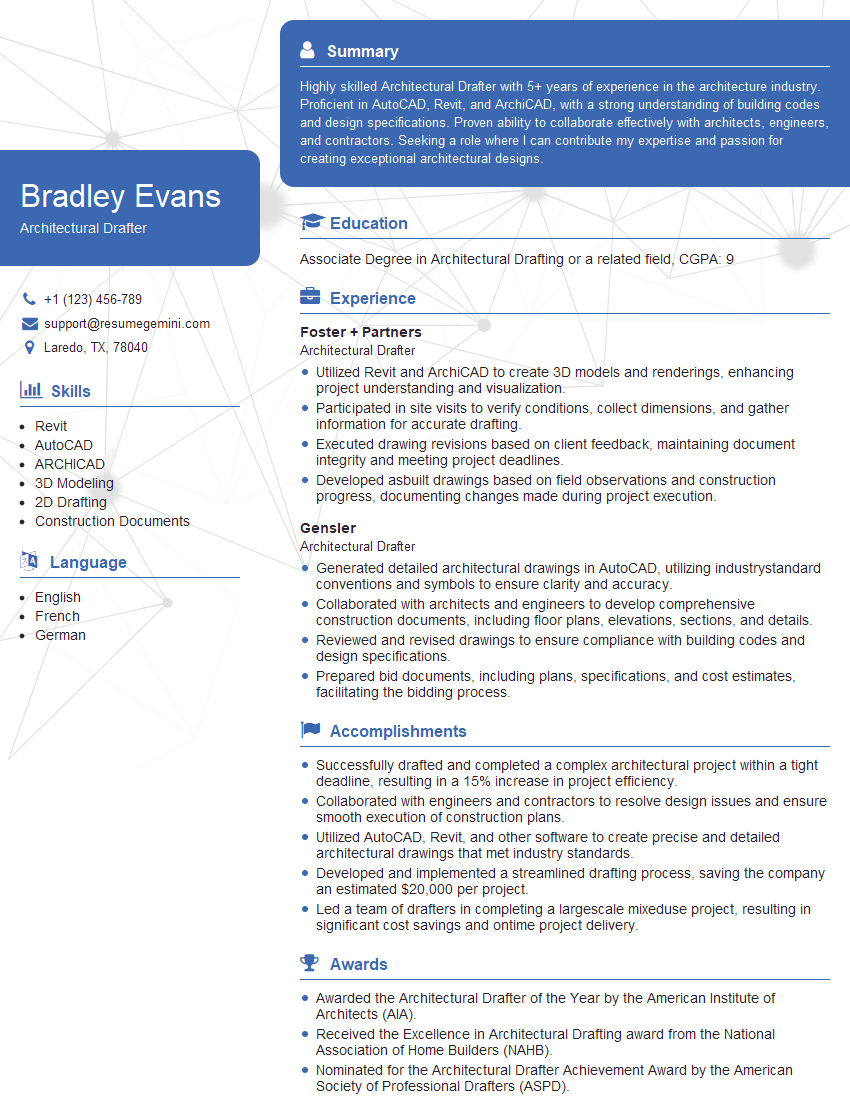
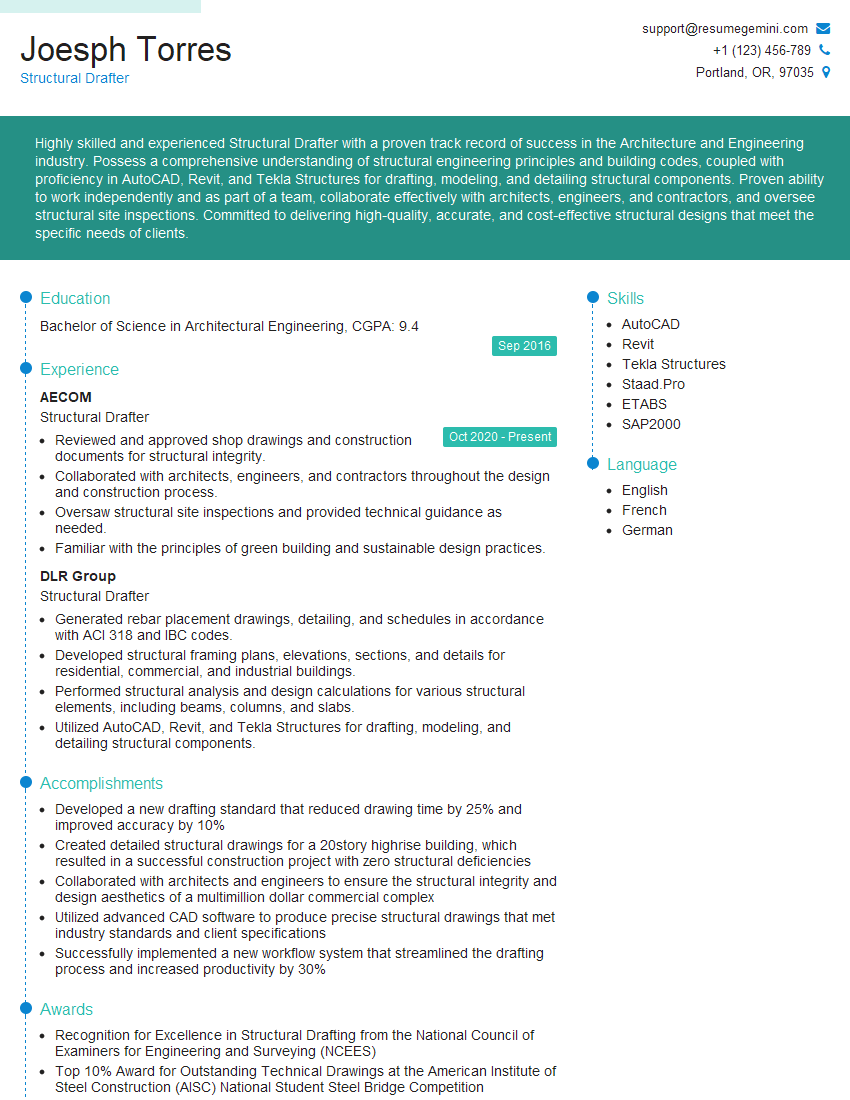
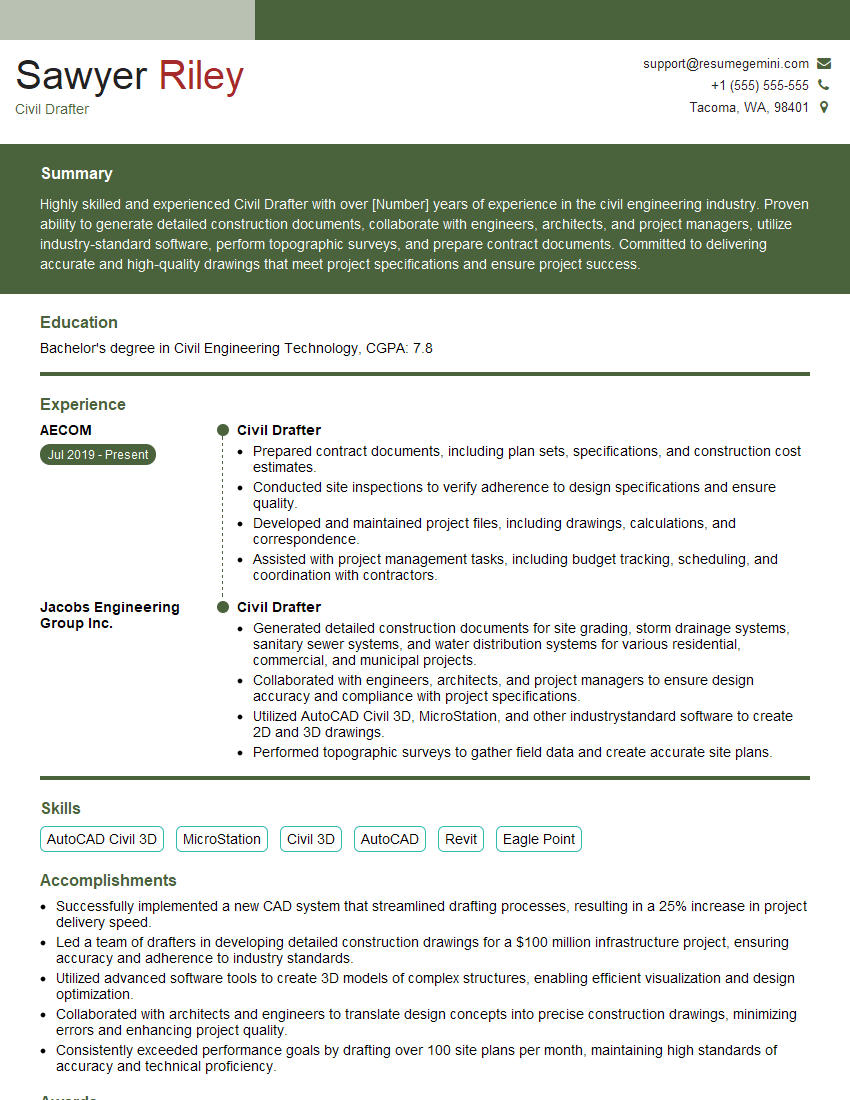
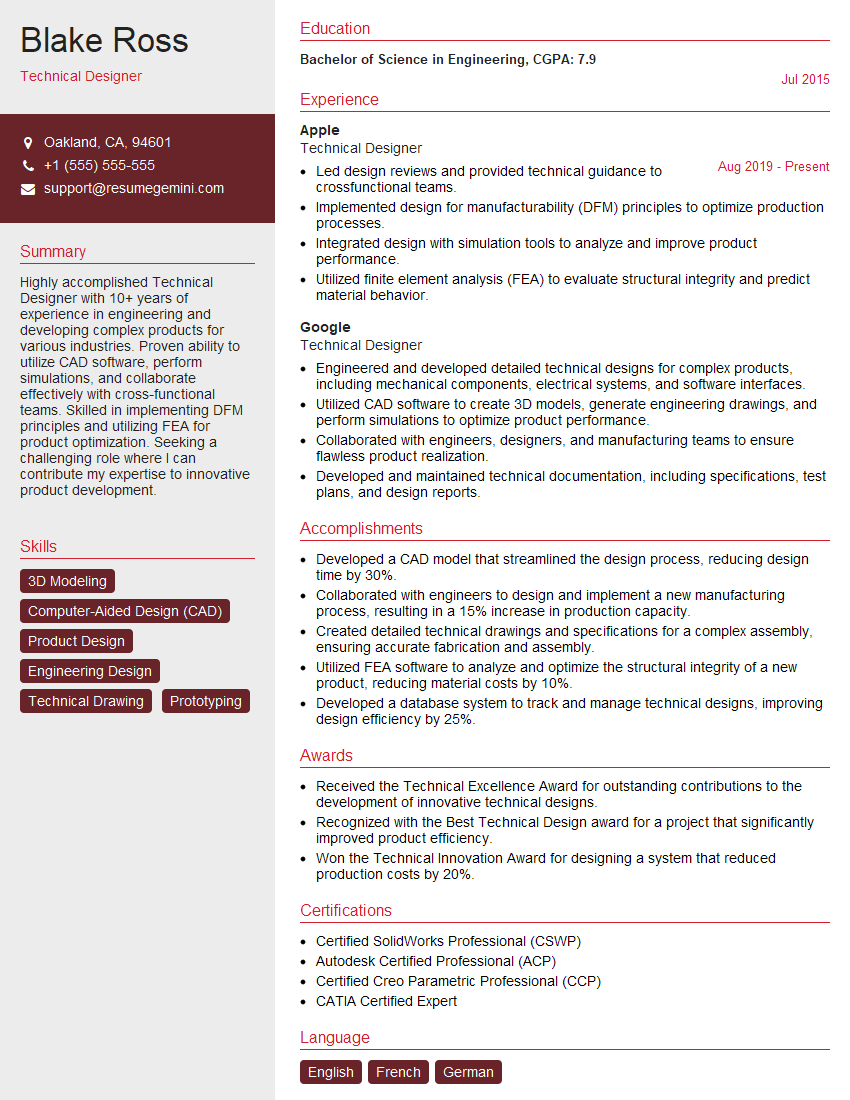
Mastering AutoCAD, Revit, and other construction software is crucial for career advancement in the AEC industry. These skills are highly sought after, opening doors to exciting opportunities and higher earning potential. To maximize your job prospects, creating an ATS-friendly resume is essential. A well-crafted resume highlights your key skills and experience, ensuring your application gets noticed by recruiters. We recommend using ResumeGemini to build a professional and impactful resume that showcases your expertise. ResumeGemini provides valuable tools and resources, including examples of resumes tailored to Proficiency in AutoCAD, Revit, and other construction software, to help you present your qualifications effectively.

Explore more articles
Users Rating of Our Blogs
Share Your Experience
We value your feedback! Please rate our content and share your thoughts (optional).
What Readers Say About Our Blog
Very informative content, great job.
good