Preparation is the key to success in any interview. In this post, we’ll explore crucial Proficient in Engineering Design Software (e.g., AutoCAD, Revit) interview questions and equip you with strategies to craft impactful answers. Whether you’re a beginner or a pro, these tips will elevate your preparation.
Questions Asked in Proficient in Engineering Design Software (e.g., AutoCAD, Revit) Interview
Q 1. Explain the difference between AutoCAD and Revit.
AutoCAD and Revit are both industry-standard software for design and drafting, but they cater to different needs. AutoCAD is primarily a 2D drafting program, excellent for creating precise drawings and plans. Think of it as a highly sophisticated digital pencil and paper. Revit, on the other hand, is a 3D Building Information Modeling (BIM) software. It’s like building a digital model of the entire structure, including its components and their relationships. This allows for far more integrated and collaborative design processes.
In essence, AutoCAD excels at detailed 2D representation, while Revit offers a comprehensive 3D model with powerful features for managing building information throughout the project lifecycle. You might use AutoCAD to create detailed shop drawings for a specific element, whereas Revit would be used to design the entire building, manage clashes between systems, and generate construction documents automatically.
Q 2. Describe your experience with 2D and 3D modeling in AutoCAD.
My experience with AutoCAD encompasses extensive work in both 2D and 3D modeling. In 2D, I’m proficient in creating detailed plans, sections, elevations, and site plans using commands like LINE, CIRCLE, ARC, and various drawing tools. I’ve mastered the use of layers and linetypes to organize and represent different aspects of a design.
In 3D, I leverage AutoCAD’s 3D modeling capabilities, using commands such as EXTRUDE, REVOLVE, and 3DPOLY to create solid and surface models. This includes creating isometric views, rendering simple 3D representations, and utilizing features for model visualization. For example, I once used AutoCAD 3D modeling to create a detailed model of a complex pipe system for a manufacturing facility, allowing for efficient visualization and clash detection before physical construction.
Q 3. How proficient are you with Revit families and their creation?
I possess a high level of proficiency in creating and utilizing Revit families. Revit families are the fundamental building blocks of a Revit model, representing reusable components like doors, windows, walls, and structural elements. I understand the intricacies of family creation, including the use of parameters to control their behavior and the importance of accurate geometry for efficient model performance. I’m comfortable working with both system families (provided by Autodesk) and creating custom families to meet project-specific needs.
For example, I once created a custom family for a bespoke window design incorporating specific manufacturer details, ensuring accurate representation and precise scheduling within the Revit model. This saved time and ensured consistent design throughout the project.
Q 4. Explain your workflow for creating construction documents in Revit.
My workflow for creating construction documents in Revit is typically as follows:
- Model Creation: Begin by developing a robust and accurate 3D model of the building, incorporating all architectural, structural, and MEP elements.
- Coordination and Clash Detection: Use Revit’s clash detection tools to identify and resolve conflicts between different disciplines. This ensures a coordinated design before construction begins.
- View Creation: Create detailed views (plans, sections, elevations, details) tailored to specific construction needs. This involves careful setup of view templates and the application of appropriate annotation styles.
- Sheet Creation: Organize views onto sheets, adhering to project standards and best practices for sheet organization and numbering.
- Annotation and Detailing: Add dimensions, text, and other annotations to clearly communicate design intent to the construction team.
- Quantity Takeoff: Utilize Revit’s scheduling and quantity takeoff features to generate accurate material quantities and cost estimations.
- Coordination and Review: Collaborate with other team members throughout the process to ensure design accuracy and consistency.
- Publishing and Exporting: Export the construction drawings in various formats (PDF, DWG) for distribution to stakeholders.
Q 5. Describe your experience with AutoCAD layers and their management.
My understanding of AutoCAD layers and their management is thorough. Layers are crucial for organizing a drawing effectively, enabling efficient management of different elements (e.g., architecture, structure, MEP). I utilize a structured layer naming convention to maintain clarity and consistency throughout the project. This often involves using a prefix system indicating the discipline (e.g., ‘ARCH-Walls’, ‘STRUCT-Columns’, ‘MEP-Piping’).
Efficient layer management simplifies complex drawings. By turning layers on and off, I can selectively display elements and focus on specific aspects of the design. This is particularly beneficial during design reviews and coordination meetings, allowing me to highlight specific areas for discussion without visual clutter.
Q 6. How do you handle revisions and version control in your CAD software?
I employ various methods for handling revisions and version control, depending on the project’s complexity and the software used. In AutoCAD, I consistently utilize the ‘Save As’ function to create new versions, maintaining a clear record of revisions. I also use the drawing’s title block and revision cloud feature to document changes. For larger projects, a centralized version control system like Autodesk Vault or a cloud-based platform like BIM 360 is essential for managing multiple users and coordinating revisions.
In Revit, the central model approach inherently provides version control. However, thorough versioning practices still apply. I always check-in and check-out models to prevent conflicts and ensure a single source of truth for the project. This ensures the work is always backed up, and that the team is always working with the most up-to-date version.
Q 7. Explain your understanding of BIM (Building Information Modeling).
BIM, or Building Information Modeling, is a process of creating and managing digital representations of physical and functional characteristics of places. It’s far more than just a 3D model; it’s an intelligent model containing data about every aspect of a building, from geometry and materials to cost estimates and energy performance. This data can be shared and used throughout the project lifecycle—from design and construction to operation and maintenance.
The benefits of BIM are numerous, including improved collaboration, reduced errors and rework, better cost control, and enhanced facility management. For example, using clash detection features in BIM software prevents conflicts between different building systems, such as HVAC ducts and structural elements, which would be costly to resolve during construction. The creation of a digital twin allows for facility managers to access real-time information about the building systems, improving maintenance and operations.
Q 8. What are your preferred methods for creating accurate measurements in Revit?
Ensuring accurate measurements in Revit is paramount for successful design. My preferred methods leverage Revit’s built-in tools and best practices. I primarily rely on Revit’s dimensional constraints and parameters. For example, I’ll use constraints to lock the length of a wall to a specific dimension, preventing accidental changes. If I’m working with complex geometry, I’ll utilize the ‘Dimension’ tool to create precise measurements visually, and then use those dimensions as parameters, allowing for easy modification later. This dynamic linking ensures that if one dimension changes, related dimensions update automatically, maintaining consistency. I also regularly employ the ‘Measure’ tool for quick spot checks and verification of distances, areas, and volumes. Finally, using shared coordinates and surveyed data from external sources, imported as points or links, provides a solid baseline for an accurate model, crucial for large-scale projects.
For instance, on a recent hospital project, using parameters to define room sizes ensured consistency across multiple floors and prevented errors that could have compromised building codes.
Q 9. How do you troubleshoot errors and glitches in AutoCAD or Revit?
Troubleshooting errors in AutoCAD and Revit requires a systematic approach. I start by identifying the type of error: Is it a graphical glitch, a computational issue, or a data corruption problem? For graphical glitches in AutoCAD, often a simple regeneration (REGEN command) or zoom-extents (ZOOM E) resolves the issue. In Revit, I’ll try a ‘purge’ to remove unused elements. For computational errors, I review my input data, checking for inconsistencies or conflicting constraints. I might also check the units settings to ensure consistency throughout the model. If the issue persists, I’ll look for corrupted files by creating a backup copy of the file and attempting to recover the model using Autodesk’s recovery tools. If these fail, a detailed review of the transaction log can sometimes isolate the cause of the problem. Finally, online forums and Autodesk’s knowledge base are invaluable resources. I always systematically isolate the issue through small changes, documenting each step, before seeking external support. This ensures I can track my progress and effectively communicate the issue to support teams.
Q 10. Describe your experience with CAD plotting and printing.
My experience with CAD plotting and printing encompasses various plotters and printers, including large-format plotters, and standard office printers. I’m proficient in configuring plot styles, sheet sizes, and scales to generate high-quality output that meets project specifications. I understand the importance of setting up plot styles that accurately represent line weights, colors, and other graphical properties. I’m familiar with different plot devices, including PDF and HPGL file formats, and understand how to manage printer settings, including resolution, color profiles, and paper handling, to optimize print quality and efficiency. For example, I often use nested plot styles for drawings that need different levels of detail depending on the size of the sheet, to avoid creating multiple versions of the drawings. I’m well-versed in creating and managing plotters and printers in Revit, ensuring the print-ready files are well organized and easily accessible for stakeholders. I also ensure that the correct sheet set is used and that the plot style table is appropriately updated before any final output is done.
Q 11. How familiar are you with different file formats used in CAD and BIM?
I’m very familiar with a wide range of file formats used in CAD and BIM. This includes native formats like .dwg for AutoCAD, .rvt for Revit, and industry-standard exchange formats such as .dxf (Drawing Exchange Format), .ifc (Industry Foundation Classes), and .pdf. I understand the strengths and limitations of each format and can choose the most appropriate one for specific tasks. For instance, .dxf is suitable for exchanging data between different CAD platforms, while .ifc is crucial for interoperability in BIM projects. PDF is used extensively for sharing design documents with clients and contractors. I have experience importing and exporting data in these formats and troubleshooting issues related to compatibility. My proficiency includes understanding the metadata embedded within these files, which is very useful for traceability, version control, and data management. Working with different file formats is often required when collaborating with various consultants and contractors on large-scale projects.
Q 12. Explain your experience using parametric modeling in Revit.
Parametric modeling in Revit is a core competency of mine. I leverage its power to create intelligent models that respond dynamically to changes. My workflow starts with defining key parameters – dimensions, materials, and other properties – which drive the geometry. This means that changing a single parameter, like the width of a wall, automatically updates all connected elements, ensuring consistency throughout the model. I use families extensively, creating custom families to represent recurring elements such as doors, windows, and structural components. This ensures standardization and avoids inconsistencies. I utilize worksets and phases to manage complex models effectively and control the process, allowing for several team members to work concurrently on specific parts of the design. This parametric approach is far more efficient and less error-prone than traditional methods. For example, on a recent residential project, I used parameters to create different house designs by simply adjusting key dimensions, significantly reducing design time and maximizing design options.
Q 13. Describe your process for creating detailed sections and elevations in AutoCAD.
Creating detailed sections and elevations in AutoCAD involves a structured approach. I begin by carefully selecting the view plane, ensuring it accurately represents the intended cut through the model. Then, I employ the section tools to create the section view, maintaining precision in representing wall thicknesses, details, and other elements. Next, I utilize various line types and weights to clearly distinguish between different building elements, ensuring readability. I utilize layers effectively to organize different aspects of the drawing, ensuring each element has a specific purpose and makes it easier for revisions and clarity of the data. For annotations, I use text styles to ensure uniformity and readability, adding dimensions and labels to clearly communicate essential information. Finally, I meticulously review the section and elevation for accuracy and completeness, ensuring that it aligns with the overall design intent. This careful attention to detail ensures the final outputs are clear, informative, and visually appealing, crucial for communication and approvals.
Q 14. How do you ensure design coordination and clash detection in BIM projects?
Ensuring design coordination and clash detection in BIM projects requires proactive collaboration and the use of specialized software. Early in the project, I establish clear BIM execution plans, outlining roles, responsibilities, and model coordination procedures. We use cloud-based collaboration platforms to facilitate teamwork and data sharing. Clash detection is routinely performed using dedicated software such as Navisworks or Revit’s inbuilt clash detection tools. This involves regularly comparing models from different disciplines (structural, architectural, MEP, etc.) to identify clashes before construction begins. When clashes are identified, we create a centralized log to track them, noting their severity and assigning responsibility for resolution. Collaborative meetings between disciplines are essential for effective resolution. Through this process, we ensure that the model is free from conflicts that could delay or increase the cost of the project. Regular reviews and communication are crucial, providing transparency and accountability throughout the project lifecycle. This proactive approach results in a more efficient and cost-effective building process.
Q 15. What is your experience with rendering and visualization in your CAD software?
Rendering and visualization are crucial for effectively communicating design intent to clients and stakeholders. My experience encompasses using both built-in rendering capabilities within AutoCAD and Revit, as well as leveraging external rendering engines like Lumion and Enscape. In Revit, I’m proficient in utilizing the various rendering settings to achieve photorealistic images and animations, experimenting with lighting, materials, and camera angles to create compelling visuals. For instance, on a recent residential project, I used Revit’s rendering tools to create walkthrough animations showcasing the interior design and natural light interaction, significantly enhancing client engagement and approval process. With external renderers, I’ve been able to achieve even higher levels of realism and detail, particularly beneficial for complex projects needing to showcase intricate textures and lighting effects. I also understand the importance of optimizing models for rendering to balance visual quality and render time.
Career Expert Tips:
- Ace those interviews! Prepare effectively by reviewing the Top 50 Most Common Interview Questions on ResumeGemini.
- Navigate your job search with confidence! Explore a wide range of Career Tips on ResumeGemini. Learn about common challenges and recommendations to overcome them.
- Craft the perfect resume! Master the Art of Resume Writing with ResumeGemini’s guide. Showcase your unique qualifications and achievements effectively.
- Don’t miss out on holiday savings! Build your dream resume with ResumeGemini’s ATS optimized templates.
Q 16. How do you manage large and complex models in Revit?
Managing large and complex Revit models requires a strategic approach. I employ several techniques, including:
- Worksets: Breaking down the model into manageable worksets allows multiple team members to work concurrently without interfering with each other’s progress. This significantly speeds up the design process.
- Central Model Management: Using Revit Server or BIM 360 allows for centralized model access and version control, preventing data loss and ensuring everyone is working on the most current version.
- Model Cleanup: Regularly purging unnecessary data, deleting unused families, and simplifying geometry keeps the model size down and improves performance. I regularly audit my models to identify and address potential issues like orphaned geometry.
- LOD Management: Utilizing Levels of Detail (LOD) ensures that the model size is appropriate for different stages of the project. For example, during the schematic design phase, a simpler LOD is suitable, whereas a detailed LOD is used for construction documents.
- Linking vs. Embedding: I prefer linking when possible to incorporate models from other disciplines (structural, MEP) which minimizes file size and ensures data consistency without sacrificing project visibility.
Q 17. Explain your experience with data extraction and reporting from Revit models.
Data extraction and reporting from Revit models are essential for generating accurate quantities, cost estimates, and other project documentation. I’m skilled in using Revit’s built-in scheduling capabilities to create detailed schedules for various elements like doors, windows, materials, and finishes. I understand how to customize these schedules to include specific parameters relevant to the project needs, for instance, extending the standard door schedule to include custom parameters like manufacturer information and cost data. Beyond the standard schedules, I utilize Revit’s export functionality to extract data in various formats such as CSV, Excel, and IFC, which can then be imported into other software for detailed analysis. For instance, I’ve used this process to generate reports on the total quantity of specific materials required for a project, facilitating accurate material ordering and cost estimations. I’m also comfortable using Dynamo scripts to automate data extraction and generation of custom reports beyond the standard Revit functionality, thereby increasing efficiency and consistency.
Q 18. Describe your experience with external software integrations (e.g., Dynamo, plugins).
I have extensive experience integrating external software with Revit to enhance workflow and automate tasks. My proficiency in Dynamo allows me to create custom scripts for automating repetitive tasks such as generating reports, creating complex geometry, and modifying model parameters. For example, I’ve used Dynamo to automate the creation of schedules based on specific criteria, and generate detailed area plans. I also have experience using various plugins such as those focused on energy analysis (e.g., EnergyPlus integration), structural analysis, and visualization enhancements. Integrating these tools significantly improves efficiency, accuracy, and the overall quality of my work. I regularly research and evaluate new plugins and tools to find better solutions to address specific project needs. Furthermore, I understand the importance of maintaining version control of these custom scripts to ensure compatibility and reproducibility.
Q 19. How do you handle design changes and updates efficiently in your CAD workflow?
Efficiently handling design changes and updates is paramount in any CAD workflow. My approach involves using Revit’s version control features, specifically through the use of worksharing and cloud collaboration tools. This ensures that all team members are working with the most up-to-date model. I create clear and well-organized families and templates to minimize the impact of changes. Prior to making major design alterations, I often create backups of the model to allow for easy rollback if necessary. I also leverage Revit’s parameter-based modeling to facilitate design changes. By defining parameters and utilizing formulas, changes to one parameter automatically propagate throughout the model, significantly reducing the risk of errors and inconsistencies. Regularly reviewing and implementing model cleanup further enhances efficiency by minimizing file size and improving model performance. This proactive approach enables me to react quickly and effectively to evolving design requirements.
Q 20. What is your experience with creating schedules and quantities in Revit?
Creating accurate schedules and quantities in Revit is a core skill for me. I’m proficient in utilizing Revit’s built-in scheduling tools to generate detailed schedules for various building components, including doors, windows, walls, and finishes. I customize these schedules to include specific parameters, such as material costs, unit weights, and other relevant project-specific data. I understand how to filter and sort schedules to extract specific information and generate customized reports for clients or contractors. For example, in one project I generated a detailed schedule of finishes, breaking them down by room type and material costs, enabling accurate budget planning. I’m also familiar with using Revit’s quantity takeoff tools for material estimation, and I can cross-reference schedules to ensure consistency and accuracy between different elements. This skill set allows me to provide clients with precise, data-driven information for informed decision-making.
Q 21. Explain your understanding of coordinate systems and their importance in CAD.
Understanding coordinate systems is fundamental in CAD. In essence, a coordinate system defines the location of points in 3D space. Revit predominantly uses a project base point and internal coordinate system that governs all elements within the model. This system is crucial for accurate placement, dimensioning, and coordination across different disciplines. It is also fundamental for integration with other software, especially during design collaboration or when importing/exporting data from other sources like survey data or other BIM software. Misalignment in coordinate systems can lead to significant errors, including clashes and inaccuracies in quantities and dimensions. Therefore, meticulously defining and managing the coordinate system, establishing a shared coordinate system with other disciplines, and regularly verifying its accuracy is crucial to ensure the integrity of the entire project. For example, ensuring alignment with a site survey’s coordinate system is critical before importing topographic data into a Revit model for accurate site modeling and placement of building elements. Inaccurate coordinate systems lead to rework, delays, and costly mistakes, impacting the efficiency and overall success of construction projects.
Q 22. How do you ensure accuracy and precision in your CAD drawings?
Ensuring accuracy and precision in CAD drawings is paramount. It’s like building a house – a tiny error in the blueprint can lead to major problems down the line. My approach involves a multi-layered strategy:
Precise Input: I always start with accurate data. This includes using precise measurements from surveys, site plans, or specifications. I meticulously double-check all dimensions and coordinates before proceeding.
Constraints and Relations: I extensively utilize geometric constraints (e.g., parallel, perpendicular, concentric) and parametric modeling whenever possible. This ensures that changes to one part of the drawing automatically update related components, preventing inconsistencies.
Regular Checks and Verification: I perform regular checks throughout the design process. This includes visual inspections, dimension checks, and using software tools for model checking and clash detection. For example, in Revit, I would leverage the clash detection tool to identify conflicts between architectural, structural, and MEP models.
Layer Management: Organized layers are crucial. Each layer is assigned a specific purpose (e.g., walls, doors, annotations). This allows for easy management, selection, and visualization of specific components.
External References: When working with large projects or incorporating existing designs, I rely on external references (Xrefs in AutoCAD, linked models in Revit). This ensures that everyone works with the most updated information.
For instance, during a recent project involving a complex building design, I used Revit’s parameter-based modeling to define relationships between wall heights, window sizes, and floor levels. Any modification to one parameter automatically updated the others, significantly reducing the chance of errors and improving design consistency.
Q 23. What are some best practices for creating clean and organized CAD drawings?
Clean and organized CAD drawings are essential for efficient collaboration and error prevention. Think of it like a well-organized kitchen – everything has its place, and you can find what you need quickly. My best practices include:
Consistent Layer Naming and Organization: I use a standardized naming convention for layers and organize them logically. For example, I might use a prefix like “ARCH-” for architectural elements, “STR-” for structural elements, and so on.
Proper Text Styles and Annotations: I define consistent text styles (font, size, color) for dimensions, notes, and labels to ensure readability and professionalism. Leader lines and annotation symbols should be used consistently.
Use of Blocks and Xrefs: Repeating elements are defined as blocks (AutoCAD) or families (Revit) for consistency and ease of modification. External references (Xrefs or linked models) are used for managing large assemblies or integrating with other disciplines.
Regular Purging and Cleanup: Regularly purging unused objects and layers helps to keep file sizes manageable and improves drawing performance. It’s like decluttering your hard drive.
Drawing Standards: Adhering to company or industry-specific drawing standards is crucial for consistent output and ease of collaboration across different teams and projects.
For example, in a recent project, creating reusable blocks for standard door and window types saved significant time and ensured consistency throughout the design.
Q 24. How do you collaborate with other team members on CAD projects?
Effective collaboration is vital in CAD projects. I use several methods to ensure smooth teamwork:
Cloud-Based Collaboration Platforms: I utilize cloud-based platforms like BIM 360 or similar tools to share project files and track changes. This ensures everyone is working on the latest version of the drawings.
Version Control: I maintain detailed version control, naming files clearly and saving backups regularly. This allows us to revert to earlier versions if necessary.
Regular Team Meetings and Communication: Frequent meetings and communication are essential for coordinating tasks, resolving conflicts, and ensuring everyone is on the same page.
Model Coordination: I utilize model coordination tools (like Navisworks or Revit’s clash detection) to identify and resolve conflicts between different disciplines (architecture, structural, MEP) early in the design process.
Clear Communication Protocols: Establishing clear protocols for file naming, layer management, and annotation standards ensures that everyone understands how to contribute effectively.
For instance, on a large-scale hospital project, using BIM 360 allowed multiple teams (architects, engineers, contractors) to simultaneously work on the model, with real-time updates and conflict resolution, saving significant time and improving the overall design process.
Q 25. Describe your experience with AutoCAD customization and macros.
AutoCAD customization and macros significantly boost efficiency. It’s like having your own set of power tools for a specific job. I’ve extensively used Lisp routines and AutoLISP for automating repetitive tasks, such as creating customized blocks, generating reports, and performing complex calculations. I’ve also developed macros using the VBA (Visual Basic for Applications) environment to automate more complex tasks within AutoCAD.
(defun c:mymacro (/ pt) (setq pt (getpoint "Select a point:")) (command "line" pt (list (+ (car pt) 10) (cadr pt)) "") )
This simple AutoLISP function creates a horizontal line 10 units long starting at a point selected by the user. I’ve created more sophisticated macros for tasks like generating schedules, creating complex geometries, and automating drawing updates.
My experience extends to using add-ins and plugins to expand AutoCAD’s functionality, optimizing workflows and adding specialized tools for particular tasks. For instance, I’ve utilized plugins for automating the generation of detailed sections and elevations based on 3D models.
Q 26. What are your preferred methods for creating detailed annotations in Revit?
Creating detailed annotations in Revit requires a systematic approach. It’s like creating a comprehensive instruction manual for the building. My preferred methods include:
Using Revit’s Annotation Tools: I leverage Revit’s built-in annotation tools (dimensions, text, tags, keynotes) to create clear and precise annotations. These tools are designed to dynamically update with the model, ensuring accuracy.
Creating and Using Annotation Families: For frequently used annotations (such as custom symbols or callouts), I create reusable annotation families. This ensures consistency and efficiency.
Schedules and Quantities: I extensively use Revit’s scheduling capabilities to generate automated reports of various elements (doors, windows, materials). This is incredibly useful for construction planning and material takeoffs.
View Templates: I create and utilize view templates to standardize the appearance and annotation styles across multiple sheets and views. This ensures consistency and reduces repetitive work.
Tags and Keynotes: I utilize tags and keynotes to provide detailed information about elements within the model, linking them to schedules and annotation details. This is crucial for comprehensive documentation and clarity.
In a recent project involving a multi-story building, creating a custom annotation family for fire alarm locations saved significant time and effort in documenting the system’s placement.
Q 27. How do you utilize templates and standards to improve efficiency in your CAD work?
Templates and standards are the cornerstones of efficient CAD work. They are like having a pre-built foundation for each project. I use them to:
Standardize Drawing Setup: Templates define consistent settings like units, layers, text styles, and title blocks, ensuring consistency across all drawings. This immediately avoids the need to configure basic settings for each new project.
Implement Company Standards: Templates enforce company or industry-specific standards for layers, annotation styles, and drawing organization, improving collaboration and maintainability.
Create Reusable Components: Using pre-defined blocks and families (AutoCAD/Revit) ensures consistency in the use of recurring components, such as doors, windows, and other elements.
Improve Workflow Efficiency: Templates pre-configure settings and components, drastically reducing setup time for new projects and saving hours of work.
Enhance Collaboration: Consistent use of templates enables seamless collaboration within teams and between different disciplines.
In past projects, using pre-built templates ensured that all team members worked with a consistent drawing setup, reducing errors and improving project delivery times.
Q 28. Explain your experience with creating and managing sheets in AutoCAD or Revit.
Managing sheets in AutoCAD or Revit is crucial for clear and organized documentation. It’s like organizing the pages of a comprehensive report.
Sheet Organization: I follow a clear numbering and naming convention for sheets to ensure logical organization. This aids in quickly locating specific drawings.
Sheet Sets (AutoCAD): In AutoCAD, I use sheet sets for managing multiple sheets efficiently. This provides a centralized view of all sheets in a project and allows for easy batch plotting or publishing.
Sheet Creation and Views: In Revit, I create sheets and link them to relevant views of the model, ensuring that the documentation accurately reflects the 3D design.
Sheet Titles and Annotations: I use consistent titles, annotations, and revision tracking on all sheets to maintain professionalism and clarity.
Sheet Numbering and Cross-Referencing: I employ a clear sheet numbering system, cross-referencing sheets where necessary to establish relationships between different drawings.
Sheet Publishing and Plotting: I use the software’s built-in publishing tools to create PDFs or other formats for distribution. I define plot settings for scale and paper size to ensure accurate and professional output.
During a recent large-scale commercial project, the efficient sheet management ensured that the extensive documentation was easily navigable, reviewed, and approved, improving communication between stakeholders.
Key Topics to Learn for Proficient in Engineering Design Software (e.g., AutoCAD, Revit) Interview
- Fundamentals of CAD/BIM: Understanding the core principles of Computer-Aided Design and Building Information Modeling, including the differences between 2D and 3D modeling.
- Software-Specific Commands and Tools: Mastering essential commands and tools within AutoCAD and Revit relevant to your specific engineering discipline. This includes drawing creation, modification, annotation, and data management.
- Drawing Management and Organization: Demonstrate proficiency in managing layers, blocks, views, and sheets for efficient project organization and collaboration.
- Parametric Modeling (Revit): Understanding and utilizing Revit’s parametric modeling capabilities to create adaptable and responsive designs. Be prepared to discuss family creation and management.
- Data Extraction and Reporting: Showcasing your ability to extract data from models for analysis, reporting, and quantity take-offs. This is crucial for efficient project management and cost estimation.
- Collaboration and Teamwork: Discuss your experience working with others within the software, including cloud collaboration and version control.
- Practical Applications: Be ready to discuss specific projects where you utilized these software packages to solve real-world engineering challenges. Highlight your problem-solving skills and ability to apply theoretical knowledge.
- Troubleshooting and Problem Solving: Demonstrate your ability to identify and resolve common issues encountered while working with these software packages.
Next Steps
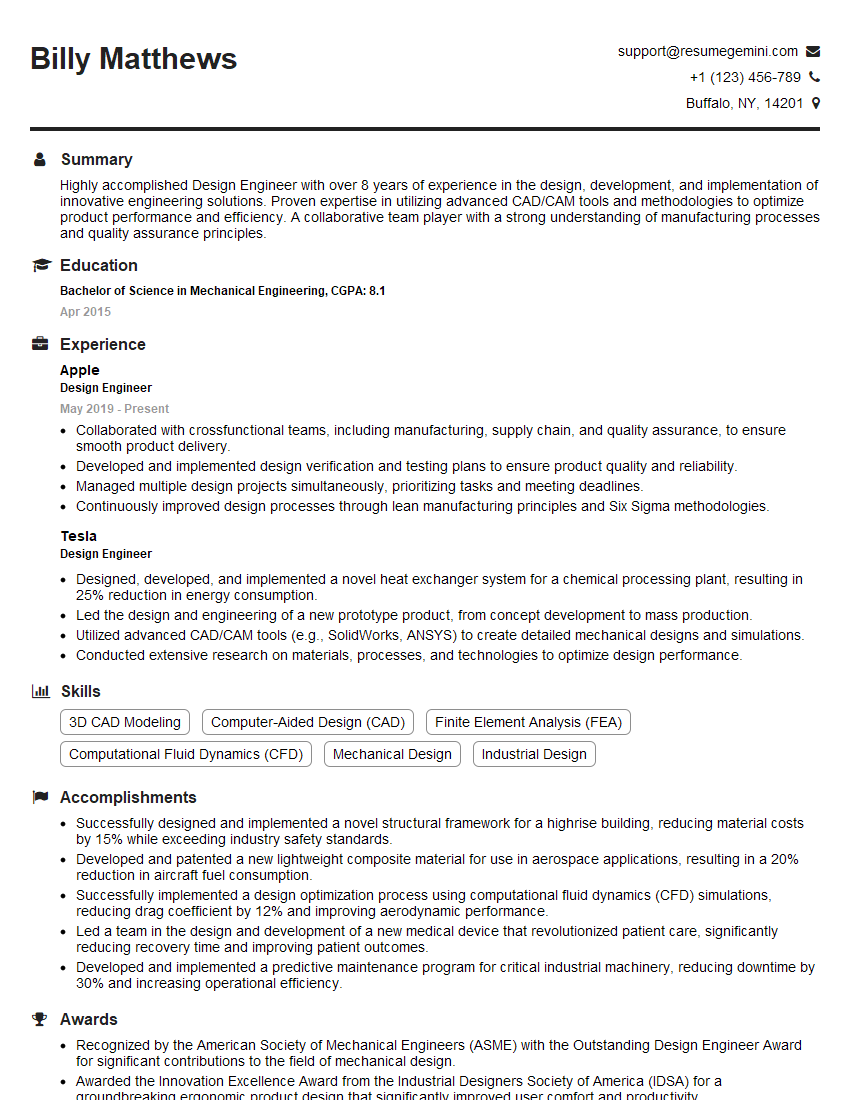
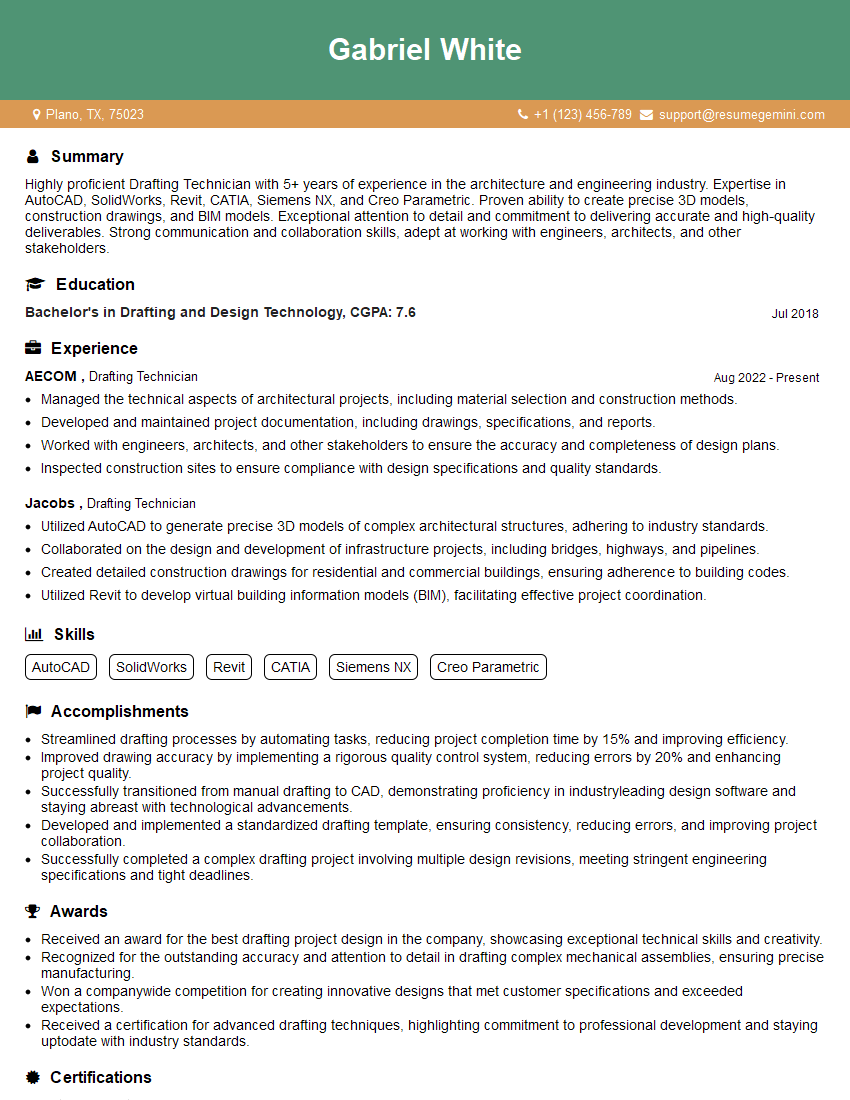
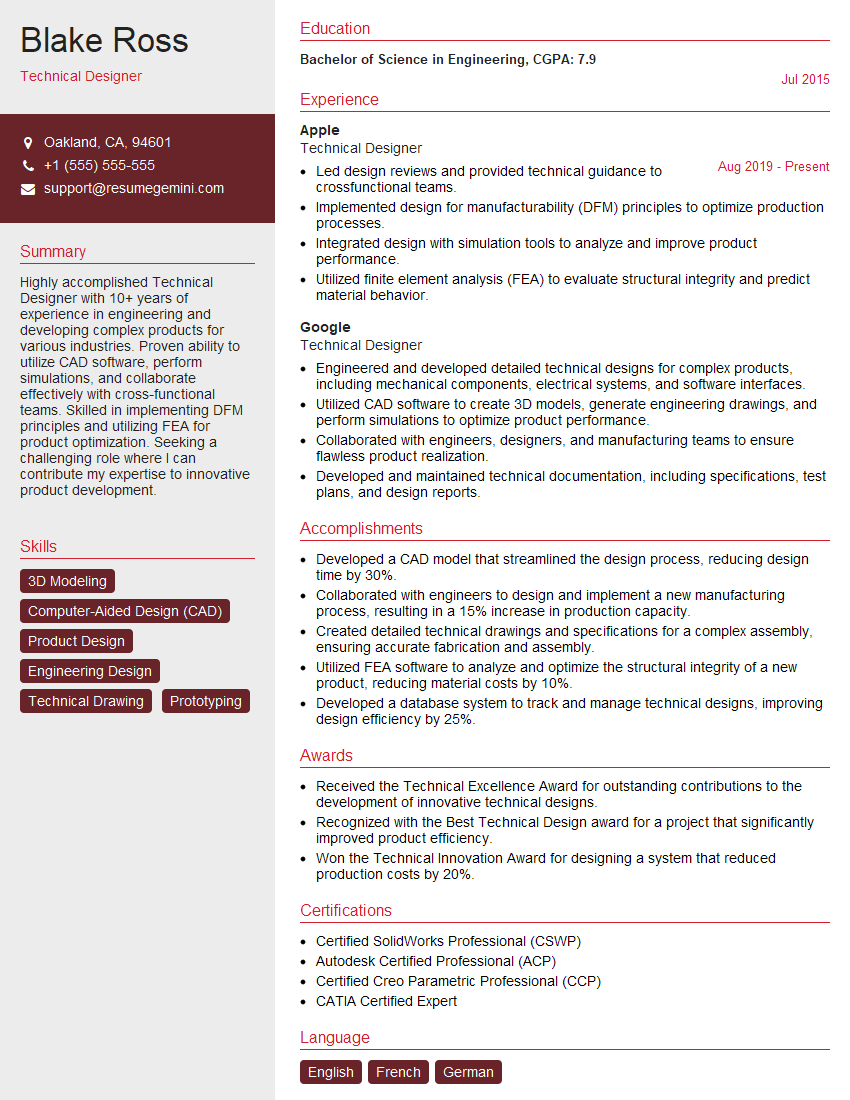
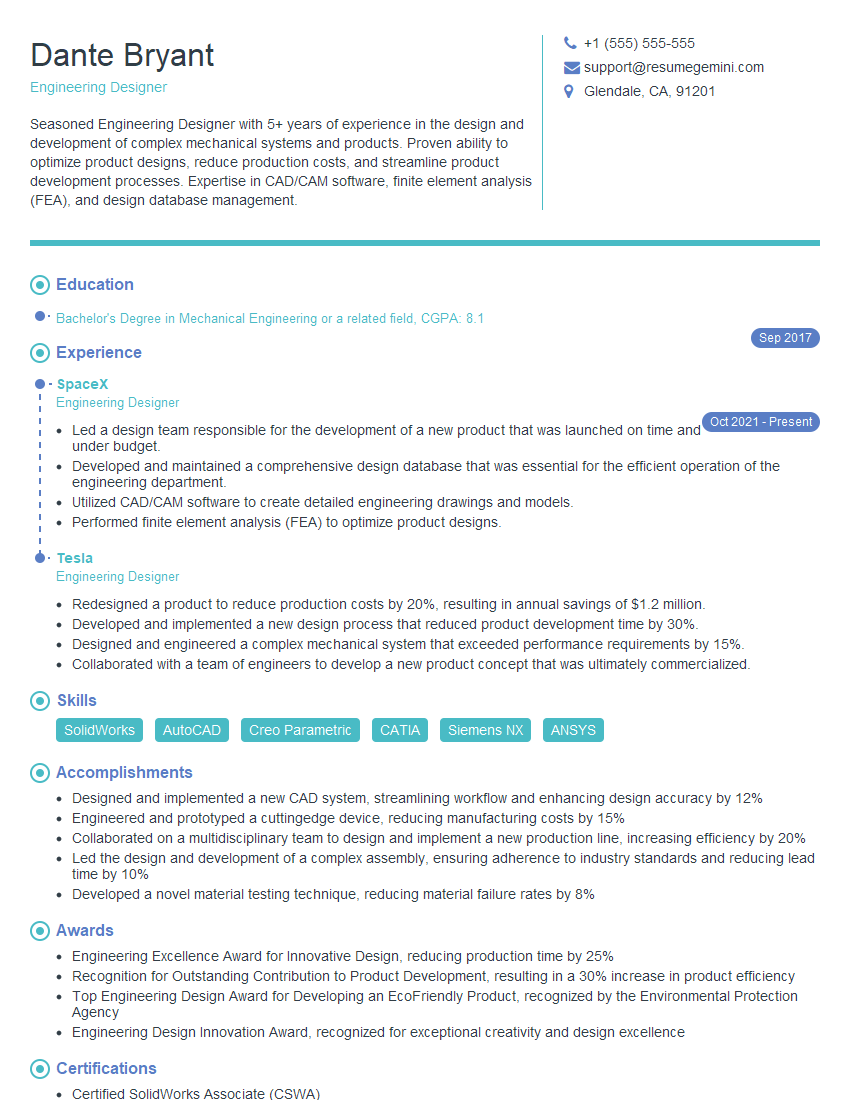
Mastering engineering design software like AutoCAD and Revit is essential for career advancement in today’s competitive market. These skills significantly enhance your value to potential employers, opening doors to more challenging and rewarding roles. To maximize your job prospects, it’s crucial to present your expertise effectively. Creating an ATS-friendly resume is key to getting your application noticed. ResumeGemini is a trusted resource to help you build a professional and impactful resume that highlights your skills and experience. Examples of resumes tailored to showcasing proficiency in AutoCAD and Revit are available to guide you through the process.

Explore more articles
Users Rating of Our Blogs
Share Your Experience
We value your feedback! Please rate our content and share your thoughts (optional).
What Readers Say About Our Blog
Very informative content, great job.
good