The right preparation can turn an interview into an opportunity to showcase your expertise. This guide to Proficient in Microsoft Office Suite, including Excel and PowerPoint interview questions is your ultimate resource, providing key insights and tips to help you ace your responses and stand out as a top candidate.
Questions Asked in Proficient in Microsoft Office Suite, including Excel and PowerPoint Interview
Q 1. Describe your experience using Microsoft Excel for data analysis.
My experience with Excel for data analysis is extensive. I’ve utilized it across various projects, from analyzing sales figures to forecasting market trends. I’m comfortable cleaning and transforming raw data, identifying patterns and anomalies, and generating insightful reports. For example, in a recent project, I used Excel to analyze customer purchase history, identifying key demographics correlated with high-value purchases. This involved data cleaning (removing duplicates, handling missing values), using pivot tables to summarize sales by region and product category, and then creating charts to visualize the findings for effective presentation to stakeholders.
My approach typically involves these steps: data import and cleaning, data transformation (using functions and formulas), exploratory data analysis (using charts and pivot tables), and finally, reporting and visualization.
Q 2. How proficient are you in creating and formatting Excel spreadsheets?
I’m highly proficient in creating and formatting Excel spreadsheets. I understand the importance of clear and consistent formatting for readability and data integrity. This includes applying styles, formatting cells (number formats, date formats, alignment), creating headers and footers, using conditional formatting to highlight important data points, and protecting worksheets to prevent accidental changes. I’m also adept at using named ranges to improve formula readability and maintainability. Think of it like organizing a well-stocked pantry—everything is in its place, easily accessible, and clearly labeled.
For instance, in a previous role, I created a standardized template for our team to track project budgets. This template ensured consistency in data entry, simplified reporting, and prevented errors. I incorporated data validation to ensure users entered data in the correct format (e.g., only numerical values for budget amounts).
Q 3. Explain your experience with Excel functions like VLOOKUP, SUMIF, and PivotTables.
VLOOKUP, SUMIF, and PivotTables are essential tools in my Excel arsenal. VLOOKUP allows you to search for a specific value in a table and retrieve corresponding data from another column – imagine looking up a product code to find its price. =VLOOKUP(lookup_value, table_array, col_index_num, [range_lookup]). SUMIF lets you sum values based on a specific criterion – for instance, summing sales for a particular product category. =SUMIF(range, criteria, [sum_range]). And PivotTables are powerhouses for summarizing and analyzing large datasets, allowing you to easily group, filter, and aggregate data to reveal trends and patterns. I use them daily to analyze sales data, marketing campaign performance, and customer behavior.
In a recent project, I used a combination of these functions: I used VLOOKUP to pull in product information from a separate database, then SUMIF to calculate the total sales for each product category, and finally, created a PivotTable to analyze sales trends over time and by region, providing actionable insights for our sales team.
Q 4. How would you handle large datasets in Excel?
Handling large datasets in Excel requires strategic approaches. For datasets exceeding Excel’s practical limits, I would consider several options. First, I’d assess if the data truly needs to be in Excel. Power Query (Get & Transform Data) can be used to import and clean data from external sources efficiently. Then, I might use Power Pivot to leverage Excel’s data modeling capabilities, creating Data Models for more efficient data analysis and reporting. If even that is insufficient, I would explore migrating to a database system (like SQL Server) or cloud-based solutions (like Google BigQuery or Snowflake) for larger-scale data analysis.
For example, instead of directly importing a massive CSV file into Excel, I would utilize Power Query to clean, filter, and transform the data before loading only the necessary subset into Excel. This prevents performance bottlenecks and keeps the Excel workbook manageable.
Q 5. Describe your experience creating charts and graphs in Excel.
Creating clear and effective charts and graphs is crucial for data visualization. My experience encompasses various chart types, including bar charts, line charts, pie charts, scatter plots, and more. I select the appropriate chart type based on the data and the message I want to convey. I pay careful attention to labeling, titles, legends, and formatting to ensure the charts are easily understood. I use best practices to create visually appealing and informative charts to help communicate findings clearly.
For example, when presenting sales performance to executives, I might use a clustered column chart to compare sales across different product lines and a line chart to show sales trends over time. The goal is to make the data story easily understandable at a glance.
Q 6. Explain your process for creating effective PowerPoint presentations.
My process for creating effective PowerPoint presentations is centered around clear communication and visual appeal. It begins with outlining the key messages and defining the target audience. I then develop a narrative structure, ensuring a logical flow of information. I incorporate visuals (charts, images, diagrams) strategically to enhance understanding and engagement. I keep the text concise and use bullet points to highlight key takeaways. The entire presentation should have a consistent design and brand identity.
I always preview and rehearse the presentation to ensure a smooth delivery. It’s like writing a good story – you need a compelling beginning, a well-structured middle, and a memorable conclusion.
Q 7. How familiar are you with PowerPoint’s animation and transition features?
I’m very familiar with PowerPoint’s animation and transition features. However, I believe that these should be used judiciously and sparingly. Overuse can be distracting and detract from the core message. I typically use animations to highlight key points or to guide the audience’s attention, and I select transitions that are subtle and professional. My focus is always on enhancing the presentation, not creating a dazzling but ultimately confusing spectacle.
For instance, I might use a simple fade transition between slides and a subtle animation to reveal bullet points one by one, ensuring a smooth flow and keeping the audience engaged without overwhelming them with unnecessary visual effects.
Q 8. Describe your experience designing visually appealing PowerPoint slides.
Designing visually appealing PowerPoint slides involves a blend of art and science. It’s about effectively communicating your message while keeping the audience engaged. I focus on several key aspects:
- Color Palette: I use a consistent and visually pleasing color scheme, often adhering to brand guidelines or selecting colors that evoke the desired emotion. For instance, using blues for a calming presentation on financial stability, or warmer tones for a presentation on innovation.
- Typography: Choosing the right fonts is crucial for readability. I typically stick to two or three fonts – a main font for headings and a complementary font for body text – ensuring sufficient contrast for easy reading. I avoid overly decorative or hard-to-read fonts.
- Imagery: High-quality images and graphics significantly enhance engagement. I use relevant visuals that support the narrative, avoiding cluttered or low-resolution images. I often use royalty-free stock photography or create custom graphics in programs like Canva.
- Layout and Spacing: A well-organized layout is key. I use whitespace effectively to prevent slides from feeling cramped. Consistent use of headings, subheadings, bullet points, and visuals ensures a clear information hierarchy.
- Animations and Transitions: While subtle animations can add visual interest, I avoid overusing them. They should support the message, not distract from it. I prefer smooth transitions that enhance the flow between slides.
For example, I once created a presentation for a tech company launching a new product. By using a sleek color palette of dark blues and grays with vibrant accent colors, and incorporating high-quality product images and infographics, we were able to effectively communicate the product’s features and benefits, captivating the audience.
Q 9. How do you ensure consistency in formatting across a PowerPoint presentation?
Consistency in PowerPoint formatting is crucial for a professional look and feel. I employ several strategies to achieve this:
- Master Slides: I always start by creating a master slide to define the overall design elements—fonts, colors, background, logo placement, etc. This ensures uniformity across all slides.
- Styles and Themes: PowerPoint’s built-in styles and themes provide a good starting point for maintaining consistent formatting. I customize them to match the specific brand or presentation requirements.
- Templates: For larger or recurring presentations, I often use custom templates that enforce consistent branding and layout.
- Regular Checks: I regularly review the presentation for inconsistencies, checking font sizes, colors, spacing, and visual elements throughout.
Think of it like building a house; a master slide is the blueprint. Every slide built upon it inherits the basic design elements, ensuring visual harmony throughout.
Q 10. How would you handle incorporating data from Excel into a PowerPoint presentation?
Incorporating data from Excel into PowerPoint is straightforward and allows for dynamic visualizations. Here’s how I approach it:
- Copy and Paste (Simple Data): For small datasets, a simple copy-paste from Excel to PowerPoint works well. However, this method lacks flexibility for updates.
- Embedding Excel Worksheets: To maintain live data connections, I embed Excel worksheets directly into PowerPoint. Any changes in the Excel sheet are reflected in the presentation.
- Linking Excel Data: Similar to embedding, linking data allows for updates without altering the PowerPoint file, but changes necessitate saving and refreshing the link within PowerPoint.
- Creating Charts and Graphs: I prefer to create charts and graphs directly within Excel, optimizing them for visual clarity before embedding or linking them into PowerPoint. This ensures the best possible visual representation.
- PowerPoint’s Data Visualization Tools: PowerPoint itself offers robust charting features. I utilize these when the data is already within PowerPoint or when simpler charts are needed.
For example, if I’m presenting sales figures, I’d create a visually appealing chart in Excel, then either embed or link it to the PowerPoint presentation. This ensures the data is accurately represented and easily understood by the audience. The linked approach is preferable if the data frequently updates.
Q 11. What are some best practices for creating effective data visualizations?
Effective data visualization is about communicating complex information clearly and concisely. Key best practices include:
- Choose the Right Chart Type: Select the chart type best suited for the data. Bar charts for comparisons, line charts for trends, pie charts for proportions, etc.
- Minimize Chart Junk: Avoid unnecessary elements like 3D effects, excessive gridlines, or distracting colors. Focus on the data itself.
- Clear Labeling and Titles: Ensure axes are clearly labeled, and the chart has a concise and informative title. This helps the audience understand the data immediately.
- Consistent Scale and Units: Maintain a consistent scale and clearly indicate units of measurement. Inconsistencies can lead to misinterpretations.
- Data-Ink Ratio: Maximize the data-ink ratio – the proportion of the chart that displays data. Minimize chart elements that don’t contribute to understanding the data.
Imagine trying to explain a complex financial report with just numbers. A well-designed chart instantly clarifies the trends and relationships, enabling faster understanding and better decision-making.
Q 12. How do you ensure your data visualizations are clear and easy to understand?
Clarity and ease of understanding are paramount in data visualizations. I ensure this by:
- Simplicity: Keep the visualization simple and uncluttered. Avoid overwhelming the audience with too much detail.
- High Contrast: Use sufficient contrast between data points, labels, and the background to make the data easily discernible.
- Appropriate Color Scheme: Choose a color scheme that is both visually appealing and aids in distinguishing different data points.
- Annotations and Highlights: Use annotations or callouts to highlight key findings or data points that are particularly relevant to the message.
- Contextual Information: Provide sufficient context around the data to help the audience understand the meaning and implications.
For example, instead of using numerous colors in a bar chart that are difficult to distinguish, I’d utilize a limited color palette, highlighting important data points with a contrasting color. A short descriptive title and clear axis labels will ensure everyone understands what the chart is portraying.
Q 13. What techniques do you use for creating compelling narratives in PowerPoint?
Creating compelling narratives in PowerPoint presentations is about guiding the audience through a logical flow of information that resonates emotionally. I use the following techniques:
- Storytelling Structure: I structure the presentation like a story, with a clear beginning, middle, and end. This makes it more engaging and memorable.
- Strong Opening and Conclusion: I craft a captivating opening to grab the audience’s attention and a strong conclusion that leaves a lasting impression.
- Logical Flow: I ensure a smooth and logical flow of information, connecting ideas clearly and avoiding abrupt transitions.
- Visual Aids: I use visuals to support the narrative and emphasize key points. This helps maintain audience interest and understanding.
- Emotional Connection: I aim to connect with the audience on an emotional level by using relatable examples, stories, or anecdotes.
Imagine a presentation on climate change. Instead of simply presenting data, I would weave a story about its impact on communities, human lives, and the environment, making it more compelling and impactful.
Q 14. How do you tailor your PowerPoint presentations to different audiences?
Tailoring presentations to different audiences is critical for effective communication. I adapt my presentations based on:
- Audience Knowledge: I adjust the level of detail and technical jargon based on the audience’s existing knowledge. A presentation for technical experts will differ significantly from one for a general audience.
- Audience Interests: I focus on the aspects of the topic that are most relevant to the audience’s interests and needs. What motivates one group may not motivate another.
- Presentation Style: I adjust the presentation style to suit the audience’s preferences. A formal presentation for a board of directors will differ from a more informal presentation for a team meeting.
- Visual Aids: I select visuals that resonate with the audience, taking into account their age, background, and cultural context.
- Language and Tone: I use appropriate language and tone, avoiding jargon or overly technical terms unless necessary.
For instance, when presenting financial data to executives, I’d focus on key performance indicators (KPIs) and strategic implications, whereas a presentation to the sales team would emphasize sales targets and customer engagement strategies. The key is to communicate effectively while remaining relatable to the audience’s needs and expectations.
Q 15. What are some common mistakes to avoid when creating PowerPoint presentations?
Creating effective PowerPoint presentations requires careful planning and execution. Common mistakes often stem from neglecting audience engagement and clarity.
- Too much text: Overcrowding slides with text makes them difficult to read and detracts from the visual appeal. Think of slides as visual aids, not scripts. Use bullet points and concise phrases.
- Inconsistent design: Maintain a consistent font, color scheme, and layout throughout the presentation for a professional and cohesive look. Inconsistency is distracting.
- Poor visuals: Using low-resolution images, irrelevant clip art, or cluttered charts obscures the message. Choose high-quality, relevant visuals that support your points.
- Lack of visual hierarchy: Not highlighting key information visually (through bolding, size, or color) makes it hard for the audience to follow along. Guide their eyes to the most important points.
- Reading the slides verbatim: PowerPoint is a visual aid, not a teleprompter. Engage your audience with your own words and use the slides as supporting visuals.
- Ignoring your audience: Tailor your presentation to your audience’s background and interests. A presentation for executives will differ significantly from one for students.
For example, I once helped a colleague revise a presentation that was overloaded with dense paragraphs. By simplifying the text, adding relevant charts, and using a more visually appealing template, we transformed it from a tedious read into an engaging and effective communication tool.
Career Expert Tips:
- Ace those interviews! Prepare effectively by reviewing the Top 50 Most Common Interview Questions on ResumeGemini.
- Navigate your job search with confidence! Explore a wide range of Career Tips on ResumeGemini. Learn about common challenges and recommendations to overcome them.
- Craft the perfect resume! Master the Art of Resume Writing with ResumeGemini’s guide. Showcase your unique qualifications and achievements effectively.
- Don’t miss out on holiday savings! Build your dream resume with ResumeGemini’s ATS optimized templates.
Q 16. Describe your experience with using macros in Excel.
I have extensive experience with Excel macros, using VBA (Visual Basic for Applications) to automate repetitive tasks and enhance productivity. I’ve used macros for everything from simple data cleaning and formatting to complex data processing and report generation.
For instance, I developed a macro that automatically formatted thousands of rows of sales data, standardizing dates, currencies, and text formats, a task that would have taken hours manually. Another project involved creating a macro to generate customized reports based on user input, significantly reducing the time required to produce these reports.
My proficiency includes working with different VBA objects like worksheets, ranges, and workbooks, as well as utilizing loops, conditional statements, and error handling to ensure robustness and efficiency. I’m also comfortable debugging macros to resolve any unexpected behavior. A recent example involved debugging a macro that was encountering errors when processing data with inconsistent formats. I addressed the issue by adding error handling and data validation to the macro, making it more reliable and preventing future errors.
Q 17. How familiar are you with Excel’s data validation features?
I’m very familiar with Excel’s data validation features, which are crucial for maintaining data integrity and accuracy. Data validation allows you to define acceptable input values for cells, preventing errors and ensuring consistency.
I frequently use data validation to restrict data entry to specific formats (e.g., dates, numbers, text), ranges (e.g., only allowing numbers between 1 and 10), or lists (e.g., a dropdown list of predefined options). For example, I used data validation to create a dropdown menu for ‘Product Category’ in a sales spreadsheet, ensuring consistent categorization across all entries. This prevented incorrect entries, making data analysis far more accurate and reliable.
I also utilize custom validation rules for more complex scenarios, such as ensuring that a cell’s value is dependent on another cell’s value or that input complies with specific criteria. This is particularly useful for complex forms within a spreadsheet.
Q 18. How do you manage and organize multiple worksheets in a large Excel file?
Managing multiple worksheets in a large Excel file requires a structured approach. Poor organization can lead to confusion and errors. My strategy involves a combination of clear naming conventions, color-coding, and using the Excel navigation features.
- Logical naming: I use descriptive names for worksheets that clearly indicate their content (e.g., ‘SalesData_Q1_2024’, ‘CustomerInfo’, ‘ProductCatalog’).
- Color-coding: I often use color-coding to visually group related worksheets, making it easier to locate specific information. For instance, all financial-related worksheets might be in a shade of green.
- Sheet tabs: I utilize the sheet tabs effectively, using Excel’s right-click options to rearrange, rename, or hide sheets as needed.
- Grouping and ungrouping: For a very large project, I group related sheets and ungroup them as needed, simplifying navigation.
- Summary sheets: I often create a summary sheet that provides an overview of the data across multiple worksheets, giving a clear picture of the data without having to navigate individual sheets.
This organized approach ensures that I can quickly locate the information I need and efficiently navigate between different parts of the large Excel file.
Q 19. Explain your experience with conditional formatting in Excel.
Conditional formatting is a powerful tool in Excel for highlighting cells that meet specific criteria, enhancing data visualization and analysis. It allows for easy identification of trends, outliers, and crucial information within large datasets.
I use conditional formatting extensively to highlight cells based on their values (e.g., highlighting cells with values above a certain threshold), formulas (e.g., highlighting cells where a formula returns a specific result), or data bars, color scales, and icon sets for visually representing data. I’ve used it to identify overdue invoices, highlight sales targets that have been exceeded, and pinpoint outliers in customer data sets.
For example, I recently used conditional formatting to highlight cells in a sales report based on sales performance relative to a target. Cells exceeding the target were colored green, while cells below the target were colored red, making it extremely easy to quickly identify top and underperforming products. This enhanced the presentation and communication of the data greatly.
Q 20. Describe your experience using formulas and functions for data manipulation.
Formulas and functions are fundamental to my Excel work. I’m proficient in a wide range of functions, from basic arithmetic operations to complex statistical analysis and data manipulation. My experience includes using functions for everything from simple calculations to creating dynamic dashboards.
I routinely use functions like SUM, AVERAGE, COUNTIF, VLOOKUP, INDEX, MATCH, IF, and many others for data analysis and report generation. For example, I utilized VLOOKUP to pull data from one sheet to another, saving significant time and effort. I also frequently use array formulas and nested functions for more complex data manipulation tasks. A recent project involved using array formulas to perform complex calculations across multiple ranges of data, drastically speeding up the process.
I understand the importance of writing efficient and well-documented formulas, making them easy to understand and maintain. I always test my formulas rigorously to ensure accuracy and avoid errors.
Q 21. How do you troubleshoot errors in Excel spreadsheets?
Troubleshooting errors in Excel spreadsheets requires a systematic approach. I begin by identifying the type of error and then use a combination of techniques to pinpoint and resolve the issue.
- Error messages: I carefully examine error messages (e.g., #VALUE!, #REF!, #N/A) to understand the nature of the problem. These messages often provide clues to the source of the error.
- Formula auditing: Excel’s formula auditing tools (Trace Precedents, Trace Dependents, Evaluate Formula) help trace the flow of data within a formula, making it easy to identify where the error is occurring.
- Step-by-step evaluation: I break down complex formulas into smaller parts, evaluating each step to locate the specific part causing the error.
- Data validation: I check for inconsistencies and errors in the data itself. Incorrect data types or missing values can often lead to formula errors.
- Cell formatting: Unexpected formatting can sometimes mask errors. I check the cell formatting to ensure it’s consistent with the data type.
- Using the ‘Go To Special’ feature: This helps to pinpoint cells with specific characteristics, like formulas, blanks, or errors.
Through careful observation and utilizing the built-in debugging tools, I can systematically identify and resolve errors, ensuring data accuracy and report reliability.
Q 22. How do you ensure data accuracy and integrity in your Excel work?
Data accuracy and integrity in Excel are paramount. My approach is multi-faceted, focusing on prevention and detection. Prevention involves meticulous data entry, using data validation features like drop-down lists to restrict input to acceptable values. For instance, if I’m inputting dates, I’d set a data validation rule to only accept dates in a specific format, preventing errors like text being entered instead of a date. This ensures that only correct data types are inputted.
For detection, I utilize formulas like SUMIF or COUNTIF to check for inconsistencies or outliers. I also regularly employ conditional formatting to highlight potential errors, such as negative values where they shouldn’t be. Imagine tracking inventory – conditional formatting can immediately highlight items with negative quantities, indicating a data entry or calculation problem. Finally, I always double-check my formulas and cross-reference my data with source documents whenever possible. Regular auditing of the worksheet is crucial for large datasets.
Q 23. Describe your experience working with different chart types in Excel.
I’m proficient with a wide range of Excel chart types, selecting the most appropriate one based on the data and the message I aim to convey. For example, to show trends over time, I’d use a line chart. To compare different categories, I’d opt for a column or bar chart. Pie charts are excellent for showcasing proportions of a whole. Scatter plots are invaluable for visualizing correlations between two variables. I often use clustered column charts to compare multiple data series across categories, perhaps showcasing sales figures for different products across various regions. Beyond the basics, I also utilize more advanced charting options, including combo charts which combine different chart types in one visualization for a richer understanding of complex datasets.
For instance, in a project analyzing website traffic, I used a combination line and column chart to simultaneously display website visits (line) and conversion rates (column) over time, providing a holistic view of the website’s performance.
Q 24. How would you automate repetitive tasks in Excel?
Automating repetitive tasks is key to efficiency in Excel. My go-to method is using macros and VBA (Visual Basic for Applications). Let’s say I need to format a large number of cells consistently every week – instead of manually formatting each one, I’d record a macro performing the formatting steps. This macro can then be run with a single click, saving significant time. For more complex tasks, I write custom VBA code. For example, I once created a VBA script to automatically generate reports by pulling data from multiple sheets and formatting them according to specific requirements. This was much more efficient than manually creating reports each time.
Beyond VBA, I also leverage Excel’s built-in features like Fill Handle for auto-filling series, and formula dragging to quickly apply formulas to multiple cells. For instance, instead of manually calculating the sum of values in a column, I can use the SUM function and then simply drag its fill handle down to quickly apply the same formula to all other cells in that column.
Q 25. How familiar are you with PowerPoint’s presenter view?
I’m very familiar with PowerPoint’s Presenter View. It’s an invaluable tool for delivering polished and engaging presentations. Presenter View allows me to see my presentation on one screen, complete with notes, current slide, and upcoming slides, while the audience sees only the main presentation on a separate screen. This feature is crucial for maintaining eye contact with the audience and managing the flow of the presentation smoothly. I can easily refer to my notes without disrupting the visual experience for the audience. The timer function in Presenter View helps me stay on schedule and keeps me from running over time, something that is really appreciated in meetings and conferences.
Q 26. How do you incorporate feedback to improve your presentations?
Incorporating feedback is crucial for improving presentations. I actively solicit feedback from various sources, including colleagues, supervisors, and even test audiences if the presentation is important enough. I take notes on the feedback received, focusing on both the content and delivery aspects. For instance, if feedback suggests the presentation lacks clarity in a certain area, I revise the slides to improve the flow and wording. If the delivery is perceived as too fast or monotone, I practice pacing and tone modulation.
I organize the feedback systematically, categorizing comments by theme (clarity, engagement, data accuracy, etc.). I then prioritize revisions based on impact and feasibility. I always aim to address all valid points but focus on improvements that deliver the most impact to the presentation’s effectiveness.
Q 27. Describe your experience using different PowerPoint templates.
My experience with PowerPoint templates is extensive. I choose templates based on the context and style of the presentation. For formal presentations, I select professional and minimalist templates to ensure the focus remains on the content. For more creative presentations, I might opt for more visually engaging templates. I’m adept at customizing templates to match the branding guidelines of the organization or the specific requirements of the project. This involves changing colors, fonts, adding logos, and modifying layouts to ensure consistency and a professional look.
I avoid overly flashy or distracting templates; the emphasis is always on clarity and conveying information effectively. Sometimes, I even start from a blank template to have complete control over the design and layout from the ground up. This is particularly useful when dealing with very specific needs or a unique branding style.
Q 28. How do you handle last-minute changes to a PowerPoint presentation?
Handling last-minute changes requires a calm and organized approach. First, I assess the nature and scope of the change. Is it a minor tweak, or a significant restructuring? For minor changes, I can typically integrate them quickly by editing the appropriate slides. For major revisions, I prioritize the most impactful changes, focusing on those affecting the core message. I utilize PowerPoint’s features such as quick copy-paste and drag-and-drop functionality to efficiently move elements around.
If the changes involve new data, I ensure the data is accurate and consistent with the rest of the presentation. My ability to adapt quickly and remain focused is crucial in these situations. I also communicate the changes to the audience, providing context if needed. Thorough preparation and practice in advance helps me manage unexpected changes with poise and efficiency.
Key Topics to Learn for Proficient in Microsoft Office Suite, including Excel and PowerPoint Interview
- Excel Fundamentals: Data entry, formatting, basic formulas (SUM, AVERAGE, IF), sorting and filtering.
- Excel Intermediate: Working with functions (VLOOKUP, HLOOKUP, INDEX, MATCH), creating charts and graphs, data analysis and interpretation, pivot tables.
- Excel Advanced: Macros and VBA (Visual Basic for Applications) – basic understanding and application, data validation, conditional formatting.
- PowerPoint Fundamentals: Creating presentations, using templates, incorporating text, images, and charts.
- PowerPoint Intermediate: Animations and transitions, incorporating multimedia, designing visually appealing slides, delivering effective presentations.
- PowerPoint Advanced: Using master slides for consistency, creating professional-looking graphics, incorporating charts and graphs from Excel, managing speaker notes effectively.
- Microsoft Word Basics: Document formatting, styles, tables, mail merge (brief overview).
- Problem-Solving: Demonstrate your ability to troubleshoot common issues, explain your approach to solving data-related problems, and articulate your thought process.
- Practical Applications: Be prepared to discuss how you’ve used these tools in previous roles or projects. Highlight quantifiable achievements whenever possible.
Next Steps
Mastering the Microsoft Office Suite, particularly Excel and PowerPoint, is crucial for success in today’s competitive job market. These skills demonstrate your efficiency, analytical abilities, and communication prowess – highly valued attributes across numerous industries. To significantly boost your job prospects, it’s vital to craft a compelling and ATS-friendly resume that accurately reflects your skills and experience. ResumeGemini is a trusted resource to help you build a professional resume that showcases your proficiency in Microsoft Office Suite. We provide examples of resumes tailored to highlight expertise in Excel and PowerPoint, ensuring your application stands out from the competition.

Office Manager Resume Sample
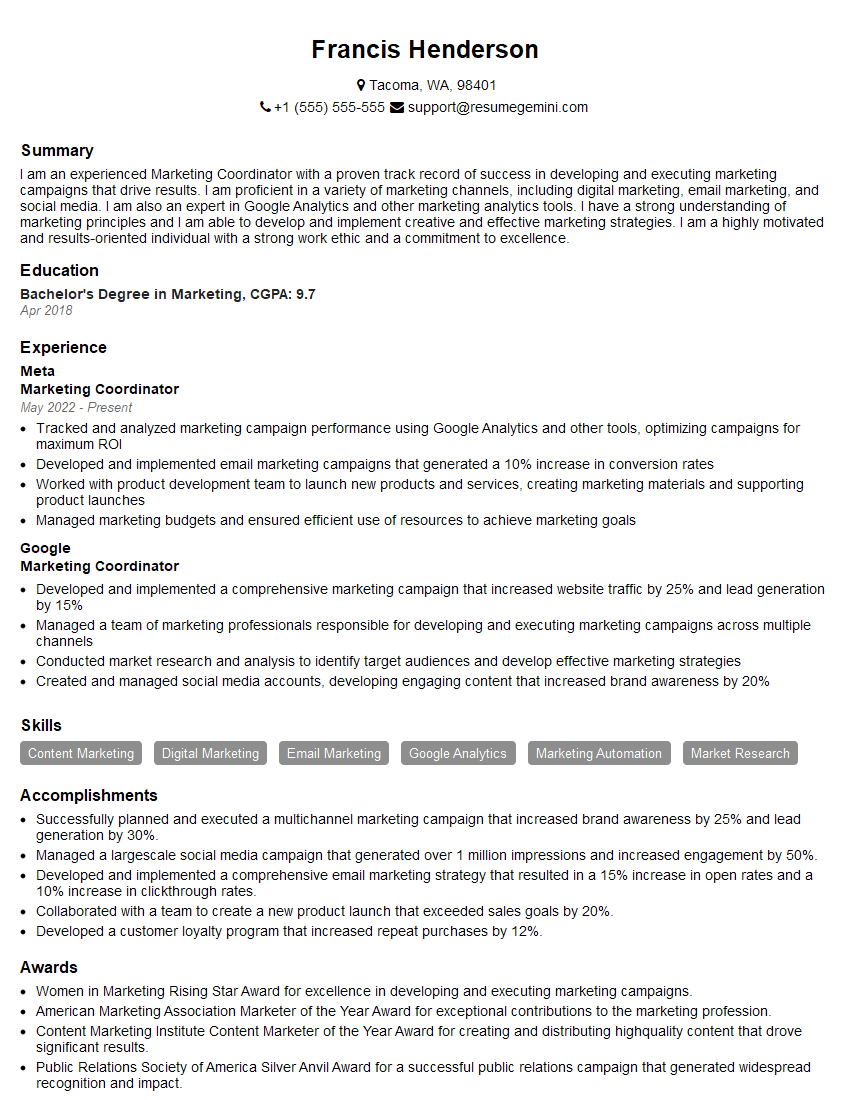
Marketing Coordinator Resume Sample
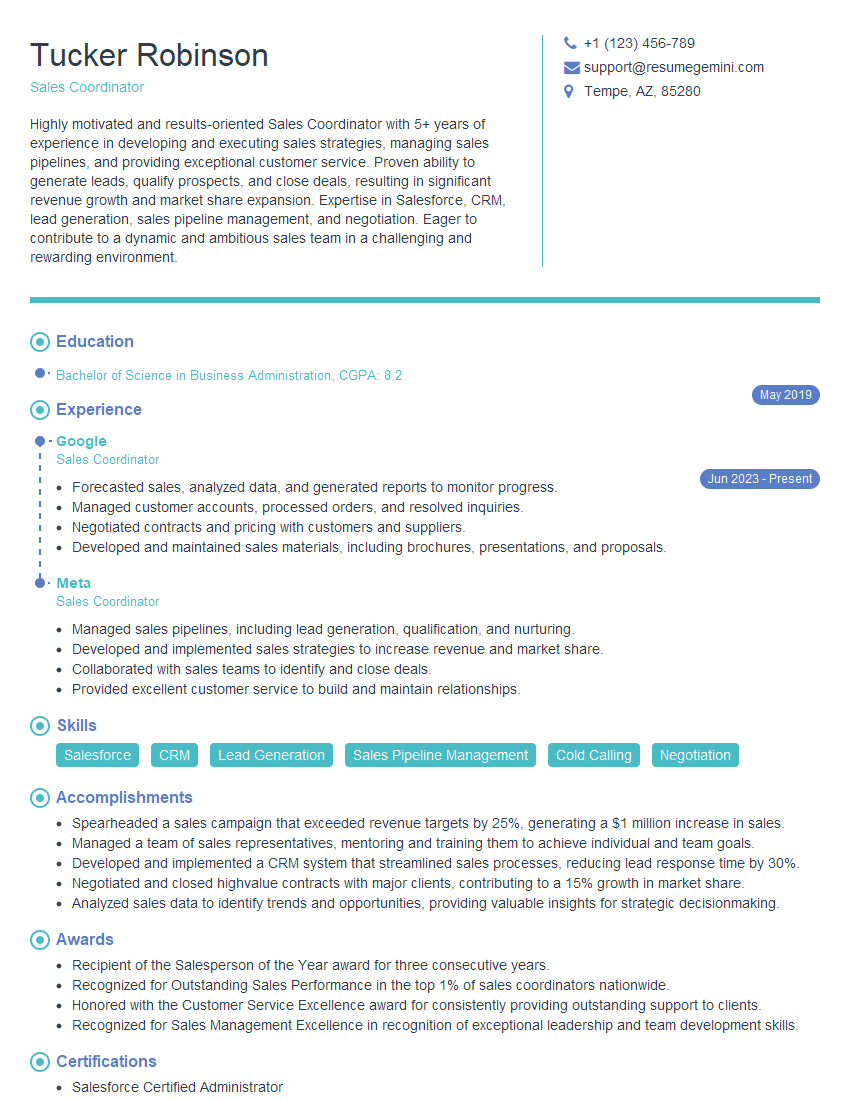
Sales Coordinator Resume Sample

Administrative Assistant Resume Sample
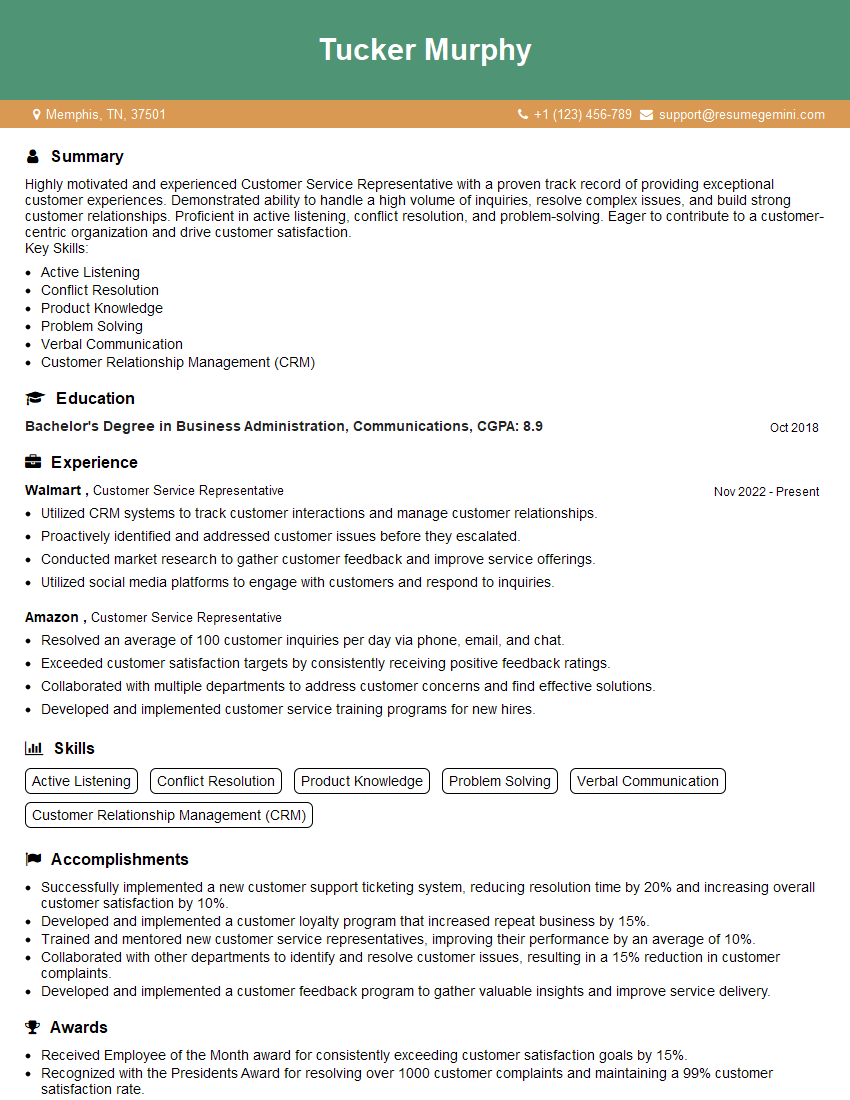
Customer Service Representative Resume Sample
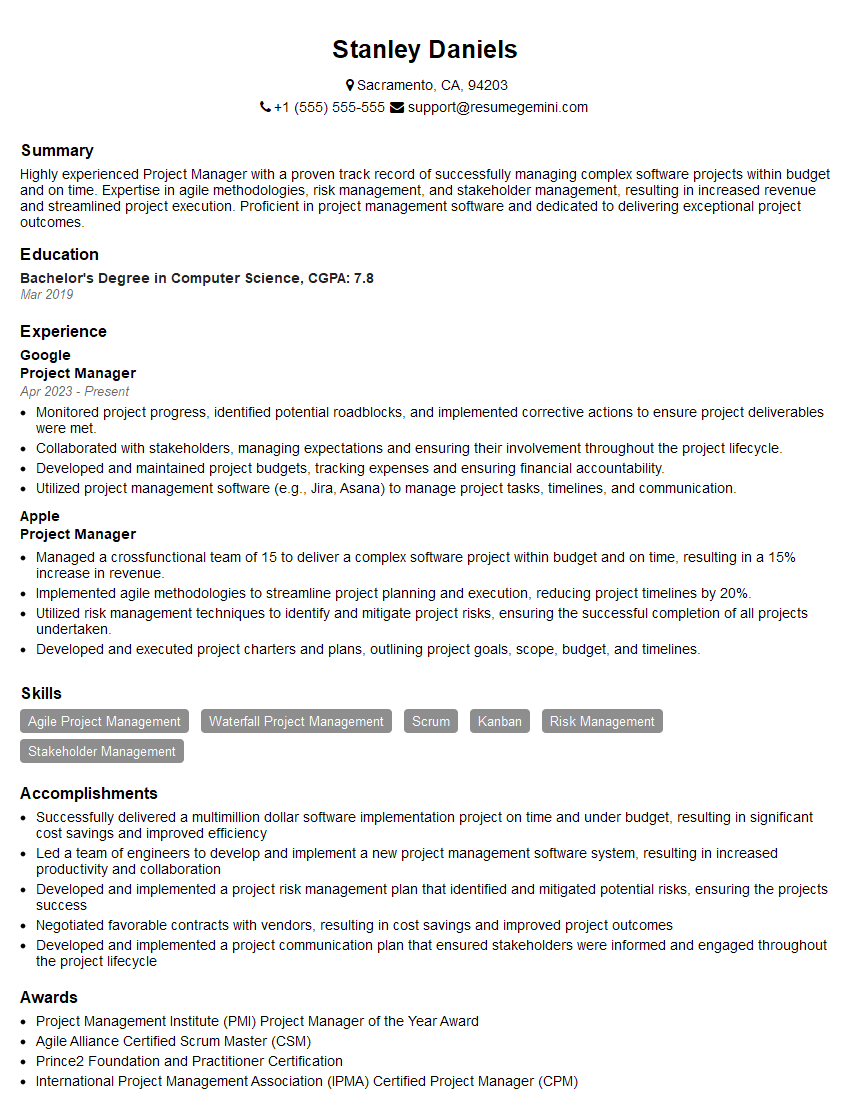
Project Manager Resume Sample
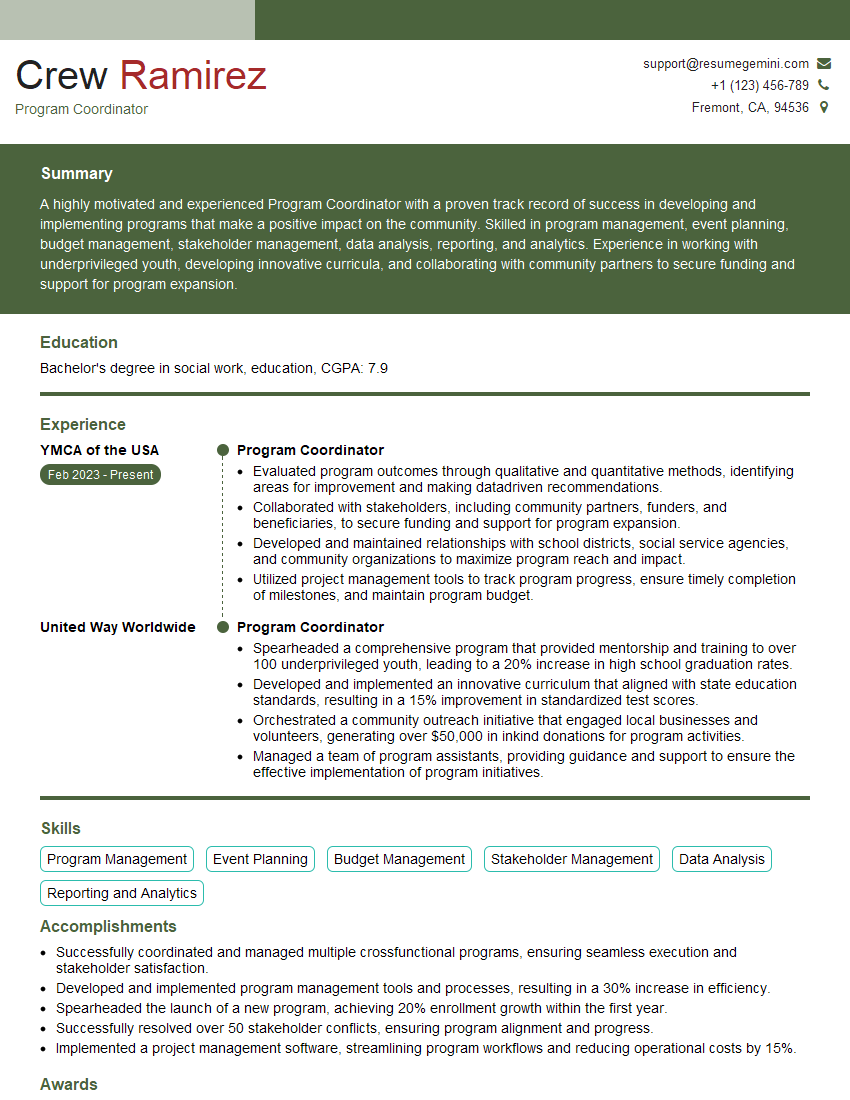
Program Coordinator Resume Sample
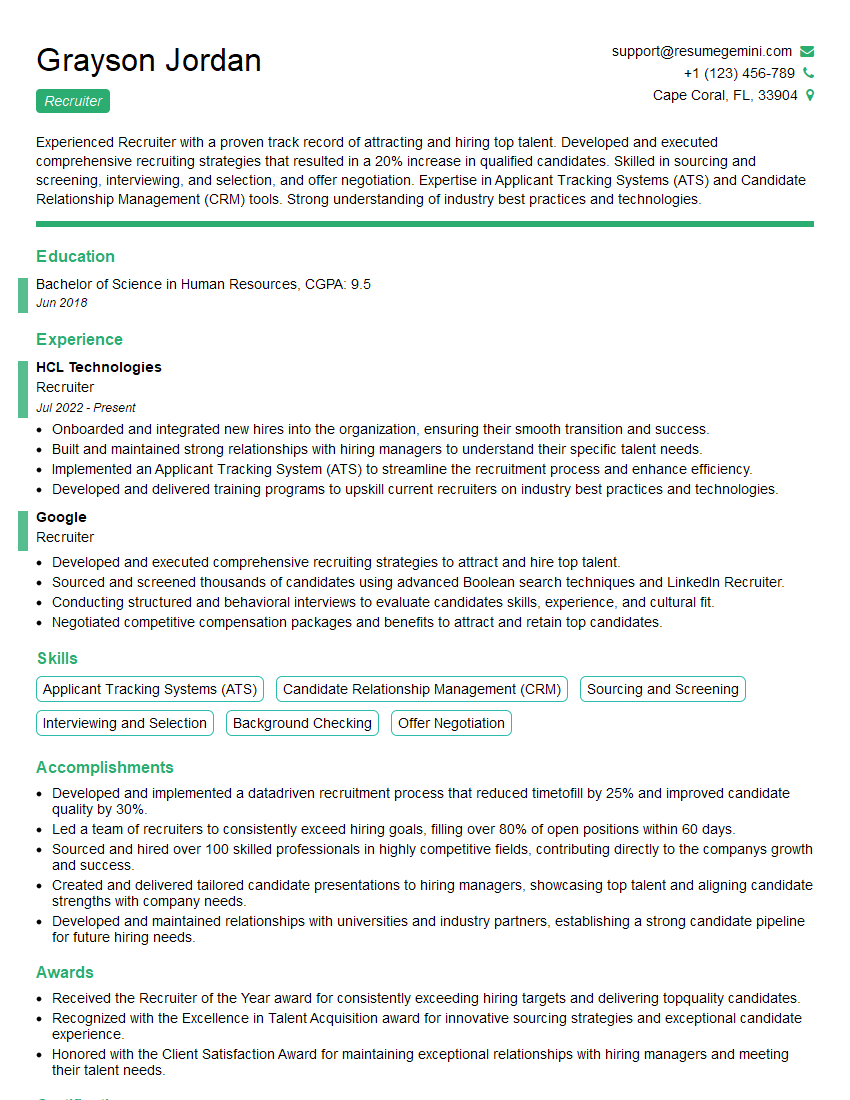
Recruiter Resume Sample

Business Analyst Resume Sample
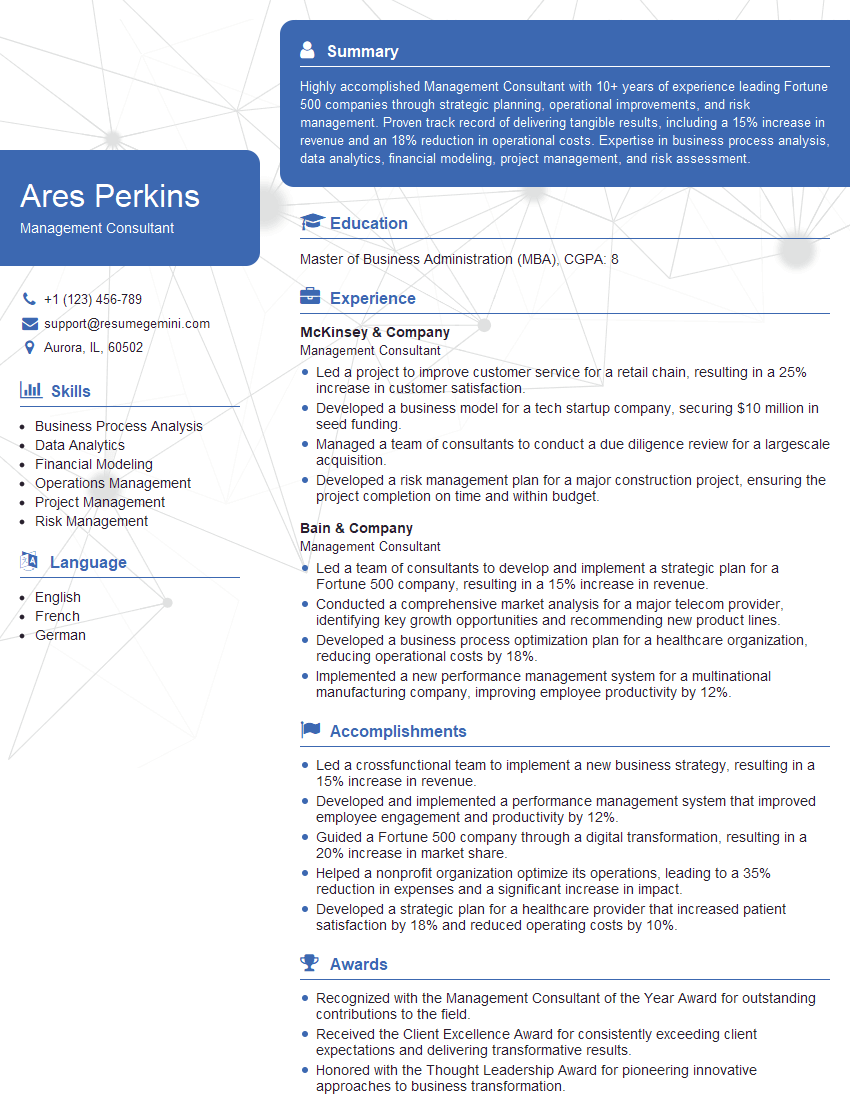
Management Consultant Resume Sample
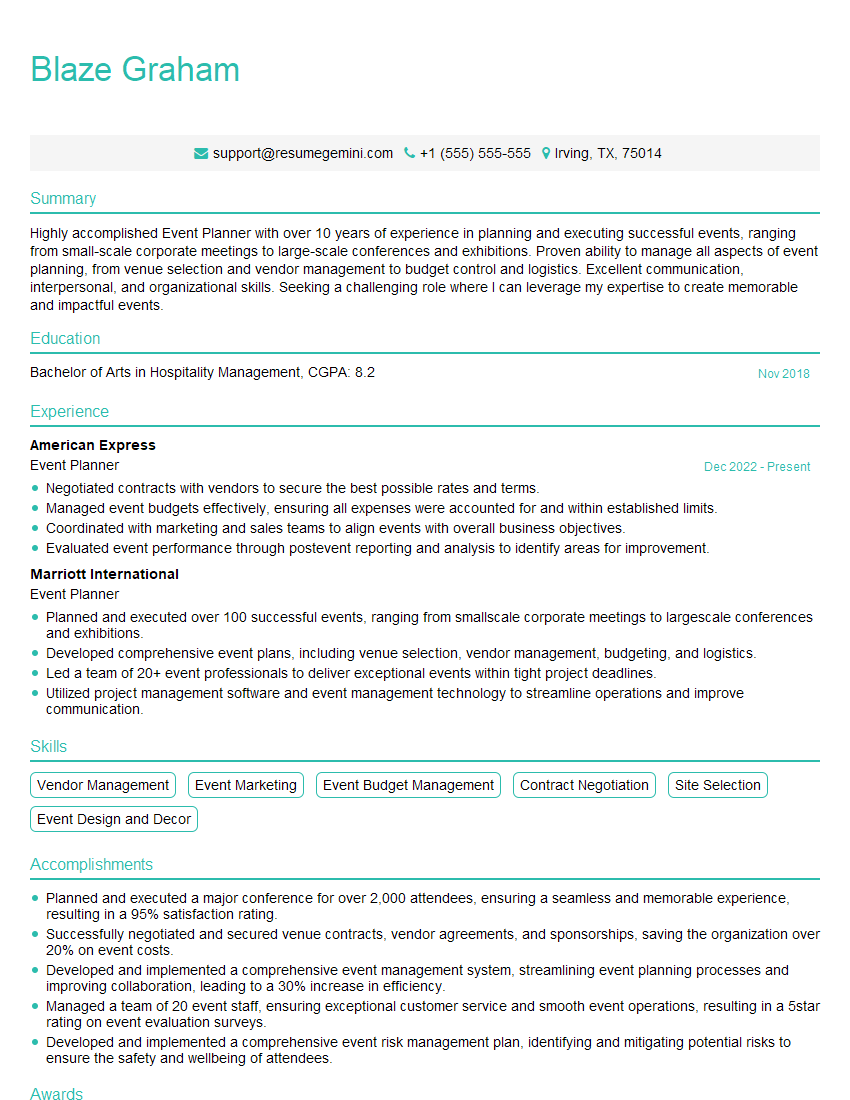
Event Planner Resume Sample
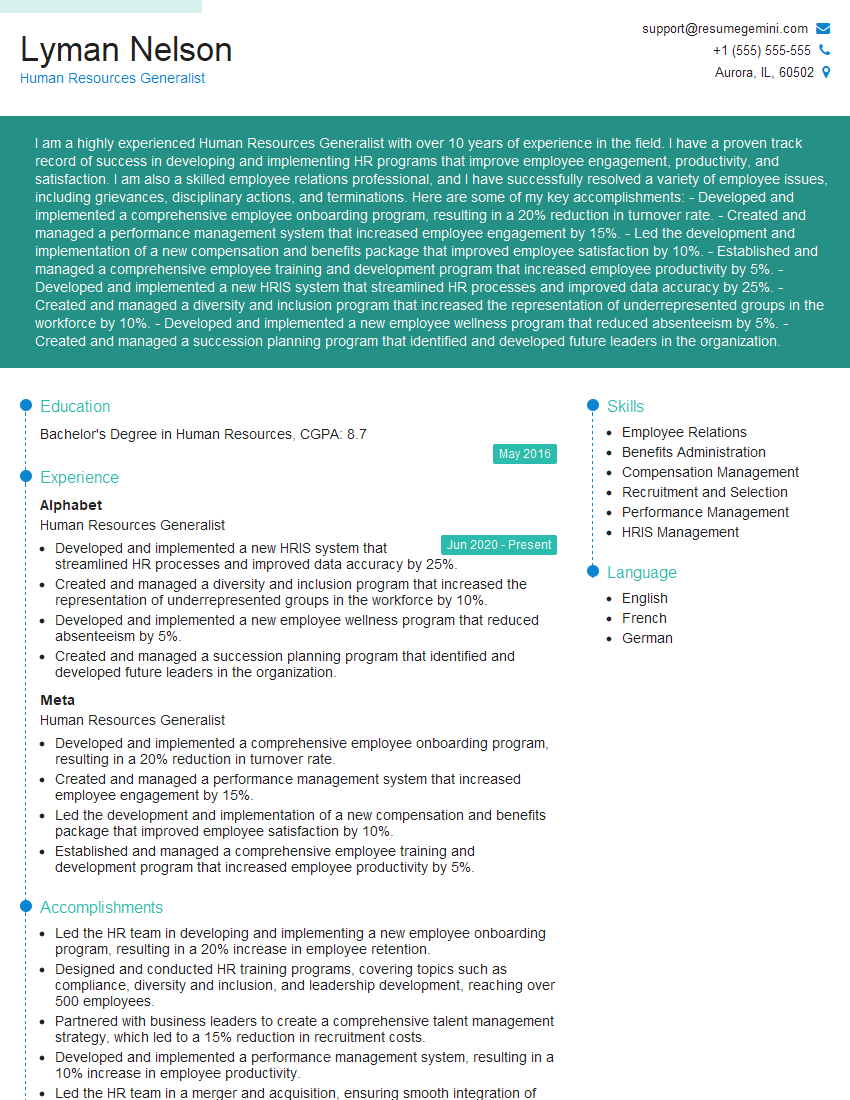
Human Resources Generalist Resume Sample

Training Specialist Resume Sample
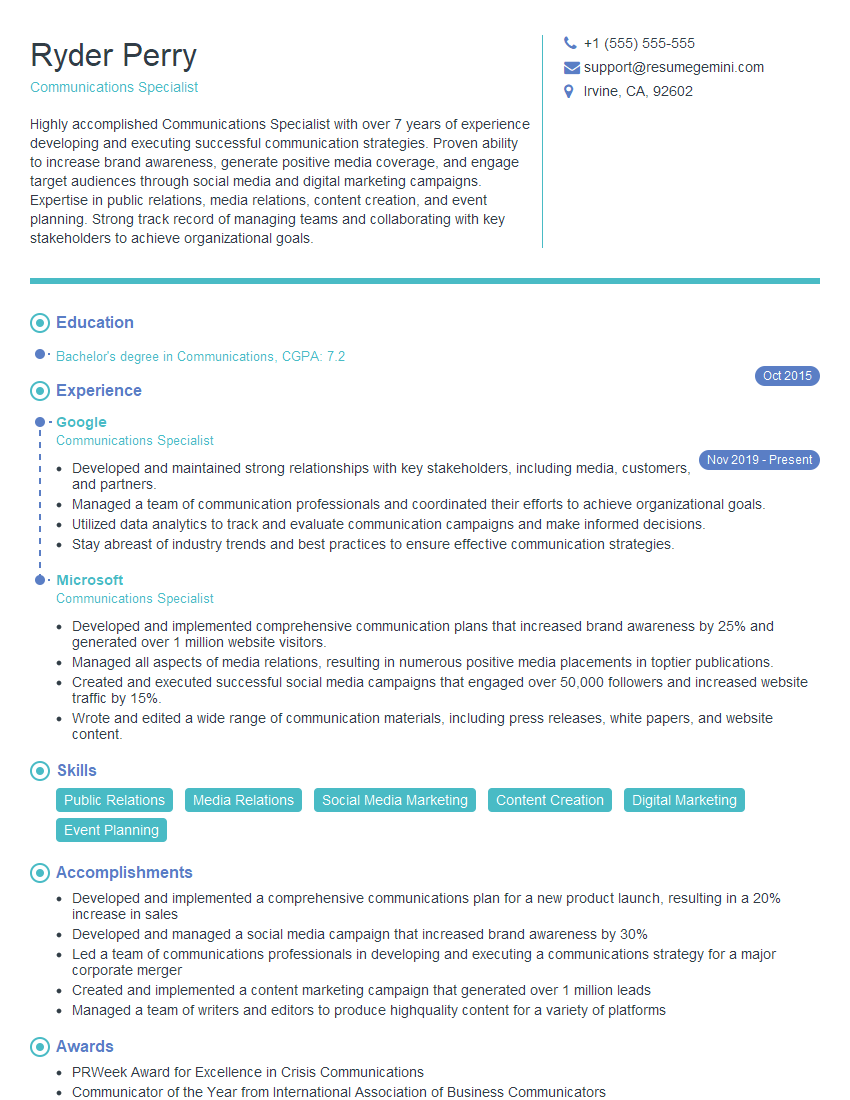
Communications Specialist Resume Sample
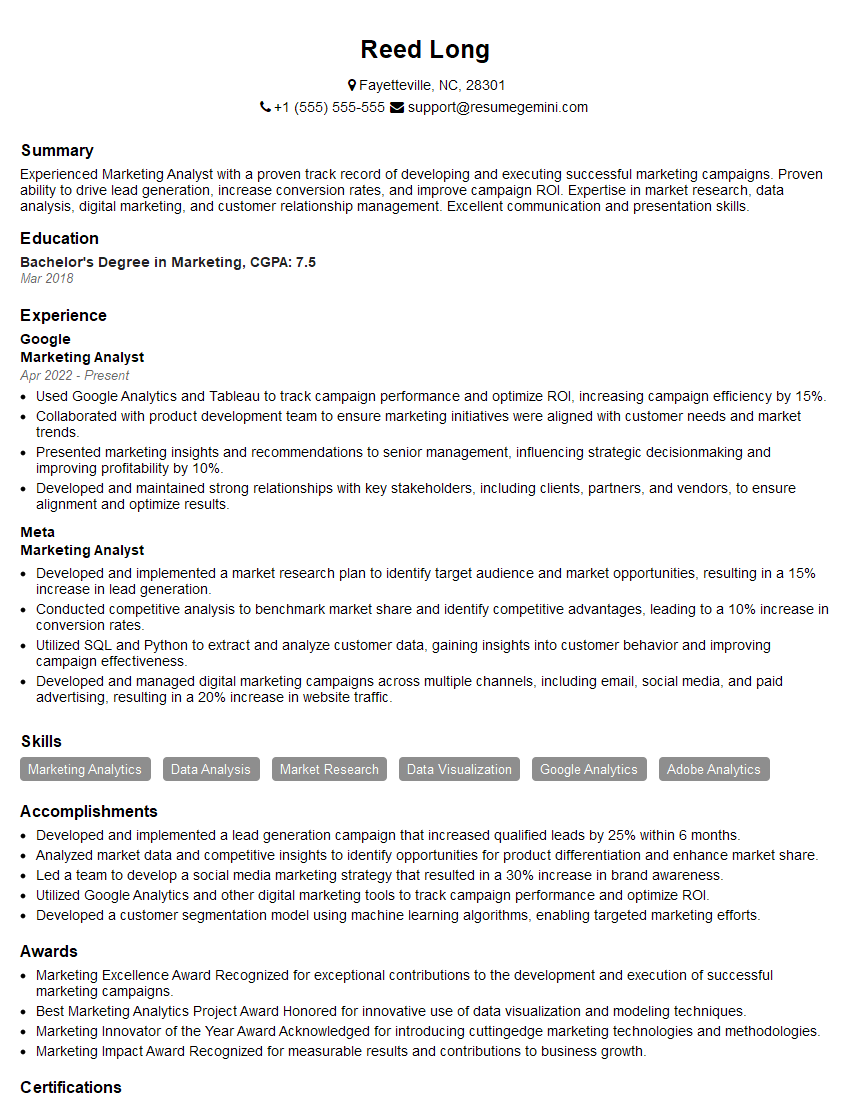
Marketing Analyst Resume Sample
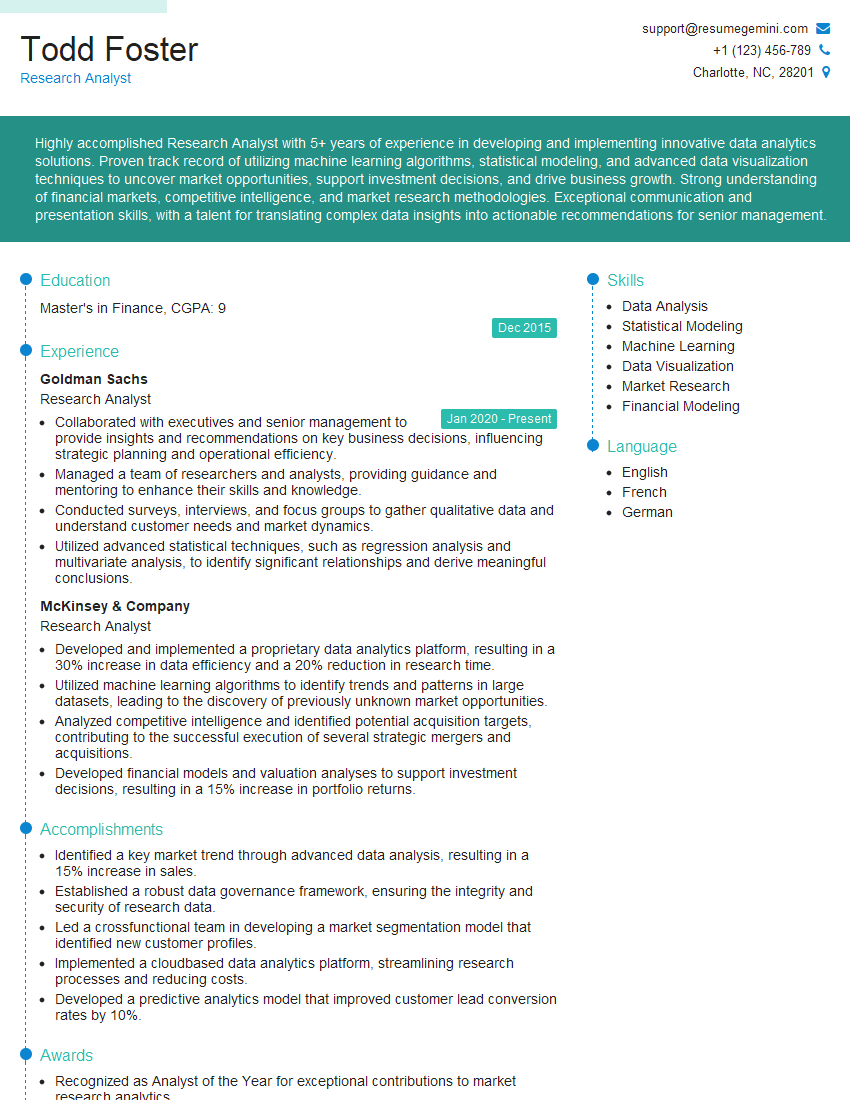
Research Analyst Resume Sample
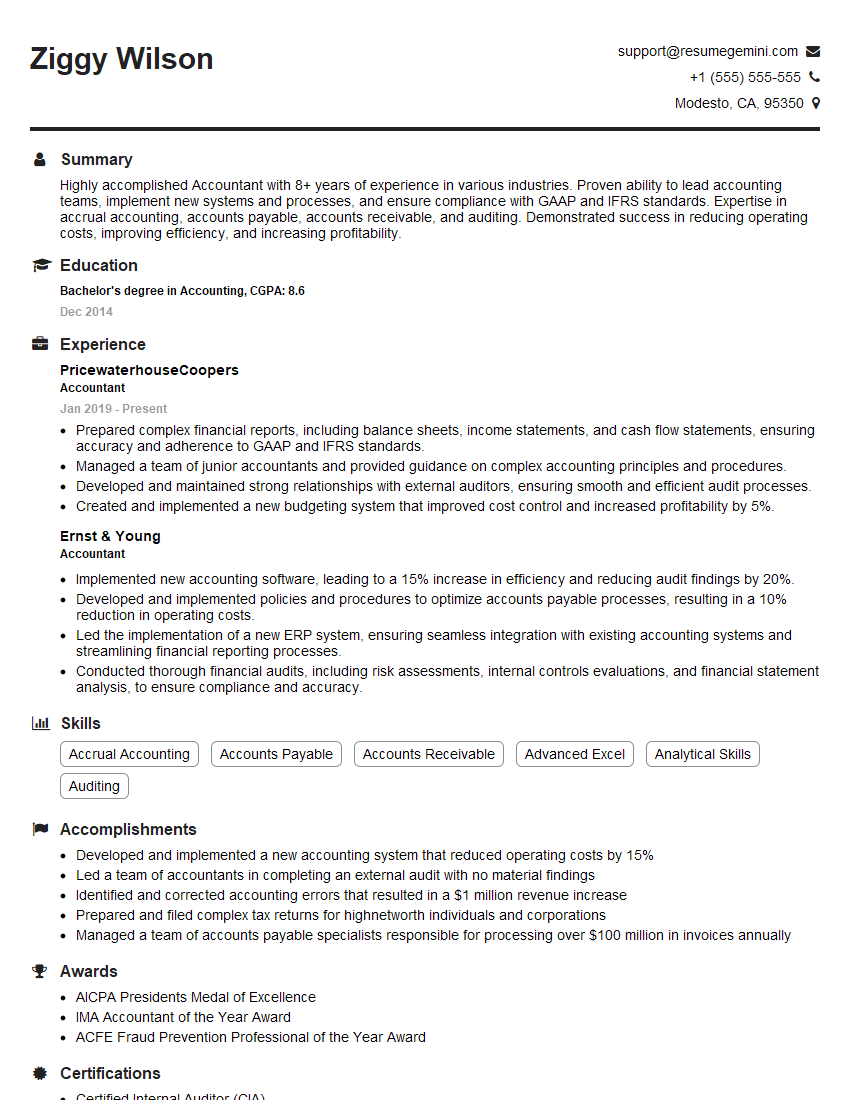
Accountant Resume Sample
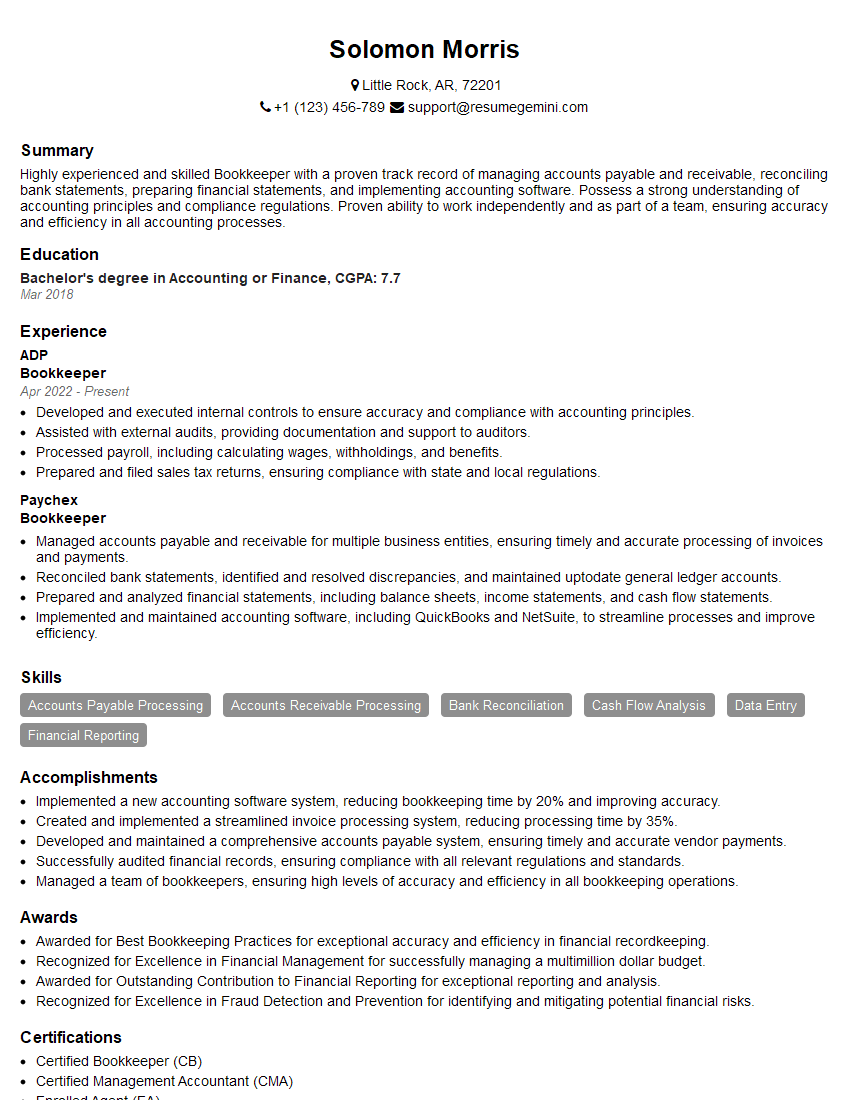
Bookkeeper Resume Sample
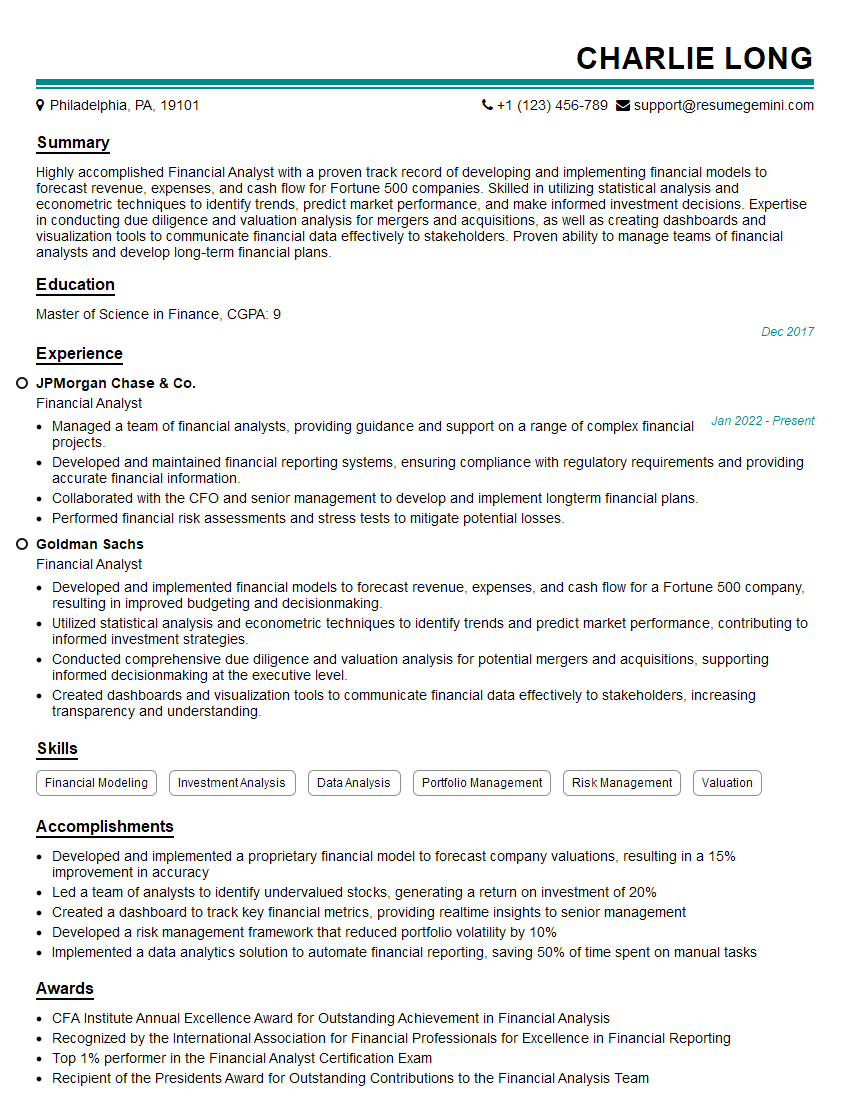
Financial Analyst Resume Sample

Data Analyst Resume Sample
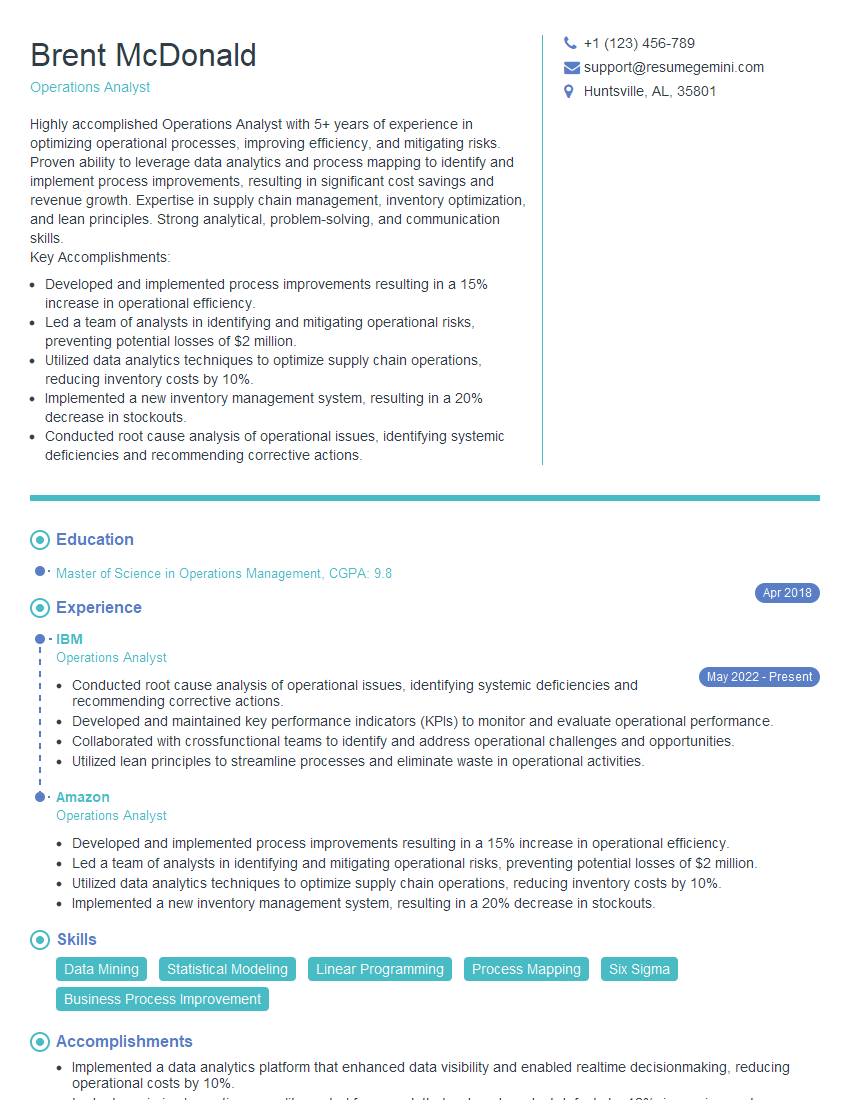
Operations Analyst Resume Sample

Executive Assistant Resume Sample
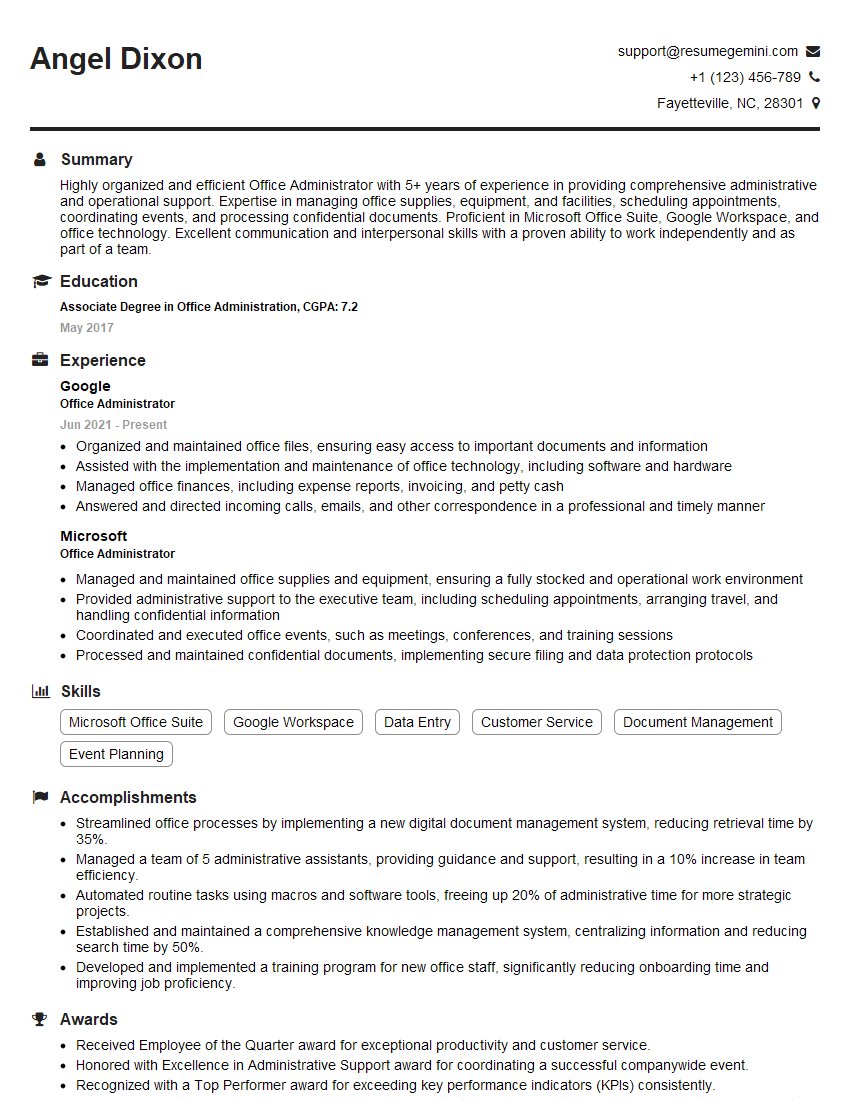
Office Administrator Resume Sample
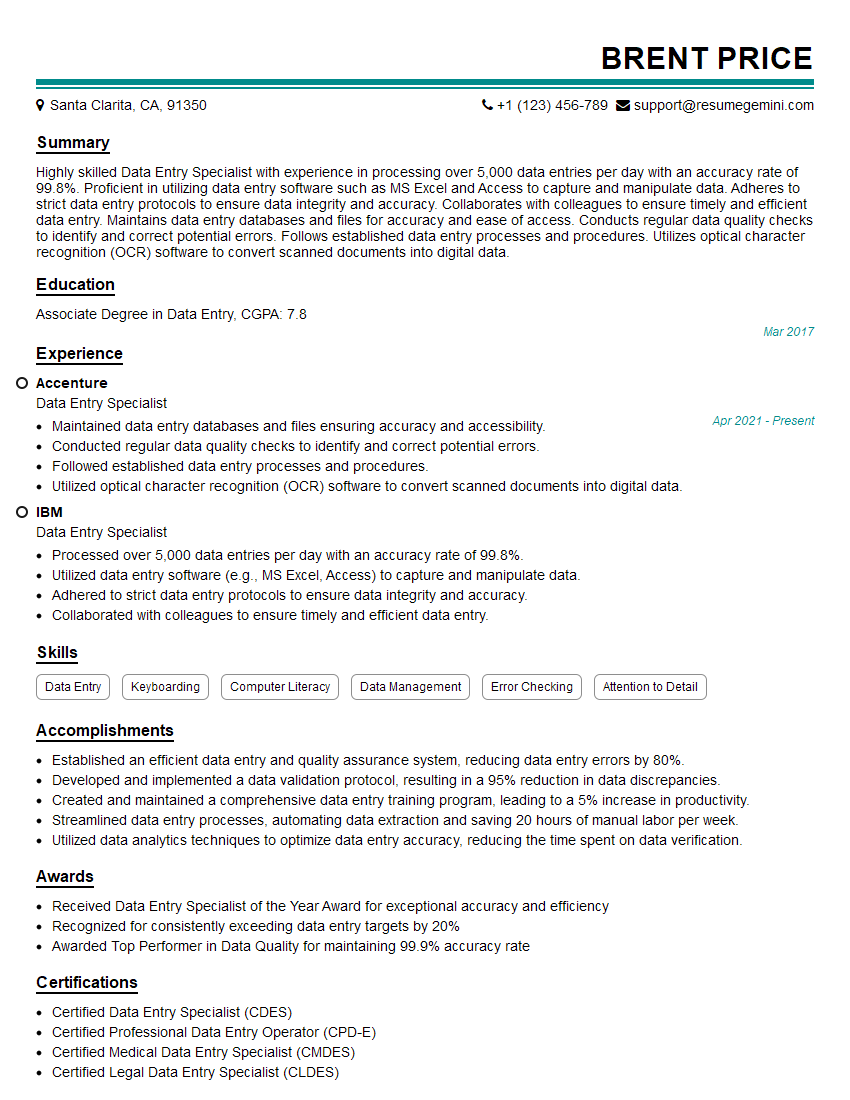
Data Entry Specialist Resume Sample
- Office Manager
- Marketing Coordinator
- Sales Coordinator
- Administrative Assistant
- Customer Service Representative
- Project Manager
- Program Coordinator
- Recruiter
- Business Analyst
- Management Consultant
- Event Planner
- Human Resources Generalist
- Training Specialist
- Communications Specialist
- Marketing Analyst
- Research Analyst
- Accountant
- Bookkeeper
- Financial Analyst
- Data Analyst
- Operations Analyst
- Executive Assistant
- Office Administrator
- Data Entry Specialist
Explore more articles
Users Rating of Our Blogs
Share Your Experience
We value your feedback! Please rate our content and share your thoughts (optional).
What Readers Say About Our Blog
Very informative content, great job.
good