Interviews are more than just a Q&A session—they’re a chance to prove your worth. This blog dives into essential Project Management Software (e.g., Jira, Asana) interview questions and expert tips to help you align your answers with what hiring managers are looking for. Start preparing to shine!
Questions Asked in Project Management Software (e.g., Jira, Asana) Interview
Q 1. Explain your experience with Jira/Asana workflows.
My experience with Jira and Asana workflows spans several years and various project types, from small agile teams to large enterprise projects. I’m proficient in configuring and customizing workflows to match specific project needs. This includes defining statuses, transitions, and screen schemes to ensure smooth task progression and clear visibility. For instance, in a recent project using Jira, I implemented a workflow with statuses like ‘To Do’, ‘In Progress’, ‘Review’, ‘Testing’, and ‘Done’, with clear transitions between them. Each status had specific permissions and automated triggers to streamline the process. With Asana, I’ve focused on leveraging their rule-based automation to move tasks between lists based on assignees, due dates, and custom fields. My experience extends to adapting workflows based on project methodology – whether it’s Scrum, Kanban, or a hybrid approach.
Q 2. How do you utilize Kanban boards in Jira/Asana?
Kanban boards are my go-to tool for visualizing workflow and managing tasks, especially in projects requiring flexibility. In both Jira and Asana, I leverage Kanban boards to represent the stages of a project. Each column represents a workflow stage (e.g., ‘Backlog’, ‘To Do’, ‘In Progress’, ‘Testing’, ‘Done’). Tasks are represented as cards, and their movement across columns visually tracks progress. I frequently use swimlanes to further categorize tasks by team member or priority. For example, in Jira, I’d create a Kanban board with swimlanes for different developers, allowing me to monitor their individual workloads and identify potential bottlenecks. In Asana, I customize the board views using custom fields and labels to further segment and filter tasks based on project phases, priorities, or other relevant criteria. The key is to keep the board visually clear and easy to understand for everyone involved.
Q 3. Describe your process for creating and assigning tasks in Jira/Asana.
My task creation and assignment process is structured for efficiency and clarity. I begin by clearly defining the task scope, including specific deliverables and acceptance criteria. In both Jira and Asana, this involves using detailed descriptions and attaching relevant documents. Then, I assign the task to the appropriate individual, considering their skills and availability. I set due dates and priorities, leveraging the built-in features of each platform. I also use labels and custom fields to add additional context, such as project phase, type of work, or priority level. For instance, in Jira, I might use a custom field called “Epic Link” to connect individual tasks to larger project initiatives. In Asana, I use sections and subtasks to break down larger tasks into manageable components. This detailed approach ensures accountability and minimizes misunderstandings.
Q 4. How do you manage dependencies between tasks in Jira/Asana?
Managing task dependencies is crucial for avoiding delays and maintaining project flow. Both Jira and Asana offer features to define these dependencies. In Jira, I use the ‘Blocker’ and ‘Blocked by’ fields to explicitly link tasks. For example, if task B cannot start until task A is complete, I’d indicate that task B is blocked by task A. This creates a visual dependency on the Kanban board and in the Gantt chart. Asana allows for a similar approach using the dependencies feature. You can visually link tasks showing what needs to be completed before other tasks can begin. This ensures the team understands the workflow and prevents starting tasks prematurely. This practice is critical for complex projects with multiple interrelated tasks.
Q 5. How do you track project progress and identify bottlenecks in Jira/Asana?
Tracking progress and identifying bottlenecks is a continuous process. I use a combination of built-in features and custom reports. In both Jira and Asana, I regularly review the Kanban boards to visually assess progress. I also leverage the built-in reporting tools to generate burndown charts, velocity charts, and other metrics that show progress against the planned schedule. For example, in Jira, I use the ‘Sprint Report’ to track the completion of sprints. In Asana, I can create custom reports to track task completion rates, identify overdue tasks, and highlight potential issues. Bottlenecks are often identified by looking at tasks that are stuck in a specific status for an extended period, or by reviewing individual team member workloads. Proactive monitoring and regular review of these metrics allow for early detection and mitigation of potential delays.
Q 6. Explain your experience with Jira/Asana reporting and dashboards.
I’ve extensive experience with Jira and Asana reporting and dashboards. These tools offer incredible flexibility for creating customized reports and dashboards that provide relevant insights into project performance. In Jira, I frequently use the built-in gadgets to create dashboards displaying burndown charts, velocity charts, and work-in-progress counts. I also create custom filters and reports to track specific metrics relevant to the project. For example, I might create a report showing the number of bugs fixed per sprint or the completion rate of specific task types. Similarly, in Asana, I leverage their reporting functionality to create custom dashboards and reports that visualize task progress, timelines, and individual contributions. The key is tailoring the reports to the specific needs of the stakeholders, ensuring they receive the information they need in a clear and concise format. This often involves creating different dashboards for different stakeholders (e.g., project manager, development team, client).
Q 7. How do you use Jira/Asana to manage sprints and iterations?
My experience with managing sprints and iterations in Jira and Asana involves utilizing their built-in Scrum and Agile features. In Jira, I configure sprints, add tasks to sprint backlogs, track progress using the sprint board (Kanban view), and conduct sprint reviews and retrospectives. I use the sprint burndown chart to visually monitor progress against the sprint goal. In Asana, while lacking the dedicated sprint functionality of Jira, I manage iterations by creating projects representing each sprint or iteration. I leverage sections within the project to represent sprint stages (planning, execution, review). I use custom fields to track sprint points, velocity, and other Agile metrics. The key in both platforms is to clearly define sprint goals, track progress transparently, and facilitate effective team communication throughout the sprint cycle. Regular stand-up meetings and sprint reviews are essential to address any roadblocks and ensure the team stays on track.
Q 8. Describe your experience with Jira/Asana’s automation features.
Jira and Asana both offer robust automation features that significantly boost team efficiency. Think of them as your project’s tireless assistants, handling repetitive tasks so your team can focus on higher-level work. My experience encompasses setting up various automations, ranging from simple to complex workflows.
Simple Automations: For example, I’ve automated the assignment of issues to specific team members based on predefined criteria like issue type or component. This ensures that tasks land in the right hands immediately, reducing delays.
Complex Automations: More advanced automations I’ve implemented include transitioning issues through statuses automatically based on due dates or custom fields. For instance, if a task’s due date passes, it automatically moves to an ‘Overdue’ status, immediately alerting the team to potential roadblocks. This often involves using the built-in automation rules or, in more complex cases, integrating with external tools through APIs (Application Programming Interfaces).
Example (Jira): Using Jira’s Automation for Jira app, I’ve configured a rule that automatically adds a comment to an issue when its status changes to ‘In Progress,’ notifying stakeholders that work has begun. This simple automation keeps everyone informed without manual intervention.
By strategically implementing these automations, I’ve witnessed a substantial reduction in manual work, minimized errors, and ensured timely project delivery.
Q 9. How do you handle changes to project scope in Jira/Asana?
Handling scope changes is a crucial aspect of project management. In Jira and Asana, I approach this by meticulously documenting and managing the changes transparently. The key is to maintain a clear audit trail and ensure all stakeholders are informed.
Formal Change Request Process: I initiate a formal change request process, documenting the proposed changes, their impact on the timeline and budget, and the required resources. This request is then reviewed and approved by relevant stakeholders, ensuring everyone is aligned.
Update Jira/Asana: I update the project plan in Jira or Asana to reflect the scope changes. This involves creating new tasks, modifying existing ones, adjusting deadlines, and updating dependencies. Visual tools like Gantt charts help visualize the impact of the changes.
Communication is Key: Open and clear communication with the team and stakeholders throughout the change management process is paramount. Regularly updating everyone on the progress and any potential delays helps maintain transparency and builds confidence.
Example: If a new feature request significantly alters the project scope, I would create a new issue in Jira, detail the changes, and schedule a meeting with the team and client to discuss the impact, necessary adjustments, and revised timelines. I would then update the project board, tasks, and dependencies to reflect this change.
Q 10. How do you prioritize tasks in Jira/Asana?
Prioritizing tasks efficiently is vital for project success. In Jira and Asana, I employ a combination of techniques based on the project’s needs and methodology.
MoSCoW Method: I often utilize the MoSCoW method (Must have, Should have, Could have, Won’t have) to categorize tasks based on their importance and feasibility. This helps to quickly identify essential tasks that need immediate attention.
Prioritization Matrix (Eisenhower Matrix): Another useful method is the Eisenhower Matrix (urgent/important), helping classify tasks based on urgency and importance. This ensures that critical tasks are tackled promptly, preventing bottlenecks.
Jira/Asana features: Both platforms offer built-in features to assist with prioritization. This includes using priority levels (e.g., High, Medium, Low) for each task, and arranging tasks within sprints or Kanban boards based on priority.
Example: In a sprint, using Jira’s priority levels, I’d mark bug fixes as high priority, followed by new feature development as medium, and documentation as low priority. This order ensures that critical issues are resolved first.
Q 11. How do you use Jira/Asana to collaborate with team members?
Collaboration is seamless in Jira and Asana. These tools offer features that facilitate smooth teamwork.
Assigning Tasks and Subtasks: I assign tasks and subtasks to the appropriate team members, ensuring accountability and clear ownership.
Commenting and In-line Discussions: I encourage active communication through commenting and inline discussions on tasks. This helps to keep everyone informed about the progress and address any questions or concerns promptly.
@Mentions: Using @mentions, I can directly notify specific individuals about important updates or requests, ensuring that critical information reaches the right people without delay.
Shared Dashboards and Reports: I leverage shared dashboards and reports to provide team members with an overview of the project’s progress, highlighting key metrics and potential roadblocks. This fosters transparency and shared understanding.
Example: If a designer needs clarification on a feature, I’d leave a comment on the task with a question and an @mention to ensure they see it. Similarly, I’d use the progress reporting features to highlight any delays to the project manager.
Q 12. How do you manage risks and issues in Jira/Asana?
Risk and issue management is crucial for project success. In Jira and Asana, I use dedicated features to identify, track, and resolve these effectively.
Issue Tracking: I use the issue tracking systems within Jira and Asana to log all identified risks and issues. This provides a centralized repository for managing these items.
Custom Fields: I often create custom fields to capture relevant information such as risk probability, impact, mitigation strategies, and assigned owners.
Workflows: I configure workflows to manage the lifecycle of risks and issues, from identification to resolution and closure. This ensures systematic tracking and follow-up.
Reporting and Dashboards: I utilize reporting and dashboard features to monitor the status of risks and issues, identifying trends and potential problems early on. This proactive approach helps prevent escalation.
Example: If a dependency on a third-party vendor is causing a delay, I’d log it as a risk in Jira, assign it an owner, outline mitigation strategies (e.g., contacting the vendor), and regularly track its status through the workflow.
Q 13. Explain your experience with Jira/Asana integrations with other tools.
Integrating Jira and Asana with other tools expands their capabilities and enhances overall workflow efficiency. My experience includes various integrations, boosting productivity and data synchronization.
Examples (Jira): I’ve integrated Jira with tools like Slack for notifications, Bitbucket for code management, and Confluence for documentation. These integrations streamline communication and ensure all information resides in a central, accessible location.
Examples (Asana): Asana integrates well with tools like Google Drive for file sharing, Gmail for email notifications, and various calendar applications. These integrations simplify collaboration and reduce context switching between applications.
API Usage: For more customized integrations, I have experience leveraging APIs to connect Jira and Asana with other platforms, creating custom solutions tailored to specific needs. This is useful for integrating with niche or custom-built applications.
Benefits: These integrations save significant time and effort, reducing manual data entry and improving data consistency across tools. They create a more unified and efficient workflow for the entire team.
Q 14. How do you use Jira/Asana to track time spent on tasks?
Tracking time spent on tasks is essential for accurate project estimations, resource allocation, and billing purposes. Both Jira and Asana offer time tracking capabilities, either natively or through integrations.
Native Time Tracking: Many users leverage the built-in time tracking functionality in both platforms. This involves manually logging the time spent on each task.
Integrations with Time Tracking Apps: For more comprehensive time tracking, integrations with dedicated time tracking software like Tempo Timesheets (Jira) or Toggl Track provide more detailed features and reporting.
Accuracy and Discipline: Regardless of the chosen method, consistent and accurate time tracking is key. Regularly logging time helps maintain an up-to-date record, improving project estimations for future projects and enhancing reporting accuracy.
Example: Using Tempo Timesheets in Jira, I log my time spent on each task, providing detailed descriptions of the work undertaken. This data provides valuable insights into task durations and resource allocation, informing future project planning.
Q 15. Describe your experience with custom fields in Jira/Asana.
Custom fields in Jira and Asana are incredibly powerful tools that allow you to tailor the software to your specific project needs. Essentially, they let you add extra data points beyond the standard fields provided. Think of them as adding extra columns to a spreadsheet to track information relevant to your team.
In Jira: I’ve extensively used custom fields to track things like ‘Client Priority,’ ‘Marketing Campaign,’ or even a ‘Risk Assessment Score’ for different tasks. For example, if we’re working on multiple client projects simultaneously, a ‘Client Priority’ custom field helps us prioritize tasks based on contractual deadlines or client importance. The field can be configured as a text field, a dropdown (for pre-defined options), a number field, or even a date picker.
In Asana: Similar functionality is available. I’ve used custom fields to track things like ‘Budget Allocated,’ ‘Completion Percentage,’ or ‘Assigned Designer.’ The benefit here is that you can filter, group, and report on this data, improving visibility and project management. For example, the ‘Budget Allocated’ field helps us maintain accurate financial oversight of individual projects and tasks within Asana itself. Asana also allows you to create custom fields that link to other data, making it seamless to pull in relevant information from other systems.
Custom fields aren’t just for adding data; they can enhance workflow efficiency by automating actions. You can configure rules and automations triggered by changes in custom fields, leading to streamlined processes.
Career Expert Tips:
- Ace those interviews! Prepare effectively by reviewing the Top 50 Most Common Interview Questions on ResumeGemini.
- Navigate your job search with confidence! Explore a wide range of Career Tips on ResumeGemini. Learn about common challenges and recommendations to overcome them.
- Craft the perfect resume! Master the Art of Resume Writing with ResumeGemini’s guide. Showcase your unique qualifications and achievements effectively.
- Don’t miss out on holiday savings! Build your dream resume with ResumeGemini’s ATS optimized templates.
Q 16. How do you use Jira/Asana to manage different project types?
Both Jira and Asana are flexible enough to handle various project types. The key is understanding their strengths and adapting your approach.
- Agile Projects (Jira shines here): For Scrum or Kanban projects, Jira’s built-in features like sprints, boards, and burndown charts are invaluable. I leverage Jira’s issue tracking system extensively and customize workflows to precisely match our agile methodology. We create specific boards for each sprint, and each task represents a user story.
- Waterfall Projects (Both can manage, but with different approaches): While not as native, Asana and Jira can support Waterfall projects. In Asana, I often use lists and sections to represent different phases. In Jira, we might use a custom workflow to map out the different stages of a Waterfall project, focusing on issue status transitions.
- Marketing Campaigns (Asana is often favored): For complex marketing campaigns involving multiple teams and timelines, Asana’s visual representation is quite helpful. We create project templates with custom fields to track campaign performance metrics and deadlines.
Regardless of the project type, I always focus on establishing clear workflows, assigning roles, and using appropriate visualization techniques for optimal project management within the selected platform. A well-defined project structure within the chosen tool ensures effective organization and task management.
Q 17. How do you ensure data accuracy and consistency in Jira/Asana?
Maintaining data accuracy and consistency is paramount. Here’s my approach:
- Defined Fields and Data Types: Using consistent field names and data types (e.g., always using a date picker for due dates) ensures uniformity. I often create templates to enforce this consistency. This ensures that all team members are inputting data in the same format.
- Clear Naming Conventions: Employing clear and concise naming conventions for projects, tasks, and issues prevents confusion and improves searchability.
- Validation Rules (Where Available): Both Jira and Asana allow for the creation of validation rules to ensure data integrity. For example, you can set a rule that requires a task to have a due date before it can be marked as complete.
- Regular Data Audits: Periodically auditing data helps catch discrepancies and errors early on. This might involve reviewing reports or exporting data to a spreadsheet for comparison.
- Training and Documentation: Thorough training on proper data entry procedures and comprehensive documentation are crucial to ensure all team members understand the standards.
Think of it like a well-organized library—without a clear system, it’s impossible to find information quickly and accurately.
Q 18. Explain your experience with Jira/Asana’s permissions and access control.
Permissions and access control are vital for security and maintaining project integrity. I’ve worked extensively with both Jira and Asana’s permission systems to manage access levels based on roles and responsibilities.
Jira: Jira offers granular control through roles (Administrators, Developers, Reporters, etc.) and permissions assigned to those roles. For instance, I can restrict certain users from editing specific projects or viewing confidential information. I carefully tailor permissions to ensure that only authorized personnel have access to sensitive data.
Asana: Asana provides similar functionalities using projects, teams, and different access levels. I often organize projects into teams and assign different access levels—such as ‘viewer,’ ‘editor,’ or ‘owner’—to individuals based on their roles and needs.
Implementing strong access control not only safeguards sensitive information but also improves team accountability and collaboration. It’s crucial to regularly review and update permissions as team structures and project requirements evolve.
Q 19. How do you handle conflicts between team members using Jira/Asana?
Conflicts are inevitable in team environments. Jira and Asana provide mechanisms to address them effectively:
- Open Communication: I encourage open communication and encourage team members to use the tools to discuss issues and differing opinions. Comments on tasks and issues are fantastic for this purpose.
- Clear Task Assignments and Responsibilities: Clearly defined roles and responsibilities minimize ambiguity and the potential for conflicts. The tools themselves help ensure that everyone knows who’s responsible for what.
- Version Control (Where applicable): If appropriate, I encourage the use of version control within documents. This allows for tracking changes and helps resolve conflicting edits.
- Escalation Procedures: For unresolved conflicts, I’ve established clear escalation procedures so that disagreements can be addressed by more senior team members.
- Regular Team Meetings: Regular team meetings—often leveraging the project information in the tools—facilitate open communication and proactive conflict resolution. A quick review of a project’s progress often highlights potential conflicts before they escalate.
The key is to use the tools not only for task management but also as a platform for communication and collaboration. Using comments within the platform keeps everything transparent and readily accessible for all stakeholders.
Q 20. How do you use Jira/Asana to track project budget?
Tracking project budgets directly within Jira and Asana requires some creativity as they aren’t dedicated financial management tools. I’ve used a combination of techniques:
- Custom Fields: Creating custom fields for ‘Budget,’ ‘Expenses,’ and ‘Remaining Budget’ allows for basic budget tracking within the platform. This requires manual data entry, but keeps the financial information tied to the tasks themselves.
- Integrations: Integrating with dedicated financial management software can automate more complex budget tracking. Many third-party integrations are available.
- Reporting: Creating custom reports in Jira and Asana that pull budget information from custom fields provides an overview of financial performance.
- Time Tracking Integrations: Integrating with time tracking tools helps in estimating project costs based on actual time spent, linking the hours worked to specific budget lines.
While not a perfect solution, this multi-faceted approach allows for sufficient budget oversight within the context of project management, using these tools as a support mechanism rather than the sole budget management system.
Q 21. Describe your experience with Jira/Asana’s search functionality.
Both Jira and Asana have robust search functionalities. I rely heavily on these features to quickly find information:
Jira’s JQL (Jira Query Language): JQL allows for powerful and highly customized searches. I often use JQL to find issues based on assignee, status, priority, due date, and custom fields. For example, assignee = currentUser() AND status = 'In Progress' returns all my in-progress issues. More complex queries can be used to filter data effectively.
Asana’s Search Functionality: Asana’s search is more intuitive for basic searches, but it’s not as powerful as JQL. I typically use Asana’s search for quick lookups of tasks, projects, or conversations based on keywords.
Mastering the search capabilities within these tools is essential for efficient project management. I regularly use these search functions to quickly find information, track progress, and investigate issues, saving significant time and effort.
Q 22. How do you use Jira/Asana for sprint planning?
Sprint planning in Jira or Asana involves defining the tasks and goals for an upcoming sprint (typically 2-4 weeks). I typically start by reviewing the product backlog, which is a prioritized list of features or user stories. We then estimate the effort required for each task, often using story points (a relative measure of complexity) or hours. In Jira, this is done within the Sprint Backlog after creating a new sprint. Asana uses sections within a project to manage sprints.
Example (Jira): We’d select tasks from the product backlog and drag and drop them into the current sprint’s backlog. Each task gets assigned to a team member, a due date, and any relevant dependencies are noted. The sprint goal is clearly defined to ensure everyone is aligned. Jira’s built-in sprint planning board provides a visual representation of the tasks, helping us to quickly identify potential bottlenecks or capacity issues.
Example (Asana): In Asana, we’d create sections within a project for each sprint. Tasks are added to these sections, assigned, and given due dates. We use custom fields to track story points or effort estimates and Asana’s timeline view to visualize dependencies and progress.
Q 23. How do you use Jira/Asana for daily stand-ups?
Daily stand-ups are short, focused meetings (typically 15 minutes) where the team synchronizes their work. In both Jira and Asana, I leverage the task management features to prepare and facilitate these meetings. Before the stand-up, I review each team member’s tasks and progress from the previous day.
Example (Jira): We utilize Jira’s issue view to quickly see the status of each team member’s tasks. During the stand-up, each person answers three questions: What did I do yesterday? What am I doing today? Are there any impediments? This information is then used to identify and resolve any roadblocks or dependencies.
Example (Asana): In Asana, we use the task comments section to document our daily updates. Each team member updates their assigned tasks with their progress, and any roadblocks are noted in the comments. This creates a central record of what was discussed during the stand-up, providing a useful reference for later review.
While not directly integrated into daily stand-up tools, I often use a shared document or whiteboard to supplement and capture visual progress details.
Q 24. How familiar are you with Jira/Asana’s API?
I’m proficient in using both Jira and Asana APIs. I’ve used the Jira REST API for automating tasks like creating issues, updating statuses, and generating custom reports. I’ve also used Asana’s API for similar tasks, integrating with other tools and building custom integrations to streamline our workflows.
Example (Jira API): I’ve written scripts to automatically transition issues to different statuses based on certain conditions (e.g., automatically moving issues to ‘Done’ after a code review is completed).
Example (Asana API): I’ve developed integrations that automatically create Asana tasks from other systems, such as our incident management system, ensuring seamless tracking and notification.
My experience encompasses building custom tools that leverage these APIs for reporting, automation, and data analysis. This includes using scripting languages like Python and JavaScript with relevant API libraries.
Q 25. Describe your experience using Jira/Asana for reporting to stakeholders.
Reporting to stakeholders requires clear and concise communication. Both Jira and Asana offer various reporting capabilities; however, for more complex or customized reporting, I often leverage their APIs. I tailor my reports to the stakeholders’ needs and preferences.
Example: For executive-level reports, I might focus on high-level metrics like sprint velocity, burn-down charts (both easily generated in Jira and Asana), and overall project progress. For more technical stakeholders, I might provide more detailed reports on individual task completion, bug fixes, or code quality. Using the APIs, I can pull data, generate custom visuals, and create automated reports that are delivered on a regular schedule.
Beyond automated reports, I also utilize Jira and Asana’s built-in dashboards to showcase real-time progress visually. These dashboards provide a snapshot of the project’s current state and help to facilitate quick discussions during stakeholder meetings.
Q 26. How would you train a new team member on using Jira/Asana?
Training a new team member involves a phased approach combining hands-on experience with theoretical knowledge. I start with an overview of the chosen platform (Jira or Asana), explaining its purpose and core functionalities. Then, I move to a practical demonstration, guiding them through creating projects, tasks, and assigning them.
Step-by-step approach:
- Introduction: Explain the platform’s purpose and benefits within our workflow.
- Guided Tour: Show them how to navigate the interface, explaining key features such as dashboards, projects, tasks, and subtasks.
- Hands-on Practice: Create a sample project together, covering task creation, assignment, due dates, and status updates.
- Advanced Features: Introduce more complex features (like custom fields, workflows, automation rules) as they become relevant.
- Ongoing Support: Provide continued mentorship and answer any questions they might have.
I also provide written documentation and links to helpful resources to allow for self-paced learning. Throughout the training, I encourage active participation and real-world application of the skills learned. Regular check-ins ensure they are comfortable and proficient in using the tool.
Q 27. What are the limitations of Jira/Asana, and how have you overcome them?
Both Jira and Asana, while powerful, have limitations. One common limitation is the complexity that can arise with large or highly complex projects. This can lead to difficulty in navigating and managing numerous tasks and dependencies. Another challenge is the steep learning curve for some users, particularly those unfamiliar with agile methodologies.
Overcoming limitations:
- Custom Fields and Workflows: We use custom fields to add relevant information to tasks and create workflows to automate transitions and approvals. This helps to improve organization and reduce manual work.
- Templates and Best Practices: Utilizing templates helps standardize project creation and improves consistency, reducing the complexity of managing similar projects.
- Regular Reviews and Refinement: We periodically review our project setup and adjust our processes to ensure efficiency. This might involve streamlining workflows or adjusting task assignments to better reflect the team’s structure.
- Integration with other tools: Using APIs to integrate with other tools, such as communication platforms or testing frameworks, improves efficiency and reduces context switching.
The key is to adapt and optimize the use of the platform to best suit the team’s size, needs and project complexity.
Q 28. Compare and contrast Jira and Asana. When would you choose one over the other?
Jira and Asana are both popular project management tools, but they cater to different needs. Jira is primarily designed for software development teams following agile methodologies, while Asana is more versatile and suitable for a broader range of projects and teams.
Jira Strengths: Strong issue tracking, agile board support (Kanban, Scrum), advanced customization options, robust API, excellent integration with development tools.
Asana Strengths: User-friendly interface, simple task management, excellent collaboration features, good for non-software projects, more intuitive for beginners.
When to Choose Jira: When you need a dedicated tool for agile software development with advanced features for bug tracking, sprint management, and detailed reporting. It shines in complex software development environments.
When to Choose Asana: When you need a more general-purpose tool for managing various types of projects, with a focus on ease of use and collaboration. It’s a good choice for smaller teams or projects with less emphasis on intricate software development processes.
The best choice depends heavily on the project’s nature, team size, and required features. If you’re in software development, Jira is usually the better choice. If you’re managing a more general project, Asana often fits better.
Key Topics to Learn for Project Management Software (e.g., Jira, Asana) Interview
- Project Creation and Configuration: Understand how to create projects, define workflows, and customize settings within the chosen software (Jira/Asana). Consider different project types and their appropriate configurations.
- Task Management and Assignment: Master the process of creating, assigning, prioritizing, and tracking tasks. Practice utilizing features like dependencies, subtasks, and due dates effectively.
- Issue Tracking and Resolution: Learn how to effectively log, categorize, and resolve issues, utilizing relevant fields and statuses. Understand different issue resolution workflows and best practices.
- Reporting and Analytics: Explore the various reporting capabilities to track project progress, identify bottlenecks, and measure team performance. Know how to generate insightful reports and interpret key metrics.
- Collaboration and Communication: Familiarize yourself with features that facilitate collaboration, such as comments, notifications, and @mentions. Understand how to use these features effectively for team communication.
- Agile Methodologies (if applicable): If the role involves Agile methodologies, understand how the software supports Scrum or Kanban, including sprints, boards, and backlog management.
- Customization and Integrations: Explore the possibilities of customizing the software to fit specific team needs and integrating it with other tools. This demonstrates adaptability and a broader understanding of the software’s capabilities.
- Data Security and Access Control: Understand the implications of user permissions and how to maintain data security within the chosen project management software.
Next Steps
Mastering Project Management Software like Jira and Asana is crucial for career advancement in today’s collaborative work environment. These tools are essential for efficient project execution and demonstrate your ability to manage complex tasks and teams. To significantly boost your job prospects, focus on creating an ATS-friendly resume that highlights your skills and experience effectively. ResumeGemini is a trusted resource that can help you build a professional and impactful resume tailored to your specific experience with project management software. Examples of resumes tailored to Jira and Asana are available within ResumeGemini to help you craft the perfect application.
Program Manager Resume Sample
Product Manager Resume Sample
Software Project Manager Resume Sample
Quality Assurance Manager Resume Sample
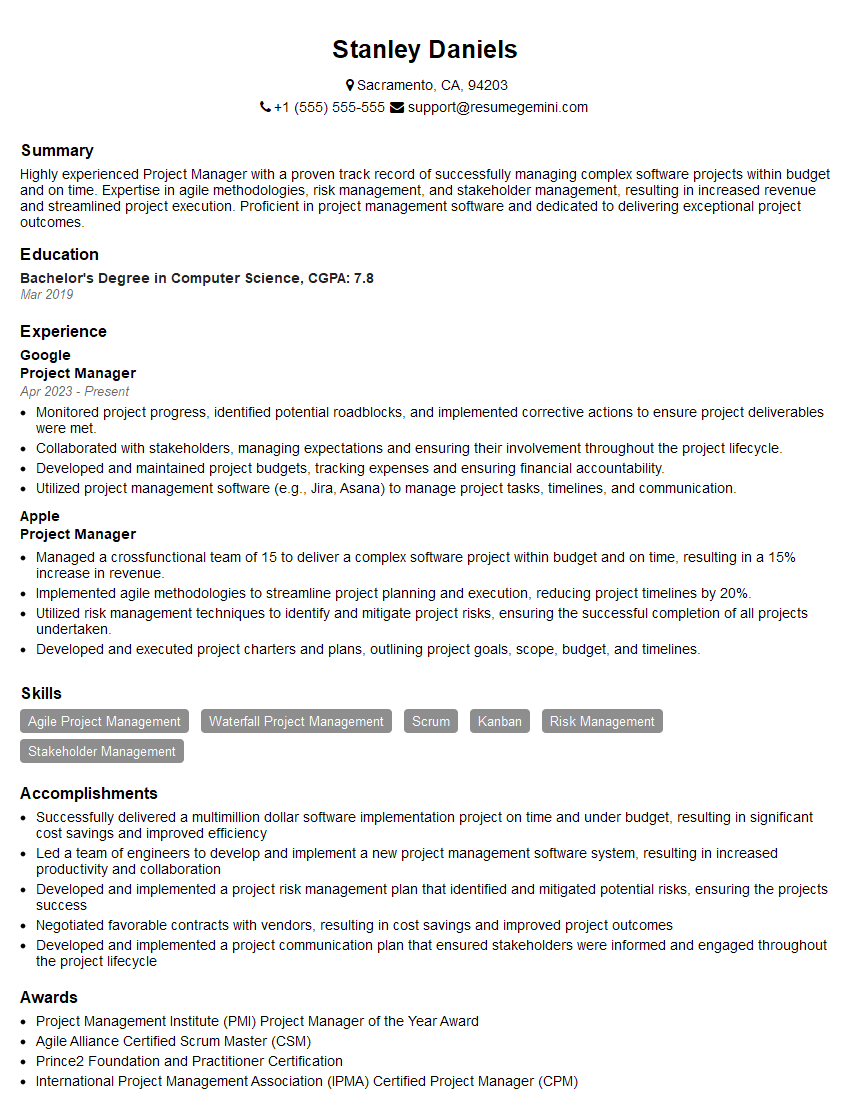
Project Manager Resume Sample
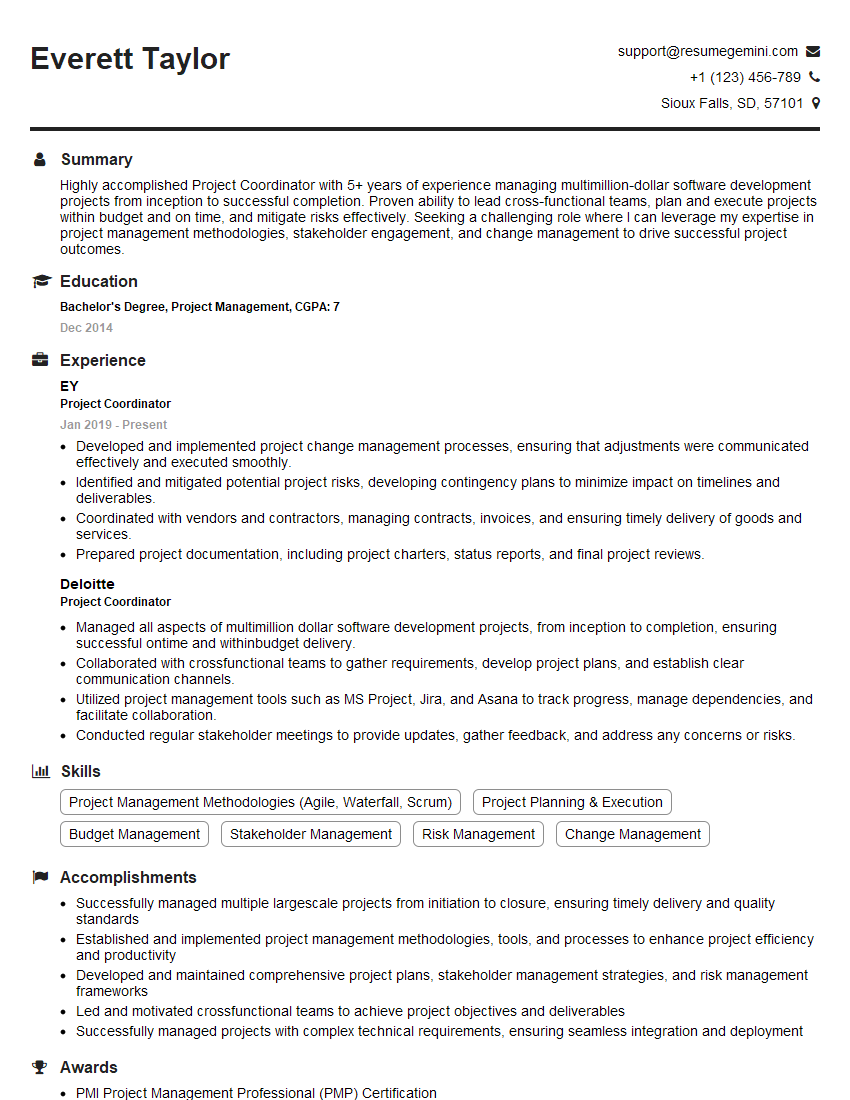
Project Coordinator Resume Sample
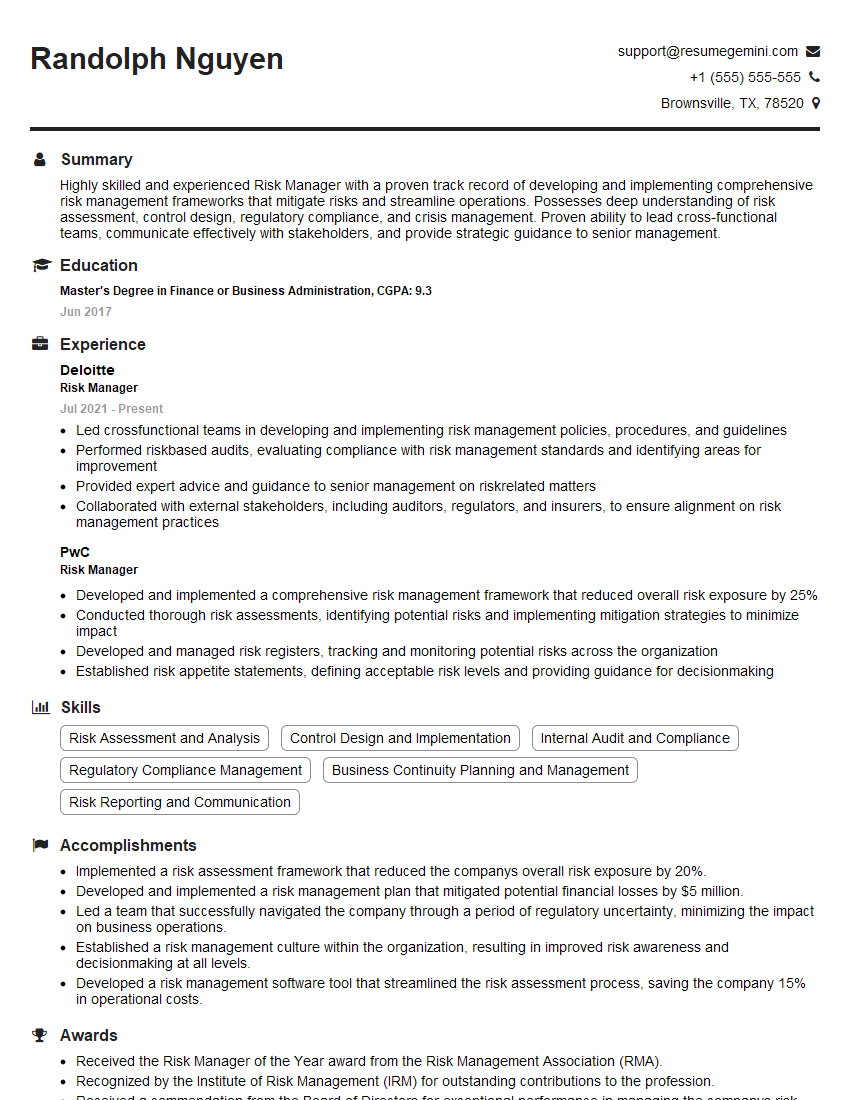
Risk Manager Resume Sample
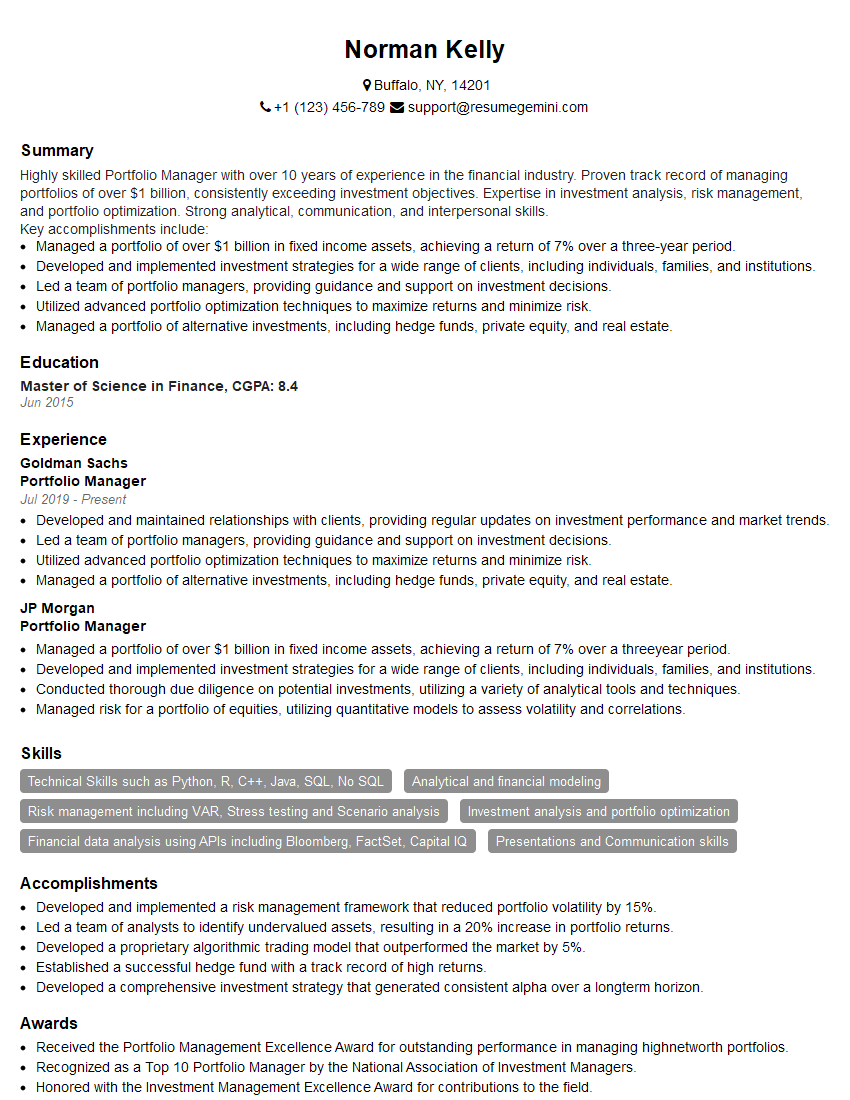
Portfolio Manager Resume Sample

Business Analyst Resume Sample
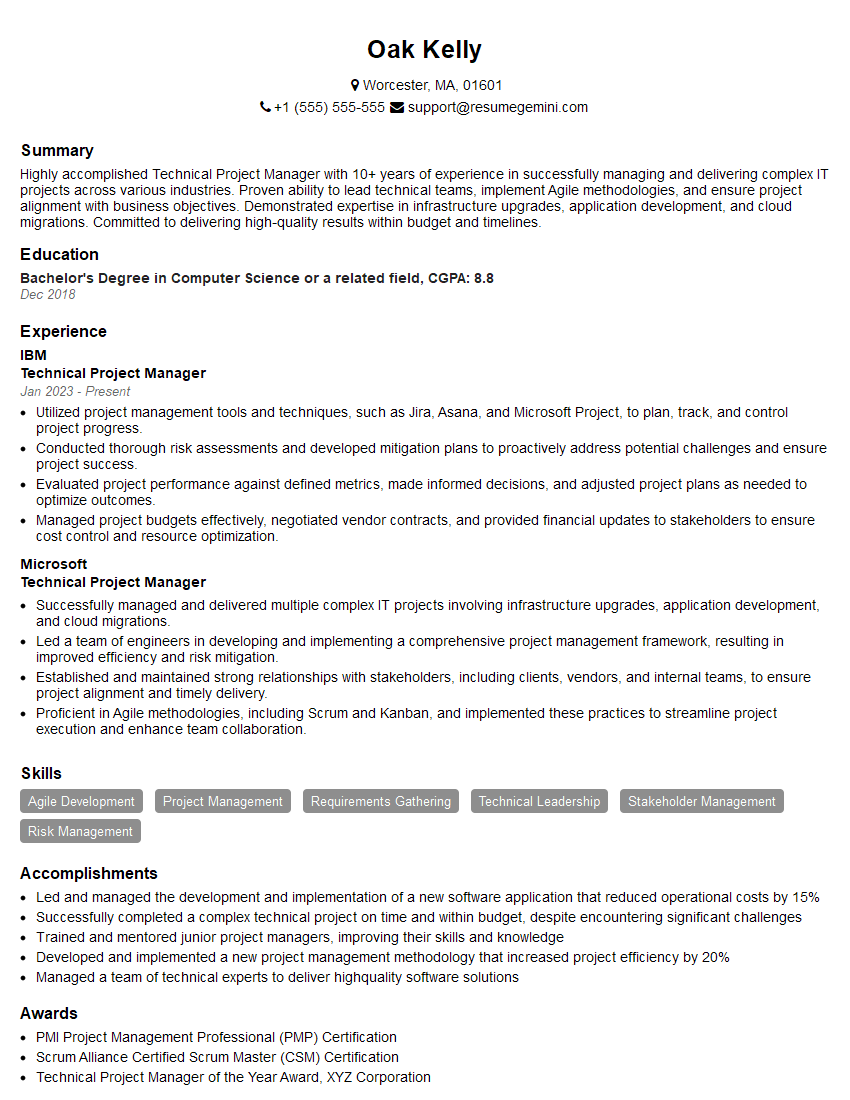
Technical Project Manager Resume Sample
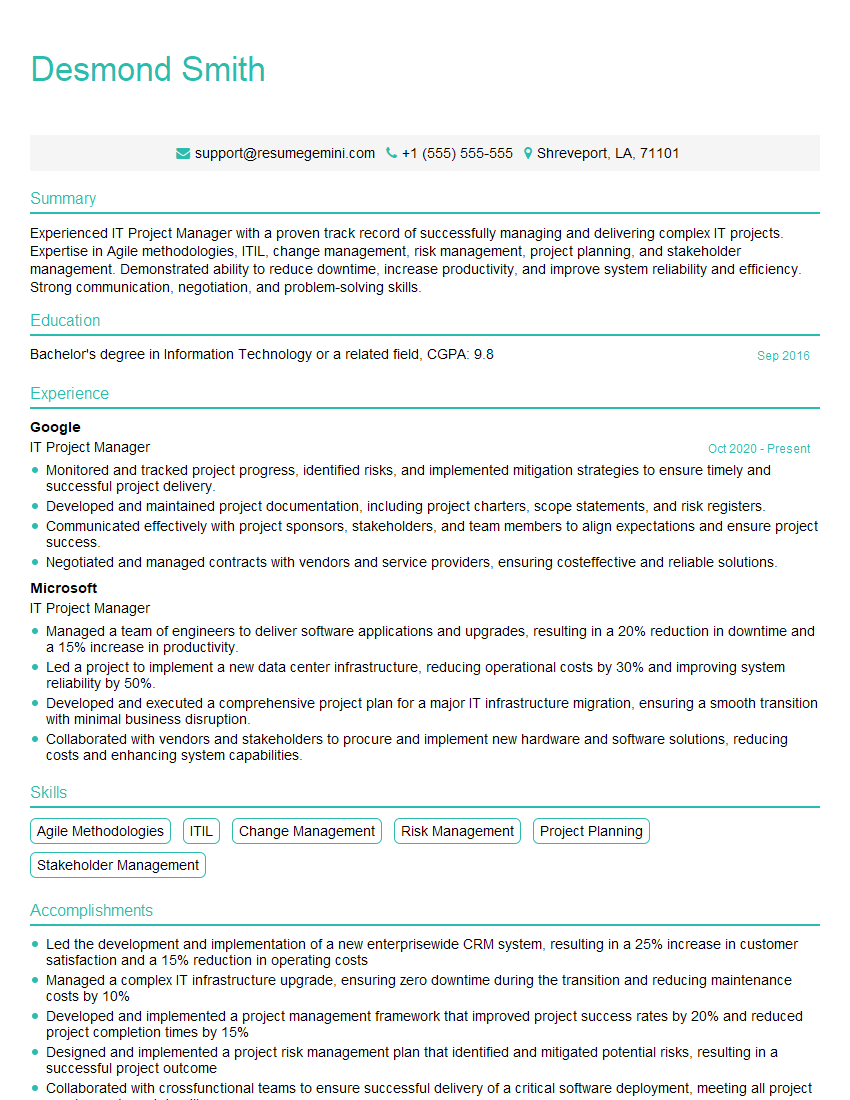
IT Project Manager Resume Sample
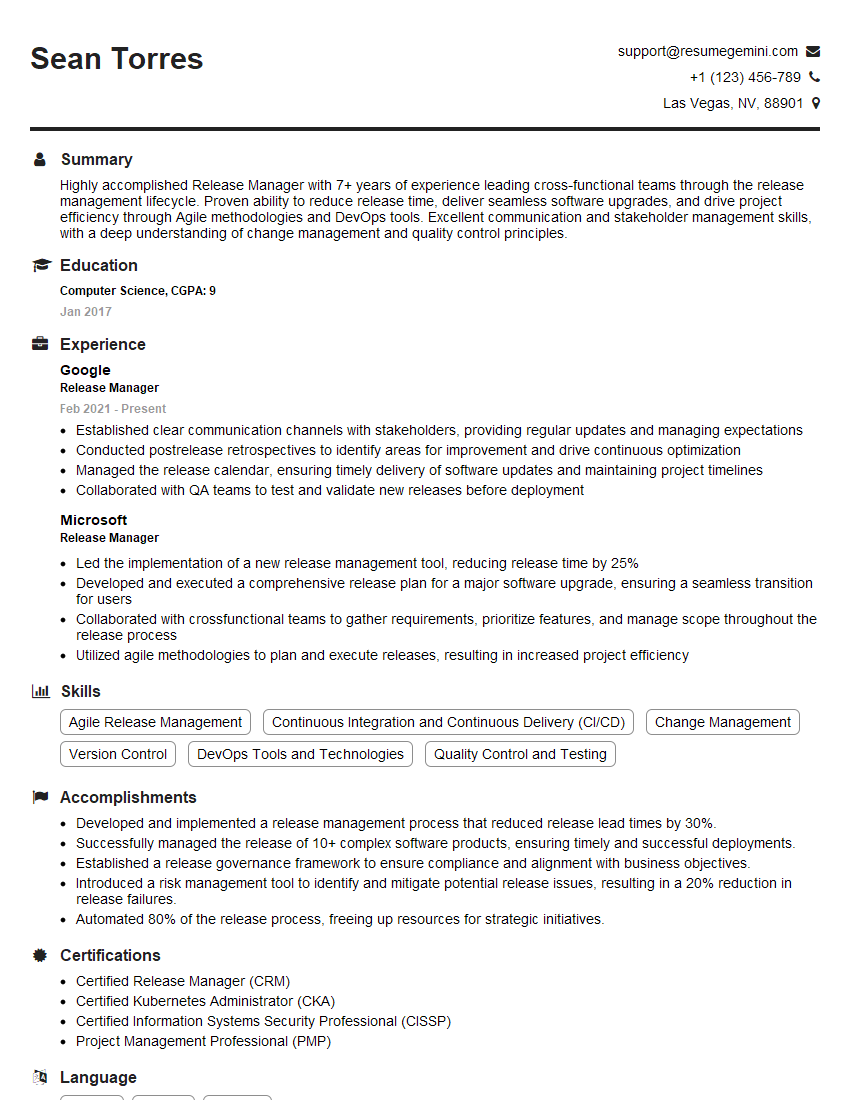
Release Manager Resume Sample
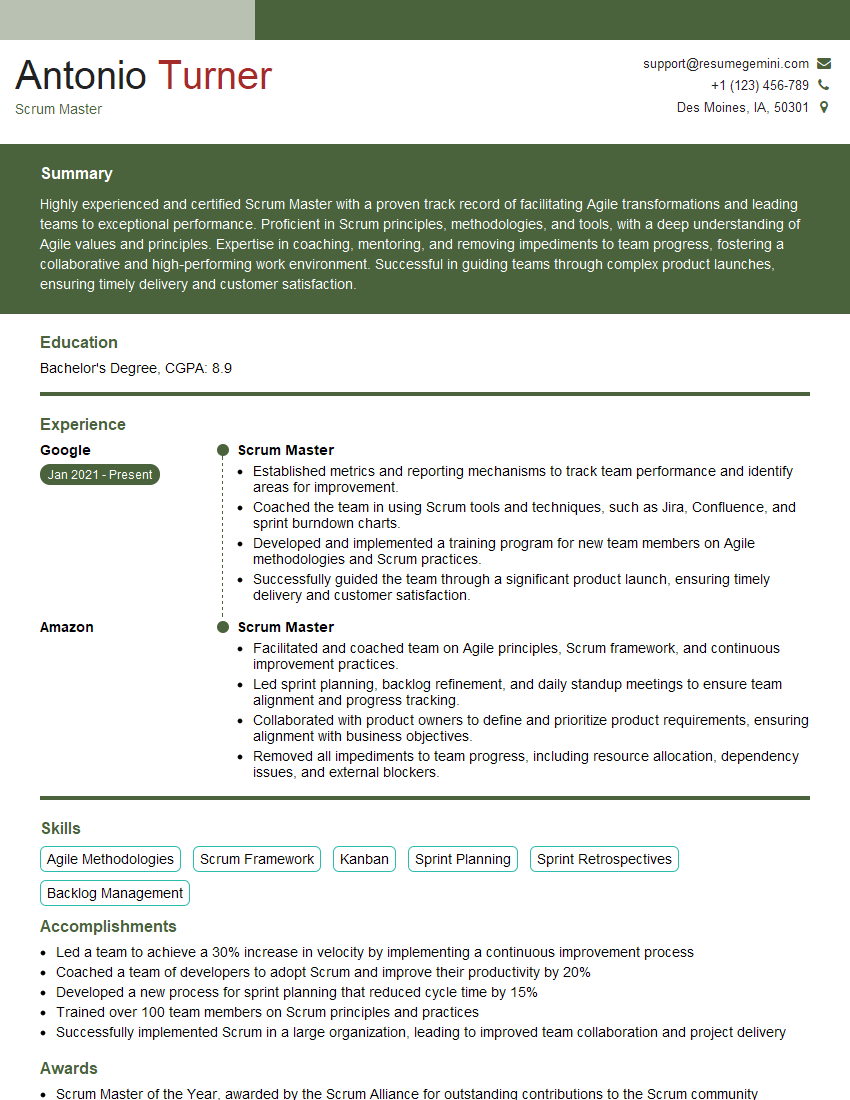
Scrum Master Resume Sample
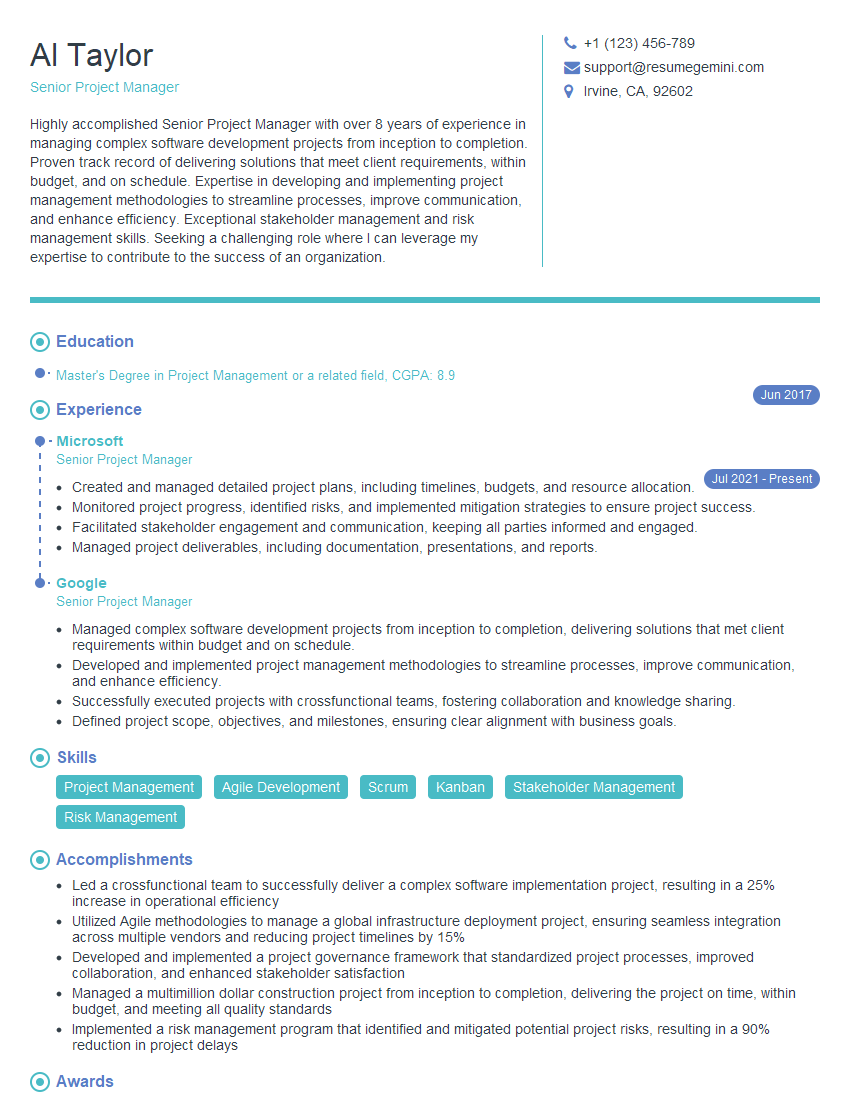
Senior Project Manager Resume Sample

DevOps Engineer Resume Sample
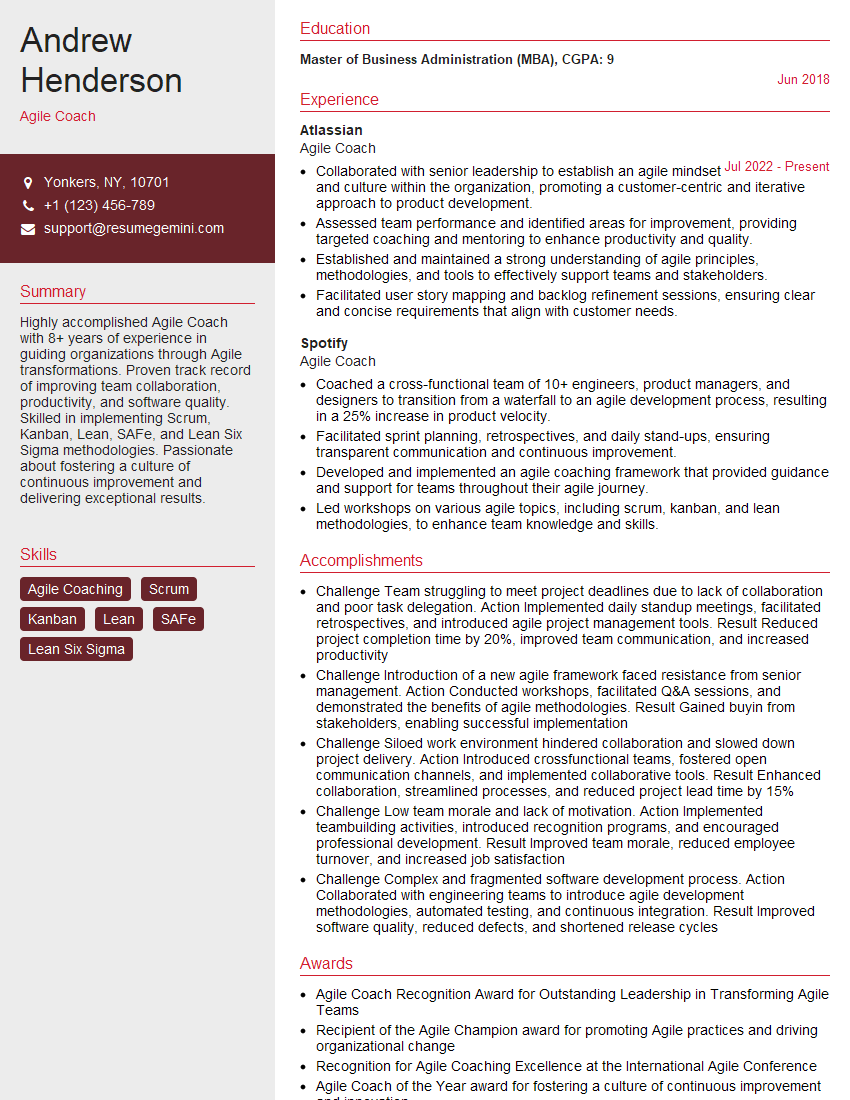
Agile Coach Resume Sample
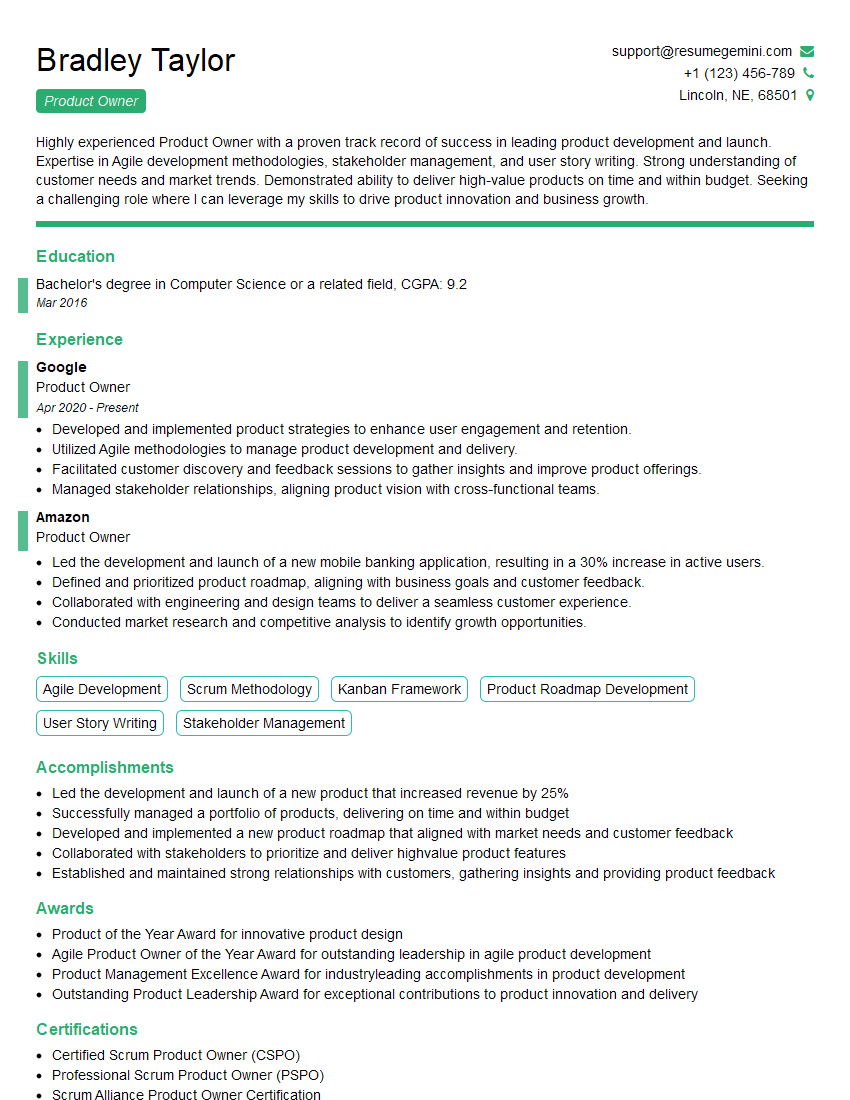
Product Owner Resume Sample
- Program Manager
- Product Manager
- Software Project Manager
- Quality Assurance Manager
- Project Manager
- Project Coordinator
- Risk Manager
- Portfolio Manager
- Business Analyst
- Technical Project Manager
- IT Project Manager
- Release Manager
- Scrum Master
- Senior Project Manager
- DevOps Engineer
- Agile Coach
- Product Owner
Explore more articles
Users Rating of Our Blogs
Share Your Experience
We value your feedback! Please rate our content and share your thoughts (optional).
What Readers Say About Our Blog
Very informative content, great job.
good