Cracking a skill-specific interview, like one for Software: Adobe Illustrator, CorelDRAW, AutoCad, requires understanding the nuances of the role. In this blog, we present the questions you’re most likely to encounter, along with insights into how to answer them effectively. Let’s ensure you’re ready to make a strong impression.
Questions Asked in Software: Adobe Illustrator, CorelDRAW, AutoCad Interview
Q 1. Explain the difference between raster and vector graphics.
Raster and vector graphics represent images fundamentally differently. Raster graphics, like JPEGs and PNGs, are composed of a grid of pixels. Each pixel has a specific color, and changing the image size alters the pixel count, often resulting in a blurry or pixelated effect. Think of it like a mosaic – changing the size changes the individual tile size.
Vector graphics, used in Illustrator and CorelDRAW, are defined by mathematical equations that describe lines, curves, and shapes. Because they are mathematical representations, they can be scaled to any size without losing quality. Imagine it like an architect’s blueprint; you can enlarge it indefinitely without losing detail. This makes vectors ideal for logos, illustrations, and designs that need to be resized repeatedly.
- Raster Example: A photograph.
- Vector Example: A company logo.
Q 2. Describe your experience using the pen tool in Adobe Illustrator.
The pen tool in Illustrator is my most frequently used tool. I’ve mastered its nuances over years of practice, creating everything from intricate line art to complex, smooth curves. My experience goes beyond simply clicking points; I understand the subtleties of controlling anchor points and handles to precisely manipulate curves and create clean, professional artwork. I often use the pen tool in conjunction with keyboard shortcuts for speed and precision, such as holding down the Alt key (Option on Mac) to convert anchor points and modify curve handles independently.
For example, when creating a smooth curve, I carefully adjust the handles extending from each anchor point to ensure a seamless transition. I also frequently use the Direct Selection Tool (A) to fine-tune individual anchor points and curves after they’ve been created, making iterative adjustments until the lines are exactly as intended. This iterative approach, coupled with my intimate knowledge of path editing, allows me to generate intricate illustrations with a high level of accuracy.
Q 3. How do you manage layers effectively in Illustrator?
Effective layer management is crucial for large and complex illustrations. My approach involves a clear naming convention – descriptive names make it easy to find and manage layers. I group related elements into layers and sub-layers, making it straightforward to edit and manipulate components without affecting others. This is especially vital for collaborative projects.
I often use color-coding to visually distinguish different elements within the layers panel. For instance, I might use blue for line art, green for fills, and red for text elements. This aids quick identification and visual clarity. I also frequently use layer masks to selectively hide or reveal portions of a layer, offering precise control without deleting any work. Finally, regularly saving my progress is paramount to prevent potential data loss, ensuring seamless workflow, even if the file needs to be reopened after a lengthy break.
Q 4. What are some common keyboard shortcuts you use in Illustrator?
Keyboard shortcuts drastically increase my efficiency in Illustrator. Some of my most used include:
V: Selection ToolA: Direct Selection ToolP: Pen ToolM: Rectangle ToolL: Line Segment ToolCtrl+Z(Cmd+Zon Mac): UndoCtrl+S(Cmd+Son Mac): Save[and]: Adjust stroke weight
Beyond these, I also use numerous modifier keys and combinations in conjunction with these tools. My proficiency in keyboard shortcuts allows for a fluid and fast workflow, saving me significant time on complex projects.
Q 5. Explain your workflow for creating a complex illustration in Illustrator.
My workflow for complex illustrations begins with thorough planning and sketching. I start with low-resolution sketches to define the composition, perspective, and overall design. Then, I meticulously create vector outlines using the pen tool in Illustrator. This stage focuses on precision and accuracy, establishing the foundational shapes and lines.
Next, I create separate layers for colors and textures, applying gradients and patterns to add depth and visual interest. I use layer masking to achieve precise control over color blending and transitions. Throughout the process, I regularly save my progress in multiple file formats and leverage Illustrator’s powerful layer management and grouping functions to remain organized and efficient. I refine elements using the Direct Selection Tool and maintain a consistent naming convention throughout my layers, enhancing flexibility when making changes or corrections.
Q 6. Describe your experience using CorelDRAW’s interactive tools.
CorelDRAW’s interactive tools are intuitive and efficient. I particularly appreciate the Shape Tool, which offers excellent control over freehand drawing and shape manipulation, allowing for organic design elements. The Knife tool enables precise splitting and sectioning of objects, providing great flexibility for creating intricate designs. The interactive blend tool is particularly useful for creating seamless transitions between shapes and objects, offering a significant time-saving compared to manual methods. I’ve used these tools extensively in various projects, creating logos, brochures, and illustrations, all benefiting from CorelDRAW’s interactive capabilities.
One specific example involves creating a complex logo that blended several shapes and colors. CorelDRAW’s interactive tools allowed me to seamlessly combine these elements, adjusting their blending, opacity, and positioning interactively, much more efficiently than would be possible using other software.
Q 7. How do you create and manage styles in CorelDRAW?
Managing styles in CorelDRAW is crucial for maintaining consistency and efficiency across a project. I create styles for text, lines, fills, and objects. This ensures that any changes to a style are instantly reflected across all elements using that style. For example, I might create a style for headings, body text, and captions, each with its specific font, size, and color, ensuring a unified visual identity. Similar styles are developed for lines and fills.
CorelDRAW’s style management tools allow for easy organization and editing of these styles, saving considerable time and effort. Changes to a style are propagated across the document automatically, maintaining a cohesive look and feel throughout. This is particularly important for larger projects or those requiring consistent branding across multiple design elements.
Q 8. How do you handle color management in CorelDRAW?
Color management in CorelDRAW is crucial for ensuring consistent color across different devices and print outputs. CorelDRAW utilizes ICC profiles (International Color Consortium profiles) to define how colors are interpreted and rendered. These profiles act like translators, mapping the colors on your screen or in your design to the specific capabilities of your printer or output device.
Here’s how I handle it:
- Setting up the Document Profile: Before I start designing, I always select the appropriate ICC profile for my target output (e.g., ‘US Web Coated (SWOP) v2’ for web, or a specific printer profile provided by the printing company). This is usually found in the ‘Color Management’ settings within CorelDRAW’s document properties. This ensures colors are interpreted correctly from the beginning.
- Working in CMYK or RGB: I use CMYK (Cyan, Magenta, Yellow, and Key [Black]) for print projects and RGB (Red, Green, and Blue) for screen projects. Switching between these modes is done seamlessly within CorelDRAW, but it’s essential to be aware of the color shift that can occur during conversion.
- Proofing: I regularly use CorelDRAW’s proofing capabilities to simulate how my design will appear on the target device. This includes on-screen soft proofing (viewing colors through the assigned ICC profile) and, if possible, a hard proof on a similar printer before final print to catch any unforeseen color discrepancies.
- Color Consistency: When importing images, I always make sure they’re embedded with their ICC profile. If they are not, I assign the correct profile to ensure consistency across all elements within the document.
By meticulously managing color profiles throughout the design process, I can significantly reduce color variations and guarantee that the final printed product matches my on-screen design accurately.
Q 9. What are some techniques for optimizing CorelDRAW files for print?
Optimizing CorelDRAW files for print focuses on minimizing file size without compromising image quality to ensure efficient printing and reduce printing costs. This involves several techniques:
- Reduce the Number of Objects: The more objects in your file, the larger it becomes and the longer it takes to print. Grouping similar elements and simplifying complex designs where possible improves efficiency.
- Rasterize When Necessary: Complex vector graphics can significantly increase file size. Converting them to raster images (JPEG, PNG, TIFF) when appropriate, especially for images that don’t need vector editing, will reduce file size.
- Optimize Images: Use high-resolution images only where necessary. Compress images appropriately before importing them into CorelDRAW. Aim for the minimum resolution that maintains visual quality; unnecessary resolution significantly increases file size.
- Use Outline Fonts: To avoid font issues, convert all fonts to outlines before sending to print. This ensures that the printer has the correct font information and prevents missing font problems.
- Embed or Link Images: Embedding images increases the file size but ensures they are always included with the design. Linking images reduces the file size but means the image files need to be available when the design is printed. The best choice depends on workflow and file management preferences.
- Check for Overlapping Objects: Overlapping objects can create unnecessary complexity and increase file size. Ensure that objects are properly aligned and merged if possible.
- Flatten the File (with caution): In some cases, flattening the layers into a single layer can significantly decrease file size. However, this makes further editing difficult, so it’s best used for final versions.
I typically follow these steps as a workflow, balancing file size reduction with the need for design fidelity. The key is to find the right balance depending on the project requirements.
Q 10. Describe your experience working with different file formats in CorelDRAW.
My experience with various file formats in CorelDRAW is extensive. CorelDRAW excels at handling its native CDR format, offering lossless preservation of all vector elements, layers, and effects. However, the real world demands interaction with many other formats.
- AI (Adobe Illustrator): CorelDRAW imports and exports AI files effectively, though subtle differences in handling effects may require occasional manual adjustments. I’ve often used this for collaborative projects with designers using Illustrator.
- PDF (Portable Document Format): PDF is my go-to format for client presentations and final print-ready files. CorelDRAW supports various PDF export settings allowing control over compression, embedding fonts and images, and compatibility with different PDF viewers.
- EPS (Encapsulated PostScript): This is a valuable format for integrating vector graphics into other applications. CorelDRAW seamlessly manages EPS import and export, often used when working with legacy design assets or exchanging files with older software versions.
- JPG, PNG, TIFF (Raster Formats): These formats are important for incorporating raster images. CorelDRAW handles these well, allowing for considerable control over image import settings such as resolution and color profiles. I will choose the appropriate format based on image quality requirements and file size considerations.
- DXF (Drawing Exchange Format): When collaborating with AutoCAD users, DXF becomes crucial. I regularly import and export DXF files for exchanging 2D design elements.
Understanding the strengths and limitations of each format and choosing the appropriate one for the task is key to efficient workflow. For example, I wouldn’t use a JPG for a design requiring precise lines and curves, instead I’d favor vector formats like AI or CDR.
Q 11. What are the key differences between 2D and 3D modeling in AutoCAD?
The core difference between 2D and 3D modeling in AutoCAD lies in the dimensionality of the objects you create.
- 2D Modeling: Works with lines, arcs, circles, and other planar shapes defined in two dimensions (X and Y). Think of it like drawing on a piece of paper. You create shapes that have length and width but no depth. 2D drawings are suitable for floor plans, elevations, and detailed technical illustrations.
- 3D Modeling: Introduces the third dimension (Z), allowing the creation of solid models with volume and mass. This allows for creating realistic representations of objects, with depth, height, and width. 3D modeling is used for creating complex parts, buildings, and 3D-printable models. AutoCAD offers several 3D modeling techniques like solid modeling, surface modeling, and mesh modeling.
In essence, 2D is a representation on a plane, while 3D simulates a real-world object in all its dimensions. I have experience using both, switching between them depending on the project needs. A building project might start with 2D floor plans and then evolve into 3D models for visualization and analysis.
Q 12. Explain your experience using AutoCAD’s drawing tools.
AutoCAD’s drawing tools are the foundation of its functionality, and I am proficient in using a wide range of them. My experience includes:
- Line, Arc, Circle, and Polyline Tools: These are the fundamental tools for creating basic shapes. I’m comfortable using these to create precise drawings, understanding the nuances of object snaps and constraints to ensure accuracy.
- Modify Tools: Tools like trim, extend, offset, mirror, and array are essential for manipulating and modifying existing geometry. My proficiency in these tools allows me to efficiently create complex drawings from simpler shapes.
- Dimensioning Tools: Accurately placing dimensions is critical. I’m experienced in using AutoCAD’s dimensioning tools to create clear and precise dimensions, ensuring readability and compliance with drawing standards.
- Hatching Tools: Hatching is used to fill areas with patterns. I use these tools to add visual clarity and enhance the presentation of drawings.
- Text and Annotation Tools: Adding text and annotations is essential for documentation. I know how to create and position text and annotations correctly, ensuring readability and clarity.
For instance, during a recent project designing a custom shelving unit, I used the array tool to efficiently create multiple shelves from a single unit. The accuracy provided by AutoCAD’s tools ensured that the final design was dimensionally perfect.
Q 13. How do you create and manage layers in AutoCAD?
Layers in AutoCAD are fundamental for organizing and managing complex drawings. They allow you to group related objects, control visibility, and manage plotting settings.
- Creating Layers: New layers can be created using the layer properties manager or shortcut commands. I typically name layers descriptively (e.g., ‘Walls,’ ‘Doors,’ ‘Plumbing’) to improve organization.
- Layer Properties: Each layer has properties that control its appearance (color, linetype, lineweight) and plotting characteristics (whether it’s plotted or frozen). This allows selective control over the visualization and printing of specific elements.
- Layer Visibility and Freezing: Layers can be turned on or off (visible or invisible) for selectively hiding or showing elements. Freezing a layer makes it invisible and prevents it from being selected, improving performance when working with large, complex drawings.
- Layer States: AutoCAD allows saving and restoring layer states to quickly switch between different views of the drawing. This is particularly useful when working on designs with many layers.
- Layer Ordering: The order of layers affects which objects are displayed on top. I make sure to order layers logically, ensuring that objects are displayed correctly in the drawing.
A recent project involved designing a complex electrical layout. By using separate layers for wiring, outlets, and circuit breakers, I could easily manage and modify individual components without affecting others. This significantly sped up the design process and reduced errors.
Q 14. How do you work with blocks and xrefs in AutoCAD?
Blocks and xrefs are powerful tools in AutoCAD for reusability and collaboration.
- Blocks: Blocks are groups of objects saved as a single unit. They can be inserted multiple times in a drawing without affecting each other. Creating and using blocks ensures consistency and reduces redundancy. Think of it like a reusable stamp. If you are drawing a standard door, you’d create it as a block and then insert it whenever you need a door in your drawing.
- Xrefs (External References): Xrefs link external drawings into your current drawing. Any changes made to the xref file are automatically reflected in the main drawing. This is extremely useful for teamwork, where different team members work on different parts of a project. For example, one team might work on architectural drawings, another on MEP (Mechanical, Electrical, and Plumbing) drawings. These could be linked as xrefs into a single master drawing.
- Managing Blocks and Xrefs: The Block Editor allows modification of block definitions, while the External References palette helps manage xref files (attaching, detaching, reloading, and updating).
- Nested Blocks and Xrefs: It is possible to nest blocks within blocks and even link xrefs into block definitions, adding further levels of organization and modularity. However, this can lead to complexity, so a careful approach is needed to maintain design integrity.
For a large architectural project, I used xrefs extensively to link different architectural, structural, and MEP drawings. This enabled seamless collaboration among team members and ensured that all drawings remained consistent and synchronized.
Q 15. Explain your experience using AutoCAD’s dimensioning tools.
AutoCAD’s dimensioning tools are crucial for creating precise and accurate technical drawings. They allow you to add dimensions to your objects, clearly indicating their sizes and locations. The process involves selecting the objects you want to dimension and then choosing the appropriate dimensioning command from the ribbon or toolbar. AutoCAD offers a wide variety of dimension styles, including linear, angular, radial, and diameter dimensions, each tailored for specific measurement needs.
For instance, to create a linear dimension, you would select the LINEAR dimension command, then click on two points to define the dimension line’s location. You can then customize the appearance of the dimension, such as text size, arrowheads, and precision. I frequently use different dimension styles to maintain consistency and clarity throughout a project, perhaps using a larger font size for overall dimensions and a smaller one for detailed measurements. Mastering these tools is essential for creating drawings that are both visually appealing and technically accurate; mistakes in dimensioning can have serious consequences in manufacturing or construction projects.
Beyond the basic commands, I’m proficient in using advanced dimensioning features like creating ordinate dimensions for precise coordinate referencing, or using the dimension override options to manage text placement and formatting individually. This control is vital for creating clean and understandable drawings, especially in complex assemblies.
Career Expert Tips:
- Ace those interviews! Prepare effectively by reviewing the Top 50 Most Common Interview Questions on ResumeGemini.
- Navigate your job search with confidence! Explore a wide range of Career Tips on ResumeGemini. Learn about common challenges and recommendations to overcome them.
- Craft the perfect resume! Master the Art of Resume Writing with ResumeGemini’s guide. Showcase your unique qualifications and achievements effectively.
- Don’t miss out on holiday savings! Build your dream resume with ResumeGemini’s ATS optimized templates.
Q 16. How do you create and modify text styles in AutoCAD?
Creating and modifying text styles in AutoCAD is fundamental for maintaining consistency and readability in your drawings. You can define text styles by specifying font, size, height, width factor, and other attributes. These styles can then be applied to any text within the drawing, ensuring uniform appearance throughout the project.
To create a new text style, you access the TEXT STYLE manager (usually found under the Annotation tab). Here, you’ll define a name for your new style and select all of its properties. For example, I often create styles like ‘Title’, ‘Dimension’, and ‘Notes’ with different fonts, sizes, and colors tailored to their purpose. This approach saves time and maintains a professional look. To modify an existing style, you simply select the style from the manager and change its properties. Changes will be applied to all text objects that use that style, significantly increasing efficiency and ensuring consistency.
A practical example: I once had to create a drawing for a complex building project. By defining specific text styles for dimensions, notes, and title blocks, I ensured that the drawing was not only accurate but also visually appealing and easy to understand. It greatly streamlined my workflow and saved time compared to manually changing text properties for each object.
Q 17. Describe your experience with AutoCAD’s plotting and printing features.
AutoCAD’s plotting and printing features are essential for outputting drawings in various formats, from simple printouts to large-format plot files. The plotting process involves defining the plotter or printer configuration, specifying the plot area, and choosing the appropriate plot settings. AutoCAD offers a wide range of options for customizing the output, including selecting the paper size, orientation, scale, and color settings.
My experience includes working with various plotters and printers, including large-format inkjet and laser plotters, and ensuring accurate representation of the drawing on different media. I’m familiar with creating plot styles, which define how different layers and objects will be plotted or printed. For instance, you can create a plot style that hides certain layers for simplified printouts, or one that uses different line weights for enhanced clarity on paper. This feature is crucial when dealing with complex drawings where only specific elements need to be presented.
Troubleshooting print issues is a common part of my routine. I’ve successfully resolved problems such as incorrect scaling, missing layers, and printer driver compatibility issues. Understanding the relationship between the drawing’s layout, the plotter configuration, and the plot settings is key to generating high-quality, professional-looking output.
Q 18. How do you manage large and complex AutoCAD drawings?
Managing large and complex AutoCAD drawings requires a strategic approach to maintain organization and efficiency. Key techniques include effective use of layers, external references (xrefs), and proper file management. Layers allow you to organize objects logically, grouping related elements together, making it easier to manage, edit, and plot specific parts of the drawing. Xrefs enable you to incorporate other drawings as linked files, streamlining collaboration and avoiding redundancy.
For example, when working on a large site plan, I would create separate layers for topography, utilities, buildings, and landscaping. This allows me to easily turn layers on or off, isolate specific elements, and control the visibility of information during different phases of the design process. I consistently purge unused layers, blocks, and other data to minimize file size and improve performance. Efficient file naming and organization within a project folder are also crucial for maintaining sanity and avoiding confusion.
External referencing (xrefs) is another powerful tool; I often use them to incorporate standard details or pre-designed components into my drawings. Changes to the referenced file are automatically reflected in the main drawing, reducing rework and increasing consistency. Furthermore, using AutoCAD’s external data features (like linking to spreadsheets) enables data-driven design changes, simplifying repetitive tasks and improving overall accuracy in large and complex models.
Q 19. What are some common troubleshooting techniques you use in AutoCAD?
Troubleshooting in AutoCAD often involves systematic investigation to pinpoint the source of the problem. Common issues include drawing corruption, display problems, and unexpected behavior. My troubleshooting approach usually involves the following steps:
- Check the drawing for errors: AutoCAD provides commands to audit and repair drawings, helping identify and fix corrupted data.
- Review the system configuration: Ensuring sufficient RAM and graphics card resources can resolve performance problems.
- Verify layer settings: Incorrect layer visibility or freezing can cause elements to disappear or not print correctly.
- Examine recent changes: Undoing recent edits or restoring a previous version might resolve unexpected behaviors.
- Use AutoCAD’s help resources: The software’s built-in help system and online forums are valuable sources of information.
For instance, if a drawing is slow or unresponsive, I might first check for excessive use of unnecessary layers, blocks, or large images. If printing fails, I’d investigate plotter settings, plot styles, and layer visibility. I’ve solved several instances of seemingly inexplicable behavior by simply saving the drawing in a different format and then reopening it. This simple procedure sometimes fixes internal corruption that isn’t visible otherwise.
Q 20. How do you use layers to organize your work in Illustrator, CorelDRAW, and AutoCAD?
Layers are a fundamental organizational tool in Illustrator, CorelDRAW, and AutoCAD, allowing you to group related objects and control their visibility and properties independently. This is particularly useful in complex projects where managing numerous objects would otherwise be overwhelming.
In Illustrator and CorelDRAW, layers are used similarly to manage elements in an illustration or graphic design. For example, you might create separate layers for background elements, text, and different graphic components. This allows you to edit one aspect without affecting others. Layers can also be locked to prevent accidental modification.
In AutoCAD, layers are essential for organizing elements in technical drawings. Separate layers might be used for different building systems (structural, electrical, plumbing), annotations, or design phases. This makes it easy to control the display of different aspects of the drawing for printing or reviewing. Layer properties, including line weights, colors, and linetypes, can be defined to enhance clarity and visual communication.
Think of layers as stacked transparent sheets. Each sheet represents a layer, and you can see through transparent ones to the ones beneath. By grouping related objects on specific layers, you maintain a clear and organized workflow.
Q 21. Describe a time you had to solve a complex design problem using one of these programs.
I was once tasked with designing a complex signage system for a large shopping mall. The design required integrating multiple elements such as building blueprints, wayfinding routes, and aesthetic design elements. The challenge was to create a visually appealing and easily understandable system that was also accurate in terms of spatial relationships within the mall.
I used AutoCAD to create accurate base maps from the building blueprints, ensuring dimensional accuracy was maintained. Then, using Illustrator, I designed the graphic elements of the signage, such as logos, fonts, and icons. The combination of the precision and accuracy of AutoCAD with the design flexibility of Illustrator allowed me to integrate the two seamlessly. I carefully utilized layers in both programs to separate and manage different components of the design – ensuring that edits on one aspect didn’t interfere with others. For example, one layer contained the base map, another the wayfinding routes, and a third the graphic elements. This layered approach facilitated quick modifications and improved design iteration.
The final output was a comprehensive signage design document that incorporated accurate spatial data and visually appealing graphics. The use of layers in both programs proved crucial in managing the complexity of the project and ensuring design consistency and efficiency. The client was extremely satisfied with the result.
Q 22. How familiar are you with color profiles and their importance in design?
Color profiles are essentially descriptions of a specific color space, defining how colors are represented numerically. They’re crucial for ensuring color accuracy across different devices and output methods. Imagine trying to match a paint color from a small sample to a large wall – you need a standardized system to ensure consistency. Similarly, a color profile ensures that the vibrant red you see on your screen prints as the same vibrant red on paper or a billboard. Different color profiles (like sRGB, Adobe RGB, and others) use different formulas to represent colors, leading to variations if not managed properly. Ignoring color profiles can result in significant color shifts, making your designs look drastically different on various screens and printing presses, ultimately compromising the visual integrity and professional quality of your work.
Q 23. Explain your understanding of CMYK and RGB color models.
RGB (Red, Green, Blue) is an additive color model used for screen displays. It works by combining varying intensities of red, green, and blue light to create a wide spectrum of colors. Think of your computer monitor or phone screen; they emit light, adding together the colors. CMYK (Cyan, Magenta, Yellow, Key [Black]) is a subtractive color model used for print. It works by subtracting light from white to produce colors. When you print, ink absorbs light; the more ink, the less light is reflected. Therefore, combining cyan, magenta, and yellow ideally produces black, but a key (black) ink is usually added for better depth and richness. A critical difference is their range – RGB has a wider gamut (range of colors), while CMYK has a more limited one. Converting between RGB and CMYK often results in some color shift, hence careful color management is paramount.
Q 24. What are some of your favorite plugins or extensions for these programs?
My favorite plugins and extensions vary slightly depending on the software, but I prioritize those that enhance productivity and efficiency. In Illustrator, I often use plugins for automated tasks like creating complex patterns or streamlining the process of creating custom brushes. In CorelDRAW, extensions for managing fonts and color palettes are indispensable. For AutoCAD, plugins that facilitate data exchange with other software or automate drawing tasks are high on my list. Specific examples would include (though names may change and availability varies): plugins to optimize vector files, extensions for advanced layer management and stylistic effects. I always evaluate plugins based on reviews and their compatibility with the software version I’m using.
Q 25. How do you ensure your designs are accessible to people with disabilities?
Accessibility is a critical aspect of design. I ensure my designs are accessible by following established guidelines like WCAG (Web Content Accessibility Guidelines). This includes using sufficient color contrast to ensure readability for those with visual impairments, employing alternative text for images (critical for screen readers), ensuring sufficient font sizes and styles, and using clear and concise language. In vector graphics, I pay particular attention to the use of shapes that convey meaning efficiently without reliance on color alone. For CAD, this might involve adding extra descriptions or data fields that make the design understandable for someone using assistive technologies. Accessibility goes beyond mere compliance; it’s about designing inclusively, making sure everyone can benefit from the design.
Q 26. Describe your experience working with clients to meet their design needs.
My experience working with clients involves a collaborative, iterative process. It starts with a thorough understanding of their needs and objectives through in-depth consultations and a clear definition of the project scope. I develop detailed concepts and present them visually, followed by feedback sessions and revisions. I value clear communication and actively keep clients informed throughout the process, managing expectations and providing regular updates. One memorable project involved designing a complex logo for a tech startup. Through multiple iterations and open communication, we landed on a design that perfectly captured their brand essence and met all their requirements. This experience highlighted the importance of active listening and tailoring the design process to suit individual client needs.
Q 27. How do you stay updated on the latest trends and technologies in graphic design and CAD?
Staying updated is crucial in this ever-evolving field. I regularly follow industry publications, blogs, and websites dedicated to graphic design, CAD, and related technologies. I participate in online forums and communities to learn from peers and experts. Attending webinars and workshops is another crucial aspect of my continued learning, allowing for hands-on experience with new tools and techniques. I actively seek out online courses and tutorials to enhance my skills in specific areas, such as advanced illustration techniques or mastering new software features. This proactive approach allows me to integrate the latest trends and technologies effectively into my workflow.
Q 28. What are your salary expectations?
My salary expectations are commensurate with my experience and skills, and are in line with industry standards for a senior graphic designer and CAD specialist with my proven track record. I’m open to discussing specific compensation based on the details of the position and responsibilities.
Key Topics to Learn for Software: Adobe Illustrator, CorelDRAW, AutoCAD Interview
- Adobe Illustrator:
- Vector graphics fundamentals: Paths, shapes, layers, and the importance of non-destructive editing.
- Practical application: Creating logos, illustrations, and website assets, showcasing proficiency in color theory and typography.
- Advanced techniques: Understanding the use of brushes, blending modes, and effects for achieving specific visual styles.
- CorelDRAW:
- CorelDRAW workspace and toolsets: Mastering the interface and understanding the functionality of key tools for efficient workflow.
- Practical application: Designing brochures, business cards, and other marketing materials, demonstrating proficiency in pre-press preparation.
- Advanced techniques: Utilizing features such as power clip, envelope, and interactive transparency for complex design tasks.
- AutoCAD:
- 2D drafting and design principles: Understanding drawing layers, scaling, dimensions, and annotation techniques.
- Practical application: Creating technical drawings, floor plans, and site plans, exhibiting precision and attention to detail.
- Advanced techniques: Working with 3D modeling, parametric design, and data extraction for creating detailed and accurate models.
- Cross-Software Skills:
- File format compatibility and conversion: Understanding different file formats (e.g., AI, CDR, DWG, PDF) and their appropriate uses.
- Color management and printing considerations: Knowledge of color spaces (CMYK, RGB) and preparing files for print.
- Problem-solving and troubleshooting: Demonstrating the ability to identify and resolve common software issues efficiently.
Next Steps
Mastering Adobe Illustrator, CorelDRAW, and AutoCAD opens doors to exciting career opportunities in graphic design, CAD drafting, and related fields. To stand out, create an ATS-friendly resume that showcases your skills effectively. ResumeGemini is a trusted resource to help you build a professional resume that gets noticed. We provide examples of resumes tailored specifically to highlight expertise in Adobe Illustrator, CorelDRAW, and AutoCAD, helping you present your qualifications in the best possible light.

Web Designer Resume Sample
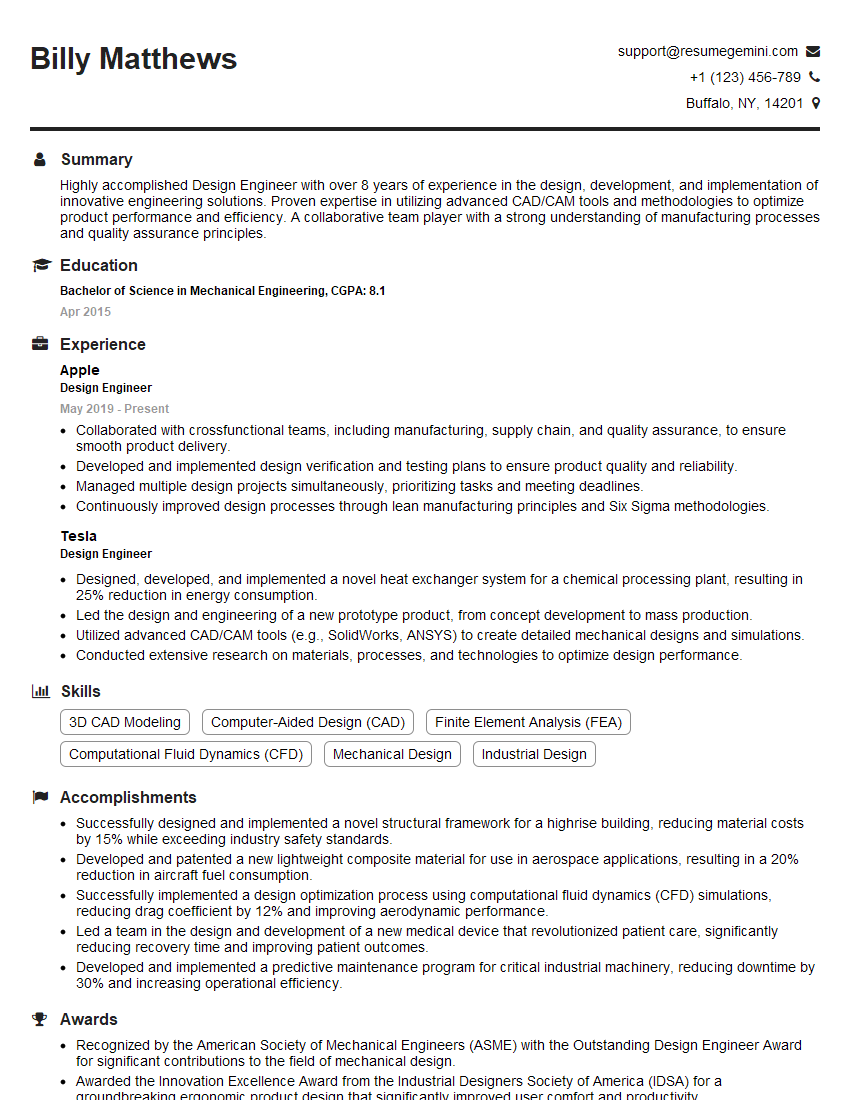
Design Engineer Resume Sample
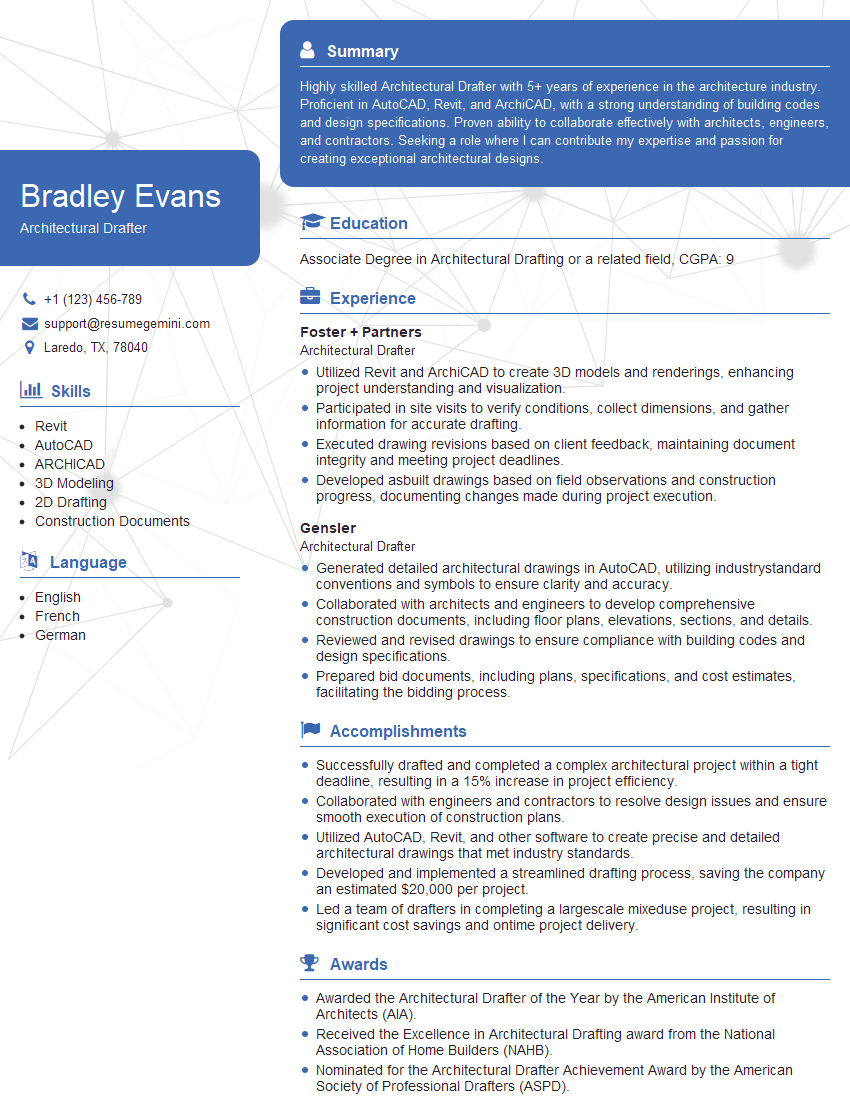
Architectural Drafter Resume Sample
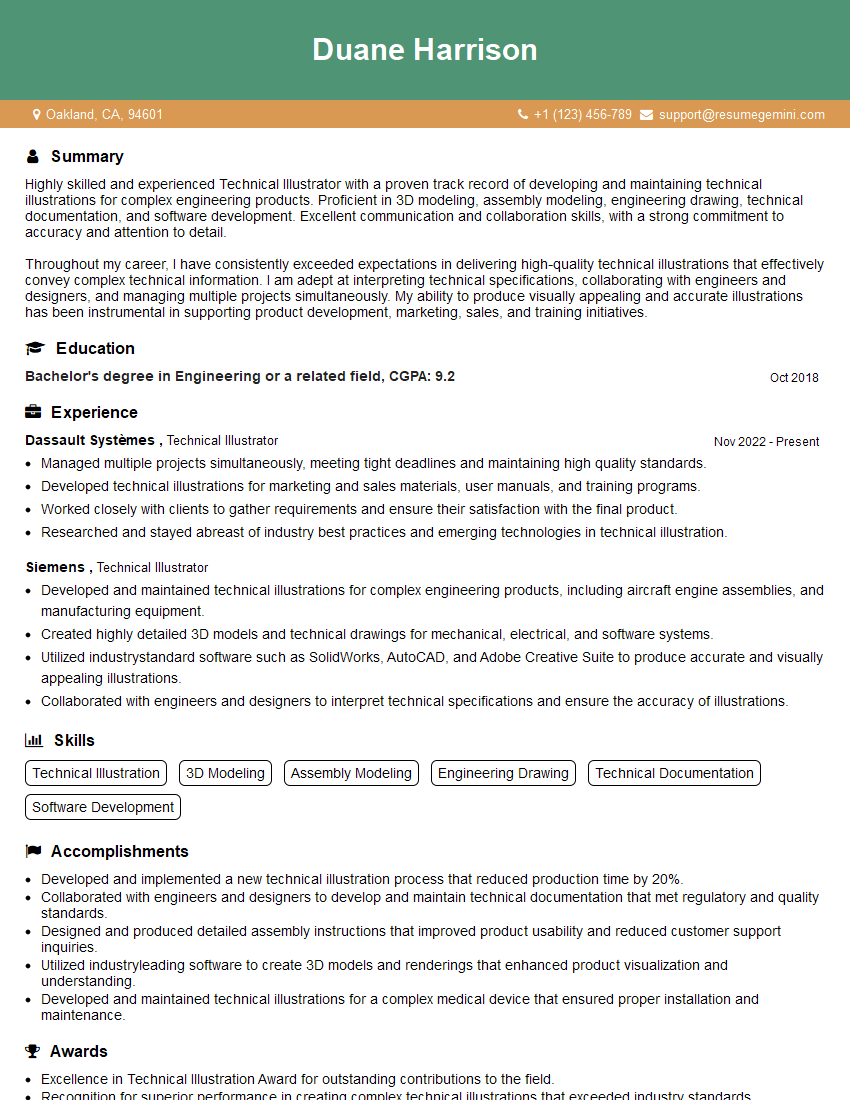
Technical Illustrator Resume Sample
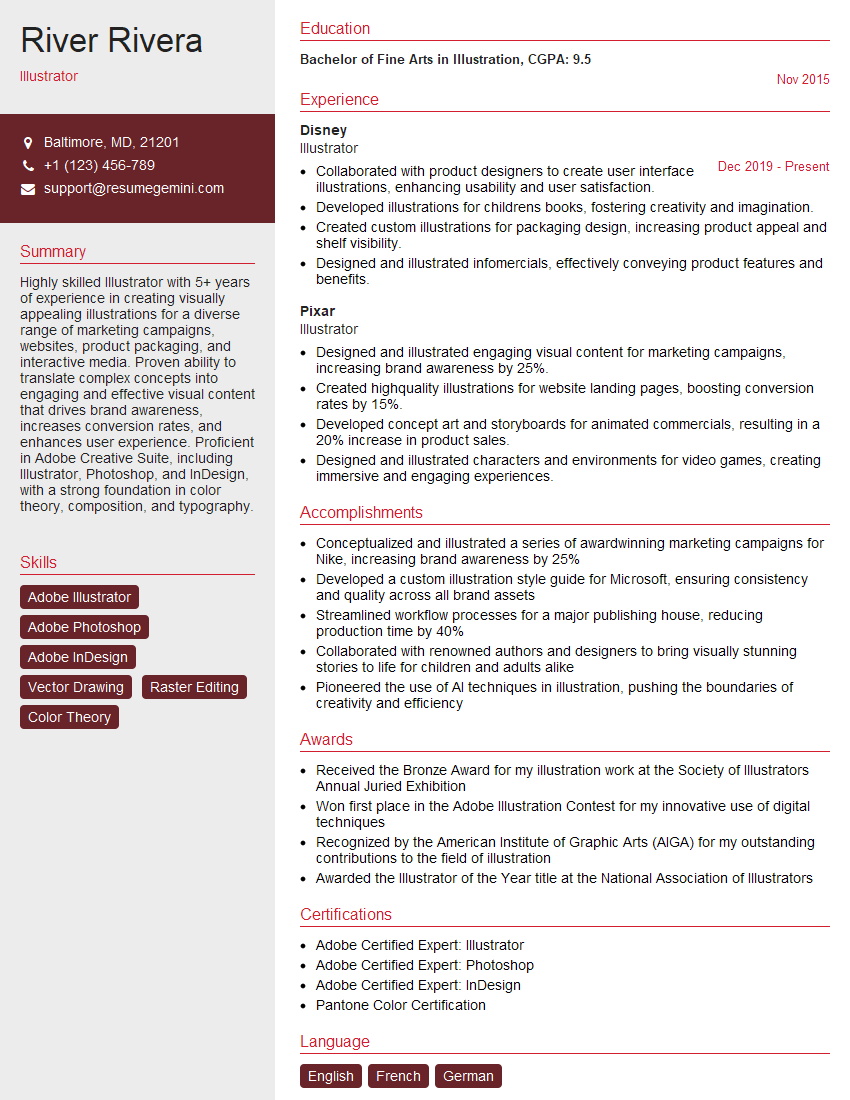
Illustrator Resume Sample

3D Modeler Resume Sample
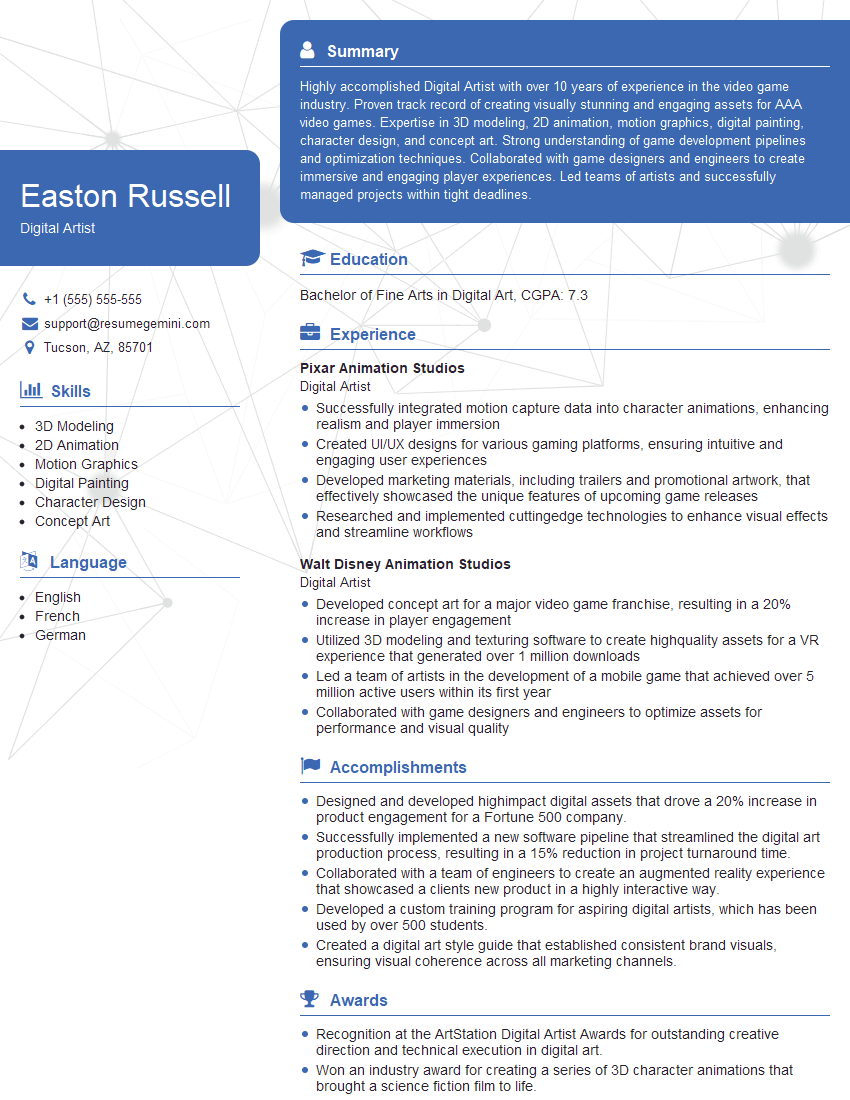
Digital Artist Resume Sample
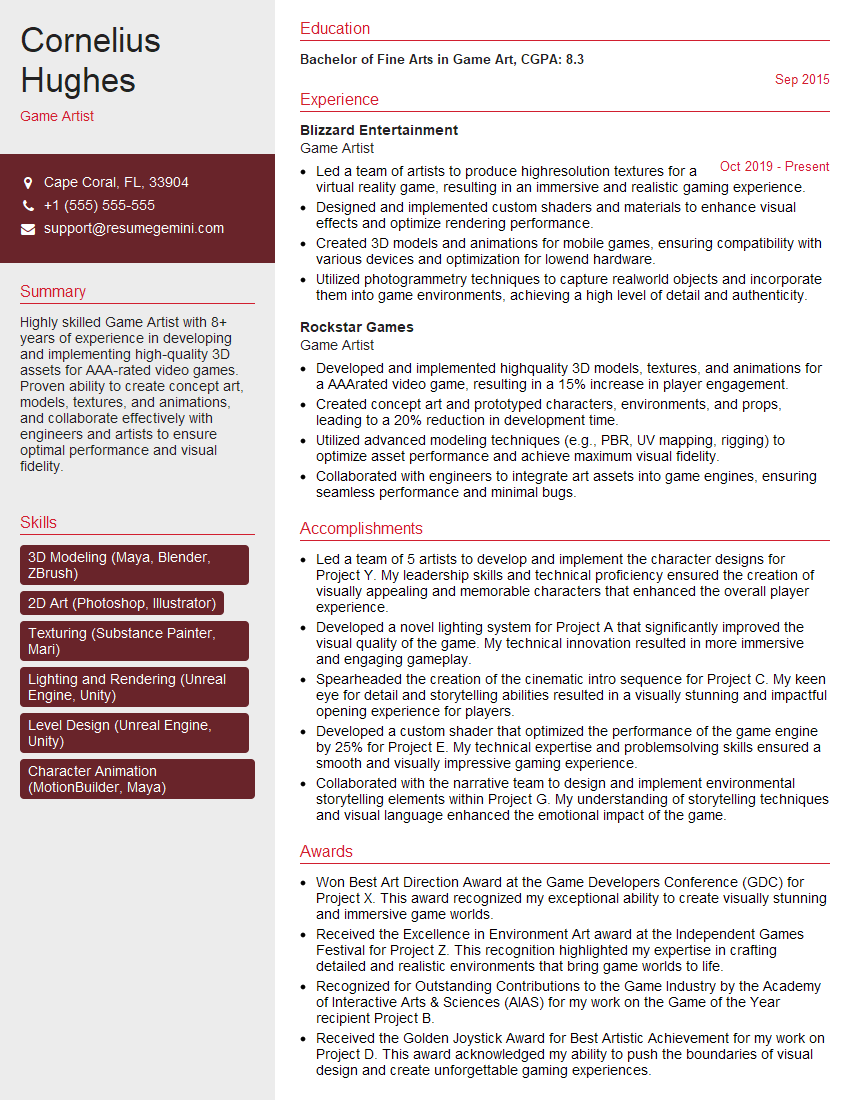
Game Artist Resume Sample

Graphic Designer Resume Sample
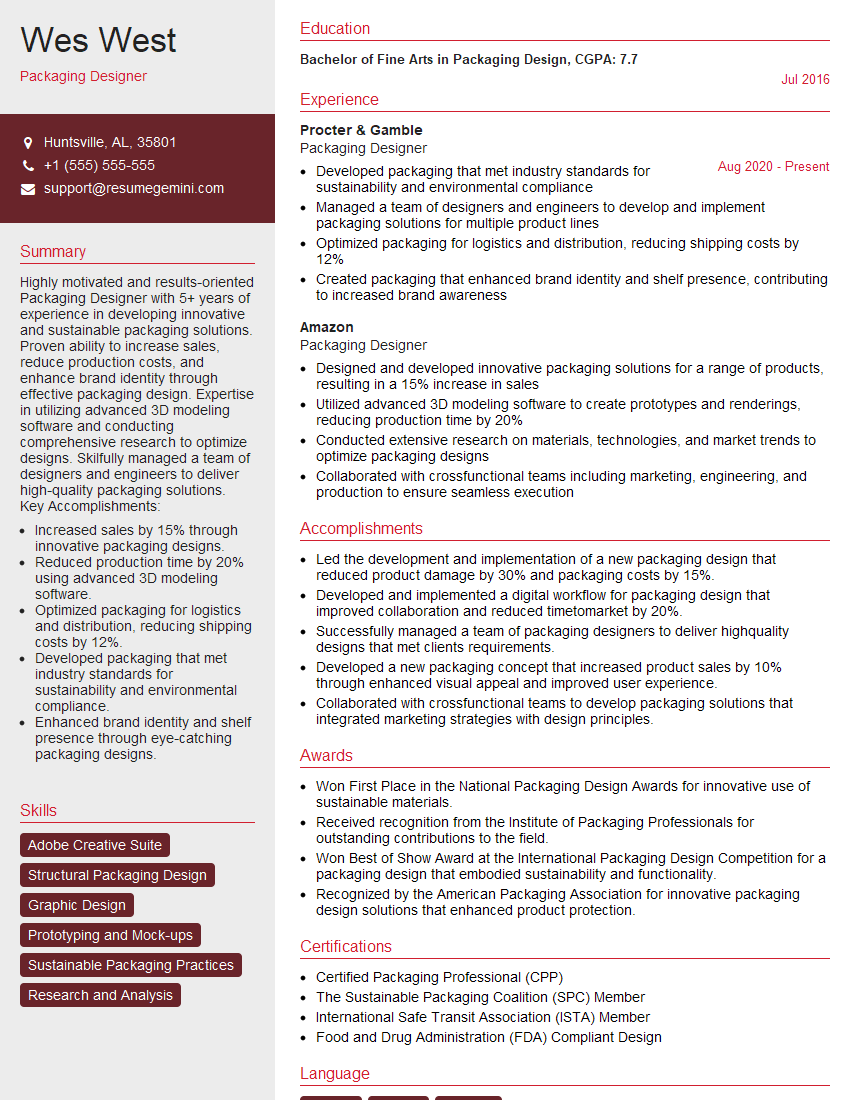
Packaging Designer Resume Sample
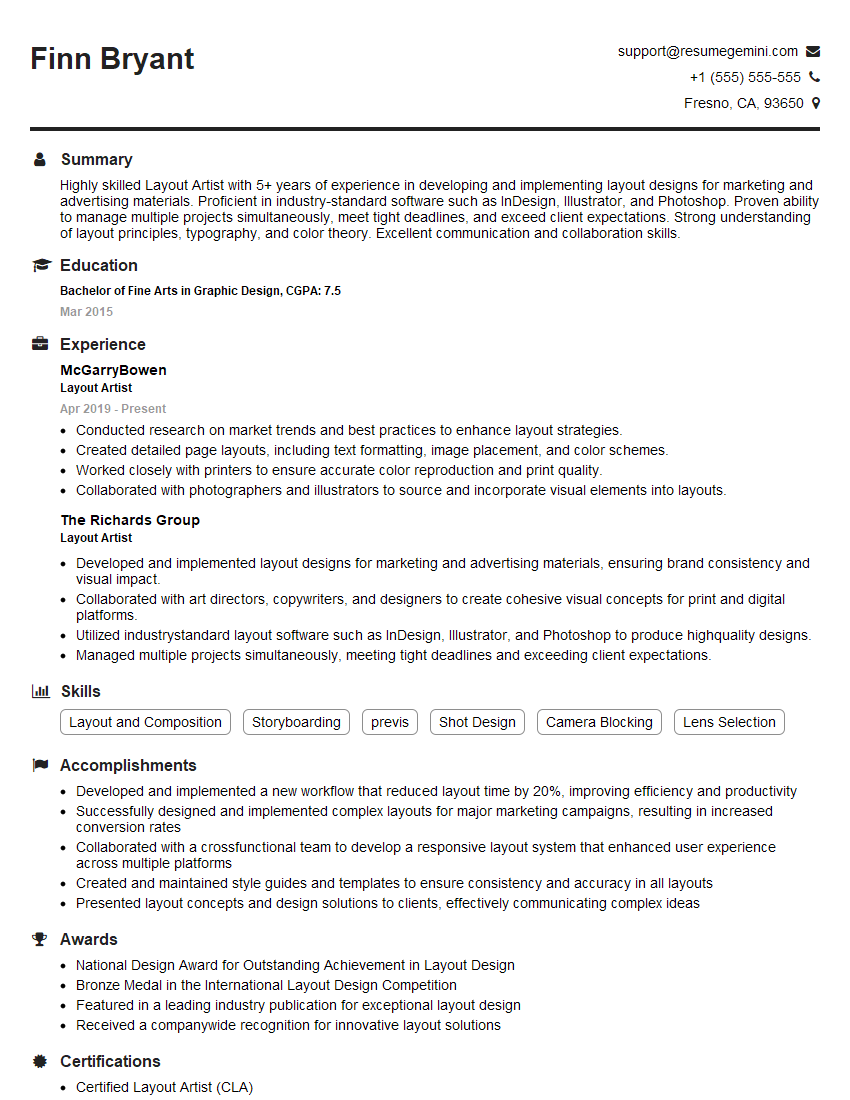
Layout Artist Resume Sample
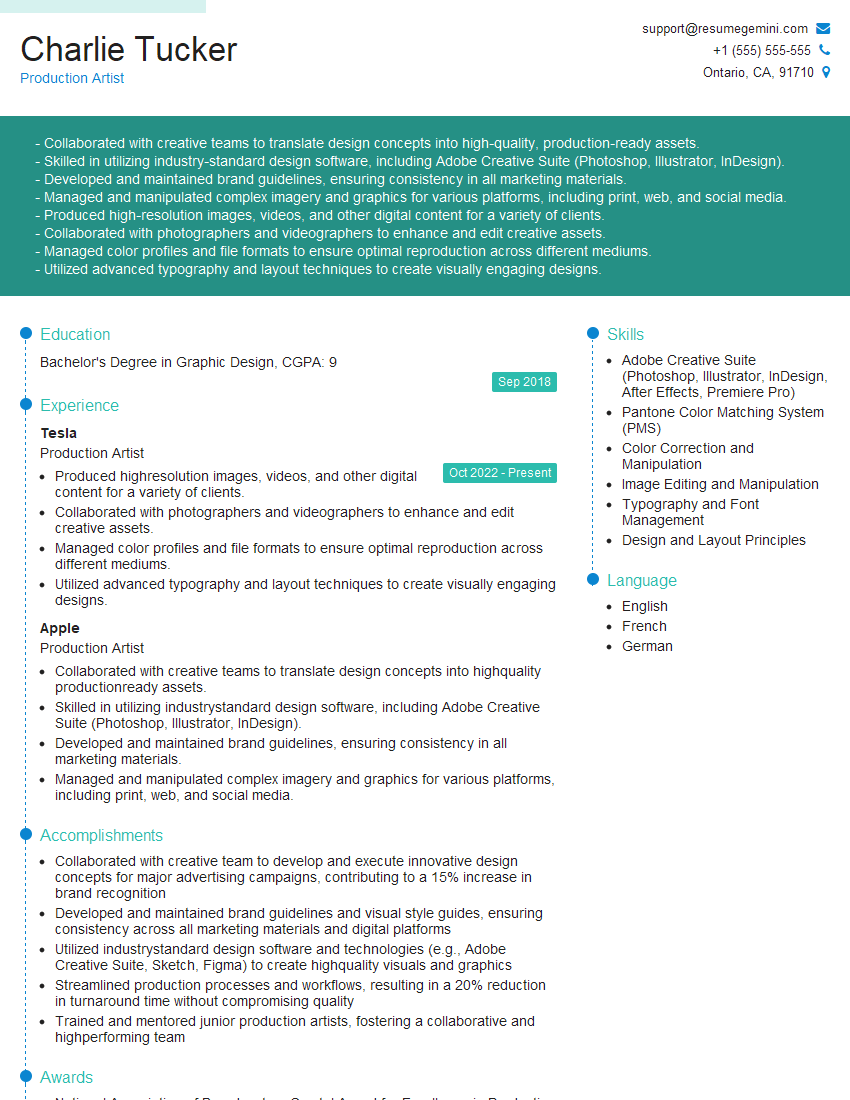
Production Artist Resume Sample
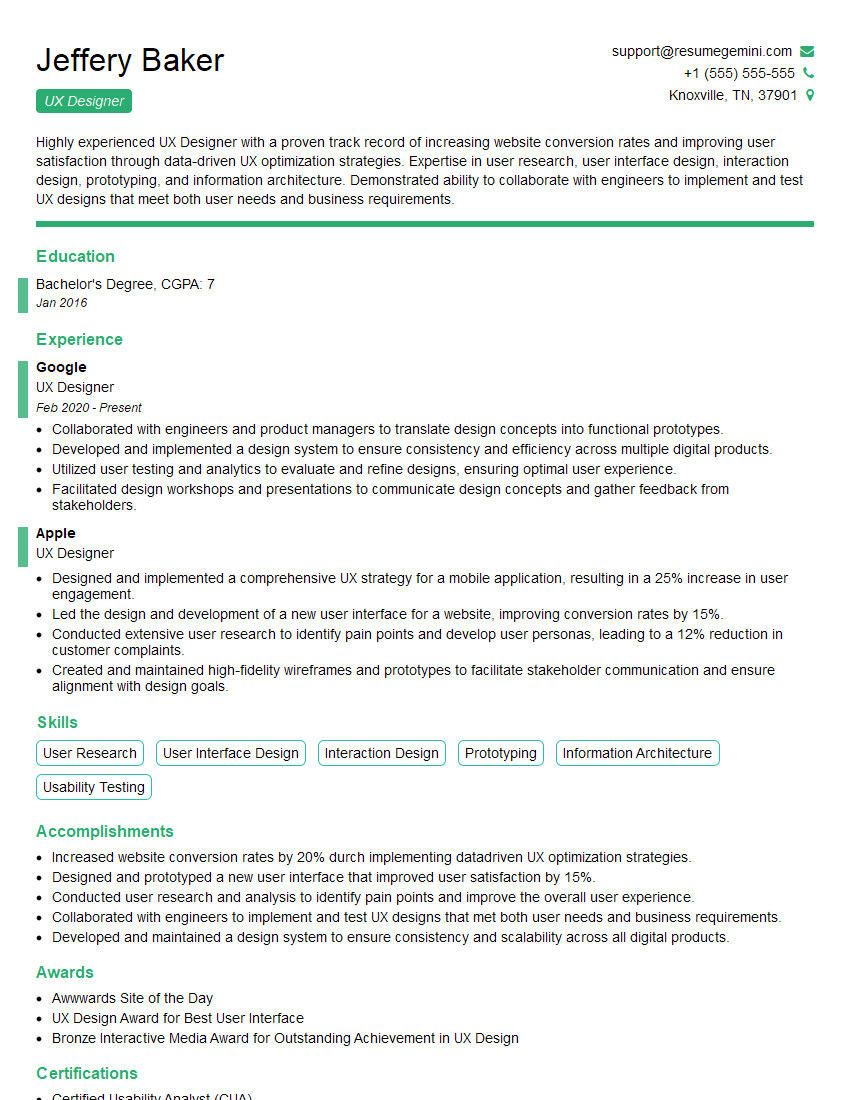
UX Designer Resume Sample
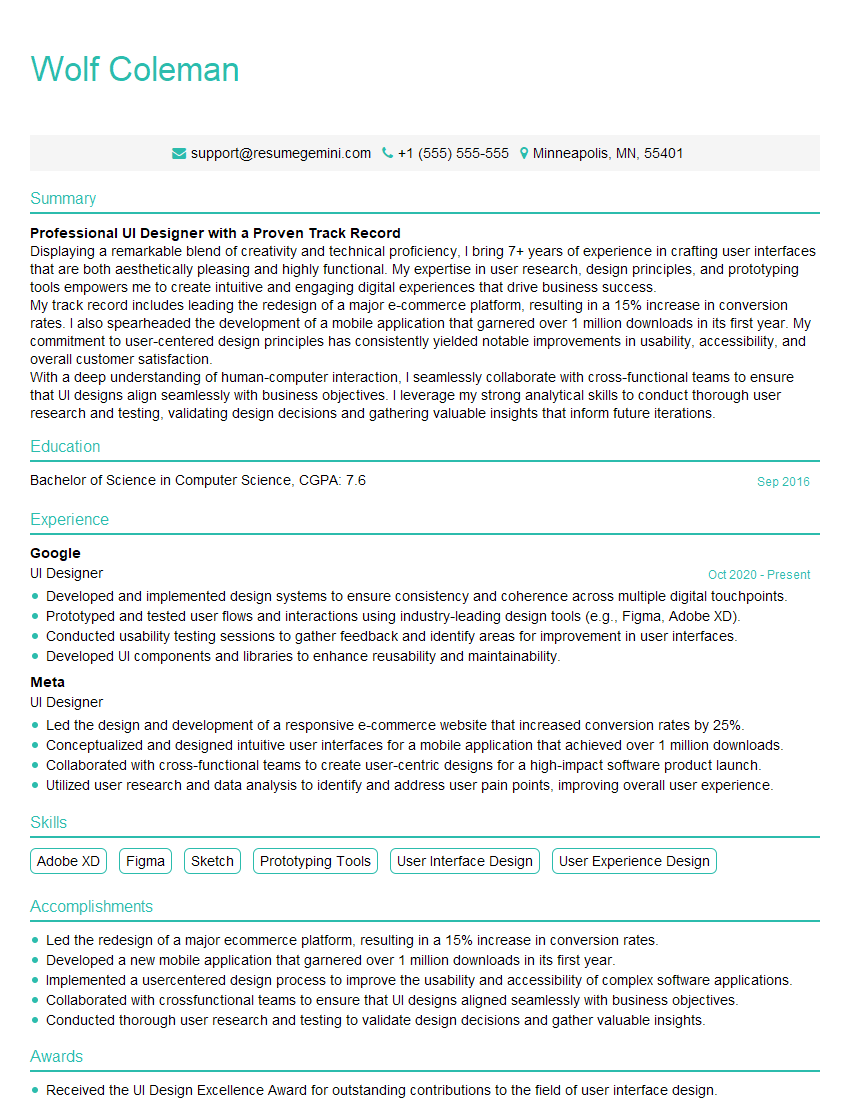
UI Designer Resume Sample
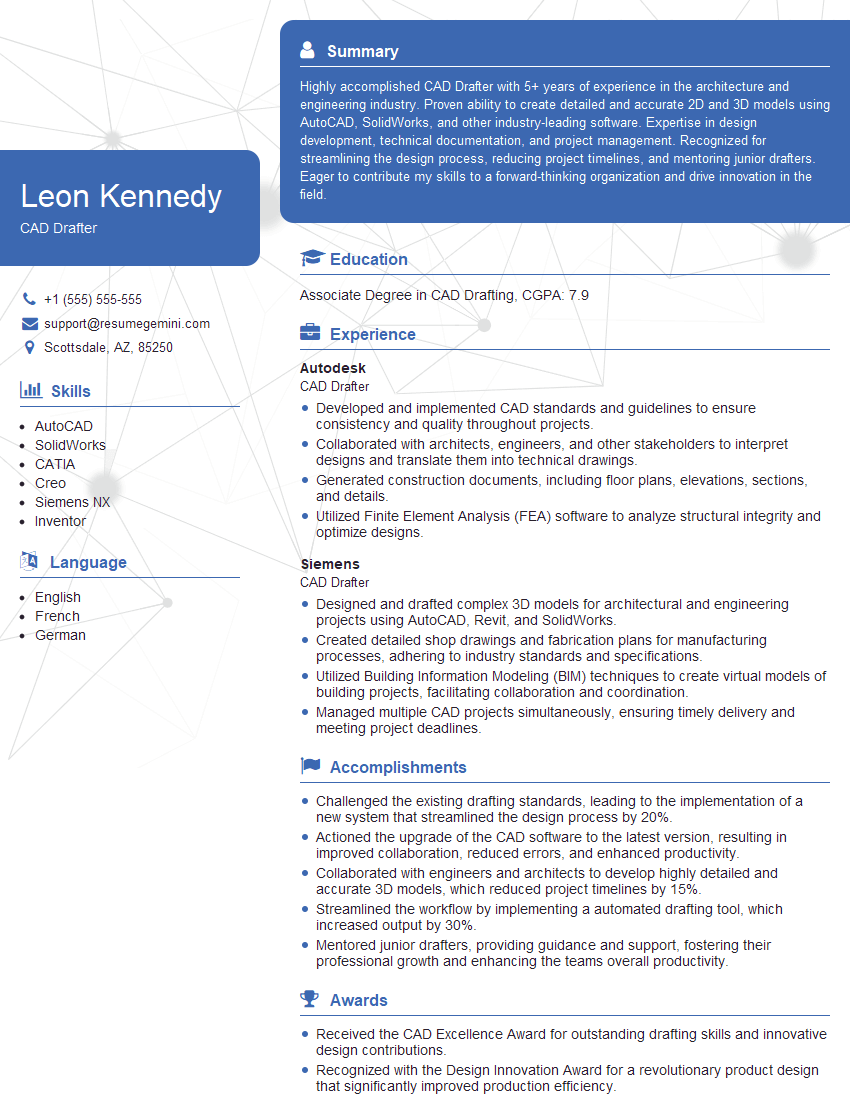
CAD Drafter Resume Sample
Explore more articles
Users Rating of Our Blogs
Share Your Experience
We value your feedback! Please rate our content and share your thoughts (optional).
What Readers Say About Our Blog
Very informative content, great job.
good