Interviews are opportunities to demonstrate your expertise, and this guide is here to help you shine. Explore the essential Spreadsheet and Data Management interview questions that employers frequently ask, paired with strategies for crafting responses that set you apart from the competition.
Questions Asked in Spreadsheet and Data Management Interview
Q 1. Explain your experience with different spreadsheet software (Excel, Google Sheets, etc.).
My spreadsheet experience spans over a decade, encompassing extensive use of both Microsoft Excel and Google Sheets. I’m comfortable navigating complex spreadsheets, leveraging advanced features in both platforms. In Excel, I’m proficient in VBA (Visual Basic for Applications) scripting for automating tasks and creating custom functions, significantly improving efficiency. For instance, I automated a monthly sales report generation process using VBA, reducing manual effort by 80%. With Google Sheets, I value its collaborative features, using it extensively for team projects, leveraging its real-time collaboration and version history for seamless teamwork. I’ve used Google Apps Script for similar automation tasks, finding it particularly useful for integrating with other Google services like Google Drive and Gmail. My expertise also includes working with various file formats, including CSV, TXT, and XML, ensuring seamless data import and export across different systems.
Q 2. Describe your experience with data cleaning and validation techniques.
Data cleaning and validation are crucial for reliable analysis. My approach begins with identifying inconsistencies and errors. This often involves checking for duplicate entries, missing values, and incorrect data types. For example, I recently encountered a dataset where dates were inconsistently formatted (mm/dd/yyyy, dd/mm/yyyy). I used Excel’s ‘Text to Columns’ feature along with custom formulas to standardize the date format. Validation involves implementing checks to ensure data integrity. This includes using data validation rules in Excel or Google Sheets to restrict input to specific formats or ranges. For instance, I set up data validation to ensure that ‘order quantity’ cells only accept positive integer values. I also employ techniques like regular expressions (regex) for more complex validation tasks, such as verifying email addresses or postal codes. Finally, I always document the cleaning and validation steps taken, ensuring reproducibility and transparency.
Q 3. How do you handle large datasets in spreadsheets?
Handling large datasets efficiently in spreadsheets requires strategic approaches. Simply loading a massive dataset directly into a spreadsheet can cause performance issues and crashes. Instead, I prefer to use techniques like data sampling to analyze a representative subset of the data initially. I might use Power Query (in Excel) or similar tools to import only necessary columns and rows. Once I’ve understood the data’s structure and cleaned a sample, I can process the entire dataset more effectively. Moreover, for truly massive datasets, I leverage external databases (like SQL databases) or cloud-based solutions (like Google BigQuery) for data storage and processing, importing only necessary subsets into spreadsheets for analysis. This prevents spreadsheet overload and enables faster computations.
Q 4. What are your preferred methods for data visualization in spreadsheets?
My preferred methods for data visualization in spreadsheets include charts and graphs tailored to the specific data and insights needed. For example, I use bar charts to compare categorical data, line charts to show trends over time, and scatter plots to identify correlations between variables. I also leverage pivot charts, which dynamically update based on changes in the underlying pivot table, offering an interactive visualization experience. Beyond basic charts, I utilize conditional formatting to highlight key data points and trends within the spreadsheet itself, making it easier to spot anomalies or patterns. I always prioritize clarity and simplicity in my visualizations, ensuring that the key insights are immediately apparent to the audience. For instance, choosing appropriate colors and avoiding cluttered charts are key considerations.
Q 5. How proficient are you in using pivot tables and VLOOKUP functions?
I am highly proficient in using both pivot tables and VLOOKUP functions. Pivot tables are invaluable for summarizing and analyzing large datasets. I routinely use them to aggregate data, calculate sums, averages, and other statistics, and create customized reports. For example, I’ve used pivot tables to analyze sales data by region, product category, and sales representative, quickly identifying top performers and areas for improvement. VLOOKUP (and its more versatile counterpart, XLOOKUP) is a powerful function I use extensively for looking up and retrieving data from one table to another based on a matching key. I’ve used this to merge data from different spreadsheets, enriching datasets by incorporating relevant information from other sources. My understanding extends to nested VLOOKUPs for more complex lookups involving multiple tables.
Q 6. Explain your experience with data manipulation and transformation.
Data manipulation and transformation are fundamental parts of my workflow. This often involves cleaning data (as discussed earlier), but it also extends to tasks such as data aggregation, sorting, filtering, and creating new variables or calculated fields. For instance, I’ve transformed raw sales data into a format that shows daily, weekly, and monthly sales figures, enabling more granular analysis. I regularly utilize spreadsheet formulas (like SUMIF, COUNTIF, AVERAGEIF) and functions for these transformations. I also use Power Query in Excel or similar tools for more complex transformations involving multiple steps, such as data concatenation, splitting columns, and data type conversions. This ensures reproducibility and allows me to easily apply the same transformation steps to similar datasets in the future.
Q 7. How do you ensure data accuracy and integrity in spreadsheets?
Ensuring data accuracy and integrity is paramount. I employ several strategies: Firstly, rigorous data validation (as mentioned above) at the input stage is essential. Secondly, I always double-check my calculations and formulas to avoid errors. Thirdly, I frequently cross-reference data from multiple sources to identify discrepancies and verify accuracy. Furthermore, I utilize data version control, keeping backups and audit trails of changes made to the spreadsheet. This makes it easy to revert to previous versions if needed and track any modifications. Finally, clear documentation of data sources, cleaning steps, and transformation processes is vital for transparency and reproducibility. This ensures that others (or even my future self) can easily understand and trust the data analysis results.
Q 8. Describe your experience with creating and maintaining spreadsheet models.
Spreadsheet model creation and maintenance is a core competency of mine. It involves more than just entering data; it’s about designing efficient, robust, and scalable systems that support informed decision-making. My experience encompasses everything from simple budgeting models to complex financial forecasting tools, involving various techniques like data validation, formula creation (including array formulas and complex nested functions), and charting for insightful visualizations.
For example, I once developed a sales forecasting model for a client that integrated data from various sources – CRM, marketing campaigns, and historical sales data – to predict future sales with a high degree of accuracy. This involved cleaning and transforming the data, using statistical techniques (like regression analysis) within the spreadsheet, and creating interactive dashboards to present the results effectively. I also implemented robust error handling to ensure data integrity.
Beyond initial creation, maintaining these models is critical. This involves regularly updating data sources, reviewing formulas for accuracy, documenting changes thoroughly, and proactively identifying and addressing potential issues to ensure the model remains reliable and relevant over time. I’m adept at using conditional formatting and data validation to prevent errors from creeping in.
Q 9. How do you manage version control for spreadsheet files?
Version control for spreadsheets is crucial, especially in collaborative environments. While spreadsheets don’t inherently offer version control like Git, I employ several strategies to effectively manage changes and prevent accidental overwrites. These include:
- Saving multiple versions with descriptive names: For instance, ‘Sales Forecast_v1_Initial’, ‘Sales Forecast_v2_Revised Assumptions’, etc.
- Using cloud storage with version history: Services like Google Drive or OneDrive automatically track changes and allow reverting to previous versions. This offers a simple and effective method of version control.
- Employing a spreadsheet version control add-in: Some add-ins provide more robust version control features, tracking changes at a granular level and allowing for easy comparison between versions.
- Maintaining a detailed change log: A separate document detailing each revision, its date, the author, and a summary of the changes made, is invaluable.
Choosing the right approach depends on the complexity of the spreadsheet, the number of collaborators, and the project’s requirements. For smaller projects, a simple naming convention might suffice. For larger, more complex projects, a dedicated version control add-in or cloud storage with version history is recommended.
Q 10. Explain your experience working with macros or VBA in Excel.
I have extensive experience with macros and VBA (Visual Basic for Applications) in Excel. I use them to automate repetitive tasks, enhance functionality, and create custom solutions tailored to specific needs. My proficiency includes writing VBA code to:
- Automate data entry and cleaning: This saves significant time and reduces manual errors, particularly when dealing with large datasets.
- Create custom functions: Expanding Excel’s built-in functionality to perform complex calculations or data manipulations not readily available through standard functions.
- Generate reports and dashboards dynamically: Creating interactive reports that can be easily filtered and customized based on user input.
- Integrate with other applications: Connecting Excel to databases or other software systems to automate data transfer and processing.
For example, I developed a VBA macro that automatically imported sales data from a database, cleaned and transformed the data, and generated a sales report with charts and key performance indicators (KPIs). This automated a previously time-consuming manual process, improving efficiency and accuracy. I also understand debugging techniques within the VBA environment to identify and resolve errors quickly and effectively.
Q 11. How do you troubleshoot errors and resolve issues in spreadsheets?
Troubleshooting spreadsheet errors is a crucial skill. My approach involves a systematic process:
- Identify the error: Carefully examine the error message, if any. Look for unexpected values, incorrect calculations, or data inconsistencies.
- Isolate the source: Trace the error back to its origin. This often involves examining formulas, checking data inputs, and inspecting cell references.
- Use debugging tools: Excel offers tools like Formula Auditing (Trace Precedents/Dependents, Evaluate Formula) to help pinpoint the problem. For VBA, using breakpoints and stepping through code is crucial.
- Test and verify solutions: After implementing a fix, thoroughly test the spreadsheet to ensure the error is resolved and that it doesn’t introduce new problems.
- Document solutions: Recording the error and the solution helps in preventing future occurrences and aids in maintaining the model.
For instance, if I encounter a ‘#REF!’ error, I know this indicates a broken cell reference. I systematically check the referenced cells to identify the cause and correct it. Similarly, circular references require careful examination of formulas to break the dependency loop. Understanding error messages and applying systematic troubleshooting strategies are essential for maintaining data integrity.
Q 12. How familiar are you with data normalization techniques?
Data normalization is a crucial database design technique aimed at reducing redundancy and improving data integrity. My understanding encompasses the different normal forms (1NF, 2NF, 3NF, and BCNF), and I know how to apply them to structure data efficiently.
In simpler terms, imagine a spreadsheet with repeated information. For example, if you have a customer’s address repeated for every order, that’s data redundancy. Normalization breaks down this data into separate tables – one for customers (with address details) and another for orders (linking to the customer ID). This prevents inconsistencies. If you need to update a customer’s address, you only have to do it in one place.
Applying normalization techniques in spreadsheets isn’t always straightforward but can still improve organization and consistency. For instance, you might create separate sheets for different data categories, linking them with IDs. Although spreadsheets aren’t ideal for complex data relationships, applying normalization principles wherever possible improves data management and reduces errors.
Q 13. Describe your experience with database systems (SQL, MySQL, etc.)
I have considerable experience working with database systems, primarily SQL and MySQL. My experience encompasses database design, data manipulation using SQL queries, data import/export, and database administration tasks. I’m proficient in writing complex SQL queries to retrieve, insert, update, and delete data, optimizing queries for performance, and working with various database structures.
I’ve used SQL to build and manage databases for various projects, including creating tables, defining relationships, enforcing data integrity constraints, and writing stored procedures. For example, in a previous role, I used MySQL to create a database to support a web application, designing the schema, implementing queries to retrieve data for the application’s user interface, and optimizing database performance to handle a large volume of concurrent users. I am also familiar with using tools like phpMyAdmin for database administration.
Q 14. Explain your understanding of relational databases.
A relational database is a type of database that organizes data into tables with rows (records) and columns (fields). The key feature is the relationships between these tables, allowing data to be linked and accessed efficiently. These relationships are typically established using primary and foreign keys.
Imagine a library system. You would likely have separate tables for books (title, author, ISBN), members (member ID, name, address), and loans (member ID, ISBN, loan date). The ‘ISBN’ in the ‘Loans’ table acts as a foreign key, referencing the ‘ISBN’ (primary key) in the ‘Books’ table, linking a specific loan to a specific book. Similarly, ‘member ID’ in the ‘Loans’ table links to the ‘member ID’ (primary key) in the ‘Members’ table. This structured approach ensures data integrity and prevents redundancy. The relationships allow for efficient queries to retrieve information such as all books borrowed by a specific member or all loans for a particular book.
Understanding relational databases is essential for efficient data management, especially when dealing with large and complex datasets. It forms the foundation for many applications and systems.
Q 15. How do you handle missing data in your analyses?
Missing data is a common challenge in data analysis. How you handle it significantly impacts the accuracy and reliability of your results. My approach is multifaceted and depends on the nature and extent of the missing data.
- Identification: First, I carefully identify the type of missing data. Is it Missing Completely at Random (MCAR), Missing at Random (MAR), or Missing Not at Random (MNAR)? This informs the best strategy.
- Imputation: For smaller amounts of missing data, especially if MCAR or MAR, I might use imputation techniques. This involves filling in the missing values with estimated ones. Simple methods include using the mean, median, or mode of the existing data. More sophisticated approaches involve using regression models or k-Nearest Neighbors to predict missing values based on related variables. For example, if I’m analyzing sales data and some values are missing for a particular product, I might use the average sales of similar products to impute the missing values.
- Deletion: If the missing data is substantial or MNAR (meaning the reason for missingness is related to the value itself), I might consider listwise or pairwise deletion. Listwise deletion removes the entire row with missing values, while pairwise deletion uses available data for each analysis. This is a less preferable method as it can lead to substantial data loss, biasing results. I only opt for this if imputation is inappropriate.
- Analysis Adjustments: In some cases, particularly with MNAR data, I might need to modify my analysis techniques to account for the missing data. Techniques like multiple imputation or maximum likelihood estimation are robust to missing data.
Ultimately, documenting my chosen method and its potential impact on the results is crucial for transparency and reproducibility.
Career Expert Tips:
- Ace those interviews! Prepare effectively by reviewing the Top 50 Most Common Interview Questions on ResumeGemini.
- Navigate your job search with confidence! Explore a wide range of Career Tips on ResumeGemini. Learn about common challenges and recommendations to overcome them.
- Craft the perfect resume! Master the Art of Resume Writing with ResumeGemini’s guide. Showcase your unique qualifications and achievements effectively.
- Don’t miss out on holiday savings! Build your dream resume with ResumeGemini’s ATS optimized templates.
Q 16. What are your methods for data security in spreadsheets?
Data security in spreadsheets is paramount. My approach involves a layered strategy:
- Access Control: I strictly control access to spreadsheets using password protection and permission settings. This limits who can view, edit, or download sensitive data. Different levels of permission, such as ‘view only’, ‘edit’, and ‘comment’, can be assigned to different users.
- Encryption: I use encryption to protect data both at rest and in transit. This ensures that even if a spreadsheet is intercepted, the data remains unreadable without the decryption key. Many spreadsheet software packages offer built-in encryption options.
- Regular Backups: I regularly back up spreadsheets to a secure location, like a cloud storage service or an external hard drive, to protect against data loss from accidental deletion or hardware failure. Version control is also useful to track changes.
- Data Minimization: I only include the necessary data in my spreadsheets. Removing unnecessary information reduces the risk of exposure.
- Sensitive Data Handling: For highly sensitive data like personally identifiable information (PII), I adhere to data privacy regulations (like GDPR or CCPA) and might use anonymization techniques or data masking to protect individual privacy.
- Spreadsheet Software Updates: Keeping the spreadsheet software up-to-date is critical to benefit from the latest security patches.
My approach to data security is proactive rather than reactive, aiming to prevent breaches before they occur.
Q 17. Describe your experience with data mining and analysis techniques.
My experience with data mining and analysis techniques encompasses a range of methods depending on the data and the objectives of the analysis. I have extensive experience with techniques including:
- Descriptive Statistics: I frequently use descriptive statistics (mean, median, standard deviation, etc.) to summarize and understand data distributions. This forms the foundation of any analysis.
- Exploratory Data Analysis (EDA): EDA is crucial for discovering patterns and relationships in data. I utilize visualization tools (histograms, scatter plots, box plots) to identify outliers, trends, and correlations.
- Regression Analysis: I’m proficient in various regression techniques, including linear, multiple, and logistic regression, to model the relationships between variables and make predictions.
- Clustering Analysis: I use clustering techniques, such as k-means clustering and hierarchical clustering, to group similar data points together, identifying distinct segments or patterns within the data.
- Classification: Methods like decision trees, support vector machines (SVMs), and naive Bayes are used for classifying data into different categories. For example, I might classify customers into high, medium, and low-value segments based on their purchasing behavior.
I select the appropriate techniques based on the nature of the data and the research question. For example, when dealing with categorical data, classification techniques are appropriate, while regression is suitable for numerical predictions. I always validate the chosen methods through rigorous testing and evaluation.
Q 18. How do you interpret data and communicate findings to non-technical audiences?
Communicating data findings effectively to non-technical audiences requires a clear understanding of your audience and a tailored approach. I avoid technical jargon and focus on telling a compelling story using visualizations and simple language. My strategies include:
- Visualizations: Charts and graphs are incredibly powerful tools for communicating complex information concisely. I choose the most appropriate chart type for the data and the message, avoiding overwhelming the audience with excessive detail. For example, I might use a bar chart to show sales figures across different regions or a pie chart to show the proportion of sales from different product categories.
- Storytelling: Framing the findings as a story with a clear beginning, middle, and end helps non-technical audiences connect with the data. I highlight key takeaways and avoid getting bogged down in technical details. For instance, I might start with a summary statement, then delve into specific examples that illustrate the key points.
- Plain Language: I use simple, clear language, avoiding jargon and technical terms. If technical terms are unavoidable, I provide clear and concise explanations.
- Analogies and Metaphors: Using relatable analogies and metaphors can make complex concepts easier to grasp. For instance, if discussing statistical significance, I might use an analogy to a coin toss.
- Interactive Dashboards: If appropriate, I might use interactive dashboards to allow the audience to explore the data themselves and gain a deeper understanding of the results.
The goal is not to simply present data but to convey insights that are relevant, understandable, and actionable for the audience.
Q 19. How familiar are you with statistical analysis methods?
I am very familiar with a wide range of statistical analysis methods. My proficiency extends to both descriptive and inferential statistics.
- Descriptive Statistics: This includes measures of central tendency (mean, median, mode), measures of dispersion (variance, standard deviation, range), and data visualization techniques (histograms, box plots, scatter plots) to summarize and explore data.
- Inferential Statistics: I have expertise in hypothesis testing (t-tests, ANOVA, chi-square tests), correlation analysis, regression analysis (linear, multiple, logistic), and time series analysis. I understand the principles of statistical significance, p-values, confidence intervals, and effect sizes.
- Non-parametric Statistics: I also possess knowledge of non-parametric methods, which are used when the data does not meet the assumptions of parametric tests (e.g., Mann-Whitney U test, Kruskal-Wallis test).
- Statistical Software: I am proficient in using statistical software packages such as R and SPSS to perform these analyses efficiently and accurately.
I carefully select statistical tests based on the research question, data type, and assumptions of the chosen method. I am mindful of potential biases and limitations in the data and the statistical analysis itself. This ensures that my interpretations are robust and reliable.
Q 20. Describe your experience with data reporting and presentation.
My experience with data reporting and presentation spans a variety of formats and audiences. I aim to create reports that are clear, concise, and visually appealing. I tailor the report’s content and style to the specific needs of the audience.
- Report Formats: I’m comfortable producing reports in various formats, including spreadsheets, presentations (PowerPoint, Google Slides), dashboards (Tableau, Power BI), and written reports.
- Data Visualization: I utilize effective data visualization techniques to present complex data in an easy-to-understand manner. I choose appropriate charts and graphs (bar charts, line graphs, pie charts, scatter plots) depending on the data and the message.
- Interactive Dashboards: I have experience building interactive dashboards that allow users to explore the data dynamically and gain insights based on their individual needs.
- Narrative and Storytelling: I don’t just present data; I weave a story around the findings, highlighting key insights and implications. I present a narrative that aligns with the overall objectives.
- Data Integrity: I ensure that the data presented in the reports is accurate, consistent, and reliable. I carefully check for errors and inconsistencies before finalizing the report.
My goal is to create reports that are not only informative but also engaging and persuasive, effectively communicating the key findings and their implications.
Q 21. How do you ensure the scalability of your spreadsheet models?
Ensuring the scalability of spreadsheet models is crucial for handling large datasets and preventing performance issues. My approach focuses on several key strategies:
- Data Structure: Organizing data efficiently is paramount. I use structured tables with clear column headers and consistent data types. This facilitates data processing and analysis and improves efficiency. Avoid unnecessary columns or rows.
- Data Validation: Implementing data validation rules within the spreadsheet prevents incorrect data entry, ensuring data consistency and reliability, vital for scalability. This prevents errors from cascading.
- Formula Optimization: I optimize formulas to minimize calculations and improve performance. I avoid using volatile functions (like TODAY() or NOW()) excessively as they recalculate frequently, slowing down the spreadsheet. Instead, I calculate values only once and reference them.
- External Data Sources: For large datasets, I avoid directly embedding the data within the spreadsheet. Instead, I link to external data sources (like databases or CSV files) improving performance and storage management. This also improves data version control.
- Database Integration: For very large datasets, I integrate spreadsheet models with databases. The database handles data storage and retrieval; the spreadsheet focuses on analysis and reporting. This enables highly scalable solutions.
- Data Aggregation: I use data aggregation techniques (SUMIFS, AVERAGEIFS) to summarize data at different levels, reducing the volume of data processed by the spreadsheet.
- Pivot Tables and Charts: Pivot tables and charts offer efficient ways to summarize and analyze large datasets without impacting performance.
By implementing these strategies, I create scalable spreadsheet models that can handle growing data volumes and maintain optimal performance.
Q 22. How do you collaborate effectively on shared spreadsheets?
Effective collaboration on shared spreadsheets hinges on clear communication, version control, and well-defined roles. Think of it like a collaborative writing project – you wouldn’t all edit the same document simultaneously without causing chaos!
- Version Control: Utilizing features like Google Sheets’ revision history or Excel’s co-authoring capabilities allows everyone to track changes and revert to previous versions if needed. This prevents accidental overwrites and ensures accountability.
- Communication: Before starting, establish clear guidelines: Who is responsible for what data? What are the update schedules? Using comments within the spreadsheet itself, or a dedicated communication channel (e.g., Slack, email), keeps everyone informed and minimizes confusion.
- Defined Roles: Assign specific roles (e.g., data entry, data validation, report generation) to streamline the process and prevent conflicting edits. One person might be in charge of importing data, another of cleaning it, and a third of creating charts from the final dataset.
- Data Validation: Implement data validation rules to prevent incorrect data entry. For example, you can restrict a column to only accept numbers or dates within a specific range, thus maintaining data integrity.
For instance, in a previous project involving a team of five, we used Google Sheets’ comment feature extensively to discuss discrepancies in the data, enabling quick resolution and preventing errors from propagating through the analysis.
Q 23. What are your strategies for optimizing spreadsheet performance?
Optimizing spreadsheet performance is crucial, especially with large datasets. Think of it as decluttering your home – the more organized and efficient it is, the faster you can find what you need.
- Data Reduction: Avoid unnecessary columns and rows. Delete duplicate data and irrelevant information. This significantly reduces file size and speeds up calculations.
- Avoid Volatile Functions: Volatile functions (like
TODAY(),NOW(),RAND()) recalculate every time there’s a change in the spreadsheet, slowing down performance. Use them sparingly. - Data Validation: Data validation rules (mentioned above) not only improve data quality but also enhance performance by preventing the entry of invalid or unexpected data, which can cause unexpected calculations.
- Formulas Optimization: Break down complex formulas into smaller, more manageable parts. Avoid unnecessary nested functions. Excel’s built-in formula auditing tools can help you identify potential performance bottlenecks.
- Data Consolidation: Instead of having multiple sheets with the same data, consolidate it into one efficiently organized sheet. Consider using PivotTables for summarizing large amounts of data, allowing for faster analysis than manually creating summary tables.
- External Data Sources: For extremely large datasets, consider connecting to external data sources (like databases) rather than importing the entire dataset directly into the spreadsheet.
In one project, optimizing formulas reduced calculation time from several minutes to under a second, enabling quicker analysis and reporting.
Q 24. Explain your experience using different chart types for data visualization.
Chart selection depends heavily on the data and the message you aim to convey. Selecting the right chart type is crucial for effective data visualization.
- Bar Charts: Ideal for comparing discrete categories. Excellent for showing differences in sales figures across different regions or product categories.
- Line Charts: Best for showing trends over time. Perfect for illustrating sales growth over the past year or website traffic over a month.
- Pie Charts: Useful for showing proportions of a whole. Effectively displays market share or the distribution of customer demographics.
- Scatter Plots: Show the relationship between two continuous variables. Useful for correlation analysis (e.g., relationship between advertising spend and sales).
- Area Charts: Similar to line charts, but they fill the area under the line, emphasizing the magnitude of change over time.
I’ve used various chart types extensively. For instance, in a client presentation, I used a combination of bar charts to compare sales across regions and a line chart to show the sales trend over time. This combination provided a clear and comprehensive overview of the data.
Q 25. How familiar are you with Power Query/Get & Transform?
Power Query (Get & Transform in Excel) is a powerful tool for data cleaning and transformation. Think of it as a pre-processing stage for your data before analysis. It allows you to import, clean, and shape data from diverse sources, making it ready for use in spreadsheets or other applications.
- Data Import: It connects seamlessly with various data sources (databases, CSV files, web pages). You can specify the data you need precisely, instead of importing the whole thing.
- Data Cleaning: It allows for efficient handling of missing values, removing duplicates, transforming data types, and splitting/merging columns.
- Data Transformation: It can perform complex data manipulations, including adding calculated columns, filtering, sorting, and pivoting data.
In a recent project, I used Power Query to clean and transform a large dataset from a CSV file containing inconsistent formatting and missing values, which greatly improved data analysis accuracy and efficiency. I was able to remove inconsistencies, standardize formats, and add derived fields, making the data much more useful for analysis.
Q 26. Describe your experience with advanced Excel features (Power Pivot, Power BI).
I have extensive experience with Power Pivot and Power BI, using them to build complex data models and interactive dashboards.
- Power Pivot: Allows you to create data models within Excel, using features like creating relationships between tables and adding calculated measures and columns. This empowers the creation of complex analyses directly within Excel.
- Power BI: A comprehensive business intelligence tool for creating interactive dashboards and reports from various data sources. It supports data visualization, data modeling, and report distribution.
In a previous role, I utilized Power BI to build an interactive dashboard that provided real-time sales data across multiple departments. This enabled quick analysis and faster decision making. Power Pivot was instrumental in creating the underlying data model by efficiently combining and joining data from several Excel files into a single, cohesive source.
Q 27. How do you approach identifying and resolving data inconsistencies?
Identifying and resolving data inconsistencies is a crucial aspect of data management. Think of it as proofreading a document – you need to spot and correct any errors to ensure accuracy.
- Data Profiling: First, I perform data profiling to understand the data’s structure, identify potential inconsistencies, and detect outliers.
- Data Validation: Implementing data validation rules (as mentioned earlier) helps prevent inconsistencies from arising in the first place. This should occur during data input.
- Data Cleaning Techniques: I use various techniques to address inconsistencies, including removing duplicates, handling missing values (through imputation or removal), and standardizing data formats (e.g., date formats, currency formats).
- Data Reconciliation: Comparing data from different sources and using data reconciliation techniques allows for identification of discrepancies and to correct them. This often involves cross-referencing.
For example, in a recent project, I identified inconsistencies in customer addresses by comparing them against a validated address database. This allowed me to cleanse the dataset and ensure data accuracy, improving the reliability of subsequent analyses and reports. I used conditional formatting to highlight discrepancies, simplifying the identification of issues and facilitating the correction process.
Q 28. Explain your experience with data governance and compliance.
Data governance and compliance are essential for ensuring data quality, security, and adherence to regulations. It’s like having a set of rules and procedures to maintain order and integrity within a system.
- Data Security: I understand the importance of access control and data encryption to protect sensitive information. This includes ensuring that only authorized personnel can access specific datasets.
- Data Quality: Implementing data quality controls (e.g., data validation, data profiling) helps to ensure the accuracy, completeness, and consistency of the data. This also involves understanding potential sources of errors and ensuring their minimization.
- Compliance: I am familiar with various data privacy regulations (e.g., GDPR, CCPA) and can help ensure that data handling procedures comply with relevant laws and regulations. This includes considerations of data anonymization and de-identification, where applicable.
- Documentation: Maintaining thorough documentation of data sources, processes, and policies is crucial for transparency and traceability. This makes it easier to conduct audits and ensure that all processes are compliant and well-documented.
In a previous role, I worked on implementing data governance policies that ensured compliance with GDPR, including managing data subject requests and maintaining detailed data processing records. This required careful planning and integration of processes that supported compliance with the relevant regulations.
Key Topics to Learn for Spreadsheet and Data Management Interview
- Data Cleaning and Transformation: Understanding techniques like handling missing values, outlier detection, data type conversion, and data standardization. Practical application: Preparing messy datasets for analysis and reporting.
- Spreadsheet Software Proficiency (e.g., Excel, Google Sheets): Mastering advanced functions, formulas (VLOOKUP, INDEX-MATCH, SUMIF, COUNTIF), pivot tables, and charting. Practical application: Creating insightful dashboards and reports from complex data.
- Data Validation and Integrity: Implementing data validation rules to ensure data accuracy and consistency. Practical application: Preventing errors and ensuring data reliability in spreadsheets.
- Database Fundamentals (Relational Databases): Understanding basic database concepts like tables, relationships, queries (SQL), and normalization. Practical application: Efficiently managing and retrieving large datasets.
- Data Analysis and Interpretation: Performing descriptive and exploratory data analysis, identifying trends and patterns, and drawing meaningful conclusions. Practical application: Supporting business decisions with data-driven insights.
- Data Visualization: Creating clear and effective visualizations (charts, graphs) to communicate data insights. Practical application: Presenting complex data in an easily understandable format for diverse audiences.
- Automation and Efficiency: Utilizing macros, scripting (e.g., VBA), or other automation tools to streamline repetitive tasks. Practical application: Increasing productivity and reducing errors in data management.
Next Steps
Mastering spreadsheet and data management skills is crucial for career advancement in virtually every industry. These skills are highly sought after, demonstrating your ability to analyze data, solve problems, and contribute meaningfully to organizational success. To maximize your job prospects, it’s vital to create a resume that effectively showcases these skills to Applicant Tracking Systems (ATS). We strongly encourage you to leverage ResumeGemini, a trusted resource for building professional and ATS-friendly resumes. ResumeGemini provides examples of resumes tailored to Spreadsheet and Data Management roles, helping you present your qualifications in the best possible light. Take the next step towards your dream career – build a winning resume today!
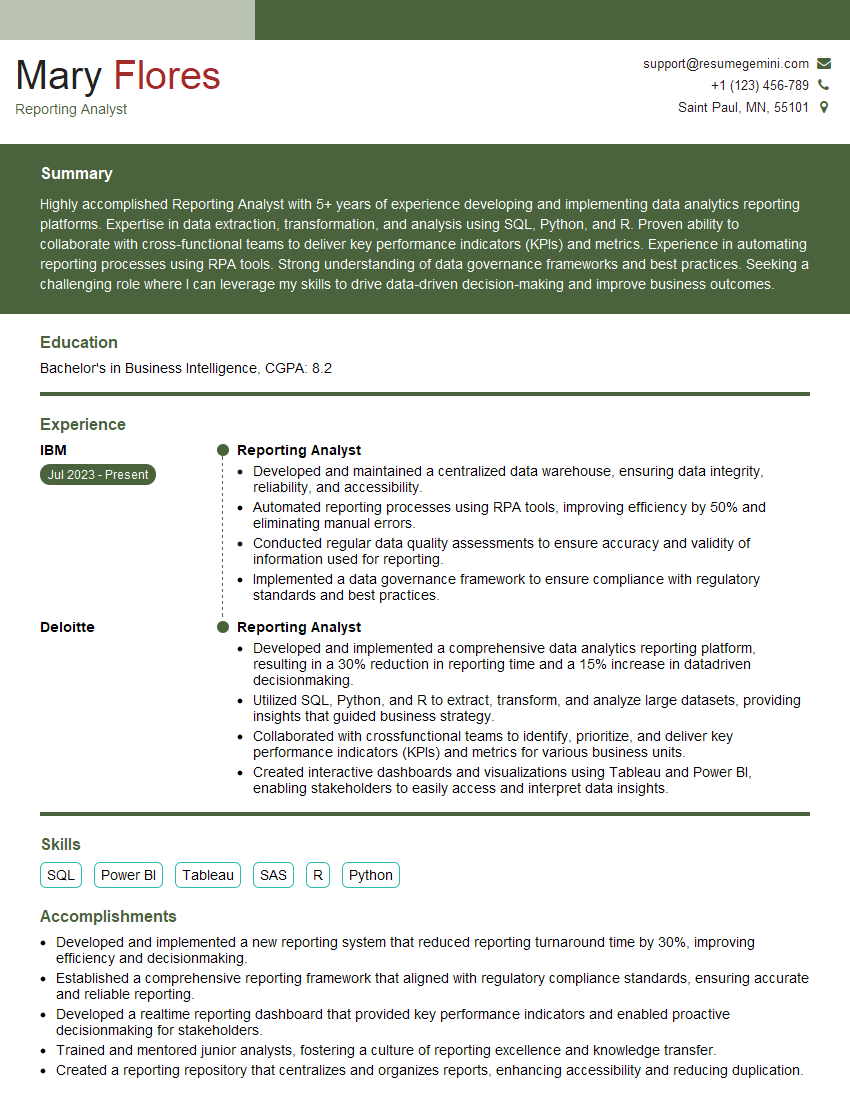
Reporting Analyst Resume Sample
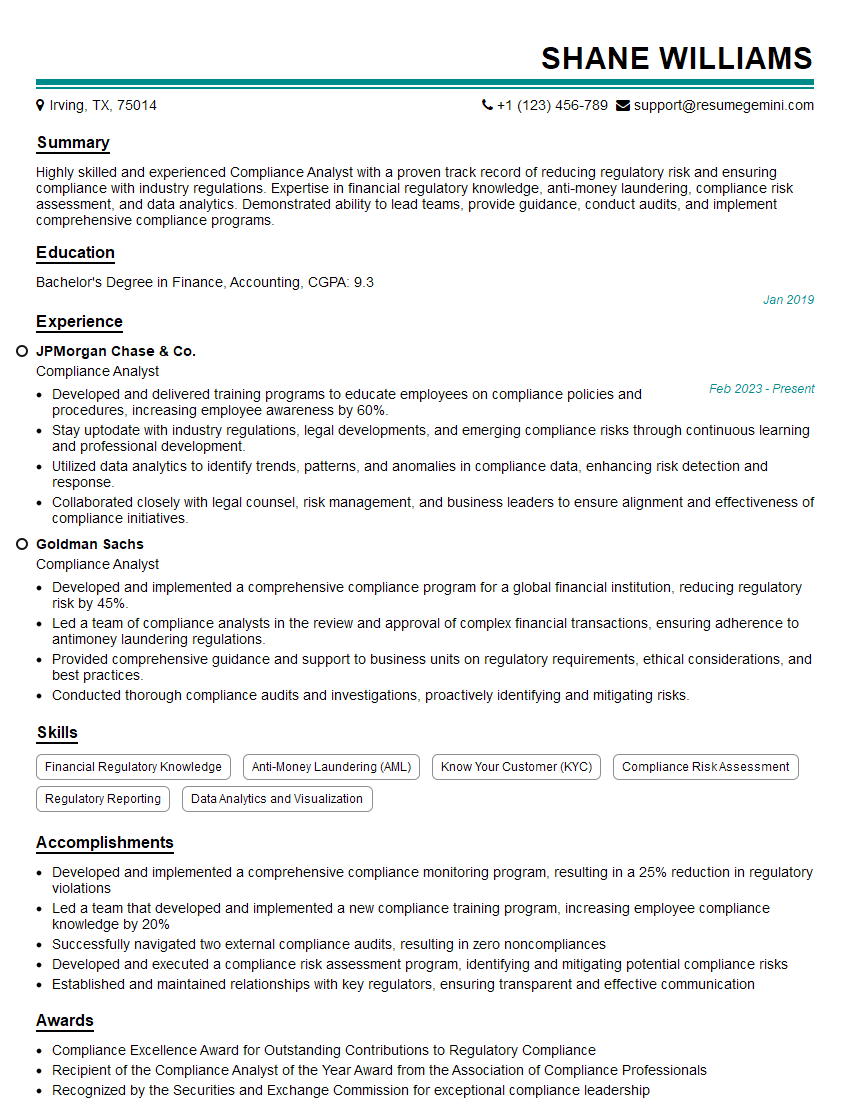
Compliance Analyst Resume Sample
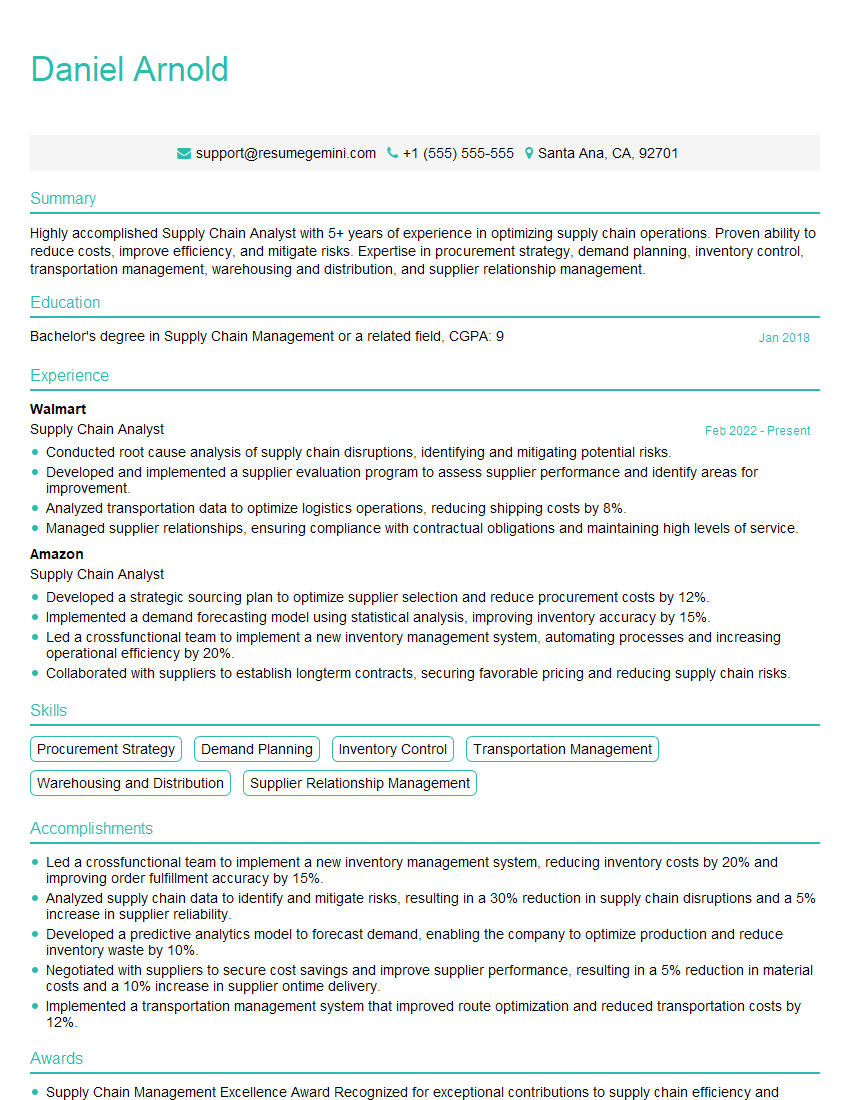
Supply Chain Analyst Resume Sample

Business Analyst Resume Sample
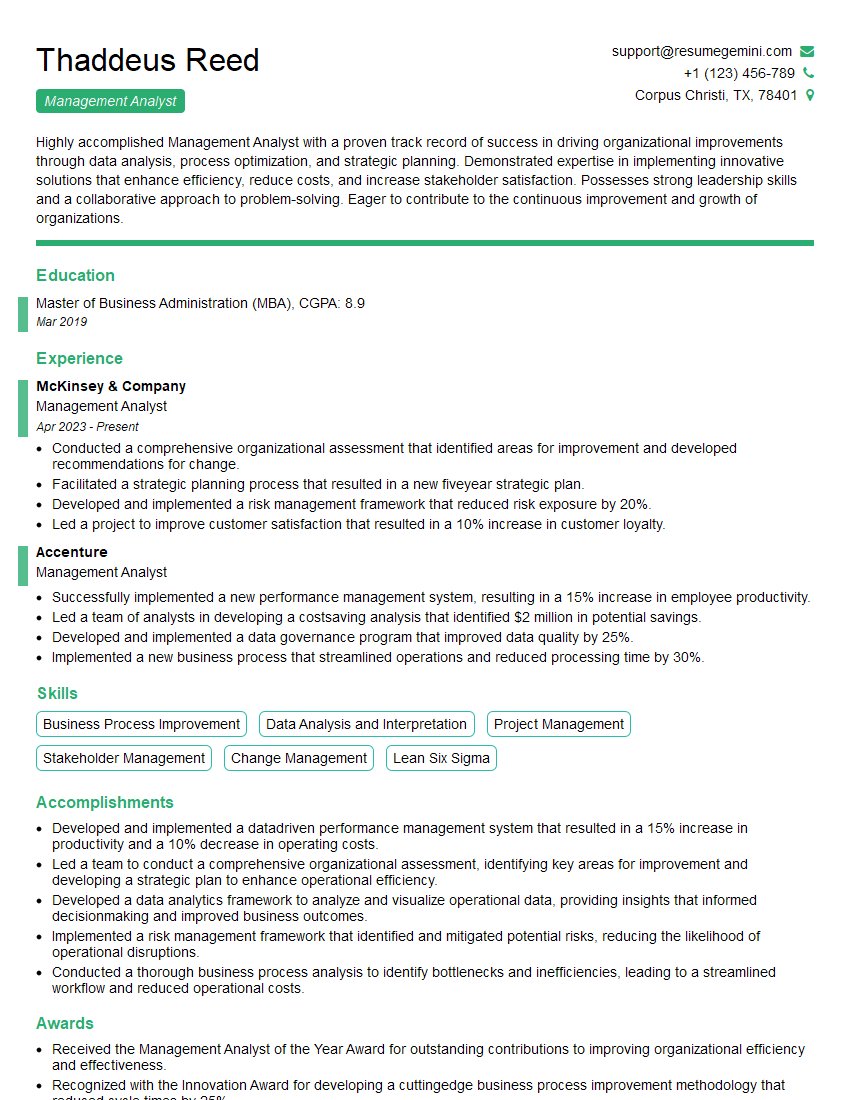
Management Analyst Resume Sample

Project Management Analyst Resume Sample
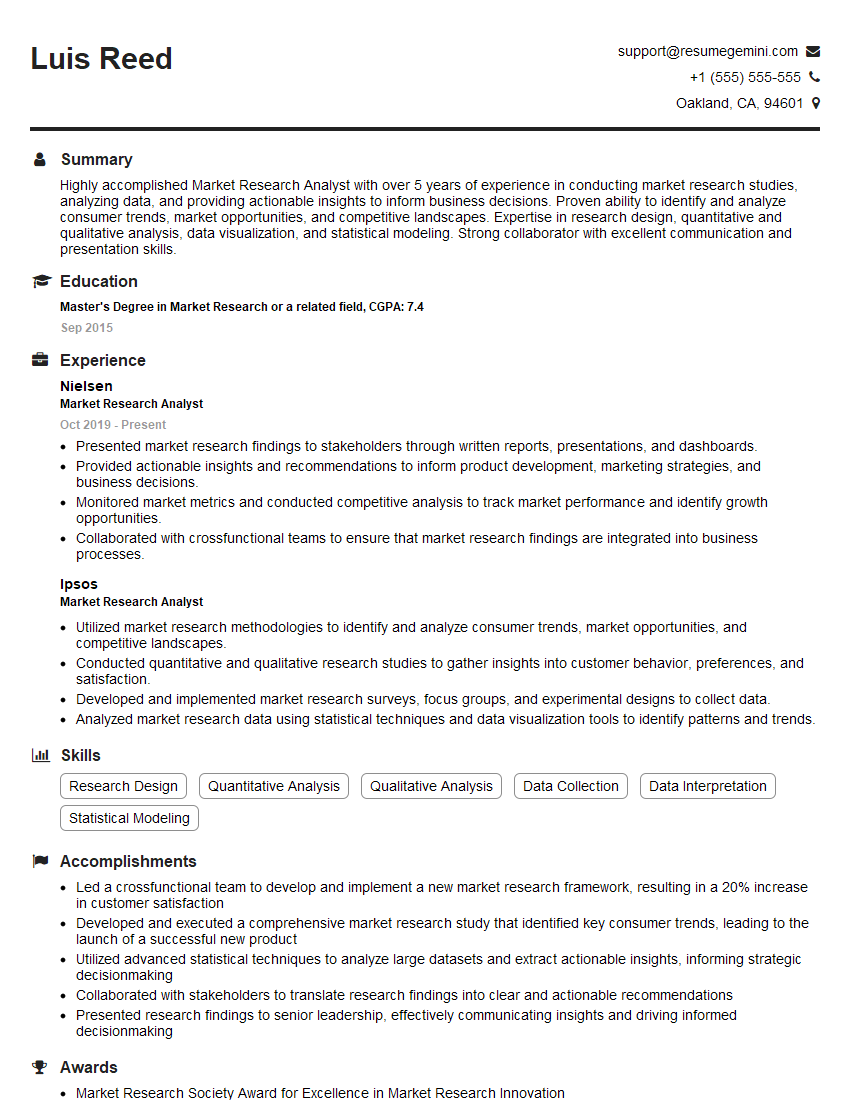
Market Research Analyst Resume Sample
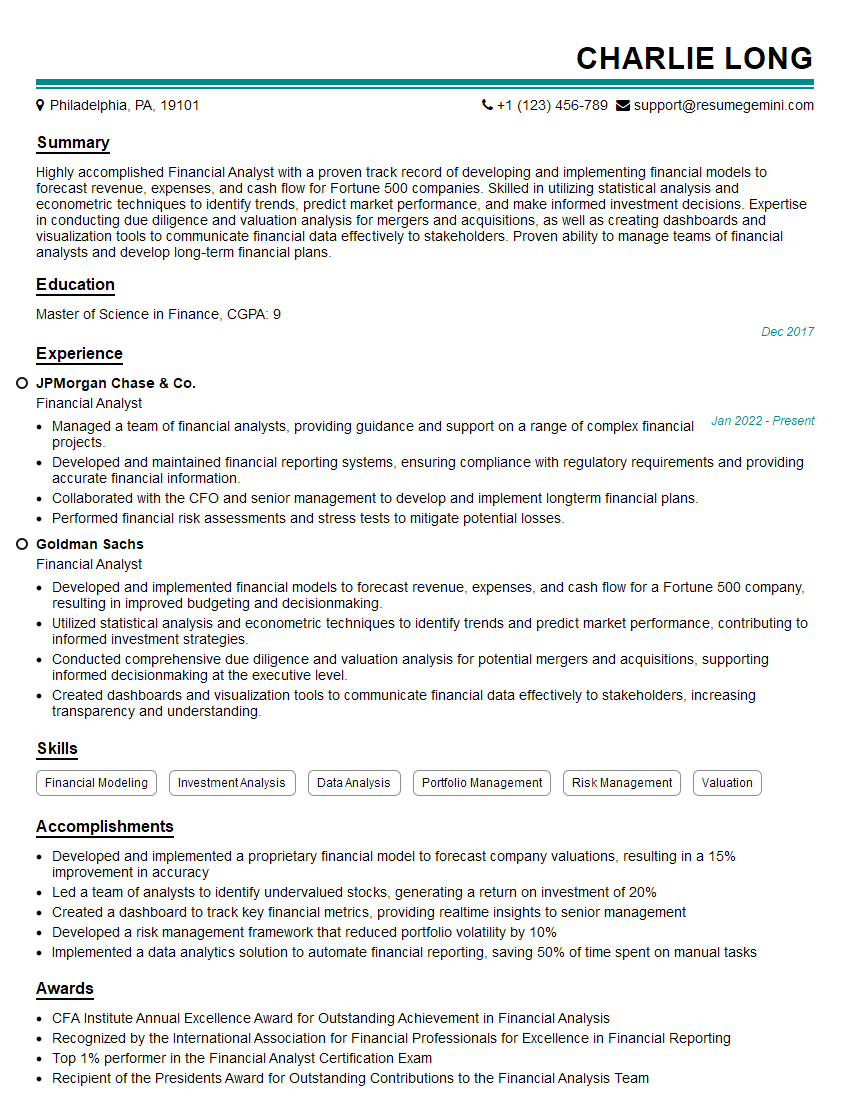
Financial Analyst Resume Sample

Data Analyst Resume Sample
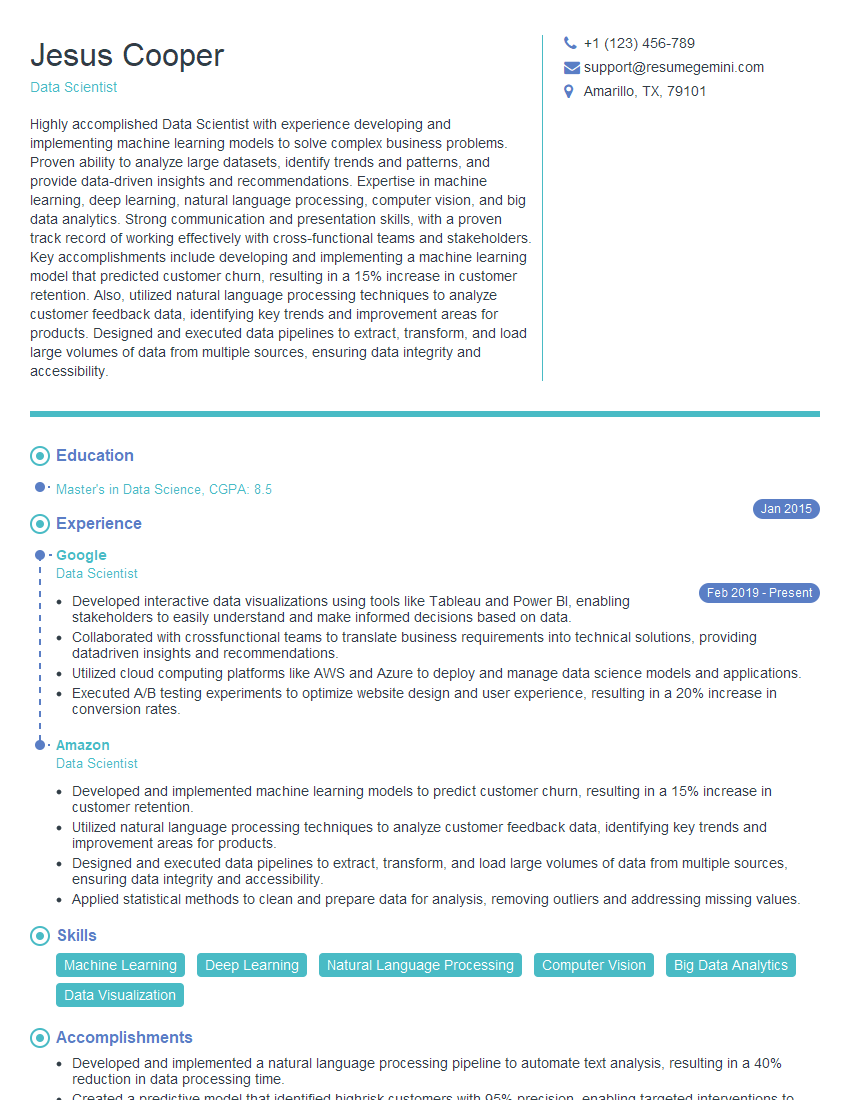
Data Scientist Resume Sample
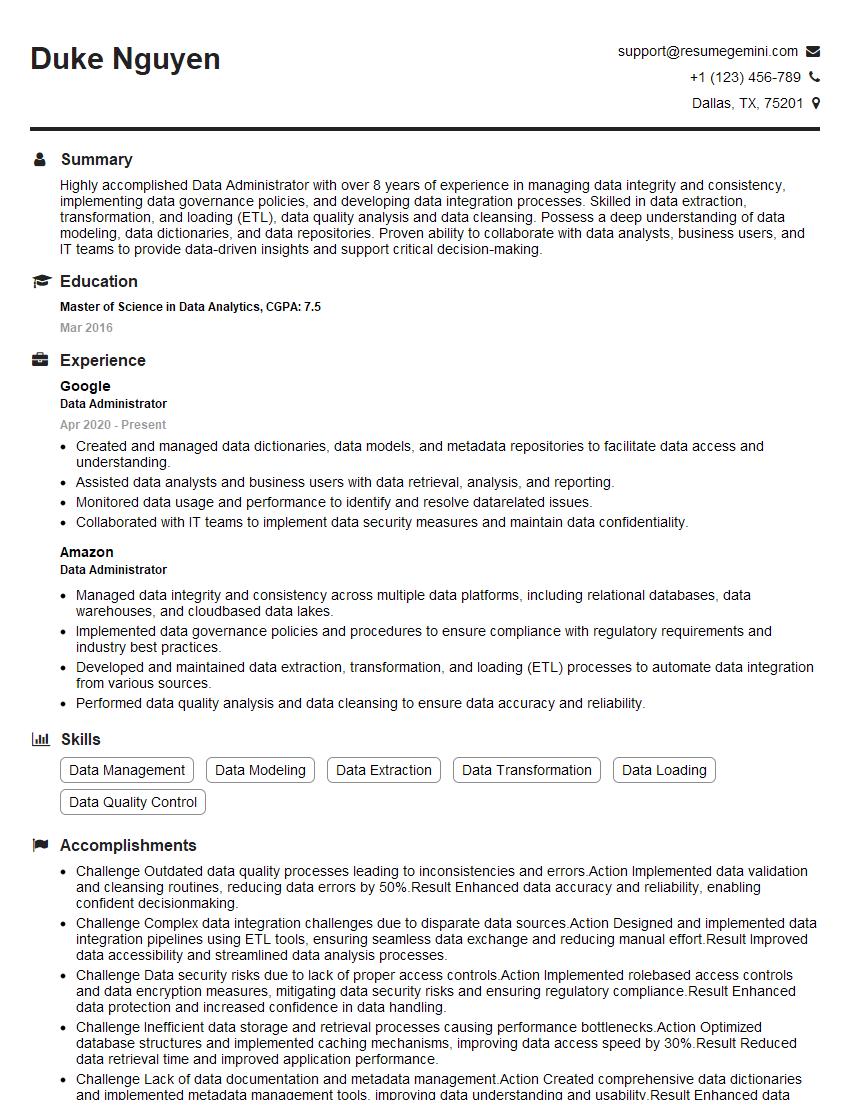
Data Administrator Resume Sample
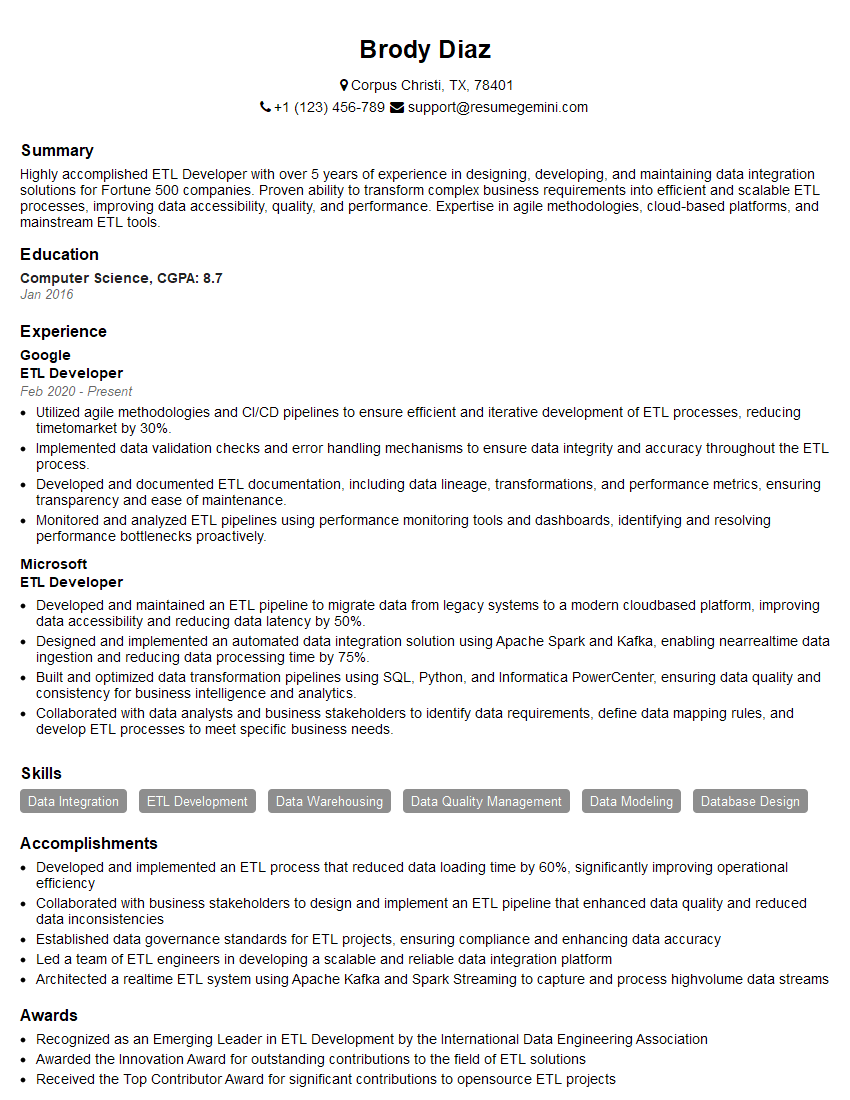
ETL Developer Resume Sample
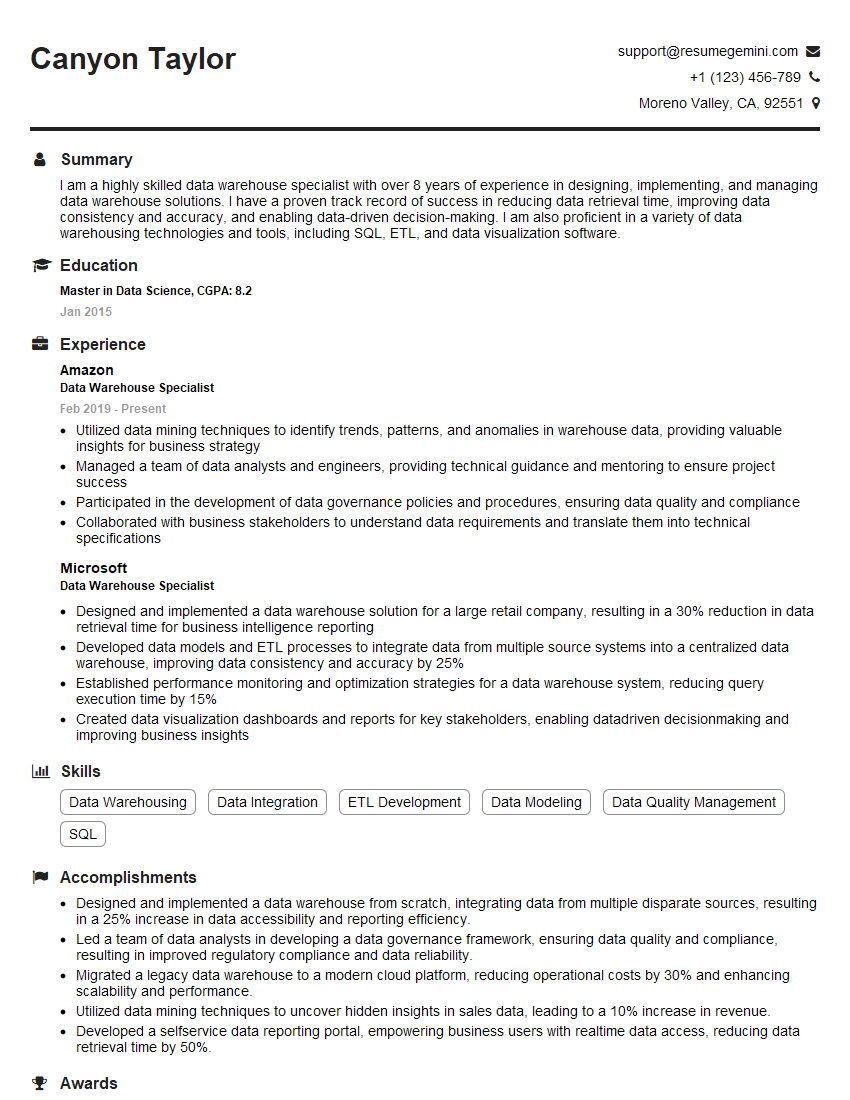
Data Warehouse Specialist Resume Sample
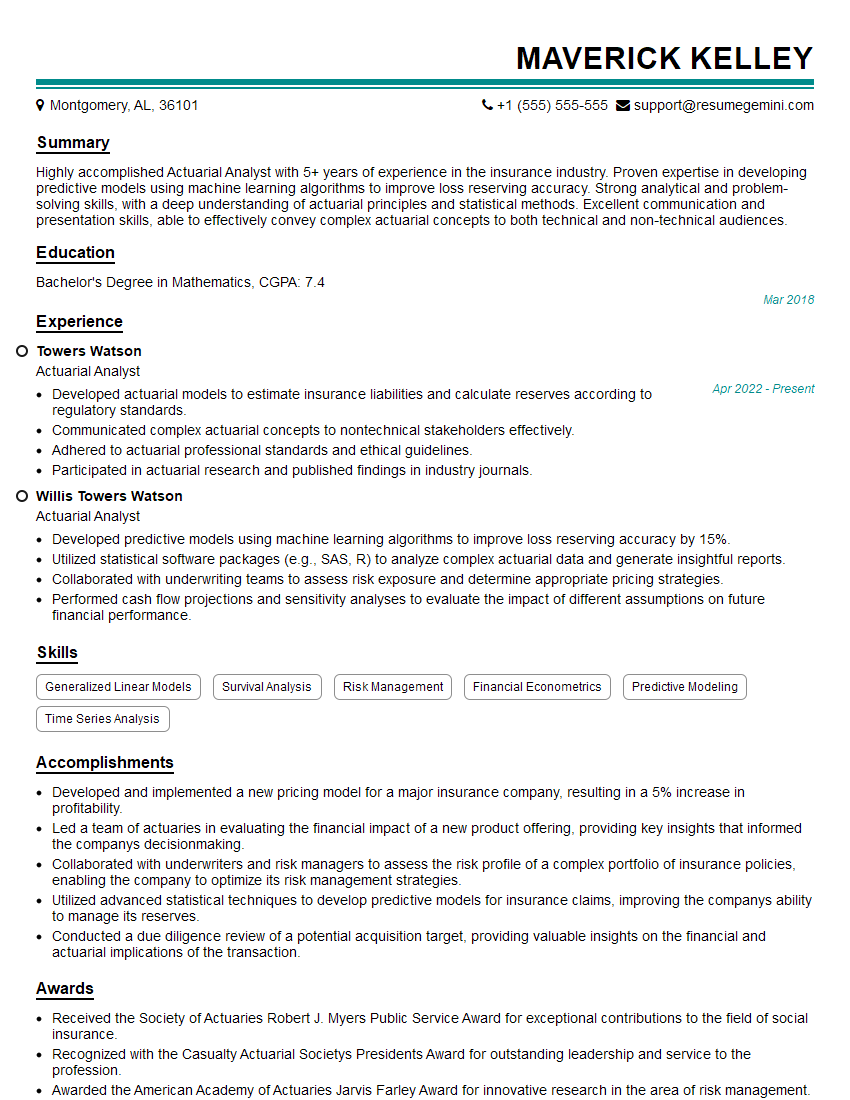
Actuarial Analyst Resume Sample
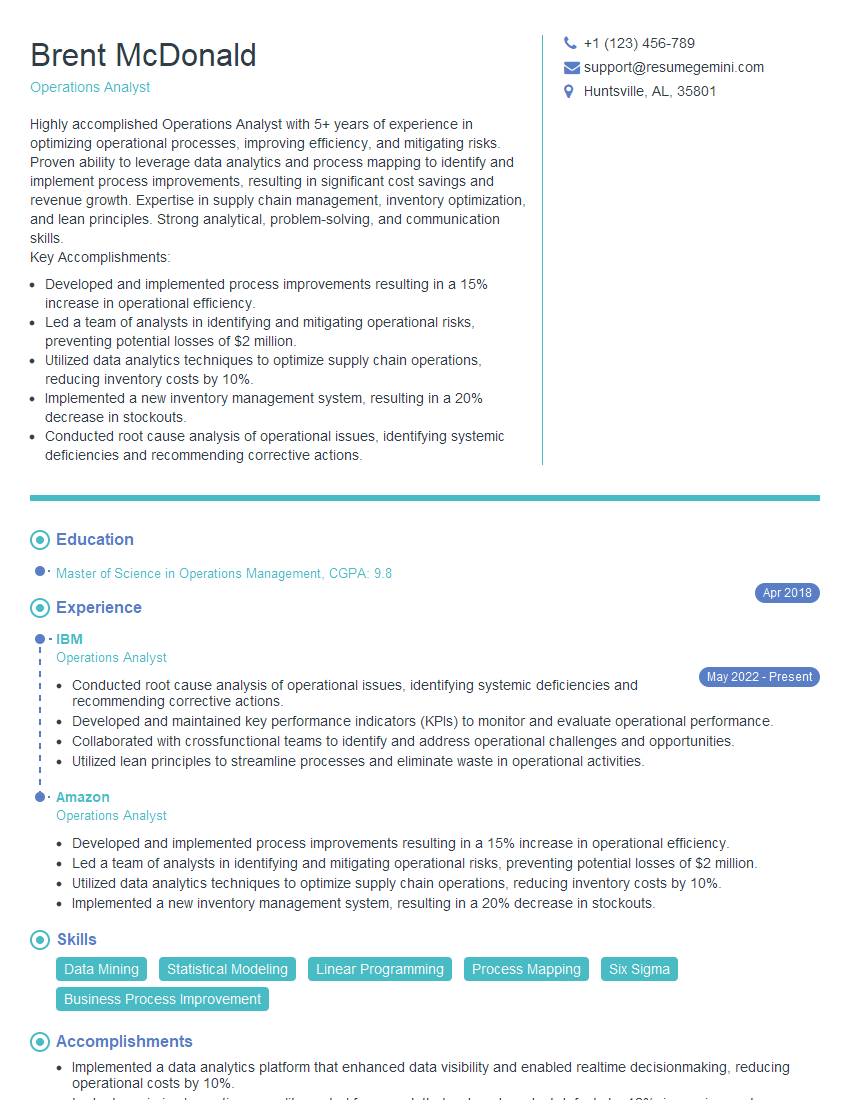
Operations Analyst Resume Sample

Statistical Analyst Resume Sample

Data Entry Clerk Resume Sample
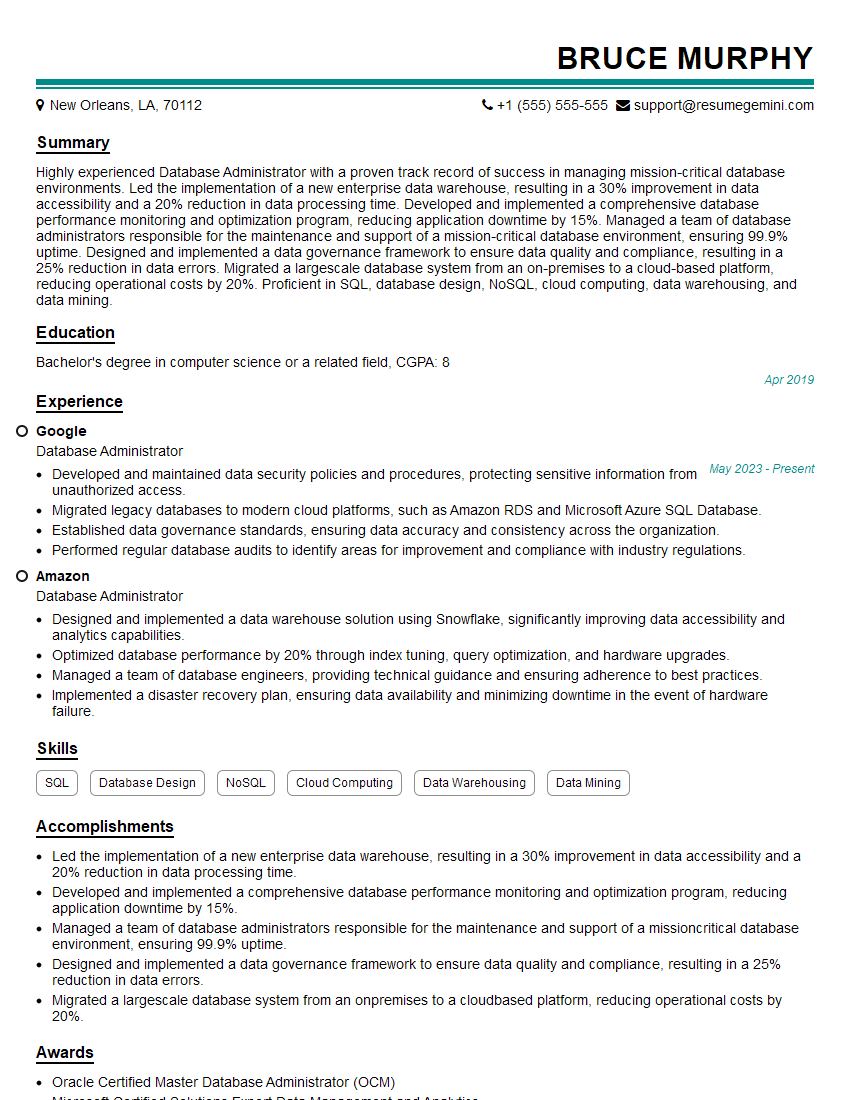
Database Administrator Resume Sample
- Reporting Analyst
- Compliance Analyst
- Supply Chain Analyst
- Business Analyst
- Management Analyst
- Project Management Analyst
- Market Research Analyst
- Financial Analyst
- Data Analyst
- Data Scientist
- Data Administrator
- ETL Developer
- Data Warehouse Specialist
- Actuarial Analyst
- Operations Analyst
- Statistical Analyst
- Data Entry Clerk
- Database Administrator
Explore more articles
Users Rating of Our Blogs
Share Your Experience
We value your feedback! Please rate our content and share your thoughts (optional).
What Readers Say About Our Blog
Very informative content, great job.
good