The right preparation can turn an interview into an opportunity to showcase your expertise. This guide to Troubleshooting and resolving printing issues interview questions is your ultimate resource, providing key insights and tips to help you ace your responses and stand out as a top candidate.
Questions Asked in Troubleshooting and resolving printing issues Interview
Q 1. Describe your experience troubleshooting common printer errors, such as paper jams, connectivity issues, and print quality problems.
Troubleshooting printer errors is a systematic process. I begin by understanding the type of error and gathering information from the user, such as error messages displayed on the printer or computer. For paper jams, my approach involves carefully checking the paper path, removing the jammed paper, and ensuring the paper tray is correctly loaded. Connectivity issues often require a check of the printer’s network cable, its IP address, and the network configuration on the computer. Print quality problems, like blurry text or faded colors, usually point to issues with ink or toner levels, print head alignment (for inkjet), or even the printer’s resolution settings. I always start with the simplest solutions and move to more complex ones, eliminating possibilities along the way.
For example, I recently resolved a case of faded prints by first checking the toner cartridge level on a laser printer. It turned out to be nearly empty, which was easily rectified with a cartridge replacement. Another instance involved a paper jam that required careful disassembly of the printer’s rear access panel to remove the crumpled paper. In resolving connectivity issues, I’ve often found that simply restarting the printer and computer solves the problem, while other times it required adjusting firewall settings or verifying network drivers.
Q 2. How do you diagnose and resolve network connectivity issues affecting printers?
Diagnosing network printer connectivity issues requires a methodical approach. I start by checking the physical connection – is the network cable securely plugged into both the printer and the router? Then, I verify the printer’s IP address and ensure it’s on the same subnet as the computer. I use ping commands (ping ) to confirm network connectivity. If the ping is unsuccessful, I troubleshoot network connectivity at the router level or check for any network firewalls blocking communication. Next, I look at the printer’s network settings to make sure they are correctly configured. Many times, a simple power cycle of the printer and router resolves the issue.
If the problem persists, I’ll check the printer’s driver on the computer to ensure it’s up to date and correctly installed. I might also test the network connection from another computer to rule out problems on the user’s machine. Tools like a network scanner or the router’s administration interface can help identify any network issues. For instance, if I find the printer is offline on the router’s interface, I know the issue lies in the router’s configuration or physical network connection.
Q 3. Explain your process for identifying and resolving driver-related printer problems.
Driver-related printer problems often manifest as printing errors, incorrect settings, or the printer not being recognized by the operating system. My process begins by identifying the printer model and operating system. Then, I verify that the correct driver is installed. Sometimes, the system might be using an outdated or incompatible driver. I check the manufacturer’s website for the latest driver and install it, making sure to uninstall the old driver first. I also check the printer’s properties to ensure the correct settings are applied (e.g., correct paper size, orientation).
In one instance, a user reported that their printer wasn’t printing in color, even though they had color ink. This turned out to be a simple driver setting issue; the driver was configured to print in black and white. Sometimes, driver corruption can be the issue. In such cases, I would suggest completely removing the printer and its driver from the system, restarting the computer, and reinstalling the printer and downloading the latest driver from the manufacturer.
Q 4. What are the common causes of blurry or faded printouts, and how would you troubleshoot them?
Blurry or faded printouts are common issues with several potential causes. For inkjet printers, this can be due to clogged print heads, low ink levels, or incorrect ink cartridge installation. For laser printers, low toner, dirty rollers, or problems with the fuser unit are common culprits. The resolution settings within the print driver also play a significant role; a lower resolution setting directly impacts print quality. In addition, damaged or old toner cartridges, as well as a worn-out drum unit (in laser printers) significantly contribute to faded prints.
My troubleshooting starts with a visual inspection of the printer and its consumables. I check ink/toner levels and replace them if necessary. For inkjet printers, I might perform a print head cleaning cycle, following the manufacturer’s instructions. For laser printers, I’d inspect the rollers for debris and clean them if needed. Adjusting the print resolution to a higher setting (e.g., 600 DPI or higher) can also improve the print quality. In more complex scenarios, this could point towards a more significant internal printer problem requiring professional servicing.
Q 5. How would you approach troubleshooting a printer that is not responding to print jobs?
A printer unresponsive to print jobs necessitates a systematic approach. First, I’d check if the printer is powered on and connected to the computer (or network). I then verify that the printer’s queue isn’t jammed with pending jobs. Sometimes, deleting stalled print jobs from the queue can resolve the issue. I also check the printer’s status via the printer’s control panel or through the computer’s printer management interface (e.g., in Windows, this might be through the Devices and Printers applet).
Next, I look at the printer driver, ensuring it’s correctly installed and up-to-date. Network connectivity problems are a frequent suspect; I would use ping commands or network monitoring tools to test this. The printer itself could be experiencing a hardware issue, in which case a reboot is the first step. If the problem persists, more advanced diagnostic tools or professional repair might be necessary. For instance, an error code displayed on the printer can help pinpoint the problem.
Q 6. How familiar are you with different printer technologies (e.g., laser, inkjet, thermal)?
I have extensive experience with various printer technologies, including laser, inkjet, and thermal printers. Laser printers utilize toner powder and heat to fuse the toner onto the paper, offering high-volume, high-quality printing. Inkjet printers use ink cartridges to spray ink onto the paper, providing excellent color quality but potentially lower print speeds and higher running costs. Thermal printers use heat to produce prints, often seen in receipt printers or label printers. I understand the strengths and weaknesses of each technology, from their consumables management to their maintenance requirements and troubleshooting techniques specific to each type.
This knowledge helps me accurately diagnose problems. For example, knowing the typical causes of streaks in laser printer output (e.g., worn rollers, toner issues) differs from the causes of blurry prints in an inkjet printer (e.g., clogged printheads). This understanding allows me to quickly address the problem, providing the user with effective solutions.
Q 7. Describe your experience with setting up and configuring network printers.
Setting up and configuring network printers involves a multi-step process. First, I physically connect the printer to the network (either wired or wirelessly). Then, I ensure the printer’s network settings are correctly configured to match the network’s IP address settings and protocols. I often utilize the printer’s built-in web interface or a network utility to configure these settings. Next, I add the printer to the network using the appropriate operating system’s tools (such as the Control Panel in Windows or System Preferences in macOS).
The installation process involves installing the correct drivers for the operating system. During this process, I will check the security of the network printer; setting up password protection and appropriate network access rights. Depending on the environment, this could also involve integration with print servers or central print management systems. For instance, I recently set up a network printer across a whole office, ensuring user authentication to prevent unauthorized printing. This required configuring the printer with the Active Directory authentication service.
Q 8. How do you manage printer queues and resolve print job conflicts?
Managing printer queues and resolving conflicts involves understanding how print jobs are processed. Think of the queue as a waiting line at a restaurant – each print job is a customer waiting to be served (printed). Conflicts arise when jobs get stuck, prioritized incorrectly, or cause the entire system to jam.
I use a multi-pronged approach. First, I check the printer’s properties and settings to understand its current queue status. Most operating systems (Windows, macOS, Linux) provide tools to view and manage this. For example, in Windows, the Print Management console allows me to pause, restart, or delete individual jobs. If a job is stuck, I’ll try to cancel it, then check the printer’s status for any error messages. Secondly, I look for resource conflicts. Is the printer low on memory or disk space? Is it sharing a network resource with other devices that might be competing for bandwidth? Sometimes, a simple reboot of the printer or the print server can resolve temporary glitches. Lastly, driver issues are a major culprit. Outdated or corrupted drivers can lead to conflicts. I verify the drivers are up-to-date and compatible, reinstalling them if necessary.
For example, I once encountered a situation where a large print job had locked up the queue, preventing other users from printing. By deleting the stalled job and restarting the print spooler service (a system that manages print jobs), I resolved the issue quickly and efficiently.
Q 9. Explain your understanding of printer security protocols and best practices.
Printer security is critical to protect sensitive data. It’s about securing the physical device, the network connection, and the print jobs themselves. Think of it like securing a vault – you need multiple layers of protection.
- Access Control: Restricting access to the printer via network security protocols (like restricting access to only certain IP addresses or users) and physical security measures (locking up the printer). This prevents unauthorized users from printing or accessing sensitive information.
- Secure Printing: Implementing secure print features, where a user must authenticate at the printer itself before releasing the job. This prevents others from accessing confidential documents.
- Data Encryption: Some printers offer encryption for print jobs in transit, encrypting the data while it travels over the network.
- Regular Updates: Keeping printer firmware and software up-to-date patches security vulnerabilities.
- Network Segmentation: Placing printers on a separate network segment to isolate them from other critical systems.
Best practices include regular audits of printer security settings, implementing strong passwords, and educating users about responsible printing habits. For example, I always recommend users avoid printing highly sensitive information unless absolutely necessary and to securely dispose of any printed documents.
Q 10. How do you prioritize and manage multiple printer-related support requests?
Prioritizing printer support requests is crucial. I use a tiered approach, similar to a hospital’s triage system. The most critical issues are addressed first.
- Severity: I categorize requests by severity: critical (entire department unable to print), high (major disruption), medium (minor inconvenience), and low (non-urgent).
- Impact: The number of users affected is a key factor. A problem affecting 100 users is clearly more important than one affecting only one user.
- Urgency: Time sensitivity plays a role. A request impacting an important meeting is more urgent than one with a later deadline.
I use a ticketing system to track requests, assign priorities, and monitor progress. I regularly update users on the status of their requests to manage expectations and ensure transparency. For example, during a large-scale printer outage, I would initially focus on getting the critical printers back online, then address others based on the urgency and impact.
Q 11. What is your experience with print server administration and maintenance?
My experience with print server administration encompasses installation, configuration, maintenance, and troubleshooting of print servers running various operating systems (Windows Server, Linux). This involves tasks such as installing and configuring print drivers, managing printer queues, setting up network printing, implementing security policies, monitoring server health and performance, and performing regular backups.
I’m proficient in using tools to monitor resource utilization, identify bottlenecks, and ensure smooth print operations. I understand the importance of regularly updating print server software and drivers to address security vulnerabilities and improve performance. For example, I regularly analyze print server logs to identify patterns of errors or slowdowns and proactively address them before they become major issues. I also have experience configuring and managing different print server architectures, such as those using centralized print management software.
Q 12. Describe your experience with various printer brands and models.
I have extensive experience with a wide range of printer brands and models, including HP, Canon, Epson, Lexmark, and Xerox, encompassing both laser and inkjet technologies. My experience extends to various printer types, such as multi-function printers (MFPs), network printers, and large-format printers. This experience has equipped me with a comprehensive understanding of their unique functionalities, troubleshooting needs, and maintenance requirements.
I’m familiar with their respective driver software, network protocols, and embedded systems. This knowledge allows me to quickly diagnose and resolve issues across various brands and models. For instance, I can troubleshoot paper jams in an HP LaserJet differently from how I would troubleshoot a similar issue in an Epson inkjet printer.
Q 13. How would you troubleshoot a printer that produces blank pages?
A printer producing blank pages is a common issue with several possible causes. It’s like trying to bake a cake with missing ingredients – something’s missing in the printing process.
- Check the toner or ink cartridges: Are they empty or low? This is the most frequent cause.
- Examine the paper path: Are there any obstructions, such as crumpled paper or foreign objects? Clear any jams.
- Inspect the printer settings: Is the correct paper type and size selected? Are there any print settings that might be preventing ink or toner from being applied (e.g., draft mode)?
- Check the printer drivers: Outdated or corrupted drivers can cause unexpected behavior. Update or reinstall the drivers.
- Assess the print job settings: Is the document actually printing anything? Sometimes, the issue lies in the document itself. Try printing a test page.
- Look for error messages: The printer might display error codes indicating specific problems.
- Check the printer’s fuser unit (for laser printers): This component melts the toner to the paper. If it is malfunctioning, it will lead to blank pages.
By systematically checking these points, you can identify the problem’s root cause and resolve it effectively. For example, I once solved a case of blank pages by simply selecting the correct paper size in the printer settings. In another case, a faulty fuser unit was the culprit requiring professional repair.
Q 14. What steps would you take to investigate and resolve a printer that is offline?
A printer appearing offline can be frustrating, but the solution often involves straightforward troubleshooting steps. It’s like a car that won’t start – several factors could be at play.
- Check the physical connections: Ensure the printer is properly connected to the power source, network cable (Ethernet or Wi-Fi), and USB cable (if applicable). Try different cables if possible.
- Verify the network connectivity: If the printer is network-connected, make sure it’s connected to the same network as your computer and that the network is functioning correctly. Check the printer’s network settings to ensure the IP address is correct.
- Restart the printer: A simple reboot often resolves temporary software glitches.
- Restart the computer: The computer’s print spooler might be experiencing issues. Restarting usually resolves this.
- Check the printer’s status lights: The printer may have indicator lights signaling problems. Consult the printer’s documentation for their meanings.
- Check the print queue: See if any jobs are pending or stuck in the queue.
- Update or reinstall printer drivers: Outdated or corrupted drivers frequently cause connection problems.
- Check firewalls and network security settings: Ensure that firewalls are not blocking the printer’s communication.
For example, I recently resolved an offline printer issue by simply restarting the print spooler service on the Windows server. In another case, the problem stemmed from a faulty network cable.
Q 15. Describe your familiarity with different printer languages (e.g., PostScript, PCL).
Printer languages are the sets of instructions a printer understands to render a document. I’m proficient in both PostScript and PCL, two of the most prevalent languages. PostScript, known for its high-quality graphics capabilities, is often used in professional printing environments, particularly where precise image reproduction is critical, such as for brochures or high-resolution images. PCL (Printer Control Language), on the other hand, is generally more efficient for text-based documents and simpler graphics, making it a good choice for everyday office printing where speed and efficiency are key. Understanding these differences allows me to troubleshoot effectively; for instance, if a document prints poorly with jagged edges or incorrect color reproduction, I can investigate whether the issue stems from an incompatibility with the printer’s language settings or a problem with the print driver itself.
Think of it like speaking different languages: PostScript is like speaking fluent French – elegant and precise, while PCL is more like speaking efficient, everyday English – suitable for most conversations. My experience encompasses configuring printers to use the appropriate language based on the document type and printer capabilities. I can even identify if a document is using a proprietary language, requiring specialized handling.
Career Expert Tips:
- Ace those interviews! Prepare effectively by reviewing the Top 50 Most Common Interview Questions on ResumeGemini.
- Navigate your job search with confidence! Explore a wide range of Career Tips on ResumeGemini. Learn about common challenges and recommendations to overcome them.
- Craft the perfect resume! Master the Art of Resume Writing with ResumeGemini’s guide. Showcase your unique qualifications and achievements effectively.
- Don’t miss out on holiday savings! Build your dream resume with ResumeGemini’s ATS optimized templates.
Q 16. How do you handle situations where you’re unable to immediately resolve a printer issue?
When faced with an immediately irresolvable printer issue, my approach is systematic and prioritizes data collection and escalation. First, I meticulously document the problem: the error message (if any), the printer model, the operating system, the application used to print, and any recent changes made to the system. Then, I try replicating the issue to rule out user error. If it’s consistent, I’ll leverage online resources – manufacturer websites, troubleshooting forums, and knowledge bases – searching for solutions specific to the error code or symptoms. I also check printer logs for detailed diagnostic information which frequently pinpoints the problem.
If the problem persists, I follow established escalation procedures within the organization, immediately informing my supervisor or IT team. This often involves providing them with the comprehensive documentation I’ve compiled. A timely escalation minimizes downtime and prevents the problem from affecting a larger number of users. Imagine it like troubleshooting a car; You systematically check different components (fuel, ignition, etc.) until you find the root cause, and if you can’t, you take it to a mechanic.
Q 17. What are some common causes of printing errors related to spooling?
Spooling, the process of temporarily storing print jobs before they’re sent to the printer, can be a source of many printing errors. Common culprits include a full or corrupted print spooler, insufficient disk space, outdated or conflicting print drivers, and network connectivity issues. A full print spooler prevents new jobs from being processed, while a corrupted one can lead to printing errors or job failures. Insufficient disk space can also halt the spooling process.
For instance, if the hard drive is nearly full, the print spooler may fail to store print jobs correctly, resulting in print failures or errors. Inaccurate or poorly configured print drivers may lead to the printer receiving incorrect instructions, causing spooling errors. Network issues can disrupt the communication between the computer and printer, preventing the spooler from sending jobs to the printer. To troubleshoot, I would check the print spooler status, clear the print queue, check disk space, update or reinstall the print driver, and investigate network connectivity issues.
Q 18. How familiar are you with using remote management tools for printers?
I have extensive experience using remote management tools for printers, including web-based interfaces, and specialized software like HP Web Jetadmin or similar solutions. These tools allow me to monitor printer status, manage settings, configure network connections, check toner levels, and even troubleshoot problems remotely, minimizing the need for physical intervention. For example, I can remotely restart a printer, check its error logs, and update its firmware – all without leaving my desk. This significantly improves efficiency, allowing me to address issues quickly and proactively, even for printers located in geographically dispersed offices.
Think of it as having remote control over your printer fleet. It allows for proactive monitoring and maintenance, reducing downtime and improving overall productivity. The ability to remotely diagnose and resolve issues saves valuable time and resources.
Q 19. Describe your experience with troubleshooting print driver installations.
Troubleshooting print driver installations is a regular part of my work. Issues can range from simple incompatibility problems to more complex conflicts between drivers. My approach involves first identifying the operating system and printer model to ensure driver compatibility. I then check the manufacturer’s website for the latest driver version, ensuring it’s compatible with the specific OS. If a driver is already installed, I might try uninstalling it completely before installing the new one. If the new driver still doesn’t work, I check for conflicts by reviewing the device manager. I also check for the existence of any pending updates or restarts that might be required.
For example, I recently resolved an issue where a user was getting print errors with a new laser printer. The issue stemmed from installing a generic driver instead of the manufacturer’s specific driver. By carefully reinstalling the correct driver, the problem was solved. Sometimes, the solution is as simple as checking if the correct ports are selected, a surprisingly common oversight. I also frequently use device manager to disable and re-enable the printing devices to resolve simple glitches.
Q 20. How do you escalate printer issues that you cannot resolve independently?
My escalation process for printer issues I can’t solve independently is well-defined and prioritizes clear communication. I start by documenting all troubleshooting steps taken, including error messages, logs, and any relevant screenshots. This information is crucial for the next level of support. I then escalate the issue to my supervisor or the designated IT support team, clearly outlining the problem, the steps already attempted, and the impact on users. Depending on the urgency, escalation may involve immediate notification or following a standard ticketing system. The goal is a smooth handoff with all the necessary details for efficient resolution.
This is akin to a medical referral; if a GP can’t diagnose a condition, they refer the patient to a specialist. Similarly, in IT, escalating a complex issue to a more specialized team ensures the problem is addressed efficiently by those with the most relevant expertise.
Q 21. What is your experience with managing printer consumables (toner, ink, paper)?
Managing printer consumables is critical for maintaining efficient printing operations. My experience includes tracking toner and ink levels, ordering replacements proactively to avoid running out, and ensuring proper disposal of used cartridges. I’m familiar with different types of consumables and their compatibility with various printer models. For example, I can differentiate between high-yield and standard-yield toner cartridges and select the appropriate option based on print volume. I also understand the importance of using genuine consumables to maintain printer quality and warranty. We also employ inventory management systems to track consumable levels and automate ordering based on pre-defined thresholds.
Think of it like managing a restaurant’s supplies. You need to predict demand, order supplies efficiently, and ensure proper storage and rotation. Proactive management of printer consumables minimizes downtime and ensures the smooth operation of the printing environment.
Q 22. Explain your understanding of different printer maintenance procedures.
Printer maintenance is crucial for ensuring optimal performance and longevity. It involves a range of procedures, from simple tasks to more complex interventions.
- Regular Cleaning: This includes removing dust and debris from the printer’s exterior, paper trays, and rollers. Clogged rollers, for example, can cause paper jams and feeding issues. Think of it like cleaning your car’s engine – regular maintenance prevents major problems down the line.
- Toner/Ink Cartridge Replacement: Replacing empty or low toner/ink cartridges is fundamental. Low ink can lead to faded prints, and empty cartridges will halt printing altogether. Knowing the signs of low ink, such as light printouts or error messages, is key to preventing disruptions.
- Paper Handling: Using the correct type and size of paper is vital. Incorrect paper can cause jams or poor print quality. It’s like trying to fit a square peg in a round hole; it won’t work.
- Firmware Updates: Regularly updating the printer’s firmware can resolve bugs, improve performance, and add new features. Similar to updating the software on your phone, this patch enhances functionality and resolves potential issues.
- Preventative Maintenance: This involves regular inspections of all printer components, including the print heads, fusers, and rollers, to identify potential problems before they escalate. Early detection can prevent major repairs.
A comprehensive maintenance schedule, tailored to the specific printer model and usage, is essential for minimizing downtime and maximizing the printer’s lifespan.
Q 23. How would you approach troubleshooting a printer that is consistently printing incorrectly?
Troubleshooting a printer printing incorrectly involves a systematic approach. I’d start by identifying the specific nature of the error – are the prints blurry, faded, misaligned, or are there streaks? This narrows down the potential causes.
- Check the Obvious: Begin with simple checks: Is the printer turned on? Is there paper in the tray? Is the correct paper type being used? Is the ink/toner cartridge sufficiently full? Often, the simplest explanations are overlooked.
- Examine the Print Settings: Ensure that the print settings (resolution, color, paper size, etc.) are correct. An incorrect setting is a common culprit.
- Check the Print Driver: Make sure the printer driver is up-to-date and correctly installed. An outdated or corrupt driver frequently leads to print quality issues. Sometimes, simply reinstalling the driver solves the problem.
- Inspect the Printer Hardware: Check for physical obstructions, such as jammed paper or foreign objects. Clean any dirty rollers or print heads. A visual inspection can sometimes pinpoint the issue immediately.
- Run Diagnostic Tests: Most printers have built-in self-diagnostic tests that can identify hardware faults. These tests can provide valuable clues for resolving the problem.
- Consider the Print Job: If the issue is isolated to a specific file or application, the problem may lie with that file or program itself.
- Advanced Troubleshooting: If the above steps don’t resolve the problem, more advanced troubleshooting may be necessary, possibly involving deeper examination of printer settings or even calling in for professional support.
This step-by-step approach allows for efficient identification and resolution of the problem, minimizing downtime.
Q 24. Describe your experience with using diagnostic tools and software for printer troubleshooting.
I’m proficient in using various diagnostic tools and software for printer troubleshooting. These tools can range from built-in printer utilities to specialized software applications.
- Built-in Printer Utilities: Most printers offer self-diagnostic tools accessible through the printer’s control panel or software interface. These tests check for hardware faults, ink levels, and other essential aspects.
- Manufacturer-Specific Software: Many printer manufacturers provide dedicated software for troubleshooting and managing their printers. These tools often offer more advanced diagnostic capabilities than the built-in utilities.
- Third-Party Diagnostic Tools: There are numerous third-party applications available that can assist in identifying and resolving printer problems. These tools sometimes provide more comprehensive analysis and reporting.
For example, I’ve successfully used HP’s Printer Utility and Epson’s Status Monitor to diagnose and fix various print quality issues and driver problems. My experience with these tools has enabled me to quickly pinpoint the root cause of printer malfunctions and implement efficient solutions.
Q 25. How familiar are you with the different types of printer ports (e.g., USB, parallel, network)?
I am very familiar with different printer port types and their implications on network connectivity and data transfer speeds.
- USB: Universal Serial Bus is the most common connection type for printers, offering a simple and reliable way to connect a printer to a single computer. It’s plug-and-play, with generally fast transfer speeds.
- Parallel: While less prevalent now, parallel ports were previously common for printer connections. They are now largely obsolete due to slower speeds and limitations.
- Network (Ethernet/Wi-Fi): Network connectivity allows multiple users to share a printer across a network. This is efficient for multi-user environments. Wi-Fi offers wireless connectivity, while Ethernet provides a more stable and faster connection. This setup is like a shared resource in a company’s network.
Understanding the capabilities and limitations of each port type allows for informed decisions when selecting and configuring printers for different environments. For instance, a high-volume printing environment would benefit from a network printer, while a smaller office might suffice with a USB printer.
Q 26. How would you handle a situation where multiple users are reporting the same printing issue?
When multiple users report the same printing issue, it indicates a systemic problem rather than individual user errors. This requires a more structured troubleshooting approach.
- Gather Information: Collect detailed reports from all affected users, including the exact error message, the type of document being printed, the time of occurrence and steps taken before error occurred. This helps to identify any patterns.
- Centralized Testing: Conduct tests from multiple machines to ensure the problem is not isolated to a specific computer. Testing from diverse machines ensures it’s not a local-machine problem.
- Network Connectivity: Investigate network connectivity issues that might be affecting print job transmission. Network connectivity tests help to isolate network related printing issues.
- Printer Driver and Settings: Check that the printer drivers on all affected machines are up to date and correctly configured. This helps to avoid issues caused by mismatched drivers.
- Printer Hardware: Inspect the printer hardware for any physical issues, such as paper jams or low ink/toner. A systematic check helps to rule out any hardware problems.
- Restart Devices: Restart the printer and the network devices (routers, switches) as a first step in resolving network-related problems. This is a simple method to reset network configurations.
Addressing such issues requires collaboration, a systematic approach, and thorough investigation to efficiently resolve the common problem affecting multiple users.
Q 27. Describe your experience with implementing and managing a printer fleet.
I have extensive experience in implementing and managing printer fleets, ranging from small office setups to larger enterprise environments. This involves a combination of technical skills, organizational abilities, and strategic planning.
- Selection and Procurement: Choosing appropriate printer models based on user needs, print volume, budget, and long-term maintenance costs are critical aspects. The selection process must take all these aspects into account.
- Network Configuration: Setting up printers on a network, configuring shared access, and implementing necessary security measures are essential. This involves an understanding of network protocols and security protocols.
- Driver Management: Ensuring that all users have the correct printer drivers installed and updated is crucial for smooth operation. This involves management of all drivers and their configurations.
- Maintenance and Support: Developing and implementing a proactive maintenance plan for the printer fleet minimizes downtime and maximizes printer life. This involves creating a schedule and maintaining spare parts.
- Inventory Management: Keeping track of printer supplies (ink, toner, paper), maintenance contracts, and warranty information is necessary for efficient resource allocation. This involves managing inventory and contracts.
- Monitoring and Reporting: Monitoring printer usage and identifying potential issues before they affect productivity is essential. This includes tracking print usage data.
Successfully managing a printer fleet requires a holistic approach that considers all aspects of printer deployment, usage, and maintenance.
Q 28. What is your experience with using ticketing systems to manage printer support requests?
I’m highly proficient in using ticketing systems to manage printer support requests. Ticketing systems provide a structured approach to tracking, prioritizing, and resolving issues.
- Ticket Creation and Assignment: I am experienced in creating clear and concise tickets with detailed descriptions of the problem, ensuring all relevant information is included for efficient resolution.
- Prioritization and Workflow: I’m comfortable utilizing ticketing systems’ prioritization features to manage requests effectively, ensuring that critical issues are addressed promptly. This ensures efficient workflow management.
- Status Updates and Communication: I diligently update ticket status and communicate effectively with users throughout the troubleshooting process, keeping them informed of progress and expected resolution times. This ensures that users are kept informed.
- Reporting and Analysis: I utilize the reporting features of ticketing systems to track support trends and identify recurring issues, enabling proactive measures to improve support and prevent future problems. Data is used to optimize support functions.
My experience with ticketing systems, such as Jira Service Management, ServiceNow, and Zendesk, has allowed me to streamline printer support, improve response times, and enhance overall user satisfaction.
Key Topics to Learn for Troubleshooting and Resolving Printing Issues Interview
- Understanding Printer Hardware: Familiarize yourself with different printer types (laser, inkjet, etc.), their components (cartridges, drums, fusers), and common hardware failures. Be prepared to discuss preventative maintenance.
- Driver and Software Issues: Learn to diagnose problems related to incorrect or outdated printer drivers, software conflicts, and spooler issues. Practice identifying the source of the problem through troubleshooting steps.
- Network Connectivity: Master troubleshooting network printing problems, including IP address conflicts, DNS issues, and firewall restrictions. Understand how to check network configurations and connectivity tests.
- Troubleshooting Print Jobs: Develop skills in analyzing print job errors, identifying bottlenecks, and using tools to monitor print queues. Practice isolating problems related to specific files or applications.
- Security Considerations: Understand security implications related to printing, such as access control, confidential document printing, and securing printer devices from unauthorized access.
- Problem-Solving Methodologies: Practice systematic troubleshooting approaches, including using a step-by-step process of elimination, documenting findings, and escalating issues effectively.
- Common Error Codes and Messages: Familiarize yourself with interpreting common error codes and messages from different printer manufacturers to quickly identify the root cause of the problem.
Next Steps
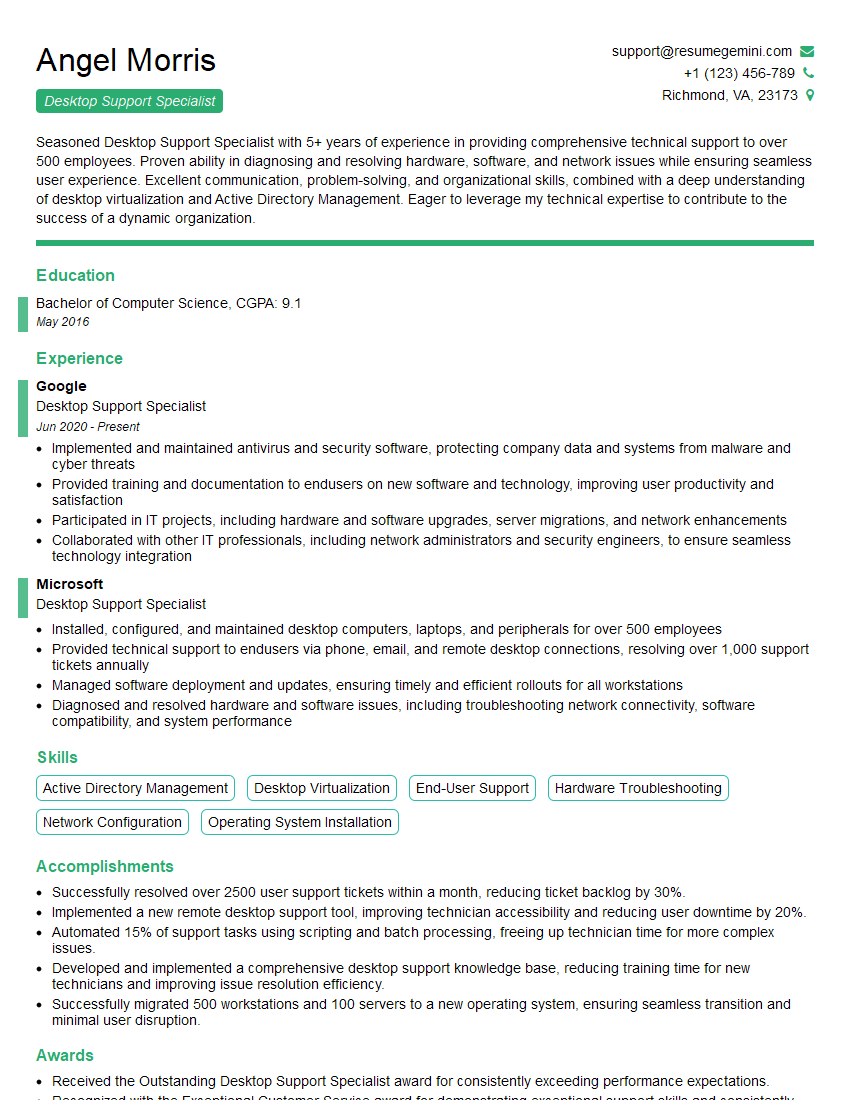
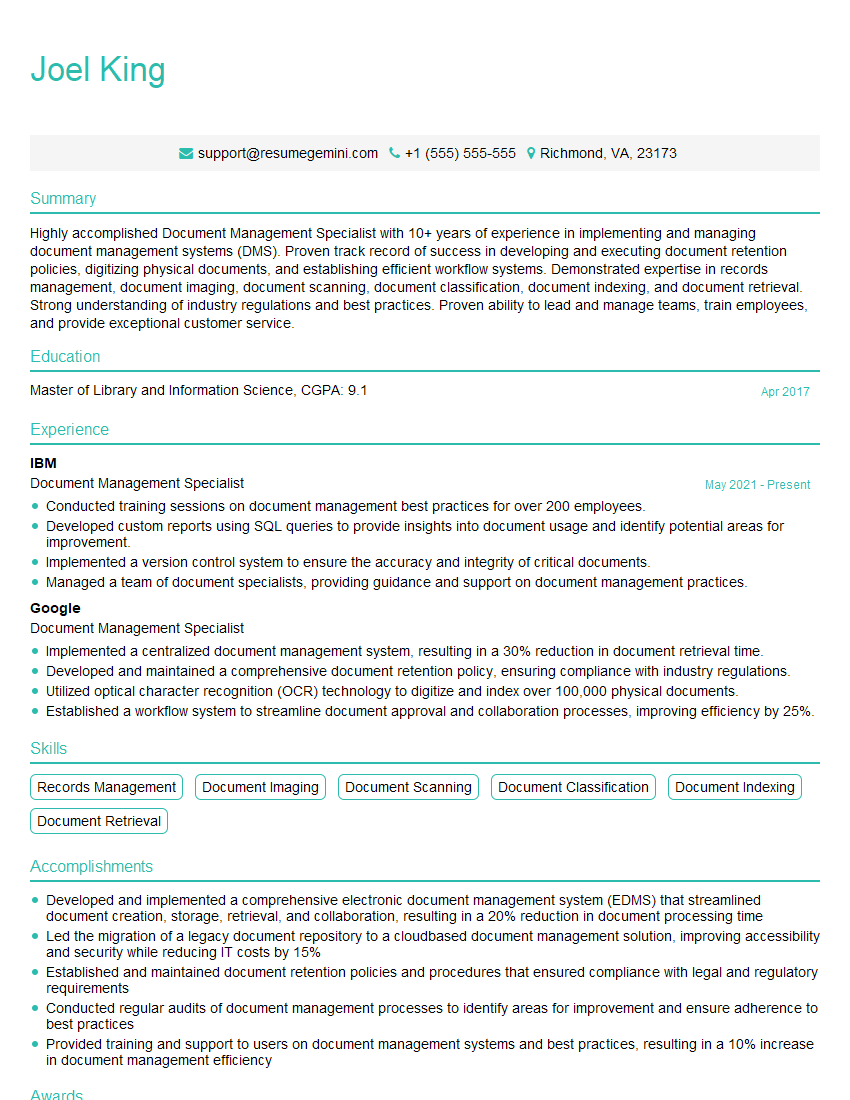
Mastering troubleshooting and resolving printing issues is a highly valuable skill in many IT roles, demonstrating your problem-solving abilities and technical expertise. This skillset significantly boosts your career prospects, opening doors to more advanced positions and higher earning potential. To maximize your chances of landing your dream job, focus on creating a strong, ATS-friendly resume that highlights your relevant skills and experience. ResumeGemini is a trusted resource that can help you build a professional and impactful resume tailored to your specific experience. Examples of resumes tailored to Troubleshooting and resolving printing issues are available to help you get started.
Explore more articles
Users Rating of Our Blogs
Share Your Experience
We value your feedback! Please rate our content and share your thoughts (optional).
What Readers Say About Our Blog
Very informative content, great job.
good